Vimble 2 - Camera Tripod FeiyuTech - Free user manual and instructions
Find the device manual for free Vimble 2 FeiyuTech in PDF.


| Product Type | 3-Axis Handheld Stabilized Gimbal for Action Camera |
| Brand / Model | FeiyuTech / Vimble 2 |
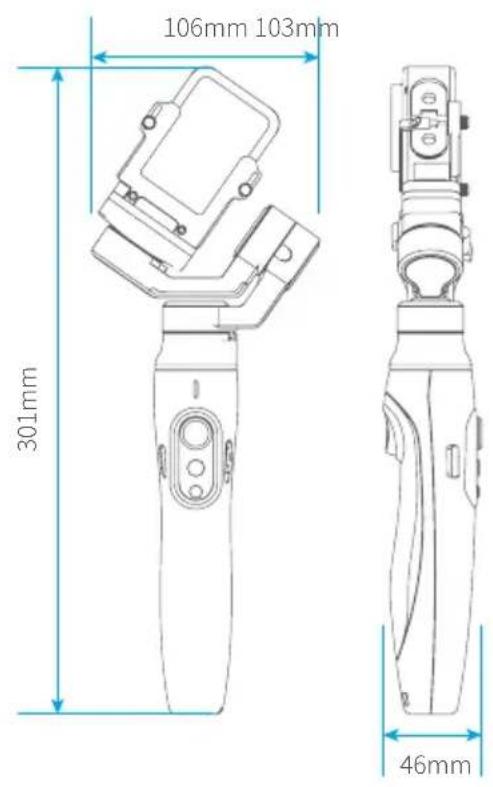
| Dimensions (Storage) | 106 x 301 x 46 mm |
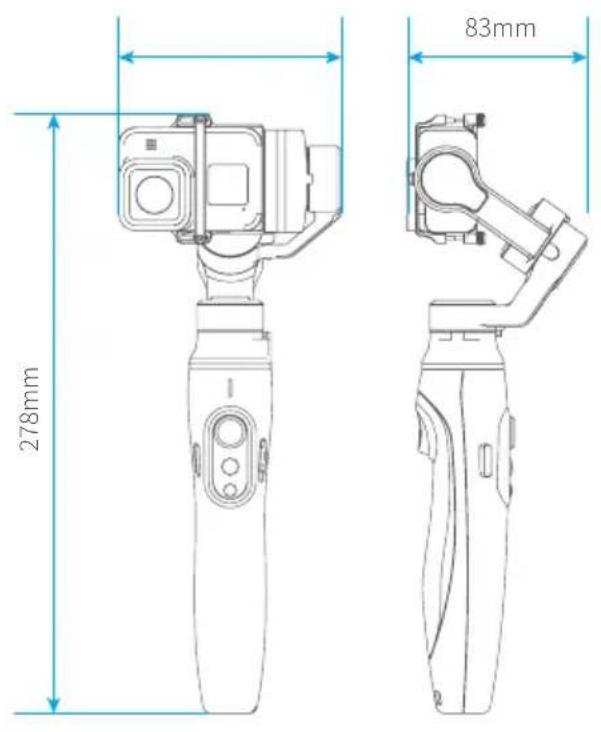
| Dimensions (Working) | 103 x 278 x 83 mm |
| Weight (Net) | 279 g (including batteries) |
| Maximum Payload | 135 g |
| Battery / Charging | Built-in; Micro USB charging; 10h standby |
| Charging Time | Approx. 2 hours (from manual typical) |
| Axis Range (Tilt) | 330° |
| Axis Range (Roll) | 195° |
| Axis Range (Pan) | 330° |
| Working Modes | Pan Mode, Follow Mode, Lock Mode, All-Follow Mode |
| Shooting Modes | Landscape, Portrait, Selfie (180° rotation) |
| Control Methods | Joystick, Function Button, Slide Button, Shutter Button, Trigger Button |
| App Connectivity | Feiyu ON (iOS 9.0+, Android 6.0+) via Wi-Fi |
| Compatible Cameras | GoPro HERO8/7/6/5, SJCAM, Yi 4K, etc. (up to 135g) |
| Accessories Included | Micro USB Cable, Wrist Strap, Tripod |
| Extendable Handle | Yes, up to 183 mm extension |
| Maintenance | Keep dry; avoid extreme temperatures; recharge before first use |
| Safety Notes | Do not block motors; not waterproof unless specified; do not disassemble |
Frequently Asked Questions - Vimble 2 FeiyuTech
User questions about Vimble 2 FeiyuTech
0 question about this device. Answer the ones you know or ask your own.
Ask a new question about this device
Download the instructions for your Camera Tripod in PDF format for free! Find your manual Vimble 2 - FeiyuTech and take your electronic device back in hand. On this page are published all the documents necessary for the use of your device. Vimble 2 by FeiyuTech.
USER MANUAL Vimble 2 FeiyuTech
3-Axis Stabilized Handheld Gimbal for Action Camera
Instructions
EN V2.1
Catalogue
1. Overview 2
2. Start to Use 4
2.1 Charging 4
2.2 Unlock/Lock 4
2.3 Mount Action Camera 5
2.4 Power ON/OFF 5
2.5 Extend and Reset the Handle 6
3. Function Operation 6
3.1 Function / Modes Introduction 6
3.2 Joystick Operation 7
3.3 Function Button Operation 8
3.4 Slide Button Operation 8
3.5 Shutter Button Operation 9
3.6 Trigger Button Pperation 9
3.7 Gimbal Initialization 10
3.8 Manual Lock 11
3.9 Portrait Mode 11
3.10 Light Indicator 12
4. Feiyu ON App 12
4.1 Download the Feiyu ON App 12
4.2 Connect Feiyu ON App 13
4.3 Firmware Upgrade 14
5. Action camera connection steps 15
6. Specifications 16
Disclaimer 17
3-Axis stabilized handheld gimbal for action camera with small size and portable, extendable feature. It supports portrait mode and landscape mode, well control the recording/photo/timelapes of action camera.
Suggestion
Vimble 2A includes below information, please read the information before using the gimbal
- Quick start guide
- Online instruction
- Tutorial

The tutorial videos can be watched at FeiyuTech official website or scan the QR code at the right side.
https://www.feiyu-tech.com/play/
Download Feiyu ON App
Feiyu ON App is needed while using the gimbal. Please download Feiyu ON at your smartphone App Store or scan the QR code as below. See P12 for more.

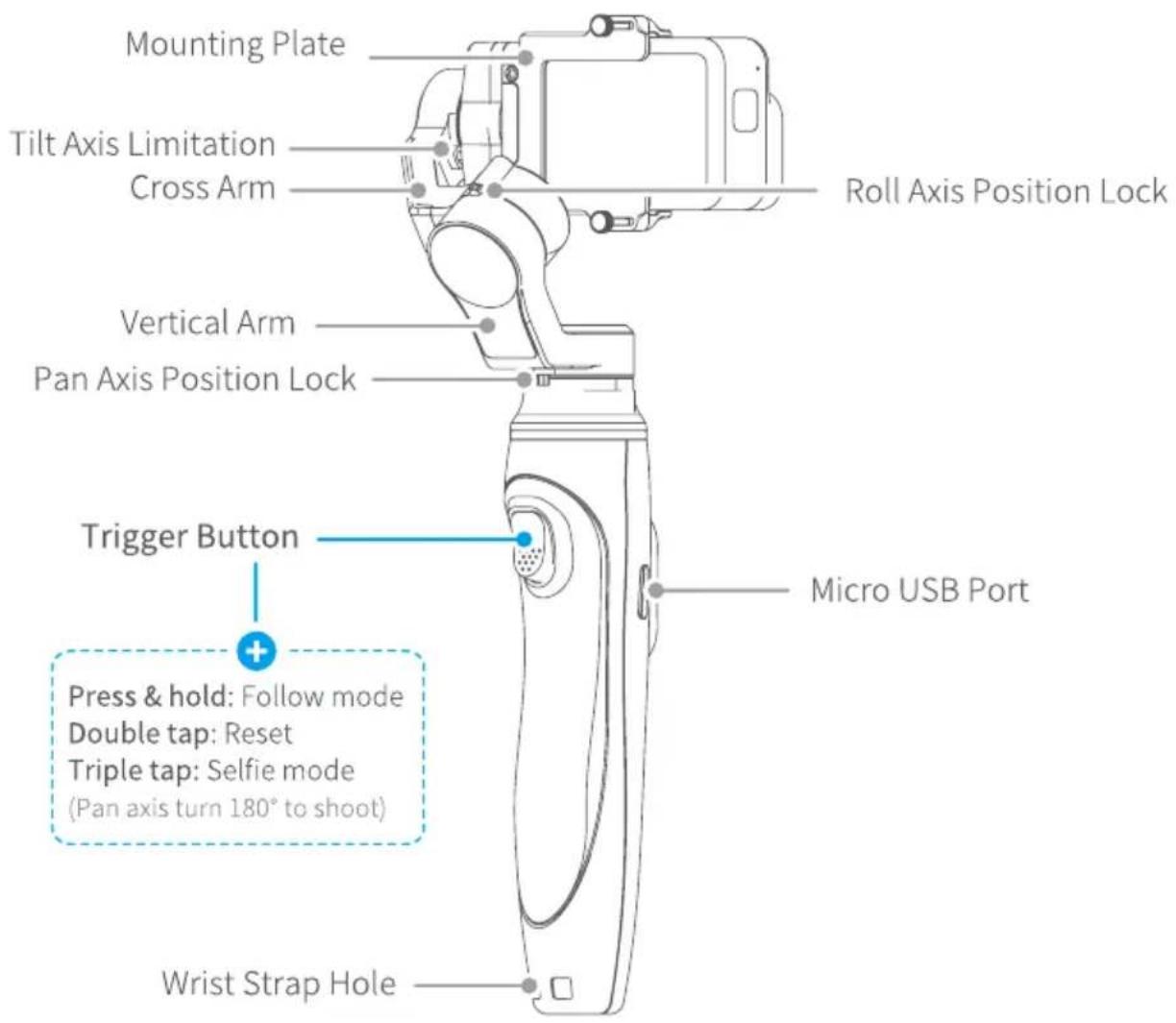
1. Overview
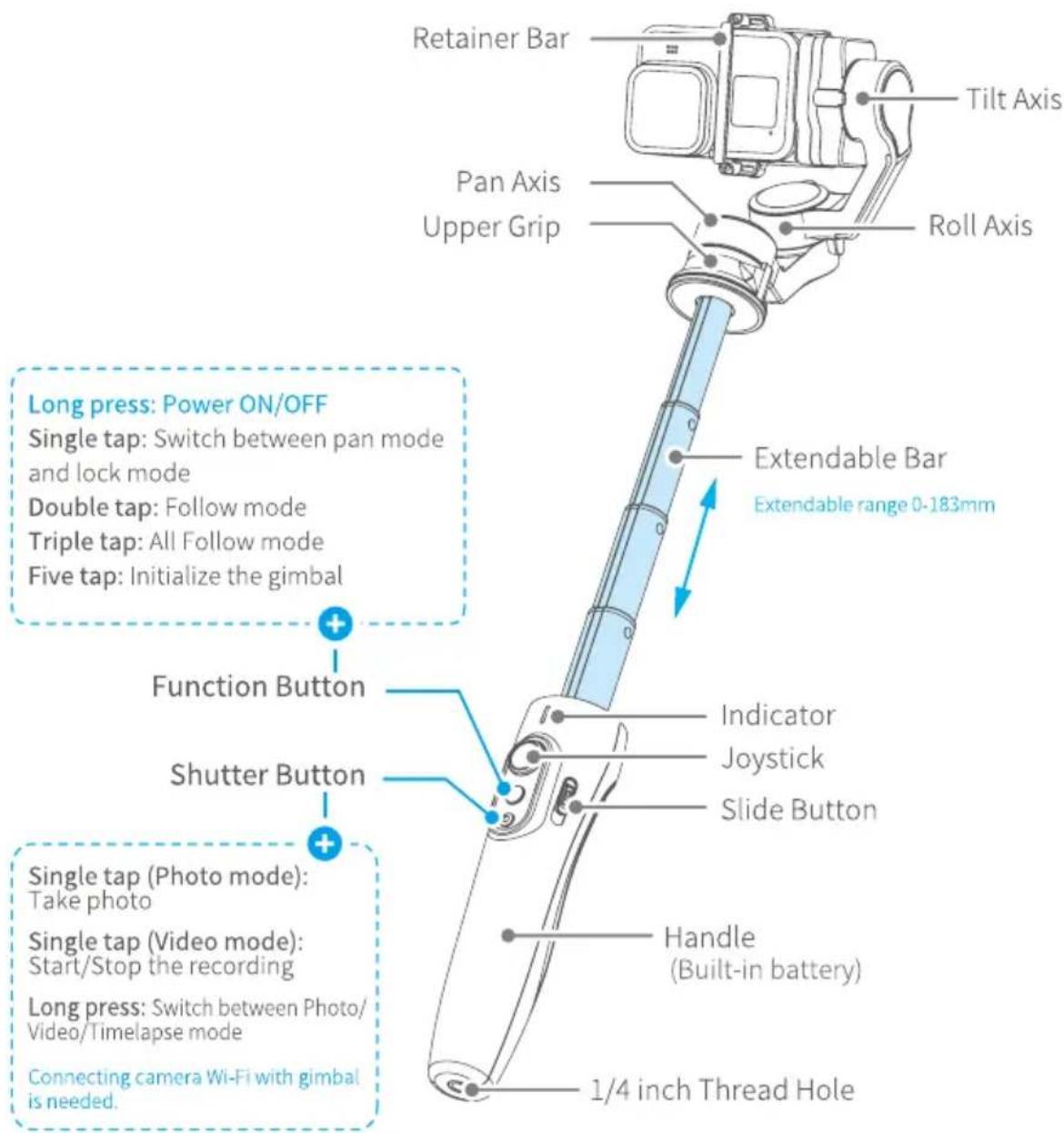
* The gimbal dose NOT include action camera.
Standard Accessories

Micro USB Cable×1
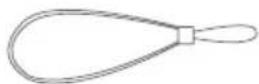
Wrist Strap×1
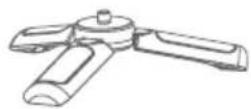
Tripod×1
2. Start to Use
!TIPS
(1) Please fully charge gimbal before power on for the first time.
(2) If the power is too low, the indicator will flash red for three times every five seconds. It is recommended to charge it immediately.
(3) When not in use, please turn off the gimbal.
(4) Unlock pan axis position lock & roll axis position lock before using.
2.1 Charging
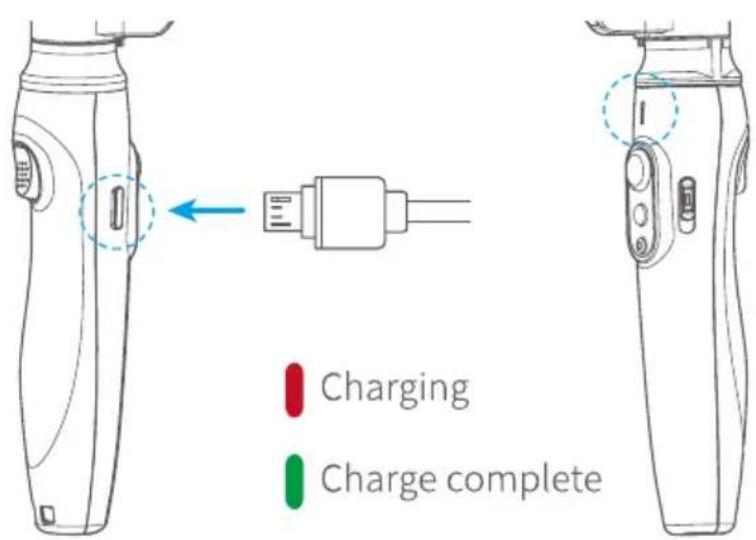
When charging with Micro USB cable, indicator keeps solid red. When fully charged, the indicator keeps solid green.
2.2 Unlock / Lock
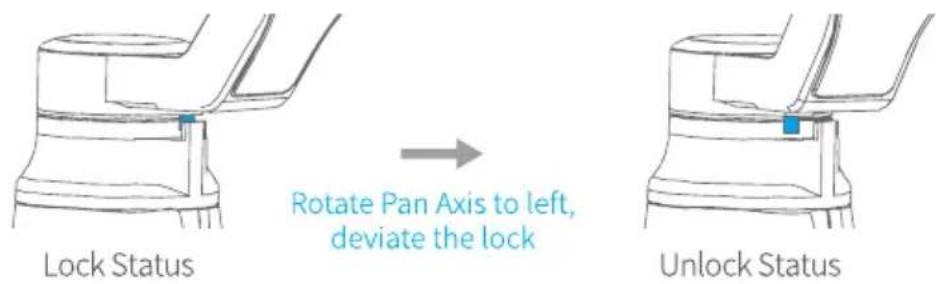
When the axes are lock, please turn the motor to left or right to unlock them with the guidance of Lock & Unlock symbol.
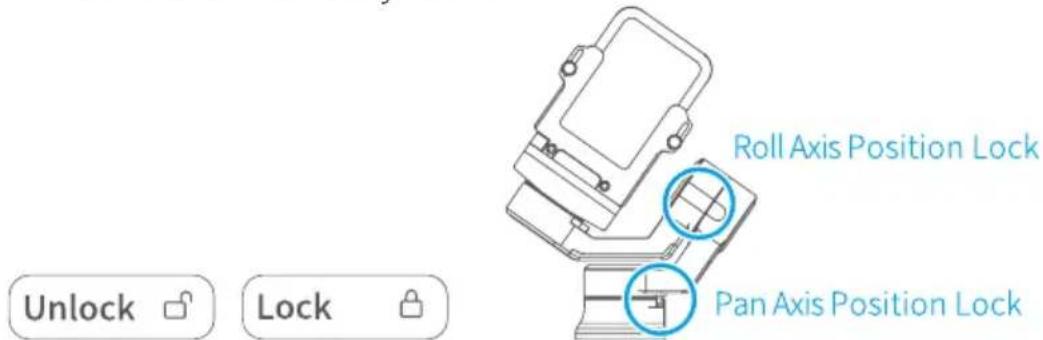
Take the pan axis position lock for example.
2.3 Mount Action Camera
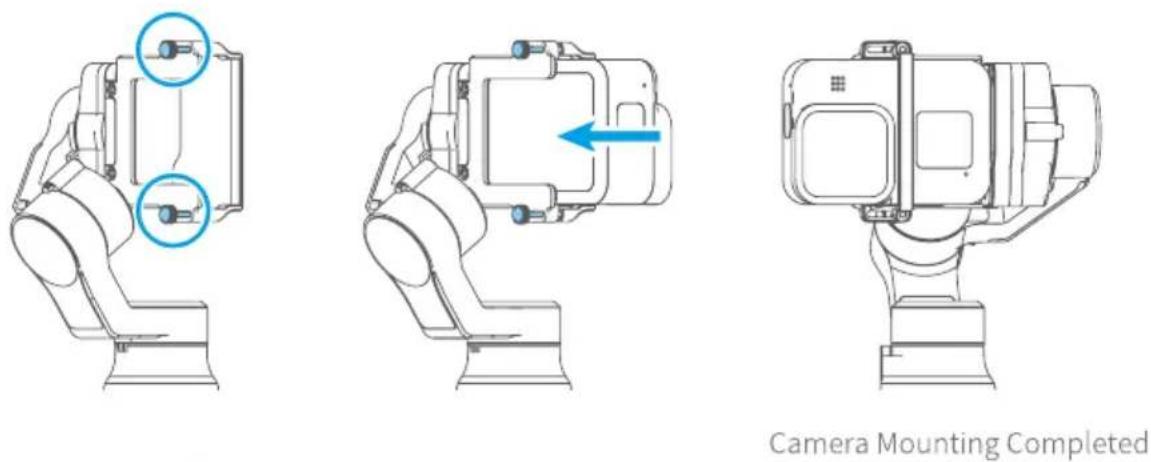
Take the GoPro HERO8 camera for example.
1) Loosen the thumb screw. 2) Put the camera on mounting plate, then tighten the camera with retainer bar and screw.
* It is recommended to install GoPro HERO8 upsidedown as pictured below.
2.4 Power ON/OFF
NPS:
(1) Unlock pan axis position lock & roll axis position lock before using.
(2) Tighten action camera before power on gimbal.
Power ON/Power OFF:
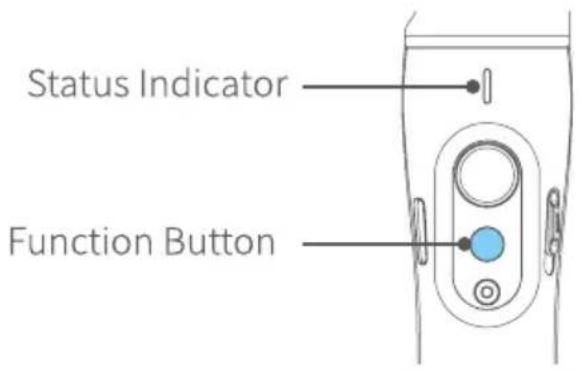
Long press function button, release the button after hearing beep sound.
2.5 Extend and Reset the Handle
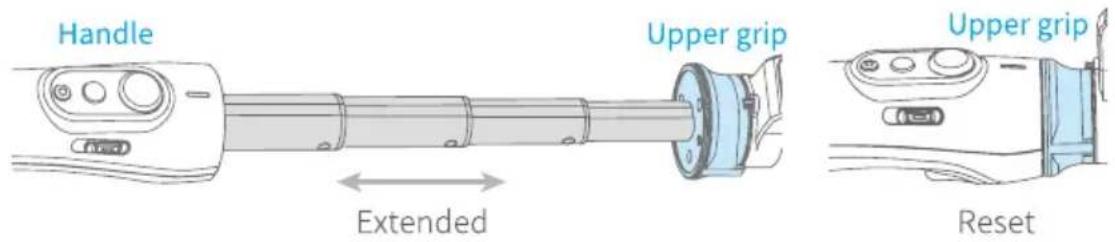
1) Hold the handle with one hand, hold upper grip with other hand.
2) Extending: Pull the extendable bar out to suitable length (range from 0mm to 183mm)
Reset: Push upper grip to make the extendable bar down to handle part.
3. Function Operation
3.1 Function / Modes Introduction
| Mode Function | |
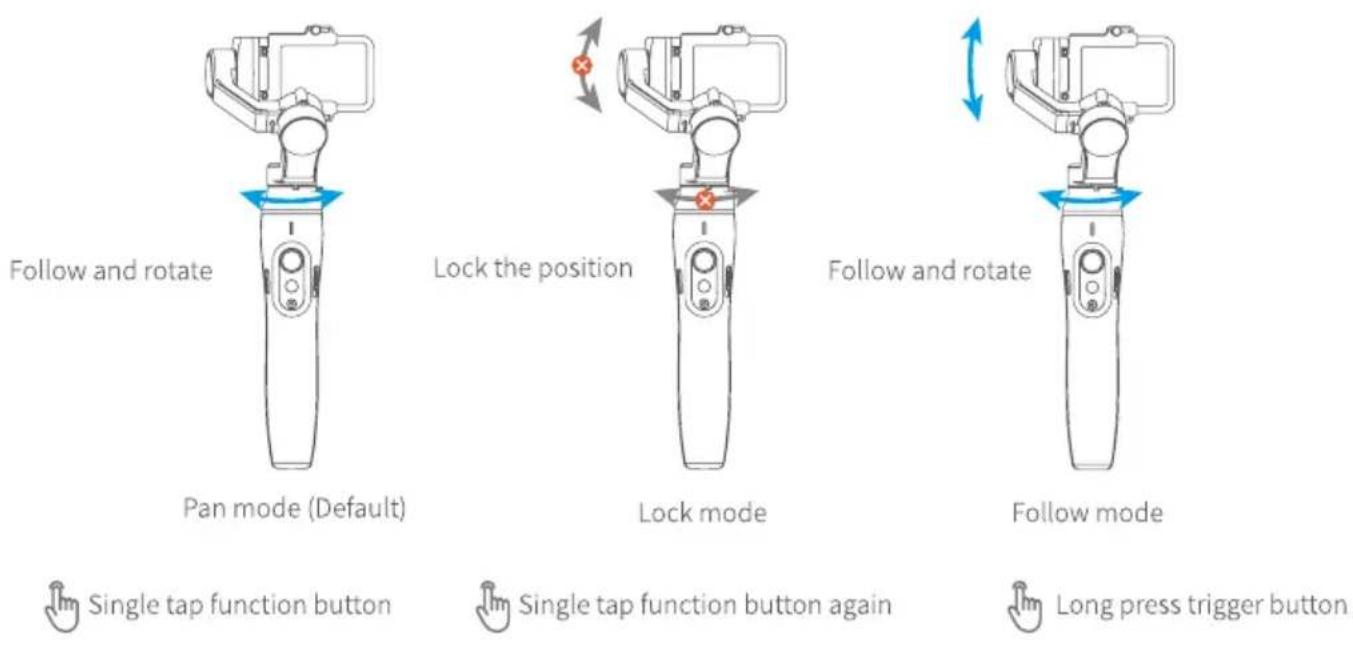
| Pan Mode (Default mode) | The roll and tilt direction are fixed, and the camera moves according to the left-right movements of the user's hand. |
| Follow Mode | The roll direction is fixed, and the smartphone moves according to the left-right movements, up-down movements of the user's hand. |
| Lock Mode The orientation of the camera is fixed. | |
| Reset | Return to pan mode, three axises return to default position. |
| Manual Lock | Manually rotate the camera to a certain pan angle and tilt angle, and wait for half second to make the camera stay at that position. |
| Landscape and Portrait Shot | Assist landscape or portrait shooting. |
3.2 Joystick Operation
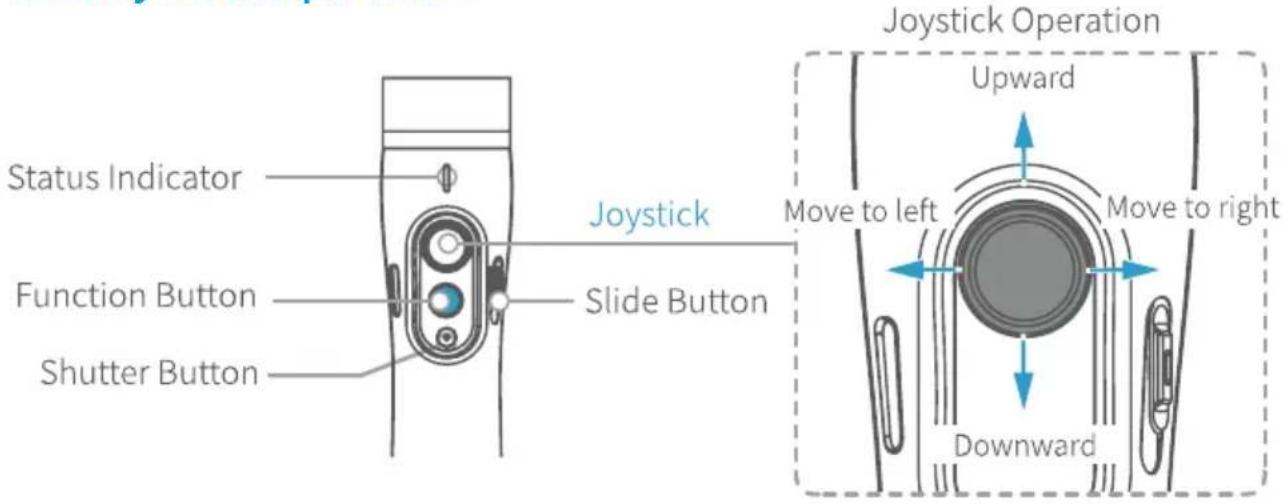
| Joystick Operation Function | |
| Upward Camera | lens upward |
| Downward Camera | ra lens downward |
| Move to left Camera | lens move to left |
| Move to right Camera | lens move to right |
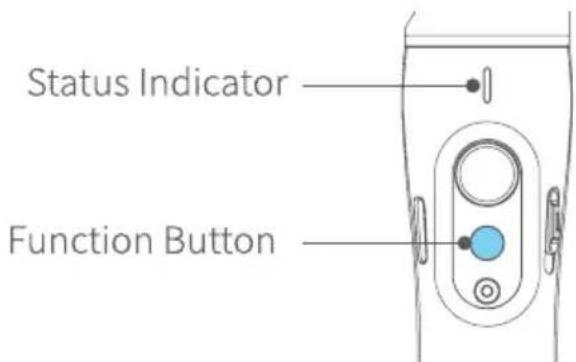
3.3 Function Button Operation
Identify the current working mode through status indicator.
| Function Button Operation | Function Indicator Status | |
| Single Tap | Switch Between Pan Mode/ Lock Mode | Pan Mode |
| Lock Mode | ||
| Double Tap | Follow Mode (Pan and Tilt Axis Will Follow) | |
| Triple Tap | All Follow Mode (pan, tilt and roll axis will follow) | / |
| Five Tap Gimbal Initialization | Motors will stop working after the tone. Status indicator turns solid blue. The blue light will flash three times to indicate end of the reset process. After the initialization is successful, single tap the function button again to wake up. | |
| Long Press Power On / Off | Power On | |
| Power Off | ||
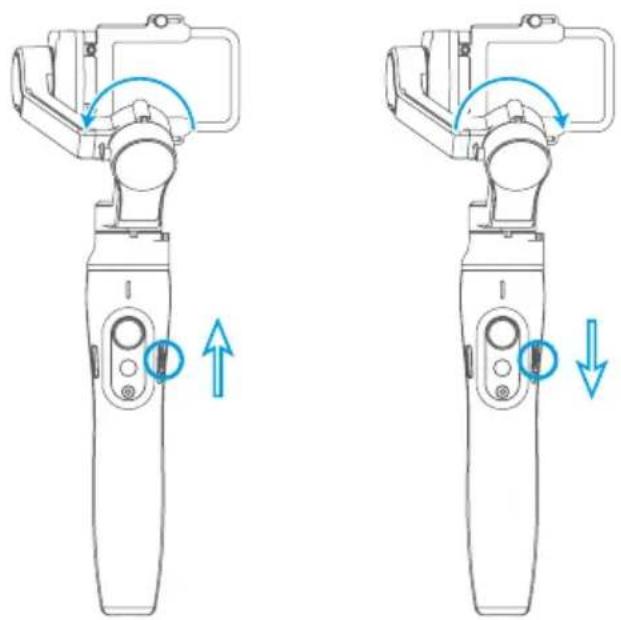
3.4 Slide Button Operation
natural_image
Two identical line drawings of a hand holding a device, showing the left and right views with blue arrows indicating motion or movement (no text or symbols)| Slide Button Operation | Function |
| Push-Up Roll axis rotate counterclockwise. | |
| Push-Down Roll axis rotate clockwise. | |
3.5 Shutter Button Operation
| Shutter Button Operation | Function | Status Indicator | |
| Single Tap | In Photo Mode Take Photo / | ||
| In Video Mode Start/stop Recording / | |||
| Long Press | Long press 3 seconds to switch among Photo/Video/Timelapse mode | / | |
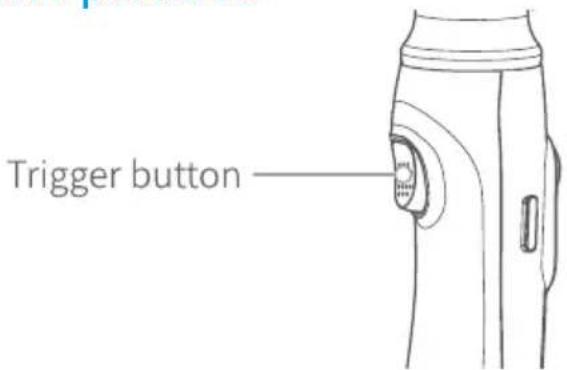
3.6 Trigger Button Pperation
| Trigger Button Operation | Function Status Indicator | |
| Press & Hold | Follow Mode* (Release trigger button enter into previous mode) | / |
| Double Tap Reset | ||
| Triple Tap | Selfie Mode (Pan axis turn 180° to shoot) | / |
* The button's operation function can be modified on App, after connecting Feiyu ON App succeeded.
3.7 Gimbal Initialization
You can initialize your gimbal when:
a. When camera is not balance.
b. If not use for a long period of time.
c. In case of extreme temperature variations.
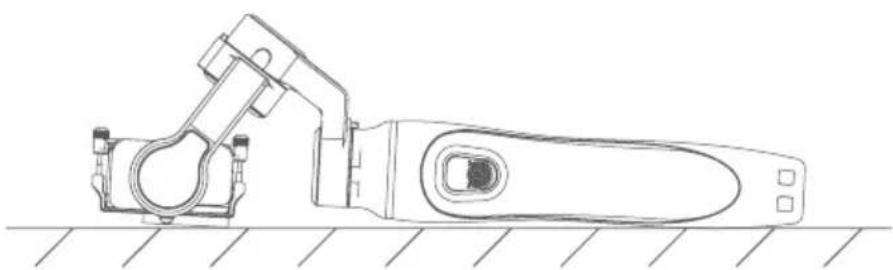
Steps: (1) Five tap function button, the motors will stop working after the tone. Status indicator turns solid blue.
(2) Place the gimbal on a flat, horizontal surface. The gimbal will automatically reset a few seconds later, after detecting no movement. The blue light will flash three times to indicate end of the reset process.
natural_image
Technical line drawing of a mechanical device with mounting bracket and handle (no text or symbols)(3) After the initialization is successful, tap the function button to wake up.
Note: if the initialization is not successful, tap the function button to wake up. Restart initialization process.
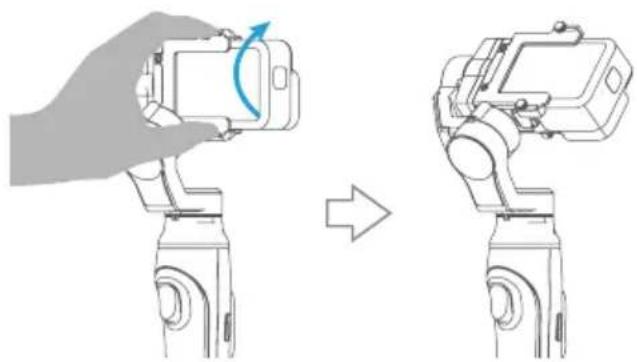
3.8 Manual Lock
Manually rotate the camera to a certain pan angle and tilt angle, and wait for half second to make the camera stay at that position.
natural_image
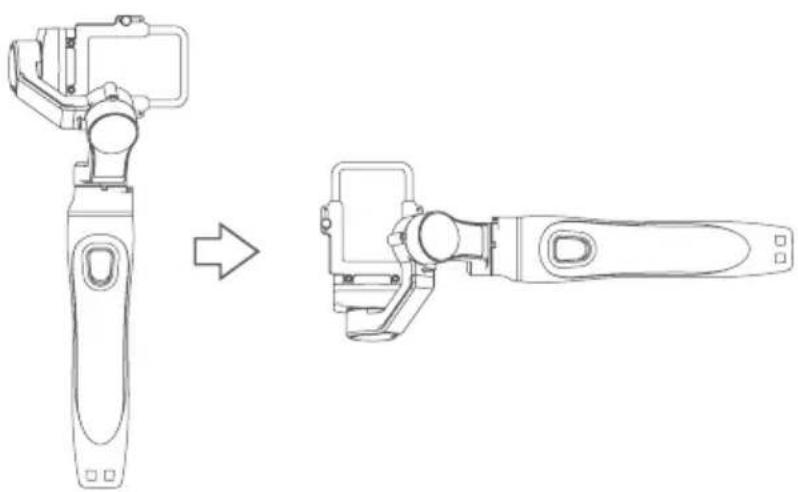
Diagram showing a hand holding a smartphone while moving on a robotic arm, with no visible text or symbols.3.9 Portrait Mode
Default (Rotate the handle ±70^ with the roll motor as the center to enter portrait mode automatically)
natural_image
Line drawing of a mobile phone tool being processed, showing the left before and right after assembly (no text or symbols)3.10 Light Indicator
| Indicator Status Description Instruction | ||
 | Blue light flash once | Pan mode / Reset |
 | Constant Blue light | Lock Mode / Initialization |
 | Blue light flash twice | Follow Mode |
 | Blue light keeps flashing | Initialization Failure / Malfunction |
 | Green light flashes once | Photo / Video |
 | Green light change to blue | Power On |
 | Red light turn off | Power off |
 | Red light flashes three times | Low power |
 | Red light keeps flashing | Gimbal powering off because of low power |
 | Green light flash twice for twice | Camera connected |
 | Red light flash twice for twice | Camera disconnected |
 | Green light flash twice return to blue light keeps flashing | Wifi connected |
4. Feiyu ON App
4.1 Download the Feiyu ON App
Scan the QR code to download the app, or search for "Feiyu ON" in the App Store or Google Play. Watch tutorials in video skill page on Feiyu ON.
* Requires iOS 9.0 or above, Android 6.0 or above.

iOS Version

Android Version
4.2 Connect Feiyu ON App
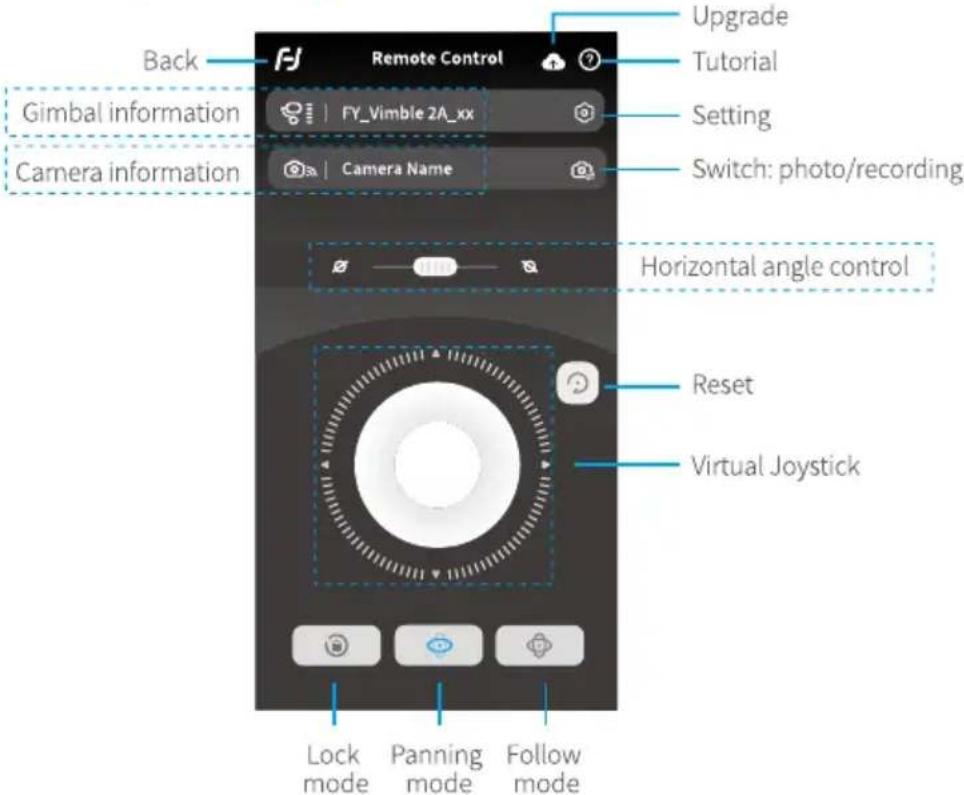
Steps:
(1) Turn on the gimbal.
(2) turn the camera's Wifi (usually in camera's "setting-network-Wifi" to control), when the screen shows the name and the password of the Wifi, stay at interface
(3) Log in Feiyu ON App (Register for the first time).
(4) The App will search equipment nearby, and it will show "connection succeed" after a while. If it's fail, please try to exit and log in the App again.
(5) Tap "connect to camera" in the screen, and choose your camera model in the list. (Tips: App embedded many firmware for different band, and default to use the firmware which you used last time. For example, if you used brand A's camera last time, and use brand B's camera for this time, it will ask you to re-download the firmware, please follow the prompts.
(6) Choose the right Wifi of the camera and enter the password according the information that you get from step 2. You can control the gimbal after the screen shows "connection succeed", including remote control the gimbal to move, switch working mode and set parameters, etc. If the connection failed, please confirm the Wi-Fi password are entered correctly. Or try to exit and log in the App again.
4.3 Firmware Upgrade
Upgrade the firmware through the Feiyu ON App.
(1) Click the icon on the top left
(2) Select upgrade type.
(3) Follow the prompts to upgrade the firmware.
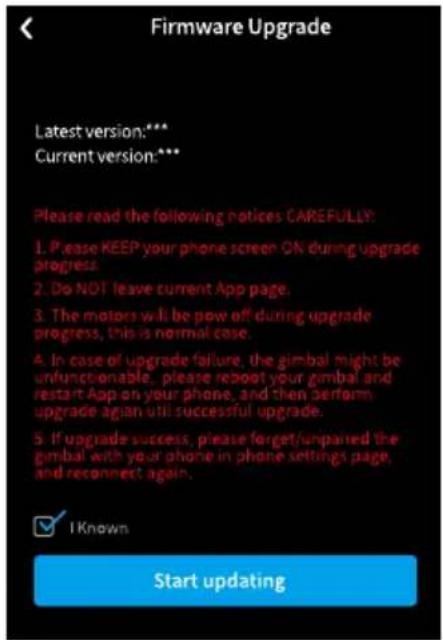
Tips: the gimbal has upgrade protection, restart the gimbal after the upgrade is failed, then the gimbal can reset to the last firmware version, and users can connect to the APP to upgrade again. Part of the new functions need to upgrade 2 and more firmware to achieve, so it is recommended to upgrade firmware frequently to keep them are the latest versions.
Upgrade type introductions:
| Keyboard Update | Repair / update or newly add button/touch screen/ interaction functions, update more compatibility cameras which can be controlled through WIFI, repair few bugs about camera control through WIFI, and etc. |
| Bluetooth Firmware Update | Repair / update or newly add Bluetooth functions, update more compatibility cameras, and etc. |
| Gimbal Update | Repair / update or newly add gimbal control /function / parameter and etc. |
5. Action camera connection steps
| Action Camera Steps | |
| Ricca | 1. Preferences → Wi-Fi (ON).2. Feiyu ON APP → FY_VIMBLE 2A_xx → ➔ ➔ ➔ ➔ ➔ ➔ ➔ ➔ ➔ ➔ ➔ ➔ ➔ ➔ ➔ ➔ ➔ ➔ ➔ ➔ ➔ ➔ ➔ ➔ ➔ ➔ ➔ ➔ ➔ ➔ ➔ ➔ ➔ ➔ ➔ ➔ ➔ ➔ ➔ ➔ ➔ ➔ ➔ ➔ ➔ ➔ ➔ ➔ ➔ ➔ ➕ |
| SJCAM(SJ6 LEGEND) | 1. Preferences → Wi-Fi (ON).2. Feiyu ON APP → FY_VIMBLE 2A_xx → ➔ ➔ ➔ ➔ ➔ ➔ ➔ ➔ ➔ ➔ ➔ ➔ ➔ ➔ ➔ ➔ ➔ ➔ ➔ ➔ ➔ ➔ ➔ ➔ ➔ ➔ ➔ ➔ ➔ ➔ ➔ ➔ ➔ ➔ ➔ ➔ |
| YI 4K | 1. Setting → Wi-Fi (ON) → Wi-Fi Frequency(2.4G) → Wi-Fi Info.2. Feiyu ON APP → FY_VIMBLE 2A_xx → ➔ ➔ ➔ ➔ ➔ ➔ ➔ ➔ ➔ ➔ ➔ ➔ ➔ ➔ ➔ ➔ ➔ ➔ ➔ ➔ ➔ ➔ ➔ ➔ ➔ ➔ ➔ ➔ ➔ ➔ ➔ ➔ ➔ ➔ ➔ ➔ ➔ ➔ ➔ ➔ ➔ |
| GoPro HERO5 | 1. Preferences → CONNECT → Connect New Device → GoPro App.2. Feiyu ON APP → FY_VIMBLE 2A_xx → ➔ ➔ ➔ ➔ ➔ ➔ ➔ ➔ ➔ ➔ ➔ ➔ ➔ ➔ ➔ ➔ ➔ ➔ ➔ ➔ ➔ ➔ ➔ ➔ ➔ ➔ ➔ ➔ ➔ ➔ ➔ ➔ ➔ ➔ ➔ ➔ ➔ ➔ ➔ ➔ ➕ |
| GoPro HERO6 | 1. Preferences → Connections → Wi-Fi Band (2.4GHz) → Connect New Device → GoPro App.2. Feiyu ON APP → FY_VIMBLE 2A_xx → ➔ ➔ ➔ ➔ ➔ ➔ ➔ ➔ ➔ ➔ ➔ ➔ ➔ ➔ ➔ ➔ ➔ ➔ ➔ ➔ ➔ ➔ ➔ ➔ ➔ ➔ ➔ ➔ ➔ ➔ ➔ ➔ ➔ ➔ ➔ ➔ ➕ |
| GoPro HERO7Black | 1. Preferences → Connections → Wireless Connections (ON) → Wi-Fi Band (2.4GHz) → Connect Device → GoPro App ➔ ➔ ➔ ➔ ➔ ➔ ➔ ➔ ➔ ➔ ➔ ➔ ➔ ➔ ➔ ➔ ➔ ➔ ➔ ➔ ➔ ➔ ➔ ➔ ➔ ➔ ➔ ➔ ➔ ➔ ➔ ➔ ➔ ➔ ➔ ➔ ➔ ➔ ➔ ➔ ➔ ➔ ➔ ➔ ➔ ➔ ➔ ➔ ➔ ➌ |
| GoPro HERO7Silver | 1. Preferences → Connections → Wi-Fi Band (2.4GHz) → Connect GoPro APP ➔ ➔ ➔ ➔ ➔ ➔ ➔ ➔ ➔ ➔ ➔ ➔ ➔ ➔ ➔ ➔ ➔ ➔ ➔ ➔ ➔ ➔ ➔ ➔ ➔ ➔ ➔ ➔ ➔ ➔ ➔ ➔ ➔ ➔ ➔ ➔ ➔ ➔ ➔ ➔ ➔ ➔ ➔ ➔ ➔ ➔ ➔ ➔ ➔ ➄ |
| GoPro HERO7White | 1. Preferences → Connections → Wi-Fi Band(2.4GHz) → Connect GoPro APP ➔ ➔ ➔ ➔ ➔ ➔ ➔ ➔ ➔ ➔ ➔ ➔ ➔ ➔ ➔ ➔ ➔ ➔ ➔ ➔ ➔ ➔ ➔ ➔ ➔ ➔ ➔ ➔ ➔ ➔ ➔ ➔ ➔ ➔ ➔ ➔ ➔ ➔ ➔ ➔ ➔ ➔ ➔ ➔ ➄ |
| GoPro HERO8Black | 1. Preferences → General → Auto Power Off (Never) → Connections → Wireless Connections (ON) →Wi-Fi.Band (2.4GHz) → Connect Device.2. GoPro APP → Control Your Gopro → Join →Trust.3. Preferences → Connections → Camera Info.4. Feiyu ON APP → FY_VIMBLE 2A_xx → ➔ ➔ ➔ ➔ ➔ ➔ ➔ ➔ ➔ ➔ ➔ ➔ ➔ ➔ ➔ ➔ ➔ ➔ ➔ ➔ ➔ ➔ ➔ ➔ ➔ ➔ ➔ ➔ ➔ ➔ ➔ ➔ ➔ ➔ ➔ ➔ ➔ ➔ ➔ ➔ ➔ ➕ |
The icon lit up after the connection succeed.

6. Specifications
Product Dimensions
106mm×301mm×46mm (Storage status)
103mm×278mm×83mm (Working status)
Net Gimbal Weight 279g (Including the batteries)
Max. Payload 135g
Max. Tilt Range 330°
Max. Roll Range 195°
Max. Pan Range 330°
Standby Time 10 Hours
Cameras
GoPro HERO 8/7/6/5, SJCAM OSMO Action, Yi Cam, other cameras with similar dimensions
Disclaimer
Thanks for using Feiyu Gimbal. The information in this document affects your safety and your legal rights and responsibilities. Read the entire document carefully to ensure proper configuration before use. Failure to read and follow instructions and warnings in this document may result in serious injury to yourself or others, or damage to your products or damage to other objects in the vicinity.
By using this product, you hereby signify that you have read this disclaimer and warning carefully and that you understand and agree to abide by the terms and conditions herein. You agree that you are solely responsible for your own conduct while using this product, and for any consequences thereof. You agree to use this product only for purposes that are proper and in accordance with all applicable laws, rules, and regulations, and all terms, precautions, practices, policies and guideline FeiyuTech has made and may make available. FeiyuTech accepts no liability for damage, injury or any legal responsibility incurred directly or indirectly from the use of product.
FeiyuTech will not provide any service for any product obtained from abnormal channels.
Notice
- Make sure motor spinning is not blocked by external force when gimbal is power on.
- DO NOT contact the gimbal with water or other liquid if the gimbal is not mark waterproof or splash-proof. Waterproof and splash-proof product DO NOT contact sea water or other corrosive liquid.
- DO NOT disassemble the gimbal except marked detachable. It need send to FeiyuTech after-sales or authorized service center to fix it if you accidentally disassemble it and cause abnormal work. The relevant costs are borne by user.
- Prolonged continuous operation may cause the motor surface temperature to rise, please operate carefully.
- DO NOT drop or strike the gimbal. If the battery is abnormal, contact Feiyu After-sales support.
Storage and Maintenance
- Keep the gimbal out of the reach of children and pets.
- DO NOT leave the gimbal near heat sources such as a furnace or heater. DO NOT leave the gimbal inside of a vehicle on hot days.
-
Please storage the gimbal in dry environment.
-
DO NOT overcharge or overuse the battery, otherwise it will cause damage to the battery core.
- Never use the gimbal when the temperature is too high or too low.
Official Social Media



Website Facebook Youtube


Twitter Instagram
Website: www.feiyu-tech.com Facebook: www.facebook.com/feiyutech YouTube Channel: www.youtube.com/c/Feiyu-tech Twitter: www.twitter.com/feiyutech Instagram: www.instagram.com/FeiyuTech Online Store: store.feiyu-tech.com

FeiyuTech

FEIYUTECH
Guilin Feiyu Technology Incorporated Company
For more information, please visit our official website www.feiyu-tech.com
E-mail: service@feiyu-tech.com Tel: +86 773 2320865
Due to software and hardware improvements, your actual product might differ from the descriptions and pictures in this user manual. You can get the latest user manual from the official website.
- Catalogue
- Overview 2
- Start to Use 4
- Function Operation 6
- Feiyu ON App 12
- Action camera connection steps 15
- Specifications 16
- Disclaimer 17
- Suggestion
- Download Feiyu ON App
- Overview
- Standard Accessories
- Start to Use
- !TIPS
- Charging
- Unlock / Lock
- Mount Action Camera
- Power ON/OFF
- NPS:
- Power ON/Power OFF:
- Extend and Reset the Handle
- Function Operation
- Function / Modes Introduction
- Joystick Operation
- Function Button Operation
- Slide Button Operation
- Shutter Button Operation
- Trigger Button Pperation
- Gimbal Initialization
- Manual Lock
- Portrait Mode
- Light Indicator
- Feiyu ON App
- Download the Feiyu ON App
- Connect Feiyu ON App
- Steps:
- Firmware Upgrade
- Action camera connection steps
- Specifications
- Disclaimer
- Notice
- Storage and Maintenance
- FeiyuTech
Brand : FeiyuTech
Model : Vimble 2
Category : Camera Tripod