
AU-MMSA - Soundcard Sabrent - Free user manual and instructions
Find the device manual for free AU-MMSA Sabrent in PDF.


| Product Type | USB Sound Card Adapter |
| Model | AU-MMSA |
| Brand | Sabrent |
| Dimensions | Approx. 2.5 x 0.8 x 0.4 inches |
| Weight | About 0.2 oz |
| Audio Input | 3.5mm microphone (pink) |
| Audio Output | 3.5mm headphone/speaker (green) |
| Interface | USB 2.0 |
| Power Source | USB bus-powered |
| Compatibility | Windows XP/Vista/7/8/10, Mac OS X |
| Sample Rate | Up to 48 kHz |
| Bit Depth | 16-bit |
| Plug and Play | Yes |
| Cable Length | Approx. 0.5 ft |
| Color | Black |
| Material | Plastic |
| Warranty | 1 year |
| Included Accessories | Adapter, user manual |
| Special Features | External audio solution for desktops and laptops |
Frequently Asked Questions - AU-MMSA Sabrent
User questions about AU-MMSA Sabrent
0 question about this device. Answer the ones you know or ask your own.
Ask a new question about this device
Download the instructions for your Soundcard in PDF format for free! Find your manual AU-MMSA - Sabrent and take your electronic device back in hand. On this page are published all the documents necessary for the use of your device. AU-MMSA by Sabrent.
USER MANUAL AU-MMSA Sabrent
SABRENT Connecting Differently™
USB Sound Adapters
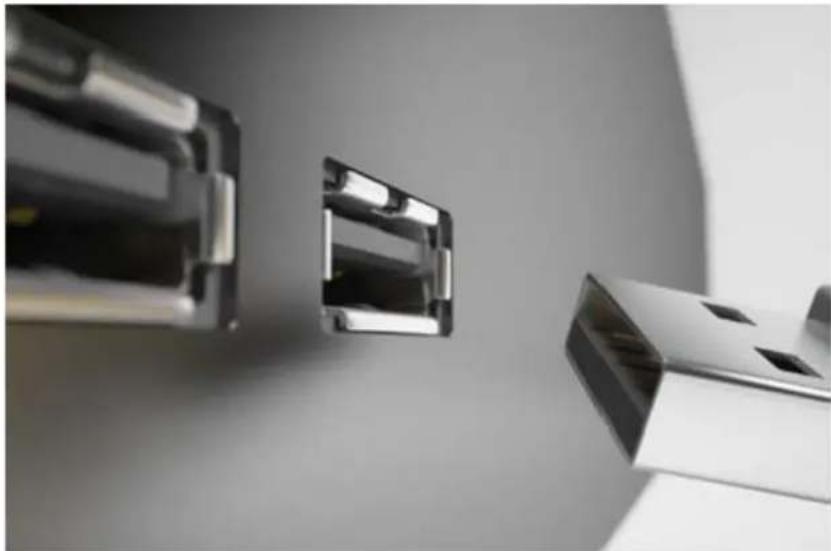
16 Connect Sound Adapter to available USB port on your Windows or Mac OS computer6
natural_image
Close-up of three metallic USB connectors with reflective surfaces, no visible text or symbols26 Connect a Microphone to the Pink hole when using with Microphone6
natural_image
Simple black silhouette of a microphone (no text or symbols)36 Connect Speaker/Headphone to the Green hole when using with Speaker/Headphone6
natural_image
Black headset icon on white background (no text or symbols)Speakers/Headphone setup on Windows
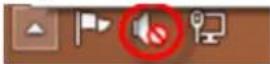
16 Right click on the Speaker icon on your taskbar6
26 Left click on Playback devices6
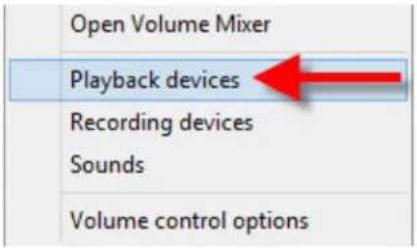
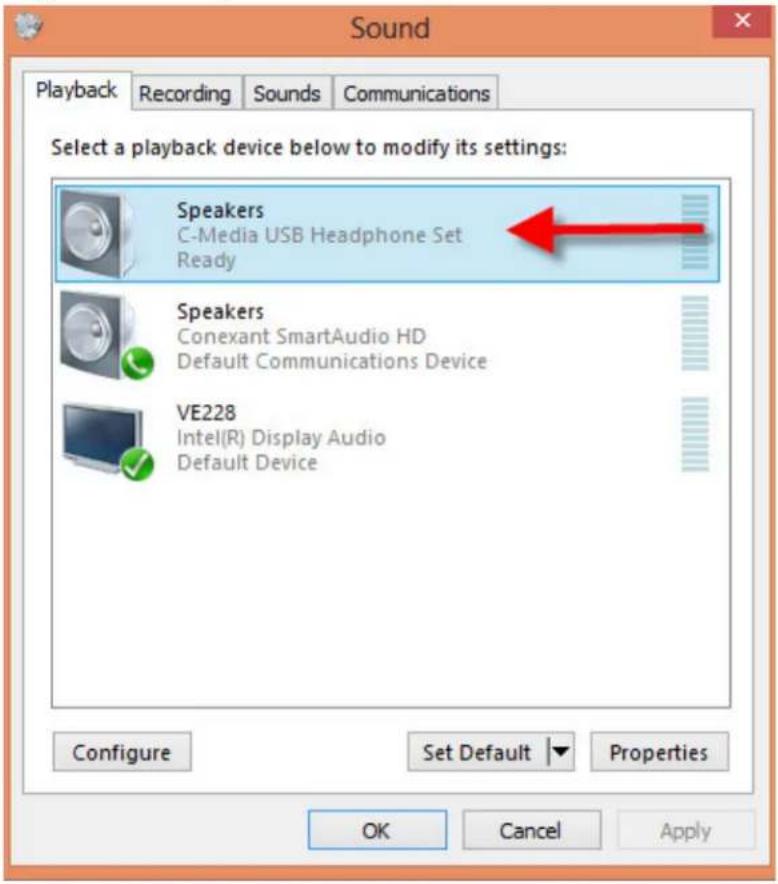
Right click on Speakers USB6
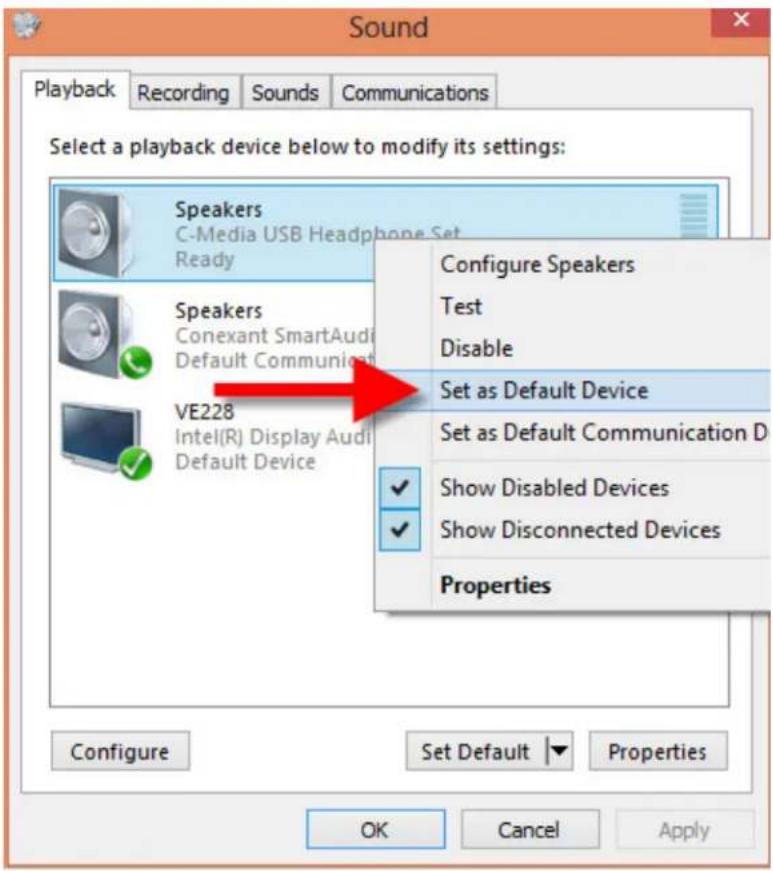
Left click on Set as Default Device6
5. Left click on OK.
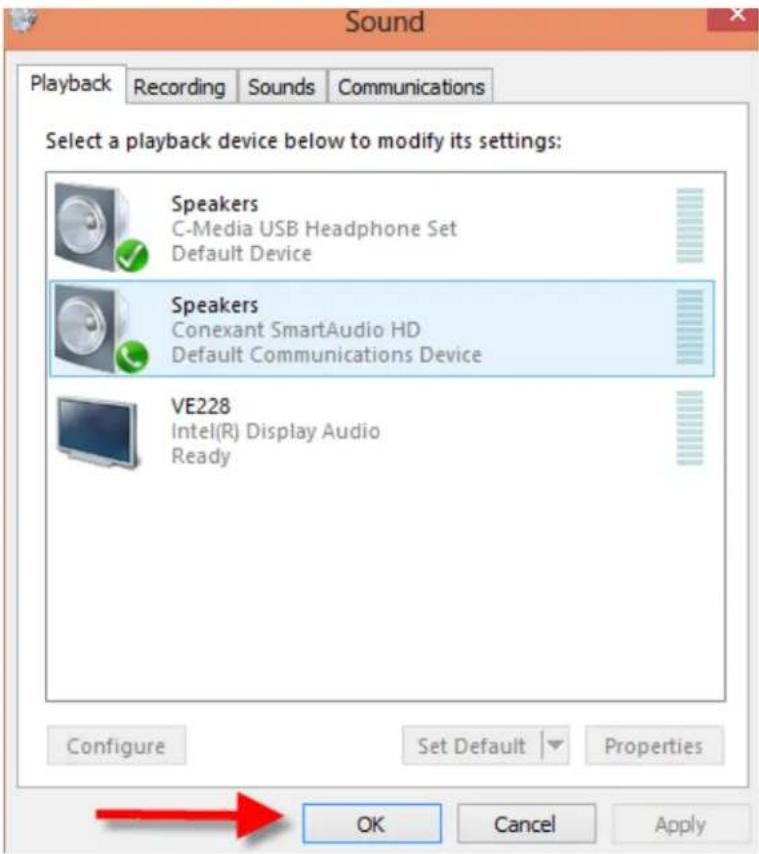
- You are ready to use this adapter.
Microphone setup on Windows
- Right click on the Speaker icon on your taskbar.
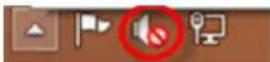
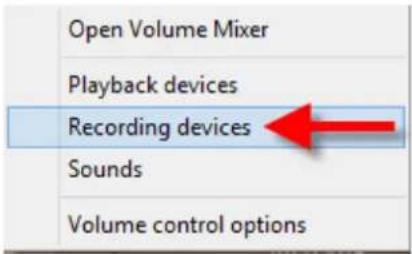
26 Left click on Recording Devices6
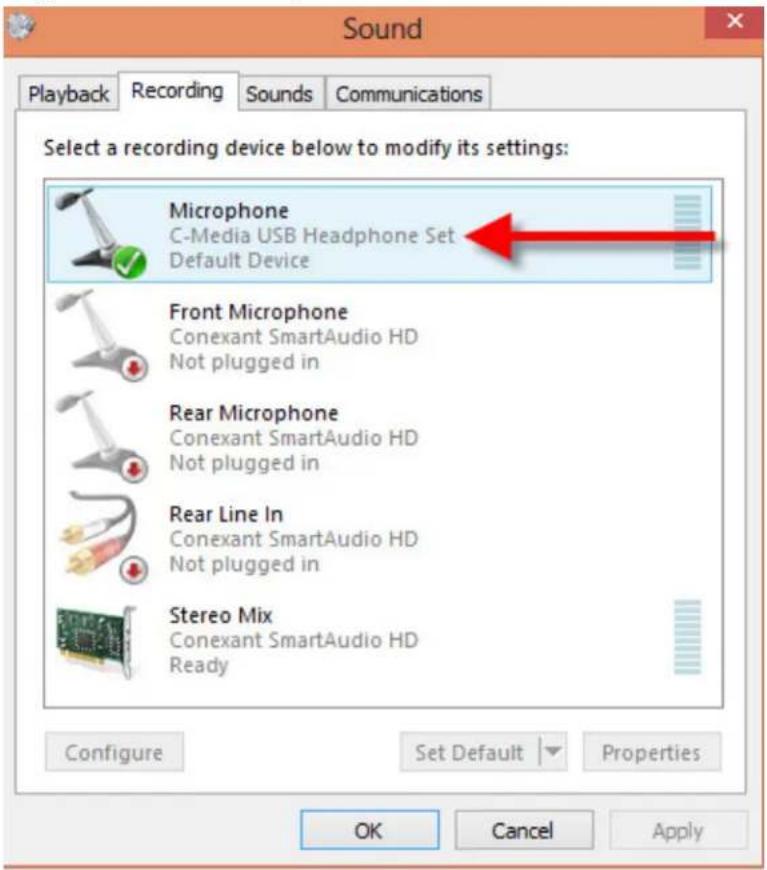
36 Right click on Microphone USB6
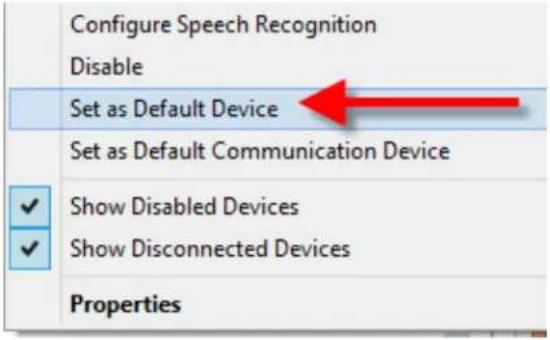
- Left click on Set as Default Device.
- Left Click on OK.
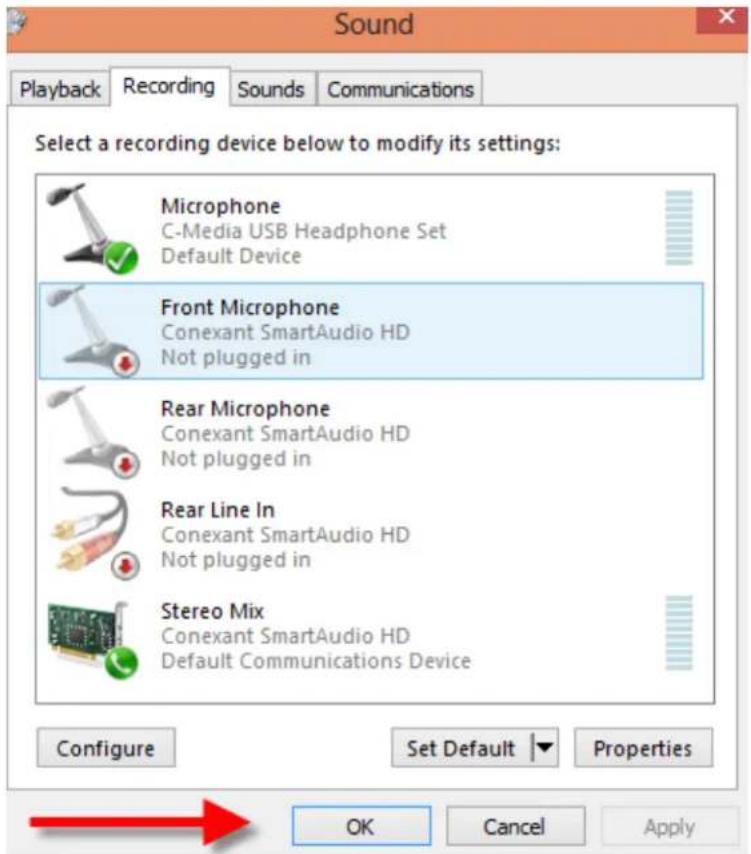
- You are ready to use this adapter.
Speaker/Headphone setup on Mac
16 Click on System Preferences on your Taskbar6
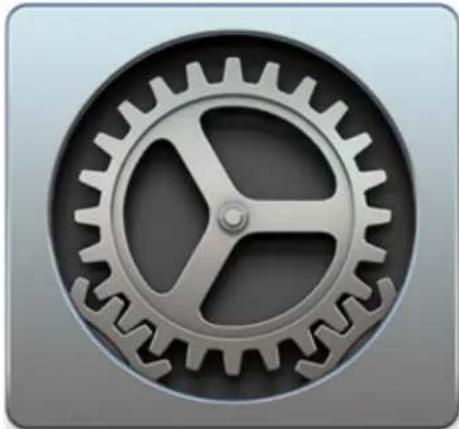
natural_image
Close-up of a metallic gear with visible teeth and central hub (no text or symbols)Click on Sound6
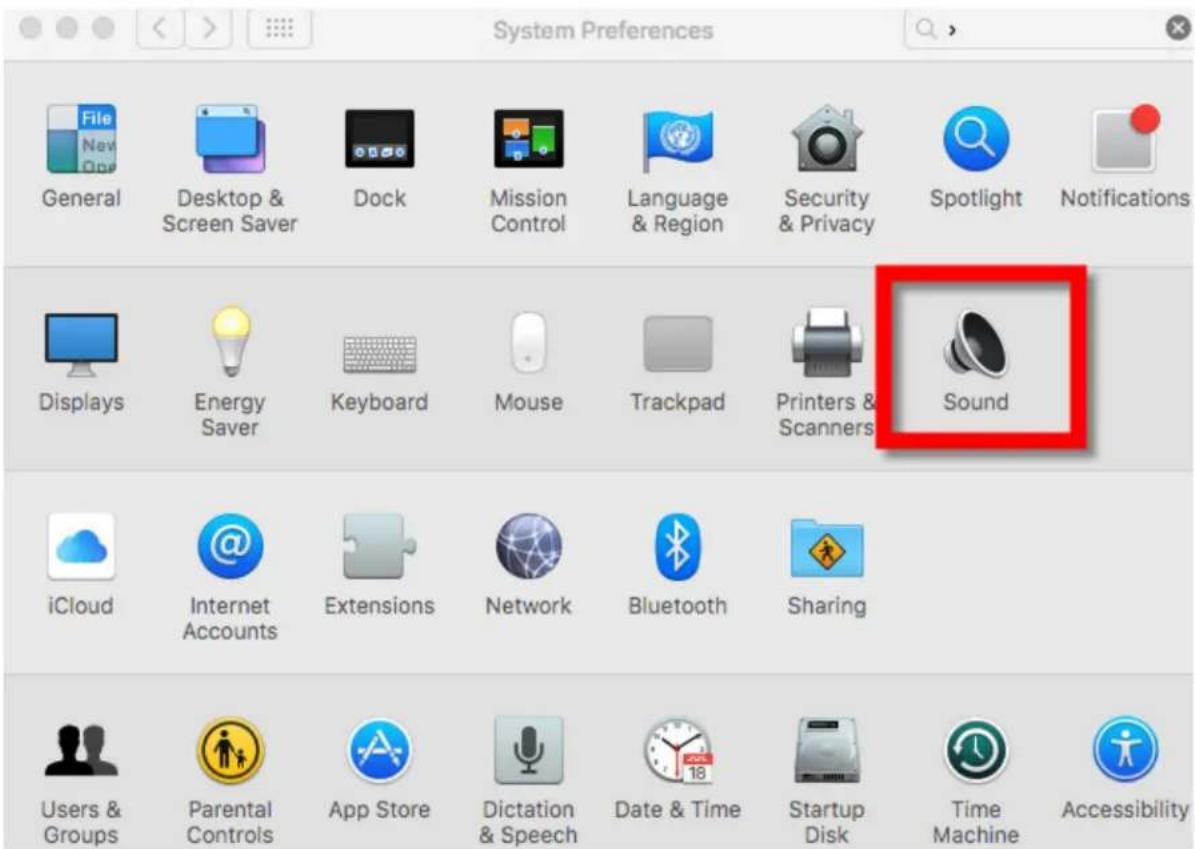
Click on USB Headphone Set6
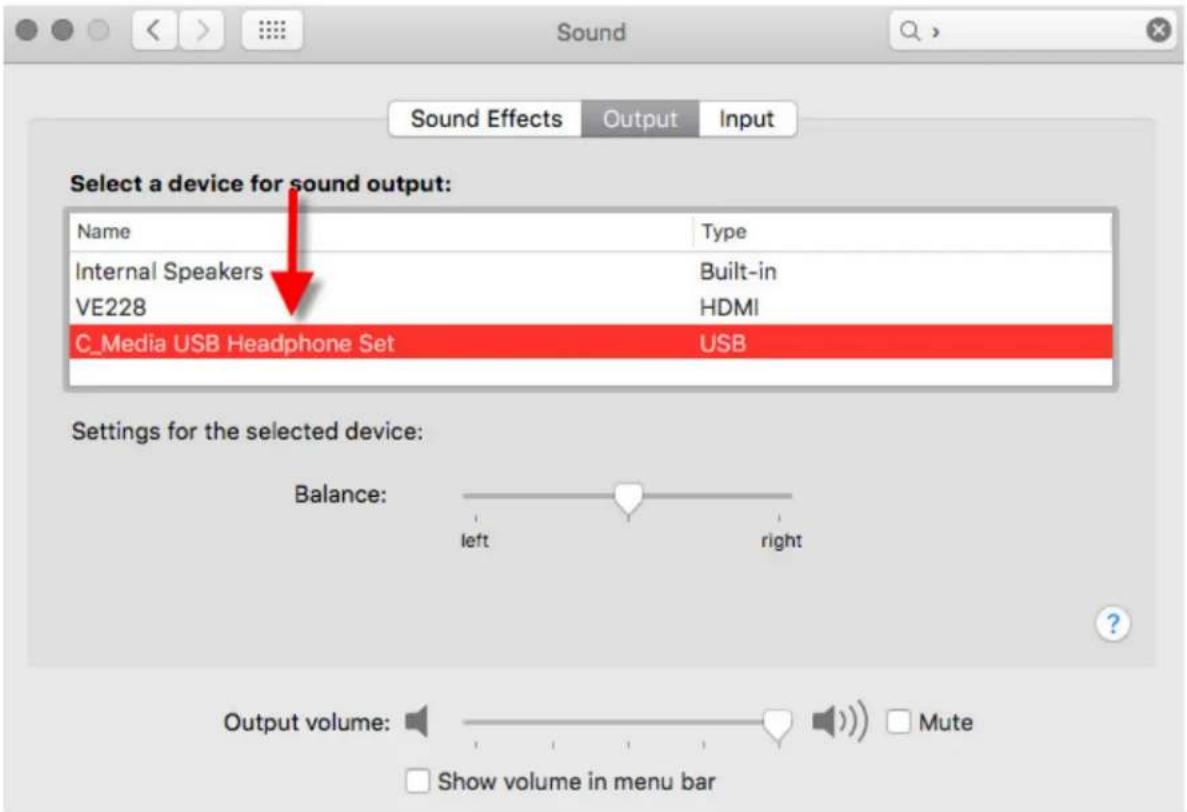
46 You are ready to use this adapter6
Microphone setup on Mac
16 Click on System Preferences on your Taskbar6
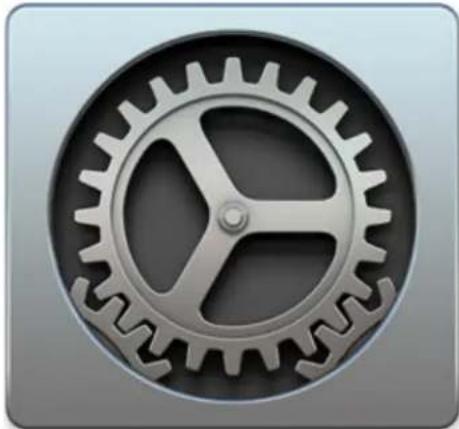
natural_image
Close-up of a metallic gear with visible teeth and central hub (no text or symbols)Click on Sound6
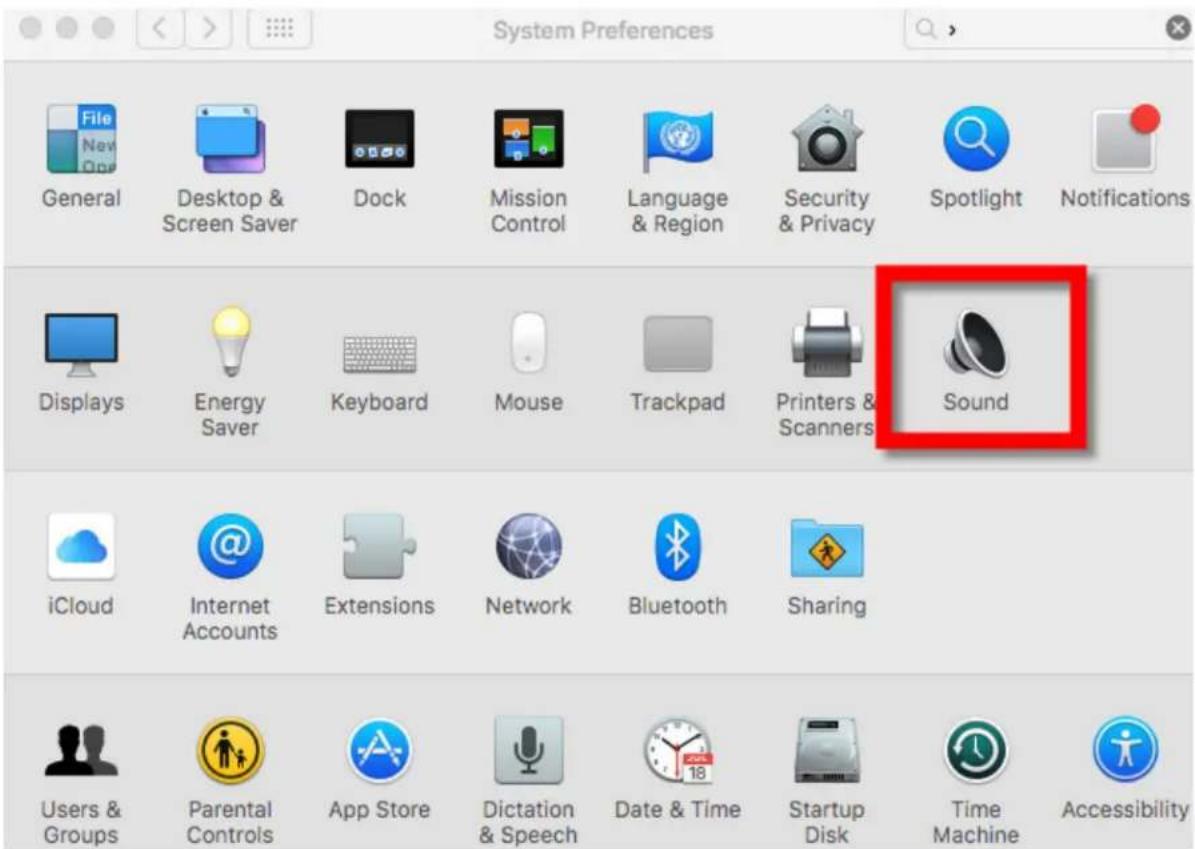
Click on Input6
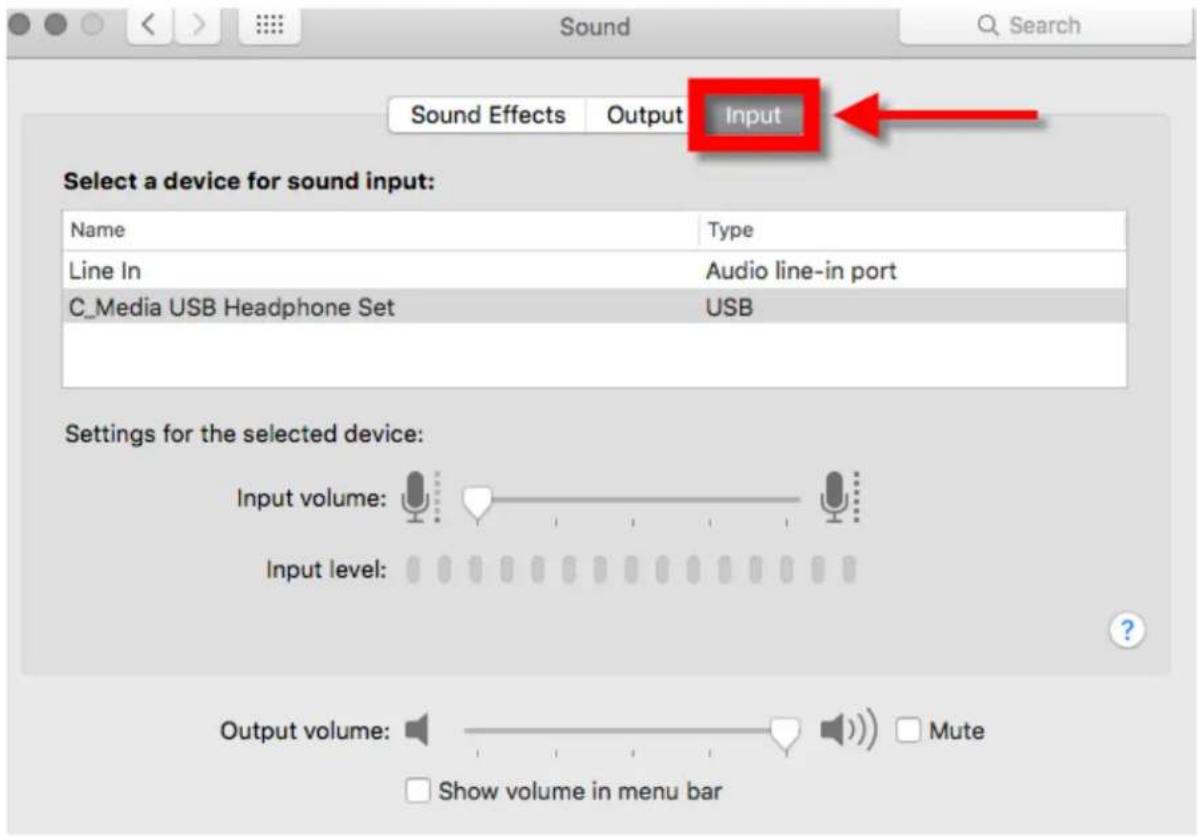
Click on USB Headphone Set6
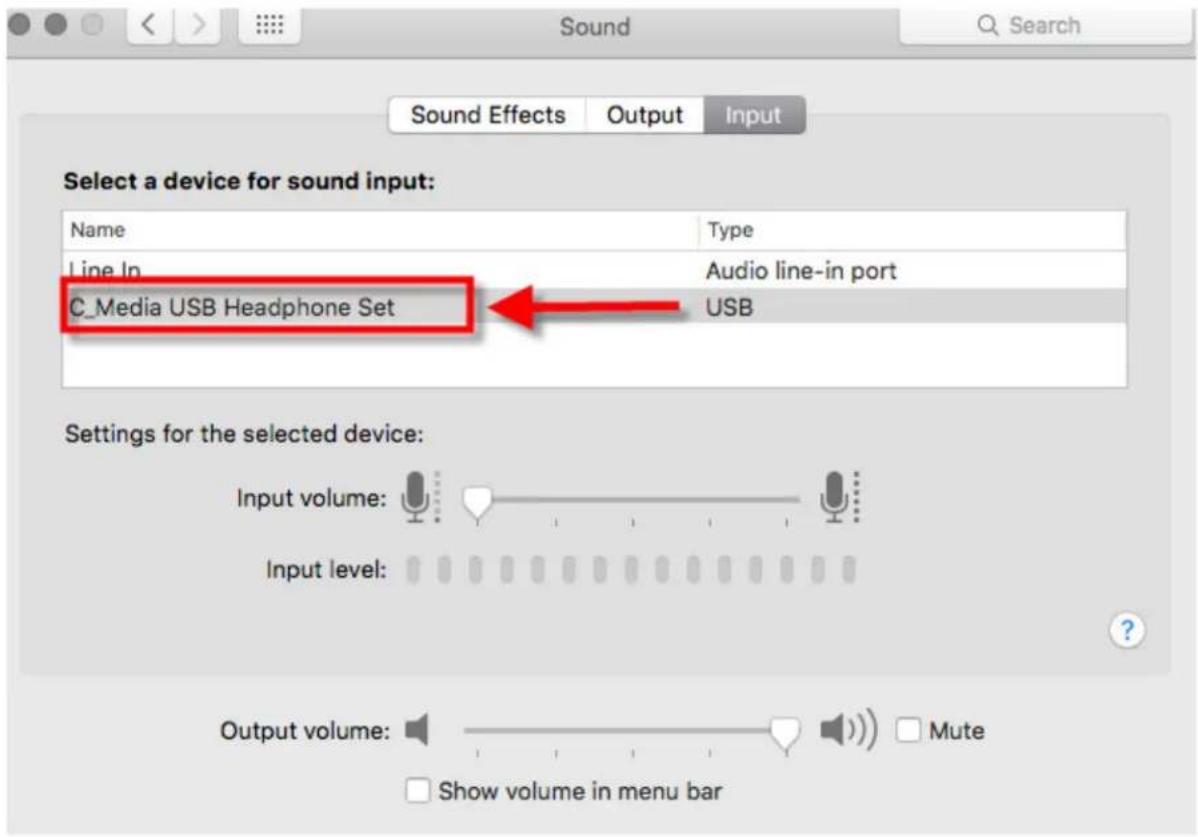
You are ready to use this adapter6
- SABRENT Connecting Differently™
- USB Sound Adapters
- Speakers/Headphone setup on Windows
- Right click on Speakers USB6
- Left click on Set as Default Device6
- Left click on OK.
- Microphone setup on Windows
- Left click on Recording Devices6
- Right click on Microphone USB6
- Speaker/Headphone setup on Mac
- Click on USB Headphone Set6
- Microphone setup on Mac
- Click on Input6
Brand : Sabrent
Model : AU-MMSA
Category : Soundcard