
Smart Display 7 - Loudspeaker LENOVO - Free user manual and instructions
Find the device manual for free Smart Display 7 LENOVO in PDF.


| Product Type | Smart Display with Google Assistant |
| Model | Lenovo CD-17302F |
| Display | 7-inch touch screen (estimated) |
| Camera | Front camera with privacy shutter |
| Microphone | Built-in microphone with mute switch |
| Speaker | Built-in speaker |
| Power | AC adapter (Lenovo standard, estimated 12V/2A) |
| Connectivity | Wi-Fi (required for setup) |
| Operating System | Android-based with Google Assistant |
| Voice Assistant | Google Assistant ("Hey Google" or "Ok Google") |
| Video Calling | Via Google Duo (requires phone number linking) |
| Touch Screen Control | Tap, swipe from left edge (home), swipe from bottom (quick settings) |
| Quick Settings | Brightness, volume, do not disturb, alarm, more info |
| Factory Reset | Press and hold volume up and down buttons simultaneously |
| Dimensions (estimated) | Approximately 200 x 120 x 100 mm |
| Weight (estimated) | Approximately 600 g |
| Operating Temperature | 0°C to 40°C (storage: -20°C to 60°C) |
| Safety Warnings | Do not drop, bend, puncture; keep away from water and heat; use only Lenovo adapters |
| Spare Parts & Repairability | No user-serviceable parts; internal repairs must be done by Lenovo-authorized technicians |
| Legal Notices | Google, Google Home, Android are trademarks of Google LLC |
Frequently Asked Questions - Smart Display 7 LENOVO
User questions about Smart Display 7 LENOVO
0 question about this device. Answer the ones you know or ask your own.
Ask a new question about this device
Download the instructions for your Loudspeaker in PDF format for free! Find your manual Smart Display 7 - LENOVO and take your electronic device back in hand. On this page are published all the documents necessary for the use of your device. Smart Display 7 by LENOVO.
USER MANUAL Smart Display 7 LENOVO
Lenovo Smart Display 7
User Guide
Basics

• All pictures and illustrations in this document are for reference only.
- The Google Home app supports both Android TM and iOS systems. This document uses the Android system as an illustrative example.
- Because the Google Home app will regularly be updated, refer to the latest version for the actual procedure and screenshots.
Before using this information and the product it supports, be sure to read the following:
• Safety, Warranty & Quick Start Guide
• Regulatory Notice
- Important safety and handling information in Appendix
The Safety, Warranty & Quick Start Guide and the Regulatory Notice are available at:
http://support.lenovo.com
Getting started
Overview
| Name | Model |
| Lenovo Smart Display 7 | Lenovo CD-17302F |

| 1 | Microphone | 2 | Light/proximity sensor | 3 | Front camera |
| 4 | Touch screen | 5 | Speaker | 6 | Microphone mute switch |
| 7 | Volume buttons | 8 | Camera privacy shutter | 9 | Power adapter connector |

All pictures and illustrations in this document are for your reference only and may differ from the final product.
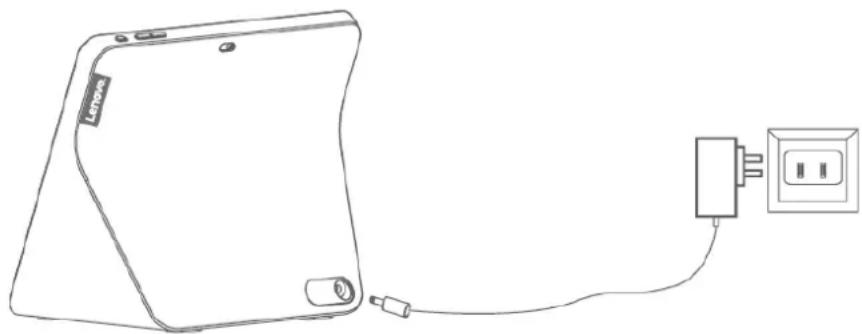
Plug it in
Plug the power adapter into the device and then into a power outlet.
Connect the device to a power outlet using the power adapter provided.
natural_image
Line drawing of a Lenovo smartphone connected to an electrical outlet (no text or symbols)
The power adapter is suitable for the Lenovo Smart Display 7. Do not use it for other purposes.
Getting the app
- Open the Google Play Store or App Store in your phone/tablet.
- Search for Google Home.
- Download and run the Google Home app on your phone/tablet.
- Set up the Lenovo Smart Display 7 in the Google Home app.

natural_image
Illustration of a smartphone with a house icon and red arrow indicating mobile phone use (no text or symbols)Connecting to the Internet
You'll need to connect your Lenovo Smart Display 7 to the Internet before using it.
- Open the Google Home app.
- Tap Get started and register your Google account.
- The Google Home app will scan the nearby devices automatically.
-
Select the device that you want to connect.
-
Follow the on-screen instructions to set up your Lenovo Smart Display 7.

• Use the same Wi-Fi network for your Lenovo Smart Display 7 and phone/tablet.
- The system may be updated automatically when using it for the first time. Wait several minutes without operating.
Using the touch screen

Tap on an item.

Swipe from the left edge towards the right to return to the home screen.

natural_image
Illustration of a hand pressing a button on a tablet screen with an upward arrow (no text or symbols)Swipe from the bottom edge upwards to access quick settings.
- / : Adjust the screen brightness.
- : Adjust the volume.
• ☑/⊖ : Enable/disable the Do not disturb function.
- : Set the alarm.
• ⚙️ : Get more information.
Talking to the Lenovo Smart Display 7
Your device has the Google Assistant built in. Just say "Hey Google" or "Ok Google" to get started. You can say "Ok Google, what can you do?" or tap on the Explore tile on the Home screen to learn about how your Google Assistant on your device can help you.
For example:
If you say "Ok Google, what's the weather this weekend?" your device will tell you the weather information.

Access your settings in the Google Home app at any time to modify your home address.
Factory reset
At the same time, press and hold the volume and the volume down button for a few seconds, there will be a bullet box, click reset.
Using the Google Home app
Use the Google Home app to manage your device. Through the app, you can modify your Google Assistant settings including your personal information, your media service preferences, and your connected smart home devices.

| 1 | Tap : to pop-up help and feedback. |
| 2 | Includes Play, Routines, Add, Settings. |
| 3 | Display what the connected device is playing. |
| 4 | Display disconnected and available devices nearby. |
| 5 | Google assistant. |
| 6 | The main tab includes tabs such as Discover and Browse. |
Making a video call
You can make a video call through the Lenovo Smart Display 7.
1 Link your mobile phone number to your Google account by performing the following:
1.1 Download and install the Google Duo app in your mobile phone.
1.2 Register your mobile phone number in Google Duo.
2 Open the Google Home app and perform the following:
2.1 Select the device that needs setting, and open Personal results and Home screen & notifications.
2.2 Link your phone number in Duo video calling.

• Make sure that you use the same mobile phone number to link Google Duo, Google Home and the Google account.
• Make sure that you use the same Google account in Google Duo, Google Contacts, and Google Home.
3 Make a video call through voice commands in the Lenovo Smart Display 7 such as: "Ok Google, video call Mom."

Make sure that the person you'd call has been added as a contact.
Appendix
Important safety and handling information
To avoid personal injury, property damage, or accidental damage to the product, read all of the information in this section before using the product. For additional tips to help you operate your device safely, go to http://www.lenovo.com/safety.
Handle your device with care
Do not drop, bend, or puncture your device. Do not insert foreign objects into or place heavy objects on your device. Sensitive components inside might become damaged. When using your device, keep it away from hot or high-voltage environments, such as electrical appliances, electrical heating equipment, and electrical cooking equipment. Use your device only in environments within the temperature range of 0irc C ( 32irc F) to 40irc C ( 104irc F) (storage -20irc C ( -4irc F) to 60irc C ( 140irc F)) to avoid damage.
Don't expose your device to water, rain, extreme humidity, sweat or other liquids.
Do not disassemble or modify your device
Your device is a sealed unit. There are no end-user serviceable parts inside. All internal repairs must be done by a Lenovo-authorized repair facility or a Lenovo-authorized technician. Attempting to open or modify your device will void the warranty.
Plastic bag notice
DANGER:
Plastic bags can be dangerous. Keep plastic bags away from babies and children to avoid danger of suffocation.
Adapter information
Adapter shall be installed near the equipment and shall be easily accessible.
- Prevent AC adapter from getting wet.
- Use approved charging methods only.
Note: Please only use standard Lenovo power adapters. The use of third-party power adapters will affect the charging speed, resulting in abnormal charging and potential damage to the device.
Connect a standard power adapter to a suitable power outlet.
Charging devices might become warm during normal use. Ensure that you have adequate ventilation around the charging device. Unplug the charging device if any of the following occurs:
- The charging device has been exposed to rain, liquid, or excessive moisture.
- The charging device shows signs of physical damage.
- You want to clean the charging device.
Warning:
Lenovo is not responsible for the performance or safety of products not manufactured or
approved by Lenovo. Use only approved Lenovo AC adapters.
EU ErP (EcoDesign) Directive (2009/125/EC) - external power adapters (Regulation (EU) 2019/1782)
Lenovo products are designed to work with a range of compatible power adapters. Access https://www.lenovo.com/us/en/compliance/eu-doc to view the compatible power adapters. For the detailed power adapter specifications for your computer, go to https://support.lenovo.com.
Dispose according to local laws and regulations
When your device reaches the end of its useful life, do not crush, incinerate, immerse in water, or dispose of your device in any manner contrary to local laws and regulations. Some internal parts contain substances that can explode, leak, or have an adverse environmental effect if disposed of incorrectly.
See “Recycling and environmental information” for additional information.
Keep your device and accessories away from small children
Your device contains small parts that can be a choking hazard to small children. Additionally, the glass screen can break or crack if dropped on or thrown against a hard surface.
Be aware of heat generated by your device
When your device is turned on, some parts might become hot. The temperature that they reach depends on the amount of system activity. Extended contact with your body, even through clothing, could cause discomfort or even a skin burn. Avoid keeping your hands, your lap, or any other part of your body in contact with a hot section of the device for any extended time.
Electronic emission notices
FCC Compliance Statement
This equipment has been tested and found to comply with the limits for a Class B digital device, pursuant to Part 15 of the FCC Rules. These limits are designed to provide reasonable protection against harmful interference in a residential installation. This equipment generates, uses, and can radiate radio frequency energy and, if not installed and used in accordance with the instructions, may cause harmful interference to radio communications. However, there is no guarantee that interference will not occur in a particular installation. If this equipment does cause harmful interference to radio or television reception, which can be determined by turning the equipment off and on, the user is encouraged to try to correct the interference by one or more of the following measures:
- Reorient or relocate the receiving antenna.
- Increase the separation between the equipment and receiver.
- Connect the equipment into an outlet on a circuit different from that to which the receiver is connected.
- Consult an authorized dealer or service representative for help.
Lenovo is not responsible for any radio or television interference caused by unauthorized changes or modifications to this equipment. Unauthorized changes or modifications could void the user's authority to operate the equipment.
This device complies with Part 15 of the FCC Rules. Operation is subject to the following two conditions: (1) this device may not cause harmful interference, and (2) this device must accept any interference received, including interference that may cause undesired operation.
Responsible Party:
Lenovo (United States) Incorporated
1009 Think Place - Building One
Morrisville, NC 27560
Telephone: 1-919-294-5900
ISED Caution
This device complies with Innovation, Science and Economic Development Canada license-exempt RSS standard(s). Operation is subject to the following two conditions:
(1) This device may not cause interference, and
(2) this device must accept any interference, including interference that may cause undesired operation of the device.
Japanese VCCI Class B statement
Japan compliance statement for products that connect to power mains rated at less than or equal to 20A per phase
Environmental, recycling, and disposal information
General recycling statement
Lenovo encourages owners of information technology (IT) equipment to responsibly recycle their equipment when it is no longer needed. Lenovo offers a variety of programs and services to assist equipment owners in recycling their IT products. For information on recycling Lenovo products, go to
WEEE information

Electrical and electronic equipment marked with the symbol of a crossed-out wheeled bin may not be disposed as unsorted municipal waste. Waste of electrical and electronic equipment (WEEE) shall be treated separately using the collection framework available to customers for the return, recycling, and treatment of WEEE. Country-specific information is available at: http://www.lenovo.com/recycling
Recycling information for Japan
Recycling and disposal information for Japan is available at: http://www.lenovo.com/recycling/japan
Recycling information for India
Recycling and disposal information for India is available at http://www.lenovo.com/social_responsibility/us/en/sustainability/ptb_india.html.
Restriction of Hazardous Substances Directive (RoHS)
United States of America
Lenovo products sold in California, on or after January 1, 2007, meet the requirements of “California’s RoHS” (SB20, 50).
Lenovo products sold to the New York City government, on or after March 1, 2007, meet the requirements of the City's environmental preferred purchasing regulations.
India
Lenovo products sold in India, on or after May 1, 2012, meet the requirements of the India E-waste (Management) Rules (“India RoHS”).
European Union
Lenovo Products meet the requirement of Directive 2011/65/EC on the restriction of the use of the certain hazardous substances in electrical and electronic equipment ("RoHS 2"). Lenovo products sold in the European Union, from the 21st July 2019, meet the requirement of Commission Delegated Directive (EU 2015/863) amending Directive 2011/65/EU. For more information about Lenovo progress on RoHS, go to:https://www.lenovo.com/us/en/social_responsibility/RoHS-Communication.pdf
Singapore
Lenovo products sold in Singapore, on or after June 1, 2017, meet the requirements of Government Gazette order No. S 263/2016 Restriction of Hazardous Substances in Electrical and Electronic Equipment in Singapore (“SG-RoHS”).
Export classification notice
This product is subject to the United States Export Administration Regulations (EAR) and has an Export Classification Control Number (ECCN) of 5A992.c. It can be re-exported except to any of the embargoed countries in the EAR E1 country list.
Note
The Google Assistant is not available in certain languages and countries.
Legal notices
Google, Google Home, Google Play, Android and other related marks and logos are trademarks of Google LLC.
- Lenovo Smart Display 7
- User Guide
- Basics
- Getting started
- Plug it in
- Getting the app
- Connecting to the Internet
- Using the touch screen
- Talking to the Lenovo Smart Display 7
- For example:
- Factory reset
- Using the Google Home app
- Making a video call
- Appendix
- Important safety and handling information
- Handle your device with care
- Do not disassemble or modify your device
- Plastic bag notice
- Adapter information
- Warning:
- EU ErP (EcoDesign) Directive (2009/125/EC) - external power adapters (Regulation (EU) 2019/1782)
- Dispose according to local laws and regulations
- Keep your device and accessories away from small children
- Be aware of heat generated by your device
- Electronic emission notices
- FCC Compliance Statement
- ISED Caution
- Japanese VCCI Class B statement
- Japan compliance statement for products that connect to power mains rated at less than or equal to 20A per phase
- Environmental, recycling, and disposal information
- General recycling statement
- WEEE information
- Recycling information for Japan
- Recycling information for India
- Restriction of Hazardous Substances Directive (RoHS)
- United States of America
- India
- European Union
- Singapore
- Export classification notice
- Note
- Legal notices
Brand : LENOVO
Model : Smart Display 7
Category : Loudspeaker