
SV-MP120V - Mp3 player PANASONIC - Free user manual and instructions
Find the device manual for free SV-MP120V PANASONIC in PDF.


| Product Type | MP3 Player |
| Brand | Panasonic |
| Model | SV-MP120V |
| Internal Memory | 128 MB |
| Expandable Memory | SD Card Slot (up to 1 GB) |
| Supported Audio Formats | MP3, WMA |
| Display | LCD with backlight |
| Playback Modes | Normal, Repeat, Shuffle, Intro |
| Equalizer Presets | Rock, Pop, Jazz, Classic, Bass Boost |
| Power Source | 1x AAA Battery (Alkaline or Ni-MH) |
| Battery Life | Up to 15 hours (alkaline) |
| Dimensions (W x H x D) | 80 x 40 x 15 mm |
| Weight | 50 g (without battery) |
| Connection | USB 1.1 (for file transfer) |
| Headphone Output | 3.5 mm stereo jack |
| Operating System Support | Windows 98 SE / Me / 2000 / XP, Mac OS 9+ |
| Accessories Included | Earphones, USB cable, CD-ROM with software |
| Cleaning | Wipe with dry soft cloth; do not use solvents |
| Safety | Keep away from water; do not disassemble; use only specified battery |
| Spare Parts / Repairability | Battery door and earphone pads available; not user-serviceable internally |
Frequently Asked Questions - SV-MP120V PANASONIC
User questions about SV-MP120V PANASONIC
0 question about this device. Answer the ones you know or ask your own.
Ask a new question about this device
Download the instructions for your Mp3 player in PDF format for free! Find your manual SV-MP120V - PANASONIC and take your electronic device back in hand. On this page are published all the documents necessary for the use of your device. SV-MP120V by PANASONIC.
USER MANUAL SV-MP120V PANASONIC
Operating Instructions
Digital Audio Player

natural_image
Illustration of a Panasonic portable electronic device with earbuds and cable (no text or symbols on the device itself)Dear Customer
Thank you for purchasing this product.
Before connecting, operating or adjusting this product, please read the instructions completely. Please keep this manual for future reference.
Caution
This unit is not waterproof and should not be exposed to excessive moisture.
GC GK En
Matsushita Electric Industrial Co., Ltd.
Web site: http://www.panasonic.co.jp/global
RQTT0665-G
M0105SF0
Supplied accessories
□ Pair of stereo earphones
—1pc
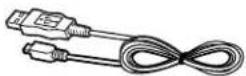
□ USB Cable —1pc
□ CD-ROM —1pc
□ Neck lanyard —1pc
Caution: Take care when using the neck lanyard. If used improperly, it can be a choking hazard.



natural_image
Line drawing of a garment hanger with a loop handle and arrow indicating motion (no text or symbols)- Windows Media Player (Version 9.0) Free download from http://www.microsoft.com/downloads/
• Supports playback of MP3 and WMA (DRM) music files
• Built-in microphone for voice recording
• Built-in FM tuner with recording function - Portable data storage device (Plugs in directly to your PC)
• Language learning with repetition and comparison. - Total play list (MUSIC, FM RADIO, IC RECORDER) can contain up to 383 tracks.
These tables show the mode menu items available in the MUSIC, LEARN, FM RADIO, IC RECORDER and SYSTEM modes.
MUSIC
Mode Options
SOUND NORMAL/ ROCK/ JAZZ/ POP/ CLASSIC/ USER DEFINE
PLAY NORMAL/ ALL-REP/ ONE-REP/ RANDOM
INFO. Information (Artist/ File format/ Bit Rate)
ERASE SINGLE TRACK PLAYLIST/ ALL ERASE
IC RECORDER
Mode Options
RECORD HQ/ SP/ LP
SPEED LOW-NOR
ERASE SINGLE TRACK/ ALL VOICE
FM RADIO
Mode Options
AUTO Freq. set/ Channel set PRESET
BAND STEP 50 kHz/100 kHz/200 kHz
LEARN
Mode Options
PLAY NORMAL/ALL-REP/ONE-REP
REPEAT TIME/TRACE/T.TIME SET
SPEED LOW-NOR
ERASE SINGLE TRACK/ PLAYLIST/ ALL ERASE
SYSTEM
Mode
LANGUAGE/ AUTO OFF/ BACKLIGHT/ CONTRAST/ SOUND GRAPHIC/ SLEEP TIME
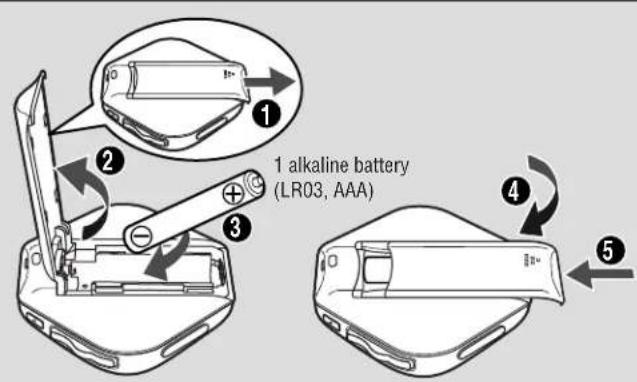
Battery (not included)
Battery indicator
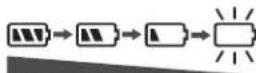
Full Empty
If rechargeable batteries are to be used, rechargeable batteries manufactured by Panasonic are recommended.
Replace with a fresh battery
- Microsoft, the Microsoft logo, the Windows, Windows logo, Windows NT and Windows Media are either trademarks or registered trademarks of Microsoft Corporation in the United States and other countries.
- WMA is a compression format developed by Microsoft Corporation. It achieves the same sound quality as MP3 with a file size that is smaller than that of MP3.

- MPEG Layer-3 audio decoding technology licensed from Fraunhofer IIS and Thomson multimedia.
- Other names of systems and products mentioned in these instructions are usually the registered trademarks or trademarks of the manufacturers who developed the system or product concerned.
The ^TM and ^® marks are not used to identify registered trademarks and trademarks in these instructions.
System Requirements
OS: Microsoft® Windows® 98SE, Windows® Me,
Windows® 2000 Professional, Windows® XP Home Edition/Professional Drive: CD-ROM Drive
- The player and USB Driver cannot be used on Microsoft® Windows® 3.1, Windows® 95, Windows® 98, Windows NT® and Macintosh®.
USB Driver:
• Operation on an upgraded OS is not guaranteed.
• Operation on an OS other than the one pre-installed is not guaranteed. - Multi-CPU or Multi-boot environments are not supported.
- Only users having system administrator (Administrator) authority can use this software.
Connecting to a computer and downloading files

flowchart
graph TD
    A["1 Press and hold"] --> B["2 Turn the unit on. (Wait until MODE select display appears.)"]
    B --> C["3 Insert so the arrow is facing upwards."]
    C --> D["4 To USB port"]
    D --> E["Small end to player, large end to PC"]
■ After connection
- Windows® ME, 2000, or XP: The computer automatically finds and installs the driver for the player.
- Windows® 98SE: Put the included CD-ROM in your disk drive, then follow the instructions on the computer screen to install the driver.
The player appears in My Computer or Explorer as a removable disk or device.
■ Downloading MP3 and WMA
- In My Computer or Explorer, open the player's folder (removable disk or device).
- Open the PLAYER folder.
- Copy and paste or drag and drop the MP3/WMA files from your computer's folder into the PLAYER folder.
- "DOWNLOAD" appears on the player's display. When downloading is completed, "USB CONNECT" re-appears.
- Disconnect the USB cable if instructed to do so in the PC's operating instructions.
- You can first put files into a new folder and then put that folder into the PLAYER folder. The folders are treated as sublists by the player and the names appear when you select play lists.
Note • The first 20 characters of a file name you create on a computer are displayed on this unit.
- There are some characters which cannot be displayed due to an embedded font data limitation.
• Supports MP3 ID3 V1 tags, ID3 V2 tags and WMA tags. - If there are no ID3 tags, the display shows the "filename.mp3".
- You cannot play MP3/WMA files that are in the player through the computer.
- Ensure the USB cable is kept as straight as possible. Bending it too much may cause an accident.
• Operation cannot be guaranteed if you use a USB hub or extension cable. - ID3 tags will not be displayed correctly if the language of the ID3 tag recorded for the MP3 is different from the language setting for this unit.
• Compatible with WMA (DRM).
• The player will turn off when downloading is completed.
Files and Folders Structure display on your computer
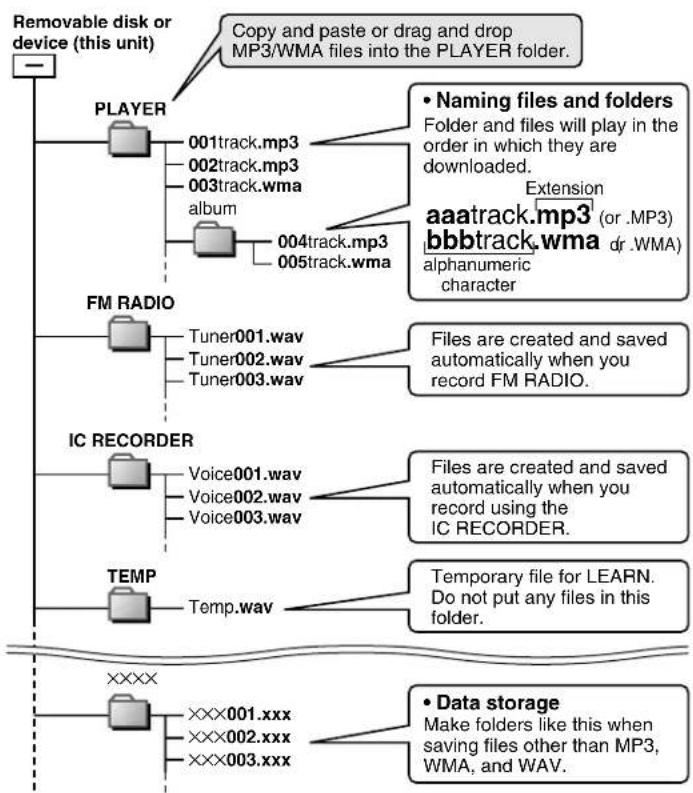
flowchart
graph TD
    A["Removable disk or device (this unit)"] --> B["PLAYER"]
    B --> C["001track.mp3"]
    B --> D["002track.mp3"]
    B --> E["003track.wma album"]
    B --> F["004track.mp3"]
    B --> G["005track.wma"]
    H["FM RADIO"] --> I["Tuner001.wav"]
    H --> J["Tuner002.wav"]
    H --> K["Tuner003.wav"]
    L["IC RECORDER"] --> M["Voice001.wav"]
    L --> N["Voice002.wav"]
    L --> O["Voice003.wav"]
    P["TEMP"] --> Q["Temp.wav"]
    R["XXXX"] --> S["XXX001.xxx"]
    R --> T["XXX002.xxx"]
    R --> U["XXX003.xxx"]
    V["• Naming files and folders\nFolder and files will play in the order in which they are downloaded.\nExtension\aaatrack.mp3 (or .MP3)\nbbbtrack.wma dr .WMA)\nalphanumeric character"] --> W
    X["• Files are created and saved automatically when you record FM RADIO."] --> Y
    Z["• Files are created and saved automatically when you record using the IC RECORDER."] --> AA
    AB["• Temporary file for LEARN.\nDo not put any files in this folder."] --> AC
    AD["• Data storage\nMake folders like this when saving files other than MP3, WMA, and WAV."] --> AE
Note • Total maximum 383 tracks. Total maximum 20 folders.
- MP3 / WMA Files put into folders other than the PLAYER folder are erased when you disconnect the USB cable.
- You cannot upload MP3/WMA files from this unit's PLAYER folder to a computer, but you can erase them.
- Do not remove the battery while recording with the IC RECORDER or FM RADIO as all the data you were recording at the time will be lost.
- Using the IC RECORDER as an example, assume the number of recordings has been made up to Voice100. If you delete Voice005 and Voice016, both of these become blank numbers. If you then add a recording it will become Voice005 and the next recording will become Voice016.
- This unit is compatible with Windows Media Audio 9 (WMA9), however not with WMA9 Professional/Lossless/Voice and MBR ※. ※ Multiple Bit Rate: A file that contains the same content encoded at several different bit rates.
- If you use VBR format MP3 files, some of the unit's functions can not be operated normally.
Saving Data
- The data recorded using this unit's IC RECORDER or FM RADIO can be uploaded to a PC.
- MP3 and WMA files in this unit can't be uploaded to a PC.
- You can use this unit as a removable disk for saving PC data by connecting the USB cable to a PC. (→ left)
HOLD switch
Button operations are ignored. It prevents:
- The unit turning on unexpectedly causing the battery to run down.
- Interruptions to play or recording.

HOLD ON

Release
(before operation)

Location of Controls Displays

■ Display Example: MUSIC

■ Low-power consumption display
- Power consumption is reduced by dimming the brightness of the display's back light. You can set the time until the display changes to a low-power consumption one. (→page 6 "SYSTEM, BACKLIGHT")
- Press any key on the unit to cancel the low-power consumption display. When the back light lights, perform the next operation.
Specifications
Memory size: SV-MP100V: 128 MB
SV-MP110V: 256 MB
SV-MP120V: 512 MB
Supported sampling frequency: MP3 32 kHz, 44.1 kHz, and 48 kHz
WMA 8 kHz to 44.1 kHz
Supported bit-rates: MP3 8 kbps to 320 kbps (128 kbps is recommend)
WMA 32 kbps to 192 kbps (96 kbps is recommend)
No. of channels: Stereo, 2 channels (MUSIC, FM RADIO)
Mono, 1 channel (IC RECORDER)
Frequency response: 20 Hz to 20,000 Hz (+0 dB, -6 dB) (MUSIC)
300 Hz to 4,300 Hz (IC RECORDER, HQ mode)
Mic S/N: 30 dB (IC RECORDER, HQ mode)
Radio Frequency range (FM): 87.90 MHz to 107.90 MHz (200 kHz steps)
87.50 MHz to 108.00 MHz (50/100 kHz steps)
Output: 4.5 mW + 4.5 mW (16 Ω, M3 jack)
Power supply: DC 1.5 V (one alkaline battery)
Approximate play times: 13 hours (MUSIC)
7 hours (FM RADIO)
Approximate recording times: 13 hours (IC RECORDER, HQ mode)
7 hours (FM RADIO)
Cabinet dimensions (W×H×D): 53.2 × 61.1 × 17.5 mm
Mass: 41.7 with battery
30.4 without battery
- Specifications are subject to change without notice.
• The play time shown depends on operating conditions.
• Mass and dimensions are approximate.
• MB means one million bytes. Useable capacity will be less. - This product is compatible with the following character code. The display may not appear correctly with other character codes.
| Language | Display | Character code | |
| ENGLISH | ENGLISH | Unicode | |
| 繁體中文 | TRADITION | Unicode Big5 | |
| 简体中文 | SIMPLE | Unicode GB2312 | |
| 日本語 | JAPANESE | Unicode JI$ X0208 | |
| 한글 | KOREAN | Unicode CP949 | |
| РУССКИЙ ЯЗЫК | RUSSIAN | Unicode Windows 1251 | |
Maintenance
Clean with a soft, dry cloth.
Do not use any type of abrasive pad, scouring powder or solvent such as alcohol or benzine.
| NO TRACK PLAY | • There is no audio data in the player. |
| LOW BATTERY | • The battery is dead. Change the battery. |
| HOLD | • The HOLD switch is on. |
| FULL MEMORY | • Memory is full. |
| TRACK OVER | • You have tried to record more than 383 tracks into a play list. |
Troubleshooting guide
Before requesting service, make the following checks. If you are in doubt about any of the check points, or if the solutions indicated in the chart do not solve the problem, consult your dealer.
| No operation | The HOLD function is on.Replace the battery if it is dead. |
| No sound or there is a lot of noise | Ensure the earphone plug is inserted firmly.Wipe the plug clean with a clean cloth.Turn up the volume.Keep this unit away from mobile telephones. |
| Play doesn’t resume from the track where I stopped play | This doesn’t work if:You download, record, delete files, or change the battery.The random play mode is on. |
| Play doesn’t start from the first track | The random play mode may be on.Play usually resumes from the track where you last stopped play. Use skip to return to the first track. |
| The unit stops working | Take the battery out for about 5 seconds, then reinsert it.RESET procedure1. Slide the HOLD switch to ON.Turn the unit on.Press times4. PressAll the memories in the unit are deleted. |
| The display is too dark or too light | Adjust the contrast. (→page 6) |
| Play doesn’t start immediately | Depending on the amount of data in the unit, it may take some time for play to start after downloading / recording or changing the battery. |
Care and use
- Leave some slack in the cord of the earphones and the neck lanyard if you wind them around the unit.
Do not:
• disassemble, remodel, drop, or allow the unit to get wet. - use or store in locations directly exposed to sunlight, corrosive gases, a heat vent, or a heating appliance.
- use or store in humid or dusty locations.
- use force to open the battery lid.
- play your headphones or earphones at a high volume.
Batteries
- Do not peel off the covering on batteries and do not use if the covering has been peeled off.
- Align the poles + and - correctly when inserting batteries.
- Remove batteries if you do not intend to use the unit for a long time.
- Do not throw into fire, short-circuit, disassemble, or subject to excessive heat.
- Keep out of the reach of small children.
Accidental swallowing of batteries can result in stomach and intestinal damage.
Allergies
Discontinue use if you experience discomfort with the earphones or any other parts that directly contact your skin. Continued use may cause rashes or other allergic reactions.
This product may receive radio interference caused by mobile telephones during use. If such interference is apparent, please increase separation between the product and the mobile telephone.
Caution:
- Use only the provided shielded interface cables when connecting to computer.
• To reduce risk of radio interference caused by headphone, earphone or microphone cable, only purchase accessories with cable length less than 3 m.
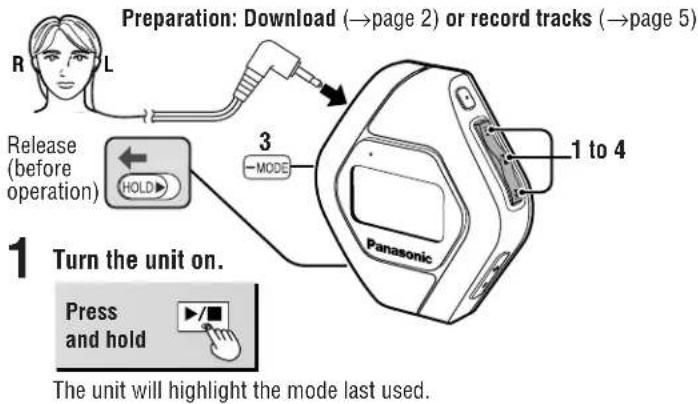
flowchart
graph TD
    A["Preparation: Download (→page 2) or record tracks (→page 5)"] --> B["Release (before operation)"]
    B --> C["3 MODE"]
    C --> D["1 to 4 Panasonic"]
    D --> E["Turn the unit on."]
    E --> F["Press and hold ▶/■"]
    F --> G["The unit will highlight the mode last used."]
2 Select MUSIC.
Skip this step if MUSIC is already selected.


| Adjust the volume | Press or + (0-25) | VOL | 15 |
| PLAYLIST1TRACK1 |
| Setting modeOther modes | Press and holdMODE | Skip | Forwardbackward forwardbackwardSearch During play,press and hold | Off | Press and hold▶/■ | |||
| A-B repeatPlay repeatsbetween the twopoints. | Press atthe start point(A) and once more at the endpoint (B)Press → to cancel. | Stop | Press ▶/■Resume When you next press ▶/■play resumes from where youstopped it. | POWERSAVE | The power automatically turns offafter about 15 seconds of inactivity.This time period can be adjusted.(→page 6, “SYSTEM, AUTO OFF”) | |||
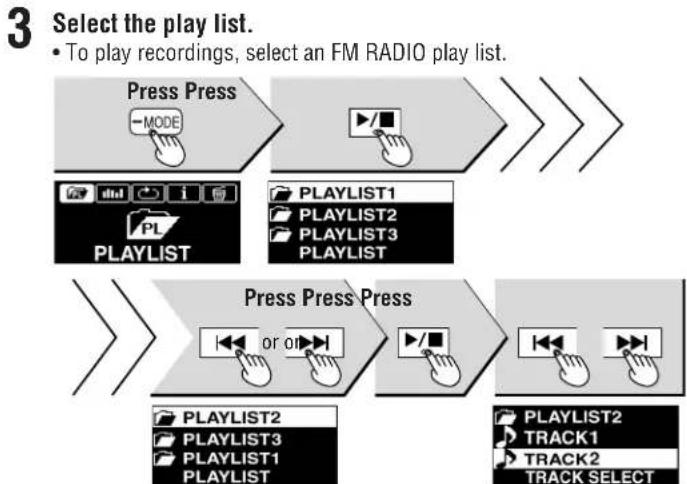
flowchart
graph TD
    A["Press Press"] --> B["MODE"]
    C["PLAYLIST"] --> D["PLAYLIST1"]
    C --> E["PLAYLIST2"]
    C --> F["PLAYLIST3"]
    C --> G["PLAYLIST"]
    H["Press Press Press"] --> I["or on"]
    J["PLAYLIST2"] --> K["TRACK1"]
    J --> L["TRACK2"]
    M["PLAYLIST3"] --> N["TRACK SELECT"]
4 Start play.

Play stops at the end of the list.

Using the language learner (LEARN mode)
Do each step within 10 seconds
Preparation: Download the language learning model recording.
Select LEARN and use Play, Skip, Search, Stop, Resume, Off and change modes as you would in the MUSIC mode. (→ above)
Repeating and listening to model recordings (TRACE BACK)
Repeat and listen to the specified trace back segment.
1 Turn on the TRACE BACK function. (→ page 6, "LEARN, REPEAT SET").
2 During play, press -MODE.
3 Listen to the model recording.
Play goes back 6 seconds and repeats 3 times.
The number of times to repeat and the trace back time can be changed.
(→ page 6, "LEARN, REPEAT SET")


Repetition (6 seconds × 3 times)
Comparing model recordings and your voice (COMPARE)
You can continuously play and compare pronunciation of the model recording with your recorded voice.
1 Start play.
2 Press REG/STOP.
3 When "RECORDING" appears, speak into the microphone.


4 Press REC/STOP.
5 When "PLAYING" appears, listen to the model recording and your recorded voice.
Both play continuously 3 times. The number of times it is repeated can be changed. (→ page 6 "LEARN, REPEAT SET")

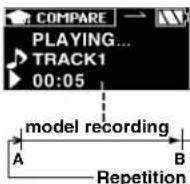
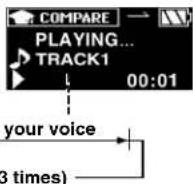
Note • During TRACE BACK and A-B repeat function, if you press COMPARE function will not work.


2 Select FM RADIO. Skip this step if FM RADIO is already selected.
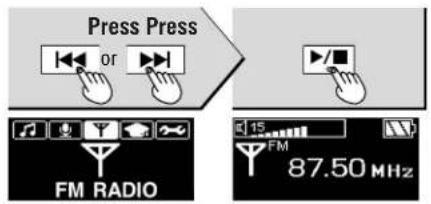
3 Select manual or preset mode. Each time you press

4 Select the station.

- In the manual mode, press and hold until the frequency starts scrolling to start automatic tuning. Tuning stops when a station is found.
- The tuning band steps can be changed (BAND STEP →page 6)
| Adjust the volume | Press —VOL or VOL+ (0-25) |
| Setting modeOther modes | Press and hold —MODE |
| Off | Press and hold / |
Recording the radio
While listening to the station.
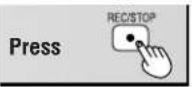
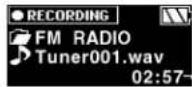
Recording time (Available time → Right)
To play the recording
Select MUSIC mode, then select the FM RADIO play list. (→page 4)
| Show available time | Press -MODE. Press again to show the recording time. |
| Stop | Press REG/STOP. |
Presetting stations (FM1, FM2)
FM1: 20 stations can be stored. FM2: 10 stations can be stored.
AUTO

flowchart
graph LR
    A["Select FM1 or FM2 by step3."] --> B["Press and hold"]
    B --> C["MODE"]
    C --> D["AUTO PRESET AUTO BAND STEP 123..."]
    D --> E["PressPress"]
    E --> F["AUTO PRESET ?"]
    F --> G["YES NO"]
    G --> H["Select .YES"]
    H --> I["AUTO PRESET will"]
■ MANUAL

flowchart
graph LR
    A["Select FM1 or FM2 by step3."] --> B["Press Press"]
    B --> C["Repeat as many times as is required."]
    C --> D["Select the frequency."]
    D --> E["Select the channel."]
    E --> F["Exit the mode menu."]
AUTO PRESET will start. The radio screen automatically returns when AUTO PRESET is finished.
Voice recording (IC RECORDER mode)
Do each step within 10 seconds
1 Turn the unit on.

The unit will highlight the mode last used.

2 Select IC RECORDER.
Skip this step if IC RECORDER is already selected.

3 Start recording.


Recording time
(Available time → below)
4 Speak into the microphone.
| Showavailable time | PressMODE.Press again to show the recording time. |
| Stop recording | PressREC/STOP. |
| To playrecordedtracks | Press▶/■After all recorded tracks are played the unit returns to standby.During play, press again to stop and return to standby. |
| Setting modeOther modes | Press and holdMODE |
| Off | Press and hold▶/■ |
- Skip and Search method is the same as MUSIC mode.
- The unit will turn off if left in standby mode for more than 5 minutes.
You can set various items in each mode.
- Select MODE 3. Select the desired item 4. Set 5. Confirm2. Settings for selected mode displayed.

flowchart
graph LR
    A["Press and hold MODE"] --> B["Press and hold MODE"]
    B --> C["Press or on MODE"]
    C --> D["Press"]
    D --> E["Press and hold MODE to cancel the setting."]
• This step is not necessary with SYSTEM.
① MUSIC LEARN

PLAYLIST
(→ page 4, MUSIC mode, step 3)
■ SOUND MODE PLAY MODE
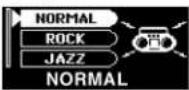
NORMAL: No change in sound ※: Switching REMASTER on/off is possible → below
ROCK: Adds impact
JAZZ: Adds club-like atmosphere
POP: Clarifies the treble range
CLASSIC: Adds concert hall-like atmosphere
USER DEFINE: Adjust BASS and TREBLE between -12dB and +12dB
※: REMASTER (Digital Re-master) You can regenerate signal frequency lost during compression, restoring the sound to near pre-compression form. Press ▶/■ and then press ▶◀, ▶◀ to set on/off. ON: Sound enhanced OFF: Conserves battery life
② IC RECORDER

RECORD MODE
The record mode

[Recording time guide (in hours)] (Maximum hours available when player is empty of files.)
| Mode | SV-MP 100V | SV-MP 110V | SV-MP 120V |
| HQ | 3 | 6 | 12 |
| SP | 6 | 12 | 24 |
| LP | 9 | 18 | 36 |
③ FM RADIO

AUTOPRESET AUTO PRESET
(→page 5, FM RADIO mode, Presetting stations)
PLAY MODE
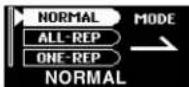
NORMAL: Normal play ALL-REP: All tracks repeat in a list ONE-REP: 1 track repeat RANDOM: All tracks random repeat in a list.
■ i INFO. MODE
Show artist and data information

ERASE MODE

- When selecting ALL, press (YES) and press ▶/■.
SPEED MODE
The play speed (Low-Normal)

■ ERASE MODE (Same method as MUSIC)
- There is no PLAYLIST.
BAND STEP BAND STEP
The tuning band step

Converting the steps erases all preset stations.


PLAYLIST
(→ page 4, MUSIC mode, step 3)
■
(Same method as MUSIC)
※However no RANDOM setting.
REPEAT SET

TIME: Number of times to repeat TRACE※ TRACE / A-B repeat T.TIME: Number of seconds to trace ※ TRACE Repeat and listen to the specified trace back segment. ※ A-B repeat Play repeats between the two points.
■ SPEED MODE (Same method as IC RECORDER)
■ ERASE MODE (Same method as MUSIC)
⑤ SYSTEM

LANGUAGE
Changing the language in which track and play list titles are displayed

English, Chinese Tradition, Chinese Simple, Japanese, Korean, Russian
AUTO OFF
Setting the elapsed time before the power automatically turns off due to inactivity

BACKLIGHT
Setting the duration the display will light when a button is pressed

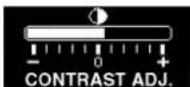
CONTRAST
Adjusting the screen contrast
■ SOUND GRAPHIC
Selecting the display graphic mode

.2Z SLEEP TIME
Setting the time the unit will automatically turn off
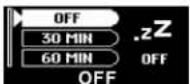
- The display will show “.zZ” when SLEEP is selected.
- Dear Customer
- Caution
- Supplied accessories
- MUSIC
- Mode Options
- IC RECORDER
- FM RADIO
- LEARN
- SYSTEM
- Mode
- Battery (not included)
- Battery indicator
- System Requirements
- Connecting to a computer and downloading files
- ■ After connection
- ■ Downloading MP3 and WMA
- Files and Folders Structure display on your computer
- Saving Data
- HOLD switch
- Location of Controls Displays
- ■ Display Example: MUSIC
- ■ Low-power consumption display
- Specifications
- Maintenance
- Troubleshooting guide
- Care and use
- Batteries
- Allergies
- Using the language learner (LEARN mode)
- Repeating and listening to model recordings (TRACE BACK)
- Comparing model recordings and your voice (COMPARE)
- Recording the radio
- To play the recording
- Presetting stations (FM1, FM2)
- Voice recording (IC RECORDER mode)
- ① MUSIC LEARN
- PLAYLIST
- ■ SOUND MODE PLAY MODE
- ② IC RECORDER
- RECORD MODE
- ③ FM RADIO
- AUTOPRESET AUTO PRESET
- PLAY MODE
- ■ i INFO. MODE
- ERASE MODE
- SPEED MODE
- ■ ERASE MODE (Same method as MUSIC)
- BAND STEP BAND STEP
- ■
- REPEAT SET
- ■ SPEED MODE (Same method as IC RECORDER)
- ⑤ SYSTEM
- LANGUAGE
- AUTO OFF
- BACKLIGHT
- CONTRAST
- ■ SOUND GRAPHIC
- .2Z SLEEP TIME
Brand : PANASONIC
Model : SV-MP120V
Category : Mp3 player