
Index Smart Scale - Scale GARMIN - Free user manual and instructions
Find the device manual for free Index Smart Scale GARMIN in PDF.


| Product Type | Smart Scale |
| Brand | Garmin |
| Model | Index Smart Scale |
| Category | Bathroom Scale |
| Maximum Weight Capacity | 181.4 kg (400 lb.) |
| Battery Type | 4 AA alkaline batteries (1.5 V) |
| Battery Life | Up to 9 months |
| Wireless Connectivity | Wi-Fi 802.11 b/g/n, ANT+, Bluetooth Smart |
| Display Type | LCD screen |
| Measurements | Weight, BMI, Body Fat %, Body Water %, Skeletal Muscle Mass, Bone Mass |
| Body Composition Technology | Bioelectrical impedance analysis |
| User Capacity | Up to 16 users (1 owner + 15 invited) |
| Operating Temperature Range | 10° to 40°C (50° to 104°F) |
| Storage Temperature Range | -20° to 50°C (-4° to 122°F) |
| Cleaning Instructions | Clean with a cloth dampened with mild detergent solution; dry thoroughly |
| Safety Precautions | Not for use by individuals with pacemakers or other internal medical devices |
| Special Features | Risers for use on carpet; automatic user recognition based on weight and frequency |
| Setup Requirement | Garmin Connect account and Wi-Fi connection |
| Software Updates | Automatic via Wi-Fi |
Frequently Asked Questions - Index Smart Scale GARMIN
User questions about Index Smart Scale GARMIN
0 question about this device. Answer the ones you know or ask your own.
Ask a new question about this device
Download the instructions for your Scale in PDF format for free! Find your manual Index Smart Scale - GARMIN and take your electronic device back in hand. On this page are published all the documents necessary for the use of your device. Index Smart Scale by GARMIN.
USER MANUAL Index Smart Scale GARMIN
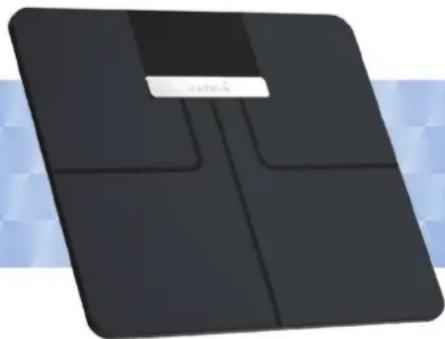
Garmin Index™ Smart Scale
natural_image
Black square electronic device with four compartments and a label on the front panel (no visible text or symbols on the device itself)Owner's Manual
© 2015 Garmin Ltd. or its subsidiaries
All rights reserved. Under the copyright laws, this manual may not be copied, in whole or in part, without the written consent of Garmin. Garmin reserves the right to change or improve its products and to make changes in the content of this manual without obligation to notify any person or organization of such changes or improvements. Go to www.garmin.com for current updates and supplemental information concerning the use of this product.
Garmin ^™ , the Garmin logo, and ANT ^™ are trademarks of Garmin Ltd. or its subsidiaries, registered in the USA and other countries. Garmin Connect ^™ , Garmin Express ^™ , Garmin Index ^™ , and USB ANT Stick ^™ are trademarks of Garmin Ltd. or its subsidiaries. These trademarks may not be used without the express permission of Garmin.
The Bluetooth ^® word mark and logos are owned by Bluetooth SIG, Inc., and any use of such marks by Garmin is under license. Mac ^® is a trademark of Apple Inc., registered in the U.S. and other countries. Wi-Fi ^® is a registered trademark of Wi-Fi Alliance. Windows ^® is a registered trademark of Microsoft Corporation in the United States and other countries. Other trademarks and trade names are those of their respective owners.
M/N: N5; ATWINC1500-MR210PA
Table of Contents
Getting Started.... 1
Device Overview.... 1
Installing the Risers.... 1
Installing the Batteries.... 1
Changing the Units of Measure.... 1
Status Icons.... 1
Setting Up Your Device.... 1
Additional Users....2
Changing Users.... 2
Changing Your Wi-Fi Connection 2
Reading and Recording Measurements.... 2
Measurements.... 2
Device Information.... 2
Device Care....2
Specifications....3
Troubleshooting.... 3
Software Updates.... 3
Getting More Information.... 3
Tips for Erratic Body Composition Data....3
My device is recognizing me as a guest or another user...... 3
My device is not recording measurements.... 3
Resetting to Factory Defaults.... 3
Index......4
Getting Started
WARNING
See the Important Safety and Product Information guide in the product box for product warnings and other important information.
This device passes electric current through the user to conduct measurements. This device should not be used by individuals with pacemakers or other internal medical devices. Consult your physician before using this product if you are pregnant or if you think you may be pregnant.
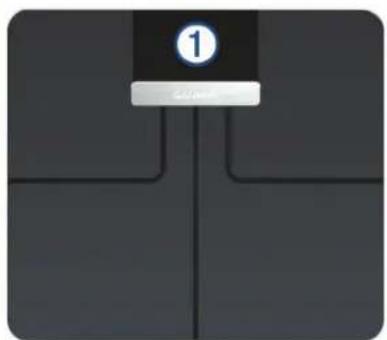
Device Overview
natural_image
Pure electrical circuit lines without any symbols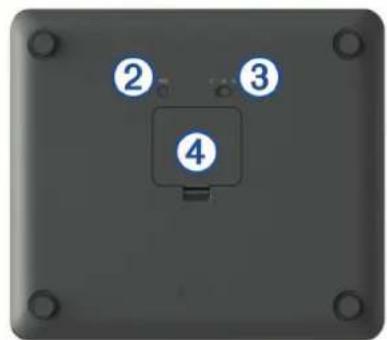
| 1 | LCD screen |
| 2 | Reset key |
| 3 | Units of measure switch |
| 4 | Battery door |
Installing the Risers
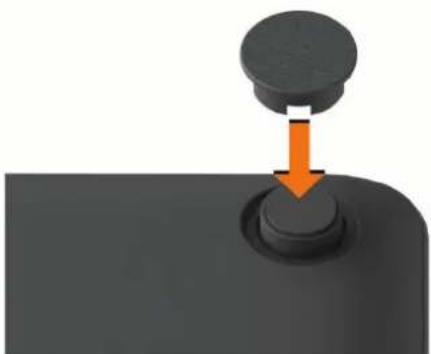
For the most accurate weight measurement, you should use the device on a hard, flat floor. If you plan to use your device on a carpeted floor, you should install the included risers. The risers are not necessary when you use the device on a hard floor.
Press a riser onto each foot on the device.
natural_image
Close-up of a black mechanical knob with a circular knob and an orange arrow pointing to the knob (no text or symbols visible)Installing the Batteries
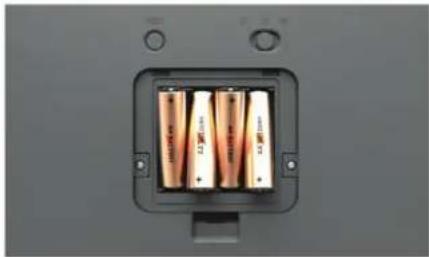
The device operates on four AA batteries.
1 Remove the battery cover.
2 Insert four AA batteries, observing polarity.
natural_image
Close-up of a battery pack with three cylindrical batteries, mounted on a wall (no visible text or symbols)3 Replace the battery cover.
After installing the batteries, the wireless indicator lights on the LCD screen flash and appears to indicate the device is ready to set up.
Changing the Units of Measure
On the underside of the scale, slide the switch to your preferred unit of measure.
Status Icons
Icons appear on the LCD screen to indicate connection status and to indicate which metric is displayed on the screen. Flashing wireless signal icons indicate the device is searching for a signal. A solid icon means the device is connected using the corresponding wireless technology.
| ^ signal status | |
| Bluetooth ^ wireless signal status | |
| ANT ^ wireless signal status | |
| Body mass index | |
| Body fat percentage | |
| Body water percentage | |
| Skeletal muscle mass | |
| Bone mass | |
| Low battery | |
| Guest user | |
| Setup mode | |
| A software update or software maintenance connection status | |
| >>> Data upload or software update was successful | |
| >>> Data upload or software update was unsuccessful | |
Setting Up Your Device
You must set up your Garmin Index device with Garmin Connect ^™ and connect it to a compatible Wi-Fi router before you can use all of the features of the device.
1 Go to www.garminconnect.com/indexscale.
2 Select an option:
- Select Mobile to set up your device using the Garmin Connect Mobile app.
- Select WPS to set up your device using a WPS-enabled Wi-Fi router.
3 Follow the on-screen instructions on your computer or smartphone to set up and configure your device.
NOTE: Until you complete the setup process, the device has limited functionality.
Additional Users
You can invite up to 15 users to use your Garmin Index device using your Garmin Connect account. Each invited user must have a Garmin Connect account.
NOTE: Only the device owner can invite users.
Inviting Users with Garmin Connect
1 Sign in to your Garmin Connect account on your computer.
2 Select Devices > Index Smart Scale.
3 Select Invite next to the user.
Inviting Users with the Garmin Connect Mobile App
1 Open the Garmin Connect Mobile app on your compatible smartphone.
2 Select an option:
- For Android devices, select .
- For iOS devices, select More.
3 Select Garmin Devices > Index Smart Scale > Device Settings > Manage People > Invite Connections.
4 Select Invite next to the user.
Changing Users
Your device distinguishes between users automatically based on weight and frequency of use. When you step on the device, it weighs you and displays your initials on the screen. If the device detects a different user, you can change users.
While initials are displayed on the device screen, tap the device to move through the users registered to the scale.
Changing Your Wi-Fi Connection
You can return your device to setup mode and change your Wi-Fi connection at any time.
NOTE: Returning the device to setup mode does not delete any user information from the device.
On the underside of the scale, press RESET.
The wireless indicator lights on the LCD screen flash to indicate the device is ready to set up (Setting Up Your Device, page 1).
Reading and Recording Measurements
Each time you step on the device, it calculates your weight and other measurements. The LCD screen displays the calculated measurements automatically, moving to the next measurement every few seconds.
1 Remove your socks and shoes.
2 Tap the scale.
The LCD display activates.
3 Stand on the scale barefoot.
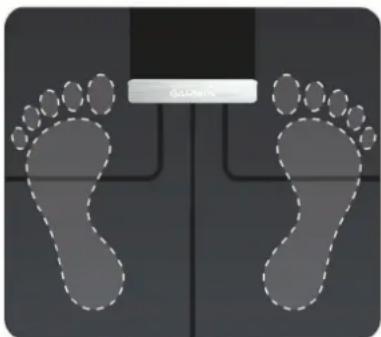
TIP: For best results, stand with your feet placed flat on the glass surface of the scale. Do not contact the screen or the Garmin ^® logo.
The scale weighs you, and it displays your initials and measurements automatically.
4 When measurements display, tap the device to move through the measurements more quickly.
If you have set up your device with an active Wi-Fi connection, measurements are uploaded automatically to your Garmin Connect account.
Measurements
The Garmin Index smart scale uses bioelectrical impedance to calculate your body composition. The device sends a small amount of electrical current (which you will not feel) from one foot through your body to the other foot. The device measures the electrical signal after it passes through your body to estimate aspects of your body composition.
For best accuracy, ensure you use the device under the same circumstances and at approximately the same time of day each time you use the device. Activities that temporarily impact your body's weight, hydration, and distribution of water can impact the accuracy of measurements.
Garmin recommends waiting two hours before using the device after eating, drinking, exercising, bathing, or visiting a sauna.
Body Mass Index (BMI): Body mass index is your weight in kilograms divided by your height in meters squared. BMI is often used to estimate if a person is underweight or overweight.
Muscle Mass: Muscle mass is the total amount of mass attributed to muscle. It is measured in pounds, kilograms, or stones and pounds.
Bone Mass: Bone mass is the total amount of mass attributed to bone. It is measured in pounds, kilograms, or stones and pounds.
Body Fat Percentage: Body fat percentage is the percentage of total mass attributed to fat, including essential fat and storage body fat. Essential body fat is required for basic health.
Water Percentage: Water percentage is the percentage of total mass attributed to fluid. This measurement can be used to indicate your level of hydration.
Device Information
Device Care
NOTICE
Avoid extreme shock and harsh treatment, because it can degrade the life of the product.
Do not store the device where prolonged exposure to extreme temperatures can occur, because it can cause permanent damage.
Do not use a sharp or abrasive object to clean the device.
Avoid chemical cleaners, abrasive cleaners, solvents, and insect repellents that can damage plastic components and finishes.
Cleaning the Device
1 Clean the surface of the device using a cloth dampened with a mild detergent solution.
2 Wipe the device dry.
Specifications
| Maximum load 181.4 kg (400 lb.) | |
| Battery type 4 AA alkaline batteries | |
| NOTICE | |
| You must use 1.5 V batteries in this device. | |
| Battery life Up to 9 mo. | |
| Operating temperature range | From 10° to 40°C (from 50° to 104°F) |
| Storage temperature range | From -20° to 50°C (from -4° to 122°F) |
| Wireless frequency/protocol | Wi-Fi 802.11 b/g/n: 2412 to 2472 MHz (ch. 1 to 13 for EU models) @ 9 dBmANT: 2402 to 2480 MHz @ 0 dBmBluetooth Smart: 2402 to 2480 MHz @ 0 dBm |
Troubleshooting
Software Updates
Your device receives software updates automatically when it is connected using Wi-Fi technology.
Getting More Information
- Go to www.garmin.com/intosports.
- Go to www.garmin.com/learningcenter.
- Go to http://buy.garmin.com, or contact your Garmin dealer for information about optional accessories and replacement parts.
Tips for Erratic Body Composition Data
If body composition data is erratic or does not appear, you can try these tips.
- Stand with your feet placed flat on the glass surface of the scale. Do not contact the screen or the Garmin logo.
- Verify the surface of the scale is dry before use.
- Do not wear socks or shoes.
- Use the device under the same circumstances and at approximately the same time of day each time you use the device.
- Garmin recommends waiting two hours before using the device after eating, drinking, exercising, bathing, or visiting a sauna.
My device is recognizing me as a guest or another user
- Verify your initials and weight on your Garmin Connect account.
- When a user name appears on the screen, tap the scale to move to the next user.
The device distinguishes between users based on weight and frequency of use. If another person with similar characteristics uses the device, it is possible for the device to select the wrong person.
My device is not recording measurements
- Verify the battery is not low.
- Verify you have completed the setup process and that the device is connected using Wi-Fi technology.
Resetting to Factory Defaults
You can reset all the options on your device to factory default values.
NOTE: Resetting the device to factory default values does not delete information saved to your Garmin Connect account.
On the underside of the scale, hold RESET for 5 seconds.
Index
A
accessories 3
B
battery 1
installing 1
Bluetooth technology 1
C
cleaning the device 2
computer, connecting 2
D
device, cleaning 2
G
Garmin Connect 1, 2
|
icons 1
initial setup 1
K
keys 1
M
measurements 2, 3
P
pairing 2
R
resetting the device 3
S
software, updating 3
specifications 3
T
troubleshooting 3
U
units of measure 1
updating software 3
USB ANT Stick 1
user data 2
user profile 2
users, adding 2
W
Wi-Fi 3
support.garmin.com
- Garmin Index™ Smart Scale
- Table of Contents
- Getting Started.... 1
- Setting Up Your Device.... 1
- Reading and Recording Measurements.... 2
- Device Information.... 2
- Troubleshooting.... 3
- Getting Started
- WARNING
- Device Overview
- Installing the Risers
- Installing the Batteries
- Replace the battery cover.
- Changing the Units of Measure
- Status Icons
- Setting Up Your Device
- Additional Users
- Inviting Users with Garmin Connect
- Inviting Users with the Garmin Connect Mobile App
- Changing Users
- Changing Your Wi-Fi Connection
- Reading and Recording Measurements
- Measurements
- Device Information
- Device Care
- NOTICE
- Cleaning the Device
- Troubleshooting
- Software Updates
- Getting More Information
- Tips for Erratic Body Composition Data
- My device is recognizing me as a guest or another user
- My device is not recording measurements
- Resetting to Factory Defaults
- Index
- A
- B
- C
- D
- G
- |
- K
- M
- P
- R
- S
- T
- U
- W
Brand : GARMIN
Model : Index Smart Scale
Category : Scale