
HD 4K 101 Plus - AV Extension Extron - Free user manual and instructions
Find the device manual for free HD 4K 101 Plus Extron in PDF.


| Product Type | AV Extender |
| Brand | Extron |
| Model | HD 4K 101 Plus |
| Category | Extension AV |
| Video Support | Up to 4K@60Hz (4:4:4, 8-bit) |
| Audio Support | Embedded audio, up to 7.1 channel LPCM |
| Input Interface | 1 x HDMI |
| Output Interface | 1 x HDMI |
| HDCP Compliance | HDCP 2.2 |
| Maximum Transmission Distance | 100m (328 ft) over CATx cable |
| Power Supply | External 12V DC, 1A |
| Power Consumption | 5W typical |
| Dimensions (H x W x D) | 24mm x 165mm x 86mm |
| Weight | 0.3 kg |
| Housing | Metal enclosure |
| Mounting Options | Desk or wall mountable |
| Operating Temperature | 0°C to 50°C |
| Storage Temperature | -20°C to 70°C |
| Certifications | CE, FCC, UL |
| Warranty | 3 years |
| Included Accessories | Power supply, brackets, rubber feet |
Frequently Asked Questions - HD 4K 101 Plus Extron
User questions about HD 4K 101 Plus Extron
0 question about this device. Answer the ones you know or ask your own.
Ask a new question about this device
Download the instructions for your AV Extension in PDF format for free! Find your manual HD 4K 101 Plus - Extron and take your electronic device back in hand. On this page are published all the documents necessary for the use of your device. HD 4K 101 Plus by Extron.
USER MANUAL HD 4K 101 Plus Extron
Safety Instructions • English

WARNING: This symbol, ⚠️, when used on the product, is intended to alert the user of the presence of uninsulated dangerous voltage within the product's enclosure that may present a risk of electric shock.
ATTENTION: This symbol, ⚠️ when used on the product, is intended to alert the user of important operating and maintenance (servicing) instructions in the literature provided with the equipment.
For information on safety guidelines, regulatory compliances, EMI/EMF compatibility, accessibility, and related topics, see the Extron Safety and Regulatory Compliance Guide, part number 68-290-01, on the Extron website, www.extron.com.
All trademarks mentioned in this guide are the properties of their respective owners. The following registered trademarks (®), registered service marks (™), and trademarks (™) are the property of RGB Systems, Inc. or Extron (see the current list of trademarks on the Terms of Use page at www.extron.com):
| Registered Trademarks(®) |
| Extron, Cable Cubby, ControlScript, CrossPoint, DTP, eBUS, EDID Manager, EDID Minder, eLink, Flat Field, FlexOS, Glitch Free, Global Configurator, Global Scripter, GlobalViewer, Hideaway, HyperLane, IP Intercom, IP Link, Key Minder, LinkLicense, LockIt, MediaLink, MediaPort, NAV, NetPA, PlenumVault, PoleVault, PowerCage, PURE3, Quantum, ShareLink, Show Me, SoundField, SpeedMount, SpeedSwitch, StudioStation, System INTEGRATOR, TeamWork, TouchLink, V-Lock, VideoLounge, VN-Matrix, VoiceLift, WallVault, WindoWall, XPA, XTP, XTP Systems, and ZipClip |
| Registered Service Mark ^(SM) : S3 Service Support Solutions |
| Trademarks ^(TM) |
| AAP, AFL (Accu-RATE Frame Lock), ADSP (Advanced Digital Sync Processing), AVEdge, CableCover, CDRS (Class D Ripple Suppression), Codec Connect, DDSP (Digital Display Sync Processing), DMI (Dynamic Motion Interpolation), Driver Configurator, DSP Configurator, DSVP (Digital Sync Validation Processing), EQIP, Everlast, FastBite, Flex55, FOX, FOXBOX, IP Intercom HelpDesk, MAAP, MicroDigital, Opti-Torque, PendantConnect, ProDSP, QS-FPC (QuickSwitch Front Panel Controller), Room Agent, Scope-Trigger, SIS, Simple Instruction Set, Skew-Free, SpeedNav, Triple-Action Switching, True4K, True8K, Vector ^TM 4K, WebShare, XTRA, and ZipCaddy |
FCC Class A Notice
This equipment has been tested and found to comply with the limits for a Class A digital device, pursuant to part 15 of the FCC rules. The Class A limits provide reasonable protection against harmful interference when the equipment is operated in a commercial environment. This equipment generates, uses, and can radiate radio frequency energy and, if not installed and used in accordance with the instruction manual, may cause harmful interference to radio communications. Operation of this equipment in a residential area is likely to cause interference. This interference must be corrected at the expense of the user.
NOTE: For more information on safety guidelines, regulatory compliances, EMI/EMF compatibility, accessibility, and related topics, see the Extron Safety and Regulatory Compliance Guide on the Extron website.
Conventions Used in this Guide
Notifications
In this user guide, the following are used:

WARNING: Potential risk of severe injury or death.
NOTE: A note draws attention to important information.
Specifications Availability
Product specifications are available on the Extron website, www.extron.com.
Extron Glossary of Terms
A glossary of terms is available at http://www.extron.com/technology/glossary.aspx.
Contents
Introduction ....1
About the HD 4K 101 Plus .... 1
Features 2
Panel Features ....3
HD 4K 101 Plus Front Panel....3
Input Cable Lengths 3
Securing the HDMI Connector....4
HD 4K 101 Plus Rear Panel....5
Powering Via the Input Source....7
Internal Settings....7
Connecting for Long Cable Runs....8
Mounting 9
Mounting the HD 4K 101 Plus 9
Tabletop Mounting....9
Rack Mounting 9
Under Desk Mounting....9
Through Desk Mounting 9
Extron Warranty 10
Introduction
This guide describes the function, installation, and operation of the HD 4K 101 Plus cable equalizer. Unless otherwise stated, the term "cable equalizer" refers to this product.
This section provides the following information:
• About the HD 4K 101 Plus
- Features
About the HD 4K 101 Plus
The HD 4K 101 Plus is a cable equalizer that actively conditions incoming HDMI signals to compensate for signal loss when using long HDMI cables, low quality HDMI cables, or source devices with poor HDMI signal output. It extends Ultra High Definition (UHD) and 4K signals up to 50 feet (15 meters).
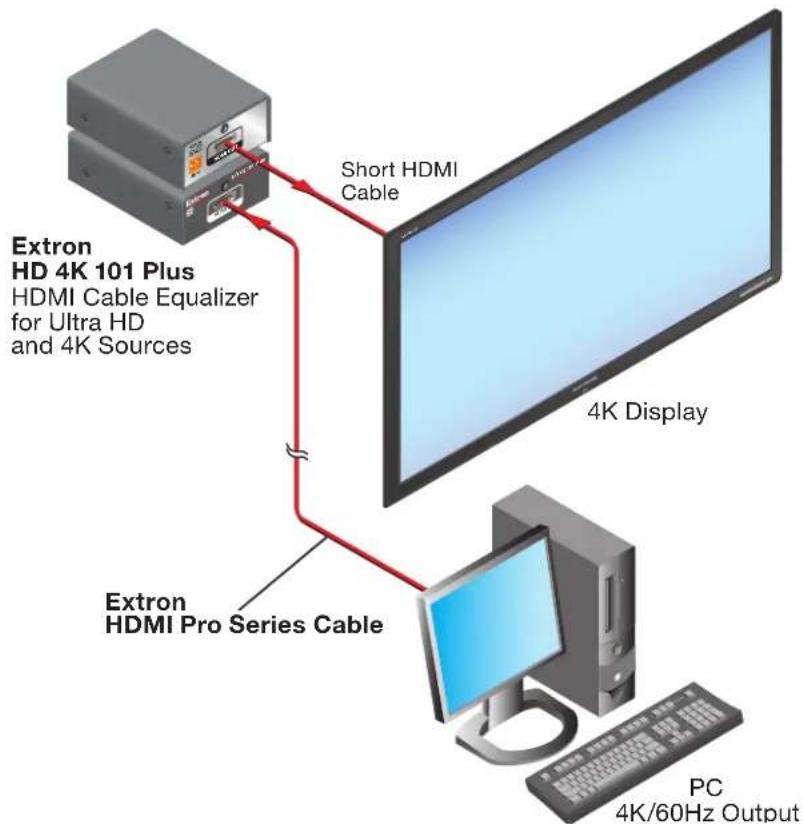
flowchart
graph TD
    A["Extron HD 4K 101 Plus\nHDMI Cable Equalizer for Ultra HD\nand 4K Sources"] -->|Short HDMI Cable| B["4K Display"]
    A -->|Extron HDMI Pro Series Cable| C["PC\n4K/60Hz Output"]
Figure 1. HD 4K 101 Plus Application Diagram
The HD 4K 101 Plus supports resolutions up to UHD (3840x2160 @ 60 Hz) or 4K (4096x2160 @ 60 Hz). It is also able to support a 225 MHz pixel clock rate with 1080p @ 60 Hz (8, 10, or 12-bit) or 1920x1200 @ 60 Hz resolution.
The HD 4K 101 Plus also passes Extended Display Identification Data (EDID) information and supports the long distance transmission of HDTV signals with High-bandwidth Digital Content Protection (HDCP) for copy protection of digital television broadcasts and high resolution digital video output from DVD, HD DVD, and Blu-ray Disc™ players.
With the appropriate adapters from Extron, the HD 4K 101 Plus is fully compatible with all Extron HDMI and DVI products that support both 1080p @ 60 Hz and UHD and 4K @ 60 Hz resolutions.
Features
- Supports UHD and 4K signals — The HD 4K 101 Plus supports computer video resolutions up to 2560x1600, HDTV 1080p/60 Deep Color, UHD resolutions at 3840x2160 @ 60 Hz (4:4:4) and 4K resolutions 4096x 2160 @ 60 Hz (4:4:4).
- HDCP compliant — The HD 4K 101 Plus supports HDCP 1.4 and 2.3.
• Supports pixel clocks up to 600 MHz — The HD 4K 101 Plus handles up to 600 Mhz pixel clock to ensure compatibility with HDMI 2.0.
• Supports HDMI specifications — The HD 4K 101 Plus supports data rates up to 18.0 Gbps, Deep Color up to 12-bit, 4K, 3D, Lip Sync, and HD lossless audio formats. - Extends UHD and 4K video signals up to 50 feet (15 meters) over HDMI cable.
- Automatic input cable equalization — The HD 4K 101 Plus actively conditions incoming HDMI signals to compensate for signal loss when using long HDMI cables, low quality HDMI cables, and source devices with poor HDMI signal output.
- DDC and HDCP copy protection transmission support — Display Data Channel (DDC) allows pass-through of EDID and HDCP information between source and display.
- Pass through EDID communication and HDCP key exchange between the display and source — The HD 4K 101 Plus passes Extended Display Identification Data (EDID) information and supports the long distance transmission of HDTV signals with High-bandwidth Digital Content Protection (HDCP) for copy protection.
- Input — One HDMI connector.
• Output — One HDMI connector. - LockIt HDMI cable lacing brackets included — LockIt lacing brackets are used to secure HDMI cables connected to the HDMI input and output connectors, preventing accidental disconnection of the cables.
- LED indicator for source signal presence and power — Indicator illuminates amber when power is detected and green when a signal is present.
- Can be powered directly from the HDMI source device — Attached source devices that provide +5 VDC on the HDMI output can power the HD 4K 101 Plus, eliminating the need for power supply installation.
• Enclosure — Compact 1-inch (2.5 cm) high, 1/8 rack wide, 3-inch deep enclosure. - Rack and furniture mounting — The cable equalizer can be mounted on a rack shelf or under a desk or podium using optional mounting brackets.
Panel Features
This section describes:
• HD 4K 101 Plus Front Panel
• HD 4K 101 Plus Rear Panel
HD 4K 101 Plus Front Panel
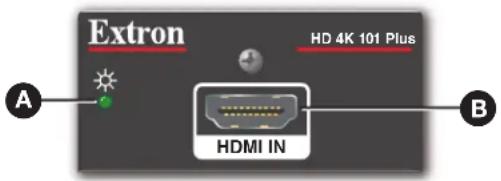
Figure 2. HD 4K 101 Plus Front Panel
A Status LED — Lights amber when the product is receiving power from either the 12 VDC connector or via Pin 18 of the HDMI input from a source device. The LED lights green when an HDMI signal is present, which is detected from TMDS Clock.
B HDMI Input — A single female HDMI Type A connector. The input equalizes the input cable signal at the highest support rate of 600 MHz (see the Input Cable Lengths table below).
The input can also receive power from the video source, via pin 18 (+5 VDC) of the HDMI connector. If the source does not supply adequate power, the status LED will not light amber, and an external power supply must be used (see Attention on page 6). The Extron PS Series Desktop Power Supply is sold separately at www.extron.com.
Input Cable Lengths
| Resolution Refresh Rate (Hz) | Maximum distance | |
| 720p 24/30 175 feet (53.3 meters) | ||
| 720p 60 150 feet (45.7 meters) | ||
| 1080i 30/60 150 feet (45.7 meters) | ||
| 1080p 24/30 150 feet (45.7 meters) | ||
| 1080p (8 bit or deep color) 60 125 feet (38.1 meters) | ||
| 3840x2160 (UHD) 24/30 75 feet (22.9 meters) | ||
| 4096x2160 (4K) 24/30 75 feet (22.9 meters) | ||
| 3840x2160 (UHD) 60 50 feet (15.2 meters) | ||
| 4096x2160 (4K) 60 35 feet (10.7 meters) | ||
| PC Rates | ||
| 1024x768 60 150 feet (45.7 meters) | ||
| 1280x1024 60 150 feet (45.7 meters) | ||
| 1600x1200 60 125 feet (38.1 meters) | ||
| 1920x1080 24/30 150 feet (45.7 meters) | ||
| 1920x1080 60 125 feet (38.1 meters) | ||
| 1920x1200 60 125 feet (38.1 meters) | ||
| 2560x1600 30 75 feet (22.9 meters) | ||
| 2560x1600 60 50 feet (15.2 meters) | ||
| 3840x2160 24/30 75 feet (22.9 meters) | ||
| 4096x2160 24/30 75 feet (22.9 meters) | ||
| 3840x2160 60 50 feet (15.2 meters) | ||
| 4096x2160 60 35 feet (10.7 meters) | ||
NOTE: To send signals the distances shown in the Input Cable Lengths table above, Extron recommends the use of HDMI Pro cables (see www.extron.com).
Securing the HDMI Connector
Use a HDMI cable to connect the input source to the female HDMI socket on the front panel of the HD 4K 101 Plus (figure 2, B, on page 3). Use a HDMI cable to connect the output sink to the female HDMI socket on the rear panel of the HD 4K 101 Plus (figure 3, B, on page 5).
Use the provided LockIt HDMI Cable Lacing Bracket to secure the HDMI connector:
- Plug the HDMI cable into the panel connection.
- Loosen the HDMI connection mounting screw from the panel enough to allow the LockIt lacing bracket to be placed over it. The screw does not have to be removed.
- Place the LockIt lacing bracket on the screw and against the HDMI connector, then tighten the screw to secure the bracket.
ATTENTION:
- Loosely place the included tie wrap around the HDMI connector and the LockIt lacing bracket as shown.
- While holding the connector securely against the lacing bracket, tighten the tie wrap, and then remove any excess length.
HD 4K 101 Plus Rear Panel
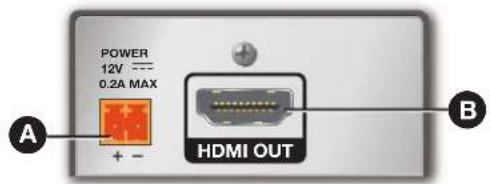
| A | Power Input |
| B | HDMI Output |
Figure 3. HD 4K 101 Plus Rear Panel
Power Input — Connect the (optional) 12 VDC, 0.5 A power supply to this single female, two-pole, 3.5 mm, captive screw connector.
CAUTION: The DC output cables must be kept separate from each other while the power supply is plugged in. Remove power before wiring.
- Cut the DC output cord to the length needed.
- Strip the jacket to expose 3/16 inch (5 mm) of the conductor wire.
ATTENTION:
- The length of the exposed wires in the stripping process is critical. The ideal length is 3/16 inch (5 mm). Any longer and the exposed wires may touch, causing a short circuit between them. Any shorter and the wires can be easily pulled out even if tightly fastened by the captive screws.
-
La longueur des câbles exposés est primordiale lorsque l'on entreprend de les dénuder. La longueur idéale est de 5 mm (3/16 inches). S'ils sont trop longs, les câbles exposés pourraient se toucher et provoquer un court-circuit. S'ils sont trop courts, ils peuvent être tirés facilement, même s'ils sont correctement serrés par les borniers à vis.
-
Ensure the connections have the correct polarity as shown in the figure above.
- Slide the exposed ends of the wire into the captive screw connector and secure by tightening the screws.
- Use the supplied tie wrap to strap the power cord to the extended tail of the connector.
ATTENTION:
B HDMI Output (see figure 3 on page 5)— One female HDMI Type A connector used for HDMI output. The output supports a pixel clock up to 600 MHz. The cable length connecting to the display device must be a maximum of 12 feet (3.6 m).
NOTE: Use the provided LockIt HDMI lacing bracket to secure the HDMI connector (see Securing the HDMI Connector on page 4).
Powering via the Input Source
The HD 4K 101 Plus can receive power from the input device via the 5 VDC signal on pin 18 of the HDMI cable. This eliminates the external power supply. If an external power supply is needed, connect the optional Extron 12 V/0.5 A power supply.
NOTES:
- If the source does not adequately supply the +5 VDC power, an external power supply must be used.
- To verify if the source is providing power, connect a short HDMI cable from the input device to the input of the cable equalizer. If the HD 4K 101 Plus front panel LED lights amber, the source is supplying power.
Internal Settings
Under most conditions, the HD 4K 101 Plus works without adjustments. However, the quality of the image displayed may be affected by a combination of the source, display, and cable length. If so, the HD 4K 101 Plus has two sets of jumper switches that are used to adjust Equalization (EQ), and Pre-emphasis (see figure 4 and the table for Internal Jumper Settings on page 8).
Follow these instructions to get access to these jumper switches:
ATTENTION:
NOTE: Do not remove the screw from the back panel. This secures the internal circuit board and does not attach the base to the cover.
- Locate the four sets of jumper switches on the side of the circuit board (see figure 4).
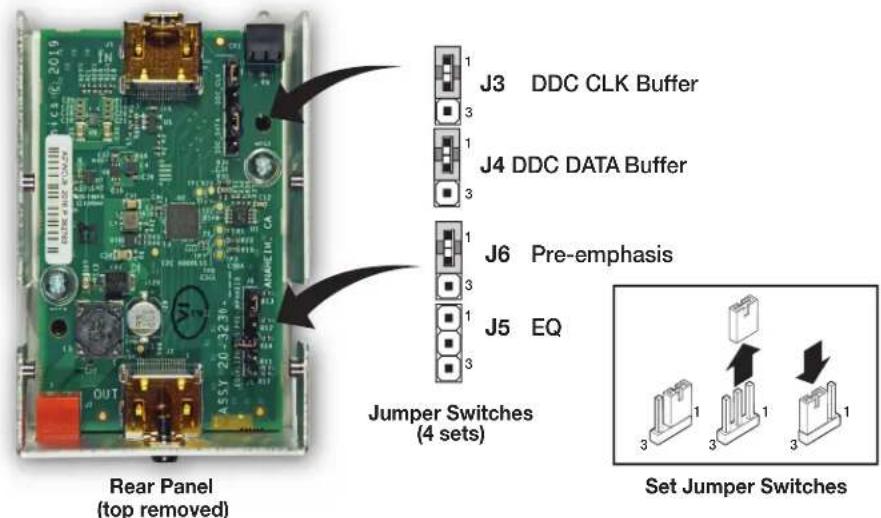
Figure 4. Locating the Jumper Switches
- Set the jumper switches as required (see the Internal Jumper Settings table).
- Replace the cover, using the screws that were removed and saved in step 1.
| Internal Jumper Settings | ||||
| Jumper Function Jumper | Pins 2 and 3 | Jumper Pins 1 and 2 | No Jumper | |
| J3 (DDC CLK Buffer)J4 (DDC DATA Buffer) | Some applications require that the DDC be buffered for proper operation.Adjusting this jumper can clean up the signal to allow it to extend further.NOTE: Jumpers J3 and J4 must be configured together, either both on or both off. | Off 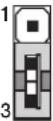 | On Default 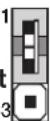 _ _ | NA |
| J5 (EQ) Adjusting this jumper can improve the image for some applications with longer cable runs, image artifacts, or both.Setting for J5 (EQ), based on resolutions and the input HDMI cable lengths used:High:1080p @ 60 Hz with input cables 100-125 feet.4k/30 with input cables 50-75 feet.4k/60 with input cables 25-35 feet.Mid:1080p @ 60 Hz with input cables 50-100 feet.4k/30 with input cables 25-50 feet.4k/60 with input cables 15-25 feet.Low:1080p @ 60 Hz with input cables 15-50 feet.4k/30 with input cables 15-25 feet.4k/60 with input cables less than 15 feet. | Low 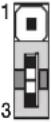 | Mid 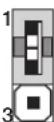 _ _ | High Default 1 [■■■■3] | |
| J6(Pre-emphasis) | Adjusting this jumper can compensate for signal degradation in applications with higher data rate, higher resolution, or both. This adjustment is recommended for resolutions of 2560x1600 @ 60 Hz or higher. | On 1 [■3] | Off Default 1 [■3] | Not used 1 [■■3] |
Connecting for Long Cable Runs
To use the HD 4K 101 Plus effectively, follow the recommendations in figure 5 for cable lengths between the source device and HD 4K 101 Plus and between the HD 4K 101 Plus and the display device. Position the HD 4K 101 Plus at the end of the cable closest to the display.

flowchart
graph LR
    A["Source"] -->|Long Cable from Source (up to 175 feet (53.3m))] H["HD 4K 101 Plus"]
    B["Short Cable to Display (less than 15 feet (4.5m))"] --> H
    H --> C["Display"]
Figure 5. Optimum Cable Lengths for the HD 4K 101 Plus
Mounting
Mounting the HD 4K 101 Plus
The HD 4K 101 Plus can be set on a table, mounted on a rack shelf, or mounted under a desk, podium, or table.
ATTENTION:
Attach the four provided rubber feet to the bottom of the HD 4K 101 Plus and place the unit in any convenient location.
Rack Mounting
See the Extron website for a list of optional rack mounting kits suitable for the HD 4K 101 Plus. Follow the instructions provided with the kit.
Underwriters Laboratories Guidelines for Rack Mounting
The following Underwriters Laboratories (UL) guidelines are relevant to the safe installation of these products in a rack:
- Elevated operating ambient temperature — If the unit is installed in a closed or multi-unit rack assembly, the operating ambient temperature of the rack environment may be greater than room ambient temperature. Therefore, install the equipment in an environment compatible with the maximum ambient temperature (Tma: +122 °F, +50 °C) specified by Extron.
- Reduced air flow — Install the equipment in the rack so that the equipment gets adequate air flow for safe operation.
- Mechanical loading — Mount the equipment in the rack so that uneven mechanical loading does not create a hazardous condition.
- Circuit overloading — Connect the equipment to the supply circuit and consider the effect that circuit overloading might have on overcurrent protection and supply wiring. Give appropriate consideration to the equipment nameplate ratings when addressing this concern.
- Reliable earthing (grounding) — Maintain reliable grounding of rack-mounted equipment. Pay particular attention to supply connections other than direct connections to the branch circuit (such as the use of power strips).
Under Desk Mounting
See the Extron website to find the optional under desk mounting kit suitable for the HD 4K 101 Plus. Follow the instructions provided with the kit.
Through Desk Mounting
See the Extron website to find the optional through desk mounting kit suitable for the HD 4K 101 Plus. Follow the instructions provided with the kit.
Extron Warranty
Extron Electronics warrants this product against defects in materials and workmanship for a period of three years from the date of purchase. In the event of malfunction during the warranty period attributable directly to faulty workmanship and/or materials, Extron Electronics will, at its option, repair or replace said products or components, to whatever extent it shall deem necessary to restore said product to proper operating condition, provided that it is returned within the warranty period, with proof of purchase and description of malfunction to:
USA, Canada, South America, and Central America:
Extron Electronics
1230 South Lewis Street
Anaheim, CA 92805
U.S.A.
Asia:
Extron Asia Pte Ltd
135 Joo Seng Road, #04-01
PM Industrial Bldg.
Singapore 368363
Singapore
Japan:
Extron Electronics, Japan
Kyodo Building, 16 Ichibancho
Chiyoda-ku, Tokyo 102-0082
Japan
Europe:
Extron Europe
Hanzeboulevard 10
3825 PH Amersfoort
The Netherlands
China:
Extron China
686 Ronghua Road
Songjiang District
Shanghai 201611
China
Middle East:
Extron Middle East
Dubai Airport Free Zone
F13, PO Box 293666
United Arab Emirates, Dubai
Africa:
Extron South Africa
3rd Floor, South Tower
160 Jan Smuts Avenue
Rosebank 2196, South Africa
This Limited Warranty does not apply if the fault has been caused by misuse, improper handling care, electrical or mechanical abuse, abnormal operating conditions, or if modifications were made to the product that were not authorized by Extron.
NOTE: If a product is defective, please call Extron and ask for an Application Engineer to receive an RA (Return Authorization) number. This will begin the repair process.
USA: 714.491.1500 or 800.633.9876 Asia: 65.6383.4400
Europe: 31.33.453.4040 or 800.3987.6673
Japan: 81.3.3511.7655
Africa: 27.11.447.6162
Middle East: 971.4.299.1800
Units must be returned insured, with shipping charges prepaid. If not insured, you assume the risk of loss or damage during shipment. Returned units must include the serial number and a description of the problem, as well as the name of the person to contact in case there are any questions.
Extron Electronics makes no further warranties either expressed or implied with respect to the product and its quality, performance, merchantability, or fitness for any particular use. In no event will Extron Electronics be liable for direct, indirect, or consequential damages resulting from any defect in this product even if Extron Electronics has been advised of such damage.
Please note that laws vary from state to state and country to country, and that some provisions of this warranty may not apply to you.
- Safety Instructions • English
- FCC Class A Notice
- Conventions Used in this Guide
- Notifications
- Specifications Availability
- Extron Glossary of Terms
- Contents
- Introduction ....1
- Panel Features ....3
- Mounting 9
- Extron Warranty 10
- Introduction
- About the HD 4K 101 Plus
- Features
- Panel Features
- HD 4K 101 Plus Front Panel
- Input Cable Lengths
- Securing the HDMI Connector
- ATTENTION:
- HD 4K 101 Plus Rear Panel
- Powering via the Input Source
- NOTES:
- Internal Settings
- Connecting for Long Cable Runs
- Mounting
- Mounting the HD 4K 101 Plus
- Rack Mounting
- Underwriters Laboratories Guidelines for Rack Mounting
- Under Desk Mounting
- Through Desk Mounting
- Extron Warranty
- Asia:
- Europe:
- China:
- Middle East:
- Africa:
Brand : Extron
Model : HD 4K 101 Plus
Category : AV Extension