
Infinity Touch SYSTXCCITC01-A - Thermostat CARRIER - Free user manual and instructions
Find the device manual for free Infinity Touch SYSTXCCITC01-A CARRIER in PDF.


| Product Type | Programmable Touchscreen Thermostat |
| Model | Infinity Touch SYSTXCCITC01-A |
| Brand | Carrier |
| Display | 4.3-inch Color Touchscreen |
| Dimensions (approximate) | 4.5 x 3.5 x 1.2 inches |
| Weight (approximate) | 0.5 lbs |
| Power Supply | 24 VAC, 50/60 Hz |
| Wi-Fi Connectivity | 802.11 b/g/n (2.4 GHz) |
| Compatible Systems | Carrier Infinity® HVAC Systems |
| Zoning | Supports up to 8 zones |
| Key Functions | Touch 'N' Go®, Comfort Profiles, Scheduling, Vacation Mode, Remote Access, Energy Tracking, Weather Display, Humidification/Dehumidification Control, Fresh Air Ventilation Control, Utility Demand Response |
| Schedule | 7-day programmable with 4 periods (Wake, Home, Away, Sleep) |
| Fan Speeds | Auto, Low, Medium, High |
| Temperature Range (Heat) | 40°F to 80°F (programmable) |
| Temperature Range (Cool) | 60°F to 100°F (programmable) |
| Humidity Control | Humidify (5%-45%) and Dehumidify (46%-58%) |
| Software Updates | Via Wi-Fi or USB |
| Screen Saver | User-uploadable photo |
| Maintenance Reminders | Filter, Humidifier, UV Lights, Ventilator Pre-filter |
| Warranty | Limited warranty (refer to manual for details) |
Frequently Asked Questions - Infinity Touch SYSTXCCITC01-A CARRIER
User questions about Infinity Touch SYSTXCCITC01-A CARRIER
0 question about this device. Answer the ones you know or ask your own.
Ask a new question about this device
Download the instructions for your Thermostat in PDF format for free! Find your manual Infinity Touch SYSTXCCITC01-A - CARRIER and take your electronic device back in hand. On this page are published all the documents necessary for the use of your device. Infinity Touch SYSTXCCITC01-A by CARRIER.
USER MANUAL Infinity Touch SYSTXCCITC01-A CARRIER
NOTE: Read the entire instruction manual before starting the installation.
The features and functions outlined in this Owner's Manual reflect Version 14 software.SeetheDownloadssectionofwww.MyInfinityTouch.Carrier.com forthe latestsoftwarereleaseandliterature.
US Patents: Carrier® U.S. Pat No. 7,243,004, Carrier® U.S. Pat No. 7,775,452, pointSET™ U.S.PatNo.7,415,102
TABLEOFCONTENTS
PAGE
INTRODUCTION1.
HOMESCREEN1.
InformationDisplayed1....
Wi--FiConnectivity2.
InformationButtons4.
MAINSCREEN 5.
System Mode 5
Set Day and Time 6
Adjust Temperature (Temporary Hold) 6
Adjusting Comfort Activities 6
Adjusting Heating 7
Adjusting Cooling 7
Adjust Temperature (Permanent Hold) 8
Adjusting Comfort Profiles 8
Adjusting Heating 8
Adjusting Cooling 9
FEATURES 11
Adjust Fan Speed 11
View Current Humidity Level 11
MENUSCREEN 12.
COMFORT PROFILES 12
Home Humidity Control 14
TABLEOFCONTENTS(cont.)
PAGE
HomeFreshAirControl16.
AwayHumidityControl17....
AwayFreshAirControl18.
VacationHumidityControl19.
Vacation Fresh Air Control 20
SCHEDULES22.
View or Edit Schedule 22
Guided Scheduling 23
Upload My Schedule 25
VACATION 26
REMINDERS28.
OPERATING STATUS 29
Accessories Status 30
Temperature Control Status 30
DISPLAY....31
Temperature Units 31
Backlight Levels 32
Sound Settings 33
Screen Saver Settings 33
Touch Screen Calibration 34
TABLEOFCONTENTS(cont.)
PAGE
ENERGYTRACKING34.
TIME/DATE36.
SetTimeandDate36.
ManuallyAdjustTimeandDate36.
SetupDaylightSavingsTime37.
Setup Time Zone 38
EnableTimeSynchronization 38.
SERVICE 39
Service Information 39
Service Reminder Update 40
Software Update 40
Updating Software Using USB 41
Updating Software Using Wi-Fi 41
Model/SerialNumbers 45.
PHOTOUPLOAD 46.
HEAT SOURCE (IF APPLICABLE) 47
ZONE NAMES (IF APPLICABLE) 48
Home Automation System Interface (If Applicable) 48
SCREEN LOCK 49
WIRELESS 50
Wi-Fi Diagnostics 58
TABLEOFCONTENTS(cont.)
PAGE
WEATHER59.
UTILITYDEMANDEVENTRESPONSESETUP60.
UtilityEvent60.
PriceResponse61.
PriceSettings61.
.....DemandResponse62
Demand Settings 63
Response Limits 63
Restore UE Factory Default Settings 64
INTRODUCTION
CONGRATULATIONS! Your decision to choose the Infinity® Touch Control puts youinaselectgroupofhomeownerswhounderstandthevalueofprecisecomfort controlandappreciatethesimplicityofaneasy--to--use,intuitive,control.
YournewInfinityTouchControloffershighqualitycomforttechnology.Please takeafewmomentstocarefullyreadthroughthismanual.Nextsetupacomfort profileandschedulethatmakessenseforyourlifestyle;thenrelaxandenjoythe newcomfortofyourhome!
HOMESCREEN
InformationDisplayed
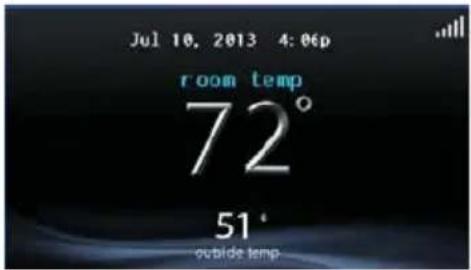
The information displayed on the homescreen will appear when there has been no interaction with the Infinity Touch Control for at least two minutes. The basic information displayed on the Home Screen consists of the current date and time, the room temperature (zonetemperature if applicable), the outdoor temperature (if applicable), and current weather condition (Wi-Fi ^ model only, when properly configured). Connectivity status to the home Wi -- Finetwork and the My Infinity Server will also be displayed on the Home Screen for compatible Wi -- Fi units (SYSTXCCITW01 -- A and SYSTXCCITC01 -- A). Note: You must have Wi -- Fi enabled for the indicator to appear.
If you have uploaded a phototo the control (see Pg. 41), it will be displayed until you touch the display. You will then be taken to the HomeScreen.
Wi--FiConnectivityStatus
A13258
With the SYSTXCCITW01-A and SYSTXCCITC01-A Infinity Touch Wi-Fi® models,connectivitystatustothehomeWi--FinetworkandMyInfinityServeris displayedinthetoprighthandcorneroftheHomeScreen.
WhentheInfinityTouchcontrolisconnectedtothehomeWi--FinetworkandtheMyInfinityServer,thesignalstrengthbarswillbedisplayedinwhiteasdepictedintheimageabove.ConnectionstrengthtothehomeWi--Finetworkwillbeindicatedbythenumberofsolidwhitebarsdisplayed.

Strong Connection
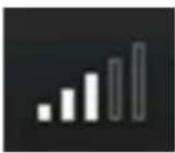
Limited Connection No Connection

A13259
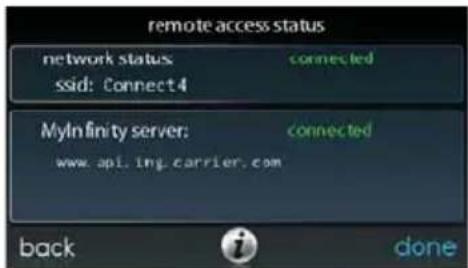
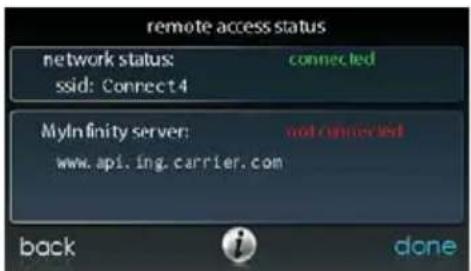
- PressingontheConnectivityStatusbarsfromtheHomeScreenwillallowyoutoviewtheRemoteAccessStatusscreen.
A13260
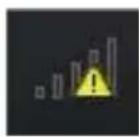
NOTE: If the Infinity Touch control is not connected to the home network, ared "X" will appear over the strength bars. If the Infinity Touch controls connected to the home Wi -- Finetwork but loses connection to the My Infinity Server, a triangle will appear over the strength bars as depicted in the image below. Connection strength to the home Wi -- Finetwork will continue to be displayed by the number of solid bars. If this problem persists, please contact 1 -- 800 -- Carrier for assistance.



A160182
- Pressing on the Connectivity Statusbars from the Home Screen will allow you to view the Remote Access Status screen.
A13262
InformationButtons
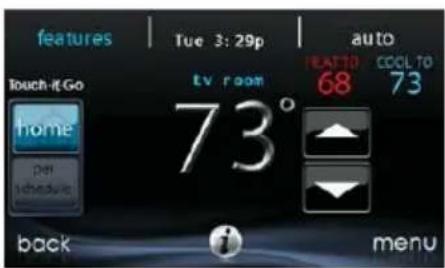
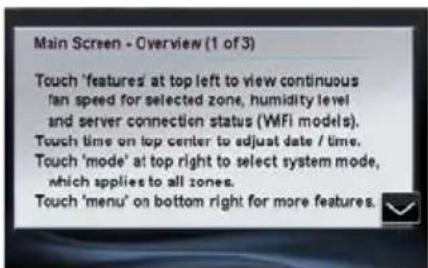
Onthebottomofsomescreenswillbeaninformationicon.Bypressingthe informationicon,attextboxwilldisplaytoshowwhatinteractionsareavailableon thatparticularscreen.Toclosethetextbox,touchthetextbox.
A14237
MAINSCREEN
Themainscreeniswheremostinteractionswilltakeplace.Touchanywhereonthe Homescreentoarriveatthemainscreen.
SystemMode
- Onceinthemainscreen,
- To access your system model to touch the MODE label allocated in the upper right of the control.
- Thedrop--downmenuwillallowyoutochoosebetweenAUTO,HEAT, COOL,FANONLYandOFF,dependingontheequipmentinstalledin yoursystem.
- If OFF is selected your system will not control temperatures, humidity, or fan.
- If AUTOisselected, the Infinity Touch Control automatically switches between heating and cooling to maintain your comfort during transitional seasons.
NOTE:AUTOmodeisintendedtoswitchbetweenheatingandcoolingmodes basedontemperaturedemand.Agradualautotransitionistheenergy--conscious defaultthatwillssatisfythemajorityofcustomers.Somecustomersmighthave significantandsimultaneousheatingandcoolingdemandsindifferentzones.To addressthisneed,aspecialsimultaneousheatingandcoolingdemandautomode couldbeenabledbytheInstaller.WhenthefeatureisenabledandAUTOmodeis selected,thesimultaneousheatingandcoolingdemandautomodewillalternate betweenheatingandcooling,dependingondemand,everyhalfhour.Thismay resultinhigherenergyusagebutprovidethebenefitofgreatercomfort. Your installingcontractorisabletoenablethisfeature,ifdesired.(Thisfeatureisonly availablewithzonedsystems).
- IfHEATisselectedthentheInfinityTouchControloperatesonlytheheatingsystem.
- If COOL is selected then the Infinity Touch Control operates only the cooling system.
- IfFANONLY is selected, then the Infinity Touch Control operates the indoor fan but heating, cooling, humidification or dehumidification will not take place.
SetDayandTime
- Tosetthedayandtimeforyourhomescreenenterthemainscreenby touchinganywhereonthecontrol.
- Touch the DAY and TIME label located at the top middle of the screen or access by going through themuscreen (seePg.32).
- To set the HOUR, MINUTE, MONTH, DAY, or YEAR touch the featureyouwishtochange.
- Use the Up (▲) and Down (▼) buttons to make the appropriate changes.
- When you have completed all of the settings, touch SAVE.
- IfyoumakeamistakeyoumaytouchCANCELandbeginagain.
AdjustTemperature(TemporaryHold)
The Infinity TouchControl allows you to temporarily override your programmed schedule by adjusting the indoor temperature at any time to meet your needs.
AdjustingComfortProfiles(SeeComfortProfilesonPg.11)
- Toadjustthecomfortactivity, enterthemainscreenbytouchinganywhereonthecontrol.
-
Touchtheactivity/topbuttonundertheTouch'N'Go ^ featureonthe leftsideofthescreen;thenselectthedesiredactivityofHOME,AWAY, SLEEP, or WAKE
-
Use the Up (▲) and Down (▼) buttons to change the time to temporarily hold the desired temperature in 15 minute increments.
- Whenthecorrecttimeintervalisdisplayed,touchDONE.
- To return to the scheduled program, touch HOLD UNTIL, and then select PERSCHEDULE.
AdjustingHeating
- Toadjusttheheatingtemperature, enterthemainscreenbytouching anywhereonthecontrol.
- With the system in either AUTO or HEAT mode, use the Up (▲) and Down(▼)buttonstosetthedesiredtemperature.
- On the left hand side of the screen, the comfort profile will switch to manual, and the system will be placed in temporary hold.
- Use the Up (▲) and Down (▼) buttons to change the time to temporarily hold the desired temperature in 15 minute increments.
- When the correct time interval is displayed, touch DONE.
- To return to the scheduled program, touch HOLD UNTIL, and then select PERSCHEDULE.
AdjustingCooling
- Toadjustthecoolingtemperature,enterthemainscreenbytouching anywhereonthecontrol.
- With the system in either AUTO or COOL mode, use the Up (▲) and Down(▼)buttonstosetthedesiredtemperature.
- Onthelefthandsideofthescreen, thecomfortprofilewillswitchto manual, and thesystemwillbeplacedinatemporaryhold.
- Use the Up (▲) and Down (▼) buttons to change the time to temporarily hold the desired temperature in 15 minute increments.
- When the correct time interval is displayed, touch DONE.
- To return to the scheduled program, touch HOLD UNTIL, and then select PERSCHEDULE.
AdjustTemperature(PermanentHold)
The Infinity Touch Control allows you to permanently override your programmed schedule by adjusting the indoor temperature at any time to meet your needs.
AdjustingComfortProfiles(SeeComfortProfilesonPg.11)
- To adjust the comfort activity, enter them a mainscreen by touching any where on the control.
- TouchtheactivityundertheTouch’N’Go ^® featureontheleftsideof the screen; then select the desired activity of HOME, AWAY, SLEEP, or WAKE
- Touch the HOLD UNTIL button, then touch HOLD.
• To return to the scheduled program touch HOLD, and then touch PER SCHEDULE.
AdjustingHeating
- To adjust the heating temperature, enter them a screens by touching anywhere control.
- With the system in either AUTO or HEAT mode, use the Up (▲) and Down(▼)buttonstosetthedesiredtemperature.
- On the left hand side of the screen, the comfort profile will switch to MANUAL.
- Touch the HOLD UNTIL button, then touch HOLD.
- To return to the scheduled program, touch HOLD, and then touch PER SCHEDULE.
AdjustingCooling
- Toadjustthecoolingtemperature,enterthemainscreenbytouching anywhereonthecontrol.
- With the system in either AUTO or COOL mode, use the Up (▲) and Down(▼)buttonstosetthedesiredtemperature.
- On the left hand side of the screen, the comfort profile will switch to MANUAL.
- Touch the HOLD UNTIL button, then touch HOLD.
• To return to the scheduled program, touch HOLD, and then touch PER SCHEDULE.
NOTE: ForMulti--ZoneApplications(Temporary and PermanentHoldoptions)
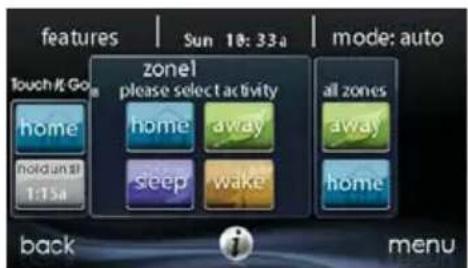
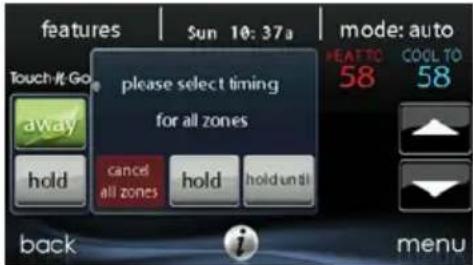
- Foraddedconvenienceinamulti--zoneapplication,theTouch'N'Go feature will also allow you select the desired activity of HOME or AWAYforALLZONES.
A14238
- Once you have selected the desired activity for ALL ZONES, you will have the option to either permanently (HOLD) or temporarily (HOLD UNTIL) override your programmed schedule.
A14239
○ Selecting the HOLD option will permanently override your programmed schedule until you CANCELALLZONES.
○ Selecting the HOLD UNTIL option will allow you to temporarily override your programmed schedule.
Once selected, use the Up (▲) and Down (▼) buttons to change the time in 15 minute increments.
○ When the correct time interval is displayed, touch DONE.
FEATURES
AdjustFanSpeed
TheFeaturesfunctionofInfinityTouchControlallowsyoutoadjustthefanspeed duringcontinuousfanoperation.
- Toadjustthefanspeed, enterthemainscreenbytouchinganywhereon thecontrol.
- Touch FEATURES on the top left of the screen.
• A drop down menu will appear. Touch FAN selection. - Use the Up (▲) and Down (▼) buttons to set the fan to AUTO, LOW, MEDIUM or HIGH, then touch SAVE. In zoned systems, the activity settingswillapplytotheselectedzoneonly.
- Forzonedsystems, theselectedfanspeedwillapplytothezonecurrently displayed in the HOME and MAIN.
ViewCurrentHumidityLevel
The Features function of Infinity Touch Control allows you to view the current humidity level within the conditioned space.
- Enterthemainscreenbytouchinganywhereonthecontrol.
- Touch FEATURES on the top left of the screen.
- Inthedropdownmenuyouwillseeyourmeasuredhumiditylevels withintheconditionedspace.
MENUSCREEN
YourmenuscreenoffersmorefeaturesandcontrolforyourInfinityTouchControl.Touchthemenubuttonatthebottomrightofthemainscreen.
COMFORTPROFILES
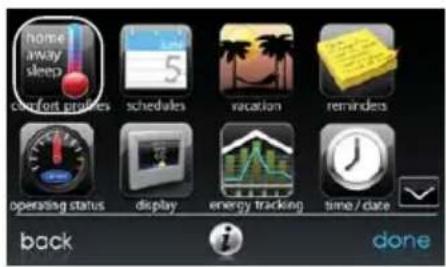
Youwillneedtosetthecomfortprofilesbeforeyouattempttoprogramyournew InfinityTouchControl.
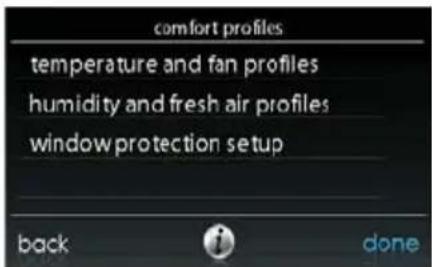
- The COMFORT PROFILES button includes settings for Temperature and FanProfiles, Humidity and Fresh Air Profiles, as well as Window Protection Setup.
A14240
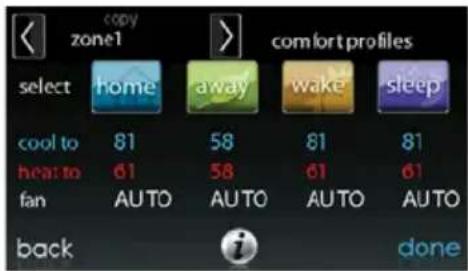
- Setyourdesiredheatingandcoolingtemperaturesandyourfansetting usingtheTEMPERATUREANDFANPROFILESforeachactivity. Inzonedsystems,theactivitysettingswillapplytotheselectedzone only.
A14241
- For example to change your HOME comfort profile, touch the HOMEicon.
Use the Up (▲) and Down (▼) buttons to change the fan settings, heating and cooling temperatures. When you are done, press the DONE button on the bottom right.
- Do the same thing to change the WAKE and SLEEP profiles.
The AWAY profile provides an extra feature called Advanced Smart Setback. It allows the Infinity® System to dynamically determinetheawaytemperatureautomaticallytosavethemost amountofmoney,yetreachyourcomfortsettingswhenyoureturn home.AdvancedSmartSetbackmaycontrolthetemperaturesomewhereinbetweentheAwaytemperaturelimits.Thisisnormaland isintendedtopreventexcessiveenergyuse.
Use the Up (▲) and Down (▼) buttons to change the fan settings and temperaturesettings. The temperaturesettings are therangein which you choose to keep your home conditioned while you are away. The Advanced Smart Setback function will maintain your temperature within this range.
- Set your desired humidity and fresh air (if applicable) using the HUMIDITYANDFRESHAIRPROFILESforeachactivity.
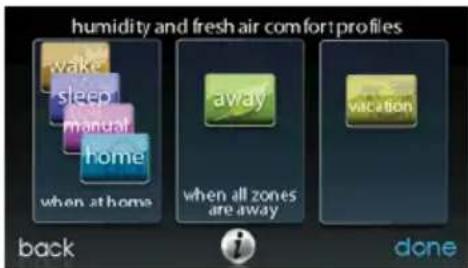
A14242
HomeComfortProfileHumidityControl
- Touch WHEN AT HOME to set your humidity settings while the home is occupied to enjoy superior comfort.
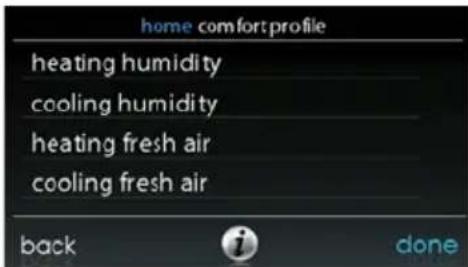
A14243
- If you have a humidifier installed for your system, touch HEATING HUMIDITYtosetthedesiredhumiditylevelwithinthehome.
- YouwillhavetheoptiontoturnONorOFFyourhumidifierfrom thisscreen.
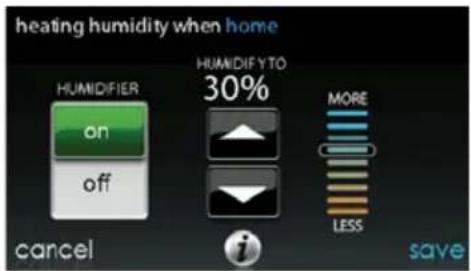
A14244
Once your Humidifier is turned ON, use the Up (▲) and Down (▼) buttonstosetthedesiredhumiditylevelbetween5--45%.
- Press SAVE when finished, or CANCEL to discard any changes.
- Next, select your desired humidity level during cooling by touching COOLING HUMIDITY.
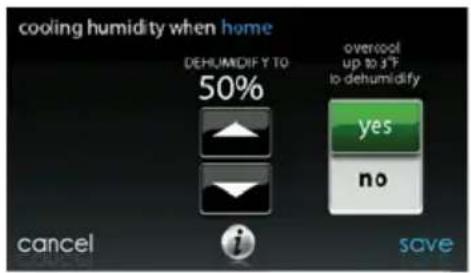
A14245
○ Use the Up (▲) and Down (▼) buttons to set the desired dehumidification level between 46--58%.
- Touch YES or NO for the system to over-cool the conditioned spacebyupto3°Ftoremoveasmuchhumidityoutoftheairas possible. Thesystemwillnotover--coolpast70F.
- Press SAVE when finished, or CANCEL to discard any changes.
HomeComfortProfileFreshAirControl
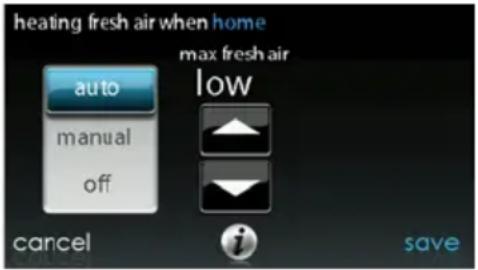
- If a ventilator is installed in your home, select the amount of fresh air to circulated during heating mode by touching Heating Fresh Air.
NOTE: This option may not be available with the ERVXXNVA ventilator due to its simplified control design.
A14246
- You will have the option of choosing among AUTO, MANUAL, or OFF.
NOTE: This option may not be available with the ERVXXNVA ventilator due to its simplified control design.
The AUTO setting will allow the user to choose the maximum fresh air that the ventilator will provide. Selections are Low, Medium or High. In Auto, the ventilator will run continuously, unless the outdoor temperature approaches 0 For 100 F. Atthosetemperatures, it will turn off.
The MANUAL setting allows you to select the percentage of fresh airtosupplyyourhome.IntheMANUALmode,thereareseveral selectionsavailable:Off,Low25%,Low50%,Low75%,Low100%,Medium,andHigh.Thepercentvaluesarepercentofan hour.
○ Use the Up (▲) and Down (▼) buttons to set the desired ventilator speedlevel.
- Press SAVE when finished, or CANCEL to discard any changes.
- If applicable, next select the amount off fresh hair to be circulated during cooling mode by touching COOLING FRESHAIR. Again, you will have the option of choosing among AUTO, MANUAL and OFF.
○ Use the Up (▲) and Down (▼) buttons to set the desired ventilator speedlevel.
- Press SAVE when finished, or CANCEL to discard any changes.
AwayComfortProfileHumidityControl
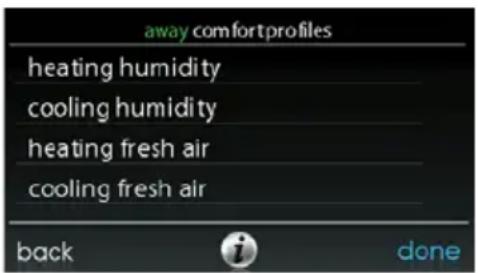
Youmaywishtohavedifferenthumiditysettingswhenyou'reaway.Pressthe MenuareaontheMainScreentoaccesstheadditionalmenuselections.Select Comfort Profiles, then select Humidity and Fresh Air Profiles option.
A14247
- Touch AWAY to set your humidity settings while you are away from hometosavethemostamountofenergy.
- If you have a humidifier installed for your system, touch HEATING HUMIDITY to set the desired humidity level when you are away from home.
○ Use the Up (▲) and Down (▼) buttons to set the minimum humidity level between 5%--45%.
- Press SAVE when finished, or CANCEL to discard any changes.
- To set the desired humidity level during cooling, touch COOLING HUMIDITY.
○ Use the Up (▲) and Down (▼) buttons to set the maximum dehumidificationlevelatNONEorbetween55--65%.
- Touch YES or NO for the system to over-cool the conditioned spacebyupto3°Ftoremoveasmuchhumidityoutoftheairas possible.
- Press SAVE when finished, or CANCEL to discard any changes.
AwayComfortProfileFreshAirControl
YoumaywishtohavedifferentFreshAirprofilesforwhenyou'reaway.Pressthe menuareaontheMainScreentoaccesstheadditionalmenuselections.Select Comfort Profiles, then select Humidity and Fresh Air Profiles option.
- Touch AWAY to set your fresh air settings while you are away from home.
- If a ventilator is installed in your home, select the amount of fresh air to circulated during heating mode by touching HEATINGFRESHAIR.
NOTE: This option may not be available with the ERVXXNVA ventilator due to its simplified control design.
- You will have the option of choosing between AUTO, MANUAL, orOFF.
- The AUTO setting will allow the system to choose the fresh air setting in a range of Low, Medium or High, as selected by you.
The MANUAL setting allows you to select the percentage of fresh airtosupplytoyourhome.IntheMANUALmode,thereareseveralselectionsavailable:Off,Low25%,Low50%,Low75%,Low100%,Medium,andHigh.Thepercentvaluesarepercentofan hour.
○ Use the Up (▲) and Down (▼) buttons to set the desired ventilator speedlevel.
- Press SAVE when finished, or CANCEL to discard any changes.
- If applicable, select the amount of fresh hair to be circulated during cooling mode by touching COOLINGFRESHAIR. Again, you will have the option of choosing among AUTO, MANUAL and OFF.
○ Use the Up (▲) and Down (▼) buttons to set the desired ventilator speedlevel.
- Press SAVE when finished, or CANCEL to discard any changes.
VacationComfortProfileHumidityControl
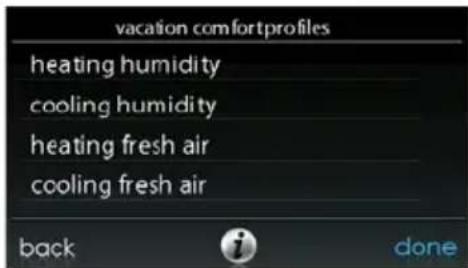
You may wish to have different humidity settings when you're on vacation. Press the Menu area on the Main Screen to access the additional menu selections. Select Comfort Profiles, then select Humidity and Fresh Air Profiles option.
- Touch VACATION to set your humidity settings while you are on vacationosavethemostamountofenergy.
A14248
- If you have a humidifier installed for your system, touch HEATING HUMIDITY to set the desired humidity level when you are away from home.
Use the Up (▲) and Down (▼) buttons to set the minimum humidity level between 5%--45%.
- Press SAVE when finished, or CANCEL to discard any changes.
• To set the desired humidity level during cooling, touch COOLING HUMIDITY.
○ Use the Up (▲) and Down (▼) buttons to set the maximum dehumidificationlevelatNONEorbetween55--65%.
- Touch YES or NO for the system to over-cool the conditioned spacebyupto3°Ftoremoveasmuchhumidityoutoftheairas possible.
- Press SAVE when finished, or CANCEL to discard any changes.
VacationComfortProfileFreshAirControl
- If a ventilator is installed in your home, select the amount of fresh air to circulated during heating mode by touching HEATINGFRESHAIR.
- You will have the option of choosing between AUTO, MANUAL, or OFF.
NOTE: This option may not be available with the ERVXXNVA ventilator due to its simplified control design.
- The AUTO setting will allow the user to choose the maximum fresh airthattheventilatorwillprovide.SelectionsareLow,Mediumor High.
- The MANUAL setting allows you to select the percentage of fresh airtosupplytoyourhome.
○ Use the Up (▲) and Down (▼) buttons to set the desired ventilator speedlevel. - Press SAVE when finished, or CANCEL to discard any changes.
- If applicable, select the amount of fresh hair to be circulated during cooling mode by touching COOLINGFRESHAIR. Again, you will have the option of choosing among AUTO, MANUAL and OFF.
○ Use the Up (▲) and Down (▼) buttons to set the desired ventilator speedlevel.
- Press SAVE when finished, or CANCEL to discard any changes.
SCHEDULES
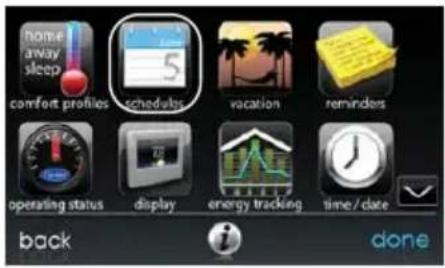
Program your Infinity Touch Control by selecting the SCHEDULES icon. You may selecttousetheguidedschedulingfeature,vieworedityourscheduleorupload yourschedulefromaUSBdrive.
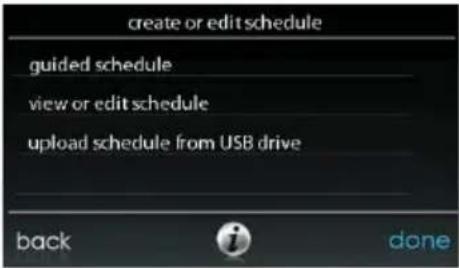
A14249
VieworEditSchedule
- To set a specific day use the Left (◀) and Right (▶) buttons beside the daynames.
- If you wish to copy this schedule to other days, touch COPY above theday.
○Selectthedaysyouwishtohavethesameschedule,thentouch COPY.
- To select the time the activity starts, touch the TIME icons. Use the Up (▲) and Down (▼) buttons to set the desired start time.
- If you want to delete a time period, touch the TIME icon, then touch DELETE.
- To change the desired activity touch the ACTIVITY icon then select the desired activity (WAKE, HOME, AWAY or SLEEP buttons). When finishedtouchSAVE.
- ForZonedSystems
To set a specific room, use the Left (◀) and Right (▶) buttons beside the zonename.
○ If you wish to copy this schedule to a different zone, touch COPY abovethezonename.
○Selectthezonesyouwishtohavethesameschedule,thenpress COPY.
GuidedScheduling
TheGuidedSchedulingfeaturewillpromptyouwithsimplequestionstohelpseta schedulethatmeetsyourdesiredcomfortlevelandlifestyle.
If you are satisfied with your comfort settings, proceed to then next screen.
If you are not, go through the process outlined under Comfort Profiles (Pg. 11).
-
If you have a zoningsystem, then next question will prompt you to pick the zoneyou wishtoschedule.
-
Selectthedesiredzonetoprogram, thentouchNEXT.
-
If you donothave a zoned system, the control will skip this question.
-
Thenextquestionwillpromptyoutoselectthedaysyouwishtoschedule.
- You may select individual days, all days or weekdays by touching their respective buttons.
• After you have selected the desired days, touch NEXT to continue.
- Thenextquestionwillaskwhattimeyouwakeuponthescheduleddays.
• Use the Up (▲) and Down (▼) buttons to set the time you wake up.
• After you have selected the correct time, touch NEXT to continue.
- Thenextquestionwillaskifsomeoneishomeallday.
• Simply touch YES or NO to answer this question.
- If you select NO, the next question will ask what time you leave the home.
○ Use the Up (▲) and Down (▼) buttons to set the time you leave.
- After you have selected the correct time, touch NEXT to continue.
- Youwillthenbeaskedwhattimeyouwillreturntoyourhome.
○ Use the Up (▲) and Down (▼) buttons to set the time you return home.
- After you have selected the correct time, touch NEXT to continue.
- If you select YES or have completed the previous steps, the next question will ask if you want different sleep settings.
• If you select YES, the next question will ask what time you go to sleep.
○ Use the Up (▲) and Down (▼) buttons to set the time you go to sleep.
- After you have selected the correct time, touch NEXT to continue.
- If you select NO or have completed the previous steps, you will be shown a screenthattheschedulingprocessiscompletefortheselecteddaysand zones(ifapplicable).
• If you have completed the schedule, touch SAVE continue.
• If you touch CANCEL, it will prompt you back to step 5.
- If you touched SAVE in step 6, you will be asked if you want to schedule moredays.
• Simply touch YES or NO to answer this question.
• If you select YES, you will return to step 2 and follow the process.
- If you select NO, the screen control will show you the newly created schedule.
- If you have a zoningsystem, you will be asked if you want to schedule another zone.
- If you select YES, you will return to step 2 and follow the process.
- If you select NO, you will see the newly created schedule.
UploadMySchedule
The Upload my Schedule feature will allow you to upload your schedules from a PCorMACcomputer,loadthoseschedulesontoaUSBmemorydevice,and uploadtheschedulesintotheInfinityTouchControl.
- TodownloadtheMyInfinityapplicationforyourcomputer,signintothe MyInfinitywebsiteatwww.MyInfinityTouch.Carrier.com.
○ClickontheDownloadstab.
- ClickontheAdobeAirdownloadlinkandinstallAdobeAironto yourcomputer.
Once Adobe Airis installed on your computer, download the My Infinity Desktop application.
○TheMyInfinityDesktopapplicationprovidesavirtualInfinity TouchControlforyoutouseonyourcomputer.Youcnperformall oftheprogrammingstepsonyourcomputerthatyoucanperform ontheInfinityTouchControl.
- Oncetheschedulesarecomplete, insertaUSBmemorydevice into your computer. Add a new folder to the USB device labeled User. Make sure that this folder is at the top of the folder chain in the USB device; this is also called the "root directory."
- Select the Save Schedule to the USB Drive option on the computer DesktopapplicationSchedulesmenu.Readthedirectionsandthen selectExport.
- SavetheschedulefileintheUsefolderontheUSBdevice.
Once that is complete, safely remove the USB device from the computer.
• InstalltheUSBdeviceintotheUSBportonthebottomoftheInfinity TouchControl.
- On the Infinity Touch Control, select Schedules from the Menu screen, thenselecttheUploadSchedulefromUSBDriveoption.
- If the folder and file have been placed correctly on the USB device, you will be asked if you wish to upload the schedule.
○SelectYes
○ When successful, press Next.
VACATION
Touch the VACATION icon in order to set a prolonged vacation schedule.
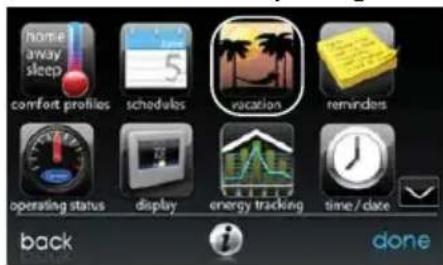
A12174
- Touch PLAN VACATION to begin your vacation schedule.
- Thesystemautomaticallyselectstostartvacationatthecurrenttime.
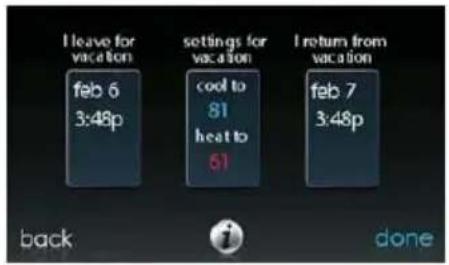
- Use the Up (▲) and Down (▼) buttons to set the time and date of when your vacation begins; then touch NEXT. The control won't allow you to selectavacationstartdate/timeearlierthanthecurrentdate/time.
- Use the Up (▲) and Down (▼) buttons set the fan speed and the temperaturerangeyouwishtokeepyourhouse;thentouchNEXT.
- Use the Up (▲) and Down (▼) buttons to set the time and date of when plan to return from your vacation; then touch NEXT. The system won't allowyoutoselectavacationendtimethatwouldresultinavacation durationoflessthanoneday.
- Reviewyourvacationscheduletomakesureitisaccurate.Ifitiscorrect,touchSAVEtocompleteyourvacationschedule.
A12110
REMINDERS
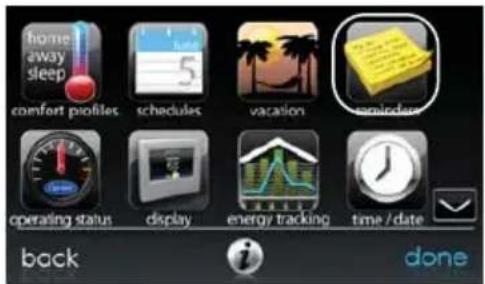
WiththeInfinityTouchControl,thereareaccessorymessagestoremindyouwhen it is time for maintenance. Select the REMINDERS icon from the menu screen.
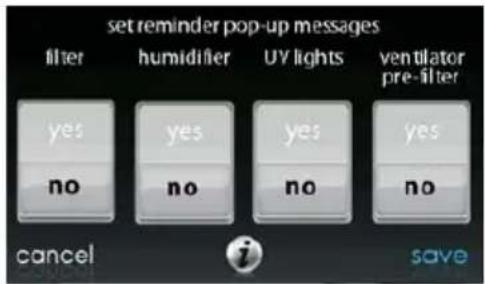
A12123
- You have the option of choosing a pop-up reminder for your air filter, humidifier, UVlights, or ventilator pre--filter.
NOTE: This option may not be available with the ERVXXNVA ventilator due to its simplified control design.
•Toenableareminder,touchYES.
- Afteryouhaveselectedyourdesiredreminders,touchSAVE.
OPERATINGSTATUS
The OPERATING STATUS menugivesa quicklookatthestatus of your Infinity® Heating and Cooling System.
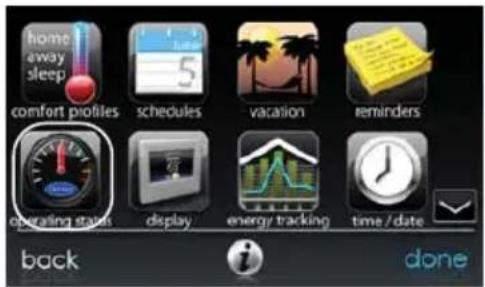
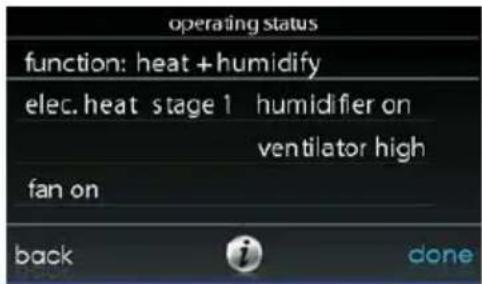
A12173
Whensimultaneousheat/cooldemandisenabled, thisscreenwilldisplay informationmessageatthislocation.
Thisincludesthefollowingmessages:




A160190
Withintheoperatingstatus,youcanviewwhichfunctionyoursystemis performing,andatwhichstagetheheatingorcoolingequipmentisoperating.A messagestating,“SystemCheckinProgress”meansthatthesystemisperforming itsnormal1p.m.Filtercheck.Thisalsohappensanytimethesystemmodeis changedfromOfftoAuto,Heat,Cool,orFanOnly.Whenyouarefinishedlooking at the operating status,press the DONE button to return to the previous menu.
AccessoriesStatus
Within the accessorystatus, you can view how much of each accessory has been consumed, and reset the counterforeach accessory.
- To reset the counter for your installed accessory, touch the RESET button, then press SAVE.
• To return to the previous menu, press CANCEL.
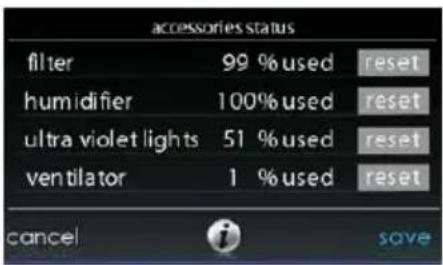
A12108
TemperatureControlStatus
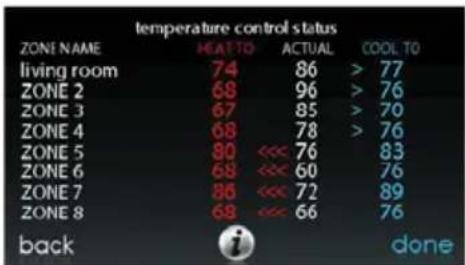
The TemperatureControlStatusallowsyoutotakeaquicklookattheactual temperatures,andtemperaturesetpointsforeachzoneinoursystem.
- When you are done looking at your zone status, press DONE.
Thesystemwillindicatewhichmodeisrunningbyshowingflashingarrows towardseithertheheatingorcoolingsetpoint.Forazonedsystem,thesystem showsflashingarrowsforeachzonecurrentlybeingconditioned.Ifthesystemis preparingforthenextprogramperiod,anindicatorwillbedisplayedtoshowthat thesystemismovingthetemperaturetowardthenextprogrammedsetpoint.In zonedsystemswiththesimultaneousheatcooldemandautomodeactive,the systemwillshowasinglearrowtowardseithertheheatingorcoolingsetpointfor eachzonependingconditioningintheothermode.
A160187
DISPLAY
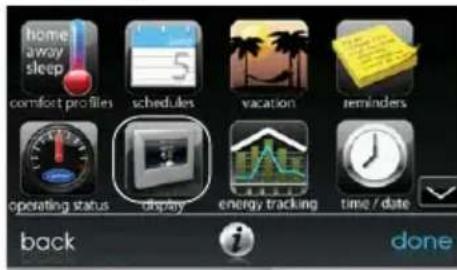
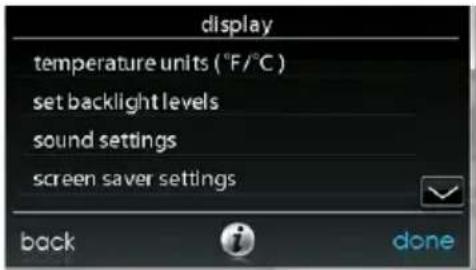
The following display preferences can be adjusted for Infinity Touch Control, Temperature Units (°F or °C), Backlight Levels, Sound Settings and Screen Saver Settings.
A14256
TemperatureUnits
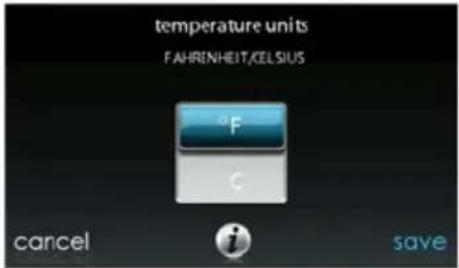
Select the desired temperature units, either °F for Fahrenheit, or °C for Celsius and touch SAVE. Temperatures will be displayed with half-degree resolution for Celsius, or full degree resolution for Fahrenheit.
A14257
BacklightLevels
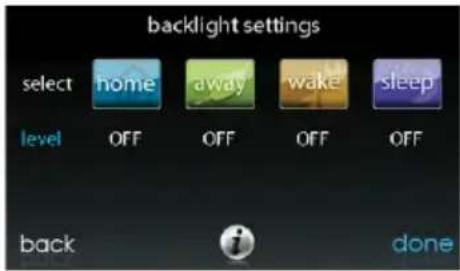
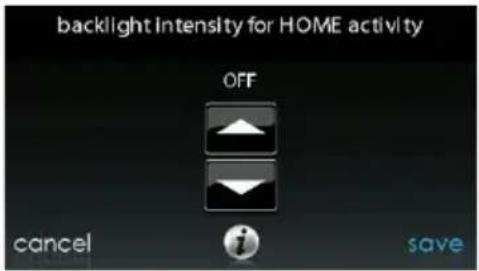
- BacklightlevelsareprogrammableforeachComfortProfilesetting HOME, AWAY, WAKE, or SLEEP.
- Use the Up (▲) and Down (▼) buttons to set/change the brightness of backlighting.
○BrightnesslevelsincludeOFFFor1--10.
NOTE: After 30 seconds of inactivity on the touch screen, the backlight level will besetback to the current selected level which maybe OFF.
A14258
SoundSettings
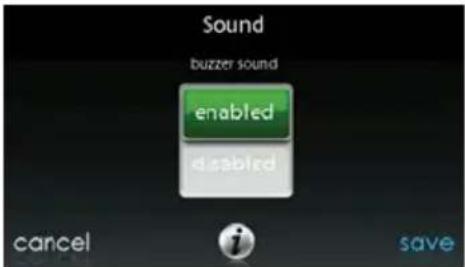
To allow a buzzer to sound on each touch of the screen, touch ENABLE; otherwise, touch DISABLE. The “tick” sound that occurs when you touch the screen cannot be disabled.
A14259
ScreenSaverSettings
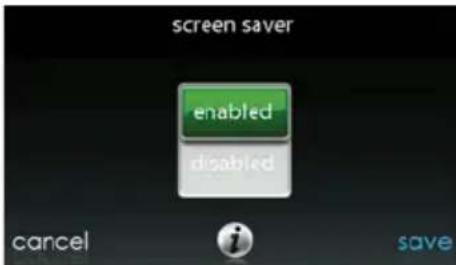
To allow a photo to act as a screen saver, touch ENABLE; otherwise, touch DISABLE.
A14260
TouchScreenCalibration
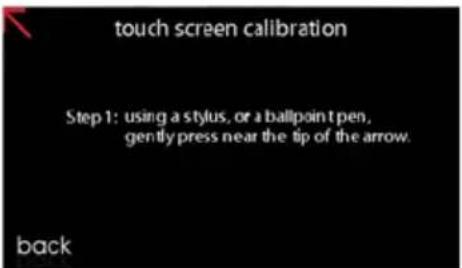
If you experience any problems with touch position accuracy, TouchScreen Calibration can be performed by following the -- screen prompts.
A14261
ENERGYTRACKING
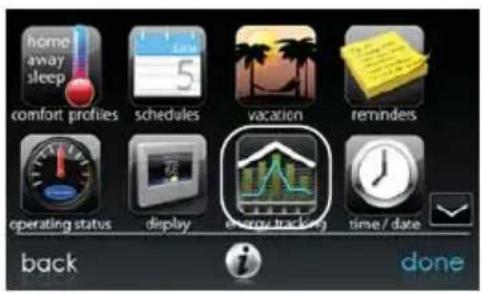
TheInfinityTouchControlhastheabilitytomonitorandestimatetheenergy consumptionofcertainmodelsofyourInfinitySystem.Forsystemswhereenergy trackingisnotavailable,themenuiconwillbeshowningraycolor,andthissection doesnotapply.
A12111
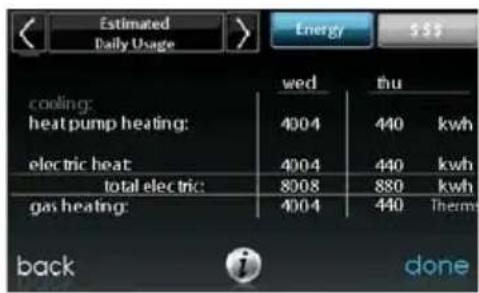
- Touch VIEW ENERGY USAGE to view the estimated energy consumptionindaily,monthlyorannualtimeintervals.Youcanviewenergyconsumptioninunits(kWhforelectricandselectedunitforgasheat),orindollars.
- If a gas furnace is installed, you can SELECT FUEL TYPE (natural gas or propane), and also SELECTFUELDISPLAYUNITS.
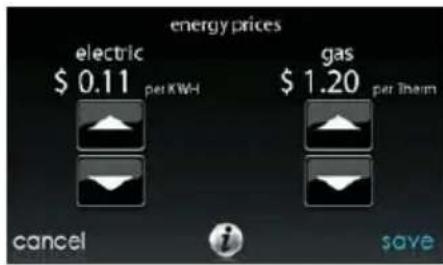
- Touch ENTER ENERGY PRICES to enter the current electric and gas utilityrates.
○ Use the Up (▲) and Down (▼) buttons to set the costs per kWh and cost per Thermoryourselected unit.
Once the correct pricing is entered, press SAVE.
A12113
TIME/DATE
The TIME/DATE icon allows you to set the time and date for the Infinity Touch Control.
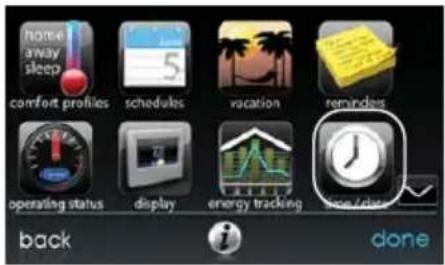
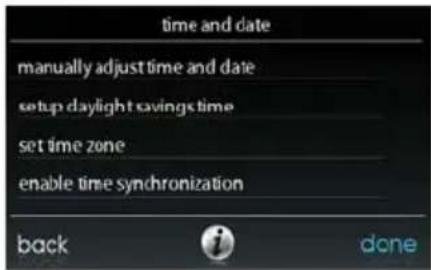
A14250
SetTimeandDate
The time and date can either be set manually or can be synchronized with the web server (only for Wi -- Fienabled units). From them a screens, touch MENU, on the bottom of the control. The TIME/DATE icon will bring up the time and date menu.
ManuallyAdjustTimeandDate
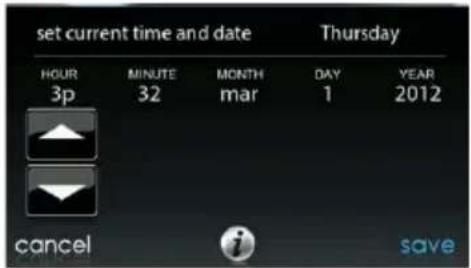
Selectmanuallyadjusttimecandidateandfollowthesesteps:
• To set the HOUR, MINUTE, MONTH, DAY, or YEAR, touch the feature you wish to change.
A14251
- Use the Up (▲) and Down (▼) buttons to make the appropriate changes.
- When you have completed all of the settings touch SAVE.
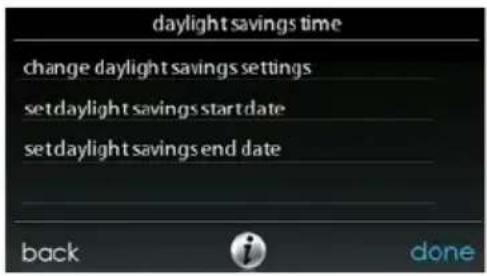
SetupDaylightSavingsTime
YoucanprogramyourInfinityTouchControltoautomaticallyadjustfordaylight savingtime.Fromthisscreen,youcanalsochoosetooverridethepreprogrammed startandenddatesfordaylightsaving.
A14252
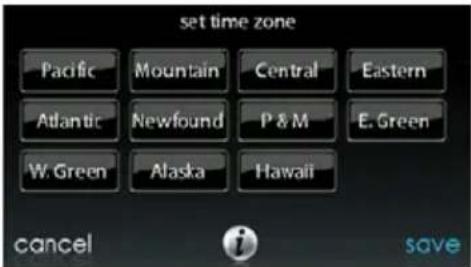
SetupTimeZone
The timezone can be selected by selecting the setup timezone from themenu. Then select the timezone for the location. Timezones for both US and Canada are included.
A14217
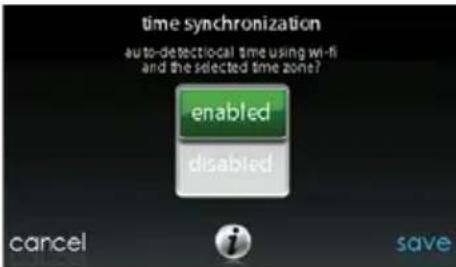
EnableTimeSynchronization
ForsystemswithWi--Fi ^ capability, aftersettingupthetimezone, the time synchronizationcanthenbedone. Both must bedone in orderto enable time synchronization.
A14253
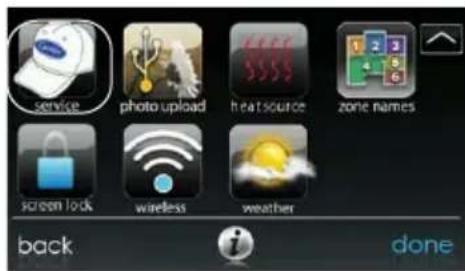
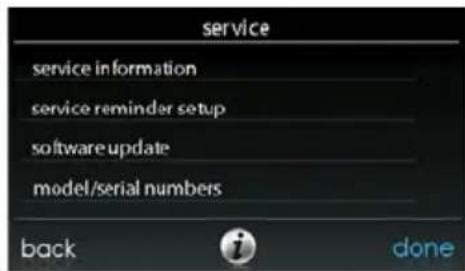
SERVICE
SelectingtheSERVICEiconfromthemenuscreenwillallowyoutoviewservice contactinformation,set--upormodifyserviceremindersandupdatethesoftware foryourwallcontrol.
A14254
ServiceInformation
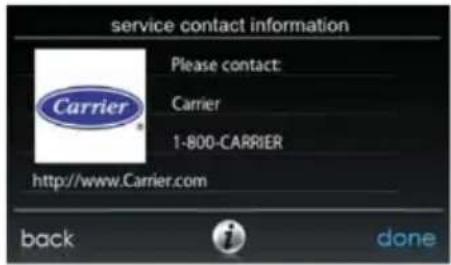
Yourdealerinformationiseasilyaccessibleandmayalreadybepre--programmed inyourControlbyyourdealer.SelecttheSERVICEINFORMATIONoption.
- Eitheryourdealer'scontactinformationortheCarrierServicenumber, 1--800--Carrier,willappear.
- This information will also appear to your system requires service.
A13250
ServiceReminderUpdate
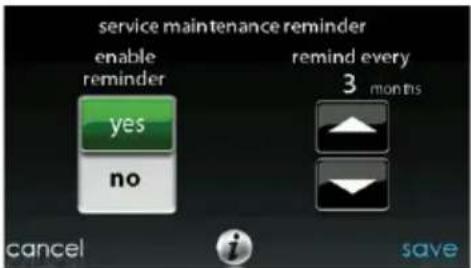
Thisoptionwillallowyoutosetuproutineservicereminders.Oncethereminder optionisenabled,youcanselectthefrequencyofthesereminders(3to18months).
A13251
SoftwareUpdate
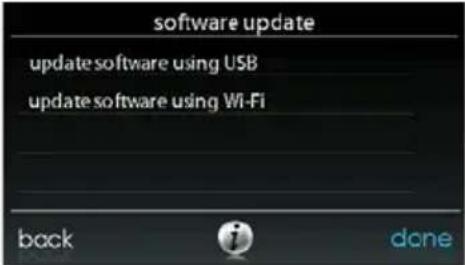
CarrierwillperiodicallyissuesoftwareupdatesfortheInfinityTouchcontrol.For the Wi--Fimodels,SYSTXCCITC01--AandSYSTXCCITW01--A,updateswill downloadautomaticallythroughyourWi--Ficonnection,allowingyoutoinstall thematyourconvenience.Fornon--Wi--Fiamodel,SYSTXCCITN01--A,software updateswillbemadeavailableontheMyInfinitywebsitefordownloadtoaUSB.
A13252
UpdatingSoftwareUsingUSB
- Whensoftwareupdatesareavailable,theywillbepostedtoonthe downloadspageoftheMyInfinitywebsite, www.MyInfinityTouch.Carrier.com/Infinity/Downloads
NOTE: You will obtain best results using a USB drivethatis 2GB, 4GB or 8GB in size. Your flash drivemust be formatted as FAT32.
- From the download page on the My Infinity website, click on the link under the Download Latest Software
- ReadtheEndUserLicenseAgreement(EULA).
- AtthebottomoftheEULA, choose "Yes" if you accept the agreement.
NOTE: If you do not wish to accept the agreement, you will not be abletodownloadthesoftwareupdate.
- Use the Downloadlink provided in the EUL Adocument to download the software update package.
A13253
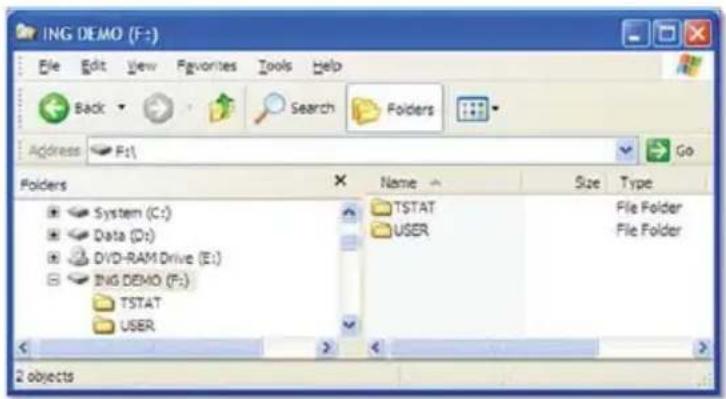
- HighlighttheTSTATfolderintheWinZipwindowbyclickingonthe foldericonONCEtohighlighttheproperfoldertobedownloadedtothe USBdrive.ThenclickonEXTRACT.
- Choose the USB memory device root directory asthe location to extract the folder from the ZIP file. When the download is complete, the TSTAT folder will appear on the root directory of the USB device. Verify that the files, including the ".hex" file, have been extracted into the TSTAT folder of the USB drive.
![WinZip - Version_10_Carrier.zip File Actions View Jobs Options Help New Open Favorites Add Extract Mail Encrypt View CheckOut Address / Folders [Version_10_Carrier.zip] TSTAT Name Type Modified TSTAT Folder 6/12/2013 8:41 AM Selected 7 files / 1 folder, 7,680KB Total 7 files, 7,680KB](/content/2026/05/863727/images/366ffb338479d932a2b5bab41d723aa385c87ba1af1aad5605edb1252b5b7fbe.jpg)
A13254
- PlugtheUSBintothebottomoftheInfinityTouchwallcontrolandclickontheUPDATESOFTWAREUSINGUSB.
- Press Yestocontinuewiththesoftwareupgrade. Theuploadandinstallationwilltakeseveralminutes.
-
Whenthesoftwareupgradeiscomplete,a"successful"messagewill appear.ClickDONE.
-
The Infinity Touch control will perform a restart after the DONE button ispressed. Once the Infinity Touch control has successfully restarted, the USB device may be removed.
• Thiscompletesthesoftwareupgradeprocess.
UpdatingSoftwareUsingWi--Fi®
(SYSTXCCITW01--AandSYSTXCCITC01--Amodelsonly)
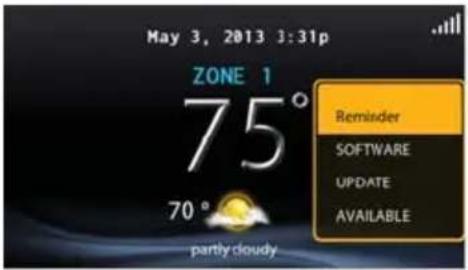
Whensoftwareupdatesareavailable,thisremindermessagewillbedisplayedon thehomescreenoftheWi--Fimodels,only.
A13255
Touchanywhereinsidethesoftwareupdateremindermessagetoinstallthelatest softwareorcustomizeyourremindermessagesforsoftwareupdates.
A150194
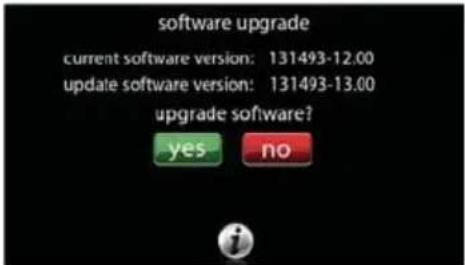
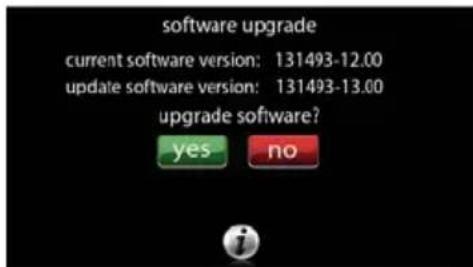
Selecting YES will initiate the software update process. Your Infinity Touch control will reboot in order to complete the software update process. Allof your previously stored information and settings will be maintained.
NOTE: Select DETAILS to view the release notes associated with the software to bedownloaded.
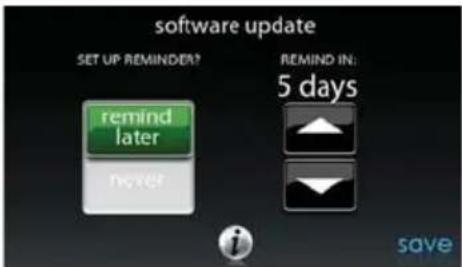
Selecting NO will allow to set-up a reminder for a later time or you can disable the reminderfeatureforthisparticularsoftwareupdate.
A150204
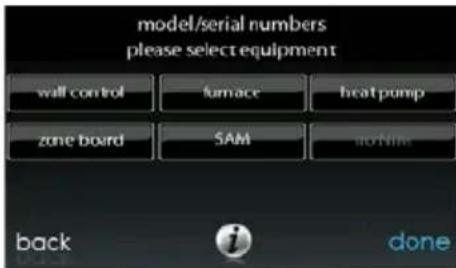
Model/SerialNumbers
This screen will allow you to access the model numbers and serial numbers for the installed equipment.
A14255
PHOTOUPLOAD
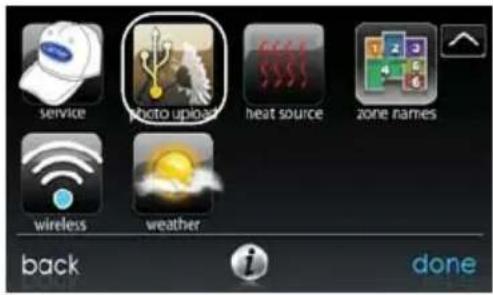
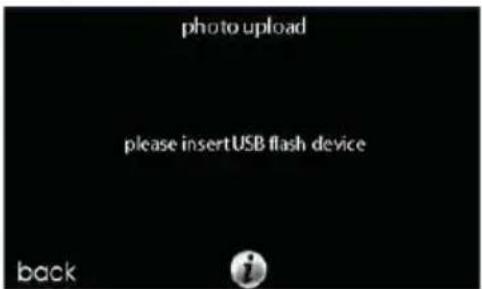
WiththeInfinityTouchControl,youcanuploadapersonalphototoactasascreen saver.SelectthePHOTOUPDATEIconfromthemenuscreen.
A12122
- Use the PCapplicationtouplodthephotoonthecontrolandsaveitto astandardUSBdrive.Gotohttps://www.MyInfinityTouch.Carrier____.com andselecttheInfinityTouchControlandclickthedownloadstabto downloadtheMyInfinitycomputerDesktopapplicationforeitherPCor MAC.Installthesoftwareconyourcomputer,thengototheMenuand selectPhotoExport.Followtheinstructionson--screeninthePCapplication.
- Touch the upload photo icon on the menu screen on the Infinity Touch Control.
- PlacetheUSBdriveintotheUSBportonthebottomoftheInfinity TouchControlwhenprompted.
•Thecontrolwillautomaticallyuploadthephoto. - Oncecomplete, you will receive a confirmation that your photo is loaded.
- Afteryouhaveselectedyourdesiredreminders,touchSAVE.
HEATSOURCE(IFAPPLICABLE)
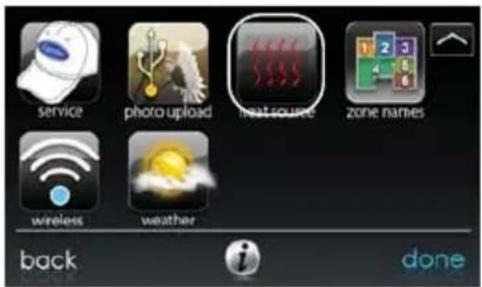
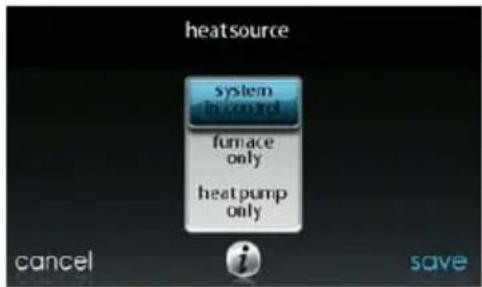
WiththeInfinityTouchControl,youcanselectthedesiredheatsourceofyour system, if your system is equipped as a HYBRID HEAT® System. Select the HEATSOURCEiconfromthemenuscreen.
A12155
NOTE: Options available on this screen will correspond to the equipment attached. Options may appear that are different than those shown, below.
- Thedefaultisforthesystemtocontroltheheatsource.
• To have only the furnace control, select FURNACE ONLY.
• To have only the heat pump, select HEAT PUMP ONLY.
•TohaveonlyelectricselectELECTRICONLY. - When you have made the appropriate selection, touch SAVE.
ZONENAMES(IFAPPLICABLE)
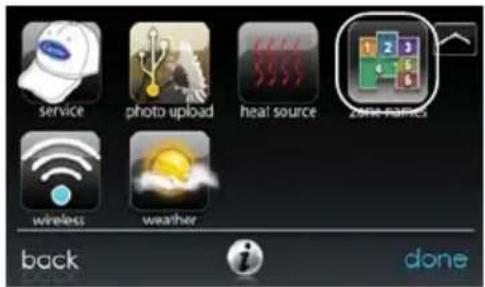
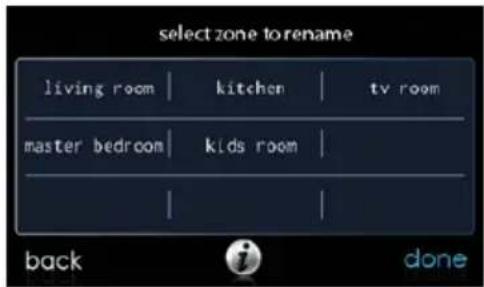
WiththeInfinityTouchControl,youhavetheabilitytocustomizezonenames. SelecttheZONENAMESiconfromthemenuscreen.
A12156
- Touchthezoneinwhichyouchoosetochangethename.
- Choose between selecting a COMMON NAME or CREATE A CUSTOMNAME.
- If you choose a common name, touch then a name you want for that particular zone.
○ If you choose create a custom name, use the (≤ or clear) button to erasetheexistingzonename. Then, usetheon--screenkeyboardto typeinthenameyouwantforthatparticularzone.
HomeAutomationSystemInterface(IfApplicable)
TheInfinity TouchControlcanconnecttoavarietyofhomeautomationsystems. NotethatnotallHomeAutomationsystemsmaybecompatible. Yourdealercan accessinformationforinterfacestohomeautomationsystems.SeetheInfinity TouchControlInstallationInstructionsformoredetails.
Yourdealercanworkwithyourhomeautomationsuppliertoseeifthesystemsare compatible,ortoseeifthehomeautomationsuppliercanmakethemcompatible.
SCREENLOCK
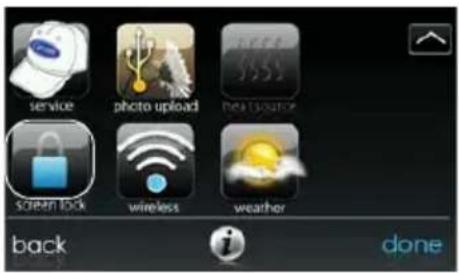
The screen may be locked by selecting the SCREEN LOCK icon from the menu screen.
A13246
- Amessagewillpopupaskingifyouwanttoproceedwiththescreen lock. Selecting Yes will lock the screen and take you back to the home screen.
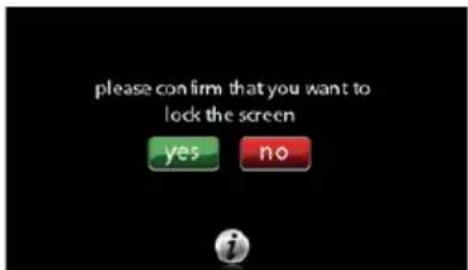
A13247
- To unlock the screen, press and hold UNLOCK in the bottom left hand corner for 10 seconds.
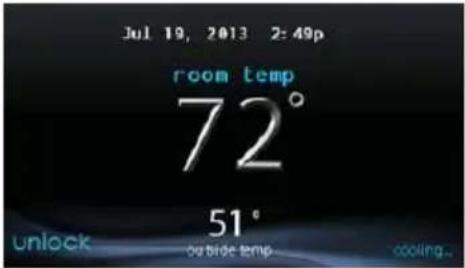
A13248
- Thescreenwillchangeandthecontrolwillthenbeaccessible. If the screenistobelockedagain, returntothemenu, selectthescreenlock andtouch YES.
WIRELESS
Withtheappropriatemodels,theInfinity ^ TouchControlcanconnecttothe in--homeWi--F ^ networktoconnecttheInfinitySystemtotheInternet. Themodel SYSTXCCITW01--AwallcontrolcomesbundledwithanInfinityWirelessAccess Point. ThisestablishesanindependentInfinitySystemWi--Finetwork. Themodel SYSTXCCITC01--AisintendedtoconnecttoanexistinghomeWi--Finetwork,or tobeaddedtoanexistingInfinitySystemWi--Finetwork.Ifthein--homeWi--Fiis foundtobeincompatiblewithSYSTXCCITC01--A,anInfinityWirelessAccess Point (SYSTXXXGWR01) or any other compatible wireless router can be installed toestablishWi--Ficonnectivity.
Please call 1-800-CARRIER for support with Wi-Fi set-up and connection to the MyInfinityServer.
The ability to remotely access and adjust the settings of the Infinity® Touch ControlwiththeMyInfinitywebandmobileapplicationsisdependentonthe compatibilityoftheuser'scomputer/networkormobiledevice,theInfinityTouch Control,and/ortheMyInfinitywebserverwith,andtheavailabilityof,theuser's Internet service provider or mobile device carrier service. Carrier Corporation
makesnorepresentationsorwarranties,expressorimplied,including,tothe extentpermittedbyapplicablelaw,anyimpliedwarrantyofmerchantabilityor fitnessforaparticularpurposeoruse,aboutthecompatibilityoftheuser's computer/network,ormobiledevice,withtheInfinityTouchControl,and/orthe MyInfinitywebserver,with,andtheavailabilityof,theuser'sInternetservice provider or mobile device carrier service, or that the ability to remotely access and adjustthesettingsoftheInfinityTouchControlwillnotbenegativelyaffectedby thenetwork-relatedmodifications,upgrades,orsimilaractivityoftheuser's Internet service provider or mobile device carrier service.
SYSTXCCITC01--AModels
ToestablishWi--FiconnectivitytotheInfinityTouchControlusingthein--home router or wireless access point the wireless access point SSID and password/passkeymustbeknownforset--up.
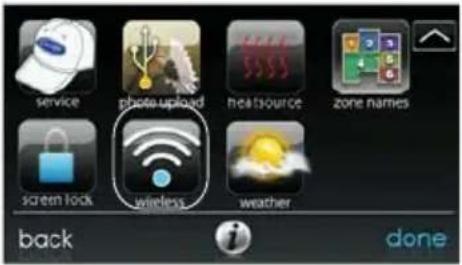
A150190
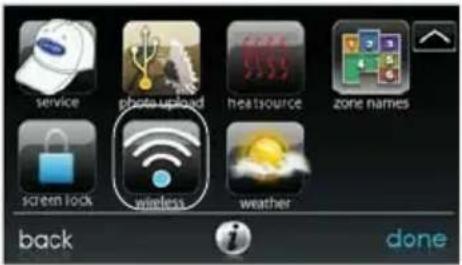
• Select the WIRELESS from the menu screen
• Make sure the Wi-Fi connection is enabled, by touching ENABLED.
- Touch SETUP A WI-FI CONNECTION to begin the process.
• Next, touch SCAN FOR AVAILABLE ACCESS POINTS.
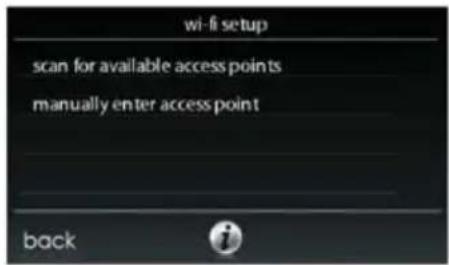
A13235
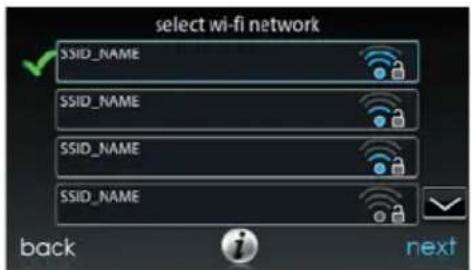
- OnthenextscreenlookfortheSSIDoftherouter/accesspoint. After beingselected, it will be outlinedinfaintblueandwillbeindicatedbya checkmark. ThenselectNEXT.
A150175
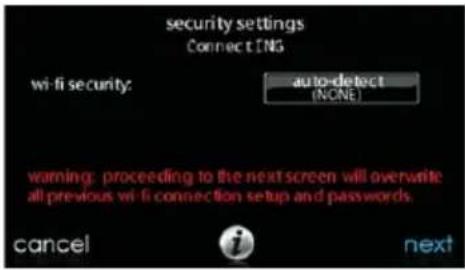
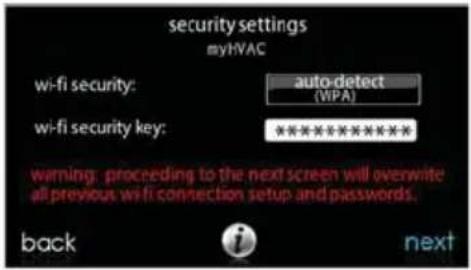
- The selected network will show. Choose an appropriate Wi-Fi security. Usuallyauto--detectwillcorrectlyidentifythetypeofsecurityused.If thenetworkhasnosecurityitwillshowasontheleft,butasecured networkwillpromptfortheWi--Fisecuritykey.
A150191
- IfaWi--Fisecuritykeyisshownasontherighthandpictureabovethen selectthewhitebarandenterthesecuritykey,thenselectNEXT.
- Touchinthesecuritykeyarea,andthekeyboardwillappear.
○UsetheonscreenkeyboardtoentertheWi--Fisecuritykey,then touchNEXT.
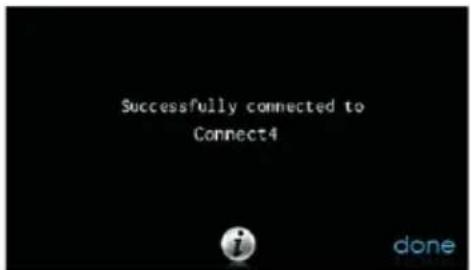
•The control will inform you if the connection is successful. If so, touch DONE.
- If the connection is unsuccessful, verify that the proper information has been entered before you touch RETRY. The control will go through the process again.
A13238
- Afterthecontrolhasconnectedtothenetwork, goto www.MyInfinityTouch.Carrier.comtoregistertheunitandbeginremote access. Thisrequiresthe MACaddressandserialnumberoftheInfinity® TouchWallControl.TofindtheserialnumberandMACaddressof theInfinity® TouchWallControl,clickonMenu,DownArrow,Wireless andViewMyInfinityInfo.Thisscreenwillprovidetheinformation neededontheMyInfinitywebsiteduringregistration.
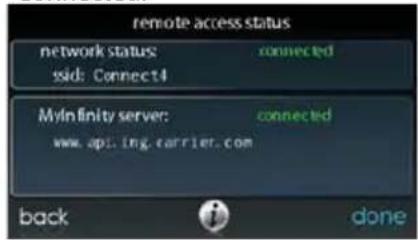
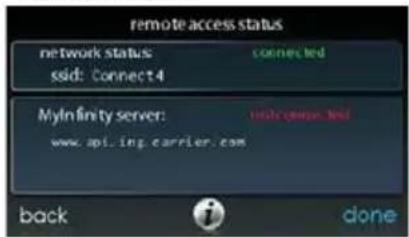
- When the connection to the My Infinity webserver has been established, the status screen will show Connected for both Wi -- Fi and the server.
Connected:
Not Connected:
A13242
ToestablishWi--FiconnectivitytotheInfinityTouchControlthroughtheInfinity System Wireless Access Point (TP-LINK® Device), connect the WAN (BLUE port) connection of TP-LINK Wireless Access Point to the home's existing router LANportusingtheprovidedEthernetcable.TheLANportsonthebackofthe TP--LINKWirelessAccessPointshouldnotbeusedforotherdevices.TheInfinity (TP--LINK)WirelessAccessPointshouldonlybeusedforconnectionofthe InfinityTouchControl(s)andisnotintendedtobeusedwiredorwirelesslywith anyotherdevices.
A150190
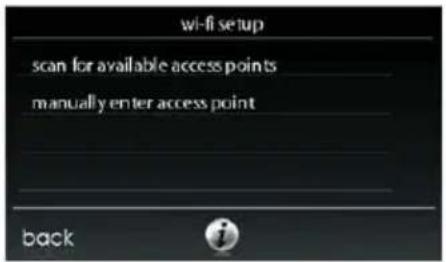
• Select the WIRELESS from the menu screen
• Make sure the Wi-Fi connection is enabled, by touching ENABLED.
- Touch SETUP A WI-FI CONNECTION to begin the process.
• Next, touch SCAN FOR AVAILABLE ACCESS POINTS.
A12115
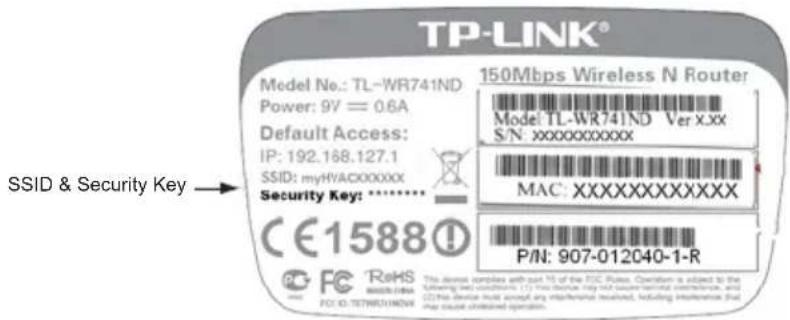
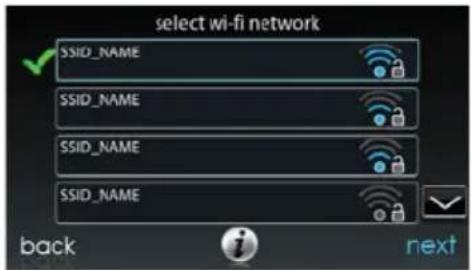
- Select the myHVACxxxxxx connection from the list, then touch NEXT (myHVACisfollowedbythelast6digitsofyourWirelessAccess Point'sMACaddress;seethelabelonthebottomoftheTP--LINKWirelessAccessPoint).
A12357
- Youmayhavetousethedownarrowtoscantothenextscreentofind "myHVACxxxxxx".
A150175
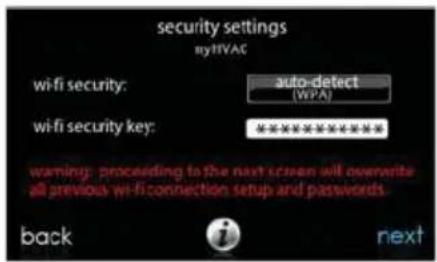
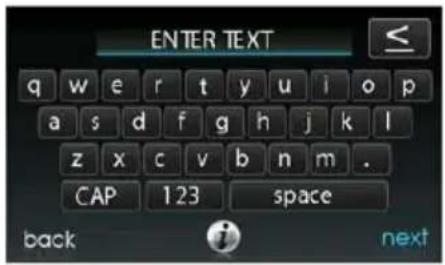
- UsetheonscreenkeyboardtoentertheWi--Fisecuritykey, thentouch NEXT.
- Touchinthesecuritykeyarea,andthekeyboardwillappear.
○ThesecuritykeycanbefoundonthebackoftheTP--LINKWirelessAccessPoint.
A150192
•The control will inform you if the connection is successful. If so, touch DONE.
- If the connection is unsuccessful, verify that the proper information has been entered before you touch RETRY. The control will go through the process again.
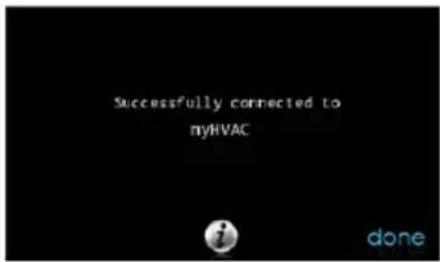
A12118
- Afteryourcontrolhasconnectedtothenetwork, goto www.MyInfinityTouch.Carrier.comoregistertheunitandbeginremote access. ThisrequirestheMACaddressandserialnumberoftheInfinity® Touch Wall Control, NOT the Wireless Access Point. To find the serialnumberandMACaddressoftheInfinityTouchWallControl, clickonMenu,DownArrow,WirelessandMyInfinity®Registration
Info. This screen will provide the information needed on the My Infinity® website during registration.
- SeetheControlRegistrationinstructionsincludedinthepackagefor moreinformation.
- When the connection to the My Infinity webserver has been established, the status screen will show Connected for both Wi -- Fiandtheserver.
TP--LINKisatrademarkofTP--LINKTechnologiesCo.,Ltd.
Wi-Fi® Diagnostics
Wi--Fidiagnosticinformationisavailablefortroubleshootingpurposes.Itislocated intheAdvancedSettingsmenu.Informationfromthisscreenmayberequested duringacustomerservicecall.
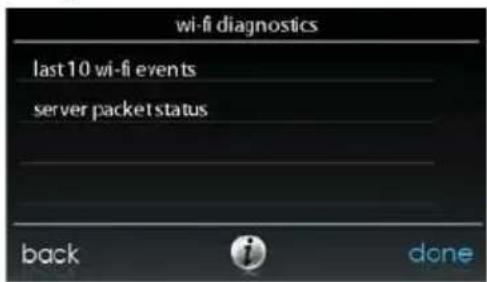
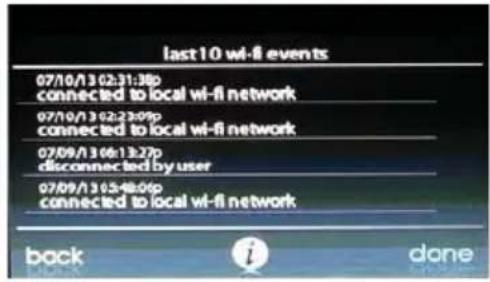
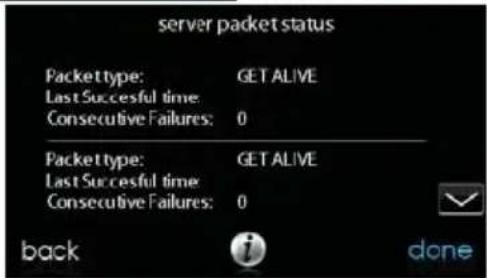
A13243
WEATHER
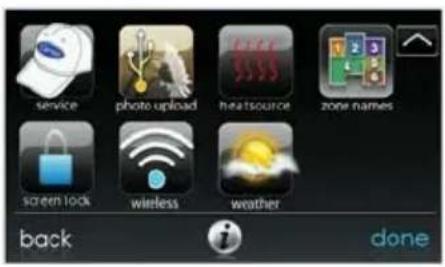
When the Infinity Touch Control is connected to a Wi-Fi® network, use the WEATHERicontoretrievetheweatherforecastbasedyourpostalcode.
A160186
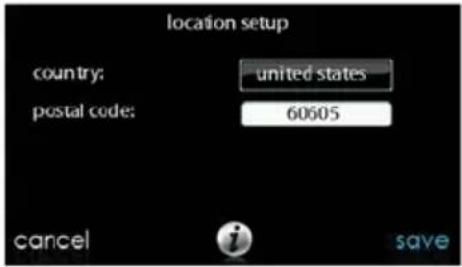
• To enter your postal code, touch CHANGE CURRENT LOCATION.
- Next, select your country (United States or Canada).
• Toenteryourpostalcode,touchintheblankarea;thenenteryourpostal codeusingtheonscreenkeyboard. Notethatyoumayselectapostal codeotherthanwherethesystemislocated,ifanotherpostalcodehasa morerelevantweatherforecastforyourarea.
• After you have entered your postal code, touch SAVE.

A160185
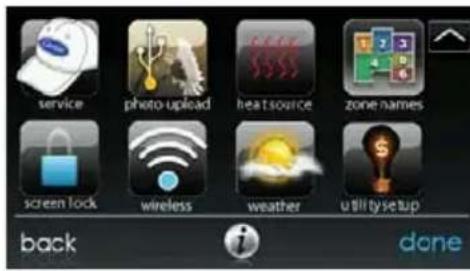
UTILITYDEMANDEVENTRESPONSESETUP
This section is only applicable if your utility company is running a demand responseorpriceresponseprograminwhichyouhaveagreedtoparticipate.
Contact your local electrical utility company for information about programs in your area.
NOTE: If you wish to participate with your electrical utility company, a service personorUtilityrepresentativemustenabletheutilityeventinterface.
A14262
UtilityEvent
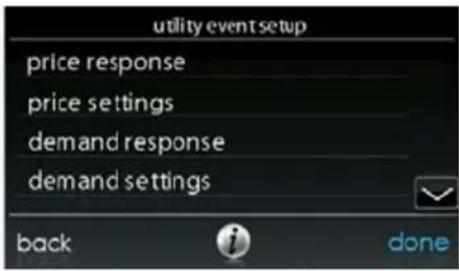
YourutilitymaysendpriceresponseordemandresponseeventstoyourWi--Fi enabledInfinityTouchControl.Whenapriceresponseordemandresponseeventis received,yourtemperaturesetpointswillbeautomaticallyadjusteddependingon theutilityeventsetupsettingsthatyouhaveselected.
Whenautilityeventisinprogress...
- The temperature setpoint will be automatically adjusted depending on the utility event setup. The adjusted heating and cooling temperatures will be displayed in green on them, screen along with a "utility event" message.
- Autilityeventiconwillappearonthehomescreen.Pressingtheiconor manuallyadjustingtheheatingandcoolingsetpointswilldisplaythe
typeofevent, the adjustment to the heating and cooling set points, the timethe event willend, an accept button, and an override button.
- Pressing the accept button will accept the adjustments made to the heating and cooling set points.
- Pressingtheoverridebuttonwillchangetheheatingandcoolingset pointsbacktotheiroriginalvaluespriortotheevent.
PriceResponse
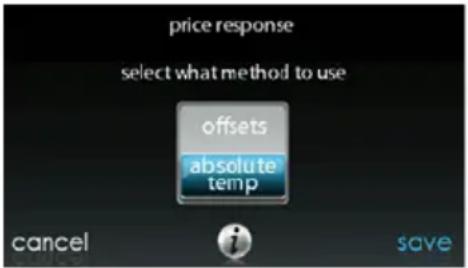
Priceresponsedetermineshowtheheatingandcoolingsetpointswillbeadjusted duringapricingeventwithtwochoices--offsetsorabsolutetemperature. When offsetsareselected,theheatingandcoolingsetpointsareadjustedbythenumberof degreesselected.Whenabsolutetemperatureisselected,theheatingandcooling setpointsareadjustedtoheatingandcoolingtemperatures.
A14263
PriceSettings
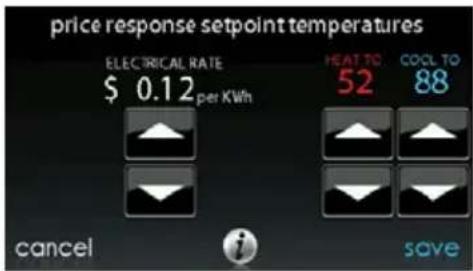
When the electric rate from the utility company meets exceed the "ELECTRICAL RATE", the heating and cooling set points will be adjusted according to the absolute temperature or offset shown here. If these point at the time of the event is more favorable (uses less energy) than what you have programmed, the Infinity Touch Control Thermostat will use them more favorable set point for the duration of the event. Unless otherwise indicated, all settings temperatures will be shown in Fahrenheit degrees.
A14264
DemandResponse
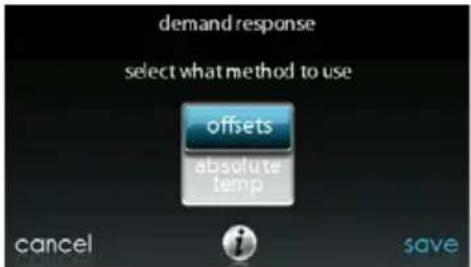
Demandresponsedetermineshowtheheatingandcoolingsetpointswillbe adjustedduringademandresponseeventwithtwochoices--offsetsorabsolute temperature.Whenoffsetsareselected,theheatingandcoolingsetpointsare adjustedbythenumberofdegreesselected.Whenabsolutetemperatureisselected, theheatingandcoolingsetpointsareadjustedtoheatingandcoolingtemperatures.
A14265

DemandSettings
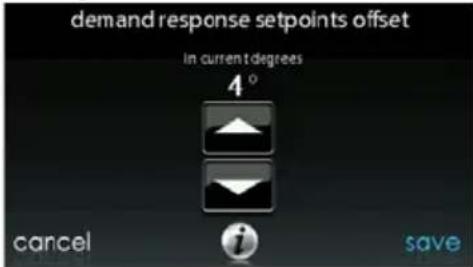
Whenademandresponseisreceivedfromtheutilitycompany,theheatingandcoolingsetpointswillbeadjustedaccordingtotheabsolutetemperatureoroffsetshownhere.Ifthesetpointatthetimeoftheeventismorefavorable(useslessenergy)thanwhatyouhaveprogrammed,theInfinityTouchControlThermostatwillusethemorefavorablesetpointforthedurationoftheevent.
A14266
ResponseLimits
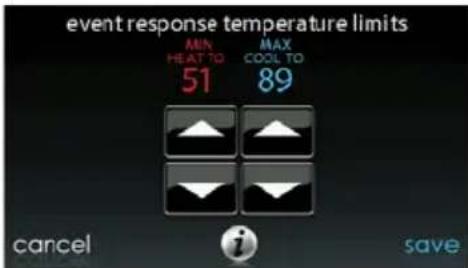
Responselimitsareminimumheatingandmaximumcoolingtemperaturesallowed duringautilityevent. Theselimitsarenotexceededandarcintendedtoprotectthe occupantpremisesfromextremetemperaturesthatmightotherwisebeimposedby autilityevent.Unlessotherwiseindicated,allsettingstemperatureswillbeshown inFahrenheitdegrees.
A14267

RestoreUEFactoryDefaultSettings
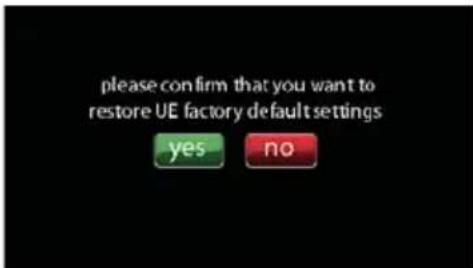
RestoreUE(UtilityEvent)factorydefaultsettingswillrestoreallutilityeventset pointsandpricesettingstotheiroriginalfactorydefaultvalues.
A14268
NOTES

Infinity, Touch'N'Go ^® and HYBRIDHEAT ^® aretrademarksorregistered trademarksof CarrierCorporationintheUnitedStatesandothercountries. Other brandsandproductnamesaretrademarksoftheirrespectiveholders.
Wi--Fi ^® isaregisteredtrademarkofWi--FiAllianceCorporation.
Version14SoftwareRelease
Copyright 2016 Carrier Corp. • 7310 W. Morris St. • Indianapolis, IN 46231 EditionDate:10/16 CatalogNo:OMSYSTX
CatalogNo:OMSYSTXCCITW---09/997-011290-9-R
Manufacturerreservestherighttochange,atanytime,specifications anddesignswithoutnoticeandwithoutobligations.
- TABLEOFCONTENTS
- TABLEOFCONTENTS(cont.)
- INTRODUCTION
- HOMESCREEN
- InformationDisplayed
- Wi--FiConnectivityStatus
- InformationButtons
- MAINSCREEN
- SystemMode
- SetDayandTime
- AdjustTemperature(TemporaryHold)
- AdjustingComfortProfiles(SeeComfortProfilesonPg.11)
- AdjustingHeating
- AdjustingCooling
- AdjustTemperature(PermanentHold)
- FEATURES
- AdjustFanSpeed
- ViewCurrentHumidityLevel
- MENUSCREEN
- COMFORTPROFILES
- HomeComfortProfileHumidityControl
- HomeComfortProfileFreshAirControl
- AwayComfortProfileHumidityControl
- AwayComfortProfileFreshAirControl
- VacationComfortProfileHumidityControl
- VacationComfortProfileFreshAirControl
- SCHEDULES
- VieworEditSchedule
- GuidedScheduling
- UploadMySchedule
- VACATION
- REMINDERS
- OPERATINGSTATUS
- AccessoriesStatus
- TemperatureControlStatus
- DISPLAY
- TemperatureUnits
- BacklightLevels
- SoundSettings
- ScreenSaverSettings
- TouchScreenCalibration
- ENERGYTRACKING
- TIME/DATE
- SetTimeandDate
- ManuallyAdjustTimeandDate
- SetupDaylightSavingsTime
- SetupTimeZone
- EnableTimeSynchronization
- SERVICE
- ServiceInformation
- ServiceReminderUpdate
- SoftwareUpdate
- UpdatingSoftwareUsingUSB
- UpdatingSoftwareUsingWi--Fi®
- Model/SerialNumbers
- PHOTOUPLOAD
- HEATSOURCE(IFAPPLICABLE)
- ZONENAMES(IFAPPLICABLE)
- HomeAutomationSystemInterface(IfApplicable)
- SCREENLOCK
- WIRELESS
- SYSTXCCITC01--AModels
- Wi-Fi® Diagnostics
- WEATHER
- UTILITYDEMANDEVENTRESPONSESETUP
- UtilityEvent
- Whenautilityeventisinprogress...
- PriceResponse
- PriceSettings
- DemandResponse
- DemandSettings
- ResponseLimits
- RestoreUEFactoryDefaultSettings
- NOTES
Brand : CARRIER
Model : Infinity Touch SYSTXCCITC01-A
Category : Thermostat