
PLRD92 - Screen Pyle - Free user manual and instructions
Find the device manual for free PLRD92 Pyle in PDF.


| Product Type | Roof-Mount DVD Player with Monitor |
| Screen Size | 9 inches (16:9 aspect ratio) |
| Screen Resolution | 640 x (RGB) x 234 |
| Backlight | LED |
| Brightness | 350 cd/m² |
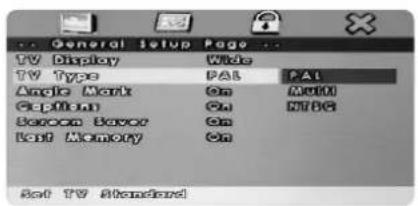
| Color System | PAL / NTSC / Auto |
| Disc Compatibility | DVD, DVD-R, DVD-RW, CD, CD-R, CD-RW, DVCD, VCD, SVCD, MP3, WMA, JPEG, MPEG1/2/4, DivX |
| Media Playback | SD card, USB 2.0 (host) |
| Audio Output | Built-in wireless FM transmitter (87.7–89.1 MHz), IR audio transmitter |
| Audio S/N Ratio | >80 dB |
| Video Input | 1 Vp-p ±20% / 75 Ω |
| Power Supply | DC 12 V |
| Power Consumption | ≤12 W |
| Dimensions (W x D x H) | 215 mm x 240 mm x 55 mm |
| Net Weight | 1.3 kg |
| Operating Temperature | -10°C to 55°C |
| Storage Temperature | -30°C to 75°C |
| Remote Control Battery | CR2025 (included) |
| Remote Control Range | 3 meters / 60° angle |
| Rotation / Flipping | 360° left-right rotation, 105° up-down flipping |
| Accessories Included | Remote control, user manual, 6 rubber pillows |
| Safety Warning | Do not operate while driving; use only in parked vehicle in safe area |
Frequently Asked Questions - PLRD92 Pyle
User questions about PLRD92 Pyle
0 question about this device. Answer the ones you know or ask your own.
Ask a new question about this device
Download the instructions for your Screen in PDF format for free! Find your manual PLRD92 - Pyle and take your electronic device back in hand. On this page are published all the documents necessary for the use of your device. PLRD92 by Pyle.
USER MANUAL PLRD92 Pyle
ROOF-MOUNT DVD PLAYER
(USB/SD)
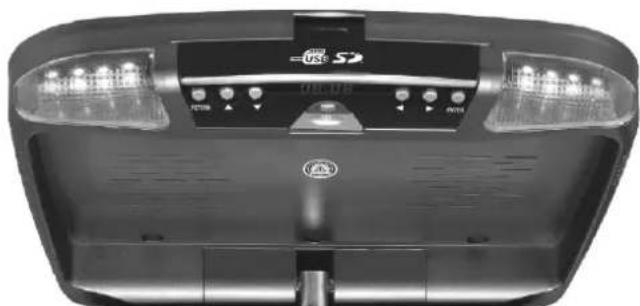
natural_image
Top-down view of a black electronic device with illuminated control panels and indicator lights (no readable text or symbols)
natural_image
Black and white photo of a sports car driving on a road, captured in a flat studio (no visible text or symbols)WARNING! HAZARD!
DO NOT OPERATE THIS UNIT UNLESS VEHICLE
IS PARKED IN SAFE AND LEGAL AREA.
USER'S MANUAL
Compatible with
DVD/SVCD/DVCD/VCD/CD/MP3/MP4/JPG/DivX
封二空白
Roofmounting monitor with multi-media player
TABLE OF CONTENTS
GENERAL INFORMATION....2-4
REMOTE CONTROL....5 & 6
TROUBLE SHOOTING....19
TECHNICAL SPECIFICATIONS .... 20
Roofmounting monitor with multi-media player
Please read the manual carefully before using and keep it well for your future reference.
Important instruction for safely:
For your safety, do not turn on, watch or operate the unit while driving. In some countries and regions, it may be against the laws. The product is comprised of many precision electronic components. Self-renovation or disassembling may cause malfunction to the device.
Note:
To reduce the risk of fire or electric shock, do not expose this product to rain or moisture.
High voltage inside! Do not open or dismantle the unit. Do not repair yourself. Refer servicing to qualified personnel.
The product is a laser product. Make sure to read instruction manual before operating.
Do not try to open the covers to avoid direct laser radiation.
When the cover of the unit is opened or the interlocking system gets unlocked, the laser light can be visible. Direct vision of laser beam is hazardous to your eyes.
In order to prolong the life of the unit which has a large scale of integrate circuits and precision pick-up device, Frequent turn ON/OFF might damage the unit. More than 5 seconds interval is required.
Note:
LCD may have a few color dots, which is common for the matrix display technology, and doesn't indicate defects or faults.
Roofmounting monitor with multi-media player
Features:
- The display unit has built in DVD player.
- Built in USB 2.0 host and SD card reader.
- Built in wireless FM Audio transmitter.
- Built in IR Audio transmitter.
- AV input channel
Discs for playback
| Type | Icon | Content | Size |
| DVD |  | Video & Audio (dynamic image) | 12cm / 8cm |
| VCD |  | Video & Audio (dynamic image) | 12cm / 8cm |
| CD |  | Audio | 12cm / 8cm |
| MP3 | MP3 | Audio | 12cm / 8cm |
| MP4 | MP4 | Video & Audio (dynamic image) | 12cm / 8cm |
Disc-related terms
• Title (DVD only)
The main film content or accompanying feature content or additional feature content, or music album. Each title is assigned a title reference number enabling you to locate it easily.
• Chapter (DVD only)
Sections of a picture or a musical piece that are smaller than titles.
A title is composed of one or several chapters. Each chapter is assigned a chapter number, enable you to locate the chapter you want. Depending on the disc, no chapters may be recorded.
- Track (Video CD and audio CD only)
Sections of a picture or a musical piece on a video CD or an audio CD.
Each track is assigned a track number, enabling you to locate the track you want.
Diagram of DVD disc
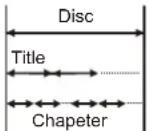
Diagram of VCD/CD

Precaution
Safety
Please check the voltage in the car as the machine required before playing.
Please hold the plug tightly, and avoid dragging the power cords when insert the plug in or pull out it from the jack.
This machine has laser system which is harmful for the eyes, please do not open the crust. Any repair you need, it is necessary to ask for the specialized personnel.
Roofmounting monitor with multi-media player
Placement
The storage temperature ranges from -30^ to -75^ , operating temperature ranges from -10^ to 55^ .
Please keep the pick-up clean and away the dust. If so, the cleaning disc can help deal with this problem. For detailed operation instructions for cleaning the pick-up, you can consult the user's manual of pick-up cleaning disc.
Do not expose this unit to rain or moisture. Avoid dropping or impact to the unit.
Vapor on convex mirror and trouble shooting
There's liquid on convex mirror in following cases, but it is normal phenomena.
Due to sudden change in temperature and car air-conditioner is turned ON their will be a vapor formation on convex mirror. To de-vaporize it please take out the disc and power ON the unit about one hour.
Please wipe the machine with soft and dry cloth dipped optional washing liquor in case of scratching the screen.
Note
Handling discs:
Do not touch the playback side of the disc. Hold the disc by the edges so that fingerprints will not get on the surface.
Do not stick paper or tape on the disc.
Storing discs:
After playing, store the disc in its case.
Do not expose the disc to direct sunlight or sources of heat, or leave it in a parked car exposed to direct sunlight, as there may be a considerable temperature increase inside the car.
Cleaning discs:
Fingerprints and dust on the disc can cause poor picture quality and sound distortion. Before playing, clean the disc with a clean cloth. Wipe the disc from the center out. Do not use strong solvents such as alcohol, benzine, thinner.


Brief Instructions
Checking the accessories
| remote controller | 1 |
| user's manual | 1 |
| rubber pillow | 6 |
Roofmounting monitor with multi-media player
Instructions for remote control (shown as pictures)

* Press the catch and at the time pull out the battery tray. Insert the battery, type CR2025 battery with the stamped (+) mark facing upward. Insert the battery tray into the remote control.
* Direct the remote controller to infrared receiver window of the machine within 60 and 3 meters, without any barriers between them.
* Commonly, the life-span of the batteries is about one year, always replace the old set of new batteries.
* Please take out the battery when not using the remote controller for a long time.
* Please pull out the separation film before when using the remote controller.
Warning:
Store the battery where children cannot reach. Do not recharges, short, disassemble or heat the battery or dispose it in a fire.

Roofmounting monitor with multi-media player
REMOTE CONTROL FUNCTION
- POWER button: Press the POWER key to turn the power ON/OFF.
- NUMBER button: In the DVD/SD/USB mode by pressing these button you can directly select the program. In TV mode, you can directly select the TV channel.
- SUBTITLE button: muti-subtitle select.
- DISPLAY button: show information about DVD/SD/USB/TV.
- AUDIO button: muti-language select.
- ANGLE button: muti-angle select.
- UPWARD button: In DVD/SD/USB mode, press it to select the menu or program. In TV mode, press to search upwards the TV channel.
- SETUP button
- ENTER button
- LEFTWARD button: Press it to leftward select the menu or program.
- CONSOLE button: Press CONSOLE that will display the select subtitle: BRIGHTNESS-CONTRAST-SATURATION-HUE-FM-IR-RESET.
- DOWNWARD button: In DVD/SD/USB mode, press it to select down the menu or program. In TV mode, press it to select down the channel.
13.14. VOLUME button: Press the button to increase or decrease the volume.
15.16. PREVIOUS/NEXT button.
17.18. FAST BACKWARD/FAST FORWARD button. - STOP button: Press STOP for memory stop, press STOP twice to stop playing.
- RIGHTWARD button: Press it to rightward select the menu or program.
- PLAY button: Press once, it plays or pause.
- AUTO/ZOOM button: in the DVD/SD/USB mode, press it the picture can be zoomed. In the TV mode, press it to auto search TV channel.
- REPEAT button: In the playing mode, press it to perform the repeated playing.
- MUTE button: Press the key to turn on and off the volume output.
- PROGRAM button.
- SLOW button.
- SEARCH button.
- AV/TV/DVD button: Select among these three modes.
- TITLE button.
- MENU PBC button.
Roofmounting monitor with multi-media player
MONITOR DESCRIPTION:


- REMOTE WINDOW
- POWER BUTTON
- VOLUME DOWN
- MENU (PRESS TO DISPLAY OSD BRIGHTNESS, CONTRAST....CONTROL)
- VOLUME UP
- MODE
- PLAY/PAUSE (IN TV MODE, PRESS TO SELECT DOWN TV CHANNEL)
- STOP
- RETURN
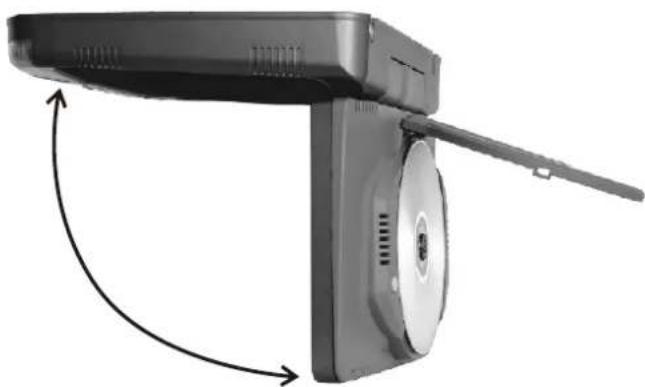
10,11. RIGHT/LEFT DIRECTION CURSOR - OPEN (PRESS TO FLIP DOWN YOUR SCREEN)
- LIGHT SWITCH AND TIME ADJUSTMENT
14,15. UP/DOWN MENU OR PROGRAM SELECTION - RETURN
Roofmounting monitor with multi-media player
Wiring Diagram
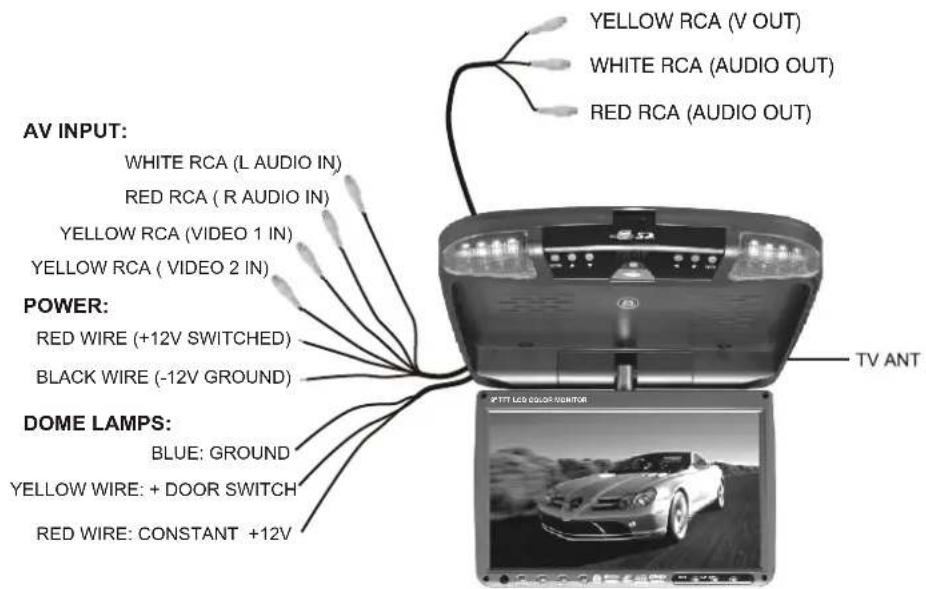
* FOR BETTER UNDERSTANDING ALL WIRES ARE PROPERLY TAGED.

key: LIGHT SWITCH / TIME ADJUSTMENT
A. Light switch
During initialization mode; Press ⚙ shortly to switch on/off light.
B. Time adjustment
During any mode, Press ⚙ 3 seconds to enter time adjustment mode.
The HOUR is twinkling, Press ⚙️ shortly to adjust the correct number
Press ⚙ 3 seconds to finish hour adjustment and adjust MINUTE.
The MINUTE is twinkling, Press ⚙️ shortly to adjust the correct number.
Press ⚙ 3 seconds again to finish time adjustment.
Note: This machine is suitable to some types of the car not all types.
Roofmounting monitor with multi-media player

Left-right 360° Rotating
natural_image
Diagram of a handheld electronic device with a scroll wheel and directional arrows indicating rotation (no text or symbols)Up-dwon 105° Flipping
Roofmounting monitor with multi-media player
Basic Operation
Make sure that you have correctly connected your unit as described earlier in this book.
Turn on the power, and place the disc in.
1 press power button to turn ON (Power Indicator is OFF), display is ON and player will start loading the disc.
2 While playing DVD discs, please select one item in DVD menu or title menu. while playing VCD2.0 or CD, this player plays one by one.
3 Press Direction Buttons or the Number Buttons to select the desired item, then press Enter or Play to start.
4 The player will play automatically. Press Pause to stop temporarily, press again Pause or Play to cancel pause. while playing DVD disc, press stop for memory stop, press Play for memory play, press Stop twice to stop playing.
Note: To stop playing DVD by pressing Stop for twice.
Fast Forward/Fast Backward
While DVD disc is playing, Press Fast Forward to play at 2X, 4X, 8X, 16X, 32X speed circularly, screen shows as following:

Press Fast Backward to play at 2X, 4X, 8X, 16X, 32X speed circularly, screen shows as following:

Press Play to shift to normal playing mode.
Slow
While DVD disc is playing, press Slow button, picture shows at 1/2, 1/4, 1/8, 1/16 speed circularly, the screen shows as following:

While VCD disc is playing, press Slow button, picture shows at 1/2, 1/4, 1/8, 1/16 speed circularly, the screen shows as following:

Note: Press Play to shift to normal playing mode.
Previous/Next
To select previous item or chapter by pressing Previous button, to select next item or chapter, press Next button.
Roofmounting monitor with multi-media player
Note:
When a title on a disc has more than one chapter or a disc has more than one track, using chapter function can move to another desired chapter/track to play. If there is no Chapter/track on the disc, the above functions will be disabled automatically.
Functions Explanation
Menu/PBC
(1) Press Menu/PBC to return to the main menu or the Title menu while playing DVD disc.
(2) While playing VCD disc, Press Menu/PBC to turn PBC on or off. (Unfunctional in DVD disc playing)
(3) Only return to the main menu to select one song in PBC-on mode.
(4) Pressing Number buttons to select one song in PBC-off mode.
Title/Return
(1) While playing DVD disc, press Title to enter into title menu directly, select the desired item by pressing the Direction buttons or Number buttons.
(2) While playing VCD2.0, press Title to return to previous menu; however this function is disabled in PBC-off mode (Only for functional disc).
MODE
Press MODE, it will display a dialogue as below

It is the interchange menu between DVD mode, AV IN mode and MEDIA mode. Select DVD, will enter to DVD mode, You can load a olisc and will play select AV IN, will enter to AV IN mode, When USB or SD/MS found, you can select media and then choose USB or SD/MS to play.
Display
User can check the elapsed time or remaining time of current title and chapterby pressing Display, Press Display continuously, the screen shows as below:
(1) Playing DVD disc
Press Display for the first time, screen shows the elapsed time of current title.

Press Display for the second time, screen shows the remaining time of current title.

Roofmounting monitor with multi-media player
Press Display for the third time, screen shows the elapsed time of current chapter.
Title 03 / 10 Chapter 01 / 04 0:07:16
Press Display for the fourth time, screen shows the remaining time of current chapter.
Title 03 / 10 Chapter 01 / 04 0:03:26
Press Display for the fifth time to exit.
(2) Playing VCD discIn PBC ON mode
Press Display for the first time, screen shows the elapsed time.
Title 00/10 Chapter 00/04
Press Display for the second time, screen shows the remaining time.
Title 03/10 Chapter 44/04
Press Display for the third time to exit.
(3) Playing VCD discIn PBC Off mode
Press Display for the first time, screen shows the elapsed time of the current item.
Track 01/01 00:04
Press Display for the second time, the screen shows the remaining time of the current item.
Track 01/01 45:04
Press Display for the third time, the screen shows the elapsed time of the entire disc.
Track 01/01 00:24
Press Display for the fourth time, the screen shows the remaining time of the entire disc.
Track 01/01 45:24
Press Display for the fifth time to exit.
Search
Press Search, input a title, a chapter or a time, the player starts playing from the desired point to the end point.
Playing DVD disc:
(1) Search a title or a chapter
Press Search, screen shows as below:
Title 00/10 Chapter 00/04
Press Left or Right to select one title
For example: press Number button 3 to select title 3, select Chapter 1 by pressing Direction Buttons, the screen shows:
Title 03/10 Chapter 01/04
Roofmounting monitor with multi-media player
(2) Search by time
Press Search, screen shows:
For example: Press Number button to input 0, 1, 0, 6, 1, 8, the player will play from the point at 01:06:18
Title 08/10 time 01:06:18
(3) Playing VCD disc
Press Search to check the elapsed time for the entire disc, the item and the current item during VCD disc playing. Press Number button to input a time, the player will play from the point you've selected.
Subtitle
While playing DVD disc with multi-subtitles, choose the desired subtitle, it shows on the screen.
Will show on the screen when this feature is not available on the disc.
Note: This feature setting is valid only for the current disc. the subtitle language can be changed from DVD setting menu.
Audio
There is multi-language feature while DVD disc is playing. When playing discs with this function, you can select the desired voice by pressing Audio. The left audio, right audio and the stereo shows on the screen while playing VCD disc. You can select the desired one when playing story disc with dual languages.
Note: This feature setting is valid only for the current disc which has multi-language settings.
ANGLE
If the disc contains scenes recorded at different camera angles, you can change to a different camera angle during playback. Press ANGLE repeatedly during playback to select a desired angle.(Only for the functional disc) will show on the screen when this function is not available on the disc.
Zoom
In this mode, the dynamic or still picture can be zoomed in at most by 4 folds. Press Zoom for three times, the picture is zoomed in by 2X, 3X, 4X folds per order. And press Zoom again to return to the normal playing mode.
Repeat
(1) While playing DVD disc, press Repeat for the first time to repeat playing one chapter, press Repeat for the second time to repeat playing one title, press Repeat for the third time to repeat playing the entire disc, and press Repeat to cancel.
Roofmounting monitor with multi-media player
(2) In PBC off mode:
While playing VCD disc, press Repeat for first time to repeat one song. Press Repeat for the second time to repeat the entire disc. Press Repeat for the third time to cancel.
Direction Buttons
Press Direction Buttons to make free selection in title, content and setup menu easily. Note: Direction buttons on the player can perform Fast Forward/Fast Backward, Previous/Next functions.
Program
Press Program to enter into program menu, input the number of the title, the chapter or a song. Press direction button to select the track you want to start playing. To cancel program function, press Program to enter into program menu and select Stop.
Mute
Press Mute one or more to select mute on or mute off.
CONSOLE
Press CONSOLE button and you will be able to change the factory settings for Brightness, Contrast, Color and Hue levels and you can adjust FM transmitter and IR frequency as well with +/- buttons.
Note: By selecting RESET you will return to factory de fault settings.
Roofmounting monitor with multi-media player
Setup
Press Setup to enter into Setup page,
Move Up/Down to select the desired item,
Move Left/Right to select the desired item,
Press Enter to confirm

General Setup page
(1) TV Display
If the aspect ratio is 4:3, it is able to show in 16:9.
The image will be compressed horizontally, if the DVD disc system is in 16:9.
Because low-quality or pirated discs will result in bad effect, Please play
high quality disc for your pleasant enjoying.
(2) TV Type

Roofmounting monitor with multi-media player
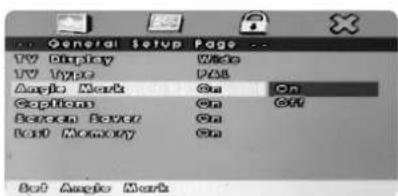
(3) Angel Mark
When Angel Mark is on, user can select a special angle for watching (only for discs with this function)
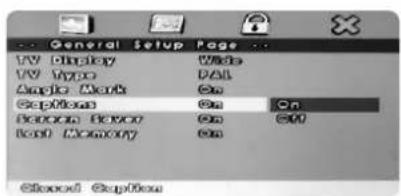
(4) Captions
Turn ON/OFF the captions
(5) screen Saver
Screen saver is to protect the screen from aging and extending its life-span. Screen Saver will be enabled while playing stops or the picture keeps unmoving for minutes.
(6) Last Memory
Disc will be played from the latest stop position in Memory-play-on mode.
Preference setup
(1) PBC
Set PBC state. PAL/NTSC is compatible
(2) Audio
Please operate by setup menu. Audio will be in English, French, Spanish, Chinese, Japanese, Korean, Russian and so on depending on the discs.
(3) Subtitle
Subtitle will be in English, French, Spanish, Chinese, Japanese, Korean, Russian and so on depending on the discs. User can either hide the subtitle or choose any subtitle language while playing DVD discs.

Roofmounting monitor with multi-media player
(4) Disc Menu
Disc has different languages such as French, Spanish, Chinese, Japanese, Korean, Russian, and so on, these languages can be played by this unit. And user can select any language from disc menu.
Note This function is valid to the discs which has multiple languages.
(5)Parental
Movies on DVDs may contain scenes not suitable for children. Therefore, discs may contain Parental Control information that applies to the complete disc or to certain scenes on the disc. These scenes are rated different levels, more suitable scenes are available for selection on some discs. Ratings are country-dependent. The Parental Control feature allows you to prevent discs from being played by your children or to have certain discs played with alternative scenes.

(6) Default
Select default to restore original factory setting.
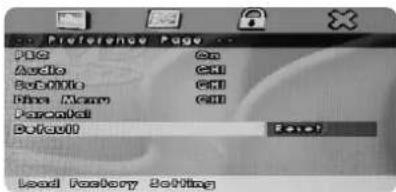
Password
The original password is 8888; please select Password to input yours.


Please operate by Setup menu.
Note: This function can be performing when the player is during stop.
Roofmounting monitor with multi-media player
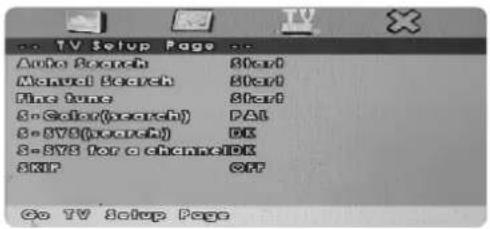
TV Setup page
Mp3
Basic Operation
MP3 can be played by List mode, Program mode and normal mode.
Select one mode during stop. Press Repeat to play, repeat playing one song or play by list.
Disc/MP4 Playing
(1) Place the disc to the loader correctly, player begin to search the disc massages and enter into Normal Playing Mode.
(2) Move Direction Button or use the Number button to select the desired item in submenu, Press Play to start.
(3)Press Stop first, press Direction Button to select other submenu
Other Functions
Mute, Vol control, previous/next functions can be controlled directly from unit while MP3/MP4disc/Audio CD is playing.
JPEG
This unit can play the Picture in JPEG format. JPEG is the most popular picture compressing format currently.
Press Number Buttons to Select Pictures
(1) Place the disc in the loader correctly, and the player starts searching massages, signal shows on the screen.
(2) Press Number buttons to select the picture album.
(1) Place the disc to the loader correctly; player starts searching messages, Main menu shows on the screen, select from NO.1 by Direction Button, press Play to confirm.
(2) Press Direction Buttons to select picture in current picture album, press Play to start
Make selection by the disc menu
Roofmounting monitor with multi-media player
(3) Press Direction Buttons to select other pictures during stop.
(4) Return to previous menu by selecting File during stop. Then Press Play.
SD/USB
INSERT MMC/SD/MS ore Connect USB, press MODE button, whe MMC/SD/MS or USB found. You can select media and then choose MMC/SD/MS or usb to play.
Note:plecse do not use the removable hard disk. This will lead to abnormal working.
Trouble shooting
No Sound or bad sound effect
Please check if cables are connected properly
Please check audio shift setup.
Please adjust the receiving frequency to harmonized with the transmitting frequency.
No Picture
Check if cables are connected properly.
Video Input is not yet set up correctly.
The monitor is on or off.
Poor picture
The color is not properly adjusted; please operate the remote controller to adjust it
The disc is scratched or spotted.
The player does not work, or no disc
- Please check if DVD has not been placed backwards
- Check if disc is dirty or schratched.
- Make sure if there is no moisture inside the unit (disconnect the unit for one hour)
- Disconnect the power cord and reconnect to reset the unit form any wrong setting.
Roofmounting monitor with multi-media player
The remote control does not work properly
There is an obstacle in the path of the remote control and this unit. Remove the obstacle. Check if remote control point to receiver or not. The batteries in the remote control are exhausted. Replace the batteries with new ones.
Note: Please contact with the dealer or approved service center help if the troubles can't be solved by the methods offered.
Technical Specifications
| Panel | TFT-LCD |
| Screen Size | 9 inch (16:9) |
| Pixel | 640x(RGB)x234 |
| Temperature | Operation temperature - 10^ C 55^ C ; Storage temperature - 30^ C 75^ C |
| Backlight | LED |
| Brightness | 350cd/m^ * |
| Color System | PAL/NTSC/Automatically |
| Midea types | CD-DA,VCD ,SVCD,DVD-VIDEO,MP3,WMA,JPEG,MPEG1/2/4,DivX |
| Discs | DVD,DVD-R,DVD-RW,CD,CD-R,CD-RW,DVCD |
| Memory cards | SD |
| USB | USB 2.0 |
| Audio S/N | >80 dB |
| Isolation | >65dB |
| Audio Input/Output | 1.6V+20% |
| Video Input/Output | 1Vp_p±20%/750hm |
| Power supply | DC12V |
| Power consumption | ≤12W |
| Product Dimension | 215mmX240mmX55mm |
| FM Frequency | 87.7~89.1MHz |
| Product N.W | 1.3kg |
Your attention please: The design and specifications are subject to change without notice.
封三空白
Thank you for purchasing the TFT LCD color monitor/DVD. To enjoy the features of this device and to ensure years of trouble-free operation, please read this manual carefully and follow the instructions.
WARNING:
Hazard do not operate this unit unless vehicle is parked in safe and legal area.
- ROOF-MOUNT DVD PLAYER
- (USB/SD)
- 封二空白
- Roofmounting monitor with multi-media player
- TABLE OF CONTENTS
- Important instruction for safely:
- Note:
- Features:
- Disc-related terms
- • Title (DVD only)
- • Chapter (DVD only)
- - Track (Video CD and audio CD only)
- Precaution
- Safety
- Placement
- Vapor on convex mirror and trouble shooting
- Note
- Brief Instructions
- Instructions for remote control (shown as pictures)
- Warning:
- REMOTE CONTROL FUNCTION
- key: LIGHT SWITCH / TIME ADJUSTMENT
- Basic Operation
- Fast Forward/Fast Backward
- Slow
- Previous/Next
- Functions Explanation
- Menu/PBC
- Title/Return
- MODE
- Display
- Search
- Search by time
- Playing VCD disc
- Subtitle
- Audio
- ANGLE
- Zoom
- Repeat
- In PBC off mode:
- Direction Buttons
- Program
- Mute
- CONSOLE
- Setup
- General Setup page
- TV Display
- TV Type
- Angel Mark
- Captions
- screen Saver
- Last Memory
- Preference setup
- PBC
- Audio
- Subtitle
- Disc Menu
- (5)Parental
- Default
- Password
- TV Setup page
- Mp3
- Disc/MP4 Playing
- Other Functions
- JPEG
- Press Number Buttons to Select Pictures
- Make selection by the disc menu
- SD/USB
- Trouble shooting
- No Sound or bad sound effect
- No Picture
- Poor picture
- The player does not work, or no disc
- The remote control does not work properly
- 封三空白
Brand : Pyle
Model : PLRD92
Category : Screen