
RBGDC50 - Dash cam RING - Free user manual and instructions
Find the device manual for free RBGDC50 RING in PDF.


| Type of product | Dash Cam (car video recorder) |
| Brand | Ring |
| Model | RBGDC50 |
| Recording resolution | Full HD (1920x1080) |
| Video format | AVI |
| Loop recording | Yes, selectable clip length (3 or 5 minutes) |
| Motion detection | Yes (Moon Detection) |
| Audio recording | Yes (optional on/off) |
| Night vision | Yes, manual activation via Power button |
| Display | LCD screen with backlight (adjustable) |
| Storage | microSD card (Class 6 or 10 recommended, not UHS) |
| Maximum SD card capacity | 32 GB |
| Power source | 12V car power adapter (included); internal battery |
| Mounting | Suction cup to windshield |
| Date stamp | Yes (optional on/off) |
| Reset button | Yes (paperclip required) |
| Dimensions | Approx. 10 x 5 x 3 cm (4 x 2 x 1.2 in) |
| Weight | Approx. 100 g (3.5 oz) |
| Operating temperature | 0°C to 50°C (32°F to 122°F) |
| Country of origin | China |
Frequently Asked Questions - RBGDC50 RING
User questions about RBGDC50 RING
0 question about this device. Answer the ones you know or ask your own.
Ask a new question about this device
Download the instructions for your Dash cam in PDF format for free! Find your manual RBGDC50 - RING and take your electronic device back in hand. On this page are published all the documents necessary for the use of your device. RBGDC50 by RING.
USER MANUAL RBGDC50 RING
Dash Camera Troubleshoong Guide

Recording Problems
1. Camera stops recording for no reason
For DC10/50 models, check if Moon Detecon feature is switched on. In order to save space on smaller SD cards this feature will stop recording whenever no moon is detected in front of the camera. When movement is detected the camera will commence recording again. For larger SD cards this feature is not required.
To turn this feature o select:-
MENU > Video > Moon Detecon > O

DC10/50
2. Screen goes blank during recording
Check if the 'Backlight' or 'LCD Power Save' funcon is switched on. This feature will switch o the LCD screen aer a selected me in order to reduce distracon at night. This may give the impression recording has stopped but it will sll be recording in the background.
To turn this feature o select:-
For DC10/50 models - MENU > Setup > Backlight > O
For DC200 model - MENU > General Sengs > LCD Power Save
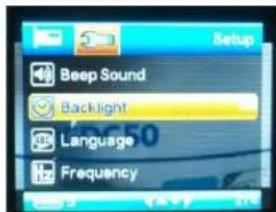
DC10/50
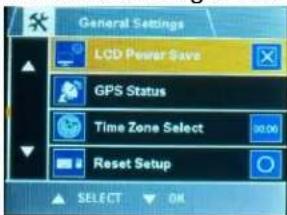
DC200
3. Camera does not start recording aer ignition switched on
This can happen if the internal baery is heavily discharged. If the camera has not been used for some me and the internal baery is fully discharged, it may take a few minutes before there is sufficient energy from the power adapter to charge the baery and power the dash camera
4. Recording is intermient
4.1 Check SD card speed
Check the SD card being used has a speed of at least Class 6 (preferably Class10). The speed of the card is indicated by a number inside a circle like below. If the SD card is not fast enough recording may be intermittent and less may become corrupted, causing playback problems.
Dash Camera Troubleshoong Guide

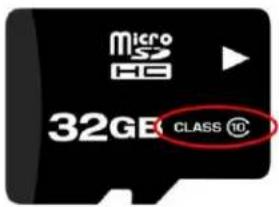
4.2 Check SD card is not fake
There are some fake SD cards on the market, which may not perform to their specied speed and cause recording problems, especially when recording at Full HD resoluon. If you wish to check the speed of an SD card there are programs available such as HD Tune which can conrm the data transfer rate. The table below shows expected transfer rates for each class of SD card. Highlighted in red are speeds for the Class6 & Class10 cards recommended for use with Ring dash cameras
| Mark | Minimum Serial Data | SD Bus Mode | Application | |
| UHS Speed Class |  | 30MB/s | UHS-II UHS-I | 4K2K Video Recording |
 | 10MB/s | Full HD Video Recording HD Still Image Continuous Shooting | ||
| Speed Class |  | 10MB/s | High Speed | |
 | 6MB/s | Normal Speed | HD and Full HD Video Recording | |
 | 4MB/s | |||
 | 2MB/s | Standard Video Recording |
4.3 Check SD card is compatible with camera
Check the SD card being used is not the UHS - Ultra High Speed type (indicated by a number inside a 'U'), as these may not be compatible with the current Ring dash cameras.
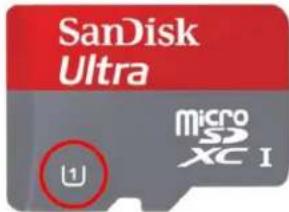
4.4 Check power supply
Check the 12V power adapter is securely ed into the car power socket and the LED is always illuminated whilst the engine is switched on. If the LED ickers or goes out during use, then the power adapter may not be securely ed into the socket, which will cause the camera to power down. Check the fuse in the end of the adapter is not blown
Dash Camera Troubleshoong Guide

Check the cable for damage, which may have caused the fuse to blow

natural_image
Close-up of a black electronic device with a cable and indicator lights, mounted on a control panel (no visible text or symbols)4.5 Check 12V power socket on Stop/Start vehicles
If you have a stop/start vehicle, check that the 12V power socket does not power down when the vehicle enters stop/start mode. If this happens the dash camera will also switch o. In this case the hard wire kit (Part: RBGDCHK) can be used to connect directly to the vehicle fuse box
5. Error message is displayed
5.1 'Card Full' message appears on screen
If the loop recording funcon is set to 'O' this message will be displayed when the card becomes full. To avoid this problem set the length of each video clip to 3 or 5 minutes using the procedure below. This will ensure 'loop mode' is acvated, which will automatically delete the oldest les when the card becomes full.
For DC10/50 model - MENU > Video > Loop Recording For DC200 model - MENU > Movie Mode > Move Clip Time
5.2 'Card Error' message appears on screen
The SD card has become corrupted. Remove the useful les then re-format the card using the camera menu opon
For DC10/50 models - MENU > Setup > Format
For DC200 model - MENU > General Sengs > Format SD-Card
File transfer problems
1. Error when connecng via USB
If the error similar to below appears then the SD card may not have been correctly formaed.

Re-format the SD card using procedure below depending on camera model
For DC10/50 models - MENU > Setup > Format
For DC200 model - MENU > General Sengs > Format SD-Card
Dash Camera Troubleshoong Guide

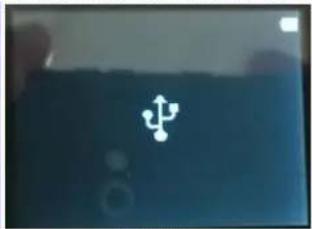
2. Camera is not recognized by PC
Aer connecng camera to PC using the USB cable, the display should show one of the screens below

DC10/50
natural_image
Blue background with a white abstract symbol resembling a medical cross or virus icon (no text or numbers)DC200
If this does not happen then check USB cable connecons or try a dierent USB cable
On the PC a screen similar to below should appear to allow browsing of the camera SD card by selecng 'Open folder to view les'

If this does not happen then try a dierent USB port or try a dierent USB cable
File playback problems
1. Video les cannot be played
The video les from the cameras are in AVI format and may not be compatible with your PC if suitable soware is not installed. For most PCs the videos will play back using Windows Media Player which is supplied as standard with Windows installaons.
If Also try downloading the latest Media Player Codec Pack
2. Video playback is jumpy
For best recording quality use a branded SD card with a speed of Class 10
Try reformang the SD card to remove any corrupted or non-conguous les
Running videos by connecng camera via USB will be slower, try copying les to PC before playback to improve speed
Dash Camera Troubleshoong Guide

Some older PC's may struggle to playback les smoothly. Try a faster PC with a more up to date video hardware.
Other problems
1. MENU buon will not respond
The menu cannot be accessed whilst the camera is recording. First stop the recording by pressing the OK buon before aempng to access the menus.
2. Night vision LEDs do not acvate at night
The night vision LEDs must be acvated manually by briefy pressing the Power buon A symbol will then display on the screen to show night vision is acvated
3. Sucon cup not scking to windscreen
Ensure the protecve lm has been removed from the sucon cup If temperature is below 5 deg C then gently warm the area before aaching sucon cup Do not sck sucon cup to areas of the windscreen printed with a sunshade area, as this will not provide the best adhesion
If problem cannot be resolved
If the camera has an issue that cannot be resolved using the troublesomeong secon above, then press the RESET buon with a paperclip to reset the camera back to its factory sengs. If the problem sll persists then contact Ring Technical Support on: Tel: 0113 213339 or Email: technicalsupport@ringautomove.co.uk

- Dash Camera Troubleshoong Guide
- Recording Problems
- Camera stops recording for no reason
- Screen goes blank during recording
- Camera does not start recording aer ignition switched on
- Recording is intermient
- Check SD card speed
- Check SD card is not fake
- Check SD card is compatible with camera
- Check power supply
- Check 12V power socket on Stop/Start vehicles
- Error message is displayed
- 'Card Full' message appears on screen
- 'Card Error' message appears on screen
- File transfer problems
- Error when connecng via USB
- Camera is not recognized by PC
- File playback problems
- Video les cannot be played
- Video playback is jumpy
- Other problems
- MENU buon will not respond
- Night vision LEDs do not acvate at night
- Sucon cup not scking to windscreen
- If problem cannot be resolved
Brand : RING
Model : RBGDC50
Category : Dash cam