
S1081 - Tablet GIGABYTE - Free user manual and instructions
Find the device manual for free S1081 GIGABYTE in PDF.


| Product Type | Tablet PC / Slate PC |
| Brand | GIGABYTE |
| Model | S1081 |
| Display Size | 10.1 inches |
| Display Resolution | 1024 x 600 pixels |
| Processor | Intel Atom |
| Operating System | Genuine Windows 7 |
| System Memory | DDR2 SO-DIMM, up to 4 GB |
| Storage | 2.5" SATA HDD 5400 rpm or SSD |
| Audio | 1.5 Watt speakers x2, internal microphone |
| Webcam | 1.3 Mega Pixel |
| Wireless Connectivity | 802.11b/g/n Wi-Fi, Bluetooth 4.0 |
| Ethernet | 10/100/1000 Mbps |
| Ports | USB 3.0, USB 2.0, HDMI, D-Sub (VGA), RJ45, SD card reader, headphone, microphone, DC-in |
| Main Battery | Li-polymer 4000mAh, 29.6Wh |
| Extended Battery (Optional) | Li-ion 2700mAh, 20.25Wh |
| Power Supply | AC adapter included, input 100-240V |
| Dimensions (Approx.) | 275 x 175 x 15 mm |
| Weight (Approx.) | 0.8 kg |
| Maintenance | Clean with a soft dry cloth; avoid liquids |
| Safety | Do not disassemble; avoid moisture and extreme temperatures |
| Spare Parts & Repairability | Contact GIGABYTE support for service |
Frequently Asked Questions - S1081 GIGABYTE
User questions about S1081 GIGABYTE
0 question about this device. Answer the ones you know or ask your own.
Ask a new question about this device
Download the instructions for your Tablet in PDF format for free! Find your manual S1081 - GIGABYTE and take your electronic device back in hand. On this page are published all the documents necessary for the use of your device. S1081 by GIGABYTE.
USER MANUAL S1081 GIGABYTE
Congratulations on your purchase of the GIGABYTE Slate PC!
This manual will help you to get started with setting up your Slate PC. The final product configuration depends on the model at the point of your purchase. GIGABYTE reserves the right to amend without prior notice. For more detailed information, please visit our website at www.gigabyte.com

Check Supplied Items
AC Adapter Manual Case(Optional)

natural_image
Three technical line drawings of electronic devices: a power adapter, a flat case, and a rectangular device (no text or symbols)Driver CD Global Warranty Card Stylus (Optional)

natural_image
Three technical illustrations: a circular component, a flat sheet with a crosshair, and a cylindrical rod (no text or symbols)* The illustrations in this document may appear differently from your model.

Using GIGABYTE Slate PC for the First Time

natural_image
Illustration of hands holding a small electronic device with a cable, no text or symbols present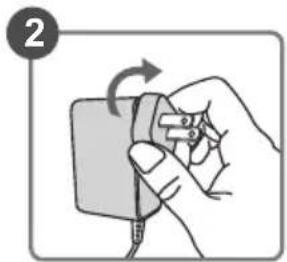
natural_image
Illustration of a hand holding a small electronic device with a curved arrow indicating rotation (no text or symbols)

1 Ensure the larger hole on the power plug adapter is on the bottom and attach to the power adapter.
2 Connect the power plug adapter with AC adapter and turn clock-wise until it locks into place.
3 Connect the AC adapter to the DC-in jack of the Slate PC.
4 Connect the power cord to the power outlet.
5 Flip the Power Button to the power sign to turn on the GIGABYTE Slate PC.

GIGABYTE Slate PC Tour
Panoramic View

1 Directing Hot Key ①
2 Webcam
3 Power Status Indicator
4 Touch Hot Key ②
5 Left Button of Mouse
6 Right Button of Mouse
To control mouse direction; press the directing hot key to simulate as left key of mouse
② Virtual keyboard
Scroll up
Scroll down
Back to previous page
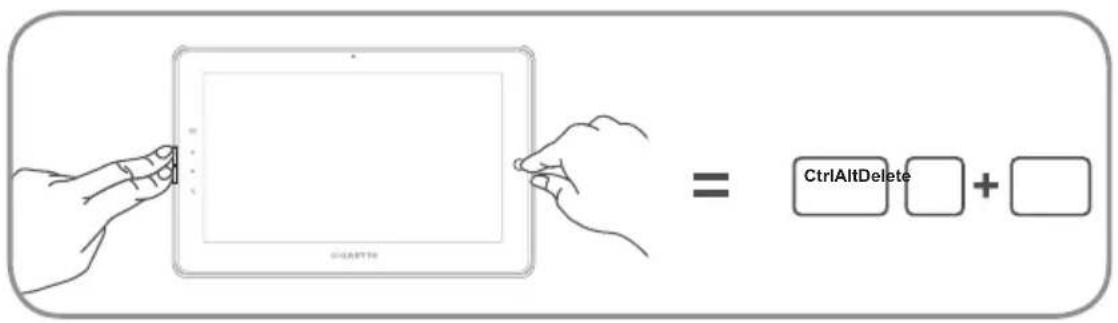
Tip: "Left click + Right click of mouse + Directing Hot Key" to operate as the function of "Ctrl+Alt+Del".
Top View

1Microphone
2Speakers
Left View
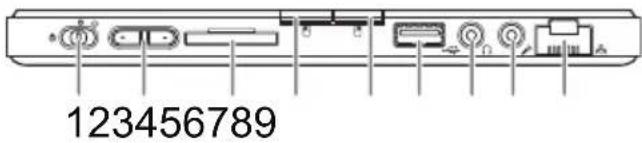
1 Power Button
2 Volume Control Key ③
3 SD Card Reader
4 Left Button of Mouse
5 Right Button of Mouse
6 USB Port
7 Headphone Jack
8 Microphone Jack
9 Ethernet Port
③ Press "+" or "-" to control volume.
- Press and release the Power button to turn on the operation system. Press “+” to enter into GIGABYTE BIOS Setup Utility. USB Keyboard is recommended to use for setting up BIOS functions under GIGABYTE BIOS Setup Utility.
- Press and release the Power button to turn on the operation system. Press "-" to enter into GIGABYTE System Recovery. Use Directing Hot Key to operate GIGABYTE Smart Recovery.
Tip: Press the “-” volume button when the computer is off and the display will indicate the battery capacity status.

Right View

1 DC-in Jack
2 D-sub (VGA) Port
3 HDMI Port
4 SIM Card Slot ④
5 USB Port
4 This specification is for users' reference only. The final configuration depends on the Slate PC users' point of purchase.
Base View

natural_image
Diagram of a computer monitor rear panel showing ports and connectors (no text or labels)1 Docking and extended battery connection ports
■ GIGABYTE Smart Manager
You can activate GIGABYTE Smart Manager by double clicking on the shortcut icon on the desktop if the machine you purchased has the operation system built-in. GIGABYTE Smart Manager is an icon-based control interface, enabling users to intuitively access common system setup as well as GIGABYTE exclusive utilities. Please be noted that the GIGABYTE Smart Manager interface, icons, utilities and software versions may vary based on the purchased models. Please operate GIGABYTE Smart Manager according to the default built-in version.
■ GIGABYTE Smart Recovery
- If the machine you purchase already has operating system built-in, you can restore the system back to factory default by using GIGABYTE Smart Recovery. Please be noted that the GIGABYTE Smart Recovery interface, icons, utilities and software versions may vary based on the purchased models. Please operate GIGABYTE Smart Recovery according to the default built-in version.
- Please be noted that personal data will be lost after recovery, do remember to backup any data before operating this function.
■ Activate GIGABYTE BIOS Setup Utility and Smart Recovery
- Press and release the Power Button to turn on the operation system. Press “+” to enter into GIGABYTE BIOS Setup Utility. It is recommended to use USB keyboard for setting up BIOS functions under BIOS setup Utility.
- Press and release the Power Button to turn on the operation system. Press “-” to enter into GIGABYTE System Recovery. Use Directing Hot Key to operate GIGABYTE Smart Recovery.
5 Specifications
| Item Specification | |
| CPU Intel | ^® AtomTM Processor |
| OS Genuine Windows | ^® 7 Compliant |
| Display 10.1" 1024x600 LED backlight | |
| System Memory DDR | II SO-DIMM*1 (Max 4GB) |
| Chipset Mobile Intel | ^® NM10 Express Chipsets |
| Storage Device | • 2.5" 7mm SATA HDD 5400rpm• Solid State Drive(SSD) |
| Audio 1.5 Watt Speaker*2, Internal Microphone | |
| I/O Port | USB 3.0*1, USB 2.0*1, D-Sub, HDMI, RJ45, Mic-in, Earphone-out, SD card reader, DC-in Jack, Docking Station / Extended Battery Port and SIM card slot * |
| Communications | 10/100/1000 Mbps Ethernet Base-T |
| 802.11b/g/n Wireless | |
| Bluetooth V4.0 | |
| 3.5G antenna build-in, 3.5G module is optional | |
| Webcam 1.3 Mega Pixel | |
| Battery | Li-polymer, 4000mAh, 29.6Wh(Main)Li-ion, 2700mAh, 20.25Wh (Extended Optional) |
* Above specification is for users' reference only.
The final configuration depends on the Slate PC users' point of purchase.
6 Appendix
■ Warranty & Service :
Warranty and service and related information please refer to the warranty card or GIGABYTE service website as the below link:
http://www.gigabyte.com/support-downloads/technical-support.aspx
■ FAQ:
FAQ (Frequent Asked Questions) please refer to the below link:
http://www.gigabyte.com/support-downloads/faq.aspx

- Congratulations on your purchase of the GIGABYTE Slate PC!
- Check Supplied Items
- Using GIGABYTE Slate PC for the First Time
- GIGABYTE Slate PC Tour
- Panoramic View
- Top View
- Left View
- Right View
- Base View
- ■ GIGABYTE Smart Manager
- ■ GIGABYTE Smart Recovery
- ■ Activate GIGABYTE BIOS Setup Utility and Smart Recovery
- Specifications
- Appendix
- ■ Warranty & Service :
- ■ FAQ:
Brand : GIGABYTE
Model : S1081
Category : Tablet