
Media Box S - Media player PRO-JECT - Free user manual and instructions
Find the device manual for free Media Box S PRO-JECT in PDF.


| Product Type | Media Player |
| Brand | Pro-Ject |
| Model | Media Box S |
| Dimensions (approx.) | 120 x 80 x 30 mm |
| Weight (approx.) | 0.3 kg |
| Power Supply | DC 5V, 1A (via USB) |
| Supported Audio Formats | MP3, WAV, FLAC, AAC, WMA |
| Supported Video Formats | MP4, AVI, MKV, MOV (up to 1080p) |
| Output Interfaces | HDMI, Optical, Coaxial |
| Storage Expansion | SD card slot, USB host |
| Display | None (LED indicator only) |
| Remote Control | Included (IR) |
| Main Functions | Playback, file browsing, repeat, shuffle, playlist |
| Maintenance | Clean with a soft dry cloth; do not use liquids |
| Safety | Use only supplied power adapter; keep away from moisture and heat |
| Spare Parts | Remote control, power adapter, cables (available separately) |
| Repairability | Not user-serviceable; contact Pro-Ject support or authorized service |
| General Information | Compact media player for audio/video playback; compatible with most file systems (FAT32, NTFS) |
Frequently Asked Questions - Media Box S PRO-JECT
User questions about Media Box S PRO-JECT
0 question about this device. Answer the ones you know or ask your own.
Ask a new question about this device
Download the instructions for your Media player in PDF format for free! Find your manual Media Box S - PRO-JECT and take your electronic device back in hand. On this page are published all the documents necessary for the use of your device. Media Box S by PRO-JECT.
USER MANUAL Media Box S PRO-JECT
BY PRO-JECT AUDIO SYSTEMS
INSTRUCTIONS FOR USE
Pro-Ject Media Box S
Dear music lover,
thank you for purchasing a PRO-JECT AUDIO Media Box S.
In order to achieve maximum performance and reliability you should study these instructions for use carefully.


Warning of a hazard for the user, the unit or possible misuse.
Important notice.
Safety instructions
AC outlet voltages vary from country to country. Before connecting to the mains, make sure that the voltage in your area meets the voltage requirements printed on the power supply.
The power supply is used to disconnect the unit from the mains. Make sure that the power supply is easily accessible at all times. Never handle the device, the power supply while your hands are wet or damp.

Avoid letting liquids enter the device or the power supply. Never place any item containing liquid, such as a flower vase on or near the device. Never spill any liquid on the device or the power supply. Never place any naked flame sources, such as lighted candles on or near the device. The product shall not be used in damp or wet locations, next to a bathtub, sink, swimming pool or any other similar conditions.
Connectors
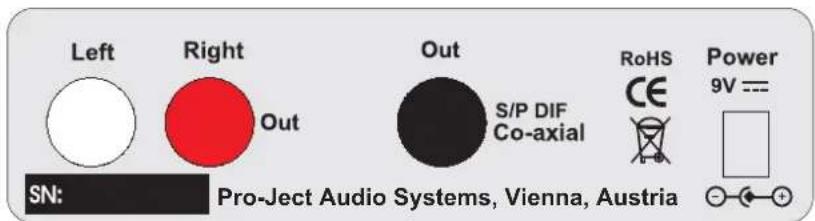
The Analog and the digital output cannot be used at the same time. To be able to use the analog output, the digital output has to be disengaged in the menue and vice versa.

Make all connections whilst the Media Box S is disconnected from the power supply.
Take care to connect the left and right channels correctly. The right channel is usually marked red, the left channel black or white.
Never use any other power supply than the one supplied with the unit.
Connection to the amplifier
Connect the Left/Right Out socket to a line input (such as AUX) on your amplifier.
Connection to a external A/D-converter
Connect the Out S/P DIF socket to a coaxial digital input on the D/A converter or AV processor. Doing so allows you to use the signal in its digital for further digital processing.
Mains power connection
Connect the low voltage plug from the power supply to the Power 9V = socket before connecting the power supply to the mains.
Remote control
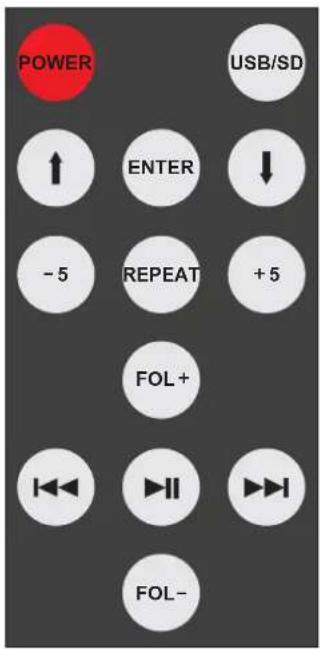
To switch on from standby or to standby

turns the unit on or back into standby
Input selection

selects between card reader and USB
Navigating the menu, playlist, main menu

and move the curser up and down, to highlight the requested

displays the playlist

displays the main menu. Selects the highlighted option, or modes in and submenus.
Play / Pause

starts and pauses playback. Restarts playback from the same position after stopping.
While playback and pause, the display shows the repeat play and the shuffle mode, the data format (MP3) and the selected input (card reader/USB).
Repeat and shuffle play

as a default setting the unit is in "repeat all" mode (RP.ALL). Repeatedly pressing selects the different and shuffle play modes: "repeat folder" (RP.Fol), "repeat track" (RP.One), "random play - all tracks" A), "play all tracks" (PL.ALL), "play all tracks in folder" (PL.Fol) and "play current track" (PL.One).
To select a folders or an entry
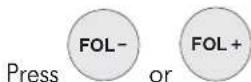
to step between folders
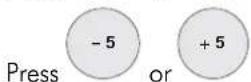
to step between next/previous 5 entries of a folder
Stepping between tracks, reverse and forward scanning

skips to the next track

restarts the current track in playback mode
Press and hold the button for reverse scanning, or the button to start forward scanning.
Front panel controls
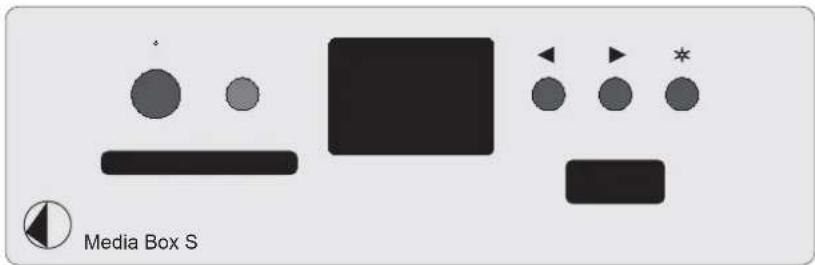
To switch on from standby or to standby
The push button on the left hand side will toggle the player between its fully operational status and standby. The blue LED above the stand-by push button shows that the unit is switched on. The display shows STANDBY when the unit is in standby.
If there is no SD card inserted, or no USB-device connected, the unit will returns to standby automatically. After switching to standby, the display shows the current software version.
Navigating the menu and playlists, main menu
◀ and ▶ move the curser up and down, to highlight the requested option in menus and playlists.
* displays the main menu and starts playback of a selected track in a playlist.
Play / Pause
Pressing * starts and pauses playback. Restarts playback from the same position after stopping.
◀ displays the playlist. ✱ starts playback of a selected track in a playlist. Starts playback of the next track.
Replacing batteries
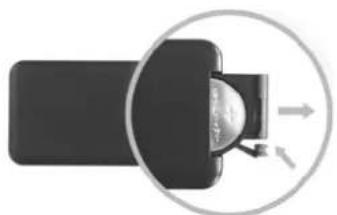
Proceed as follows:
- Unlock and slide open the battery case cover
- Replace the battery.
Make sure the battery is the right way round! - Close the battery case cover
Battery type: 1 x CR2032 / 3V or 1 x CR2025 / 3V
natural_image
Diagram of a device with a magnified inset showing internal components (no text or symbols)
Do not dispose the batteries as ordinary domestic refuse. Please dispose your exhausted batteries at the appropriate collection sites - usually located at supermarkets and drugstores.
Technical specifications Pro-Ject Media Box S
Audio formats: MP3, WMA, AAC (no DRM support)
USB input: High-Speed 2.0, 24/96. Typ A-socket.
Power supply for 2,5" hard drives (5V DC/max. 500mA)
Hard drives: FAT16 and FAT32 (no exFAT or NTFS support)
Card reader: SD card (secure digital), max. 32GB
Line-level output: 1 pair RCA/phono sockets
Output voltage: max. 1Vrms
Noise floor 100dBA
Digital output: co-axial (S/PDIF)
D/A-converter:
Texas
Instruments
TLV320AIC23B
Outboard power supply: 9V/2A DC, suitable for your country's mains supply
Power consumption: 1,8A DC max. – with hard drive connected. <1W in standby
Replacement battery remote control: 1 x CR2032 / 3V or 1 x CR2025 / 3V
Dimensions W x H x D (D with sockets): 103 x 36 x 104 (109)mm
Weight: 550g without power supply
Service
Should you encounter a problem which you are not able to alleviate or identify, please contact your dealer for further advice. Only when the problem cannot be resolved there should the unit be sent to the responsible distributor in your country.
Warranty

The manufacturer accepts no responsibility for damage caused by not adhering to these instructions for use. Modification or change to any part of the product by unauthorized persons release the manufacturer from any liability over and above the lawful rights of the customer.
Copyright
PRO-JECT is a Registered Trademark of H. Lichtenegger.
This guide was produced by: Audio Trade GmbH Copyright © 2012. All rights reserved.
The information was correct at the time of going to press. The manufacturer reserves the right to make changes to the technical specification without prior notice as deemed necessary to uphold the ongoing process of technical development.
- INSTRUCTIONS FOR USE
- Pro-Ject Media Box S
- Safety instructions
- Connectors
- Connection to the amplifier
- Connection to a external A/D-converter
- Mains power connection
- Remote control
- To switch on from standby or to standby
- Input selection
- Navigating the menu, playlist, main menu
- Play / Pause
- Repeat and shuffle play
- To select a folders or an entry
- Stepping between tracks, reverse and forward scanning
- Front panel controls
- Navigating the menu and playlists, main menu
- Replacing batteries
- Technical specifications Pro-Ject Media Box S
- Service
- Warranty
- Copyright
Brand : PRO-JECT
Model : Media Box S
Category : Media player