
Libretto PER3052W - Card Reader PRESTIGIO - Free user manual and instructions
Find the device manual for free Libretto PER3052W PRESTIGIO in PDF.


| Product Type | E-Book Reader / Card Reader |
| Brand | Prestigio |
| Model | Libretto PER3052W |
| Display | Unknown (estimated 5-7 inch monochrome e-ink or color LCD) |
| Dimensions | Approximately 150 x 100 x 10 mm (estimated) |
| Weight | Approximately 150-200 g (estimated) |
| Power Source | Built-in rechargeable battery, USB charging (5 hours full charge) |
| Battery Charging Time | 5 hours (normal); initial charge: 3 cycles of 12 hours |
| Memory Card Support | SD card up to 16 GB (not included) |
| Supported eBook Formats | .txt, .html, .doc, .pdf, .fb2, .epub (non-DRM) |
| Supported Audio Formats | Not specified (likely MP3, WMA, WAV) |
| Supported Video Formats | Not specified (likely AVI, RMVB, etc.) |
| Supported Photo Formats | .JPEG, .GIF, .BMP |
| Audio Jack | 3.5mm headphone jack |
| Speaker | Built-in speaker |
| Microphone | Built-in microphone for voice recording |
| USB Port | USB 2.0 (for charging and data transfer) |
| Reset Button | Yes (for reboot) |
| Hang Hole | For hand strap (not included) |
| Main Functions | eBook, Music, Video, Photo, Explorer, Record, Settings, User Guide |
| Navigation Control | Directional pad (▲/▼/◀/▶), page skip buttons, zoom button |
| Language Support | Multi-language (selectable in settings) |
| Cleaning | Wipe with a soft dry cloth. Avoid liquids. |
| Safety | Use only specified charger; avoid water and extreme temperatures |
| Warranty | Refer to included warranty card or www.prestigio.com |
Frequently Asked Questions - Libretto PER3052W PRESTIGIO
User questions about Libretto PER3052W PRESTIGIO
0 question about this device. Answer the ones you know or ask your own.
Ask a new question about this device
Download the instructions for your Card Reader in PDF format for free! Find your manual Libretto PER3052W - PRESTIGIO and take your electronic device back in hand. On this page are published all the documents necessary for the use of your device. Libretto PER3052W by PRESTIGIO.
USER MANUAL Libretto PER3052W PRESTIGIO
3 Earphone 4 USB Cable
5 Quick Guide 6 Warranty Card
Main Unit Overview


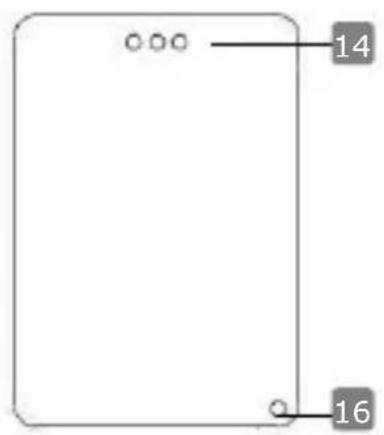
| 1 | Previous Page | Skip to previous page, Volume down |
| 2 | Next Page | Skip to next page, Volume up |
| 3 | Previous Page | Skip to previous page, Volume down |
| 4 | Next Page | Skip to next page, Volume up |
| 5 | Power on/off | To turn on/off the device |
| 6 | Zoom Button | To zoom in/out of contents on screen |
| 7 | Directional Pad | To navigate through all options |
| 8 | Mode Button | To enter option menu |
| 9 | Return/Cancel Button | Return to previous menu or cancel |
| 10 | USB Jack | Connect to the host PC USB port |
| 11 | SD Card Slot | For inserting a SD card |
| 12 | Headphone Jack | Connect to headphones |
| 13 | MIC | To record voice |
| 14 | Speaker | Produce sound |
| 15 | Reset Button | To reboot |
| 16 | Hang Hole | Hole for tying hand strap (Not Included) |
| 17 | Home | Return to main menu |
Getting Started
Power On / Power Off
- Press and hold the button ⏻ to turn on/off the device.
Charging
- It's recommended to charge the battery three successive 12 hours charging cycles.
- It takes approximately 5 hours to fully charge the device normally.
- Please recharge the device as soon as possible when the battery is in low-power level shown as ☐
NOTE:
Only the special charger may comply with your E-Reader. Direction of an inappropriate external power supply may cause failure of the device and will void the warranty.
- Connect the host PC USB port and the device with the USB cable provided to start charging.
Restoration to Factory Default Setting
- Reset the device by pressing reset button when device fails to start up or function properly.
Using a SD Card (SD Card Not Included)
- The device supports up to 16GB SD memory card. Insert SD memory card into SD Card Slot.
Basic Operations
Press and hold the button ⏻to turn on the device. It will automatically enter the main menu with 8 options including Recent Files List, eBook, Music, Video, Photo, Explorer, Record, Settings and User Guide. Use the directional pad to select the desired option and press the button ▶|| to confirm. Press 📄to return to the main menu.

Recent Files List
- Files viewed in the past will be displayed in the section. Press directional pad to navigate to Recent Files List option and press the button ▶|| to confirm selection.
-
Press the buttons ▲/▼ of the directional pad to select the desired file and press the button ▶|| to confirm. Press the button ← to return.
-
Press Zoom Button to zoom in/out of contents on screen. Press page jump buttons or directional pad to skip to the desired page.
- At the interface menu of Recent File List, press left button of the directional pad to delete all the files. Highlight YES and press ▶|| to confirm. Press → directly to cancel.
Note:
If files were saved on the SD card ever, they are still displayed in "Recent Files List" even if the SD card has been removed. But the files cannot be opened if the SD card is removed.

eBook
- The device supports 7 types of formats including .txt, .html, .doc, .pdf .fb2, .epub, .pdf, etc. Please make sure it is NOT a DRM protected file, which cannot be read by the E-reader.
- Select file of Flash or SD Card and press button ▶|| to confirm. Use ▲/▼ of the directional pad to select the desired file or press page jump buttons to skip to the desired page. Press ▶|| to confirm selection.
- At the interface menu of eBook, press left button ◀ of the directional pad to delete the desired file. Highlight YES and press button ▶ || to confirm. Press ↩ to cancel directly.
NOTE:
Only the files but not the whole folder can be performed the file delete.
- During text playback, press button ▶|| to enter the eBook submenu. Seven different options, that is, Page Jump, SaveMark, LoadMark, DelMark, Browser Mode, Flip Time and Mode, are available within the section. Press button ▶|| to confirm and press ← to return the text mode.
NOTE:
The formats of .PDF and .DOC are unavailable for the function.

Music
- At interface menu of Music, press the directional pad to select the desired file. Press button ▶|| to confirm.
- At interface of music files list, press left button ◀ of the directional pad to add the desired file to favorite folder. Highlight YES and press button ▶|| to confirm. Press ← to cancel directly.
● During music playback, each button functions respectively as follows.

Left button: To go to previous option / Rewind Right button: To go to next option / Fast Forward
Up button: To Play Down button: To Pause
- To adjust the volume level, press the page jump button to turn up/down the volume.
- During music playback, press button ▶|| to enter the Music submenu. There are 6 different kinds of Play Mode to create various playback qualities.
- During music playback, press to enter background music mode. To end this mode, enter the interface of music playback and press Down Button to pause.

Video
- At interface menu of Video, press the buttons ▲/▼ of the directional pad to select the desired file. Press button ▶|| to confirm.
- At interface of video files list, press left button ◀ of the directional pad to delete the desired file. Hightlight YES and press button ▶ || to confirm. Press ← to cancel directly.
- Select the desired file and press button ▶|| to play the video. Press ▶|| to resume from last playback when prompted or press ← to cancel.
● During video playback, each button functions respectively as follows.
▶II To enter the submenu To pause/play

To return to previous option To return to the main menu
- During video playback, press button ▶|| to enter the submenu and use directional pad to select the desired option. Press ▶|| to confirm or press ← to return.
- Press left/right buttons ◀/▶ of the directional pad to navigate to previous/next video file. Press up/down buttons ▲/▼ of directional pad or page jump buttons to adjust the volume.

Photo
The device supports picture formats such as .JPEG, .GIF, .BMP only. All other file formats will not be displayed on purpose.
- Select file of Flash or SD Card and press ▶|| to confirm. Press up/down buttons ▲/▼ of the directional pad to select the desired file or press page jump buttons to skip to the desired page. Press button ▶|| to confirm.
- At the interface menu of Photo, press left button ◀ of the directional pad to delete the desired file. Highlight YES and press button ▶ || to confirm. Press ← to cancel directly.
- During photo playback, press button ▶|| to enter the submenu where 5 browse modes are available. Press the directional pad to select the desired option and press ▶|| to confirm.
- During photo playback, press the button 🔒 to zoom image in/out. Press page jump buttons to rotate image.
- Use directional pad to turn to previous/next image.
NOTE:
When image is rotated, the function is unavailable. Press to exit the rotation.

File Explorer
- Select file of Flash or SD Card and Press ▶|| to confirm.
- Use up/down button ▲/▼ of the directional pad to select the desired file or press page jump buttons to skip to the desired page. Press ▶|| to confirm.
- At the interface menu of Explorer, press left button of the directional pad to delete current file. Highlight YES and press ▶|| to confirm. Press ← to cancel.

Record
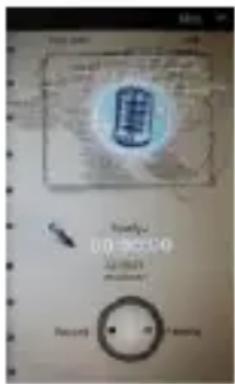
- Press the left button of directional pad to start/continue recording sound from microphone. Press right button to pause.
- Press to stop recording and save recorded file. Highlight YES and press the button to confirm.
- At Ready state, press the Press ▶|| button to enter Record submenu. There are two setting modes, that is, Quality and Volume, are available
Use directional pad to cycle through between 9 different options such as Display Setting, Key Lock Time, Auto Shut Time, Time, Date, Calendar, Restorable, Language and System Information. Press ▶|| to enter and press ↩ to return.

User Guide
An electronic version of the printed manual which can be read on the e-Reader device is provided. At main menu screen, highlight User Guide and press button ▶|| to enter.
Technical Support and Warranty Information
Please refer to www.prestigio.com for technical support and included warranty card for warranty information.
Disclaimer
We make every effort to ensure that the information and procedures in this user manual are accurate and complete. No liability can and will be accepted for any errors or omissions. Prestigio reserves the right to make any changes without further notice to any products herein.
Brand : PRESTIGIO
Model : Libretto PER3052W
Category : Card Reader