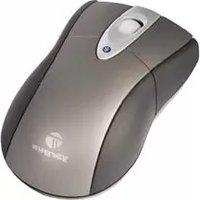
AMB04US - Mouse TARGUS - Free user manual and instructions
Find the device manual for free AMB04US TARGUS in PDF.


| Product Type | Wireless Bluetooth Mouse |
| Brand | Targus |
| Model | AMB04US |
| Connectivity | Bluetooth wireless (v2.0+EDR) |
| Range | Up to 33 ft (10 m) |
| Tracking Technology | Optical |
| Resolution | 800 / 1600 DPI (switchable) |
| Power Source | 2 AAA batteries |
| Low Battery Indicator | Scroll wheel flashes red |
| DPI Switch Indicator | Scroll wheel flashes green |
| Compatible Operating Systems | Windows 2000/XP/Vista, Mac OS X |
| System Requirements | Bluetooth-enabled notebook or desktop computer |
| Warranty | 1 year |
| Regulatory Compliance | FCC Part 15 Class B |
| Color | Black (assumed) |
Frequently Asked Questions - AMB04US TARGUS
User questions about AMB04US TARGUS
0 question about this device. Answer the ones you know or ask your own.
Ask a new question about this device
Download the instructions for your Mouse in PDF format for free! Find your manual AMB04US - TARGUS and take your electronic device back in hand. On this page are published all the documents necessary for the use of your device. AMB04US by TARGUS.
USER MANUAL AMB04US TARGUS
TARGUS OPTICAL BLUETOOTH® MOUSE
Introduction
Congratulations on your purchase of the Targus Optical Bluetooth Mouse. This mouse uses Bluetooth wireless technology which provides seamless connections up to 33ft (10M) in range.
System Requirements
Hardware
- Bluetooth-enabled notebook or desktop computer Operating System
- Windows® 2000/XP
- Windows Vista™
- Mac OS X
Installing the Batteries
- Use the two AAA-size batteries
- Remove the battery cover from the back of the mouse by sliding off the cover while pressing the release button at the bottom of the mouse.
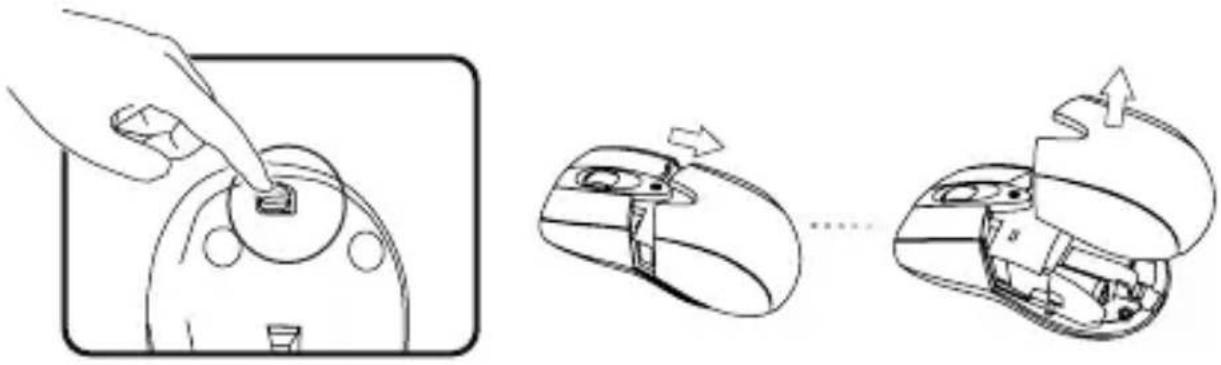
natural_image
Diagram showing a hand turning a button on a computer mouse, then adding a scroll to the right (no text or symbols present)- Insert the batteries, making sure that the positive (+) and negative (-) ends of each battery match the polarity indicators inside the battery housing
- Snap the battery cover back into position
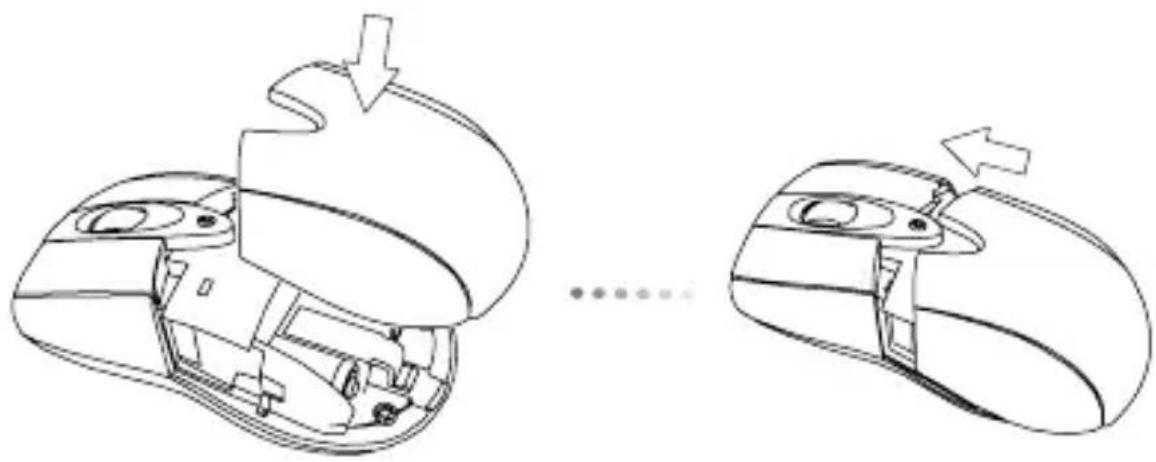
natural_image
Line drawing of a computer mouse showing internal components before and after disassembly (no text or symbols)- Turn on the mouse by sliding on/off switch on the bottom to the “on” position.
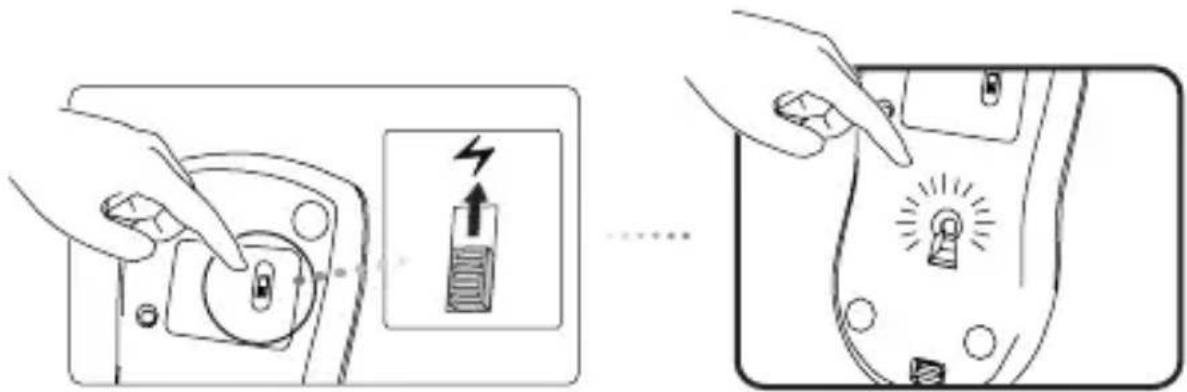
Low Battery Power Indicator

WHEN THE BATTERY POWER IS LOW, THE SCROLL WHEEL WILL FLASH RED. PLEASE REPLACE THE BATTERIES.
Using the enhanced Resolution feature (DPI switching)
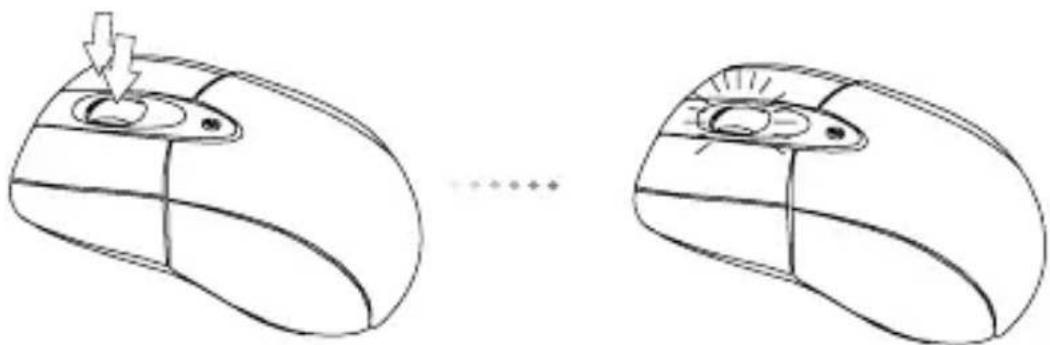
This Bluetooth mouse has a special enhanced resolution feature. By activating this feature, the mouse will change its tracking sensitivity from 1600 DPI to 800 DPI. Higher DPI will improve the precision of the mouse pointer for fine details with increased speed. To change the DPI, simply press and hold both, the scroll wheel and the right mouse buttons for 3 seconds. The scroll wheel will then flash green and then turn off. Repeat this step to change between the two DPI settings.
natural_image
Line drawing of a computer mouse with a button and arrow, showing before and after states (no text or symbols)Initial Configuration
Before you can begin using your Bluetooth mouse, you will first need to perform some initial setup steps.
The Bluetooth Optical notebook mouse is designed to work with the four major software stack (protocol) standards: WIDCOMM, Toshiba, Microsoft and Mac OS X. Please check your computer's documentation to see which software stack your computer has. Please contact your system vendor if your system does not support one of the listed Bluetooth software standards.

NOTE: PLEASE USE THE LATEST BLUETOOTH DEVICE DRIVER. INSTRUCTION SCREENS MIGHT VARY DEPENDING ON THE VERSION OF YOUR BLUETOOTH DEVICE DRIVER.
Connecting with Bluetooth Software: WIDCOMM or Microsoft (Windows XP & Windows Vista)
- Go to the Bluetooth Places icon located on your desktop or in the system tray and double click, then click Add a Bluetooth Device.
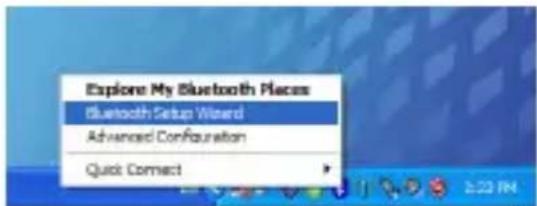
(Windows XP)
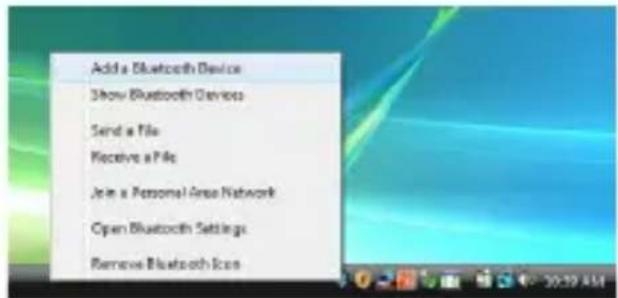
(Windows Vista)
- The Bluetooth Wizard screen will prompt. Please follow the onscreen instructions.
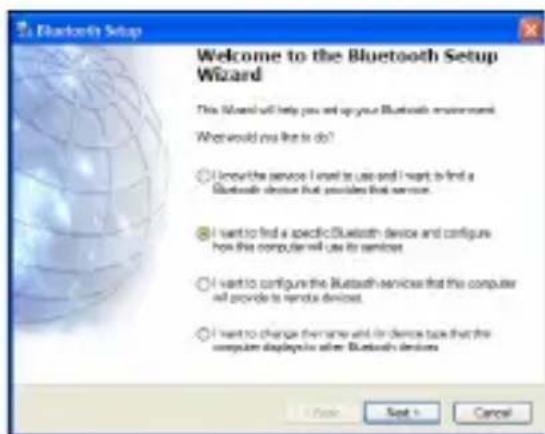
(Windows XP)
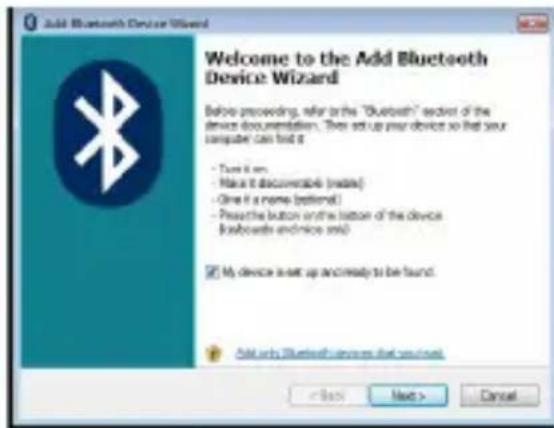
(Windows Vista)
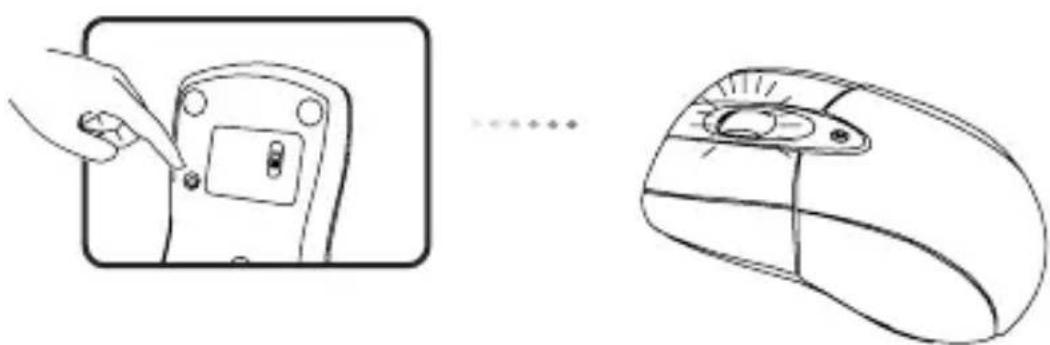
- Please turn on the mouse and press the connection ID button located at the bottom of the mouse until the LED on the mouse blinks green (discovery mode). Click Next to continue pairing and the computer will search for the mouse.
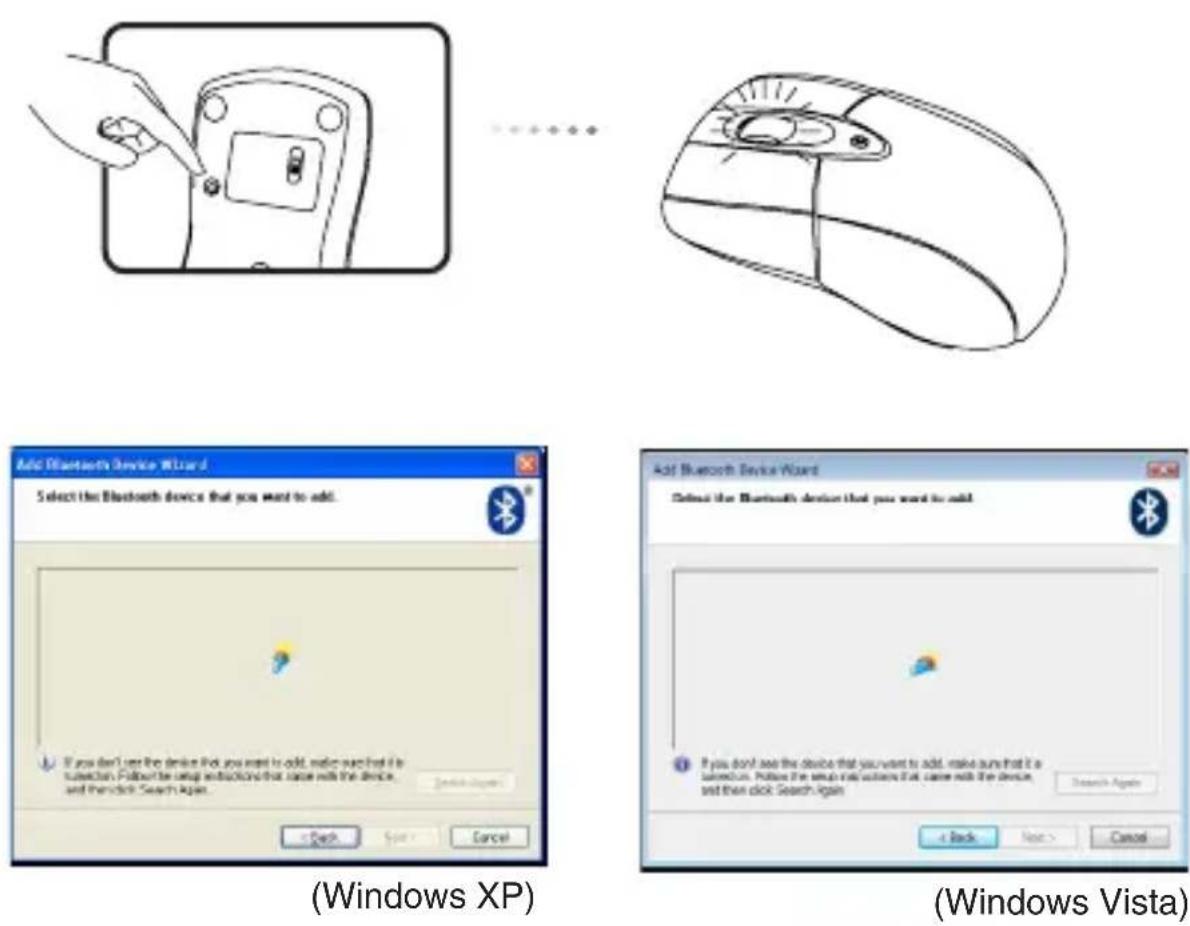
- The confirmation window will appear after the computer finishes detecting the Bluetooth devices. Select the Bluetooth Wireless Mouse and click Next to continue. (There may be one or more different Bluetooth devices detected.) If the mouse is not detected, please make sure the power is on and in discovery mode. Press Search Again to re-pair the device.
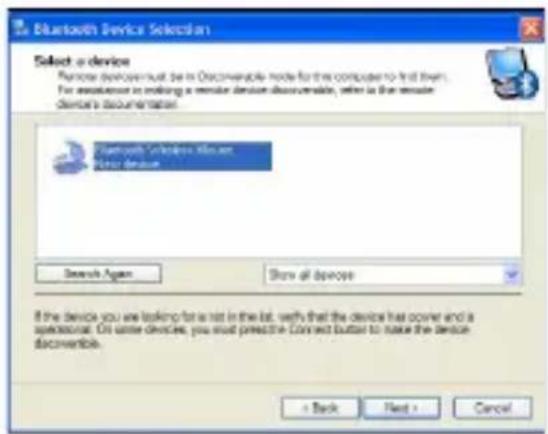
(Windows XP)
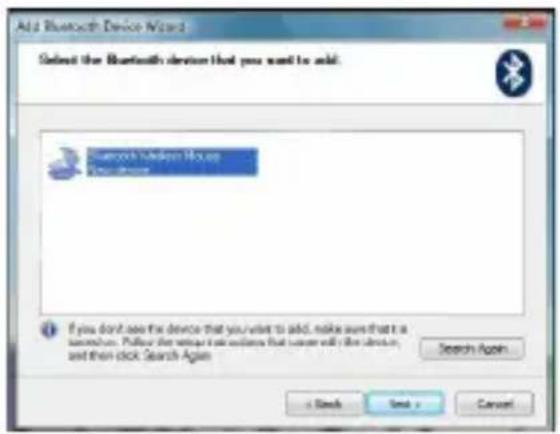
(Windows Vista)
- After selecting the correct device, the computer will finish establishing the connection. Please wait until the setup is completed.
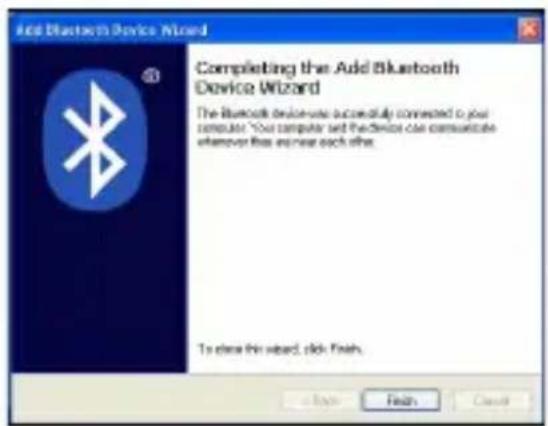
(Windows XP)
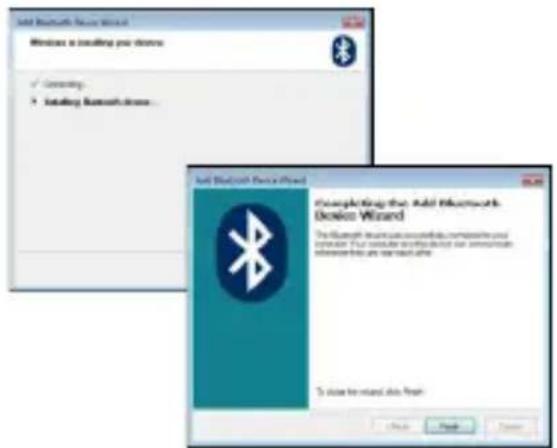
(Windows Vista)
Connecting with Bluetooth Software: TOSHIBA (Windows Vista)
- Double click on the Bluetooth Manager icon in the system tray, and then click Add New Connection.
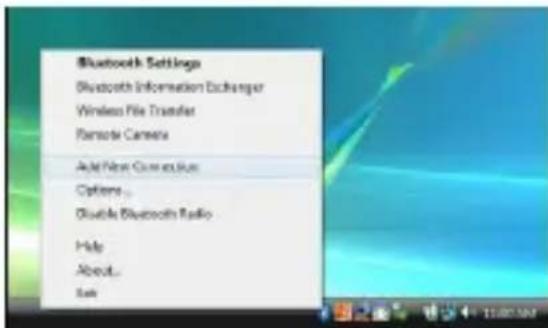
- Please turn on the mouse and press the connection ID button located at the bottom of the mouse until the LED on the mouse blinks green (discovery mode). Click Next to continue pairing and the computer will search for the mouse.
natural_image
Line drawing showing a hand inserting a small electronic device into a device, with no text or symbols present.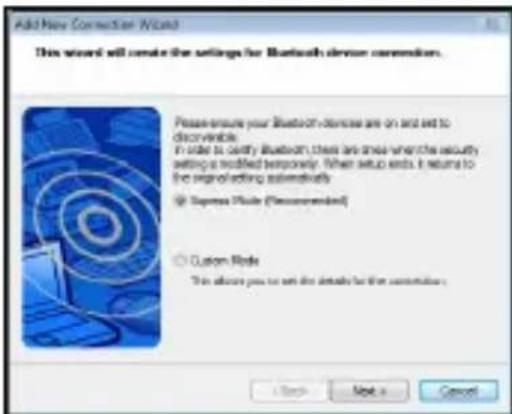
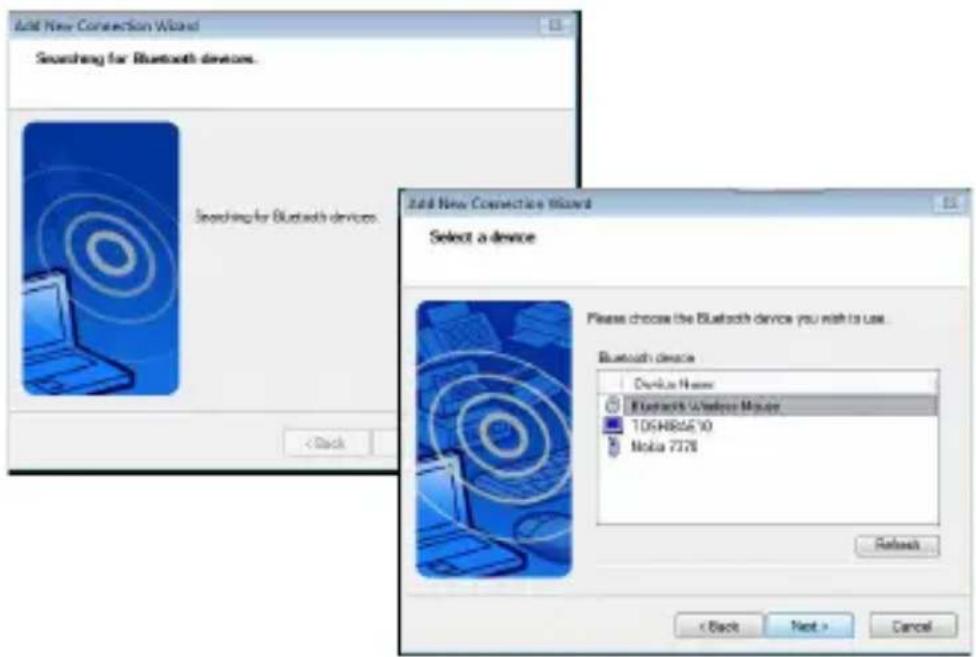
- The computer will now search for the Bluetooth mouse and other Bluetooth devices. Please wait until the search is completed. Choose the device you wish to connect. There may be more than one Bluetooth device detected. Select Bluetooth Wireless Mouse and click Next to continue. If the mouse is not detected, please make sure the mouse is in discovery mode and click Refresh.
- The computer will begin connecting with the device.
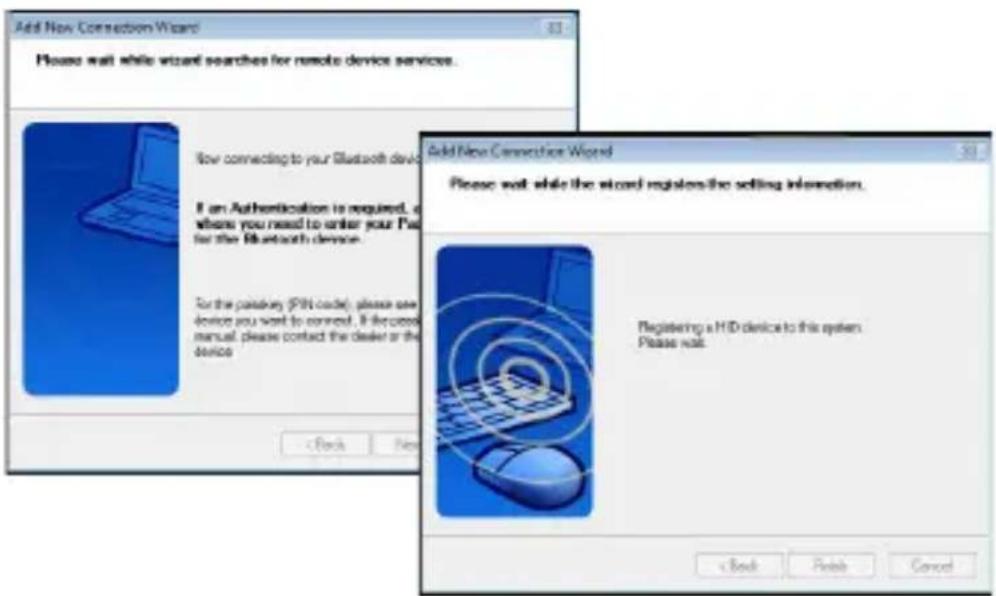
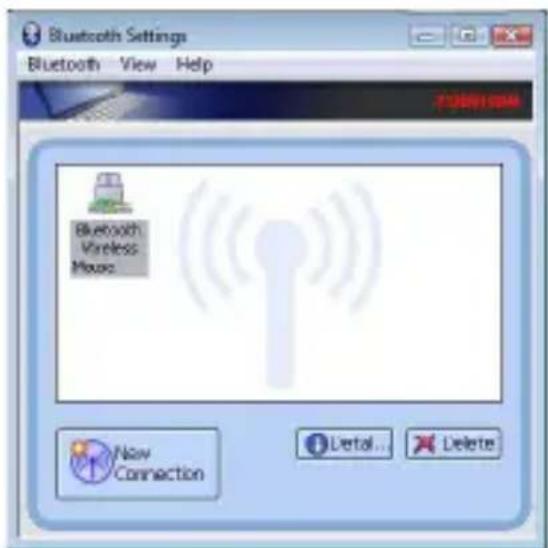
- The connection is established and setup is complete. The device is ready to use. If the connection is not successful, please click Back and search the device again. You can continue to add other Bluetooth devices or close the window.
Bluetooth Software: Mac
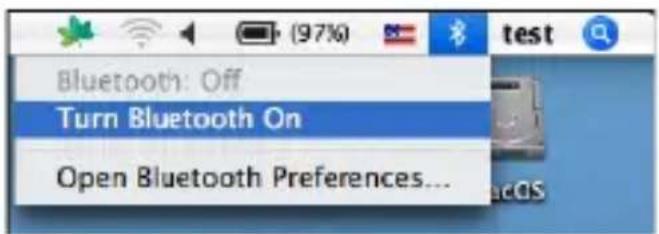
- Go to the Bluetooth icon located on your desktop or in the system bar and click the icon to begin setup. Select "Turn Bluetooth On" to activate the device.
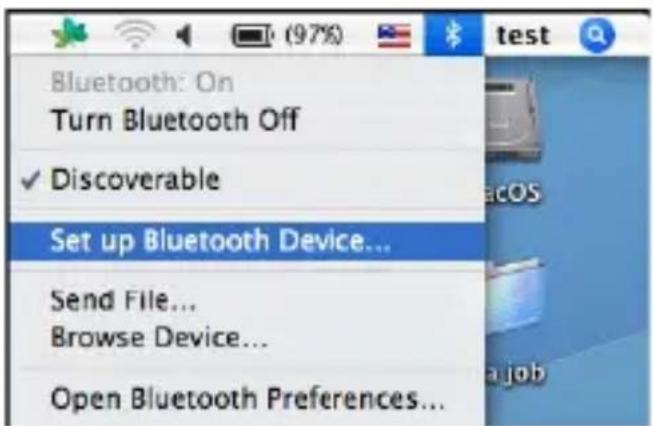
- Scroll down the list to "Set up Bluetooth Device..." and select the option.
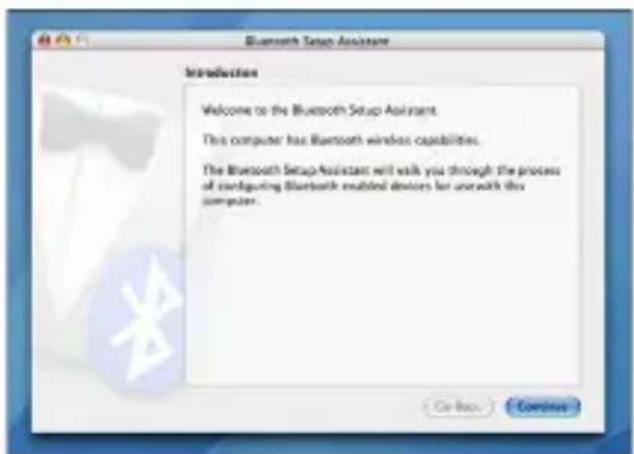
- Bluetooth Setup Assistant will begin. Please follow the on-screen instructions.
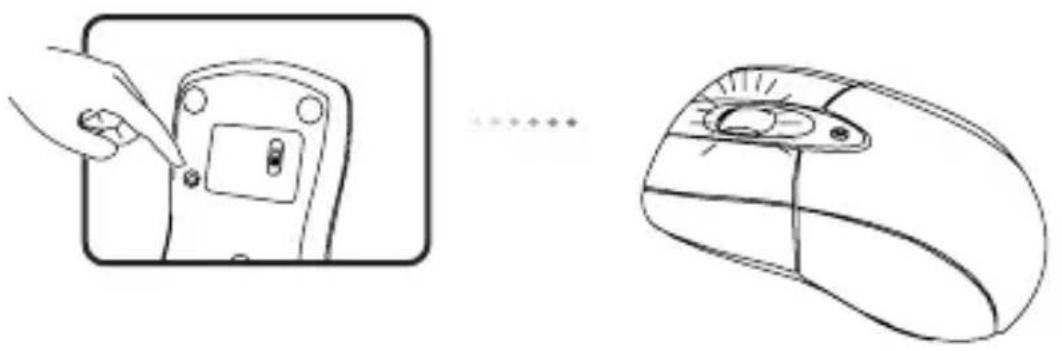
- Please select "mouse" and click continue to proceed with setup. Please make sure your mouse is in "discovery" mode. To enable "discovery" mode, turn on the mouse and press the connection ID button located at the bottom of the device until the light in the middle blinks green light.
natural_image
Line drawing showing a hand inserting a small electronic device into a remote control panel, alongside a close-up of the remote control device (no text or symbols present)
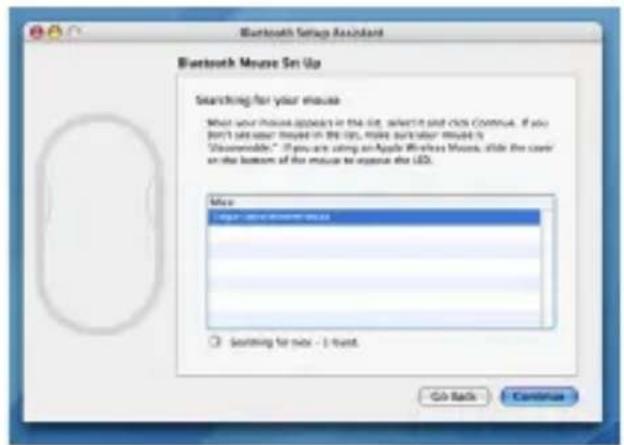
- Your computer will begin to search for the mouse. Once the mouse is found, it will show up in the list. Highlight the mouse in the list you wish to connect and press continue to proceed with setup.
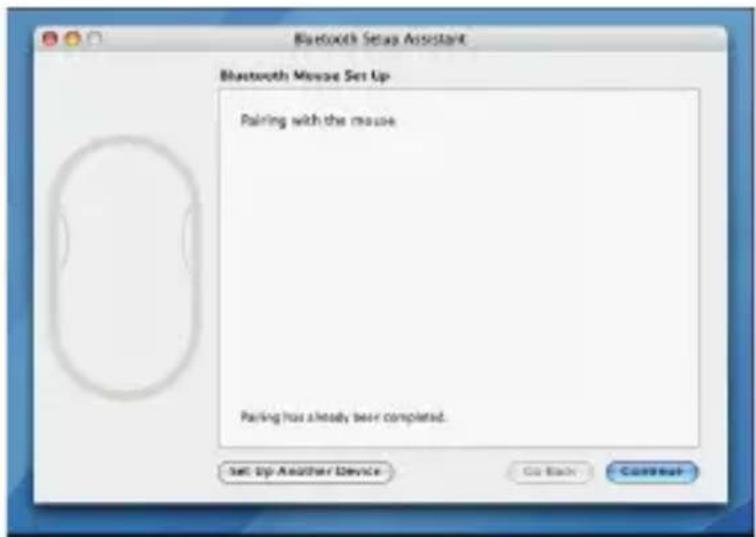
- The Bluetooth mouse will now begin pairing. Click continue to proceed.
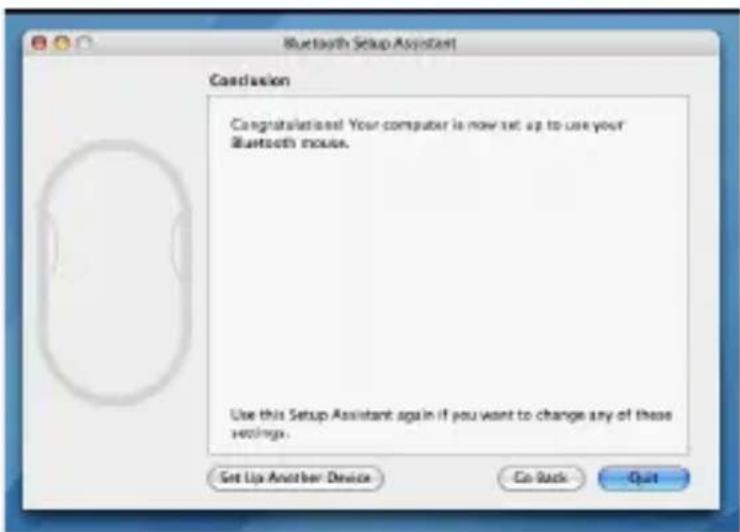
- Congratulations. Your Bluetooth mouse is setup and is ready to use. You can choose to setup another device or click Quit to exit setup.
Troubleshooting
The mouse is not working.
- Make sure that the polarity of the batteries is correct. The positive (+) and negative (-) ends of each battery must match the positive (+) and negative (-) connections in the battery housing.
- Make sure the batteries are charged.
- Verify that the computer is Bluetooth enabled.
-
Verify that the device drivers are installed:
-
Click Start/ Settings/ Control Panel/ System/ Hardware/ Device Manager
-
Check under "Bluetooth Devices" that a "Targus Bluetooth Optical Mouse" is installed
-
Paired devices are always displayed in My Bluetooth Places, even if the mouse is out of range or not powered up.
- Verify that the remote member of the pair is within range, and powered up, and then attempt the connection again.
- Verify that batteries are properly installed. Recharge / Replace if necessary.
Technical Support
For technical questions, please visit:
US Internet: www.targus.com/support.asp
Australia Internet: www.targus.com/au
Email: infoaust@targus.com
Telephone: 1800-641-645
New Zealand Telephone: 0800-633-222
Product Registration
Targus recommends that you register your Targus accessory shortly after purchasing it. Go to:
http://www.targus.com/registration.asp.
You will need to provide your full name, email address, country of residence and product information.
Warranty
Targus warrants this product to be free from defects in materials and workmanship for one year. If your Targus accessory is found to be defective within that time, we will promptly repair or replace it. This warranty does not cover accidental damage, wear and tear, or consequential or incidental loss. Under no conditions is Targus liable for loss of, or damage to devices; nor loss of, or damage to, programs, records, or data; nor any consequential or incidental damages, even if Targus has been informed of their possibility. This warranty does not affect your statutory rights.
Regulatory Compliance
This device complies with Part 15 of the FCC Rules. Operation is subject to the following two conditions: (1) This device may not cause harmful interference, and (2) This device must accept any interference received, including interference that may cause undesired operation.
FCC Statement Tested to Comply
This equipment has been tested and found to comply with the limits of a Class B digital device, pursuant to Part 15 of the FCC Rules. These limits are designed to provide reasonable protection against harmful interference in a residential installation. This equipment generates, uses, and can radiate radio frequency energy and if not installed and used in accordance with the instructions, may cause harmful interference to radio communications. However, there is no guarantee that interference will not occur in a particular installation. If this equipment does cause harmful interference to radio or television reception, which can be determined by turning the equipment off and on, the user is encouraged to try to correct the interference by one or more of the following measures:
- Reorient or relocate the receiving antenna;
- Increase the separation between the equipment and receiver;
- Connect the equipment into an outlet on a circuit different from that to which the receiver is connected;
- Consult the dealer or an experienced radio/TV technician for help.
Changes or modifications not authorized by the party responsible for compliance could void the user's authority to operate this product.
Declaration of Conformity
Hereby, Targus, declares that this device is in compliance with the essential requirements and other relevant provisions of Directive 1999/5/EC.
Microsoft, Windows, and Windows Vista are either registered trademarks or trademarks of Microsoft Corporation in the United States and/or other countries. All trademarks and registered trademarks are the property of their respective owners. All rights reserved. Features and specifications are subject to change without notice. © 2008. Targus Group International, Inc. and Targus, Inc., Anaheim, CA 92806 USA

- TARGUS OPTICAL BLUETOOTH® MOUSE
- Introduction
- System Requirements
- Hardware
- Installing the Batteries
- Low Battery Power Indicator
- Using the enhanced Resolution feature (DPI switching)
- Initial Configuration
- Connecting with Bluetooth Software: WIDCOMM or Microsoft (Windows XP & Windows Vista)
- Connecting with Bluetooth Software: TOSHIBA (Windows Vista)
- Bluetooth Software: Mac
- Troubleshooting
- The mouse is not working.
- Technical Support
- Product Registration
- Warranty
- Regulatory Compliance
- FCC Statement Tested to Comply
- Declaration of Conformity
Brand : TARGUS
Model : AMB04US
Category : Mouse