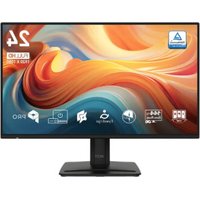
PRO MP243 E14 - Screen MSI - Free user manual and instructions

Find the device manual for free PRO MP243 E14 MSI in PDF.

MSI PRO MP243 E14 - Screen
📄 23 pages English EN Download 💬 AI Question 11 questions ⚙️ Specs
Notice MSI PRO MP243 E14 - page 1
Pick your language and provide your email: we'll send you a specifically translated version.
Product Type LED-backlit LCD Monitor
Brand MSI
Model PRO MP243 E14
Screen Size 23.8 inches
Resolution 1920 x 1080 (Full HD)
Refresh Rate 60 Hz
Panel Type IPS
Aspect Ratio 16:9
Contrast Ratio 1000:1 (typical)
Brightness 250 cd/m²
Response Time 5 ms (GTG)
Color Support 16.7 million colors
Viewing Angles 178° horizontal / 178° vertical
Video Inputs 1x DisplayPort (v1.2), 1x HDMI (v1.4)
Other Ports Headphone out
Ergonomics Tilt (-5° ~ 20°)
VESA Mount 100 x 100 mm
Power Consumption On: 15W (typical), Standby: <0.5W
Weight (with stand) Approx. 4.5 kg
Dimensions (with stand) 541.9 x 402.5 x 192.8 mm
Special Features Low Blue Light, Anti-Flicker, Eye-Q Check, MPRT, sRGB Mode, Professional Mode, Eco Mode, Alarm Clock, Screen Assistance
Certifications TÜV Rheinland Low Blue Light, ENERGY STAR

Frequently Asked Questions - PRO MP243 E14 MSI

How do I connect my computer to the monitor?
Use a DisplayPort or HDMI cable (not included) to connect the monitor to your computer. Ensure both devices are powered off before connecting. Then power on the monitor and select the correct input source using the Navi Key or OSD menu.
How can I adjust the brightness or contrast?
Press the Navi Key to open the OSD menu. Navigate to 'Settings' then 'Brightness' or 'Contrast' to adjust. Use the Navi Key to move left/right and confirm with a press.
What is the Eye-Q Check feature?
Eye-Q Check is a self-test that helps assess your vision and eye fatigue. Access it via the OSD menu under 'Eye-Q Check'. Follow on-screen instructions to perform a quick test.
How do I enable Low Blue Light mode?
Open the OSD menu and go to 'Professional' then select 'Low Blue Light'. You can choose from preset levels (e.g., 1-4) to reduce blue light emission. This is certified by TÜV Rheinland.
Can I mount this monitor on a wall?
Yes, the monitor supports VESA 100x100 mm mounting. Use a compatible wall mount bracket (sold separately). Remove the stand before mounting.
Why is the monitor not displaying any image?
Check power cable connection and ensure the monitor is turned on. Verify the video cable is securely connected to both monitor and computer. Try switching to the correct input source using the Navi Key or OSD menu under 'Input Source'.
How do I clean the screen?
Turn off the monitor and unplug it. Use a soft, dry microfiber cloth to gently wipe the screen. For stubborn stains, slightly dampen the cloth with water (do not use alcohol or ammonia). Avoid pressing on the screen.
What is the Alarm Clock function for?
The Alarm Clock displays a timer or alarm on the screen. Access it via the OSD menu under 'Alarm Clock'. You can set a duration or specific time to remind you to take breaks, especially useful for eye care.
How do I reset the monitor to factory settings?
Open the OSD menu, navigate to 'Settings', then select 'Reset' or 'Factory Default'. Confirm your choice. The monitor will revert to original settings.
What does MPRT setting do?
MPRT (Motion Picture Response Time) reduces motion blur by backlight strobing. Enable it in the OSD menu under 'Professional' > 'MPRT'. Note: It may reduce brightness and is available at certain refresh rates.

User questions about PRO MP243 E14 MSI

1 question about this device. Answer the ones you know or ask your own.

Ask a new question about this device

Your email remains private: it is only used to notify you if someone answers your question.

How do I close the settings menu of the MSI PRO MP243 E14 monitor?
Frequently Asked Questions - 07/03/2026
Response Notice-Facile

To close the settings menu (OSD) of your MSI PRO MP243 E14 monitor, simply press the Navi button (the navigation button) again. The OSD menu will close automatically.

You can also:

  • Wait a few seconds without interacting - the menu will close automatically after a period of inactivity (about 10-15 seconds depending on the model)
  • Press and hold the Navi button for 1-2 seconds to force the menu to close

The Navi button is usually located on the side or bottom of the monitor screen. After closing the menu, you will return to the normal display of your screen.

Respond (be the first)

Download the instructions for your Screen in PDF format for free! Find your manual PRO MP243 E14 - MSI and take your electronic device back in hand. On this page are published all the documents necessary for the use of your device. PRO MP243 E14 by MSI.

USER MANUAL PRO MP243 E14 MSI

  1. Agricultural Affairs

Illustration of a hand holding a pen, with a red 'X' symbol above and a circular background (no text or symbols).

Professional

Low Blue Light (Software Solution)

www.tuv.com

Table of contents Click a title to access it
Manual assistant
Powered by Anthropic
Waiting for your message
Product information

Brand : MSI

Model : PRO MP243 E14

Category : Screen