
Element P002 - Mobile Phone SENCOR - Free user manual and instructions
Find the device manual for free Element P002 SENCOR in PDF.


| Product Type | Mobile Phone |
| Brand | Sencor |
| Model | Element P002 |
| Dimensions (H x W x D) | 120 x 50 x 10 mm |
| Weight | 100 g |
| Display | 2.4-inch TFT LCD, 320x240 pixels |
| Battery Type | Li-Ion 1000 mAh |
| Standby Time | Up to 200 hours |
| Talk Time | Up to 6 hours |
| Network | 2G GSM 900/1800 MHz |
| SIM Card | Dual SIM (Mini-SIM) |
| Memory | MicroSD up to 32 GB |
| Camera | 0.3 MP rear camera |
| Connectivity | Bluetooth 3.0, USB Micro-B |
| Audio | 3.5 mm headphone jack, FM radio |
| Features | Torch light, loudspeaker, vibration |
| Power Supply | USB charging via 5V adapter (included) |
| Maintenance | Clean with a soft dry cloth; avoid liquids |
| Safety | Do not expose to moisture; use only approved charger |
| Spare Parts | Battery, charger, USB cable |
| Repairability | Battery and SIM easily accessible; other repairs by professionals |
Frequently Asked Questions - Element P002 SENCOR
User questions about Element P002 SENCOR
0 question about this device. Answer the ones you know or ask your own.
Ask a new question about this device
Download the instructions for your Mobile Phone in PDF format for free! Find your manual Element P002 - SENCOR and take your electronic device back in hand. On this page are published all the documents necessary for the use of your device. Element P002 by SENCOR.
USER MANUAL Element P002 SENCOR
1.1 Brief description of functions....4
- Safety instructions 5
2.1 Safety warning....5
2.2 Battery protection 6
2.3 Cleaning and maintenance....7
- Prior to use 11
3.1 Marking and description of the parts 11
3.2 Inserting SIM card and memory cards....12
3.3 Battery....13
3.4 Security password....14
- Quick start guide 15
4.1 Making a call....15
4.2 Rejecting a call 15
4.3 Receiving a call....15
4.4 Ending the call....15
4.5 Emergency calls 15
4.6 Speed dial of extension 15
4.7 Dialed / Missed / Received / rejected calls 15
4.8 Calls forwarding 16
4.9 Call waiting 16
4.10 Call blocking 16
4.11 Turning the telephone off....16
4.12 Memory card 16
- Functions menu 17
5.1 Telephone directory 17
5.2 Messages....17
5.3 Call registry 17
5.4 Settings....18
5.5 Fun 19
5.6 Multimedia files 19
5.7 Organizer 21
5.8 Profiles 21
-
Entering text 22
-
Care and maintenance....23
-
Technical specifications 24
1. Basic information
1.1 Brief description of functions
Thank you for choosing Element PO02 mobile phone with colour display. When reading this manual, you will learn about the phone support, its features and operation.
Mobile telephone Element P002 with colour display is designed for network environments GSM / GPRS; the telephone allows you to operate two SIM cards in standby mode, but if one SIM card is engaged in a call, you cannot call from the second card. In addition to basic call functions, the Element P002 phone offers a number of useful features such as directory, operating modes, news, audio and video player, camera and video camera, alarm clock, calculator, date and time, auto power on and off etc., that are practical for work and for leisure activities.
Mobile phone Element P002 with colour display meets the criteria GSM / GPRS and has been certified by the competent authority.
The Company reserves the right to change the contents of the manual without prior notice.

NOTICE
This phone is equipped with easy call function or call for personal assistance from the circle of your friends. This function depends on the availability and accessibility of the telephone network. Do not rely on error-free telephone connection in case of danger to health and life. The phone is an effective tool, however it does not replace rescue and emergency facilities.
In specific cases or in cases of public endangerment, the use of the telephone may be restricted by technical means of the network operator, as well as by state or local authorities.
2. Safety instructions
2.1 Safety warning
Carefully read the operating instructions before use. Retain these instructions carefully for future reference.
- Please read these instructions carefully and follow all instructions for use, maintenance and installation. Do not use the mobile phone for purposes other than those for which it is intended.
- Failure to comply with the rules provided in the manual or improper use will void the warranty and may result in injury or property damage. The manufacturer in this case is not liable for any damages.
- You are prohibited to use the mobile phone in some places. In the case of an operating mobile phone ban, turn it off according to the instructions in the manual. The usual places, where the operation of mobile phones is banned are: Airplanes, gas stations with combustible fuels, an area where blasting is in progress, etc.
- Observe local regulations concerning the use of mobile phones while driving, as the driver you are primarily responsible for the vehicle.
- Use your mobile phone with original accessories; especially, when using non-original batteries or chargers you run the risk of damage to the phone and the user's health.
- The third party charger, corresponding to the standard IEC / EN 62684, connectable to a micro USB connector, may be compatible with the device.
- It is forbidden to modify the mobile phone, to alter design features or to interfere with the device itself. Modification of the device can lead to serious defects and damage to property, or even personal injury. Changing operating software is considered a modification also, unless this is approved by the equipment manufacturer.
- Mobile phones are susceptible to external interference, which can seriously affect their function; in some environments you cannot use a mobile phone.
- Neither mobile phone nor charger are toys; use by children carries the risk of them swallowing small parts. Charger and its connection to the power grid is very risky for young children, this use by children is prohibited.
- Do not disconnect the charger from the wall outlet by pulling by the cord - it may damage the power cord / power outlet or charger. Disconnect the charger from the power outlet by pulling on the body of the charger.
-
When the glass of the mobile phone is damaged, be careful, there is a risk of injury caused by sharp glass parts. Do not use the damaged phone and seek professional repair.
-
The high volume of the mobile phone during long listening can damage hearing, be careful when setting the volume. Listening to loud music through the phone can have serious consequences, be careful when setting the volume when listening to music.

-
Do not use liquid or aerosol cleaners, gasoline, solvents or other similar substances. Use slightly damp cloth for cleaning.
-
Do not use the device close to water, e.g. in the bathtub, in the shower or in the pool. Dipping the device in water can cause to injury with electric shock. Do not place containers filled with water on the device, e.g. vases.
-
Place the device on stable surfaces. A fall may cause damage or injury.
-
Do not cover the openings. They provide ventilation and prevent overheating.
-
Install the device in places where no one can step on it.
-
Do not insert any objects into the device openings. It may cause fire or an electric shock. Never allow a liquid spraying the device.
-
Do not disassemble the device, reduce the danger of electric shock. If it is necessary to service or repair it, take it to an authorized service center or to a qualified technician. When you open or remove covers you can open places with dangerous voltage or other hazards. In case of incorrect reassembly, during subsequent use electric shock may occur.
-
Do not expose the device to extreme temperatures, e.g. near a hot radiator or stove or in a heated car.
-
Do not place burning objects on the device, like candles or cigarettes.
-
Do not use the device to report a gas leak in the vicinity of the leak.

WARNING:
To avoid the risk of fire or electric shock, do not expose this device to rain or moisture.
2.2 Battery protection
Battery information:
Do not place the mobile phone battery in places with extremely high or low temperatures. This leads to the battery life being reduced. The battery life of the mobile phone is limited. Should the capacity of the phone battery decrease after using the device over a period of time, we recommend purchasing a new battery from an official supplier and replacing it.
Information about battery use:
• Make sure the phone is switched off before removing the battery.
- Handle the battery with care. Connecting the positive (+) and negative (-) pole of the battery using a conductive object (e.g. coin or clip) will result in a short-circuit. A short-circuit can damage the battery and the conductive object. Make sure the positive and negative poles are never connected using a conductive object that lies in the vicinity of the battery.
- Do not throw the battery into a fire and do not expose it to high temperatures.
• Do not attempt to dismantle or modify the battery.
- Do not expose the battery to hard impacts or attempt to open the battery with hard objects.
- The battery should be placed in a cool and dry area away from direct sunlight. The battery should not be exposed to high temperatures (over 60 °C).
- Stop using the device if you smell an odour coming from the battery or the battery is overheating.
- Stop using the device immediately should you discover a crack on the battery, hole in the battery cover or other damage, including leaking electrolyte.
- If your skin or eyes come into contact with electrolyte, wash them thoroughly with clean water. Soap wash any areas that come into contact with your skin.
• Use original batteries to prevent injuries caused by improper charging.
- Do not use the li-ion battery if the temperature is too low. The battery capacity is reduced at lower temperatures.
- Do not clean the battery with water or organic dissolving agents and do not immerse in water.
• If you do not plan to use the battery for a longer period of time, check whether the battery is fully charged.
- Return dead batteries to the mobile phone manufacturer or recycle it at areas designated for recycling used batteries. Do not throw batteries into the waste bin or freely into nature.
2.3 Cleaning and maintenance
- Do not place the phone, battery or charger in the bathroom or other places with increased air moisture. Protect the device against rain.
• Clean the phone, battery and charger with a soft and dry towel. - Do not use alcohol, thinner, benzene or other chemical agents to clean the phone.
- Blocking the phone openings with dust can lead to a bad contact and data or power transfer. Clean regularly.

This symbol indicates the device has double insulation between dangerous voltage from the network and user-accessible parts. Replace parts with identical spare parts only.

A product identified with this symbol is only suitable for use indoors.
Warning:
- Do not power on the device in situations, where using phones is prohibited, and in areas where the phone can cause interference or present a risk.
- Keep the mobile phone and its accessories out of reach of children. Do not allow children to use the mobile phone unattended.
- Follow the regulations and instructions related to using wireless devices. Respect the privacy of others and legal regulations when using wireless devices.
- If you have medical implant devices or instruments, keep the phone at least 15 cm away from them and while on a call, hold the phone on the opposite side of where the instruments are located.
- Follow the instructions provided in the user's manual for using a USB cable.
Notes:
Some of the device properties and accessories described in this user's manual depends on the installed software and the capacity and configuration of the local network, and does not necessarily have to be available or can be limited by network providers. Thus, the descriptions provided do not necessarily correspond precisely to the specific phone or accessories, which you purchased. The manufacturer is not responsible for the quality and legality of any contents, which you upload or download to the mobile phone, whether it concerns text, pictures, music, films, additionally installed software protected by copyright etc. You are liable for consequences following the installation or using the contents of the above stated on this mobile phone.
All screenshots, symbols and icons in the user's manual are simulated. Actual screenshots, symbols and icons may differ.
Step-by-step procedures can differ from those provided in this manual, depending on the firmware version on the phone.
Unless stated otherwise, the home screen is the presumed starting point for all procedures described.
The phone is a device, the behaviour of which can be altered by the user via additional apps. Therefore some procedures and steps may in reality differ from this instruction manual.
Note on the service provider:
The phone is configured from the factory to fully utilize available services. Your provider can limit or change some functions, security measures or behaviour of the phone, as opposed to the description in this manual. Ask your provider about any changes.
SENCOR®
Appendix to the user's manual for the LCD panel
Precautions for displaying static images, red/blue/green/black dots on the screen
A static image can damage the LCD display permanently.
- Do not leave a static image on the LCD panel for more than 2 hours. This may result in a damaged panel. This is referred to as "screen burn-in".
The damage caused by the above-mentioned reasons is not covered by warranty!
natural_image
Close-up black-and-white photo of a sunflower with visible petals and center (no text or symbols)Red, blue, green, and black dots may appear on the screen
- This is typical for liquid crystal displays and does not indicate any problems. LCD screens are made using precision technology to provide even the finest image details. Several defective pixels can appear on the screen from time to time, indicated as red, blue, green or black dots (up to 0.001% of the total pixel count of the screen). This does not affect the properties and performance of your device.
3. Prior to use
3.1 Marking and description of the parts
3.1.1 Description of the standby mode
Signal strength of the mobile network
The more bars shown, the stronger the signal. If the SIM card is inserted into slot 1, this icon appears on the standby screen.
Signal strength of the mobile network
The more bars shown, the stronger the signal. If the SIM card is inserted into slot 2, this icon appears on the standby screen.
Battery charging
The fuller the filler, the more battery power remains. An icon appears on the standby screen.
Normal mode
If you choose the normal operating mode, the standby screen displays this icon.
"Silence" mode
If you selected the silent mode, the standby screen displays this icon.
"Meeting" mode
If you choose the operating mode "meeting", this icon appears on the standby screen.
General mode
If you choose internal operating mode, the standby screen displays this icon.
"Outside" mode
If you choose the outside operating mode, this icon appears on the standby screen.
3.1.2 Description of buttons
| Buttons | Function |
| Left software button / right software button | 1. Performing functions displayed in the left/right bottom corner of the screen.2. In standby mode, the Left Soft button activates the menu, with right you enter the Contacts. |
| Navigation button | It corresponds on other screens to the navigation button and direction button, except for special functions. |
| Dialing button | 1. By pressing this button, you dial a number or accept an incoming call.2. In the standby mode, press this button to enter the list of dialed numbers. |
| OK button (central navigation key) | 1. It provides access to the Menu of the phone from standby mode.2. Press and hold the button (for 5 seconds) to activate (or deactivate) the phone light.3. In the dial panel mode, press this button to show or hide the dialing panel. |
| Button to end the call | 1. Press and hold the button to switch off the phone.2. Press to return from any screen to the standby screen.3. Ending the call or rejecting the incoming call. |
| Number pad | Serves to dial or enter numbers and symbols. Press and hold the number 1 or 2 to go to the preset voicemail. |
| Button * | From the standby screen, enter * after entering a phone number if you want to enter the extension number; when you see the sign "+" type the extension. |
| Button # | 1. On screen for text editing, press the # key to switch the text entry method.2. From the standby screen, press and hold the # key to switch between modes normal / silent / meeting. |
3.2 Inserting SIM card and memory cards
3.2.1 SIM card
You have to insert the SIM card into the phone before using it. The SIM card is provided by your telephone operator.
When you purchase services of a mobile network, you will receive a SIM card with details, such as your PIN, and available optional services.

NOTIFICATION
Do not bend the SIM card and prevent it from being scratched. Do not expose the SIM card to static electricity, water and dirt.
Tips:
Insert the SIM card into the phone with the gold contacts facing down (toward the mobile phone) and push it into the slot.
3.2.2 Memory card
You insert the memory card by putting it into a slot for SD card and then gently pushing.

NOTIFICATION
If the memory card does not work, check if it is properly inserted and the contact is good.
3.3 Battery
3.3.1 Inserting battery
- Remove the back cover of the phone.
- Turn the battery with the side with the metal contacts to the battery connector.
- Then gently push the battery with your finger and afterwards press the other end. The battery is inserted.

NOTIFICATION
To prevent damage to the battery connector, follow the provided instructions.
3.3.2 Charging
Connect the charger to the charger connector on the side of the phone. Plug the charger into a standard electrical outlet and the battery icon in the upper right corner of the screen starts to move. When the battery icon stops moving, the battery charging is complete. Pinch the charger plug between two fingers and disconnect the charger from the phone.

NOTIFICATION
Use the original charger to ensure reliable mobile phone operation.
3.4 Security password
· PIN
The PIN is used to make it impossible to use your SIM card illegally. The PIN code is usually included with the SIM card. If you enter three consecutive times the wrong PIN, unlock it by entering the PUK code. You will receive details from your telephone operator.
• PIN2
The PIN2 code must be entered when entering certain features (e.g. Charge calls); if you enter three consecutive incorrect PIN2 code, unlock it by entering the PUK2 code. You will receive details from your telephone operator.
- PUK
When removing a locked PIN code you must enter the PUK code. PUK code is included with the SIM card. If it is not included, contact your telephone service provider. If you enter ten times in a row the wrong PUK, the SIM card cannot be used any longer. Contact your telephone service provider to purchase a new card. The PUK code cannot be changed. If you lose the code, contact your telephone service operator.
- PUK2
When removing the locked PIN2 code, you must enter the PUK2 code. If you enter ten times in a row the wrong PUK2 code, you cannot use the functions requiring PIN2 code any longer. Contact your telephone service provider to purchase a new card. The PUK2 code cannot be changed. If you lose the code, contact your telephone service operator.
4. Quick start guide
In case that when you switch on the phone and the default language is English, proceed as follows through the telephone Menu: Menu/Settings/Phone settings/Language and here select the required language from the menu.
4.1 Making a call
In standby mode, using the number keys enter the phone number you want to dial. When you enter the number, press the dialing button and the call is made. If you want to make an international call, add before the phone number the area code.
Use the left software button to enter the Options menu.
4.2 Rejecting a call
You can reject the incoming call by pressing the end call button.
4.3 Receiving a call
When you receive a call, the phone duly alerts you (vibration, ring tones, etc.); if this feature is supported by your telephone network, the phone's screen shows the name and telephone number of the caller; at this point you can press the dialing button to receive the incoming call.
4.4 Ending the call
After the conversation you can end the call by pressing the end call button.
4.5 Emergency calls
Call to the emergency services can be made directly without the SIM card. Different networks use different emergency numbers. Contact your telephone operator for details.
4.6 Speed dial of extension
If you want after entering a phone number to enter a pause (e.g. for direct dialing to an extension number), when entering numbers, press and hold the "*". The screen shows the symbol "P", then continue to enter the extension number. When dialing, insert a short pause between the numbers for the switchboard to recognize the number correctly.
4.7 Dialed / Missed / Received / rejected calls
In the summary of the calls, you can view the details of your dialed, missed, received and rejected calls.
4.8 Calls forwarding
When you turn on call forwarding according to different settings of conditions of forwarding (unconditional call forwarding, call forwarding on busy, call forwarding on no answer, call forwarding on busy) you can choose to switch the incoming call to voicemail or other numbers.
4.9 Call waiting
After activating the call waiting function, another call can be received during a current call.
4.10 Call blocking
After activating call blocking according to different settings of restriction conditions (all dialed calls, all incoming calls, incoming calls when roaming, dialed international calls, outgoing international calls when roaming), you can restrict calls by the relevant conditions (you need to submit an application to a telephone operator).
4.11 Turning the telephone off
In the standby mode, press and hold the button to end the call and the phone is switched off.
4.12 Memory card
Insert the memory card into the phone (in the slot under the battery). This expands the phone memory. Maximum size of supported memory cards is 8 GB.
Tap the Multimedia menu, where you can browse files, MP3, MP4, images, video, photos etc.
5. Functions menu
5.1 Telephone directory
This function allows you to browse the phonebook, save, edit, and delete names and phone numbers in the phone and SIM card. The memory capacity of the SIM card varies and the maximum memory capacity of this phone is 300 items.
5.2 Messages
Message service is in fact a service of the telephone network. This offer is functioning properly, depending on the type of SIM card and the services provided by the telephone operator. Therefore check this function before using it.
- Write message
Before using this function, make sure that you have the service center number of the telephone operator. The message capacity of the SIM card depends on its type.
• Received messages
Saves received SMS messages.
- Outbox
Stores SMS messages, which were not yet sent.
Draft
Stores unsent messages.
- Sent messages
Stores successfully sent SMS messages.
• Voicemail server
This function resembles the phone answering machine. Incoming calls, which you cannot accept, can be diverted to voicemail server, where the caller can leave a message. You will be notified about a voicemail message by a short message. You need to register this function. Contact your telephone operator for details.
5.3 Call registry
- Missed calls
View the list of recent missed calls. The operation is the same as with dialed numbers.
• Dialed numbers
View the list of recent dialed numbers.
- Received calls
View the list of recent received calls. The operation is the same as with dialed numbers.
- All calls
View the list of all recent calls.
- Delete the call list
You can delete all call numbers lists, received, missed and rejected calls.
- Call settings
Contains:
Call forwarding: When the function "Call forward" is activated, you can forward incoming calls to your voice mailbox or to another phone number according to the conditions set in "call forward".
Call waiting: You can switch this function on or off. After switching it on, you can receive other incoming calls during a current call.
Call blocking: Available are all outgoing calls, incoming calls, incoming calls while roaming, international outgoing calls, international outgoing calls while roaming.
5.4 Settings
You can adjust the phone setting, like time and date, language, call settings, etc.
- Telephone setup
Date and time: You can set the date and time of the phone and also their display mode.
Language setting: You can select the language of the phone.
Display
- Animation effect: Includes display when power is on, display when power is off.
- Wallpaper setting: Supported: Static wallpaper and more pictures.
- Setting display when idle
• Contrast: Adjusting the backlight. - Setting shortcuts: You can set a speed dial by pressing the navigation button in the standby mode.
• Airplane mode: Turns off all transmitting and receiving modes of the phone (e.g. Shutdown signal GSM / GPRS, Bluetooth). Warning: Do not use this function, but switch off the entire unit.
Other
- Backlight: Adjustment of the backlight time of the display/keyboard.
• Security
Contains an item for each SIM setting and phone security:
PIN lock: Activation and deactivation of PIN code and its change.
Change PIN: Change PIN1 code.
Change PIN2: Change PIN2 code.
Locked phone: Activation or deactivation of the phone lock. The default password is "1122".
Change of mobile phone password: Change of mobile phone and privacy password.
- Setting up the network
Available items:
GPRS service: Option On or Off GPRS Service (GPRS is the preferred method of data transmission).
Network selection: Selection of automatic or manual connection.
- Dual SIM setting
Sets active SIM cards (only the selected SIM or both SIM cards).
- Bluetooth
Activation/deactivation of Bluetooth connection: You can switch the Bluetooth connection on or off.
Bluetooth visibility: You can choose phone visibility or hide it when Bluetooth is connected. If Bluetooth is hidden, other devices will not be able to find your phone.
My device: Shows the list of already paired devices. You can find other
Bluetooth devices and find a compatible one. If the pairing passwords of two Bluetooth devices are identical, the pairing will be successful. Some devices (like Bluetooth headphones) have a preset code for connection. You will find it in the manual of the device.
Name of the device: You can change the name of the phone.
- Restore the default setting: You can restore some of the phone settings to their default values. The default code to restore the factory setting is: 1122.
5.5 Fun
- Copter game
This mobile phone offers the game Copter. To control the helicopter (for flight up) use the key with number "5". The goal of the game is to reach as far as possible without hitting an obstacles. In the games setting you can adjust the volume and vibration.
5.6 Multimedia files
- Camera
The device is equipped with a camera. You can take a picture anytime and save it to your device or memory card. Press OK to make a picture.
Picture viewer: Enter the picture viewer list.
Video camera/camera mode: Using this function option you can switch between the video camera and camera modes. You can switch directly when shooting.
White balance: You can choose from auto white balance, lightbulb, fluorescent, sunlight and clouds modes.
Settings: Other settings such as e.g. Shutter speed, stripes, size, quality.
• Picture viewer
Viewing pictures and captured photos on a memory card through a photo album. It is also possible e.g. to edit the selected image, set it as wallpaper, delete, share via Bluetooth.
- Camcorder
Video viewing: Entering the video list.
Camera/video camera mode: You can switch the mode of the camera using this functions menu.
Settings: It contains options, like e.g. striping, white balance, storage space.
- Video player
This phone supports video formats 3GP, AVI and MP4.
- Audio player
This phone can play MP3 files saved in the phone memory or the memory card and supports background playback. Use navigation buttons as player controls. To control volume, use the * and # buttons. Enter the options Menu using the left software button:
Playlist: Display all MP3 files or playlist that you saved.
Shuffle: Setting the shuffle mode
Repeat: Setting the repeat mode
End: Return to previous menu.
• Sound recording
You can use the phone to record sound.
- FM radio
You can listen freely to FM radio (to operate you must connect a headset, which serves as an antenna of the phone). Press the left and right navigation key to switch stations. Press OK to switch off/on FM radio playing. To control volume, use the * and # buttons. On the radio play screen, press the left software key to enter the options menu, where you can do the following:
Stations list: You can edit the name and the frequency of the selected station.
Manual control: You can search for the frequency manually, and save it.
Automatic station search: Starts automatic station search and saves the found station in the station list.
Settings: Listening to the radio in the background, loud speaker
5.7 Organizer
- Calculator
This function changes your device into a calculator, which can perform simple mathematical operations.
- Calendar
This function can be used to view easily calendar days. Using the buttons up/down/left/right go to another date.
+ Alarm
You can adjust the alarm clock, time, ringtones and snooze mode. You can have up to 5 preset active or inactive alarms.
You can use up or down buttons in the "Adjust alarm clock" mode. When the cursor is on the required item, press OK; then you can select the required setting.
- Flashlight
You can switch the flashlight on/off. You can activate or deactivate it by pressing and holding OK in the standby mode.
5.8 Profiles
Preset modes are Common Mode, "Silence" mode "Meeting" mode and "Outside" mode. The setting of some profiles can be adjusted.
Other functions
- Setting the ring tone: Setting a ringtone for calls and messages for SIM1 / SIM2 cards.
- Setting volume: Setting the ringer volume, messages tone volume.
• Keyboard tone: Setting a type of sound or switching it off.
6. Entering text
The device offers several text input modes, you can enter text or data in your contacts, edit contact records, search for names and write SMS messages. If you want in the "text input" mode change the input method, press the # button. The selected input method is displayed in the upper left corner of the screen.
Letters (big, normal)
Enter the editing page, press # and switch the mode of entry to "letters", then use the number pad and the selected letters will appear on the screen.
Press a number key once to enter the first letter printed on the key, press quickly twice for the second letter. If the letter you want to enter is on the same key as the previous letter, wait until the cursor appears again, and then enter the next letter.
For example, if you want to enter "OK", you should press three times "6" and thus enter "o", then double press "5" and the display will show the letter "k". Press the right software key to delete the entered text.
Numbers
Go to the editing mode and press # to change the method of entering to "numbers". Then use the number pad and the screen will show the appropriate numbers. Individual buttons 0-9 represent numbers from 0 to 9. To enter the number you want, you can press the corresponding button. Press the right software key to delete the number.
Insert punctuation from the selection by pressing *. To speed up selection you can use the key "1" (repeated press).
For space in the text use the "0" key
7. Care and maintenance
Battery care
The device is powered by a battery. It is necessary to charge the battery when it is empty. You achieve maximum performance of the new battery only by charging it from a fully discharged state.
If you do not use the charger, unplug it from the power outlet and from the device. Do not leave a fully charged battery charge for longer than is strictly necessary. Overcharging may shorten its life.
Temperature affects the level to which the battery can be recharged. Therefore, it is necessary to keep the battery at room temperature before charging. If the temperature of the battery exceeds 40 °C, it is not possible to charge it.
Use the battery only for its intended purpose and prevent short-circuiting.
Accidental short-circuiting can occur when a metallic object causes direct connection of the positive (+) and negative (-) battery terminal.
Do not use damaged battery.
Do not leave the battery in hot or cold places. It reduces its capacity and life. A device with a hot or cold battery may not work temporarily, even when the battery is fully charged.
Do not throw batteries into a fire, they could explode. Dispose of them in accordance with local regulations.
Product care and maintenance
The following recommendations will help to extend the life of your phone.
Keep the device and accessories out of the reach of small children.
Keep the device dry. All types of liquids or moisture will cause disruption of electronic circuits.
Do not store the device in hot places. High temperatures can shorten the life of electronic devices and warp or melt certain plastics.
Do not attempt to open the device in other ways than as described in this manual. Improper handling can damage the device.
When cleaning the unit, do not use harsh chemicals or strong detergents.

NOTIFICATION
Use only the supplied or approved replacement accessories. Non-original accessories may damage your phone and may constitute breach of warranty conditions.
8. Technical specifications
Display size: 1,77" (colour TFT LCD)
Resolution: 128 x 160
CPU: MTK 6261M
DUAL SIM Standby
Micro SDHC slot (up to 8GB)
GSM Dual Band 850/900/1800/1900MHz
Messages: SMS/MMS
Multimedia: Video player, FM radio
Back camera: 0.08MPx
Blocking buttons
Flashlight
Bluetooth 4.0
Battery: 500mAh Li-Ion battery (210 hours in standby mode)
Power: 500mAh
Micro USB 2.0
Dimensions: 113 x 47.7 x 14.5 mm
Accessories: power adapter, USB cable, operating manual
INSTRUCTIONS AND INFORMATION REGARDING THE DISPOSAL OF USED PACKAGING MATERIALS
Dispose of packaging material at a public waste disposal site.
DISPOSAL OF USED ELECTRICAL AND ELECTRONIC APPLIANCES
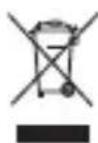
The meaning of the symbol on the product, its accessory or packaging indicates that this product shall not be treated as household waste. Please, dispose of this product at your applicable collection point for the recycling of electrical & electronic equipment waste. Alternatively in some states of the European Union or other European states you may return your products to your local retailer when buying an equivalent new product.
The correct disposal of this product will help save valuable natural resources and help in preventing the potential negative impact on the environment and human health, which could be caused as a result of improper liquidation of waste. Please ask your local authorities or the nearest waste collection centre for further details. The improper disposal of this type of waste may fall subject to national regulations for fines.
For business entities in the European Union
If you wish to dispose of an electrical or electronic device, request the necessary information from your seller or supplier.
Disposal in other countries outside the European Union
If you wish to dispose of this product, request the necessary information about the correct disposal method from local government departments or from your seller.

This appliance complies with EU rules and regulations regarding electromagnetic and electrical safety.
Changes to the text, design and technical specifications may occur without prior notice and we reserve the right to make these changes.
SENCOR®
EN Warranty conditions
Warranty card is not a part of the device packaging.
This product is warranted for the period of 24 months from the date of purchase to the end-user. Warranty is limited to the following conditions. Warranty is referred only to the customer goods using for common domestic use. The claim for service can be applied either at dealer's shop where the product was bought, or at below mentioned authorized service shops. The end-user is obligated to set up a claim immediately when the defects appeared but only till the end of warranty period. The end user is obligated to cooperate to certify the claiming defects. Only completed and clean (according to hygienic standards) product will be accepted. In case of eligible warranty claim the warranty period will be prolonged by the period from the date of claim application till the date of taking over the product by end-user, or the date the end-user is obligated to take it over. To obtain the service under this warranty, end-user is obligated to certify his claim with duly completed following documents: receipt, certificate of warranty, certificate of installation.
This warranty is void especially if apply as follows:
• Defects which were put on sale.
- Wear-out or damage caused by common use.
- The product was damaged by unprofessional or wrong installation, used in contrary to the applicable instruction manual, used in contrary to legal enactment and common process of use or used for another purpose which has been designed for.
• The product was damaged by uncared-for or insufficient maintenance.
• The product was damaged by dirt, accident of force majeure (natural disaster, fire, and flood).
- Defects on functionality caused by low duality of signal, electromagnetic field interference etc.
• The product was mechanically damaged (e.g. broken button, fall).
- Damage caused by use of unsuitable media, fillings, expendable supplies (batteries) or by unsuitable working conditions (e.g. high temperatures, high humidity, quakes).
• Repair, modification or other failure action to the product by unauthorized person. - End-user did not prove enough his right to claim (time and place of purchase).
• Data on presented documents differs from data on products. - Cases when the claiming product cannot be identified according to the presented documents (e.g. the serial number or the warranty seal has been damaged).
Authorized service centers
Visit www.sencor.eu for detailed information about authorized service centers.
SENCOR®
Let's live!



- Basic information
- Brief description of functions
- NOTICE
- Safety instructions
- Safety warning
- Carefully read the operating instructions before use. Retain these instructions carefully for future reference.
- WARNING:
- Battery protection
- Battery information:
- Information about battery use:
- Cleaning and maintenance
- Notes:
- Note on the service provider:
- SENCOR®
- Appendix to the user's manual for the LCD panel
- Red, blue, green, and black dots may appear on the screen
- Prior to use
- Marking and description of the parts
- Description of the standby mode
- Signal strength of the mobile network
- Battery charging
- Normal mode
- "Silence" mode
- "Meeting" mode
- General mode
- "Outside" mode
- Description of buttons
- Inserting SIM card and memory cards
- SIM card
- NOTIFICATION
- Tips:
- Memory card
- Battery
- Inserting battery
- Charging
- Security password
- · PIN
- • PIN2
- - PUK
- - PUK2
- Quick start guide
- Making a call
- Rejecting a call
- Receiving a call
- Ending the call
- Emergency calls
- Speed dial of extension
- Dialed / Missed / Received / rejected calls
- Calls forwarding
- Call waiting
- Call blocking
- Turning the telephone off
- Memory card
- Functions menu
- Telephone directory
- Messages
- - Write message
- • Received messages
- - Outbox
- Draft
- - Sent messages
- • Voicemail server
- Call registry
- - Missed calls
- • Dialed numbers
- - Received calls
- - All calls
- - Delete the call list
- - Call settings
- Settings
- - Telephone setup
- Display
- Other
- • Security
- - Setting up the network
- - Dual SIM setting
- - Bluetooth
- Fun
- - Copter game
- Multimedia files
- - Camera
- • Picture viewer
- - Camcorder
- - Video player
- - Audio player
- • Sound recording
- - FM radio
- Organizer
- - Calculator
- - Calendar
- + Alarm
- - Flashlight
- Profiles
- Other functions
- Entering text
- Letters (big, normal)
- Numbers
- Care and maintenance
- Battery care
- Product care and maintenance
- Technical specifications
- INSTRUCTIONS AND INFORMATION REGARDING THE DISPOSAL OF USED PACKAGING MATERIALS
- DISPOSAL OF USED ELECTRICAL AND ELECTRONIC APPLIANCES
- For business entities in the European Union
- Disposal in other countries outside the European Union
- EN Warranty conditions
- Warranty card is not a part of the device packaging.
- This warranty is void especially if apply as follows:
- Authorized service centers
- Let's live!
Brand : SENCOR
Model : Element P002
Category : Mobile Phone