
MBT-16GA - Mp3 player Orava - Free user manual and instructions
Find the device manual for free MBT-16GA Orava in PDF.


| Product Type | Portable Audio/Video Player with Bluetooth |
| Brand | Orava |
| Model | MBT-16GA |
| Internal Memory | 16 GB |
| Max MicroSD Card Support | 128 GB |
| Display | 1.8 inch LCD, 160x128 pixels, 260,000 colors |
| Battery | Built-in rechargeable lithium battery 3.7V/300 mAh |
| Battery Life | Approx. 7 hours music playback |
| Charging | Via USB or AC adapter (DC 5V/500 mA, not included) |
| Bluetooth | Version 5.0, A2DP profile |
| Supported Audio Formats | MP3, WMA, WAV |
| Supported Video Formats | AMV, AVI |
| Supported Image Formats | JPEG, BMP, GIF |
| Other Supported Formats | TXT (e-book) |
| FM Tuner | 87.5 - 108 MHz, up to 30 presets |
| Recording | Built-in microphone, format MP3 or WAV |
| Dimensions (HxWxD) | 91 x 39.5 x 10.5 mm |
| Weight | Approx. 48 g |
| Headphone Output | 10 mW + 10 mW (32 Ohm) |
| Signal-to-Noise Ratio | >85 dB |
| Frequency Response | 20 Hz - 20 kHz |
| USB Specification | USB 2.0/1.1/1.0 |
| Supported Operating Systems | Windows 7/8/10/11, Mac OS 10.2+, Linux 2.4.2+ |
| Safety | Double insulation (Class II), low-voltage (Class III) |
| Cleaning | Wipe with a damp cloth; do not immerse in liquid |
Frequently Asked Questions - MBT-16GA Orava
User questions about MBT-16GA Orava
0 question about this device. Answer the ones you know or ask your own.
Ask a new question about this device
Download the instructions for your Mp3 player in PDF format for free! Find your manual MBT-16GA - Orava and take your electronic device back in hand. On this page are published all the documents necessary for the use of your device. MBT-16GA by Orava.
USER MANUAL MBT-16GA Orava
ORAVA retail 1, a.s.
Seberíniho 2
821 03 Bratislava
Slovenská republika
Importer:
ORAVA retail 1, a.s.
Seberíniho 2
821 03 Bratislava
Slovenská republika
ORAVA distribution CZ, s.r.o.
Ostravská 494
739 25 Sviadnov
Česká republika
Portable audio/video player with Bluetooth
Intended use of the device
The device is intended to use for personal playback of the contents of digital audio / video / photo / text files, for recording audio recordings and for receiving and reproducing radio broadcasts, to the extent determined by technical and operational parameters and functions,
safety and user instructions and external influences of the operating environment. The Personal Music Player is a portable audio device for personal use that allows you to listen to recorded and broadcast music, primarily using the head or ear headphones worn by the user on, in or around the ears and allowing the user to move freely while using them.
Safety instructions for use
The electrical/electronic equipment shall be designed and manufactured in such a way as to permit safe operation and use by persons without professional qualifications. Despite all precautions taken by the manufacturer for safe use, operation and use entails certain residual risks and the associated potential hazards.
The following symbols and their meanings have been used on the device and in the accompanying documentation to indicate potential hazards:
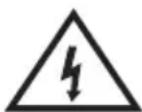
This symbol alerts users that the device (AC/DC adapter) is operating with hazardous electrical voltages. Do not remove protective covers on the device. Failure to observe the safety instructions when using and operating the device may result in:
Risk of electric shock! Risk of serious injury or death!

This symbol alerts users that if the safety instructions for using and operating the equipment are not followed, there is a risk of:
Risk of serious injury or death! Risk of equipment damage or other property damage!
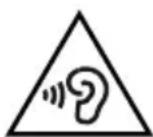
This symbol means:
Avoid listening at high volume and for extended periods of time! Using headphones or earphones at high volume and for a long time can damage your hearing. If you are exposed to sound of more than 85 dB for a long time, your hearing may be impaired.
The manufacturer recommends that you do not set the device volume level higher than the middle level of the adjustment range.

This symbol indicates that the product is made with double insulation between hazardous live parts (parts with dangerous voltage from the mains) and parts that are accessible in normal use. When charging the built-in battery using the AC adapter, only use accessories that are safe.
General safety instructions and warnings
- Before commissioning, we recommend that you read the operating instructions carefully and operate the equipment in accordance with the instructions!
- The safety instructions and cautions in this manual do not cover all possible conditions and situations that may occur when using the device. The user must understand that a factor that cannot be built into none of the products is personal responsibility and caution. These factors must therefore be assured by users operating this device.
- The manufacturer is not responsible for any damage to health or property if the safety instructions and warnings are not followed!
- If possible, keep the operating instructions close to the unit for the entire life of the unit. Always keep the operating instructions together with the appliance for future use and use by new users.
- Only use the device for its intended purpose and in the manner specified by the manufacturer. It is not a professional device for commercial use.
- Do not alter the technical parameters and characteristics of the equipment by unauthorized modification or modification of any part of the equipment.
- The manufacturer is not liable for damages caused during transport, improper use, damage or destruction of the device due to unfavorable weather conditions.
Operating environment safety
- Do not use the device in an industrial environment or in an external, harsh environment!
- Do not expose the device to:
- electromagnetic fields,
- direct sunlight, sources and equipment producing excessive heat,
- fall, vibration and mechanical stress,
- excessive dust,
- water and excessive moisture,
- insect,
- aggressive environmental impacts.
- Exposing the device to the above effect may adversely affect its operation or cause irreparable damage.
- The operating environment of the equipment must always comply with the specified basic characteristics.
Operating environment characteristics:
- Ambient temperature + 10 °C to +40 °C
- Relative humidity max. 75%
- Altitude ≤ 2000 m
- Occurrence of water vapor Occasional condensation of water and occurrence of water
- The occurrence of foreign bodies amount and type of dust are insignificant
Electrical safety
- Class II electrical equipment is equipped with electric shock protection by double insulation or reinforced insulation of hazardous live electrical parts. Class II equipment shall not be fitted with a means of connecting a protective earth.
- Class III electrical devices are devices that are powered by a low-voltage power supply (battery or accumulator) and do not present a hazard to the user with respect to electric shock.
Personal safety
- This device is intended for use and operation by non-electrically qualified persons, in accordance with the instructions specified by the manufacturer.
- Operations of the device include operations such as turning the device on and off, user handling and operating parameter settings, visual or auditory inspection of the device, and user cleaning and maintenance.
- This device may be used by children over 8 years of age and persons with reduced physical, sensory or mental abilities or lack of experience or knowledge if they are supervised or have received instructions regarding the safe use of the device and understand the dangers involved.
- Children must not play with the device.
- Cleaning and maintenance by the user must not be performed by children without supervision.
Cleaning, maintenance and repair
- Perform routine user cleaning and maintenance of electrical device only as recommended. Do not use chemical solvents or abrasive items for cleaning. Contamination and visible stains from finger / resp. The hands can be cleaned using cleaning agents designed to clean electronic equipment.
- Never clean the device in such a way that it could be immersed in the liquid and liquid could enter the device.
- Clean the device only with a damp cloth and wipe it dry or allow it to dry.
- Keep the device clean and dry.
- Do not disassemble the electrical / electronic equipment!
- Never repair your electrical / electronic equipment yourself!
Special safety instructions and warnings
• Take care when moving and carrying to avoid dropping or damaging the unit.
- Unpack the device and its accessories and dispose of any parts of the packaging material, etiquettes and labels before operating it. Keep packaging materials in a safe place, especially out of the reach of children and incapacitated persons, or dispose of them safely.
- We recommend performing initial and subsequent regular inspections of the equipment.
- Never use the appliance if it is incomplete, damaged or any part of it has been damaged during use.
- Do not use non-original and incomplete parts and accessories.
- If the device has been stored at low temperatures (e.g. in winter) or excessive humidity, first let it “acclimatize” at room temperature for about 1 hour to remove any moisture from the electronic components that may occur when the temperature changes.
Operation/Use Warning!
- A personal music player is a device that, when in use, is associated with changing (reducing) the perception of surrounding audio and visual stimuli. If you perform any activity that is accompanied by an increased risk or threat to yourself or others in your area, always monitor your surroundings carefully to avoid causing injury to yourself or others.
- Do not use the device for:
- driving a car, driving and riding a motorcycle, cycling, or driving and driving on other means of transport where attention is required in traffic conditions on public roads,
- Be careful when using the device, especially if you are doing activities such as:
- skiing, snowboarding or any other means required ATTENTION in conditions of movement in ski terrain,
- other activities and activities requiring ATTENTION and which may be associated with the use of a personal music player.
Caution!
- Be careful when using and handling the earphone cable connections. Careless handling may cause entrapment and adversely affect e.g. free movement of hands.
Warning!
- The device is only intended for operation with a built-in battery, which must not be replaced by the user and whose type is specified in the technical information of the operating instructions.
- Ensure that all cable connections are securely and correctly connected. Do not insert any conductive objects into the device connectors.
- When plugging and unplugging connectors, pull the connections by the connectors, never pull the connection by the cable itself.
- Always set a low volume level. Then slowly increase the level to hear the sound comfortably, cleanly and without distortion. Use the device for a reasonable period of time and take appropriate breaks. Hearing impairment can also be caused by excessive listening time at normal and safe volume levels.
- If you experience abnormal hearing when listening to music, e.g. whistle in the ears or other discomfort, stop using the device.
- Never overload the device beyond the limits specified in the technical data.
- If you notice any abnormal effects (sounds, odors, smoke, ...) while using the unit, turn off the unit immediately and unplug it from the wall socket. Have the device checked by a specialist garage.
-
Do not store the device in places subject to high or low temperatures to prevent deformation and disturbance of its covers and parts.
-
The optimum storage temperature of the device is +5^ to +40^ , depending on the storage conditions of the battery.
• Always make sure you back up your data files. The manufacturer of the device is not responsible for the loss of your data caused by improper use of the device, unauthorized interference with the device, etc. - If any safety part (mechanical, electrical / electronic) is part of the unit, never put it out of operation! Do not use the device if the safety part / component is damaged or malfunctioning!
- Never underestimate possible dangers and be careful!!!
Power Supplies/Battery/AC Adapter Warning!
- Risk of accumulators - electric short circuit, explosion, leakage, burns if incorrectly handled and not followed.
- The battery pack is supplied partially charged.
- Do not handle the battery with metal tools. Conductive contact connections can cause a short circuit.
- Do not leave the battery in a fully charged or fully discharged state for a long time. This may cause it to significantly reduce its ability to store energy or be irreversibly damaged. Maintaining 40 to 50% charge optimizes battery life.
Warning!
- Never disassemble the battery. Damage may result in electrical short circuit and release of harmful substances.
- If skin or clothing comes into contact with battery fluid, rinse thoroughly with clean water. If liquid gets into your eyes, avoid rubbing them, rinse them immediately with clean water and seek medical advice immediately.
- Do not expose the battery to fire or expose it to direct sunlight or excessive heat. Danger of explosion.
- If the battery is damaged, have it replaced by a specialist garage.
- Dispose of batteries according to the applicable regulations and regulations for the disposal of electronic devices.
Charging the battery
- The device is equipped with a rechargeable battery.
- The battery can be charged by connecting the AC/DC charging adapter or by connecting it to the USB port of your PC.
- Keep the device out of reach of children while charging the battery, as the charger and the power cord may cause an electric shock.
- The time required to charge a fully discharged battery depends on its condition and ambient temperature. A fully discharged battery will charge in about 2 hours.
- A fully charged battery lasts about 7 hours when using (music playback).
Charging the battery using the AC/DC adapter
- Charging the built-in battery is only permitted with the charger (AC / DC adapter) recommended by the manufacturer.
- Use the AC / DC charging adapter 230V AC / 5V DC 0.5A.
- Use the AC / DC charging adapter with micro USB connector.
- If you do not know the DC voltage and current on your charger, use the included USB cable to charge the device's battery through your PC.
- If the charger cable or the charger itself is visibly damaged, replace it immediately with a new charger.
- Use the battery charger only in an indoor and dry environment, at an ambient temperature of +5^ to +40^ .
- Do not grasp or connect the charger cable plug and the cord to the wall socket if your hands are wet or the plug and charger cable or the device itself are wet. Always wipe the hands, power cord, and device thoroughly with a dry cloth.
- Never insert any conductive objects into the charger connector.
- Check that the main power switch is set to "0" "OFF" before connecting the battery charger to the mains.
- Do not use the machine if the power switch is not working.
Charge the battery by connecting the device to a PC
- When charging the device via the USB port on the PC, make sure that your PC is connected to a power source.
- A standard USB port is used to charge the battery from the PC, so you can charge the battery at home, in the office, in the vehicle, or anywhere you have a USB port.
Characteristic properties
- Bluetooth
- Play MP3, WMA, WAV, JPEG, BMP, GIF, AMV, AVI and TXT files
- USB drive
• Built-in FM tuner - JPEG file browsing function.
- Support for synchronized display of song lyrics
- Possibility to update firmware.
- 1.8 "LCD display with 160 x 128 dot resolution and 260,000 colors
- 7 EQ presets
- Repeat play, multiple repeat play modes.
- File management: Easily delete files
- Multilingual interface
- Turn off the memory function
• Built-in rechargeable lithium battery
• Support for automatic intelligent charging - Ability to record through the built-in microphone and save audio files in WAV or MP3 format
1 Introduction
The manual is intended for several models of MP3 players.
If some parts are for certain models only, this will be indicated in the text.
1.1 Controls:
• 1 Power ON/OFF
Switching the device on/off.
• M: Display the main menu of the player.
- ▶ Play/Pause/Stop/Confirm function:
Play, pause, stop, press also to confirm the item, enter the selected Menu (this element will be referred to as the ▶■ button).
- (Back): Press to move to a higher level of the selected Menu and exit that Menu
- ▶▶ (Next): Skip to the next song, voice memo or fast forward / tune / switch presets, scroll in the main Menu to the right.
- (Previous): Switch to the previous track, voice memo or fast reverse / tune / switch presets, scroll to the left in the main menu.
• +: Increase volume, scroll up in the Main Menu.
- -: Decrease volume, scroll down in the Main Menu.
1.2 Connectors/Ports
- MircoSD card slot
- Connecting micro USB connector: Interface for connecting to a USB connector on a PC, connector for connecting an AC adapter (not supplied)
• 📄: Headphone connector
1.3 Display
The LCD screen displays important information related to the operating status of the player.
The display shows the following information:
- Playback status
- Information about the song, album, artist
- Total song time
- Battery status indicator
- Repetition
- Playing time of the song
- Track number / Total number of tracks
- Text / Song information
- Progress bar
- Song format
- Play mode
2 Using with a PC
2.1 Connecting to a PC
Connect the player to a PC with the supplied USB cable. Connect the classic USB connector to the PC and connect the micro USB connector to the player.
Supported OS are: Windows 7/8/10/11 and newer versions (driver not required), Mac OS 10.3 and later, Linux and later.
Warning:
The procedure and the windows displayed on the PC monitor and the messages on the player's display may differ from those shown, depending on the OS used, PC configuration, firmware update, etc.
2.2 Data transmission
1) Turn on both the PC and the player, and connect the player to the PC.
2) After the connection is established, a connection message appears on the display. When connected, the player provides two modes to choose from: “charge and transfer” and “charge and play”
3) If you select the play mode, the player will continue playing while charging its battery from the PC. If you select the transfer mode, under Windows, double-click on "My Computer" and find a new icon called "Removable Disk" corresponding to the MP3 player. Under Mac OS 10.2 or later (eg Mac OS 10.3.2): A new "Untitled" icon corresponding to the MP3 player will appear on the desktop. Under Linux 2.4.2 or later: Log in to the system under your "root" ID and type: "mount/dev/sda/mnt".
This command creates a folder in which to insert the MP3 player.
4) You can now transfer data to the MP3 player from the PC hard disk using the usual disc transfer procedure (mouse between windows, etc.).
2.3 Disconnection
1) Windows 7/8/10/11: Click the icon on the taskbar and then “Eject USB Mass Storage Device - Driver”. Click “OK” in the Pop-up Menu. The message “The USB Mass Storage Device’ device can now be safely removed from the system” is displayed. You can now safely disconnect the player from the PC.
2) Mac OS 10.2 or later (eg Mac OS 10.3.2): Select the icon corresponding to the MP3 player and click "File" to select "Exit Untitled". You can now safely disconnect the player from the PC. But first move the MP3 player icon to the trash can icon.
3) Linux 2.4.2 or later: Enter "umount /mnt" before disconnecting the player from the PC. Otherwise, data from the player may be lost.
3 Battery
The device has a built-in rechargeable battery. It is charged automatically via a USB connection while connected to a PC if its voltage drops below 3.5 V. The battery can also be charged via an AC adapter after connecting the player to a suitable adapter (DC 5V) using the supplied cable and plugging the adapter into an electrical socket.
Notes
· Do not disassemble, remove, or dispose of in fire. There is a risk of explosion.
- When using the device for the first time, fully charge the battery at least three times and fully discharge it using the device.
This will give it optimal properties.
3.1 Battery status indicator (the indicator may have slightly different icons, e.g. individual sections in the battery symbol)
[Non-Text]
Discharged
Weak battery
Half capacity
Sufficient capacity
Full capacity
3.2 Battery life
At the end of its service life, dispose of the device in accordance with the regulations for waste electrical and electronic equipment.
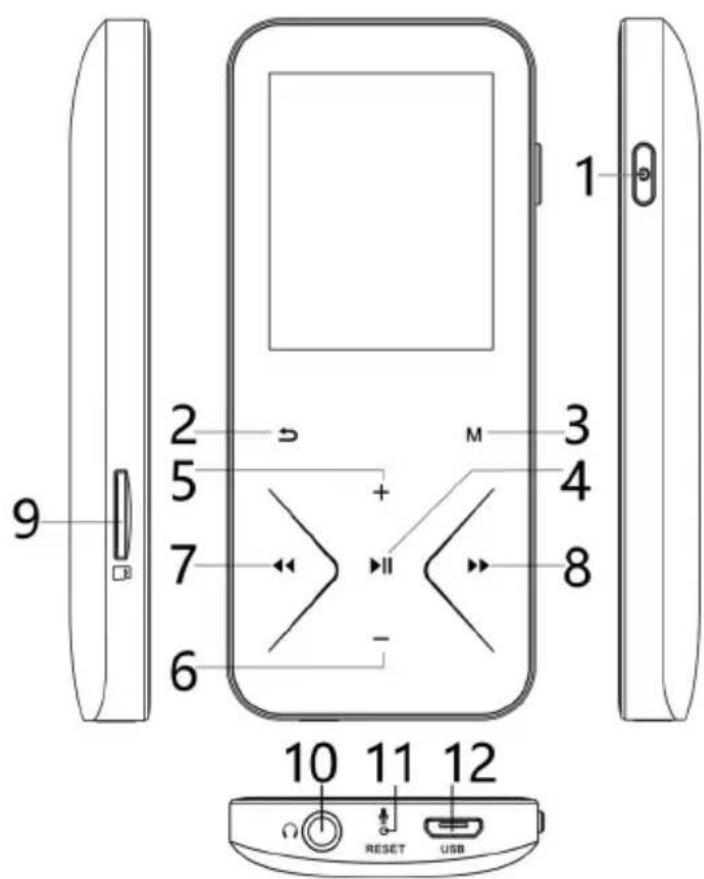
4 Description of parts
1 Button ⏻
On/Off - long press and hold. Switching the display on/off in active mode - short press.
2 (Back) button
3 M button
View the appropriate Menu in the given mode - short press. Locking/unlocking the controls - pushing and holding. Cancel sound limit (one short press)
4 ▶ II button
Starts/pauses playback. Confirm the selected item.
5 + button
Move up. Increasing the volume.
6 Button -
Scroll down. Decrease the volume.
7 ◀ button
Scroll left. Switching/fast reverse. Tuning down.
8 ▶▶ button
Move right. Switch/fast forward. Tuning up.
9 microSD card slot (Support up to 128 GB)
10 Headphone connector (3.5 mm)
11 Reset/Built-in microphone button Resetting the player. Use a suitable thin object.
12 micro USB connector (Charging/Data transfer)
5Turn on the device
Press and hold button ⏻ for a few seconds. The device turns on. The Main Menu mode is activated. In Music mode, press ▶ to enter music playback mode. To display the main menu from Music mode, press → repeatedly until the main menu appears. Press and hold the M button to lock/unlock the controls.
In Music mode, press ▶II to start playing the selected song. Press ▶II during playback to pause playback.
Press and hold ⏻ to turn off the device.
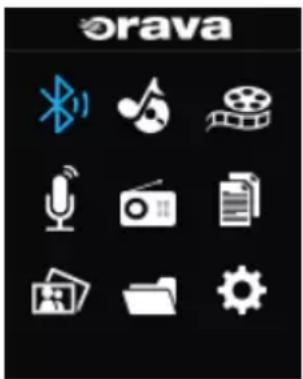
6 Main Menu
The Main Menu appears when you turn on the player, or in pause or audio mode, press repeatedly until the Main Menu appears. Note: The device may be equipped with a menu in the Slovak language. If you want to display the Slovak language menu on a device equipped with the Slovak menu, set Slovak as the language in the settings. The menu may differ from this. This is due to constant firmware and production updates.
The menu contains the following modes and its structure is as follows:
Bluetooth
Music
Video (Movie)
Recorder (Recordings)
FM Radio (FM radio)
E-Book (Text Files)
Photo (Pictures)
Folder View Settings
In the main Icon Menu, press ◀◀ ▶▶ + - to move. In the text submenus Menu it is possible to move using the buttons + -. The ◀◀ ▶▶ buttons are used to exit the submenu and return to the higher Menu level. After selecting the relevant item or another submenu, press ▶▶ to confirm the selection. To exit the selected Menu, press →.
Warning:
The names of the modes as well as the menus as well as the names of the individual items (whether in English or Slovak) may differ slightly (may be abbreviated) in the display compared to the names given in this manual, to save space on the display.
7 Bluetooth mode
The device allows you to connect wireless Bluetooth headphones or speakers thanks to the integrated Bluetooth interface.
In the Main Menu, press “◀◀▶▶+ -” to select Bluetooth mode. After selecting Bluetooth and pressing u, the Menu submenu will appear.
Press “▶▶ (Next)” or “◀◀ (Previous)” to select the desired option: The BT Menu submenu is as follows:
Bluetooth Switch Control (Bluetooth On/Off)
You can enable (Enable Bluetooth) or disable (Disable Bluetooth) the device interface. To listen through a Bluetooth headset, Bluetooth Scheduling must be turned on.
Search For Device
Turn on the Bluetooth interface on the connected device (headphones, speaker, etc.) and activate the pairing mode on it. For how to turn on the Bluetooth interface and pairing mode, refer to the operating instructions of the device.
Then select Search For Device on this unit and press ▶II.
Active Bluetooth devices in range will start searching. When you have found the device you want, press ▶II Pair to confirm.
This and the connected device will be paired with each other and it will be possible to play audio from this device via the connected paired Bluetooth device.
If the connected device has playback controls, you can control playback on that device with the controls on the connected device (Pause, Play, Volume Control).
Bluetooth Device List (Available Bluetooth Devices)
Selecting this item displays a list of Bluetooth devices paired with this unit. Select the desired Bluetooth device from the list and press ▶II to confirm the selection. The Connect or Unpair options are displayed. To connect devices, select Connect and press ▶II. The devices will be connected. To disconnect the device, select Disconnect and press ▶II.
The device disconnects.
To unpair devices, select Bluetooth Unpair and press ▶II. The pairing is canceled and the device is removed from the Bluetooth device list.
8 Music Mode
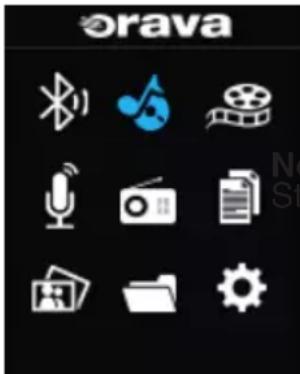
In the Main Menu, press “◀◀ ▶▶ + -” to select Music, then press ▶II access the Music menu. In Music mode, the following Menu submenu is available, in which you move by pressing + -:
low Playing:
art playing the currently playing song. Control playback with the ◀◀, ▶▶ and ▶▶ button. Details are below.
All Songs:
View a list of all audio files stored in the Music folder of the player.
You can select the desired song to play from the list.
Artist (Artists):
View a list of all audio files stored in the Player's Music folder by artist.
Press the M button to go to Now Playing - Play - Add to List, there are 3 custom lists. If the artist is not known, the song is saved as Unknown Artist. You can select the desired song to play from the list.
Albums:
View a list of all audio files stored in the Player's Music folder by album.
You can select the desired song to play from the list.
If the album is not known, the song is saved as Unknown Album.
Genres:
View a list of all audio files stored in the Music folder of the player by genre.
You can select the desired song to play from the list.
If the genre is not known, the song is saved as Unknown Genre.
Playlists:
There are a total of 3 custom Playlists that can be customized.
Update Playlist:
Add a song to the Playlist. Use the + and - buttons to move up or down and press the M button to bring up the MENU - play submenu and add to the list where you can add individual songs. There are 3 custom lists to choose from.
Press and hold “▶▶ (Next)” or “◀◀ (Previous)” during playback to fast forward/rewind the song.
If the song format is not supported by the device, Format error will appear on the display.
Press M during playback to access the Menu submenu. In the submenu, scroll with ◀◀ ▶▶ or + and - Press ▶▶ to confirm the selected item. To turn off the submenu and restore the previous Menu, press → or ◀◀ and ▶▶.
Play mode
Sound setting
Add to playlist
Remove from list
Delete
Bookmarks
Play mode
Play music from, All songs, options available
This artis (From this artist), This album (From this album), This genere (From this genre)
Repeat
Repeat off options are available, you can choose to repeat one song Repeat 1, or you can choose to repeat all songs Repeat all.
Shuffle (Random)
You can select Off to turn off shuffle play or On to play tracks in random order.
Repeat settings
Repeat mode, Repeat Times, Repeat interval options are available.
Sound settings
You can set the maximum volume of the player from 0 to 31.
Add to playlist
In this item, you can select one of the three Playlists to which you want to add the song you are currently listening to.
After selecting the Playlist, select Yes to confirm the song entry, or select No if you do not want to add the song.
Remove from Playlist
In this item, you can select one of the three Playlists from which you want to remove the song you are currently listening to.
After selecting the Playlist, select Yes to confirm the deletion of the song, or select No if you do not want to delete the song.
If the song you are listening to is not in the selected Playlist, it cannot be removed from it.
Delete
In this item, you can delete the currently listening song from the device.
After selecting to delete the song, select Yes to confirm, or select No if you do not want to delete the song. In Bluetooth mode, the connection is closed
Bookmarks
The Add bookmarks options are available, you can bookmark the currently playing song at a specific playing time. The bookmark is deleted when the song is switched or stopped. This option is used, for example, when listening to audio books. Go to bookmarks, switches and starts playing the inserted bookmark to exactly
Delete bookmarks at a set time deletes previously saved bookmark.
9 Video Mode (Movie)
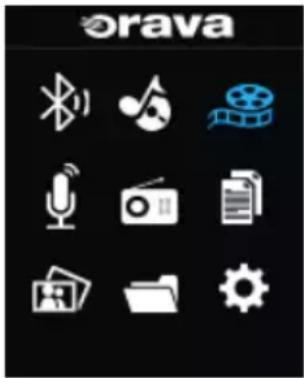
In the Main Menu, press “◀◀▶▶+ -” to select Video, then press ▶II to display a list of video files (the device supports video files in amv, avi format).
After selecting a video file from the list, press ▶II to start playing the selected video.
Press u during playback to pause playback. Press and hold ⏻ during playback to turn off the device.
Press “▶▶ (Next)” or “◀◀(Previous)” to switch to the next or previous video files. If the file format is not supported by the device, Format error will appear on the display.
Press M during playback to access the following Menu submenu. In the submenu you move with the +- buttons. To confirm the selected item, press ▶II. To turn off the submenu and restore the previous Menu, press ↩.
Brightness
Press the ◀◀ and ▶▶ buttons to adjust the brightness of the display.
Repeat
Repeat Off, Repeat 1, Repeat All options are available.
Update Playlist
In this item you can create a Playlist from available video files.
Delete Video
In this item, you can delete the currently playing video file from the device.
After selecting to delete the file, select Yes to confirm, or select No if you do not want to delete the file.
Warning!
The Movie function may not work depending on the format and status of the video file.
10 Recorder mode
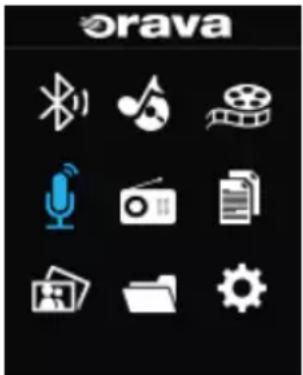
Recorder mode allows you to record through the built-in microphone. You can also make recording settings via the Menu available in this item before recording. Menu submenu as follows:
Start Voice Recording
Select this item and press ▶II to start recording the voice memo. After recording, speak into the built-in microphone on the bottom of the device. To stop recording, press ▶II again. Recording pauses To resume recording, press ▶II again. To save the recording, press ↩.
A message appears asking if you want to save the recording. Select Yes to confirm that you want to save the recording If you do not want to save the entry, select No.
Recordings Library
Select this item. A list of recorded voice memos is displayed. Select the desired recording and press u to start playback. If you select Delete All, you can delete all the recorded voice memos. After selecting this item, select Yes to confirm the deletion of all the recordings, or select No if you do not want to delete the recordings.
Record Format
Select this item. The Menu submenu appears, where you can select the recording format of either mp3 or wav.
Recordings will be made in the selected format.
Record settings
The Set record bitrate, 512 kbps, 768 kbps, 1024 kbps, and 1536 kbps options are available.
11 FM Radio mode
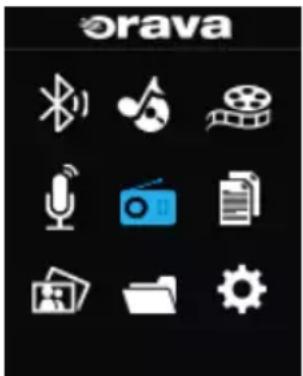
In the Main Menu, press “◀◀ ▶▶ + -” to select FM Radio mode and press ▶II.
Presets, Manual tune, Auto tune, FM Recording are available.
The player can store up to 30 stations.
By pressing “▶▶” or “◀◀” you can tune the presets up/down, if you press “▶▶” or “◀◀”, the tuning will continue until a station is tuned in. In radio mode, press “+” or “-” to adjust the volume. After pressing M, the Menu submenu for FM Radio mode is displayed.
Presets:
When you select this option for the first time, a message appears asking if you want to automatically tune in and save all available presets. You need to connect headphones that act as an FM antenna.
To confirm the tuning, select Yes, if you do not want to tune, select No.
After tuning, all available and tuned stations are stored in the unit's memory and displayed in the preset list.
You can then select the desired preset from the list and activate listening.
Manual Tune:
This item allows you to manually tune in presets. You need to connect headphones that act as an FM antenna.
The tuning scale is displayed and you can tune the presets up/down in steps by briefly pressing “▶▶ (Next)” or “◀◀ (Previous)”, if you press “▶▶ (Next)” or “◀◀ (Previous)”, the tuning will continue, until a station is tuned in.
To save the tuned station, press M.
In the submenu that appears, select Save to Preset. Once selected, a list of memory locations is displayed.
Select the desired number from the list and press ▶II to store the tuned station in the preset list under the desired number.
When the message appears, select Yes. If you do not want to save the preset, select No.
Auto Tune:
Automatic tuning and storage of available stations. After selecting this item, press ▶II to automatically tune in and save all available presets. You need to connect headphones that act as an FM antenna.
To confirm the tuning, select Yes, if you do not want to tune, select No. Newly tuned stations will overwrite new ones.
FM Recording
You can play or delete files recorded in FM mode.
Press M during playback to access the following MENU submenu when the station is displayed and playing in full screen.
Start FM Radio Recording
Press the ▶II button to start FM radio recording. Press ▶II again to stop recording. Press the ← button to display the save recording menu. If a Bluetooth headset is connected, it will disconnect during recording.
Save to Preset
Once selected, a list of memory locations is displayed. Select the desired number from the list and press ▶II to store the tuned station in the preset list under the desired number. When the message appears, select Yes. If you do not want to save the preset, select No.
Clear Preset
Remove the desired preset from the list. Select the desired number from the list and press ▶II to remove the desired stored station from the preset list. Select Yes or No to confirm the deletion.
12 E-Book Mode (E-Books (Text Files))
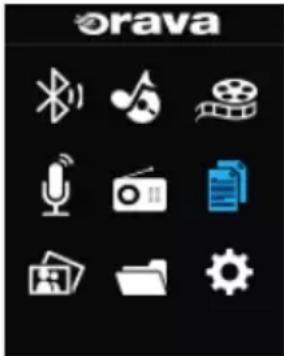
In the Main Menu, press “◀◀ ▶▶ + -” to select E-Book mode. After selecting E-Book, a list of saved text files is displayed. Press “+” or “-” to select the desired file and press ▶II to display the text. When the text is displayed, you can scroll through the pages by pressing “▶▶ (Next)”, “◀◀ (Previous)”.
When you press M while the text is displayed, the Menu submenu appears as follows:
Play Settings
Display length setting from 02 to 30 seconds.
Ebook Background (E-Book Wallpaper)
Default display color options are available, Blue, Red, Yellow, Green.
Delete Ebook
You can delete the currently displayed text file. After selecting this item, select Yes to confirm the deletion of the file, or select No if you do not want to delete the file.
Bookmark Select
Select this item, then select the desired bookmark number and press ▶II.
The text from the selected bookmark is displayed (only if a bookmark is set).
Delete Bookmark
Select this item, then select the number of the desired bookmark you want to delete and press ▶II. After confirming Yes, the bookmark will be deleted. If you do not want to delete the bookmark, select No.
Add Bookmark
Select this item, then select the bookmark number and press ▶II. After confirming Yes, the bookmark is marked in the text at the beginning of the displayed page. If you do not want to mark the bookmark, select No.
Page Select
Select this item, then select the desired page number in the displayed list and press ▶II. The text from the selected page is displayed.
13 Photo Mode
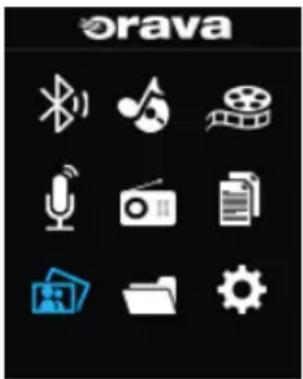
In the Main Menu, press “◀◀▶▶+ -” to select Photo mode. Selecting Photo displays a list of available image files (.jpeg, .gif ..., etc.) on the device.
After selecting the desired file, press ▶II to display the file.
While viewing an image, press M to display the Picture / Photo Menu submenu.
The following items are available:
Slideshow Settings
Time Per Slide
You can set the display time of one image from 02 to 30 seconds.
Repeat
You can turn the slide show repeat On or Off.
Shuffle (Random)
You can turn the slide show On or Off in random order.
Delete Picture
You can delete the currently displayed image. After selecting this item, select Yes to confirm the deletion of the selected image, or select No if you do not want to delete the image.
Update Playlist
In this item you can create a Playlist from available image files (photos).
14 Folder View mode
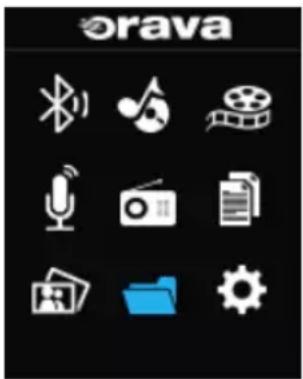
Folder View mode allows you to view all the folders and files in the device memory and on the inserted microSD card. In the Main Menu, press “◀◀ ▶▶ + -” to select Folder View mode.
A list of all folders and files on the device and the inserted card is displayed.
You can search for the desired file from the list and then play it by pressing ▶II.
If you press M for the selected file in the list, the menu according to the selected file type, described in the previous chapters, is displayed.
15 Settings mode
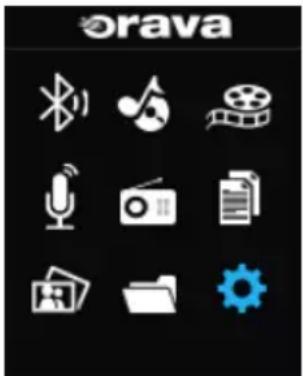
In the Main Menu, press “◀◀▶▶+ -” to select Settings mode.
After selecting Settings and pressing ▶II, the Menu submenu will appear.
Press “+” or “-” to select the desired option: The Menu Settings submenu is as follows:
Shutdown
Sleep Timer
In this item you can set the time after which the device will turn off automatically. You can select Off to not turn off the device, or set the desired time from 1 to 99 minutes.
Power Management
The Power Saving (Save Mode) option allows you to set when the machine enters power save mode. Off, 3, 5, 10 and 30 minute settings are available.
Display Setting
Brightness
In this item, you can adjust the brightness of the display.
Backlight Timer
The Backlight Timer option allows you to select the desired time after which the display should turn off if you do not perform any operation: Always On, 10, 20 and 30 seconds.
Language
After selecting this item, press “+” or “-” to set the desired Menu display language from the displayed list. Available languages: Slovak, Czech, Polish, English and German.
Press▶II to confirm the setting.
Information
In this item, you can find information about the player's firmware version and the free and total memory capacity of the player.
Select Player Information. Displays the current firmware version. Select Disk Space. The memory status of the player (capacity) and its occupancy in percentage are displayed.
Format device
Deletes all data from the device's memory.
Ear Health
After selecting this item, press “+” or “-” to set the desired limit for the maximum volume level to protect your hearing.
Press ▶II to confirm the setting.
Default Settings
When you select this item, a warning message appears asking if you really want to reset the player to the factory settings. If yes, select Yes, if not, select No.
Auto Upgrade
Select Setup mode and Auto Upgrade. This item is used when updating the firmware. The player must be connected to a PC to select this item.
Start the update process on the PC.
WARNING!
The update procedure may differ for each model. Check with an authorized service center. We do not recommend performing the update.
16 Playing from a microSD memory card
The player has a microSD card slot. Insert the card into the slot with the contacts facing right and down. Push the card all the way in until it clicks.
To remove a card, push the card slightly to the bottom so that it pops out of the slot.
After loading files from the card and creating a list, you can play files from this list in the same way as you play files from the player's memory. Follow the relevant sections on playback.
Warning:
Do not force the card into the slot. It may be damaged and the player may also be damaged.
17 USB removable drive
After connecting the device to the USB connector on the PC and the operating system installs the appropriate drivers, the device will behave as a USB removable drive.
Warning: Do not connect the device to the USB connector of a PC while music is playing.
Do not disconnect the device from the PC during data transfer. Supported OS:
Windows 7/8/10/11, Mac OS 10.2 or later, Linux 2.4.2 or later.
18 Additional information
BLUETOOTH wireless technology
BLUETOOTH wireless technology is a short-range technology that enables wireless data communication between digital devices such as digital devices. PC and digital camera. The BLUETOOTH wireless technology operates within a range of approx. 10 m.
Connecting two devices is mutual, but some devices can be connected to multiple devices at the same time.
No cable is required for interconnection, nor is it necessary to position the devices opposite each other as in infrared technology. For example, you can use your devices even when they're in your backpack or pocket.
The BLUETOOTH standard is an international standard supported and used by many companies around the world.
Maximum communication reach
The maximum communication range may be shorter in the following conditions.
There are obstacles such as persons, metal or wall between this system and the BLUETOOTH device. A LAN device is used near this system.
A microwave oven is used near this system.
In the vicinity of this system, a device generating electromagnetic radiation is used.
Interference from other devices
BLUETOOTH and wireless LAN (IEEE802.11b / g) devices use the same frequency, so if you use this system near a wireless LAN device, microwave interference can occur which can cause communication speed deterioration, noise, or poor connection. In this case, do the following.
Use this system at least 10 m away from the wireless LAN device.
If you are using this system at a distance of less than 10 m from the wireless LAN device, turn off the wireless LAN device.
Interference of other equipment
Microwaves emitted by BLUETOOTH equipment may affect the operation of electronic medical devices. Turn off both the system and the BLUETOOTH device in the following places, as there is a risk of danger.
Near flammable gases, hospitals, trains, airplanes or petrol stations. Near automatic doors or fire alarms.
Notes
- To use the BLUETOOTH function, the connected BLUETOOTH device must have the same profile as this system.
- Even though profiles are the same, devices may operate differently depending on their specifications.
- Due to the characteristics of wireless BLUETOOTH technology, the sound reproduced by this system is slightly delayed relative to the sound from the BLUETOOTH playback device while talking on the phone or listening to music.
- This system supports security standards that are compliant with BLUETOOTH standards to ensure secure connection when using wireless BLUETOOTH technology. However, security may not be sufficient depending on the settings.
Be careful when communicating using wireless BLUETOOTH technology.
- We are not responsible for leaking information during BLUETOOTH communication.
- To ensure compliance with BLUETOOTH standards specified by Bluetooth SIG and authentication, a device with BLUETOOTH function is required. Even if the connected equipment complies with the BLUETOOTH standards, some equipment may not be able to connect or operate properly, depending on the features or technical specifications of the equipment.
- Depending on the BLUETOOTH device connected to this system, the communication environment, or the operating environment, noise or outages may occur
19 Technical data
memory 16 GB
Maximum memory card size 128GB
File format
MP3, WMA, WAV, JPEG, BMP, GIF, AMV, AVI a TXT
Power supply
Built-in rechargeable battery 3.7V/300 mAh/charging via USB connection or
AC adapter (not supplied) 5V/500 mAh
Battery life approx. 7 hours
Display 1.8 "LCD display (260,000 colors), resolution 128 x 160
Dimensions (approx.)
91 mm x 39.5 mm x 10.5 mm (h x w x d)
Weight approx. 48 g
Signal-to-noise ratio more than 85 dB
Headphone connector 10 mW + 10 mW: 32 Ohm
Frequency range 20 Hz - 20 kHz
Tuner tuning range 87.5 - 108 MHz
Sampling frequency at 36, 44.1, 48 kHz recording
WMA bit rate 5 kbps - 384 kbps
MP3 bit rate 8 kbps - 320 kbps
Read speed 800 kB/s (thread from PC configuration)
Write speed 700 kB/s (thread from PC configuration)
USB specification USB 2.0/1.1/1.0
Supported OS: Windows 7/8/10/11, Mac OS 10.2 or later, Linux 2.4.2 or later
Bluetooth:
Bluetooth standard 5.0
Profile: A2DP (Advanced Audio Distribution Profile), Profile for wireless music transmission in stereo quality
We reserve the right to make changes!
INSTRUCTIONS AND INFORMATION REGARDING THE DISPOSAL OF USED PACKAGING
Dispose of used packaging material at a municipal waste disposal site.
DISPOSAL OF USED ELECTRICAL AND ELECTRONIC EQUIPMENT
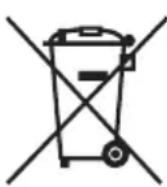

This symbol on the products or in the accompanying documents means that used electrical and electronic products should not be mixed with general household waste. For proper disposal, recovery and recycling, please return these products to designated collection points. Alternatively, in some countries of the European Union or other European countries, you may return your products to your local retailer when purchasing an equivalent new product. By ensuring this product is disposed of correctly, you will help prevent potential negative consequences for the environment natural resources and help prevent potential negative effects on environment and human health, which could be the consequences of improper disposal waste. Contact your local authority or nearest office for more detailscollection point. Improper disposal of this type of waste may result in penalties in accordance with national regulations.
For business entities in the countries of the European Union
If you wish to discard electrical and electronic equipment, please request the necessary information from your seller or supplier.
Disposal in other countries outside the European Union
This symbol is valid in the European Union. If you wish to discard this product, please request obtain the necessary information on the correct method of disposal from the local authorities or from the your supplier.

This product meets all the essential requirements of the EU directives that apply to it.
DECLARATION OF CONFORMITY
Short text Declaration of Conformity:
ORAVA retail 1, a.s. hereby declares that the MBT-16GA complies with the essential requirements and other relevant conditions of Directive 2014/53/ EU of the European Parliament and of the Council.
The full text of the Declaration of Conformity is available at: www.orava.eu
- Importer:
- Intended use of the device
- Safety instructions for use
- General safety instructions and warnings
- Operating environment safety
- Electrical safety
- Personal safety
- Cleaning, maintenance and repair
- Special safety instructions and warnings
- Operation/Use Warning!
- Caution!
- Warning!
- Power Supplies/Battery/AC Adapter Warning!
- Charging the battery
- Charging the battery using the AC/DC adapter
- Charge the battery by connecting the device to a PC
- Characteristic properties
- Introduction
- Controls:
- • 1 Power ON/OFF
- Connectors/Ports
- - MircoSD card slot
- Display
- Using with a PC
- Connecting to a PC
- Warning:
- Data transmission
- Disconnection
- Battery
- Notes
- Battery status indicator (the indicator may have slightly different icons, e.g. individual sections in the battery symbol)
- Battery life
- Description of parts
- 5Turn on the device
- Main Menu
- Bluetooth
- Music
- Bluetooth mode
- Bluetooth Switch Control (Bluetooth On/Off)
- Search For Device
- Bluetooth Device List (Available Bluetooth Devices)
- Music Mode
- low Playing:
- All Songs:
- Artist (Artists):
- Albums:
- Genres:
- Playlists:
- Update Playlist:
- Play mode
- Sound setting
- Add to playlist
- Remove from list
- Delete
- Bookmarks
- Repeat
- Shuffle (Random)
- Repeat settings
- Sound settings
- Remove from Playlist
- Video Mode (Movie)
- Brightness
- Update Playlist
- Delete Video
- Recorder mode
- Start Voice Recording
- Recordings Library
- Record Format
- Record settings
- FM Radio mode
- Presets:
- Manual Tune:
- Auto Tune:
- FM Recording
- Start FM Radio Recording
- Save to Preset
- E-Book Mode (E-Books (Text Files))
- Play Settings
- Ebook Background (E-Book Wallpaper)
- Delete Ebook
- Bookmark Select
- Delete Bookmark
- Add Bookmark
- Page Select
- Photo Mode
- Slideshow Settings
- Time Per Slide
- Delete Picture
- Folder View mode
- Settings mode
- Shutdown
- Sleep Timer
- Power Management
- Display Setting
- Language
- Information
- Format device
- Ear Health
- Default Settings
- Auto Upgrade
- Playing from a microSD memory card
- USB removable drive
- Additional information
- BLUETOOTH wireless technology
- Maximum communication reach
- Interference from other devices
- Interference of other equipment
- Technical data
- INSTRUCTIONS AND INFORMATION REGARDING THE DISPOSAL OF USED PACKAGING
- DISPOSAL OF USED ELECTRICAL AND ELECTRONIC EQUIPMENT
- For business entities in the countries of the European Union
- Disposal in other countries outside the European Union
- DECLARATION OF CONFORMITY
Brand : Orava
Model : MBT-16GA
Category : Mp3 player