
G80-3000 S TKL - Keyboard Cherry - Free user manual and instructions
Find the device manual for free G80-3000 S TKL Cherry in PDF.


| Product Type | Mechanical Keyboard |
| Layout | Tenkeyless (TKL) - 87 keys |
| Switch Type | Cherry MX (Blue, Brown, Red, or Black depending on variant) |
| Interface | USB 2.0 Type-A |
| Key Rollover | N-key rollover (NKRO) over USB |
| Dimensions (W x D x H) | 370 x 140 x 40 mm |
| Weight | 0.8 kg |
| Cable Length | 1.8 m detachable USB cable |
| Backlight | None |
| Wrist Rest | Not included |
| Compatibility | Windows, macOS, Linux |
| Power Supply | USB bus powered (5V, 100mA) |
| Maintenance | Clean with compressed air and a soft damp cloth; avoid liquids |
| Safety | Low voltage device; no special precautions required |
| Spare Parts | Keycaps, Cherry MX switches (solder-able), USB cable |
| Warranty | 2 years (depending on region) |
Frequently Asked Questions - G80-3000 S TKL Cherry
User questions about G80-3000 S TKL Cherry
0 question about this device. Answer the ones you know or ask your own.
Ask a new question about this device
Download the instructions for your Keyboard in PDF format for free! Find your manual G80-3000 S TKL - Cherry and take your electronic device back in hand. On this page are published all the documents necessary for the use of your device. G80-3000 S TKL by Cherry.
USER MANUAL G80-3000 S TKL Cherry
natural_image
Close-up of a black standard computer keyboard with no visible text or symbols on the keysCHERRY G80-3000 S TKL
Corded TKL Keyboard (Standard / RGB)
64410084-03, DE, EN, ZHs, ZHt, KO, © Nov 2020 (G80-3000Lxxxx-x = Mod. G80-383x)
DE
the 11. Table and the Table 1
Die OCHERRY Baining Software offers them.
6 CHERRY-Taste aktivieren/
deaktivieren
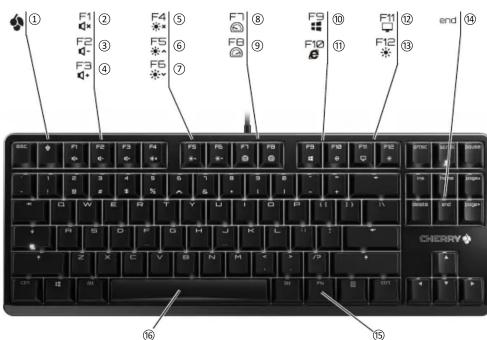
① Start the CHERRY gaming software
② Sound on/off
③ Sound down
⑤ Sound down ④ Sound up
④ Sound up ⑤
⑤ Backlighting on/off (When you switch backlighting
on again, the keys are lit with the most recently
set brightness.]
⑥ Backlight brighter
⑦ Backlight darker
⑧ Light effect slower
⑨ Light effect faster
⑩ Gaming mode = lock/unlock the following keys
(1) Banning mode - touch/undock the following keys and key combinations: Windows key. Menu key
and key combinations. Windows Key, Mendi Key, ALT + E4, ALT + Tab, ALT GR + Tab, CTRL + ALT +
AET 114, AET 116, AET OR 116, OTR 117, AET 118, AET 119
⑪ Open web hr
⑪ Open Web Browser ⑫ Open Windows bay
⑫ Open Windows browser
⑬ Change light effect
⑭ Start/exit setting mode for individual key lighting
(In the setting mode, activate, deactivate or
change the key lighting by pressing the specific
key. To cancel the programming and discard the
settings, press the space bar.]
⑮ FN key for secondary function of F keys
⑯ Color change to rainbow colors
Before you begin ...
Every device is different!
The operating instructions contain
information on effective and reliable use.
- Read the operating instructions carefully
- Keep the operating instructions and pass them
Keep the operating instructions and pass them on to other users.
21.10 21.11, 22.1.21
The CHERRY G80-3000 S TKI is a keyboard for
THE CHERRY 5000 S TRL is a keyboard for operating PCs and lantons, and was developed
operating 103 and laptops, and was developed especially for gaming.
especially for gaming.
For information on other products, downloads and much more visit us at www.chenry.world.com or
much more, visit us at www.cherry-world.com or www.cherry.cn
1 For your safet
PSI stands for "Repetitive Strain Injury".
RSI status for "Repetitive Strain Injury".
RSI arises due to small movements continuously
repeated over a long period of time.
- Set up your workspace ergonomically.
- Position the keyboard and mouse in such a
manner that your upper arms and wrists are
outstretched and to the sides of your body.
- You can choose the most comfortable angle for
the keyboard by adjusting the feet on the ba
• Take several short breaks, with stretching
exercises if necessary.
- Change your posture ofte
2 Connecting keyboard
- Connect the keyboard to the USB port of the
PC/lanton
Tch laptop.
The keyboard is ready to use without installing any
software.
3 Installing software
To use the full functionality of the CHERRY
To use the full functionality of the CHERRY G80 2000 E TKI, you must install the SHERRY
GB0-3000 5 TKL, you must install the naming softvans on the DC or laptop.
gaming software on the PC of laptop.
With the CHERRY gaming software, you can ad
the light effects and assign macros to the keys.
The CHERRY gaming software is intuitive to operate and includes a help function. You can also contact our support if you need.
1 Always use the latest software
-
Load the software as a free download from:
-
Load the software as a free download from: www.cherry.world.com or www.cherry.or
www.cherry-world.com or www.cherry.cn. Alternatively, press and hold the CHERRY key [
Alternatively, press and hold the CHERK1 key (for 3 seconds to open the web link for installing
for 5 seconds to open the web the CHERBY gaming software.
the CHELKRT gaming software.
3 Follow the instructions on the screen.
4 Calling up additional functions
4 cutting up additional functions
The symbols for the additional functions are located
on the F1 to F12 keys. The lighting functions and light
effects are only available on the RGB version.
• To call up the function press the FN key and the
appropriate key.
Example:
To switch
To switch the sound on or off, press the FN key and
F1 [F1]
to constantly activate the EN key press the CTRL
8 constantly activate the FN key, press the OTRE and EN keys at the same time.
5 Customizing light effects
You can set the light effects using th
You can set the light effects using the additional function keys (see / "Calling up additional functions")
function keys (see 4 - Eating up additional functions) You can further adjust the light effects with the
You can further adjust the light effects with the CHERRY gaming software. To do so, you must install
CHERRY gaming software. To do so, you must install the software (see: 3 "Installing software")
the software [see: 5 - Instating software
- Press and hold the CHERRY key [] for
3 seconds.
The CHERRY gaming software opens
6 Activating/deactivating the CHERRY
key
To avoid triggering the functions of the CHERRY key
To avoid triggering the functions of the CHERRY key [4], it is automatic, and is activated by the CHERRY
[1] unintentionally, you can deactivate the CHERRY
key |
- Press the FN key and the CHERRY key []
simultaneously.
(四) 会议召开情况
14.
y is activated or deactivated
7 Resetting the keyboard to its
original delivery state
- Press and hold the EN button and pause
for 5 seconds
For 5 seconds. The original delivery state is restored.
The original delivery state is restored.
8 C l e a n i n g t h e k
o c t e a n i n g t h e
1 Switch off the PC/laptop or pull out the USB plug.
NOTE! Aggressive cleaning agents and liquids can
damage the keyboard
- Do not use solvents such as gasoline or alcohol
and scouring agents or scouring sponges for
cleaning.
- Prevent liquids from entering the keyboard
- Do not remove the keycans of the keyboard
-
Clean the keyboard with a slightly damp cloth and
-
Clean the keyboard with a slightly damp cloth and some mild cleaning agent (e.g., dishwashing
some into liquid]
liquid).
3 Dry off the keyboard with a soft, lint-free cloth
9 If the keyboard is not working
7 If the keyboard is not working
- If the functions of the CHERRY key ( ) are not
being executed, it may be deactivated (see
6 "Activating/deactivating the CHERRY key")
- Use another USB port on the PC/laptop.
• To make sure that the keyboard is not defective.
test it if possible with another PC/laptop.
- Set the option "USB Keyboard Support" or "USB
Legacy Mode" to "enabled" in the BIOS of the PC
10 Disposal
- Disperse of the device in accordance with
- Dispose of the device in accordance with the legal regulations
the legal regulations.
-
5 调整光效
User Guide about Hazardous Materials
[People's Republic of China Electronic Industry Standard SJ/T11364-2014] [关于有害物质的用户说明(中华人民共和国电子工业标准SJ/T11364-2014)] 0: Indicates that the concentration of the hazardous substance in all homogeneous materials in the parts is below the relevant threshold of the GB/T 26572-2011 standard.
[表示该有害物质在该部件所有均质材料中的含量均在 GB/T 26572-2011 标准规定的限量以下。] X: Indicates that the concentration of the hazardous substance of at least one of all homogeneous materials in the parts is above the relevant threshold of the GB/T 26572-2011 standard. [表示该有害物质至少在该部件的某一均质材料中的含量超过 GB/T 26572-2011 标准规定的限量。]
| Toxic and hazardous materials or elements[有毒有害物质或元素] | ||||||
| Part name[部件名称] | Pb[铅] | Hg[汞] | Cd[镉] | Cr+6[六价铬] | PBB[多溴联苯] | PBDE[多溴二苯醚] |
| PCB's/ffex circuits [PCB/挠性电路] | 0 | 0 | 0 | 0 | 0 | 0 |
| Electronic components [电子元器件] | 0 | 0 | 0 | 0 | 0 | 0 |
| Solder paste [锡膏] | 0 | 0 | 0 | 0 | 0 | 0 |
| Cable [缆线] | 0 | 0 | 0 | 0 | 0 | 0 |
| Plastic parts [塑料部件] | 0 | 0 | 0 | 0 | 0 | 0 |
| Metal parts [金属部件] | 0 | 0 | 0 | 0 | 0 | 0 |
| Rubber parts [橡胶部件] | 0 | 0 | 0 | 0 | 0 | 0 |
3 安裝軟體
(Declaration of the Presence Condition of the Restricted Substances Marking)
限用物質及其化學符號
備考 1. “超出 0.1 wt %” 及 “超出 0.01 wt %” 係指限用物質之百分比含量超出百分比含量基準值。[Note 1: “Exceeding 0.1 wt %” and “exceeding 0.01 wt %” indicate that the percentage content of the restricted substance exceeds the reference percentage value of presence condition.]
(Note 2: "O" indicates that the percentage content of the restricted substance does not exceed the percentage of reference value of presence.)
(Note 3: "-" indicates that the restricted substance corresponds to the exemption.)
11 技術數據
"Repetitive Strain Injury" = "반복사용긴장성손상증

Brand : Cherry
Model : G80-3000 S TKL
Category : Keyboard