
MP-114 - Mp3 player TEAC - Free user manual and instructions
Find the device manual for free MP-114 TEAC in PDF.


| Product Type | MP3 Player |
| Brand | TEAC |
| Model | MP-114 |
| Dimensions | 84 x 29 x 19 mm |
| Weight | 26 g (without battery) |
| Power Source | 1 x AAA alkaline battery |
| Battery Life | Approximately 10 hours |
| Display | LCD 132x32 pixels, white backlight |
| Storage Capacity | 512 MB / 1 GB / 2 GB (model dependent) |
| Audio Formats | MP3, WMA |
| Recording Format | WAV (voice and FM) |
| Recording Bitrate | 32, 44, 64, or 88 kbps |
| Earphone Output | 5 mW + 5 mW, 20 Hz–20 kHz |
| Signal-to-Noise Ratio | >70 dB |
| USB Interface | USB 2.0 |
| FM Tuner | Yes (on select models) |
| System Requirements | Windows 98/2000/ME/XP, USB port, CD-ROM drive |
| Package Contents | Player, earphone with neck strap, driver CD, basic manual, user manual on CD, AAA battery |
| Cleaning Instructions | Wipe with a soft cloth dampened with clean water or mild detergent; do not use alcohol or thinners |
| Safety Precautions | Avoid heat, direct sunlight, moisture, dust; do not use while driving; use high-quality batteries |
| Spare Parts / Reparability | Battery user-replaceable; no other spare parts listed; warranty covers defects |
Frequently Asked Questions - MP-114 TEAC
User questions about MP-114 TEAC
0 question about this device. Answer the ones you know or ask your own.
Ask a new question about this device
Download the instructions for your Mp3 player in PDF format for free! Find your manual MP-114 - TEAC and take your electronic device back in hand. On this page are published all the documents necessary for the use of your device. MP-114 by TEAC.
USER MANUAL MP-114 TEAC
To ensure the smooth handling of your warranty please write the serial number of your device into the box. In the case of warranty you are expected to send it together with a copy of your invoice to your nearest TEAC sales representative.
natural_image
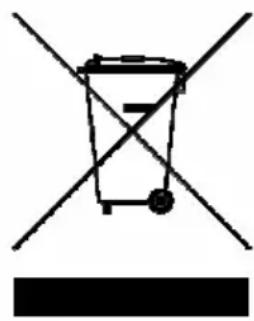
Simple line drawing of a trash bin with two crossed lines and a solid black bar below (no text or symbols)Disposing of the Product
Your device should not be placed in municipal waste. Please check local regulations for disposal of electronic products.
- Changes in specifications and features may be made without notice or obligation.
● Copyright © 2007, TEAC Europe GmbH. All rights reserved. Edition: August 2007 - Company and product names provided herein are trademarks of their respective companies.
Content
Precautions....4
Key Features....5
System Requirement....5
Content of Package 5
- Installation Instruction....5
1.1 Installing Driver for Windows 98 (not required for Windows ME or above) 5
1.2 Installing Battery 6
- USB Mode....6
2.1 Connecting a PC 6
2.2 Removing the USB Device 6
- Basic Operation....7
3.1 Buttons and Functions ....7
Navigation Function 7
3.2 LCD Indication....8
3.3 Power on/off....8
3.4 Main Menu Setup....8
- How to use the MP3 Player....9
4.1 Playing Music 9
4.2 Voice Mode....10
4.2.1 Playing Voice....10
4.2.2 Voice Recording....11
4.3 FM Tuner (only for players with FM function) 11
4.3.1 Playing FM 11
4.4 Function Setting....13
4.4.1 Setting EQ Mode....13
4.4.2 Setting Repeat Mode....13
4.4.3 Setting Contrast 13
4.4.4 Adjusting Backlight....13
4.4.5 Setting Power Set....14
4.4.6 Setting Record Set....14
4.4.7 Setting Language 14
4.4.8 Reset 14
4.4.9 Saving the Settings 14
4.5 Info 14
4.6 Folder Navigation....14
4.7 Exit 15
4.8 Warnings....16
Low Battery 16
No File 16
Device Full....16
-
Troubleshooting....17
-
Technical Specifications....18
Notice....19
Warranty 20
Precautions
1) Never use the player during driving or operating other vehicles to avoid traffic accident, which is also restricted by the law in some districts. Even on foot, it is still dangerous to listen in extremely high volume especially during crossing the street. Wherever with potential risks, please stop using the player for safety purpose.
2) Please insert the earphone before powering on the player, which can not only avoid damaging the earphone but keep the player in good condition.
3) Keep the player clean and away from heat source or direct sunlight, dirty, humid or rainy place. In the event that water or other liquids enter the device, power off the product immediately, take out the battery and clean the device.
4) If the surface is dirty, please clean with soft cloth dipped with clean water or soft abluent. Never clean the case with alcohol or diluents.
5) Never use the player in rather dry environment to avoid static. Do not use the player in extreme hot or cold, dusty or damp field. Do not expose it to direct sunshine.
6) Never disconnect the player from PC abruptly during downloading, uploading and formatting to avoid application failure.
7) When the player is used as removable disk, please follow the proper file download and upload procedures. Our company resumes no responsibility for any file lost due to improper operation.
8) Backup the data frequently in case of accident data loss.
9) We are not responsible for the damages or lost data caused by malfunction, disassemble, modify, misusing, repairing the device or battery replacement.
10) The design of the player or actual display may be different from what is shown in this manual. It should be subject to the actual display or design.
IMPORTANT!
Please use high quality batteries only. Weak batteries can significantly reduce the performance of your player!
Key Features
- MP3&WMA Playback
- Folder Navigation Function
- Voice Recording
- FM Tuner (only for players with FM function)
- Removable Storage Device
System Requirement
■ Microsoft Windows 98/2000/ME/XP
■ IBM PC & Compatible PC, Notebook with USB interface
■ Pentium 200MHz or above
■ CD-ROM drive
Content of Package
MP3 player MP-114
Earphone with neck strap
Driver CD
Basic Operation Manual
User's manual (on CD)
AAA battery
1. Installation Instruction
1.1 Installing Driver for Windows 98 (not required for Windows ME or above)
A. Connect the MP3 Player to the USB port of a PC; after "Found new hardware" appears on the screen, click "Search for the best driver for your device" and insert the driver CD into CD-ROM, then click "Next".
B. Select "Specify a location" to direct the installation directory to the "Drivers" files of the driver CD, and click Yes.
C. PC will install the driver for Windows 98 automatically.
1.2 Installing Battery
Install one AAA 5V alkaline battery properly according to the indicator symbol on the player. Press the ▶II button to power the player on and enter the MP3 standby mode.
2. USB Mode
2.1 Connecting a PC
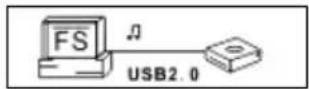
Before operation, please verify the player is powered on, with one end of the provided USB plugged into PC and the other end into the MP3 player. The related icons appear on the LCD screen.
2.2 Removing the USB Device
Important:
In Windows98, please make sure the data transfer i pleted before unplugging the MP3 player.
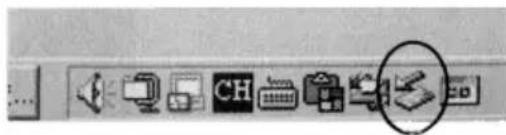
A. Double click the Safely Remove Hardware icon in taskbar:
B. From Safely Remove Hardware screen, highlight "USB Mass Storage Device" item, and then click "Stop" button. "Stop a Hardware Device" window appears on the screen as shown in the picture below.
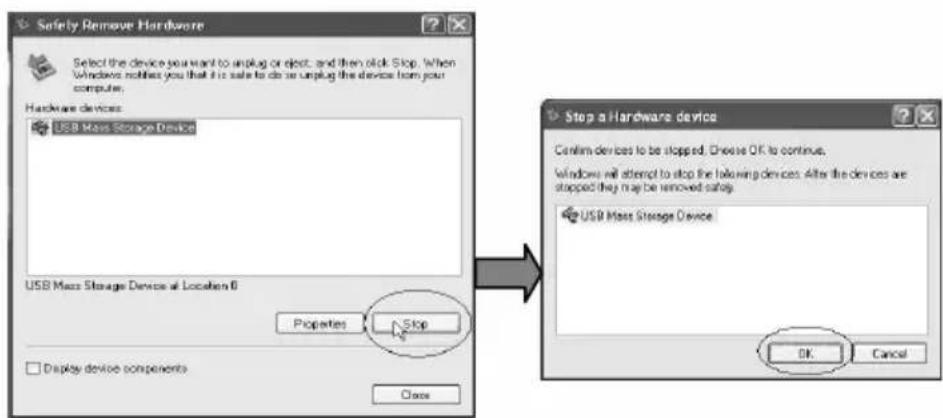
C. Click "OK". After the "Safe to Remove Hardware" window appears, the player can be disconnected from PC safely.
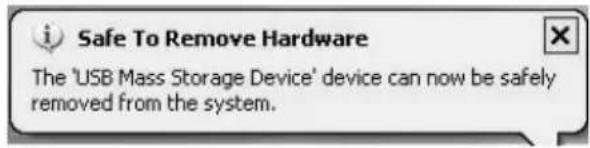
Important: Never unplug the USB cable when data is transmitted to avoid damaging the player; after data transmission is completed please do not disconnect the player from PC; while using USB function, all buttons have no function.
Any program lost or I/O error and power on issues caused by improper operations please refer to "Troubleshooting".
3. Basic Operation
3.1 Buttons and Functions
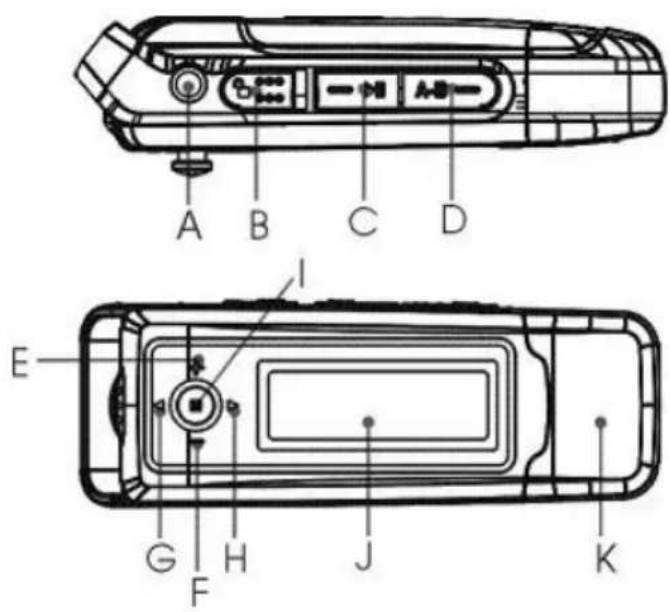
A. Earphone jack
B. 🔒 Hold switch
C. ▶Power on/off and Play/pause
D. A-B Repeat/Record
E. + Volume up
F. - Volume down
G. ◀ Previous
H. ▶ Next
I. Ⓜ MENU button
J. Display area
K. USB port
Navigation Function
natural_image
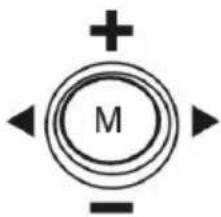
Simple diagram with a central circle labeled 'M' surrounded by four arrows pointing outward, with a plus sign above (no text or symbols beyond the label)The key functions Volume up +, Volume down -, Previous ◀, and Next ▶ are activated by pulling/ pushing MENU key Ⓜ in the respective direction.
3.2 LCD Indication
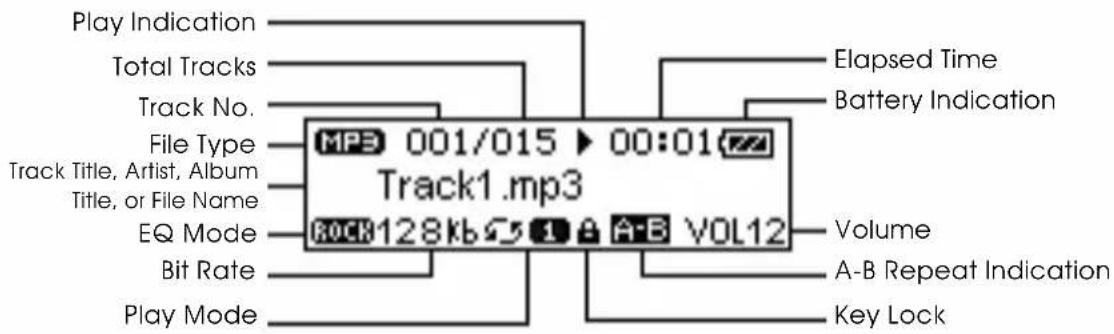
3.3 Power on/off
Press and hold the ▶II button until you see prompt on the display. Now you are in the MP3 standby mode. Pressing the ▶II button again will bring you in the MP3 playback mode. In any mode keep pressing the ▶II button 3 seconds, the player will save data and enters power off mode.
3.4 Main Menu Setup
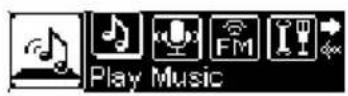
From standby or playing mode, you can press the Ⓜ button to enter the main menu function setting mode.
Push Ⓜ button to select: Play music, Voice, FM Radio (only for players with FM function), Setting, Info, Folder, or Exit. You have to press the Ⓜ button to enter the desired setting.
4. How to use the MP3 Player
4.1 Playing Music
a) Play /Pause: In the MP3 standby mode, you can press the ▶ II button to play MP3 music (▶) and press the ▶ again to pause (II).
b) Stop: In the playback mode, press and hold the ▶II key for 2 seconds to stop the playback (■) and return to the beginning of current track.
c) Previous/Next: In playback, pause, or standby mode, you can push the Ⓜ button to left or right to select previous or next music
d) Fast Forwards: In playback mode, you can press and hold the Ⓜ button to the right to fast forwards.
e) Fast Backwards: In playback mode, you can press and hold the Ⓜ button to the left to fast backwards.
f) Volume: In playback mode, you can press the Ⓜ button up to increase the volume or down to decrease the volume.
g) A-B repeat mode: In playback mode, you can press A-B button shortly to start the point of track (A-) and press A-B button again to finish the point of track (A-B). Press the A-B key shortly to leave A-B repeat.
h) Lock/Unlock: In MP3 standby or playback mode, you can push 🔒 button to right side to hold any key functions. Push the 🔒 button to left side again to unlock.
i) In MP3 standby, play and pause mode, press and hold the ▶II buttons 3 seconds, the player will save data and enters power off mode.
4.2 Voice Mode
4.2.1 Playing Voice
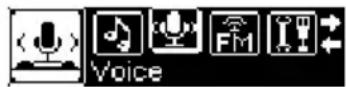
From MP3 standby or playback mode, you can press Ⓜ button to enter the main menu, please push Ⓜ button to right or left to select Voice and press Ⓜ button to enter.
a) Play/Pause: In voice mode, you can press ▶II button to play (▶) and press ▶II button again to pause (II).
b) Stop: In voice mode, press and hold the ▶II key for 2 seconds to stop the playback (■) and return to the beginning of current track.
c) Previous/Next: In voice mode, you can push the Ⓜ button to left or right to select previous or next voice file.
d) Fast Forwards: In voice mode, you can press and hold the Ⓜ button to the right to fast forwards.
e) Fast Backwards: In voice mode, you can press and hold the Ⓜ button to the left to fast backwards.
f) Volume: In voice mode, you can press the Ⓜ button up to increase the volume or down to decrease the volume.
g) A-B mode: In voice mode, you can press A-B button shortly to start the point of track (A-) and press A-B button again to finish the point of track (A-B). Press the A-B key shortly to leave A-B repeat.
h) Lock/Unlock: In voice mode, you can push 🔔 button to right side to hold any key functions. Push the 🔔 button to left side again to unlock.
i) In voice mode, press and hold the ▶II buttons 3 seconds, the player will save data and enters power off mode.
Note: The EQ selection will be unavailable while playing voice files.
4.2.2 Voice Recording
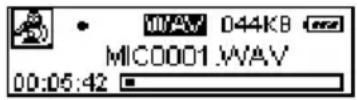
In standby or pause mode (■/Ⅱ), you can press shortly the A-B key to start voice recording (●). Press ▶II button to pause. To resume recording, please press ▶II button again. You can press the Ⓜ key to stop the recording and save the recorded file.
4.3 FM Tuner (only for players with FM function)
4.3.1 Playing FM
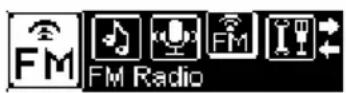
In MP3, or voice standby mode, press the Ⓜ button to enter the main menu, push Ⓜ button to right or left side to select FM Radio and press the Ⓜ button again to enter.
a) Auto-Search broadcasting station
In FM Radio playing mode, press the Ⓜ button to enter the submenus. Push the Ⓜ button to right side to select "Auto Scan" with pressing the Ⓜ key to confirm. The player will scan the station and save radio station automatically.
b) Search station manually
In FM playing mode, when you see "PRESET" displayed, press the ▶II key to exit "PRESET" mode and enter the Manual mode by pushing the the Ⓜ key left or right to decrease or increase frequency by 0.1 MHz. You can save the found station manually as preset. (See "Save station" section)
c) Listen to station
In "PRESET" mode, push the Ⓜ key left or right to tune in saved stations.
Note: If you are in the "Manual" mode, press the ▶II key to switch to the "PRESET" mode.
d) Save broadcasting station
(1) When you receive a station, press and hold the Ⓜ button to show the submenus.
(2) Select "Save Station" and press the Ⓜ key to confirm.
(3) Push the Ⓜ key leftwards or rightwards to choose a location for the station, and press the ▶II key to confirm the saving.
Note: For the same location, the new saved station will replace the original one.
e) Delete broadcasting station
(1) In "PRESET" mode, push the Ⓜ key left or right to select the station that you want to delete.
(2) Press the Ⓜ key to show the submenus.
(3) Select "Delete Station" and press the Ⓜ key to continue.
(4) Press the ▶II key to confirm deletion.
f) Record the FM program
You can record the FM programs broadcasted by the station into WAV file.
(1) When you are listening to the program, shortly press the A-B key to start recording. During recording, you can press the ▶II key to pause/resume recording.
(2) Press the Ⓜ key to stop and save the recording.
g) To play the FM recording
(1) Press and hold the Ⓜ button to enter the main menu or the radio submenu. Select "Voice" and press the Ⓜ button to enter the voice mode.
(2) Move the Ⓜ button left or right to search the recording file and then press the ▶II key to play it.
Alternatively, you can search the recording file in the folder mode. In the voice mode, press and hold the Ⓜ button to enter the main menu, select "Folder" and press the Ⓜ button to enter folder navigation mode. Open the FMIN.DIR folder, and search the FM recording file that you want to play.
4.4 Function Setting
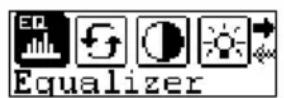
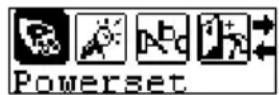
Select Setting in the main menu with press button to enter. Push Ⓜ button left or right (◀ or ▶ buttons) to select Equalizer, Repeat Mode, Contrast, Backlight, Power Set, Record Set, Language, Reset.
4.4.1 Setting EQ Mode
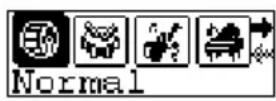
After entering the EQ mode, push the ◀ or ▶ buttons to select Normal, Pop, Rock, Classical, Jazz, Bass, and Exit. Press the Ⓜ button to save the selected EQ setting.
4.4.2 Setting Repeat Mode
After entering Repeat Mode, push the ◀ or ▶ buttons to select Normal, repeat one, repeat all, Random repeat, Dir normal, Dir all repeat, or Dir random repeat. Press the Ⓜ button to save the selected play mode.
4.4.3 Setting Contrast
After entering Contrast, push ◀ or ▶ buttons to adjust the contrast of LCD. Press the Ⓜ button to save the selected setting.
4.4.4 Adjusting Backlight
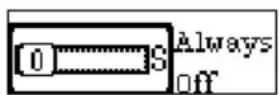
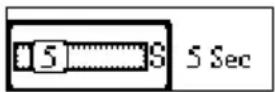
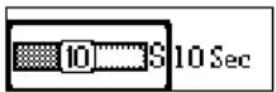
After entering Backlight, push the ◀ or ▶ buttons to select 5 S, 20 S, Always on, Always off. Press Ⓜ button to save the selected setting.
4.4.5 Setting Power Set
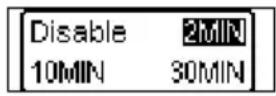
After entering Power Set, push ◀ or ▶ buttons to select DISABLE, 2MIN, 10MIN, 30MIN. Press the Ⓜ button to save the selected shutdown time.
4.4.6 Setting Record Set
After entering Record Set, push ◀ or ▶ buttons to select 32Kbps, 44Kbps, 64Kbps, or 88Kbps. Press the Ⓜ button to save the selected record set time.
4.4.7 Setting Language
After entering Language mode, push ◀ or ▶ buttons to select the desired language. Press Ⓜ button to save the selected language.
4.4.8 Reset
Press Reset with Ⓜ button to return factory default.
4.4.9 Saving the Settings
To ensure that changed settings are stored, the submenu "Settings" has to be left by pressing the ▶II key.
4.5 Info
Push ◀ or ▶ buttons to select Info in the main menu, press the Ⓜ button to enter. You can see the total memory information and version number.
4.6 Folder Navigation
In MP3 or voice standby mode, you can press the Ⓜ button to enter the main menu, and push the ◀ or ▶ buttons to select folder function. Press the Ⓜ button to enter the file list. You can push the ◀ or ▶ buttons to browse the files.

A).Select to play music in the root directory
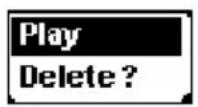
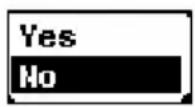
In folder mode, press the ◀ or ▶ buttons to select a certain song. Press Ⓜ to enter the Play now or Delete ? mode. Press Ⓜ to confirm. If you select Play now, it will play the current song. If you select Delete ?, it will go into delete mode. Press the ◀ or ▶ buttons again to select Yes or No. Press Ⓜ to confirm deleting (Yes) or press ▶II button to exit.
B).Select to play music in the folder and its subdirectory
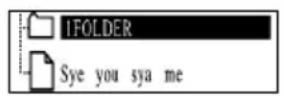
In folder mode, press the ◀ or ▶ buttons to select a certain folder. Press Ⓜ to enter its subdirectory. Press ◀ or ▶ buttons again to select a certain song. Press Ⓜ to enter Play now or Delete ? mode. Press Ⓜ to confirm. If you select Play now, it will play the current song. If you select Delete ?, it will go into delete mode. Press the ◀ or ▶ buttons again to select Yes or No. Press Ⓜ to confirm deleting (Yes) or press ▶II button to exit.
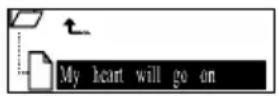
Important: You can not see the record folder and its files in play music mode, which will only be available in play voice mode.
4.7 Exit
Return to the last mode (MP3 or voice mode).
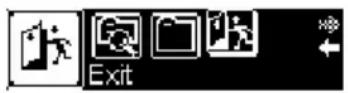
Note: From setting mode, you can press the ▶II button to exit the setting mode quickly.
4.8 Warnings
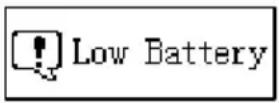
Low Battery
The player will display an image to warn users to change the battery.
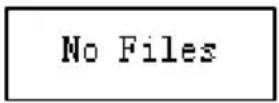
No File
If there is no corresponding file in the player, the following image will be displayed on the screen.
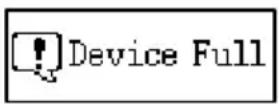
Device Full
During recording, if the device memory is full, the following image will be displayed on the screen.
5. Troubleshooting
| Problem | Possible | Cause Solution |
| The LCD displays nothing when the ▶II key is pressed. | 1. No battery or battery is too low.2. The keys are locked. | 1. Install or replace the battery.2. Unlock the Hold switch. |
| Press the ▶key after turning on, while the player has no response. | The keys are locked by Hold switch | Slide the Hold switch to the unlocked position. |
| No sound when playing music or voice file. | 1. The volume is too low.2. There are problems with the audio file. | 1. Adjust the volume.2. Delete the file or play other files. |
| The player cannot be connected to the PC. | 1. The driver is not installed or destroyed.2. The USB interface is not supported by PC's motherboard. | 1. Install or reinstall the driver shipped with the player.2. Update or replace the PC's motherboard. |
| The displayed time is changing constantly. | The bit rate of the MP3 file is changing during playback. | Try to use fixed bit rate to compress the MP3 file. |
| The PC has error when you plug and unplug the player. | The player is disconnected from the PC abruptly while transferring files. | Do not disconnect the player from the PC when transferring files. |
| Total memory displayed on the player is not in accordance with the marked amount. | Part of memory is used to store programs and display characters. |
- Technical Specifications
| Item | Specification |
| Capacity | 512MB/1GB/2GB |
| Battery Type AAA-size alkaline | |
| Battery Life Approx. 10 Hours | |
| LCD | 132X32 Pixel, White Backlight |
| Earphone Power 5mW+5mW | |
| Output Frequency 20Hz-20kHz | |
| Record Sample Rate 32kbps, 44kbps, 64kbps, 88kbps | |
| Audio File Format MP3, WMA | |
| Record Format WAV | |
| SNR | >70dB |
| USB Port USB2.0 | |
| Dimension 84 x 29 x 19 mm | |
| Weight | 26g |
| Operational Temperature 0°C+55°C | |
| Storage Temperature -20°C+55°C | |
| Operational Relative Humidity 20% ~ 90% | |
| Storage Relative Humidity 20% ~ 93% |
Notice
- Plug & Play is only available for WIN2000/XP. It is not supported by WIN98 and WIN98SE under which a driver needed to be installed.
- Push the Hold switch 🔔 to the unlocked position (to the left) to enable all keys before operation.
- Please replace the battery immediately when the display indicates low battery, or the device will be powered off automatically.
- Please unplug the player properly to avoid data losing.
- The transfer rate displayed on the PC may be different depending on the operating system. Exact transfer rate should be subject to the player's indication.
- When the recorded voice file is too large, it is normal that the response of the device may be slow.
GARANTIE
Modell Seriennummer
natural_image
Two empty rectangular boxes side by side, no text or symbols present- Disposing of the Product
- Content
- Precautions
- IMPORTANT!
- Key Features
- System Requirement
- Content of Package
- Installation Instruction
- Installing Battery
- USB Mode
- Connecting a PC
- Removing the USB Device
- Important:
- Basic Operation
- Buttons and Functions
- Navigation Function
- LCD Indication
- Power on/off
- Main Menu Setup
- How to use the MP3 Player
- Playing Music
- Voice Mode
- Playing Voice
- Voice Recording
- FM Tuner (only for players with FM function)
- Playing FM
- a) Auto-Search broadcasting station
- b) Search station manually
- c) Listen to station
- d) Save broadcasting station
- e) Delete broadcasting station
- f) Record the FM program
- g) To play the FM recording
- Function Setting
- Setting EQ Mode
- Setting Repeat Mode
- Setting Contrast
- Adjusting Backlight
- Setting Power Set
- Setting Record Set
- Setting Language
- Reset
- Saving the Settings
- Info
- Folder Navigation
- A).Select to play music in the root directory
- B).Select to play music in the folder and its subdirectory
- Exit
- Warnings
- Low Battery
- No File
- Device Full
- Troubleshooting
- Notice
- GARANTIE
Brand : TEAC
Model : MP-114
Category : Mp3 player