
Element 9.7 V3 - Tablet SENCOR - Free user manual and instructions
Find the device manual for free Element 9.7 V3 SENCOR in PDF.


| Product Type | Tablet |
| Brand | Sencor |
| Model | Element 9.7 V3 |
| Display Size | 9.7 inches |
| Display Resolution | 1024 x 768 pixels |
| Processor | Quad-core, up to 1.3 GHz |
| RAM | 2 GB |
| Internal Storage | 16 GB |
| Expandable Storage | microSD card up to 128 GB |
| Operating System | Android |
| Battery Capacity | 6000 mAh |
| Connectivity | Wi-Fi 802.11 b/g/n, Bluetooth 4.0 |
| Front Camera | 2 MP |
| Rear Camera | 5 MP |
| Ports | Micro USB 2.0, 3.5mm headphone jack |
| Sensors | G-sensor |
| Dimensions (W x H x D) | 240 x 170 x 9.5 mm |
| Weight | 510 g |
| Power Adapter | DC 5V, 2A |
| Maintenance & Cleaning | Wipe with a soft, dry cloth; avoid liquids |
| Safety | Do not expose to extreme temperatures or moisture |
| Spare Parts & Repairability | Battery and screen available from authorized service centers |
Frequently Asked Questions - Element 9.7 V3 SENCOR
User questions about Element 9.7 V3 SENCOR
0 question about this device. Answer the ones you know or ask your own.
Ask a new question about this device
Download the instructions for your Tablet in PDF format for free! Find your manual Element 9.7 V3 - SENCOR and take your electronic device back in hand. On this page are published all the documents necessary for the use of your device. Element 9.7 V3 by SENCOR.
USER MANUAL Element 9.7 V3 SENCOR
If you want to use this product correctly, carefully read this user's manual and store it for future reference. If you give (sell) the device to somebody, please also include all the documentation together with this device, including this user's manual.
Due to the fact that the device is in continuous development, the user's manual may not completely correspond to the current version of your device. We reserve the right to make changes without prior notice.
We recommend that you backup important data. Neither the distributor nor vendor is responsible for such loss of data.

This symbol indicates that there is dangerous voltage inside this device, which presents a risk of injury by electrical shock.

This symbol indicates important operating or repair instructions in the device's documentation.
General safety instructions
- Read this user's manual. Follow the instructions contained in this user's manual.
- Heed all warnings.
• Adhere to all instructions.
• Use only accessories determined by the manufacturer.
• An open flame must not be placed on the device, e.g. a burning candle.
• Use the device in a temperate climate zone. - Neither the manufacturer nor the vendor of the device under any condition takes responsibility for any direct or indirect damages caused by not adhering to instructions for installation, set-up, use, servicing or cleaning of this device as described in this user's manual.
- Protect the device against being knocked, dropped, hit, shaken and against vibrations, humidity and dust.
- Before allowing children to use the device, they must be appropriately to their age, informed about the correct and safe use of the player.
Installation, operation
• Install the device according to the instructions in the user's manual.
- Leave free space on all sides of the device, necessary for proper air circulation. This removes the heat created during operation. Covering the ventilation openings of the device's case creates a risk of overheating or damaging the device. It is necessary to ensure that the ventilation openings are not blocked, e.g. by a newspaper, table cloth, curtain, etc. Follow the installation instructions in the user's manual.
- Do not install the device in direct sunlight or near sources of heat, such as heaters, heat exchangers, stoves or other appliances (including amplifiers) producing heat. High temperatures significantly reduce the lifetime of electronic components in the device. Do not use or leave the device in the vicinity of an open fire.
- The device must not be exposed to dripping or running water and objects filled with water must not be placed on it, e.g. vases. Protect the device against rain, spray or contact with any other liquid, do not leave or install the device outdoors. Do not use the device outdoors. Not adhering to these instructions creates a risk of electrical shock or fire hazard.
• Do not use this device near water.
- Do not attempt to circumvent the polarised power plug safety feature. If the power plug cannot be inserted into your power socket, contact a qualified electrician to replace the old type of power socket.
- Before connecting the device into a power socket, check that the voltage in your power socket corresponds to the voltage on the rating label of the device or on its power adapter.
- Make sure that the power cord is not stepped on or compressed, particularly near the power plug, power socket and at the point where it exits the device or the adapter. The power plug (adapter) is used as a disconnection device and must be easily accessible.
- Remember to always disconnect the power plug (adapter) from the power socket before disconnecting the power cable from the back side of the device.
- Disconnect the device from the power socket during storms or if you will not be using it for a longer time.
- Avoid moving the device from a cold environment to a warm one or vice versa, or when using the device in a very humid environment. Air humidity may condense on some components inside the case of the device and the device may stop working temporarily. If this occurs leave the device in a warm and well ventilated place and wait 1 – 2 hours until the moisture evaporates and the device can once more be used as usual. Take care especially during the first use of the player immediately after its purchase during a cold season.
• To recharge the battery pack that is integrated into the device, place the device in a well ventilated place and at a sufficient distance from easily flammable materials.
- Neither the manufacturer nor the vendor of the device under any condition takes responsibility for any direct or indirect damages caused by not adhering to instructions for installation, setup, use, service or cleaning of this device as described in this user's manual.
- Protect the device against being knocked, dropped, hit, shaken and against vibrations, humidity and dust.
Repairs and maintenance
- To prevent risk of injury through electric shock or the creation of a fire, do not take the device out of the case - there are no parts inside the case repairable or adjustable by the user without relevant equipment and qualifications. Should the device require adjustment or repair, contact a professional service centre.
- In the case of any unusual events occurring during the use of the device, e.g. if there is a distinct smell of burning insulation or smoke comes out of the device, immediately turn off the device, disconnect the device from the power source and do not use the device until you have received the results of an inspection by the employees of the professional service centre.
- Have all repairs carried out by qualified personnel. Repairs are necessary if the device has been damaged in any way, for example if the power cord is damaged, liquid was poured on the device, foreign objects have entered the device, the device has been exposed to rain or moisture, if the device is not working as usual or if it has fallen.
- Before cleaning, carrying or other maintenance, disconnect the plug (adapter) from the power socket.
• Clean the device only with a dry cloth. - For cleaning do not use petrol, thinners or any other solvents or use any abrasive cleaning agents, steel wool or any sponges with steel wool.
Notes on the USB connector:
USB flash drives must be inserted into the device directly. To prevent data transmission failure or its interference, do not use USB extension cables. Electrostatic discharges may cause the device to malfunction. In such an event the user must restart the device.
Before using a USB flash drive, test its ability to communicate with the device and its data reading and writing speed.
To achieve maximum reading speed we recommend that you keep disk space defragmented. Use the FAT32 file system, a single partition, without protection. If reading and writing on the USB flash disk is not continuous, undesirable effects may occur such as partial image loss (distortions/checkering effects) or complete image loss, audio defects, and in extreme cases the operation will be stopped. Unexpected behaviour of the connected flash drive, or the presence of viruses or other damaging software may cause the functions of the device to stop working, necessitating a restart.
The USB connector is the standard type and is not able to power a USB device with a high power usage (e.g. hard disk drives HDD). Use devices with independent power supplies and power them from their own power supplies.
The device was designed to achieve maximum compatibility with flash drives. With respect to the variety of devices on the market it is not possible to guarantee compatibility with every USB device. In the event of difficulties, try formatting the flash drive directly in the device. If problems persist, use a different flash drive.
Due to the wide range of MicroSD cards / USB devices available on the market it is not possible to guarantee the compatibility of the device with all MicroSD cards / USB devices.
Serial number of the device
The serial number of the device is unique and unequivocally identifies your device. Enter the serial number of your device together with other details necessary for the definite identification of your device below.
Serial number: ____
Date of purchase: ____
SENCOR® Supplement to the LCD TV user's manual
Measures to take when a static image is displayed; red/blue/green pixels on the screen. A static image can permanently damage the display part of the television
- Do not leave a static image on an LCD screen for longer than 2 hours, because this could damage the screen. This type of damage is known as "screen burn-in".
• Similar damage to the LCD screen can be caused by a statically located TV channel logo.
• Watching television in 4:3, 16:9 formats or similar (formats not
natural_image
Close-up black-and-white photo of a daisy-like flower with visible petals and center (no text or symbols)covering the entire area of the screen) for a long time may leave marks on the right or left side, or possibly in the middle of the picture as a result of the differences in light emission. Similar damage may also occur when watching a DVD or playing games.
- The display of a static image from video games or computers for an extended period of time may cause a partial effect of a "persistent image". To prevent this effect from occurring, lower the brightness and contrast when displaying a static picture.
Damage to the screen resulting from the above mentioned causes is not covered by the warranty!
Red/blue/green/black pixels may appear on the screen
- This is a characteristic feature of liquid crystal displays and does not represent a problem. LCD screens are manufactured using a very precise technology in order to achieve a very fine picture resolution. From time to time several inactive pixels may appear on the screen as a permanently red, blue, green or black pixel (up to 0.001% of the total number of pixels on the screen). This does not in any way affect the features and performance of your television.
1. Features and functions
• 9.7-inch capacitive touchscreen
• Unlimited browsing – visit your favourite web pages.
- Permanent email access – be in contact with your family and friends.
- YouTube™ videos – watch current videos and share them with your friends.
• Favourite book – download and read a book from your favourite author.
- Android ^TM applications – discover a new world with Android ^TM applications (games, applications and more on the market (user installation required)).
- Wireless connection – high-speed Wi-Fi 802.11 b/g/n
• HDMI ^TM port – TV connection option
• Media library whenever and wherever
- Playback of favourite music, videos and images, option to expand memory capacity with a microSD card of up to 32 GB in size.
• Built-in camera – front camera, back camera
• Automatic picture rotation – the display will rotate automatically.
- HDMI cable (optional), type A into type C; playback of HD video 1080p requires 1080p coding. Video quality will be affected by the source, quality and network connection conditions.
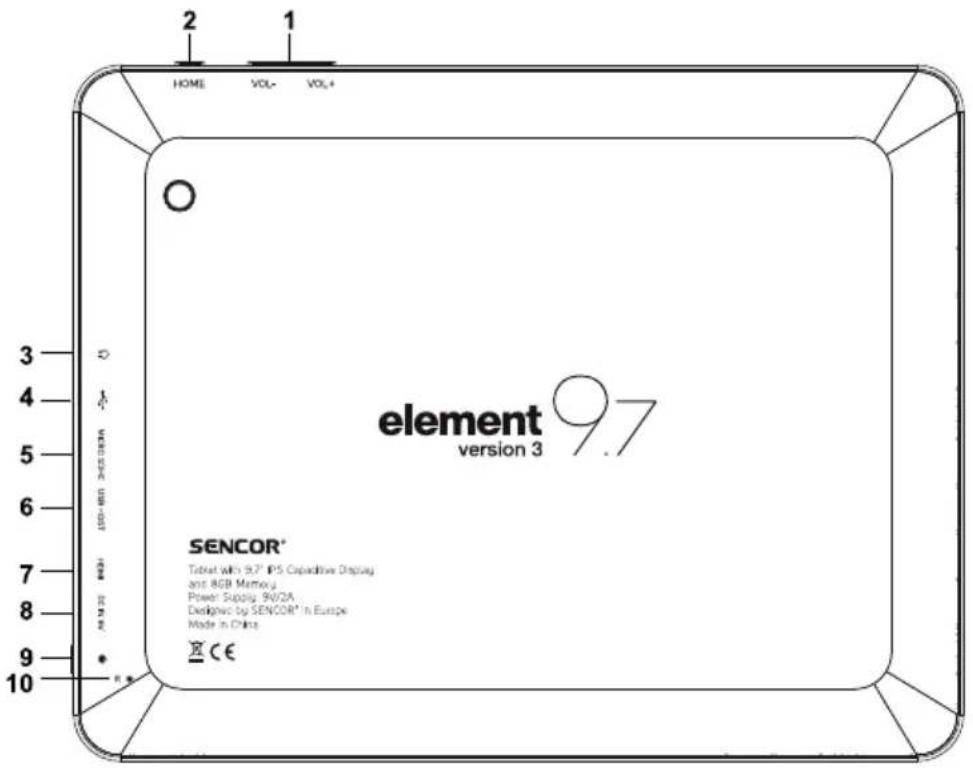
Number Description
1 VOL+/VOL- button
2 HOME button
3 Jack
4 USB port
5 microSD slot
6 USB HOST
7 HDMI port
8 DC IN 9 V
9 POWER button
(Main power switch)
10 R button (Reset)
Description of function
Use the VOL+ button to increase the volume / the VOL- button to decrease the volume.
Return to home
For connecting headphones
PC connection to transfer data (e.g. music, videos, images, files, etc.)
For inserting microSD cards
For connecting external USB devices via a USB reduction
For connecting to a TV or another device with a HDMI port
For recharging using an adapter
Press this button to turn the device on or to turn the screen on / off. Press and hold the button to turn it off.
To reset
3. Basic controls
3.1. Turning on / off
Turning on the device:
When the device is turned off, hold down the main power button to turn it on. It may take a short time for the device to turn on, so wait until the device turns on. This is normal.
Turning off the device:
During use, press and hold down the power button for about 5 seconds and a dialogue box for turning off the device will appear. Select "OK" to turn off the device.
Note:
If the battery pack is completely flat, a warning signal will appear. Connect the power adapter to start charging. If the device does not turn on, check the status of the battery pack and connect the charger if necessary.
3.2. Saving energy and the lock mode
If the device is not being used the system will automatically activate the energy saving mode. Press the main power switch to turn the display on / off. In this state, the device still draws electrical power from the battery, however to a lesser degree than during full operation.
Note:
In the energy saving mode the basic controls will not be blocked, only the LCD screen will be turned off. The playback of music or films will not be interrupted.
Lock mode
When the screen is turned off, it is necessary to unlock the screen to turn it on. When the display lights up, drag the lock icon towards the second lock icon.
3.3. Recharging
The charging time for the battery pack is 8 – 12 hours, especially for the first charge. Use only the power adapter supplied for recharging the device. Insert the power supply connector into the DC jack on the device and then insert the plug on the adapter into a power socket. The device will be recharged. As soon as the recharging icon is full, the battery pack is fully charged.
Attention:
Adhere to the following instructions for the protection of the lithium battery.
Do not recharge during extremely high temperatures or in direct sunlight.
It is not necessary to wait until the battery pack is completely flat. You can recharge even if the battery pack is not completely flat.
The adapter and the device may heat up during the recharging process. This is normal.
3.4. Connecting to a computer and transferring files
Connect the tablet to a PC to transfer data.
1. Connecting the tablet to a PC
Connect the device to a computer via the USB cable.
2. After connecting
Move the USB icon to the bottom right and tap the USB icon to connect.
3. Displaying the storage location
After displaying the data storage location on the tablet, you will be able to copy or delete files.
You can use the USB HOST slot to connect an external device, e.g. FLASHDISK and HDD, to the device.
Note:
If you use a hard disk drive, use one that has its own power supply. The disk of the tablet will not connect to the PC if you do not confirm using the USB icon or if you have the "tuning over the USB interface" function activated in the device's settings.
3.5. TV connection
Connect the tablet to the TV using an HDMI cable (not included with the accessories). Select HDMI as the input source for your TV.
Note:
This connection is only possible if your television is equipped with an HDMI port. For more information about the HDMI port, follow the instructions contained in your TV manual.
To launch an application, click on the icon of the application on the home screen or in the applications list.
4.1. Pre-installed applications
Some applications have already been factory pre-installed.
They include:

Web browser

Calculator

Camera


Music player

Tablet settings
4.2. Installing an application
The device supports the download and installation of applications from the market, the web browser or from other sources.
The device needs to be set up so that installation is permitted from unknown sources.
Select "Unknown source" in the applications settings menu.
5. Web interface
WIFI connection
The information bar indicates the tablet's Wi-Fi network connection status.

Available Wi-Fi network within range.

Wi-Fi network connection (number of waves indicates signal strength) No icon – no Wi-Fi networks are available or the Wi-Fi function is disabled.
1. Activate the Wi-Fi function if it is not already activated.
a) Go to the home screen and tap on "Home" (home).
b) Enter the settings menu, tap on the icon in the top right part of the home screen to enter the list and then tap on settings.
c) Enter the "Wi-Fi connections and networks" menu. Move the icon to the activated status.
As soon as the Wi-Fi function is activated, the tablet will automatically scan for possible connections and display the available networks.
Note:
If the tablet finds a network to which you connected previously, it will connect to it. If the respective network is not displayed, you can scan again for networks. Tap on MENU and select Scan (Scan).
2. Select an available Wi-Fi network and connect to it.
From the scanned Wi-Fi networks, select the one you wish to connect to.
If it is a freely accessible network, the device will connect automatically after it is selected and confirmed.
If it is a secured network (it is usually marked with a lock symbol), you will be requested to enter a valid password after selecting it. The keyboard will automatically appear when the password entry field is tapped. Enter a valid password and confirm.
After successfully connecting to a Wi-Fi network, an information bar will appear at the bottom of the screen indicating the connection, signal strength, etc.
| Processor | Rockchip Dual core 1.5 GHz (Cortex A9) |
| Internal memory | 1 GB DDR3 |
| External memory | 8 GB (optional) built-in flash memory microSD card – up to 32 GB |
| Display | 9.7" capacitive LCD touchscreen with a resolution of 1024 x 768 pixels |
| Wi-Fi network | IEEE 802.11 b/g/n |
| Bluetooth | V4.0 |
| Video output | Mini HDMI, type C (supports 1080p and 720p) |
| Audio output | 3.5 mm jack |
| PC interface | High-speed USB 2.0 |
| Accessories | Camera (front 0.3 MP, rear 2 MP) 2 x 1W loudspeaker |
| Operating system | Android TM 4.0 |
| Power source | Rechargeable Li-pol battery pack Adapter (9V, 2A) |
| Playback time (in hours) | Up to 9 hours of music 4 hours of video 4 hours of web browsing |
Note:
Actual playback time of music and video, web browsing may differ depending on the settings, power level of the battery pack, volume and other factors.
The technical specifications provided above may change without prior notice.
DISPOSAL OF USED ELECTRICAL AND ELECTRONIC APPLIANCES
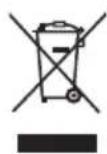
The meaning of the symbol on the product, its accessory or packaging indicates that this product shall not be treated as household waste. Please, dispose of this product at your applicable collection point for the recycling of electrical & electronic equipment waste. Alternatively in some states of the European Union or other European states you may return your products to your local retailer when buying an equivalent new product. The correct disposal of this product will help save valuable natural resources and help in preventing the potential negative impact on the environment and human health, which could be caused as a result of improper liquidation of waste. Please ask your local authorities or the nearest waste collection centre for further details.
The improper disposal of this type of waste may fall subject to national regulations for fines.
For business entities in the European Union
If you wish to dispose of an electrical or electronic device, request the necessary information from your seller or supplier.
Disposal in other countries outside the European Union
If you wish to dispose of this product, request the necessary information about the correct disposal method from local government departments or from your seller.

This product meets all the basic EU regulation requirements that relate to it.
Changes to the text, design and technical specifications may occur without prior notice and we reserve the right to make these changes.
SENCOR®
EN Warranty conditions
Warranty card is not a part of the device packaging.
This product is warranted for the period of 24 months from the date of purchase to the end-user. Warranty is limited to the following conditions. Warranty is referred only to the customer goods using for common domestic use. The claim for service can be applied either at dealer's shop where the product was bought, or at below mentioned authorized service shops. The end-user is obligated to set up a claim immediately when the defects appeared but only till the end of warranty period. The end user is obligated to cooperate to certify the claiming defects. Only completed and clean (according to hygienic standards) product will be accepted. In case of eligible warranty claim the warranty period will be prolonged by the period from the date of claim application till the date of taking over the product by end-user, or the date the end-user is obligated to take it over. To obtain the service under this warranty, end-user is obligated to certify his claim with duly completed following documents: receipt, certificate of warranty, certificate of installation.
This warranty is void especially if apply as follows:
■ Defects which were put on sale.
■ Wear-out or damage caused by common use.
The product was damaged by unprofessional or wrong installation, used in contrary to the applicable instruction manual, used in contrary to legal enactment and common process of use or used for another purpose which has been designed for.
■ The product was damaged by uncared-for or insufficient maintenance.
■ The product was damaged by dirt, accident of force majeure (natural disaster, fire, and flood).
■ Defects on functionality caused by low duality of signal, electromagnetic field interference etc.
The product was mechanically damaged (e.g. broken button, fall).
■ Damage caused by use of unsuitable media, fillings, expendable supplies (batteries) or by unsuitable working conditions (e.g. high temperatures, high humidity, quakes).
■ Repair, modification or other failure action to the product by unauthorized person.
■ End-user did not prove enough his right to claim (time and place of purchase).
■ Data on presented documents differs from data on products.
■ Cases when the claiming product cannot be identified according to the presented documents (e.g. the serial number or the warranty seal has been damaged).
Authorized service centers
Visit www.sencor.eu for detailed information about authorized service centers.


- General safety instructions
- Installation, operation
- Repairs and maintenance
- Notes on the USB connector:
- Serial number of the device
- SENCOR® Supplement to the LCD TV user's manual
- Red/blue/green/black pixels may appear on the screen
- Features and functions
- Basic controls
- Turning on / off
- Turning on the device:
- Turning off the device:
- Note:
- Saving energy and the lock mode
- Lock mode
- Recharging
- Attention:
- Connecting to a computer and transferring files
- Connecting the tablet to a PC
- After connecting
- Displaying the storage location
- TV connection
- Pre-installed applications
- Installing an application
- Web interface
- WIFI connection
- Activate the Wi-Fi function if it is not already activated.
- Select an available Wi-Fi network and connect to it.
- DISPOSAL OF USED ELECTRICAL AND ELECTRONIC APPLIANCES
- For business entities in the European Union
- Disposal in other countries outside the European Union
- SENCOR®
- EN Warranty conditions
- This warranty is void especially if apply as follows:
- Authorized service centers
Brand : SENCOR
Model : Element 9.7 V3
Category : Tablet