
EasyPen M610X - Graphic tablet GENIUS - Free user manual and instructions
Find the device manual for free EasyPen M610X GENIUS in PDF.


| Product Type | Graphics Tablet with Wireless Pen |
| Model | EasyPen M610X |
| Brand | Genius |
| Pen Technology | Battery-Powered Cordless Pen with 1024 Pressure Levels |
| Pen Buttons | Two Barrel Buttons (Programmable) |
| Express Keys | 18 Programmable Keys on Tablet |
| Working Area | Full Area or Customizable (Part Mode) with Screen Ratio Support (4:3, 16:9, Auto) |
| Cursor Speed | Adjustable |
| Compatibility | Windows 7/Vista/XP |
| Connection | USB (Plug directly into PC, not Hub) |
| Power (Pen) | 1 AAA Battery (Included) |
| LED Indicator | Yes, on tablet |
| Additional Functions | Direct Pointing, Three-Button Mouse Emulation, Pen Scrolling, Handwriting in MSN Messenger (with component) |
| Pen Tip Replacement | Yes, using Pen Clip |
| Driver Installation | From CD or latest download from geniusnet.com |
| System Tray Icon | Tablet icon appears after successful driver install |
Frequently Asked Questions - EasyPen M610X GENIUS
User questions about EasyPen M610X GENIUS
0 question about this device. Answer the ones you know or ask your own.
Ask a new question about this device
Download the instructions for your Graphic tablet in PDF format for free! Find your manual EasyPen M610X - GENIUS and take your electronic device back in hand. On this page are published all the documents necessary for the use of your device. EasyPen M610X by GENIUS.
USER MANUAL EasyPen M610X GENIUS
*The driver may already be updated to a newer version before/after packaging. If your installation screen does not match the contents of this manual, you may need to download the driver, just refer to your software screen after installation.
* To ensure your tablet operates with maximum and smooth performance, plug the USB connector to your PC/Notebook USB port instead of a USB Hub or other exterior USB port device.
I. General Information
1. Overview
Welcome to the world of tablet and digital pen! You are able to discover how easy to control your personal computer by using a wireless digital pen to instead of a mouse. The function of the digital pen is able to draw a line very thin, thick, light or dark (called pressure sensitivity). You also can write, sign, annotate documents, and draw, sketch or paint as easily as you would on normal paper and simulate the functions like a pencil, marker, brush, or watercolor pen by using commercial software packages such as Adobe® PhotoShop™, Corel® Painter™ and Paint Shop™. If MSN Messenger 8.5 or newer is installed, you can create and send digital handwritings and hand drawn pictures, making communication much more fun and entertaining.
Note: If you cannot enable the handwriting mode in MSN Messenger, download the relevant handwriting component from Microsoft's website.
2. Pen Tablet Functions
After installing the device driver, your pen tablet features has the following functions:
-
Direct pointing – You can move the cursor to any location on the screen by hovering the digital pen tip over the tablet's surface.
-
Three-button mouse commands - Your pen tablet provides all the functions of a three-button mouse by using its pen tip and two buttons.
-
Pen scrolling – You can scroll documents and Web pages by pressing the middle button of the digital pen over the tablet's working area.
-
Pressure sensitivity – This feature allows you to emulate various brushes and pencils and you can press down on the pen tip harder, lighter, stronger or thicker, and you will get different types of pencil lines.
3. System Requirements
- Windows 7/Vista/XP
- USB Port
- DVD-ROM Drive
4. Driver Installation
For Microsoft Windows 7, Vista, and XP:
- Insert the CD into the CD-ROM drive, and wait for the main installation screen to appear.
- The main installation screen should appear automatically, or you can manually start the installation by opening 【 My Compute】 ▶【 CD/DVD Ron 】 ▶ then click on the 【Setup】 program.
When installing the driver, follow the installation instructions on screen and press the "Enter" key. After the installation has been completed, reboot the computer.
5. Hardware Installation
natural_image
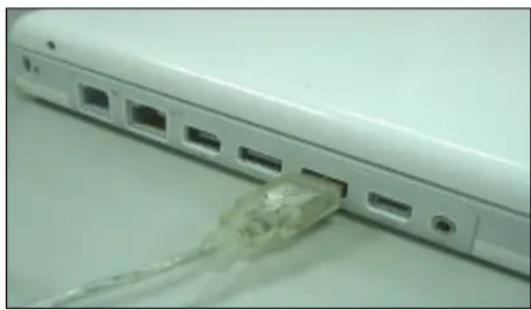
Close-up of a white electronic device with multiple ports and a transparent cable inserted (no visible text or symbols)Connect the tablet to the USB interface of the PC after the driver installation is finished and you have restarted Windows:
After you connect a pen tablet into the PC, you will see a small tablet icon ( ) appear in the system tray, which is normally at the lower right corner of the screen.
★ Install the driver first before you plug the tablet into your PC.
6. Verifying Hardware and Driver Functions
Follow these steps to verify the tablet is installed properly:
- After you reboot your computer, move the cordless pen to make sure the cursor shown on the screen is moving.
- The LED indicator shown on the tablet indicates the function (mode). You may edit and setup according to your design needs.
Note: After the tablet's device driver has been properly installed, a small tablet icon ( ^1 ) will appear in the system tray, which is normally at the lower right corner of the screen.
7. Usage Tips
7.1 Double tapping
When you double tap the digital pen (equivalent to a double click with a mouse), try to keep the pen tip away from the tablet's surface, or at least try to lift the pen tip as fast as possible before the second tap.
ENGLISH
7.2 Storing the digital pen
To store the pen, make sure the pen tip does not touch anything, and especially do not let the pen stand in a cup or penholder with the tip down. Place the pen in a penholder, or turn the pen tip pointing upward or horizontally with the pen tip free of any pressure by other objects.
7.3 Scrolling function of digital pen
The digital pen has the same function as a normal mouse when scrolling pages. Press the first button of the digital pen (same function as the mouse middle button) over the tablet's working area.
7.4 Using a pen without a mouse
You may install the digital pen, digital mouse, and a regular mouse in your computer at the same time and you can also remove them to a different computer as well. However, only one device is able to work at a time.
Do not use more than two devices at the same time in case the screen cursor is jittering or not moving.
II. Pen tablet configuration
You may configure the pen tablet by modifying the functions of the pen tip and the two barrel buttons. Tap [Start] > [All programs] > [io Tablet], and double-tap the [io Tablet] icon, or tap on the tablet icon ( ) in the system tray, usually located at the lower right corner of the screen. You may also adjust the pressure sensitivity of the pen by determining the scope of the tablet's working area, or (re-) program the hot-cells of your pen tablet by modifying device driver.
- The Info Tab: The Info tab displays the devices you can choose to operate your tablet, including the pen, the tablet itself and any interface language.
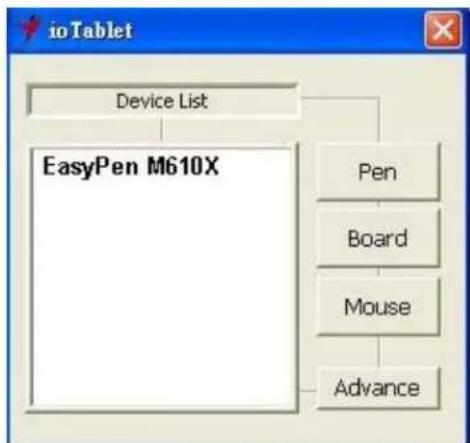
flowchart
graph TD
    A["Device List"] --> B["EasyPen M610X"]
    B --> C["Pen"]
    B --> D["Board"]
    B --> E["Mouse"]
    B --> F["Advance"]
- After the tablet driver is installed in Windows, the Tablet PC function setting will support pressure in MS Journal, OneNote (2003 - 007), etc.
2. Cordless Pen
2.1 Button Name:
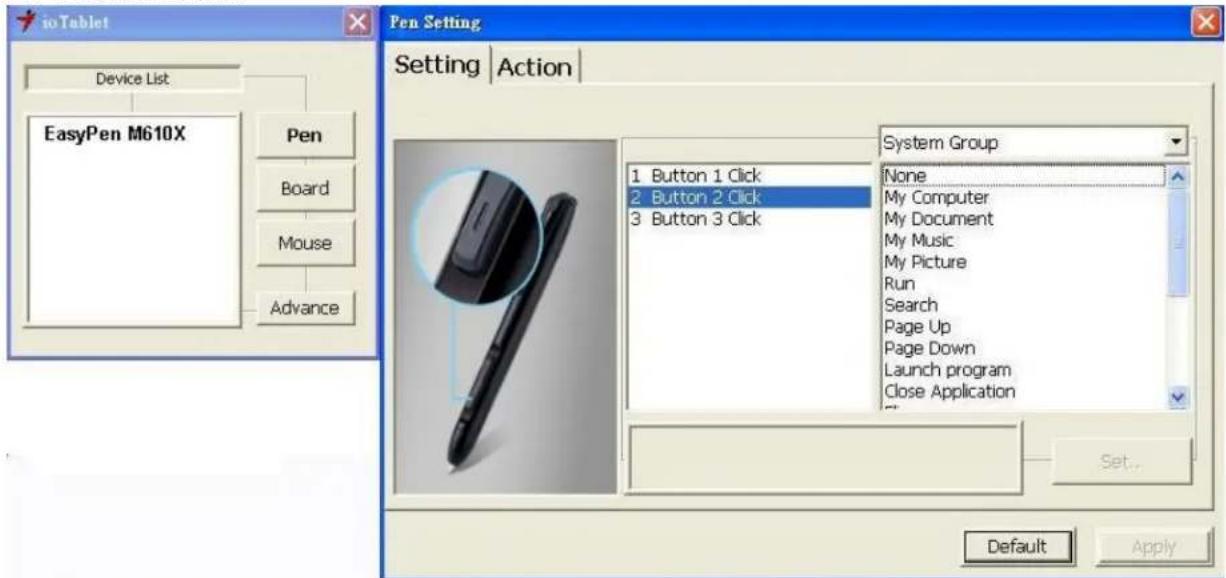
You may re-program the functions of the pen tip and the two-barrel buttons by selecting the button name from the drop down menu and assign a command of a traditional three-button mouse to it. The programmable group includes:
Click Group: Click, Scroll, Lock, etc.
Office Group: Copy, Save, Undo, etc.
System Group: My Computer, My pictures, Media Player, etc.
Browser Group: Back, Forward, Refresh, etc.
Audio Group: Play, Stop, Mute, etc.
Simply chose the function you require and press "Apply" to activate it.
2.2 Mode Setting:
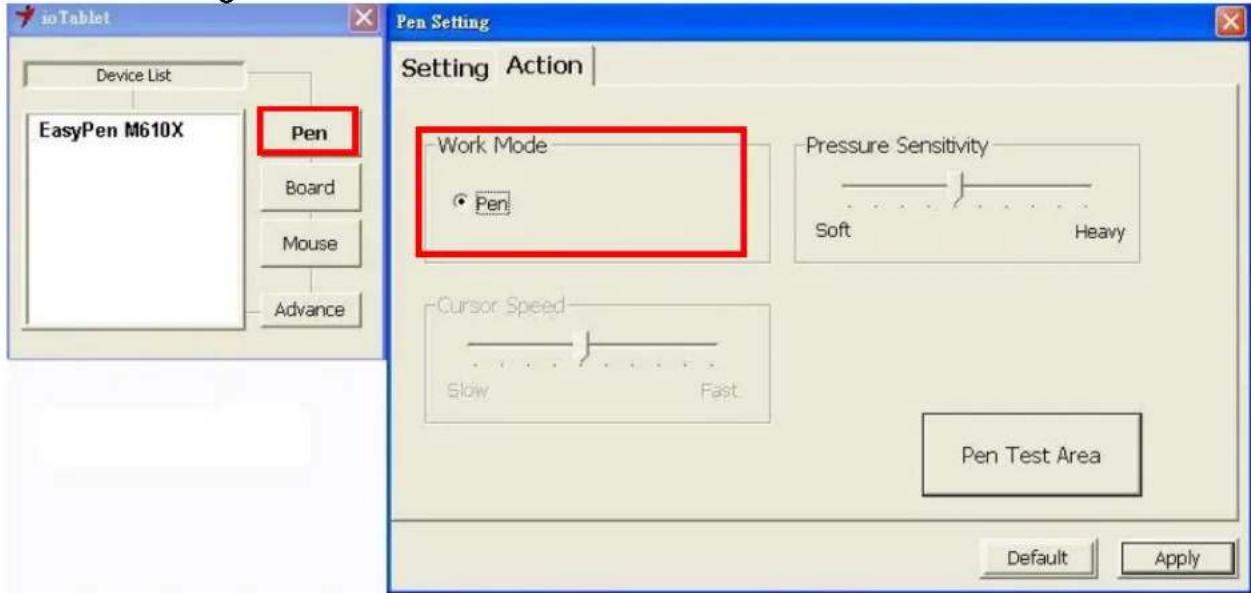
- Pen Mode (Absolute mode): Use the pen to draw, point, click and sign as you wish.
2.3 Pen Sensitivity Adjustment:
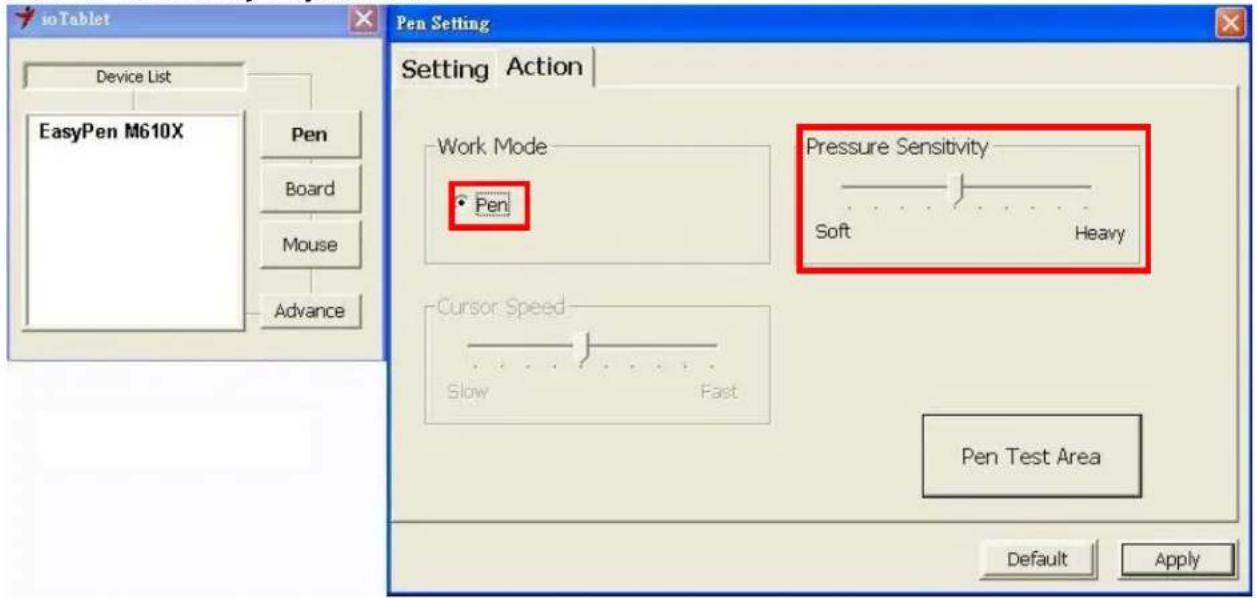
This tablet pen offers 1024 pressure levels sensitivity for all kinds of shapes and thickness. Move the slider in the sensitivity bar to adjust the levels. There is a test area to draw a line by pressing the pen tip on the tablet pad.
2.4 Default:
Tap on the Default button to return to the manufacturer settings.
3. Tablet
3.1 Re-define Express keys:
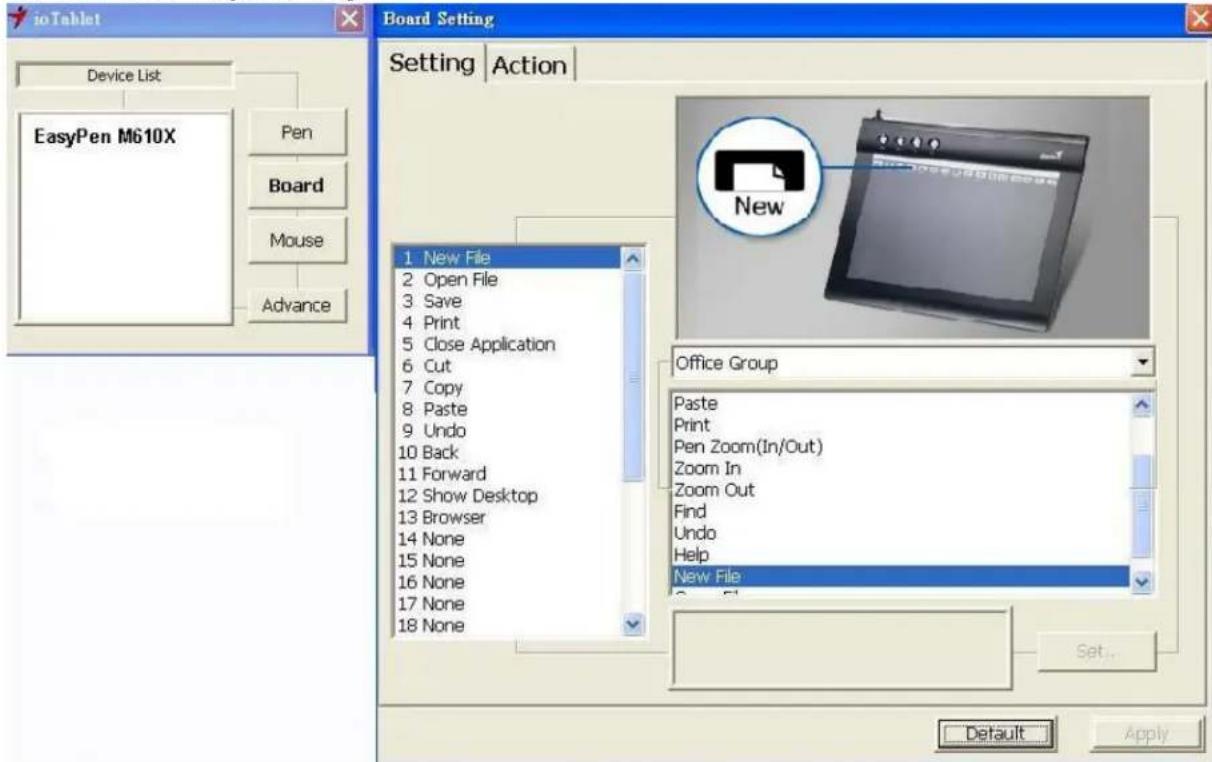
All the available express keys are shown on the left side of the menu. Click on any of them to find out the icon and location. You may re-program any express key from the drop down menu below the tablet picture.
3.2 For Tablet express keys definition:
You may choose any:
Click Group: Click Scroll, Lock, etc.
Office Group: Copy, Save, Undo, etc.
System Group: My Computer, My pictures, Media Player, etc.
Browser Group: Back, Forward, Refresh, etc.
Audio Group: Play, Stop, Mute, etc.
Simply chose the function you require and press "Apply" to activate it.
3.3 Tablet working area:
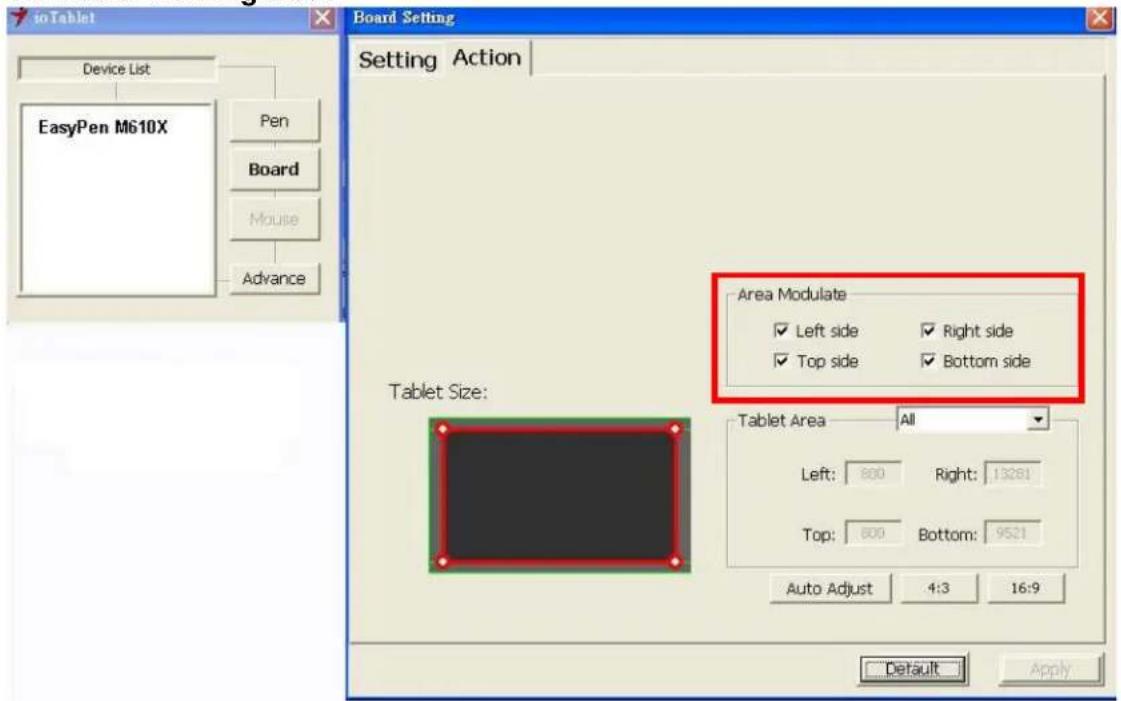
There are two modes available to define the working area, click "Apply" to activate it.
- All (Full Area): Select the largest possible working area depends on the tablet size.
- Part (Programmable Area): Allows you to define the dimensions for top, bottom, left and right. Define the size by inputting any numbers in the blank bars.
3.4 Change Screen Ratio:
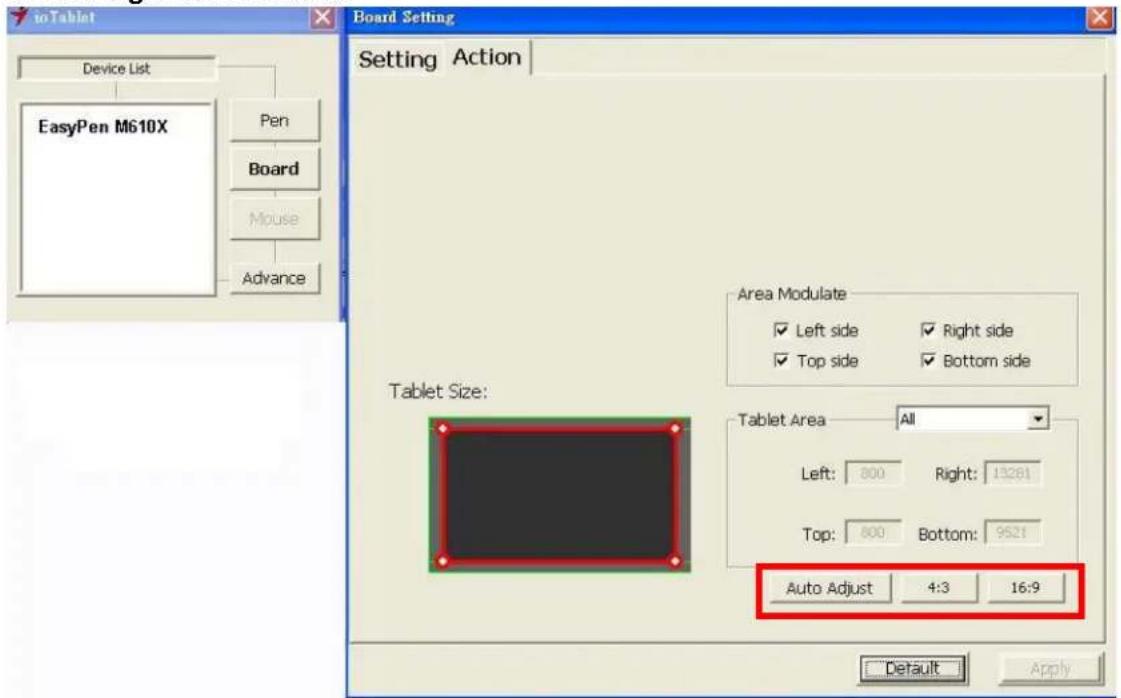
This tablet can be adjusted according to your LCD display.
A. Set the tablet working area the same as the screen size by clicking "Auto Adjust".
B. Switch the screen ratio by selecting 4:3 (Standard) or 16:9 (Wide).
ENGLISH
To avoid inadvertently touching of software shortcuts, you may disable the up/down/right/left four directions software keys by clicking the area modulate. After applying, the software shortcut functions will be closed, allows you to use maximum working area of your tablet.
You may choose any:
Click Group: Click, double click or mode switch.. etc.
Office Group: Copy, Save, Undo, Zoom in/ Zoom out etc.
System Group: My Computer, My pictures, Media Player, etc.
Browser Group: Back, Forward, Refresh, etc.
Audio Group: Play, Stop, Mute, increase volume, decrease volume..etc.
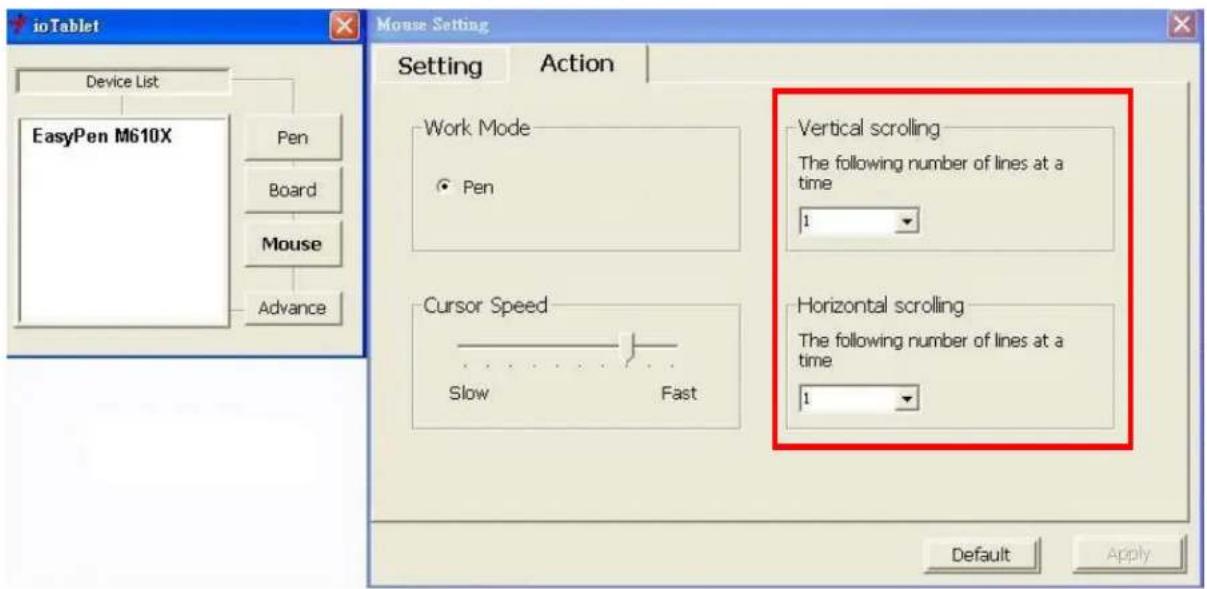
For scrolling wheel group, it allows you to re-program most often used artwork design function such as zoom, brush size, layer switch.
Simply chose the function you require and press "Apply" to activate it.
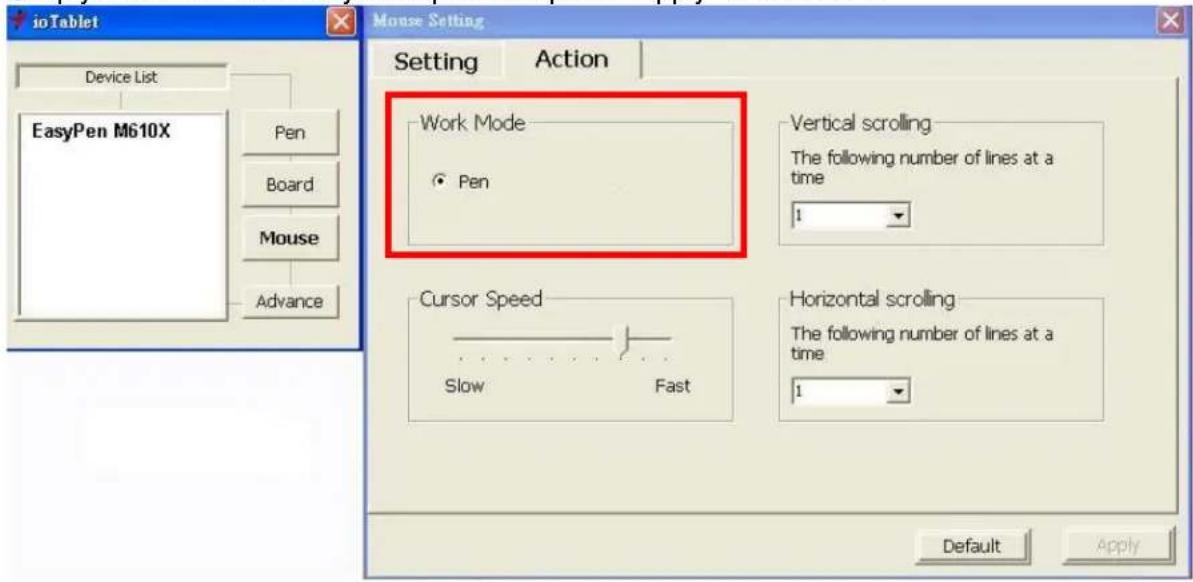
- Pen Mode (Absolute mode): Use the mouse to point, click as you wish.
III. Storing the Digital pen and changing the Pen Battery & Tip
1. Storing the digital pen properly:
To store the digital pen, make sure that the tip does not touch anything, especially, do not let the pen stand in a cup or penholder with the tip down. It is recommended to place the pen in a pen holder or store it with the pen tip pointing upward, or place it horizontally with the pen tip free of any other objects.
To replace the Tablet Pen battery:
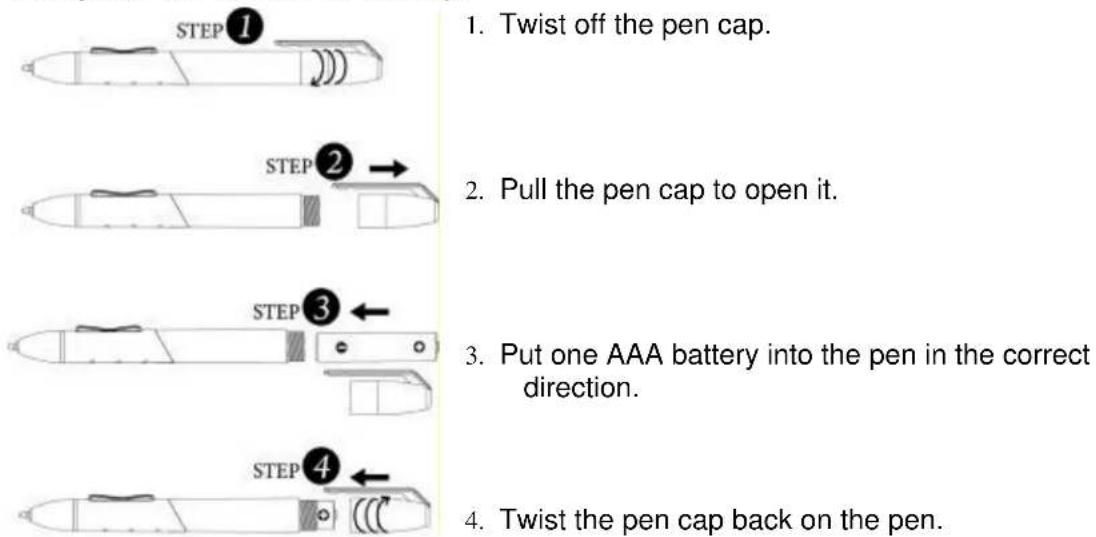
flowchart
graph TD
    A["STEP 1"] --> B["1. Twist off the pen cap."]
    B --> C["2. Pull the pen cap to open it."]
    C --> D["3. Put one AAA battery into the pen in the correct direction."]
    D --> E["4. Twist the pen cap back on the pen."]
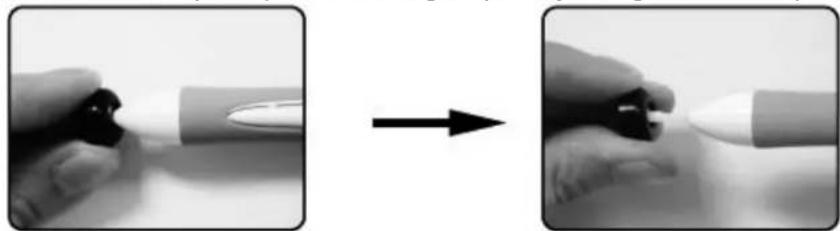
2. Changing the wireless stylus pen tip
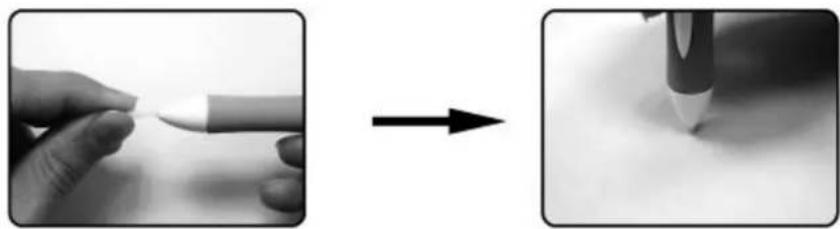
A: Pull out the pen tip from the digital pen by using the Pen Clip.
natural_image
Two-step black-and-white photo showing a hand holding a pen and a small object, connected by an arrow (no text or symbols visible)B: Push the pen tip into the digital pen.
natural_image
Two-step black-and-white photo showing a hand holding a pencil and then applying a pencil to a surface (no text or symbols visible)IV. Question & Answer
Question 1: How can I get the latest update or uninstall the software?
Answer: You can download the new driver from our website.
- Uninstall your old driver: Click [Start] ▶ [All Programs] ▶ [io Tablet] ▶ [Uninstall].
- Download the latest version of the driver from the download section and save it to your hard disk.
- Unzip the file in a folder on your hard disk (with Windows built-in unzip utility or a program like Winzip).
- Double-click the Setup.exe in the folder where you unzipped the file.
Question 2: The tablet cannot work. What can I do?
Check if the following is okay.
- Remove the tablet's USB plug from the computer.
- Uninstall the tablet driver from the system.
- Re-connect the tablet's USB to the computer.
3.1 Check whether the tablet's LED is on or not? If the LED is unlit, that means your tablet is at fault.
3.2 Test your pen in the tablet working area, if it can work as a mouse, it means the hardware is OK.
-
You can download the latest version of driver directly from our website www.geniusnet.com.
-
Setup the new version of the driver; and remember to restart your computer.
-
After you restart your computer, on the bottom right of the screen, you will find the tablet icon ( )?
6.1 If you can't find the tablet icon ( ) on the bottom right of the screen, it means the driver failed to install, and there could be a compatibility issue.
6.2 Check [My Computer] ▶ [Properties] ▶ [Hardware] ▶ [Device Manager], if you see an exclamation mark, it means the installed driver of the tablet is incompatible with the Windows
ENGLISH
system.

- General Information
- Overview
- Pen Tablet Functions
- System Requirements
- Driver Installation
- Hardware Installation
- Verifying Hardware and Driver Functions
- Usage Tips
- Double tapping
- ENGLISH
- Storing the digital pen
- Scrolling function of digital pen
- Using a pen without a mouse
- Pen tablet configuration
- Cordless Pen
- Button Name:
- Mode Setting:
- Pen Sensitivity Adjustment:
- Default:
- Tablet
- Re-define Express keys:
- For Tablet express keys definition:
- Tablet working area:
- Change Screen Ratio:
- Storing the Digital pen and changing the Pen Battery & Tip
- Storing the digital pen properly:
- To replace the Tablet Pen battery:
- Changing the wireless stylus pen tip
- Question & Answer
- Question 1: How can I get the latest update or uninstall the software?
- Question 2: The tablet cannot work. What can I do?
Brand : GENIUS
Model : EasyPen M610X
Category : Graphic tablet