
DA 45 - Receiver PLANTRONICS - Free user manual and instructions
Find the device manual for free DA 45 PLANTRONICS in PDF.


| Product Type | Receiver |
| Brand | Plantronics |
| Model | DA 45 |
| Dimensions (H x W x D) | 2.5 x 3.5 x 1.5 in (6.4 x 8.9 x 3.8 cm) |
| Weight | 4.0 oz (113 g) |
| Power Source | USB or AC adapter (5V DC, 500mA) |
| Connection Type | RJ-9, USB |
| Compatibility | Desk phones, softphones, mobile devices |
| Audio Features | Wideband audio, noise-canceling microphone |
| Control Buttons | Answer/end, mute, volume up/down |
| Indicator Lights | LED for power, call status, mute |
| Installation | Plug-and-play, no drivers required |
| Maintenance | Clean with dry cloth; avoid liquids |
| Storage Temperature | 14°F to 122°F (-10°C to 50°C) |
| Operating Temperature | 32°F to 104°F (0°C to 40°C) |
| Safety Certifications | CE, FCC, RoHS |
| Included Accessories | USB cable, quick start guide |
| Spare Parts Availability | Replacement cables and adapters available |
| Repairability | User-replaceable cable; no internal serviceable parts |
| Warranty | 1 year limited warranty |
Frequently Asked Questions - DA 45 PLANTRONICS
User questions about DA 45 PLANTRONICS
0 question about this device. Answer the ones you know or ask your own.
Ask a new question about this device
Download the instructions for your Receiver in PDF format for free! Find your manual DA 45 - PLANTRONICS and take your electronic device back in hand. On this page are published all the documents necessary for the use of your device. DA 45 by PLANTRONICS.
USER MANUAL DA 45 PLANTRONICS
natural_image
Close-up of two black USB devices with cables and connectors, no visible text or symbolsPLANTRONICS
DA45 ^TM
WELCOME
Welcome to the Plantronics family of headset products. Plantronics provides a wide range of products from mission-critical and business-critical applications to personal communications and entertainment. For additional information visit our web site at www.plantronics.com where you can visit our 24/7 support, browse through our knowledge base, chat live or ask a question. We also feature a variety of installation tutorials to make set up quick and easy.
TABLE OF CONTENTS
Register your Product Online 2
Technical Assistance 2
DA45 Package Contents 3
Features 3
Powering USB Adapter 4
Installing PerSonoCall® Software 4
Connecting Headset 5
Using the Headset 5
Troubleshooting 7
Warranty 8
REGISTER YOUR PRODUCT ONLINE
Visit www.plantronics.com/productregistration to register your product online so we can provide you with the best possible service and technical support.
TECHNICAL ASSISTANCE
Visit our Web site at www.plantronics.com/support for technical support including frequently asked questions, compatibility and accessibility information. The Plantronics Technical Assistance Center (TAC) is also ready to assist you. Dial [800] 544-4660 ext. 5538
PACKAGE CONTENTS
DA45
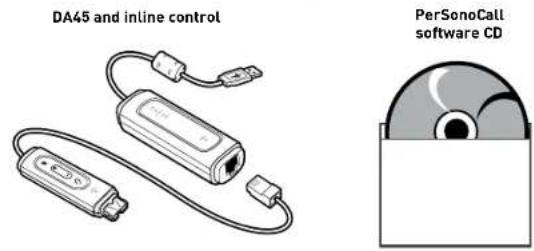
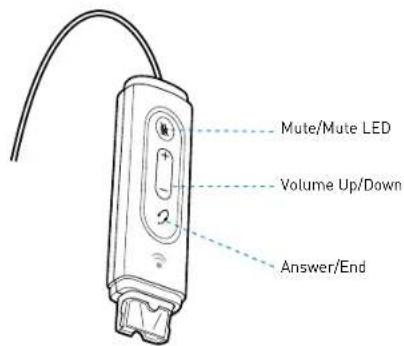
FEATURES
WARNING: Do not use headphones/headsets at high volumes for an extended period of time. Doing so can cause hearing loss. Always listen at moderate levels. See www.plantronics.com/healthandsafety for more information on headsets and hearing.
POWERING
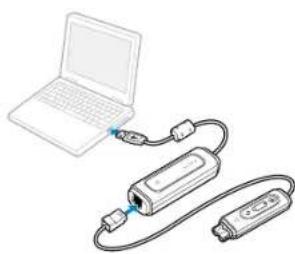
Powering USB Adapter
natural_image
Illustration of a laptop connected to a device via cable, showing ports and wiring (no text or symbols)The USB adapter is automatically powered on upon inserting into the USB port of the computer.
INSTALLING PERSONOCALL SOFTWARE
Plantronics PerSonoCall software provides the link between your headset and the softphone application on your computer. PerSonoCall software provides the ability to remotely detect and answer/end a call from your softphone application via the headset call control button.
- With the CD inserted, go to the PerSonoCall main screen and click on "Install the PerSonoCall Software."
- Your softphone may require you to choose which audio device you wish to use. Please refer to softphone documentation for details.
NOTE: When the USB adapter is installed, it becomes the default audio device in your computer. You can set preferences manually in the Windows ^® operating system through the Sounds and Audio Devices option in the Control Panel.
NOTE: Once installed we recommend that you set PerSonoCall to launch whenever the Windows operating system starts.
System Tray Icons
After installing the software, one of the two system tray icons will appear in the tray bar at the bottom of your screen showing status of headset communication with PerSonoCall.

: No headset detected
Headset detected
Configuration and status

Right click on the headset system tray icon and choose "Options". This will bring up the PerSonoCall Basic Options and Current Status Screens.
Refer to online application help for explanation details on the PerSonoCall software.
CONNECT HEADSET
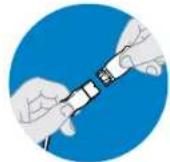
Quick Disconnect™ Connector
This feature allows you to place a call on hold and move away from the phone without removing the headset. When you separate the Quick Disconnect, you place an ongoing conversation on hold.
Before using your headset, join the Quick Disconnect to the mating connector of the modular adapter cable.
To put your call on hold, grasp Quick Disconnect, as shown, and pull straight apart. To resume your conversation, reconnect the halves.
USING YOUR HEADSET
Answering/Ending/Making Calls with PersonoCall on Softphone
To make a call, simply dial the number via your softphone application.
To answer or end a call, press the answer/end button.
For Softphones Not Compatible with PerSonoCall
Check the PerSonoCall compatibility list at www.plantronics.com/personocall for the most current information on softphone compatibility.
If your softphone is not currently supported by PerSonoCall, remote detection and answer/end via the headset does not function. Pressing the call control button on the headset will not function; you must answer the call from the softphone.
Putting a call on hold
If your softphone supports this feature, holding down the answer/end button for 2 seconds will place the call on hold. Refer to your phone's user guide for additional features available while on hold. Pressing the answer/end button again will take the call off hold.
USING YOUR HEADSET
Adjusting Volume
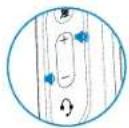
To increase listening volume, press the upper end (+) of the volume button. To decrease listening volume, press the lower end (-).
To adjust the listen or speak volume of the softphone, please refer to the softphone user documentation.
To adjust the listen or speak volume of the audio device on the computer, use the Sound and Audio Device section on the control panel.
Muting a Call
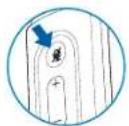
During a call, briefly press the mute button to mute the microphone. When muted, the Mute LED will be lit.
To unmute press the button again.
Smart Button
PerSonoCall allows you to choose an application to launch automatically using the Smart Button feature.
Go to options in PerSonoCall, check the Smart Button box on the Basic Option tab and browse to choose the application you want to launch. Pressing the Mute Button for 2 seconds will automatically launch that application.
NOTE: Mute is not activated if the button is held for more than 2 seconds.
TROUBLESHOOTING
Problem Solution
My headset does not work with the DA45 I am using on my PC. (I cannot answer or disconnect from the headset call button).
- Check compatibility list on www.plantronics.com/personocall to ensure your softphone is compatible for remote answer and disconnect
- When a PC goes into standby or hibernation, the USB adapter is no longer powered on. Be sure your PC is in an active state.
- Be sure PerSonoCall software is installed and running.
I cannot hear caller.
- The USB adapter is not set as the default audio device. Use the Audio settings in Windows under Sounds and Audio Devices to select "DA45 Adapter" as the audio device.
- Listening volume is too low. Press the volume up button on the headset.
Callers cannot hear me.
- Headset is muted. Press the mute button on headset to unmute the microphone.
- Headset microphone boom aligned incorrectly. Align the headset boom with your mouth.
- The USB adapter is not set as the default voice device. Use the Voice settings in Windows under Sounds and Voice Devices to select "DA45 Adapter" as the voice device.
Sound in headset is distorted. I can hear echo in headset.
- Lower the listen volume on your softphone until the distortion disappears.
- Adjust volume on headset.
The other headset I was using to listen to music does not work any more.
- The USB adapter will set itself as the default audio device in Windows. Use the Audio settings in Windows under Sounds and Audio Devices to change the device used for audio.
My headset stops responding to button presses.
- When a PC goes into standby or hibernation, the USB adapter no longer is powered on. Be sure your PC is in an active state.
WARRANTY
LIMITED WARRANTY
- This warranty covers defects in materials and workmanship of products manufactured, sold or certified by Plantronics which were purchased and used in the United States.
- The warranty lasts for two years from the date of purchase of the products.
This warranty extends to you only if you are the end user with the original purchase receipt. - We will at our option, repair or replace the products that do not conform to the warranty. We may use functionally equivalent reconditioned/refurbished/remanufactured/pre-owned or new products or parts.
• To obtain service in the U.S., contact Plantronics at [866] 363-BLUE (2583).
THIS IS PLANTRONICS' COMPLETE WARRANTY FOR THE PRODUCTS. - This warranty gives you specific legal rights, and you may also have other rights that vary from state to state. Please contact your dealer or our service center for the full details of our limited warranty, including items not covered by this limited warranty.
The Class B digital apparatus complied with Canadian ICES-002
Brazil
Tel: 001-800-544-4660 +1 831 458 7800
Canada
Tel: (800) 540-8363 (514) 956 8363
United Kingdom
Plantronics Ltd Wootton Bassett, UK Tel: 0800 410014 +44 (0)1793 842200
Plantronics Ireland
Citywest Business Campus Dublin 24 Office: +353 (0)1 4693725 Service ROI: 1800 551 896
Germany
© 2007 Plantronics, Inc. All rights reserved. Plantronics, the logo design, DA46, and PerSonoCall are trademarks or registered trademarks of Plantronics, Inc. Windows is either a registered trademark or a trademark of Microsoft Corporation in the United States and/or other countries. All other trademarks are the property of their respective owners. Patents U.S. 5,210,791; 5,259,780; D494,154; and D505,413 and Patents Pending.
78803-01 (10/07)
- PLANTRONICS
- WELCOME
- TABLE OF CONTENTS
- REGISTER YOUR PRODUCT ONLINE
- TECHNICAL ASSISTANCE
- POWERING
- Powering USB Adapter
- INSTALLING PERSONOCALL SOFTWARE
- System Tray Icons
- Configuration and status
- CONNECT HEADSET
- Quick Disconnect™ Connector
- USING YOUR HEADSET
- Answering/Ending/Making Calls with PersonoCall on Softphone
- For Softphones Not Compatible with PerSonoCall
- Putting a call on hold
- Adjusting Volume
- Muting a Call
- Smart Button
- TROUBLESHOOTING
- Problem Solution
- I cannot hear caller.
- Callers cannot hear me.
- Sound in headset is distorted. I can hear echo in headset.
- The other headset I was using to listen to music does not work any more.
- My headset stops responding to button presses.
- WARRANTY
- LIMITED WARRANTY
- Brazil
- Canada
- United Kingdom
- Plantronics Ireland
- Germany
Brand : PLANTRONICS
Model : DA 45
Category : Receiver