
EZWALL-PLUS 2X2 - Regulator Smart-AVI - Free user manual and instructions
Find the device manual for free EZWALL-PLUS 2X2 Smart-AVI in PDF.


| Product Type | Video Wall Controller |
| Model | EZWALL-PLUS 2X2 |
| Brand | Smart-AVI |
| Dimensions (W x H x D) | 9.5 x 2 x 8 in (241 x 51 x 203 mm) with tripod |
| Weight | 3.75 lbs (1.7 kg) |
| Power Supply | 12V DC, 3A (PS12VDC5A); Input 100-240V AC |
| Video Outputs | 4x HDMI |
| Video Inputs | 1x HDMI, 1x DVI, 1x VGA |
| USB Ports | 2x USB 2.0 Type A (media player) |
| Output Resolution | Up to 1080p (1920x1080 @ 60Hz) |
| Input Resolution | Up to 1080p (1920x1080) |
| HDCP Compliance | 1.0/2.0 |
| Audio | 3.5 mm input and output |
| Control Methods | Front panel buttons, IR remote, TCP/IP (Ethernet) |
| Video Wall Modes | Wall (2x2), Clone, 1x2, 2x1 |
| USB Media Player Formats | Video: MJPEG, MPEG-1/2/4, H.264; Audio: MP3, WMA, AAC, PCM; Image: JPEG, BMP, PNG |
| EDID Learning | Internal EDID learning |
| Mounting | Desktop (tripod included) |
| Warranty | 1-year limited warranty |
| Country of Manufacture | USA |
Frequently Asked Questions - EZWALL-PLUS 2X2 Smart-AVI
User questions about EZWALL-PLUS 2X2 Smart-AVI
0 question about this device. Answer the ones you know or ask your own.
Ask a new question about this device
Download the instructions for your Regulator in PDF format for free! Find your manual EZWALL-PLUS 2X2 - Smart-AVI and take your electronic device back in hand. On this page are published all the documents necessary for the use of your device. EZWALL-PLUS 2X2 by Smart-AVI.
USER MANUAL EZWALL-PLUS 2X2 Smart-AVI
2x2 HD Video Wall Controller HDMI, DVI, and VGA Input Integrated USB Media Player
Smart-AM
SMART AUDIO VIDEO INNOVATION
TABLE OF CONTENTS
WHAT'S IN THE BOX? 2
INTRODUCTION 3
FEATURES 3
APPLICATIONS 3
TECHNICAL SPECIFICATIONS 4
HARDWARE INSTALLATION 5
FRONT PANEL CONTROL 7
IR REMOTE CONTROL 9
CONTROL VIA ETHERNET/IP 11
LIMITED WARRANTY STATEMENT 14
WHAT'S IN THE BOX
| PART NO. QTYDESCRIPTION | ||
| EZWALL-PLUS 2X2 1 | Multi-Format Video Wall Controller | |
| PS12VDC5A 1 Power Adapter | ||
| SAVI-RMT 1 IR Remote Control | ||
| SM-EYE2 1 IR Receiver | ||
| User Manual 1 | ||
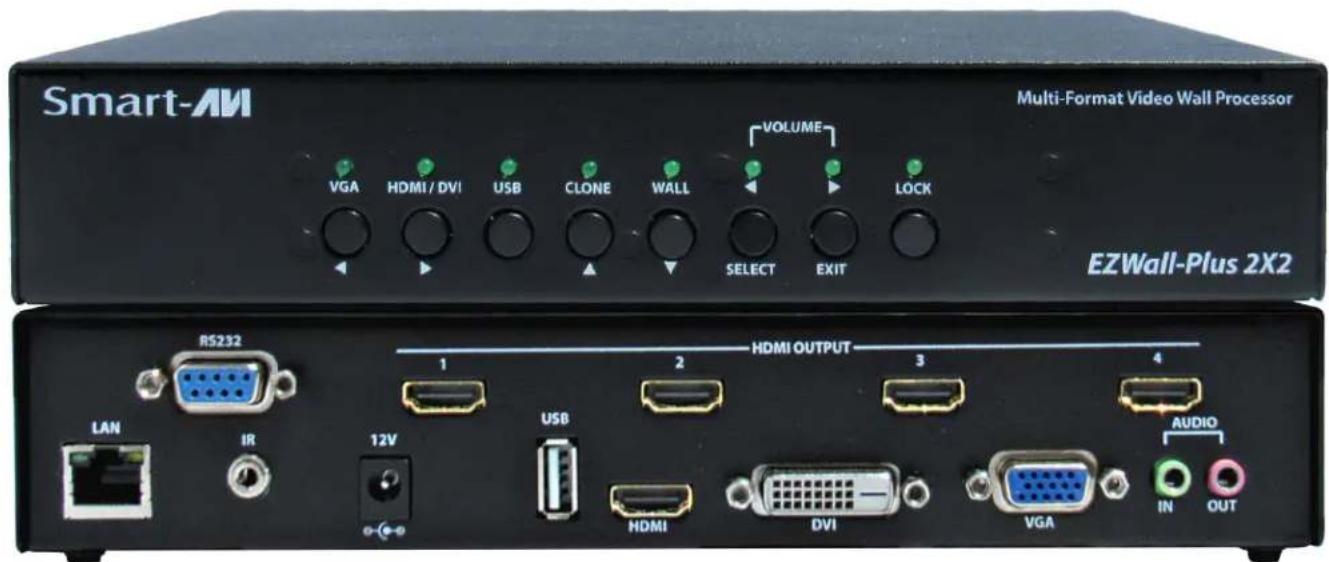
Figure 2-1
INTRODUCTION
The EZWALL-PLUS 2X2 offers top-notch HD-HDMI output for five different types of signal inputs. Create striking 2x2 wall displays easily with simple signal switching and flexible connectivity. The EZWALL-PLUS 2X2 even features a fully-integrated USB media player.
The EZWALL-PLUS 2X2 is capable of expanding any supported video input to four-large screens at 1080p, thus showcasing its stunning picture quality. In this guide, you will learn how to install and optimize your experience with the EZWALL-PLUS 2X2 using basic steps. These steps will include setting up the hardware, activating and connecting your system, and offer helpful tips on how to best use the EZWall-PLUS 2X2's excellent selection of picture modes to enhance your video wall.
FEATURES
- Four screen (2x2) multi-layout, multi-format video wall controller
- Outputs: (4) HDMI
- Inputs: (1) HDMI, (1) VGA, (1) DVI
- Integrated USB media player for digital video, imagery, and audio
- Internal EDID learning
• 1080p (1920x1080 @ 60Hz) Full HD resolution output - No additional hardware or software required
• Supports control via Front Panel Buttons
• Supports control via IR Remote control
• Supports control via TCP/IP
• HDCP and HDMI 1.4 compliant
APPLICATIONS
• Corporate or Educational Presentations
- Airport Installations
- Wall Displays
- Digital Signage
- Dealer Rooms
- Control Rooms
- Shopping Centers
- Security
- Point-of-Sale
- Entertainment Venues
• Corporate Lobbies
- Restaurants
TECHNICAL SPECIFICATIONS
| VIDEO & AUDIO | |
| Output Resolutions Up to | 1080P (1920x1080@60Hz) |
| Input Resolutions Up to 10 | 80P (1920x1080) |
| Outputs (4) HDMI | |
| Inputs (1) HDMI, (1) DVI, (1) VGA, (2) USB 2.0 Type A | |
| HDCP Compliance 1.0/2.0 | |
| Audio (1) 3.5 mm input, (1) | 3.5 mm output |
| CONTROL | |
| Front Panel Buttons | |
| IR Remote Control SAVI-RMT | |
| Ethernet (TCP/IP) RJ-45 | |
| OTHER | |
| Power PS12VDC5A | |
| Dimensions 9.5" (241 mm) | W x 2" (51 mm) H x 8" (203 mm) D |
| Weight 3.75 lbs | |
| USB MEDIA PLAYER | |
| Signal Type USB 2.0, 1.1, and 1.0 (Type A) | |
| Video Formats * | MJPEG, MPEG-1, MPEG-2, MPEG-4, Vvid, DivX H.264 |
| Max Resolution | 1920x1080 @30fps |
| Max Data Rate | 20 mbps. |
| Audio Formats * | MP3, WMA, AAC, MP2, PCM, AC3 |
| Photos Max Resolutions * | JPEG - 15360x8640, BMP - 9600x6400, PNG - 9600x6400 |
*PLEASE NOTE: EZ-WALL-PLUS 2X2 only supports the primary formats listed above. Any unlisted formats are not compatible with EZWall-PLUS 2X2.
HARDWARE INSTALLATION
For the safety of your equipment, please read the safety instructions carefully before using or installing this device.
- This equipment uses 12V/3A external power supply; power supply supports 100-240V AC voltage input, only use the provided power supply.
- Please make sure to power off when you connect cables or carry the equipment.
- Do not bundle the cables, rather separate the power cables and signal cables to prevent interference.
- Keep cooling vent openings free of any obstructions to allow proper facilitation of cool air to the device
- All maintenance work should be done by professional maintenance personnel.
- Position EZWALL-PLUS 2X2 conveniently and keep it unplugged.
- Connect the HDMI output cables between the EZWALL-PLUS 2X2 and your video wall screens.
- Connect any input to their corresponding signal source input connector (Blu-ray player, computer, etc).
- Optionally connect the IR-EYE (receiver) to the IR input jack on the EZWALL-PLUS 2X2
- Optionally connect an audio source to the audio input jack on the EZWALL-PLUS 2X2.
- Optionally connect an Ethernet cable for additional control over your LAN or the internet (TCP/IP)
- Optionally connect USB storage devices
- Optionally connect speakers. (You can use sound via HDMI instead if your systems support this.)
- Turn on the EZWALL-PLUS 2X2 and wait a few seconds for the unit to initialize.
HDMI Output and TV Connection
HDMI1 connect to LCD1(Display 1);
HDMI2 connect to LCD2(Display 2);
HDMI3 connect to LCD3(Display 3);
HDMI4 connect to LCD4(Display 4).

flowchart
graph TD
    A["LCD 1 LCD 2"] --> B["Output"]
    C["LCD 3 LCD 4"] --> D["Output"]
    E["123 HDMI OUTPUT"] --> F["Output"]
    style A fill:#f9f,stroke:#333
    style C fill:#f9f,stroke:#333
    style E fill:#ccf,stroke:#333
    style B fill:#ccf,stroke:#333
    style D fill:#ccf,stroke:#333
    style F fill:#ccf,stroke:#333
Figure 5-1: Input signal interface
The following diagram shows the inputs available in on the back panel:

Figure 5-2
HARDWARE INSTALLATION (Continued)

Figure 6-1: System topology diagram
Device Pictures and Dimensions
9.5" (241 mm) W x 2" (51 mm) H x 8" (183 mm) D (without Tripod);
9.5" (241 mm) W x 2" (51 mm) H x 8" (203 mm) D (with Tripod);

Figure 6-2
FRONT PANEL CONTROL
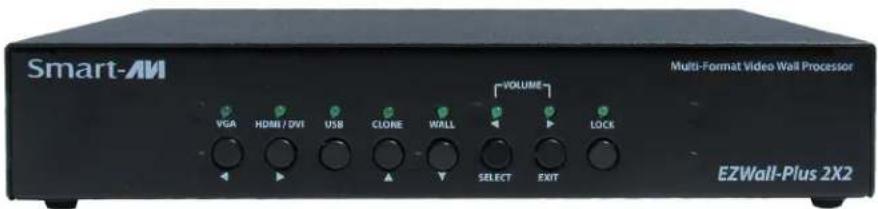
To switch between listed sources, press:
- VGA
- HDMI/DVI
- USB
To switch to Video Wall mode, press the WALL button.
To switch to Clone mode, press the CLONE button.
Pressing the LOCK button will disable the other buttons.
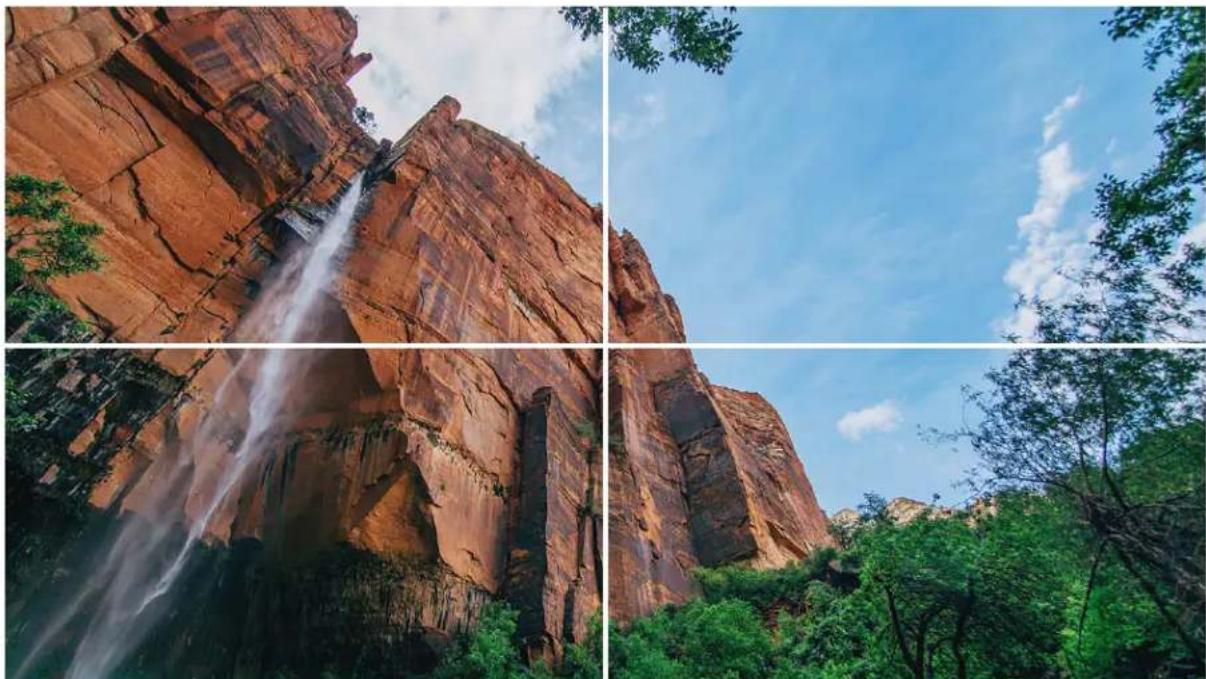
WALL MODE
An Image can be displayed across four HD screens 2X2.
natural_image
Four-panel photo collage showing a cascading red rock canyon with a water feature, surrounded by lush green trees under a blue sky.Figure 7-1
FRONT PANEL CONTROL (Continued)
WALL MODE - VIDEO FLIP
An Image can be displayed across four HD screens 2X2.

natural_image
Two-panel photo of a waterfall cascading over reddish-brooke rock cliffs, with waterfalls and greenery visible (no text or symbols)
natural_image
Two scenic views of a red rock formation with green trees and blue sky, labeled 'SmartAVI SmartAVI' in top two (no other text or symbols)Figure 8-1
Many HDTV displays have a bezel that is wider on the bottom than it is on the top and sides. The Wall mode video flip feature fixes this by allowing you to flip the top two displays in your video wall by 180 degrees so the wide edges are no the outside of the video wall.

natural_image
Two identical photos of a steep, rocky canyon waterfall with waterfalls, no text or symbols visible.
natural_image
Two-panel image showing a red rock formation with green foliage and a blue sky (no text or symbols)Figure 8-2 Figure 8-3

natural_image
Two scenic views of a red rock canyon with waterfalls and greenery, labeled 'SmartAVI' in the corner (no other text or symbols)
natural_image
Two-panel image showing a blue sky with scattered clouds above a steep rock face and dense green trees in the foreground (no text or symbols visible)CLONE MODE
The image can be displayed on each display individually.
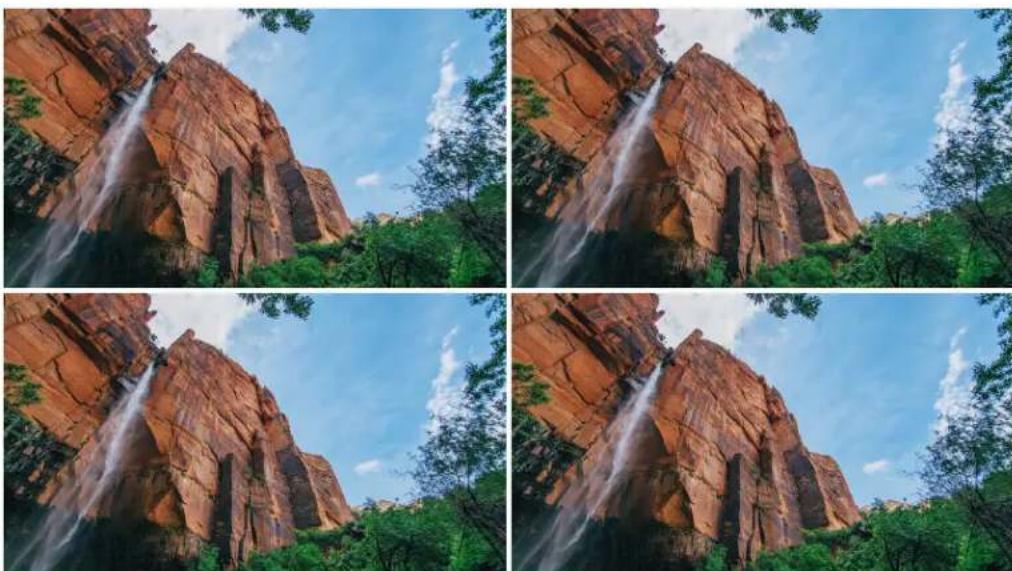
natural_image
Four-panel photo collage of a red rock canyon with waterfalls and greenery under a blue sky (no text or symbols)Figure 8-4
IR REMOTE CONTROL
| BUTTON DESCRIPTION | |
| WALL Video | Wall Mode (Figure 6-1) |
| CLONE Clone | Mode (Figure 6-2) |
| M1 | LOCK or UNLOCK (Disables or enables all other buttons) |
| SOURCE | Pressing SOURCE followed by pressing a number will select the source port number. (Table 7-1) |
USB PLAYER REMOTE CONTROL
| BUTTON DESCRIPTION | |
| While Navigating ON Screen Menus | |
| USB | Pressing USB followed by pressing number 1 or 2 will select the USB port. |
| [OK] Center Button | Enter or Select |
| ▲ | Navigate UP |
| ▼ | Navigate DOWN |
| ◀ | Navigate LEFT |
| ▶ | Navigate RIGHT |
| While Videos or Pictures are displayed | |
| [OK] Center Button | DISPLAY MENU |
| ▼ | TURN OFF MENU |
| ▶ | VOLUME UP |
| ◀ | VOLUME DOWN |
Note that when not using all four displays the unused displays will be a clone of output #1

Figure 9-1
IR REMOTE CONTROL (Continued)
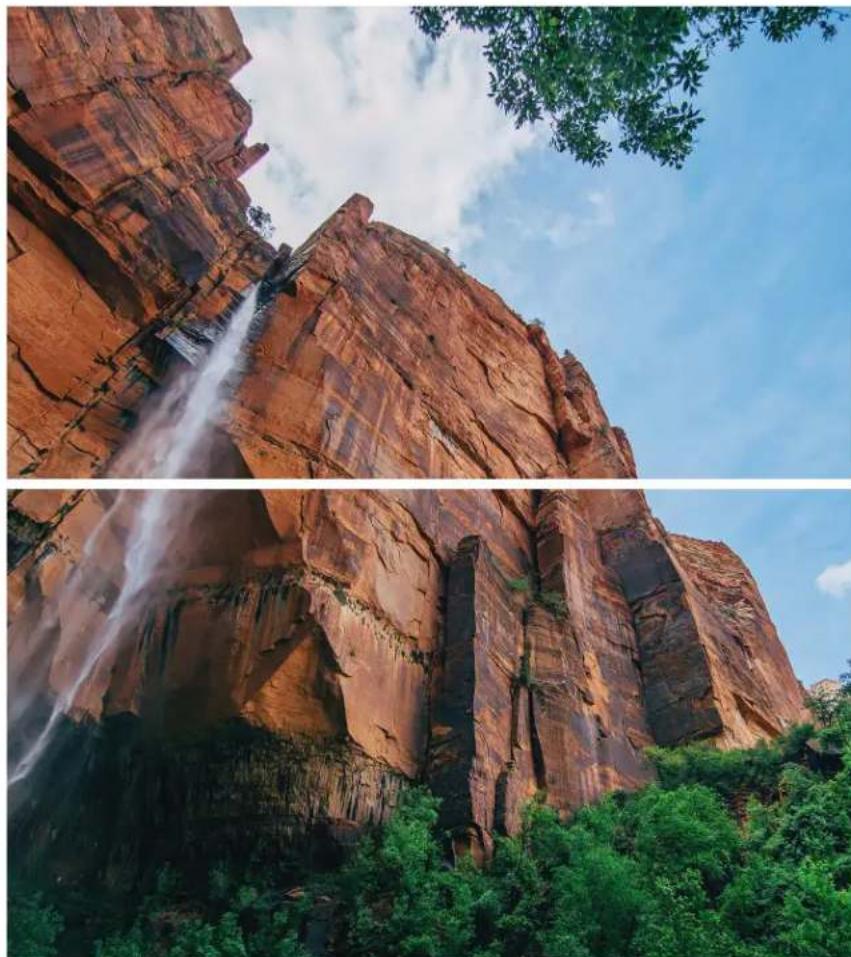
natural_image
Two views of a tall red rock canyon with a cascading waterfall and lush green forest under a blue sky (no text or symbols visible)Figure 10-1: 1X2 Mode (F1 Button)

natural_image
Scenic view of a steep, rocky canyon with a tall waterfall cascading over the cliffside under a partly cloudy sky.
natural_image
View looking up at a blue sky with scattered white clouds and tree branches framing the sky (no text or symbols)Figure 10-2: 2X1 Mode (F2 Button)
CONTROL VIA ETHERNET/IP
EZWALL-PLUS 2X2 TCP/IP control is a feature that allows mode switching and other configurations to be controlled remotely via HTTP. Manage your EZWALL-PLUS 2X2 with ease from anywhere in the world.
First, find the IP address for the EZ-Wall-Pro. Finder.exe (Smart IP-Finder) is conveniently available on our website (please visit www.smartavi.com/helpful-links.html for this and our full list of compatible third-party software). Download the IP address finder software for your device. The EZWALL-PLUS 2X2 and its IP address should appear in the display as shown in the figure 10-1.

Figure 11-1
Enter the IP address into the web browser of your choice. When asked for the username and password, enter the default credentials, admin/admin.
You can change the User ID and password by clicking the configurations tab. You should then see the EZWALL-PLUS 2X2 Home/Welcome page as shown in figure 10-2.

Figure 11-2
CONTROL VIA ETHERNET/IP (Continued)
Click the CONFIGURATION tab in the top toolbar to configure your network settings.
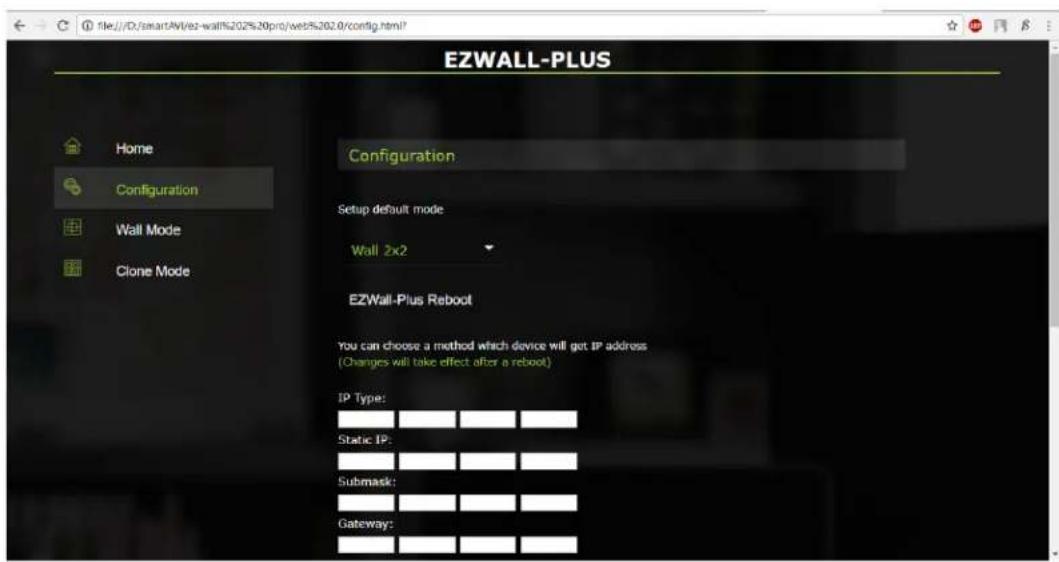
Figure 12-1
You can easily switch to WALL MODE or CLONE MODE based on your set up.

Figure 12-2
CONTROL VIA ETHERNET/IP (Continued)
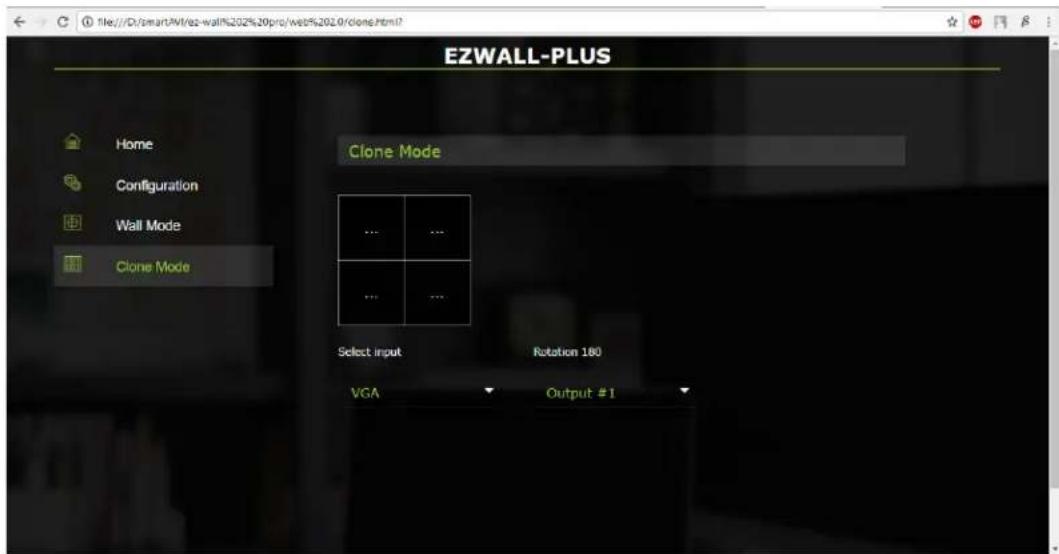
Figure 13-1
USB function
The EZWALL-Plus can support video, audio, picture, and text files from a USB Drive.
Video includes many different formats such as MP4, AVI, MPEG, WMV, RMVB with resolutions up to 1080P.
LIMITED WARRANTY STATEMENT
A. Extent of limited warranty
SmartAVI Technologies, Inc. warrants to the end-user customers that the SmartAVI product specified above will be free from defects in materials and workmanship for the duration of 1 year, which duration begins on the date of purchase by the customer. The customer is responsible for maintaining proof of date of purchase.
SmartAVI's limited warranty covers only those defects which arise as a result of normal use of the product, and do not apply to any:
a. Improper or inadequate maintenance or modifications
b. Operations outside product specifications
c. Mechanical abuse and exposure to severe conditions
If SmartAVI receives (during applicable warranty period) a notice of defect, SmartAVI will at its discretion replace or repair the defective product. If Smart-AVI is unable to replace or repair the defective product covered by the SmartAVI warranty within a reasonable period of time, SmartAVI shall refund the cost of the product.
SmartAVI will have no obligation to repair, replace or refund unit until customer returns the defective product to SmartAVI.
Any replacement product could be new or like new, provided that it has functionality at least equal to that of the product being replaced.
Smart-AVI limited warranty is valid in any country where the covered product is distributed by SmartAVI.
B. Limitations of warranty
To the extent allowed by local law, neither SmartAVI nor its third party suppliers make any other warranty or condition of any kind whether expressed or implied with respect to the SmartAVI product, and specifically disclaim implied warranties or conditions of merchantability, satisfactory quality, and fitness for a particular purpose.
C. Limitations of liability
To the extent allowed by local law, the remedies provided in this warranty statement are the customers sole and exclusive remedies.
To the extent allowed by local law, except for the obligations specifically set forth in this warranty statement, in no event will SmartAVI or its third party suppliers be liable for direct, indirect, special, incidental, or consequential damages whether based on contract, tort or any other legal theory and whether advised of the possibility of such damages.
D. Local law
To the extent that this warranty statement is inconsistent with local law, this warranty statement shall be considered modified to be consistent with such law.
Smart-AMI
SMART AUDIO VIDEO INNOVATION
NOTICE
The information contained in this document is subject to change without notice. Smart-AVI makes no warranty of any kind with regard to this material, including but not limited to, implied warranties of merchantability and fitness for particular purpose. Smart-AVI will not be liable for errors contained herein or for incidental or consequential damages in connection with the furnishing, performance or use of this material. No part of this document may be photocopied, reproduced, or translated into another language without prior written consent from Smart-AVI Technologies, Inc.
20180720

Designed and Manufactured in the USA
800.AVI.2131
Tel: (818) 503-6200 | Fax: (818) 503-6208
11651 Vanowen St. North Hollywood, CA 91605
SmartAVI.com
- 2x2 HD Video Wall Controller HDMI, DVI, and VGA Input Integrated USB Media Player
- TABLE OF CONTENTS
- WHAT'S IN THE BOX
- INTRODUCTION
- FEATURES
- APPLICATIONS
- HARDWARE INSTALLATION
- HDMI Output and TV Connection
- HARDWARE INSTALLATION (Continued)
- Device Pictures and Dimensions
- FRONT PANEL CONTROL
- WALL MODE
- FRONT PANEL CONTROL (Continued)
- WALL MODE - VIDEO FLIP
- CLONE MODE
- IR REMOTE CONTROL
- USB PLAYER REMOTE CONTROL
- IR REMOTE CONTROL (Continued)
- CONTROL VIA ETHERNET/IP
- CONTROL VIA ETHERNET/IP (Continued)
- USB function
- LIMITED WARRANTY STATEMENT
- Extent of limited warranty
- Limitations of warranty
- Limitations of liability
- Local law
- Smart-AMI
- SMART AUDIO VIDEO INNOVATION
- NOTICE
Brand : Smart-AVI
Model : EZWALL-PLUS 2X2
Category : Regulator