
GoPal P4410 M5 (MD 96433) - Gps MEDION - Free user manual and instructions
Find the device manual for free GoPal P4410 M5 (MD 96433) MEDION in PDF.


| Product Type | GPS Navigation System |
| Brand | Medion |
| Model | GoPal P4410 M5 (MD 96433) |
| Dimensions | Approx. 132 x 91 x 22 mm |
| Weight (including battery) | Approx. 210 g |
| Display | Touch screen (size not specified in manual; typical for this model: 4.3") |
| Battery | Built-in rechargeable; charging indicator (orange charging, green full) |
| Power Supply | Car adapter (12V DC cigarette lighter); optional AC adapter (100-240V AC, 50/60 Hz, output 5V 1A) |
| Memory Card Support | SD/MMC slot (FAT16/32 format) |
| Bluetooth | Yes, Class 2; handsfree calling |
| GPS Receiver | Built-in; external antenna connector (MMCX) |
| TMC (Traffic Message Channel) | Supported via optional angled aerial (connects to earphone jack) |
| Operating Temperature | +5°C to +40°C |
| Storage Temperature | 0°C to +60°C |
| Humidity | 10-90% (non-condensing) |
| USB Interface | Mini-USB 1.1 for PC synchronization (ActiveSync) |
| Audio | Built-in speaker; 3.5 mm stereo earphone jack |
| Software Features | Navigation, MP3 player, picture viewer, travel guide (optional) |
| Accessories Included | Car holder, suction plate, car adapter, stylus, CDs/DVDs (navigation software, support CD) |
| Warranty | Standard warranty per receipt; details in manual |
Frequently Asked Questions - GoPal P4410 M5 (MD 96433) MEDION
User questions about GoPal P4410 M5 (MD 96433) MEDION
0 question about this device. Answer the ones you know or ask your own.
Ask a new question about this device
Download the instructions for your Gps in PDF format for free! Find your manual GoPal P4410 M5 (MD 96433) - MEDION and take your electronic device back in hand. On this page are published all the documents necessary for the use of your device. GoPal P4410 M5 (MD 96433) by MEDION.
USER MANUAL GoPal P4410 M5 (MD 96433) MEDION
Safety and Maintenance ....1
Safety Instructions.... 1
Data Security 2
Operating Environment....2
Repair 3
Ambient Temperature....3
Electromagnetic Compatibility....4
Connection 5
Cabling....6
Information about the Regulatory Compliance according to R&TTE....6
Battery Operation 6
Maintenance....7
Care of the Display.... 7
Recycling and Disposal 8
Transport....9
Notes on these Operating Instructions 10
Quality.... 10
Service 10
Supplied Items 11
Views 12
Front Components 12
Back Components 13
Bottom Components.... 14
Top Components.... 14
Right Components 15
Initial Set-up....16
I. Charging the battery 16
Car Adapter 17
AC Adapter (optional).... 18
II. Switching on the navigation system 19
III. Installing the Navigation software 20
Operating 21
Switching on/off the device 21
Working with Memory Cards.... 22
Inserting Memory Cards 22
Removing Memory Cards.... 22
Accessing Memory Cards 23
Data exchange via card reader 23
Resetting the navigation system (Soft Reset).... 24
Switching the Device off Completely/ Hard Reset.... 24
Navigation....25
Safety Instructions for Navigation 25
Tips for Navigation.... 25
Notes for Use in a Vehicle 26
Additional Notes for Use on a Bicycle or a Motorcycle...... 26
Aerial Orientation.... 27
I. Mounting the car holder.... 27
II. Fixing the suction plate.... 28
III. Attach Navigation System.... 29
IV. Connecting the car adapter 30
V. Starting the navigation software.... 31
Handsfree facility by means of Bluetooth ....32
Starting the Bluetooth application 32
Main Screen Overview 33
Pairing the navigation device and the mobile phone.... 34
Overview of the most important keys in the Bluetooth application.... 35
Accepting incoming calls.... 36
Making calls.... 36
MP3 Player 37
Main Screen Overview 37
Select a Title and Move it into the List of Favourites ...... 39
List of Favourites.... 40
Picture Viewer....41
Operating the Picture Viewer 41
Main Screen 41
Full Image View.... 42
Travelguide (optional) 44
FAQ 45
Customer Service 46
First-Aid in the Event of Malfunction 46
General guidance.... 46
Check Connections and Cables 46
Faults and Possible Causes 47
Additional Support 48
Appendix 49
Special CleanUp Function 49
Synchronisation with the PC 51
I. Installing Microsoft® ActiveSync® 51
II. Connecting with the PC 52
III. Working with Microsoft® ActiveSync® 52
GPS (Global Positioning System) 53
External GPS antenna 54
TMC (Traffic Message Channel) 54
Connecting the TMC Angled Aerial (optional) 55
Additional card material 56
Transfer of card material to a memory card.... 56
Alternative Installation of the Navigation Software from a Memory Card 57
Transferring Installation Files and Map Material to the Internal Memory.... 58
Mounting on (Bicycle) Handlebars 59
Specifications....60
Warranty 61
Liability limitations 62
Copying this manual 62
Index 63
Copyright © 2006 All rights reserved. Microsoft ® , MS-DOS ® , and Windows are registered trademarks of Microsoft Corporation in the U.S. and other countries. Pentium ® is a registered trademark of Intel Corporation. The names of actual companies and products mentioned herein may be the trademarks of their respective owners. Information in this document is subject to change without notice
Safety Instructions
Please read this section carefully and follow all the instructions given. This will help ensure reliable operation and extend the service life for your appliance.
Keep the packaging and the user instructions for future reference or inquiries at a later date. If you pass the article on to another person, you must pass on these instructions.
- Never allow children to play with electrical equipment unsupervised. Children may not always correctly recognize possible danger.
- Keep the packing materials, such as foil away from children. The danger of suffocation could arise in the case of misuse.
- Never open up the housing of the appliance or the power adapter. These contain no user-serviceable parts. If the housing is opened there is a danger to life from electric shock.
- Do not place any objects on the appliance and do not exert any pressure on the display. Otherwise there is a danger that the screen will break.
- To avoid damage, do not touch the screen with sharp objects. Use only the stylus provided or another blunt implement. The device can also be operated with a finger in many cases.
- There is a risk of injury if the display breaks. If this should occur, use protective gloves to pack the broken parts and contact customer support to arrange for disposal. Then wash your hands with soap, since there is a possibility that chemicals may have escaped.
Terminate the electricity supply (remove the electricity plug), switch the appliance off immediately, or do not actually switch it on, and contact Customer Service
- if the power adapter (optional) or the attached plug become scorched or damaged.
- if the housing of the appliance or the power pack (optional) becomes damaged or fluids leak into it. Components must be checked by Customer Service in order to avoid damage!
Data Security
- Every time you update your data make backup copies on an external storage medium. The supplier does not assume liability for data loss or damage to data storage units, and no claims can be accepted for damages resulting from the loss of data or for consequential damages.
Operating Environment
Failure to follow these instructions may lead to damage to your appliance. The guarantee will be excluded in such cases.
- Keep your navigation System and all connected devices away from moisture and avoid dust, heat and direct sunlight, especially in the car.
- Make sure you protect your appliance from getting wet, e.g. from rain and hail, at all times. Please pay attention that moisture can even build up in a protective pouch because of condensation.
- Avoid heavy vibrations and shaking, such as can arise, for example, in the case of transverse field intrusions.
- Avoid the device from releasing itself from its holder, for example when braking. Install the device as vertically as possible.
Repair
- Please contact our Service Center if you encounter technical problems with your appliance.
- In the event repair becomes necessary, please use only our authorized Service Partners. You will find the address on the back of your guarantee card.
Ambient Temperature
- The appliance is most reliably operated at an ambient temperature of between +41°F and +104°F (+5°C and +40°C) and at a relative humidity of between 10% and 90% (non-condensing).
- In the powered down state the appliance can be stored at between 32°F and 140°F (0°C and +60°C).
- Store the appliance in a safe location to avoid high temperatures (e.g. when parking or from direct sunlight).
Electromagnetic Compatibility
- When connecting additional or other components the "Electromagnetic Compatibility Directive" (EMC) must be adhered to. Please also note that only screened cable (maximum 10ft) should be used with this appliance.
- For optimal performance, maintain a distance of at least 10 ft. from sources of high-frequency and magnetic interference (televisions, loudspeaker systems, mobile telephones and so on. This will help avoid malfunctions and loss of data.
- Electronic devices emit electromagnetic waves during operation.
These emissions are harmless, but can interfere with other devices operated in close proximity.
While our devices are tested and optimized for electromagnetic compliance in our laboratories, interference during operation may still occur in the device itself and with other devices in its proximity.
Should such interference occur, try to eliminate it by adjusting the positions of and the distances between the devices.
Before driving a car, please ensure that the electronic systems of the car are working properly.
Connection
When connecting your appliance be sure to correctly observe the following instructions:
Power through Car Adapter
- The car adapter should only be connected to the lighter socket of a car (car battery = DC 12V—truck battery = DC 24V ±). If you are in any doubt about the power source in your car, contact your car manufacturer.
Power supply (optional)
- The outlet must be in the vicinity of the appliance and must be easily accessible.
- To disconnect your appliance from the power source, remove the mains adapter from the power socket.
- Only use the mains adapter on grounded sockets at AC 100 - 240 V\~ AC, 50/60 Hz. If you are unsure about the power supply to the place of use, ask the relevant energy supplier.
- Use only the power adapter provided with your appliance.
- Do not cover the power supply unit, in order to avoid damage through unacceptable warming.
- Stop using the power supply unit if the housing or the feed line to the device is damaged. Replace it with a power supply unit of the same type.
- For additional safety, we recommend the use of a surge protector in order to protect your appliance from damage from spikes or lighting strikes on the power network.
Cabling
- Arrange cables so that no-one can tread on them or trip over them.
- Do not place any items on the cable.
Information about the Regulatory Compliance according to R&TTE
The following radio equipment has been supplied with this device:
- Bluetooth
The company declares that this device is in compliance with the essential requirements and other relevant provisions of Directive 1999/5/EC. Complete declarations of conformity are available under www.medion.com/conformity.
Battery Operation
Your appliance is operated with a built-in battery. In order to prolong the life and efficiency of your battery and to ensure safe operation, follow the instructions below:
- Batteries cannot withstand heat. Avoid the appliance and the integrated battery becoming overheated. Failure to comply with this instruction may lead to damage to and even explosion of the battery.
- For charging the batteries only use the provided power supplies.
- The batteries are special category waste. When disposing of the appliance ensure that this is done correctly. Contact Customer Service for more details.
Maintenance

Warning: There are no user-serviceable or clean-able parts inside the housing of the appliance.
You can prolong the life of the appliance by taking the following simple steps:
- Always remove the power plug and all connecting cables before cleaning.
- Clean the appliance only with a damp, lint-free cloth.
- Do not use solvents, caustic or gaseous cleaners.
- The device and its packaging are recyclable.
Care of the Display
- Avoid scratching the display surface as this is easily damaged. It is strongly recommended to use a display protection mylar to avoid scratches. Please ask your nearest dealer for this accessory.
The foil on the display at delivery is purely for protection during transportation! - Ensure that no traces of water remain on the screen. Water can cause irreversible discoloration.
- Use only a soft, lint-free cloth to clean the screen.
- Do not expose the screen to either strong sunlight or ultraviolet radiation.
Recycling and Disposal

Device
At the end of its life, the appliance must not be disposed of in household rubbish. Enquire about the options for environmentally-friendly disposal
Packaging

To avoid damage during transport, the PC is stored in a packaging. Packaging is produced mostly from materials which can be disposed of in an environmentally friendly manner and be professionally recycled.
Transport
If you wish to transport the appliance follow the instructions below:
- Following transport of the appliance wait until the unit has acclimatized before using it.
- In the case of wide fluctuations in temperature or humidity condensation or moisture may form inside the appliance and this can cause an electrical short-circuit.
- In order to protect the appliance from dirt, knocks and scratching, use either the protective case.
- Before travelling ensure that you are aware of the power and communications provision at your destination. Before travelling obtain any power or communications adapters (modem, LAN, etc.) that may be needed.
- When shipping your appliance use only the original packaging and advise the carrier accordingly.
- When passing through the hand luggage control at airports, it is recommended that you pass the appliance and all magnetic storage media (external hard drives) through the X-ray system (the machine on which you place your bags). Avoid the magnetic detector (the structure through which you yourself pass) or the magnetic wand (the hand device that the security staff use), since this may corrupt your data.
Notes on these Operating Instructions
We have structured these Operating Instructions for the installation so that you will be able to look up the necessary subject-related information by means of the Contents List at any time.

Note: You will find comprehensive Operating Instructions for navigation on the relevant CDs/DVDs and at the online help of the device.
Read the section "Frequently Asked Questions" to obtain answers to questions that are often addressed to our customer service.
The purpose of this manual is to help you with installing your appliance using instruction, that are easy to understand.
Quality
In selecting the components we have aimed for a high level of functionality, simple handling, safety and reliability. A well-balanced hardware and software design allows us to offer you a technologically advanced navigation system that will give great satisfaction in both work and leisure use.
Service
Our individual customer care is there to support you when you have questions or problems. Please get in touch – we look forward to helping you. This manual contains a special section on Customer Service starting on page 46.
Supplied Items
Please check the integrity and completeness of the supplied items and, in the case this is not complete, forward us any possible claims within 14 days from the purchase date. The purchase package includes:
- Navigation system
• Power cable for cigarette lighter
• Car holder and cradle
• CDs/DVDs with navigation software - Support CD
- Instruction manual and warranty card
Optional
- AC adaptor
• External GPS antenna
• Pre-installed memory card MMC/SD - USB-cable
- Earphones
- Bicycle fixture
• TMC dipole antenna - Protective case
Front Components

natural_image
Front view of a tablet device with a blue screen and control buttons (no text or symbols visible)② ③
Ref Component Description
| 1 Touch Screen Displays the output of your appliance. Tap on the screen with your finger, a stylus or a "blunt" tipped pen to select menu commands or enter data. | |
| 2 Bluetooth Indicator | This LED will flash when Bluetooth is activated. |
| 3 Battery Charge Indicator | The loading display will shine orange during the charging process. It will shine green when the accumulator is completely charged. |
Back Components

Ref Component Description
| 1 | Stylus | Take the pen out of its compartment in order to use it, and replace it after use. The pointer pen is required for operating the touch screen. |
| 2 | External aerial connection | Connection for an optional second aerial. |
| 3 | Loudspeaker | Plays back music, language statements and warnings. |
Bottom Components
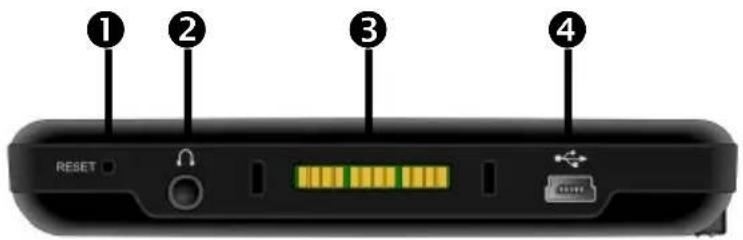
Ref Component Description
① Reset Opening Restarts your appliance. (Soft Reset, see page 24).
② Earphones Connects to a pair of stereo earphones (3.5 mm).

Using this appliance at full volume for extended periods of time may cause damage to the hearing capacity of the listener.
You also have the possibility to connect a TMC dipole antenna here.
③ Feature connector Extension for future components
4 Mini-USB-Connector Connection to external power supply as well as connection for connecting to a PC by means of the USB cable (for data matching)
Top Components
natural_image
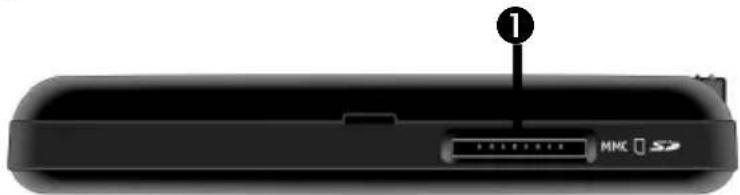
Close-up of a black electronic device rear panel with a labeled connector (no readable text or symbols beyond branding)Ref Component Description
SD/MMC Slot Accepts an optional SD (Secure Digital) or MMC (MultiMediaCard) card for removable storage.
Right Components

| Ref | Component | Description |
| 1 | On-/ Off button | Switches the device on or off by pressing it briefly. |
| 2 | Hardware button | Button for inserting the address within navigation |
The following guides you step by step through the initial set up of the navigation system.
Firstly, remove the foil for protecting the device during transportation from the display.
I. Charging the battery

Attention: It can be necessary to recharge the battery for some time initially before it is possible to run through the initial installation, according to the state of charging of the battery installed.
Please pay attention to the following notes when handling the battery:
- The charging status display lights orange until the navigation system is charged. Do not interrupt the charging process before the battery is fully charged. This may take a few hours. The navigation system is fully charged if the charging display lights green.
- You can use the navigation system during the charging process, but the power supply must not be interrupted during initial set-up.
- To fully charge the built-in battery, the external power source should remain continuously connected to the device.
- You can leave the main adapter connected, and this is very handy for continuous operation. Please note, that both the car adapter as well as the optional power adapter are consuming power, even when the battery of the navigation system is not being charged.
- It can take several minutes until the device is ready to operate again, following the connection of the external power supply, if the charging state of the battery is very low.
- The battery will even be charged while the device is switched off completely.
Car Adapter

natural_image
Illustration of a medical device with labeled parts (① and ②), showing a cable, connector, and medical device (no text or symbols on the device itself)(similar picture)
-
Plug the jack (①) of the connection cable into the corresponding receptor at the bottom of your navigation system.
-
Insert the power adapter (②) now into the cigarette lighter socket and ensure, that it will not lose contact while driving. This could cause a malfunction.
AC Adapter (optional)

(similar picture)
- Push the adapter plug into the guide on the back of the AC adapter. Press the push button at the same time, so that the adapter plug can engage.
- Push the AC adapter (②) into a power point that is easily accessible.
- Plug the jack of the connection cable (①) into the corresponding receptor at the bottom of your navigation system.
II. Switching on the navigation system
Press the on/off button ⏻ on the right side of the device for approx. 3 seconds until first information will appear on the screen.
The Navigation System will start the initial installation automatically. The brand logo will appear and your device will display the application screen after a few seconds.
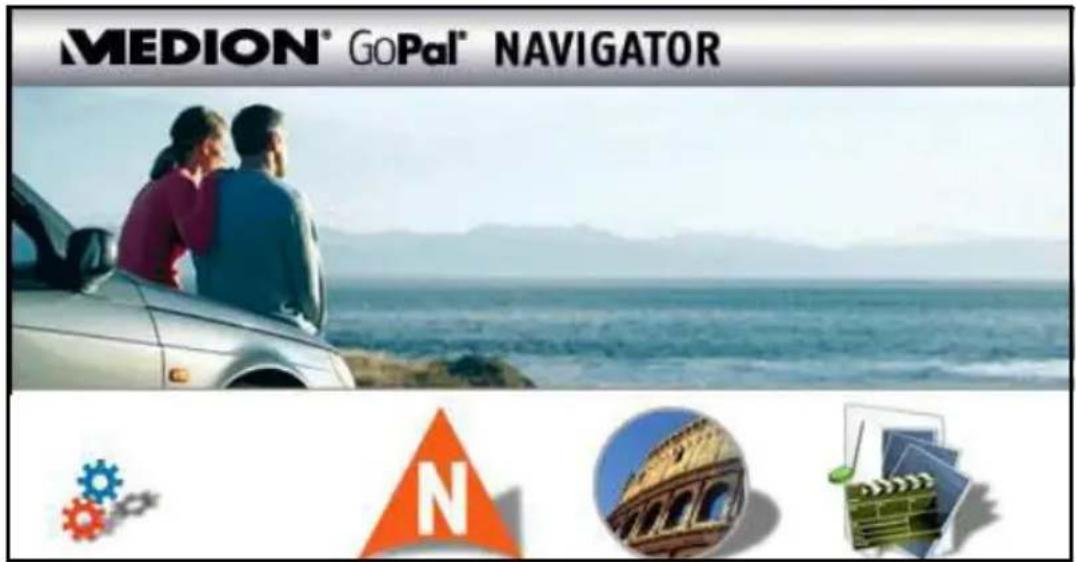
Settings
Navigation page 25
Travelguide
page 44
Additional applications
Additional applications

MP3 player, page 37
Picture Viewer, page 41

Note: Brief pressure on the on/off button will be enough to switch the device on or off, provided that your navigation system is connected to an external source of electricity or is running in battery operation. Press the on/off button for 6 seconds, if it is intended to switch off the device completely. It will be switched on again by pressing the on/off button for approx. 3 seconds, as mentioned above.
No data will be lost during this because of the storage of data in the internal memory. The starting process will only last slightly longer.

Note: Your device will be delivered in a status in which it will not switch off independently.
You can adjust the period of operation to suit your needs using the Settings button on the main screen of your device.
III. Installing the Navigation software
Your device has already been equipped with the basic data of the navigation software at the factory and the final installation of the navigation software will take place automatically from the internal memory. Follow the onscreen instructions.
The memory card must always be inserted in the device while the navigation system is being used. It will be necessary to carry out a Soft Reset to restart the navigation system if the memory card has been removed, only for a short time, while the system was being used (see page 24).
Please also read the chapter Navigation starting on page 25.
Switching on/off the device
Your device will be in its normal operating state after the initial setting up. You will activate and deactivate your device with the On-/Off switch.
- To start your navigation system press briefly the On-/Off switch ⏻.

Note: Your device will be delivered in a status in which it will not switch off independently.
You can adjust the period of operation to suit your needs using the Settings button on the main screen of your device.
- To switch off your navigation system press briefly the On-/Off switch ⏻.
Your navigation system will consume a small amount of electricity and the installed battery will be discharged, even when the device is switched off.
It is possible for the battery to lose so much energy that an initial installation will be necessary once again, if you do not use the navigation system for a longer period.
Working with Memory Cards
Your navigation system supports MMC and SD memory cards.
Inserting Memory Cards
-
Carefully take the optional memory card out of its packing (if included). Take care not to touch or dirty the contacts.
-
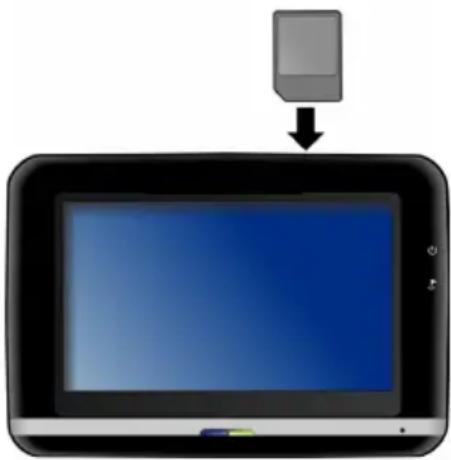
Insert the memory card carefully into the card bay with contacts pointing backwards. The printed side of the memory card must face forward. The card must lock easily.
natural_image
Illustration of a tablet device with a download arrow pointing to it (no text or symbols present)Removing Memory Cards

Note: Only remove the memory card if the navigation software has been closed and the device has been switched off by means of the On/Off button beforehand. Otherwise you will risk a loss of data.
- To remove the card press lightly onto the upper edge until it ejects.
- Pull the card out without touching the contacts.
- Store the memory card in the packing or in another safe location.

Note: Memory cards are very fragile. Take care not to dirty the contacts and not to force the card.
Accessing Memory Cards
- The appliance only supports memory cards in the FAT16/32 file format. If you insert a card prepared with a different format (e.g. in cameras, MP3 players), your navigation system may not recognize it and will ask you to format it again.

Warning: Formatting the memory card irretrievably wipes out all data.
Data exchange via card reader
However, if you wish to copy large quantities of data (MP3 files, navigation maps) to the memory card, these can also be stored directly to the memory card.
Many computers already have a card reader. Insert the card in this and copy the data directly to the card.
Because of the direct access you can achieve a much higher transfer rate compared to using ActiveSync®.
Resetting the navigation system (Soft Reset)
Choose this option if your navigation system is not responding or working properly.
This option restarts the navigation system, without reinstallation being necessary. A soft-reset is often used in order to reorganize the memory. In doing so all programs that are running are interrupted and the working memory is reinitialized.
Perform the soft-reset as follows:
Press the tip of the stylus into the soft-reset switch opening or insert a pointy object (e.g. a paper clip, which has been bent open) with slight pressure into the reset opening.
Switching the Device off Completely/Hard Reset

Warning: A hard reset will delete all data in the temporary memory.
Your navigation system will normally be in the Standby Mode, if you have switched it off by pressing the on/off button briefly. In addition, the system can be switched off completely; the consumption of energy can be kept as low as possible through this. All the data in the temporary memory will be lost if the device is switched off completely (hard reset).
Switch your navigation system off completely in this way:
- Press the on/off button for 6 seconds.
The device will be switched on again by pressing the on/off button again for approx. 3 seconds.
The software will not have to be installed again, if your device has already been furnished with the basic data of the navigation software in the permanent memory in the factory.
Safety Instructions for Navigation
The bundled product CD/DVD contains a comprehensive instruction manual.
Tips for Navigation
- Do not manipulate the navigation system while driving to protect yourself and others from accidents!
- In the event that you do not understand the voice instruction or if you are in any doubt about what to do at the next intersection, then the map or arrow display will provide you with a quick orientation. Only look at the display when you are in a safe driving situation!

Legal remark: The use of devices that warn for traffic monitoring systems (like „speed traps“) is prohibited in some countries. Please obtain information about the legal situation and apply the waning function only where allowed. We cannot be held liable for damages caused by the use of the warning function.

Attention: The road layout and the traffic rules have priority over the instructions of the navigation system. Follow the instructions only when permitted by the traffic situation and traffic rules! Please take note that the speed warnings of your navigation unit are indicative only. Adhere to the speed limits on the traffic signs. The navigation unit will guide you to your goal even when you have to deviate from the calculated route.
- The direction statements of the navigation system given do not release the driver of the vehicle from his or her duty of care or personal responsibility.
- Plan routes before you leave. If you want to plan a new route whilst on the road stop driving.
- In order to receive the GPS signal correctly, metal objects may not hinder reception. Attach the navigation system
onto the inside of the windscreen or near the windscreen with the suction cup. Try out different positions in your vehicle in order to find the best reception.
Notes for Use in a Vehicle
• Take care that the holder does not present any risk to safety, even in the case of an accident, when installing it.
- Take care that the cable does not impede any safety components.
- The display of your navigation system may show "light reflections". Please take care of not being "blinded" during operation.
- Take care that the cable does not impede any safety components.
- Do not mount the components within the operating range of any airbags.
- Check the secure adherence of the suction cup at regular intervals.
- The power plug will consume power, even if no device is connected. Remove it when not in use to avoid draining the car battery.
- Check all safety equipment in your car after installation.

Note: Do not leave your navigation software in the vehicle when you leave it. You should also uninstall the holder for security reasons.
Additional Notes for Use on a Bicycle or a Motor-cycle
- Pay attention during installation that the ability to steer is not impaired.
- Do not cover any instruments during installation.
Aerial Orientation
The aerial must have unrestricted access to the sky to receive GPS satellite signals. Orient the aerial as horizontally as possible for this reason. Try out aerial and installation possibilities in the vehicle in the case of inadequate reception. It may be necessary to connect an external GPS antenna (see page 54) under certain circumstances.
I. Mounting the car holder

Attention! Only fix the holder for the navigation system to the windscreen, if it does not impede the view. Should this not be possible, then mount the holder with the enclosed suction plate in any way that will allow peril-free and safe operation.
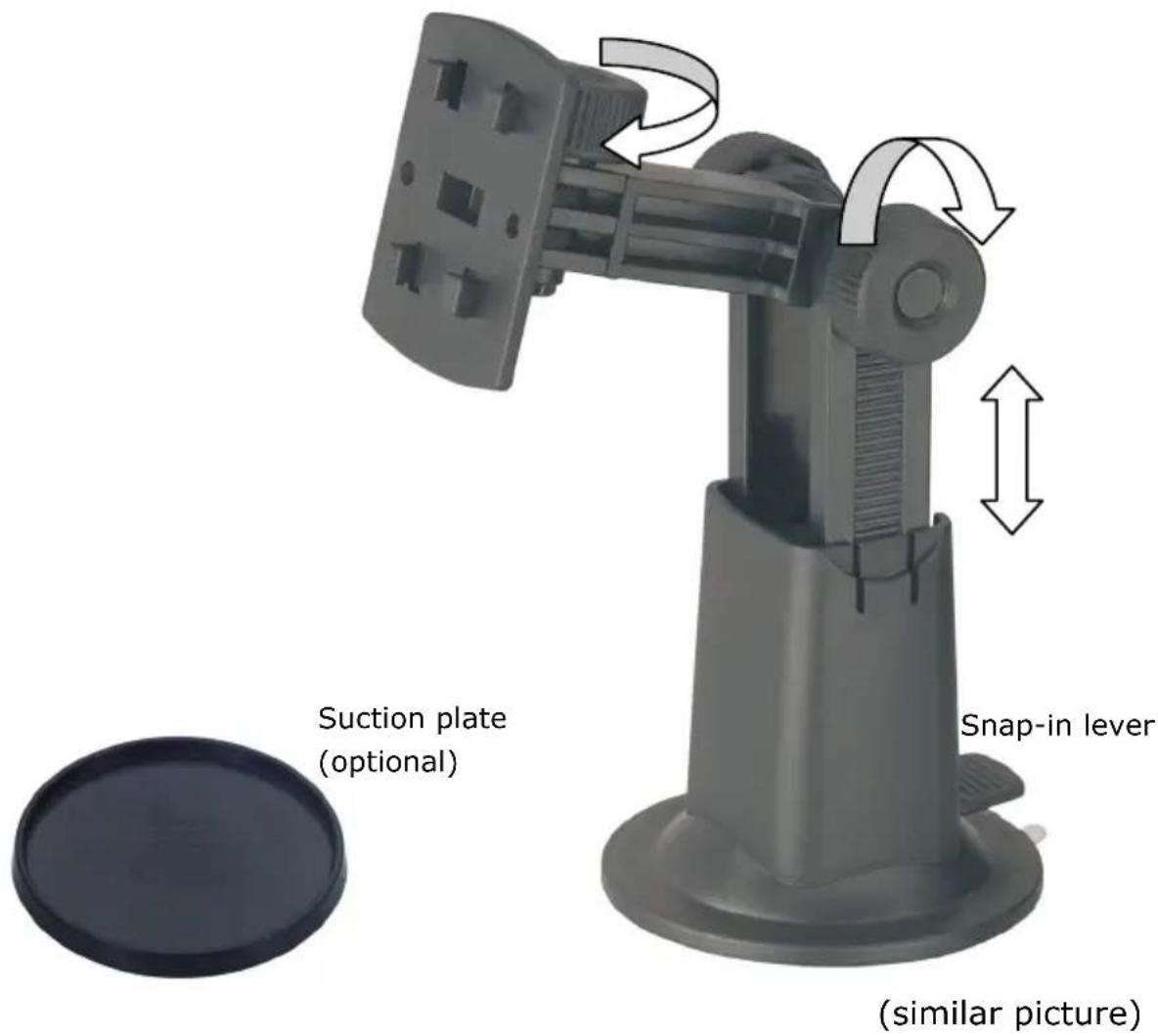

Note: Your navigation system can also be equipped alternatively with a flexible swan-neck car mounting according to the version.

Note: If you want to fix the holder to the wind screen, then you can skip steps 1 and 2.
-
Remove the protective foil from the sticky side of the suction plate.
-
Fix the suction plate to a suitable location on the dashboard. Take care, that the surface of the dashboard is clean and press the suction plate strongly onto the surface.

Note: To obtain a strong and secure hold the suction plate should not be used for 24 hours.

Note: It cannot be excluded completely that certain plastics, strong solar radiation, etc. will affect or soften the adhesive strips and will be able to damage the surface of the dashboard through this.
We shall not accept any liability for damage to the dashboard that may occur.
- Connect the suction plate to the holder. Pay attention to the lettering on the holder. The connection must engage audibly (Illustration, see the following page).
II. Fixing the suction plate

Note: Clean the disk thoroughly with a glass cleaner. Warm the disk and the nipple slightly at temperatures below 15irc C.
Place the holder with the suction head onto the suction plate (or directly onto the wind screen) and press the lever on the suction head downwards. The sucker will attach itself to the background firmly.
III. Attach Navigation System
- Connect the car adapter (see page 17) and, if necessary, the external GPS aerial, to your navigation system and insert the memory card.
- Place the device below in the centre of the holder and press it gently downwards until it engages audibly.
- Now you will be able to place the complete unit on the cleaned windscreen or the suction plate.

natural_image
Illustration of a desktop tablet device with a bracket and a separate screen, showing no text or symbols on the device itself.cradle
(similar picture)
IV. Connecting the car adapter

natural_image
Illustration of a medical device with labeled parts, showing a screen and a handheld device connected by a cable (no text or symbols present)(similar picture)
- Plug the jack (①) of the connection cable into the corresponding receptor at the bottom of your navigation system (p. 14).
- Insert the power adapter (②) now into the cigarette lighter socket and ensure, that it will not lose contact while driving. This could cause a malfunction.

Note: Remove the power adapter from the cigarette lighter socket when ending a trip or when parking the car for a extended period of time. Otherwise the car battery could be drained.
V. Starting the navigation software

Note: The memory card must always be inserted in the device while the navigation system is being used. It will be necessary to carry out a Soft Reset to re-start the navigation system if the memory card has been removed, only for a short time, while the system was being used (see page 24). This Reset will take place automatically, according to the navigation system.
- Switch on your navigation system.
- The Navigation software will start automatically or after tapping on the navigation control button on the main screen, according to the version.
- Tap on Navigation on the screen for entering the destination and enter the address of your navigation destination. Confirm your entry by clicking the √ symbol to start the navigation. You will receive the route information on the screen, augmented by language statements, after a short time, if the satellite reception is adequate.
Further information regarding the navigation software can be found in the comprehensive manual on your navigation CD(s)/DVD(s). This is a pdf-file you can read and print with the any Acrobat Reader.

Note: The GPS-receiver will require some minutes for initialization when deployed for the first time. Even when GPS signal reception is indicated the navigation could be imprecise. In all future instances it will take about 30-60 seconds until a correct GPS-signal is available, sufficient "sight" of the satellite is a prerequisite.
Handsfree facility by means of Bluetooth
The Bluetooth technology serves to bridge short distances wirelessly. Bluetooth devices transmit data wirelessly, so that other devices that also support this technology can communicate with each other without cables.
Both devices will have to be adjusted to each other (pairing), before you will be able to use your navigation system as handsfree equipment with your Bluetooth mobile phone.

Note: Please read how you switch on the Bluetooth function in the Operating Instructions of your mobile phone.
Starting the Bluetooth application
- Click the Settings Menu Point on your navigation device.
- Click on the Bluetooth Option.

Note: Bluetooth will be reactivated by operating this control button and the Bluetooth LED will flash, if Bluetooth has not been activated.
- Now the main Bluetooth screen will appear on your navigation device.
The Bluetooth application is used by clicking on the corresponding screen symbol.
Main Screen Overview

| Button | Name | Description |
 | Keypad | You enter the telephone number to be called by means of the keypad. |
 | Search | Starts the search for a mobile phone already paired. |
 | Call routing | Displays the course of the calls made and received. |
 | Pairing | For the coordination between your relation system and your mobile phone. |
 | Bluetooth Manager | You will be able to carry out different Bluetooth functions (e.g. deactivate) under this option. |
 | Exit | You will leave the Bluetooth application by means of this key. |
Pairing the navigation device and the mobile phone
- Make your mobile phone search for a Bluetooth device.

Note: Each mobile phone uses different paths to do this. Read the instructions of your mobile phone under all circumstances for this reason.
- You will be requested to enter a PIN code (at least 4 digits) as soon as your mobile phone has found the navigation device.
- Also repeat the entering of the PIN code on your navigation device.
- Your mobile phone will be recognized and the handsfree facility through the navigation system will now be available to you.

Note: This procedure will have to be repeated as soon as you switch the navigation device off or a spatial distance arises between your mobile phone and the navigation device. Switching on the navigation device will be enough for automatic recognition, according to the mobile phone used and its Bluetooth setting.
Overview of the most important keys in the Bluetooth application
| Button | Description |
 | Accept call |
 | Terminate or reject call |
 | Switch the loudspeaker on or off (mute) |
 | Switch the microphone on or off |
 | Transfer back to the mobile phone and separation of the Bluetooth connection |
 | Minimize the display |
 | Increase volume |
 | Reduce volume |
Accepting incoming calls
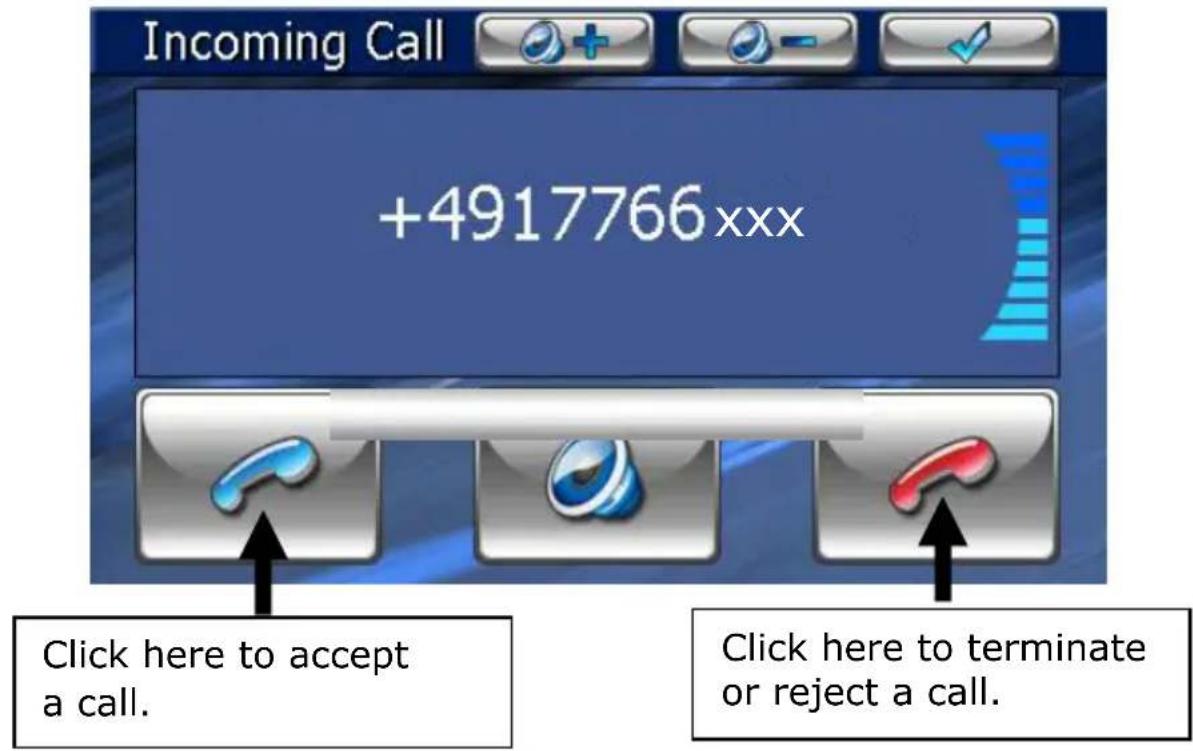
Making calls
- Enter the number that you would like to call in the main
Bluetooth screen by means of the keypad (see p. 33). You will have the possibility of minimizing this Window and returning to the Navigation application, after the connection has been made.
Depending on the software equipment your navigation system is also equipped with an MP3 player.
Your navigation system is also equipped with an MP3 player.
-
Start the MP3 player from the main screen by tapping the 'Further Applications, MP3 Player' switch areas. Alternatively, the MP3 player can also be started from the navigation software itself.
-
All the MP3 files located on the memory card can be taken over into a List of Favourites and will be ready to be played.
Main Screen Overview

natural_image
Screenshot of a media player interface with headphones, musical notes, and playback controls (no readable text or symbols)| Button | Description |
 | Move to the previous or next file. It will be possible to skip backwards or forwards within the title playing while it is being played. |
 | Increase or decrease the volume.The display in the upper right corner of the screen will show the current level of the volume. |
 | |
 | For the title selection |
 | Opens the List of Favourites |
 | Play the playback. |
 | Pause the playback. |
 | Stop the playback. |
 | Changing the mode of playing:Normal: Plays all the files in their sequence and stops after the last file.Shuffle: Plays a file selected at random.Repeat: Repeats the current file continuously.Repeat all: Plays all the files in their sequence and will restart from the first file, after the last one has been played. |
 | Break off action / Back to the previous Menu |
 | Close MP3 player |
Select a Title and Move it into the List of Favourites
Tap on and select the title that you would like to move into the List of Favourites, in order to select a title. You will have three possibilities of marking the title here:
- Tap on 📁, in order to mark all the titles, including all sub-directories.
- Tap on , in order to mark all titles currently in view.
- Mark individual titles or remove the marking by pressing on it directly.
The selected titles will be indicated by a ♥.

Tap on √, in order to confirm your selection. The titles marked will not be moved into the List of Favourites until then.
You will remove the marking of the title currently viewed with

Tap the file required and select the requisite title, in order to select a title in the sub-directories.
You will arrive back at the superordinate directory with
The symbol will be shown if not all the titles in a directory have not been selected.
List of Favourites
You will reach the List of Favourites by tapping on the


You will delete individual titles with tles with .

and you will delete all ti-
Confirm with √, in order to take over the new selection into the List of Favourites.
Picture Viewer
Depending on the software equipment your navigation system is also equipped with a Picture Viewer.
You will be able to view the jpg format images on your memory card on your navigation system, with the Picture Viewer. All the images on the memory card will be available immediately.
Operating the Picture Viewer
Start the Picture Viewer from the main screen by tapping the 'Further Applications, Picture Viewer' switch areas. Alternatively, the Picture Viewer can also be started from the navigation software itself.
Main Screen

Ill.: Miniature view
Move the miniature view to the left or to the right with both the arrow keys. Tap on a specific images, in order to display it in the Full Image Mode. The display in the upper right corner of the screen will show the current level of the volume. You will return to the start in the miniature view by tapping on
You will end the application by tipping on the
You will start the slide show by tapping the



Full Image View

natural_image
A baby sitting on a paved path with toys including a yellow balloon, a colorful toy box, and a blue bag, surrounded by greenery (no text visible).Ill.: Full image view without service strip
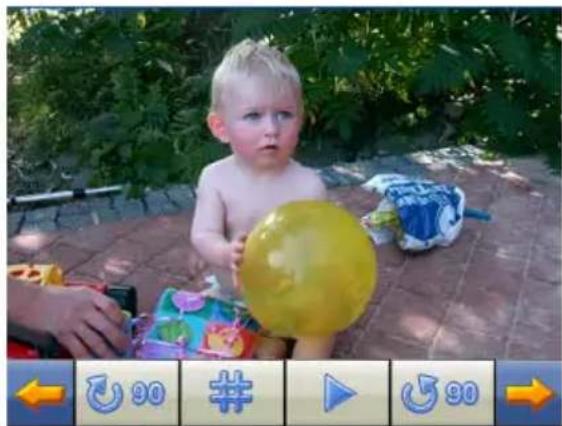
Tap in the lower area of the screen in the full image view, in order to activate the service strip:
natural_image
Child playing with a yellow balloon outdoors on a paved path, surrounded by greenery (no text or symbols visible)Ill.: Full image view with service strip
| Button | Description |
| Previous picture | |
| Rotate by + 90° | |
| Fade in grid | |
| Start the slide show | |
| Pause the slide show | |
| Rotate by - 90° | |
| Next picture |
You will return to the miniature view by tapping in the centre of the image.
The image displayed will be subdivided into 6 fields by tapping on the # symbol (fade in grid).

natural_image
Child playing with a yellow balloon outdoors on a paved area, surrounded by greenery and play buttons (no readable text or symbols)Ill.: Full image mode with grid
The respective area of the image will be displayed as enlarged by tapping on a square:

natural_image
Close-up photo of a young baby outdoors with green foliage in the background (no visible text or symbols)Ill.: Zoom-in Mode
You will arrive back at the full image Mode by tapping in the centre of the image.
Travelguide (optional)
Depending on the software equipment your navigation system is also equipped with a Travelguide.
The Travelguide will supply general information about the different areas of individual towns and cities or regions in Europe, such as sights, restaurants, culture and travel information.
Start the Travelguide from the main screen by tapping the 'Travelguide' switch areas. Alternatively, the Travelguide can also be started from the navigation software itself.
Select the country initially, then the town or city (or the region), if you wish to be informed about something. Then, select the category.
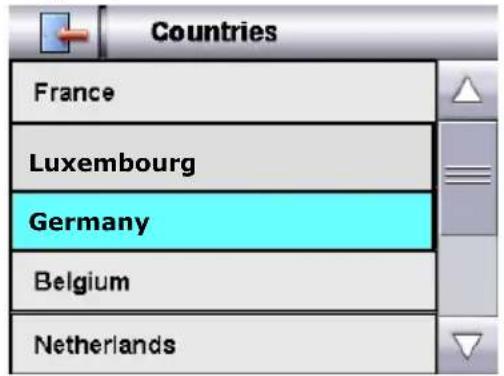

Fig. 1 Fig. 2

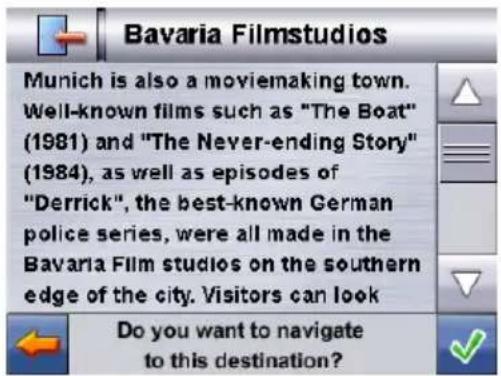
Fig. 3 Fig. 4
Confirm with √ if you want to navigate to the destination displayed. The address will then be available to the navigation software as the destination.

You will be able to vary the possibilities of selection within the Travelguide, according to the software provided.

Where can I find more informationen on the navigation system?

Detailed operating instructions for navigation can be found on the corresponding CDs/DVDs, which accompany your navigation system.
Also use the additional Help functions that are available with a single touch of a button (usually F1 on the PC), or by selecting the Help option, as additional assistance. These aids will be provided to you while you are using the computer or the device.

What do I need the accompanied CDs/DVDs for?

The Support-CD contains:
- the ActiveSync® program for balancing data between the navigation system and the PC.
• Additional programs (optional).
• This User manual in digital form.
Contents of the navigation-CD(s)/DVD(s):
- digital maps
• Data for rapidly resetting the contents of the memory card
• Manual of the navigation software
Depending on the configuration one or more CDs/DVDs may be included in the package.

The navigation system is no longer responding. What should I do?

Carry out a soft-reset (see page 24).

How can I adjust the lighting?

Under Settings Lightnings.
First-Aid in the Event of Malfunction
Error functions can sometimes have trivial causes; however, they can also sometimes be complex in nature and require costly analysis.
General guidance

Note: The regular running of the Windows® programs "Defrag" and "Scandisk" on the PC can remove sources of error and raise system performance.
Check Connections and Cables
Start with a careful visual check of all cable links. If the LCD's are not working, make sure that the power is reaching the computer and all peripherals.

Note: Switch off the computer and check all cable links. If the computer is connected to peripherals, check also the plug connections of all cables. Do not arbitrarily swap the cables between various units, even if they appear to be precisely the same. The pin assignments of the cables are likely to be different. Once you have ascertained that the power supply is not at fault and all connections are intact, switch on the computer again.
Faults and Possible Causes
The navigation system no longer reacts or is behaving atypically.
- Carry out a soft reset (see page 24).
The navigation system is recognized only as a guest by ActiveSync ® .
• See information on page 52.
I am receiving error messages from a maintenance program after installing ActiveSync ® .
- The program places the WCESCOMM.LOG file in a temporary directory defined by the system, which cannot be deleted. A respective error message will appear, if another program attempts to do so.
The GPS receiver cannot be initialized or found.
If a GPS signal continues not to be reported on the screen, in spite of the correct installation of the system, this can be caused by the following factors:
- Sufficient satellite reception is not possible.
Solution:
Change the position of your navigation system and ensure that unrestricted "sight" of the aerial is not impaired.
No language statements can be heard.
- Check the volume setting.
Additional Support
If the suggestions in the above section have not solved your problem, please contact our customer service hotline. However, before you contact your Technology Center, please have the following information available:
However, before you contact your Technology Center, please have the following information available:
• How is your computer configured?
• What additional peripherals do you use?
• What messages, if any, appear on your screen?
- What software were you using when the error occurred?
- What steps have you already undertaken to solve the problem?
- Have you upgraded or removed drivers or hardware?
- Can you manually repeat the problem?
- If you have been given a customer number previously, please give this number to the technician.
Special CleanUp Function
The CleanUp function serves the targeted deletion of data, without using a PC.

IMPORTANT: Please use this function very carefully, because it is possible for data to be deleted that will only need to be entered again manually afterwards.
The CleanUp function will be activated if the 'o' is pressed in the Gopal lettering of the Main Menu briefly, immediately after the start tone following a soft reset.
The CleanUp function offers 6 options:
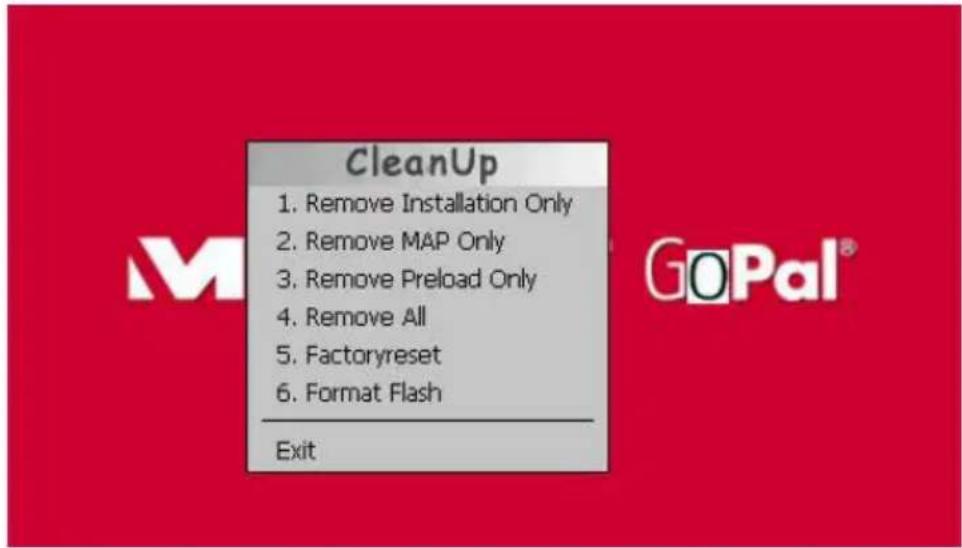
1. Remove Installation Only
Removes the software installed from the 'My Flash Disk' memory [= part of the permanent memory in which the executable parts of the navigation software will be located following the initial alignment (\My Flash Disk\Navigation)].
2. Remove MAP Only
Removes the digital maps from the 'My Flash Disk' memory (\My Flash Disk\MapRegions).
3. Remove Preload Only
Removes the data needed for the installation of the navigation software from the permanent memory (\My Flash Disk\Install).
4. Remove All
Deletes the whole contents of the 'My Flash Disk' memory. It will not be necessary to recalibrate the screen after this function has been carried out.
5. Factoryreset
Sets the device back to the delivery status in the case of an intact main installation.
6. Format Flash
Formats the internal 'My Flash Disk' memory. This formatting can be necessary in the case of a prolonged removal of errors. It will be necessary to recalibrate the screen after the formatting function has been carried out. All data will be deleted from the internal 'My Flash Disk' memory irrevocably, apart from this (see Remove All).
Exit
Leaving the CleanUp function and restarting the device (like reset)

Note: The deletion of the data must be confirmed before the action actually takes place. To do this, press on YES. There will be corresponding report if the data to be deleted are meanwhile (no longer) available.
Please read the „Transferring Installation Files and Map Material to the Internal Memory“ chapter on Page 58, in order to recreate the files (installation files and map material) in the internal memory.
Synchronisation with the PC
I. Installing Microsoft® ActiveSync®
In order to transfer your data between your PC and your navigation system you need the Microsoft® ActiveSync® program.
The cost of the navigation system includes a license for this program which can be found on the Support CD.

Attention: Important files can be overwritten or changed during the installation of software. You should create a hard disk backup, in order to be able to have access to the original files in the case of possible problems following the installation.
You must have administrator rights to install the software under Windows ® 2000 or XP.

Attention: You should not connect the navigation system to your computer yet.
- Insert the Support CD and wait until the program starts automatically.

Note: The Auto Run function is probably deactivated if it does not function. The Setup program on the CD must be started, to start installation manually.
- Choose the language, click then Install ActiveSync® and follow the instructions on the screen.
II. Connecting with the PC
- Press the On/Off button to start your navigation system.
- Connect the USB cable (optional) to your navigation system.
- Push the USB connector into a free USB port on your computer.
- The hardware installation assistant recognizes now a new appliance and installs a suitable driver which can take some minutes. Repeat the connection search if it fails the first time.
- Follow the instructions on the screen. The program will now set up a partnership between your PC and the device.
III. Working with Microsoft® ActiveSync®
ActiveSync ® will be started automatically if you connect your navigation system to the PC. The program will check whether the device is one with which a partnership has been entered. If this is the case, the changes that have taken place on the PC and on the navigation system since the last synchronisation will be compared and adjusted to each other. You will be able to define exactly which data will have priority during the synchronisation in the settings of the ActiveSync ® Program. Call up the Help of the Program (with the F1 Button), in order to become familiar with the effects of the respective settings. A restricted Guest Access, with which you will be able to exchange data, for example, will become active automatically if the navigation system has not been recognised as a partner. If this is the case, although the process concerns the registered partner device, separate your navigation system from the PC and switch it off and on again. Now connect your navigation system to the PC, to restart the recognition process. Repeat the process and, restart your PC in addition, if your device continues to be recognised as a guest.
Note: Make sure that you always connect your navigation system to your PC with the same USB connection, otherwise your PC will allocate an additional ID and reinstall the device.
GPS (Global Positioning System)
GPS is a satellite-backed system for determining your position. With the help of 24 satellites revolving around the earth, it is possible to determine your position on earth with the accuracy of a few meters. The satellite signals are received by the antenna of the built-in GPS receiver, which must have a "line of sight" to at least 4 of these.

Note: By limited line of sight (e.g. in tunnels, between houses, in woods or also in vehicles with metal-coated windows) it is not possible to determine the position. The satellite reception however automatically picks up again as soon as the obstacle has been passed and there line of sight is reestablished again. Moving slowly (e.g. slow walking) also limits the accuracy of the navigation.
The GPS receiver consumes additional power. This is especially of concern, when running on batteries. To conserve power do not turn on the GPS receiver unnecessarily. Also terminate the Navigation Software, if it is not needed or satellite reception is not possible for a longer period, for this reason. However, you can also switch the device off by means of the On/Off switch in the case of a shorter interruption to your journey. Pressing the same switch again will activate a restart. The GPS receiver will also be reactivated at the same time, if navigation software is still active. Here, it can take a short time for the position to be updated again, according to the reception situation.

Note: Please note, that your appliance is preset to not shut down automatically after a few minutes without activity. You can change this preset in the Settings mode. If the GPS receiver has not been active for some hours, it must orientate itself again. This process may take a while.
External GPS antenna
This second optional GPS antenna makes it possible to receive the signals of satellites better (e. g. in the case of vehicles with a metallized windscreen).
- The antenna should be pointing upwards.
- Push the plug of the external GPS antenna into the opening provided for it at the rear side of your device (see page 13, ②).
TMC (Traffic Message Channel)
The Traffic Message Channel (TMC) is a digital radio data service that functions in a similar way to RDS and is used to transmit disruptions to traffic to a suitable reception device.
The traffic information is continuously transmitted across FM.
The user is less dependent on the half-hourly broadcast traffic information, because the signal is continuously transmitted. Apart from this, important information, as in the case of people driving on the wrong side of the road for example, can be passed on immediately.
The transmission is planned for the whole of Europe and is already offered by radio transmitters in many countries. The precision of the TMC messages can deviate greatly according to the country.
Connecting the TMC Angled Aerial (optional)
A TMC receiver is integrated into your navigation system, to receive traffic information. However, reception will only be guaranteed if the TMC angled aerial supplied with the device has been connected.
Plug the jack plug of the TMC angled aerial into the earphones connection on the lower side of your navigation system.
Attach the aerial, on the edge or your windscreen, for example, with the help of the sucker.
Place the aerial so that a distance of approx. 10 cm from the metal frame of the screen is maintained.
TMC reception can be improved by different aerial positioning, according to the vehicle.

Your navigation system will now be able to receive traffic information through the TMC receiver and thus to avoid potential disruptions to traffic.
Additional card material
Your navigation system is already equipped with a digitalized map of your country in the internal memory at the factory. Additional digitalized maps can be used, in addition to those in the internal memory, by means of a memory card.
Depending on the configuration, additional maps may be included on your navigation CDs/DVDs. You will be able to transfer these cards to a memory card immediately. Here, it is recommended to use an external card reader (see also page 23).
Depending on the amount of map data on the CDs/DVDs, memory cards with capacities of 256 MB, 512 MB, 1.024 MB or more may be required.
You will obtain additional memory cards (MMC or SD cards) in specialist stores.
Transfer of card material to a memory card
The transfer of additional card material to a memory card will preferably take place through the Explorer of your PC. Proceed as follows:
- Insert the CD/DVD with the card material required.
- Start your workstation and select your CD/DVD Drive.
- Copy the file with the .psf ending out of the Directory of the region that you require to the MapRegions Directory on your memory card, from the CD/DVD.
You can transfer several files with map material to your memory card, depending on the capacity of the memory card. There must be sufficient space on your memory card.
If you have copied digitized maps of several countries or country groups onto your memory card, you will be required to select the desired map in the navigation application of your device.
Alternative Installation of the Navigation Software from a Memory Card
The software for your navigation system can also be installed directly from a memory card prepared accordingly
The pre-installed software may have to be uninstalled beforehand (see special CleanUp function, Page 49).
You will be requested to install the navigation software during the initial adjustment. Please proceed as follows:
- Remove the memory card from the packaging carefully. Pay attention that the contacts are not touched or soiled.
- Push the memory card into the SD-/MMC slot until it engages.
- Click on OK, in order to install the application.
The main screen, through which you will now be able to carry out the navigation settings, will appear after all data has been copied to your navigation system.
Transferring Installation Files and Map Material to the Internal Memory

Note: The navigation system must be connected to a computer by means of ActiveSync ® (see Page 52), for the transfer of the data.
Your device has an internal, permanent memory, which is located in the \My Flash Disk directory.
You will be able to make this directory, and others, visible with ActiveSync ® , by means of the Search option. Directories and files can be manipulated as in Windows Explorer.
The required directory must have been stored, in order to make the installation files and the map material for the device available.
Deposit the INSTALL directory for the installation files at (\My Flash Disk\INSTALL). Deposit the map material in the MapRegions directory (\My Flash Disk\MapRegions). Please pay attention to the modes of lettering given above when naming the directories.
Pay attention to the fact that sufficient drive capacity must be available, if you have stored additional data on your navigation device. Remove files not needed if sufficient drive capacity is not available.
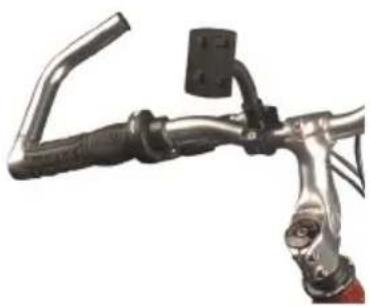
Mounting on (Bicycle) Handlebars
You can attach your navigation system to a bicycle as an optional additional feature. A special holder is needed to do this. The installation is explained in the following.

- Release both the screws connecting the clamp to the holding plate with the hexagon key.
- Remove the rubber ring and wind it around the handlebars.
- Position the clamp on your bicycle handlebars, by pulling it across the handlebars from below.
- Put the holding plate back onto the clamp and retighten both the screws.
- Seat the holder for the navigation system on the holder plate until it locks into place audibly. Please pay attention to the fact that the holder must only be seated in one direction.
- Now place the device on the holder. You must pay attention to firm positioning.

Note: Your navigation system could also be equipped with a different bicycle mounting, where the attachment of mountings can vary slightly, according to the version.
natural_image
Close-up of a bicycle hand handle and lever mechanism (no text or symbols visible)Specifications
| Parameter | Information | |
| Power supply mains adapter input output | Phihong PSC05R-050100-240V ~0.2A+ 5V 1.0A max | |
| Power supply Power supply cable for a ciga-rette lighter input output | Atech ATPI-68HT050110-30V 1.3A max. / fuse 2A5V 1A | |
| Earphones | Stereo earphones (3.5 mm) | |
| Memory card type | MMC and SD | |
| Bluetooth | Class | 2 |
| Connector type of the external GPS receiver | MMCX | |
| USB interface | USB 1.1 | |
| Dimensions | approx. 132 mm x 91 mm x 22 mm | |
| Weight incl. battery approx. 210 g(without packaging) | ||
| Temperatures | Operating | +41 °F - +104° F(+5°C - +40°C) |
| Storage | +32 °F - +140 °F-0°C - +60°C | |
| Humidity (without condensation) | 10 - 90 % | |
Warranty
The receipt serves as proof of first purchase and should be kept in a safe place. Your legal rights are not limited by these warranty conditions. It is required should you need to make use of the guarantee.
We guarantee that this equipment is in perfect working order. Upon production of the receipt, the remaining period of guarantee shall pass on from the original parts to the respective replacement parts. If you hand in this equipment to make use of the guarantee, you must remove all programs, data and removable storage media. Products which are sent without accessories will be replaced without accessories. The warranty obligation does not apply in the case of the problem being caused by an accident, a catastrophe, vandalism, misuse, incorrect use, ignoring the safety and maintenance regulations, changes by software, viruses or another piece of equipment or accessories or by other modifications not approved by ourselves. This limited guarantee declaration replaces all other guarantees of express or implied nature. This includes the guarantee of saleability or the suitability for a certain purpose but is not limited to this. In some countries the exclusion of implied guarantees is not permissible upon principle. In this case the validity of all express and implied guarantees is limited to the guarantee period. Once this period has expired, all guarantees become invalid. In some countries limiting the period of validity for implied guarantees is not permitted, so that the above limitation does not come into force. If you have any questions with regard to these guarantee conditions, please contact us.
Liability limitations
The contents of this manual are subject to unannounced changes caused by technical progress. Manufacturer and sales shall not be responsible for any damages which have been caused as a result of omissions or errors in the information provided in this manual.
Under no circumstances shall we be liable for any of the following:
- Claims made against you by third parties based on loss or damage.
- Loss or damage to your blanks, recordings or data.
- Economic follow-on damage (including lost profit or savings) or associated damage even in the case that we have been informed of the possibilities of this type of damage.
In some countries the exclusion or limitation of accompanying or follow-on damage is not legally accepted so that the above limitations do not come into force.
Copying this manual
This document contains legally protected information. All rights reserved. Copying in mechanical, electronic and any other form without the written approval of the manufacturer is prohibited.
Index
A
AC Adapter....18
Accessing Memory Cards .....23
Additional card material.....56
Aerial Orientation ..... 27
Alternative installation of the navigation software from a memory card .... 57
Ambient temperature ..... 3
Attach Navigation System.....29
Auto run ....51
Auto start....51
B
Battery Charge Indicator ..... 12
Battery Operation .... 6
Bluetooth Important buttons ....35
Making calls....36
Pairing....34
C
Cabling 6
Card reader ....23
Care of the Display....7
CleanUp func ....49
Contents ...... i
Copying this manual ....62
Copyright......iv
Customer Service .... 46
D
Data exchange....23
Data Security 2
Defragmentation ....46
E
Earphones .... 14
Electromagnetic Compatibility. 4
EMC 4
External aerial connection....13
External GPS antenna....54
F
FAQ 45
Faults and Possible Causes....47
First-Aid 46
Fixing the suction plate......28
G
GPS 53
External GPS antenna..... 54
H
Hotline 48
I
Initial Set-up Charging the battery ..... 16
Installing the navigation software 20
Switching on the navigation system 19
Introduction....10
L
Liability limitations .....62
Loudspeaker 13
M
Maintenance....7
Malfunction....46
Microsoft® ActiveSync®......51
Mini-USB-Connector ..... 14
Mounting on (Bicycle) Handlebars ....59
Mounting the car holder .....27
MP3 Player....37
List of Favourites 40
Main Screen Overview ..... 37
Select title 39
N
Navigation
Safety instructions......25
o
Operating
Switching on/off the divice..21
Working with memory cards22
Operating Environment ..... 2
P
Picture Viewer
Main screen....41
Operation......41
Q
Quality....10
R
R&TTE 6
Recyding and Disposal 8
Re pair 3
Re paratur.... 3
Reset Opening 14
Re setting the navigation system
Hard Reset 24
Soft Reset 24
S
Safety and Maintenance ..... 1
Safety instructions
Navigation......25
Connection 5
Ambient Temperature ..... 3
Data security 2
Operating environment ..... 2
Repair 3
Power supply 5
Cabling......6
Battery operation......6
Maintenance....7
Care of the display .....7
Transport......9
Scandisk......46
SD/M MC Slot 14
Service 10
Soft Reset....24
Special Clean Up function...... 49
Specifications 60
Standards R&TTE......6
Starting the navigation software....31
Stylus ..... 13
Supplied Items 11
Synchronisation with the PC .. 51
T
TMC 54
Connecting the angled aerial 55
Touch Screen 12
Transfer of card material to a memory card .... 56
Transferring Installation Files and Map Material to the Internal Memory .... 58
Transport....9
Travelguide 44
V
Views
Back components...... 13
Right components ...... 15
Top components 14
W
Warranty 61


- Safety and Maintenance ....1
- Views 12
- Initial Set-up....16
- Operating 21
- Navigation....25
- Handsfree facility by means of Bluetooth ....32
- MP3 Player 37
- Picture Viewer....41
- Travelguide (optional) 44
- FAQ 45
- Customer Service 46
- Appendix 49
- Specifications....60
- Warranty 61
- Index 63
- Safety Instructions
- Data Security
- Operating Environment
- Repair
- Ambient Temperature
- Electromagnetic Compatibility
- Connection
- Power through Car Adapter
- Power supply (optional)
- Cabling
- Information about the Regulatory Compliance according to R&TTE
- Battery Operation
- Maintenance
- Care of the Display
- Recycling and Disposal
- Transport
- Notes on these Operating Instructions
- Quality
- Service
- Supplied Items
- Optional
- Bottom Components
- Ref Component Description
- Top Components
- Right Components
- Charging the battery
- Car Adapter
- AC Adapter (optional)
- Switching on the navigation system
- Additional applications
- Installing the Navigation software
- Switching on/off the device
- Working with Memory Cards
- Inserting Memory Cards
- Removing Memory Cards
- Accessing Memory Cards
- Data exchange via card reader
- Resetting the navigation system (Soft Reset)
- Switching the Device off Completely/Hard Reset
- Safety Instructions for Navigation
- Tips for Navigation
- Notes for Use in a Vehicle
- Additional Notes for Use on a Bicycle or a Motor-cycle
- Aerial Orientation
- Mounting the car holder
- Fixing the suction plate
- Attach Navigation System
- Connecting the car adapter
- Starting the navigation software
- Handsfree facility by means of Bluetooth
- Starting the Bluetooth application
- Main Screen Overview
- Pairing the navigation device and the mobile phone
- Overview of the most important keys in the Bluetooth application
- Accepting incoming calls
- Making calls
- Select a Title and Move it into the List of Favourites
- List of Favourites
- Picture Viewer
- Operating the Picture Viewer
- Main Screen
- Full Image View
- Travelguide (optional)
- First-Aid in the Event of Malfunction
- General guidance
- Check Connections and Cables
- Faults and Possible Causes
- Solution:
- Additional Support
- Special CleanUp Function
- Remove Installation Only
- Remove MAP Only
- Remove Preload Only
- Remove All
- Factoryreset
- Format Flash
- Exit
- Synchronisation with the PC
- Installing Microsoft® ActiveSync®
- Connecting with the PC
- Working with Microsoft® ActiveSync®
- GPS (Global Positioning System)
- External GPS antenna
- TMC (Traffic Message Channel)
- Connecting the TMC Angled Aerial (optional)
- Additional card material
- Transfer of card material to a memory card
- Alternative Installation of the Navigation Software from a Memory Card
- Transferring Installation Files and Map Material to the Internal Memory
- Mounting on (Bicycle) Handlebars
- Warranty
- Liability limitations
- Copying this manual
- Index
- A
- B
- C
- D
- E
- F
- G
- H
- I
- L
- M
- N
- o
- P
- Q
- R
- S
- T
- V
- W
Brand : MEDION
Model : GoPal P4410 M5 (MD 96433)
Category : Gps