
d:vice MMA-A - Hi-Fi System DPA - Free user manual and instructions
Find the device manual for free d:vice MMA-A DPA in PDF.


| Product Type | Digital Audio Interface (Microphone Preamplifier & A/D Converter) |
| Input Channels | 2 (MicroDot inputs I and II) |
| Supported Microphones | DPA microphones with MicroDot connector (d:screet, d:fine, d:dicate, d:vote series) |
| Connectivity | Micro USB-B to iOS (Lightning) and Micro USB-B to PC/Mac (USB-A) |
| Cable Length (supplied) | 100 cm (39.4 in) and 30 cm (11.8 in) |
| Sample Rates | 44.1, 48 (default), 88.2, 96 kHz (set by 3rd-party app) |
| Resolution | 24 bit |
| Frequency Response | 20-22 kHz ±0.2 dB (Fs=48 kHz); 20-40 kHz ±0.2 dB (Fs=96 kHz) |
| Total Harmonic Distortion (THD) | < -100 dB, 0.001% @ 1 kHz @ -10 dBFS |
| Dynamic Range | Typ. 114 dB |
| Noise Floor | -114 dBFS, A-weighted |
| Gain Control | Adjustable via slider in app; individual or linked per channel |
| Low Cut / High Pass Filter | 80 Hz, 2nd order, individual per channel |
| Modes | MONO, STEREO, DUAL (individual gain and filter per channel in DUAL) |
| Presets | 4 user-definable presets storing gain and filter settings |
| Monitoring | Headphone output via connected iOS device (requires headset) |
| Lock Function | Locks gain and filter settings to prevent changes by 3rd-party apps |
| Power | Bus-powered via Lightning or USB 2.0; <100 mA current consumption |
| Weight | 50 g (1.8 oz) |
| Diameter | 56 mm (2.2 in) |
| Temperature Range | 0°C to 45°C (32°F to 113°F) |
| Compatible Operating Systems | iOS 10 or later, macOS, Windows |
| Warranty | 2 years limited |
| Cleaning | Wipe with damp cloth (warm water); avoid solvents |
Frequently Asked Questions - d:vice MMA-A DPA
User questions about d:vice MMA-A DPA
0 question about this device. Answer the ones you know or ask your own.
Ask a new question about this device
Download the instructions for your Hi-Fi System in PDF format for free! Find your manual d:vice MMA-A - DPA and take your electronic device back in hand. On this page are published all the documents necessary for the use of your device. d:vice MMA-A by DPA.
USER MANUAL d:vice MMA-A DPA
The d:vice™ MMA-A Digital Audio Interface is a high-quality dual-channel microphone preamplifier and A/D converter. It allows you to capture crystal-clear audio via your favorite recording / broadcasting apps. The d:vice™ can be used with most DPA microphones.
d:screet™ Miniature Microphones
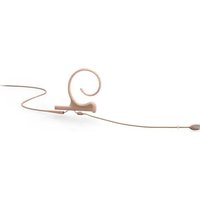
d:fine™ Headset Microphones
d:dicate™ Recording Microphones
d:vote™ Instrument Microphones

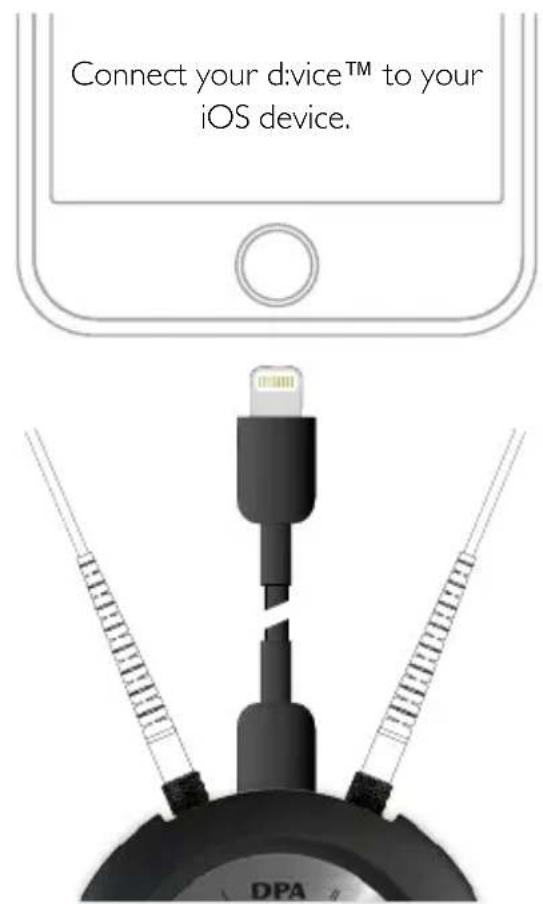
Two cables are supplied with the d:vice™ MMA-A: One Micro USB-B to iOS (Lightning) and one Micro USB-B to PC / Mac (USB-A).
Getting started
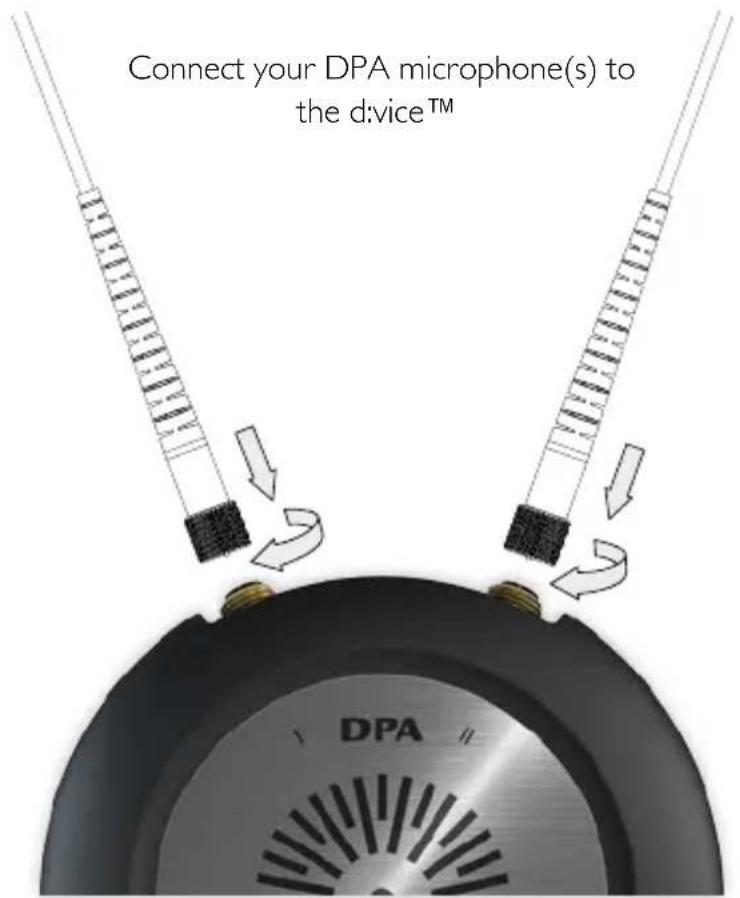
Connect your DPA microphone(s) to the MicroDot input(s) on the d:vice™, denoted I and II. (If only one mic is connected to either input, the signal will be interpreted as MONO and automatically sent to both output I and II.)
Download the d:vice™ App
Download and install the d:vice™ App from the Apple App Store.
Please note that the d:vice™ will work with most 3 ^rd -party apps and therefore can be used in various situations including live broadcasts, as well as audio and video recordings.

The d:vice™ MMA-A can be used right out of the box but to take full advantage of it, please refer to these instructions to get started using the d:vice™ App.
GAIN
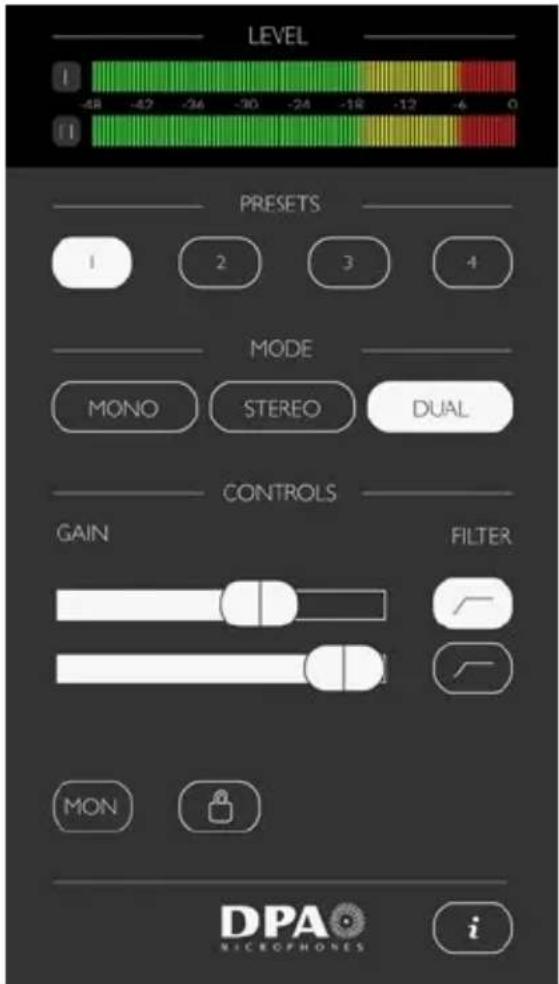
Use the GAIN slider to adjust input levels. Slide to the right to increase amplification, to the left to decrease. Make sure to keep an eye on the level meters when you are adjusting gain. The meters should stay in the green and yellow areas.
FILTER
The FILTER button (low cut / high pass) cuts out unwanted, low-end frequencies (rumble) that can decrease the intelligibility of your recorded audio. In most cases we suggest using the FILTER button and if, for example, you are recording outside near a road with traffic, this setting is essential.
MONITOR
Use the MON button to send audio to your headphones so you can hear what you are recording. Please note that a headphone must be connected to the iOS device, otherwise the button will not activate and you'll be prompted to connect a headset. If the headset includes a microphone it must be connected prior to connecting the d:vice™ via the Lightning connector. This is due to the iOS 'last entry active' nature of operation. (We recommend using a wireless headset when using an iPhone 7.)
LOCK
Use the LOCK button to block 3rd party apps from controlling gain. Gain settings can be controlled and saved on the d:vice™ for use in your favorite recording / broadcasting apps. The lock button also controls the setting of the low cut / high pass filter. Saved locked settings are automatically activated the next time you connect to the d:vice™.
MONO
If only one microphone is connected to either input I or II, MONO is chosen automatically. The mic input will be routed to both left and right output. Only one GAIN slider and FILTER button will be available in this mode.
STEREO
Use STEREO when you need to capture sound sources in stereo. Both microphones are controlled with one GAIN slider. Example: Ambiance sounds can be recorded in stereo using two mics that have the same sensitivity.
Important: When using STEREO you must use two mics that are optimized for stereo recording, for instance the specially-selected d:screet™ 4060 pair included in the d:vice™ Kit VIDMK-4060-S.
Other available kits include: SMK4060, ST4006*, ST4011*, ST2006*, ST2011*
* Must be used with DPA MMP-G amplifiers for connection to MicroDot.
DUAL
Use DUAL when the gain must be set individually for input I and II (for example, with two different microphone types or in situations where two people with different voice levels are to be recorded). The FILTER buttons are also individual in this situation.
PRESETS
Presets store your preferred settings for specific microphone(s) and make your set up easier. After choosing your settings, create the preset by pushing the numbered preset button of your choice for three seconds. The next time you plug in the same mics, push your preset button and you are ready to go – no adjustments necessary.

natural_image
Circular arrangement of evenly spaced rectangular bars radiating from a central circle (no text or symbols)For use with PC / Mac
Connect the d:vice™ MMA-A to the USB input on your PC / Mac. The d:vice™ will now work as a normal external soundcard and you can use your regular programs to record or broadcast the audio from the connected microphones.

natural_image
Close-up of a USB connector with a black cable and metallic base (no text or symbols visible)Cleaning
The black surface of the d:vice™ is fairly scratch resistant, but is sensitive to detergents. Avoid using solvents (such as: gasoline, acetone, alcohol, turpentine, etc) for cleaning purposes. A damp cloth with warm water is recommended.
Microphone placement and usage
Please refer to the manual(s) for the specific microphone included within the package.
Compatible with
Mac / PC / iOS
Requirements
iOS version: 10 or later
Connection / Power: Lightning & USB 2.0
Made for
iPhone 7 Plus, iPhone 7, iPhone 6s, iPhone 6, iPhone 5, iPad Pro (12.9-inch), iPad Air, iPad Air 2, iPad mini 4, iPod touch (6th gen).
d:vice™
Digital Audio Interfaces
Specifications
Noise floor
-114 dBFS, A-weighted
Frequency range
20-22 kHz ±0.2 dB (Fs = 48 kHz)
20-40 kHz ±0.2 dB (Fs = 96 kHz)
Total harmonic distortion (THD)
THD < -100 dB, 0.001% @ 1 kHz @ -10 dBFs
Dynamic range
Typ. 114 dB
Full Scale Output
1 Vrms @ 0 dB Gain
Supported sample rates
44.1, 48 (default), 88.2, 96 kHz
Sample rates can be set by 3^rd -party app
Resolution
24 bit
Filter (low cut / high pass)
- Order @ 80 Hz, individual per channel
Weight
50 g (1.8 oz)
Diameter
56 mm (2.2 in)
Temperature range
0^ C to 45^ C (32°F to 113°F)
Current consumption
<100 mA
(The d:vice™ gains power via the apparatus it is connected to.
This equates to approx. 6-7 hours of audio capture tested on a new iPhone 6 or 7.)
Service & repair
If you are not satisfied with the characteristics exhibited by this product, please go to dpamicrophones.com/service for instructions.
Warranty
The d:vice™ Digital Audio Interface is covered by a two-year limited warranty.
CE marking
This product conforms to all relevant directives approved by the European Commission.
- Getting started
- Download the d:vice™ App
- GAIN
- FILTER
- MONITOR
- LOCK
- MONO
- STEREO
- DUAL
- PRESETS
- For use with PC / Mac
- Cleaning
- Microphone placement and usage
- Compatible with
- Requirements
- Made for
- Specifications
- Noise floor
- Frequency range
- Total harmonic distortion (THD)
- Dynamic range
- Full Scale Output
- Supported sample rates
- Resolution
- Filter (low cut / high pass)
- Weight
- Diameter
- Temperature range
- Current consumption
- Service & repair
- Warranty
- CE marking
Brand : DPA
Model : d:vice MMA-A
Category : Hi-Fi System