
Tracker 3.0 - Uncategorized HTC - Free user manual and instructions
Find the device manual for free Tracker 3.0 HTC in PDF.


| Product Type | VR Motion Tracker |
| Brand | HTC |
| Model | Tracker 3.0 |
| Dimensions | 70 x 70 x 30 mm (approx) |
| Weight | 75 g (approx) |
| Battery Type | Lithium-ion rechargeable |
| Battery Life | Up to 6 hours |
| Charging Port | USB-C |
| Connectivity | Bluetooth, USB |
| Tracking Technology | 6-DOF (degrees of freedom) |
| Compatibility | HTC Vive systems, SteamVR |
| Sensors | IMU (accelerometer, gyroscope) |
| LED Indicators | Yes (status indication) |
| Color | Black |
| Mounting Interface | Standard 1/4" thread |
| Operating Temperature | 0°C to 40°C |
| Storage Temperature | -20°C to 60°C |
| Cleaning Instructions | Wipe with dry, soft cloth |
| Safety Precautions | Avoid drops and exposure to water |
| Spare Parts Availability | Not user-replaceable; contact HTC support |
| Repair Policy | Not serviceable by user; authorized service only |
Frequently Asked Questions - Tracker 3.0 HTC
User questions about Tracker 3.0 HTC
0 question about this device. Answer the ones you know or ask your own.
Ask a new question about this device
Download the instructions for your Uncategorized in PDF format for free! Find your manual Tracker 3.0 - HTC and take your electronic device back in hand. On this page are published all the documents necessary for the use of your device. Tracker 3.0 by HTC.
USER MANUAL Tracker 3.0 HTC
What's inside the box? 4
About VIVE Tracker (3.0) 4
Charging VIVE Tracker (3.0) 5
Attaching VIVE Tracker (3.0) to an accessory 6
Turning VIVE Tracker (3.0) on or off 6
Why does VIVE Tracker (3.0) automatically turn off?
Using the dongle 7
Pairing VIVE Tracker (3.0) 8
Can I use more than one VIVE Tracker (3.0)? 8
Verifying if VIVE Tracker (3.0) is detected 8
What does the status light mean? 9
Updating the VIVE Tracker (3.0) firmware 9
Why can't I see the VIVE Tracker (3.0) icon in SteamVR? 9
Troubleshooting VIVE Tracker (3.0) 9
Trademarks and copyrights
About this guide
In this user guide, we use the following symbols to indicate useful and important information:

This is a note. A note often gives additional information, such as what happens when you choose to do or not to do a certain action. A note also provides information that may only be applicable to some situations.

This is a tip. A tip gives you an alternative way to do a particular step or procedure, or lets you know of an option that you may find helpful.

This indicates important information that you need in order to accomplish a certain task or to get a feature to work properly.

This provides safety precaution information, that is, information that you need to be careful about to prevent potential problems.
Some apps may not be available in all regions or with your mobile operator.
VIVE Tracker (3.0)
What's inside the box?
Your VIVE™ Tracker (3.0) comes with the following items inside the box:
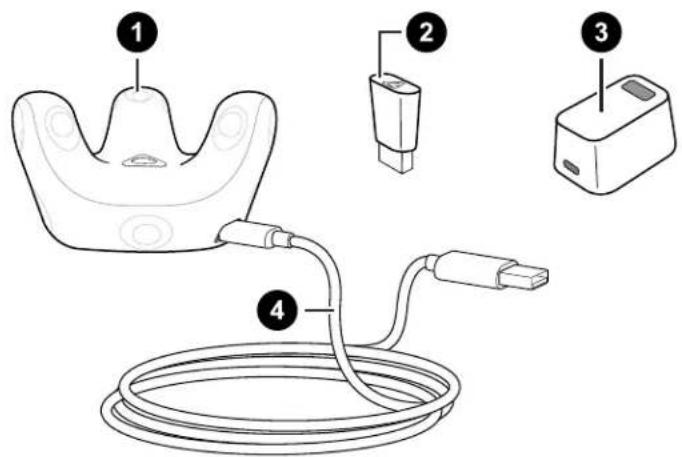
1 VIVE Tracker (3.0)
2 Dongle
3 Dongle cradle
4 USB Type-C
® cable
About VIVE Tracker (3.0)
Bring real-world objects into VR. Add VIVE Tracker (3.0) to specially designed accessories to play your favorite games. Attach it to a camera and put yourself in your own mixed reality videos. The possibilities are endless.
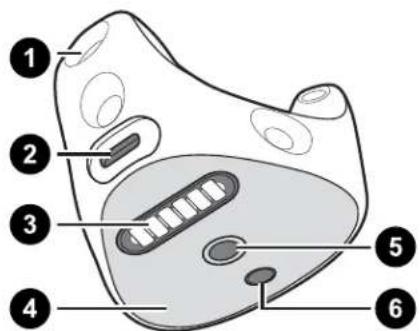
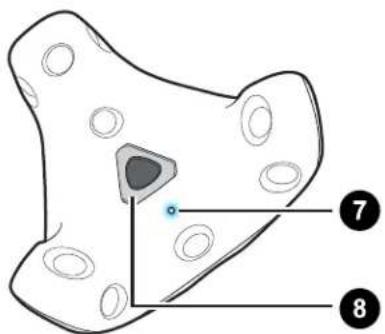
5 VIVE Tracker (3.0)
1 Sensors
2 USB port
3 Pogo pin port
4 Friction pad
5 Standard camera mount
6 Stabilizing pin recess
7 Status light
8 Power button
Charging VIVE Tracker (3.0)
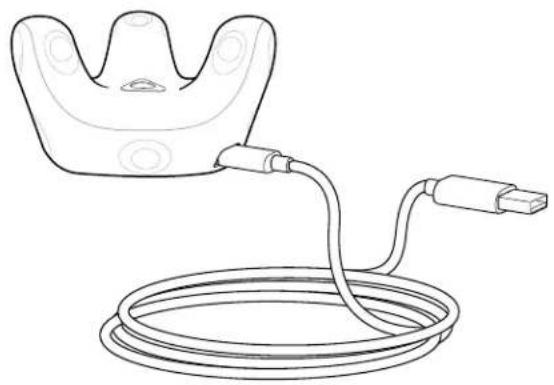
Charge VIVE Tracker (3.0) using the USB Type-C cable that came in the box.
Connect one end of the USB Type-C cable to VIVE Tracker (3.0) and the other end to your computer.
natural_image
Line drawing of a medical device with a coiled tube and connector (no text or symbols)When VIVE Tracker (3.0) is fully charged, its status light either shows white when off or green when on.

You can also use an HTC power adapter with the USB Type-C cable to charge VIVE Tracker (3.0).
6 VIVE Tracker (3.0)
Attaching VIVE Tracker (3.0) to an accessory
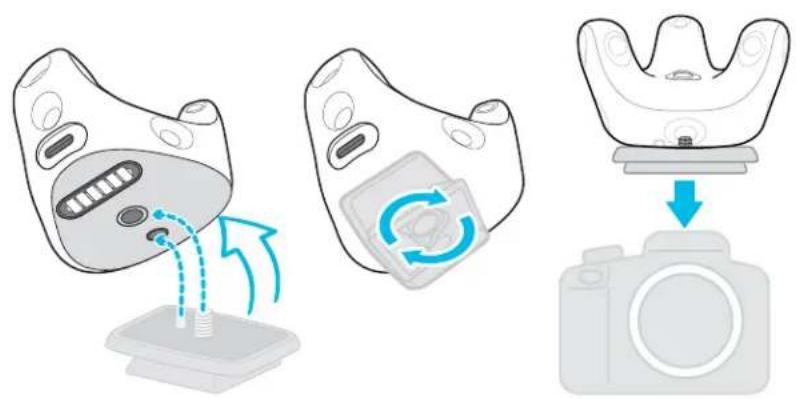
Third-party accessories are sold separately. The illustration below is for demonstration purposes only.
Standard tripod docking: Align the tripod plate's bolt and stabilizing pin with the corresponding holes on VIVE Tracker (3.0). Turn the tab on the bottom side of the plate clockwise to screw VIVE Tracker (3.0) securely in place.
Turning VIVE Tracker (3.0) on or off
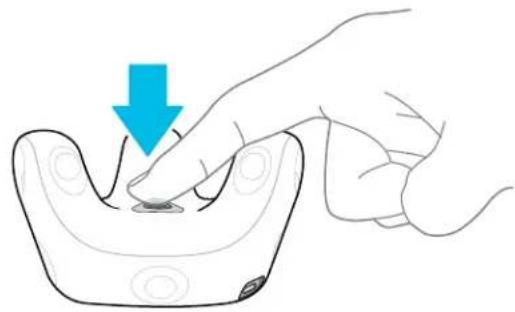
Turn VIVE Tracker (3.0) on or off by pressing the Power button in the middle.
natural_image
Illustration of a hand pressing down on a small electronic device with a blue arrow indicating the process (no text or symbols present)- To turn VIVE Tracker (3.0) on, briefly press the Power button.
■ To turn VIVE Tracker (3.0) off, you can:
■ Press the Power button for 5 seconds.
In the SteamVR window, right-click 🏠 and then select Turn Off Tracker.

When you exit the SteamVR app, VIVE Tracker (3.0) will also automatically turn off.
Why does VIVE Tracker (3.0) automatically turn off?
If VIVE Tracker (3.0) turns off by itself, it could be due to one of the following reasons:
■ The battery is drained.
- Pairing has timed out after being idle for more than 30 seconds.
- No movement has occurred for more than 5 minutes.

You can set how long VIVE Tracker (3.0) waits idle before turning off. In SteamVR, click >Settings>Startup / Shutdown, and then set the time in Turn off controllers after.
Using the dongle
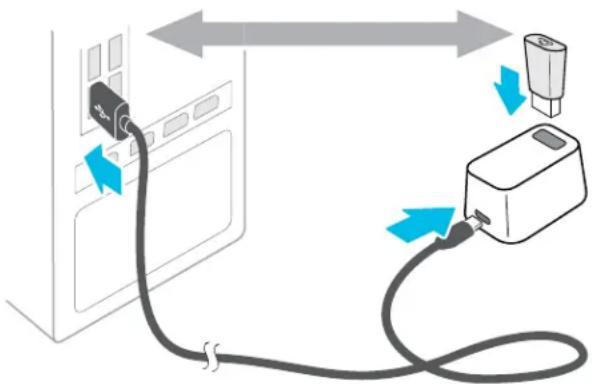
When you're using two controllers with VIVE Tracker (3.0), the dongle needs to be connected to the computer for VIVE Tracker (3.0) to be tracked.
- Connect one end of the USB Type-C cable to the dongle cradle, and then plug the dongle into the cradle.
- Connect the other end of the USB Type-C cable to a USB port on your computer.

Keep the dongle at least 45 cm (18 in) away from the computer and place it where it won't be moved.
Pairing VIVE Tracker (3.0)
When you turn VIVE Tracker (3.0) on for the first time, it needs to be paired with the headset or dongle.

When pairing VIVE Tracker (3.0) with the dongle, make sure the dongle is connected to the computer. See Using the dongle on page 7.
- From your computer, open the SteamVR app.
- Click Devices Pair Controller.

If you don't see VIVE Tracker (3.0) in the Controller Pairing window, click I want to pair a different type of controller >HTC Vive Tracker.
- Press the Power button for around 2 seconds.
The status light will blink blue.
- Wait for the status light to turn green. This means pairing is successful.
- In the Controller Pairing window, click Done.
Make sure your play area is clear of obstacles when using VIVE Tracker (3.0) on an object that needs to be tracked in VR.
Can I use more than one VIVE Tracker (3.0)?
The number of VIVE Tracker (3.0) units that you can use depends on the following:
■ Free USB ports on your computer
■ Number of units supported by VR content
■ Radio frequency (RF) interference
Verifying if VIVE Tracker (3.0) is detected
You can check the SteamVR window to see if it detects VIVE Tracker (3.0).
- From your computer, open the SteamVR app.
- In the SteamVR window, look for being tracked.
What does the status light mean?
The status light on the tracker turns green, red, or blue when one of the following occurs:
■ Green when VIVE Tracker (3.0) is in normal mode.
- Blinking red when battery is low.
- Blinking blue when VIVE Tracker (3.0) is pairing with the headset or dongle.
- Blue when VIVE Tracker (3.0) is connecting with the headset or dongle.
Updating the VIVE Tracker (3.0) firmware
Do not unplug the USB Type-C cable before the firmware update is finished. Unplugging the USB Type-C cable could result in a firmware error.
- From your computer, open the SteamVR app.
- If you see, mouse over it to check if the firmware is out of date. If so, click Update firmware.
- Using the supplied USB Type-C cable, connect VIVE Tracker (3.0) to an available USB port on your computer. Once the tracker is detected by the SteamVR app, the firmware update will start automatically.
- When the update is complete, click Done.
Why can't I see the VIVE Tracker (3.0) icon in SteamVR?
If you can't see the VIVE Tracker (3.0) icon, check that your SteamVR app is updated to the latest version.
Troubleshooting VIVE Tracker (3.0)
If VIVE Tracker (3.0) cannot be detected by SteamVR, try the following:
■ Make sure that at least one base station can see VIVE Tracker (3.0).
- Turn VIVE Tracker (3.0) off and on again to reactivate tracking.
- Restart the SteamVR app. If you still get an error, restart your computer and reopen the SteamVR app.
Trademarks and copyrights
©2021 HTC Corporation. All Rights Reserved.
VIVE, the VIVE logo, HTC, the HTC logo, and all other HTC product and service names are trademarks and/or registered trademarks of HTC Corporation and its affiliates in the U.S. and other countries.
Steam, the Steam logo and SteamVR are trademarks and/or registered trademarks of Valve Corporation in the U.S. and/or other countries.
All other trademarks and service marks mentioned herein, including company names, product names, service names and logos, are the property of their respective owners and their use herein does not indicate an affiliation with, association with, or endorsement of or by HTC Corporation. Not all marks listed necessarily appear in this User Guide.
Screen images contained herein are simulated. HTC shall not be liable for technical or editorial errors or omissions contained herein, nor for incidental or consequential damages resulting from furnishing this material. The information is provided “as is” without warranty of any kind and is subject to change without notice. HTC also reserves the right to revise the content of this document at any time without prior notice.
No part of this document may be reproduced or transmitted in any form or by any means, electronic or mechanical, including photocopying, recording or storing in a retrieval system, or translated into any language in any form without prior written permission of HTC.
- Trademarks and copyrights
- About this guide
- VIVE Tracker (3.0)
- What's inside the box?
- About VIVE Tracker (3.0)
- Charging VIVE Tracker (3.0)
- Attaching VIVE Tracker (3.0) to an accessory
- Turning VIVE Tracker (3.0) on or off
- Why does VIVE Tracker (3.0) automatically turn off?
- Using the dongle
- Pairing VIVE Tracker (3.0)
- Can I use more than one VIVE Tracker (3.0)?
- Verifying if VIVE Tracker (3.0) is detected
- What does the status light mean?
- Updating the VIVE Tracker (3.0) firmware
- Why can't I see the VIVE Tracker (3.0) icon in SteamVR?
- Troubleshooting VIVE Tracker (3.0)
Brand : HTC
Model : Tracker 3.0
Category : Uncategorized