
HELO-PLIGHT - Uncategorized STRONG - Free user manual and instructions
Find the device manual for free HELO-PLIGHT STRONG in PDF.


| Product Type | Smart Wi-Fi Plug |
| Brand | Strong |
| Model | HELO-PLIGHT |
| Power Supply | AC 230V – 50Hz |
| Max Power | 3680W |
| Max Current | 16A |
| Wi-Fi Standard | 2.4 GHz (802.11 b/g/n) |
| Encryption | WEP / WPA / WPA2 |
| Frequency Range | 2412 – 2472 MHz |
| Max Transmitting Power | ≤20 dBm |
| Channels | 1-13 |
| Operating Temperature | 0°C – 35°C |
| Storage Temperature | 0°C – 60°C |
| Operating Humidity | 5% (0°C) – 75% (35°C) |
| Dimensions (Approx.) | 5.5 x 5.5 x 7.5 cm |
| Weight (Approx.) | 80 g |
| Compatible Voice Assistants | Amazon Alexa, Google Assistant |
| App Control | Helo by Strong (iOS/Android) |
| Remote Control | Yes (via app) |
| Scheduling | Yes (via app) |
| Overload Protection | Yes (internal fuse) |
| Material | Fire-retardant ABS |
| Cleaning | Wipe with dry cloth; unplug before cleaning |
| Spare Parts Available | No user-serviceable parts |
| Warranty | 2 years (manufacturer) |
Frequently Asked Questions - HELO-PLIGHT STRONG
User questions about HELO-PLIGHT STRONG
0 question about this device. Answer the ones you know or ask your own.
Ask a new question about this device
Download the instructions for your Uncategorized in PDF format for free! Find your manual HELO-PLIGHT - STRONG and take your electronic device back in hand. On this page are published all the documents necessary for the use of your device. HELO-PLIGHT by STRONG.
USER MANUAL HELO-PLIGHT STRONG
natural_image
Close-up of a colorful circular device with a white outer ring and rainbow-colored interior (no text or symbols visible)HELO-PLIGHT Smart Wi-Fi Plug
User manual Benutzerhandbuch Manuale Utente Manual del usuario Manual do uti lizador Gebruiksaanwijzing Brugermanual Brukerhåndbok
Bruksanvisning Uživatelská příručka Návod na použiti e Korisnički priručnik Ръководство за потребителя Használati utasítás Посібник користувача
SERVICE CENTER
AT
support_at@strong.tv
SPECIFICATIONS
| Power Supply AC 230 V – 50 Hz | |
| Max Power 3680 W | |
| Single outlet current 16 A max | |
| Wi-Fi standard 2.4 GHz (make sure your router is 2.4 GHz if the router has two bands) | |
| Operating Temperature 0 °C – 35 °C | |
| Storage Temperature 0 °C - +60 °C | |
| Humidity in operation 5% (0 °C) | -75% (35 °C) |
| WLAN Specification Standard : 802.11 b/g/nEncryption : WEP / WPA / WPA2Frequency range : 2412 – 2472 MHzMax. Transmitting power : 802.11b : <20 dBm802.11g : <20 dBm802.11n (20 MHz) : <20 dBmChannel: 1-13 | |
HOW TO CONNECT WI-FI?
Step 1 : Download & Registration
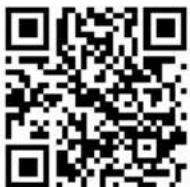
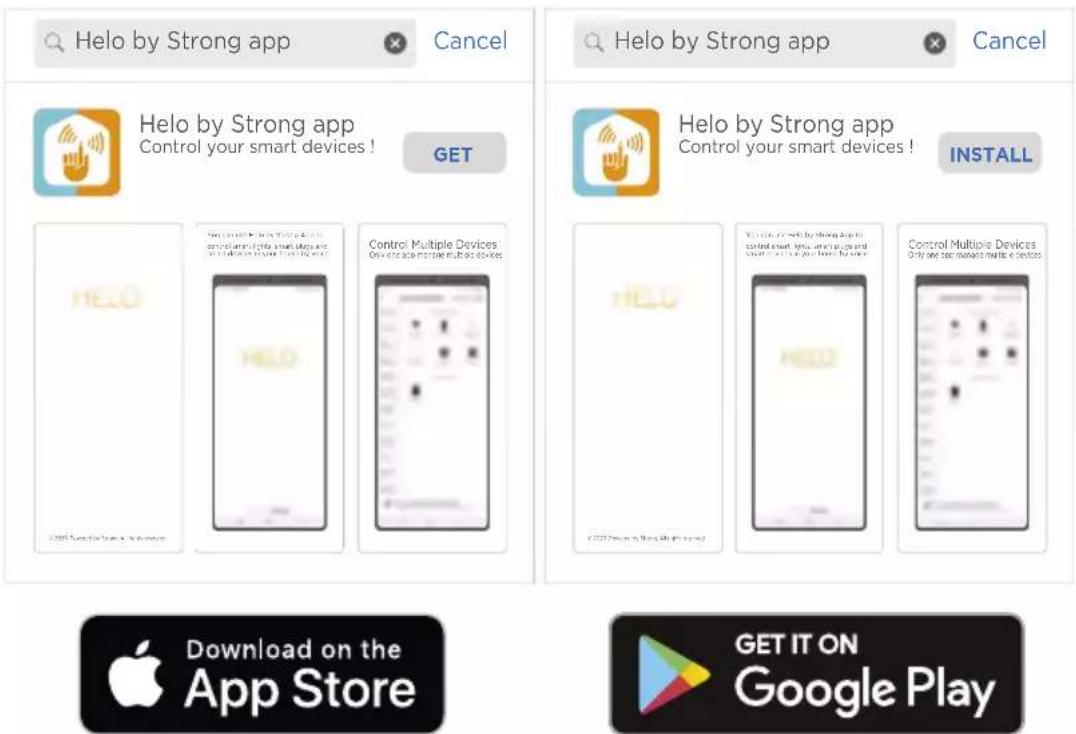
■ Scan the QR Code to download "Helo by Strong" app. Or search "Helo by Strong" on Apple Store or Google Play to install the app.
■ Open the "Helo by Strong" app, tap "Register" to get an account with your e-mail. Sign in the app.
Step 2: Add devices in Easy Mode (Recommended)
■ Make sure your Smart Wi-Fi Power Plug is powered on
■ Make sure your mobile phone is connected to your Wi-Fi
■ Press the power button for more than 5 seconds until the indicator begins to flash quickly (about 2 times/second). This means the device is ready for configuration.
■ Open your "Helo by Strong" app, tap "+" on the top right of the app
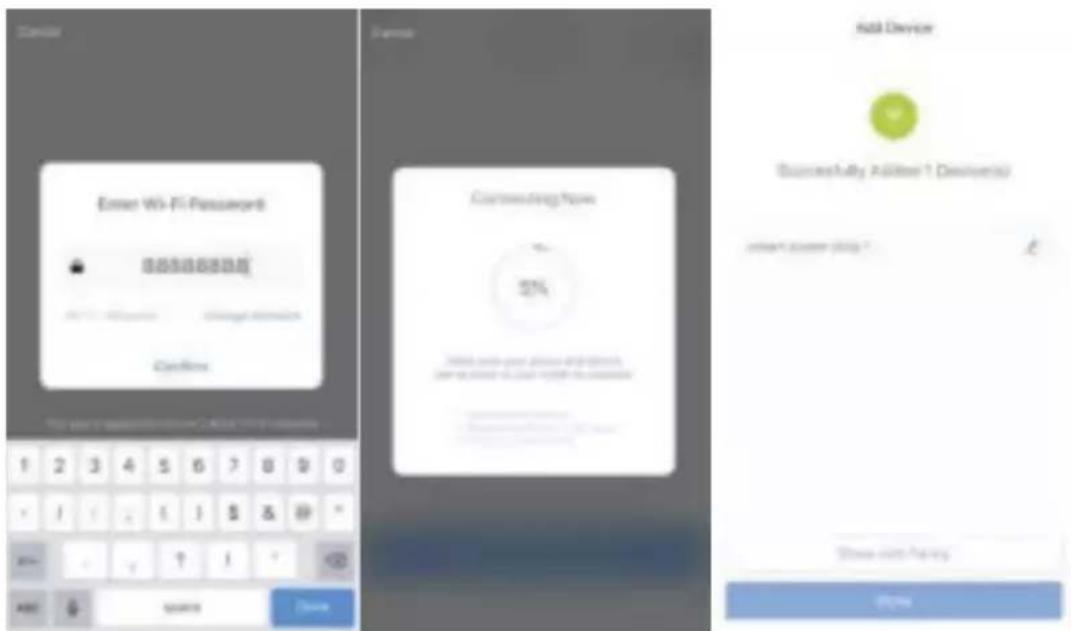
■ Select Device Type, tap "confirm indicator rapidly blink". It will fetch the password of the Wi-Fi network on which your mobile phone is connected.
Tap "Confirm" to connect the device. When appears "successfully add 1 device", then the connection is completed and your device is listed in your app list.
Add devices in AP Mode (If failed in Easy Mode, user could use AP mode)
■ Press the power button for more than 5 seconds until the indicator begins to flash quickly, then press it for another 5 seconds until the indicator flashes slowly.
■ Tap "+" on the top right of the app. Select Device Type.
Tap "AP Mode" on the top right, "confirm indicator slowly blink". It will fetch the password of the Wi-Fi networks on which your mobile phone is connected.
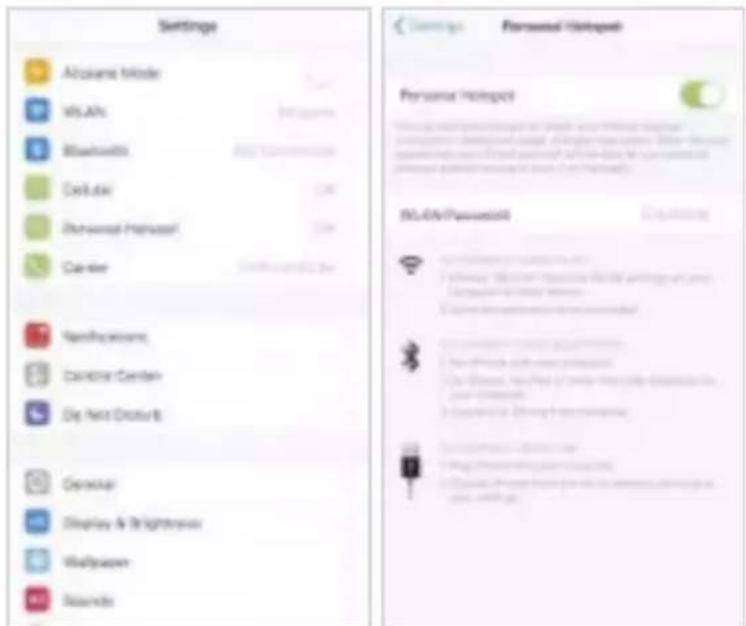
■ Tap "Confirm" and "Connect now" to go to the WLAN setting interface in your mobile phone.
■ Select the Wi-Fi network named "Helo_xxx" to connect it.
■ Return to the "Helo by Strong" app, the connection will start automatically.
■ When appears "successfully add 1 device", then the connection is completed and your device is listed in your app list.
Step 3: Control your Smart Wi-Fi Power Plug via Helo by Strong app anytime and anywhere
■ Make sure your mobile phone and Smart Wi-Fi Power Plug are all connected to the same Wi-Fi network. More functions you will enjoy refer to the app interface.
Step 4: Share your devices with your friend or family after you add your devices successfully
Quick Guide of Using Amazon Echo
Before using Amazon Echo to control your devices, make sure you meet the following conditions.
√ Amazon Alexa App and account
√ An Echo device, including Echo, Echo Dot and Echo Tap
√ Smart Wi-Fi Power Plug
Sign in with Helo by Strong account, add the device, then change the name to an easily recognizable word or phrase, like "Bedroom plug", "Plug1" etc.
Set up Echo with Amazon Alexa App
■ Sign in with Amazon account
■ Tap the Homepage on the top left, tap "Settings" and "Set up a new device"
■ Select an Echo device, long press the dot button until the orange light shows up and tap "Continue"
■ Select your Wi-Fi network and connect it to your device according to the instructions. This may take several minutes.
Enable the skills in Alexa App. (Note: If a Helo by Strong account has been linked before, you can use it directly, or you can also tap "Disable skills" to remove it).
■ Tap the Homepage on the top left. Select "Skills"
■ Search "Helo by Strong" and select "Helo by Strong"
■ Tap "Enable Skills" to enable the Helo by Strong Skill. You will be redirected to the account link page.
■ Type your Helo by Strong account and password. Do not forget to select the country/region where your account belongs to.
■ Tap "Link Now" to link your Helo by Strong account.
■ Leave the page when "Alexa has been successfully linked with Helo by Strong" shows up.
Control your smart device through Echo (Echo needs to discover your smart devices before the control).
■ You can say "Alexa, discover devices" to Echo, or you can also tap "Discover devices" on the app to discover the smart devices.
■ Discovered devices will be shown in the list. (Note: Every time you change the name of devices on Helo by Strong app, Echo must re-discover devices before taking control).
Now you can control your smart devices through Echo. You can use following commands to control them (e.g., Plug1):
■ Alexa, turn on/off the Plug1
■ Alexa, turn on the plug after 5 mins
Quick Guide of using Google Home
Sign in with Helo by Strong account, add the device, then change the name to an easily recognizable word or phrase, like "BedroomPlug", "Plug1", etc.
Set up Google Home with Google Home App
- Make sure your Google Home is energized.
- Open the Google Home app by tapping the app icon on your mobile device.
- Tap "ACCEPT" to agree to the Terms of Service and Privacy Policy. Allow Google Home app to access the device location to discover and set up nearby devices.
- Tap "SIGN IN", choose one of the Google account that you already logged in on your mobile device. Or follow the instructions to sign in with a new Google account.
- The Google Home app scans nearby devices that are energized and are ready to set up. Tap "SET UP" to set up your Google Home.
- When Google Home app is successfully connected to the Google Home device, tap "PLAY TEST SOUND", it will play a test sound to confirm you are connected to the right device. If you heard the test sound, tap "I HEARD IT".
- Select the Room (ex : Living Room) where your Google Home is located. This helps you identify the device when you want to cast to it. Choose the Wi-Fi network you want to connect to your Google Home. To automatically fetch the password for this network on this device, tap "OK", then the password will populate in the password field. You can also manually enter your password. Then tap "CONTINUE".
- In order for the Google assistant to answer your questions and to enjoy a personalized experience, you must sign into your Google account, then tap "SIGN UP". Choose the Google account you want to link to your Google Home device, then tap "CONTINUE AS XXX". Enter the address where this Google Home is installed, and select your default music service.
- Tap "SKIP TUTORIAL" to finish the setup. You can also tap "CONTINUE" to watch the Google Home tutorial.
Link Helo by Strong account in Home Control
ATTENTION : Due to the Google Home app's known bug, you could only use one Google account to control "Home Control Action", if you sign in Google Home app with several Google accounts.
Control your smart devices through Google Home
Now you can control your smart devices through Google Home. Take the Smart Wi-Fi Power Plug as the example, the supported voice commands are as below:
■ Ok Google, turn on/off the smart plug.
■ Ok Google, turn on the smart plug after 5 mins.

- HELO-PLIGHT Smart Wi-Fi Plug
- SERVICE CENTER
- AT
- HOW TO CONNECT WI-FI?
- Step 1 : Download & Registration
- Step 2: Add devices in Easy Mode (Recommended)
- Add devices in AP Mode (If failed in Easy Mode, user could use AP mode)
- Step 3: Control your Smart Wi-Fi Power Plug via Helo by Strong app anytime and anywhere
- Step 4: Share your devices with your friend or family after you add your devices successfully
- Quick Guide of Using Amazon Echo
- Set up Echo with Amazon Alexa App
- Quick Guide of using Google Home
- Set up Google Home with Google Home App
- Link Helo by Strong account in Home Control
- Control your smart devices through Google Home
Brand : STRONG
Model : HELO-PLIGHT
Category : Uncategorized