
XGPS190 - Gps DUAL - Free user manual and instructions
Find the device manual for free XGPS190 DUAL in PDF.


| Product Type | Bluetooth GPS Receiver |
| Brand | Dual |
| Model | XGPS190 |
| Category | GPS Navigation |
| Dimensions (approx.) | 8.5 x 5.5 x 2.0 cm |
| Weight (approx.) | 100 g |
| Power Source | Rechargeable Li-ion battery |
| Battery Life | Up to 12 hours |
| Charging Port | Micro USB |
| Connectivity | Bluetooth 4.0, NMEA 0183 output |
| GPS Chipset | MTK high sensitivity |
| GPS Accuracy | < 2.5 m CEP |
| SBAS Support | WAAS, EGNOS, MSAS |
| Number of Channels | 66 channels |
| Update Rate | 10 Hz |
| Operating Temperature | -10°C to 60°C |
| LED Indicators | Power, Bluetooth, GPS fix |
| Mounting | Designed for dashboard or windshield |
| Compatible Devices | iOS, Android, Windows devices with Bluetooth |
| Included Accessories | USB charging cable, car charger, mounting bracket |
Frequently Asked Questions - XGPS190 DUAL
User questions about XGPS190 DUAL
0 question about this device. Answer the ones you know or ask your own.
Ask a new question about this device
Download the instructions for your Gps in PDF format for free! Find your manual XGPS190 - DUAL and take your electronic device back in hand. On this page are published all the documents necessary for the use of your device. XGPS190 by DUAL.
USER MANUAL XGPS190 DUAL
natural_image
Black Dual phone with GPS and ADS-R interface, no visible text or symbols on device bodyXGPS190
OWNER'S MANUAL
GPS + ADS-B Weather and Traffic Receiver with AHRS


XGPS190 XGPS190
Thank you for purchasing the XGPS190 ADS-B Receiver from Dual Electronics.
The XGPS190 is designed to receive signals from the FAA's ADS-B ground network and from other aircraft operating either UAT (978 MHz) or 1090ES (1090 MHz) transceivers. The XGPS190 also includes an AHRS sensor for use with the synthetic vision feature included in some EFB apps. The GPS receiver in the XGPS190 will utilize SBAS correction information (WAAS or EGNOS) and can accurately determine your location anywhere in the world.
The XGPS190 can wirelessly transmit information to many kinds of devices which have Bluetooth connectivity and support the Bluetooth Serial Port Profile (SPP). This includes:
• the iPod touch (generations 2 through 6)
• the iPhone (generations 3G through 6)
- the iPad (1-4), iPad Air (1&2), iPad mini (1-4) and iPad Pro (1)
You can also connect the XGPS190 to many Android smart phones and tablets.
NOTE: Not all manufacturers include SPP in their devices, even if the device has Bluetooth. Please consult the owner's manual for your specific device to determine whether it supports SPP.

A Note on ADS-BIntro
The ADS-B network provides weather data as well as a growing amount of air traffic information. However, ADS-B is an emerging system which still has coverage gaps. The current coverage map is available on the FAA website at http://www.faa.gov/nextgen.
Weather. The ADS-B ground system broadcasts regional NEXRAD weather information every 2.5 minutes and continental NEXRAD information every 15 minutes. Both weather broadcasts are received by the XGPS190.
Traffic. The XGPS190 will also receive ADS-B traffic information from both the ADS-B ground system and from other aircraft operating UAT or 1090ES transponders. Traffic information includes position, heading, speed and altitude for each aircraft.
However, it is important to know that traffic information offered through the ADS-B ground system is only broadcast in response to a signal from an ADS-B Out transponder. Since not all aircraft are equipped with ADS-B transponders at this point, please be aware that the traffic information provided by the ADS-B network is only a partial picture of traffic. Until all aircraft are ADS-B out equipped, always assume there is air traffic around you that

XGPS190 XGPS190
is not being reported by the ADS-B system.
NOTE: The XGPS190 is not an ADS-B Out transmitter.
Additionally, not all electronic flight bag (EFB) apps currently display traffic information even if it is available from an ADS-B source and received by the XGPS190. Please refer to the documentation for your EFB app to determine whether or not traffic information is displayed.
Lastly, please be aware that the signal from an ADS-B ground transmitter usually cannot be picked up on the ground. In some areas, you may need to be above 2000 feet AGL in order to reliably receive broadcasts from an ADS-B ground transmitter. Terrain and proximity to the nearest ground transmitter will affect your reception.

Controls and Indicators
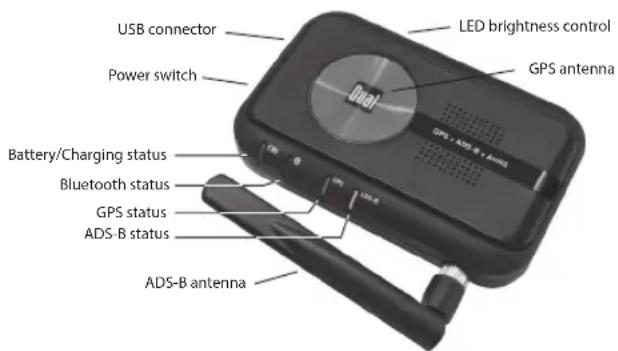
Please refer to the diagram above to locate the controls and indicators on the XGPS190.
LED brightness control. Use this switch to adjust the brightness of the LEDs on the front of the device.
USB connector. The USB connection is used to recharge the XGPS190.
Power switch. Slide the power switch from "OFF" to the "ADS-B" position to receive both GPS and ADS-B signals. If you only need GPS information, slide the switch to the middle position, "GPS".
Battery/Charging status light. This light will flash red when the battery level is low and the device requires recharging. (See Charging on page 15.) During charging, the light will glow solid red and it

XGPS190 XGPS190
will change to green when charging is complete. This light is normally off while the XGPS190 is running.
Bluetooth status light. This blue light will indicate whether the XGPS190 is searching for a device to connect to, or has successfully paired to a device. A slow blue flash (about once per second) indicates the XGPS190 is not connected to any devices but is ready to connect. A solid blue glow indicates that the XGPS190 has successfully paired with at least one device.
GPS status light. The GPS indicator will flash green while the XGPS190 is searching for satellite signals. The light will change to a steady green when your location is successfully determined. NOTE: when paired with an iPad, iPod touch or iPhone the GPS status light will not illuminate until an app is actively requesting information.
ADS-B status light. This light glows solid white when the ADS-B receiver is active. The indicator will quickly flash when it is receiving ADS-B data.
ADS-B antenna connection. The included ADS-B antenna will need to be attached to the XGPS190 before use. Remove the protective rubber cap on the front side of the XGPS190 to expose the ADS-B antenna connector.
An external antenna can also be used with the 6

XGPS190. A dedicated, passive 978 MHz transponder antenna mounted on the bottom of the aircraft is an ideal external antenna option. This antenna should be placed at least 36" away from the existing transponder antenna. Use RG400 cable to connect the antenna to the XGPS190. A male SMA connector will connect to the antenna port on the XGPS190.
IMPORTANT: DO NOT connect the XGPS190 to the existing transponder antenna on your aircraft. This will irreparably damage the XGPS190.
GPS antenna. The GPS antenna in the XGPS190 is located under the red disc. For best GPS reception, position the XGPS190 so that it has an unobstructed view of the sky.

XGPS190 XGPS190
Setup
Step 1) Remove the rubber cap on the front side of the XGPS190 to expose the antenna connector. Attach the included ADS-B antenna, or connect an external non-amplified antenna using a high quality shielded coaxial cable.
Step 2) Pair the XGPS190 to your iPad or Android tablet (see Pairing with your device below). The XGPS190 will work with up to two devices simultaneously.
Step 3) Position the XGPS190 on the glare shield or affix it to a window using the included non-slip pad.
Step 4) Download the free ADS-B Status Tool app from the iTunes App store. This app will give you information about your XGPS190, such as battery level, charging status and GPS reception status.
PLEASE NOTE: The XGPS190 is intended to be used with popular EFB apps. A current list of compatible EFB apps is available on the web at http://XGPS190.dualav.com.
Step 5) Open a compatible EFB app and begin using the XGPS190.

Non-slip pad
The included non-slip pad is designed to hold the XGPS190 securely in place on most surfaces.
With the open edge of the pad facing toward you, insert the XGPS190 into the pad so that the red dot will be on the left side.
If the bottom of the pad looses its stickiness from an accumulation of dirt/dust, simply wash the pad with warm water and a mild soap and allow the pad to air dry.
Important note about heat
The XGPS190 has been designed to work at high temperatures, and it is normal for the XGPS190 to become warm when operating. It will also absorb additional heat from the direct sun or when sitting on a hot glare shield so please use caution when handling the XGPS190 after it has been running in the direct sun because it may be hot.

XGPS190 XGPS190
Pairing with your device
The instructions below will guide you through the initial pairing process which connects the XGPS190 to your tablet/smart phone. Once the XGPS190 is paired with your device, it is ready to use.
The XGPS190 can pair to two devices at a time. To pair to the second device, repeat the same instructions you followed for the first.
When powered on subsequently, the XGPS190 will automatically try to reconnect to the last tablet(s) it was paired with. Keep this in mind when trying to use it with multiple devices: if you are having trouble getting another device to recognize the XGPS190, make sure the last device you used with the XGPS190 is turned completely off or is out of Bluetooth range.
If the Bluetooth connection is interrupted while communicating, either because a device is turned off or because the distance between the two devices is too great, you must turn the XGPS190 off and back on in order for it to automatically reconnect. Alternatively, you can go into your device's settings menu and manually reactivate the link.
NOTE: Activating Airplane Mode on the iPad/iPhone/iPod (which is recommended when flying) automatically turns off Bluetooth, so it must be

manually turned back on. The recommended procedure with the iPad/iPhone/iPod is to activate Airplane Mode, turn Bluetooth back on and then turn on the XGPS190.
NOTE: The battery in the XGPS190 is already partially charged and the device should turn on the first time you take it out of the box. If the device does not turn on, please charge it from a USB source before continuing - see Charging on page 15.
NOTE: If your device requests a code to connect during the pairing process, use "0000" or "1234".
Pairing the XGPS190 with the iPad, iPod touch or iPhone
(NOTE: these instructions were written using iOS version 9.0 and may be different if you are using a different version of the iPhone OS.)
- Turn on the XGPS190. The blue Bluetooth status light on the XGPS190 will start blinking slowly (about once per second).
- On the iPad/iPod touch/iPhone, go to:
Settings->Bluetooth
and turn on Bluetooth. The device will automatically begin looking for the XGPS190.
• After a few moments, the XGPS190 will ap-

XGPS190 XGPS190
pear as XGPS190-xxxxxx in the list of devices on the iPod touch/iPad/iPhone screen. (The last 6 digits are part of the XGPS190 Bluetooth ID and will be different for each unit.) The word Misc may also appear momentarily before XGPS190-xxxxxx appears.
- Tap XGPS190-xxxxxx in the list of devices to connect to it. The words "Not Connected" will disappear and be replaced by the spinning cursor.
- After a few seconds, "Not Connected" will change to "Connected". The blue LED on the XGPS190 will blink rapidly for a few seconds and then stay illuminated, confirming the two devices have successfully paired and are communicating.
- The iPad/iPhone/iPod touch may then display a message saying "Application Not Installed: This accessory requires an application you do not have installed." Despite what the message implies, the XGPS190 is ready to use with your iPad, iPhone or iPod touch and you do not need to download anything to make the XGPS190 work. We do recommend that you download a free app from the iTunes store, called the ADS-B Status Tool, which shows you detailed information about the XGPS190 (device status & battery charge level and the

signal reception). Tap "Yes" to be redirected to the iTunes store to download this app, or "No" to download it later. The ADS-B Status Tool app is a completely optional download.
Pairing the XGPS190 with an Android device
(NOTE: these instructions were written using Android OS version 4.4 and may be different if you are using a different version of the Android OS.)
- Turn on the XGPS190. The blue Bluetooth status light on the XGPS190 will start blinking slowly (about once per second).
- On the Android device go to:
Settings->General->Developer Options
and enable the option for Allow mock loca- tions. This will let the Android device use GPS information from an external device like the XGPS190.
• On the Android device go to:
Settings->Connections-> Network Connections
and turn on Bluetooth.
- Tap "Scan" and the Android device will begin looking for available Bluetooth devices.
• After a few seconds, the word XGPS190-xxxxxx will appear in the list of devices. (Note: the last 6 digits are part of the XGPS190 Blue-

XGPS190 XGPS190
tooth ID and will vary from device to device.) At this point, the Android device may say Paired but not connected and the blue Bluetooth indicator on the XGPS190 will continue to blink slowly.
- If you are interested in using the XGPS190 with GPS-enabled applications other than EFB apps, you will need to install a helper app on your Android device. This app runs in the background and will let apps receive GPS information from the XGPS190. Several free helper apps are available on the Android Market. Please see the FAQ section on the Dual website (http://XGPS190.dualav.com/faq.html) for specific recommendations and installation instructions. A helper app is not required for use with most EFB apps. It is only required for car & marine navigation apps or other apps which only use GPS information.
If you need additional help connecting the XGPS190 to your device, please contact customer service (send e-mail to cs@dualav.com or call 866-382-5476). However, due to the enormous variety of available smart phones and tablets, you may need to contact the manufacturer of your specific device for additional instructions.

Charging
To charge, connect the XGPS190 to a charger using a standard USB cable (included).
Two chargers are included with the XGPS190: a 120-240VAC wall charger and a 12-30VDC cigarette lighter adapter charger. Other chargers can be used, but they must be rated to supply at least 2.1A of charging current. To avoid charging problems, we recommend using only chargers from high quality manufacturers.
NOTE: Laptop USB ports will not supply enough charging current to the XGPS190, and should not be used for charging.

XGPS190 XGPS190
Tips for best performance
- For best GPS reception, put the XGPS190 in a location with a clear view of the sky.
• The ADS-B broadcast is a line-of-sight UHF signal originating from both terrestrial and airborne transmitters: weather is sent from ground stations, and traffic is transmitted from both ground stations and other aircraft. For the best ADS-B reception, place the XGPS190 where the ADS-B antenna has a clear view out of the cockpit window, i.e. not down on a seat where the fuselage blocks signals from reaching the antenna. - The range of the Bluetooth connection will drop as the battery level drops. If you find that the wireless connection is failing, try recharging the XGPS190.
- Windshields with integrated heating elements can severely attenuate GPS signals. If your aircraft has these, we recommend placing the XGPS190 in an unheated side window for best reception.
- You can renew the stickiness on the bottom of the non-slip pad by washing the pad with warm water and mild soap. Let the pad air dry or dry it with a lint-free cloth.

Troubleshooting
• In most locations, it is not possible to receive ADS-B weather or traffic signals from a ground transmitter unless you are airborne (sometimes as high as 2000 feet AGL.). ADS-B broadcasts are also not available in all areas of the US yet. Please see http://www.faa.gov/nextgen/programs/adsb for the most current information on coverage.
- If the XGPS190 does not automatically reconnect to your tablet/smart phone, turn off both devices and then turn on the XGPS190 after turning on your tablet/smart phone.
- Activating Airplane Mode on an iOS device will turn off Bluetooth automatically. If you are using Airplane Mode, you will need to manually re-enable Bluetooth on the iOS device, and then turn on the XGPS190.
• If you cannot pair the XGPS190 with a device:
Step 1. Check to see if the XGPS190 is still connected to a previous device: if the blue light on the XGPS190 is not blinking, it is connected to at least one other device. Turn off Bluetooth on the previously paired device, or move the device out of Bluetooth range.
Step 2. Completely power down and reboot both the device and the XGPS190.
• The battery in the XGPS190 is not user-ser-

XGPS190 XGPS190
viceable. For battery issues, please contact Customer Support for additional help: send e-mail to cs@dualav.com or call 855-936-0129.
For other questions or additional help, please contact Customer Support via e-mail at cs@dualav.com or call 855-936-0129.

Specifications
Dimensions (WxHxD in mm)
• XGPS190: 110 x 70 x 25
• Non-slip pad: 113 x 184 x 29
XGPS190 Voltage
- Input voltage: 5 VDC
Cigarette Lighter Power Adapter Voltage
- Input voltage: 12-30 VDC
• Output: 5 VDC, 2.1A
GPS
• L1 frequency, SBAS (WAAS, MSAS, EGNOS, GAGAN) supported.
• Cold start: < 29 sec. typ. (open sky)
- Warm start: < 25 sec. typ. (open sky)
Bluetooth
- Version: 2.1+EDR
- Range: \~10m (\~33 ft.) (open space)
ADS-B
• 978 MHz and 1090 MHz receive-only
Internal Battery
- Operating time: \~4 hours
- Charging time: \~3 hours
Environment Requirements
- Operating temp: 14^ - 140^ (-10°C - 60°C)
- Storage temp: -4^ - 176^ (-20°C - 80°C)
• Relative humidity: 5% - 95% non condensing

XGPS190 XGPS190
ICC Compliance
This Class [B] digital apparatus complies with Canadian ICES-003.
FCC Compliance
This device complies with Part 15 of the FCC Rules. Operation is subject to the following two conditions:
(1) this device may not cause harmful interference, and
(2) this device must accept any interference received, including interference that may cause undesired operation.
Warning: Changes or modifications to this unit not expressly approved by the party responsible for compliance could void the user's authority to operate the equipment.
Note: This equipment has been tested and found to comply with the limits for a Class B digital device, pursuant to Part 15 of the FCC Rules. These limits are designed to provide reasonable protection against harmful interference in a residential installation. This equipment generates, uses and can radiate radio frequency energy and, if not installed and used in accordance with the instructions, may cause harmful interference to radio communications. However, there is no guarantee that interference will not occur in a particular in-

stallation. If this equipment does cause harmful interference to radio or television reception, which can be determined by turning the equipment off and on, the user is encouraged to try to correct the interference by one or more of the following measures:
• Reorient or relocate the receiving antenna.
- Increase the separation between the equipment and receiver.
- Connect the equipment into an outlet on a circuit different from that to which the receiver is connected.
- Consult the dealer or an experienced radio/TV technician for help.
Warranty
This warranty gives you specific legal rights. You may also have other rights which vary from state to state. Dual Electronics Corp. warrants this product to the original purchaser to be free from defects in material and workmanship for a period of one year from the date of the original purchase.
Dual Electronics Corp. agrees, at our option, during the warranty period, to repair any defect in material or workmanship or to furnish an equal new, renewed or comparable product (whichever is deemed necessary) in exchange without charges, subject to verification of the defect or malfunction and proof of the date of purchase. Subsequent re-

XGPS190 XGPS190
placement products are warranted for the balance of the original warranty period.
Who is covered? This warranty is extended to the original retail purchaser for products purchased from an authorized Dual dealer and used in the U.S.A.
What is covered? This warranty covers all defects in material and workmanship in this product. The following are not covered: software, installation/removal costs, damage resulting from accident, misuse, abuse, neglect, product modification, improper installation, incorrect line voltage, unauthorized repair or failure to follow instructions supplied with the product, or damage occurring during return shipment of the product. Specific license conditions and copyright notices for the software can be found via http://www.dualav.com.
What to do?
- Before you call for service, check the appropriate section in this manual. A simple adjustment may save you a service call.
- If you require service during the warranty period, you must carefully pack the product (preferably in the original package) and ship it by prepaid transportation with a copy of the original receipt from the retailer to an authorized service center.
- Please describe your problem in writing and

include your name, a return UPS shipping address (P.O. Box not acceptable), and a daytime phone number with your shipment.
- For more information and for the location of the nearest authorized service center please contact us by one of the following methods:
• Call us toll-free at 1-855-936-0129
• E-mail us at cs@dualav.com
Exclusion of Certain Damages: This warranty is exclusive and in lieu of any and all other warranties, expressed or implied, including without limitation the implied warranties of merchantability and fitness for a particular purpose and any obligation, liability, right, claim or remedy in contract or tort, whether or not arising from the company's negligence, actual or imputed. No person or representative is authorized to assume for the company any other liability in connection with the sale of this product. In no event shall the company be liable for indirect, incidental or consequential damages.

Dual Electronics Corp.
Toll Free: 1-855-936-0129
www.dualav.com
©2016 Dual Electronics Corp. All rights reserved.
iPod, iPad and iPhone are trademarks of Apple Inc., registered in the US and other countries. “Made for iPod,” “Made for iPhone,” and “Made for iPad” mean that an electronic accessory has been designed to connect specifically to iPod, iPhone, or iPad, respectively, and has been certified by the developer to meet Apple performance standards. Apple is not responsible for the operation of this device or its compliance with safety and regulatory standards. The Bluetooth® word mark and logos are owned by the Bluetooth SIG, Inc. and any use of such marks by Namsung is under license. Other trademarks and trade names are those of their respective owners.

- XGPS190
- OWNER'S MANUAL
- GPS + ADS-B Weather and Traffic Receiver with AHRS
- XGPS190 XGPS190
- A Note on ADS-BIntro
- Setup
- Non-slip pad
- Important note about heat
- Pairing with your device
- Pairing the XGPS190 with the iPad, iPod touch or iPhone
- Settings->Bluetooth
- Pairing the XGPS190 with an Android device
- Settings->General->Developer Options
- Settings->Connections-> Network Connections
- Charging
- Tips for best performance
- Troubleshooting
- Specifications
- ICC Compliance
- FCC Compliance
- Warranty
- What to do?
Brand : DUAL
Model : XGPS190
Category : Gps