
MS100 - Home Automation TP-LINK - Free user manual and instructions
Find the device manual for free MS100 TP-LINK in PDF.
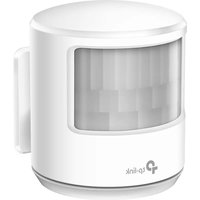


| Product Type | Smart Motion Sensor |
| Brand | TP-Link |
| Model | MS100 |
| Category | Home Automation |
| Dimensions | 3.2 x 3.2 x 1.3 inches (81 x 81 x 33 mm) |
| Weight | 1.2 oz (34 g) |
| Power Source | CR123A battery (3V) |
| Battery Life | Up to 1 year under normal use |
| Connectivity | Zigbee (requires TP-Link Hub) |
| Detection Range | Up to 30 ft (9 m) at 90° angle |
| Pet Immunity | Up to 25 kg (55 lbs) |
| Operating Temperature | -10°C to 45°C (14°F to 113°F) |
| Humidity Resistance | Up to 90% non-condensing |
| Mounting Type | Wall or corner mount (bracket included) |
| Compatibility | TP-Link Tapo or Kasa Hub (model H100) |
| App Support | Tapo or Kasa app (iOS/Android) |
| Voice Control | Amazon Alexa, Google Assistant |
| Main Functions | Motion detection, push notifications, trigger automation |
| Adjustable Sensitivity | Low, normal, high (via app) |
| Low Battery Alert | Yes, via app notification |
| Maintenance | Clean with a soft dry cloth; avoid liquids |
| Safety Certification | CE, FCC, RoHS |
| Warranty | 2 years limited |
Frequently Asked Questions - MS100 TP-LINK
User questions about MS100 TP-LINK
0 question about this device. Answer the ones you know or ask your own.
Ask a new question about this device
Download the instructions for your Home Automation in PDF format for free! Find your manual MS100 - TP-LINK and take your electronic device back in hand. On this page are published all the documents necessary for the use of your device. MS100 by TP-LINK.
USER MANUAL MS100 TP-LINK
MS100 Smart Motion Sensor User Manual MS100- TP-Link Technologies Co., Ltd.
TP-Link Technologies Co., Ltd. Smart Motion Sensor
FCC ID (https://fccid.io/) > TP-Link Technologies Co., Ltd. (https://fccid.io/TE7) > MS100 (https://fccid.io/TE7MS100) > MS100-User Manual (https://fccid.io/TE7MS100/User-Manual/MS100-User-Manual-3450394)
FCC ID Filing: TE7MS100 (https://fccid.io/TE7MS100)
Purchase on Amazon: Smart Motion Sensor (http://target.georiot.com/Proxy.ashx?tsid=17750&GR_URL=http%3A%2F%2Fwww.amazon.com%2Fgp%2Fsearch%3Fie%3DUTF8%26camp%3D1789%26creative%3D9325%26index%3De

Trouble Viewing? See the or view the HTML Version (https://fccid.io/TE7MS100/User-Manual/MS100-User-Manual-3450394.html) or PDF in frame (https://fccid.io/TE7MS100/User-Manual/MS100-User-Manual-3450394.iframe)
tp-link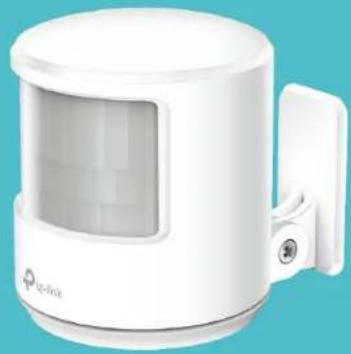
User Guide Smart Motion Sensor
Contents
About This Guide 1
Introduction 2
Appearance 3
Set Up Your Motion Sensor 4
Main Pages 6
Authentication 7
About This Guide
This guide provides a brief introduction to the Motion Sensor and the Kasa app, as well as regulatory information.
Please note that features of the Motion Sensor may vary slightly depending on the model and software version you have, and on your location, language, and internet service provider. All images, parameters, and descriptions documented in this guide are used for demonstration only.
Conventions
In this guide, the following convention is used:
| Convention | Description |
| Teal | Key information appears in teal, including management page text such as menus, items, buttons and so on. |
| Underline | Hyperlinks are in teal and underlined. You can click to redirect to a website. |
More Info
- Specific product information can be found on the product page at http://www.to-link.com. • The latest firmware and management app are available from the Download Center at http://www.to-link.com/ubport. • A Technical Support Forum is provided for you to discuss our products at http://forum.to-link.com.
- Our Technical Support and troubleshooting information can be found at http://www.no-link.com/support.
Introduction
With the Motion Sensor connected to your Kasa Smart Home Router, your home can use motion sensing to become even smarter, and that makes your life simpler. You can set your home in motion with the Kasa app, including:
• Smart Lighting Control - Automatically turn smart lights on/off • Occupancy Sensing - Enhance security and save energy whenever you're away • Remote Notification - Be notified of activity at home no matter where you are • Simple Setup - Easily connects to your Kasa Smart Home Router
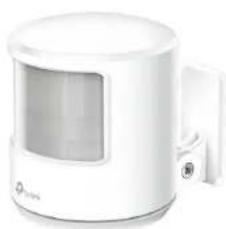
Appearance
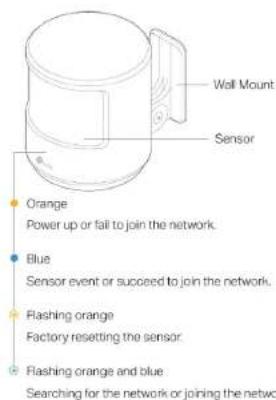
The Motion Sensor has an internal LED that changes color according to its status, a sensor, a battery compartment, and a wall mount. See the explanation below:
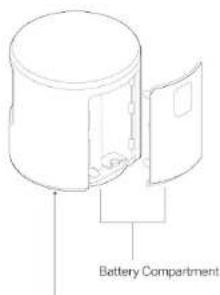
Restart/Reset Button:
Press for 1 second to restart the pairing mode.
Press and hold for 5 seconds to reset the sensor to factory default settings.
Set Up Your Motion Sensor
Follow the steps below to set up your Motion Sensor via Kasa for Mobile app.
- Download and install the Kasa app
Go to Google Play or the Apple App Store or scan the QR code below to download the Kasa app on your Android or iOS smartphone or tablet.
- Log in or sign up with TP-Link ID
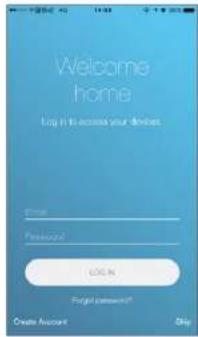
Open the app. Use your TP-Link ID to log in. If you don't have a TP-Link ID, tap Create Account. The Kasa app will guide you through the rest.
- Place the sensor
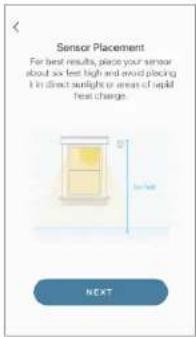
Take your sensor to the location you would like to monitor. For best results, place it about six feet high. Don't affix it yet.

Set Up Your Motion Sensor
Follow the steps below to set up your Motion Sensor via Kasa for Mobile app.
- Connect to Smart Home Router
Remove the screw securing the wall mount and slide the cover down.
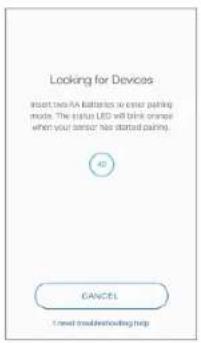
Insert two batteries to enter pairing mode.
- Install the sensor if needed
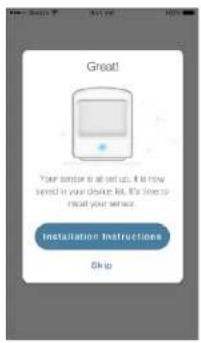
It is all set up. You can install the sensor to the wall if needed. The Kasa app will guide you through the whole process of installation.
Main Pages
After you successfully set up your Motion Sensor, you will see the home page of the Kasa app. Here you can view the working status of all devices that you've added to Kasa and manage them. Tap on a sensor to check the current status, time of last motion, the current battery level of your sensor. Click ☐ on sensor status page to view your device settings.
Home Page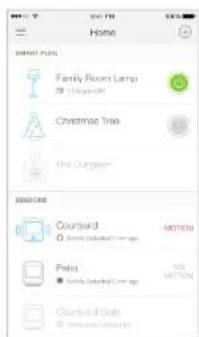
Sensor Status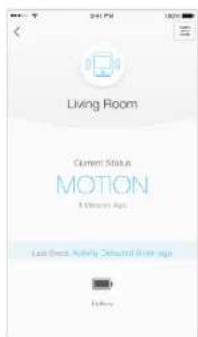
Device Settings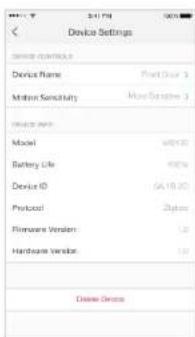
Authentication
COPYRIGHT & TRADEMARKS
Specifications are subject to change without notice. TP-link is a registered trademark of TP-Link Technologies Co., Ltd. Other brands and product names are trademarks or registered trademarks of their respective holders.
No part of the specifications may be reproduced in any form or by any means or used to make any derivative such as translation, transformation, or adaptation without permission from TP-Link Technologies Co., Ltd. Copyright © 2017 TP-Link Technologies Co., Ltd. All rights reserved.
FCC STATEMENT
FC
This equipment has been tested and found to comply with the limits for a Class B digital device, pursuant to part 15 of the FCC Rules. These limits are designed to provide reasonable protection against harmful interference in a residential installation. This equipment generates, uses and can radiate radio frequency energy and, if not installed and used in accordance with the instructions, may cause harmful interference to radio communications. However, there is no guarantee that interference will not occur in a particular installation. If this equipment does cause harmful interference to radio or television reception, which can be determined by turning the equipment off and on, the user is encouraged to try to correct the interference by one or more of the following measures:
- Increase the separation between the equipment and receiver.
- Connect the equipment into an outlet on a circuit different from that to which the receiver is connected.
- Consult the dealer or an experienced radio/TV technician for help.
This device complies with part 15 of the FCC Rules. Operation is subject to the following two conditions:
- This device may not cause harmful interference.
- This device must accept any interference received, including interference that may cause undesired operation.
Any changes or modifications not expressly approved by the party responsible for compliance could void the user's authority to operate the equipment.
Note: The manufacturer is not responsible for any radio or TV interference caused by unauthorized modifications to this equipment. Such modifications could void the user's authority to operate the equipment.
FCC RF Radiation Exposure Statement
This equipment complies with FCC RF radiation exposure limits set forth for an uncontrolled environment. This device and its antenna must not be co-located or operating in conjunction with any other antenna or transmitter.
"To comply with FCC RF exposure compliance requirements, this grant is applicable to only Mobile Configurations. The antennas used for this transmitter must be installed to provide a separation distance of at least 20 cm from all persons and must not be co-located or operating in conjunction with any other antenna or transmitter."
CE Mark Warning
CE
This is a class B product. In a domestic environment, this product may cause radio interference, in which case the user may be required to take adequate measures.
RF Exposure Information
This device meets the EU requirements (2014/53/EU Article 3.1a) on the limitation of exposure of the general public to electromagnetic fields by way of health protection.
The device complies with RF specifications when the device is used at 20 cm from your body.
Canadian Compliance Statement
This device complies with Industry Canada license-exempt RSS standard(s). Operation is subject to the following two conditions:
Radiation Exposure Statement:
This equipment complies with IC radiation exposure limits set forth for an uncontrolled environment. This equipment should be installed and operated with minimum distance 20cm between the radiator & your body.
Industry Canada Statement
CAN ICES-3 (B)/NMB-3(B)
Korea Warning Statements:
- When product has power button, the power button is one of the ways to shut off the product; when there is no power button, the only way to completely shut off power is to disconnect the product or the power adapter from the power source.
- Don't disassemble the product, or make repairs yourself. You run the risk of electric shock and voiding the limited warranty. If you need service, please contact us. • Avoid water and wet locations.
Explanation of the symbols on the product label
| Symbol | Explanation |
| DC voltage | |
| Indoor use only | |
| RECYCLINGThis product bears the selective sorting symbol for Waste electrical and electronic equipment (WEEE). This means that this product must be handled pursuant to European directive 2012/19/EU in order to be recycled or discontinued to minimize its impact on the environment.User has the choice to give his product to a competent recycling organization or to the retailer when he buys a new electrical or electronic equipment. |
User Guide
Smart Motion Sensor
1910012158 REV1.0.0
Contents
About This Guide.... 1
Introduction.... 2
Appearance.... 3
Set Up Your Motion Sensor.... 4
Main Pages....6
Authentication....7
About This Guide
This guide provides a brief introduction to Motion Sensor and the Kasa app, as well as regulatory information.
Please note that features of Motion Sensor may vary slightly depending on the model and software version you have, and on your lot and internet service provider. All images, parameters and descriptions documented in this guide are used for demonstration only.
Conventions
In this guide, the following convention is used:
Convention
Teal
Underline
Description
Key information appears in teal, including management page text such as menus, items, buttons and so on.
Hyperlinks are in teal and underlined. You can click to redirect to a website.
More Info
- Specific product information can be found on the product page at http://www.tp-link.com.
• The latest firmware and management app are available from Download Center at http://www.tp-link.com/support.
• A Technical Support Forum is provided for you to discuss our products at http://forum.tp-link.com.
- Our Technical Support and troubleshooting information can be found at http://www.tp-link.com/support.
Introduction
With Motion Sensor connected to your Kasa Smart Home Router, your home can use motion sensing to become even smarter, and that may simpler. You can set your home in motion with Kasa app including:
- Smart Lighting Control - Automatically turn smart lights on/off
- Occupancy Sensing - Enhance security and save energy whenever you're away
- Remote Notification - Be notified of activity at home no matter where you are
- Simple Setup - Easily connects to your Kasa Smart Home Router
Appearance
Motion Sensor has an internal LED that changes color according to its status, a sensor, a battery compartment and a wall mount. See below:
Wall Mount
Sensor
Orange
- - - -
Power up or fail to join the network.
Battery Compartment
Blue
Sensor event or succeed to join the network.
Restart/Reset Button:
Flashing orange
Press and hold for 5 seconds to reset the sensor to factory default settings.
Flashing orange and blue
Press for 1 second to restart the pairing mode.
Factory resetting the sensor.
Searching for the network or joining the network. Set Up Your Motion Sensor
Follow the steps below to set up your Motion Sensor via the Kasa for Mobile app.
- Download and install the Kasa app
Go to Google Play or the Apple App Store, or scan the QR code below to download the Kasa app on your Android or iOS smartphone or tablet.
Kasa app on your Android or iOS smartphone or tablet.
- Log in or sign up with your TP-Link ID. Open the app. Use your TP-Link ID to log in. If you don't have a TP-Link ID, tap Create Account. The Kasa app will guide you through the rest.
- Place the sensor
Take your sensor to the location you would like to monitor. For best results, place it about six feet high. Don't affix it yet.
Set Up Your Motion Sensor
Follow the steps below to set up your Motion Sensor via the Kasa for Mobile app.
- Connect to Smart Home Router
Remove the screw securing the wall mount and slide the cover down.
Insert two batteries to enter pairing mode.
- Install the sensor if needed
It is all set up. You can install the sensor to the wall if needed. The Kasa app will guide you through the whole process of installation.
Main Pages
After you successfully set up your Motion Sensor, you will see the home page of the Kasa app. Here you can view the working state
you've added to Kasa and manage them. Tap on a sensor to check the current status, time of last motion, the current battery level on sensor status page to view your device settings.
Home Page
Sensor Status
Device Settings
Authentication
COPYRIGHT & TRADEMARKS
Specifications are subject to change without notice.
is a registered trademark of TP-Link Technologies Co., Ltd. Other brands and product
names are trademarks or registered trademarks of their respective holders.
No part of the specifications may be reproduced in any form or by any means or used to make any derivative such as translation, adaptation without permission from TP-Link Technologies Co., Ltd. Copyright © 2017 TP-Link Technologies Co., Ltd. All rights reserved. FCC STATEMENT
This equipment has been tested and found to comply with the limits for a Class B digital device, pursuant to part 15 of the FCC I designed to provide reasonable protection against harmful interference in a residential installation. This equipment generates, radio frequency energy and, if not installed and used in accordance with the instructions, may cause harmful interference to reduce. However, there is no guarantee that interference will not occur in a particular installation. If this equipment does cause harmful interference or television reception, which can be determined by turning the equipment off and on, the user is encouraged to try to correct the one or more of the following measures:
- Increase the separation between the equipment and receiver.
- Connect the equipment into an outlet on a circuit different from that to which the receiver is connected.
- Consult the dealer or an experienced radio/TV technician for help.
This device complies with part 15 of the FCC Rules. Operation is subject to the following two conditions:
- This device may not cause harmful interference.
- This device must accept any interference received, including interference that may cause undesired operation.
Any changes or modifications not expressly approved by the party responsible for compliance could void the user's authority to operate the equipment.
Note: The manufacturer is not responsible for any radio or TV interference caused by unauthorized modifications to this equipment. Such modifications could void the user's authority to operate the equipment.
FCC RF Radiation Exposure Statement
This equipment complies with FCC RF radiation exposure limits set forth for an uncontrolled environment. This device and its antenna must not be co-located or operating in conjunction with any other antenna or transmitter.
"To comply with FCC RF exposure compliance requirements, this grant is applicable to only Mobile Configurations. The antennas used for this transmitter must be installed to provide a separation distance of at least 20 cm from all persons and must not be co-located or operating in conjunction with any other antenna or transmitter."
CE Mark Warning
This is a class B product. In a domestic environment, this product may cause radio interference, in which case the user may be required to take adequate measures.
RF Exposure Information
This device meets the EU requirements (2014/53/EU Article 3.1a) on the limitation of exposure of the general public to electromagnetic fields and protection of health.
The device complies with RF specifications when the device is used at 20 cm from your body.
Canadian Compliance Statement
This device complies with Industry Canada license-exempt RSS standard(s). Operation is subject to the following two conditions:
- This device may not cause interference, and
- This device must accept any interference, including interference that may cause undesired operation of the device.
This equipment complies with IC radiation exposure limits set forth for an uncontrolled environment. This equipment should be installed and operated with a minimum distance of 20 cm between the radiator and your body.
Industry Canada Statement
CAN ICES-3 (B)/NMB-3(B)
Korea Warning Statements:
- When the product has a power button, the power button is one of the ways to shut off the product; when there is no power button, the completely shut off power is to disconnect the product or the power adapter from the power source.
- Don't disassemble the product, or make repairs yourself. You run the risk of electric shock and voiding the limited warranty. Please contact us.
Avoid water and wet locations.
Explanation of the symbols on the product label
Symbol
DC voltage
Explanation
Indoor use only
RECYCLING
This product bears the selective sorting symbol for Waste electrical and electronic equipment (WEEE). This means that this product must be handled pursuant to European directive 2012/19/EU in order to be recycled or dismantled to minimize its impact on the environment.
The user has the choice to give his product to a competent recycling organization or to the retailer when he buys a new electrical or electronic equipment.
Permanent Confidential No
Supercede No
Document Type User Manual
Display Format Adobe Acrobat PDF - pdf
Filesize 201.95kB (2524432 bits)
Date Submitted 2017-07-05 00:00:00
Date Available 2017-07-10 00:00:00
Creation Date 2017-05-10 09:07:56
Producing Software Adobe PDF Library 15.0
Document Lastmod 2017-05-10 16:17:40
Document Title MS100-User Manual
Document Creator Adobe InDesign CC 2015 (Windows)
Source Exif Data:
File Type : PDF
File Type Extension : pdf
MIME Type : application/pdf
PDF Version : 1.7
Linearized : No
XMP Toolkit : Adobe XMP Core 5.4-c005 78.147326, 2012/08/23-13:03:03
Create Date : 2017:05:10 09:07:56+08:00
Metadata Date : 2017:05:10 16:17:40+08:00
Modify Date : 2017:05:10 16:17:40+08:00
Creator Tool : Adobe InDesign CC 2015 (Windows)
Instance ID : uuid:c4eb0fc1-0c3e-4fc2-925d-03d08b5ceabf
Original Document ID : xmp.did:47d6471b-d755-024e-8a5d-5aea7e3f8867
Document ID : xmp.id:21da9cbd-aade-e948-aae8-81b6eedf71ae
Rendition Class : proof:pdf
History Action : converted
History Parameters : from application/x-indesign to application/pdf
History Software Agent : Adobe InDesign CC 2015 (Windows)
History Changed : /
History When : 2017:05:10 09:07:56+08:00
Derived From Instance ID : xmp.iid:d2dfdf91-0a3a-864c-a96c-961af3c93442
Derived From Document ID : xmp.did:47d6471b-d755-024e-8a5d-5aea7e3f8867
Derived From Original Document ID: xmp.did:47d6471b-d755-024e-8a5d-5aea7e3f8867
Derived From Rendition Class : default
Format : application/pdf
Producer : Adobe PDF Library 15.0
Trapped : False
Page Mode : UseOutlines
Page Count : 13
Creator : Adobe InDesign CC 2015 (Windows)
EXIF Metadata provided by EXIF.tools (https://exif.tools/)

(https://www.facebook.com/FCCID.io)



- MS100 SMART MOTION SENSOR USER MANUAL MS100- TP-LINK TECHNOLOGIES CO., LTD
- CONTENTS
- ABOUT THIS GUIDE
- CONVENTIONS
- MORE INFO
- INTRODUCTION
- APPEARANCE
- SET UP YOUR MOTION SENSOR
- MAIN PAGES
- AUTHENTICATION
- COPYRIGHT & TRADEMARKS
- FCC STATEMENT
- FC
- FCC RF RADIATION EXPOSURE STATEMENT
- CE MARK WARNING
- CE
- RF EXPOSURE INFORMATION
- CANADIAN COMPLIANCE STATEMENT
- RADIATION EXPOSURE STATEMENT
- INDUSTRY CANADA STATEMENT
- KOREA WARNING STATEMENTS
Brand : TP-LINK
Model : MS100
Category : Home Automation