THERMALTAKE TOUGHFAN 14 - PC Fan

TOUGHFAN 14 - PC Fan THERMALTAKE - Free user manual and instructions

Find the device manual for free TOUGHFAN 14 THERMALTAKE in PDF.

📄 16 pages English EN Download 💬 AI Question 10 questions ⚙️ Specs
Notice THERMALTAKE TOUGHFAN 14 - page 1
Pick your language and provide your email: we'll send you a specifically translated version.
Product Type PC Case Fan
Model TOUGHFAN 14
Brand Thermaltake
Fan Size 140mm x 140mm x 25mm
Rated Speed 500 ~ 2000 RPM (PWM)
Max Airflow 92 CFM (approx.)
Max Static Pressure 3.89 mm-H₂O (approx.)
Noise Level 32 dBA (max)
Bearing Type Hydraulic Bearing
Power Connector 4-Pin PWM
Rated Voltage 12 V DC
Rated Current 0.3 A
Power Consumption 3.6 W
LED Lighting No (non-RGB version)
Compatible Software TT RGB PLUS 2.0 (for fan speed control via optional controller)
Mounting Holes Standard 140mm spacing, 4 screws
Weight Approx. 180 g
Maintenance Wipe with dry cloth; do not use liquids
Safety Keep away from liquids; do not disassemble
Spare Parts Contact Thermaltake support for replacements

Frequently Asked Questions - TOUGHFAN 14 THERMALTAKE

How do I control the fan speed of TOUGHFAN 14?
The fan uses a standard 4-pin PWM connector. Connect it to a PWM header on your motherboard and use the BIOS or software like TT RGB PLUS to adjust speed.
Does TOUGHFAN 14 have RGB lighting?
The standard TOUGHFAN 14 does not include RGB lighting. For RGB versions, look for the TOUGHFAN RGB model.
What is the maximum airflow and noise level?
Maximum airflow is approximately 92 CFM, and maximum noise level is around 32 dBA at full speed of 2000 RPM.
Can I use this fan on a radiator?
Yes, the TOUGHFAN 14 has high static pressure (approx. 3.89 mm-H₂O), making it suitable for radiators and heatsinks.
What is the warranty period for TOUGHFAN 14?
Thermaltake typically offers a 2-year warranty for case fans. Check your local retailer for details.
How do I clean the fan?
Use a soft dry cloth or compressed air to remove dust. Do not use water or cleaning liquids, and avoid disassembling the fan.
Is the fan compatible with TT RGB PLUS software?
The standard TOUGHFAN 14 is not RGB, so it does not appear in the lighting section. However, if connected via a TT RGB PLUS controller, software can monitor and control fan speed.
What is the power consumption of this fan?
Rated at 12V and 0.3A, the power consumption is 3.6W under full load.
Can I use multiple TOUGHFAN 14 fans on one header?
Most motherboard headers support up to 1A. You can safely power up to 3 fans on a single header using a splitter.
Where can I download the TT RGB PLUS software?
Download the latest version from Thermaltake's official website: https://www.thermaltake.com/downloads

User questions about TOUGHFAN 14 THERMALTAKE

0 question about this device. Answer the ones you know or ask your own.

Ask a new question about this device

The email remains private: it is only used to notify you if someone responds to your question.

No questions yet. Be the first to ask one.

Download the instructions for your PC Fan in PDF format for free! Find your manual TOUGHFAN 14 - THERMALTAKE and take your electronic device back in hand. On this page are published all the documents necessary for the use of your device. TOUGHFAN 14 by THERMALTAKE.

USER MANUAL TOUGHFAN 14 THERMALTAKE

TT PLUS 2.0 User ManualRGB

OS compatibility: Windows 10 & Windows 11

Please download TT RGB PLUS 2.0 from Thermaltake's Official website.

https://www.thermaltake.com/downloads

CONNECT

CONNECT
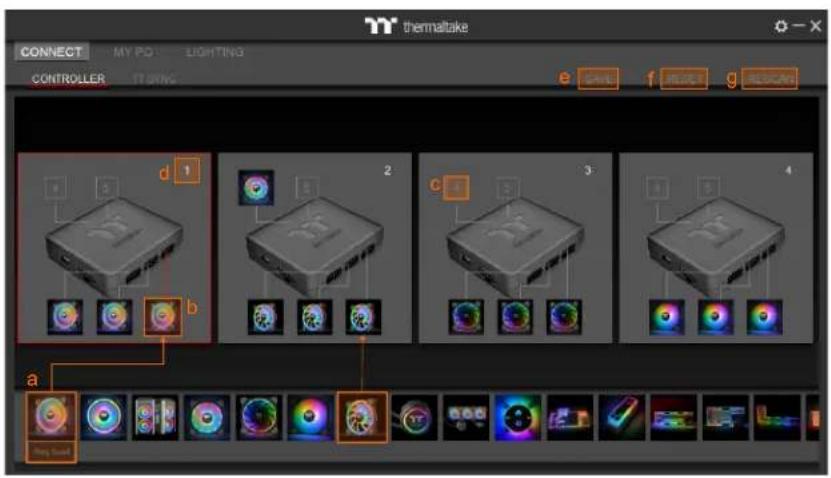
thermaltake CONNECT MY PD LIGHTING CONTROLLER IT SING e SHAK F RED G ALDOAM d 1 2 c 3 4 a Play Sound

CONTROLLER

a. Drag & drop to pair the liquid cooling products and case fans.
b. Click the controller port to make the LEDs glow red to pair.
c. The controller port is empty if you click the controller port without a red lighting effect.
d. Show the controller DIP number.
e. SAVE: Save the controller pairing settings.
f. RESET: Reset the controller pairing.
g. RESCAN: Rescan the controller connection.

TT SYNC

  • Sync RGB lighting for TT gaming products and third parties.
  • If user can't find the products on this page, please check if the USB driver is installed correctly.
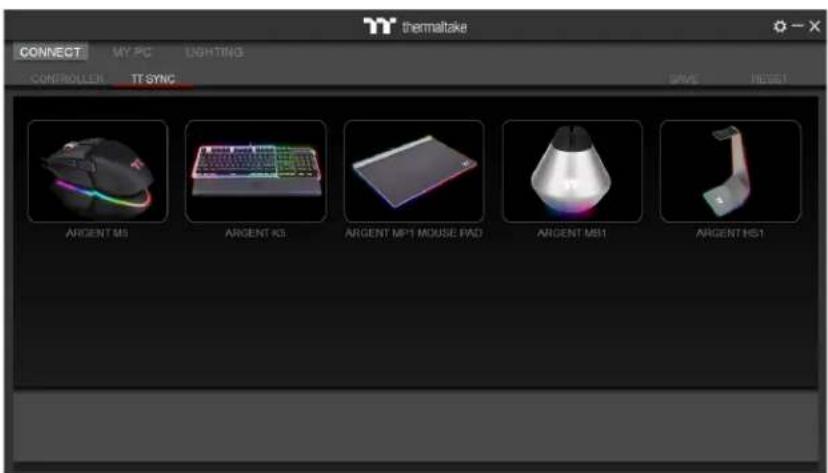
thermaltake CONNECT MY PC LIGHTING CONTROLLER TT SYNC SAVE CHECK ARGENT MS ARGENT KS ARGENT MP1 MOUSE PAD ARGENT MB1 ARGENTHS1

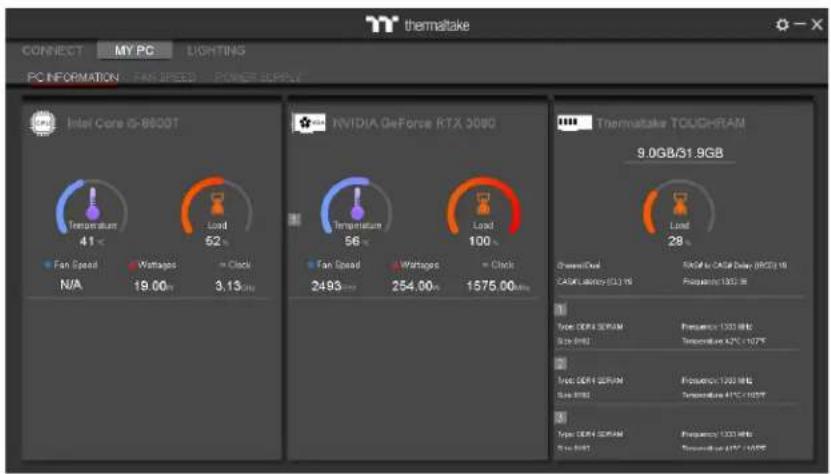
thermaltake CONNECT MY PC LIGHTING PC INFORMATION - FAN SPEED - POWER SUPPLY Intel Core iS-8600T N/A 41 °C 52 °C + Clock 3.13 mm NVIDIA GeForce RTX 3080 Temperature 56 °C + Clock 56 °C + Clock 100 °C + Clock 100 °C Thermaltake TOUCHRAM 9.0GB/31.9GB Green/Red Load CASH Latency (CL) % RED / CASH Delay (RCD) % RED Frequency: 100 MHz 1 Type: CERA ROMAM Frequency: 100 MHz Size: RMS Temperature: 42°C + 107°C 2 Type: CERA ROMAM Frequency: 100 MHz Size: RMS Temperature: 41°C + 105°C 3 Type: CERA ROMAM Frequency: 100 MHz Size: RMS Temperature: 47°C + 105°C

PC INFORMATION

Show PC Information

• CPU Information: Temperature, Load, Fan Speed, Wattages, Clock.
• GPU Information: Temperature, Load, Fan Speed, Wattages, Clock (Supports SLI).
• Memory Information: Channel, tRCD, CL, Frequency, Type, Temperature, Size.
- Sensors: Show W5 / W6 / W7 Plus / MX1 / TF2 / Floe RC Ultra / TOUGHLIQUID Ultra coolant liquid temperature and flow rate.

Why doesn't the display fan speed, wattage, and temperature data of certain CPUs', GPUs' and memory?

A The fan speed, wattage, and temperature data of certain CPUs', GPUs' and memories fail to display due to product design variances of individual manufacturers (e.g.: Intel, AMD, NVIDIA or motherboard manufacturers).

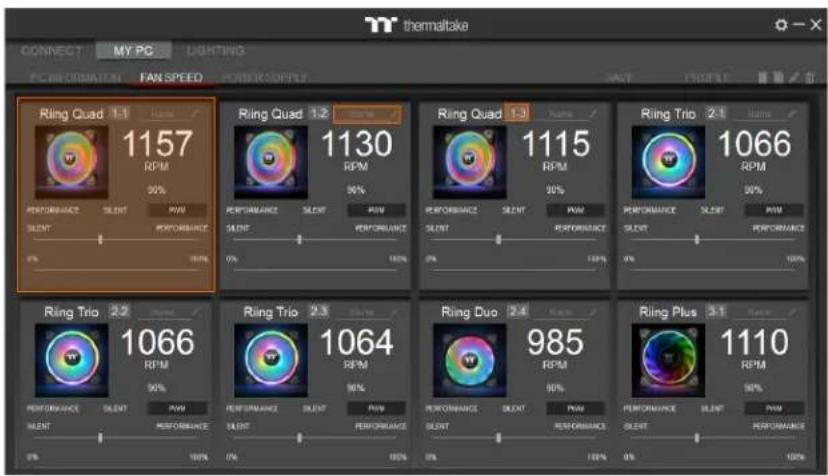
FAN SPEED

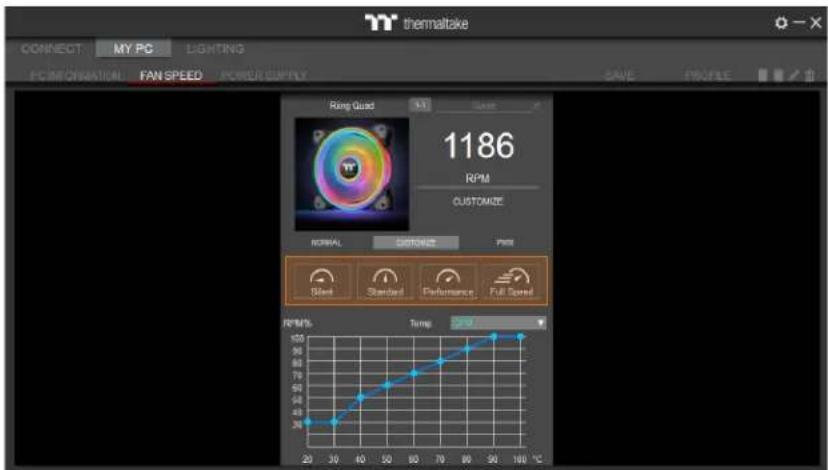
Case Fan Speed Information and Settings

• NORMAL: Set RPM 0% → 100%
- CUSTOMIZE: Silent / Standard / Performance / Full Speed (Base on CPU/GPU Temperature)
- PWM: Set PWM silent (50%) to PWM performance (100%).
• NAME: Edit the case fan name.
- Radiator fan controller DIP number.
THERMALTAKE TOUGHFAN 14 - Case Fan Speed Information and Settings - 1

thermaltake CONNECT MY PC LIGHTING PC INFORMATION FAN SPEED POWER SUPPLY SAVE PROFILE Ring Quad 1:1 Save 1186 RPM CUSTOMIZE NORMAL CUSTOMIZE PRI Steel Standard Performance Full Speed RPM% Temp 20 30 40 50 60 70 80 90 100 20 30 40 50 60 70 80 90 100 100 90 80 70 60 50 40 30 20 100 Temperature 2.5°C

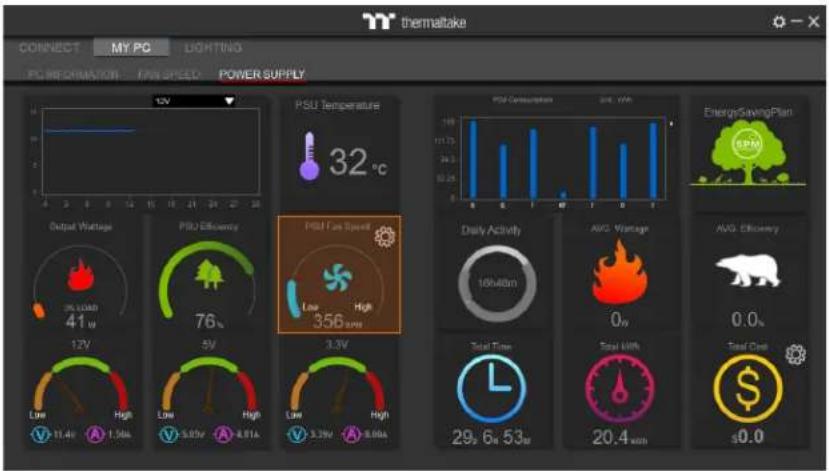
thermaltake CONNECT MY PC LIGHTING PC INFORMATION RAW SPEED POWER SUPPLY 12V PSU Temperature 32 °C Output Voltage PSU Efficiency PSL Freq Speed Daily Activity AVG Vantage AVG Efficiency 25.10kW 41 w 76 Low High 356 am 10kW 0.0s 12V Low High Low High Low High 11.4V A 1.5kA V 5.6kV A 4.8kA V 3.2kV A 8.6kA Total Time 29.6x53w Total Life 20.4w$0.0

POWER SUPPLY

  • If you have installed the iRGB DPS G power supply series, the power supply information will be displayed here.
    • PSU Fan Speed: Set power fan silent, performance, zero and customize.
  • For more software information about power supply, please refer to SPM website. https://dps.thermaltake.com/

LIGHTING

LIGHTING
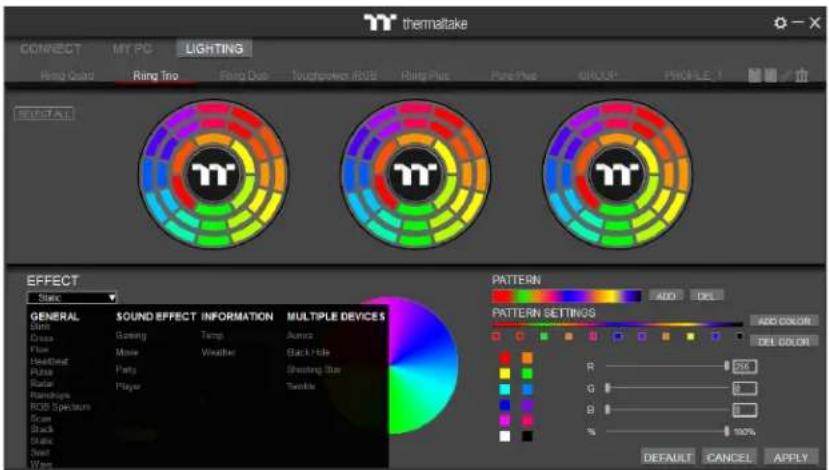
thermaltake CONNECT MY PC LIGHTING Ring Color Ring Tiro Ring Duo Touchperfect #RGB Ring Pulse Pure Pulse GROUP PINKLE 1 SELECTAL EFFECT Stevs GENERAL SOUND EFFECT INFORMATION MULTIPLE DEVICES Sink Gaming Temp Jamma Fuse Make Weather Black Hole Head/Def Puts Sheathing Blue Pulse Player Twinkle Radar Player Ranobops ROB Spectrum Scram Black Stick Swist Wave PATTERN ADD DEL PATTERN SETTINGS ADD COLOR DEL COLOR R 250 G 0 B 0 % 100% DEFAULT CANCEL APPLY

Select 23 Lighting Effects.

GENERAL
- SOUND EFFECTS
• INFORMATION
• MULTIPLE DEVICES

Preview and Set Products Lighting Effects
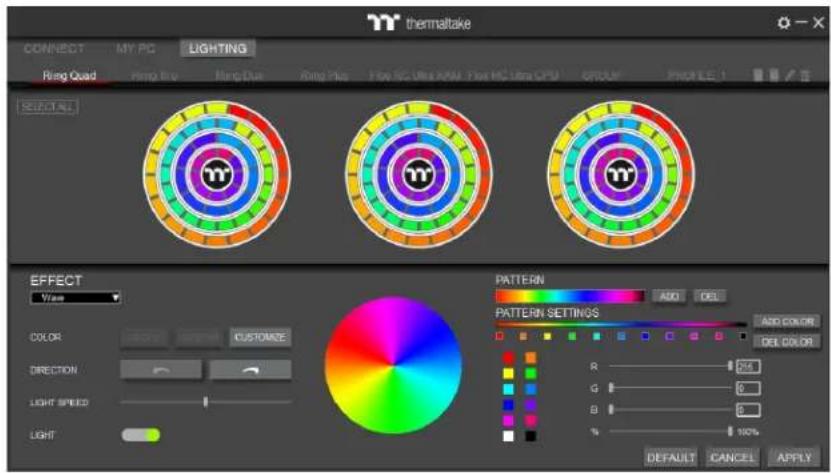
thermaltake CONNECT MY PC LIGHTING Ring Quad Ring Pin Ring Due Ring Plus Fine JC Ultra NM Fine HC Ultra CPU GROUP PRICE LE 1 SELECT ALL TYP TYP TYP EFFECT View COLOR CUSTOMER DIRECTION LIGHT SPEED LIGHT PATTERN ADD DEL PATTERN SETTINGS ADD COLOR DEL COLOR R 250 G 0 B 0 % 100% DEFAULT CANCEL APPLY

THERMALTAKE TOUGHFAN 14 - Select 23 Lighting Effects. - 2

THERMALTAKE TOUGHFAN 14 - Select 23 Lighting Effects. - 3
SINGLE CUSTOMIZE

  1. Click the TT logo to select all LEDs
  2. COLOR

  3. SINGLE: Select single ring to change color.
    • RANDOM: Random light show.

  4. CUSTOMIZE: Set up a single LED color.

  5. DIRECTION

- Clockwise and counter-clockwise.

  1. LIGHTING SPEED
  2. Set up lighting effect speed.
  3. LIGHT
  4. Turn on and turn off.
  5. RGB SETTINGS

Color palette.

  • Quick color selection.
  • RGB value setting.

  • PATTERN

- Set up the color pattern ring.

  1. PROFILE

  2. NEW: Add a new profile.
    • COPY: Copy the profile.
    • EDIT: Edit the profile name.

  3. DELETE: Delete profile.

  4. DEFAULT

- Reset the lighting effects.

  1. CANCEL
  2. Unselect all.

  3. APPLY

  4. Apply and save lighting effects.

  5. SELECT ALL

- Click to select all products' LEDs.
thermaltake CONNECT MY PC LIGHTING Ring Quad Ring Side Ring Drive Rough Color #RGB Ring Pulse Make Pulse GROUP PROGRESS 1 SELECT ALL EFFECT Wise COLOR CMNT CMNT CUSTOMIZE DIRECTION LIGHT SPEED LIGHT PATTERN PATTERN SET DEL ACC COLOR DEL COLOR DEL 0 0 100% LT CANCEL APPLY

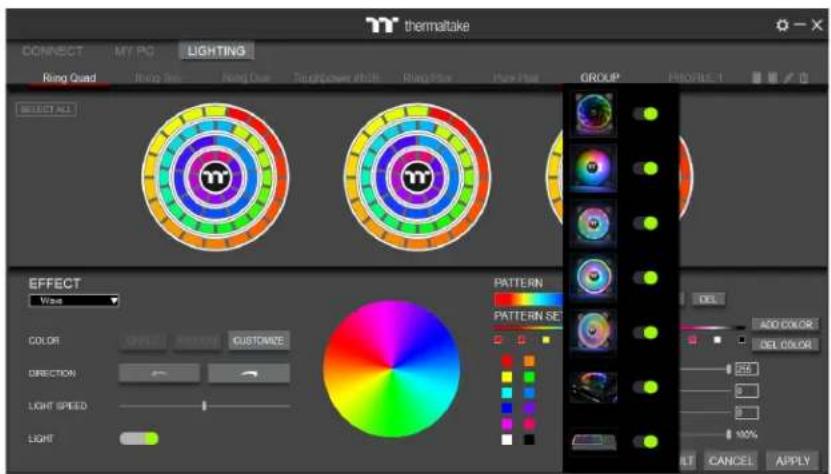
13. GROUP

- Select products to synchronize lighting effects. For example, sync lighting with Riing Quad, Riing Trio, Riing Plus, Toughpower iRGB, and ARGENT K5 RGB Keyboard.
thermaltake CONNECT MY PC A LIGHTING RGB Load CWAYAN RGB - RGB Dot - Software入口 B - RGB Flo - Pure Flo - TOUGHLIQUID Ultra GROUP PSOATE 2 B 3.2 GHz FREQUENCY CPU LCD DISPLAY CPU FREQUENCY GPU FREQUENCY CPU LOAD GPU TEMP GPU FREQUENCY GPU LOAD RAM SIZE RAM FREQUENCY RAM TEMP RAM LOAD Liquid TEMP CAROUSEL WINDOW CAPTURE WEATHER CLOCK D BACKGROUND TEXT COLOR VISUAL FOOT Color VISUAL COLOR Screen BECKNESS LIGHT DEFAULT APPLY R: 0% a: 0% B: 0% %: 100%

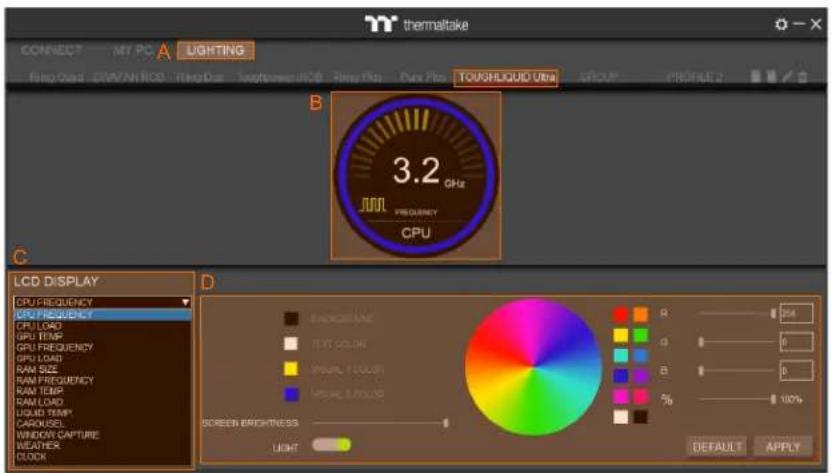
A. After installation of TT RGB PLUS, you can select "TOUGHLIQUID Ultra" on the "LIGHTING" page.
B. Preview the CPU water block LCD.
C. LCD DISPLAY function list.

  • UPLOAD FILE
  • CPU TEMP.
  • CPU FREQUENCY
  • CPU LOAD
  • GPU TEMP.
  • GPU FREQUENCY
  • GPU LOAD
  • RAM SIZE

  • RAM FREQUENCY

  • RAM TEMP.
  • RAM LOAD
  • LIQUID TEMP.
    • CAROUSEL (Switches between CPU/GPU/Liquid information)
  • WINDOW STREAM
  • WEATHER
  • CLOCK

D. LCD visual effect settings.

- Set LCD background, text and visual color, and screen brightness, or turn off the LCD screen.
thermaltake CONNECT MY PC LIGHTING Touchwave RGB Pure Box TOUCHLIQUID Ultra GROUP PROFILE 1 LCD DISPLAY UPLOAD FILE CPU FLOOD SPEED LINE FLASH MAY LIME FULL CHILLI RUSH BEACHINCY RUSH RED SHORT CREAM SCREEN BRIGHTNESS RAW VIEW RAW FLASH RAW ZEXP RAW ZEXP UPLOAD CURRENT ORDER File Size: 2000 Default APPLY OK

UPLOAD FILE

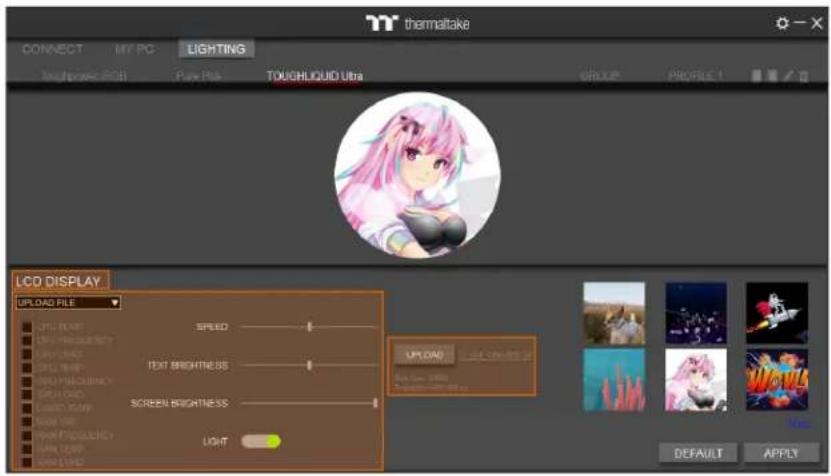
  • Select "UPLOAD FILE" from "LCD DISPLAY". You can upload a file to show the picture on the LCD screen.
  • Set the LCD text information, speed, and brightness, or turn off the LCD screen.
  • Click "UPLOAD" to upload the file.

※ File type: gif, jpg, png, mp4, avi, mov. Max size: 20MB

WINDOW STREAM

Set the Window to be Played on the LCD Screen

• Window: Select the window to play on the LCD.
- Zoom: Set zoom in and out.
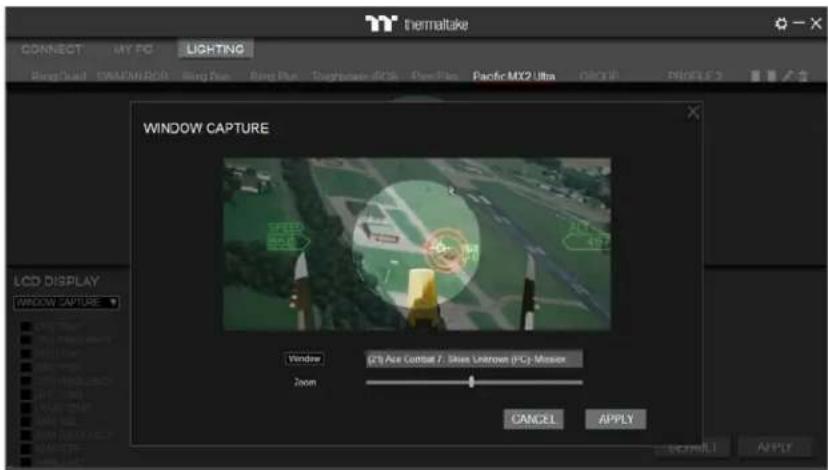
TEMPATuke CONNECT MY PC LIGHTING Blend Dual DAMMURG Band Plus Blend Plus Rough Base-ISO4 Pacific Flex Pacific MX2 Ultra OFFICE PANELS WINDOW CAPTURE LCD DISPLAY WINDOW CAPTURE Window 278 Ace Contal 7.00x Unknown (PC) Mask Zoom CANCEL APPLY CANCEL APPLY

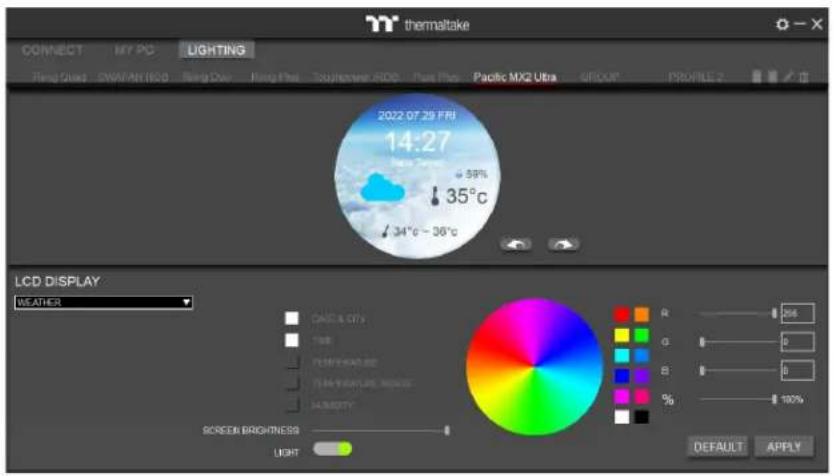
thermaltake CONNECT MY PC LIGHTING Fling Gued DWAMAN SSD Fling Doo Fling Plus Touchpower SSD Plus Pro Pacific MX2 Ultra GPS/ART PROFILE 2 2022 07 29 FRI 14:27 59% 35°C 34°C ~ 36°C LCD DISPLAY WEATHER CAND & CITY TIME TEMPORATE TEMPORATE MOUNT MOUNTY SCREEN BRIGHTNESS LIGHT R 206 G 0 B 0 % 100% DEFAULT APPLY

WEATHER

Select "WEATHER" to Show the Local City Weather. Users Can Set the Word Colors:

  • DATE & CITY
    • TIME
    • TEMPERATURE
    • TEMPERATURE RANGE
    • HUMIDITY

CLOCK

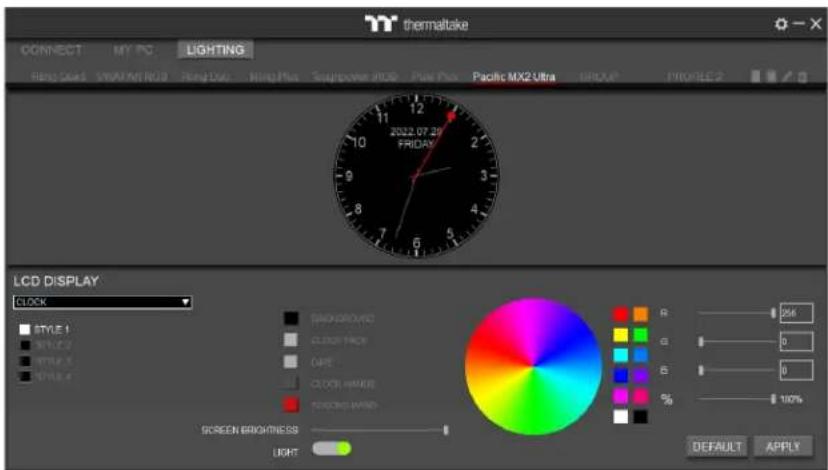
Select "CLOCK" to Show the Local Time. Users Have 4 Clock Styles to Set the Colors.

  • BACKGROUND
  • CLOCK FACE
    • DATE
  • CLOCK HANDS
  • SECOND HAND

thermalske CONNECT MY PC LIGHTING Ring Dia2 SWAPM NO.8 Ring Dia Wing Plus Sympower RGB Plus Pcs Pacific MX2 Ultra GROUP PROFILE 2 2022.07.29 FRIDAY LCD DISPLAY CLOCK STYLE 1 STYLE 2 STYLE 3 STYLE 4 BACKGROUND CLOTH FACE CARE CLOCK HOURS FROCKLE MANS R: 256 G: 0 B: 0 % 100% SCREEN BRIGHTNESS LIGHT DEFAULT APPLY

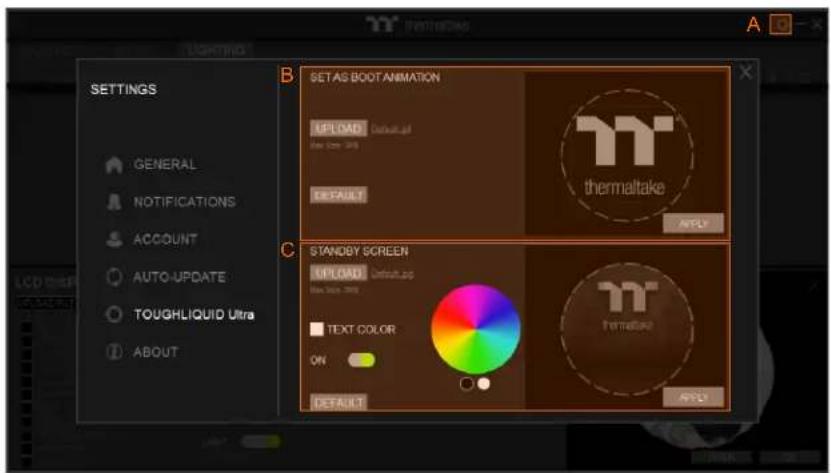
B SET AS BOOT ANIMATION EPLIAD Default.pJ New 120x 200 DEFAULT thermaltake APLU C STANDBY SCREEN EPLIAD Default.pp New 120x 200 TEXT COLOR ON DEFAULT ATL1

SETTINGS

A. Click the gear icon on the upper right corner to enter the "SETTINGS" menu.
B. Upload the picture to set it as LCD boot animation. (GIF only, Max size: 5MB)
C. Upload the picture to set it as LCD standby screen. (JPG only, Max size: 5MB)
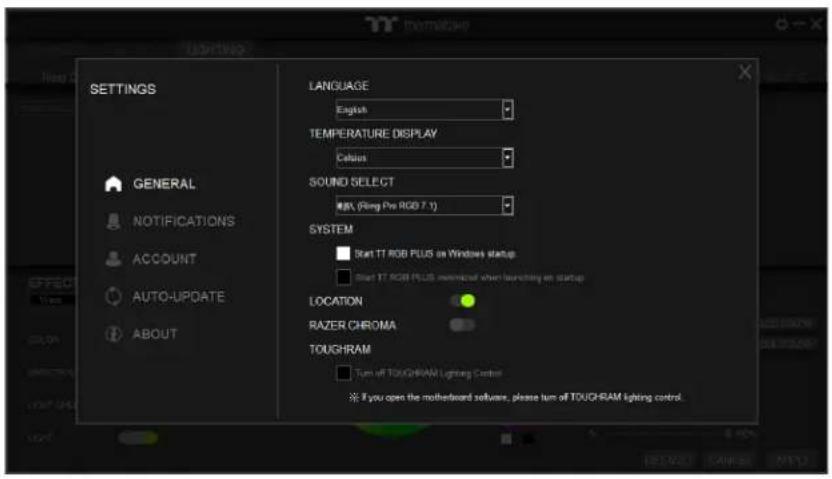
SETTINGS GENERAL NOTIFICATIONS ACCOUNT AUTO-UPDATE ABOUT LANGUAGE English TEMPERATURE DISPLAY Celsius SOUND SELECT RPN (Ring Pro RGB 7.1) SYSTEM Start TT RGB PLUS on Windows startup Start TT RGB PLUS maximal when launching an startup LOCATION RAZER CHROMA TOUGHRAM Turn off TOUGHRAM Lighting Control If you open the motherboard software, please turn off TOUGHRAM lighting control.

GENERAL

LANGUAGE

- English/繁體中文/简体中文 /Français/Deutsch/日本語/한국어/Русский /Spanish /Iinu

TEMPERATURE

- Select the sound resource outputs.

SYSTEM

  • Start TT RGB PLUS on Windows startup.
  • Start TT RGB PLUS minimized when launching on startup.

LOCATION

- Allow Location.

RAZER CHROMA

- Allow Razer chroma lighting sync.

TOUGHRAM

- If you open the motherboard software, please turn off TOUGHRAM lighting control.

NOTIFICATIONS

TOUGHRAM

  • Set the percentage of TOUGHRAM load greater than switches all LEDs to custom color.
  • Setting the temperature of TOUGHRAM prompts the user to shut down the PC to avoid damage.
  • Setting the CPU temperature prompts the user to shut down the PC to avoid damage.
  • Set the percentage of CPU load greater than makes all fans to full speed.

POWER SUPPLY

- Turn off the PSU warning alert.
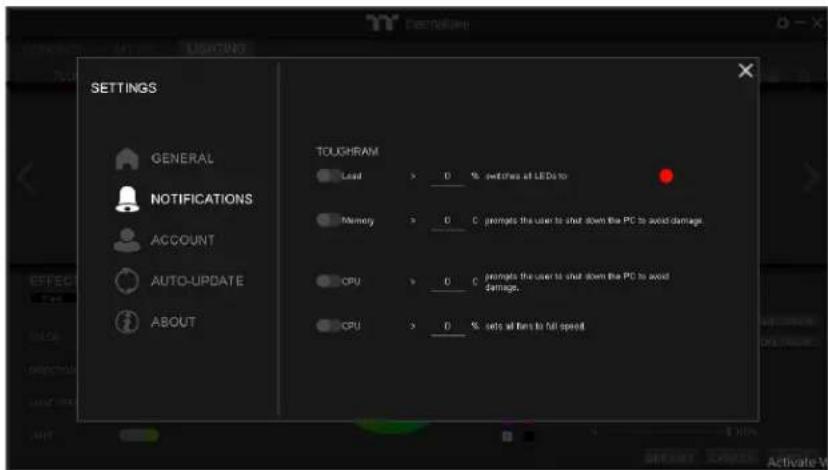
SETTINGS GENERAL NOTIFICATIONS ACCOUNT AUTO-UPDATE ABOUT TOUGHRAM Lead > 0 % switches at LEDs to Memory > 0 C prompts the user to shut down the PC to avoid damage. CPU > 0 C prompts the user to shut down the PC to avoid damage. CPU > 0 % gets all wins to full operation

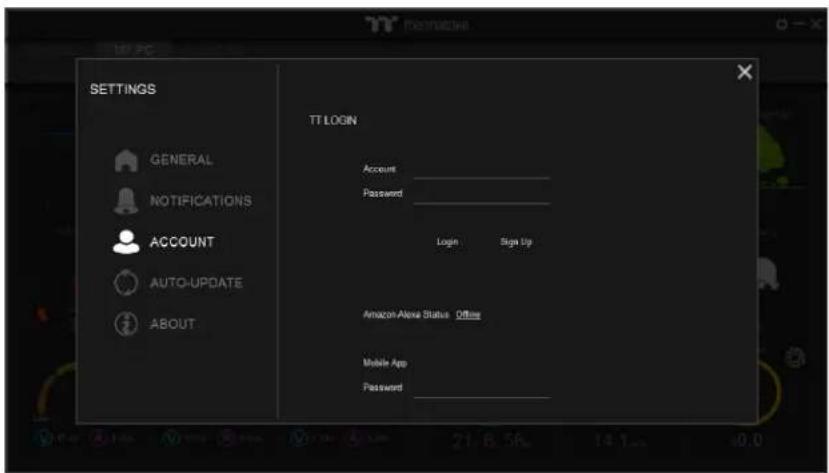
SETTINGS GENERAL NOTIFICATIONS ACCOUNT AUTO-UPDATE ABOUT TT LOGIN Account ____ Password ____ Login Sign Up Amazon Alexa Status Office Mobile App Password ____

ACCOUNT

TT LOGIN

  • Login to the TT account to upload DPS G PSU data.
    • Amazon Alexa Status.

AUTO-UPDATE

• Automatic update switch
- Controller firmware
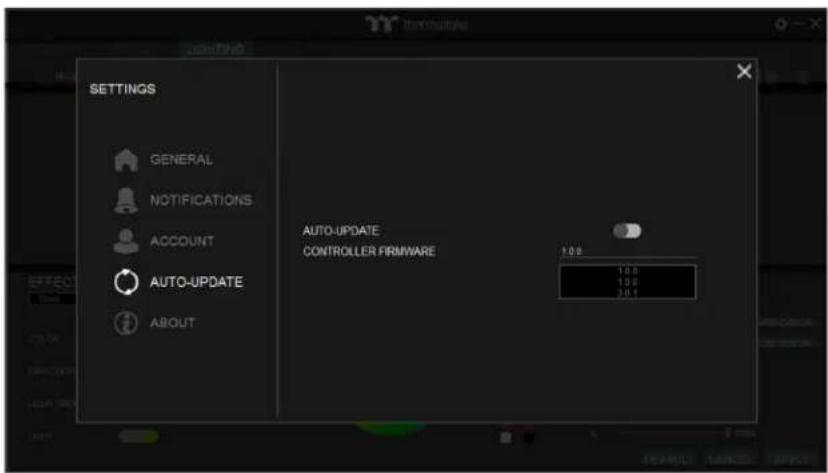
SETTINGS GENERAL NOTIFICATIONS ACCOUNT AUTO-UPDATE ABOUT AUTO-UPDATE CONTROLLER FRIMWARE 10.0 10.0 10.0 30.1

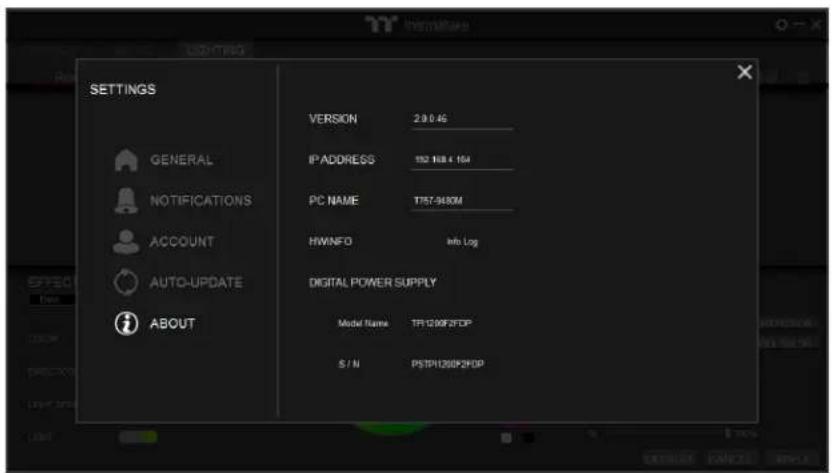
SETTINGS GENERAL NOTIFICATIONS ACCOUNT AUTO-UPDATE ABOUT VERSION 2.0 0.45 IP ADDRESS 132 168.4 154 PC NAME T757-9480M HWNFO Info Log DIGITAL POWER SUPPLY Model Name TF1200F2FOP S/N PSTP1200F2FOP

ABOUT

TT RGB PLUS Client App Information

  • VERSION
  • IP ADDRESS
  • PC NAME
    • HWiNFO: Hardware information log
    • DIGITAL POWER SUPPLY: Model Name and S / N.

THERMALTAKE TOUGHFAN 14 - TT RGB PLUS Client App Information - 1

What operating systems are supported by the TT RGB PLUS PC Client software?

THERMALTAKE TOUGHFAN 14 - TT RGB PLUS Client App Information - 2

OS compatibility: Windows 10 and Windows 11 TT RGB PLUS official download link: https://www.thermaltake.com/downloads

THERMALTAKE TOUGHFAN 14 - TT RGB PLUS Client App Information - 3

What's different with TT RGB PLUS 1.0 and 2.0?

THERMALTAKE TOUGHFAN 14 - TT RGB PLUS Client App Information - 4

TT RGB PLUS 2.0 integrates TT products in one software: Liquid Cooler, Case fan, Power Supply & Memory.

⚠ TT RGB PLUS 2.0 and TT RGB PLUS 1.0 will overwrite one another; users can only install one version of TT RGB PLUS.

THERMALTAKE TOUGHFAN 14 - TT RGB PLUS Client App Information - 5

How to set controller number?

THERMALTAKE TOUGHFAN 14 - TT RGB PLUS Client App Information - 6

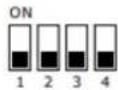
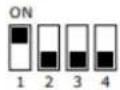
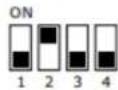
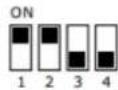
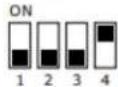
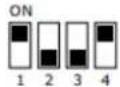
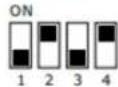
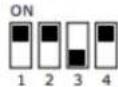
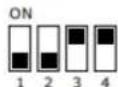
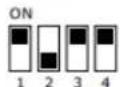
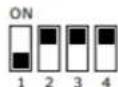
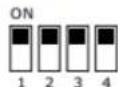
Set the DIP switch on the backside of the controller to assign the number of the controller. TT RGB PLUS can support 16 controllers.
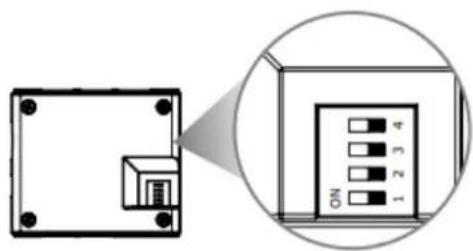
Diagram showing a device with labeled ports and an ON/OFF panel, illustrating a zoomed-in view of the internal structure.

NO.1
THERMALTAKE TOUGHFAN 14 - TT RGB PLUS Client App Information - 8

NO.2
THERMALTAKE TOUGHFAN 14 - TT RGB PLUS Client App Information - 9

NO.3
THERMALTAKE TOUGHFAN 14 - TT RGB PLUS Client App Information - 10

NO.4
THERMALTAKE TOUGHFAN 14 - TT RGB PLUS Client App Information - 11

NO.5
THERMALTAKE TOUGHFAN 14 - TT RGB PLUS Client App Information - 12

NO.6
THERMALTAKE TOUGHFAN 14 - TT RGB PLUS Client App Information - 13

NO.7
THERMALTAKE TOUGHFAN 14 - TT RGB PLUS Client App Information - 14

NO.8
THERMALTAKE TOUGHFAN 14 - TT RGB PLUS Client App Information - 15

NO.9
THERMALTAKE TOUGHFAN 14 - TT RGB PLUS Client App Information - 16

NO.10
THERMALTAKE TOUGHFAN 14 - TT RGB PLUS Client App Information - 17

NO.11
THERMALTAKE TOUGHFAN 14 - TT RGB PLUS Client App Information - 18

NO.12
THERMALTAKE TOUGHFAN 14 - TT RGB PLUS Client App Information - 19

NO.13
THERMALTAKE TOUGHFAN 14 - TT RGB PLUS Client App Information - 20

NO.14
THERMALTAKE TOUGHFAN 14 - TT RGB PLUS Client App Information - 21

NO.15
THERMALTAKE TOUGHFAN 14 - TT RGB PLUS Client App Information - 22

NO.16
THERMALTAKE TOUGHFAN 14 - TT RGB PLUS Client App Information - 23

THERMALTAKE TOUGHFAN 14 - TT RGB PLUS Client App Information - 24

How do reset controller settings?

THERMALTAKE TOUGHFAN 14 - TT RGB PLUS Client App Information - 25

Please refer to the TT RGB PLUS user manual A-1.

THERMALTAKE TOUGHFAN 14 - TT RGB PLUS Client App Information - 26

Cannot find product to pair?

THERMALTAKE TOUGHFAN 14 - TT RGB PLUS Client App Information - 27

Please check the product is correctly inserted the controller port.

THERMALTAKE TOUGHFAN 14 - TT RGB PLUS Client App Information - 28

Cannot find controller?

THERMALTAKE TOUGHFAN 14 - TT RGB PLUS Client App Information - 29

Check the controller is correctly inserted into the motherboard USB port.

Check whether the 4-pin power cable is connected to too many controllers.

Turn off computer power and restart.

Why doesn't the fan speed, wattage, and temperature data of certain CPUs', GPUs' and memory display?
A The fan speed, wattage, and temperature data of certain CPU's, CPUs', GPUs' and memories fail to display due to product design variances of individual manufacturers (e.g.: Intel, AMD, NVIDIA or motherboard manufacturers).

Q How to set fan speed?
A Please refer to the TT RGB PLUS user manual B-2.

Q How to edit the case fan name?
A Please refer to the TT RGB PLUS user manual B-2.

Q How to set up a profile?
A Please refer to the TT RGB PLUS user manual C-8.

Q How to sync all products lighting effects?
A Please refer to the TT RGB PLUS user manual C-13.

Q How to get the TT RGB PLUS hardware information log?
A SETTINGS >> ABOUT >> HWiNFO >> Info Log
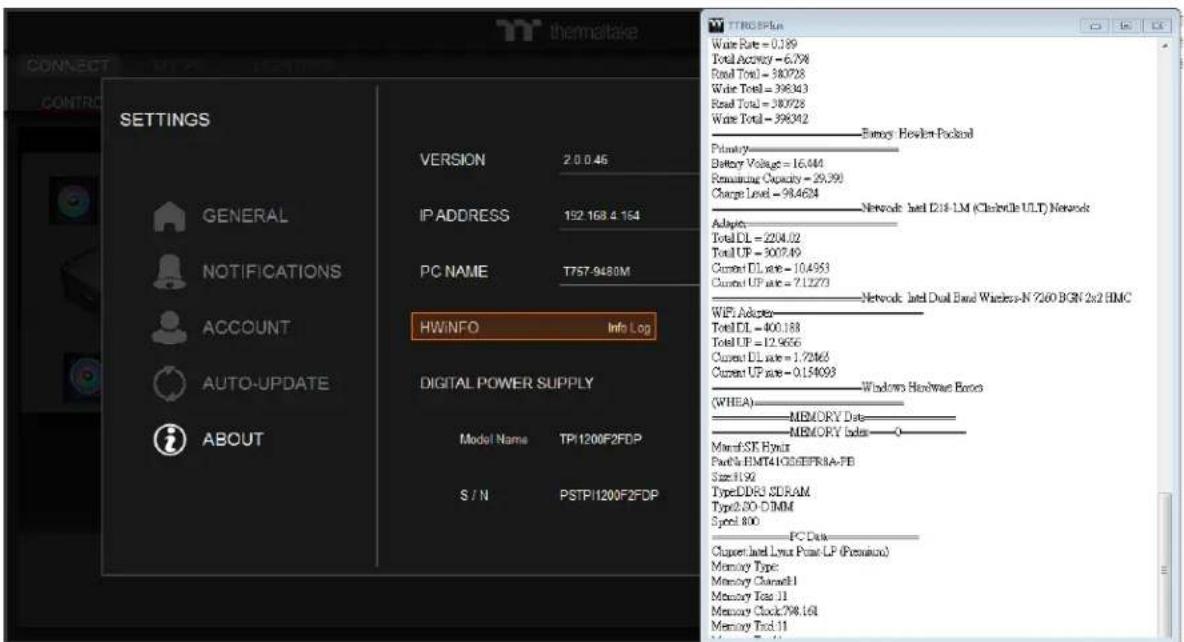
TTROBPlus Wise Rate = 0.189 Total Accuracy = 6.798 Real Total = 340728 Wise Total = 398343 Real Total = 380728 Wise Total = 398342 Emergency Hewlett Packard Primary Battery Voltage = 16.444 Remaining Capacity = 29.391 Charge Level = 98.4624 Network Intel D216 LM (Christotle ULT) Network Adapters Total DL = 2204.02 Total UP = 3007.49 Current DL rate = 10.4953 Current UP rate = 7.12273 Network Intel Dual Band Wireless-N 7260 BGN 2x2 BMC WiFi Adapters Total DL = 400.188 Total UP = 12.9656 Current DL rate = 1.72463 Current UP rate = 0.154093 Windows Hardware Boxes (WHEA) MEMORY Data MEMORY Index Monet SK Fynur Punch's EMT41GSEIEFRA-FB Size: 1192 TypeDDR3 SDRAM Type2.00 DIMM Symbol: 800 PC Data Clapert-land Lyrus Power LP (Premium) Memory Type: Memory Command1 Memory Tcs: 11 Memory Clock: 798.161 Memory Tool: 11

THERMALTAKE TOUGHFAN 14 - TT RGB PLUS Client App Information - 31

How to get the TT RGB PLUS debug log?

THERMALTAKE TOUGHFAN 14 - TT RGB PLUS Client App Information - 32

Ensure TT RGB PLUS software was closed.

Open the installation folder Find C:\Program Files\Tt\TT RGB PLUS

“” file and double-click it.Start_TTRGBPlus_Debug.bat
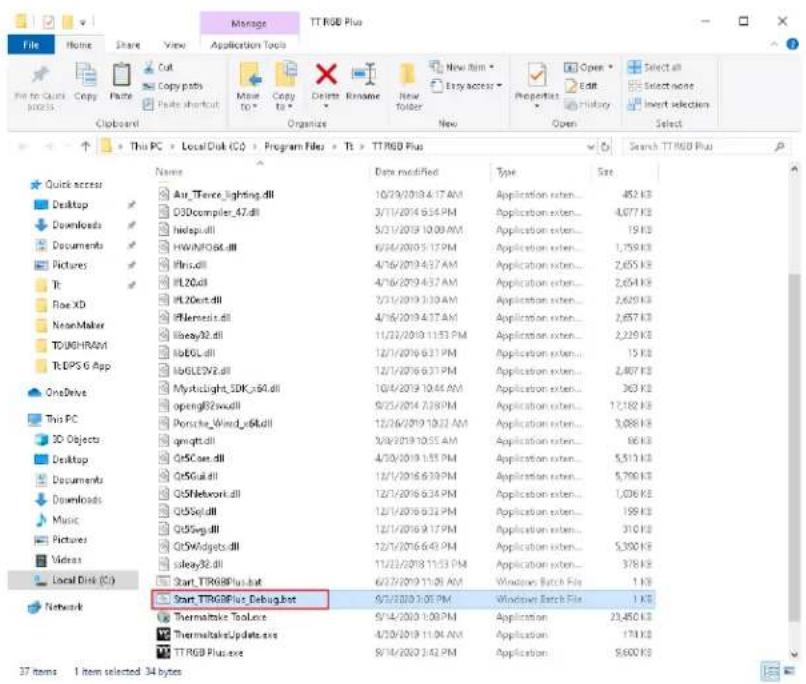
Manage TT RGB Plus File Home Share View Application Tools Cut Copy paths Paste shortcut Paste to Delete Rename New folder New New item Entry access Properties Edit History Open Select all Select options Import selections Select Clipboard Organize Open Select This PC > LocalDisk (C:) > Program Files > Tt > TT RGB Plus Search TT RGB Plus Name Date modified Type Set Quick access Desktop Downloads Documents Pictures Tc Roe XD NewMaker TOUGHRAM T.RIPS 6 App OneDrive This PC 3D Objects Desktop Documents Downloads Music Pictures Videos Local Disk (C:) Network Air_TTence_lighting.dll 10/29/2019 4:17 AM Application exten... 452 KB D30compiler_47.dll 3/11/2019 6:54 PM Application exten... 4,077 KB hidapi.dll 5/11/2019 10:00 AM Application exten... 19 KB HWININFO64.dll 6/16/2019 5:17 PM Application exten... 1,759 KB Ibris.dll 4/16/2019 4:37 AM Application exten... 2,655 KB IIL20.dll 4/16/2019 4:37 AM Application exten... 2,654 KB IPL20int.dll 2/11/2019 3:10 AM Application exten... 2,629 KB IFNameless.dll 4/16/2019 4:17 AM Application exten... 2,657 KB iibay32.dll 11/22/2019 11:53 PM Application exten... 2,229 KB mbECL.dll 12/1/2019 6:31 PM Application exten... 15 KB mbGLENZ2.dll 12/1/2019 6:31 PM Application exten... 2,867 KB Myrticlight_SDK_r64.dll 10/4/2019 10:44 AM Application exten... 363 KB opening82zwdull 9/23/2019 7:38 PM Application exten... 12,182 KB Porsche_Wind_r64.dll 12/26/2019 10:32 AM Application exten... 3,088 KB gnigtt.dll 3/8/2019 10:55 AM Application exten... 66 KB QrSCare.dll 4/30/2019 1:55 PM Application exten... 5,513 KB QrSGuid.dll 12/1/2019 6:39 PM Application exten... 5,790 KB Q5FNeblont.dll 12/1/2019 6:34 PM Application exten... 1,036 KB Q5Sap.dll 12/1/2019 6:23 PM Application exten... 159 KB Ql5Swg.dll 12/1/2019 9:17 PM Application exten... 310 KB QsXwidgets.dll 12/1/2019 6:49 PM Application exten... 5,390 KB sday32.dll 11/23/2019 11:53 PM Application exten... 378 KB Start_TTRRGBPlus.bat 6/27/2019 11:06 AM Windows Batch File 1 KB Start_TTRRGBPlus script.bat 5/3/2019 3:00 PM Windows Batch File 1 KB

Open the hidden folder and check the log file TTRGBPlus_Log.txt

C:\Users\user\AppData\Roaming\Tt\TTRGBPlus2.0
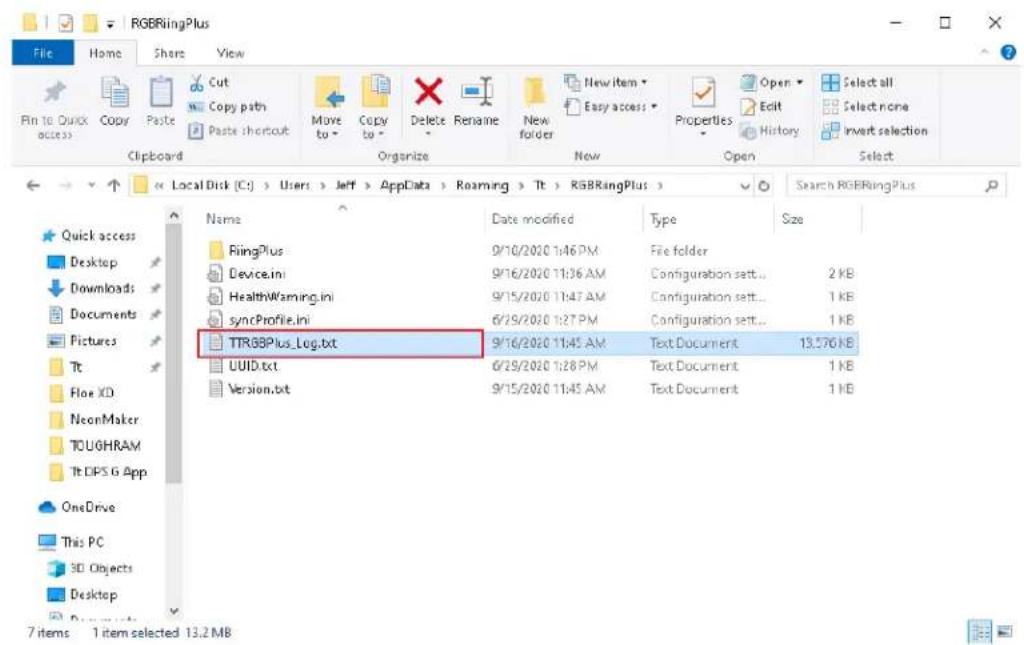
RGBRingPlus File Home Share View Pin to Quick Access Copy Paste Cut Copy path Paste shortcut Move to Copy to Delete Rename New folder New item Easy access Properties Open Edit History Select all Select none invert selection Clipboard Organize New Open Select Local Disk (C:) > Users > Jeff > AppData > Roaming > Tt > RGBRingPlus > Search RGBRingPlus Name Data modified Type Size RiingPlus 9/10/2020 1:46 PM File folder Device.ini 9/16/2020 11:36 AM Busitration sett... 2 KB HealthWarning.ini 9/15/2020 11:47 AM Busitration sett... 1 KB syncProfile.ini 6/29/2020 1:27 PM Busitration sett... 1 KB TTR8BPlus_Log.txt 9/16/2020 11:45 AM Text Document 13,576 KB UUID.txt 6/29/2020 1:28 PM Text Document 1 KB Version.txt 9/15/2020 11:45 AM Text Document 1 KB Quick access Desktop Downloads Documents Pictures Tt Flow XD NeonMaker TOUGRAM Tt DPS G App OneDrive This PC 3D Objects Desktop 7 items 1 item selected 13.2 MB

※ Send the software log and hardware information log to the Thermaltake team.

THERMALTAKE TOUGHFAN 14 - TT RGB PLUS Client App Information - 35

How to use Amazon Alexa?

THERMALTAKE TOUGHFAN 14 - TT RGB PLUS Client App Information - 36

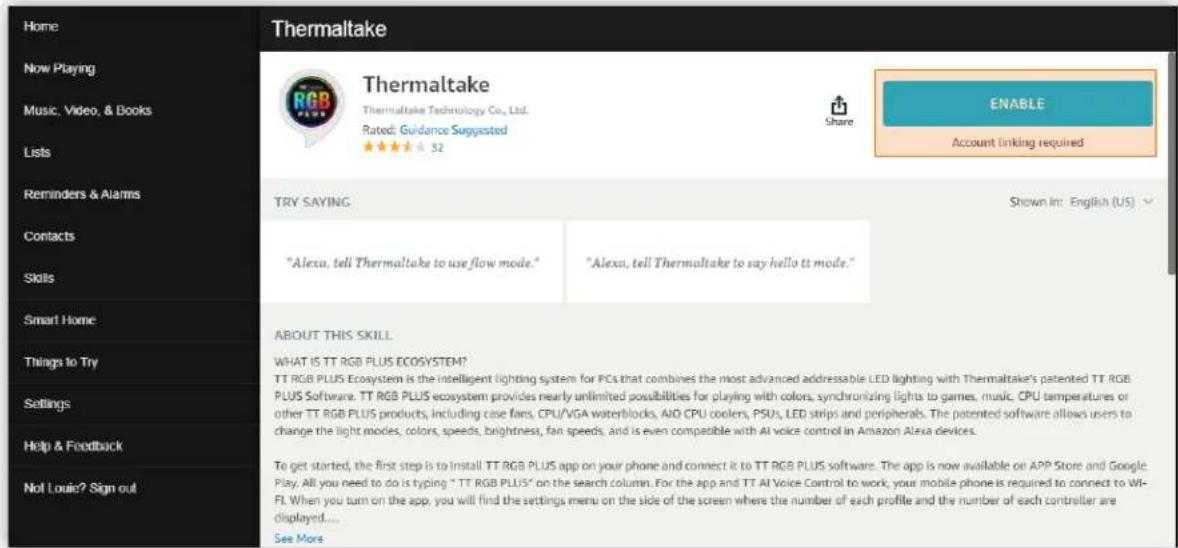
Go to _and log in using an Amazon account. https://alexa.amazon.com/spa/index.html#cards Click to search and select this skill."Skills" "TT RGB PLUS"
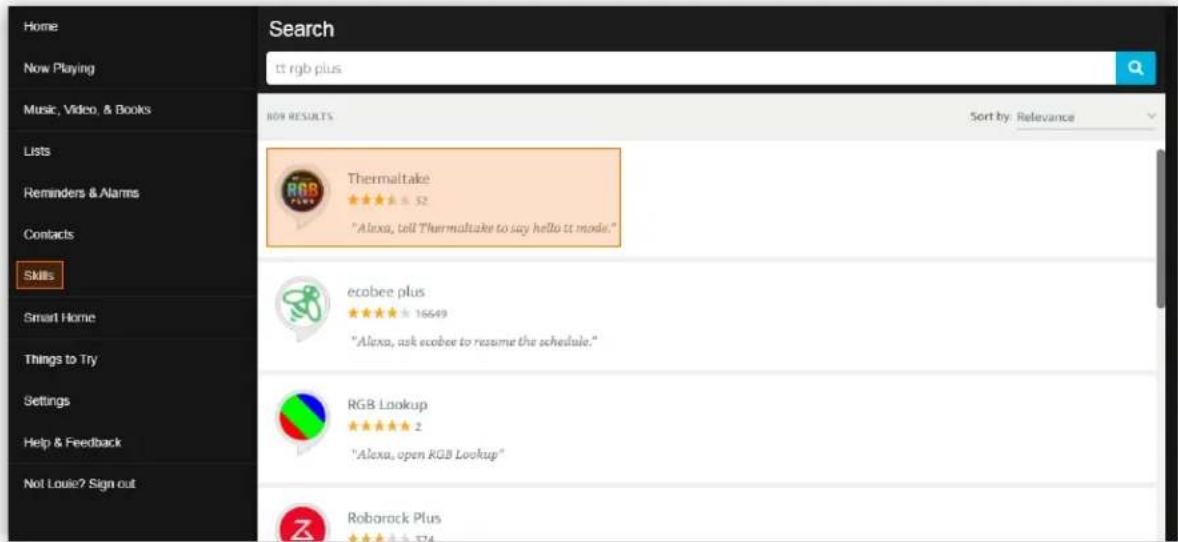
Home Now Playing Music, Video, & Books Lists Reminders & Alarms Contacts Skills Smart Home Things to Try Settings Help & Feedback Not Louie? Sign out Search tt rgb plus NEW RESULTS Sort by: Relevance Thermaltake ★★★ ★ 52 "Alexa, tell Thermaltake to say hello it mode." ecobee plus ★★★ ★ 16649 "Alexa, ask ecobee to resume the schedule." RGB Lookup ★★★ ★ 2 "Alexa, open RGB Lookup" Roborock Plus ★★★ ★ 574

Click "ENABLE"

Home Now Playing Music, Video, & Books Lists Reminders & Alarms Contacts Skills Smart Home Things to Try Settings Help & Feedback Not Louis? Sign out Thermaltake Thermaltake Technology Co., Ltd. Rated: Guidance Suggested ★★★☆ 52 Share ENABLE Account linking required TRY SAYING Shown In: English (US) "Alexa, tell Thermaltake to use flow mode." "Alexa, tell Thermaltake to say hello tt mode." ABOUT THIS SKILL WHAT IS TT RGB PLUS ECOSYSTEM" TT RGB PLUS Ecosystem is the intelligent lighting system for PCs that combines the most advanced addressable LED lighting with Thermaltake's patented TT RGB PLUS Software. TT RGB PLUS ecosystem provides nearly unlimited possibilities for playing with colors, synchronizing lights to games, music, CPU temperatures or other TT RGB PLUS products, including case fans, CPU/VGA waterblocks, AIO CPU coolers, PSUs, LED strips and peripherals. The patented software allows users to change the light modes, colors, speeds, brightness, fan speeds, and is even compatible with AI voice control in Amazon Alexa devices. To get started, the first step is to install TT RGB PLUS app on your phone and connect it to TT RGB PLUS software. The app is now available on APP Store and Google Play. All you need to do is typing " TT RGB PLUS" on the search column. For the app and TT AI Voice Control to work, your mobile phone is required to connect to Wi-Fi. When you turn on the app, you will find the settings menu on the side of the screen where the number of each profile and the number of each controller are displayed... See More

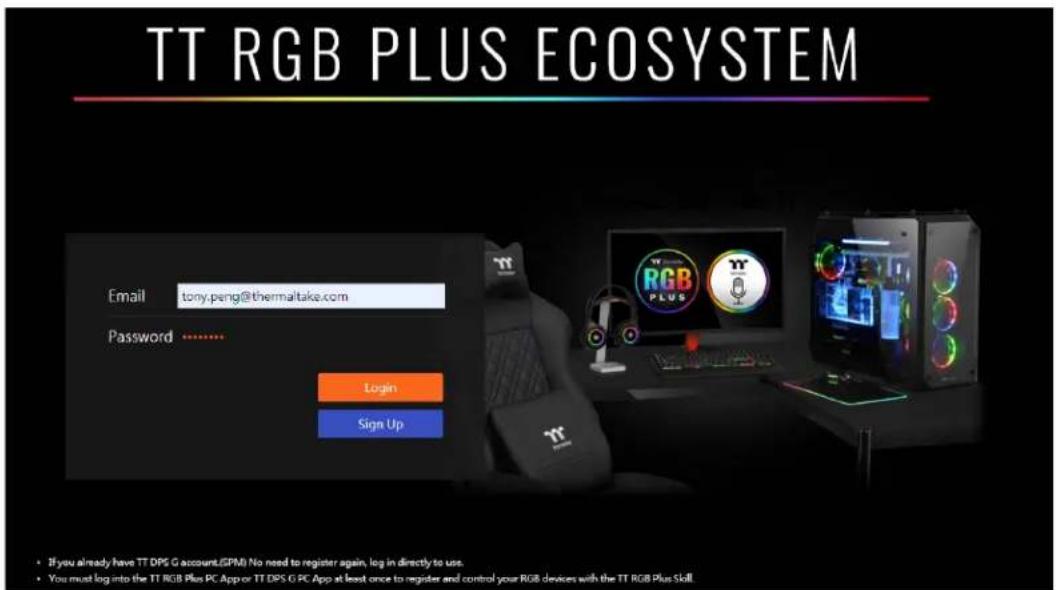
"Login" or "Sign Up" the TT account

TT RGB PLUS ECOSYSTEM Email tony.peng@thermaltake.com Password .......... Login Sign Up • If you already have TT DPS G account.(GPM) No need to register again, log in directly to us. • You must log into the TT RGB Plus PC App or TT DPS G PC App at least once to register and control your RGB devices with the TT RGB Plus Skill.

  • If you already have a TT DPS G (SPM) account, there is NO need to register again. Please log in using your existing TT DPS G account.
  • You must log into the TT RGB PLUS PC App at least once to register and control your RGB devices with the TT RGB Plus Skill.

Within TT RGB PLUS Software, Click the gear icon to enter the settings menu and select "ACCOUNT", then use your created or existing account to log in.

Once the login is successful and Alexa is paired, is shown near Amazon Alexa Status. "Online"
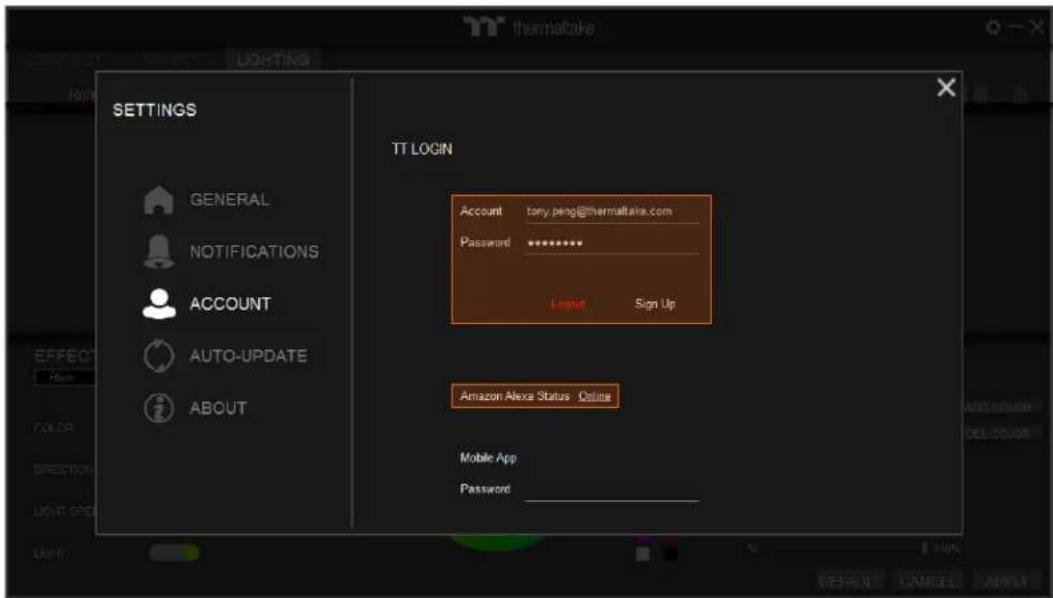
thermaltake LIGHTING SETTINGS GENERAL NOTIFICATIONS ACCOUNT AUTO-UPDATE ABOUT TT LOGIN Account tory.ping@thermaltake.com Password ********** Login Sign Up Amazon Alexa Status Online Mobile App Password ____ EFFECT Hank COLOR DIRECTION LIGHT SPICE LIGHT 100% DEFAULT CANCEL APPLY

THERMALTAKE TOUGHFAN 14 - TT RGB PLUS Client App Information - 41

How to use RAZER CHORMA sync?

THERMALTAKE TOUGHFAN 14 - TT RGB PLUS Client App Information - 42

Make sure your product has a RAZER CHROMA logo on the website as shown in the picture below.
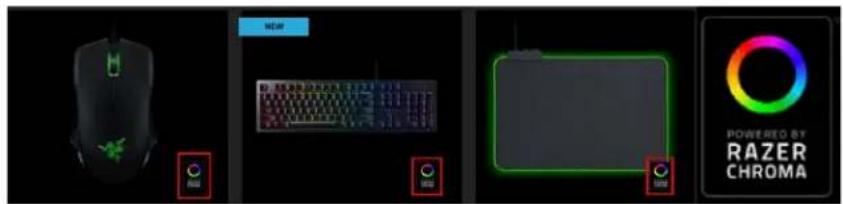
MORR POWER COLD BY RAZER CHROMA

https://www.razer.com/campaigns/chroma-mania/chroma-collection

(Razer products supported list)

Open and Enable Connection"RAZER SYNAPSE" "TT RGB PLUS"
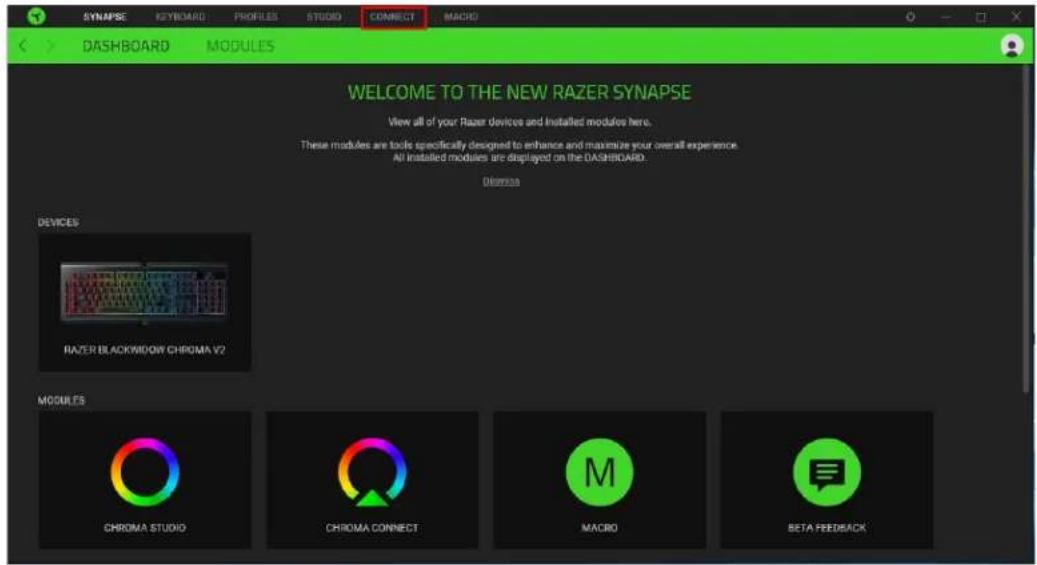
SYNAPSE KEYBOARD PROFILES STUDIO CONNECT MACRO DASHBOARD MODULES WELCOME TO THE NEW RAZER SYNAPSE View all of your Razer devices and installed modules here. These modules are tools specifically designed to enhance and maximize your overall experience. All installed modules are displayed on the DASHBOARD. Obtross DEVICES RAZER BLACKWIDOW CHROMA V2 MODULES CHROMA STUDIO CHROMA CONNECT MACRO BETA FEEDBACK

Click and enable label."CONNECT" "Thermaltake"
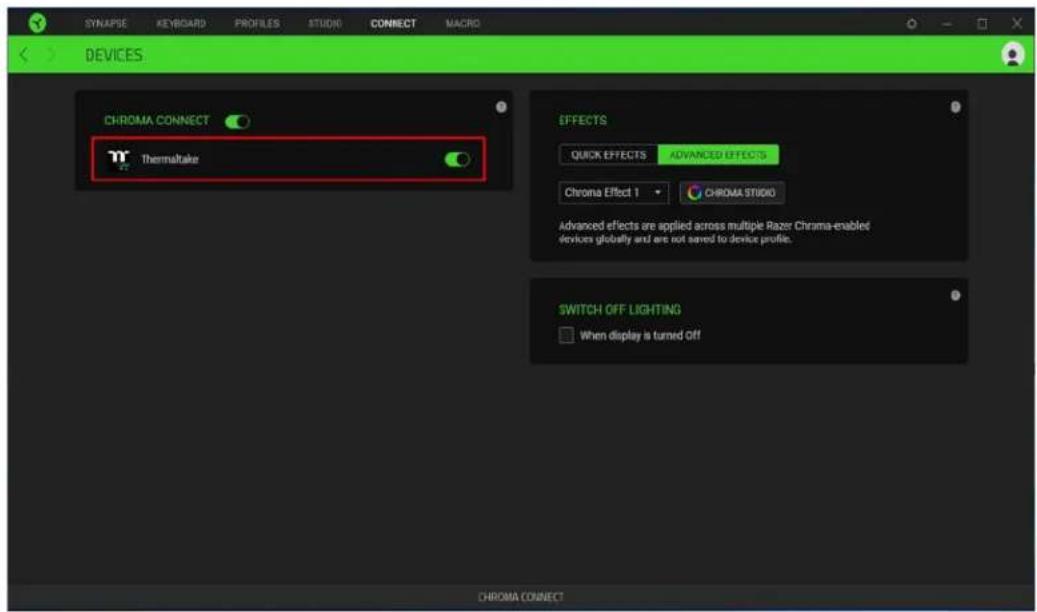
SYNAPSE KEYBOARD PROFILES STUDIO CONNECT MACRD DEVICES CHROMA CONNECT Thermaltake EFFECTS QUICK EFFECTS ADVANCED EFFECTS Chroma Effect 1 CHROMA STUDIO Advanced effects are applied across multiple Razer Chroma-enabled devices globally and are not saved to device profile. SWITCH OFF LIGHTING When display is turned Off CHROMA CONNECT

Set lighting effect. You can customize lighting effects yourself.

Sync with Razer Chroma Effects. "TT RGB PLUS"
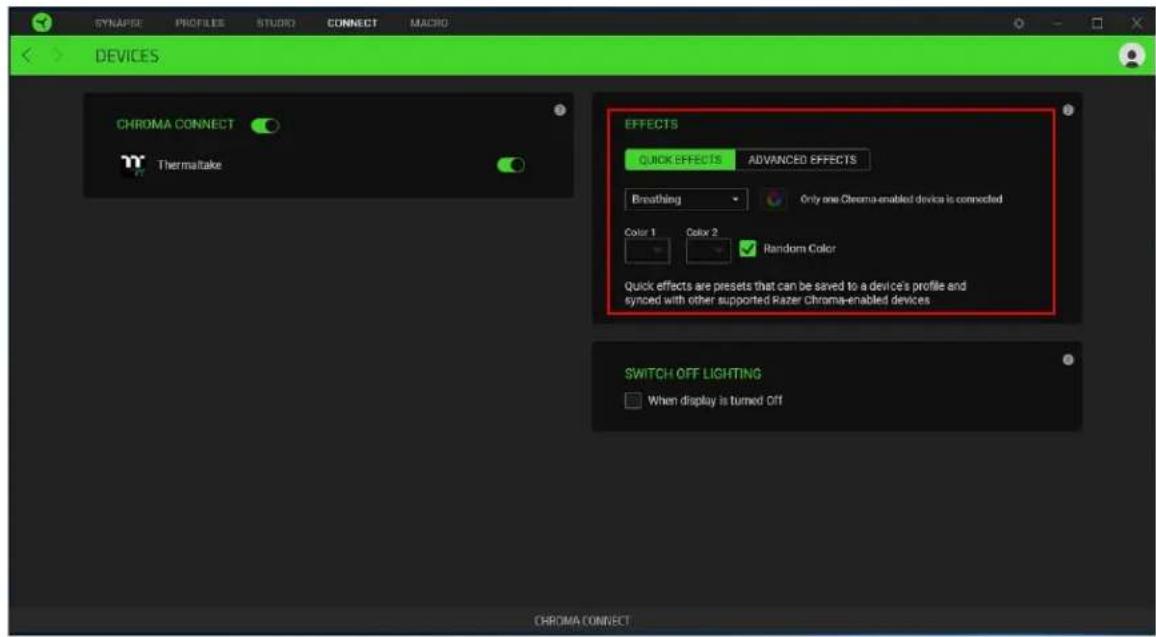
SYNAPSE PROFILES STUDRY CONNECT MACRO DEVICES CHROMA CONNECT Thermaltake EFFECTS QUICK EFFECTS ADVANCED EFFECTS Breathing Only one Chroma-enabled device is connected Color 1 Colix 2 Random Color Quick effects are presets that can be saved to a device's profile and synced with other supported Razer Chroma-enabled devices. SWITCH OFF LIGHTING When display is turned Off CHROMA CONNECT

Click gear icon to enter the settings menu and select, then enable "GENERAL" "RAZER CHROMA".
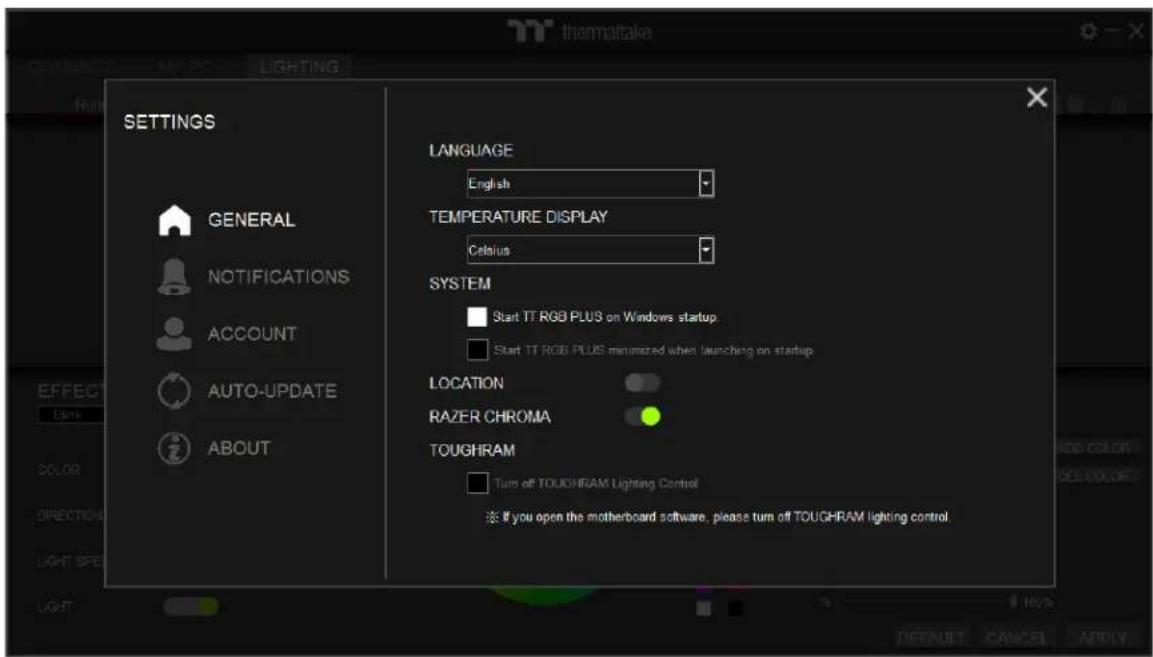
thermaltake RUN LIGHTING SETTINGS GENERAL NOTIFICATIONS ACCOUNT AUTO-UPDATE ABOUT LANGUAGE English TEMPERATURE DISPLAY Celsius SYSTEM Start TT RGB PLUS on Windows startup. Start TT RGB PLUS minimized when launching on startup LOCATION RAZER CHROMA TOUGHRAM Turn off TOUCHRAM Lighting Control ※ If you open the motherboard software, please turn off TOUCHRAM lighting control.

TT RGB PLUS supported products.

Chassis:

• DistroCase™ 350P Mid Tower Chassis.
• View 71 Tempered Glass RGB Plus Edition
• View 21 Tempered Glass RGB Plus Edition
- Level 20
• Level 20 GT RGB Plus
• View 91 Tempered Glass RGB Edition

Case Fan:

• SWAFAN EX RGB PC Cooling Fan
• SWAFAN RGB Radiator Fan
• TOUGHFAN RGB Radiator Fan
• Riing Quad RGB Radiator Fan
• Riing Trio RGB Radiator Fan
• Riing Duo RGB Radiator Fan
• Riing Plus RGB Radiator Fan
• Pure Plus RGB Radiator Fan

AIO Liquid Cooling:

  • Floe Ultra RGB
  • Floe DX RGB
  • Floe Riing RGB
  • Floe RC Ultra
    • TOUGHLIQUID Ultra

Custom Liquid Cooling:

  • Pacific Lumi Plus
    • Pacific W4 Plus CPU Water Block
    • Pacific W5 CPU Water Block
    • Pacific W6 CPU Water Block (AMD Ryzen Threadripper TR4)
    • Pacific W7 Plus CPU Water Block
    • Pacific MX1 Plus CPU Water Block
    • Pacific MX2 Ultra CPU Water Block
    • Pacific SW1 Plus CPU Water Block

• Pacific VGA Plus GPU Waterblock
• Pacific PR12/22/32-D5 Plus
• Pacific Core P5 DP-D5 Plus Distro-Plate with Pump Combo
• Pacific DP100-D5 Plus Distro-Plate with Pump Combo
• Pacific DP200-D5 Plus Distro-Plate with Pump Combo
• Pacific Core P6 DP-D5 Plus
• Pacific Core P8 DP-D5 Plus
• Pacific Ultra Core P6 DP-D5 Plus
• Pacific Ultra Core P8 DP-D5 Plus
• Pacific TF2 Temperature and Flow Indicator
• Pacific TF3 Liquid Cooling System Dashboard
• Pacific CL/RL 360 RGB Radiator
• Pacific RGB Plus Fittings
• Pacific A1 DDR4 RAM Water Block
• Pacific A2 Ultra Memory Water Block
• Pacific R1 Plus DDR4 Memory Lighting Kit
• Pacific R2 Ultra Memory LCD Monitor Kit
• Divider 550 TG Ultra LCD Monitor
• TT 3.9-inch LCD Panel Monitor

Memory (DDR4 & DDR5):

- TOUGHRAM

• TOUGHRAM RC

- TOUGHRAM

• TOUGHRAM RGB

• TOUGHRAM XG RGB

• TOUGHRAM Z-ONE

• Toughpower iRGB PLUS Series
• Toughpower DPS G RGB Series

TT SYNC supported Thermaltake gaming products.

Keyboards:

• TT Premium X1 RGB Gaming Keyboard
• ARGENT K5 RGB Gaming Keyboard
• ARGENT K6 RGB Gaming Keyboard
• Level 20 RGB Gaming Keyboard
• Level 20 GT RGB Gaming Keyboard

Mice:

• NEMESIS SWITCH Optical RGB
• IRIS Optical RGB
• Level 20 RGB Gaming Mouse
• ARGENT M5 RGB Gaming Mouse
• DAMYSUS RGB Gaming Mouse

Mouse Pads:

• Level 20 RGB Gaming Mouse Pad
• Level 20 RGB Extended Gaming Mouse Pad
• M900 XXL RGB Mouse Pad

• ARGENT MP1 RGB Gaming Mouse Pad

Mice Accessories:

• ARGENT MB1 RGB Mouse Bungee

Headsets:

• CRONOS Riing RGB 7.1
• RIING Pro RGB 7.1 Gaming Headset
• ARGENT H5 RGB 7.1 Gaming Headset

Headset Accessories:

• E1 RGB Gaming Headset Stand
• ARGENT HS1 RGB Headset Stand

Gaming Desks:

• Level 20 BattleStation RGB Gaming Desk
• ARGENT P900 Smart Gaming Desk
• TOUGHDESK 350 Smart Gaming Desk
• CYCLEDESK 100 Smart Gaming Desk

The following products are not supported.

• TT RGB PLUS 2.0 does not support lighting control for Toughpower DPS G Series, Toughpower DPS Series and Smart DPS G Series.
• TT RGB PLUS 2.0 does not support Riing 12/14 RGB Radiator Fan.

TT RGB PLUS lighting effects supports third-party products.

ViewSonic:

  • ELITE XG240R
  • ELITE XG270QC
  • ELITE XG270R
  • ELITE XG350R-C

DRAM:

• T-FORCE XCALIBUR RGB DDR4 Memory Module

• T-FORCE DELTA RGB DDR4 Memory Module
• T-FORCE NIGHT HAWK RGB DDR4 Memory Module

Motherboard:

- MSI Motherboard

Nanoleaf:

  • NanoLeaf Light Panel
  • NanoLeaf Canvas
Manual assistant
Powered by Anthropic
Waiting for your message
Product information

Brand : THERMALTAKE

Model : TOUGHFAN 14

Category : PC Fan