
MyMedia - Media player NETGEAR - Free user manual and instructions
Find the device manual for free MyMedia NETGEAR in PDF.


| Brand | Netgear |
| Model | MyMedia |
| Product Type | Media Streaming Feature (via NETGEAR genie app) |
| Platform Compatibility | Android, iOS |
| Network Requirements | Wi-Fi connection to a NETGEAR router |
| Supported Media Types | Music, Pictures, Video (formats depend on player device) |
| Chromecast Support | Yes (requires Chromecast device) |
| DLNA Support | Yes (router can be set up as DLNA media server) |
| Key Functions | Play media from home network, Share to Chromecast, Restart media service, Refresh source folders, Share files in network, Allow play in network |
| Compatible Routers | NETGEAR routers with genie app support (e.g., R7000, RT900) |
| TiVo Support | Yes (via router DLNA media server) |
| Installation | Download NETGEAR genie app from Google Play or App Store |
| App Version Requirements | Latest version of genie app |
| User Manual | Available at downloadcenter.netgear.com |
| Regulatory Compliance | See http://www.netgear.com/about/regulatory |
| Warranty | Standard NETGEAR warranty applies |
Frequently Asked Questions - MyMedia NETGEAR
User questions about MyMedia NETGEAR
0 question about this device. Answer the ones you know or ask your own.
Ask a new question about this device
Download the instructions for your Media player in PDF format for free! Find your manual MyMedia - NETGEAR and take your electronic device back in hand. On this page are published all the documents necessary for the use of your device. MyMedia by NETGEAR.
USER MANUAL MyMedia NETGEAR
natural_image
Abstract geometric composition with overlapping colored triangles (no text or symbols)MyMedia
Support
Thank you for purchasing this NETGEAR product. You can visit www.netgear.com/support to register your product, get help, access the latest downloads and user manuals, and join our community. We recommend that you use only official NETGEAR support resources.
Conformity
For the current EU Declaration of Conformity, visit http://kb.netgear.com/app/answers/detail/a_id/11621.
Compliance
For regulatory compliance information, visit http://www.netgear.com/about/regulatory.
See the regulatory compliance document before connecting the power supply.
Trademarks
© NETGEAR, Inc. NETGEAR and the NETGEAR Logo are trademarks of NETGEAR, Inc. Any non-NETGEAR trademarks are used for reference purposes only.
Contents
Chapter 1 Set Up MyMedia With the Mobile genie App
Install the NETGEAR Mobile genie App on Smartphones and Tablets ..... 5
Install the Android Mobile genie App 5
Install the iOS Mobile genie App.... 5
Play Media From Your Home Network on Your Device 5
Play Media From Your Home Network on an Android Device 6
Play Media on an iOS Device....8
Use the Mobile genie App to Share Media With Chromecast ..... 11
Share Media With Chromecast Using an Android Device ..... 11
Share Media With Chromecast Using an iOS Device 13
Chapter 2 Change the MyMedia Settings With the Mobile genie App
MyMedia Views....17
Change the MyMedia Player 17
Change the MyMedia Player on an Android Device 17
Change the MyMedia Player on an iOS Device 18
Restart the MyMedia Service 20
Restart the MyMedia Service Using an Android Device 20
Restart the MyMedia Service Using an iOS Device 21
Refresh the MyMedia Source Folders 23
Refresh the MyMedia Source Folders Using an Android Device 23
Refresh the MyMedia Source Folder Using an iOS Device 24
Allow Devices on the Network to Access Files on Your Device 26
Allow Devices to Access Files on an Android Device 26
Allow Devices to Access Files on an iOS Device 27
Allow Media Files to Play on Your Device 29
Allow Media Files to Play on Your Android Device. 29
Allow Media Files to Play on Your iOS Device....30
Chapter 3 Set Up the Router as a DLNA Media Server
NETGEAR Routers That Support DLNA Media Server 34
Set Up the Router as a DLNA Media Server 34
Play Media on DLNA-Compliant Media Players 35
Set Up the Router to Work With TiVo. 35
Play Media From a USB Device on TiVo 37
Play Videos on TiVo....37
Play Music or View Photos on TiVo 38
Set Up MyMedia With the Mobile genie App
1
Use the MyMedia® feature on the genie app to play media stored on computer and WiFi devices that are connected to your NETGEAR router's network. MyMedia is available with the desktop genie app for Windows and Mac computers and with the mobile genie app for iOS and Android devices.
This manual describes how to use MyMedia with the mobile genie app. For more information about using MyMedia with the desktop genie app, see the MyMedia desktop genie app user manual, which is available at downloadcenter.netgear.com.
This chapter contains the following sections:
• Install the NETGEAR Mobile genie App on Smartphones and Tablets
- Play Media From Your Home Network on Your Device
- Use the Mobile genie App to Share Media With Chromecast
For more information about the topics covered in this manual, visit the support website at support.netgear.com. For more information about the genie app, see the genie app user manual, which is available a downloadcenter.netgear.com.
Install the NETGEAR Mobile genie App on Smartphones and Tablets
You must download the latest version of the mobile genie app to use the MyMedia feature.
The mobile genie app runs on Android and iOS devices such as smart phones and tablets. You can see which smart devices are currently supported by visiting the NETGEAR genie web page.
Install the Android Mobile genie App
To install the Android mobile genie app on an Android device:
- Open Google Play and search for NETGEAR genie.
- Tap the INSTALL button.
- Tap the ACCEPT button to accept any terms.
The genie app installs on your Android device. - To open the genie app, tap OPEN.
Install the iOS Mobile genie App
To install the iOS mobile genie app on an iOS device:
- Open the App Store and search for NETGEAR genie.
- Tap GET > INSTALL.
The app installs on your iOS device. - To open the genie app, tap OPEN.
Play Media From Your Home Network on Your Device
Use the mobile genie app to play media files stored on devices that are connected to your router's home network.
For you to play media from your home network on a device, the device must support the DLNA Player profile. Game consoles (like Xbox 360 or PS3) and DVRs do not support the DLNA Player profile. For this reason, they do not display as players in MyMedia.
MyMedia finds only the media types supported by the player. For example, an iPad does not play Adobe Flash files because this format is not supported.
If you want to access media files stored on a USB storage device connected to the router, you must set up the router as a DLNA media server. For more information, see Chapter 3, Set Up the Router as a DLNA Media Server.
Play Media From Your Home Network on an Android Device
To play media on an Android device with the Android mobile genie app:
- Connect your device to the router's WiFi network.
- Launch the genie app.
The home page displays.
3. Tap the My Media button

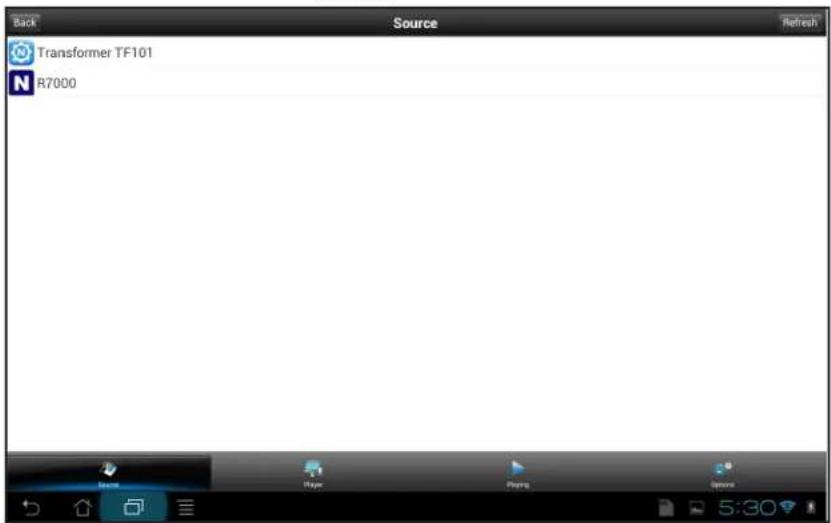
4. At the bottom of the page, tap Player.
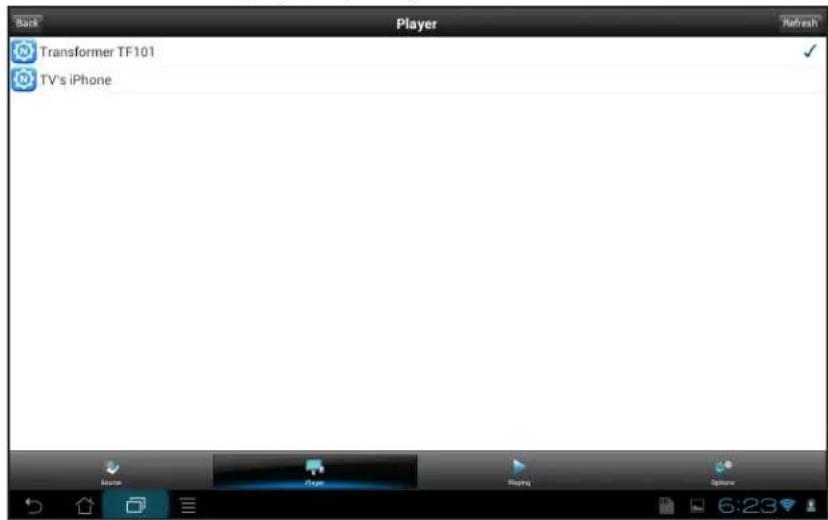
- Tap your device.
- At the bottom of the page, tap Source.
The Source page displays.
MyMedia
- Tap the source device that contains the media that you want to play on your device. The page displays media folders stored on the source device.
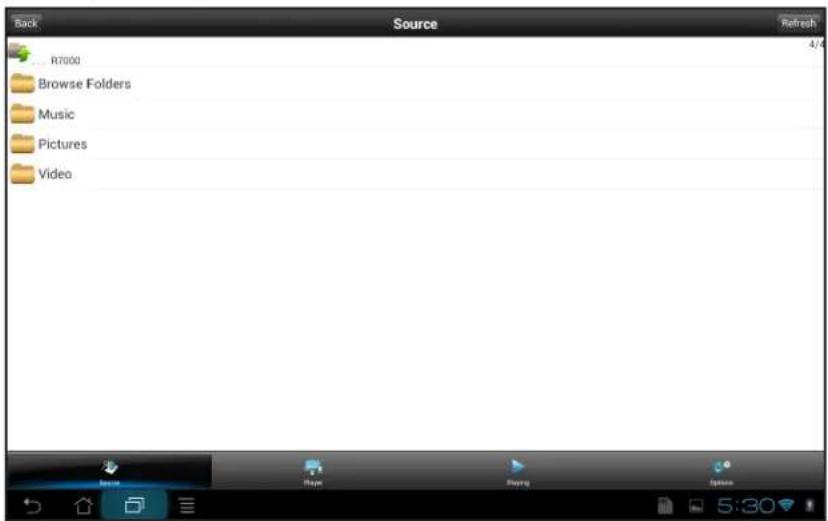
-
Tap the folder and tap the media file within the folder that you want to play. The media file plays on your device.
-
To view the media file that is playing, at the bottom of the page, tap Playing. The Playing page displays and the media plays on your device.
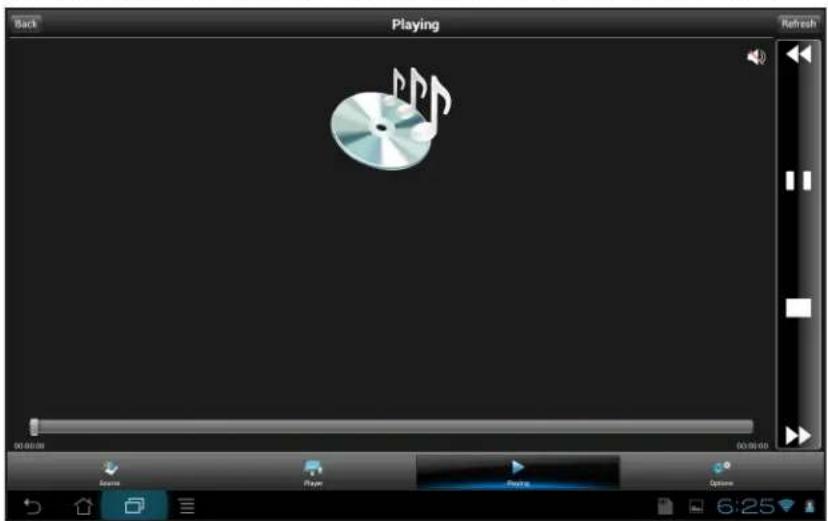
Play Media on an iOS Device
To play media on an iOS device with the iOS mobile genie app:
- Connect your device to the router's WiFi network.
- Launch the genie app.
The home page displays.
- Tap the My Media button

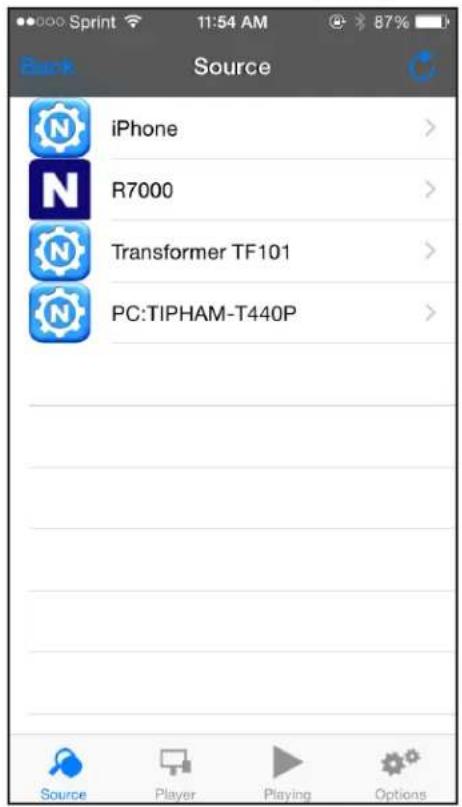
- At the bottom of the page, tap Player.
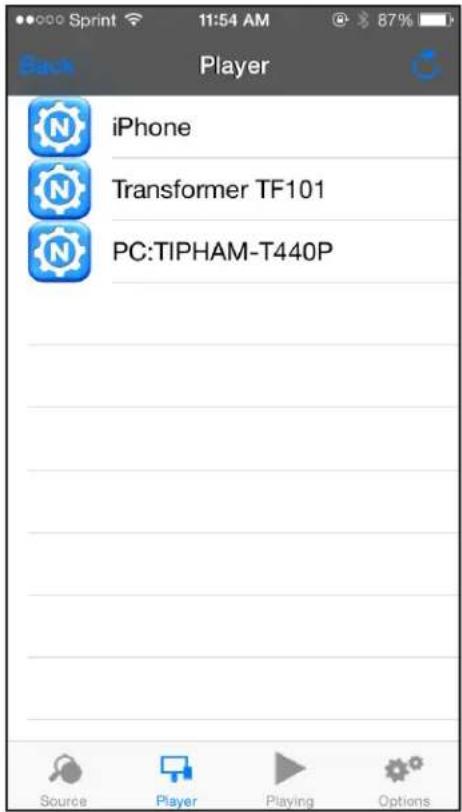
- Tap your device.
- At the bottom of the page, tap Source.
The Source page displays.
- Tap the source device that contains the media that you want to play on your device.
The page displays media folders stored on the source device.
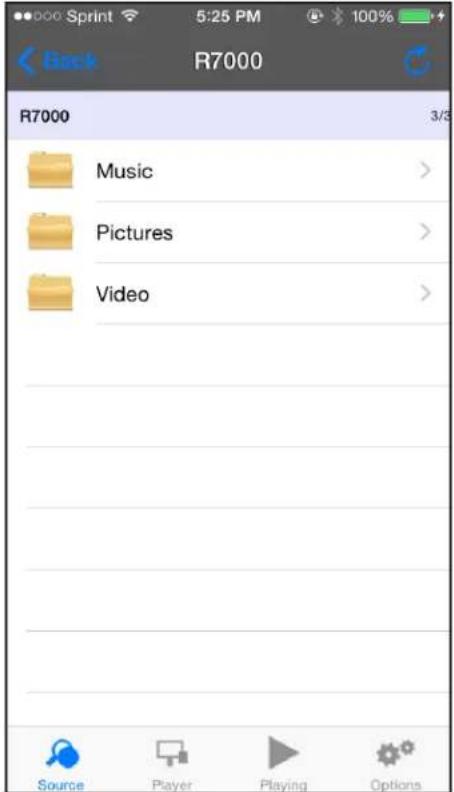
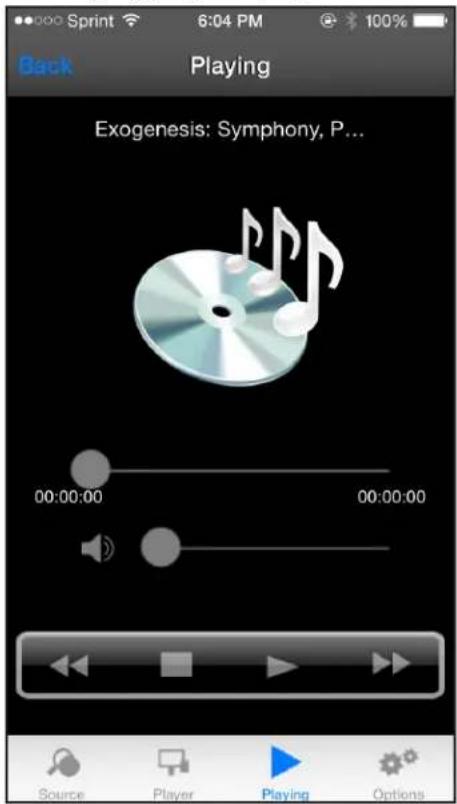
- Tap the folder and tap the media file within the folder that you want to play. The media file plays on your device.
- To view the media file that is playing, at the bottom of the page, tap Playing.
The Playing page displays and the media plays on your device.
Use the Mobile genie App to Share Media With Chromecast
Chromecast is a media streaming device that plugs into the HDMI port on your TV. If you use Chromecast, the mobile genie app lets you use Chromecast to play media from devices in your network on your TV.
Share Media With Chromecast Using an Android Device
To share media on the network with Chromecast using the Android mobile genie app:
- Connect your device to the router's WiFi network.
- Launch the genie app.
The home page displays.
3. Tap the My Media button

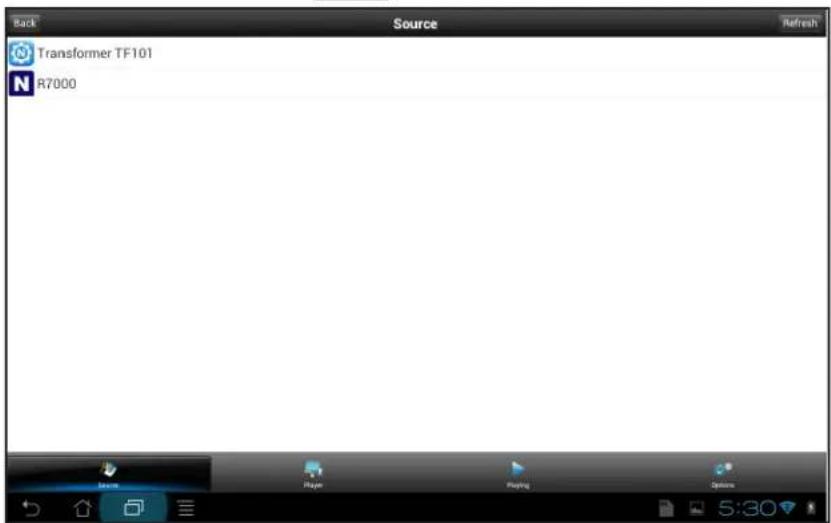
4. At the bottom of the page, tap Options.
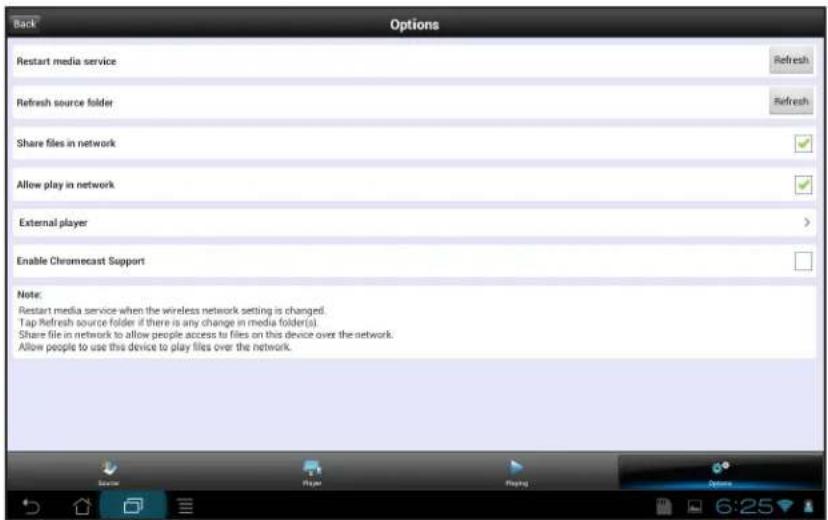
5. Tap the Enable Chromecast Support check box.
- At the bottom of the page, tap Player.
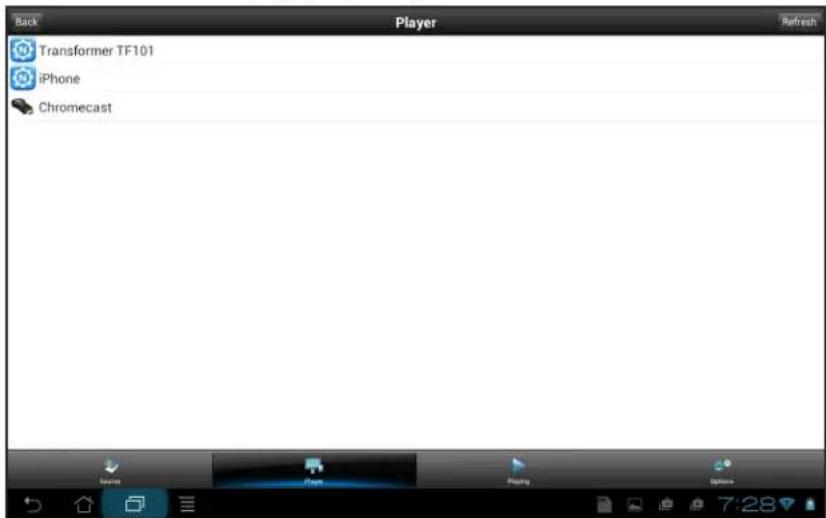
- Tap your Chromecast device.
- At the bottom of the page, tap Source.
The Source page displays.
- Tap the source device that contains the media that you want to play.
The page displays media folders stored on the source device.
- Tap the folder and tap the media file within the folder that you want to play.
The media file plays on your TV through Chromecast.
- Use the MyMedia Play and Control modes to control how you play the media.
Share Media With Chromecast Using an iOS Device
To share media on the network with Chromecast using the iOS mobile genie app:
- Connect your device to the router's WiFi network.
- Launch the genie app.
The home page displays.
3. Tap the My Media button

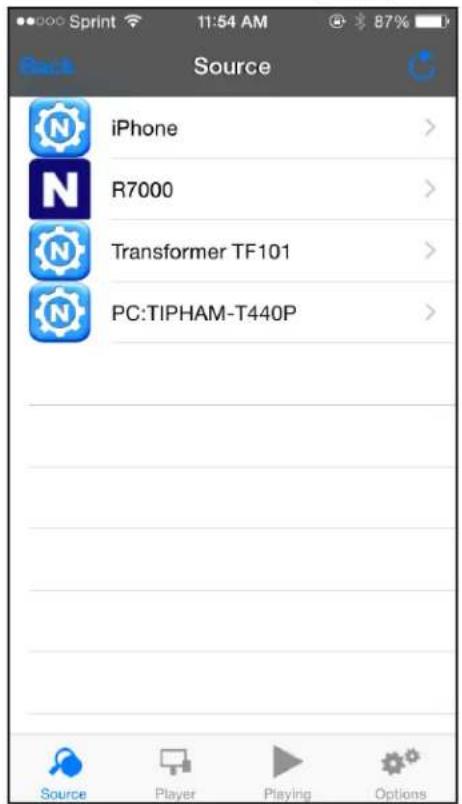
- At the bottom of the page, tap Player.
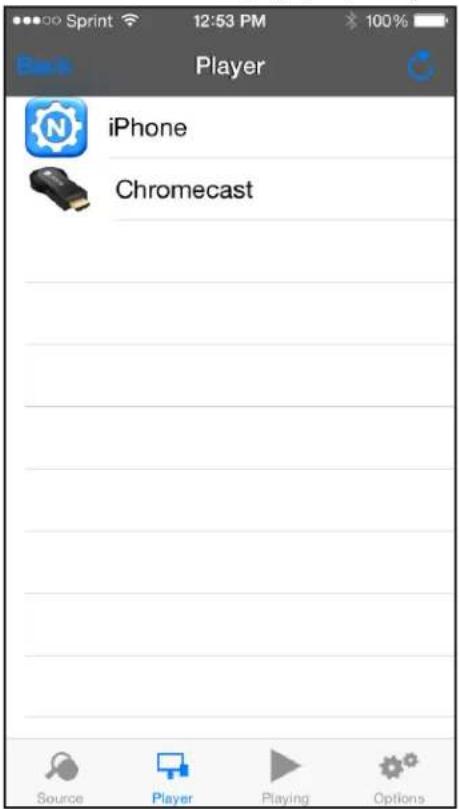
- Tap your Chromecast device.
- At the bottom of the page, tap Source.
The Source page displays.
- Tap the source device that contains the media that you want to play.
The page displays media folders stored on the source device.
- Tap the folder and tap the media file within the folder that you want to play.
The media file plays on your TV through Chromecast.
- Use the MyMedia Play and Control modes to control how you play the media.
Change the MyMedia Settings With the Mobile genie App
2
This chapter contains the following sections:
- MyMedia Views
- Change the MyMedia Player
- Restart the MyMedia Service
- Refresh the MyMedia Source Folders
- Allow Devices on the Network to Access Files on Your Device
- Allow Media Files to Play on Your Device
MyMedia Views
The MyMedia view that displays in the mobile genie app depends on which of the following items you select:
- Source. V iew a list of devices on your network that are sharing media files.
- Player. V iew a list of devices that can play media files over the network.
- Playing. V iew and control media that is playing on the selected player.
- Option. V iew the MyMedia settings.
Change the MyMedia Player
You can change the device that the media plays on.
Change the MyMedia Player on an Android Device
To change the player device on the Android mobile genie app:
- Connect your device to the router's WiFi network.
- Launch the genie app.
The home page displays.
3. Tap the My Media button

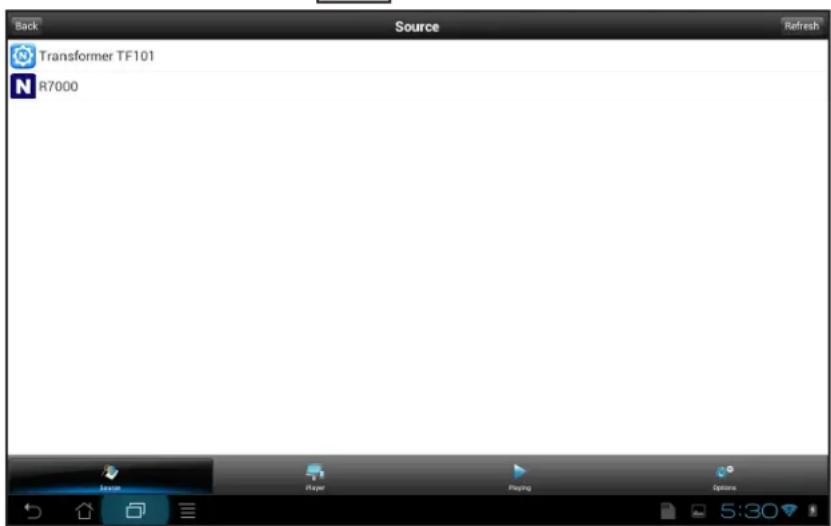
- At the bottom of the page, tap Player.
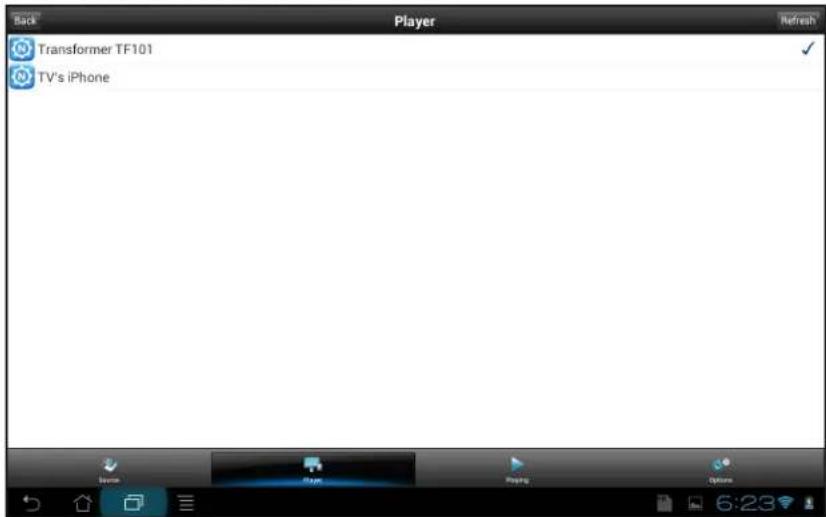
- Tap the device that you want the media files to play on.
- If the device that you want to select does not display, tap the Refresh button to refresh the page.
Change the MyMedia Player on an iOS Device
To change the player device on the iOS mobile genie app:
- Connect your device to the router's WiFi network.
- Launch the genie app.
The home page displays.
3. Tap the My Media button

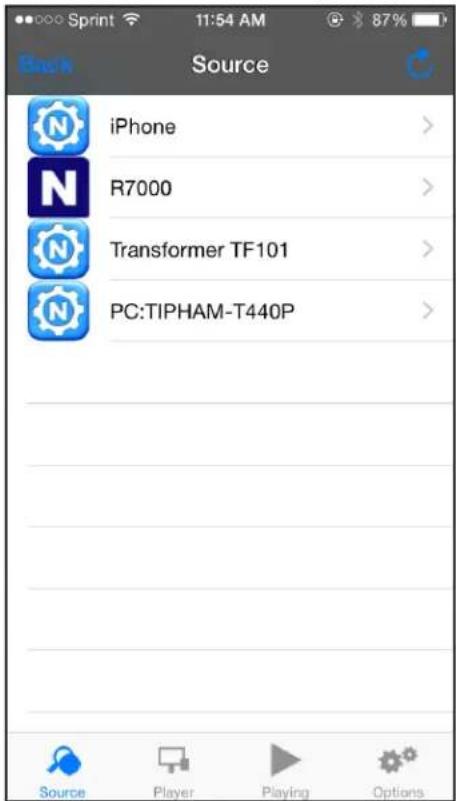
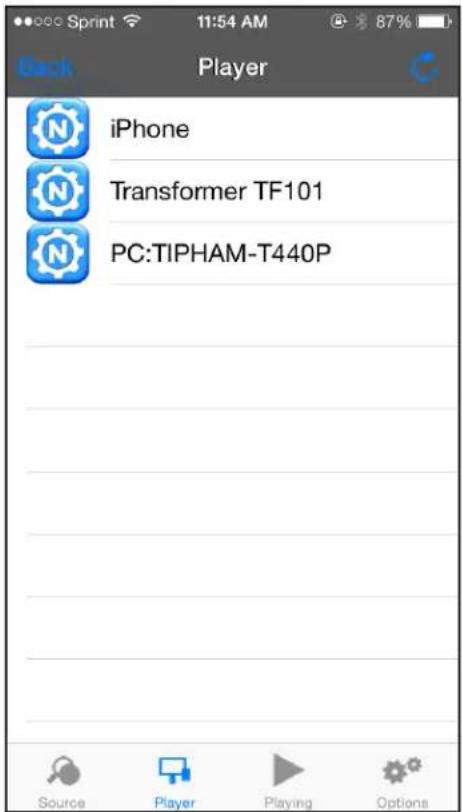
- At the bottom of the page, tap Player.
-
Tap the device that you want the media files to play on.
-
If the device that you want to select does not display, tap the Refresh button to refresh the page.
Restart the MyMedia Service
You can restart the MyMedia service on the mobile genie app if the WiFi settings change.
Restart the MyMedia Service Using an Android Device
To restart the media service on the Android mobile genie app:
-
Connect your device to the router's WiFi network.
-
Launch the genie app.
The home page displays.
3. Tap the My Media button

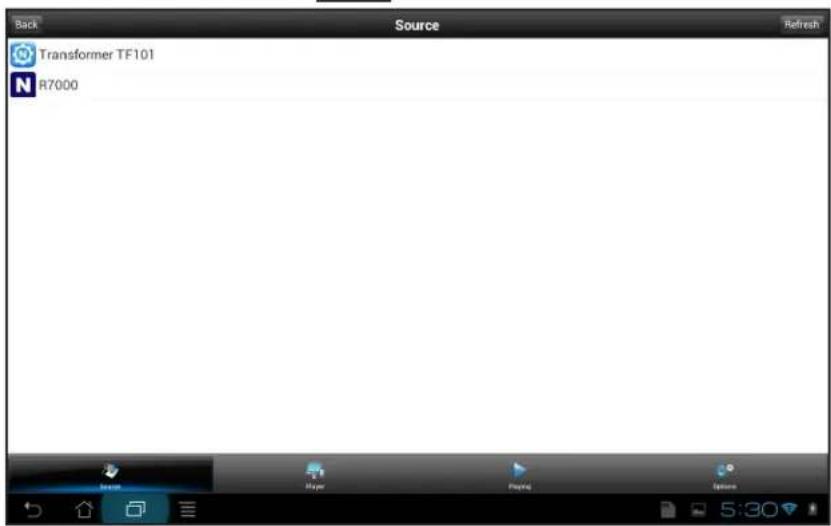
4. At the bottom of the page, tap Options.
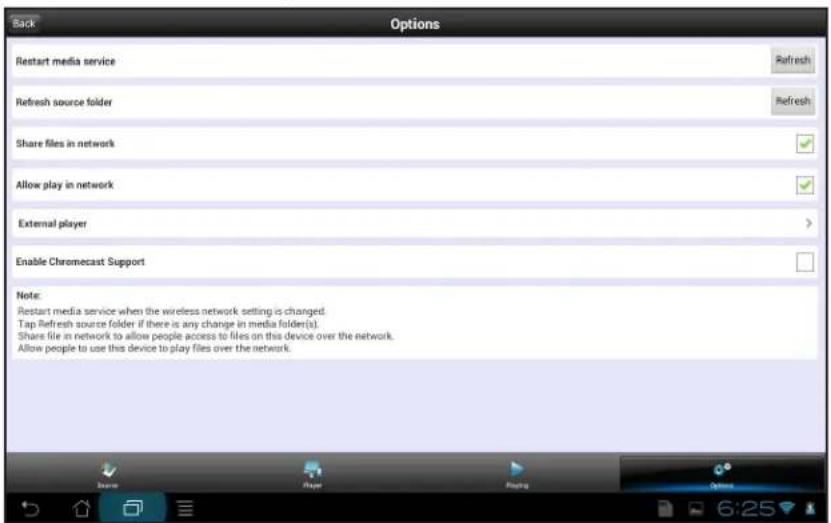
5. In the Restart media service section, tap the Refresh button.
The media service restarts.
Restart the MyMedia Service Using an iOS Device
To restart the media service on the iOS mobile genie app:
- Connect your device to the router's WiFi network.
- Launch the genie app.
The home page displays.
3. Tap the My Media button

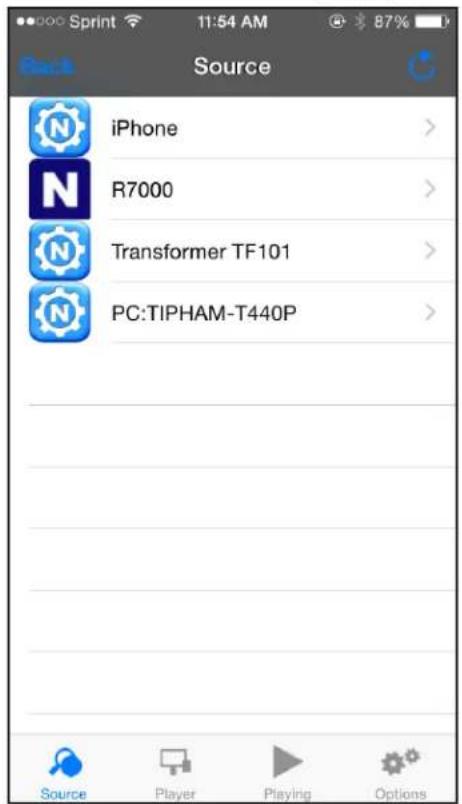
- At the bottom of the page, tap Options.
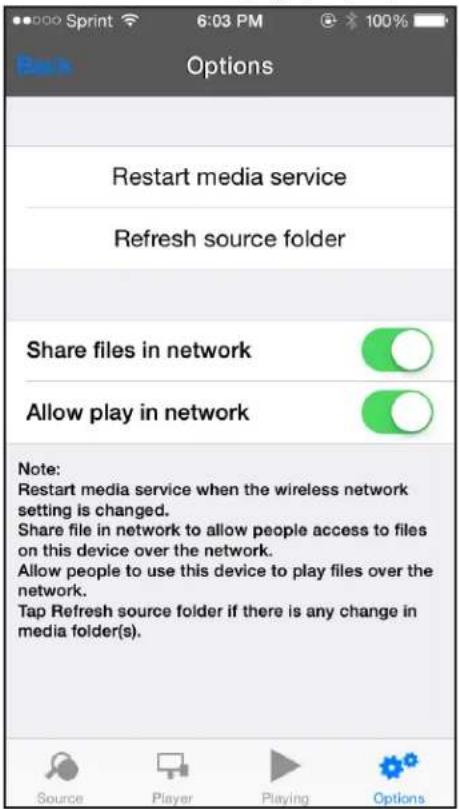
- Tap Restart media service.
The media service restarts.
Refresh the MyMedia Source Folders
You can refresh the MyMedia source folders on the mobile genie app if any changes are made to the media folders.
Refresh the MyMedia Source Folders Using an Android Device
To refresh the source folder on the Android mobile genie app:
- Connect your device to the router's WiFi network.
- Launch the genie app.
The home page displays.
3. Tap the My Media button

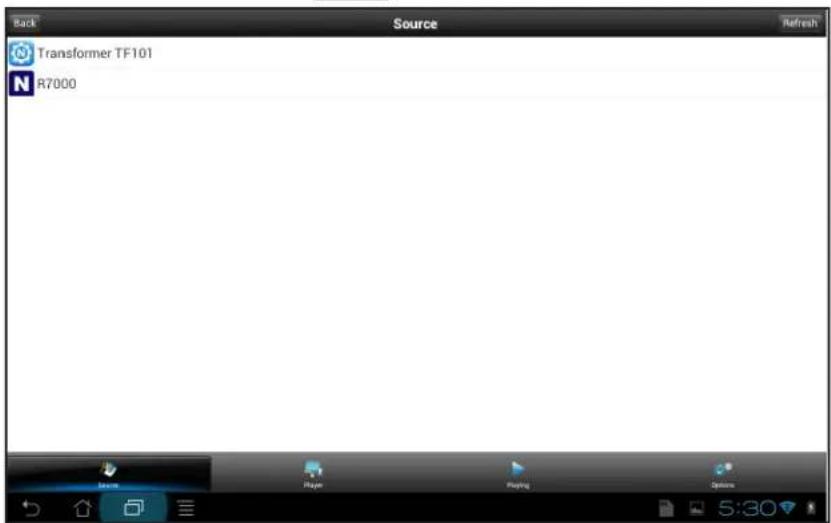
4. At the bottom of the page, tap Options.
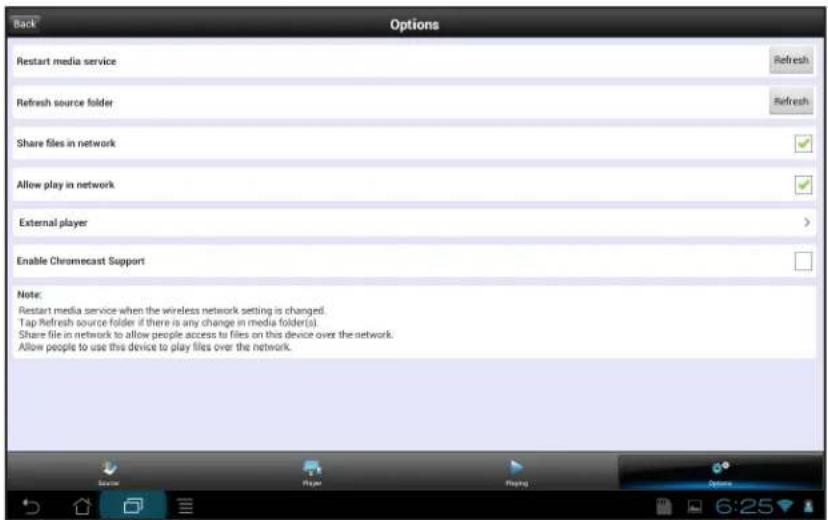
5. In the Refresh source folder section, tap the Refresh button.
The source folders refreshes.
Refresh the MyMedia Source Folder Using an iOS Device
To refresh the source folder on the iOS mobile genie app:
- Connect your device to the router's WiFi network.
- Launch the genie app.
The home page displays.
3. Tap the My Media button

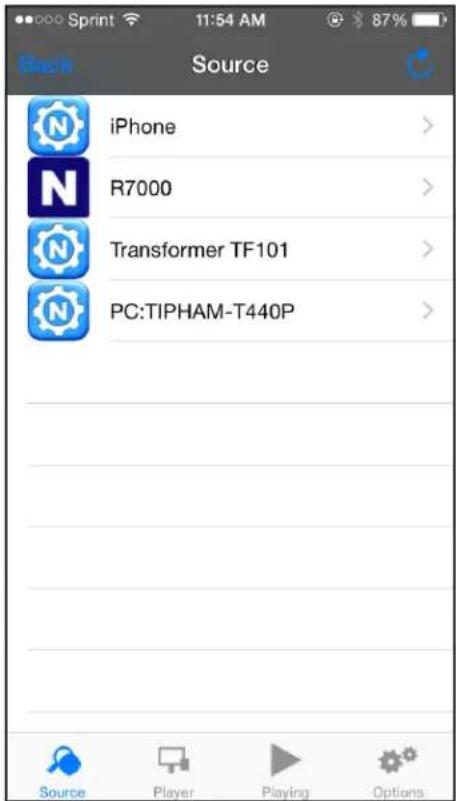
- At the bottom of the page, tap Options.
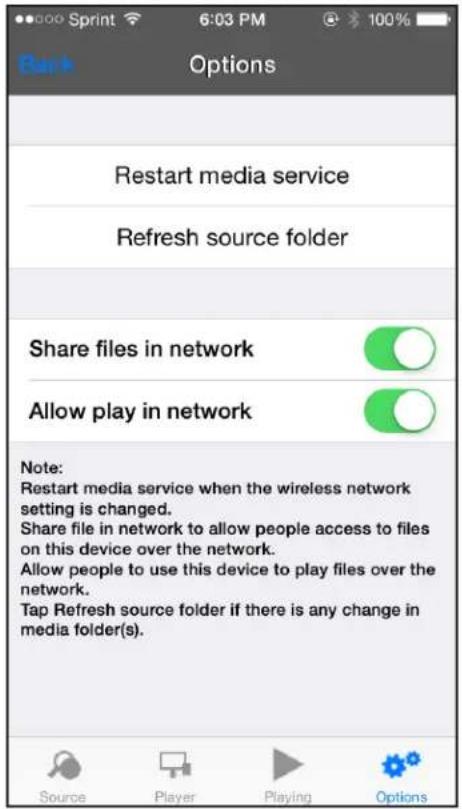
- Tap Refresh source folder.
The source folder refreshes.
Allow Devices on the Network to Access Files on Your Device
You can allow devices on the network to access files stored on your device.
Allow Devices to Access Files on an Android Device
To allow devices to access files on your Android device:
- Connect your device to the router's WiFi network.
- Launch the genie app.
The home page displays.
3. Tap the My Media button

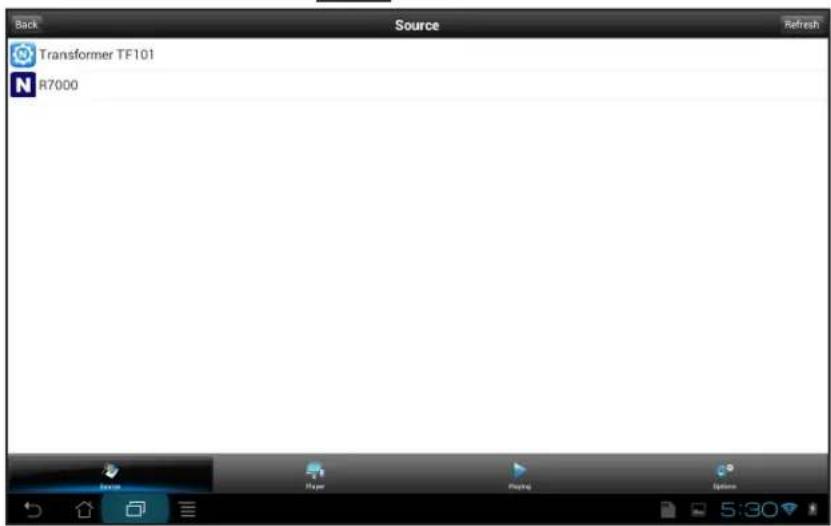
4. At the bottom of the page, tap Options.
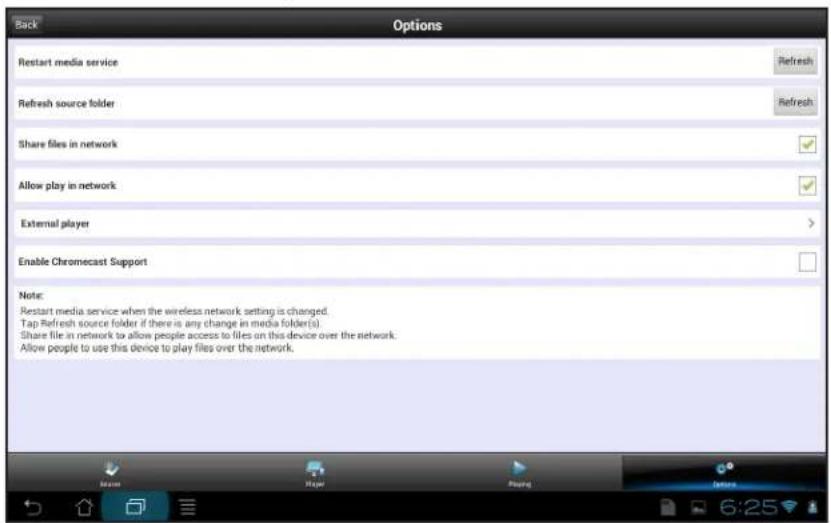
5. Tap the Share files in the network check box.
Devices in the network can now access files on this device.
Allow Devices to Access Files on an iOS Device
To allow devices on the network to access files on your iOS devices:
- Connect your device to the router's WiFi network.
- Launch the genie app.
The home page displays.
3. Tap the My Media button

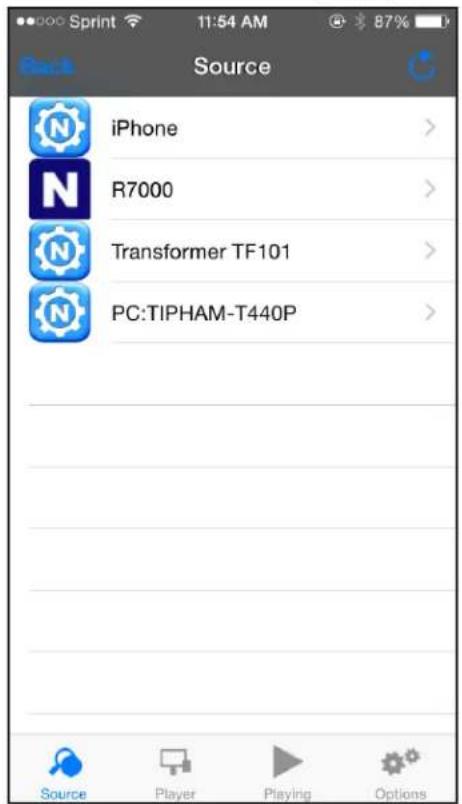
- At the bottom of the page, tap Options.
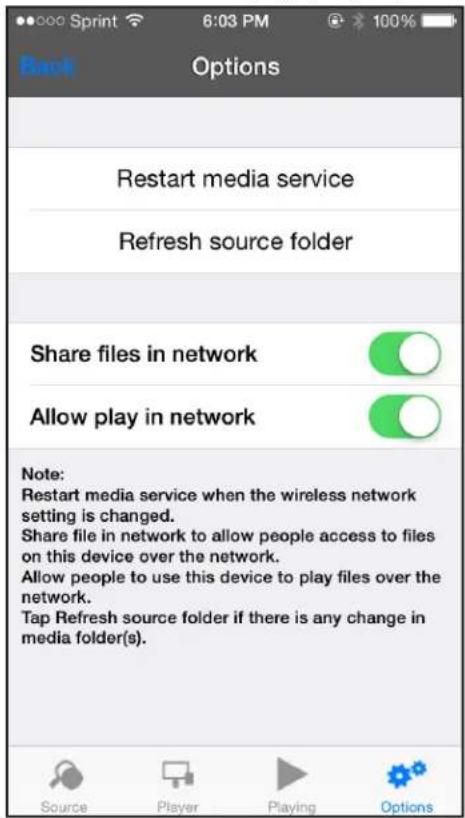
- Move the Share files in the network slider to the On position.
Devices in the network can now access files on this device.
Allow Media Files to Play on Your Device
You can allow devices on the network to play media files on your device.
For example, to view photos from another device in your network on your smartphone or tablet, leave the Allow play in network feature enabled. This setting controls whether the photos from other devices can be viewed on this phone or iPad.
Allow Media Files to Play on Your Android Device
To allow devices on the network to play media files on your Android device:
- Connect your device to the router's WiFi network.
- Launch the genie app.
The home page displays.
3. Tap the My Media button

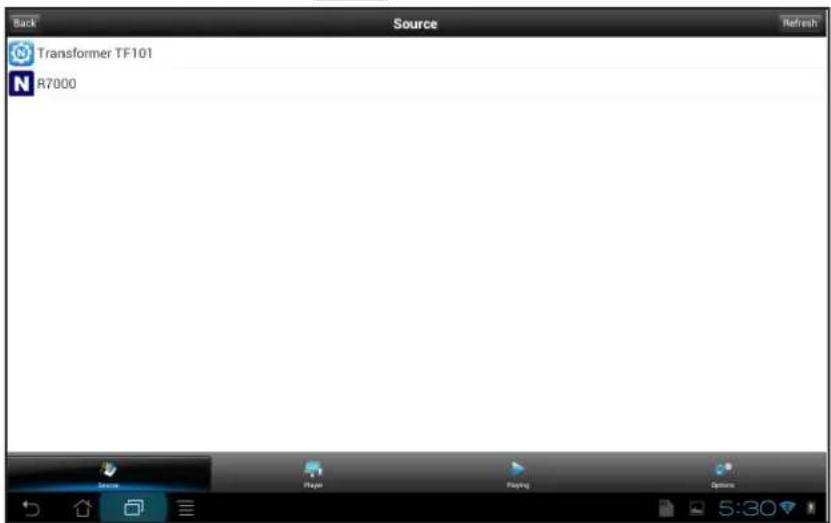
4. At the bottom or the page, tap Options.
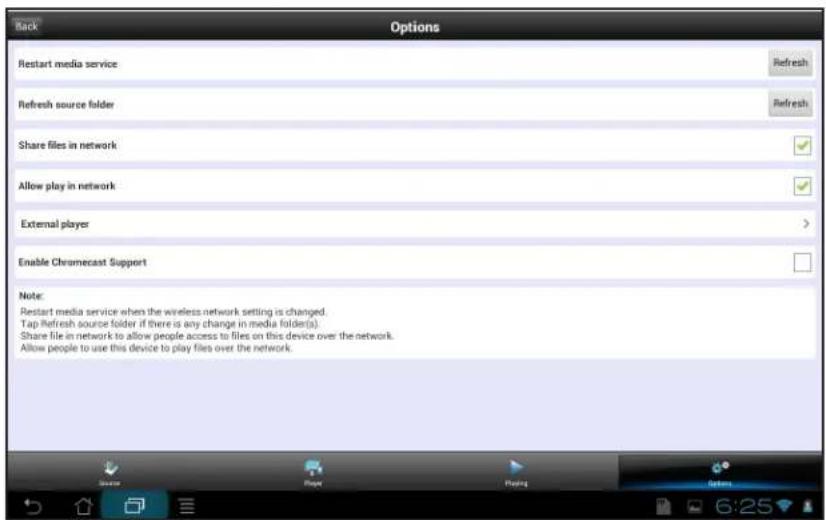
5. Tap the Allow play in network check box.
Devices on the network can now play media files using your device.
Allow Media Files to Play on Your iOS Device
To allow devices on the network to play media files on your iOS device:
- Connect your device to the router's WiFi network.
- Launch the genie app.
The home page displays.
3. Tap the My Media button

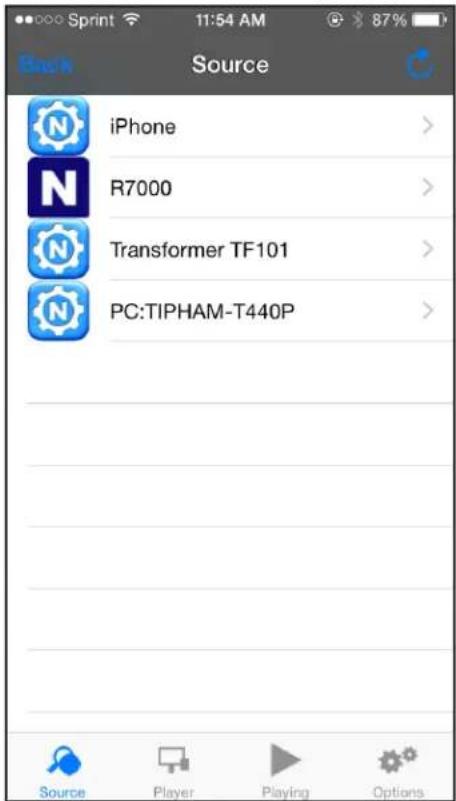
- At the bottom of the page, tap Options.
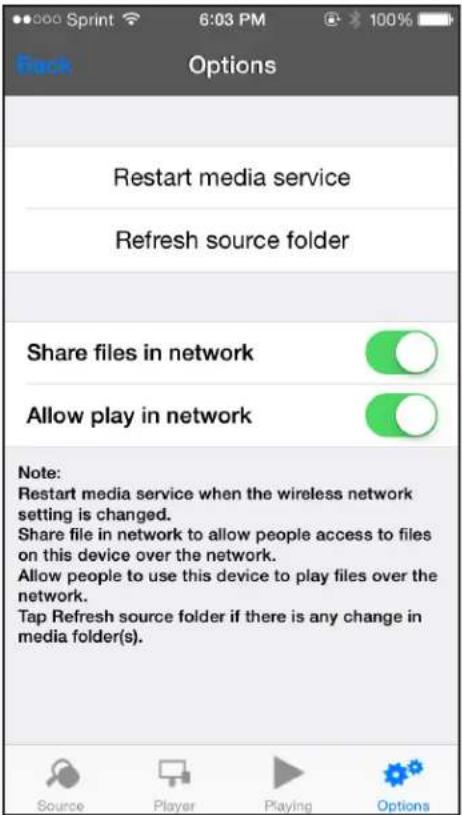
- Move the Allow play in the network slider to the On position.
Devices on the network can now play media files using your device.
Set Up the Router as a DLNA Media Server
3
You can set up the router as a DLNA media server.
This chapter contains the following sections:
• NETGEAR Routers That Support DLNA Media Server
- Set Up the Router as a DLNA Media Server
- Play Media on DLNA-Compliant Media Players
- Set Up the Router to Work With TiVo
- Play Media From a USB Device on TiVo
NETGEAR Routers That Support DLNA Media Server
To determine if your NETGEAR router can be set up as a DLNA media server, see your router's user manual, which is available at http://downloadcenter.netgear.com.
Set Up the Router as a DLNA Media Server
If your router can be set up as a DLNA media server, the router's DLNA media server lets you view movies and photos stored on an attached USB device, on DLNA-compliant or UPnP AV-compliant media players, such as Xbox360, Playstation, and NETGEAR media players.
To set up your router as a DLNA media server:
- Launch a web browser from a computer or WiFi device that is connected to your router's network.
- Enter http://www.routerlogin.net.
A login window displays.
- Enter the router user name and password.
The user name is admin. The default password is password. The user name and password are case-sensitive.
The BASIC Home page displays.
- Select ADVANCED > USB Functions > ReadySHARE Storage.
The USB Storage (Advanced Settings) page displays.
Note: This navigation path might be different depending on your router. See your router's user manual for more information. Your router's user manual is available online at http://downloadcenter.netgear.com.
10. Click the Media Server tab.
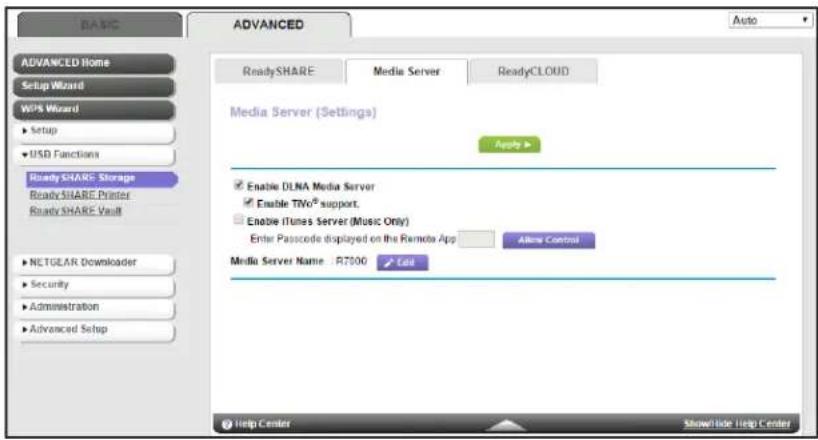
- Select the Enable DLNA Media Server check box.
- In the Media Server Device Name section, click the Edit button to change the name of the media server.
- Click the Apply button.
Your settings are saved.
Play Media on DLNA-Compliant Media Players
To play media on DLNA-compliant media player:
- Visit http://kbserver.netgear.com/readyshare to check for the most up-to-date list of USB devices that your router supports.
- Connect a USB device to a USB port on your router.
If your USB device uses a power supply, you must use it when you connect the USB device to the router.
When you connect the USB device to the router's USB port, it might take up to two minutes before it is ready for sharing. By default, the USB device is available to all computers on your local area network (LAN).
- Connect your DLNA-compliant media player (such as a Xbox360, Playstation, and NETGEAR media players) to your router's network.
You can now view the media on your USB device on your DLNA-compliant media player.
Set Up the Router to Work With TiVo
You can set up your TiVo to access media files stored on a USB device that is connected to your router. The TiVo must be on the same network as the router. This feature supports the following file formats:
• V ideo. See and play MPEG-1 and MPEG-2 files.
• Music. See and play MP3 files.
- Pictures. V iew images in .jpg format.
You can use the TiVo (Series 2 and up) Home Media Option to play photos and music on your Windows or Mac computer in your TiVo user interface.
To set up the router to work with TiVo:
- Launch a web browser from a computer or WiFi device that is connected to your router's network.
- Enter http://www.routerlogin.net.
A login window displays.
- Enter the router user name and password.
The user name is admin. The default password is password. The user name and password are case-sensitive.
The BASIC Home page displays.
- Select ADV ANCED > USB Functions > ReadySHARE Storage.
The USB Storage (Advanced Settings) page displays.
- Click the Media Server tab.
Note: The Media Server page navigation path might be different depending on your router. Check your router's user manual for more information.
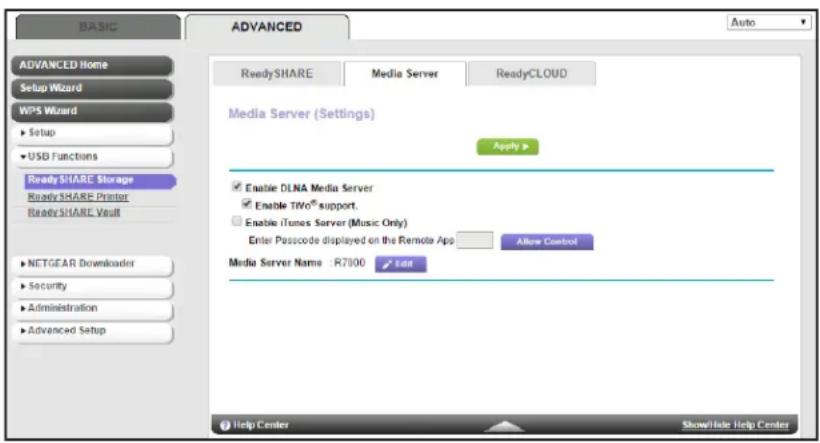
- Select the Enable DLNA Media Server check box.
- Select the Enable T iVo support check box.
- Click the Apply button.
Your settings are saved.
Play Media From a USB Device on TiVo
Make sure that you set up the router to work with TiVo. For more information, see Set Up the Router to Work With TiVo on page 35.
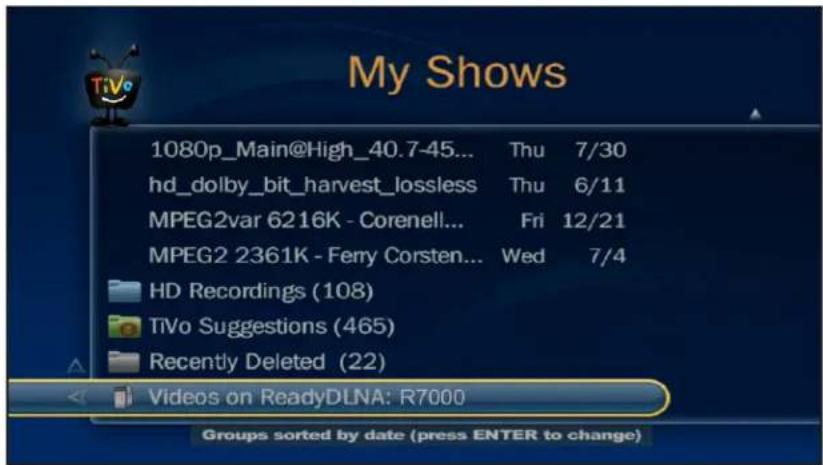
Play Videos on TiVo
Note: The TiVo images used in this section were taken using a TiVo Premiere XL DVR.
To play videos:
- On the TiVo, select TiVo Central > My Shows.
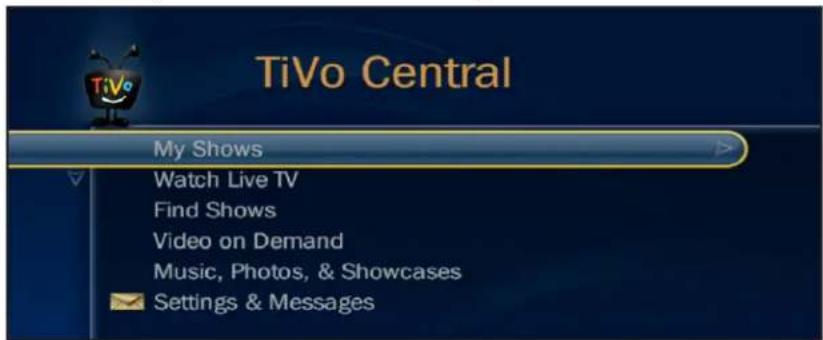
- Go to the bottom of the list and select the router model.
Play Music or View Photos on TiVo
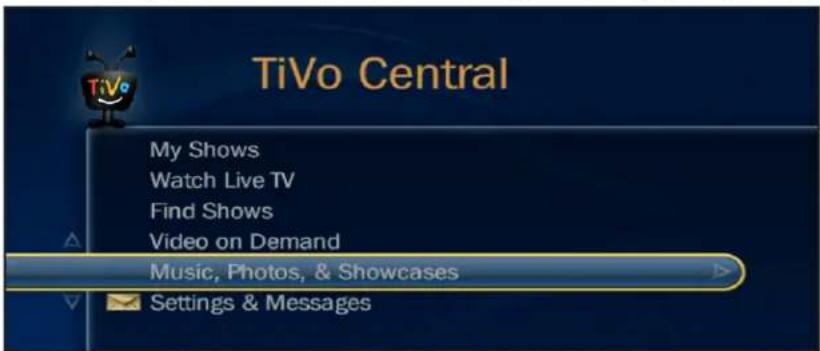
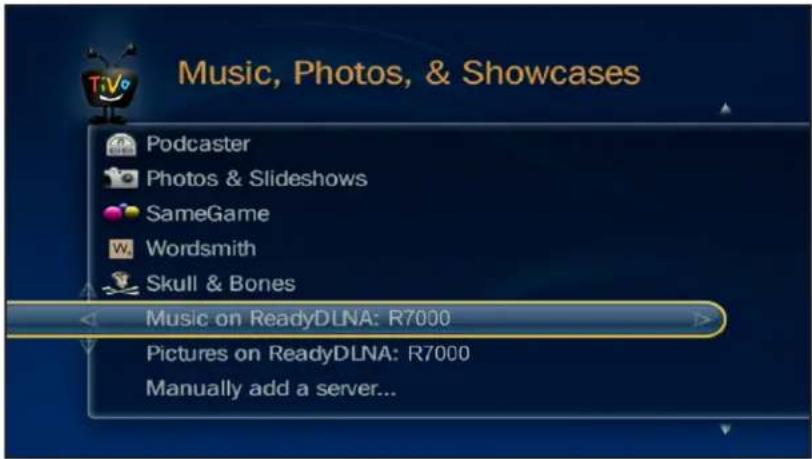
Note: The TiVo images used in this section were taken using a TiVo Premiere XL DVR.
To play music or view photos:
- On the TiVo, select TiVo Central > Music, Photos, & Showcases.
- Select an item to play or watch.
- MyMedia
- Support
- Conformity
- Compliance
- Trademarks
- Contents
- Chapter 1 Set Up MyMedia With the Mobile genie App
- Chapter 2 Change the MyMedia Settings With the Mobile genie App
- Chapter 3 Set Up the Router as a DLNA Media Server
- Set Up MyMedia With the Mobile genie App
- Install the NETGEAR Mobile genie App on Smartphones and Tablets
- Install the Android Mobile genie App
- To install the Android mobile genie app on an Android device:
- Install the iOS Mobile genie App
- To install the iOS mobile genie app on an iOS device:
- Play Media From Your Home Network on Your Device
- Play Media From Your Home Network on an Android Device
- To play media on an Android device with the Android mobile genie app:
- Tap the My Media button
- At the bottom of the page, tap Player.
- Play Media on an iOS Device
- To play media on an iOS device with the iOS mobile genie app:
- Use the Mobile genie App to Share Media With Chromecast
- Share Media With Chromecast Using an Android Device
- At the bottom of the page, tap Options.
- Tap the Enable Chromecast Support check box.
- Share Media With Chromecast Using an iOS Device
- Change the MyMedia Settings With the Mobile genie App
- 2
- MyMedia Views
- Change the MyMedia Player
- Change the MyMedia Player on an Android Device
- To change the player device on the Android mobile genie app:
- Change the MyMedia Player on an iOS Device
- Restart the MyMedia Service
- Restart the MyMedia Service Using an Android Device
- In the Restart media service section, tap the Refresh button.
- Restart the MyMedia Service Using an iOS Device
- To restart the media service on the iOS mobile genie app:
- Refresh the MyMedia Source Folders
- Refresh the MyMedia Source Folders Using an Android Device
- In the Refresh source folder section, tap the Refresh button.
- Refresh the MyMedia Source Folder Using an iOS Device
- To refresh the source folder on the iOS mobile genie app:
- Allow Devices on the Network to Access Files on Your Device
- Allow Devices to Access Files on an Android Device
- Tap the Share files in the network check box.
- Allow Devices to Access Files on an iOS Device
- To allow devices on the network to access files on your iOS devices:
- Allow Media Files to Play on Your Device
- Allow Media Files to Play on Your Android Device
- At the bottom or the page, tap Options.
- Tap the Allow play in network check box.
- Allow Media Files to Play on Your iOS Device
- To allow devices on the network to play media files on your iOS device:
- Set Up the Router as a DLNA Media Server
- 3
- NETGEAR Routers That Support DLNA Media Server
- To set up your router as a DLNA media server:
- Click the Media Server tab.
- Play Media on DLNA-Compliant Media Players
- To play media on DLNA-compliant media player:
- Set Up the Router to Work With TiVo
- To set up the router to work with TiVo:
- Play Media From a USB Device on TiVo
- Play Videos on TiVo
- To play videos:
- Play Music or View Photos on TiVo
- To play music or view photos:
Brand : NETGEAR
Model : MyMedia
Category : Media player