
VP100 - Uncategorized UNIDEN - Free user manual and instructions
Find the device manual for free VP100 UNIDEN in PDF.


| Product Type | VoIP Desk Phone (IP Phone) |
| Brand | Uniden |
| Model | VP100 |
| Display | LCD with soft keys |
| Handset | Corded handset included |
| Speakerphone | Yes (hands-free speaker) |
| Keypad | 12-key dial pad with letters (ABC, DEF, etc.) |
| Programmable Keys | 4 keys with LED indicator |
| Soft Keys | 3 context-sensitive keys under display |
| Navigation Keys | 4 directional keys with OK button |
| Volume Keys | Up/Down for ringer and call volume |
| Mute Key | Yes (mutes microphone or ringer) |
| Headset Support | Yes (headset key available) |
| Network Interface | Ethernet (RJ45) |
| Power Options | AC adapter (included) or Power over Ethernet (PoE) |
| Mounting | Desk stand included |
| Warranty | 1 year limited warranty |
| Included Accessories | AC adaptor, handset cord, ethernet cable, base stand, quick installation guide |
| Web Configuration | Yes, via browser (default IP: obtain from phone menu) |
| IP Configuration | Static IP, DHCP, PPPoE |
| SIP Support | Yes (register to SIP server) |
| Call Features | Call forwarding, auto answer, call waiting, DND, hotline, intercom, etc. |
| Safety Notes | Not waterproof; do not use near water; avoid using during electrical storm |
Frequently Asked Questions - VP100 UNIDEN
User questions about VP100 UNIDEN
0 question about this device. Answer the ones you know or ask your own.
Ask a new question about this device
Download the instructions for your Uncategorized in PDF format for free! Find your manual VP100 - UNIDEN and take your electronic device back in hand. On this page are published all the documents necessary for the use of your device. VP100 by UNIDEN.
USER MANUAL VP100 UNIDEN
For more exciting new products please visit our website:
Australia: www.uniden.com.au
New Zealand: www.uniden.co.nz
QUICK INSTALLATION GUIDE
IMPORTANT SAFETY INSTRUCTIONS
When using your telephone equipment, basic safety precautions should always be followed to reduce the risk of fire, electric shock and injury to persons, including the following:
- This unit is NOT waterproof! DO NOT expose this unit to moisture.
• DO NOT expose this unit to rain. - Do not use this product near water, for example, near a bath tub, wash bowl, kitchen sink or laundry tub, in a wet basement or near a swimming pool.
- Avoid using a telephone (other than a cordless type) during an electrical storm. There may be a remote risk of electric shock from lightning.
- Do not use the telephone to report a gas leak in the vicinity of the leak.
- Use only the power cord indicated in this manual.
SAVE THESE INSTRUCTIONS!
Important Notice:
- Under power failure conditions this appliance may not operate. Please ensure that a separate telephone, not dependent on local power, is available for emergency use.
WHAT'S IN THE BOX?
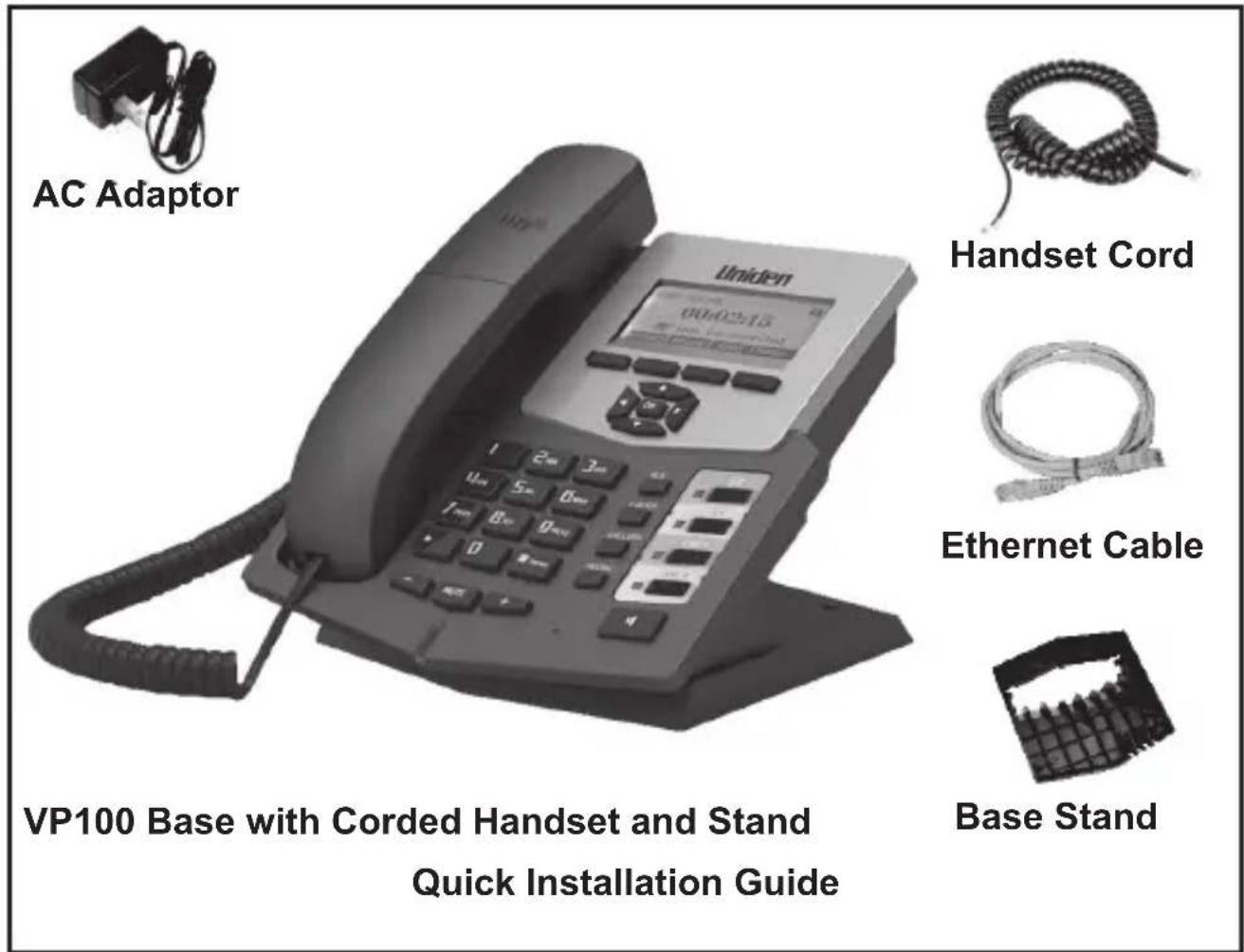
- If any item is missing or damaged, contact your place of purchase immediately. Never use damaged products!
- Need help? Get answers at our website: www.uniden.com.au for Australian model www.uniden.co.nz for New Zealand model.
INSTALLING YOUR PHONE
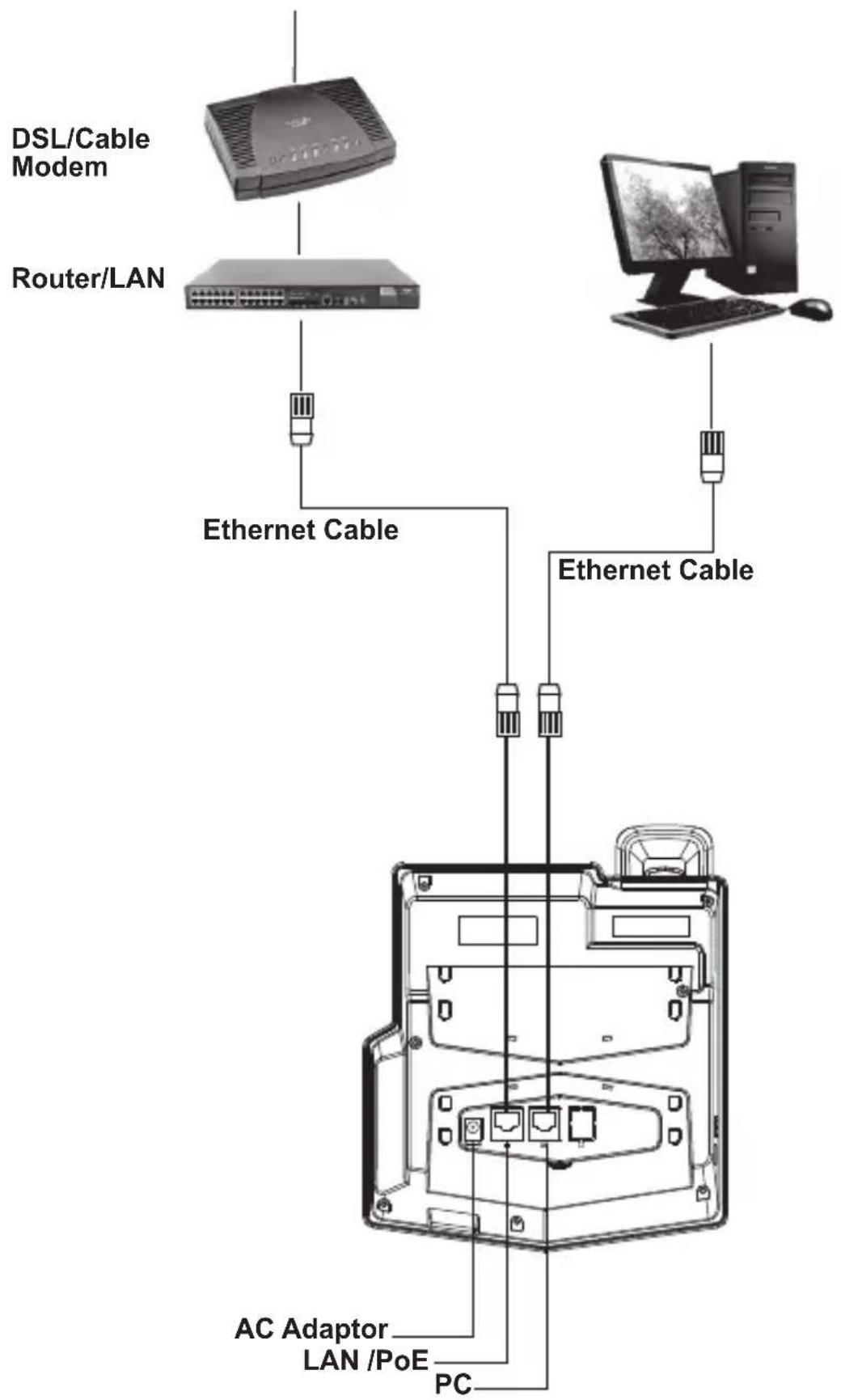
gETTING TO KNOW YOUR PHONE
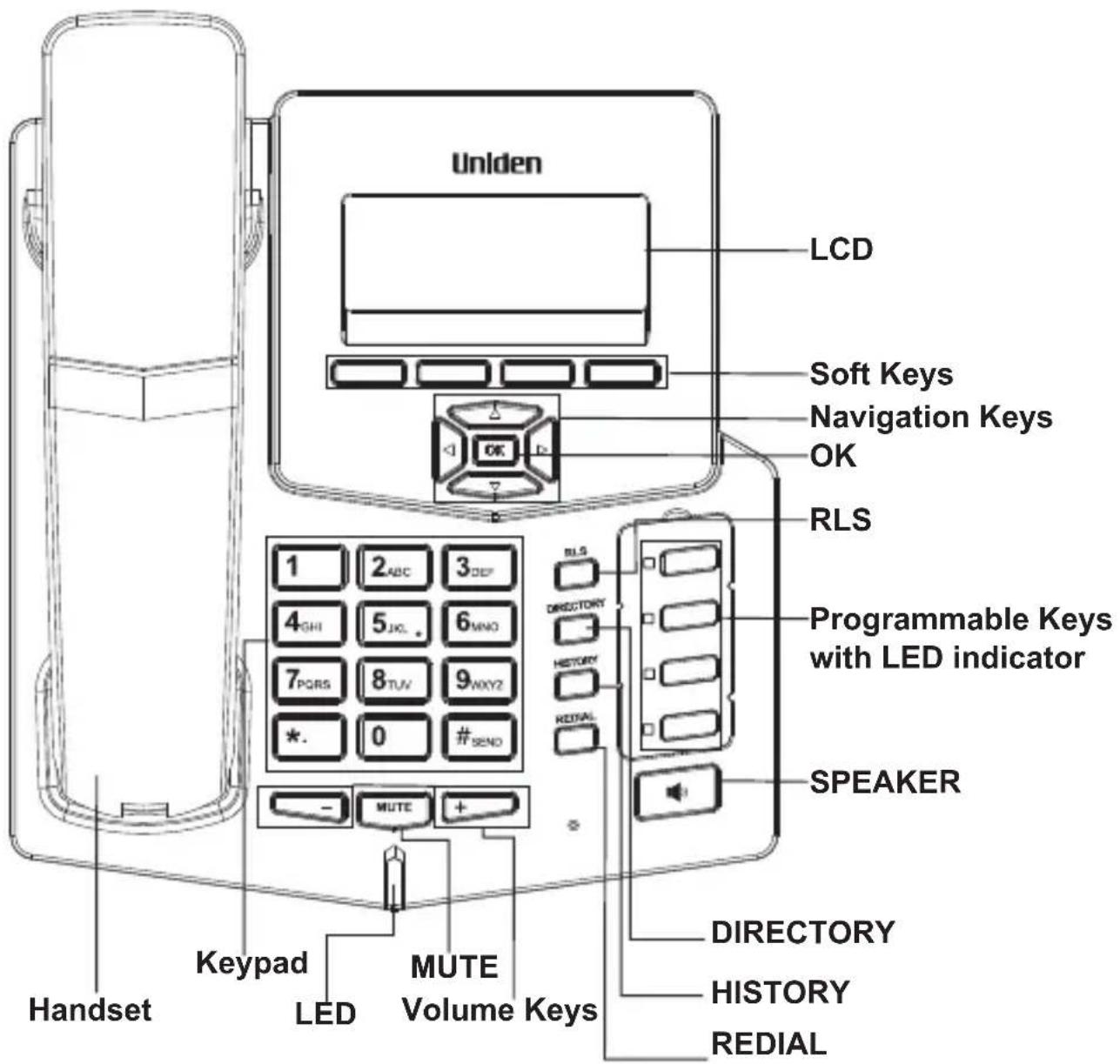
| Keys What it does | |
| RLS Use this key to return to Home page. | |
| DIRECTORY In standby or during a call: access the phonebook. | |
| HISTORY View missed, incoming and outgoing calls. | |
| REDIAL In the | standby mode, check and call the last dialled number. |
| Soft Keys The | Soft Keys automatically change their function based on what you are doing. You can select the relevant feature (shown directly above the soft keys) on the LCD display, by pressing the applicable soft key. |
| Navigation Keys | These keys can be configured on the web page, depending on the usage pattern. |
| OK Use this | key to confirm any Menu setting. |
| MUTE During | a call: mute the microphoneWhen the phone is ringing: mute the ringer for that particular call only. |
| Volume Keys In | Standby: increase/decrease the ringer volume.During a call: increase/decrease the volume. |
| SPEAKER (HANDS-FREE) | In Standby: start a speakerphone call.During a speakerphone call: end the call. |
| Programmable Keys with LED indicator | These keys can be configured on the web as speed dial or function keys. |
| LED Visual ringer | |
IP PHONE SETUP MENU
Network Mode Settings
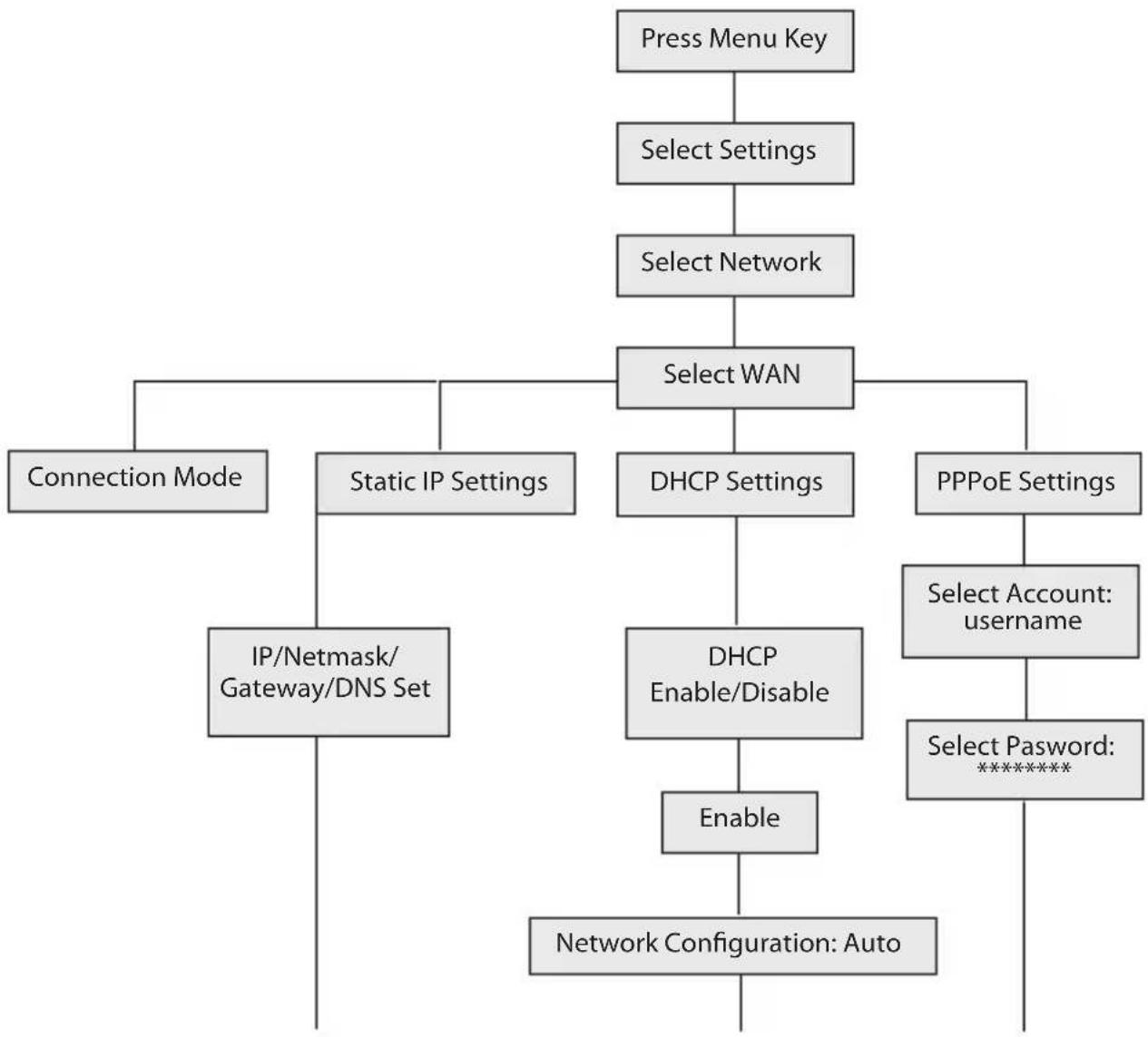
flowchart
graph TD
    A["Press Menu Key"] --> B["Select Settings"]
    B --> C["Select Network"]
    C --> D["Select WAN"]
    D --> E["Connection Mode"]
    D --> F["Static IP Settings"]
    D --> G["DHCP Settings"]
    D --> H["PPPoE Settings"]
    E --> I["IP/Netmask/Gateway/DNS Set"]
    F --> J["DHCP Enable/Disable"]
    G --> K["Select Account: username"]
    H --> L["Select Password: *********"]
    I --> M["Enable"]
    J --> N["Enable"]
    K --> O["Network Configuration: Auto"]
    L --> O
Note:
Select 'Settings' to get the options, Basic Settings and Advanced Settings, displayed on the LCD.
Choose Advanced Settings and enter the default password, '123'.
Select Network and then proceed as required, as illustrated above.
IP PHONE SETUP MENU
Phone Structure Menu
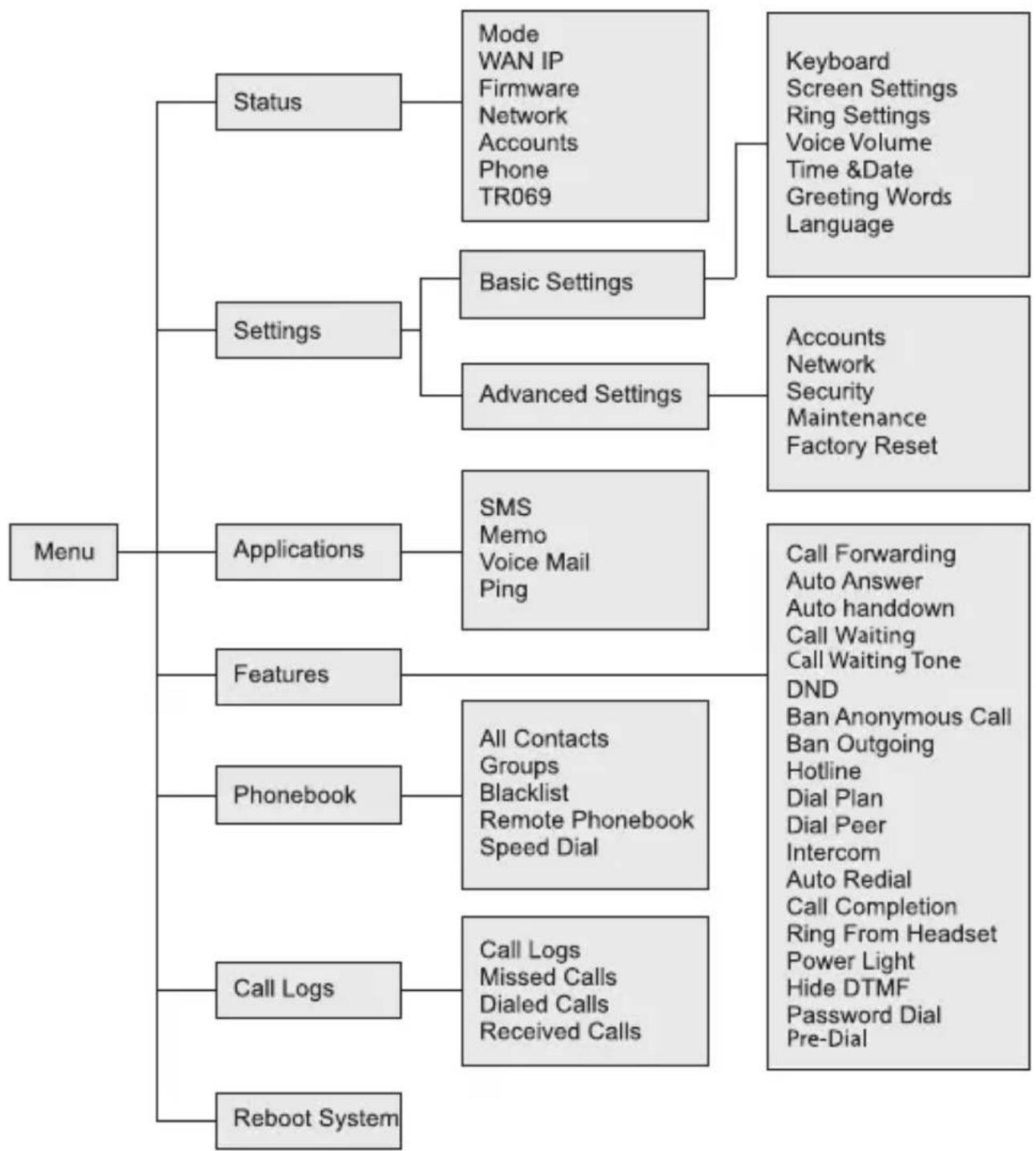
flowchart
graph TD
    A["Menu"] --> B["Status"]
    A --> C["Settings"]
    A --> D["Applications"]
    A --> E["Features"]
    A --> F["Phonebook"]
    A --> G["Call Logs"]
    A --> H["Reboot System"]

    B --> I["Mode WAN IP Firmware Network Accounts Phone TR069"]
    C --> J["Basic Settings"]
    C --> K["Advanced Settings"]
    D --> L["SMS Memo Voice Mail Ping"]
    E --> M["All Contacts Groups Blacklist Remote Phonebook Speed Dial"]
    F --> N["Call Logs Missed Calls Dialed Calls Received Calls"]
    G --> O["Keyboard Screen Settings Ring Settings Voice Volume Time &Date Greeting Words Language"]
    K --> P["Accounts Network Security Maintenance Factory Reset"]
    M --> Q["Call Forwarding Auto Answer Auto handdown Call Waiting Call Waiting Tone DND Ban Anonymous Call Ban Outgoing Hotline Dial Plan Dial Peer Intercom Auto Redial Call Completion Ring From Headset Power Light Hide DTMF Password Dial Pre-Dial"]
CONFIGURATION
The configuration menu of VP100 can be accessed using the convenient and user friendly interface of a web browser (Internet Explorer).
Open IE on a PC, connected to the same network as VP100, and key in the unit's IP address.
To get the unit's IP address, press the Menu soft key. Notice that the option Status is highlighted, press OK button to confirm. The WAN IP address of the unit is displayed on the LCD.
For example, let's assume, 'WAN IP: 192.168.16.122', is displayed on the LCD. Now, enter this IP address on the address bar of the IE, 'http://19 2.168.16.122 /'.
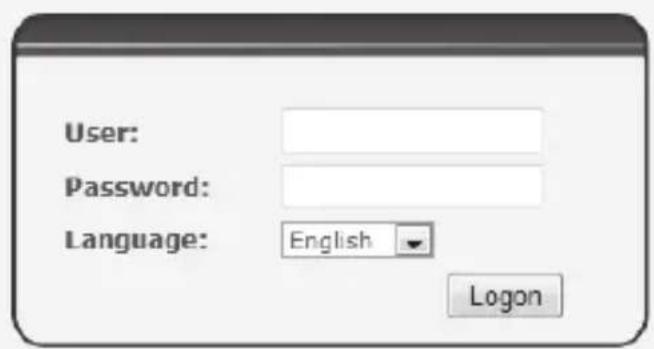
The following web page is displayed.
Enter the username and password, (default username and password is 'admin').
After you have logged on, the following web page is displayed.
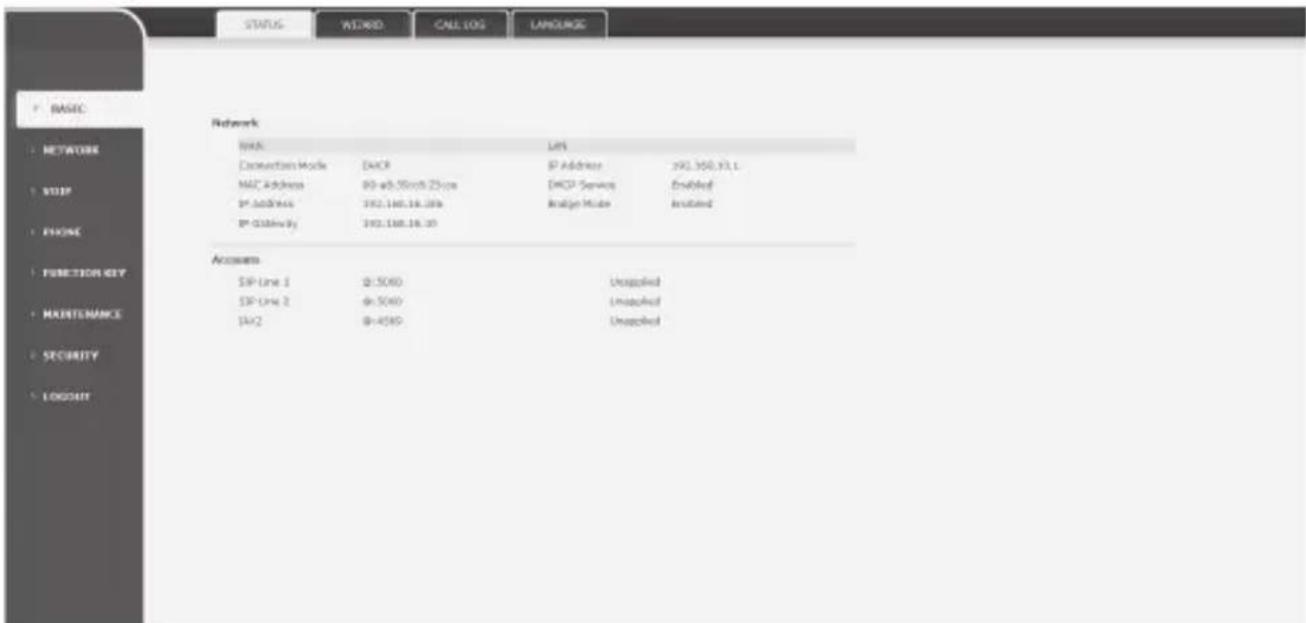
CONFIGURATION
Network - PPPoE Setting
Select Network from the main menu.
(The WAN tab on the top is selected by default).
Under the heading, WAN settings, select PPPoE as the network connection type, if your ISP uses PPPoE.
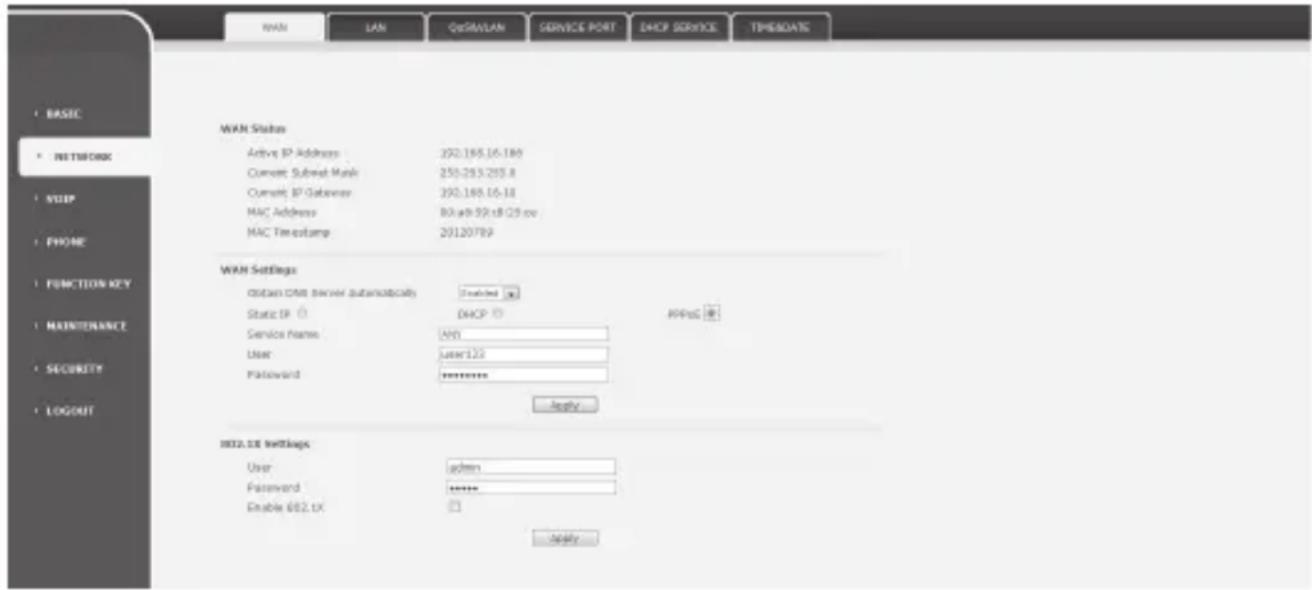
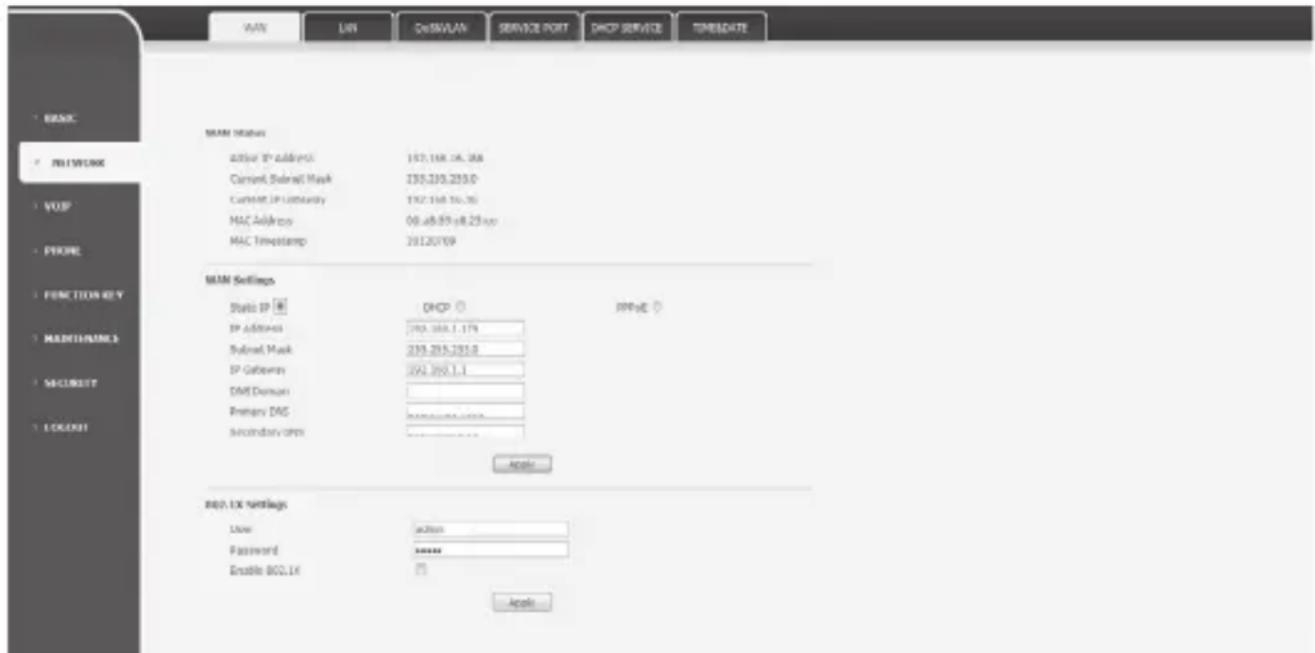
Network - Static Setting
Select Static IP as the network connection type, if all Wide Area Network IP is provided to you by your ISP.
CONFIGURATION
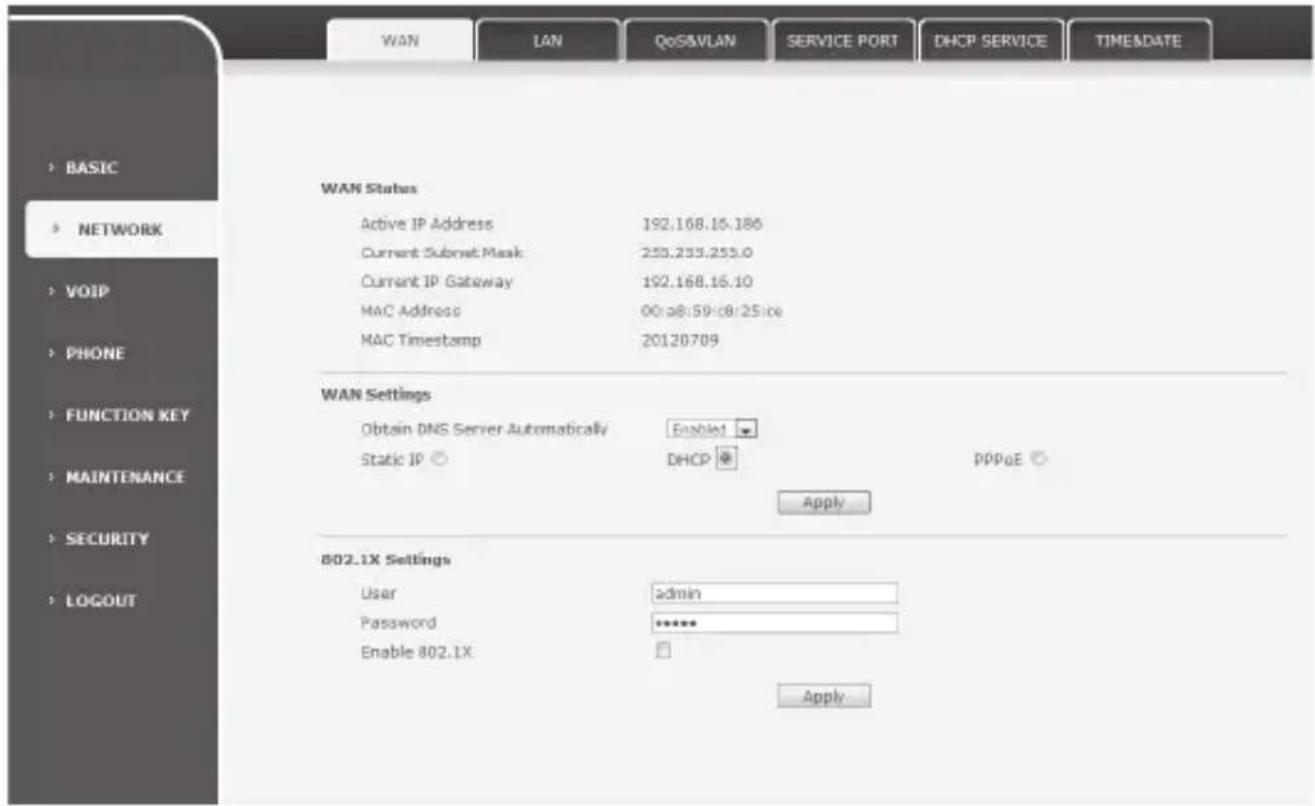
Network - DHCP Setting
Select DHCP as the network connection type, if your access network supports DHCP.
SIP Settings
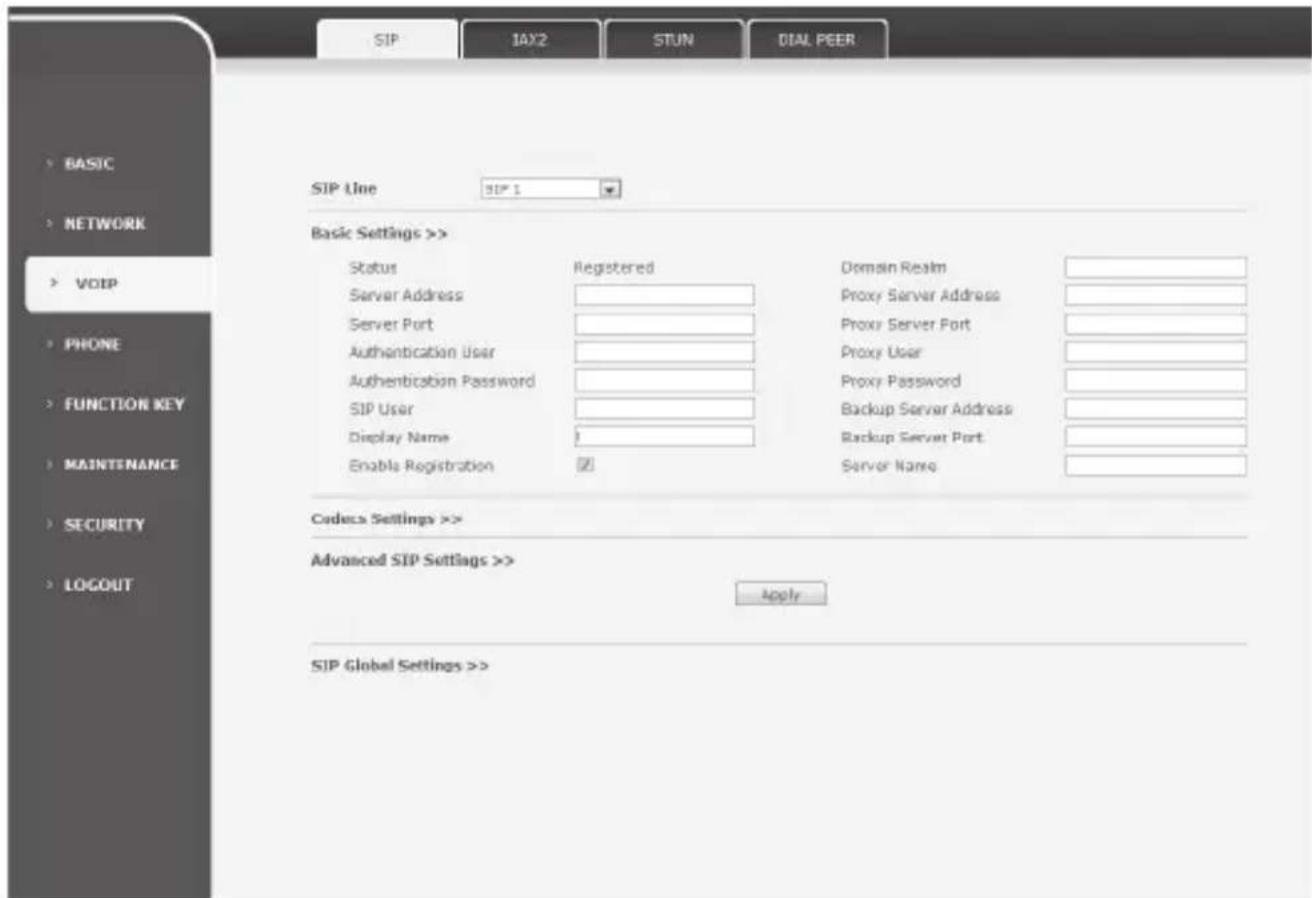
Select VoIP from the main menu and by default the SIP tab is selected.
Fill in the following fields: Server Address, Server Port, Authentication User, Authentication Password and SIP User.
After having filled in the relevant information, check the option - Enable Registration and click Apply to register your phone to the SIP server.
If the registration has been successful, then the status will show as 'Registered'.
MAKE A PHONE CALL
Telephone Number
Lift the handset, press the speaker or headset key to enter the dialer interface.
Dial the telephone number.
For example: Let's say the telephone number is 25989099, key in that number and either press the #SEND key or wait till the timer expires.
IP Address
Lift the handset, press the speaker or headset key to enter the dialer interface.
Dial the IP address.
For example: To call a phone with the IP address 192.168.17.157, all you have to do is key in the IP address, 192.168.17.157, and press the #SEND key or wait till the timer expires.
ONE-YEAR IIMITEd WARRANTY
UNIDEN VP100
IMPORTANT: Satisfactory evidence of the original purchase is required for warranty service
Please refer to our Uniden website for any details or warranty durations offered in addition to those contained below.
Warrantor: The warrantor is either Uniden Australia Pty Limited ABN 58 001 865 498 (“Uniden Aust”) or Uniden New Zealand Limited (“Uniden NZ”) as the case may be.
Terms of Warranty: Uniden Aust/NZ warrants to the original retail purchaser only that the VP100 (“the Product”), will be free from defects in materials and craftsmanship for the duration of the warranty period, subject to the limitations and exclusions set out below.
Warranty period: This warranty to the original retail purchaser is only valid in the original country of purchase for a Product first purchased either in Australia or New Zealand and will expire one (1) year from the date of the original retail sale.
If a warranty claim is made, this warranty will not apply if the Product is found by Uniden to be:
(A) Damaged or not maintained in a reasonable manner or as recommended in the relevant Uniden Owner's Manual;
(B) Modified, altered or used as part of any conversion kits, subassemblies or any configurations not sold by Uniden Aust or Uniden NZ;
(C) Improperly installed contrary to instructions contained in the relevant Owner's Manual
(D) Repaired by someone other than an authorized Uniden Repair Agent in relation to a defect or malfunction covered by this warranty; or
(E) Used in conjunction with any equipment, parts or a system not manufactured by Uniden.
Parts Covered: This warranty covers the Product and included accessories.
User-generated Data: This warranty does not cover any claimed loss of or damage to user-generated data (including but without limitation phone numbers, addresses and images) that may be stored on your Product.
Statement of Remedy: If the Product is found not to conform to this warranty as stated above, the Warrantor, at its discretion, will either repair the defect or replace the Product without any charge for parts or service. This warranty does not include any reimbursement or payment of any consequential damages claimed to arise from a Product's failure to comply with the warranty.
Our goods come with guarantees that cannot be excluded under the Australian Consumer Law. You are entitled to a replacement or refund for a major failure and for compensation for any other reasonably foreseeable loss or damage. You are also entitled to have the goods repaired or replaced if the goods fail to be of acceptable quality and the failure does not amount to a major failure.
This warranty is in addition to and sits alongside your rights under either the COMPETITION AND CONSUMER ACT 2010 (Australia) or the CONSUMER GUARANTEES ACT (New Zealand) as the case may be, none of which can be excluded.
Procedure for obtaining warranty service: Depending on the country in which the Product was first purchased, if you believe that your Product does not conform with this warranty, you should deliver the Product, together with satisfactory evidence of your original purchase (such as a legible copy of the sales docket) to Uniden at the addresses shown below. You should contact Uniden regarding any compensation that may be payable for your expenses incurred in making a warranty claim. Prior to delivery, we recommend that you make a backup copy of any phone numbers, images or other data stored on your Product, in case it is lost or damaged during warranty service.
UNIDEN AUSTRALIA PTY LTD
Service Division
345 Princes Highway,
Rockdale, NSW 2216
Phone: 1300 366 895
Email: custservice@uniden.com.au
UNIDEN NEW ZEALAND LTD
Service Division
150 Harris Road, East Tamaki
Auckland 2013
Phone: (09) 273 8377
Email: service@uniden.co.nz
Uniden®
© 2012 Uniden Australia Pty Limited. Uniden New Zealand Ltd. Printed in PRC.
- QUICK INSTALLATION GUIDE
- IMPORTANT SAFETY INSTRUCTIONS
- SAVE THESE INSTRUCTIONS!
- Important Notice:
- WHAT'S IN THE BOX?
- INSTALLING YOUR PHONE
- IP PHONE SETUP MENU
- Note:
- CONFIGURATION
- Network - PPPoE Setting
- Network - Static Setting
- Network - DHCP Setting
- SIP Settings
- MAKE A PHONE CALL
- Telephone Number
- IP Address
- ONE-YEAR IIMITEd WARRANTY
- UNIDEN VP100
- IMPORTANT: Satisfactory evidence of the original purchase is required for warranty service
- UNIDEN AUSTRALIA PTY LTD
- UNIDEN NEW ZEALAND LTD
- Uniden®
Brand : UNIDEN
Model : VP100
Category : Uncategorized