
HWS 301 - Door/window sensor CALIBER - Free user manual and instructions
Find the device manual for free HWS 301 CALIBER in PDF.


| Product Type | Door/Window Sensor |
| Model | HWS 301 |
| Connectivity | Zigbee (requires Caliber Zigbee Gateway) |
| Wireless Range | Up to 30 meters (open space) |
| Power Source | 1x CR1632 battery (included) |
| Battery Life | Approximately 1 year (normal use) |
| Dimensions | 55 x 28 x 15 mm (main unit) |
| Weight | 25 g (including battery) |
| Compatibility | Caliber Smart Home app (iOS/Android), Google Home, Amazon Alexa |
| Operating Temperature | 0°C to 40°C |
| Installation | Adhesive tape or screws (included) |
| Detection Method | Magnetic reed switch |
| Notification | Push alerts on smartphone |
| Firmware Upgrade | Over-the-air via app |
| Certification | CE, RoHS |
| Warranty | 2 years |
Frequently Asked Questions - HWS 301 CALIBER
User questions about HWS 301 CALIBER
0 question about this device. Answer the ones you know or ask your own.
Ask a new question about this device
Download the instructions for your Door/window sensor in PDF format for free! Find your manual HWS 301 - CALIBER and take your electronic device back in hand. On this page are published all the documents necessary for the use of your device. HWS 301 by CALIBER.
USER MANUAL HWS 301 CALIBER
EASY INSTALL
ANYONE CAN DO IT
Instruction manual for HWS 301
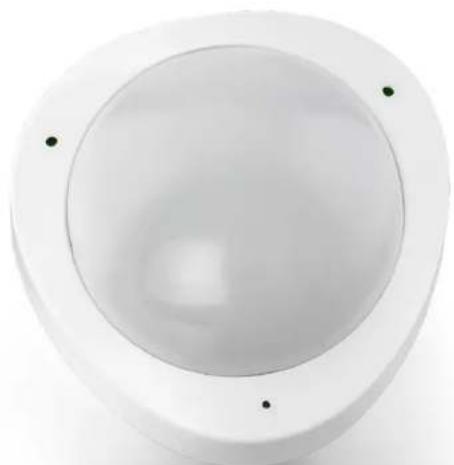
natural_image
Top-down view of a white circular mechanical component with a central transparent dome and two small black dots on the side (no text or symbols visible)
Index:
No.1 Caliber Smart Home app
No. 2 Register / Login
No. 3 Add device('s) • EZ-mode • AP-mode
No. 4 Control device
No. 5 Profile
No. 6 Scene's & Automation
No. 7 Voice control
No. 8 Trouble shooting
No. 9 Privacy policy

Tap to jump to
The pictures/screenshots/illustrations used in this manual are subject to change without notification. Also they may differ in appearance, depending on the device you use, iOS or Android, tablet or phone etc. Product and software update periodically, the number and App interface in this manual are only shown as an example. No extra notification on further changes.
No. 1
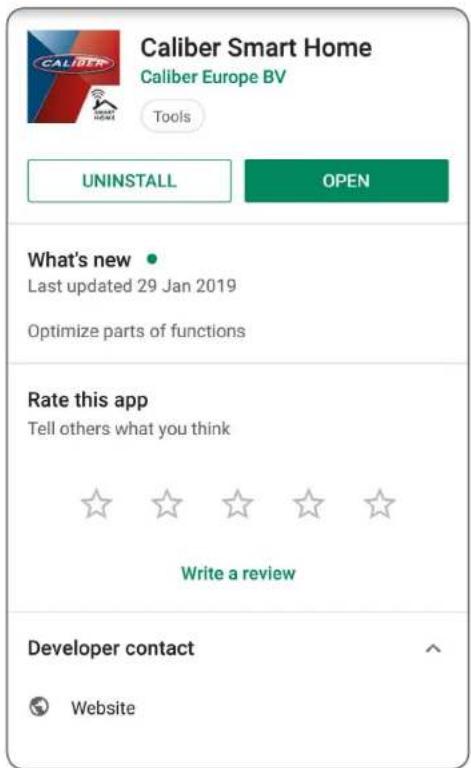
Download and install Caliber Smart Home APP
Use your phone to scan the QR code below or search "Caliber Smart Home" in the app Store or Google play to download and install the App

Index:
No. 1 Caliber Smart Home app
No. 2 Register / Login
No. 3 Add device('s) • EZ-mode • AP-mode
No. 4 Control device
No. 5 Profile
No. 6 Scene's & Automation
No. 7 Voice control
No. 8 Trouble shooting
No. 9 Privacy policy

No. 2
Register / Login / Request password
Register
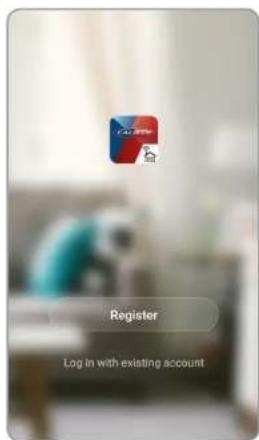
If you don't have the an account on 'Caliber Smart Home' APP, register an account or sign-in with cellphone number + verification code.
This page describes the Registration process.
-
Tap "Register" in the lower centre "img 1"
-
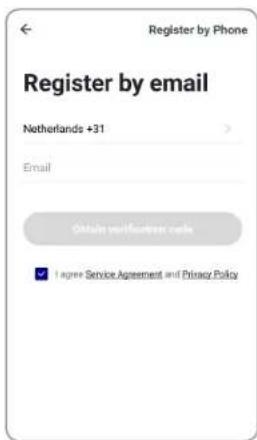
The system automatically determines your country / area. You can also select your country code by yourself.
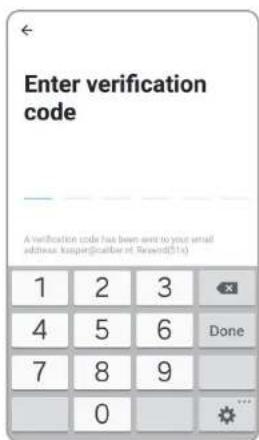
Enter the cellphone number / E-mail and tap "Obtain verification code" "img 2"
-
If you enter your mobile cellphone number, enter the verification code from the message "img 3".
-
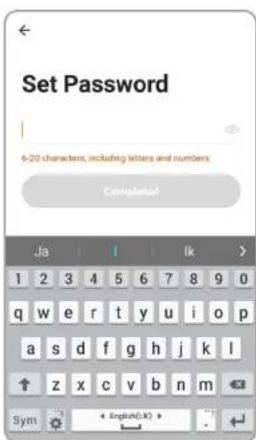
Choose a password for your account "img 4", tap "Confirm" to finish your registration.
img 1 img 2
img 3 img 4
Index:
No. 1 Caliber Smart Home app
No. 2 Register / Login
No. 3 Add device('s) • EZ-mode • AP-mode
No. 4 Control device
No. 5 Profile
No. 6 Scene's & Automation
No. 7 Voice control
No. 8 Trouble shooting
No. 9 Privacy policy

No. 2
Register / Login / Request password


Log in
Netherlands +31
Mobile number/e-mail address
Password

I agree Service Agreement and Privacy Policy
Login
Authentication code login
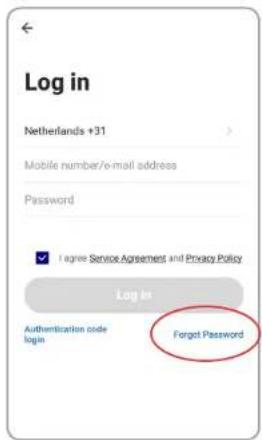
Forgot Password
Account+password sign-in
- The system will automatically determine your country / area or you could select manually
- Enter your registered cellphone number or email and password, sign in to the system
Index:
No. 1 Caliber Smart Home app
No.2 Register/Login
No. 3 Add device('s) • EZ-mode • AP-mode
No. 4 Control device
No. 5 Profile
No. 6 Scene's & Automation
No. 7 Voice control
No. 8 Trouble shooting
No. 9 Privacy policy
No. 2
Register / Login / Request password
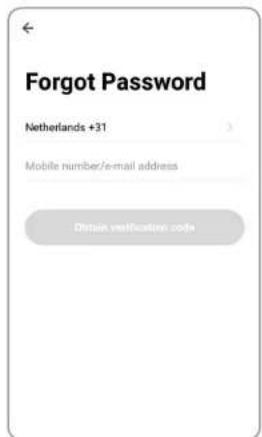
Forgot password
If you forgot your account of "Caliber Smart Home", you can reset the account password by "Request password"
- Tap "Forgot password", as shown in "img 1"
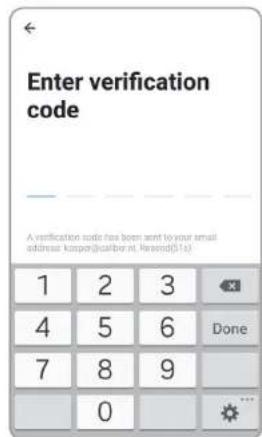
- The system automatically determines your country / area. You can also select your country code by yourself. Enter the cellphone number/E-mail and tap "Obtain verification code", as shown in "img 3"
- Enter the verification code from the message/E-mail, as shown in "img 3".
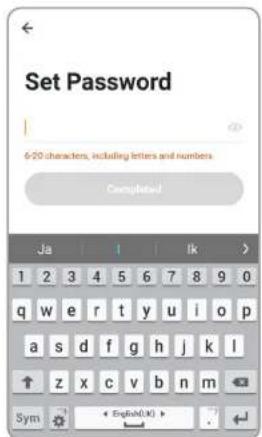
- Enter the new password, tap "Confirm" to finish.
Index:
No. 1 Caliber Smart Home app
No.2 Register/Login
No. 3 Add device('s)
• EZ-mode
• AP-mode
No. 4 Control device
No. 5 Profile
No. 6 Scene's & Automation
No. 7 Voice control
No. 8 Trouble shooting
No. 9 Privacy policy
img 2 img 3 img 4 img 1

No. 3 ADD device('s) EZ-mode
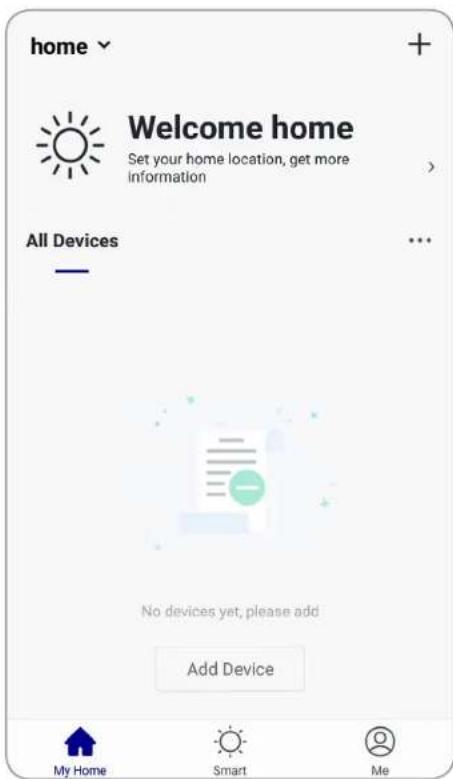
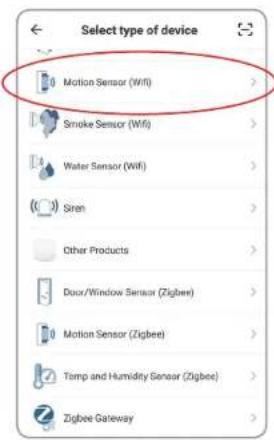
- Go to the App, tap "+" in the upper right of this page to add device's as shown in the picture to the left.
- In this case, select "Motion Sensor (Wifi)"
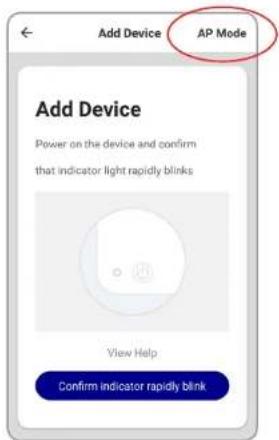
- For EZ mode, please make sure the device's indicator light flashes quickly, tap "Confirm indicator rapidly blink" to continue.
Remarks:
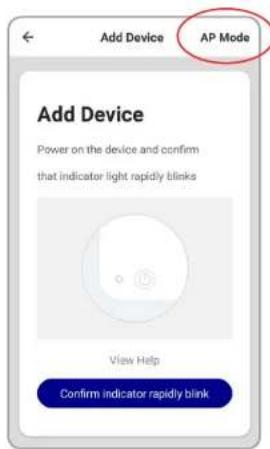
App provides two methods of network connection: EZ mode and AP mode. Please use EZ mode as default. If it failed, please tap "AP mode" in the upper right to try connecting again.
Index:
No. 1 Caliber Smart Home app
No. 2 Register / Login
No. 3 Add device('s) • EZ-mode • AP-mode
No. 4 Control device
No. 5 Profile
No. 6 Scene's & Automation
No. 7 Voice control
No. 8 Trouble shooting
No. 9 Privacy policy
CALIBER
No. 3 ADD device('s) EZ-mode
ADD device in EZ mode (default)
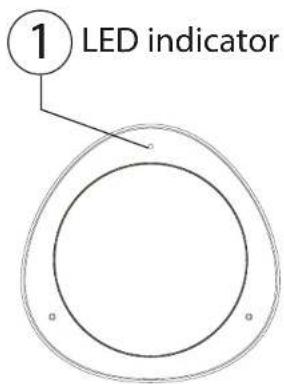
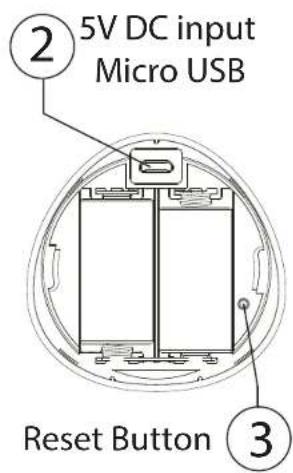
Press and hold the reset button (3) on the rear for 5 sec. The LED will blink fast in EZ mode (3 times/per second).
Remarks: If indicator light is slowly flashing (Once per 2s), it indicates that device is under AP mode. Long press reset button for 5 seconds to switch the modes.
Index:
No. 1 Caliber Smart Home app
No. 2 Register / Login
No. 3 Add device('s) • EZ-mode • AP-mode
No. 4 Control device
No. 5 Profile
No. 6 Scene's & Automation
No. 7 Voice control
No. 8 Trouble shooting
No. 9 Privacy policy

No. 3 ADD device('s) EZ-mode
ADD device in EZ mode (default)
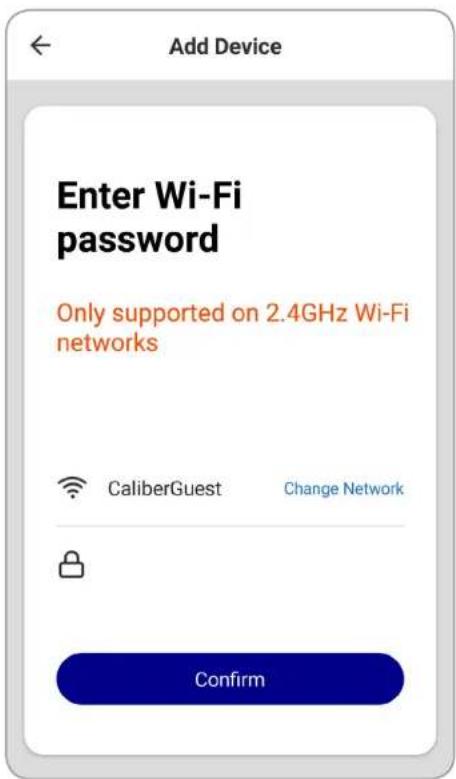
Next step: confirm the WiFi for device connection and enter the password. Tap "Confirm" and start connecting the device. (remarks: only supports 2.4G Wi-Fi network), as shown in the picture. The connection process takes up to 30 sec. If EZ mode fails, try AP mode.
Remarks:
The purpose of this step is to let the "Caliber Smart Home" APP know which router to use for Wi-Fi network connection. After a successful setup, the device will automatically connect to the Wi-Fi network.
Index:
No. 1 Caliber Smart Home app
No. 2 Register / Login
No. 3 Add device('s) • EZ-mode • AP-mode
No. 4 Control device
No. 5 Profile
No. 6 Scene's & Automation
No. 7 Voice control
No. 8 Trouble shooting
No. 9 Privacy policy
No. 3
ADD device('s) €Z-mode successful
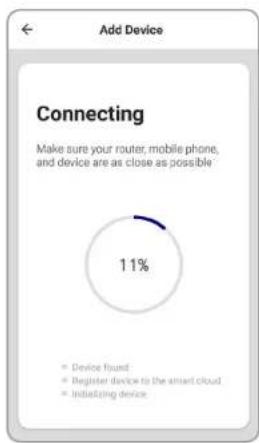
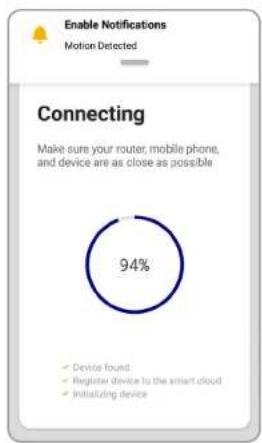
Connecting
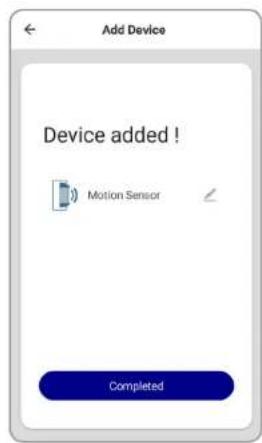
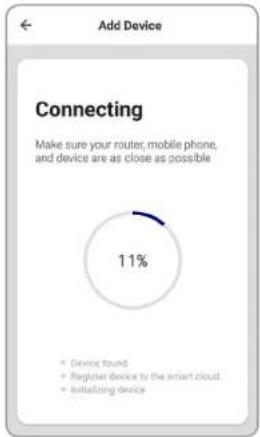
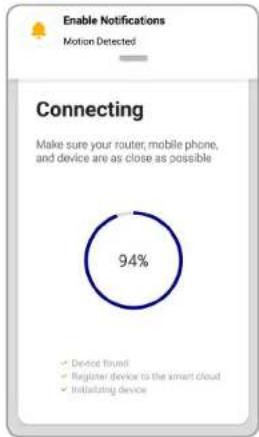
Now the connection status shows. "Device added!" notification will show after device is successfully connected. Tap "Completed" and the interface jump to the device's user interface. Then you could start making changes or monitor the device.
Tap the edit symbol : or to make changes in the name etc.
img 1 img 2 img 3 img 4
Index:
No. 1 Caliber Smart Home app
No. 2 Register / Login
No. 3 Add device('s) • EZ-mode • AP-mode
No. 4 Control device
No. 5 Profile
No. 6 Scene's & Automation
No. 7 Voice control
No. 8 Trouble shooting
No. 9 Privacy policy
No. 3
ADD device('s) AP-mode
ADD device in AP mode (manual mode, Hotspot)
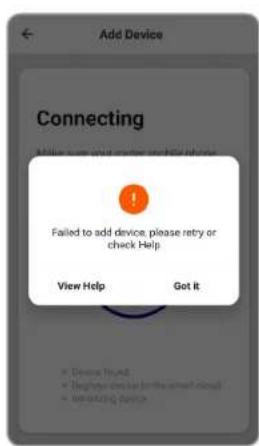
- When the internet connection is unstable, the APP will show a message as in "img 1" The connection has failed, now it's time to try again in AP-mode
- Tap "+" (ADD Device)
- Choose AP-Mode on the top right of the screen. "img2"
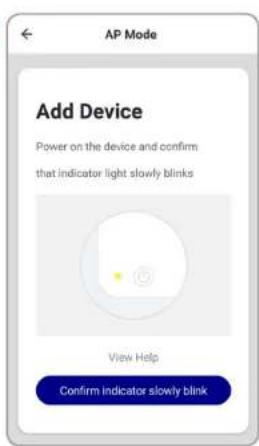
- Press and hold the reset button (3) on the rear of the unit for 5 sec. Press and hold the button again for 5sec. The LED indicator will blink slowly in blue. "img3"
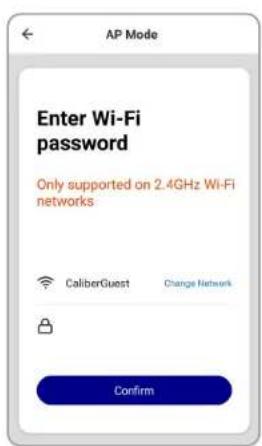
- Enter the password of your Wi-Fi network and confirm.
Index:
No. 1 Caliber Smart Home app
No. 2 Register / Login
No. 3 Add device('s)
• EZ-mode
• AP-mode
No. 4 Control device
No. 5 Profile
No. 6 Scene's & Automation
No. 7 Voice control
No. 8 Trouble shooting
No. 9 Privacy policy
img 1 img 2 img 3 img 4

No. 3
ADD device('s) AP-mode successful
ADD device in AP mode (manual mode, Hotspot)
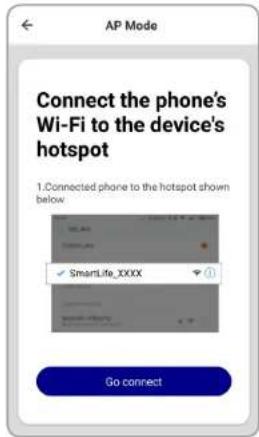
- Connect to device's hotspot in Wi-Fi list 'SmartLife_xxxx' to finish the Wi-Fi connection. APP will jump to "connection successful" page when the Wi-Fi connection process is complete.
Note: In some cases, depending on your phone or table, you might have to return to the "Caliber Smart Home" APP manually for the connection to continue.
Connecting
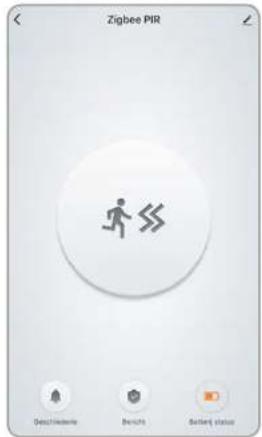
Now the connection status shows. "Device added!" notification will show after device is successfully connected. Tap "Completed" and the interface jump to the device's user interface. Then you could start making changes or monitor the device.
Tap the edit symbol : √or to make changes in the name etc.
img 1 img 2 img 3 img 4
Index:
No. 1 Caliber Smart Home app
No. 2 Register / Login
No. 3 Add device('s) • EZ-mode • AP-mode
No. 4 Control device
No. 5 Profile
No. 6 Scene's & Automation
No. 7 Voice control
No. 8 Trouble shooting
No. 9 Privacy policy
CALIBER
No. 3
ADD device('s) AP-mode fail
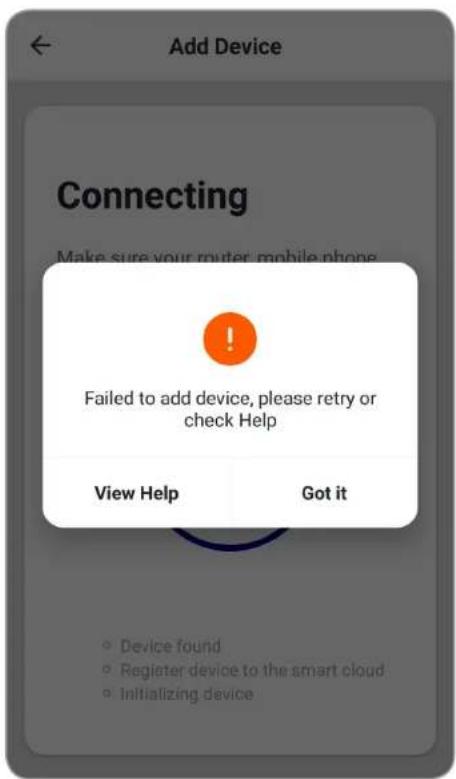
Remarks:
If your APP interface is shown as in the picture, it means that the network connection failed. You could try connecting again.
If connection is fails, please refer to the FAQ or "View Help". If you can't find your answers, please submit the user feedback in the APP. Our staff will help you to solve the problems.
Index:
No. 1 Caliber Smart Home app
No. 2 Register / Login
No. 3 Add device('s) • EZ-mode • AP-mode
No. 4 Control device
No. 5 Profile
No. 6 Scene's & Automation
No. 7 Voice control
No. 8 Trouble shooting
No. 9 Privacy policy
No. 4 Control device
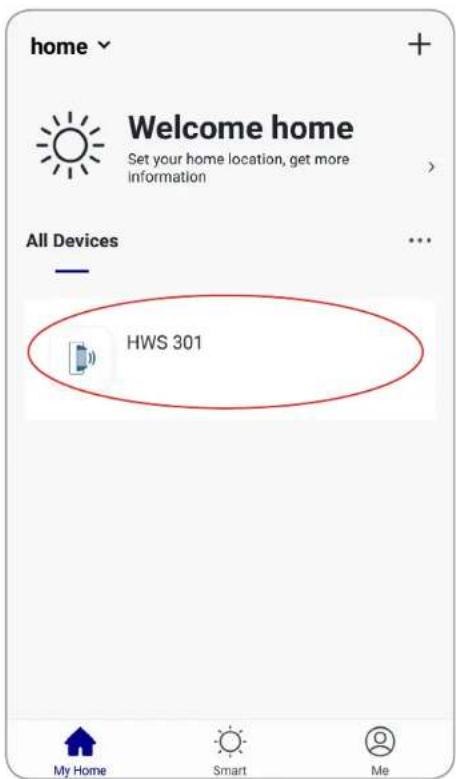
Control device
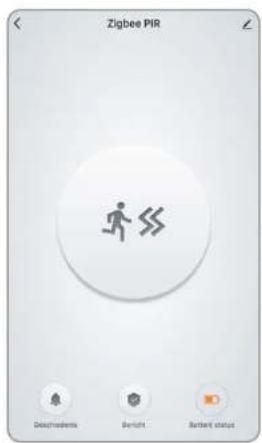
After the device is connected successfully, tap "My Home" at the bottom. The device name shows in the list. Tap it to enter the control panel of the device (motion sensor)
Remarks:
When device is online, operation via shortcuts is supported; When the device is offline, device displays "device is offline" and is greyed out; If the device is shared by others, a specific icon is displayed.
Index:
No. 1 Caliber Smart Home app
No. 2 Register / Login
No. 3 Add device('s) • EZ-mode • AP-mode
No. 4 Control device
No. 5 Profile
No. 6 Scene's & Automation
No. 7 Voice control
No. 8 Trouble shooting
No. 9 Privacy policy
No. 4 Control device
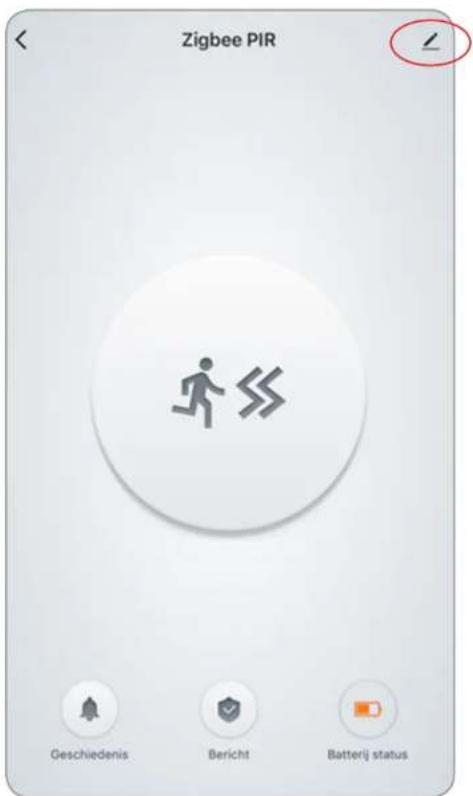
Control device
From this page, all device settings can be altered.
Tap the edit symbol : or to make changes in name, location, share settings etc.
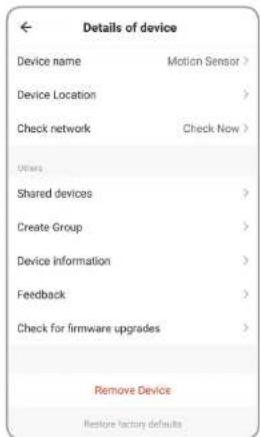
Index:
No.1 Caliber Smart Home app
No. 2 Register / Login
No. 3 Add device('s) • EZ-mode • AP-mode
No. 4 Control device
No. 5 Profile
No. 6 Scene's & Automation
No. 7 Voice control
No. 8 Trouble shooting
No. 9 Privacy policy
No. 4 Control device
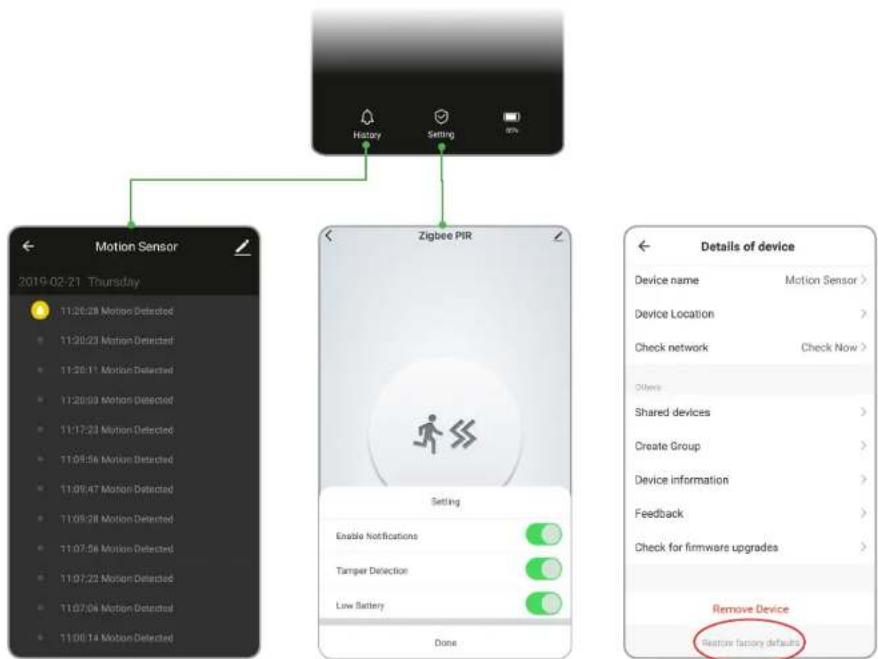
History
Motion records with date and time
Setting
Enable or disable push notifications
Restore factory defaults
This deletes all motion records and will remove the device.
Index:
No. 1 Caliber Smart Home app
No. 2 Register / Login
No. 3 Add device('s) • EZ-mode • AP-mode
No. 4 Control device
No. 5 Profile
No. 6 Scene's & Automation
No. 7 Voice control
No. 8 Trouble shooting
No. 9 Privacy policy
No. 5
Profile
| Me | ||
 | Click here to set nicknameJohnDoe@email.go | |
| Home Management | ||
| Message Center | ||
| Scan QR Code | ||
| More services | ||
| Feedback | ||
| Settings | ||
 | [KY0H] | [W701] |
| My Home | Smart | Me |
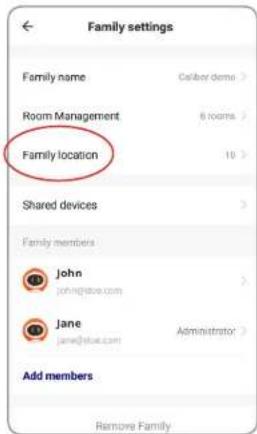
Profile (Me)
In order to make full use of the functionality of this app and your Caliber Smart Home devices, make your home situation match the situation in the app.
- Choose family name
- Manage your rooms
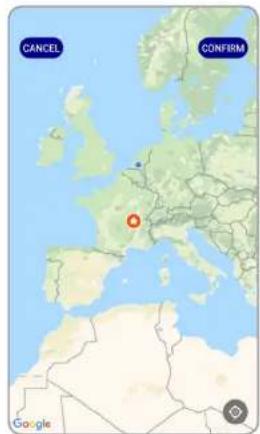
- Set the location, for area automations
- Add members to the family
Index:
No. 1 Caliber Smart Home app
No. 2 Register / Login
No. 3 Add device('s) • EZ-mode • AP-mode
No. 4 Control device
No. 5 Profile
No. 6 Scene's & Automation
No. 7 Voice control
No. 8 Trouble shooting
No. 9 Privacy policy

No. 6
Scene's & Automation
Scene's
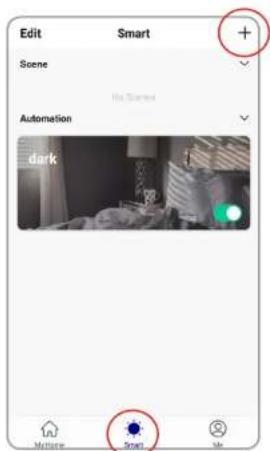
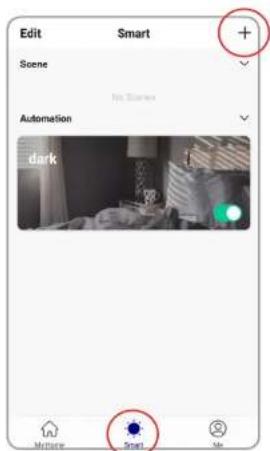
You can combine devices to do 'tasks' in a "scene". Go to Smart (img1)
- Tap“+” in the upper right of the page to create a new smart life scene.
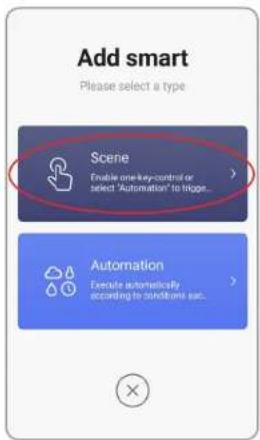
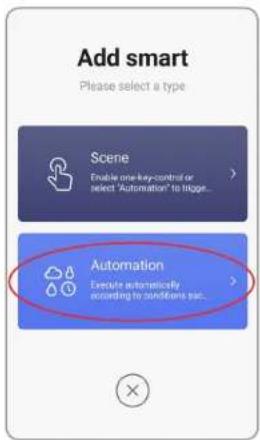
- Tap "scene" img 2
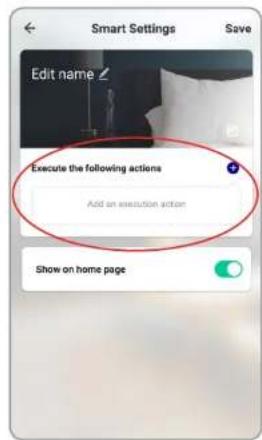
- Enter life scene name, add task, tap "Save", as shown in the picture. A smart scene has been created.
- You can also change the scene you have already created (img1), change scene name, change task or delete smart scene etc.

img 1 img 2 img 3 img 4
Index:
No.1 Caliber Smart Home app
No. 2 Register / Login
No. 3 Add device('s)
• EZ-mode
• AP-mode
No. 4 Control device
No. 5 Profile
No. 6 Scene's & Automation
No. 7 Voice control
No. 8 Trouble shooting
No. 9 Privacy policy

No. 6
Scene's & Automation
Automation
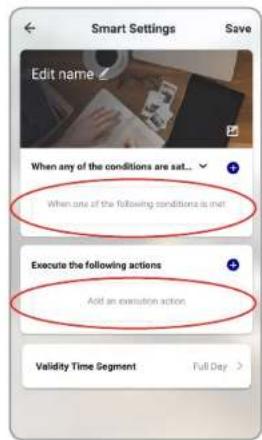
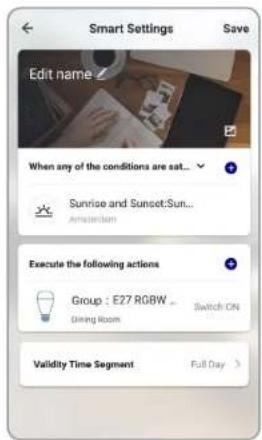
You can execute automations, when conditions are met.
- Tap“+” in the upper right of the page to create a new smart scene
2.Tap"Automation" - Choose which conditions should be met "img3".
- Choose what 'task /action' should be executed "img3".
- img4 shows an example. The Smart light group "E27 RGBW" switches on when the sun sets. For this function you need to set your location, see control device.
img 1 img 2 img 3 img 4
Index:
No. 1 Caliber Smart Home app
No. 2 Register / Login
No. 3 Add device('s) • EZ-mode • AP-mode
No. 4 Control device
No. 5 Profile
No. 6 Scene's & Automation
No. 7 Voice control
No. 8 Trouble shooting
No. 9 Privacy policy
CALIBER
No. 7
3^RD Party voice control
Voice control
Most of our Smart Home products support 3^rd party voice control. Instructions how to connect can be found in the links below:
Connect with Google Home
Webshop.caliber.nl/media/SmartHome/Caliber_in_GoogleHome.pdf
Connect with Amazon Alexa
Webshop.caliber.nl/media/SmartHome/Caliber_with_Amazon-Alexa.pdf
Index:
No.1 Caliber Smart Home app
No. 2 Register / Login
No. 3 Add device('s) • EZ-mode • AP-mode
No. 4 Control device
No. 5 Profile
No. 6 Scene's & Automation
No. 7 Voice control
No. 8 Trouble shooting
No. 9 Privacy policy
No. 8
Trouble shooting
Possible reasons that device can not be added
1) Please check whether device is powered on.
2) Smartphone could not connect to WiFi
3) The device is in the state to be configured. Before the configuration, let the device enter the state to be configured. And EZ and AP mode, the status can not be confused.
4) Attention: every time the device is to be added, you need to reset the device to let it enter the Wi-Fi configuration state.
Check router:
5) When adding a device, check whether Wi-Fi password is correct.
6) If the home router is a dual band router, chose 2.4G network to add a device.
7) Wireless router settings: encryption mode to be set to WPA2-PSK type, authentication type AES, or encryption and authentication types are automatic. Wireless mode cannot be 11n only.
8) To ensure good Wi-Fi signal, the distance between the device and the router shall not be too far.
9) Whether the number of access equipment has reached the upper limit of the router, may try to turn off Wi-Fi function of some device for configuration.
10) Router to open the wireless MAC address filtering, it should first remove the device out of the router MAC filter list, to ensure that the router does not prohibit the device network.
Index:
No. 1 Caliber Smart Home app
No. 2 Register / Login
No. 3 Add device('s) • EZ-mode • AP-mode
No. 4 Control device
No. 5 Profile
No. 6 Scene's & Automation
No. 7 Voice control
No. 8 Trouble shooting
No. 9 Privacy policy
No. 9
Privacy policy
In order to be able to process your order properly, we only store the necessary data for this and pass it on to the relevant delivery service. If you have lost your data, you can find it with your customer data in your account on our website. You can also contact our customer service via https://www.calibereurope.com/nl/klantenservice/contactgegevens/. We will gladly send you a copy of your order. The transfer of your personal data to third parties is in principle excluded and we will send this copy to the e-mail address used when placing the order.
We may from time to time send you product information and / or advertising to the (e-mail) address you provided us with the order. Provided you have given us permission for this, of course. Against the processing and use of your personal data for marketing purposes, you can object at any time by contacting our customer service using our contact form. You can also unsubscribe from this service via the "unsubscribe" option. This option is sent with the advertisement.
With data transfer we use the so-called SSL security system (Secure Socket Layer) in connection with 256-bit encryption. This technique offers the highest security and is also used by banks for data security during online banking. All payment methods offered by us are extensively secured by the aforementioned standard. Your data is encrypted and you will see the symbol of a key or closed lock in the status bar of your browser.
Caliber Europe BV does not keep payment details such as your account number. In the event that you have to receive payment from us (for example with a returned product), we ask you to register this return to the account number where you wish to receive the payment. This information is automatically removed immediately upon receipt and processing of the returned goods.
The use of cookies:
Cookies are alphanumeric identifiers that we store on your computer via your web browser in order for the webshop to function properly. Most e-commerce systems are not possible without the use of cookies. Our Cookie is only used for the webshop to function, no further personal data is collected. With all common browsers you can adjust the cookie settings in the options.
Insight into your personal details
You can view, change or delete your data at any time via our website after entering your e-mail address and password. If you have forgotten your password, we offer you a special service: On the login site you will find a link that leads you to the password help. Here you can easily enter your e-mail address and we will send you a replacement password by e-mail. This process is without risk, even if an unauthorized person tries to get your data, because the replacement password is at least sent to your personal e-mail address that only you have access to.
Google Analytics
This website uses Google Analytics, a web analytics service provided by Google Inc ("Google"). Google Analytics uses "cookies", which are text files that are stored on your computer and that allow you to analyze the use of the website. The information generated by cookies about your use of this website (including your IP address, because of their anonymity using "anonymous help" the last 8 characters are not transferred to Google Analytics) is transferred to a Google server in the US and stored there. Google uses this information to evaluate your use of the website, to report to website operators about the website activities and to offer further services related to website and internet use. If necessary, Google will pass this information on to third parties, if this is required by law or if third parties process the information on behalf of Google. Google will under no circumstances combine your IP address with other data held by Google.
You can prevent the installation of cookies by selecting the right settings in your browser, but we point out that in that case you can not use all the features of this website.
By using this website you agree to the processing of the information by Google in the manner and for the purposes described above. If you do not want information to be passed on to Google Analytics, you can download a deactivation add-on here.
Index:
No.1 Caliber Smart Home app
No. 2 Register / Login
No. 3 Add device('s) • EZ-mode • AP-mode
No. 4 Control device
No. 5 Profile
No. 6 Scene's & Automation
No. 7 Voice control
No. 8 Trouble shooting
No. 9 Privacy policy
No. 10 Legal
All rights reserved
The pictures used in this manual are Android App interface, iOS version is a bit different
Product and software update periodically, the number and App interface in this manual are only shown as an example. No extra notification on further changes.
Wifi Freq range: 2402-2480 Mhz, Max e.r.p: <100mW/20dBm
The Apple logo is a trademark of Apple Inc., registered in the U.S. and other countries.
Tuya word mark and logos are registered trademarks owned by Tuya, Inc. and any use of such marks by Caliber Europe BV is under license. Other trademarks and trade names are those of their respective owners.
Google Play and the Google Play logo are trademarks of Google LLC.
Index:
No.1 Caliber Smart Home app
No. 2 Register / Login
No. 3 Add device('s) • EZ-mode • AP-mode
No. 4 Control device
No. 5 Profile
No. 6 Scene's & Automation
No. 7 Voice control
No. 8 Trouble shooting
No. 9 Privacy policy
Thank you!
Index:
No. 1 Caliber Smart Home app
No. 2 Register / Login
No. 3 Add device('s) • EZ-mode • AP-mode
No. 4 Control device
No. 5 Profile
No. 6 Scene's & Automation
No. 7 Voice control
No. 8 Trouble shooting
No. 9 Privacy policy


- Instruction manual for HWS 301
- Index:
- No. 1
- Download and install Caliber Smart Home APP
- No. 2
- Register / Login / Request password
- Register
- Log in
- Account+password sign-in
- Forgot password
- No. 3 ADD device('s) EZ-mode
- Remarks:
- ADD device in EZ mode (default)
- No. 3
- ADD device('s) €Z-mode successful
- Connecting
- ADD device('s) AP-mode
- ADD device in AP mode (manual mode, Hotspot)
- ADD device('s) AP-mode successful
- ADD device('s) AP-mode fail
- No. 4 Control device
- Control device
- History
- Setting
- Restore factory defaults
- No. 5
- Profile
- Profile (Me)
- No. 6
- Scene's & Automation
- Scene's
- Automation
- No. 7
- 3RD Party voice control
- Voice control
- Connect with Google Home
- Connect with Amazon Alexa
- No. 8
- Trouble shooting
- Check router:
- No. 9
- Privacy policy
- No. 10 Legal
- Thank you!
Brand : CALIBER
Model : HWS 301
Category : Door/window sensor