
IQ Robot RV1000 - Robot vacuum SHARK - Free user manual and instructions
Find the device manual for free IQ Robot RV1000 SHARK in PDF.


| Type de produit | Robot vacuum |
| Brand | Shark |
| Model | IQ Robot RV1000 |
| Dimensions (LxWxH) | 12.8 x 12.8 x 3.5 inches |
| Weight | 7.5 lbs (3.4 kg) |
| Power source | Rechargeable lithium-ion battery |
| Battery runtime | Up to 90 minutes |
| Charging time | Approximately 4 hours |
| Suction power | 1300 Pa |
| Dustbin capacity | 0.4 L (robot), 0.9 L (self-emptying base) |
| Self-emptying base | Yes, holds up to 30 days of debris |
| Navigation system | IQ Navigation with laser and sensors |
| Mapping | Yes, row-by-row cleaning |
| Wi-Fi connectivity | Yes, 2.4 GHz |
| App control | SharkClean app |
| Voice control | Amazon Alexa, Google Assistant |
| Main brush type | Self-cleaning brushroll |
| Filter type | HEPA filter (washable) |
| Sensors | Cliff sensors, bumper sensors, wheel drop sensors |
| Recharge and resume | Yes |
| Scheduled cleaning | Yes, via app |
| Compatible floor types | Hard floor, low-pile carpet |
| Maintenance | Empty bin, clean filter, replace brushroll |
| Warranty | 1 year limited |
Frequently Asked Questions - IQ Robot RV1000 SHARK
User questions about IQ Robot RV1000 SHARK
0 question about this device. Answer the ones you know or ask your own.
Ask a new question about this device
Download the instructions for your Robot vacuum in PDF format for free! Find your manual IQ Robot RV1000 - SHARK and take your electronic device back in hand. On this page are published all the documents necessary for the use of your device. IQ Robot RV1000 by SHARK.
USER MANUAL IQ Robot RV1000 SHARK
natural_image
Black Shark robotic vacuum cleaner with labeled control knob and 'Clean' mode (no additional text or symbols)IMPORTANT SAFETY INSTRUCTIONS
PLEASE READ CAREFULLY BEFORE USE • FOR HOUSEHOLD USE ONLY
If the charging cable plug does not fit fully into the outlet, reverse the plug. If it still does not fit, contact a qualified electrician. DO NOT force into outlet or try to modify to fit.
⚠ WARNING
To reduce the risk of fire, electric shock, injury, or property damage:
GENERAL WARNINGS
When using an electrical appliance, basic precautions should always be followed, including the following:
- Robotic vacuum cleaner consists of a robotic vacuum and charging dock with power supply. These components contain electrical connections, electrical wiring, and moving parts that potentially present risk to the user.
- Before each use, carefully inspect all parts for any damage. If a part is damaged, discontinue use.
- Use only identical replacement parts.
- This robotic vacuum cleaner contains no serviceable parts.
- Use only as described in this manual. DO NOT use the robotic vacuum cleaner for any purpose other than those described in this manual.
- With the exception of filters, DO NOT expose any parts of the robotic vacuum cleaner to water or other liquids.
USE WARNINGS
-
This appliance can be used by persons with reduced physical, sensory or mental capabilities or lack of experience and knowledge if they have been given supervision or instruction concerning use of the appliance in a safe way and understand the hazards involved. a) Children shall not play with the appliance. b) Cleaning and user maintenance shall not be made by children without supervision.
-
Always turn off the robotic vacuum cleaner before inserting or removing the filter or dust bin.
-
DONOThandle plug, charging dock, charging cable, or robotic vacuum cleaner with wet hands. Cleaning and user maintenance shall not be made by children without supervision.
10.DONOT use without robot dust bin and filters in place. - DONOT damage the charging cord: a) DO NOT pull or carry charging dock by the cord or use the cord as a handle. b) DO NOT unplug by pulling on cord. Grasp the plug, not the cord. c) DO NOT close a door on the cord, pull the cord around sharp corners, or leave the cord near heated surfaces.
- DONOT put any objects into nozzle or accessory openings. DO NOT use with any opening blocked; keep free of dust, lint, hair, and anything that may reduce airflow.
- DONOT use if robotic vacuum cleaner airflow is restricted. If the air paths become blocked, turn the vacuum cleaner off and remove all obstructions before turning on the unit again.
- Keep nozzle and all vacuum openings away from hair, face, fingers, uncovered feet, or loose clothing.
- DONOT use if robotic vacuum cleaner is not working as it should, or has been dropped, damaged, left outdoors, or dropped into water.
-
DONOT place vacuum cleaner on unstable surfaces.
-
DONOT use to pick up:
a) Liquids
b) Large objects
c) Hard or sharp objects (glass, nails, screws, or coins)
d) Large quantities of dust (drywall dust, fireplace ash, or embers).
DO NOT use as an attachment to power tools for dust collection.
e) Smoking or burning objects (hot coals, cigarette butts, or matches)
f) Flammable or combustible materials (lighter fluid, gasoline, or kerosene)
g) Toxic materials (chlorine bleach, ammonia, or drain cleaner)
- DONOT use in the following areas: a) Wet or damp surfaces b) Outdoor areas
c) Spaces that are enclosed and may contain explosive or toxic fumes or vapors (lighter fluid, gasoline, kerosene, paint, paint thinners, mothproofing substances, or flammable dust)
- Turn off the robotic vacuum cleaner before any adjustment, cleaning, maintenance or troubleshooting.
- Allow all filters to air-dry completely before replacing in the robotic vacuum cleaner to prevent liquid from being drawn into electric parts.
- DONOT modify or attempt to repair the robotic vacuum cleaner or the battery yourself, except as indicated in this manual. DO NOT use the vacuum if it has been modified or damaged.
BATTERY USE
- The battery is the power source for the vacuum. Carefully read and follow all charging instructions.
- To prevent unintentional starting, ensure the vacuum is powered off before picking up or carrying the vacuum. DO NOT carry the appliance with your finger on the power switch.
- Use ONLY the Shark* charging dock XSKDOCK100 and use only battery RVBAT850. Use of batteries or battery chargers other than those indicated may create a risk of fire.
- Keep the battery away from all metal objects such as paper clips, coins, keys, nails, or screws. Shorting the battery terminals together increases the risk of fire or burns.
- Under abusive conditions, liquids may be ejected from the battery. Avoid contact with this liquid, as it may cause irritation or burns. If contact occurs, flush with water. If liquid contacts eyes, seek medical help.
- Robotic vacuum cleaner should not be stored, charged, or used at temperatures below 50^ F ( 10^ C) or above 104^ F ( 40^ C). Ensure the battery and vacuum have reached room temperature before charging or use. Exposing the robot or battery to temperatures outside of this range may damage the battery and increase the risk of fire.
- DONOT expose the robotic vacuum cleaner or battery to fire or temperatures above 265^ F ( 130^ C) as it may cause explosion.
- Non-rechargeable batteries cannot be recharged.
SAVE THESE INSTRUCTIONS
For the latest warnings and cautions, go to sharkclean.com/robothelp
GETTING TO KNOW YOUR SHARK IQ ROBOT ^™ GETTING TO KN
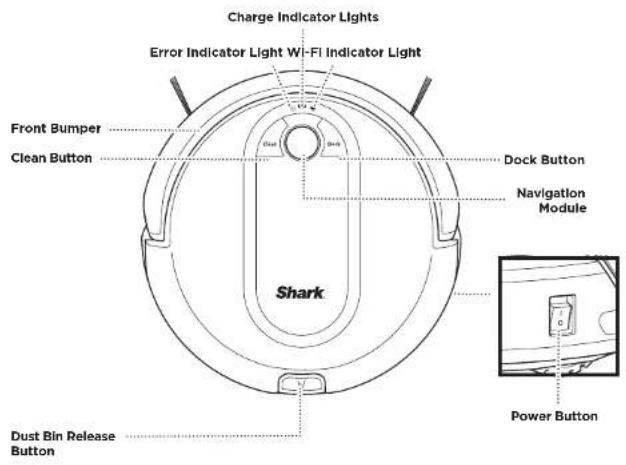
OUR SHARK IQ ROBOT
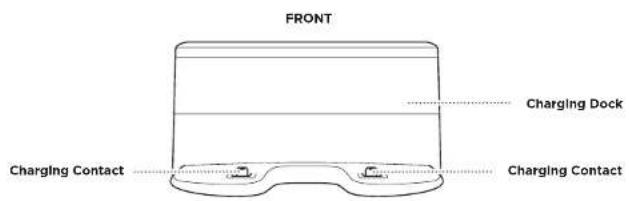
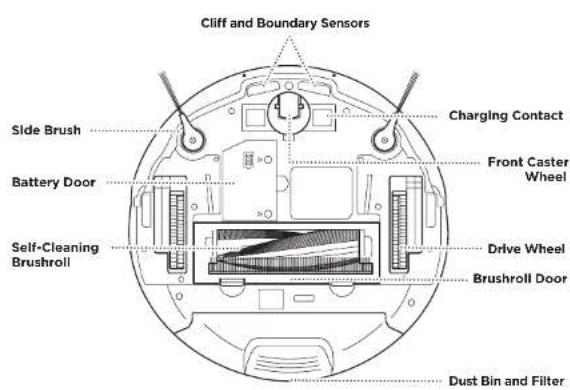
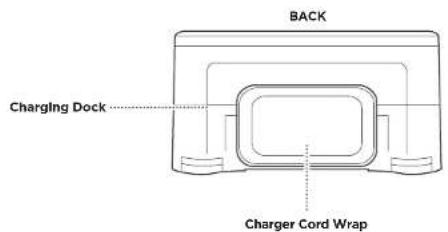
DOCK SETUP
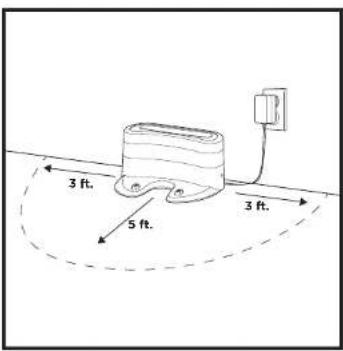
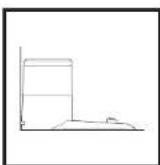
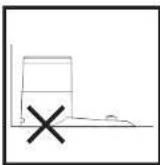
NOTE: Select a permanent location for the Charging Dock, because every time you relocate it, your robot will have to completely re-map your house.
NOTE: For best results, set up on hard floor or thin carpet.
NOTE: Do not place dock against baseboards, heating elements, or in direct sunlight.
Choose a level surface in a central area. Remove any objects that are closer than 3 feet from either side of the dock, or closer than 5 feet from the front of the dock. Place the dock with its back against the wall. Connect the Charging Cord to the port on the back of the dock, then plug it into an outlet. The indicator light on the dock will illuminate green when the dock has power. The dock must be plugged in continuously for the robot to find it.
INSTALLING THE SIDE BRUSHES
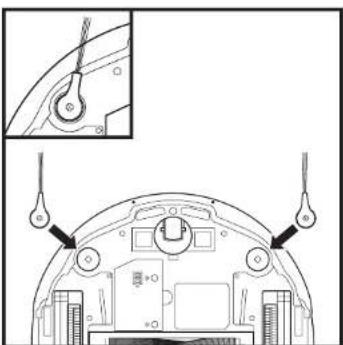
natural_image
Technical line drawing of a mechanical component with two mounting holes and a central hub (no text or symbols)Snap the 2 included Side Brushes onto the square pegs on the bottom of the robot.
CHARGING
IMPORTANT: The Shark IQ Robot * has a pre-installed rechargeable battery. Battery should be fully charged before using, it may take up to 5 hours to fully charge.
natural_image
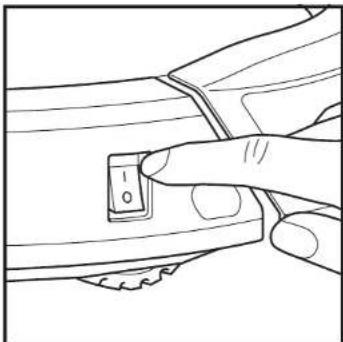
Line drawing of a hand pressing a button on a device (no text or symbols visible)To charge, the Power button on the side of the robot must be in the ON position (I). The robot will beep when charging begins.
natural_image
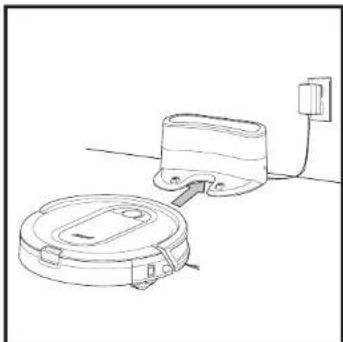
Line drawing of a robotic vacuum cleaner with attached electrical outlet (no text or symbols)When the cleaning cycle is complete, or if the battery is running low, the robot will search for the dock. If your robot doesn't return to the dock, its charge may have run out.
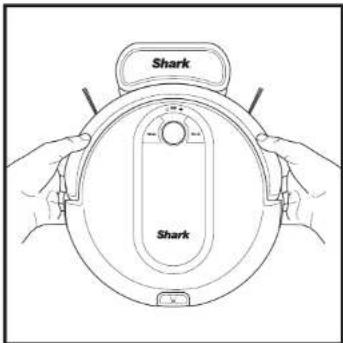
If the robot has no charge and cannot return to the dock, manually place it on the dock. The dock indicator light will flash blue and the robot will beep when charging begins.
NOTE: When manually placing the robot on the dock, make sure the Charging Contacts on the bottom of the robot are touching the ones on the dock. While the robot is charging, both blue LED lights will flash. When charging is complete, both blue lights will illuminate steadily.
NOTE: When picking up the robot, be careful not to place fingers between the bumper and the base of the robot.
CHARGE INDICATOR LIGHTS
In Use
No Charge or Off
While Charging (Blue)
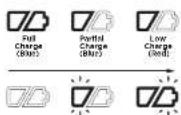

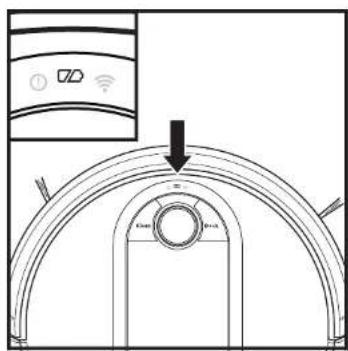
The blue indicator lights on the robot show how much charge is remaining.
While the robot is charging, both blue LED lights will flash. When charging is complete, both blue lights will illuminate steadily. It may take up to 6 hours to fully charge your robot.
NOTE: If the low charge light is blinking red, there is not enough charge for the robot to return to the dock. Manually place the robot on the dock.
BUTTONS AND INDICATOR LIGHTS
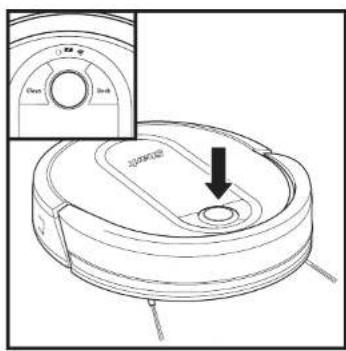
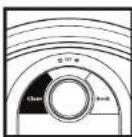
CLEAN BUTTON
Press to begin a cleaning session. Press again to stop.
RECHARGE & RESUME
Press and hold the CLEAN button for 15 seconds to turn Rocharge & Resume ON or OFF.
Turn ON Recharge & Rosumo for complete coverage in larger homes. Your robot will return to the dock, recharge, and can pickup cleaning where it left off.
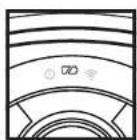
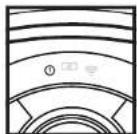
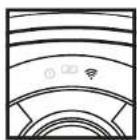
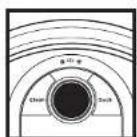
CHARGE INDICATOR LIGHTS Display the amount of charge remaining in the battery.
"": ERROR INDICATOR See Troubleshooting section for full list of error codes.
WI-FI INDICATOR Blue light: connected to Wi-Fi. Red light: not connected. Flashing blue: setup mode. No light: not set up yet.
NAVIGATION MODULE Please keep clear and do not cover. Upward facing sensor aids advanced navigation.
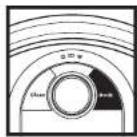
DOCK BUTTON
Press to stop cleaning and send robot back to the charging base.
PREP YOUR HOME
Your robot uses an array of sensors to navigate around walls, furniture legs, and other obstacles while it cleans. To prevent the robot from bumping into objects or navigating to areas you don't want it to, use the included BotBoundary ^8 strips. For best results, prepare your home as indicated below, and schedule a daily cleaning to ensure all floor areas are regularly maintained.
NOTE: scheduling can only be done in the app.
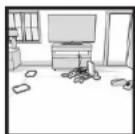
OBSTRUCTIONS
Clear cords and small objects from floors and open doors to ensure a complete map of your home.
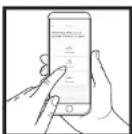
SCHEDULING
For a constant state of clean, set up a cleaning schedule in the app.
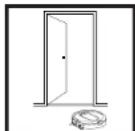
THRESHOLDS
Your robot may have some trouble clearing some high thresholds. Block off high thresholds with the included BotBoundary® strips.
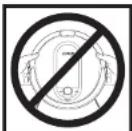
AVOID MOVING THE
ROBOT & DOCK While your robot is cleaning, do not pick it up and move it to different rooms, or move the charging dock—this could impact the robot's navigation.
STAIRS
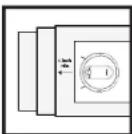
Your robot's cliff sensors will prevent it from falling off ledges. For your robot's cliff sensors to work properly, all runners, rugs, or carpets must be at least 4 inches from any stairs (or extend over the edge of the stairs.)
CAUTION: Do not put BotBoundary strips near any stairs or cliffs.
IMPORTANT: Before cleaning an entire room for the first time, we recommend that you first test your robot on a small section of the floor to ensure there is no scratching.
USING THE SHARK IQ ROBOT™
IQ NAV ^TH
natural_image
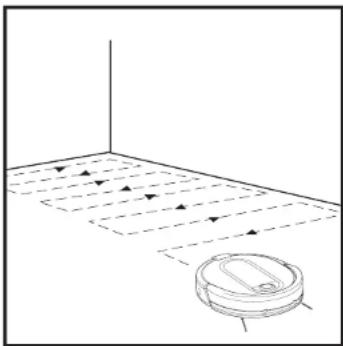
Diagram showing a floor plan with arrows indicating direction and a circular object at the bottom (no text or symbols)As it cleans, your robot will create a map of your home. It may take several cleanings for the robot to finish its mapping. Once mapping is complete, an Interactive Map of your floor plan will be available on the app.
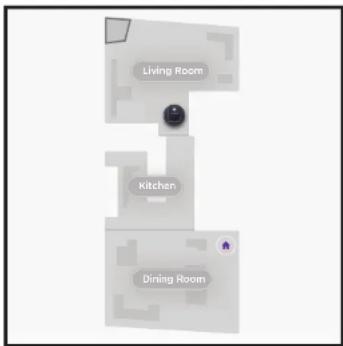
Interactive Map
The Interactive map in the app allows you to name rooms, then select which rooms to clean, and send the robot to immediately clean one specific location.
As cleanings continue, the robot will update and refine its path to provide optimized cleaning coverage. After each use, a cleaning report will be available in the app.
MANUAL CLEANING MODE
To manually start a cleaning cycle, press the Clean button on the robot or on the mobile app. To stop the robot before it finishes cleaning and automatically returns to the dock, press the Dock button.
NOTE: Be sure to charge the robot completely before its first cleaning so that it can explore, map, and clean as much of your home as possible. It may take up to 6 hours to fully charge your robot.
NOTE: Avoid picking up or moving the robot or dock. If either are relocated, the robot may not be able to follow its intelligent cleaning path, or find its way back to the dock. If the robot is picked up or moved for any reason, it should be returned to within 6 inches of its last location.
USING THE SHARK IQ ROBOT™
Please visit sharkclean.com/app or call 1-888-228-5531 for answers to all your app questions.
USING THE SHARK CLEAN™ APP AND VOICE CONTROLS
Get the most out of your Shark IQ Robot™ with these app features:
Interactive Map Your robot knows where it is in your home, identify rooms for Room Select.
- Room Select
immediately send your robot directly to any room on that floor.
- Recharge and Resume Use Recharge and Resume to help ensure complete, multi-room coverage in your home.
•Scheduling
Set whole-home cleanings for any time, any day.
• Control From Anywhere Wherever you are, you're in control of your robot.
• Cleaning Reports Each time your robot cleans, your app will generate a cleaning report.
Search for SharkClean in the app store and download the app to your iPhone™ or Android™.
SETTING UP VOICE CONTROL WITH THE GOOGLE ASSISTANT OR AMAZON ALEXA
Visit sharkclean.com/app for setup instructions which include how to enable Shark Skill for Amazon Alexa and using with Google Assistant.
Google Assistant:
"OK Google, tell Shark to start cleaning." "OK Google, tell Shark to pause my robot." "OK Google, tell Shark to send my robot to the dock."
Amazon Alexa:
"Alexa, tell Shark to start cleaning." "Alexa, tell Shark to pause my robot." "Alexa, tell Shark to send my robot to the dock."
WI-FI TROUBLESHOOTING
- To use the app, your phone must be connected to a 2.4GHz network. The app will only work on a 2.4GHz network. - Typical home Wi-Fi networks support both 2.4GHz and 5GHz.
- Do not use a VPN or a proxy server. - Make sure Wi-Fi isolation is turned off on the router. - If you cannot connect, call 1-888-228-5531.
ERROR CODE PROBLEM
| ! (RED) + WI-FI Indicator (RED Flashing) Wrong password for WI-FI | |
| ! (Flashing red) + WI-Fi (RED) SSID cannot be found, try connecting again | |
| ! + WI-FI (Flashing RED alternately) Wrong user name or password for your Shark account | |
| ! + WI-FI (Flashing RED at the same time) Cannot connect to WI-FI |
MAINTENANCE
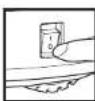
CAUTION: Turn off power before performing any maintenance.
EMPTYING THE DUST BIN
natural_image
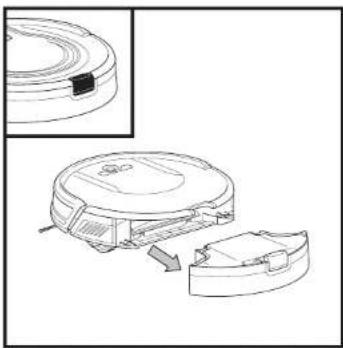
Line drawing of a robotic vacuum cleaner with a close-up view of its lid (no text or symbols)Press the Dust Bin Release Tab and slide out the dust bin.
natural_image
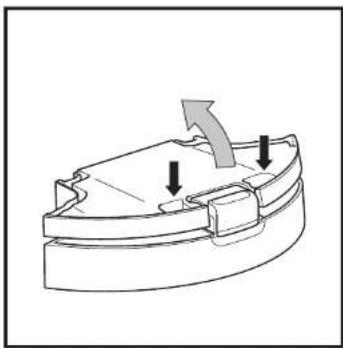
Technical line drawing of a mechanical component with arrows indicating direction (no text or symbols)To avoid spills, be sure to hold the dust bin in an upright position. Use the finger slots to open the lid.
natural_image
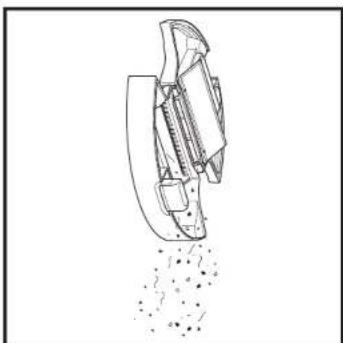
Technical line drawing of a mechanical component with internal structure and particle distribution (no text or symbols)Empty debris and dust into trash.
natural_image
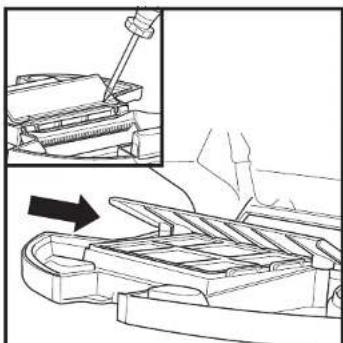
Technical illustration of a mechanical assembly with an arrow indicating direction (no text or symbols present)Look between the filter and plastic shield and make sure there is no debris buildup. Remove shield and clear any debris buildup as needed with a dry cloth or soft brush.
MAINTENANCE
CLEANING AND REPLACING THE FILTER
For optimal suction power, regularly clean and replace the filter inside the robot's dust bin. See sharkaccessories.com for replacement filters.
IMPORTANT: DO NOT use water when cleaning the filter.
natural_image
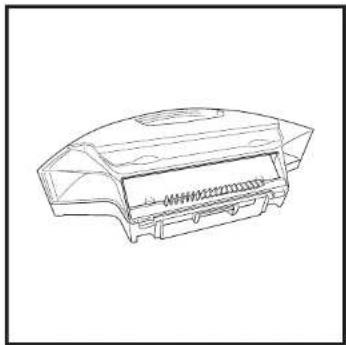
Line drawing of a mechanical component or housing (no text or symbols)Remove and empty the dust bin. Clean any hair or debris off the Anti-Tangle Comb on the back of the dust bin.
natural_image
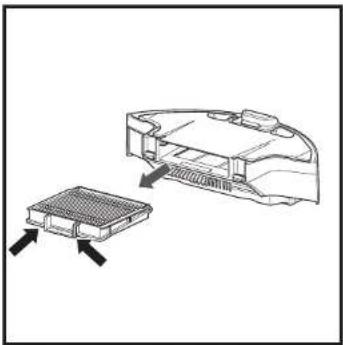
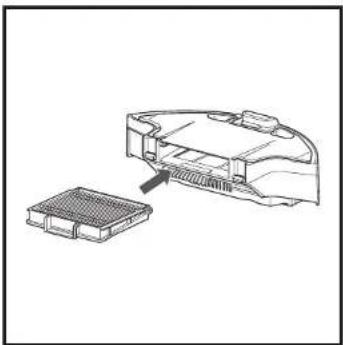
Diagram showing a device with a mesh component and an open lid, no text or symbols presentPull filter out of the dust bin by the tabs.
natural_image
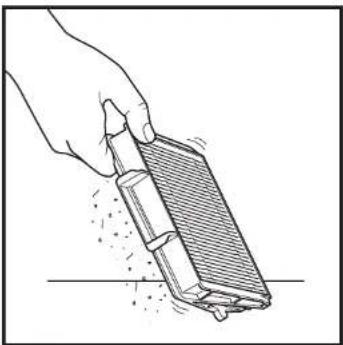
Hand holding a cleaning brush with a textured brush, no text or symbols visibleLightly tap the filter to remove dust and debris. Reinsert the filter into the dust bin, then slide the dust bin back into the robot.
natural_image
Diagram of a device with a grid base and internal components, no text or symbols presentNOTE: Make sure to insert the dust bin completely, until it clicks into place.
MAINTENANCE
SELF-CLEANING BRUSHROLL
The Self-Cleaning Brushroll actively removes hair wrap while your robot cleans. If some debris remains wrapped around the brushroll, continue cleaning to allow the brushroll to clean itself.
natural_image
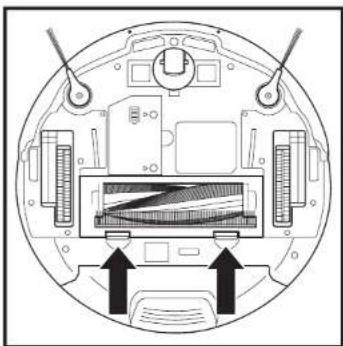
Diagram of a circular device interior with internal components and directional arrows indicating movement or force (no text or symbols)To access the brushroll, push up on the tabs on the brushroll access door, then lift off the door.
natural_image
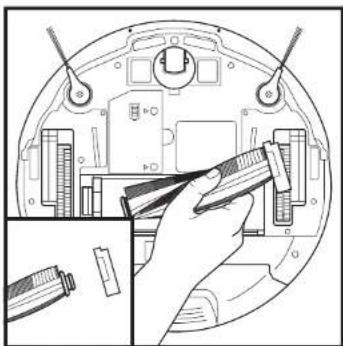
Diagram of a computer monitor with an open rear panel and a hand inserting a component (no text or symbols visible)Lift out the brushroll. Remove the cap on the end of the brushroll. Clean off any debris from the brush roll, then reattach cap. Reinstall the brushroll, inserting the flat end first. Close the brushroll access door and press down until both sides click into place.
NOTE: Replace brushroll every 6 to 12 months, or when visibly worn. See sharkaccessories.com for replacement parts. NOTE: When cutting away debris, be sure not to cut the brushroll.
MAINTENANCE
CLEANING SENSORS AND CHARGING PADS
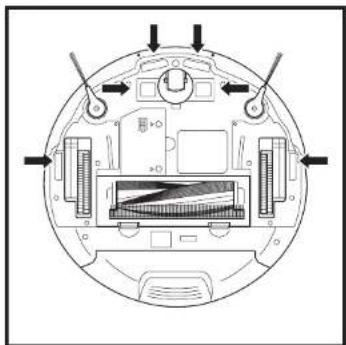
CLEAN SENSORS AND CHARGING PADS AS NEEDED. With a dry cloth, gently dust off the sensors and pads located on the bottom of the robot and on the dock.
natural_image
Top-down schematic of a circular device with internal components and directional arrows (no text or symbols)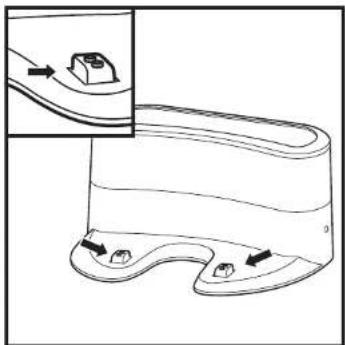
natural_image
Diagram of a medical device with a small inset showing a cable being inserted into a device (no text or symbols present)IMPORTANT: The robot uses cliff sensors to avoid stairs and other steep drops. Sensors may work less effectively when they are dirty. For best results, clean sensors regularly,
CLEANING SIDE BRUSHES
CLEAN SIDE BRUSHES AS NEEDED.
natural_image
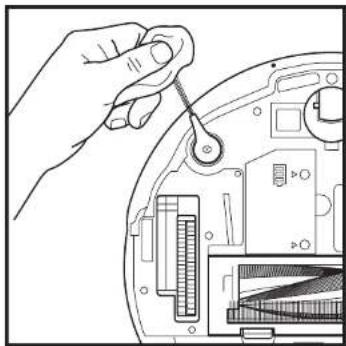
Hand inserting a component into an electronic device (no text or symbols visible)Carofully unwind and remove any string or hair wrapped around brushes. Gently wipe brushes with a dry cloth. To reinstall, snap the brushes over the pegs. Spin the brushes manually to make sure they are installed correctly.
NOTE: Remove and replace any side brushes that are bent or damaged. To remove a brush, lift it off its peg.
MAINTENANCE
CLEANING THE WHEELS
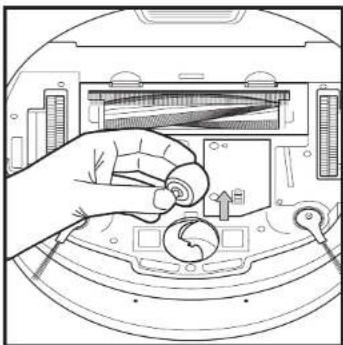
REMOVE AND CLEAN FRONT WHEEL PERIODICALLY, REPLACE FRONT WHEEL EVERY 12 MONTHS. See sharkaccessories.com for replacement parts.
natural_image
Hand operating a mechanical device with a knob and scroll wheel (no text or symbols visible)Pull the Front Caster Wheel from its housing and remove any debris buildup.
NOTE: Tools may be required to pry off front caster wheel. NOTE: Brush not included.
natural_image
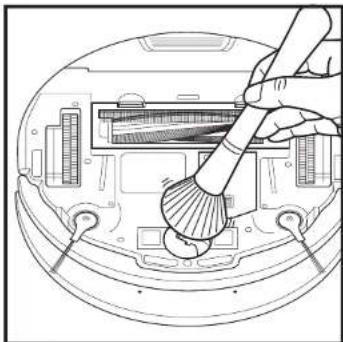
Line drawing of a robotic vacuum cleaner inside a circular device, showing brush and tool (no text or symbols)Clean the wheel housing, then reinsert the caster wheel.
natural_image
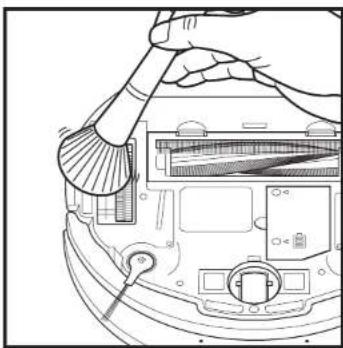
Line drawing of a hand using a tool to clean or install a device on a curved surface (no text or symbols visible)Periodically clean the drive wheels and the housing around them. To clean, rotate each drive wheel while dusting.
REPLACEMENT PARTS
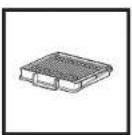
Filter
RVFFK950
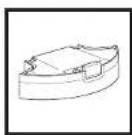
Robot Dust Bin
100KY1000
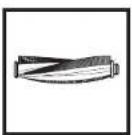
Brushroll 103KY1000
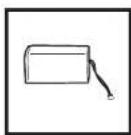
Battery
RVBAT850
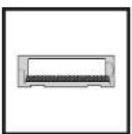
Brushroll Door
109KY1000
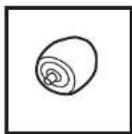
Front Caster Wheel
1156FK950
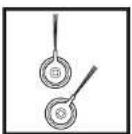
Side Brushes
102KY1000
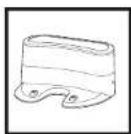
Charging Dock
XSKDOCK100
MAINTENANCE
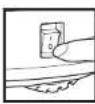
CAUTION: Turn off power before performing any maintenance.
TROUBLESHOOTING
If any error lights are illuminated or flashing on your Shark IQ Robot™, see the error code chart below:
ERROR CODE SOLUTION
| CLEAN (RED) + ! (RED) flashing | Suction motor failure. Remove and empty the dust bin, clean the filters, and remove blockages to ensure nothing is reducing suction. |
| CLEAN (RED) flashing | Robot may be stuck on an obstacle. Move robot to a new location on a level surface. |
| DOCK (RED) flashing | Front bumper may be jammed. Clean the bumper and make sure it moves in and out freely. |
| CLEAN (BLUE) + DOCK (RED) solid | BottBoundary error. Move your robot to a flat surface away from the magnetic boundary strip and try cleaning again. |
| CLEAN (RED) + DOCK (BLUE) flashing | Cliff sensor error. Move your robot to a new location and clean its cliff sensors. |
| CLEAN (RED) + DOCK (RED) flashing | Robot dustbin has been removed and needs to be reinserted. |
| DOCK (RED) + ! (RED) flashing | Side brush is stuck. Remove any debris from around the side brushes. |
| CLEAN (RED) + DOCK (RED) + ! (RED) flashing | A drive wheel is stuck. Clean the wheels and remove any debris wrapped around the axles. |
| CLEAN (RED) + DOCK (BLUE) alternating | Robot is stuck. Move your robot to a new location and make sure the front bumper moves in and out freely. |
| CLEAN (BLUE) + DOCK (RED) + ! (RED) flashing | Wheel motor encoder failure. Please contact Shark Customer Care at 1-800-798-7398. |
| CLEAN (BLUE) + ! (RED) flashing | Blockage in brushroll. Remove any debris from around the brushroll. |
| CLEAN (RED) + DOCK (BLUE) + ! (RED) flashing | Robot has encountered an error while booting. Please turn the power off and back on. |
| CLEAN (BLUE) + DOCK (RED) flashing | Robot cannot locate dock. Please pick up your robot and place it on the dock. |
| BATTERY ICON (RED) flashing | Battery is critically low and needs recharging. Power may be turned off or the battery may need charging. |
| CLEAN (RED) + ! (RED) alternating | Blockage in brushroll. Remove any debris from around the brushroll. |
NOTE: To order replacement parts and filters, visit sharkaccessories.com
For all other issues, please call Customer Service at 1-888-228-5531.
END-USER LICENSE AGREEMENT FOR SHARKNINJA SOFTWARE
IMPORTANT: PLEASE READ THE TERMS AND CONDITIONS OF THIS LICENSE AGREEMENT CAREFULLY
BEFORE CONTINUING WITH THIS PROGRAM INSTALL OR USE OF THIS PRODUCT: SharkNinja Operating LLC's ("SharkNinja") End-User License Agreement ("EULA") is a legal agreement between You (either a single entity or an individual) and SharkNinja for SharkNinja's Software Applications, including those installed by You onto your SharkNinja products or already installed on your device, including all firmware (referred hereafter as "SN APPS"). By installing, copying, checking a box, clicking a button confirming your agreement to these terms, or otherwise continuing to use the SN APPS, You agree to be bound by the terms of this EULA. This license agreement represents the entire agreement concerning SN APPS between You and SharkNinja, and it supersedes any prior proposal, representation, or understanding between the parties. If you do not agree to the terms of this EULA, do not install or use the SN APPS or this product. The SN APPS are protected by copyright laws and international copyright treaties, as well as other intellectual property laws and treaties.
1. GRANT OF LICENSE. The SN APPS are licensed as follows:
1.1 Installation and Use. SharkNinja grants You the right to download, Install, and use SN APPS on the specified platform for which the SN APP was designed and in connection with SharkNinja products with which the SN APPS are designed to operate ("SN Devices").
1.2 Backup Copies. You may also make a copy of SN APPS downloaded and installed by You for backup and archival purposes.
2. DESCRIPTION OF OTHER RIGHTS AND LIMITATIONS.
2.1 Maintenance of Copyright Notices. You must not remove or alter any copyright notices on any and all copies of the SN APPS.
2.2 Distribution. You may not distribute copies of the SN APPS to third parties.
2.3 Prohibition on Reverse Engineering, Decompilation, and Disassembly. You may not reverse engineer, decompile, or disassemble SN APPS, except and only to the extent that such activity is expressly permitted by applicable law notwithstanding this limitation.
2.4 Rental. You may not rent, lease, or lend SN APPS without written permission from SharkNinja. 2.5 NOT FOR RESALE SOFTWARE. Applications identified as "Not for Resale" or "NFR," may not be resold, transferred, or used for any purpose other than demonstration, test, or evaluation.
2.6 Support Services. SharkNinja may provide You with support services related to SN APPS ("Support Services"). Any supplemental software code provided to You as part of the Support Services shall be considered part of SN APPS and subject to the terms and conditions of this EULA.
2.7 Compliance with Applicable Laws. You must comply with all applicable laws regarding use of SN APPS.
-
UPDATES. SharkNinja may provide You with upgrades or updates to SN APPS. This EULA will govern any upgrades provided by SharkNinja that replace and/or supplement SN APPS, unless such upgrade is accompanied by a separate EULA, in which case the terms of that EULA will govern. If You decide not to download and use an upgrade or update provided by SharkNinja, You understand that You could put SN Apps at risk to serious security threats or cause SN Apps to become unusable or unstable.
-
DATA AND PRIVACY. SharkNinja is committed to ensuring your privacy by adhering to high standards of fairness and integrity. We are committed to keeping our customers informed about how we use the information we gather from You through the use of each of our websites or SN APPS. Our privacy practices are described in SharkNinja's Privacy Policy, as well as in separate notices given when an app, product, or service is purchased or downloaded. By using SN APPS or providing us with your personal information, You are accepting and consenting to the practices, terms, and conditions described in SharkNinja's Privacy Policy. At all times your information will be treated in accordance with the SharkNinja Privacy Policy, which is incorporated by reference into this EULA and can be viewed at the following URL: http://www.sharkninja.com/privacypolicy.
5. THIRD-PARTY APPLICATION LIBRARIES AND EMBEDDED SOFTWARE.
5.1 You acknowledge that Ayla Networks, Inc. ("Ayla") has provided certain application libraries that have been embedded into SN APPS ("Ayla Application Libraries") and enables SN Devices to connect to the Ayla Cloud Service ("Ayla Embedded Software").
5.2 You will not use the Ayla Application Libraries except as an incorporated portion of SN APPS, unmodified from the form provided to You.
5.3 You will not use the Ayla Embedded Software except as an incorporated portion of SN Devices, unmodified from the form provided to You.
5.4 You will not modify, adapt, translate, or create derivative works based on, or decompile, disassemble, reverse engineer, or otherwise attempt to derive the source code or underlying algorithms of, the Ayla Application Libraries or the Ayla Embedded Software.
5.5 SharkNinja retains all ownership of SN APPS (and the Ayla Application Libraries contained therein) and any software installed on SN Devices (including the Ayla Embedded Software) and only a license thereto is granted to You for use in connection with the SN APPS and SN Devices.
END-USER LICENSE AGREEMENT FOR SHARKNINJA SOFTWARE
5.6 You will not use the Ayla Application Libraries or Ayla Embedded Software to attempt to gain unauthorized access to or use of the systems/services of SharkNinja's other licensors; nor will You transmit viruses, worms, Trojan horses, time bombs, spyware, malware, cancelbots, passive collection mechanisms, robots, data mining software, or any other malicious or invasive code or program into the systems/services of SharkNinja's other licensors.
5.7 You will not use the Ayla Application Libraries or Ayla Embedded Software to interfere with, breach, or circumvent any security feature, authentication feature, or any other feature that restricts or enforces limitations on the use of, or access to, the systems/services of SharkNinja's other licensors.
5.8 You will not probe, attack, scan, or test the vulnerability of the systems/services of SharkNinja's other licensors.
5.9 SharkNinja's other licensors of the SN APPS, Ayla Application Libraries, and the Ayla Embedded Software are the express third-party beneficiaries of this EULA, and the provisions of this Section of this EULA are made expressly for the benefit of such licensors, and are enforceable by such licensors.
-
TERMINATION. Without prejudice to any other rights, SharkNinja may terminate this EULA if You fail to comply with the terms and conditions of this EULA. In such event, You must destroy all copies of SN APPS in your possession.
-
COPYRIGHT. All title, including but not limited to copyrights, in and to SN APPS and any copies thereof are owned by SharkNinja or its suppliers. All title and intellectual property rights in and to the content which may be accessed through use of SN APPS are the property of the respective content owner and may be protected by applicable copyright or other intellectual property laws and treaties. This EULA grants You no rights to use such content. All rights not expressly granted are reserved by SharkNinja.
-
OPEN SOURCE SOFTWARE. You hereby acknowledge that SN APPS may contain software that is subject to "open source" or "free software" licenses ("Open Source Software"). The license granted by this EULA does not apply to Open Source Software contained in the SN APPS. Rather, the terms and conditions in the applicable Open Source Software license shall apply to the Open Source Software. Nothing in this EULA limits your rights under, or grants You rights that supersede, any Open Source Software license. You acknowledge that the Open Source Software license is solely between You and the applicable licensor of the Open Source Software. To the extent the terms of the licenses applicable to the Open Source Software require SharkNinja to provide the Open Source Software, in either source or executable form, or to provide copies of applicable license terms or other required information. You may obtain a copy of the software by contacting SharkNinja at the below physical address. Additional information about the Open Source Software, and its terms of use, may be found at www.sharkclean.com/opensource.
-
NO WARRANTIES. SharkNinja expressly disclaims any warranty for SN APPS, Ayla Application Libraries, or Ayla Embedded Software. SN APPS, Ayla Application Libraries, and Ayla Embedded Software are provided 'As Is' without any express or implied warranty of any kind, including but not limited to any warranties of merchantability, noninfringement, fitness of a particular purpose, or title. SharkNinja does not warrant or assume responsibility for the accuracy or completeness of any information, text, graphics, links, or other items contained within the SN APPS. SharkNinja makes no warranties respecting any harm that may be caused by the transmission of a computer virus, worm, logic bomb, or other such computer program. SharkNinja further expressly disclaims any warranty or representation to any third party.
-
LIMITATION OF LIABILITY. In no event shall SharkNinja or its suppliers be liable for any special, incidental, punitive, indirect, or consequential damages whatsoever (including, but not limited to, damages for loss of profits or confidential or other information, for business interruption, for personal injury, for loss of privacy, for failure to meet any duty including of good faith or of reasonable care, for negligence, and for any other pecuniary or other loss whatsoever) arising out of or in any way related to the use of or inability to use SN Devices or SN APPS, the provision of or failure to provide support or other services, information, software, and related content through the product or otherwise arising out of the use of SN APPS, or otherwise under or in connection with any provision of this EULA, even in the event of the fault, tort (including negligence), strict liability, breach of contract, or breach of warranty of SharkNinja or any supplier, and even if SharkNinja or any supplier has been advised of the possibility of such damages. SharkNinja shall have no liability with respect to the content of the SN APPS or any part thereof, including but not limited to errors or omissions contained therein, libel, infringements of rights of publicity, privacy, trademark rights, business interruption, personal injury, loss of privacy, moral rights, or the disclosure of confidential information.
-
APPLICABLE LAW. The laws of the Commonwealth of Massachusetts will govern this EULA and You hereby consent to exclusive jurisdiction and venue in the state and federal courts sitting in the Commonwealth of Massachusetts.
-
ASSIGNMENT. SharkNinja may assign this EULA without notice to Licensor.
-
ENTIRE AGREEMENT. This EULA (including any addendum or amendment to this EULA which is included with the SN Devices) is the entire agreement between You and SharkNinja relating to the SN APPS and supersedes all prior or contemporaneous oral or written communications, proposals and representations with respect to the SN APPS or any other subject matter covered by this EULA. To the extent the terms of any SharkNinja policies or programs for support services conflict with the terms of this EULA, the terms of this EULA shall control.
If You have questions regarding this EULA, please contact SharkNinja at 89 A Street, Suite 100, Needham, MA 02494.
Shark | NINJA
ONE (1) YEAR LIMITED WARRANTY
The One (1) Year Limited Warranty applies to purchases made from authorized retailers of SharkNinja Operating LLC. Warranty coverage applies to the original owner and to the original product only and is not transferable.
SharkNinja warrants that the unit shall be free from defects in material and workmanship for a period of one (1) year from the date of purchase when it is used under normal household conditions and maintained according to the requirements outlined in the Owner's Guide, subject to the following conditions and exclusions:
What is covered by this warranty?
-
The original unit and/or non-wearable components deemed defective, in SharkNinja's sole discretion, will be repaired or replaced up to one (1) year from the original purchase date.
-
In the event a replacement unit is issued, the warranty coverage ends six (6) months following the receipt date of the replacement unit or the remainder of the existing warranty, whichever is later. SharkNinja reserves the right to replace the unit with one of equal or greater value.
What is not covered by this warranty?
-
Normal wear and tear of wearable parts (such as foam filters, filters, etc.), which require regular maintenance and/or replacement to ensure the proper functioning of your unit, are not covered by this warranty. Replacement parts are available for purchase at sharkaccessories.com.
-
Any unit that has been tampered with or used for commercial purposes.
-
Damage caused by misuse (e.g., vacuuming up water or other liquids), abuse, negligent handling, failure to perform required maintenance (e.g., not cleaning the filters), or damage due to mishandling in transit.
-
Consequential and incidental damages.
-
Defects caused by repair persons not authorized by SharkNinja. These defects include damages caused in the process of shipping, altering, or repairing the SharkNinja product (or any of its parts) when the repair is performed by a repair person not authorized by SharkNinja.
-
Products purchased, used, or operated outside North America.
How to get service
If your appliance fails to operate properly while in use under normal household conditions within the warranty period, visit sharkclean.com/support for product care and maintenance self-help. Our Customer Service Specialists are also available at 1-888-228-5531 to assist with product support and warranty service options, including the possibility of upgrading to our VIP warranty service options for select product categories. Please register your product and have it with you when contacting Customer Service.
SharkNinja will cover the cost for the customer to send in the unit to us for repair or replacement. A fee of \$24.95 (subject to change) will be charged when SharkNinja ships the repaired or replacement unit.
How to initiate a warranty claim
You must call 1-888-228-5531 to initiate a warranty claim. You will need the receipt as proof of purchase. A Customer Service Specialist will provide you with return and packing instruction information.
How state law applies
This warranty gives you specific legal rights, and you also may have other rights that vary from state to state. Some states do not permit the exclusion or limitation of incidental or consequential damages, so the above may not apply to you.
REGISTER YOUR PURCHASE

registryyourshark.com

RECORD THIS INFORMATION
Model Number: ____
Date Code:
Date of Purchase: ____ (Keep receipt)
Store of Purchase: ____
TIP: You can find the model and serial numbers on the QR code labels on the bottom of the robot and battery.
EXPECTED PERFORMANCE
Expected runtime: 60 minutes Expected charging time: 6 hours
PLEASE READ CAREFULLY AND KEEP FOR FUTURE REFERENCE.
This Owner's Guide is designed to help you keep your Shark IQ Robot™ running at peak performance.
SharkNinja Operating LLC
US: Needham, MA 02494
CAN: Ville St-Laurent, QC H4S 1A7
1-888-228-5531
sharkclean.com
Illustrations may differ from actual product. We are constantly striving to improve our products; therefore the specifications contained herein are subject to change without notice.
For SharkNinja U.S. Patent information, visit sharkninja.com/uspatents
FCC WARNINGS
This equipment has been tested and found to comply with the limits for a Class B digital device, pursuant to parts 15 of the FCC Rules. These limits are designed to provide reasonable protection against harmful interference in a residential installation. This equipment generates, uses, and can radiate radio frequency energy and, if not installed and accordance with the instructions, may cause harmful interference to radio communications. However, there is no guarantee that interference will not occur in a particular installation. If this equipment does cause harmful interference to radio or television reception, which can be determined by turning the equipment off and on, the user is encouraged to try to correct the interference by one or more of the following measures:
■ Reorient or relocate the receiving antenna.
■ Increase the separation between the equipment and receiver.
■ Connect the equipment into an outlet on a circuit different from that to which the receiver is connected.
- Consult the dealer or an experienced radio/TV technician for help.
This Device complies with part 15 of the FCC rules. Operation is subject to the following conditions:
1 This device may not cause harmful interference
2 This device must accept any interference received, including interference that may cause undesired operation.
Changes or modifications not expressly approved by the party responsible for compliance could void the user's authority to operate this device.

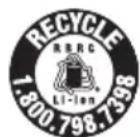
BATTERY REMOVAL AND DISPOSAL
This product uses a battery. When the battery no longer holds a charge, it should be removed from the vacuum and recycled. DO NOT incinerate or compost the battery.
When your lithium-ion battery needs to be replaced, dispose of it or recycle it in accordance with local ordinances or regulations. In some areas, it is illegal to place spent lithium-ion batteries in the trash or in a municipal solid waste stream. Return spent battery to an authorized recycling center or to retailer for recycling. Contact your local recycling center for information on where to drop off the spent battery.
For more information on battery removal for disposal, please visit sharkclean.com/batterysupport.
The RBRC™ (Rechargeable Battery Recycling Corporation) seal on the lithium-ion battery indicates that the costs to recycle the battery at the end of its useful life have already been paid by SharkNinja. In some areas, it is illegal to place spent lithium-ion batteries in the trash or municipal solid waste stream and the RBRC program provides an environmentally conscious alternative.
RBRC, in cooperation with SharkNinja and other battery users, has established programs in the United States and Canada to facilitate the collection of spent lithium-ion batteries. Help protect our environment and conserve natural resources by returning the spent lithium-ion battery to an authorized SharkNinja service center or to your local retailer for recycling. You may also contact your local recycling center for information on where to drop off the spent battery, or call 1-800-798-7398.
- IMPORTANT SAFETY INSTRUCTIONS
- PLEASE READ CAREFULLY BEFORE USE • FOR HOUSEHOLD USE ONLY
- ⚠ WARNING
- GENERAL WARNINGS
- When using an electrical appliance, basic precautions should always be followed, including the following:
- USE WARNINGS
- BATTERY USE
- SAVE THESE INSTRUCTIONS
- PREP YOUR HOME
- USING THE SHARK IQ ROBOT™
- MANUAL CLEANING MODE
- USING THE SHARK CLEAN™ APP AND VOICE CONTROLS
- - Room Select
- •Scheduling
- SETTING UP VOICE CONTROL WITH THE GOOGLE ASSISTANT OR AMAZON ALEXA
- WI-FI TROUBLESHOOTING
- MAINTENANCE
- CLEANING AND REPLACING THE FILTER
- SELF-CLEANING BRUSHROLL
- CLEANING SENSORS AND CHARGING PADS
- CLEANING SIDE BRUSHES
- CLEANING THE WHEELS
- END-USER LICENSE AGREEMENT FOR SHARKNINJA SOFTWARE
- IMPORTANT: PLEASE READ THE TERMS AND CONDITIONS OF THIS LICENSE AGREEMENT CAREFULLY
- GRANT OF LICENSE. The SN APPS are licensed as follows:
- DESCRIPTION OF OTHER RIGHTS AND LIMITATIONS.
- THIRD-PARTY APPLICATION LIBRARIES AND EMBEDDED SOFTWARE.
- Shark | NINJA
- ONE (1) YEAR LIMITED WARRANTY
- What is covered by this warranty?
- What is not covered by this warranty?
- How to get service
- How to initiate a warranty claim
- How state law applies
- REGISTER YOUR PURCHASE
- RECORD THIS INFORMATION
- EXPECTED PERFORMANCE
- PLEASE READ CAREFULLY AND KEEP FOR FUTURE REFERENCE.
- FCC WARNINGS
- BATTERY REMOVAL AND DISPOSAL
- For more information on battery removal for disposal, please visit sharkclean.com/batterysupport.
Brand : SHARK
Model : IQ Robot RV1000
Category : Robot vacuum