
R-Mix Tab - Photo/Video Software ROLAND - Free user manual and instructions
Find the device manual for free R-Mix Tab ROLAND in PDF.


| Product Type | Photo/Video Editing Software |
| Brand | Roland |
| Model | R-Mix Tab |
| Category | Photo/Video Software |
| Compatibility | Windows 10/11, macOS 10.14 or later |
| Language Support | English, French, German, Spanish, Japanese, Chinese |
| File Formats Supported (Import) | JPEG, PNG, TIFF, BMP, MP4, MOV, AVI |
| File Formats Supported (Export) | JPEG, PNG, TIFF, MP4, MOV, GIF |
| Editing Features | Layers, masks, filters, color correction, cropping, resizing |
| Video Editing Features | Timeline editing, transitions, effects, audio mixing |
| Resolution Support | Up to 4K UHD (3840x2160) |
| System Requirements (Minimum) | Intel Core i5, 8GB RAM, 2GB GPU, 500MB free disk space |
| System Requirements (Recommended) | Intel Core i7, 16GB RAM, 4GB GPU, 1GB free disk space |
| Updates | Automatic updates via internet connection |
| License Type | Single-user perpetual license |
| User Support | Online manual, FAQ, email support |
| Safety | No specific safety concerns for software |
| Maintenance | Regular updates recommended; backup project files |
| Spare Parts / Repairability | Not applicable for software |
| General Information | Designed for creative professionals and enthusiasts |
Frequently Asked Questions - R-Mix Tab ROLAND
User questions about R-Mix Tab ROLAND
0 question about this device. Answer the ones you know or ask your own.
Ask a new question about this device
Download the instructions for your Photo/Video Software in PDF format for free! Find your manual R-Mix Tab - ROLAND and take your electronic device back in hand. On this page are published all the documents necessary for the use of your device. R-Mix Tab by ROLAND.
USER MANUAL R-Mix Tab ROLAND
R-MIX Tab uses Roland's proprietary V-Remastering technology to apply a variety of signal processing to music.
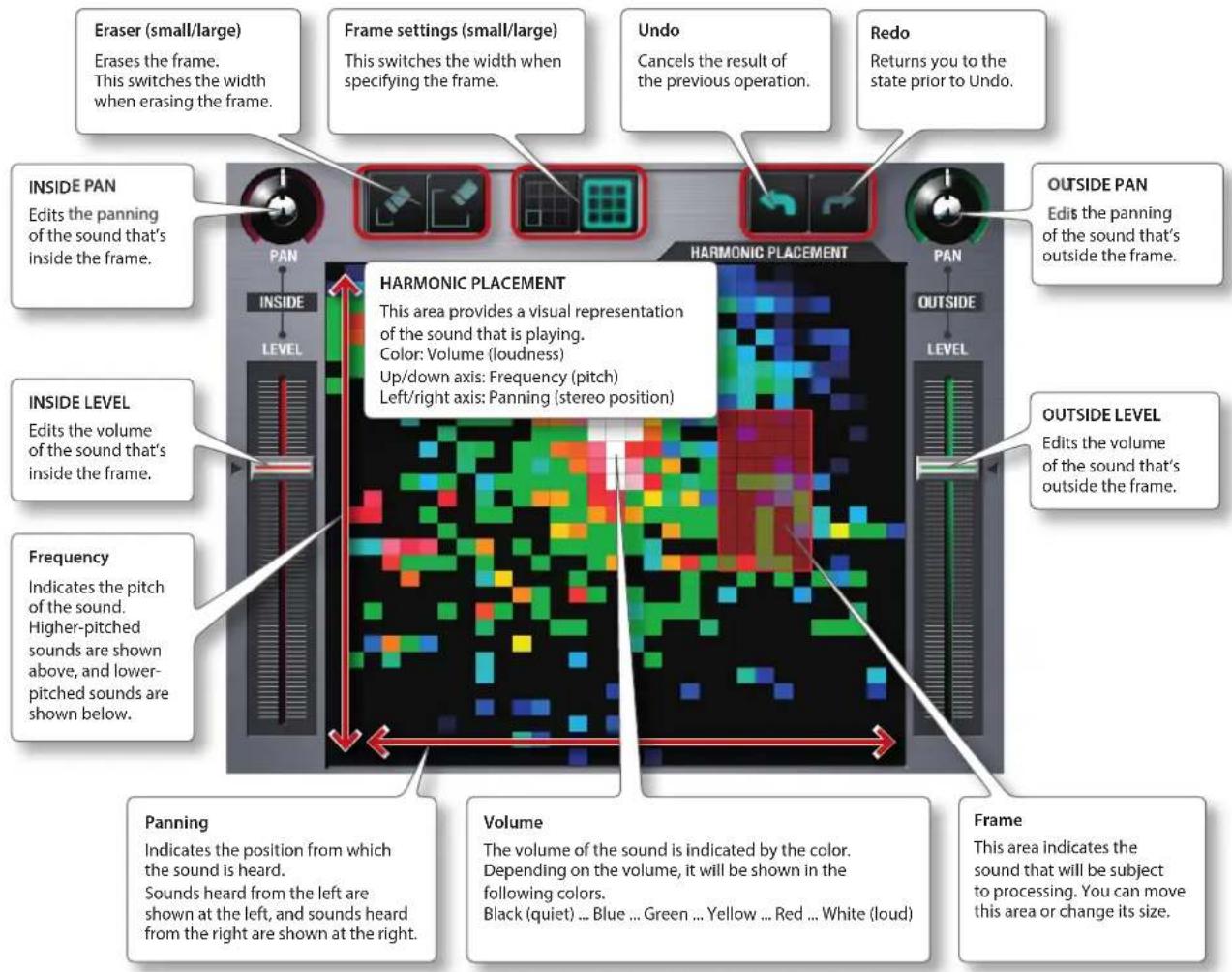
R-MIX Tab imports stereo-mixed music from your computer, analyzes it into the three parameters "frequency," "panning," and "volume," and graphically displays the sound of the instruments that make up the music.
You can also remix the music by selecting and "muting" or "preserving" the sound of each instrument.
What Is V-Remastering Technology?
This is proprietary Roland signal processing technology by which musical information such as "level" and "panning" is extracted from the audio signal for each frequency band, allowing total control of everything from the balance of the individual sounds to reconstructing the reverberation.
IMPORTANT NOTES
Copyrights
- It is forbidden by law to make an audio recording, video recording, copy or revision of a third party's copyrighted work (musical work, video work, broadcast, live performance, or other work), whether in whole or in part, and distribute, sell, lease, perform, or broadcast it without the permission of the copyright owner.
- Do not use this product for purposes that could infringe on a copyright held by a third party. We assume no responsibility whatsoever with regard to any infringements of third-party copyrights arising through your use of this product.
- The copyright of content in this product (the sound waveform data, style data, accompaniment patterns, phrase data, audio loops and image data) is reserved by Roland Corporation.
- Purchasers of this product are permitted to utilize said content for the creating, performing, recording and distributing original musical works.
- Purchasers of this product are NOT permitted to extract said content in original or modified form, for the purpose of distributing recorded medium of said content or making them available on a computer network.
Licenses/Trademarks
- Company names and product names appearing in this document are registered trademarks or trademarks of their respective owners.
Additional Precautions
- Roland accepts no responsibility for recovery of any stored content lost from your iOS device, nor for any damages arising from such loss.
- To avoid disturbing others nearby, try to keep the unit's volume at reasonable levels. You may prefer to use headphones, so you do not need to be concerned about those around you.
- This manual explains the functions of this product using the iPad screen.
The same operations can be used on an iPhone or iPod Touch. - Screen design may differ depending on the iOS version you're using or the model of your device, such as an iPhone or iPod Touch.
- Operation of iTunes may differ depending on the version you're using.
For details, refer to the manual of the iTunes version you're using.
The R-MIX Tab screen consists of the following areas.
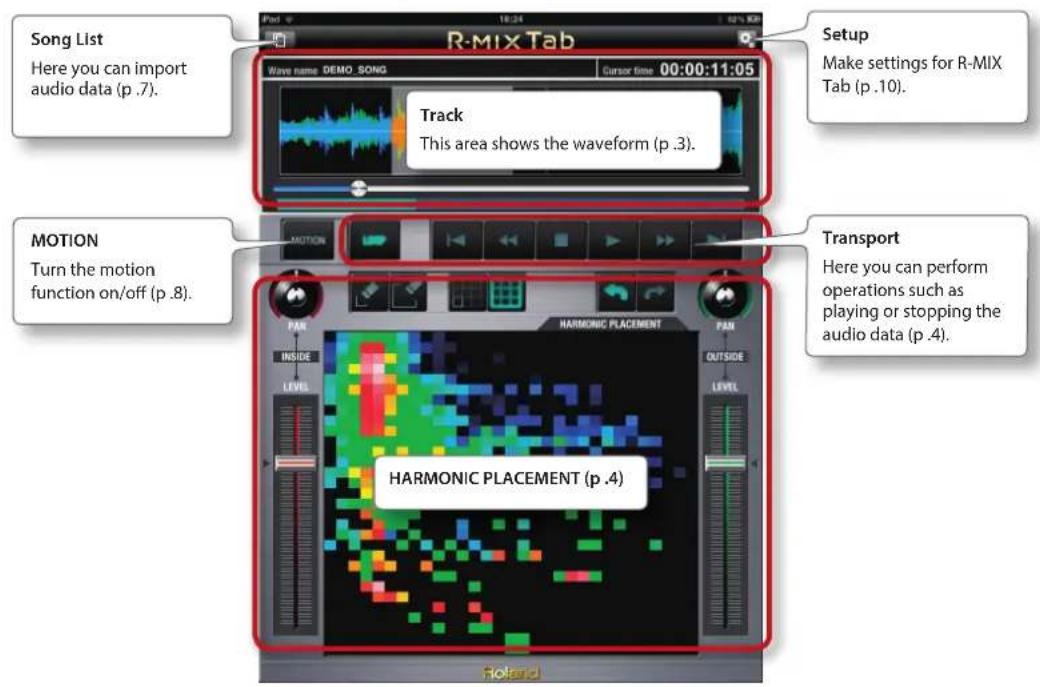
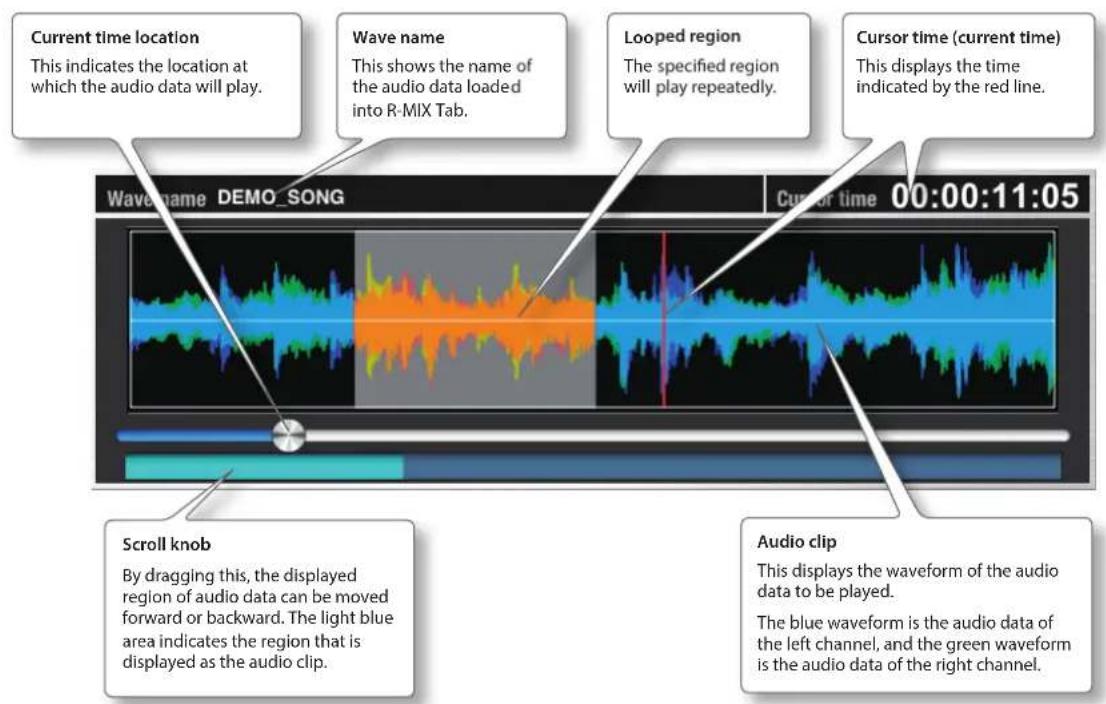
Track
This area shows the waveform. This lets you view the waveform for the audio that's currently playing, or specify a region for repeated playback.
HARMONIC PLACEMENT
Here you can view the sound that is playing. By specifying a "frame" in the HARMONIC PLACEMENT area, you can edit the volume or panning.
Transport
Here you can perform operations such as playing or stopping the audio data.
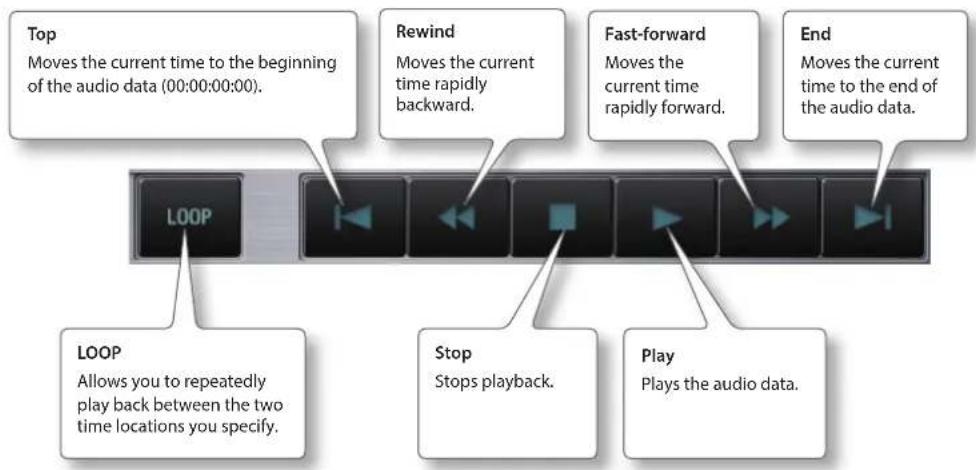
flowchart
graph TD
    A["Top\nMoves the current time to the beginning of the audio data (00:00:00:00)."] --> B["LOOP"]
    C["Rewind\nMoves the current time rapidly backward."] --> D["Stop\nStops playback."]
    E["Fast-forward\nMoves the current time rapidly forward."] --> F["Play\nPlays the audio data."] --> G["End\nMoves the current time to the end of the audio data."]
    H["LOOP\nAllows you to repeatedly play back between the two time locations you specify."] --> A
In order to use R-MIX Tab to edit a song, you must first import the song into R-MIX Tab.
Using iTunes to Import a Song from a Computer
Here's how a song (WAV, AIFF) saved on your computer can be imported into R-MIX Tab using iTunes.
MEMO
Only songs in WAV format or AIFF format can be imported into R-MIX Tab from your computer.
- Connect the iPad to your computer, and start iTunes on your computer.
- In "DEVICES" of the iTunes, click the connected iPad.
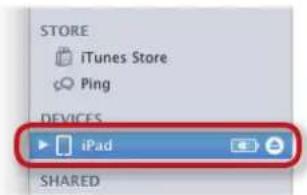

Name: iPad
Capacity: 28.98 GB
Software Version: 4.3.5
Serial Number:
- Click the [Apps] button.
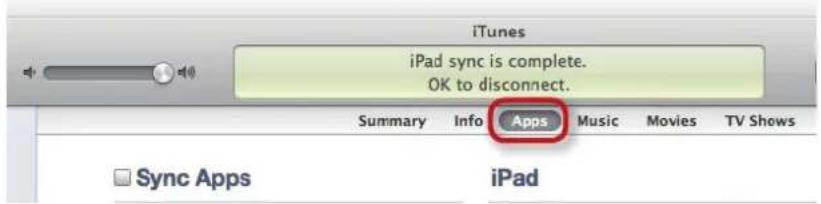
- In "File Sharing," click "R-MIX Tab."
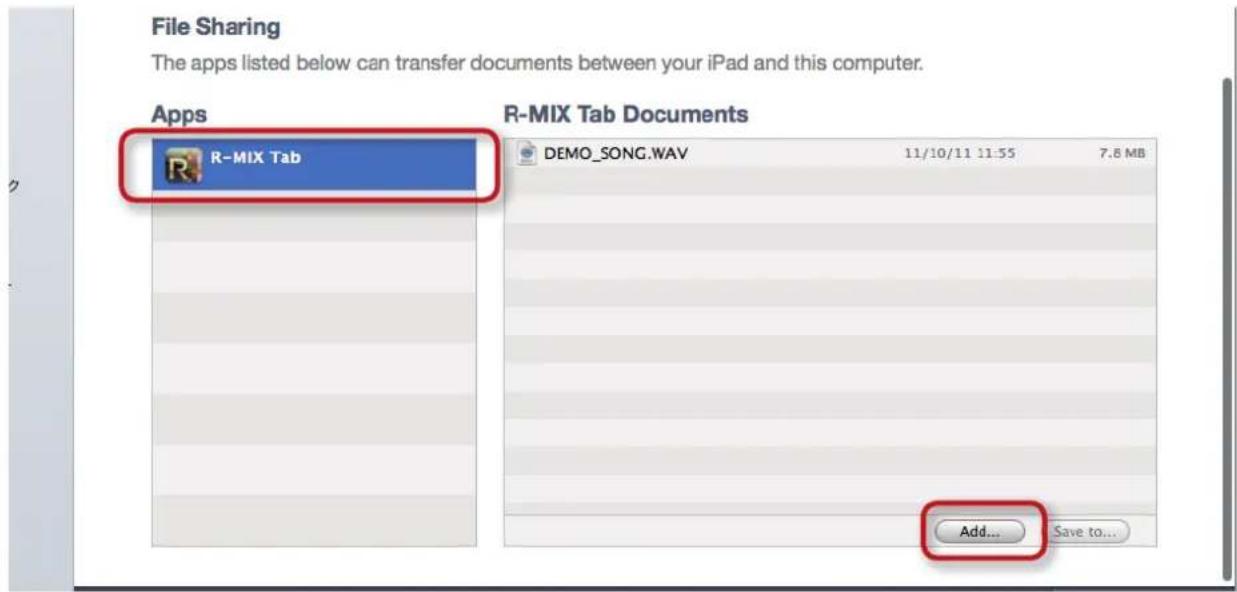
5. Click the [Add...] button.
The "Open" screen will appear.
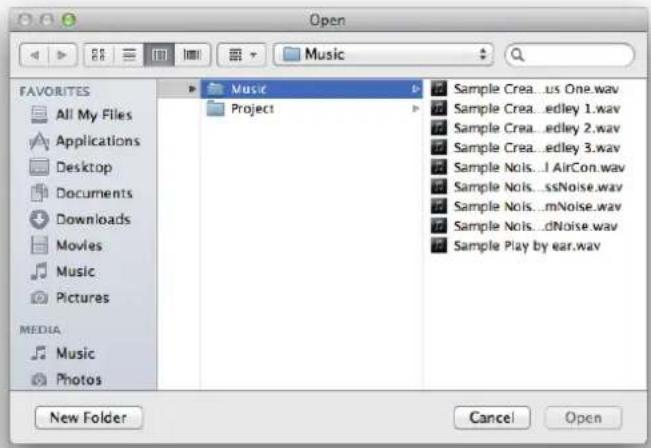
6. Click the song that you want to import.
7. Click the [Open] button.
The song will be imported into R-MIX Tab.
Importing a Song from the iPod Library
Here's how a song saved in your iPod library can be imported into R-MIX Tab.
1. Tap the R-MIX Tab's

2. In "Import," tap the [iPod Library] button.
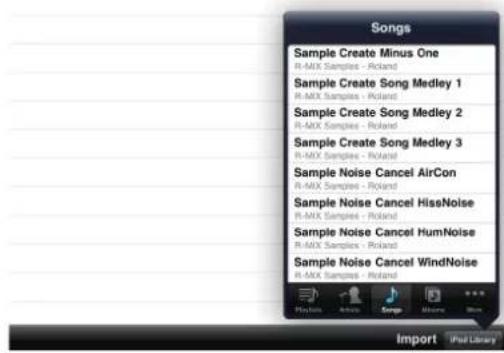
3. Tap the song that you want to import.
The song will be imported into R-MIX Tab.
MEMO
- Files with DRM (Digital Rights Management) cannot be imported.
- Don't switch iPad apps while importing a song. If you do so, the song might not be imported correctly.
Using "Open in..." to Import a Song from Another App
A song from an app that supports the "Open in..." function can be imported into R-MIX Tab.
For details on using the "Open in..." function, refer to the manual of the app you're using.
Selecting and Playing a Song
Here's how to select a song that you want to play using R-MIX Tab.
MEMO
In order to play a song using R-MIX Tab, you must have already loaded the song into R-MIX Tab (p .5).
1. Tap the

The "Song List" screen will appear.
2. Tap the song (file name) that you want to play.
The selected song will be called up, and you'll be returned to the R-MIX Tab screen.
3. Tap the [Play] button.
The song will play.
Silencing a Specific Sound
Here's how to minimize (silence) a specific sound in the song.
1. Tap the [Play] button.
The song will play.
2. Tap
Now you can make settings for the frame.
3. While you watch the HARMONIC PLACEMENT area, drag over the area of the sounds that you want to silence.
The frame will be assigned.
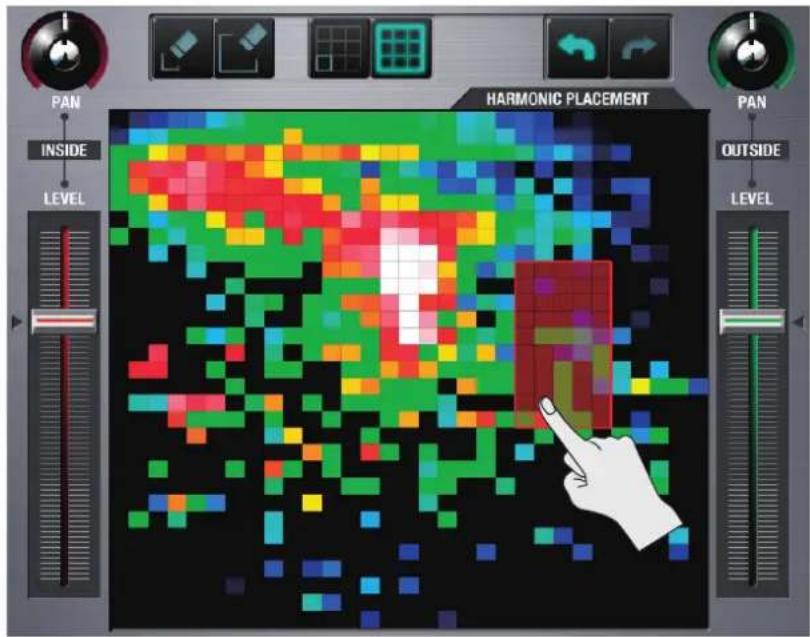
4. Lower the [INSIDE LEVEL] slider.
The sounds enclosed by the frame will become lower in volume.
MEMO
- You can add a frame by dragging repeatedly in the HARMONIC PLACEMENT area.
- Moving the [OUTSIDE LEVEL] slider will adjust the volume of the sound that is outside the frame.
- If you rapidly tap the [INSIDE LEVEL] slider or [OUTSIDE LEVEL] slider three times, the respective slider will return to its default setting.
Moving the Frame
Here's how to move the frame to the desired position. If the frame you assigned does not coincide with the sounds you're interested in, you can move the frame to select other sounds.
1. Touch and hold the frame you assigned.
The frame will turn yellow.
MEMO
You can change the time it takes for the frame to turn yellow (the time that you need to touch and hold the frame). For details, refer to "Settings" (p. 10).
2. While continuing to hold, drag the frame.
The frame will move as you drag it.
Moving the frame by tilting the iPad (Motion function)
By tilting the iPad (in which R-MIX Tab is installed) forward, backward, left, or right, you can move the frame that you've assigned.
- In the HARMONIC PLACEMENT area, assign the frame as desired.
- Turn the [MOTION] button "on."
- With the iPad in a horizontal position, slowly tilt it forward, backward, left, or right.
The frame will move in the direction in which you tilt the iPad.
Changing the Size of the Frame
You can change the size of the frame you've assigned. This allows you to narrow-in on specific sounds, or select a broad region of sounds.
- Pinch (tap with two fingers) the outer edges of the frame whose size you want to change.
The frame will turn yellow.
- Spread the two fingers outward or draw them inward.
The size of the frame will change according to the movements of your fingers.
Deleting the Frame
Here's how to delete the frame you've specified.
1. Tap

or (large)

Now you can delete the frame.
- Drag the unwanted portion of the frame.
The portion you dragged will be deleted.
MEMO
By rapidly tapping the HARMONIC PLACEMENT area three times, you can delete the entire frame you've specified.
Double-Tapping to Zoom the Screen (iPhone version only)
- Double-tap the panel or HARMONIC PLACEMENT.
The entire screen is zoomed.
- Double-tap once again to return to the original size.
While zoomed, you can tap HARMONIC REPLACEMENT to edit the frame.
MEMO
- You can't drag to specify the region.
- The added or deleted frame and the frame size are reflected by the currently selected "frame settings" button and the "eraser" button.
Playing Repeatedly
Here's how to repeatedly play back a specified region.
- Turn the [LOOP] button "on."
- On the track, drag across the region that you want to play repeatedly.
The region you dragged across will turn orange, and will be designated as the region to be repeated.
- Tap the [Play] button.
The song will play.
When the current time location reaches the end of the region to be repeated, playback will return to the beginning of the region to be repeated and continue from there.
Canceling Repeat Playback
Here's how to cancel repeat playback.
- Turn the [LOOP] button "off."
Repeat playback will be cancelled.
MEMO
- Even if repeat playback is "off," the region to be repeated will be remembered until you re-specify it or until another song is loaded.
- If you turn the [LOOP] button "on" once again, repeat playback will take place.
Deleting a Song
Here's how to delete a song that you've imported into R-MIX Tab.
- Tap the

The "Song List" screen will appear.
- Tap the [Edit] button.
- Tap the button of the song that you want to delete.
- Tap the [Delete] button.
The selected song will be deleted.
- When you've finished deleting songs, tap the [Done] button.
You'll be returned to the "Song List" screen.
Preference Settings for R-MIX Tab
Here you can specify how R-MIX Tab will operate.
1. Tap the

The Setup screen will appear.
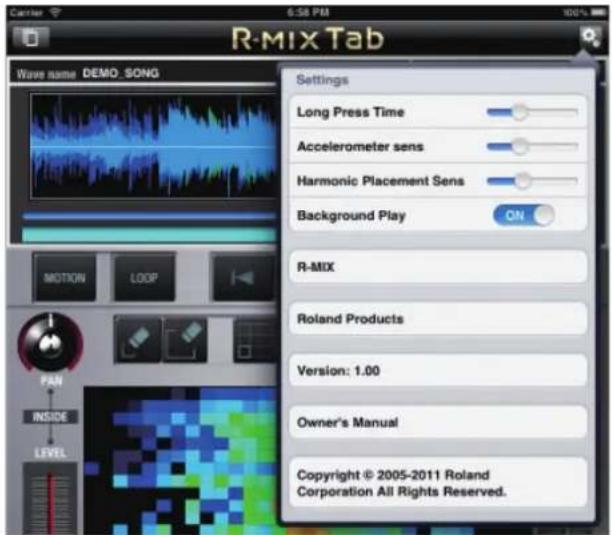
Settings
| Item Explanation | |
| Long Press Time | Specifies the time after which R-MIX Tab will respond when you press and keep your finger on the screen for a while. |
| Accelerometer sens | Specifies how sensitive the iPad will be to tilting when you use the Motion function (p .8). |
| Harmonic Placement Sens | Specifies the sensitivity of the volume levels (colors) displayed in the HARMONIC PLACEMENT area. |
| Background Play | Specifies what will happen when you use the home button to close R-MIX Tab during playback.Choose “on” if you want the song to continue playing even after you return to the home screen, or “off” if you want playback to stop. |
Links
These links will open the Web browser of the iPad to display the following pages.
| Item Explanation | |
| R-MIX Displays the R-MIX introduction page. | |
| Roland Products Displays the product introduction page. | |
Version
| Item Explanation | |
| Version: Displays the version of R-MIX Tab. | |
Owner's manual
Tapping "Owner's manual" will display the owner's manual (this document).
Error Messages
| Message Explanation | |
| Song could not be loaded | The song could not be loaded because it was too large.Choose a smaller song (i.e., a song with a shorter playback time). |
| Song could not be imported from the iPod library | This format cannot be imported into R-MIX Tab. Check the format of the song in the iPod library. |
Main Specifications
| Number of tracks Stereo x 1 | |
| Internal data format 44.1 kHz, stereo | |
| File formats that can be imported | WAV, AIFF, AAC, MP3For details, check the specifications of your iPad.* Only files in WAV format or AIFF format can be imported from iTunes.* Files with DRM (Digital Rights Management) cannot be imported. |
* In the interest of product improvement, the specifications and/or contents of this package are subject to change without prior notice.
- What Is V-Remastering Technology?
- IMPORTANT NOTES
- Copyrights
- Licenses/Trademarks
- Additional Precautions
- Track
- HARMONIC PLACEMENT
- Transport
- Using iTunes to Import a Song from a Computer
- MEMO
- Click the [Add...] button.
- Click the song that you want to import.
- Click the [Open] button.
- Importing a Song from the iPod Library
- Tap the R-MIX Tab's
- In "Import," tap the [iPod Library] button.
- Tap the song that you want to import.
- Using "Open in..." to Import a Song from Another App
- Selecting and Playing a Song
- Tap the
- Tap the song (file name) that you want to play.
- Tap the [Play] button.
- Silencing a Specific Sound
- Tap the [Play] button.
- Tap
- While you watch the HARMONIC PLACEMENT area, drag over the area of the sounds that you want to silence.
- Lower the [INSIDE LEVEL] slider.
- Moving the Frame
- Touch and hold the frame you assigned.
- While continuing to hold, drag the frame.
- Moving the frame by tilting the iPad (Motion function)
- Changing the Size of the Frame
- Deleting the Frame
- Tap
- Double-Tapping to Zoom the Screen (iPhone version only)
- Playing Repeatedly
- Canceling Repeat Playback
- Deleting a Song
- Preference Settings for R-MIX Tab
- Settings
- Links
- Version
- Owner's manual
- Error Messages
- Main Specifications
Brand : ROLAND
Model : R-Mix Tab
Category : Photo/Video Software