
TK-215I - Switch TRENDNET - Free user manual and instructions
Find the device manual for free TK-215I TRENDNET in PDF.


| Product Type | 2-Port HDMI KVM Switch |
| Model | TK-215i |
| Brand | TRENDnet |
| Number of Computers Controlled | 2 |
| Video Resolution | Full HD 1080p (1920x1080) at 60 Hz |
| Video Interface | HDMI 1.3 with HDCP support |
| Audio Support | HDMI audio (embedded) and analog audio via 3.5mm microphone/speaker jacks |
| Console Connections | USB keyboard, USB mouse, HDMI monitor, 3.5mm microphone, 3.5mm speakers |
| Computer Connections | 2x integrated cable sets: USB, HDMI, 3.5mm microphone, 3.5mm speaker |
| Switching Methods | Push-button toggle switch, keyboard hot keys (Ctrl+Alt+[key] or Scroll Lock+Scroll Lock), KVM switcher software |
| Hot Key Customization | Yes, via KVM Switcher software for Windows and Mac |
| Auto-Scan Feature | Yes, adjustable period from 10 to 60 seconds |
| Audio Fix Feature | Yes, fixes analog audio to a selected computer; HDMI audio always follows the selected computer |
| Keyboard/Mouse Emulation | Yes, supports advanced USB keyboard and mouse designs |
| Operating System Compatibility | Windows, Mac, Linux (toggle switch only for Linux) |
| Driver Requirement | No driver required for basic operation |
| Toggle Switch Cable Length | 1.5 m (5 ft) |
| Package Contents | TK-215i, Quick Installation Guide, CD-ROM (utility & user's guide) |
| Warranty | 2 years limited warranty |
| Dimensions (approx.) | 10.5 x 7.0 x 2.5 cm (4.1 x 2.8 x 1.0 in) |
| Weight (approx.) | 0.2 kg (0.44 lb) |
| Power Supply | Bus-powered via USB connection |
| Maintenance | Keep dry, avoid dust; no user-serviceable parts |
| Safety | Use only in dry indoor environments; do not attempt to disassemble |
| Spare Parts & Repairability | Not user-serviceable; contact TRENDnet for warranty service |
Frequently Asked Questions - TK-215I TRENDNET
User questions about TK-215I TRENDNET
0 question about this device. Answer the ones you know or ask your own.
Ask a new question about this device
Download the instructions for your Switch in PDF format for free! Find your manual TK-215I - TRENDNET and take your electronic device back in hand. On this page are published all the documents necessary for the use of your device. TK-215I by TRENDNET.
USER MANUAL TK-215I TRENDNET
natural_image
Product photo of a white USB flash unit with multiple connected cables and connectors (no visible text or symbols)2-Port HDMI KVM Switch
TK-215i
TRENDnet User's Guide
Table of Contents
Contents
Product Overview 2
Package Contents 2
Features 2
Product Hardware Features....3
Applicaon Diagram 3
Installaon....4
Hardware Installaon 4
KVM Switch Operaon 4
Toggle Switch 4
Keyboard Hot Key Commands....4
KVM Switcher Soware 5
For Windows User .... 5
For Mac User 9
Troubleshoong....13
Product Overview
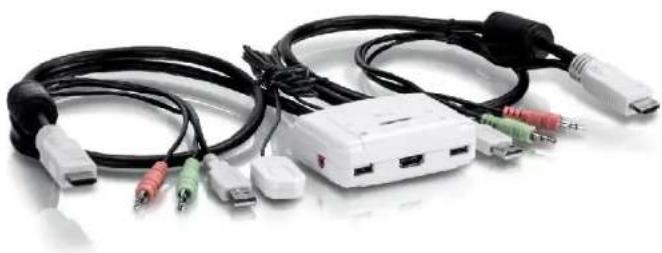
natural_image
Coiled network of audio equipment including USB, audio jack, and USB port (no visible text or labels)TK-215i
Package Contents
- TK-215i
- Quick Installaon Guide
• CD-ROM (Ulity & User's Guide)
If any package contents are missing or damaged, please contact the retail store, online retailer, or reseller/distributor that the item was purchased.
Features
TRENDnet's 2-Port HDMI KVM Switch, model TK-215i, controls two computers (with an available HDMI port) with one set of console controls. No driver installaon required, simply plug in the integrated cables to share two computers with a fullHD 1080p display. The TK-215i supports HDMI and 3.5 mm analog audio and features an ergonomic computer toggle switch.
Computers
Control up to 2 computers
1080p HD
Supports for full HD 1080p (progressive 1920 x 1080 pixels) with a 60 Hz refresh rate
2-Way Audio
Full audio support through HDMI cable connecons with oponal 3.5 mm microphone and speaker jacks
Toggle Switch
Use the integrated 1.5 m (5.) cable to posion the toggle switch in the most ergonomic locaon
Console Connectors
Emulaon Technology supports advanced USB keyboard and mouse designs
HDMI Display
HDMI 1.3 with HDCP support
Switch Soware
Windows ® and Mac ® based KVM switch soware to dene hot keys and create auto-scan intervals
TRENDnet User's Guide
TK-215i
Product Hardware Features
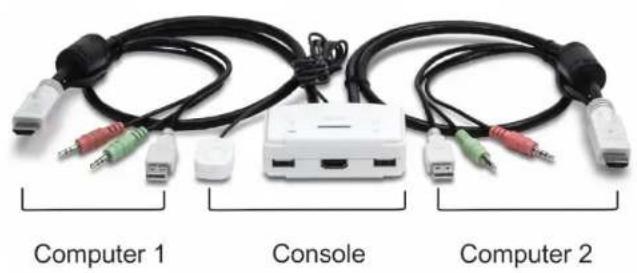
natural_image
Three electronic devices: Computer 1, Console, and Computer 2, each with colored USB connectors and black cables (no text or symbols on the devices themselves)Console Connector Computer 1 - 2 Connector
- Toogle Switch - HDMI Plug
- 3.5mm Microphone Port - 3.5mm Microphone Plug
- USB Keyboard Port - 3.5mm Speaker Plug
- HDMI Monitor Port - USB Plug
- USB Mouse Port
- 3.5mm Speaker Port
Applicaon Diagram

TRENDnet User's Guide
TK-215i
Installaon
Hardware Installaon
- Connects the shared USB keyboard, mouse, HDMI monitor, microphone/speakers (oponal) to your KVM Switch's Console port.

- Connects the rst set of the USB/HDMI/Microphone/Speaker KVM cable into the 1 st computer and connect the other set of the USB/HDMI/Microphone/Speaker KVM cable into the 2 nd computer.

Note:
-
The HDMI connection included both video and audio
-
Some computers with USB Interface may require you to manually enable the USB option in the BIOS setting before using any USB device. If your USB interface does not work, please check the USB Status option in BOS.
KVM Switch Operaon
There are three ways to select the computers.
-
One-touch push buon toggle switch
-
Keyboard hot key commands
-
KVM Switcher Soware (see next secon for detail)
Toggle Switch
The one touch toggle switch allows you to switch to another computer by click the buon.
Keyboard Hot Key Commands
Hot Key Commands = Ctrl + Alt + [command key]
Universal Hot Key Commands = Scroll Lock + Scroll Lock
Note:
- Each keystroke within a hot key sequence should be pressed within 2 seconds. Otherwise, the hot key sequence will be exit.
TRENDnet User's Guide
TK-215i
- The default Hot Key Sequence is Ctrl + Alt + 1 or 2. You can denote your own hot key via KVM Switcher Soware.
- The Universal Hot Key command is not working with Mac operang system.
- Both the universal hotkey, Scroll Lock + Scroll Lock and the user-denable hotkey, Ctrl + Alt + [command key] WILL NOT work on any empty port which does not have computer connected. To force the KVM switch to switch to an empty port, please press the toggle switch instead.
- All the hot keys are only functional aer your computers are boong into the OS. If you want to switch computer in the BIOS/pre-boot stage, please press the toggle switch buon.
KVM Switcher Soware
Note: The TK-215i KVM Switch does not require any drivers or soware. The KVM Switcher Utility is a convenience way to operate the KVM Switch.
For Windows User
- Insert the Installaon CD-ROM into your computer's CD-ROM drive to initiate the Auto-Run program, and the menu screen will appear as below.

TRENDnet User's Guide
TK-215i
- Click Install Utility from the Auto-Run menu screen. The welcome screen appears as below. Click Next >.
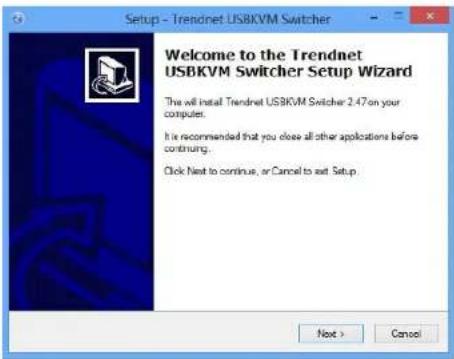
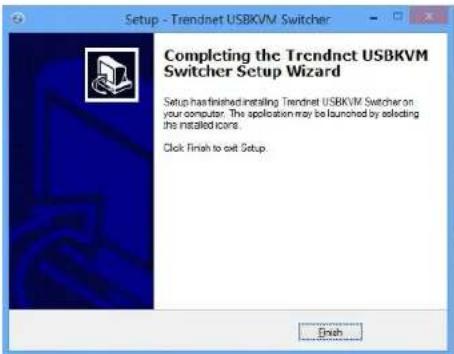
- When completed, click Finish.
- Right-click on the KVM Switching icon on the desktop.

- If you would like to modify the hot key, type in a character. You can enter any number, leer or symbol. Control keys such as Alt, Ctrl, Shi, CAPS LOCK, Tab, Esc, and Num Lock and funcon keys cannot be used.
Funcon Key Example: CTRL + ALT + A

TRENDnet User's Guide
TK-215i
- Click on the check box of the Fix Audio to Port and then select the desire computer to x the speaker/microphone channel for the selected computer. Once this opon is checked, the speaker/microphone channel will be xed and become non-selectable. Note: Fixed Audio port features only supports for analog audio. The HDMI audio always stay with the current computer.

- Select a desired Auto Scan period. The period is the waing me that your KVM Switch will switch to next computer.

- Click OK to save the changes.
TRENDnet User's Guide
TK-215i
- Right click on the KVM Switcher soware icon in the system tray. If your computer is connected to computer 1 port, the system tray will show an icon with the number 1. If your computer is connected to computer 2, the system tray will show and icon with the number 2.

Note: Aer performing the port switch, you have to wait ll the KVM Switch icon shows the target port before you can perform next switching again.
- Select the PC that you would like to switch to. The unconnected port or the acve port will be gray-out.

- Click Start Auto-Scan to start auto-scan. Click the Stop Auto-Scan to stop auto-scan.

TRENDnet User's Guide
TK-215i
For Mac User
- Insert the Installaon CD-ROM into your computer's CD-ROM drive.
- Double-click TK-215i CD-ROM icon on the desktop

- Double-click on the Macintosh folder

Macintosh
- Select the TrendnetUSBKVMSwitcher.pkg.

TrendnetUSBKVMS witcher.pkg
- Click Connue, then following the instrucon.
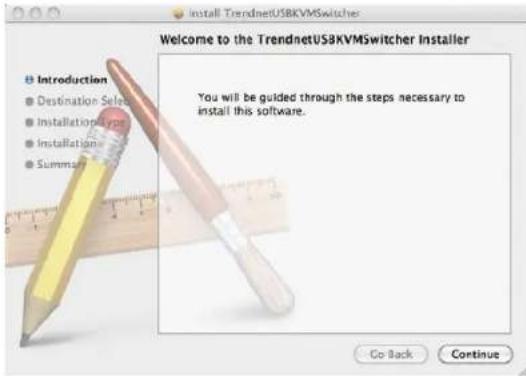
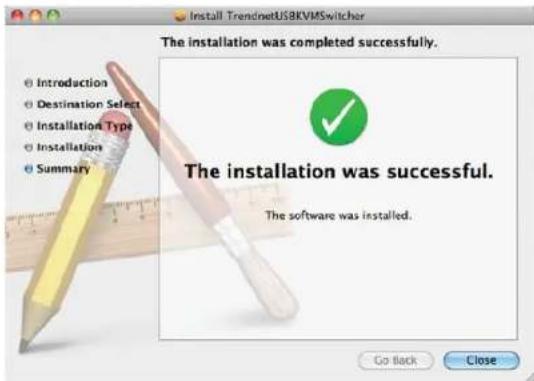
- Click Close to nish the installaon
TRENDnet User's Guide
TK-215i
- Double click on the Macintosh HD icon.

Macintosh HD
- Double click on the Applicaon icon.

Applications
- Click on TrendnetUSB-KVM Switcher.

Trendnet USB-KVM Switcher
- Double click on the USB-KVM Switcher icon in the dock. If your computer is connected to computer 1 port, the dock will show an icon with the number 1. If your computer is connected to computer 2, the dock will show an icon with the number 2.

natural_image
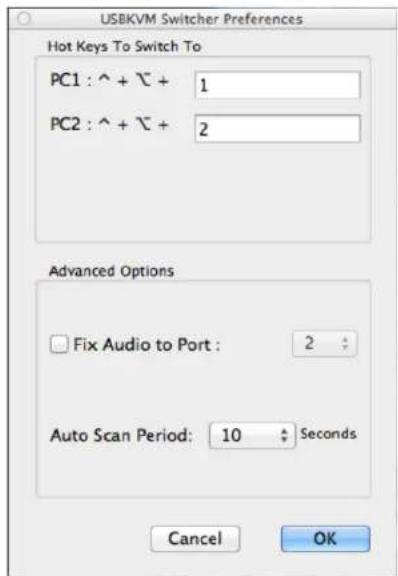
Two rows of blue and white icons on a silver shelf, no text or symbols present- If you would like to modify the hot key, type in a character. You can enter any number, leer or symbol. Control keys such as Alt, Ctrl, Shi, CAPS LOCK, Tab, Esc, and Num Lock and funcon keys cannot be used.
Funcon Key Example: Command + Opon + A.
TRENDnet User's Guide
TK-215i
- Click on the check box of the Fix Audio to Port and then select the desire computer to x the speaker/microphone channel to the selected computer. Once this opon is checked, the speaker/microphone channel will be xed and become non-selectable. Note: Fixed Audio port features only supports for analog audio. The HDMI audio always stay with the current computer.

- Select a desired Auto Scan Period. The period is the me that your KVM Switch will wait to switch to next computer.

- Click OK to save the changes.
TRENDnet User's Guide
TK-215i
- Right click on the KVM Switcher Soware icon in the dock. If your computer is connected to computer 1 port, the dock will show an icon with the number 1. If your computer is connected to computer 2, the dock will show an icon with the number 2.


- Select the computer that you would like to switch to.
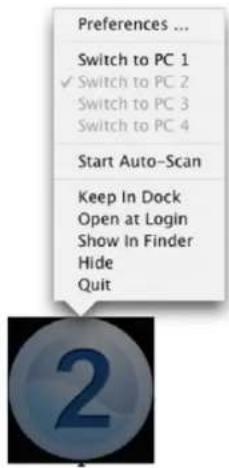
- Select the Start Auto-Scan to start auto-scan. Click the Stop Auto-Scan to stop the auto-scan.
Preferences ...
Switch to PC 1
√ Switch to PC 2
Switch to PC 3
Switch to PC 4
Start Auto-Scan
Keep In Dock
Open at Login
Show In Finder
Hide
Quit
Troubleshoong
- I have the TK-215i connected properly, but my keyboard and mouse do not work.
a. Make sure your USB ports are working properly by connecng your mouse and keyboard directly to the USB ports on your computer.
b. Once you conrm that your computer's USB port is funconal, please reboot all computers, and try to use the KVM switch again.
- Can I connect and disconnect the USB cables while the computers are turned on?
Yes, you can connected or disconnect the USB cable while the computers are turned on, because the USB interface is Plug-and-Play and Hot-Pluggable.
- Will the KVM switch remember the keyboard seng between computers?
Yes, the KVM switch will remember the keyboard seng when switching between computers. (i.e.: Caps Lock, Num Lock, etc.)
- How do I switch from one computer to another with the KVM Switch?
Windows User:
Toggle Switch push buon, Universal Hot Key Commands or USB KVM Switcher Soware.
Mac User:
Toggle Switch push buon or USB KVM Switcher Soware
Linux User:
Toggle switch push buon
- Can I redirect to specific computer?
No, the binding/unbinding audio funcon only works with analog audio port. The HDMI audio always stay with the current computer.
Limited Warranty
TRENDnet warrants its products against defects in material and workmanship, under normal use and service, for the following lengths of me from the date of purchase.
TK-215i - 2 Years Limited Warranty
AC/DC Power Adapter, Cooling Fan, and Power Supply carry 1 year warranty.
If a product does not operate as warranted during the applicable warranty period, TRENDnet shall reserve the right, at its expense, to repair or replace the defective product or part and deliver an equivalent product or part to the customer. The repair/replacement unit's warranty connues from the original date of purchase. All products that are replaced become the property of TRENDnet. Replacement products may be new or reconditioned. TRENDnet does not issue refunds or credit. Please contact the point-of-purchase for their return policies.
TRENDnet shall not be responsible for any soware, rmware, informaon, or memory data of customer contained in, stored on, or integrated with any products returned to TRENDnet pursuant to any warranty.
There are no user serviceable parts inside the product. Do not remove or aempt to service the product by any unauthorized service center. This warranty is voided if (i) the product has been modified or repaired by any unauthorized service center, (ii) the product was subject to accident, abuse, or improper use (iii) the product was subject to conditions more severe than those specified in the manual.
Warranty service may be obtained by contacng TRENDnet within the applicable warranty period and providing a copy of the dated proof of the purchase. Upon proper submission of required documenta on a Return Material Authorizaon (RMA) number will be issued. An RMA number is required in order to initiate warranty service support for all TRENDnet products. Products that are sent to TRENDnet for RMA service must have the RMA number marked on the outside of return packages and sent to TRENDnet prepaid, Insured and packaged appropriately for safe shipment. Customers shipping from outside of the USA and Canada are responsible for return shipping fees. Customers shipping from outside of the USA are responsible for custom charges, including but not limited to, duty, tax, and other fees.
WARRANTIES EXCLUSIVE: IF THE TRENDNET PRODUCT DOES NOT OPERATE AS WARRANTED ABOVE, THE CUSTOMER'S SOLE REMEDY SHALL BE, AT TRENDNET'S OPTION, REPAIR OR REPLACE. THE FOREGOING WARRANTIES AND REMEDIES ARE EXCLUSIVE AND ARE IN LIEU OF ALL OTHER WARRANTIES, EXPRESSED OR IMPLIED, EITHER IN FACT OR BY OPERATION OF LAW, STATUTORY OR OTHERWISE, INCLUDING WARRANTIES OF MERCHANTABILITY AND FITNESS FOR A PARTICULAR PURPOSE. TRENDNET NEITHER ASSUMES NOR AUTHORIZES ANY OTHER PERSON TO ASSUME FOR IT ANY OTHER LIABILITY IN CONNECTION WITH THE SALE, INSTALLATION MAINTENANCE OR USE OF TRENDNET'S PRODUCTS.
TRENDNET SHALL NOT BE LIABLE UNDER THIS WARRANTY IF ITS TESTING AND EXAMINATION DISCLOSE THAT THE ALLEGED DEFECT IN THE PRODUCT DOES NOT EXIST OR WAS CAUSED BY CUSTOMER'S OR ANY THIRD PERSON'S MISUSE, NEGLECT, IMPROPER INSTALLATION OR TESTING, UNAUTHORIZED ATTEMPTS TO REPAIR OR MODIFY, OR ANY OTHER CAUSE BEYOND THE RANGE OF THE INTENDED USE, OR BY ACCIDENT, FIRE, LIGHTNING, OR OTHER HAZARD.
LIMITATION OF LIABILITY: TO THE FULL EXTENT ALLOWED BY LAW TRENDNET ALSO EXCLUDES FOR ITSELF AND ITS SUPPLIERS ANY LIABILITY, WHETHER BASED IN CONTRACT OR TORT (INCLUDING NEGLIGENCE), FOR INCIDENTAL, CONSEQUENTIAL, INDIRECT, SPECIAL, OR PUNITIVE DAMAGES OF ANY KIND, OR FOR LOSS OF REVENUE OR PROFITS, LOSS OF BUSINESS, LOSS OF INFORMATION OR DATE, OR OTHER FINANCIAL LOSS ARISING OUT OF OR IN CONNECTION WITH THE SALE, INSTALLATION, MAINTENANCE, USE, PERFORMANCE, FAILURE, OR INTERRUPTION OF THE POSSIBILITY OF SUCH DAMAGES, AND LIMITS ITS LIABILITY TO REPAIR, REPLACEMENT, OR REFUND OF THE PURCHASE PRICE PAID, AT TRENDNET'S OPTION. THIS DISCLAIMER OF LIABILITY FOR DAMAGES WILL NOT BE AFFECTED IF ANY REMEDY PROVIDED HEREIN SHALL FAIL OF ITS ESSENTIAL PURPOSE.
Governing Law: This Limited Warranty shall be governed by the laws of the state of California.
Some TRENDnet products include soware code wrien by third party developers. These codes are subject to the GNU General Public License ("GPL") or GNU Lesser General Public License ("LGPL").
Go to hp://www.trendnet.com/gpl or hp://www.trendnet.com Download secon and look for the desired TRENDnet product to access to the GPL Code or LGPL Code. These codes are distributed WITHOUT WARRANTY and are subject to the copyrights of the developers. TRENDnet does not provide technical support for these codes. Please go to hp://www.gnu.org/licenses/gpl.txt or hp://www.gnu.org/licenses/lgpl.txt for specific terms of each license.
V1.0R /09.03.2014
TRENDNET®
Product Warranty Registration
Please take a moment to register your product online. Go to TRENDnet's website at http://www.trendnet.com/register
TRENDnet
20675 Manhattan Place
Torrance, CA 90501. USA
Copyright ©2014. All Rights Reserved. TRENDnet.


- 2-Port HDMI KVM Switch
- TRENDnet User's Guide
- Table of Contents
- Contents
- Product Overview
- Package Contents
- Features
- Computers
- 1080p HD
- 2-Way Audio
- Toggle Switch
- Console Connectors
- HDMI Display
- Switch Soware
- Console Connector Computer 1 - 2 Connector
- TK-215i
- Installaon
- Hardware Installaon
- Note:
- KVM Switch Operaon
- Keyboard Hot Key Commands
- KVM Switcher Soware
- For Windows User
- For Mac User
- Macintosh
- TrendnetUSBKVMS witcher.pkg
- Macintosh HD
- Applications
- Trendnet USB-KVM Switcher
- Preferences ...
- Start Auto-Scan
- Troubleshoong
- Limited Warranty
- TK-215i - 2 Years Limited Warranty
- TRENDNET®
- Product Warranty Registration
Brand : TRENDNET
Model : TK-215I
Category : Switch