
unD6IO-BT - Uncategorized QSC - Free user manual and instructions
Find the device manual for free unD6IO-BT QSC in PDF.


| Product Type | Bluetooth Audio Interface |
| Brand | QSC |
| Model | unD6IO-BT |
| Dimensions (approx) | 100 x 50 x 20 mm |
| Weight | 200 g |
| Power Supply | USB bus powered (5V, 500mA) |
| Bluetooth Version | 5.0 |
| Bluetooth Profiles | A2DP, AVRCP, HFP |
| Audio Input | 3.5mm stereo jack |
| Audio Output | 3.5mm stereo jack, RCA L/R |
| Digital Output | Optical TOSLINK |
| Sampling Rate | Up to 24-bit / 96 kHz |
| Frequency Response | 20 Hz - 20 kHz |
| Signal-to-Noise Ratio | ≥ 100 dB |
| Operating Range | Up to 10 m (33 ft) |
| Supported Codecs | SBC, AAC, aptX |
| Controls | Pairing button, volume wheel |
| Indicators | LED for power and pairing status |
| Maintenance | Wipe with dry, soft cloth. Do not use solvents. |
| Safety Precautions | Avoid moisture and direct sunlight. Do not disassemble. |
| Spare Parts & Repairability | Contact QSC support for service. No user-serviceable parts. |
| Package Contents | unD6IO-BT, USB cable, 3.5mm audio cable, user manual |
Frequently Asked Questions - unD6IO-BT QSC
User questions about unD6IO-BT QSC
0 question about this device. Answer the ones you know or ask your own.
Ask a new question about this device
Download the instructions for your Uncategorized in PDF format for free! Find your manual unD6IO-BT - QSC and take your electronic device back in hand. On this page are published all the documents necessary for the use of your device. unD6IO-BT by QSC.
USER MANUAL unD6IO-BT QSC
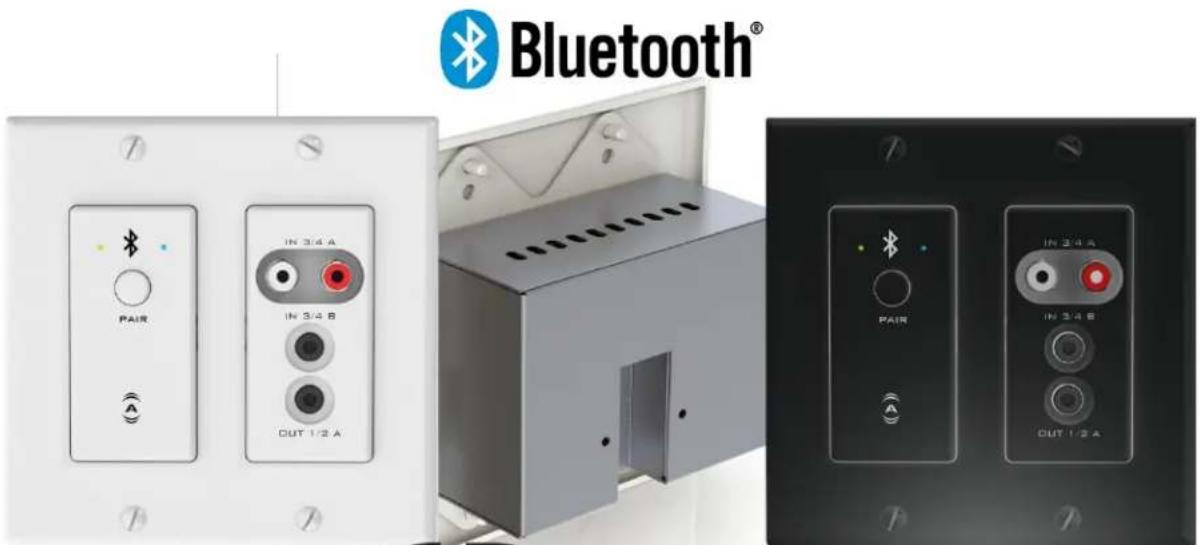
Bluetooth® Multi-I/O Wallplate
Dante™
AES67
User Manual
1675 MacArthur Boulevard · Costa Mesa, CA 92626
Ph: 800/854-4079 or 714/957-7100 · Fax: 714/754-6174
© 2020 QSC, LLC all rights reserved. QSC and the QSC logo are registered trademarks of QSC, LLC in the U.S. Patent and Trademark office and other countries. All other trademarks are the property of their respective owners. Patents may apply or be pending.
www.qsc.com
614-00033
IMPORTANT SAFETY INSTRUCTIONS
The symbols below are internationally accepted symbols that warn of potential hazards with electrical products.

This symbol, wherever it appears, alerts you to the presence of un-insulated dangerous voltage inside the enclosure -- voltage that may be sufficient to constitute a risk of shock.

This symbol, wherever it appears, alerts you to important operating and maintenance instructions in the accompanying literature. Please read the manual.
- Read these instructions.
- Keep these instructions.
- Heed all warnings.
- Follow all instructions.
- Do not use this apparatus near water.
- Clean only with a dry cloth.
- Do not block any ventilation openings. Install in accordance with the manufacturer's instructions.
- Do not install near any heat sources such as radiators, heat registers, stoves, or other apparatus (including amplifiers) that produce heat.
- Protect the power cord from being walked on or pinched particularly at plugs, convenience receptacles, and the point where they exit from the apparatus.
- Only use attachments/accessories specified by Attero Tech
- Unplug this apparatus during lightning storms or when unused for long periods of time.
- Refer all servicing to qualified service personnel. Servicing is required when the apparatus has been damaged in any way, such as power-supply cord or plug is damaged, liquid has been spilled or objects have fallen into the apparatus, the apparatus has been exposed to rain or moisture, does not operate normally, or has been dropped.
- If rack mounting, provide adequate ventilation. Equipment may be located above or below this apparatus but some equipment (like large power amplifiers) may cause an unacceptable amount of hum of may generate too much heat and degrade the performance of this apparatus,

TO REDUCE THE RISK OF FIRE OR ELECTRIC SHOCK, DO NOT EXPOSE THIS APPARATUS TO RAIN OR MOISTURE.
WARRANTY INFORMATION
For a copy of the QSC Limited Warranty, visit the QSC website at www.qsc.com
Note: This equipment has been tested and found to comply with the limits for a Class A digital device, pursuant to Part 15 of the FCC Rules and EN55022. These limits are designed to provide reasonable protection against harmful interference when the equipment is operated in a commercial environment. This equipment generates, uses and can radiate radio frequency energy and, if not installed and used in accordance with the instruction manual, may cause harmful interference to radio communications. Operation of this equipment in a residential area is likely to cause harmful interference, in which case the user will be required to correct the interference at their own expense.

This symbol means the product must not be discarded as household waste, and should be delivered to an appropriate collection facility for recycling. Proper disposal and recycling helps protect natural resources, human health and the environment. For more information on disposal and recycling of this product, contact your local municipality, disposal service, or the business where you bought this product.
Contents
1 - Overview......4
1.1 - What's in the Box 4
2 - Product Features .... 5
2.1 - Audio Signal Flow....7
3 - Mounting and Installation 8
3.1 - Error Reporting .... 10
3.2 - Hardware Connections ....10
3.3 - Factory Reset....10
4 - Device Features and Settings....11
4.1 - Bluetooth® Pairing/Connect Modes....11
4.1.1 - Manual Mode....11
4.1.2 - Reconnect Mode....11
4.1.3 - Exclusive Mode 11
4.2 - Bluetooth® Audio Bridging 12
4.2.1 - Media Bridging (only) 12
4.2.2 - Call Bridging (only) 13
4.2.3 - Call & Media Bridging 13
4.3 - Bluetooth® Pass-through AVRCP (AV Remote Control Protocol)....14
4.4 - Other Input Controls ....14
4.5 - Output Controls....14
5 - Configuration Workflow 15
5.1 - IP Address Setup....15
5.2 - Software Configuration and Control....16
5.3 - 3^rd Party Control....16
5.3.1 - Control Interface Type 16
5.3.2 - API Documentation....16
5.3.3 - Using the Command interface....16
6 - ARCHITECTS & ENGINEERING SPECIFICATION....17
Device Specifications....18
1 - Overview
The unD6IO-BT Dante™/AES67 Audio Interface with Bluetooth® is a cost effective multi-IO wall box. The unD6IO-BT features stereo Bluetooth® wireless audio input connectivity along with two RCA line level inputs and a 3.5mm TRS line level input. A 3.5mm TRS line level output on the front is also included.
The unD6IO-BT is designed to fit into most dual gang US junction boxes and is PoE enabled, so all connectivity (power, control and audio data) is provided by a single CAT-5e/6 cable. The unD6IO-BT's unique mix of consumer style wired and wireless connectivity allows easy connection of a wide variety of user devices to a Dante™/AES67 network with no concerns about ground loops or other audio problems common with consumer devices.
The unD6IO-BT includes the following features:
Simple pairing one button pairing/connect process for standalone operation with LED indication of connection status
- Configurable pairing button for use with and without 3rd party control systems
Customizable Bluetooth® friendly name in applications with co -located unD6IO-BTs
- Compatible with most smartphones, Apple iPads, and Android tablets
- Two RCA and one 3.5mm stereo input
- One 3.5mm stereo output with software volume control
- IEEE802.3af compliant PoE powered to work with any compliant PoE network switch
- RCA inputs and 3.5mm input (each summed to mono) can be selected individually or in combination as an audio flow via software (see Audio Flow diagram)
Bluetooth® audio is carried as stereo onto the Dante™/AES67 network
- Bluetooth® call bridging capability for conferencing purposes
Audinate's Dante™ Controller or other 3rd party manufacturer's Dante™ routing software can be used to control the audio routing configuration of the device along with enabling of AES67 streams.
1.1 - What's in the Box
The device comes supplied with the following:
(1) unD6IO-BT (P/N 900-00193)
*Note: This product is available in different color and control compatibility options. Consult the most current catalog or pricelist for the latest ordering information.
- (1) 2-gang Decora cover plate cover w/mounting screws
2 - Product Features
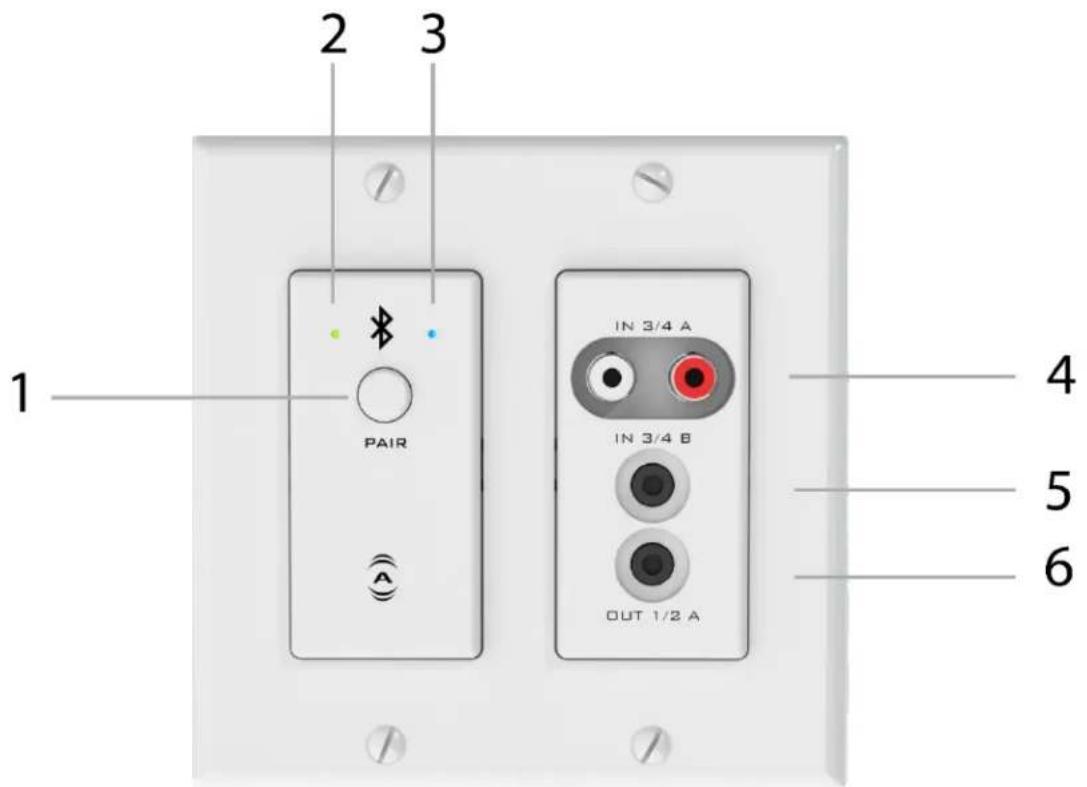
Figure 1 - unD6IO-BT Top Panel Features
| 1 | Bluetooth® pairing/connect button |
| 2 | Power/ID/Error indicator (see note below) |
| 3 | Bluetooth® status indicator |
| 4 | Stereo RCA Inputs |
| 5 | Stereo 3.5mm Input |
| 6 | Stereo 3.5mm Output |
*Note: The unD6IO-BT is equipped with error reporting features. Upon power up, the front panel power LED will briefly light red and then change to green if the device boots successfully. If the LED remains on solid red, this indicates a device failure. If power cycling the unit does not correct this problem, contact Attero Tech technical support.
*Note: The unD6IO-BT has a label on the front of the metal housing at the top that shows the devices MAC address. This is important for initial device identification as the last six digits make up part of the devices default network name that is shown when the device is detected by Dante™ Controller. The full MAC address is also shown on the back of the unit.
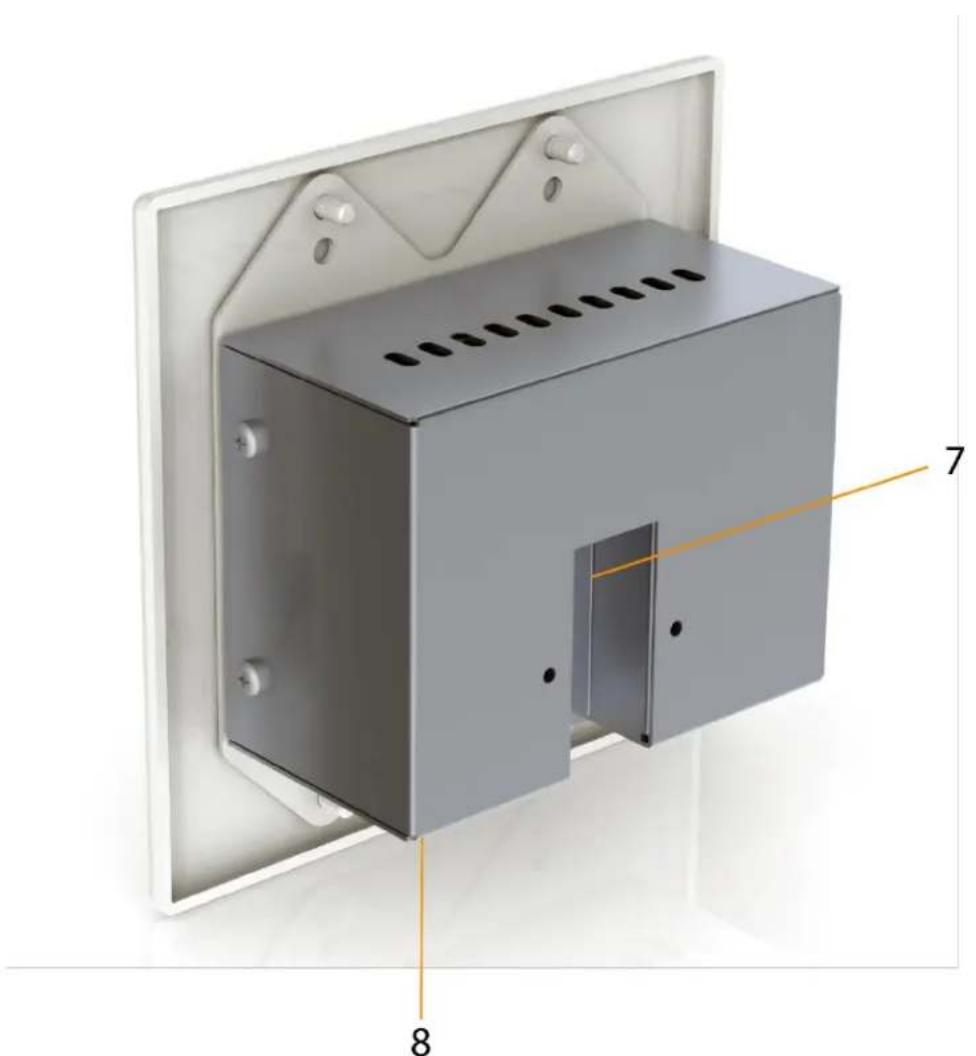
Figure 2 - unD6IO-BT Rear Panel Features
| 7 | Recessed RJ-45 (DanteTM/AES67, Control and PoE) |
| 8 | Recessed Factory Reset switch |
2.1 - Audio Signal Flow
The following diagram depicts the internal signal flow for the unD6IO-BT.
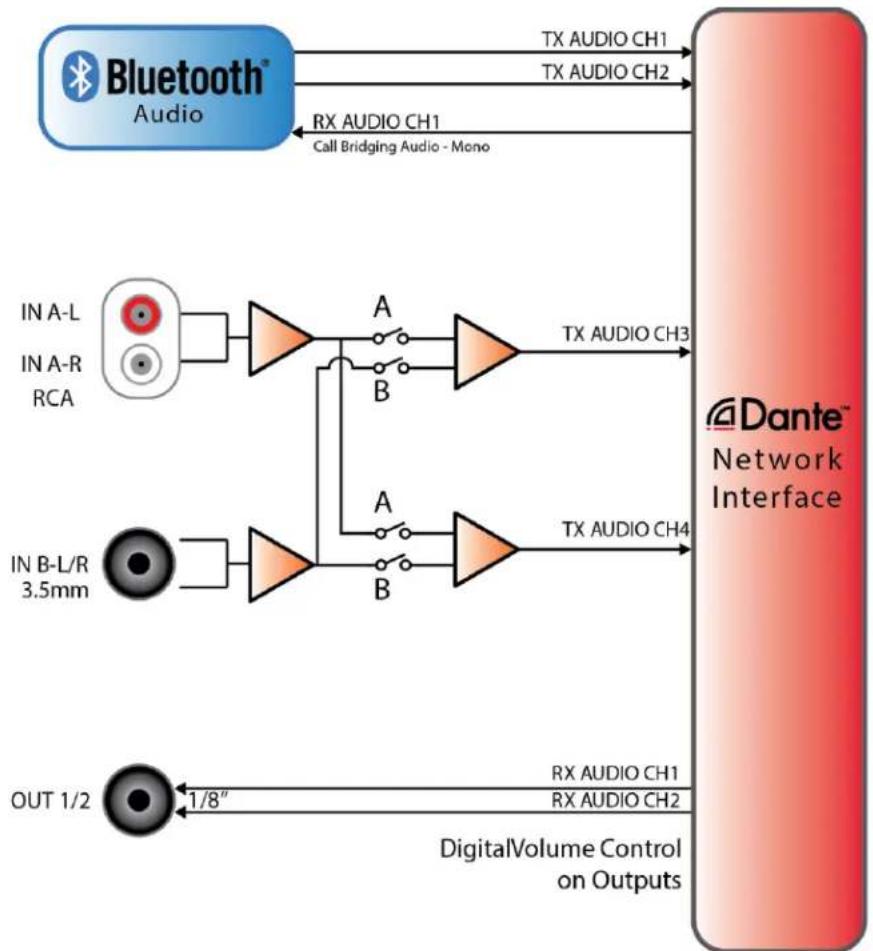
flowchart
graph LR
    A["Bluetooth Audio"] -->|TX AUDIO CH1 TX AUDIO CH2| B["Dante Network Interface"]
    C["IN A-L IN A-R RCA"] --> D["NOT"]
    E["IN B-L/R 3.5mm"] --> F["NOT"]
    G["OUT 1/2"] --> H["1/8""] --> I["DigitalVolume Control on Outputs"]
    D --> J["A"]
    F --> K["B"]
    H --> L["A"]
    I --> M["B"]
    J --> N["TX AUDIO CH3"]
    K --> O["TX AUDIO CH4"]
    L --> P["TX AUDIO CH1 RX AUDIO CH2"]
    M --> Q["TX AUDIO CH2 Call Bridging Audio - Mono"]
Figure 3 - unD6IO-BT Signal Flow
| DanteTM Channel | I/O Function |
| TX 1 | Bluetooth Transmit- L Channel |
| TX 2 | Bluetooth Transmit- R Channel |
| TX3 | RCA L+R A, 3.5mm L+R In B, or sum of both |
| TX4 | RCA L+R A, 3.5mm L+R In B, or sum of both |
| RX1 | Bluetooth®Receive/3.5mm Out L |
| RX2 | 3.5mm Out R |
Figure 4 - Dante™ Channel Mapping
3 - Mounting and Installation
A typical installation will involve mounting the wall plate into a pre mounted 2-gang or larger wall box, standard drywall bracket or mud ring. Before starting, make sure the wall box where the unD6IO-BT is to be installed is pre-wired with a suitable CAT5e or better cable back to a PoE-enabled network switch or mid-span injector. If a mid-span injector is being used, the cable should be connected to the port that supplies both Ethernet and power (refer to the mid-span injectors manual if unsure which port is which). The unD6IO-BT packaging includes all of the necessary screws for mounting the product and the included Decora wall plate.
*Note: All Attero Tech products are tested using UTP cabling and it is recommended that UTP cabling be used when installing them. STP cabling can be used for installation though care must be taken not introduce grounding issues into the system by doing so.
Attach the network cable from the switch/mid-span injector to the Dante™ I/F port of the unD6IO-BT. If the switch or mid-span injector is already running and PoE is enabled, the unit should power up and the green ID LED on the front of the device should turn on.
With the cable attached, carefully place the unD6IO-BTinto the wall box taking care to not trap the cabling. Once fully in place, secure it with the screws provided. Once the unit is secured in the wall box, fit the Decora plate over the front of the unit and secure it with the screws provided with it. It is recommended to not over-tighten the screws that attach the included Decora wall plate to prevent cracking it.
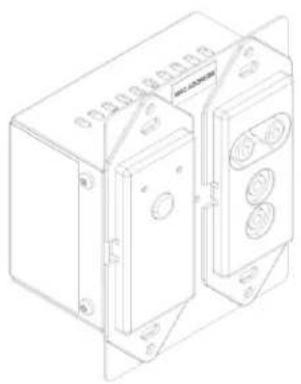
natural_image
Technical line drawing of two electronic device modules with mounting holes and buttons (no text or symbols)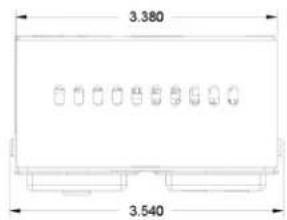
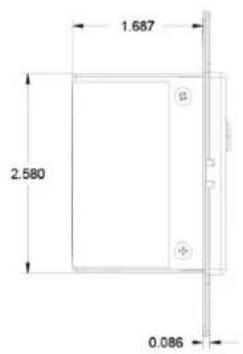
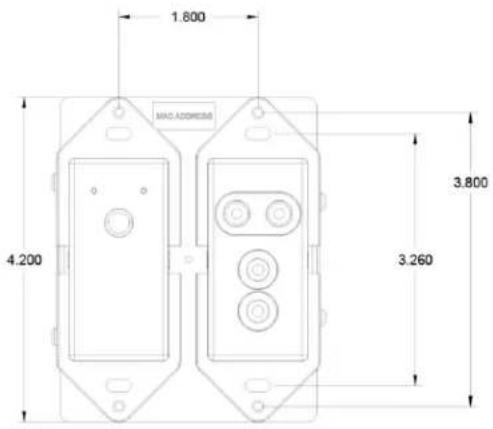
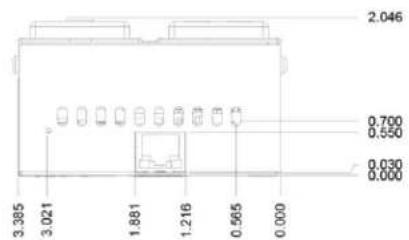
Figure 5 - unD6IO-BT Dimensioned Drawings
3.1 - Error Reporting
The unD6IO-BT is equipped with error reporting features. Upon power up, the front panel LED will briefly light red and then change to green if the device boots successfully. If the LED remains on solid red, this indicates a device failure.
3.2 - Hardware Connections
The unD6IO-BT provides unbalanced analog audio inputs and outputs for connection to consumer style devices (smart phones, MP3 players, laptops etc.). In most cases these sources already utilize unbalanced audio connections. However, if the source you are using utilizes balanced outputs, the following diagram shows the audio wiring for appropriately interfacing a mono source to the unbalanced inputs of the unD6IO-BT.
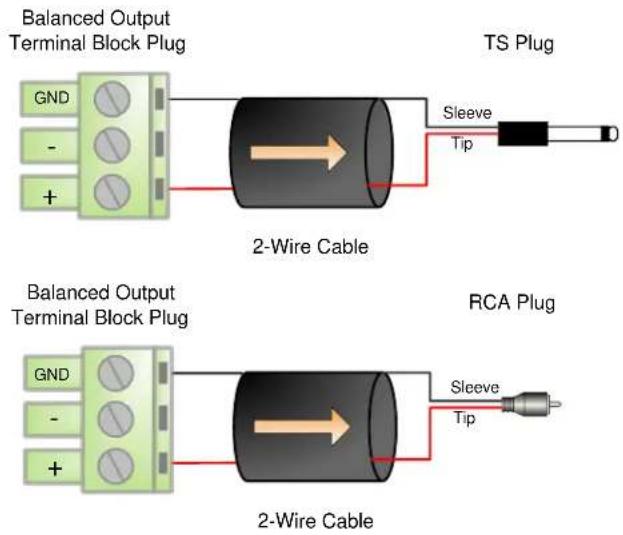
Figure 6 - Unbalanced Wiring Guide
3.3 - Factory Reset
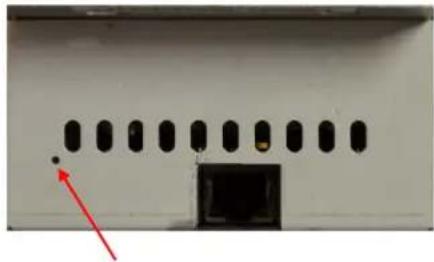
The unD6IO-BT has a factory reset option. Using it will reset all the devices parameters back to their factory defaults including all the Dante™ settings such as device name, channel names as well as the device settings such as input select. The devices IP address mode is also reset back to getting a dynamic IP.
natural_image
Close-up of a white electronic device panel with multiple oval slots and a black connector (no visible text or symbols)Access to the factory reset button is through a small circular hole on the underside of the unit, next to the ventilation cutouts.
To use the factory reset, insert a small screwdriver or paperclip into the hole to activate the factory reset switch. There should be a noticeable "click" when it's activated. Hold the switch in for 5 to 10 seconds then release. If the factory reset was successful, the unit will reset which will be indicated by the power LED will turning red.
4 - Device Features and Settings
The unD6IO-BT is designed use in a number of configurable modes to facilitate comprehensive use in professional AV applications. The following sections describe the available modes and their functionality.
4.1 - Bluetooth® Pairing/Connect Modes
4.1.1 - Manual Mode
This usage model is intended for applications where casual users of a public venue (sports bar, spa, stadium luxury box, fitness center) have access to connect their devices to the audio system but headaches are minimized by eliminating automatic reconnect and pairing history features.
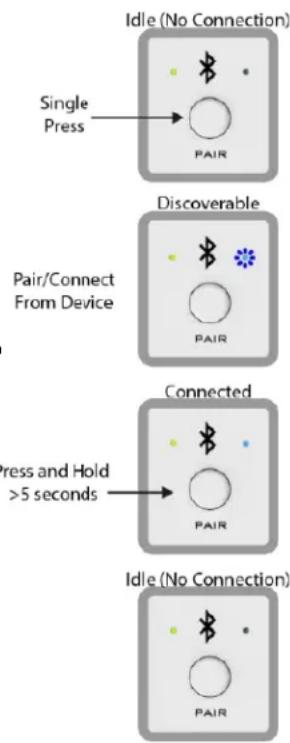
In this mode, users connect their Bluetooth® audio enabled smart device by simply pressing the front panel "PAIR" button. The blue Bluetooth® status LED will begin flashing to indicate that the unD6io-BT is now visible to other Bluetooth® devices and accepting pairings. This pairing period lasts 60 seconds after which the status LED will stop flashing and turn off and the un6IO-BT will disable its Bluetooth® interface.
*Note: The default Bluetooth friendly name visible to other devices is "unD6IO-BT". This name can be customized by the installer using the unIFY Control Panel software.
If a successful pairing is made during the pairing period, the status LED will stop flashing and turn constantly on.
To disconnect a Bluetooth device from the unD6IO-BT, press and hold the PAIR button for 5 seconds and then release it. The status LED will turn off, and the connection will be reset. Another device may now be connected by repeating the pairing process.
4.1.2 - Reconnect Mode
In this mode, the unD6IO-BT maintains a pool of the last 10 paired devices and any previously paired device on that list will be permitted to reconnect when in range of the unD6IO-BT without requiring the front panel button to be pressed. The user simply selects the unD6IO-BT friendly name on their smart device.
Any new devices that are paired are added to the paired device list. If the list already full, a random device from the list will be removed and the new device added in its place.
flowchart
graph TD
    A["Single Press"] --> B["Pair"]
    C["Discoverable"] --> D["Pair"]
    E["Connected"] --> F["PAIR"]
    G["Press and Hold >5 seconds"] --> H["PAIR"]
    I["Idle (No Connection)"] --> J["PAIR"]
Figure 7 - Indications when pairing
4.1.3 - Exclusive Mode
This mode is intended for restricted/personal use and works similarly in operation to reconnect mode. However, rather than allow any known device from the pairing list to reconnect, only a specific device can be used with that particular unD6IO-BT.
To setup a device as the exclusive device, set the unD6IO-BT to "Exclusive" mode, clear the pairing list, and then pair the desired exclusive device to the unit. The unD6IO-BT makes a note of this device and from that point on, only that exclusive device will be allowed to reconnect to that particular unD6IO-BT when in range. As with the reconnect mode, reconnection is done without requiring the front panel button to be pressed by simply selecting that particular unD6IO-BT on their smart device.
Once the unD6IO-BT has been associated with a device, both the front panel pair button and the remote "pair" command sent via the network are disabled and will have no effect.
In order to attach a different device, either pairing list has to be cleared or the device mode needs to be changed.
*Note: In all modes once paired/connected, the Bluetooth® friendly name is able to be detected by other devices. However, while another device may be able to pair and save to its Bluetooth® device list when in this state, breaking the connection of the currently active device will not be possible.
4.2 - Bluetooth® Audio Bridging
4.2.1 - Media Bridging (only)
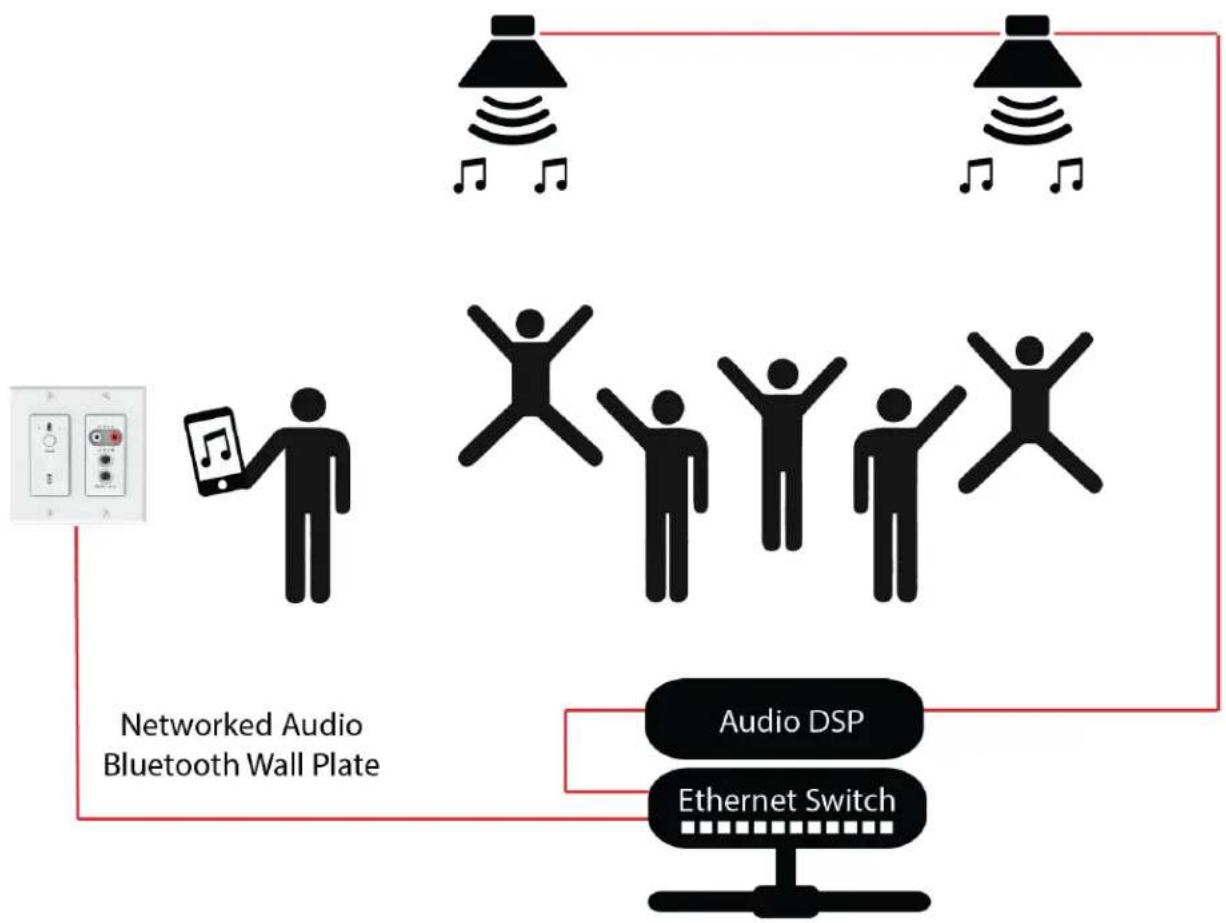
In this mode (A2DP profile), users may stream audio from media applications on the paired device. The user is protected from errant streaming of call audio over Bluetooth® link.
The media bridging mode is an excellent solution for applications such as hospitality, retail and fitness center background music where users want to maintain call privacy while sharing media audio from their device's media applications.
flowchart
graph TD
    A["Networked Audio Bluetooth Wall Plate"] --> B["Audio DSP"]
    A --> C["Ethernet Switch"]
    B --> D["Speaker with sound waves"]
    C --> E["Speaker with sound waves"]
    D --> F["Speaker with musical notes"]
    E --> G["Speaker with musical notes"]
    F --> H["Speaker with microphone and music note"]
    G --> I["Speaker with microphone and music note"]
4.2.2 - Call Bridging (only)
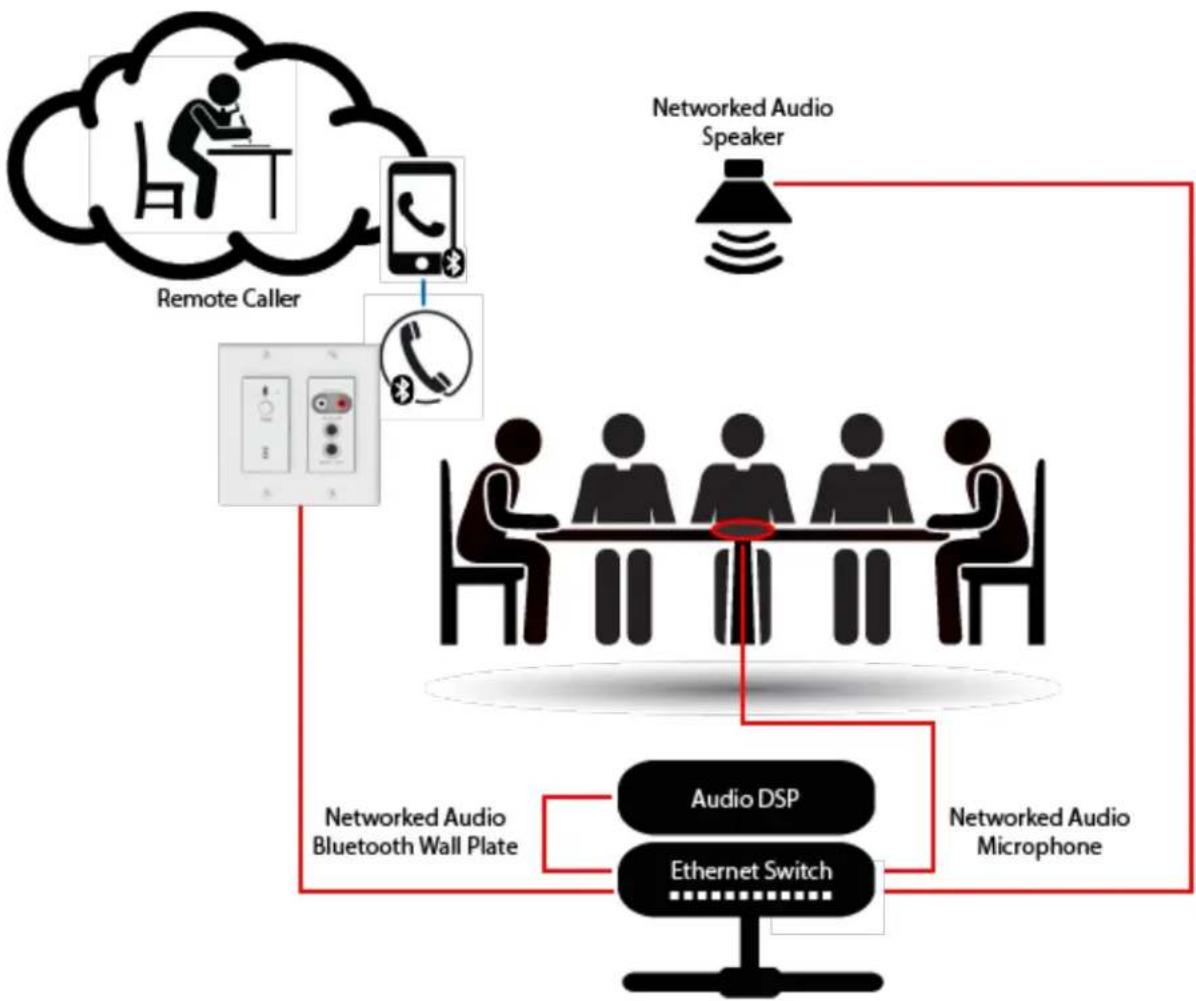
In this mode (HFP profile), users may stream incoming/outgoing calls from the paired device to/from the Dante/AES67-connected network input and output. In this mode, the user is protected from errant streaming of media audio over Bluetooth® link.
The call bridging mode provides call connectivity for conferencing system users' Bluetooth equipped devices to a networked audio based conferencing system. The addition of Bluetooth connectivity provides simple bridging of far end meeting participants for on the fly meeting productivity and backup conferencing connectivity in case of VoIP and Web-based conferencing service failures. The application diagram below highlights the general system connectivity for a networked audio conferencing system utilizing Bluetooth call bridging with Attero Tech's call bridging enabled networked audio products.
flowchart
graph TD
    A["Remote Caller"] --> B["Audio DSP"]
    C["Networked Audio Speaker"] --> D["Ethernet Switch"]
    B --> E["Networked Audio Bluetooth Wall Plate"]
    D --> E
    E --> F["Networked Audio Microphone"]
4.2.3 - Call & Media Bridging
In this mode, both profiles are available giving users the ability to control access of content (call and media) to the system from the paired device.
*Note: If your application requires call privacy, it is recommended to not utilize the combined call and media bridging mode as call audio will be shared automatically over the audio connection.
4.3 - Bluetooth® Pass-through AVRCP (AV Remote Control Protocol)
Many installed AV systems in both residential and commercial markets feature control products with customizable user interfaces. With a connected Bluetooth audio device as a source, it is desirable to have access to the device information and source content (artist / album / song) for use on the control system UI. Additionally, the end user of the system may control the source from any control panel that has this. This is useful if the device is left somewhere to charge and is out of reach to simply change songs or stop the audio playback.
Control API access is be available for the following AVRCP pass through commands:
The AVRCP controls are provided within unIFY Control Panel for system commissioning and testing.
4.4 - Other Input Controls
The unD6IO-BT features an input selection option for the line level analog inputs routed to Dante™/AES67 transmitter channels 3 and 4. For each specific input the selectable options are:
- Input A ( RCA Input)
- Input B (3.5mm TRS input)
• A+B (Mono sum of both input A and input B)
4.5 - Output Controls
The unD6IO-BT features individual volume and mute controls for each of the audio outputs. The volume has a range from 0dB to -60dB in 1dB steps.
5 - Configuration Workflow
There are two functions of the device that require software configuration. First the audio routing, and second the configurable features of the product itself (i.e. preamp settings. Input switching, etc.).
Some 3rd party manufacturers provide network audio routing functionality from within their own configuration application. Check the applications manual/help or contact the manufacturer in question to see if this is supported. If not supported by a 3^rd party tool, the audio routing may be carried out using Audinate's Dante™ Controller. Dante™ Controller can be obtained from the Audinate website and is available for both Mac and PC. Instructions on how to use this application and about setting up routes on a Dante™ network can also be found on Audinate's website.
*Note: The unD6IO-BTwill be shown using a default device name of "D6IO-BT-#####" where '#####' is the last six characters of the devices MAC address.
Configuration of the unD6IO-BT's specific features are carried out using the Attero Tech unIFY Control Panel application. This application is available for download on the QSC website. It should be used to configure and modify the device specific features, such as the Bluetooth-friendly name, at the time of system installation and commissioning.
5.1 - IP Address Setup
IMPORTANT\*
Failure to correctly configure IP addresses will not allow an unD6IO-BT device to correctly authenticate in the unIFY Control Panel software and while it will show up in Dante™ Controller, the devices parameters will not be available. The input and output channels also won't be visible and routing of audio to and from the device will not be possible.
In order to configure an unD6IO-BT, both to set up internal parameters and also setup audio routing, the PC/Mac will need to be able to communicate with the devices over the network. While all Dante™/AES67 devices will be discovered regardless of the IP address setup on the PC or Mac, communication can only occur if the PC/Mac and the device have compatible IP addresses.
By default, the unD6IO-BT is set to get a dynamic IP address. As with all Dante™/AES67 devices, if the unD6IO-BT does not find a DHCP server to retrieve an IP address from, it will give itself an local link address sometimes also known as an automatic private IP address (APIPA) instead. A local link IP address is always in the range 169.254.x.y.
To ensure communication, the PC/Mac can either be set to get a dynamic IP address, or be given a static IP address in the range 169.254.x.y y with a subnet mask of 255.255.0.0. The PC may require a restart if its IP address is changed for the change to take effect.
In some applications, IP addresses of devices may need to be set to something specific and that can be done once initial communication has been established. Bear in mind however that if a static IP address is assigned to a device and that static IP address is in a different range to the IP it was previously using to communicate with the PC/Mac, the PC/Mac will lose communication with the device until such time as the PC/Mac IP address is also changed to an IP in range of the devices new IP address.
Further information on IP setup for an audio system using Dante™ can be found in the FAQ's on the Audinate website.
5.2 - Software Configuration and Control
The unD6IO-BT is fully supported in unIFY Control Panel v3.2 and newer software. For a full description of the software and configuration features refer to the integrated help documentation within the unIFY Control Panel application.
5.3 - 3 ^rd Party Control
The unD6IO-BT supports 3 ^rd party control allowing external system to manage the unD6IO-BT's settings such as remote pairing and AVRCP commands.
5.3.1 - Control Interface Type
There are two control interface types available. The first type is a Dante™ proprietary interface (-C) which is typically used by devices already that have built-in support for Attero Tech devices. The second type supports a 3 ^rd party UDP interface (-U) and is available to anyone to use with any device capable of sending and receiving UDP messages.
The type of command interface a specific device supports is defined by the Dante™ firmware it has been loaded with. There are two methods to determine which Dante™ firmware and thus which command interface that is:
1) unIFY Control Panel V2.0 or later: Right-clicking on the device in the device list, mouse over the "Device Info" option and then look for the "Control Type" option. A "-C" means the device is using the Dante™ Proprietary interface. A "-U" means the device is using the Direct UDP interface.
2) Dante™ Controller": Double-click on the device in question in the routing grid to display the "Device View" form, select the "Status" tab and look for the "Product Version" and "Firmware Version" parameters in the "Device Information" section.
| Product Version | Firmware Version | Control Interface |
| V4.x.x | V1.0.0 | DanteTM Proprietary (-C) |
| V4.x.x | V2.0.0 | Direct UDP (-U) |
All Attero Tech by QSC "un" devices ship with the -U control option. However, this control option can be easily changed in the field by updating the device's firmware. Firmware updates can be done within unIFY Control Panel Software (v2.3 and later). The latest firmware .SFU files can be downloaded from the Attero Tech Product Firmware page on the QSC website.
5.3.2 - API Documentation
Information on the commands the unD6IO-BT supports, as well as details of how to use the 3 ^rd party UDP interface are available for download from unD6IO-BT product page on the QSC website.
5.3.3 - Using the Command interface
In order to make use of the control interface, regardless of type, the unD6IO-BT and the controlling device need to be on the same physical subnet and need to have IP addresses in the same range. The control devices should then be able to converse with the unD6IO-BT without any further configuration necessary.
6 - ARCHITECTS & ENGINEERING SPECIFICATION
The Dante™/AES67 2-gang wall plate interface unit shall provide a stereo Bluetooth® 3.0 compatible audio receiver in a Décora form factor. The Bluetooth® receiver shall be activated for pairing and connection by a single button on the wall plate. The Bluetooth® receiver shall also feature remote customization via a software control interface.
The device shall also provide two sets of unbalanced line level input connections: one on a set of RCA connectors, the other using a stereo 3.5mm TRS connection (each summed to mono). These inputs are selectable for independent or summed operation via software and introduced to the Dante™/AES67 interface on Dante™/AES67 transmit channels 3 and 4. The internal analog to digital signal conversion shall be performed at 24-bit resolution with a sampling frequency of 48 kHz.
The Dante™/AES67 Bluetooth interface shall support bidirectional call-bridging capabilities as well as unidirectional media streaming receiver functionality.
The two received Dante™/AES67 output channels shall also be converted and output on a front panel mounted 3.5mm stereo TRS connector. The internal digital to analog signal conversion shall be performed at 24-bit resolution with a sampling frequency of 48 kHz.
The Dante™/AES67 interface unit shall receive power over the Ethernet cable from an IEEE 802.3af PoE compliant network switch or midspan injector.
The Dante™/AES67 interface shall be compliant with the RoHS, WEEE and REACH directives. The Dante™/AES67 interface unit shall be Compliant with the EMI/EMC requirements for FCC and CE.
The Dante™/AES67 interface unit shall be the Attero Tech unD6IO-BT.
Device Specifications
| Audio Inputs | |
| Input Types: | Stereo Bluetooth® v3.0 audio receiverStereo Unbalanced Inputs on RCA (Inputs 3/4 A)Stereo Unbalanced Inputs on 3.5mm TRS (Inputs 3/4 B) |
| Bluetooth Range | 10m (30ft) minimum |
| Input Switching: | Software selectable line level input source on In 3 and In 4RCA L/R3.5mm L/RRCA + 3.5mm L (3) and RCA + 3.5mm R (4) |
| Input Impedance: | >10k Ohms (Input 3/4 A & B) |
| Maximum Input Levels: | +12 dBu (Input 3/4 A & B) |
| Phantom Power: | +48V, software selectable (Inputs 1/2 only) |
| Audio Input Performance | |
| THD+N: | < 0.1% Bluetooth® Input @ - 3dBFS<0.01% Line Inputs 3⁄4 @ -3dBFS |
| Frequency Response | 20Hz - 20kHz, +/- 3dB (Bluetooth® Input)20Hz - 20kHz, +/- 1dB (Inputs 3/4 A & B) |
| Dynamic Range: | >95 dB (Inputs 3/4 A & B) |
| Product Compliance | |
| FCC CFR 47 Parts 15B Class AICES-003CE (EN55022)RoHSREACH | |
| Bluetooth® Profiles | |
| A2DP | Media Audio Bridging(100-150ms latency) |
| HFP | Hands-Free Call Bridging(30ms latency) |
| AVRCP | A/V Remote Control |
| Audio Outputs | |
| Output Type: | Stereo Bluetooth® v3.0 audio transmitterTwo unbalanced line level outputs on stereo 3.5mm TRS |
| Attenuation Range: | Software controlled volume(0 to -60dB, 1dB increments) |
| Output Impedance: | 100 Ohms (unbalanced) |
| Maximum Output Levels: | +12 dBu at 0dB attenuation(Output 1/2 A) |
| Audio Output Performance | |
| Dynamic Range: | >80 dB |
| THD+N: | <0.01% @ 1kHz, input signal 3dB below maximum |
| Frequency Response | 20Hz - 20kHz, +/- 1dB(Outputs 1/2 A & B) |
| Environmental Conditions | |
| Temperature: | 0 - 40°C |
| DanteTM/AES67 Network | |
| Physical Level: | Standard Ethernet |
| Connector: | Single RJ-45 |
| Cable Quality: | CAT-5e or better |
| Transmission Speed: | 100 Mbps |
| Supported Sample Rates | 44.1kHz48kHz |
| Minimum DanteTM Network Latency | 1ms |
| Power Requirements | |
| PoE | 802.3af PoE PD compliant |
| Power Consumption | 5.5W Max |
| Cable Quality: | CAT-5e or better |
| Physical Dimensions | |
| Width | 3.54" |
| Height | 4.2" |
| Depth | 2" |
| Weight | 0.8 lbs. |
- Bluetooth® Multi-I/O Wallplate
- Dante™
- IMPORTANT SAFETY INSTRUCTIONS
- WARRANTY INFORMATION
- Contents
- - Overview
- - What's in the Box
- - Audio Signal Flow
- - Mounting and Installation
- - Error Reporting
- - Hardware Connections
- - Factory Reset
- - Device Features and Settings
- - Bluetooth® Pairing/Connect Modes
- - Manual Mode
- - Reconnect Mode
- - Exclusive Mode
- - Bluetooth® Audio Bridging
- - Media Bridging (only)
- - Call Bridging (only)
- - Call & Media Bridging
- - Bluetooth® Pass-through AVRCP (AV Remote Control Protocol)
- - Other Input Controls
- - Output Controls
- - Configuration Workflow
- - IP Address Setup
- IMPORTANT\*
- - Software Configuration and Control
- - 3 rd Party Control
- - Control Interface Type
- - API Documentation
- - Using the Command interface
- - ARCHITECTS & ENGINEERING SPECIFICATION
Brand : QSC
Model : unD6IO-BT
Category : Uncategorized