
870 - LED strip HP - Free user manual and instructions
Find the device manual for free 870 HP in PDF.


| Product Type | Power Strip |
| Model | HP 870 |
| Dimensions (L x W x H) | 32 cm x 6 cm x 4 cm |
| Weight | 380 g |
| Power Input | 230 V AC, 50/60 Hz |
| Maximum Load | 2500 W (10 A) |
| Number of Outlets | 6 |
| Surge Protection | 1050 J |
| Power Cord Length | 1.8 m |
| Material | ABS Plastic |
| Color | Black |
| Child Protection | Yes |
| Overload Protection | Yes |
| On/Off Switch | Yes |
| Safety Certification | CE, RoHS |
| Operating Temperature | 0°C to 40°C |
| Maintenance | Wipe with a dry cloth; do not use liquids |
| Spare Parts / Repairability | No user-serviceable parts; do not open |
Frequently Asked Questions - 870 HP
User questions about 870 HP
0 question about this device. Answer the ones you know or ask your own.
Ask a new question about this device
Download the instructions for your LED strip in PDF format for free! Find your manual 870 - HP and take your electronic device back in hand. On this page are published all the documents necessary for the use of your device. 870 by HP.
USER MANUAL 870 HP
HP 870 Unified Wired-WLAN Appliance Installation Guide
Legal and notice information
© Copyright 2014 Hewlett-Packard Development Company, L.P.
No part of this documentation may be reproduced or transmitted in any form or by any means without prior written consent of Hewlett-Packard Development Company, L.P.
The information contained herein is subject to change without notice.
HEWLETT-PACKARD COMPANY MAKES NO WARRANTY OF ANY KIND WITH REGARD TO THIS MATERIAL, INCLUDING, BUT NOT LIMITED TO, THE IMPLIED WARRANTIES OF MERCHANTABILITY AND FITNESS FOR A PARTICULAR PURPOSE. Hewlett-Packard shall not be liable for errors contained herein or for incidental or consequential damages in connection with the furnishing, performance, or use of this material.
The only warranties for HP products and services are set forth in the express warranty statements accompanying such products and services. Nothing herein should be construed as constituting an additional warranty. HP shall not be liable for technical or editorial errors or omissions contained herein.
Contents
Preparing for installation....1
Safety recommendations .... 1
Safety symbols 1
General safety recommendations....1
Electrical safety 2
Laser safety 2
Examining the installation site 2
Temperature and humidity 2
Cleanness 3
Cooling 3
ESD prevention 4
EMI 5
Lightning protection 5
Accessories 5
Installation preparation checklist 6
Installing the device 8
Confirming installation preparations 8
Installation flow 8
Mounting the device on a workbench 9
Installing the device in a 19-inch rack....9
Mounting brackets....9
Installing the device by using front and rear mounting brackets....10
Installing the device by using front mounting brackets and a rack shelf 13
Installing the device by using front mounting brackets and slide rails 14
Grounding the device 15
Connecting the console cable and setting terminal parameters 18
Connecting the console cable 18
Setting terminal parameters 18
Connecting the Ethernet cables 21
Connecting a copper Ethernet port 21
Connecting a fiber port 21
Installing a power supply 22
Connecting the AC power cord 23
Connecting the DC power cord 24
Verifying the installation 25
Powering on the device 25
Troubleshooting 27
Power supply failure 27
Configuration terminal problems 27
No terminal display 27
Garbled terminal display 27
Login password loss 28
Dealing with console login password loss 28
Dealing with user privilege level password loss 29
Software loading failure 29
Hardware management and maintenance 31
Logging in to the switching engine by using OAP 31
Displaying hardware information for the device 31
Displaying software and hardware version information for the controller engine 31
Displaying operational statistics for the device 32
Displaying detailed information about the device 33
Displaying the electronic label data for the device 34
Displaying the CPU usage of the device 35
Displaying the memory usage of the device 35
Displaying the operational status of the built-in fans 35
Displaying the operating state of a power supply 36
Configuring the exception handling method 36
Configuration procedure 36
Displaying the exception handling method 37
Rebooting the device 37
Appendix A Chassis views and technical specifications....38
Chassis views 38
Power supply views 39
AC power supply 39
DC power supply 39
Transceiver module, fiber connector, and optical fiber views 39
Technical specifications 40
Transceiver module specifications 41
Interface arrangement 45
Appendix B LEDs 47
Panel LEDs 47
Power supply LEDs 49
Support and other resources 50
Contacting HP 50
Subscription service 50
Related information 50
Documents 50
Websites 50
Conventions 51
Index 53
Preparing for installation
IMPORTANT:
For regulatory identification purposes, the HP 870 Unified Wired-WLAN Appliance and the HP 870 Unified Wired-WLAN TAA-Compliant Appliance are assigned a regulatory model number (RMN) BJNGA-FA0003. This regulatory number should not be confused with the marketing name HP 870, or product code JG723A and JG725A.
Safety recommendations
WARNING!
Before installation and operation, read all of the safety instructions in the Compliance and Safety Guide supplied with your device.
Safety symbols
When reading this document, note the following symbols:
WARNING: An alert that calls attention to important information that, if not understood or followed, can result in personal injury.
CAUTION: An alert that calls attention to important information that, if not understood or followed, can result in data loss, data corruption, or damage to hardware or software.
General safety recommendations
To avoid any equipment damage or bodily injury caused by improper use, read the following safety recommendations before installation. Note that the recommendations do not cover every possible hazardous condition.
- Do not place the device on an unstable case or desk. The device might be severely damaged in case of a fall. Make sure the ground is dry and flat and anti-slip measures are in place.
- Keep the chassis and installation tools away from walk areas.
- Keep the chassis clean and dust-free.
- Do not place the device near water or in a damp environment. Prevent water or moisture from entering the device chassis.
- Ensure proper ventilation of the equipment room and keep the air inlet and outlet vents of the device free of obstruction. Make sure the operating voltage is in the required range. Use a screwdriver to fasten screws.
- To prevent condensation, unpack the device at least half an hour after you move the device from a location below 0°C (32°F) to the equipment room, and power on the device at least 2 hours after you move the device from a location below 0°C (32°F) to the equipment room.
Electrical safety
- Carefully examine your work area for possible hazards, such as moist floors, ungrounded power extension cables, or missing safety grounds.
- Locate the emergency power-off switch in the room before installation. Shut off the power immediately if an accident occurs. • Unplug all the external cables (including power cables) before moving the chassis.
- Do not work alone when you operate the device with the device powered on.
- Always check that the power has been disconnected when you perform operations that require the device to be powered off.
Laser safety

WARNING!
Do not stare into any fiber port when the device is powered on. The laser light emitted from the optical fiber might hurt your eyes.
- Before you disconnect the fiber connector, execute the shutdown command in interface view to disable the optical source. • Install the dust covers to the optical fiber connector to avoid connector damage.
Examining the installation site
The device can only be used indoors. To ensure normal operation and a long lifespan for your device, the installation site must meet the requirements in this section.
Temperature and humidity
Maintain appropriate temperature and humidity in the equipment room.
- Continuous high relative humidity can cause poor insulation, electricity creepage, and metal corrosion and can change the mechanical property of materials.
- Continuous low relative humidity can cause washer contraction and ESD and introduce problems such as loose captive screws and circuit failure.
- High temperature can accelerate the aging of insulation materials and significantly lower the reliability and lifespan of the device.
To ensure correct operation of the device, the equipment room must meet the temperature and humidity requirements listed in Table 1.
Table 1 Temperature/humidity requirements in the equipment room
| Temperature | Relative humidity |
| 0°C to 45°C (32°F to 113°F) | 5% to 95%, noncondensing |
Cleanness
Dust buildup on the chassis can result in electrostatic adsorption, which causes poor contact of metal components and contact points, especially when indoor relative humidity is low. In the worst case, electrostatic adsorption can cause communication failure. To ensure correct operation, the equipment room must meet the dust concentration requirements listed in Table 2.
Table 2 Dust concentration limit in the equipment room
| Substance | Concentration limit (particles/ m3 ) |
| Dust particles | ≤ 3 × 10⁴ (No visible dust on desk in three days) |
| NOTE: | |
| Dust particle diameter ≥ 5 µm | |
To eliminate corrosion and premature aging of components, the equipment room must also meet limits on salts, acids, and sulfides, as shown in Table 3.
Table 3 Harmful gas limits in an equipment room
| Gas | Max. (mg/m3) |
| SO2 0.2 | |
| H2S 0.006 | |
| NH3 0.05 | |
| Cl2 0.01 |
Cooling
The device uses left to right airflow for heat dissipation. Plan the installation site for adequate ventilation.
• HP recommends that you leave a minimum of 10 cm (3.94 in) of clearance around the air vents. • Make sure the rack is well ventilated.
Figure 1 Airflow through the device chassis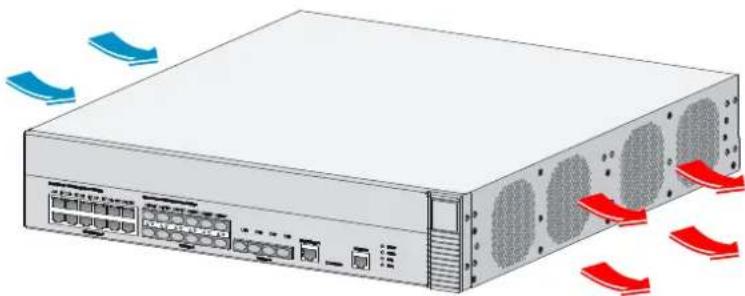
ESD prevention
To prevent electrostatic discharge (ESD), follow these guidelines:
• Ground the device properly. For how to ground your device, see "Installing the device". Take dust-proof measures for the equipment room. For more information, see "Cleanness." Maintain the humidity and temperature at a proper level. For more information, see "Temperature and humidity." • Always wear an ESD-preventive wrist strap. Make sure the wrist strap makes skin contact and is well grounded when installing the transceiver module.
NOTE:
The ESD-preventive wrist strap is not provided with the device. Order it yourself.
To attach an ESD-preventive wrist strap:
- Wear the wrist strap on your wrist.
- Lock the wrist strap tight around your wrist to maintain good contact with the skin.
- Secure the wrist strap lock and the alligator clip lock together.
- Attach the alligator clip to the rack.
- Make sure the rack is well grounded.
Figure 2 Attaching an ESD-preventive wrist strap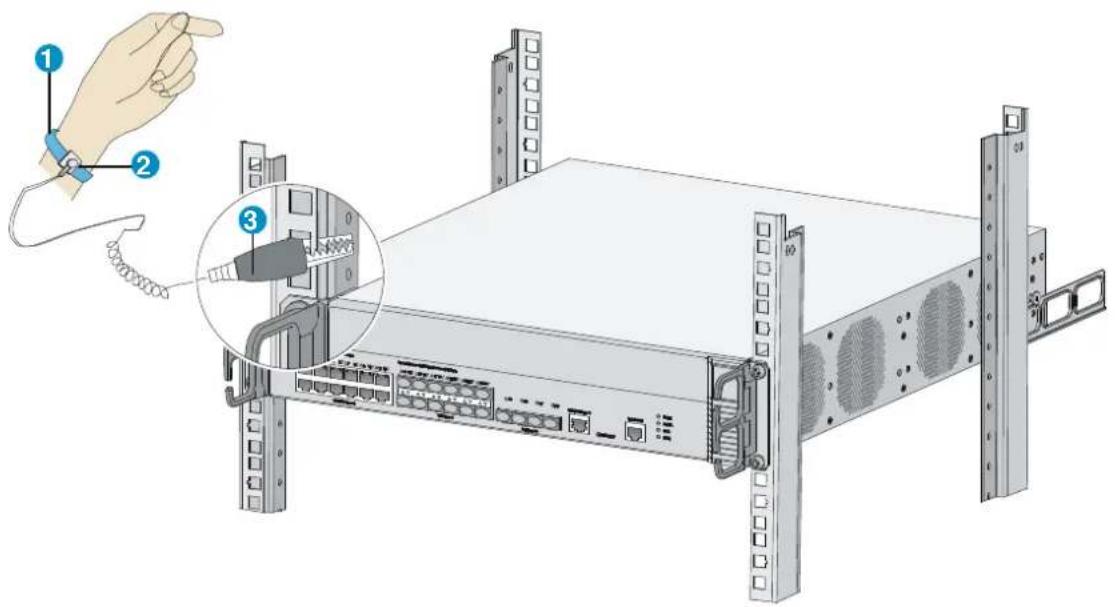
(1) ESD-preventive wrist strap
(2) Lock
(3) Alligator clip
EMI
All electromagnetic interference (EMI) sources, from either outside or inside of the device and application system, adversely affect the device in a conduction pattern of capacitance coupling, inductance coupling, electromagnetic wave radiation, or common impedance (including grounding system) coupling. To prevent EMI, follow these guidelines:
• Use a socket with three pins and PE wire to prevent interference from the power grid. • Use a grounding system and a lightning protection system for the device separate from those for other electric equipment, and keep them as far away as possible. • Keep the device far away from high-power radio launchers, radars, and equipment with high frequency or high current. • Use electromagnetic shielding, for example, shielded interface cables, when necessary.
Lightning protection
To better protect the device from lightning, follow these guidelines:
• Make sure the grounding cable of the chassis is well grounded. • Make sure the grounding terminal of the AC power receptacle is well grounded.
Accessories
Accessories are provided with the device.
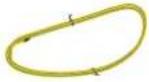 |  | 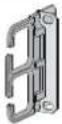 | 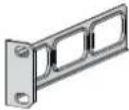 | 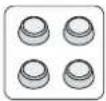 |
| Grounding cable M4 screw | Front mounting bracket | Rear mounting bracket | Rubber feet | |
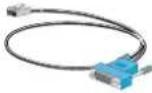 | 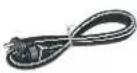 |  |  |  |
| Console cable AC power cord | Cage nut (user supplied) | M6 screw (user supplied) | Cable tie (user supplied) | |
NOTE:
An AC power supply and AC power cord are supplied with the device. The specification of the AC power cord plug varies by country. The AC power cord shown in the figure above is for illustration only.
Installation preparation checklist
Table 4 Installation preparation checklist
| Item | Requirements | Result | |
| Installation site | Ventilation | There is a minimum clearance of 10 cm (3.9 in) around the inlet and exhaust vents for heat dissipation of the device chassis.A ventilation system is available at the installation site. | |
| Temperature 0°C to 45°C (32°F to 113°F) | |||
| Relative humidity | 5% to 95% (noncondensing) | ||
| Cleanness | Dust concentration ≤ 3 × 10⁴ particles/ m3 No dust on desk within three days | ||
| ESD prevention | The equipment and rack are well grounded.The equipment room is dust-proof.The humidity and temperature are at a proper level.Wear an ESD-preventive wrist strap. Make sure the wrist strap makes good skin contact and is well grounded when installing FRUs.Place the removed interface card on an antistatic workbench, with the face upward, or put it into an antistatic bag.Touch only the edges instead of electronic components when observing or moving a removed interface card. | ||
| EMI preventionTake effective measures to protect the power system from the power grid system.Separate the protection ground of the device from the grounding device or lightning protection grounding device as far as possible.Keep the device far away from radio stations and radar and high-frequency devices working in high current.Use electromagnetic shielding when necessary. | |||
| Lightning protectionThe grounding cable of the chassis is well grounded.The grounding terminal of the AC power receptacle is well grounded. | |||
| Electricity safetyEquip a UPS.In case of emergency during operation, switch off the external power switch. | |||
| Rack-mounting requirementsInstall the device in an open rack if possible. If you install the device in a closed cabinet, make sure that the cabinet is equipped with a good ventilation system.The rack is sturdy enough to support the weight of the device and installation accessories.The size of the rack is appropriate for the device.The front and rear of the rack are at least 0.8 m (31.50 in) away from walls or other devices. | |||
| Safety precautions | The device is far away from any moist area and heat source.You have located the emergency power switch in the equipment room. | ||
| Accessories | Accessories provided with the device. | ||
| Reference | Documents shipped with the device.Online documents. | ||
Installing the device

WARNING!
Keep the tamper-proof seal on a mounting screw on the chassis cover intact, and if you want to open the chassis, contact HP Support for permission. Otherwise, HP will not be liable for any consequence caused thereby.
Confirming installation preparations
Before you install the device, verify that you have read "Preparing for installation" carefully and the installation site meets all the requirements.
Installation flow
Figure 3 Installation flow![graph TD A["Start"] --> B{Install the device} B -->|Yes| C["Mount the device to a workbench"] B -->|No| D["Install the device to a 19-inch rack"] C --> E["Ground the device"] D --> E E --> F["Connect interface cables"] F --> G["Install the power supply"] G --> H["Connect the power cord"] H --> I["Po…](/content/2026/05/817547/images/760e1dee770ac72a9961a4cf6828345353f8466461f3e2654aa9171d6f4e3969.jpg)
Mounting the device on a workbench
If a standard 19-inch rack is not available, you can place a device on a clean, flat workbench, as follows:
- Clean the recessed areas on the chassis bottom.
- Attach the four rubber feet to the recessed areas on the chassis bottom.
- Place the device on the workbench.
IMPORTANT:
Avoid placing heavy objects on the device.
Figure 4 Mounting the device on a workbench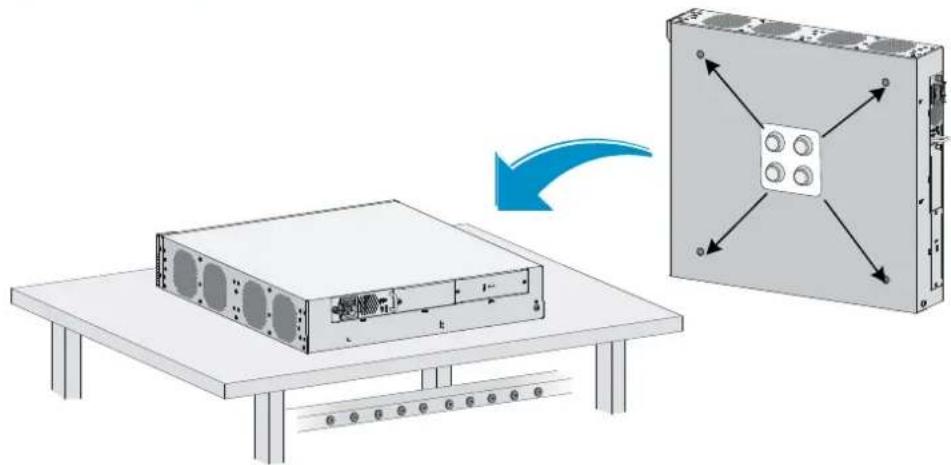
Installing the device in a 19-inch rack
You can install the device in a 19-inch rack by using the following methods:
• Installing the device by using front and rear mounting brackets. • Installing the device by using front mounting brackets and a rack shelf. • Installing the device by using front mounting brackets and slide rails.
Mounting brackets
Figure 5 Front mounting bracket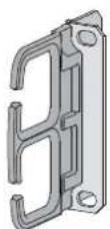
Figure 6 Rear mounting bracket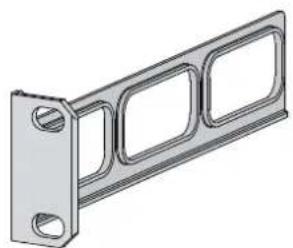
Installing the device by using front and rear mounting brackets
- Wear the ESD-preventive wrist strap and make sure the rack is well grounded and sturdy enough.
- Mark the position on the rack for installing the mounting brackets, and install cage nuts.
Figure 7 Installing cage nuts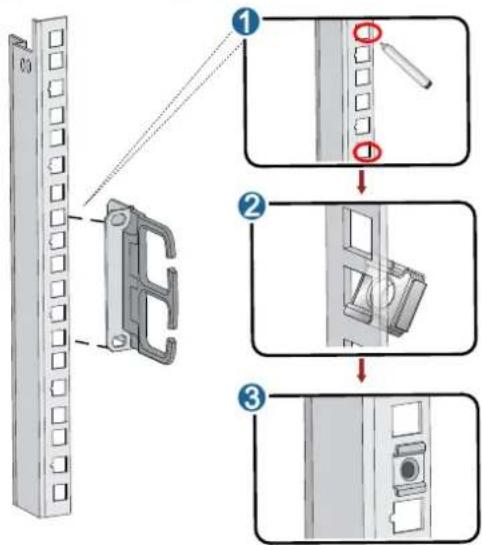
- Use the screws packed with the front mounting brackets to secure the front mounting brackets to both sides of the device.
Figure 8 Installing the front mounting brackets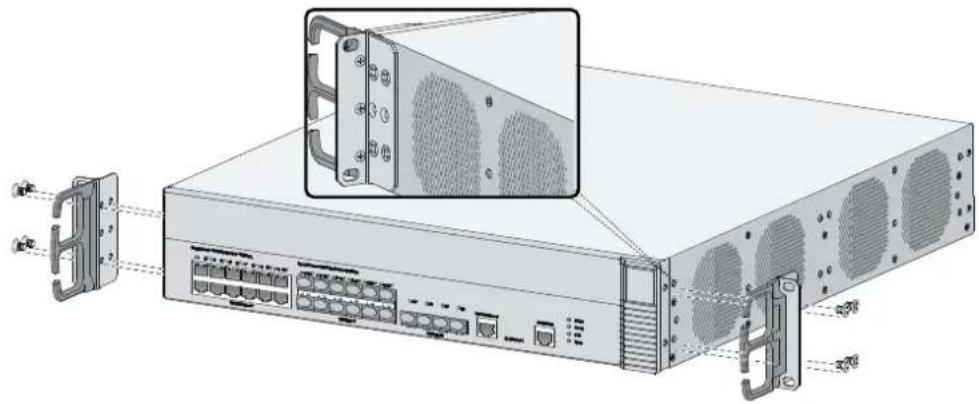
- Attach the weight-bearing screws packed with the rear mounting brackets to both sides of the device.
The rear mounting brackets work with the weight-bearing screws to support the device.
Figure 9 Installing the weight-bearing screws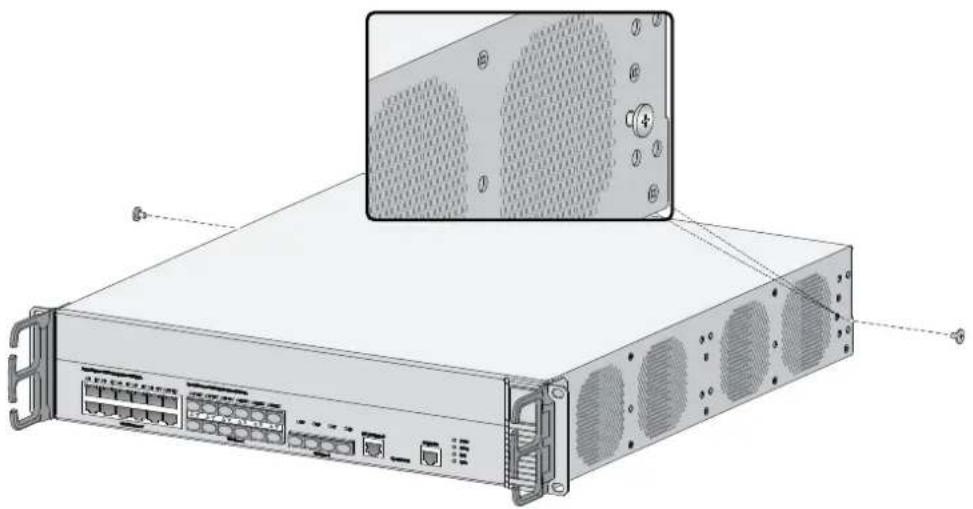
- Determine the device installation position in the rack and use screws and cage nuts to attach the rear mounting brackets to the rear rack posts.
Figure 10 Installing rear mounting brackets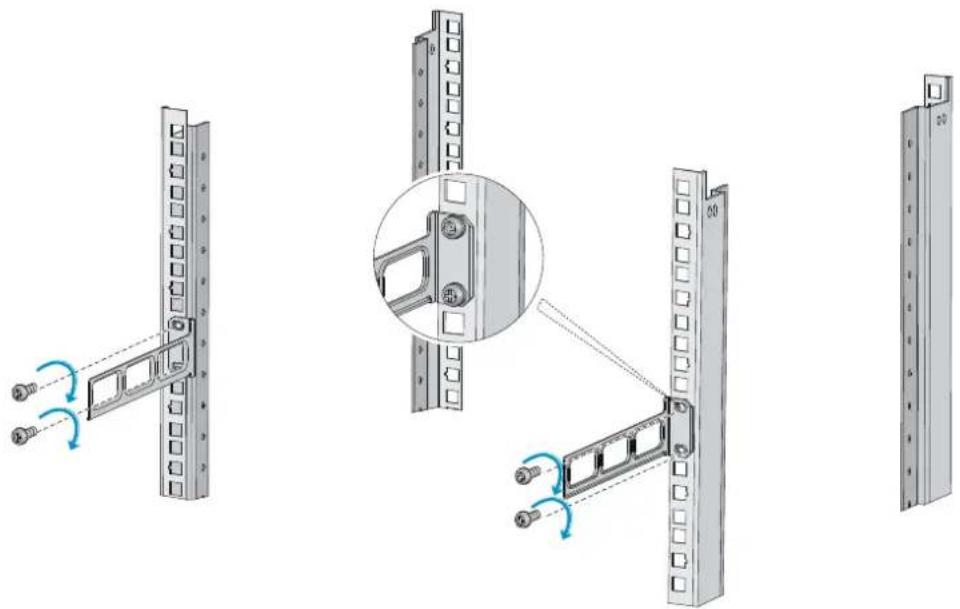
- Supporting the bottom of the device with one hand, push the device horizontally into the rack. Attach the front mounting brackets on the device to the front rack posts with screws and cage nuts, as shown in Figure 11.
Figure 11 Installing the device to the rack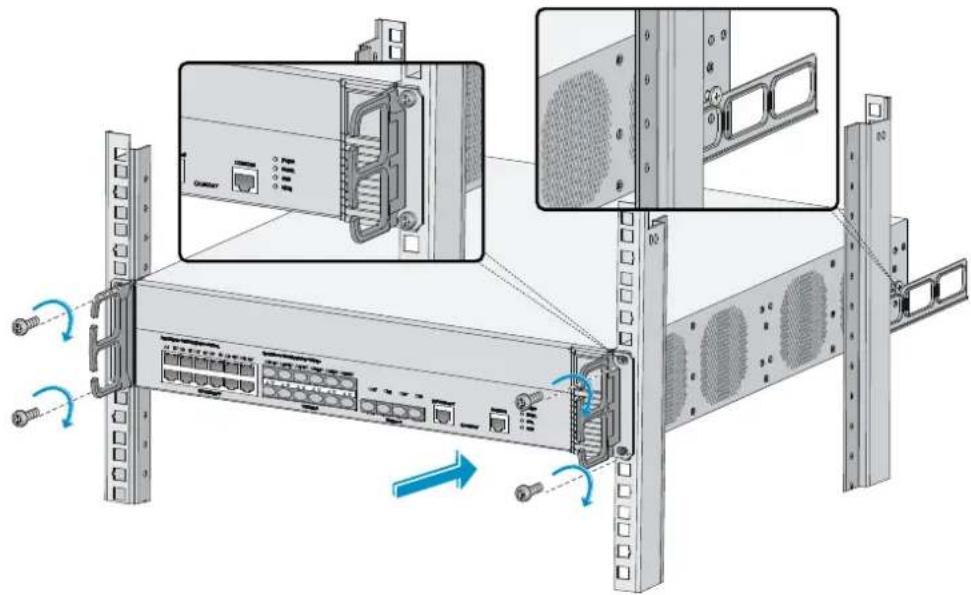
NOTE:
After pushing the device into the rack, make sure the upper edges of the rear mounting brackets attached to the rack make close contact with the weight-bearing screws on the device.
Installing the device by using front mounting brackets and a rack shelf
The rack shelf is an optional component that needs to be separately ordered if needed. The rack shelf in this example is for illustration only.
To install the device by using front mounting brackets and a rack shelf:
- Wear the ESD-preventive wrist strap and verify that the rack is well grounded and sturdy enough.
- Use the screws packed with the front mounting brackets to attach the front mounting brackets to the device, as shown in Figure 8.
- Attach the rack shelf to the appropriate position of the rack. See Figure 12 for reference.
Figure 12 Installing the rack shelf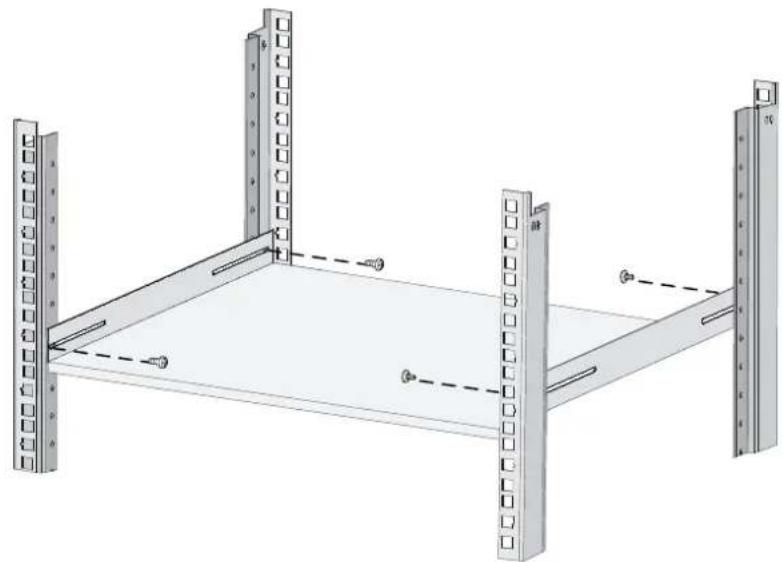
- Push the device to the rack along the rack shelf, and attach the front mounting brackets on the device to the front rack posts by using screws and cage nuts, as shown in Figure 13.
Figure 13 Installing the device to the rack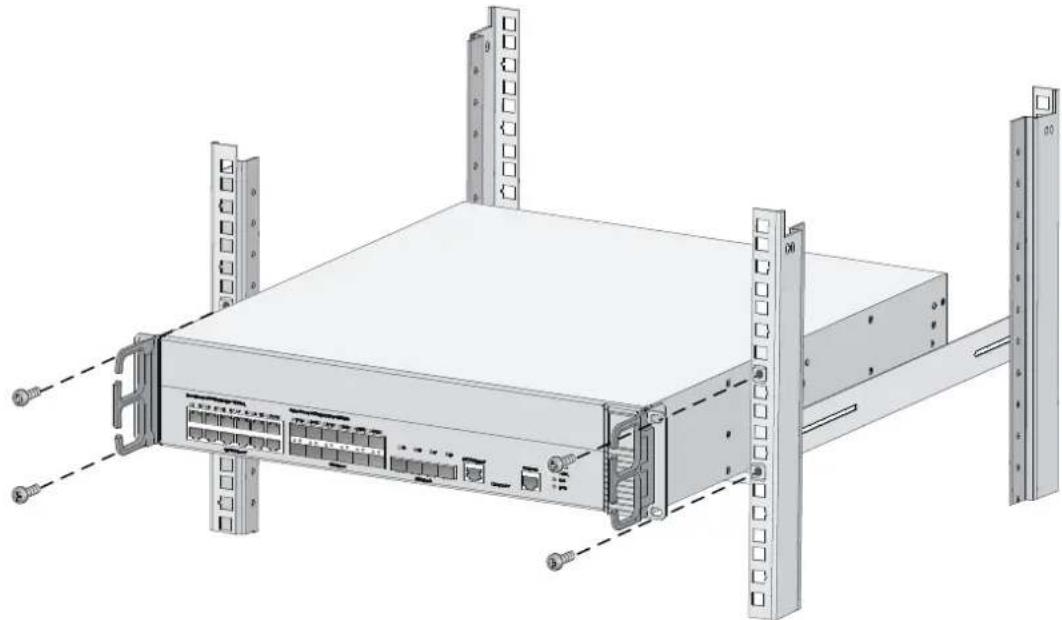
Installing the device by using front mounting brackets and slide rails
The slide rails are optional components that need to be separately ordered if needed. The slide rails in this example are for illustration only.
To install the device by using front mounting brackets and slide rails:
- Wear the ESD-preventive wrist strap and verify that the rack is well grounded and sturdy enough.
- Use the screws packed with the front mounting brackets to attach the front mounting brackets to the device, as shown in Figure 8.
- Install the slide rails to the rack. See Figure 14 for reference.
Figure 14 Installing slide rails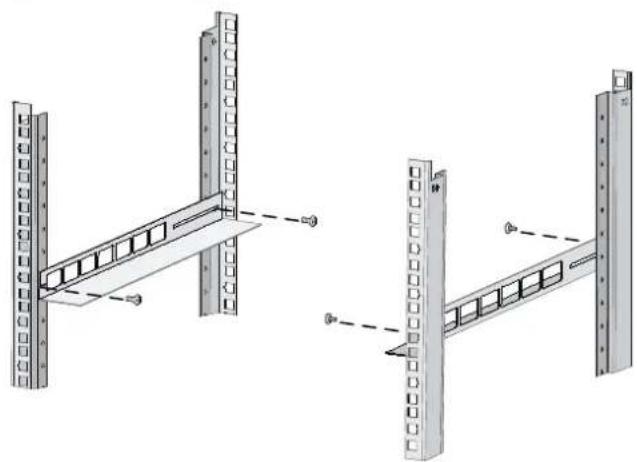
- Holding both sides of the device, push the device to the rack along the slide rails, as shown in Figure 15. Make sure the chassis bottom makes close contact with the slide rails.
Figure 15 Installing the device to the rack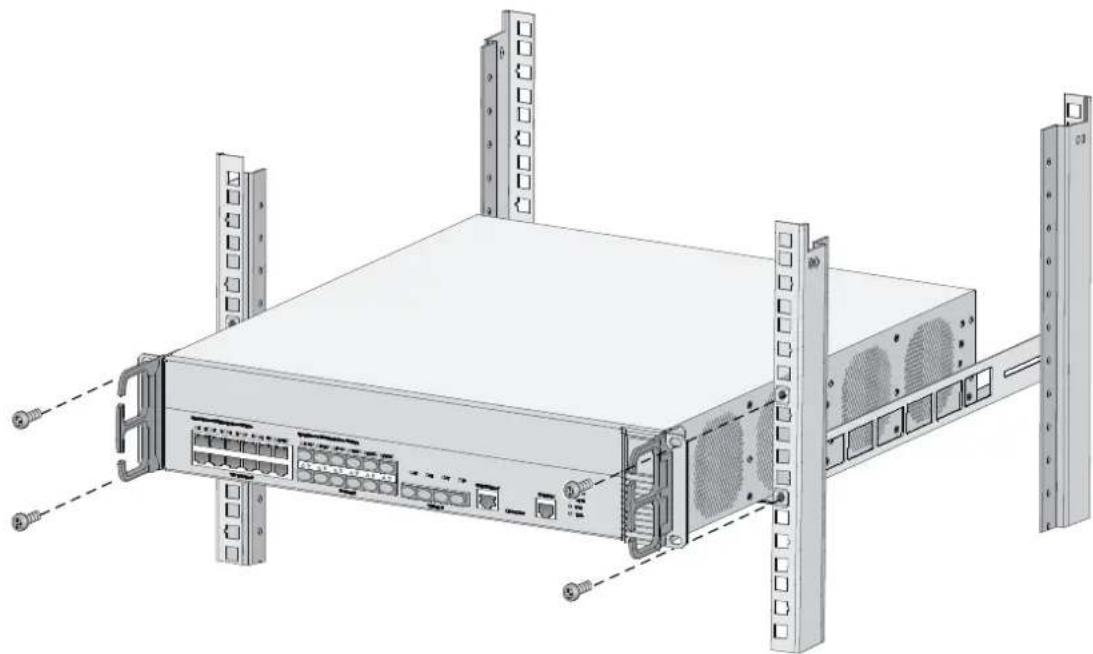
- Attach the front mounting brackets on the device to the front rack posts with M6 screws and cage nuts.
NOTE:
Keep at least a distance of 1 U (44.45 mm, or 1.75 in) between devices for proper heat dissipation.
Grounding the device

WARNING!
- Correctly connecting the device grounding cable is crucial to lightning protection and EMI protection.
- Connect the grounding cable to the grounding system in the equipment room. Do not connect it to a fire main or lightning rod.
To ground the device:
- Use a Phillips screwdriver to remove the grounding screw from the chassis.
- Use the grounding screw to attach one end (with ring terminal) of the grounding cable to the chassis.
- Connect the other end of the grounding cable according to the grounding method you use:
Ground the device with a grounding strip—If a grounding strip is available at the installation site, connect the other end of the grounding cable to the grounding strip and make sure the grounding strip has been correctly grounded.
Figure 16 Grounding the device with a grounding strip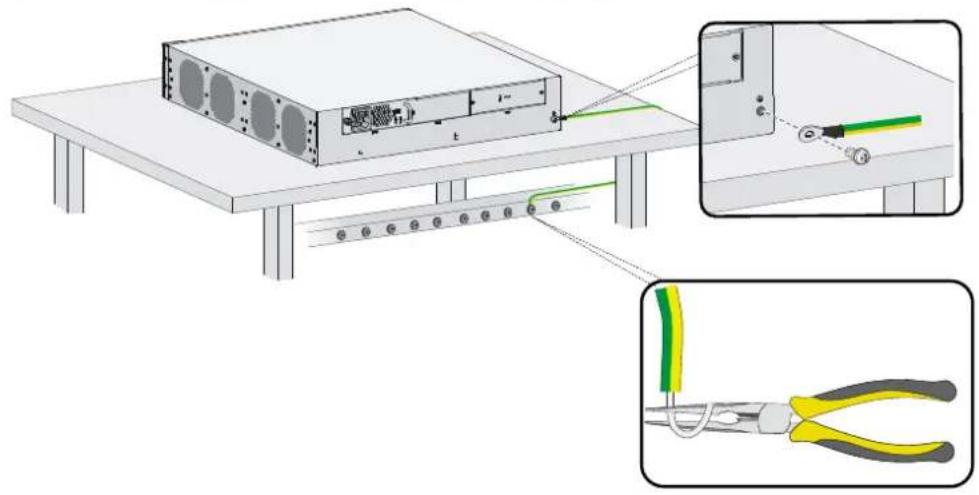
Ground the device with the rack—Connect the other end of the grounding cable to the grounding point on the rack and make sure the rack has been correctly grounded.
Figure 17 Grounding the device with the rack (1)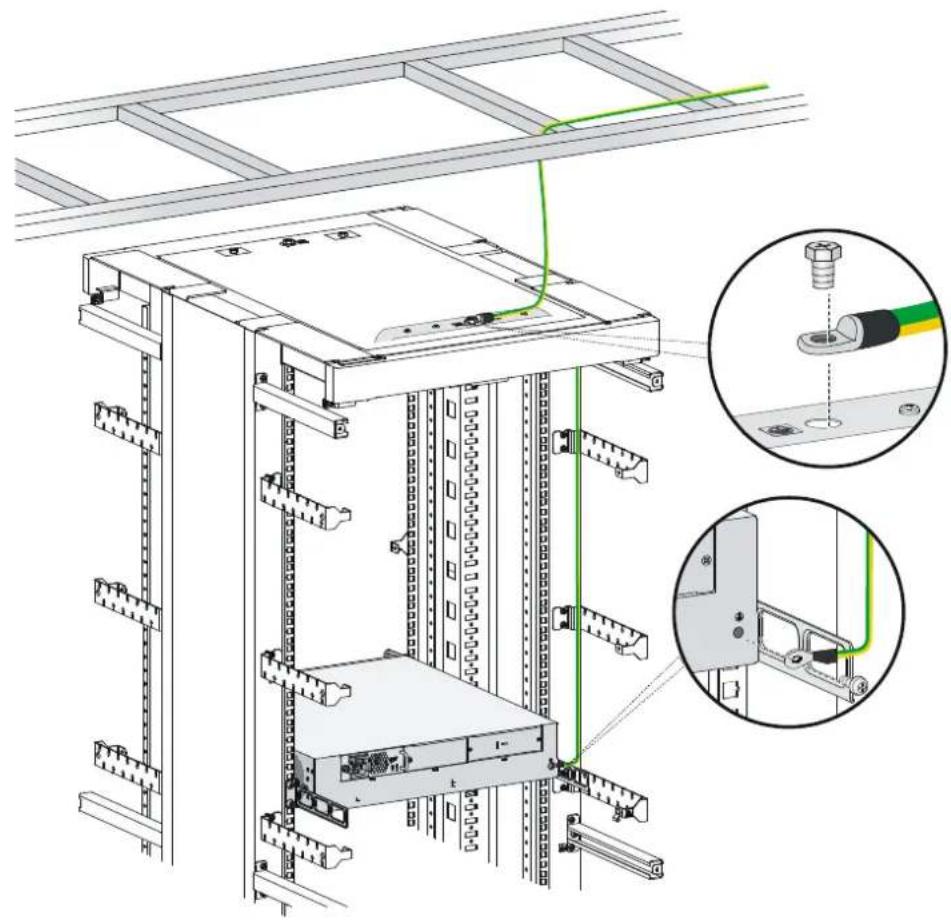
Figure 18 Grounding the device with the rack (2)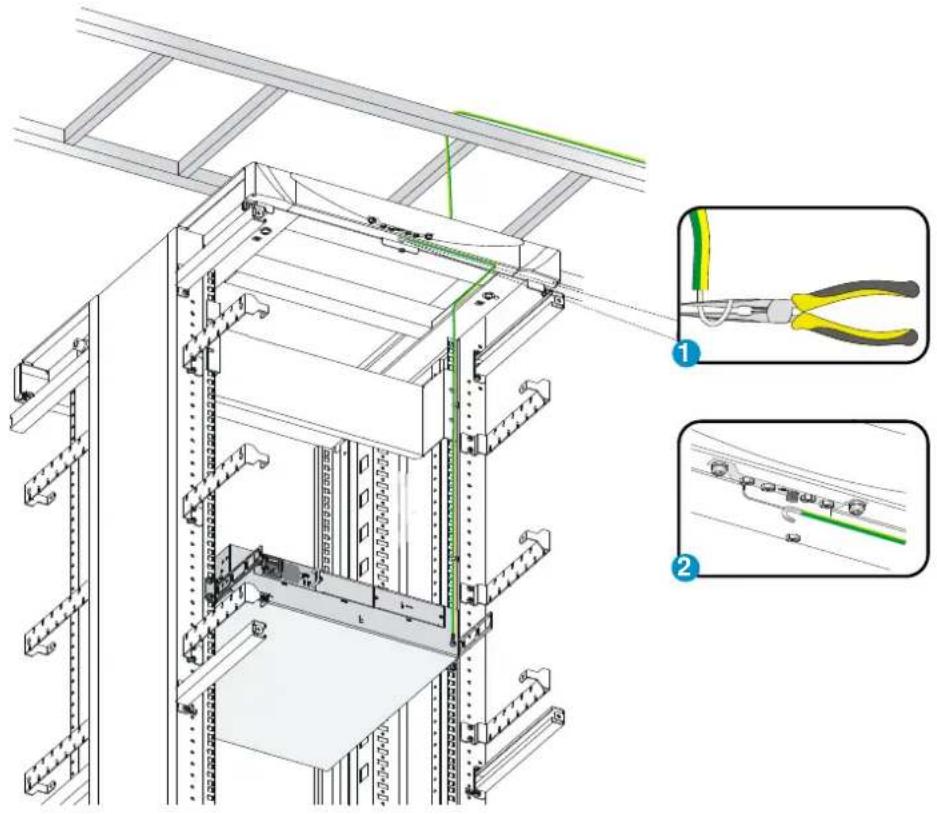
Grounding the device with a grounding conductor buried in the earth—If earth is available at the installation site, hammer a 0.5 m (1.64 ft) or longer angle iron or steel tube into the earth to serve as a grounding conductor. Weld the yellow-green grounding cable to the angle iron or steel tube and treat the joint for corrosion protection.
Figure 19 Grounding the device by burying the grounding conductor into the earth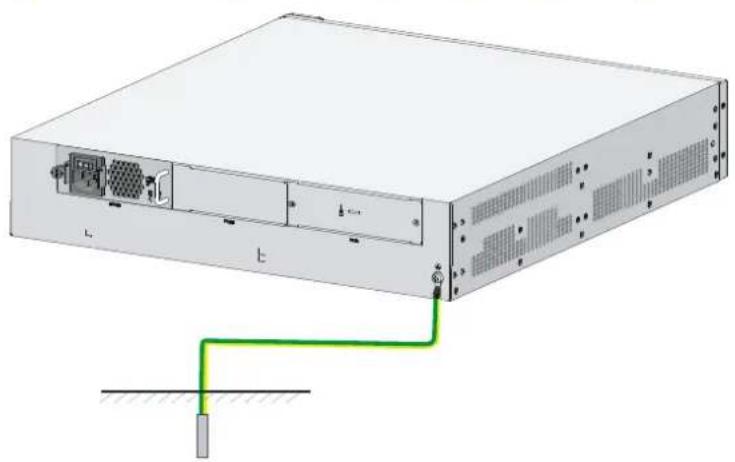
Connecting the console cable and setting terminal parameters
Connecting the console cable
- Prepare a configuration terminal.
The configuration terminal can be an ASCII terminal with an RS232 serial port or a PC. The description in this section assumes that you use a PC as the configuration terminal.
- Connect the console cable:
a. Plug the DB-9 female connector of the console cable to the serial port of the PC.
b. Connect the RJ-45 connector to the console port of the device.
Figure 20 Connecting the console cable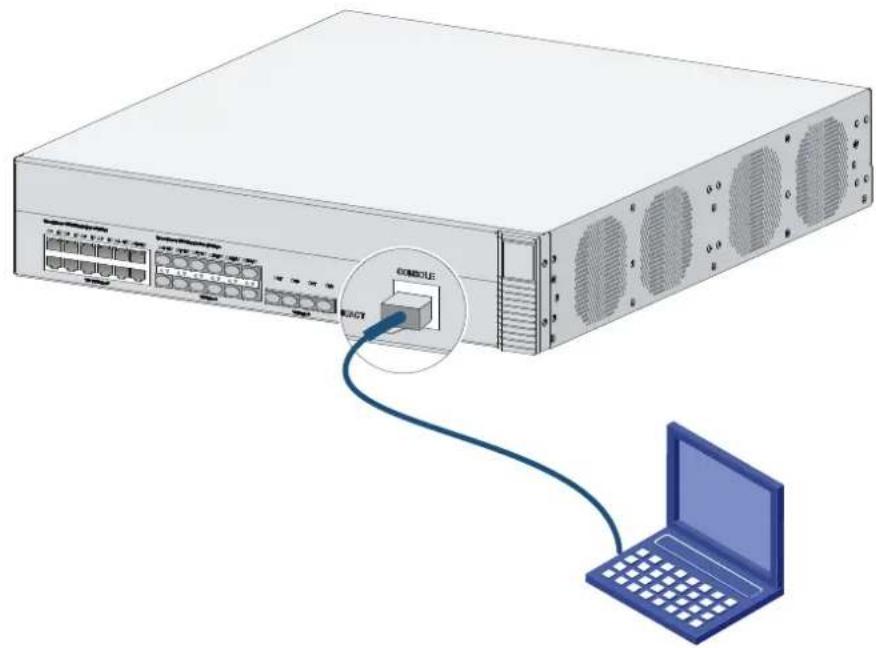
NOTE:
• Identify the mark on the console port and make sure you are connecting to the correct port. - If the device has been powered on, connect the console cable to the PC before connecting it to the device. When you disconnect the cable, first disconnect it from the device.
Setting terminal parameters
To set terminal parameters, for example, on a Windows 95/98/NT/2000/XP HyperTerminal:
- Select Start > All Programs > Accessories > Communications > HyperTerminal.
The Connection Description dialog box appears.
- Enter a name for the new connection in the Name field and click OK.
Figure 21 Connection description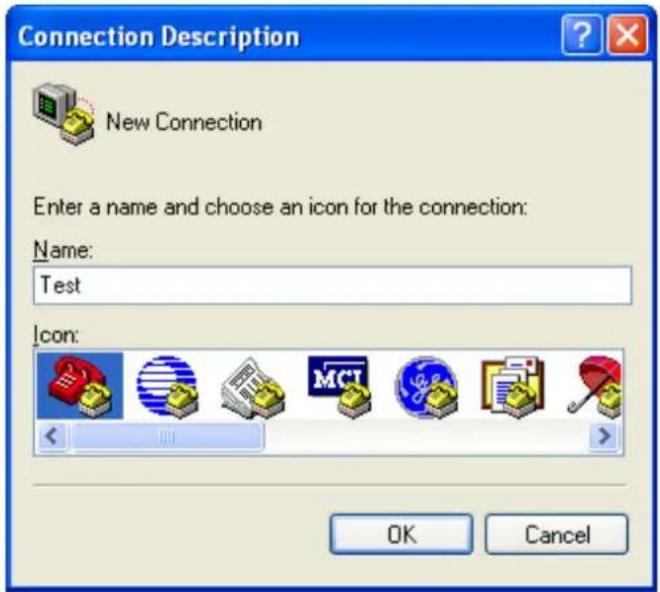
- Select the serial port to be used from the Connect using list, and click OK.
Figure 22 Setting the serial port used by the HyperTerminal connection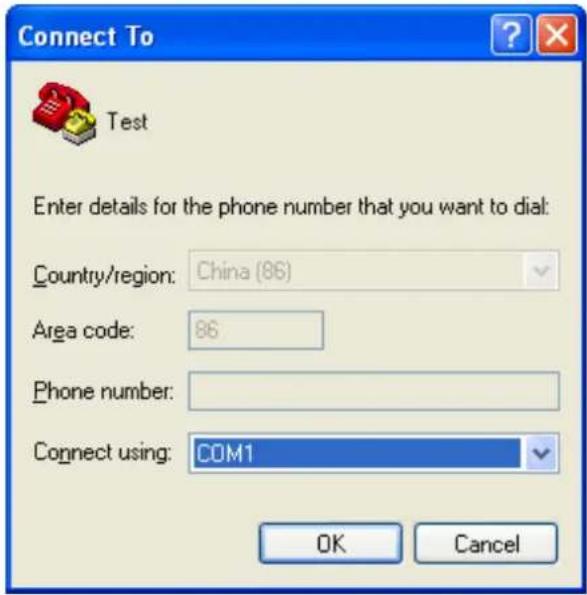
- Set Bits per second to 9600, Data bits to 8, Parity to None, Stop bits to 1, and Flow control to None, and click OK.
Figure 23 Setting the serial port parameters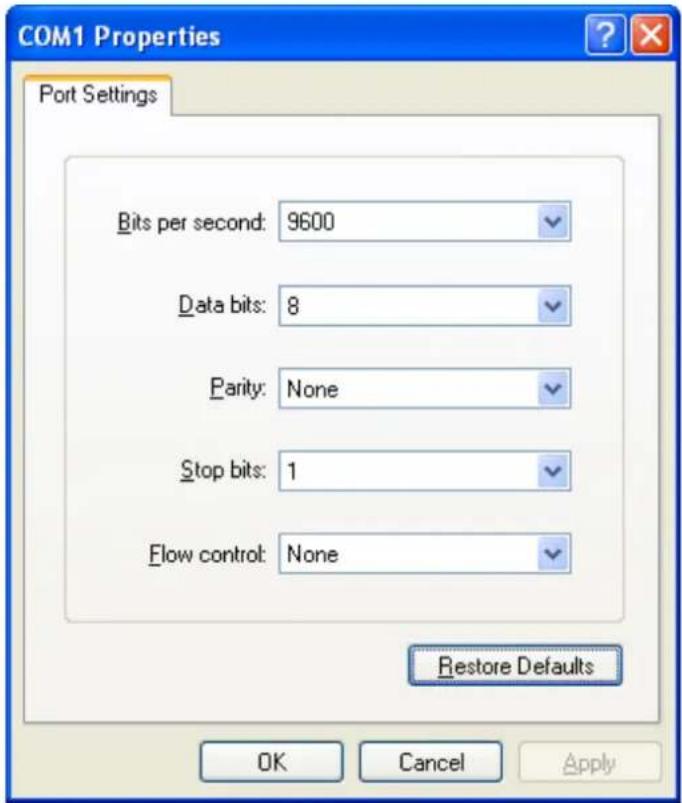
NOTE:
To restore the default settings, click Restore Defaults.
- Select File > Properties in the HyperTerminal window.
Figure 24 HyperTerminal window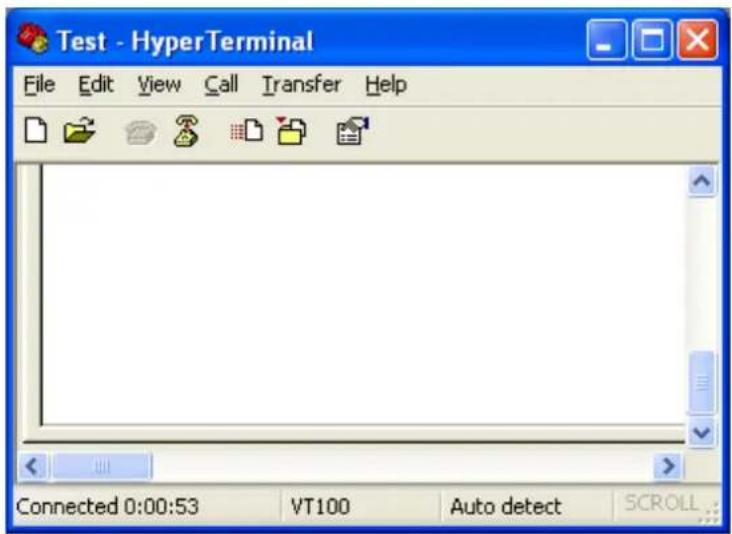
- On the Settings tab, set the emulation to VT100 and click OK.
Figure 25 Setting the terminal emulation in Test Properties dialog box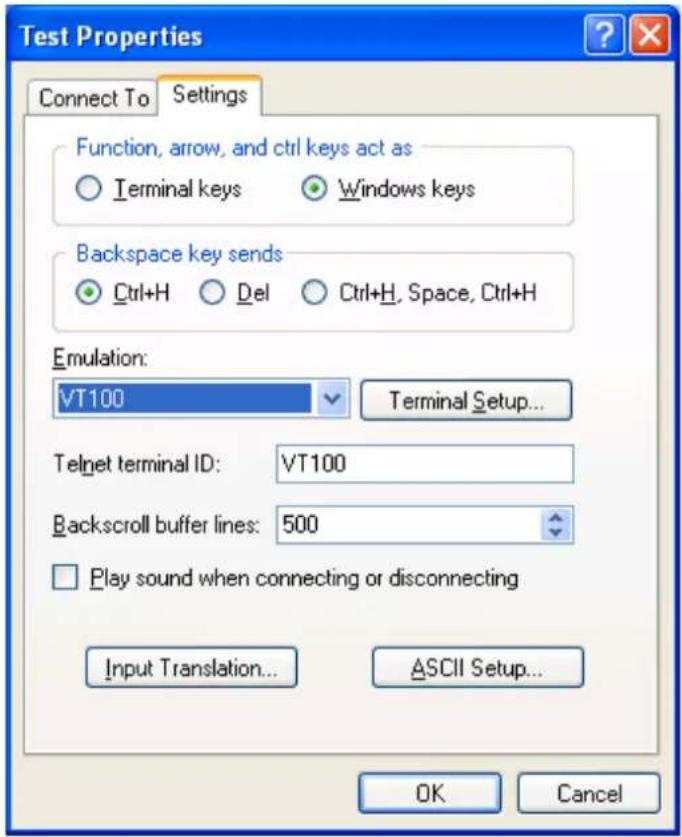
Connecting the Ethernet cables
Connecting a copper Ethernet port
- Connect one end of the Ethernet cable to the copper Ethernet port of the device, and the other end to the Ethernet port of the peer device.
- After powering on the device, examine the LEDs of the fixed copper Ethernet port. For more information about the LED description, see "Appendix B LEDs."
Connecting a fiber port
No transceiver module is provided with the device. The device supports only LC-type fiber connectors. For transceiver module specifications, see "Appendix A Chassis views and technical specifications."
Follow these guidelines when you connect an optical fiber:
- Never stare into an open fiber port, because invisible rays might be emitted from the fiber port. Cover the dust plug if no optical fiber connector is connected to the fiber port.
- Never bend or curve a fiber when connecting it. After a fiber is installed correctly, the bend radius must be not less than 10 cm (3.94 in).
- Keep the fiber end clean.
Make sure the Tx and Rx ports on a transceiver module are correctly connected.
To connect the device to the network through an optical fiber:
- Remove the dust plug on the fiber port.
- Remove the dust cover from the transceiver module, and insert the transceiver module into the fiber port.
- Remove the dust cover of the optical fiber connector.
- Identify the Rx and Tx ports on the transceiver module. Plug the LC connectors at one end of the optical fiber into the Rx and Tx ports of the transceiver module and the other end into the Tx and Rx ports of the peer device.
Figure 26 Connecting an optical fiber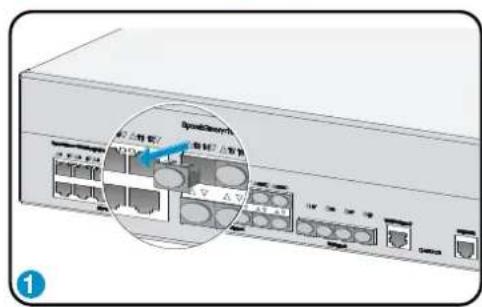
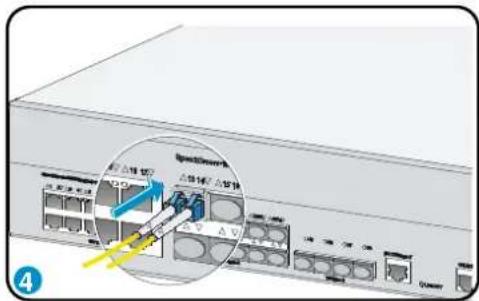
- Power on the device, and examine the SFP port LEDs:
- If the LED is on, a fiber link has been set up. If the LED is off, no link has been set up. The reason might be wrong connection of the Tx and Rx ends. Connect the Tx and Rx ends at one end of the fiber again.
Installing a power supply

CAUTION:
Do not install an AC power supply and a DC power supply on the same device. The HP 870 cannot balance the output current between AC and DC power supplies installed in the same chassis, which causes one power supply to be in light-load status and one in heavy-load status. Should the heavy-load power supply fail or be removed, the remaining light-load power supply will immediately switch to heavy-load status and the output voltage will drop. This voltage drop may cause the device to reboot.
- Remove the filler panel (if any) from the slot where you want to install a power supply with a Phillips screwdriver.
Keep the removed filler panel for future use.
- Holding the handle of the power supply with one hand and supporting the bottom of the power supply with another hand, push the power supply into the slot along the guide rails until the power supply is completely inserted.
- Use a Phillips screwdriver to fasten the captive screws on the power supply.
Figure 27 Installing an AC power supply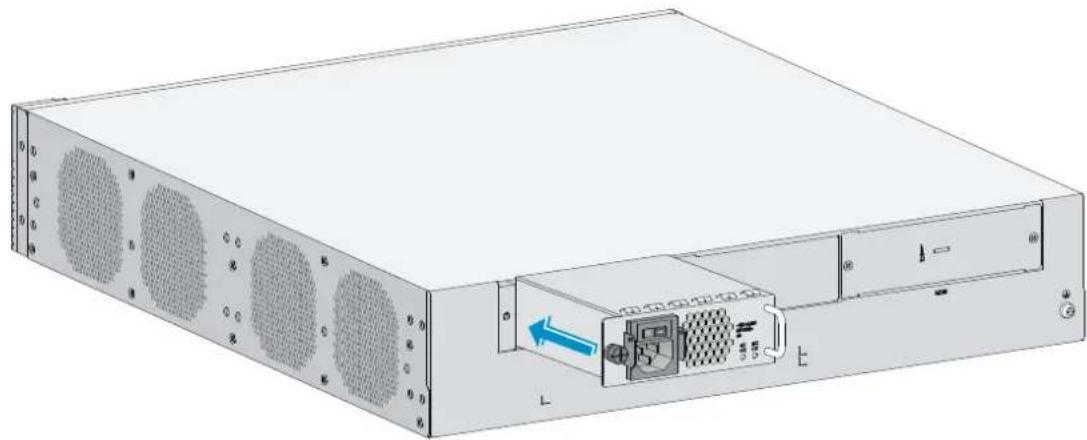
Figure 28 Installing a DC power supply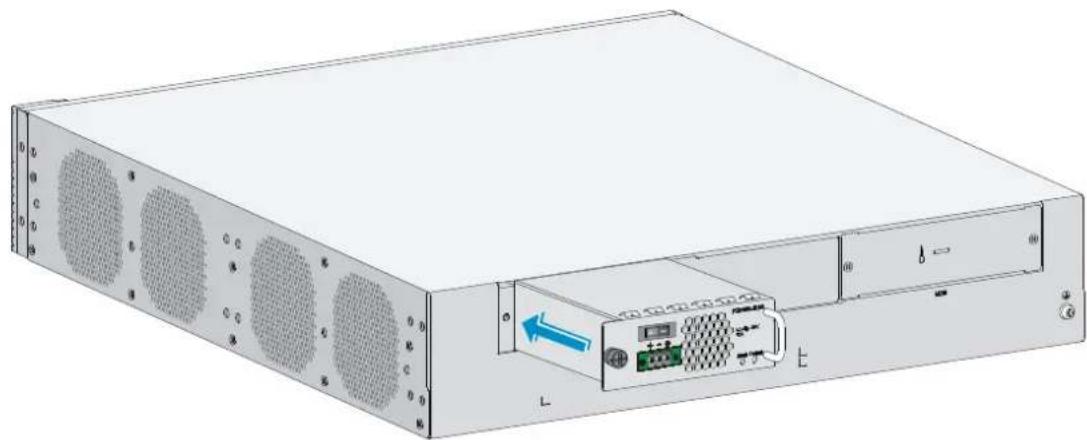
Connecting the AC power cord

CAUTION:
Before powering on the device, connect the grounding cable of the device.
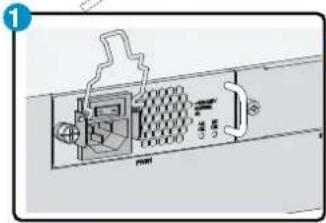
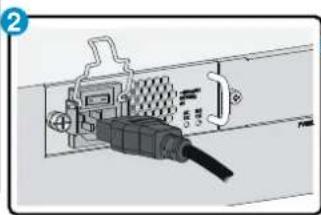
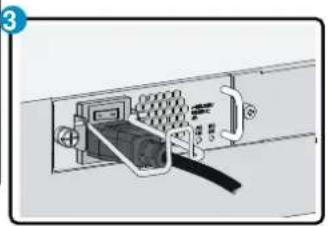
To connect the AC power cord:
- Pivot the bail latch upward.
- Connect one end of the AC power cord to the AC-input power receptacle on the device.
- Pivot the bail latch downward to secure the power cord.
- Connect the other end of the AC power cord to the AC power source.
Figure 29 Connecting an AC power cord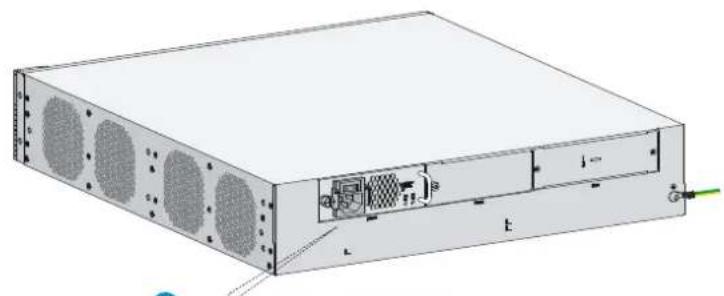
Connecting the DC power cord
- Use a flat-blade screwdriver to remove the protection cover from the DC power supply.
- Correctly insert the DC plug into the DC power receptacle.
- Use a flat-blade screwdriver to fasten the screws on the DC plug.
- Connect the other end of the DC power cord to the DC power source.
Figure 30 Connecting a DC power cord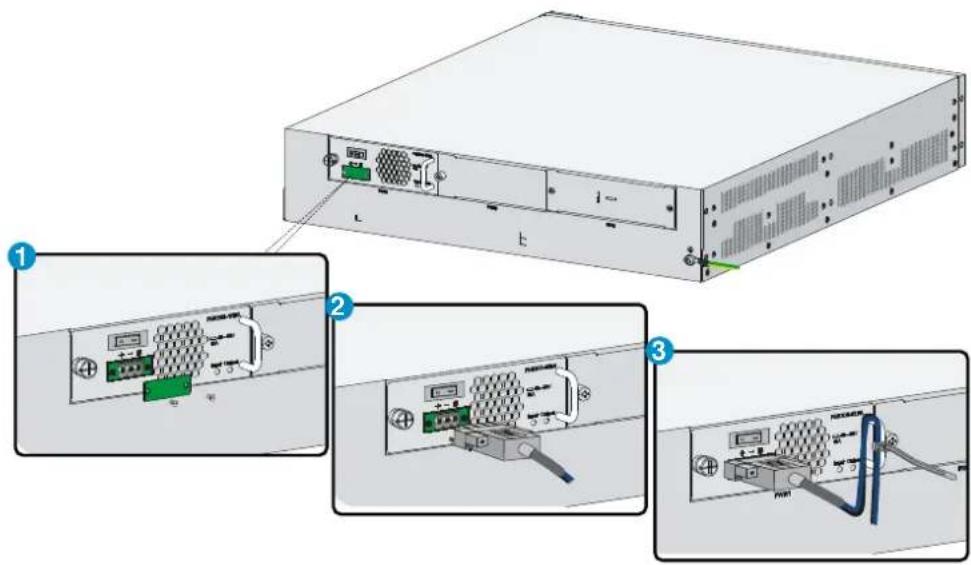
Verifying the installation
Before powering on the device, verify that:
• The correct power source is used. • The grounding cable is securely connected. • The console cable and power cord are correctly connected.
Powering on the device
- Power on the device. The device initializes its memory and runs the BootWare. The following information appears on the terminal screen:
System is starting...
Press Ctrl+D to access BASIC-BOOTWARE MENU
Press Ctrl+T to start heavy memory test
Booting Normal Extend BootWare....
The Extend BootWare is self-decompressing.....Done!
**********************************************************************
*    *
* HP 870 Unified Wired-WLAN JG723A BootWare, Version 1.05
*    *
**********************************************************************
Compiled Date : Aug 14 2013
CPU Type : XLP432
CPU Clock Speed : 1400MHz
Memory Type : DDR3 SDRAM
Memory Size : 8192MB
Memory Speed : 1333MHz
BootWare Size : 768KB
Flash Size : 16MB
cfa0 Size : 4002MB
CPLD1 Version : 005
CPLD2 Version : 004
PCB Version : Ver.A
BootWare Validating...
Press Ctrl+B to enter extended boot menu...
- Press Ctrl + B at the prompt within 4 seconds to access the Boot menu. Otherwise, the system enters the system image file reading and self-compressing process.
To access the Boot menu after the system enters the system image file reading and self-compressing process, restart the device.
Starting to get the main application file--cfa0:/main.bin!...
The main application file is self-decompressing.....
......Done!
System application is starting...
Startup configuration file does not exist.
It will take a long time to get configuration file, please wait...
Retrieving configuration file failed!
User interface con0 is available.
Press ENTER to get started.
Press Enter at the prompt, and you can configure the device when the prompt appears.
During the startup process, the CPLD is automatically upgraded to the latest version.
Troubleshooting
Power supply failure
If the device cannot be powered on and the system status LED PWR is off, verify the following items:
- The external AC power system is correctly working. • The AC power cord is securely connected to the device. • The power cord is in good condition.
NOTE:
If the problem persists, contact HP Support.
Configuration terminal problems
If the configuration environment setup is correct, the configuration terminal displays booting information when the device is powered on. If the setup is incorrect, the configuration terminal either displays nothing or displays garbled text.
No terminal display
If the configuration terminal displays nothing when the device is powered on, verify the following items:
• The power supply is supplying power to the device. • The console cable is correctly connected. • The terminal settings are correct.
Garbled terminal display
If terminal display is garbled, verify that the following settings are configured for the terminal, for example, HyperTerminal:
Baud rate—9600 - Data bits—8 - Parity—none - Stop bits—1 - Flow control—none - Emulation—VT100
Login password loss

CAUTION:
Dealing with console login password loss and user privilege level password loss from BootWare menus is disruptive.
How to deal with console login password loss and user privilege level password loss depends on the state of password recovery capability (see Figure 31). Password recovery capability controls console user access to the device configuration and SDRAM from BootWare menus.
- If password recovery capability is enabled, a console user can access the device configuration without authentication and configure new passwords.
- If password recovery capability is disabled, a console user must restore the factory-default configuration before configuring new passwords. Restoring the factory-default configuration deletes the main and backup next-startup configuration files.
To enhance system security, disable password recovery capability.
Figure 31 Dealing with password loss![graph TD A["Password loss"] --> B["Reboot the device to access BootWare menu"] B --> C{Password recovery capability enabled?} C -->|Yes| D["User privilege level password loss"] C -->|No| E["Select 5 to restore the factory-default configuration"] D --> F["Select 6 to start the system without loading…](/content/2026/05/817547/images/10368c76d744efaa136b719b3174780cdd5aa6f2be3447a3993d323843561d2e.jpg)
Dealing with console login password loss
To set a new password if you forget the console login password:
- If the password recovery capability is enabled, select 6 from the BootWare menu to start the system without loading the system configuration.
The following information appears:
Flag Set Success.
- If the password recovery capability is disabled, select 5 from the BootWare menu to start the system with the factory default configuration.
The following information appears:
Because the password recovery capability is disabled, this operation can cause the configuration files to be deleted, and the system will start up with factory defaults. Are you sure to continue? [Y/N]Y Setting...Done.
- When the BootWare menu appears again, select 0 to reboot the device.
The following information appears:
System start booting...
When you start the system without loading the system configuration, follow these steps to set a new login password:
- After reboot, copy the configuration file to the PC through TFTP or FTP, and modify the configuration file in the text editor. Delete the password from the configuration file.
- Copy the configuration file to the device to replace the original configuration file.
- Set the next-startup configuration file.
<HP>system-view
<HP>startup saved-configuration startup.cfg
Please wait ...
... Done!
- Restart the device, and set a new password.
<HP>system-view
[HP]user-interface aux 0
[HP-ui-aux0]authentication-mode password
[HP-ui-aux0]set authentication password cipher 123456
- Save the new configuration by using the save command.
<HP> save
Dealing with user privilege level password loss
- Select 8 from the BootWare menu to clear the user privilege level password.
This operation takes effect at next reboot only. The user privilege level password is restored at a second reboot.
- Reboot the device and you can directly enter system view.
Software loading failure
If software loading fails, the system runs previous software version. To troubleshoot the software loading failure:
- Verify that the physical ports are correctly connected. If the cable of any port is not connected, re-connect the cable to the port, and make sure the physical connection is correct. Load the software again.
- Check for errors in the software loading process displayed on the HyperTerminal. If errors exist, correct them, and load the software again.
For example, the software loading failures might occur in the following situations:
- When you use XMODEM to load software, you select a baud rate other than 9600 bps, but you have not reset the baud rate for the HyperTerminal.
- When you use TFTP to load software, you entered an incorrect IP address, software name, or TFTP serve path.
- When you use FTP to load software, you entered an incorrect IP address, software name, username, or password.
If software loading has failed even if the physical connections are in good condition and the software loading process does not have any input errors, contact HP Support.
Hardware management and maintenance
The CLI and outputs depend on the software version that is running on the device.
Logging in to the switching engine by using OAP
You can log in to the operating system of the switching engine from the controller engine side. Then the command line interface is switched from the controller engine to the switching engine, where you can manage the switching engine's system and application software. To return to the command line interface of the controller engine, press Ctrl + K.
To log in to the switching engine by using OAP at the controller engine side:
| Task | Command | Remarks |
| Log in to the switching engine by using OAP at the controller engine side. | oap connect slot slot-number | Required.Available in user view. |
Displaying hardware information for the device
Displaying software and hardware version information for the controller engine
Use the display version command to display software and hardware version information about the device. The output includes the following information: the current software, the hardware version, and the device operating time. The output depends on the software and hardware version of the device.
- On the controller engine:
<HP>display version
HP Comware Platform Software
Comware Software, Version 5.20.109, ESS 2607P10
Copyright (c) 2010-2013 Hewlett-Packard Development Company, L.P.
HP 870 uptime is 0 week, 0 day, 0 hour, 1 minute

HP 870 with 1 RMI XLP 432 1400MHz Processor
8192M bytes DDR3
16M bytes Flash Memory
4002M bytes CFCard Memory

Hardware Version is Ver.A
FPGA1 Hardware Version is Ver.A
FPGA2 Hardware Version is Ver.A
CPLD 1 CPLD Version is 005
CPLD 2 CPLD Version is 004
FPGA1 Logic Version is 307
FPGA2 Logic Version is 307
Basic Bootrom Version is 1.05
Extend Bootrom Version is 1.05
[Slot 0]870 LSW Hardware Version is NA
[Slot 1]870 Hardware Version is Ver.A
- On the switching engine:
<HP>display version
HP Comware Platform Software
Comware Software, Version 5.20.105, ESS 2607P09
Copyright (c) 2010-2013 Hewlett-Packard Development Company, L.P.
HP 870 LSW uptime is 0 week, 0 day, 0 hour, 2 minutes

HP 870 LSW with 2 Processors
1024M bytes DDR3
16M bytes Nor Flash Memory
Config Register points to Nor Flash

Hardware Version is Ver.A
CPLDA Version is 005, CPLDB Version is 004
BootRom Version is 1.05
[SubSlot 0] 12GE+12SFP+4SFP Plus Hardware Version is Ver.A
Displaying operational statistics for the device
When you perform routine maintenance or the system fails, you might need to display the operational information of each feature module to locate failures. Typically, you need to run the display commands individually. However, you can use the display diagnostic-information command in any view to display or save the operational statistics of multiple feature modules of the device. This command displays the output of the display clock, display version, display device, and display current-configuration commands.
- Save the operational statistics for each feature module of the device:
<HP>display diagnostic-information
Save or display diagnostic information (Y=save, N=display)? [Y/N]:y
Please input the file name(*.diag)[cfa0:/default.diag]:
The file already exists, overwrite it? [Y/N]:y
Diagnostic information is outputting to cfa0:/default.diag.
Please wait...
Save successfully.
Execute the more default.diag command in user view, and then press the Page Up and Page Down keys to view the contents of the file default.diag.
• Display the operational statistics for each feature module of the device. (Details not shown.)
<HP>display diagnostic-information
Save or display diagnostic information (Y=save, N=display)? [Y/N]:n
====================running CPU usage information====================Current CPU usage info =================
CPU Usage Stat. Cycle: 10 (Second)
CPU Usage : 5%
CPU Usage Stat. Time : 2000-04-26 12:14:04
CPU Usage Stat. Tick : 0x19(CPU Tick High) 0x630a8910(CPU Tick Low)
Actual Stat. Cycle : 0x0(CPU Tick High) 0x5ca8260f(CPU Tick Low)
| TaskName | CPU | Runtime(CPU Tick High/CPU Tick Low) |
| VIDL | 95% | 0/5838f781 |
| TICK | 0% | 0/ 2d0b28 |
| STMR | 0% | 0/ 59a42 |
| L2X0 | 0% | 0/ 814bf9 |
| bC.0 | 1% | 0/ 13429c7 |
| bLK0 | 0% | 0/ b60514 |
| ... |
Displaying detailed information about the device
Use the display device verbose command to display detailed information about the device.
• On the controller engine:
display device verbose
| Slot No | Board Type | Status | Max Ports |
| 0 | 870 LSW | Normal | - |
| 1 | 870 | Normal | 5 |
Table 2 Command output (on the controller engine)
| Field | Description |
| Slot No. | Slot number of the controller engine. |
| Board Type | Controller engine model. |
| Status | Operational status of the controller engine:Fault—The controller engine in the slot has failed and cannot boot correctly.Normal—The controller engine in the slot is operating correctly. |
| Max Ports | Maximum number of interfaces that the controller engine supports. |
- On the switching engine:
<HP>display device verbose
Slot 1
SubSNo PortNum PCBVer FPGAVer CPLDVer BootRomVer AddrLM Type State
0 33 Ver.A NULL 005 004 1.05 IVL MAIN Normal
slot 1 info:
Up Time : 0 weeks, 0 days, 0 hours, 7 minutes
Board Type : HP 870 LSW
Board Status : Master
Software Ver : ESS 2607P09
Patch Ver : None
PCB Ver : Ver.A
BootRom Ver : 1.05
Table 3 Command output (on the switching engine)
| Field | Description |
| SubSNo | Slot number of the switching engine. |
| PortNum | Maximum number of interfaces that the switching engine supports. |
| PCBVer | PCB version of the switching engine. |
| FPGAVer | FPGA version of the switching engine. |
| CPLDVer | CPLD version of the switching engine. |
| BootRomVer | Boot ROM version of the switching engine. |
| AddrLM Address learning mode. | |
| Type Switching engine model. | |
| State Switching engine status. | |
Displaying the electronic label data for the device
An electronic label is a profile of a device. It contains the permanent configuration, including the serial number, manufacturing date, MAC address, and vendor name.
Use the display device manuinfo command to display the electronic label data for the device.
- On the controller engine:
<HP>display device manuinfo
Subslot 0
DEVICE_NAME : 870 Unified Wired-WLAN JG723A
DEVICE_SERIAL_NUMBER : CN11G5N111
MAC_ADDRESS : C4CA-D9DE-4FAF
MANUFACTURING_DATE : 2013-05-08
VENDOR_NAME : HP
- On the switching engine:
<HP>display device manuinfo
Slot 1:
DEVICE_NAME : 870 Unified Wired-WLAN JG723A
DEVICE_SERIAL_NUMBER : CN11G5N111
MAC_ADDRESS : C4CA-D9DE-4FAE
MANUFACTURING_DATE : 2013-05-08
VENDOR_NAME : HP
Table 4 Command output
| Field | Description |
| DEVICE_NAME Device model. | |
| DEVICE_SERIAL_NUMBER Serial number of the device. | |
| MAC_ADDRESS | MAC address of the device. |
| MANUFACTURING_DATE | Manufacturing data of the device. |
| VENDOR_NAME | Vendor name. |
Displaying the CPU usage of the device
Use the display cpu-usage command to display the CPU usage statistics for the device.
display cpu-usage
Unit CPU usage:
1% in last 5 seconds
1% in last 1 minute
2% in last 5 minutes
Table 5 Command output
| Field | Description |
| Unit CPU usage CPU usage. | |
| 1% in last 5 seconds | Average CPU usage in the last 5 seconds (after the device boots, the device calculates and records the average CPU usage at the interval of 5 seconds). |
| 1% in last 1 minute | Average CPU usage in the last minute (after the device boots, the device calculates and records the average CPU usage at the interval of 1 minute). |
| 1% in last 5 minutes | Average CPU usage in the last 5 minutes (after the device boots, the device calculates and records the average CPU usage at the interval of 5 minutes). |
Displaying the memory usage of the device
Use the display memory command to display the memory usage statistics for the device.
display memory
System Total Memory(bytes): 1338886000
Total Used Memory(bytes): 379001236
Used Rate: 28%
Table 6 Command output
| Field | Description |
| System Total Memory(bytes) | Physical memory size (in bytes) of the device. |
| Total Used Memory(bytes) | Used memory size (in bytes) of the device. |
| Used Rate Memory usage of the device. | |
Displaying the operational status of the built-in fans
Use the display fan command to display the operating states of fans.
display fan
Fan 1 State: Normal
| Fan | 2 State: Normal |
| Fan | 3 State: Normal |
| Fan | 4 State: Normal |
Table 7 Command output
| Field | Description | |
| Fan | 1 Number of the fan. | |
| State | Fan state:Normal—The fan is operating correctly.Absent—The fan is not in position.Fault—The fan has failed. | |
Displaying the operating state of a power supply
Use the display power command to display the operating state of a power supply.
| <HP>display power | |
| Power | 1 State: Normal |
| Power | 2 State: Absent |
Table 8 Command output
| Field | Description |
| Power 1, 2 Number of the power supply. | |
| State | Power supply state:Normal—The power supply is operating correctly.Absent—The power supply is not in position.Fault—The power supply has failed. |
Configuring the exception handling method
Configuration procedure
You can configure the device to handle system exceptions (such as system instruction faults, invalid addresses, data overflow, null pointers, and division by zero operations) by using one of the following methods:
- Reboot—The device automatically reboots to recover from the error condition.
- Maintain—The device stays in the error condition so you can collect complete data for diagnosis, including error messages. You must manually reboot the device.
To configure the exception handling method:
| Step | Command | Remarks |
| 1. Enter system view. | system-view | N/A |
| 2. Specify the exception handling method. | system-failure { maintain | reboot } | Optional.By default, the device reboots when an exception occurs. |
Displaying the exception handling method
Use the display system-failure command to display the exception handling method.
display system-failure
System failure handling method: reboot
Rebooting the device

CAUTION:
- If the main system software image file is corrupted or does not exist, the device cannot reboot. You must re-specify a main system software image file, or power off the device and power it again on so the system can reboot with the backup system software image file.
- Save your configuration before device reboot to avoid data loss. The device displays "REBOOT IN ONE MINUTE" one minute before it is rebooted.
- For security purposes, if you are performing file operations at the reboot time, the system does not reboot.
When upgrading and maintaining the system software image file or the configuration file for the device, you must reboot the device. To reboot a device, use one of the following methods:
- Reboot the device immediately at the CLI.
- Schedule a reboot at the CLI to occur at a specific time and date or after a delay.
- Power off and then power on the device again. Because this method can cause data loss, HP recommends that you use one of the CLI methods.
To reboot the device immediately:
| Task | Command | Remarks |
| Reboot the device immediately. | Reboot | Required.Available in user view. |
To schedule a reboot for the device:
| Task | Command | Remarks |
| Schedule a reboot. | Schedule a reboot to occur at a specific time and date:schedule reboot at hh:mm [ date ]Schedule a reboot to occur after a delay:schedule reboot delay { hh:mm | mm } | Use either command.The scheduled reboot function is disabled by default.Available in user view. |
Appendix A Chassis views and technical specifications
The figures in this document are for illustration only.
Chassis views
Figure 2 Front view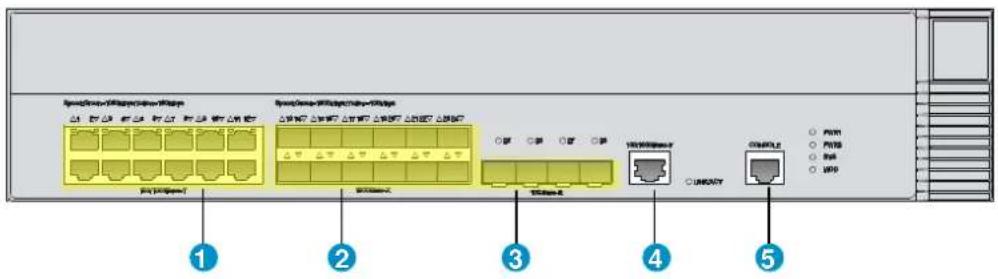
(1) 100/1000Base-T autosensing Ethernet ports (1 to 12) (2) 100Base-FX/1000Base-X SFP ports (13 to 24)
(3) 10GBase-R SFP+ ports (25 to 28) (4) 100/1000 Base-T management Ethernet ports
(5) Console port
Figure 3 Rear view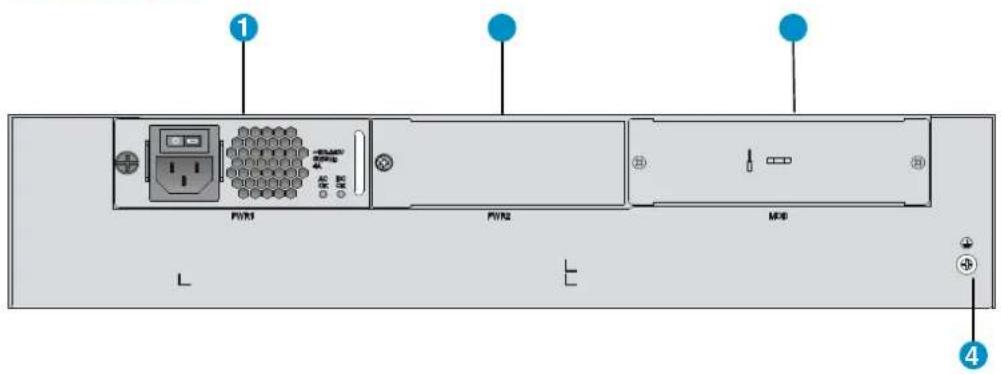
(1) Power supply slot (PWR1, with an AC power supply installed) (2) Power supply slot (PWR2)
(3) Expansion slot (4) Grounding screw
Power supply views
AC power supply
Figure 4 AC power supply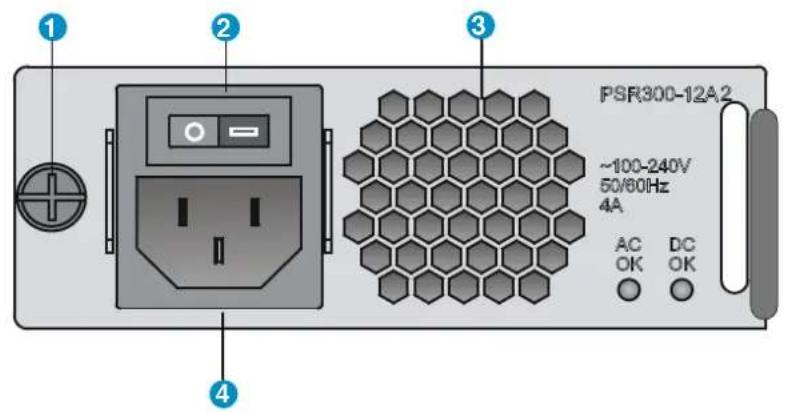
| (1) Captive screw (2) Power switch | |
| (3) Air outlet vent | (4) Power receptacle |
DC power supply
Figure 5 DC power supply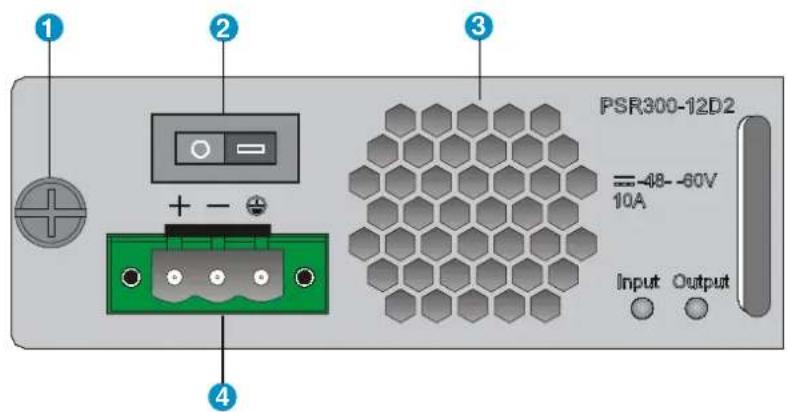
| (1) Captive screw | (2) Power switch |
| (3) Air outlet vent | (4) Power receptacle |
Transceiver module, fiber connector, and optical fiber views
Use an SFP or SFP+ transceiver module together with an optical fiber with LC-type fiber connector.
Figure 6 SFP transceiver module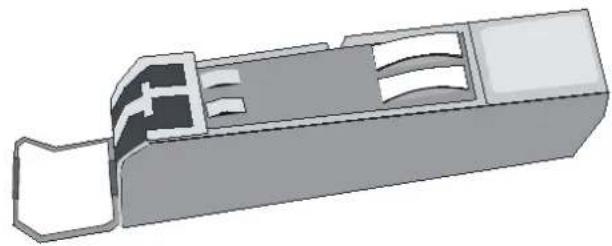
Figure 7 SFP+ transceiver module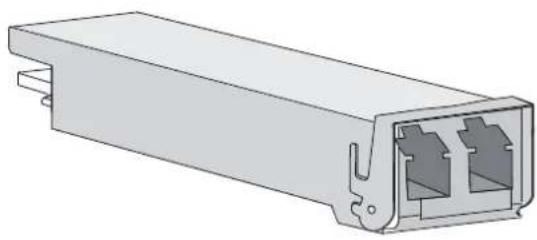
Figure 8 Optical fiber with LC-type connectors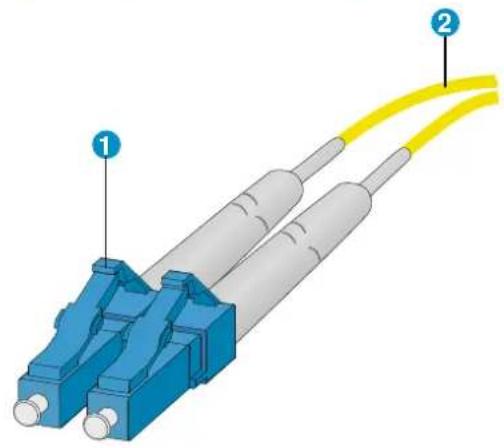
(1) LC-type connector (2) Optical fiber
Technical specifications
Table 9 Technical specifications
| Item | Specification |
| Console port One, 9600 bps (default) to 115200 bps | |
| Gigabit Ethernet port | 12 100/1000 Base-T autosensing Ethernet ports |
| SFP port | 12 100Base-FX/1000Base-X SFP ports |
| SFP+ port | Four 10GBase-R SFP+ ports |
| Memory 4 × 2 GB DDR3 | |
| Storage media | 4 GB CF card |
| Dimensions (H × W × D) (without rubber feet and mounting brackets) | 88.1 × 440 × 480 mm (3.47 × 17.32 × 18.90 in) |
| Rate AC voltage range 100 VAC to 240 VAC @ 50 Hz or 60 Hz | |
| Rate DC voltage range | -48 VDC to -60 VDC |
| System power consumption | 160 W to 260 W |
| Weight 13.3 kg (29.32 lb) (without power supplies) | |
| Operating temperature 0°C to 45°C (32°F to 113°F) | |
| Relative humidity (noncondensing) 5% to 95% | |
Table 10 AC power supply specifications
| Item | Specification |
| Model | PSR300-12A2/PSR300-12A2 |
| Rate input voltage range | 100 VAC to 240 VAC @ 50 Hz or 60 Hz |
| Rated power | 300 W |
Table 11 DC power supply specifications
| Item | Specification |
| Model PSR300-12D2 | |
| Rate input voltage range | -48 VDC to -60 VDC |
| Rated power 300 W |
Transceiver module specifications
The transceiver modules whose names contain MM and SM support multi-mode optical fibers and single-mode optical fibers, respectively.
Table 12 SFP-FE-SX-MM1310-A specifications
| Item | Specification |
| Central wavelength 1310 nm | |
| Transmission distance 2 km (1.24 miles) | |
| Transmission rate 125 Mbps | |
| Connector type | Duplex LC |
| Fiber mode | MMF |
| Fiber diameter | 50 μm |
| Transmit power | -19 to -14 dBm |
| Receive sensitivity | ≤ -30 dBm |
| Saturation ≤ -14 dBm |
Table 13 SFP-FE-LX-SM1310-A specifications
| Item | Specification |
| Central wavelength 1310 nm | |
| Transmission distance | 15 km (9.32 miles) |
| Transmission rate 125 Mbps | |
| Connector type Duplex LC | |
| Fiber mode SMF | |
| Fiber diameter | 9 μm |
| Transmit power -15 to -8 dBm | |
| Receive sensitivity | ≤ -28 dBm |
| Saturation | ≤ -7 dBm |
Table 14 SFP-FE-LH40-SM1310 specifications
| Item | Specification |
| Central wavelength 1310 nm | |
| Transmission distance | 40 km (24.86 miles) |
| Transmission rate 125 Mbps | |
| Connector type Duplex LC | |
| Fiber mode SMF | |
| Fiber diameter | 9 μm |
| Transmit power | -5 to 0 dBm |
| Receive sensitivity | ≤ -34 dBm |
| Saturation | ≤ -9 dBm |
Table 15 SFP-GE-SX-MM850-A specifications
| Item | Specification |
| Central wavelength 850 nm | |
| Transmission distance 550 m (1804.46 ft) | |
| Transmission rate 1250 Mbps | |
| Connector type Duplex LC | |
| Fiber mode MMF | |
| Fiber diameter | 50 μm |
| Transmit power | -9.5 to 0 dBm |
| Receive sensitivity | ≤ -17 dBm |
| Saturation | ≤ -3 dBm |
Table 16 SFP-GE-LX-SM1310-A specifications
| Item | Specification |
| Central wavelength 1310 nm | |
| Transmission distance 10 km (6.21 miles) | |
| Transmission rate 1250 Mbps | |
| Connector type Duplex LC | |
| Fiber mode SMF | |
| Fiber diameter | 9 μm |
| Transmit power | -9.5 to -3 dBm |
| Receive sensitivity | ≤ -20 dBm |
| Saturation | ≤ -3 dBm |
Table 17 SFP-GE-LH40-SM1310 specifications
| Item | Specification |
| Central wavelength 1310 nm | |
| Transmission distance | 40 km (24.86 miles) |
| Transmission rate 1250 Mbps | |
| Connector type Duplex LC | |
| Fiber mode SMF | |
| Fiber diameter | 9 μm |
| Transmit power | -2 to +5 dBm |
| Receive sensitivity | ≤ -22 dBm |
| Saturation | ≤ -3 dBm |
Table 18 SFP-GE-LH40-SM1550 specifications
| Item | Specification |
| Central wavelength 1550 nm | |
| Transmission distance | 40 km (24.86 miles) |
| Transmission rate 1250 Mbps | |
| Connector type Duplex LC | |
| Fiber mode SMF | |
| Fiber diameter | 9 μm |
| Transmit power | -4 to +1 dBm |
| Receive sensitivity | ≤ -21 dBm |
| Saturation | ≤ -3 dBm |
Table 19 SFP-GE-LH70-SM1550 specifications
| Item | Specification |
| Central wavelength 1550 nm | |
| Transmission distance | 70 km (43.50 miles) |
| Transmission rate 1250 Mbps | |
| Connector type Duplex LC | |
| Fiber mode SMF | |
| Fiber diameter | 9 μm |
| Transmit power | -4 to +5 dBm |
| Receive sensitivity | ≤ -22 dBm |
| Saturation | ≤ -3 dBm |
Table 20 SFP-XG-SX-MM850-A specifications
| Item | Specification |
| Central wavelength 850 nm | |
| Transmission distance | 300 m (984.25 ft) |
| Transmission rate 10.3125 Gbps | |
| Connector type Duplex LC | |
| Fiber mode MMF | |
| Fiber diameter 50 μm | |
| Transmit power | -7.3 to -1 dBm |
| Receive sensitivity | ≤ -9.9 dBm |
| Saturation ≤ 0.5 dBm |
Table 21 SFP-XG-LX220-MM1310 specifications
| Item | Specification |
| Central wavelength 1310 nm | |
| Transmission distance | 220 m (721.78 ft) |
| Transmission rate 10.3125 Gbps | |
| Connector type Duplex LC | |
| Fiber mode MMF | |
| Fiber diameter | 62.5 μm |
| Transmit power | -6.5 to +0.5 dBm |
| Receive sensitivity | ≤ -6.5 dBm |
| Saturation | ≤ 1.5 dBm |
Table 22 SFP-XG-LX-SM1310 specifications
| Item | Specification |
| Central wavelength 1310 nm | |
| Transmission distance | 10 km (6.21 miles) |
| Transmission rate 10.3125 Gbps | |
| Connector type Duplex LC | |
| Fiber mode SMF | |
| Fiber diameter | 9 μm |
| Transmit power | -8.2 to +0.5 dBm |
| Receive sensitivity | ≤ -14.4 dBm |
| Saturation | ≤ 0.5 dBm |
Table 23 SFP-XG-LH40-SM1550 specifications
| Item | Specification |
| Central wavelength 1550 nm | |
| Transmission distance | 40 km (24.86 miles) |
| Transmission rate 10.3125 Gbps | |
| Connector type Duplex LC | |
| Fiber mode SMF | |
| Fiber diameter | 9 μm |
| Transmit power | -4.7 to +4 dBm |
| Receive sensitivity | ≤ -15.8 dBm |
| Saturation | ≤ -1 dBm |
Interface arrangement
The HP 870 Unified Wired-WLAN Appliance provides fixed interfaces GigabitEthernet 1/0/1 through GigabitEthernet 1/0/32:
- GigabitEthernet 1/0/1 through GigabitEthernet 1/0/12—100/1000 Base-T autosensing Ethernet ports. You can identify an interface by its mark. GigabitEthernet 1/0/13 through GigabitEthernet 1/0/24—100Base-FX/1000Base-X SFP ports. You can identify an interface by its mark.
- GigabitEthernet 1/0/25 through GigabitEthernet 1/0/28—10GBase-R SFP+ ports. You can identify an interface by its mark.
- GigabitEthernet 1/0/29 through GigabitEthernet 1/0/32—Internal interfaces that are used to connect the controller engine of the HP 870 Unified Wired-WLAN Appliance.
Appendix B LEDs
Panel LEDs
Figure 9 LEDs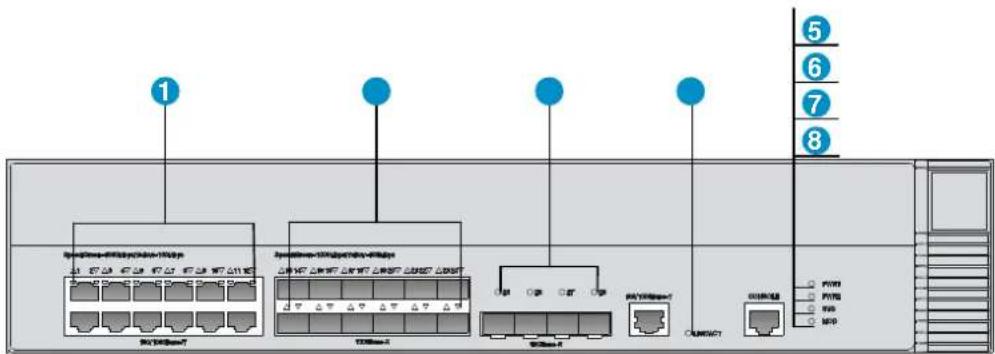
(1) 100/1000Base-T autosensing Ethernet port status LEDs
(2) 100Base-FX/1000Base-X SFP port status LEDs (3) 10GBase-R SFP+ port status LEDs
(4) 100/1000 Base-T out-of-band management Ethernet port status LEDs (LINK/ACT)
(5) Power supply 1 status LED (PWR1) (6) Power supply 2 status LED (PWR2)
(7) System status LED (SYS) (8) Expansion slot status LED (MOD)
Table 24 LED description
| LED | Mark | Status | Description |
| Power supply 1 status LED | PWR1 | Steady green | Power supply 1 is operating correctly. |
| Steady yellow Power supply 1 is faulty | |||
| Off No power supply is installed to the slot. | |||
| Power supply 2 status LED | PWR2 | Steady green | Power supply 2 is operating correctly. |
| Steady yellow | Power supply 2 is faulty. | ||
| Off No power supply is installed to the slot. | |||
| System status LED SYS | Steady green The system is starting up. | ||
| Flashing green The system is operating correctly. | |||
| Flashing green The system is downloading files. | |||
| Steady yellow | The system has failed to pass the power on self test (POST) or has detected a serious fault. | ||
| Off No power input is present. | |||
| Expansion slot status LED (green/yellow) | MOD | Steady green An interface card is present. | |
| Flashing green | The hard disk is reading or writing data. | ||
| Steady yellow A failure has occurred. | |||
| Off No interface card is present. | |||
| 100/1000 Base-T out-of-band management Ethernet port status LED (green) | LINK/ACT | Off No link is present. | |
| Steady green A link is present. | |||
| Flashing green The port is receiving or transmitting data. | |||
| 100/1000 Base-T autosensing Ethernet port status LED | N/A | Steady yellow | A 100 Mbps link is present on the port. |
| Flashing yellow | The port is receiving or transmitting data at 100 Mbps. | ||
| Steady green A 1000 Mbps link is present on the port. | |||
| Flashing green | The port is receiving or transmitting data at 1000 Mbps. | ||
| Off No link is present on the port. | |||
| 100Base-FX/1000Base-X SFP port status LED | N/A | Steady yellow | A 100 Mbps link is present on the port. |
| Flashing yellow | The port is receiving or transmitting data at 100 Mbps. | ||
| Steady green A 1000 Mbps link is present on the port. | |||
| Flashing green | The port is receiving or transmitting data at 1000 Mbps. | ||
| Off No link is present on the port. | |||
| 10GBase-R SFP+ port status LED | N/A | Steady green A link is present on the port. | |
| Flashing green | The port is receiving or transmitting data at 10 Gbps. | ||
| Off No link is present on the port. | |||
Power supply LEDs
Figure 10 AC power supply LEDs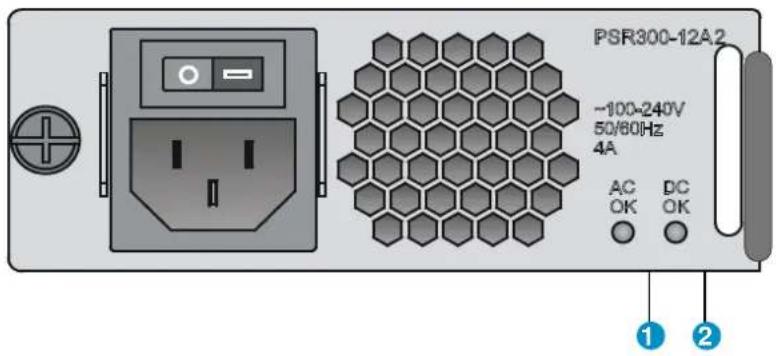
(1) AC power input status LED (2) AC power output status LED
Table 25 AC power supply LED description
| LED | Status | Description |
| AC OK | Off | No power is input or the power supply has an input problem. |
| Steady green | The power input is normal. | |
| DC OK | Off | No power is output or the power supply has an output problem. |
| Steady green | The power output is normal. |
Figure 11 DC power supply LEDs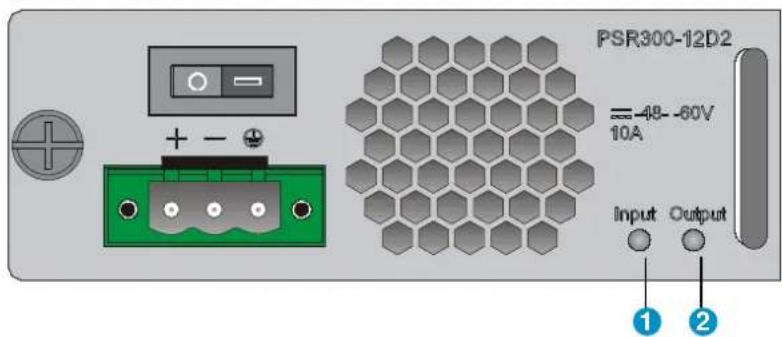
(1) DC power input status LED (2) DC power output status LED
Table 26 DC power supply LED description
| LED | Status | Description |
| Input | Off | No power is input or the power supply has an input problem. |
| Steady green | The power input is normal. | |
| Output | Off | No power is output or the power supply has an output problem. |
| Steady green | The power output is normal. |
Support and other resources
Contacting HP
For worldwide technical support information, see the HP support website:
http://www.hp.com/support
Before contacting HP, collect the following information:
• Product model names and numbers • Technical support registration number (if applicable) • Product serial numbers • Error messages • Operating system type and revision level • Detailed questions
Subscription service
HP recommends that you register your product at the Subscriber's Choice for Business website:
http://www.hp.com/go/wwalerts
After registering, you will receive email notification of product enhancements, new driver versions, firmware updates, and other product resources.
Related information
Documents
To find related documents, browse to the Manuals page of the HP Business Support Center website: http://www.hp.com/support/manuals
• For related documentation, navigate to the Networking section, and select a networking category. • For a complete list of acronyms and their definitions, see HP FlexNetwork Technology Acronyms.
Websites
HP.com http://www.hp.com • HP Networking http://www.hp.com/go/networking • HP manuals http://www.hp.com/support/manuals • HP download drivers and software http://www.hp.com/support/downloads • HP software depot http://www.software.hp.com • HP Education http://www.hp.com/learn
Conventions
This section describes the conventions used in this documentation set.
Command conventions
| Convention | Description |
| Boldface | Bold text represents commands and keywords that you enter literally as shown. |
| Italic | Italic text represents arguments that you replace with actual values. |
| [ ] | Square brackets enclose syntax choices (keywords or arguments) that are optional. |
| {x | y | ...} | Braces enclose a set of required syntax choices separated by vertical bars, from which you select one. |
| [x | y | ...] | Square brackets enclose a set of optional syntax choices separated by vertical bars, from which you select one or none. |
| {x | y | ... } * | Asterisk-marked braces enclose a set of required syntax choices separated by vertical bars, from which you select at least one. |
| [x | y | ... ] * | Asterisk-marked square brackets enclose optional syntax choices separated by vertical bars, from which you select one choice, multiple choices, or none. |
| &<1-n> | The argument or keyword and argument combination before the ampersand (&) sign can be entered 1 to n times. |
| # A line that starts with a pound (#) sign is comments. | |
GUI conventions
| Convention | Description |
| Boldface | Window names, button names, field names, and menu items are in bold text. For example, the New User window appears; click OK. |
| > | Multi-level menus are separated by angle brackets. For example, File > Create > Folder. |
Symbols
| Convention | Description |
| WARNING | An alert that calls attention to important information that if not understood or followed can result in personal injury. |
| CAUTION | An alert that calls attention to important information that if not understood or followed can result in data loss, data corruption, or damage to hardware or software. |
| IMPORTANT | An alert that calls attention to essential information. |
| NOTE | An alert that contains additional or supplementary information. |
| TIP | An alert that provides helpful information. |
Network topology icons
 | Represents a generic network device, such as a router, switch, or firewall. |
 | Represents a routing-capable device, such as a router or Layer 3 switch. |
 | Represents a generic switch, such as a Layer 2 or Layer 3 switch, or a router that supports Layer 2 forwarding and other Layer 2 features. |
 | Represents an access controller, a unified wired-WLAN module, or the switching engine on a unified wired-WLAN switch. |
 | Represents an access point. |
Port numbering in examples
The port numbers in this document are for illustration only and might be unavailable on your device.
Index
ACDEGILMPRSTV
A
Accessories, 5
C
Chassis views, 38
Configuration terminal problems, 27
Configuring the exception handling method, 36
Confirming installation preparations, 8
Connecting the AC power cord, 23
Connecting the console cable and setting terminal parameters, 18
Connecting the DC power cord, 24
Connecting the Ethernet cables, 21
Contacting HP, 50
Conventions, 51
D
Displaying hardware information for the device, 31
E
Examining the installation site, 2
G
Grounding the device, 15
|
Installation flow, 8
Installation preparation checklist, 6
Installing a power supply, 22
Installing the device in a 19-inch rack, 9
Interface arrangement, 45
L
Logging in to the switching engine by using OAP, 31 Login password loss, 28
M
Mounting the device on a workbench, 9
P
Panel LEDs, 47
Power supply failure, 27
Power supply LEDs, 49
Power supply views, 39
Powering on the device, 25
R
Rebooting the device, 37
Related information, 50
S
Safety recommendations, 1
Software loading failure, 29
T
Technical specifications, 40
Transceiver module specifications, 41
Transceiver module, fiber connector, and optical fiber views, 39
V
Verifying the installation, 25
- HP 870 UNIFIED WIRED-WLAN APPLIANCE INSTALLATION GUIDE
- LEGAL AND NOTICE INFORMATION
- CONTENTS
- PREPARING FOR INSTALLATION
- INSTALLING THE DEVICE
- TROUBLESHOOTING
- HARDWARE MANAGEMENT AND MAINTENANCE
- IMPORTANT
- SAFETY RECOMMENDATIONS
- WARNING
- SAFETY SYMBOLS
- GENERAL SAFETY RECOMMENDATIONS
- ELECTRICAL SAFETY
- LASER SAFETY
- EXAMINING THE INSTALLATION SITE
- TEMPERATURE AND HUMIDITY
- CLEANNESS
- COOLING
- ESD PREVENTION
- NOTE
- EMI
- LIGHTNING PROTECTION
- ACCESSORIES
- INSTALLATION PREPARATION CHECKLIST
- CONFIRMING INSTALLATION PREPARATIONS
- INSTALLATION FLOW
- MOUNTING THE DEVICE ON A WORKBENCH
- INSTALLING THE DEVICE IN A 19-INCH RACK
- MOUNTING BRACKETS
- INSTALLING THE DEVICE BY USING FRONT AND REAR MOUNTING BRACKETS
- INSTALLING THE DEVICE BY USING FRONT MOUNTING BRACKETS AND A RACK SHELF
- INSTALLING THE DEVICE BY USING FRONT MOUNTING BRACKETS AND SLIDE RAILS
- GROUNDING THE DEVICE
- CONNECTING THE CONSOLE CABLE AND SETTING TERMINAL PARAMETERS
- CONNECTING THE CONSOLE CABLE
- SETTING TERMINAL PARAMETERS
- CONNECTING THE ETHERNET CABLES
- CONNECTING A COPPER ETHERNET PORT
- CONNECTING A FIBER PORT
- INSTALLING A POWER SUPPLY
- CAUTION
- CONNECTING THE AC POWER CORD
- CONNECTING THE DC POWER CORD
- VERIFYING THE INSTALLATION
- POWERING ON THE DEVICE
- POWER SUPPLY FAILURE
- CONFIGURATION TERMINAL PROBLEMS
- NO TERMINAL DISPLAY
- GARBLED TERMINAL DISPLAY
- LOGIN PASSWORD LOSS
- DEALING WITH CONSOLE LOGIN PASSWORD LOSS
- DEALING WITH USER PRIVILEGE LEVEL PASSWORD LOSS
- SOFTWARE LOADING FAILURE
- LOGGING IN TO THE SWITCHING ENGINE BY USING OAP
- DISPLAYING HARDWARE INFORMATION FOR THE DEVICE
- DISPLAYING SOFTWARE AND HARDWARE VERSION INFORMATION FOR THE CONTROLLER ENGINE
- DISPLAYING OPERATIONAL STATISTICS FOR THE DEVICE
- DISPLAYING DETAILED INFORMATION ABOUT THE DEVICE
- DISPLAYING THE ELECTRONIC LABEL DATA FOR THE DEVICE
- DISPLAYING THE CPU USAGE OF THE DEVICE
- DISPLAYING THE MEMORY USAGE OF THE DEVICE
- DISPLAYING THE OPERATIONAL STATUS OF THE BUILT-IN FANS
- DISPLAYING THE OPERATING STATE OF A POWER SUPPLY
- CONFIGURING THE EXCEPTION HANDLING METHOD
- CONFIGURATION PROCEDURE
- DISPLAYING THE EXCEPTION HANDLING METHOD
- REBOOTING THE DEVICE
- APPENDIX A CHASSIS VIEWS AND TECHNICAL SPECIFICATIONS
- CHASSIS VIEWS
- POWER SUPPLY VIEWS
- AC POWER SUPPLY
- DC POWER SUPPLY
- TRANSCEIVER MODULE, FIBER CONNECTOR, AND OPTICAL FIBER VIEWS
- TECHNICAL SPECIFICATIONS
- TRANSCEIVER MODULE SPECIFICATIONS
- INTERFACE ARRANGEMENT
- APPENDIX B LEDS
- PANEL LEDS
- POWER SUPPLY LEDS
- SUPPORT AND OTHER RESOURCES
- CONTACTING HP
- SUBSCRIPTION SERVICE
- RELATED INFORMATION
- DOCUMENTS
- WEBSITES
- CONVENTIONS
- NETWORK TOPOLOGY ICONS
- PORT NUMBERING IN EXAMPLES
- INDEX
- ACDEGILMPRSTV
- A
- C
- D
- E
- G
- L
- M
- P
- R
- S
- T
- V
Brand : HP
Model : 870
Category : LED strip