PMCL622 - Monitor Pelco - Free user manual and instructions
Find the device manual for free PMCL622 Pelco in PDF.


| Brand | Pelco |
| Model | PMCL622 |
| Product Type | Video Surveillance Monitor |
| Display Size | 22 inches (estimated) |
| Resolution | Full HD 1920 x 1080 |
| Panel Type | LCD |
| Input Connectors | VGA (D-Sub 15), HDMI, CVBS (BNC), Audio In (stereo jack), USB |
| Video Processing | 3D comb filter, 3D de-interlace, auto ghost elimination |
| Contrast Ratio | High (value not specified) |
| Brightness | High (value not specified) |
| Response Time | Rapid (value not specified) |
| Aspect Ratio | 16:9 |
| Power Supply | AC 100-240V (estimated) |
| Power Consumption | Typical < 50W (estimated) |
| Weight | Approx. 5 kg (estimated) |
| Dimensions (W x H x D) | Approx. 515 x 320 x 60 mm (without stand, estimated) |
| Mounting | Desktop or wall mount (VESA compatible, size not specified) |
| Certifications | FCC Class B, UL, ICES-3 |
| Cleaning | Use soft cloth with neutral cleaner; avoid abrasives |
| Safety | Do not open, keep away from heat and moisture, use qualified service |
Frequently Asked Questions - PMCL622 Pelco
User questions about PMCL622 Pelco
0 question about this device. Answer the ones you know or ask your own.
Ask a new question about this device
Download the instructions for your Monitor in PDF format for free! Find your manual PMCL622 - Pelco and take your electronic device back in hand. On this page are published all the documents necessary for the use of your device. PMCL622 by Pelco.
USER MANUAL PMCL622 Pelco
600 Series Video Surveillance Monitors
natural_image
Computer monitor displaying a scenic sunset over water with wooden posts and silhouetted shore (no text or symbols visible)Models:
PMCL622
PMCL624
Contents
for Desktop Monitor User Manual (10/16)....1
Important Notices Statement....3
Regulatory Notices....3
Radio and Television Interference ....3
Korean Class B EMC 3
Warranty Statement 3
UL Safety Notices ....3
Important Information....4
Safety Warning 4
Notes......4
Product Appearance....6
Performance Features 6
External Connections....6
Main Menu 7
PC Menu....8
Picture Menu....8
Audio Menu....8
OSD Menu 9
Function Menu 9
Geometry Menu 9
Channel Selection....10
How to Clean Product .... 10
Troubleshooting 10
Pelco Troubleshooting Contact Information ....12
Important Notices Statement
For information about Pelco's product-specific important notices and thereto related information, refer to www.pelco.com/legal.
REGULATORY NOTICES
This device complies with Part 15 of the FCC Rules. Operation is subject to the following two conditions: (1) this device may not cause harmful interference, and (2) this device must accept any interference received, including interference that may cause undesired operation.
RADIO AND TELEVISION INTERFERENCE
This equipment has been tested and found to comply with the limits of a Class B digital device, pursuant to Part 15 of the FCC Rules. These limits are designed to provide reasonable protection against harmful interference in a residential installation. This equipment generates, uses, and can radiate radio frequency energy and, if not installed and used in accordance with the instructions, may cause harmful interference to radio communications. However, there is no guarantee that the interference will not occur in a particular installation. If this equipment does cause harmful interference to radio or television reception, which can be determined by turning the equipment off and on, the user is encouraged to try to correct the interference by one or more of the following measures:
- Reorient or relocate the receiving antenna.
- Increase the separation between the equipment and the receiver.
- Connect the equipment into an outlet on a circuit different from that to which the receiver is connected.
- Consult the dealer or an experienced radio/TV technician for help.
You may also find helpful the following booklet, prepared by the FCC: "How to Identify and Resolve Radio-TV Interference Problems." This booklet is available from the U.S. Government Printing Office, Washington D.C. 20402.
Changes and modifications not expressly approved by the manufacturer or registrant of this equipment can void your authority to operate this equipment under Federal Communications Commission's rules.
CAN ICES-3 (B)/NMB-3(B)
KOREAN CLASS B EMC
For information about Pelco's product warranty and thereto related information, refer to www.pelco.com/warranty.
UL SAFETY NOTICES
The product shall be installed by a qualified service person and the installation shall conform to all local codes.
Important Information
SAFETY WARNING
To use the product safely, correctly, and to keep users from suffering injury or property loss, please observe the following safety precautions when installing, using or maintaining.
Please read this handbook before operating the product and keep the handbook for future reference.
- Notice and observe all the warnings and illustrations.
- Do not adjust, maintain or modify if you do not have appropriate qualifications.
- Do not open or remove the rear cover, box or cover board of the product. Please contact the dealer or after-sales service center when in need of adjustment or maintenance.
- Do not place any items on the product. The product may be damaged if foreign objects enter the internal unit.
- Do not tread on or squeeze the power line, especially the plug or connection point of the power line to the product.
- Do not put the product in flammable or corrosive gaseous environment, which may cause fire or damage the product. Placing the product in proximity to flammable gas can easily result in a dangerous explosion.
- Please turn off power or unplug the power cable immediately if there is smoking, off-odor, or abnormal noise. Contact the after-sales service center for maintenance after confirming there is no more smoke or odor. Further use could result in fire.
- Only qualified service people can maintain. If the product gets any kind of damage, such as damage to the plug, foreign matter or liquid into the unit, exposure to rain or humidity, loss of function, or dropped, please contact dealer or after-sales service center.
- Do not expose the product to rain or chemicals. If the product is moist, allow to fully dry before plugging in or turning on power.
● Turn off the power when cleaning the product.
● Failure to properly secure all screws during installation can result in a fall of the product. Ensure all mounting hardware and other installation accessories are properly secured during installation.
- Do not touch any fixed components inside the product. Failure to do so can result in damage to the product or person.
- Be careful during maintenance of product even if the power is off. Some components are equipped with UPS, and can continue to supply power which is dangerous to people.
Notes
- Please put the product in a flat, stable and dry place. Avoid direct sunlight, high temperature, humidity, dust, and corrosive gas.
- If the product is installed on the wall, please make sure the wall's load bearing capacity is sufficient. To avoid falling and injuring people, install according to the included instructions with mounting hardware.
- The LCD may experience image distortion or color decay when the temperature variation is too large. Wait for a moment (with power on) and the distortion should disappear.
- Do not block the ventilation opening. Install the product according to this handbook.
- Do not install the product near any heat source such as a radiator, heat register or stove.
-
Do not use uncertified connecting lines, which might cause equipment failure.
-
Do not press, stretch or heat the connecting lines, which might cause damage to it.
- Please firmly grasp the plug of the connecting line when inserting and removing. Pulling the connecting line might cause damage to it.
- Cut off power and the connecting line immediately and contact the after-sales service center if the product or the connecting line is damaged for some reason. Continued use without maintenance might cause smoking or off-odor.
- Do not hang or lean on the product. Doing so can cause the product to fall or become damaged. It may also cause injury to people. Pay special attention when children are nearby.
- Please turn off power for safety if not using the product for a long time.
- Do not let the connecting line get squeezed, buckled, pulled or twisted.
● Make sure the power is turned off and the connecting lines are removed when moving the product. - Avoid collisions with the product. This may cause equipment failure.
Product Appearance
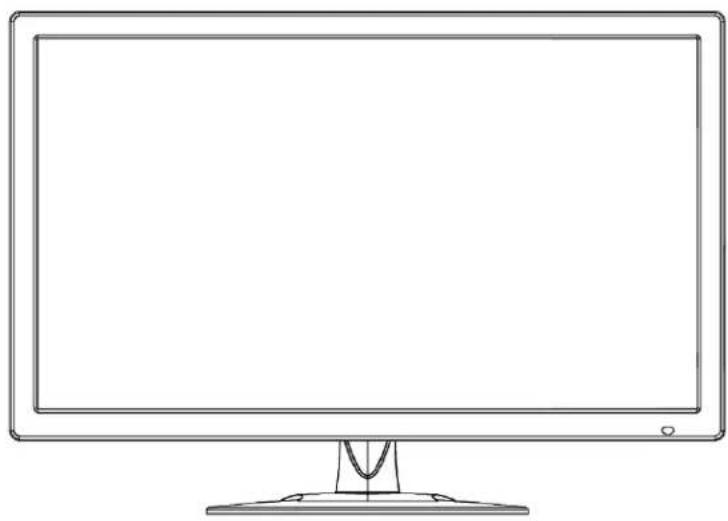
natural_image
Line drawing of a flat-screen computer monitor with a stand (no text or symbols)(Photos are for reference only)
PERFORMANCE FEATURES
● Supports 3D comb-filter and 3D de-interlace.
● Low energy consumption, long service life.
● High contrast ratio and high luminance.
● Automatically eliminates ghosting.
● Rapid response times, no trailing image.
- Thin and light.
● Full-HD LCD panel with top-ranking video processing chip.
EXTERNAL CONNECTIONS
Please connect the monitor to external devices according to the following I/O interface list. Choose the corresponding incoming signal channel.

VGA INPUT: D-SUB 15 pin Connector
HDMI INPUT: HDMI Connector
CVBS IN: BNC Connector
AUDIO IN: Phone Jack, Stereo
USB IN: Supports USB updates

Attention
Please turn off the power of the external device and the product when connecting.
Main Menu
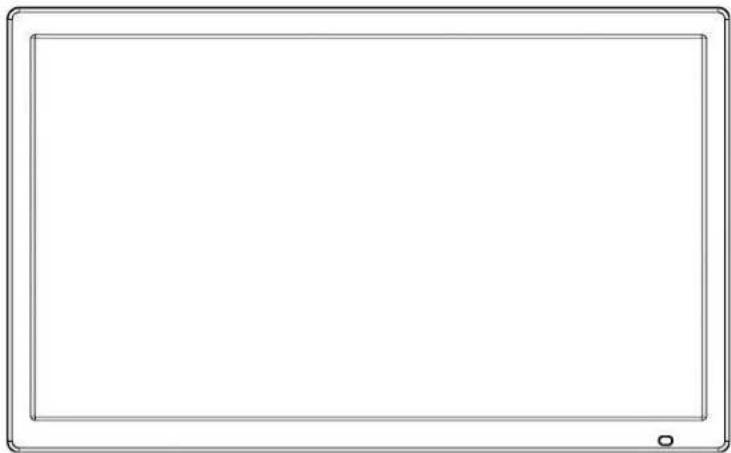
To activate, press the menu button on the bottom left of the bezel. The sub-menus of the main menu are: PC Menu, Picture menu, Audio menu, OSD menu, Function menu and Geometry menu.
Press the menu button to select the sub-menu item. The selected menu item will show a bordered wireframe. Press the ▲▼ button to move among the secondary menu items of the sub-menu.
natural_image
Blank rectangular frame with rounded corners and a small dot at the bottom (no text or symbols)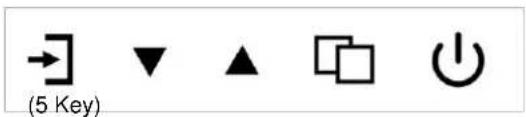
A. "Source" button
- Press the button to display all the signal channel menus.
B. "Upward" button
- Press the button to move the cursor to the needed function.
- Press the button to change the selected function in OSD menu item.
C. "Downward" button
- Press the button to move the cursor to the needed function.
- Press the button to change the selected function in OSD menu item.
D. "Menu" button
- Press the button to display the OSD main menu.
- Press the button to Exit the OSD menu or menu item.
G. "Power" button
- Press the button to turn on or turn off the display.
PC MENU
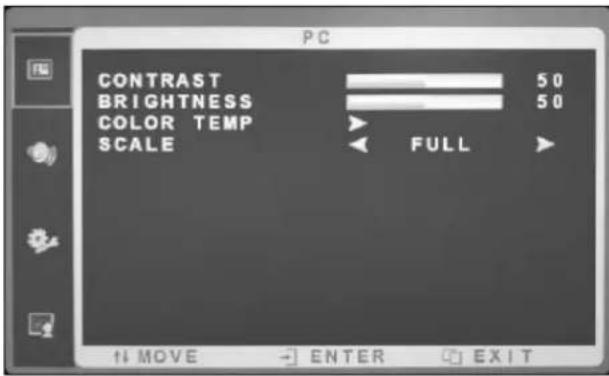
PC menu sets the contrast, brightness, color temperature and scale. Press ▲▼ button to adjust value when item is selected, press menu button to exit.
PICTURE MENU
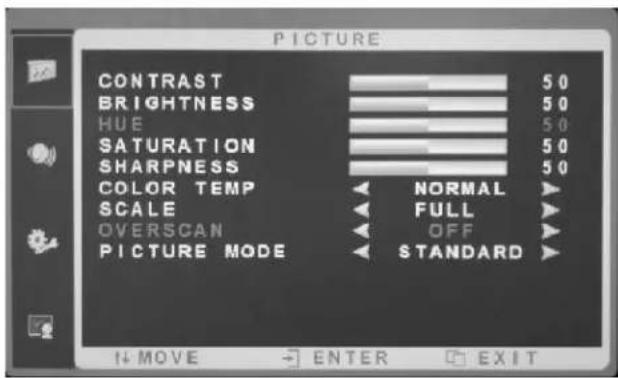
Picture menu can set contrast, brightness, hue, saturation, sharpness, color temperature, scale, over scan, and picture mode. Press ▲▼ button to adjust value when item is selected, press menu button to exit.
AUDIO MENU
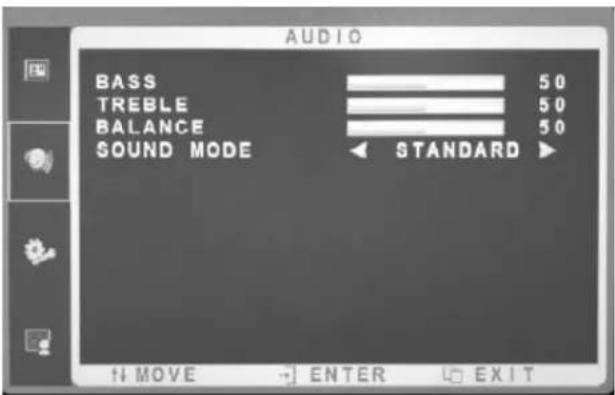
Audio menu can set bass, treble, balance, sound mode. Press ▲▼ button to adjust value when item is selected, press menu button to exit.
OSD MENU
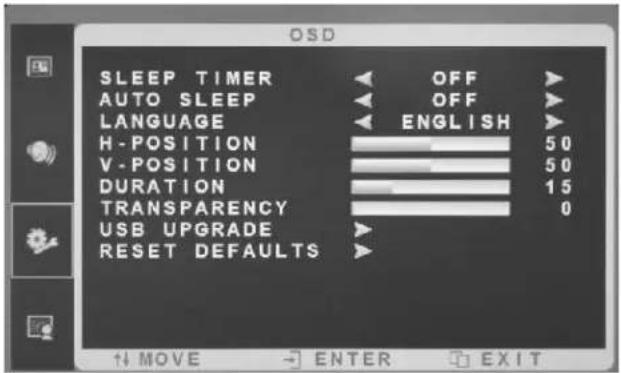
OSD menu can adjust the sleep timer, enable / disable auto sleep, change the language, adjust H-position, adjust V-position, adjust duration, adjust transparency, and reset defaults. Press ▲▼ button to adjust value when item is selected, press menu button to exit. (USB upgrade function according to port for optional display)
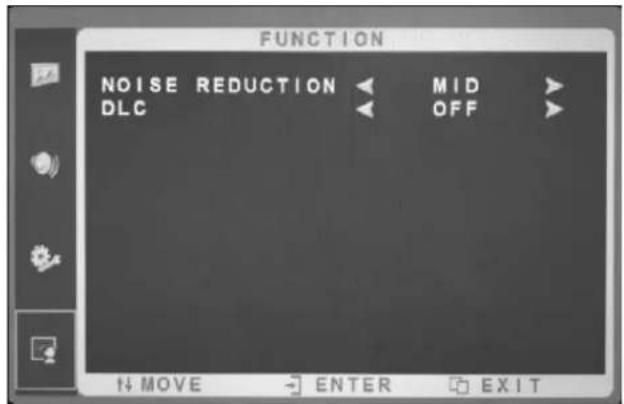
FUNCTION MENU
Function menu can set noise reduction and DLC. Press ▲▼ button to adjust value when item is selected, press menu button to exit.
GEOMETRY MENU
Geometry menu can adjust the H-position, V-position, clock, phase and auto adjust. Press ▲▼ button to adjust value when item is selected, press menu button to exit.

CHANNEL SELECTION
"Source" menu can select channel (input). The options include VGA, HDMI and so on. Press ▲▼ button to adjust value when item is selected, press menu button to exit.
How to Clean Product
- Please wipe dust and other particles off with a clean soft towel.
- If it is still not clean, please use a neutral cleaner along with the clean soft towel. Wipe dry after cleaning it.
- Rubbing or scrapping the housing with fingernails or other hard objects might scratch the housing.
Troubleshooting
Before consulting service staff, please use the following chart to attempt to diagnose the issue.
| Problem | Fix | |||||||||
| 1 | 2 | 3 | 4 | 5 | 6 | 7 | 8 | 9 | 10 | |
| No image or sound | ◎ | ◎ | ◎ | ◎ | ◎ | ◎ | ||||
| Inferior sound, normal image | ◎ | ◎ | ◎ | ◎ | ||||||
| Inferior image, normal sound | ◎ | ◎ | ◎ | ◎ | ◎ | ◎ | ◎ | |||
| Poor signal | ◎ | ◎ | ◎ | ◎ | ◎ | |||||
| Vague image | ◎ | ◎ | ◎ | ◎ | ||||||
| Double image | ◎ | ◎ | ◎ | ◎ | ||||||
| Interfering lines in image | ◎ | ◎ | ◎ | ◎ | ||||||
| Twisty image | ◎ | ◎ | ◎ | ◎ | ||||||
| Poor signal | ◎ | ◎ | ◎ | ◎ | ◎ | ◎ | ||||
| Rung stripe in image | ◎ | ◎ | ||||||||
| Image vertically scrolls | ⊕ | ◎ | ◎ | ◎ | ||||||
| Inferior color | ◎ | ◎ | ◎ | ◎ | ◎ | ◎ | ◎ | ◎ | ◎ | |
| No color | ◎ | ◎ | ◎ | ◎ | ◎ | ◎ | ||||
| Fix | |
| 1 | Switch to another channel or input. |
| 2 | Check whether the signal line is connected. |
| 3 | Check whether the signal line is connected. |
| 4 | Interference from other electric appliance may be present. |
| 5 | Adjust ine tuning setting. |
| 6 | Adjust luminance setting. |
| 7 | Adjust contrast ratio setting. |
| 8 | Adjust color setting. |
| 9 | Check whether the system is set-up properly. |
| 10 | Check whether the power is on. |
Pelco Troubleshooting Contact Information
If the instructions provided fail to solve your problem, contact Pelco Product Support at 1-800-289-9100 (USA and Canada) or +1-559-292-1981 (international) for assistance. Be sure to have the serial number available when calling.
Do not try to repair the unit yourself. Leave maintenance and repairs to qualified technical personnel only.

by Schneider Electric
Pelco by Schneider Electric
3500 Pelco Way Clovis, California 93612 USA
(800) 289-9100 Tel (800) 289-9150 Fax
+1 (559) 292-1981 International Tel
+1 (559) 348-1120 International Fax
www.pelco.com
Pelco, the Pelco logo, and other trademarks associated with Pelco products referred to in this publication are trademarks of Pelco, Inc. or its affiliates. ONVIF and the ONVIF logo are trademarks of ONVIF Inc. All other product names and services are the property of their respective companies. Product specifications and availability are subject to change without notice.
© Copyright 2015, Pelco, Inc. All rights reserved.

- Series Video Surveillance Monitors
- Contents
- Important Notices Statement
- REGULATORY NOTICES
- RADIO AND TELEVISION INTERFERENCE
- KOREAN CLASS B EMC
- UL SAFETY NOTICES
- Important Information
- SAFETY WARNING
- Notes
- Product Appearance
- PERFORMANCE FEATURES
- EXTERNAL CONNECTIONS
- Attention
- Main Menu
- "Source" button
- "Upward" button
- "Downward" button
- "Menu" button
- "Power" button
- PC MENU
- PICTURE MENU
- AUDIO MENU
- OSD MENU
- FUNCTION MENU
- GEOMETRY MENU
- CHANNEL SELECTION
- How to Clean Product
- Troubleshooting
- Pelco Troubleshooting Contact Information
- Pelco by Schneider Electric
Brand : Pelco
Model : PMCL622
Category : Monitor