
WRC-1 - Router WAVES - Free user manual and instructions
Find the device manual for free WRC-1 WAVES in PDF.


| Product Type | Dual-band Gigabit Wi-Fi Router |
| Brand | Waves |
| Model | WRC-1 |
| Form Factor | 19-inch 1RU rack-mountable |
| Wireless Standards | 802.11 a/b/g/n/ac, dual-band 2.4 GHz & 5 GHz |
| Antennas | 4 high-performance external antennas (2 for 2.4 GHz, 2 for 5 GHz) with True Diversity |
| MIMO | Advanced MIMO technology for extended range and throughput |
| LAN Ports | 4 Gigabit Ethernet LAN ports |
| WAN Port | 1 Gigabit Ethernet WAN port (DLNA WAN) |
| USB Ports | USB 3.0 hub with fast charging for mobile devices |
| DLNA Audio | DLNA player with balanced XLR outputs (compatible with iOS, Android, macOS, Windows, AirPlay) |
| Setup Software | Web-based management interface (192.168.2.1) |
| Security | WPA-PSK encryption, password-protected Wi-Fi |
| Dimensions (approximate) | Standard 1RU height, 19-inch width, depth approx. 200 mm |
| Weight (approximate) | 2.5 kg (with antennas) |
| Power Supply | AC adapter (included) |
| Maintenance | Clean with dry cloth; avoid liquids. Keep antennas unobstructed. |
| Safety | Avoid interference from other electronics; mount away from metal objects. |
| Spare Parts | Antennas, power adapter (contact manufacturer) |
| Repairability | Consumer-replaceable antennas; firmware updates available via web interface |
Frequently Asked Questions - WRC-1 WAVES
User questions about WRC-1 WAVES
0 question about this device. Answer the ones you know or ask your own.
Ask a new question about this device
Download the instructions for your Router in PDF format for free! Find your manual WRC-1 - WAVES and take your electronic device back in hand. On this page are published all the documents necessary for the use of your device. WRC-1 by WAVES.
USER MANUAL WRC-1 WAVES
Advanced WIFI Stage Router
User Guide

natural_image
Front view of a black wireless router with four antennas and USB ports (no visible text or symbols on the device body)About WRC-1
WRC-1 is an advanced Wi-Fi router designed specifically with the needs of live sound engineers in mind. It's a perfect match with the Waves MyMon Personal Monitor Mixing app for mobile devices, as well as other remote-control mixing apps.
Features and Highlights
• Dual-band gigabit Wi-Fi router
• Standard 19" (1RU) cabinet
• True Diversity transmission, with two antennas for each band (four high-performance antennas supplied)
- Greater range and higher data throughput thanks to advanced MIMO technology
- DLNA player with Balanced XLR outputs. Compatible with IOS, Android, MacOS, Windows, and AirPlay via a WRC-1 WIFI network
• USB3 HUB with fast charging for mobile devices
WRC-1 REAR PANEL
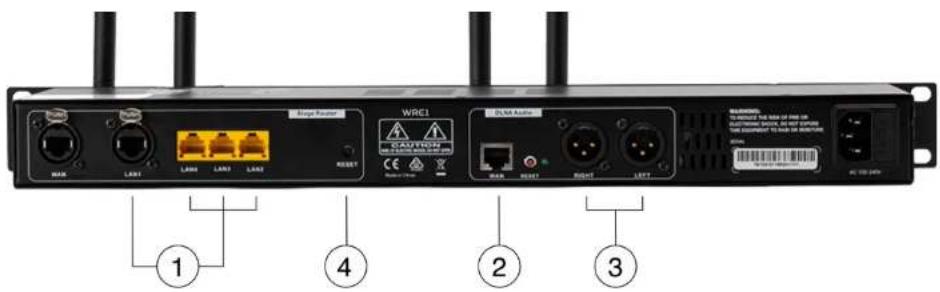
① LAN ports
② DLNA WAN Port
③ DLNA analog outputs
④ Reset switch
Rack Installation guidelines
The rack placement and operational environment for the WRC-1 can affect the wireless signal range and coverage. For best results, follow these guidelines:
- Mount the WRC-1 near the top of the rack and away from any other gear that may use radio waves in the same 2.4 GHz or 5 GHz range. Note that rack-mount computers or laptops placed directly above the WRC-1 may cause wireless interference. The WRC-1 antennas should never be covered in the rack while in operation.
- Avoid interference from other electronic devices. Interference may be caused by nearby appliances such as two-way radios, copy machines, printers, microwave ovens, and refrigerators.
- Minimize obstacles, especially large steel or metal objects, between the WRC-1 and wireless-connected devices. The WRC-1 should not, for example, be placed in a location where a stage or riser is directly between the unit and the wireless device.
Setting Up WRC-1 for Use With eMotion LV1 and the MyMon App
If you are unfamiliar with setting up or using the MyMon app, please refer to the My Mon user guide.
- Attach the supplied antennas to the WRC-1 unit. Do not force the connection, as antennas marked 2.4 GHz will fit only the 2.4 GHz sockets and antennas marked 5 GHz will fit only the 5 GHz sockets.
- Connect the AC cable and power up WRC-1.
- If you want to use DLNA, connect the DLNA WPA Ethernet port (2) to any available LAN port (1) on the back of the unit, using a short Cat 5e (or better) cable.
- Connect any available WRC-1 LAN port (1) to the Ethernet port on the host computer. This must be the same port used by the MyMon /LV1 network, not the SoundGrid network. Use Cat 5e (or better) cable.
- Connect your MyMon Mobile device to the WRC-1 5G Wi-Fi network. Out-of-the-box WRC-1 Wi-Fi network is not password protected. You can password protect your network using WRC-1 Management Software.
Important: The LV1 Ethernet port used for the MyMon network must not be the same Ethernet port used by the SoundGrid network. Combining MyMon and SoundGrid Networks on the same LV'1 ethernet port is not supported.
To Set up DLNA, go to the rear panel and follow these steps:
- Connect the DLNA WPA Ethernet Port (2) to any available LAN port (1) on the back of the unit, using a short Cat 5e (or better) cable.
- Connect DLNA Audio Outputs (3) to LV1 Analog Inputs using 2 XLR Cables.
- Connect your mobile device to WRC-1 Wi-Fi Network.
- Play audio on your mobile device.
- Open the AirPlay/Bluetooth menu on your mobile device and select DLNA WRC-1 as the playback target device.
Set 5G Wi-Fi Password Using WRC-1 Management Software.
- Disconnect the computer that you will use to configure WRC-1 from all connected networks and disable Wi-Fi.
- Connect any available WRC-1 LAN port to a port on the computer, using Cat 5e cable.

- Open a browser and type: 192.168.2.1, followed by Enter.
- When, prompted type admin and click Enter.
- Click the Wi-Fi Setup tab on the left sidebar.
- Click 5G tab on the top left side of the Wi-Fi Setup page.
- Under WPA-PSK select encryption from the menu.
- Enter your 8-character password under 5G Wireless Password and click Save.
- Reboot WRC-1 and connect to a WRC-1-5G Wi-Fi network using your mobile device. When prompted, enter your new Wi-Fi Password.
Resetting WRC-1
RESET USING ROUTER MANAGEMENT SOFTWARE
Repeat steps 1–4 as above, then:
- Click the System Management tab on the left sidebar.
- Click the Restore Settings Tab on the top left side of the System Management page.
- Click Perform Reset next to "Factory Reset" and follow the prompts.

RESET USING THE RESET SWITCH (#4 IN REAR PANEL DIAGRAM)
- Make sure WRC-1 unit is ON.
- Press and Hold the Reset Switch for six seconds.
WRC-1 will restart in "Factory" state.
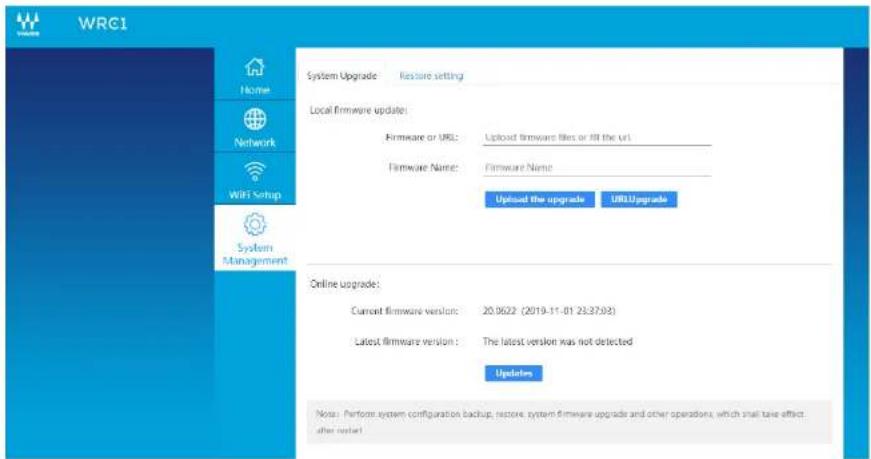
Updating WRC-1 Firmware
To update WRC-1 firmware, repeat steps 1-4 as above, and then:
- Go to System Management on the left sidebar.
- Click on the System Upgrade Tab
- Click Upload the Upgrade, then browse and select the firmware file.
- Click OK and follow the prompts.
Changing Lan Address and DHCP Options
It is possible to change the router's LAN address and DHCP options. This is done in the Network page under LAN and DHCP tabs.
We are strongly advise that you use default settings, as these settings are compatible with almost all use cases.
Brand : WAVES
Model : WRC-1
Category : Router