
Slice - Smartwatch MIO - Free user manual and instructions
Find the device manual for free Slice MIO in PDF.


| Product Type | Activity Tracker / Smartwatch |
| Brand | Mio |
| Model | Slice |
| Display | Digital screen (no size specified) |
| Heart Rate Monitoring | Optical sensor |
| Connectivity | Bluetooth Smart (BLE), ANT+ |
| Water Resistance | 30 meters (3 ATM) |
| Battery Type | 60 mAh Lithium Polymer (rechargeable) |
| Battery Life | Approximately 4-5 days (normal use) |
| Charging Time | Approximately 2 hours |
| Operating Temperature | 5°C to 45°C (41°F to 113°F) |
| Storage Temperature | -5°C to 55°C (23°F to 131°F) |
| Activity Tracking | Steps, distance, calories, PAI score, sleep |
| Workout Mode | Yes (continuous heart rate sampling) |
| Sleep Tracking | Automatic detection |
| Smart Notifications | Yes (calls, texts) |
| Compatibility | iOS and Android (via Mio PAI app) |
| Materials | TPU strap, anodized aluminum body and buckle, PC case |
| Weight | Not specified (estimated ~30g) |
| Spare Parts | Battery non-replaceable; no user-serviceable parts |
| Repairability | Contact support; no self-repair |
| Certification | FCC, IC, CE, WEEE, RCM |
Frequently Asked Questions - Slice MIO
User questions about Slice MIO
0 question about this device. Answer the ones you know or ask your own.
Ask a new question about this device
Download the instructions for your Smartwatch in PDF format for free! Find your manual Slice - MIO and take your electronic device back in hand. On this page are published all the documents necessary for the use of your device. Slice by MIO.
USER MANUAL Slice MIO
natural_image
Modern MiO smartwatch with digital display showing '100 pai' and 'pai' branding (no readable text beyond branding)TABLE OF CONTENTS
3 WELCOME
3 What's Included
3 Important Safety Information
4 Your Mio SLICE
4 PAI (PERSONAL ACTIVITY INTELLIGENCE)
4 GETTING STARTED
5 Charging
5 Battery Status
6 Set Up
6 Pairing Mio SLICE To Your Smartphone
7 Trouble With Pairing Mio SLICE To Your Phone
7 Updating Mio SLICE
7 USING MIO SLICE
7 Wearing Mio SLICE
8 Navigating Mio SLICE
8 Screen Timeout
8 All-Day Mode
9 Automatic Heart Rate Sampling
9 Workout Mode
10 Trouble Getting Your Heart Rate
10 Sleep Tracking
10 DATA STORAGE & TRANSFER
10 Syncing Activity Data
10 Streaming Heart Rate To Other Apps & Devices
12 FIRMWARE UPDATES
12 RESETTING MIO SLICE AND PAIRING TO A NEW PHONE
12 MAINTAINING YOUR MIO SLICE
12 Battery
13 Cleaning Your Mio SLICE
13 Using Mio SLICE In Water
13 Caring For Your Mio SLICE
14 MIO SLICE SPECIFICATIONS
14 CERTIFICATION
14 FCC ID
15 IC ID
15 CE/R&TTE
15 WEEE
15 RCM

Set up your device with Mio PAI 2.0 for SLICE

Have any questions about your Mio SLICE?
We're ready to help! Your complete satisfaction is our goal, so your feedback is crucial.
If you have any thoughts, questions, or concerns, just contact our knowledgeable support team.

1.877.770.1116
support@mioglobal.com
mioglobal.com/support
WELCOME
Congratulations on your purchase of Mio SLICE™, the 24/7 activity tracker that measures your Personal Activity Intelligence™ (PAI), daily activity, and sleep quality. Mio SLICE uses Bluetooth® Smart (BLE) technology to wirelessly transmit your data to a smartphone.
Remember to register your SLICE online at mioglobal.com/register to receive full warranty service.
WHAT'S INCLUDED
Mio SLICE
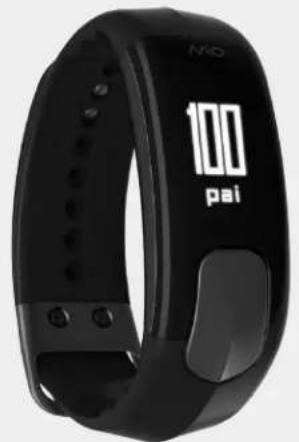
natural_image
Black NKO smartwatch with '100 pai' branding and control buttons (no readable text beyond branding)USB Charger
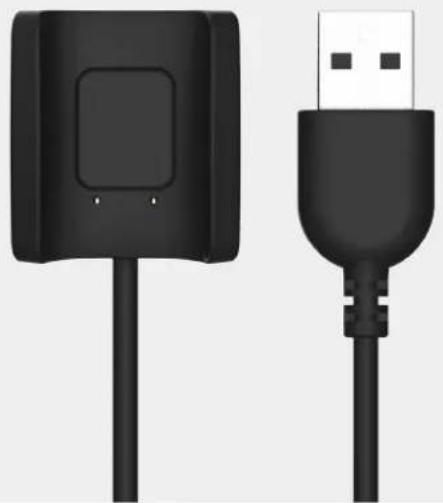
natural_image
Two black USB connectors shown side by side, one with a square button and the other with a straight cable (no text or symbols visible)IMPORTANT SAFETY INFORMATION
Be sure to consult your doctor before beginning a new exercise program.
While Mio Slice provides accurate heart rate measurements, it is not a medical device. The SLICE and USB charger contain strong magnets. If you use a pacemaker, defibrillator, or other implanted electronic devices, consult your doctor before using a Slice. See Battery Care for important battery care and battery safety information.
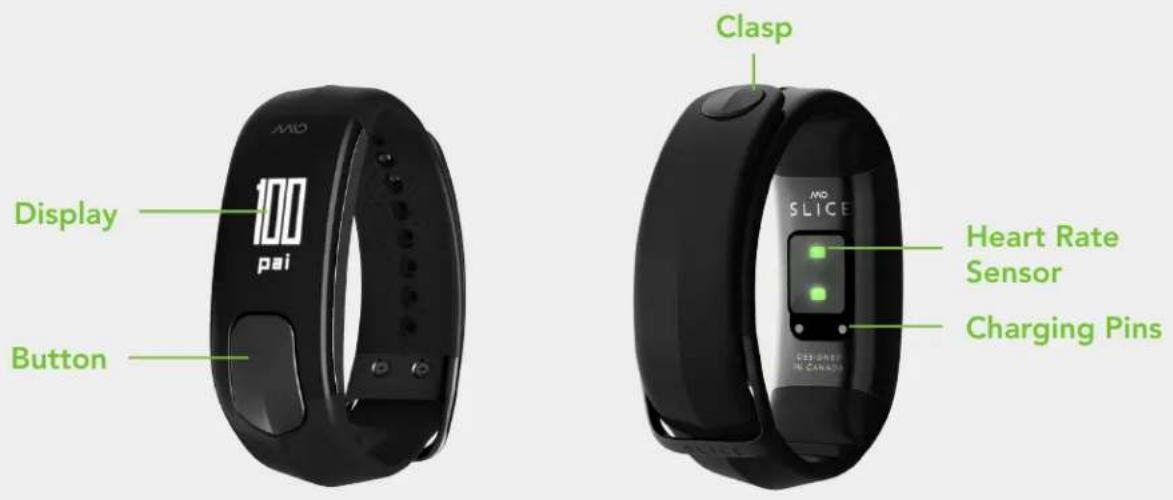
YOUR MIO SLICE
PAI (PERSONAL ACTIVITY INTELLIGENCE)
PAI is revolutionary new system that turns your heart rate data into a single, personal score, showing how much activity you need to stay healthy. Everyone's goal is the same, to keep your PAI score above 100 over a 7-day rolling window to maintain optimal health, but what it takes to achieve that goal is a personalized experience.
PAI points are calculated based on your heart rate data and personal profile. To earn more PAI points, increase the intensity of whatever activity you choose to get your heart rate up.
Your PAI Score and PAI Points Earned Today can be found anytime on your Mio SLICE and in the Mio PAI app.
Learn more about PAI at mioglobal.com/PAI.
GETTING STARTED

natural_image
Purple hexagonal logo with the word 'pai' in white, no additional text or symbolsFully charge Mio SLICE before you start using it. To activate and configure your SLICE, download the Mio PAI app on your compatible smartphone.
The Mio PAI app is available for download on the Apple App Store and the Google Play store.
A list of compatible smartphones can be found at mioglobal.com/compatibility
CHARGING
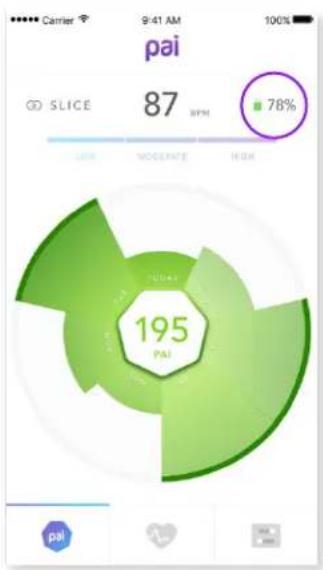
The battery level is displayed in the Mio PAI app when Mio SLICE is connected. Both SLICE and the PAI app will alert you when SLICE is low in battery.
Important: Make sure the two charging contacts on the back of the SLICE are dry. If they are wet, pat them gently with a dry towel.
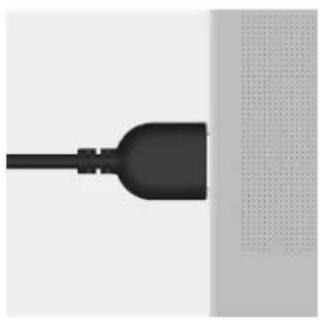
natural_image
Close-up of a black plug with a connecting rod, against a plain background (no text or symbols)- Plug the USB charger into the USB port of your computer.
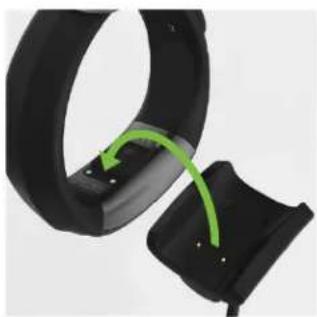
natural_image
Close-up of a black wrist strap with a green curved arrow indicating motion or adjustment (no text or symbols)- Align the two charging contacts on the back of the SLICE to the two charging pins on the USB charger. The magnets in the charger will help the two pieces lock into place.
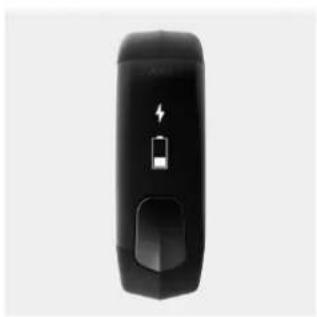
natural_image
Black rectangular device with battery symbol and lightning bolt, no visible text or labels- The screen will display a charging icon to indicate that the battery is charging. Depending on the SLICE battery level, it can take a few minutes for the charging icon to appear.
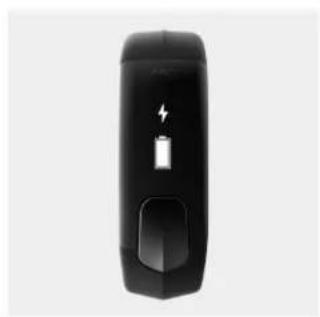
natural_image
Black rectangular device with battery symbol and lightning bolt icon (no text or labels)- It will take approximately 2 hours to fully charge; the display will show a full battery icon. Each full charge will provide approximately 4-5 days of normal use.
BATTERY STATUS
You can see the battery level of your Mio SLICE in the Mio PAI app.
pie
| Category | Value | |---|---| | SLICE | 87 BPM | | Moderate | | | High | | | Total | 195 PAI |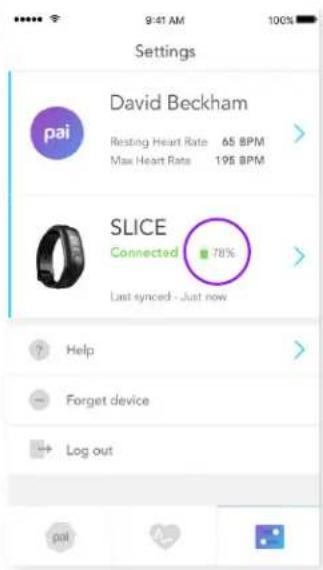
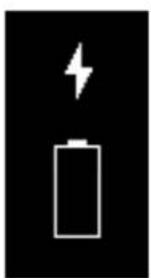
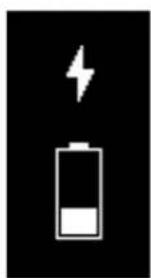
SLICE will display the following screens to indicate its battery status:
natural_image
Simple battery icon with lightning bolt symbol (no text or numbers)Battery is charging
natural_image
Battery icon with lightning bolt symbol (no text or numbers)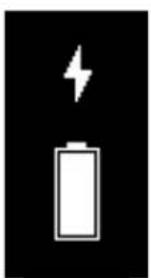
natural_image
Battery icon with lightning bolt symbol (no text or numbers)Battery is fully charged
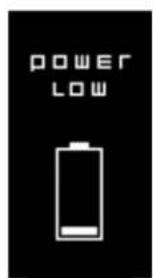
Low Battery (20% charge)
For important battery care and battery safety information, please see Battery Care.
SET UP
Open the Mio PAI app on your smartphone and follow the prompts:
- Create a new account, or sign in if you already have a Mio account
- Complete your user profile
- The app will now guide you to pair Mio SLICE to your phone
PAIRING MIO SLICE TO YOUR SMARTPHONE
CODE VERIFICATION
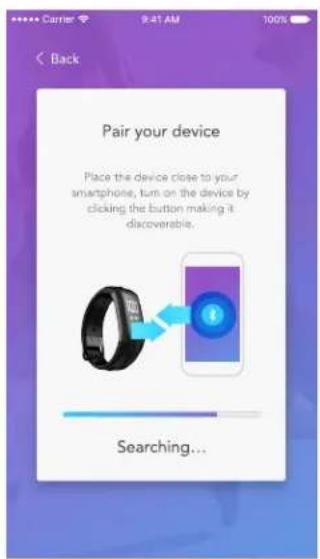
- The app will start searching for Bluetooth discoverable devices. Be sure to keep Mio SLICE as close as possible to your phone.
natural_image
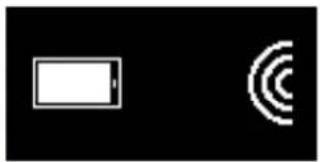
Simple diagram showing a battery and a circular signal pattern on black background (no text or symbols)- Press the button on SLICE. After it displays the SLICE logo, it will enter pairing mode for 60 seconds.
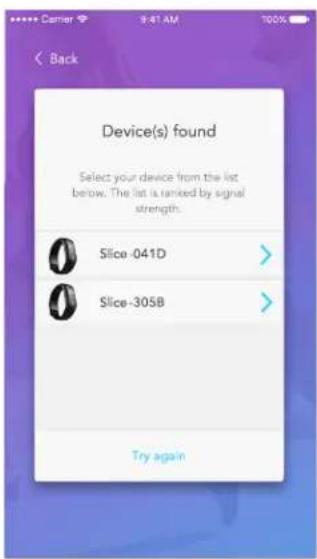
- In the app, select the SLICE that appears in the list. If multiple devices appear, bring your SLICE as close as possible to your phone. Refresh the list, then select the one at the top of the list.
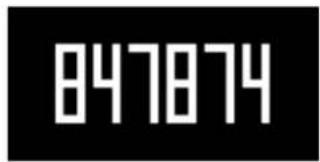
- SLICE will display a 6-digit code. Enter this code in the app when prompted.

- Your SLICE is now paired to your phone and will reconnect automatically when it is within range. Your SLICE cannot be connected to another phone.
TROUBLE WITH PAIRING MIO SLICE TO YOUR PHONE
Try the following tips if you have trouble pairing Mio SLICE to your smartphone:
- Check that you are connecting to the correct SLICE device. Before pairing is complete, SLICE is listed with a 4-digit code appended to the name. Match the 4-digit code to your device serial number, found on the back of your SLICE. E.g. If your serial number is "60P00014DCI", SLICE will show up in the app as "SLICE-014D".
- Check that your phone is compatible with the Mio PAI app at mioglobal.com/compatibility.
- Turn off your phone's Bluetooth. After a few seconds, turn Bluetooth on again. Retry the pairing process.
- Force close the PAI app and reopen it. Follow the app's prompts to retry the pairing process.
- Force close all apps on your phone and reopen the PAI app. Follow the app's prompts to retry the pairing process.
- Perform a factory reset on the SLICE (refer to Resetting Mio SLICE & Pairing To A New Phone). Note that this will erase all data stored on your SLICE.
For additional help, please visit mioglobal.com/support
UPDATING MIO SLICE
After pairing, the app will update SLICE if a newer firmware version is available. Keep the Mio PAI app open and your SLICE close to the phone. The SLICE screen will be blank until the update is complete. Do not navigate away from the PAI app during this time.
USING MIO SLICE
Mio SLICE tracks your activity 24/7. View your daily progress by scrolling through the screens on the display. History and more details are available in the Mio PAI app.
WEARING MIO SLICE
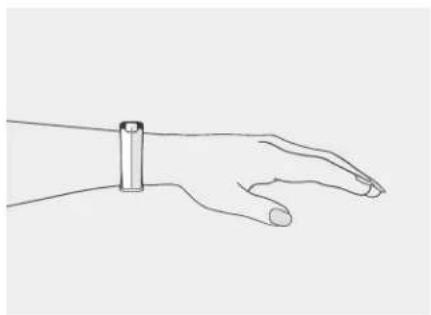
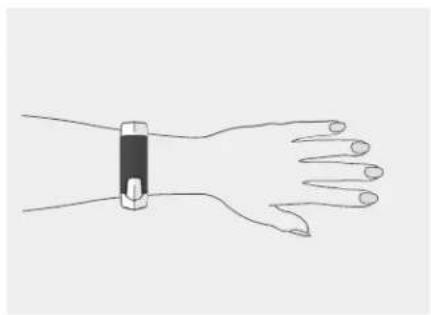
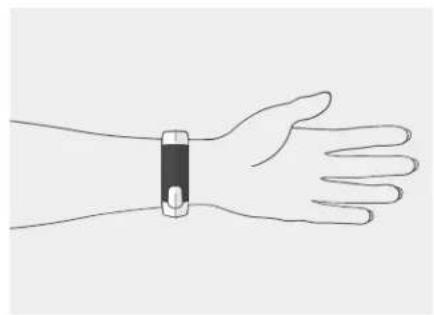
For accurate heart rate monitoring, wear Mio SLICE as shown below:
natural_image
Line drawing of a human hand with a wristband (no text or symbols)- Fasten the SLICE snugly, about 1-2 finger widths above your wrist bone. The optical sensor should make good contact with your skin.
natural_image
Line drawing of a wrist with a black sensor attached, showing hand and wrist alignment (no text or symbols)- If you have a smaller wrist, wear the SLICE higher on your forearm.
natural_image
Line drawing of a human hand wearing a wristband (no text or symbols)- For cyclists or users with concave wrists, wear the SLICE higher and on the underside of your forearm, since bending of the wrist may affect the heart rate reading.
NAVIGATING MIO SLICE
Mio SLICE has one button, which can be pressed in two ways:
Short Press
- Scroll to next screen
- Dismiss a notification
Long Press
- Enter Workout Mode
- Exit Workout Mode
SCREEN TIMEOUT
Mio SLICE automatically turns off its screen to conserve battery. To wake the screen, press the button. You can customize this screen timeout duration in Device Settings.
ALL-DAY MODE
Mio SLICE automatically tracks your heart rate, PAI, calories, steps, distance, and sleep data in All-Day Mode. These values reset to 0 at midnight each day, with the exception of your PAI score, which is based on your total activity in the last 7 days.
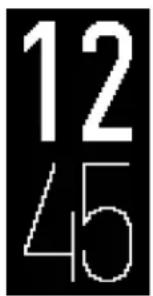
Time PAI PAI Points

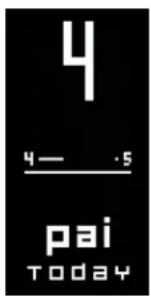
Earned Today
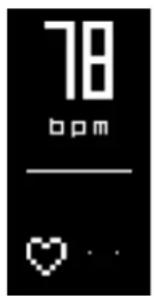
Heart Rate & Intensity Zone
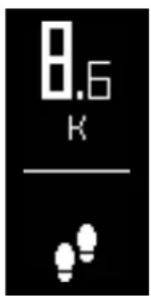
Steps Calories Distance Sleep
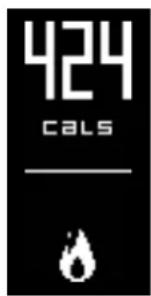
ies Distance Sleep
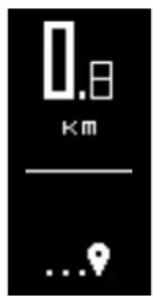
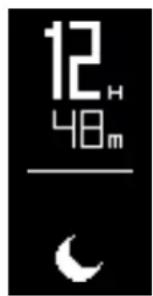
can be disabled via app
AUTOMATIC HEART RATE SAMPLING
Mio SLICE monitors your activity level 24/7 to automatically adjust its heart rate sampling rate. When your heart rate rises, SLICE will increase its sampling rate to ensure all your activity is captured accurately.
SLICE has four heart rate sampling rates:
- Rest: SLICE captures your heart rate every five minutes.
- Low Intensity: SLICE captures your heart rate every minute.
- Moderate to High Intensity: SLICE captures your heart rate every second, continuously
- Sleep: SLICE analyzes your sleep, captures your heart rate every five minutes, and measures your resting heart rate. Note that this will erase all data stored on your SLICE.
In addition, SLICE will capture your heart rate each time you wake its display or open the Mio PAI app.
WORKOUT MODE
To record an activity, put Mio SLICE into Workout Mode by pressing down the button for 2 seconds. SLICE will display "GO!", then start the chronograph timer. In Workout Mode, SLICE uses high intensity sampling rate, capturing your heart rate every second.
SLICE will display screens specific to the current activity session:
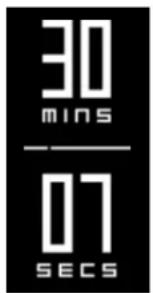
Chronograph Timer
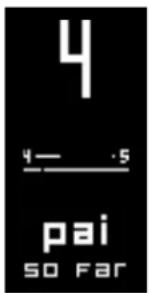
PAI Points Earned In Workout
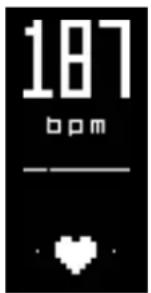
Heart Rate & Intensity Zone
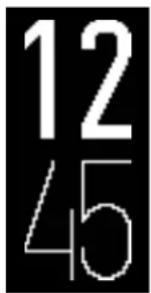
Time
To end and save the activity session, press down the button for 2 seconds. SLICE will exit Workout Mode and return to All-Day Mode.
PAI points earned in recorded activities are automatically rolled into your PAI Score and PAI Points Earned Today. You can review details of your recorded activities in the Mio PAI app.
TROUBLE GETTING YOUR HEART RATE
Try the following tips if you have trouble getting your heart rate:
- Try keeping your arm still while Mio SLICE is searching for your heart rate
- Try tightening the strap
- Try wearing SLICE higher on your forearm
- Try wearing SLICE on the underside of your forearm
- On colder days, enter Workout Mode before heading outdoors
- Warm up for a few minutes to increase your blood circulation before you start Workout Mode on SLICE
- If you are still having trouble, try wearing SLICE on your other arm
For additional help, please visit mioglobal.com/support
SLEEP TRACKING
Mio SLICE has automatic sleep detection. Simply wear your SLICE to sleep to analyze your sleep quality. When you wake up, you will find a sleep summary on SLICE and a breakdown of your sleep session in the Day Detail tab of the Mio PAI app.
DATA STORAGE & TRANSFER
Mio SLICE can store up to 7 continuous days of data. Memory is cleared each time the SLICE connects and syncs to the Mio PAI app. If SLICE has not been synced in 7 days, it will overwrite the oldest day to capture new data.
SYNCING ACTIVITY DATA
Mio SLICE automatically measures and saves your activity data. Open the Mio PAI app to see your 7-day progress and to review each day in more detail.
If SLICE remains paired to the PAI app, it will automatically sync each time you open the app. SLICE will also sync periodically to your phone if the PAI app is running in the background.
STREAMING HEART RATE TO OTHER APPS & DEVICES
Mio SLICE can stream your heart rate to any fitness apps and devices that support Bluetooth or ANT+ heart rate streaming. For best results, put SLICE into Workout Mode and ensure your phone remains nearby to stay connected.
DEVICE SETTINGS
You can configure your device settings in the Mio PAI app. Make sure Mio SLICE is connected to the app to access the settings.
PHONE NOTIFICATIONS
Select whether you want to receive notifications on your SLICE when you have an incoming call or text message on your phone.
DEVICE SCREENS
Select which metrics you would like displayed when you scroll through your screens in All-Day Mode.
SCREEN BRIGHTNESS
Set the screen brightness level to Low, Medium (recommended), or High for your SLICE.
AUTO-ON DISPLAY
This setting allows SLICE to turn on its screen automatically when you raise your arm to read it.
SCREEN TIMEOUT
Select how long your SLICE screen will stay on after your last interaction with the device.
24-HOUR TIME FORMAT
Switch between a 12-hour or 24-hour time display.
DEVICE ORIENTATION
Select whether you are wearing SLICE on your left wrist or right wrist. This setting optimizes SLICE to recognize your arm movements and enable features like Auto-on Display.
VIBRATION
When vibration alerts are enabled, SLICE will vibrate for the following events:
- Phone notifications
- Enter Workout Mode
- Paired successfully
- Achieve 100 PAI
- Exit Workout Mode
- Pairing failed
Vibration alerts for phone notifications cannot be disabled.
ANT+ IN WORKOUT MODE
Enable ANT+ to stream your heart rate to another ANT+ device when SLICE is in Workout Mode. If you are not using SLICE with another ANT+ device, we recommend you disable this function for increased privacy and to reduce battery consumption.
FIRMWARE UPDATES
Firmware updates provide new features and device improvements. When a new firmware is available for your Mio SLICE, you will be notified in the Mio PAI app. You will also see the option to update your firmware in the Settings tab of the PAI app.
Try the following tips if you have trouble updating your Mio SLICE:
- Fully charge your SLICE.
- Keep the PAI app open and do not navigate away from the app until the firmware update is complete.
- Keep your SLICE as close as possible to the phone until the firmware update is complete.
- Check that your phone has a stable internet connection.
RESETTING MIO SLICE AND PAIRING TO A NEW PHONE
To connect Mio SLICE to another smartphone, a factory reset is required:
- Open the PAI app on the original phone. Navigate to the Settings tab and select Forget Device.
- Open the phone's Bluetooth settings and forget SLICE from the list of paired devices.
- Factory reset the SLICE:
Note: Performing a factory reset will erase all data on the SLICE and require you to reconfigure the settings.
a. Make sure SLICE has more than 50% battery remaining
b. Place SLICE on the charger
c. When you see the charging screen, press down the button for 15 seconds. Keep the button pressed down throughout the 5-second reset countdown.
d. The SLICE logo SLICE will be displayed when the factory reset is complete.
- SLICE is now ready to pair with a new phone. Refer to Getting Started to activate and set up SLICE with the new phone.
MAINTAINING YOUR MIO SLICE
BATTERY
Mio SLICE contains a rechargeable lithium polymer battery. Follow these instructions and guidelines to maintain the battery lifespan.
If you do not follow these guidelines, the battery life could be shortened and there is a risk of damage to your SLICE, risk of fire, risk of electrolyte leaks and chemical burns, and risk of injury.
BATTERY CARE GUIDELINES
- Recharge the battery at least once every 6 months
- Do not expose SLICE to high temperatures
- Use your SLICE in the temperature range of 5°C to 45°C (41°F to 113°F)
- Store the SLICE in the temperature range of -5^ to 55^ (23°F to 131°F)
- Do not disassemble, puncture, or incinerate the SLICE device and strap
- If the casing of the device breaks and the battery is exposed, keep the battery away from children.
Contact your local recycling authority to properly dispose of the device and battery.
BATTERY LIFESPAN
The SLICE battery lasts for approximately 300-500 charge cycles. The battery is non-replaceable.
If the battery charge length is noticeably much shorter than before, your SLICE may have reached its end of life. Proper recycling and disposal of the device is required.
RECYCLING AND DISPOSAL
Contact your local recycling authority to properly dispose of the device and battery. Do not dispose SLICE and its battery with household waste or in the municipal waste stream.
CLEANING YOUR MIO SLICE
- Wash Mio SLICE regularly with mild soap and water. As SLICE is designed to be worn all day and overnight, regular cleaning is recommended to prevent skin irritation.
- Make sure you allow both your arm and SLICE to dry completely before resuming wear.
- Avoid scratching the device to protect your SLICE from damage.
- Do not expose the SLICE to strong chemicals such as gasoline, cleaning solvents, acetone, alcohol, or insect repellents. Chemicals can damage the seal, case, and finish.
- If your skin becomes irritated, wear SLICE on the other arm or discontinue wearing until the irritation clears
USING MIO SLICE IN WATER
- SLICE is water resistant up to 30 meters (100 feet).
- Important: SLICE is water resistant only if the device remains intact.
- The accuracy of heart rate monitor may be reduced in cold water or if you are using large arm movements.
- Do not wear SLICE while swimming or diving.
- Wireless communication does not work under water.
CARING FOR YOUR MIO SLICE
- Important: Do not attempt to disassemble or service your Mio SLICE. The sensor unit cannot be removed from the strap.
- Protect your SLICE from impact shocks, extreme heat, and extended exposure to direct sunlight.
MIO SLICE SPECIFICATIONS
Maximum Readable Heart Rate: 220 BPM
Minimum Readable Heart Rate: 30 BPM
Operating Temperature: 5°C to 45°C (41°F to 113°F)
Case: PC
Caseback: PC + AL
Caseback Charging Pins: SUS 316
Material: TPU strap, anodized aluminum main body and buckle
Water Resistance: 3 ATM (30 meters or 100 feet)
Battery: 60 mAH Lithium Polymer
Magnets: Neodymium - Iron - Boron (NdFeB)
Radio Frequency/Protocol: 2.4GHz Bluetooth and ANT+
CERTIFICATION
FCC ID
Changes or modifications not expressly approved by the party responsible for compliance could void the user's authority to operate the equipment.
This equipment has been tested and found to comply with the limits for a Class B digital device, pursuant to Part 15 of the FCC Rules. These limits are designed to provide reasonable protection against harmful interference in a residential installation. This equipment generates, uses and can radiate radio frequency energy and, if not installed and used in accordance with the instructions, may cause harmful interference to radio communications. However, there is no guarantee that interference will not occur in a particular installation.
If this equipment does cause harmful interference to radio or television reception, which can be determined by turning the equipment off and on, the user is encouraged to try to correct the interference by one or more of the following measures:
- Reorient or relocate the receiving antenna.
- Increase the separation between the equipment and receiver.
- Connect the equipment into an outlet on a circuit different from that to which the receiver is connected.
- Consult the dealer or an experienced radio/TV technician for help.
IC ID
This device complies with Industry Canada license-exempt RSS standard(s). Operation is subject to the following two conditions: (1) this device may not cause interference, and (2) this device must accept any interference, including interference that may cause undesired operation of the device.
RISK OF EXPLOSION OF BATTERY IS REPLACED BY AN INCORRECT TYPE
DISPOSE OF USED BATTERIES ACCORDING TO THE INSTRUCTIONS
WEEE
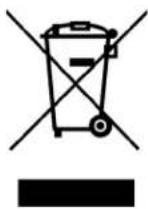
Correct disposal of this product. This marking indicates that this product should not be disposed with other household wastes throughout the EU. To prevent possible harm to the environment or human health from uncontrolled waste disposal, recycle it responsibly to promote the sustainable reuse of material resources. To return your used device, please use the return and collection systems or contact the retailer where the product was purchased. They can take this product for environmental safe recycling.
RCM
natural_image
Black triangular warning symbol with a checkmark inside (no text or numbers)- TABLE OF CONTENTS
- WELCOME
- PAI (PERSONAL ACTIVITY INTELLIGENCE)
- GETTING STARTED
- USING MIO SLICE
- DATA STORAGE & TRANSFER
- FIRMWARE UPDATES
- RESETTING MIO SLICE AND PAIRING TO A NEW PHONE
- MAINTAINING YOUR MIO SLICE
- MIO SLICE SPECIFICATIONS
- CERTIFICATION
- Have any questions about your Mio SLICE?
- WELCOME
- WHAT'S INCLUDED
- IMPORTANT SAFETY INFORMATION
- YOUR MIO SLICE
- PAI (PERSONAL ACTIVITY INTELLIGENCE)
- GETTING STARTED
- CHARGING
- BATTERY STATUS
- SET UP
- PAIRING MIO SLICE TO YOUR SMARTPHONE
- CODE VERIFICATION
- TROUBLE WITH PAIRING MIO SLICE TO YOUR PHONE
- UPDATING MIO SLICE
- USING MIO SLICE
- WEARING MIO SLICE
- NAVIGATING MIO SLICE
- SCREEN TIMEOUT
- ALL-DAY MODE
- AUTOMATIC HEART RATE SAMPLING
- WORKOUT MODE
- TROUBLE GETTING YOUR HEART RATE
- SLEEP TRACKING
- DATA STORAGE & TRANSFER
- SYNCING ACTIVITY DATA
- STREAMING HEART RATE TO OTHER APPS & DEVICES
- DEVICE SETTINGS
- PHONE NOTIFICATIONS
- DEVICE SCREENS
- SCREEN BRIGHTNESS
- AUTO-ON DISPLAY
- 24-HOUR TIME FORMAT
- DEVICE ORIENTATION
- VIBRATION
- ANT+ IN WORKOUT MODE
- FIRMWARE UPDATES
- RESETTING MIO SLICE AND PAIRING TO A NEW PHONE
- MAINTAINING YOUR MIO SLICE
- BATTERY
- BATTERY CARE GUIDELINES
- BATTERY LIFESPAN
- RECYCLING AND DISPOSAL
- CLEANING YOUR MIO SLICE
- USING MIO SLICE IN WATER
- CARING FOR YOUR MIO SLICE
- MIO SLICE SPECIFICATIONS
- CERTIFICATION
- FCC ID
- IC ID
- WEEE
- RCM
Brand : MIO
Model : Slice
Category : Smartwatch