
Shutterboss - Uncategorized Vello - Free user manual and instructions
Find the device manual for free Shutterboss Vello in PDF.


| Product Type | Wireless Bluetooth Intervalometer and Remote Shutter Release |
| Wireless Technology | Bluetooth |
| Compatible Devices | Apple iPhone 4s and later, iPod Touch (4th gen or later), iPad, iPad mini; iOS 6 and up |
| Maximum Shots per Schedule | 9,999 |
| Maximum Interval Duration | 23 hours, 59 minutes, 59 seconds |
| Maximum Exposure Duration (Bulb) | 23 hours, 59 minutes, 59 seconds |
| Number of Schedules | Up to 10 |
| Shooting Modes | Single Shot, Continuous, Bulb, Self-Timer (1-30 sec), Intervalometer, Scheduled Shooting |
| Power Source | 2 AAA batteries (not included) |
| Battery Polarity Warning | Align positive and negative terminals correctly; remove if unused for long periods |
| Operating Range | Up to 33 feet (10 meters) |
| Receiver Dimensions (approx.) | 8 × 7.3 × 2 cm (3.1 × 2.9 × 0.8 in) |
| Receiver Mounting | Cold shoe and 1/4"-20 socket |
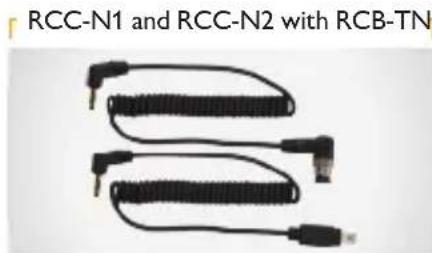
| Cable Connections | 3.5mm output port; includes two shutter release cables with compatibility insert |
| Wired Triggering | Works without batteries for basic shutter release |
| FCC Compliance | Part 15 compliant; does not cause harmful interference |
| Warranty | One-year limited warranty from original purchase date |
| Safety Precautions | Do not disassemble, expose to water, or use near flammable gas; keep away from children |
| Disposal | Dispose batteries and device per local environmental regulations |
Frequently Asked Questions - Shutterboss Vello
User questions about Shutterboss Vello
0 question about this device. Answer the ones you know or ask your own.
Ask a new question about this device
Download the instructions for your Uncategorized in PDF format for free! Find your manual Shutterboss - Vello and take your electronic device back in hand. On this page are published all the documents necessary for the use of your device. Shutterboss by Vello.
USER MANUAL Shutterboss Vello
THANK YOU FOR CHOOSING VELLO
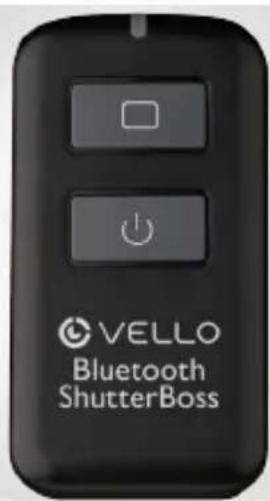
The Vello Bluetooth ShutterBoss Advanced Intervalometer represents the new generation of wireless triggering. Utilizing the power of Bluetooth technology, the Bluetooth ShutterBoss empowers the user to an Apple® iPhone®, iPad®, iPad mini™, or iPod touch® to wirelessly trigger their camera's shutter. This makes the Bluetooth ShutterBoss ideal for eliminating vibrations during macro, close-up, and long exposure photography, as well as for taking images of hard to approach subjects, such as wildlife. The Integrated intervalometer and 10 setting schedules allow you to trigger up to 9,999 shots during a period of almost a full day – 23 hours, 59 minutes, and 59 seconds. Capable of activating
shutter exposures in multiple firing modes, the Bluetooth ShutterBoss is the future of wireless camera controls.
FEATURES
- Wireless Bluetooth communication with Apple iPhone, iPad, or iPod touch
- Advanced intervalometer with up to 10 scheduling modes
• Free app on the App Store ^SM
• Multiple shooting modes
- Compact and easy to use
- Ideal for advanced intervalometer photography, macro, close-up, and long exposures
PRECAUTIONS
- Please read and follow these instructions and keep this manual in a safe place.
- Do not attempt to disassemble or perform any unauthorized modification.
-
Do not operate the device in the presence of flammable gas or vapors.
-
Do not handle with wet hands or immerse in or expose to water or rain. Failure to observe this precaution could result in fire or electric shock.
- Keep out of the reach of children. This device contains small parts which may pose a choking hazard.
- Observe caution when handling batteries. Batteries may leak or explode if improperly handled. Use only the batteries listed in this manual. Make certain to align batteries with correct polarity.
- Batteries are prone to leakage when fully discharged. To avoid damage to the product, be sure to remove the batteries when leaving the product unattended for prolonged periods or when no charge remains.
- Do not use or leave the devices in conditions of extreme heat, severe cold, or high humidity.
- Turn off the camera's power before inserting or removing the remote cord.
- Dispose used batteries, packaging, and old devices in accordance with appropriate local environmental regulations.
OVERVIEW

Vello App Home Screen
Single
Shot
Continuous
Shooting
Bulb
Mode
Self
Timer
Intervalometer
Scheduled Shooting

SINGIT MODI

CONTINUOUS MODE

BULB MODE

SELF TIMER MODE 2s
SET INTERVALOMETER
CONTENTS
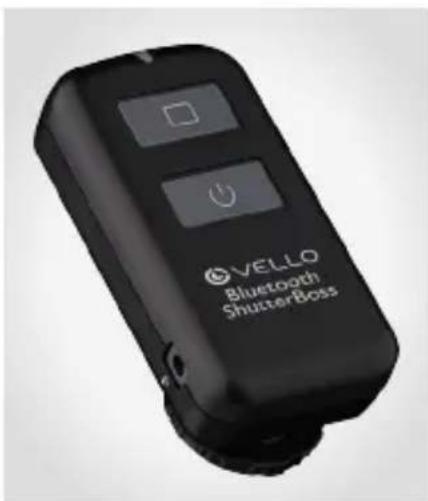
- Receiver
- Shutter Release Cables ×2
- User Manual
- Warranty
• Cable Compatibility Insert
natural_image
Black VELLO Bluetooth ShutterBoss device with control buttons and a square display (no readable text beyond branding)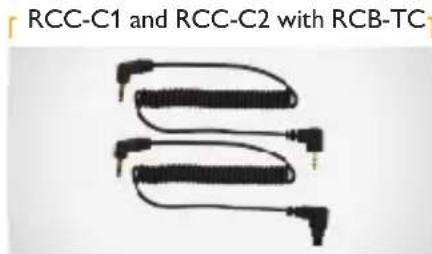
GETTING STARTED
Downloading the App
The Bluetooth ShutterBoss uses a dedicated app, available for free on the App Store. To download the app, either:
- Scan the QR code below or

- Open iTunes® on your computer or the App Store on your iPhone, iPod Touch (4th generation or higher), iPad, or iPad mini. Search for “Vello Bluetooth ShutterBoss.”
Tap the download button and follow the prompts to download and install the app to your device.
Installing the Batteries
The Bluetooth ShutterBoss is powered by two AAA batteries. To install, slide open the battery compartment door on the back of the unit. Insert the batteries following the polarity icons in the compartment. Once installed, close the compartment door.
Connecting the Device
With the camera and the Bluetooth ShutterBoss turned off, connect the devices using the appropriate shutter release cable. Connect the cable to your camera's remote shutter port [icon]. Then secure the Bluetooth ShutterBoss as desired.
Bluetooth Pairing
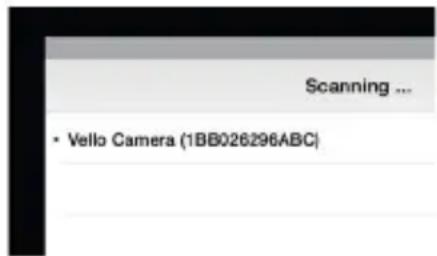
The Bluetooth ShutterBoss uses a Bluetooth wireless signal to communicate with your Apple iOS device. To pair the devices, first turn on Bluetooth from your Apple iOS device's settings menu. Next, turn on the Bluetooth ShutterBoss. Open the Bluetooth ShutterBoss app on your Apple iOS device. Once it loads, the app will prompt you to select a device from a list
of available Bluetooth devices. Tap on the option you would like to pair. Once the devices are paired, the app will take you to its opening screen.
SHOOTING MODES
Single Shot
- Connect the Bluetooth ShutterBoss to your camera.
- Pair your Apple iOS device with the Bluetooth ShutterBoss.
- Turn on the camera.
-
Set your camera to single shot mode.
-
To auto-focus the camera, hold down the Single Shot button [ ] on the app. Ensure your camera's auto-focus is switched on.
- To fire the shutter, swipe the single shooting button to the right.
Note: With certain cameras, the Vello Bluetooth ShutterBoss can start video recording and be stopped only by the camera.
Continuous Shooting
- Connect the Bluetooth ShutterBoss to your camera.
- Pair your Apple iOS device with the Bluetooth ShutterBoss.
-
Turn on the camera.
-
Set your camera to continuous shot mode.
-
To auto-focus the camera, hold down the Continuous Shooting button [ ] on the app. Ensure your camera's auto-focus is switched on.
-
To fire the shutter in continuous mode, swipe the continuous shooting button to the right and hold until the desired number of shots have been taken.
Bulb Mode
- Connect the Bluetooth ShutterBoss to your camera.
- Pair your Apple iOS device with the Bluetooth ShutterBoss.
-
Turn on the camera.
-
Set your camera to bulb mode.
-
To auto-focus the camera, hold down the Bulb Shooting button [B] on the app. Ensure your camera's auto-focus is switched on.
-
To fire the shutter in bulb mode, swipe the bulb shooting button to the right. To close the shutter, swipe the bulb shooting button to the left.
Self-Timer Mode
- Connect the Bluetooth ShutterBoss to your camera.
- Pair your Apple iOS device with the Bluetooth ShutterBoss.
- Turn on the camera.
-
Set your camera to single shot mode.
-
To select the amount of delay before the camera shutter is activated, tap the seconds selector on the right of the Self-Timer Mode field. Select your desired amount of time. This mode allows for any time between 1 and 30 seconds. Tap Done when your required time increment is selected.
-
To auto-focus the camera, hold down the Self Timer button [💡] on the app. Ensure your camera's auto-focus is switched on.
- To fire the shutter in Self Timer Mode, swipe the Self Timer Mode shooting button to the right. After the selected amount of time has passed, the shutter will fire.
Intervalometer Scheduled Shooting
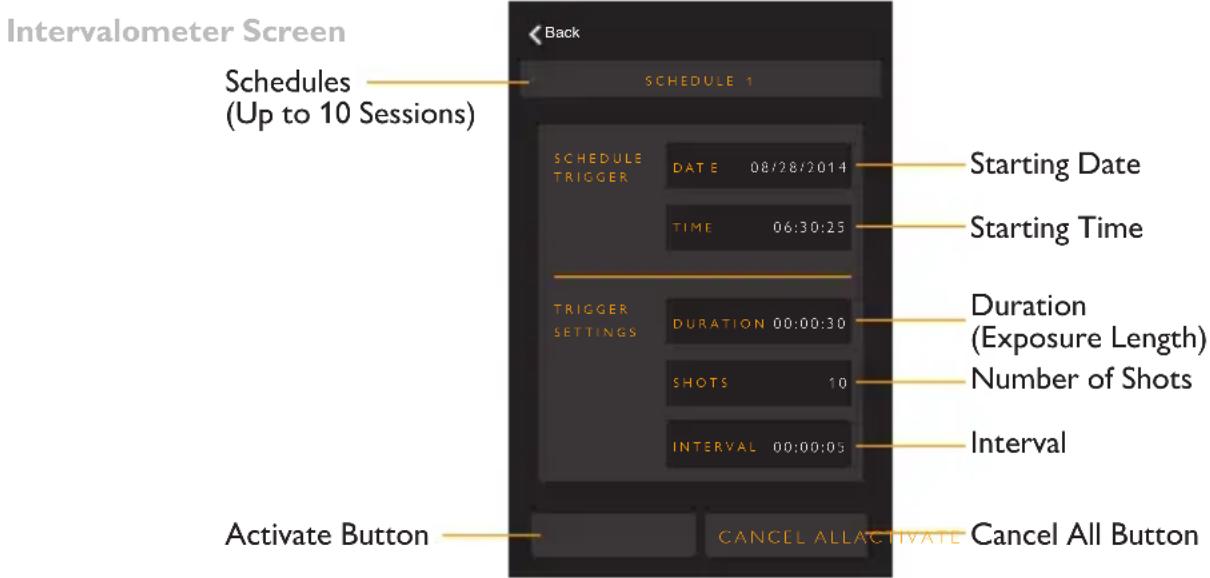
The Bluetooth ShutterBoss has an advanced built-in Intervalometer with Scheduling (up to 10 schedules), enabling the user to chain together up to ten scheduled triggering settings. This allows you to step away from the camera and leave the Bluetooth ShutterBoss to do the work for you.
Note: Once the pre-scheduled triggers have been activated, your iOS device does not need to be connected to the Bluetooth ShutterBoss via Bluetooth to fire. The instructions are stored in the internal memory of the Bluetooth ShutterBoss as long as the device has battery power.
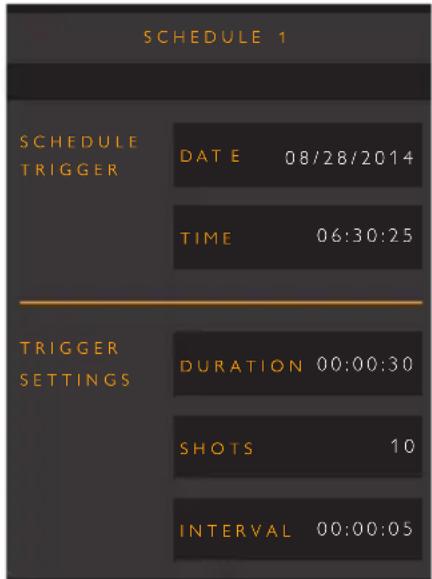
To use the scheduled shooting feature, use the following steps:
- Connect the Bluetooth ShutterBoss to your camera.
-
Set your camera to Bulb mode.
-
Power on the receiver and open the app to pair your devices.
- On the home screen of the Vello Bluetooth ShutterBoss app, select the Set Intervalometer Button.
-
Schedule 1 will open.
-
In the section "Schedule Trigger":
a. Tap on the Date to input the date you would like the Bluetooth ShutterBoss to activate your camera's shutter, then tap Done.
b. Next, tap on Time to select the exact time to activate your camera's shutter, then tap Done. If you would like to start the sequence immediately upon activating, select Now.
- In the section "Trigger Settings":
a. Tap Duration to set the length of the exposure. (select from 1 sec. to 23H.59M.59S – such as 30 seconds), then tap Done.
b. Tap Shots to select the number of exposures. (from 1 to 9,999 – such as 5 shots), then tap Done.
c. Tap Interval to select the time between exposures. (from 1 sec. to 23H.59M.59S).
i. Set Shots to 10, then tap Done.
ii. Set Interval to 5 seconds, then tap Done.
- Tap the Activate button to schedule the exposure.
- Tap Confirm. The schedule is activated and sent to the device on the camera.
- The app will then take you to the next schedulable setting. The default time on this next setting will automatically select the earliest non-overlapping time you can set
your device to fire again. This ensures that the first schedule is not over-written.
- To review your settings, swipe downward on the app to see the previous schedule.
- If you do not wish to set additional schedules, click on the Back button to return to the main screen.
Note: If you would like to chain multiple scheduled exposures, repeat the above instructions.
Note: "Cancel All" cancels all scheduled exposures.
WIRED TRIGGERING
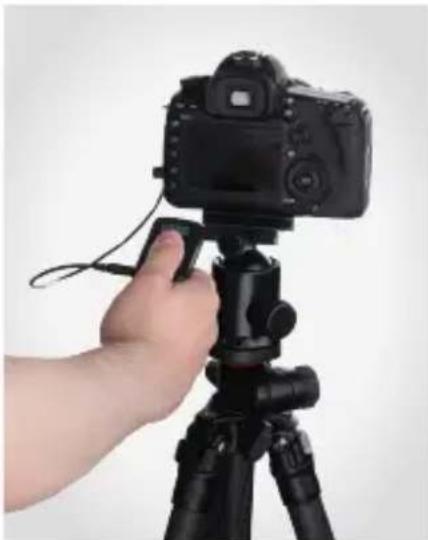
When the Vello Bluetooth ShutterBoss is connected to your camera via cable, the remote's trigger button can be used to fire the camera and will work without batteries.
Note: To use all other functionality, the remote's batteries must be installed.
natural_image
Hand holding a black DSLR camera on a tripod, no visible text or symbolsFCC COMPLIANCE
This device complies with Part 15 of the FCC Rules. Operation is subject to the following two conditions:
-
This device may not cause harmful interference.
-
This device must accept any interference received, including interference that may cause undesired operation.
SPECIFICATIONS
| Wireless Signal | |
| Device Compatibility | iPhone 4s and up, iPod Touch (4th generation or higher), iPad, iPad Mini, iOS versions 6 and up |
| Receiver Connection | |
| Maximum Range | |
| Max. Intervalometer Duration | s, 59 minutes, 59 seconds |
| Max. Shots | |
| Max. Interval | conds |
| Power | |
| Power Consumption | (ely) |
| Dimensions | 8 × 7.28 cm ) |
| Weight |
TROUBLESHOOTING
- Ensure the Bluetooth ShutterBoss has the correct batteries installed and are properly oriented.
- Ensure the batteries have a full charge. Do not mix fresh and used batteries.
-
On the settings menu of your Apple iOS device, check that Bluetooth is turned on.
-
Ensure you are using the correct cable between your camera and the Bluetooth ShutterBoss.
-
When attempting to transmit data from your Apple iOS device to the Bluetooth ShutterBoss, make sure they are within the maximum range of 33 feet (10 meters).
-
If you encounter an “invalid setting” error, ensure that your schedule and trigger settings are set to a time in the future.
- Check that the cable is fully inserted into the appropriate ports on your camera and the device.
ONE-YEAR LIMITED WARRANTY
This VELLO product is warranted to the original purchaser to be free from defects in materials and workmanship under normal consumer use for a period of one (1) year from the original purchase date or thirty (30) days after replacement, whichever occurs later. The warranty provider's responsibility with respect to this limited warranty shall be limited solely to repair or replacement, at the provider's discretion, of any product that fails during normal use of this product in its intended manner and in its intended environment. Inoperability of the product or part(s) shall be determined by the warranty provider. If the product has been discontinued, the warranty provider reserves the right to replace it with a model of equivalent quality and function.
This warranty does not cover damage or defect caused by misuse, neglect, accident, alteration, abuse, improper installation or maintenance. EXCEPT AS PROVIDED HEREIN, THE WARRANTY PROVIDER MAKES NEITHER ANY EXPRESS WARRANTIES NOR ANY IMPLIED WARRANTIES, INCLUDING BUT NOT LIMITED TO ANY IMPLIED WARRANTY OF MERCHANTABILITY OR FITNESS FOR A PARTICULAR PURPOSE. This warranty provides you with specific legal rights, and you may also have additional rights that vary from state to state.
To obtain warranty coverage, contact the Vello Customer Service Department to obtain a return merchandise authorization (“RMA”) number, and return the defective product to Vello along with the RMA number and proof of purchase. Shipment of the defective product is at the purchaser’s own risk and expense.
For more information or to arrange service, visit www.vellogear.com or call Customer Service at 212-594-2353.
Product warranty provided by the Gradus Group.
www.gradusgroup.com
VELLO is a registered trademark of the Gradus Group.
© 2017 Gradus Group LLC. All Rights Reserved.

VELLO
A Gradus Group Brand
www.vellogear.com
Apple, iPhone, iPad, iPad mini, and iPod touch are trademarks of Apple Inc., registered in the U.S. and other countries. iTunes is for legal or rightholder-authorized copying only. Don't steal music. App Store is a service mark of Apple Inc.
All other trademarks are the property of their respective owners. © Copyright 2017 Gradus Group GG2
- THANK YOU FOR CHOOSING VELLO
- FEATURES
- PRECAUTIONS
- Vello App Home Screen
- CONTENTS
- GETTING STARTED
- Downloading the App
- Installing the Batteries
- Connecting the Device
- Bluetooth Pairing
- SHOOTING MODES
- Single Shot
- Continuous Shooting
- Bulb Mode
- Self-Timer Mode
- Intervalometer Scheduled Shooting
- WIRED TRIGGERING
- FCC COMPLIANCE
- TROUBLESHOOTING
- ONE-YEAR LIMITED WARRANTY
Brand : Vello
Model : Shutterboss
Category : Uncategorized