
Mirage - Camera LENOVO - Free user manual and instructions
Find the device manual for free Mirage LENOVO in PDF.


| Product Type | VR180 Camera |
| Brand | Lenovo |
| Model | Mirage |
| Imaging | Dual lenses, 180° horizontal and vertical capture |
| Video Resolution | Up to 4K (selectable via app) |
| Photo Resolution | High resolution VR180 photos |
| Connectivity | Wi-Fi, Bluetooth, USB-C 2.0 |
| Storage | microSD card slot (not included) |
| Power Source | Rechargeable lithium battery, USB-C charging |
| Battery Life | Approx. 2 hours of video recording (estimated) |
| Compatible Software | VR180 app by Google (iOS/Android) |
| Live Streaming | Supported via VR180 app and Google account |
| Status Indicator | Multi-color LED for power, pairing, recording, charging |
| Microphone | Dual microphones |
| Speaker | Built-in speaker |
| Accessory Mount | 1/4-inch tripod socket (accessory socket) |
| Dimensions | Not specified in manual |
| Weight | Not specified in manual |
| Operating Temperature | 0°C to 40°C (charging/use); storage -20°C to 60°C |
| Water Resistance | Not waterproof; keep away from liquids |
| Maintenance | Clean lenses with soft, dry cloth; avoid heavy pressure |
| Safety | Do not disassemble; use only Lenovo approved charger and battery |
| Repair | No user-serviceable parts; contact Lenovo authorized service |
| Warranty | Physical tampering/liquid damage voids warranty |
Frequently Asked Questions - Mirage LENOVO
User questions about Mirage LENOVO
0 question about this device. Answer the ones you know or ask your own.
Ask a new question about this device
Download the instructions for your Camera in PDF format for free! Find your manual Mirage - LENOVO and take your electronic device back in hand. On this page are published all the documents necessary for the use of your device. Mirage by LENOVO.
USER MANUAL Mirage LENOVO
Lenovo Mirage Camera with Daydream User Guide
Basics

• All pictures and illustrations in this document are for reference only.
- The VR180 app supports both Android and iOS systems. This document uses the Android system as an illustrative example.
Before using this information and the product it supports, be sure to read the following:
- Quick Start Guide and Safety & Warranty
● Regulatory Notice - Important safety and handling information Appendix
This device contains labels to indicate physical tampering or liquid damage. If evidence of tampering or liquid damage is found during service, this will void the terms of the product warranty.
The Safety, Warranty & Product Guide and the Regulatory Notice are available at http://support.lenovo.com/jedichallenges.
Getting started
Overview
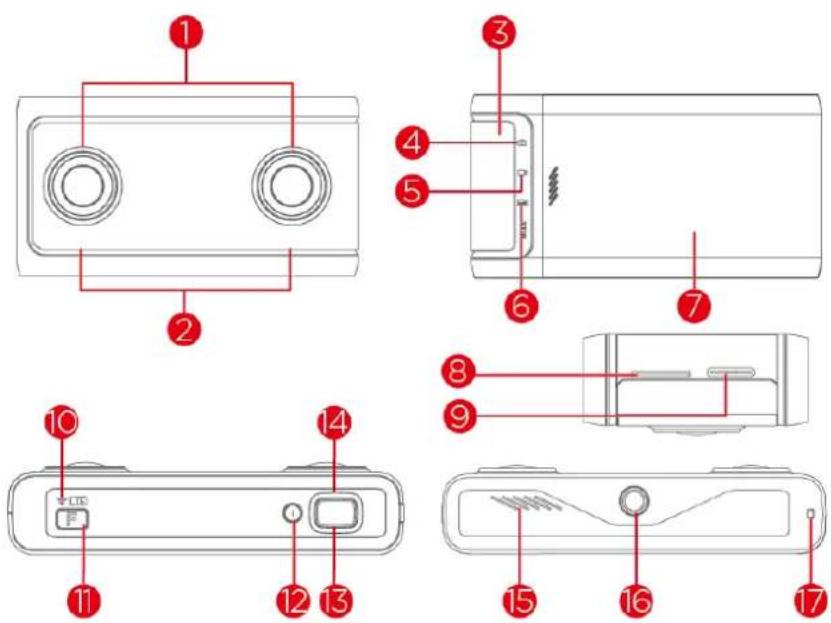
| 1 | Lenses | 2 | Dual microphones | 3 | Input/output door |
| 4 | VR photos | 5 | VR videos | 6 | VR live streaming |
| 7 | Battery cover | 8 | microSD card slot | 9 | USB-C 2.0 port |
| 10 | Wi-Fi indicator | 11 | Function button | 12 | Power button |
| 13 | Shutter button | 14 | Status indicator | 15 | Speaker |
| 16 | Accessory socket | 17 | Wrist strap holes |
Downloading the VR180 app by Google
- Open the Google Play Store or App Store in your mobile device.
- Search for .VR180 app by Google
- Download the VR180 app by Google.

Search for the VR180 by Google
Turning on/off
Turn on
Tap the power button. The status indicator blinks in green, then glows in blue a few seconds later.

Turn off
Press and hold the power button until the indicator turns off.

In the standby mode, the camera will automatically shut down if there is no operation within 2 hours.
Sleep/wake up
- Sleep: The camera will automatically enter Sleep mode if there is no operation within 5 minutes when it does not connect with the VR180 app. At this time, the camera cannot take photos or record videos..
● Wake up: tap the Power button to wake up the camera.
Status indicator
| Camera state | Battery percent | Indicator |
| Standby | Battery percent > 20% | Blue |
| Battery percent ≤ 20% | Red | |
| The camera is pairing | / | Flashes blue and green |
| The camera is powering on /updating firmware | / | Flashes green |
| The camera is recording video | Battery percent > 20% | Flashes blue |
| Battery percent ≤ 20% | Flashes red | |
| The camera is charging and recording video | Battery percent = 100% | Flashes blue |
| Battery percent < 100% | Flashes orange | |
| The camera is charging | Battery percent = 100% | Blue |
| Battery percent < 100% | Orange | |
| Camera failure | / | Quickly flashes red 3 times |

Please do not perform any operation while updating the firmware to prevent damage to the device.
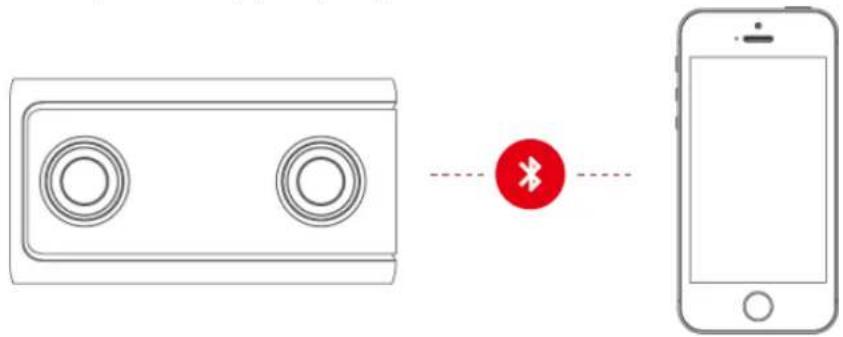
Connecting the camera to a mobile device using the VR180 app
-
Open the VR180 app.
-
Turn on your mobile device's Bluetooth.
-
Follow the onscreen steps in the app to pair your camera and mobile device to finish.
Connecting the camera to the Internet
You'll need to regularly connect your camera to the Internet using the VR180 app to get the latest camera software updates.
- Open the VR180 app.
- Ensure your camera is paired with Bluetooth.
- Follow the prompts to connect your camera to Wi-Fi.
Using the camera
Taking photos/recording videos
The camera can take photos/record videos without connecting to another device.
1、Turn on the camera.
2、Tap the Function button to choose shooting mode.
3、Focus the lens on the object to be shot.
4、Tap the shutter button to take photos or record videos.

- The camera's shooting coverage is larger than the visual range of human eyes.
- Please do not extend your fingers beyond the edge of the camera when shooting.

natural_image
Line drawing of two hands holding a cassette tape with circular buttons (no text or symbols)
natural_image
Hand holding a small object with red circles highlighting features, no text or symbols presentShooting coverage
The camera's shooting coverage is 180irc in both the horizontal and vertical directions.

Shooting distance
When shooting, keep the camera and the object to be shot the correct distance from each other to get the best 3D effect. The best recommended distance is x m - x m .

- The 3D effect will decrease as the shooting distance increases.
- When the shooting distance is too short, viewing photos / videos will produce discomfort.
Use VR180 app
Use main interface

| 1 | Displays the battery charge percentage. |
| 2 | The used storage space can be viewed. |
| 3 | Tap to perform the following operations:Choose to delete the photos/videos saved in the mobile device.Other settings. |
| 4 | Tap VIEW ALL to view all of the photos or videos. |
| 5 | The photos / videos downloaded to the mobile device can be viewed. |
| 6 | Tap to enter the shooting interface. |
| 1 | Displays the battery charge percentage. |
| 2 | The used storage space can be viewed. |
| 3 | Tap to perform the following operations:Choose to delete the photos/videos saved in the mobile device.Other settings. |
| 4 | Tap VIEW ALL to view all of the photos or videos. |
| 5 | The photos / videos downloaded to the mobile device can be viewed. |
| 6 | Tap to enter the shooting interface. |
| 1 | Displays the battery charge percentage. |
| 2 | The used storage space can be viewed. |
| 3 | Tap to perform the following operations:Choose to delete the photos/videos saved in the mobile device.Other settings. |
| 4 | Tap VIEW ALL to view all of the photos or videos. |
| 5 | The photos / videos downloaded to the mobile device can be viewed. |
| 6 | Tap to enter the shooting interface. |
Shooting interface

| 1 | Tap to exit the Shooting interface. |
| 2 | Tap to switch the video resolution. |
| 3 | Tap to manually adjust the exposure value. |
| 4 | Tap to choose the shooting mode. |
| 5 | Preview interface. |
| 6 | TapVIDEO to switch to video mode. |
| 7 | TapPHOToto switch to photo mode. |
| 8 | TapLIVeto switch to live mode. |
| 9 | Shooting button. |
Connect the VR180 app to take photos
-
Start the VR180 app, tap >PHOTO.
-
Focus the lens on the object to be shot.
-
Tap

Connect the VR180 app to record videos
- Choose video mode:
- Tap the Mode switch button to choose video mode.
- Start the VR180 app, tap >VIDEO.
-
Focus the lens on the object to be recorded.
-
Tap


- When the battery charge percentage is < 10% , the camera will stop recording videos.
- Please do not turn the camera off or remove the microSD card immediately after finishing recording.
Live
Before using the live function, please log in your Google account and complete the settings according to the interface prompts.
- Start the VR180 app, tap

-
Focus the lens on the object to be live broadcast.
-
Tap

Viewing 2D photos / videos
- Start the VR180 app
- Tap VIEW ALL.
- Choose the photos / videos to be viewed.
Downloading photos / videos to a mobile device
- Start the VR180 app
- Tap VIEW ALL.
-
You can download photos / videos in the following ways.
-
Tap on the photos / videos to be downloaded, tap . ↓
- Tap ⚠ > Select..., choose the photos / videos to be downloaded, tap ↓
Sharing photos / videos
- Start the VR180 app.
- Tap on the photos / videos to be shared.
- Tap, complete the sharing by following the screen prompts.
Only the photos / videos saved in the mobile device can be shared.
Deleting photos / videos
- Start the VR180 app
- Tap VIEW ALL.
- You can delete photos / videos in the following ways.
- Tap the thumbnails of the photos / videos to be deleted, then tap Delete.
- Press and hold the thumbnails of the photos / videos to be deleted, then tap

Connecting the camera to a computer
Connect the camera to a computer with a USB cable. You can the transfer files between the camera and the computer.

natural_image
Diagram showing a device connected to a laptop via a red connector icon (no text or symbols present)Viewing 3D photos / videos using a VR device
You can view 3D photos / videos using a VR device (such as a Mirage Solo with Daydream).
• View using a Mirage Solo with Daydream
Save the photos / videos in the microSD card, then insert the micro SD card into the VR device.
• View by other VR devices
- Upload the photos / videos to social media, then open them in the VR device to view them.
- Copy the photos / videos to Google Photo, then open them in the VR device to view them.

- Please refer to the user manual for the VR device for detailed operating steps.
- Please visit xxxxxxxx to see the supported VR devices.
Settings
Managing your camera
-
Tap the VR180 app.
-
Tap

Settings > Camera.
Factory reset
Factory reset will delete all the personal data in the camera, including photos, videos, and VR180 app settings. Before factory reset, please copy the important data in the camera to external storage.
- Start the VR180 app.
- Tap > Settings > Camera > Factory reset camera > RESET.
Rename the camera
- Start the VR180 app.
- Tap > Settings > Camera > Camera name.
- Type in the new name, then tap DONE.
Precautions for camera use
- When using the camera, please turn on the Wi-Fi on the mobile device where the VR180 app is installed to enjoy a better experience.
- When carrying the camera, please use the protective lens bag to avoid scratching the lens, resulting in unclear images.
- Avoid any heavy pressure on the lens which can damage it.
- Please use camera in a well-lit area to avoid poor results due to insufficient light.
- Keep the camera is in the stable position when shooting. We recommend using stabilizer to assist shooting if mobile shooting is required.
Appendix
Important safety and handling information
To avoid personal injury, property damage, or accidental damage to the product, read all of the information in this section before using the product. For additional tips to help you operate your device safely, go to http://www.lenovo.com/safety.
Handle your device with care
Do not drop, bend, or puncture your device; do not insert foreign objects into or place heavy objects on your device. Sensitive components inside might become damaged. When using your device, keep it away from hot or high-voltage environments, such as electrical appliances, electrical heating equipment, or electrical cooking equipment. Use your device only in the temperature range of 0irc C ( 32irc F) to 40irc C ( 104irc F) (storage -20irc C ( -4irc F) to 60irc C ( 140irc F)) to avoid damage.
Don't expose your device to water, rain, extreme humidity, sweat or other liquids.
Do not disassemble or modify your device
Your device is a sealed unit. There are no end-user serviceable parts inside. All internal repairs must be done by a Lenovo-authorized repair facility or a Lenovo-authorized technician. Attempting to open or modify your device will void the warranty.
Rechargeable battery notice
CAUTION: Risk of explosion if the battery is replaced with an incorrect type.
When replacing the lithium battery, use only the same or an equivalent type that is recommended by the manufacturer. The battery contains lithium and can explode if not properly used, handled, or disposed of.
Dispose of used batteries according to the instructions.
Do not:
Throw or immerse into water.
Repair or disassemble.
Heat to more than 100irc C ( 212irc F)
Plastic bag notice
DANGER:
Plastic bags can be dangerous. Keep plastic bags away from babies and children to avoid danger of suffocation.
Adapter information
● Prevent your device and AC adapter from getting wet.
Do not immerse your device in water or leave your device in a location where it can come into contact with water or other liquids.
- Use approved charging methods only.
Note: Please only use standard Lenovo power adapters. The use of third-party power adapters will affect the charging speed, resulting in abnormal charging and potential damage to the equipment.
- Connect a standard power adapter to a suitable power outlet.
- Use a standard data cable to connect the device to a PC or a device that complies with USB 2.0 or higher.
Charging devices might become warm during normal use. Ensure that you have adequate ventilation around the charging device. Unplug the charging device if any of the following occurs:
● The charging device has been exposed to rain, liquid, or excessive moisture.
● The charging device shows signs of physical damage.
- You want to clean the charging device.
Warning:
Lenovo is not responsible for the performance or safety of products not manufactured or approved by Lenovo. Use only approved Lenovo ac adapters and batteries.
Take care when using your device in a motor vehicle or on a bicycle
Always prioritize your safety and the safety of others. Follow the law. Local laws and regulations might govern how you can use mobile electronic devices, such as your device, while you drive a motor vehicle or ride a bicycle.
Dispose according to local laws and regulations
When your device reaches the end of its useful life, do not crush, incinerate, immerse in water, or dispose of your device in any manner contrary to local laws and regulations. Some internal parts contain substances that can explode, leak, or have an adverse environmental effects if disposed of incorrectly.
See “Recycling and environmental information” for additional information.
Keep your device and accessories away from small children
Your device contains small parts that can be a choking hazard to small children. Additionally, the glass screen can break or crack if dropped on or thrown against a hard surface.
Protect your data and software
Do not delete unknown files or change the name of files or directories that were not created by you; otherwise, your device software might fail to work.
Be aware that accessing network resources can leave your device vulnerable to computer viruses, hackers, spyware, and other malicious activities that might damage your device, software, or data. It is your responsibility to ensure that you have adequate protection in the form of firewalls, antivirus software, and anti-spyware software and keep such software up to date.
Keep electrical appliances away from your device. These include electric fans, radios, high-powered speakers, air-conditioners, and microwave ovens. The strong magnetic fields generated by electrical appliances can damage the screen and the data on the device.
Be aware of heat generated by your device
When your device is turned on or the battery is charging, some parts might become hot. The temperature that they reach depends on the amount of system activity and the battery charge level. Extended contact with your body, even through clothing, could cause discomfort or even a skin burn. Avoid keeping your hands, your lap, or any other part of your body in contact with a hot section of the device for any extended time.
Electronic emission notices
FCC Compliance Statement
This equipment has been tested and found to comply with the limits for a Class B digital device, pursuant to Part 15 of the FCC Rules. These limits are designed to provide reasonable protection against harmful interference in a residential installation. This equipment generates, uses, and can radiate radio frequency energy and, if not installed and used in accordance with the instructions, may cause harmful interference to radio communications. However, there is no guarantee that interference will not occur in a particular installation. If this equipment does cause harmful interference to radio or television reception, which can be determined by turning the equipment off and on, the user is encouraged to try to correct the interference by one or more of the following measures:
● Reorient or relocate the receiving antenna.
- Increase the separation between the equipment and receiver.
- Connect the equipment into an outlet on a circuit different from that to which the receiver is connected.
- Consult an authorized dealer or service representative for help.
Lenovo is not responsible for any radio or television interference caused by unauthorized changes or modifications to this equipment. Unauthorized changes or modifications could void the user's authority to operate the equipment.
This device complies with Part 15 of the FCC Rules. Operation is subject to the following two conditions: (1) this device may not cause harmful interference, and (2) this device must accept any interference received, including interference that may cause undesired operation.
Responsible Party:
Lenovo (United States) Incorporated
1009 Think Place - Building One
Morrisville, NC 27560
Telephone: 1-919-294-5900

ISED Caution
This device complies with Innovation, Science and Economic Development Canada license-exempt RSS standard(s). Operation is subject to the following two conditions:
(1) This device may not cause interference, and
(2) this device must accept any interference, including interference that may cause undesired operation of the device.
Japanese VCCI Class B statement
Japan compliance statement for products that connect to power mains rated at less than or equal to 20A per phase
Environmental, recycling, and disposal information
General recycling statement
Lenovo encourages owners of information technology (IT) equipment to responsibly recycle their equipment when it is no longer needed. Lenovo offers a variety of programs and services to assist equipment owners in recycling their IT products. For information on recycling Lenovo products, go to http://www.lenovo.com/recycling.
Important battery and WEEE information

Batteries and electrical and electronic equipment marked with the symbol of a crossed-out wheeled bin may not be disposed as unsorted municipal waste. Batteries and waste of electrical and electronic equipment (WEEE) shall be treated separately using the collection framework available to customers for the return, recycling, and treatment of batteries and WEEE. When possible, remove and isolate batteries from WEEE prior to placing WEEE in the waste collection stream. Batteries are to be collected separately using the framework available for the return, recycling, and treatment of batteries and accumulators.
Country-specific information is available at http://www.lenovo.com/recycling.
Recycling information for Japan
Recycling and disposal information for Japan is available at http://www.lenovo.com/recycling/japan.
Recycling information for India
Recycling and disposal information for India is available at
http://www.lenovo.com/social_responsibility/us/en/sustainability/ptb_india.html.
Battery recycling marks
● The battery recycling information of Taiwan

● Battery recycling information for the United States and Canada
US & Canada Only
● Battery recycling information for the European Union

Export classification notice
This product is subject to the United States Export Administration Regulations (EAR) and has an Export Classification Control Number (ECCN) of 5A992.c. It can be re-exported except to any of the embargoed countries in the EAR E1 country list.
- Lenovo Mirage Camera with Daydream User Guide
- Basics
- Getting started
- Overview
- Downloading the VR180 app by Google
- Turning on/off
- Turn on
- Turn off
- Sleep/wake up
- Connecting the camera to a mobile device using the VR180 app
- Connecting the camera to the Internet
- Using the camera
- Taking photos/recording videos
- Shooting coverage
- Shooting distance
- Use VR180 app
- Use main interface
- Shooting interface
- Connect the VR180 app to take photos
- Connect the VR180 app to record videos
- Live
- Viewing 2D photos / videos
- Downloading photos / videos to a mobile device
- Sharing photos / videos
- Deleting photos / videos
- Connecting the camera to a computer
- Viewing 3D photos / videos using a VR device
- Settings
- Managing your camera
- Factory reset
- Rename the camera
- Precautions for camera use
- Appendix
- Important safety and handling information
- Handle your device with care
- Do not disassemble or modify your device
- Rechargeable battery notice
- Plastic bag notice
- Adapter information
- Warning:
- Take care when using your device in a motor vehicle or on a bicycle
- Dispose according to local laws and regulations
- Keep your device and accessories away from small children
- Protect your data and software
- Be aware of heat generated by your device
- Electronic emission notices
- FCC Compliance Statement
- ISED Caution
- Japanese VCCI Class B statement
- Japan compliance statement for products that connect to power mains rated at less than or equal to 20A per phase
- Environmental, recycling, and disposal information
- General recycling statement
- Important battery and WEEE information
- Recycling information for Japan
- Recycling information for India
- Battery recycling marks
- Export classification notice
Brand : LENOVO
Model : Mirage
Category : Camera