
StreamR - Radio PURE - Free user manual and instructions
Find the device manual for free StreamR PURE in PDF.


| Product Type | Portable Bluetooth speaker with DAB+/FM radio and Alexa |
| Dimensions (Open) | 105 (H) x 105 (W) x 105 (D) mm (4.1 x 4.1 x 4.1 in) |
| Dimensions (Closed) | 80 (H) x 105 (W) x 105 (D) mm (3.1 x 4.1 x 4.1 in) |
| Weight | 0.728 kg (1.60 lbs) |
| Power Supply | 5V DC, 1A via Micro-USB port |
| Battery Type | Rechargeable Lithium-ion, 7.4V, 2500 mAh (non-user replaceable) |
| Battery Life (Bluetooth) | Up to 15 hours |
| Charging Time | Up to 6 hours at 5V/1A |
| Bluetooth Version | Bluetooth 4.2 with BLE |
| Radio Bands | DAB+ (Band III 174-240 MHz) and FM (87.5-108 MHz) |
| Audio Output | 30W RMS, Digital Signal Processor (DSP) |
| Speaker Drivers | 1 x 2" woofer, 1 x 3/4" tweeter |
| Display | 1.7" monocolour LCD |
| Presets | 4 corners for DAB+/FM stations |
| Voice Assistant | Amazon Alexa (requires Pure Home app and mobile device) |
| Auxiliary Input | Built-in 3.5 mm cable (also acts as aerial) |
| Micro-USB Port | For charging and power |
| Software Version | 1.0 |
| App Support | Pure Home app (iOS and Android) for Alexa setup |
| Box Contents | StreamR speaker, Micro-USB cable, Quick Start Guide |
| Warranty | 2 years |
| Safety Warnings | Do not expose to liquids or heat; battery not user serviceable; avoid high volume for long periods |
Frequently Asked Questions - StreamR PURE
User questions about StreamR PURE
0 question about this device. Answer the ones you know or ask your own.
Ask a new question about this device
Download the instructions for your Radio in PDF format for free! Find your manual StreamR - PURE and take your electronic device back in hand. On this page are published all the documents necessary for the use of your device. StreamR by PURE.
USER MANUAL StreamR PURE
natural_image
Two Pure BBC Radio 1 speakers displayed side by side, no visible text or symbols on the devices themselves.Take the music and radio you love anywhere with StreamR, the portable speaker that together the best of Bluetooth streaming, digital radio and Amazon Alexa voice techn
i Some features may not be available in all regions or languages.
Overview
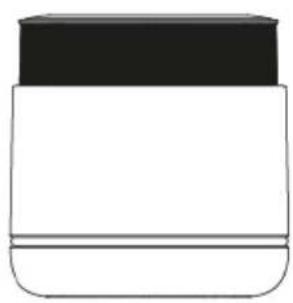
What's in the box
①
natural_image
Simple line drawing of a bottle with a cap and lid (no text or symbols)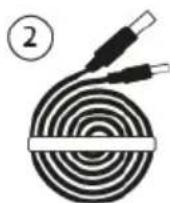
- StreamR
- Micro-USB cable
When choosing where to place your StreamR, your listening experience can be aff by several factors. These factors include the physical location of your speaker with room, the distance from any surfaces, e.g. walls or floors, or the type of material surrounding area.
Controls
Control your StreamR using the buttons on the top of the speaker.
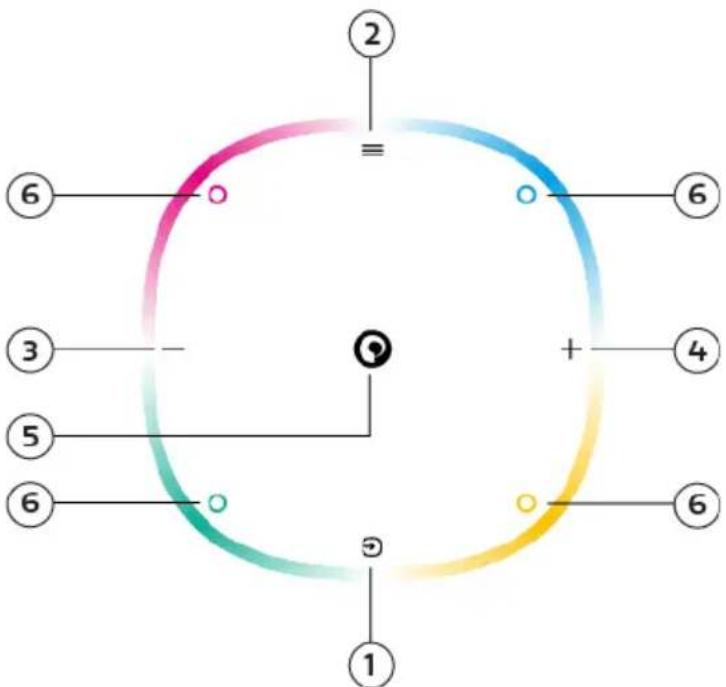
| Button Description | ||
| 1 | Source ➕ | Press to change the source. See "Changing the source". |
| 2 | Menu ≡ | Press to change the function of the left and right buttons.Press and hold to change what you see on the display.In FM radio, you can display the station name or frequency, now playing information, or the clock.In digital radio, you can display the station name, now playing information, or the clock.In Bluetooth mode, you can display the current track name and artist or display the clock. |
| 3 Left volume down— | In all modes, press to decrease the volume.If you've pressed the Menu button:In digital radio, press to scroll through the station list.In FM radio, press to tune down by 0.05 MHz. Press and hold to seek to the previous station.In Bluetooth mode, press to go to the previous song. | |
| 4 Right/volume up In all + | All modes, press to increase the volume.If you've pressed the Menu button:In digital radio, press to scroll through the station list.In FM radio, press to tune up by 0.05 MHz. Press and hold to seek to the next station.In Bluetooth mode, press to skip to the next song. | |
| 5 Pure multi-function button | © | Located in the centre of the top of the speaker.When listening to digital radio, FM radio or auxiliary devices, press to mute or unmute.In Bluetooth mode, press to play or pause songs.When a mobile device is connected and set up, press and hold to access Amazon Alexa.See "Controlling your speaker with voice commands". |
| Preset corners | When listening to digital radio or FM radio, press and hold to store a radio preset.In all modes, press to select a radio preset.See "Presets". | |
Light ring
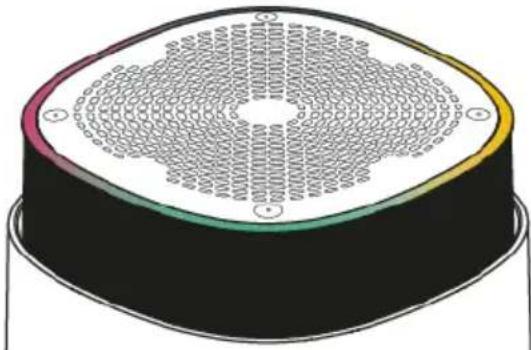
The light ring around the top of your StreamR displays the status of the speaker.
natural_image
Illustration of a circular mechanical component with radial grooves and central holes (no text or symbols)| Light ring Meaning | ||
| Dark blue with front centre cyan | 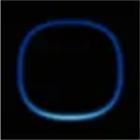 | Alexa is listening to your request |
| Alternate pulsing dark blue and cyan |  | Alexa is responding to your request |
| Pulsing dark blue and cyan at the same time | 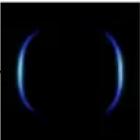 | An Alexa alarm, reminder or timer |
| Pulsing red Alexa | 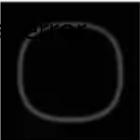 | This is triggered when your StreamR is not paired to a mobile device or are not logged into your Amazon Alexa account. Open the Pure Home app reconnect to your mobile device in the My Products section. |
| Segments lit white | 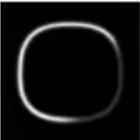 | Volume increased or decreased |
| Preset corner lit white | 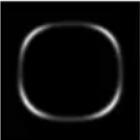 | The preset corner is not set |
| Preset corner lit blue, green, pink, or amber | 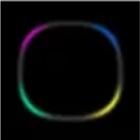 | The preset corner is set |
| Flashing amber | 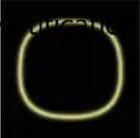 | from Amazon Alexa. Ask Amazon Alexa: "Read my notifications." |
| Solid white | 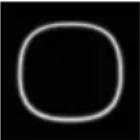 | Software update is in progress. See "Updating the software". |
Connections and buttons
Your StreamR has the following connections and buttons.
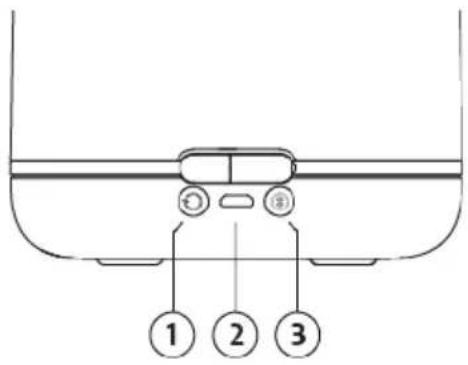
- Radio autotune button. See "Digital radio".
- Micro-USB port for charging and power
- Bluetooth pairing button. See "Bluetooth".
Getting started
To get started with your StreamR, you'll need the following;
- USB power adapter or socket. This lets you charge your StreamR before you cc the setup. - Optional: Mobile device and the Pure Home app. This allows you to link your A Alexa account. Ensure that Bluetooth on your mobile device is switched on.
Charging your speaker 6
Switching your speaker on or off 7
Changing the source 8
Changing the volume 8
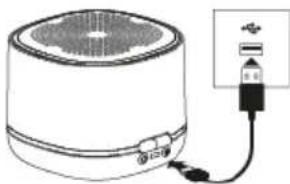
Charging your speaker
Your StreamR can run on battery, or by connection to USB power through a power or socket.
- Connect the supplied Micro-USB cable to the USB socket on your StreamR.
- Connect the other end of the Micro-USB cable to a USB power socket.
natural_image
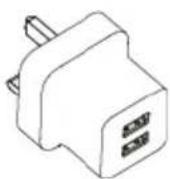
Line drawing of a speaker connected to a plug (no text or symbols)In the interests of the environment, we at Pure are committed to a low electrical u policy. Due to the proliferation of high power USB plug adaptors in most households, recommend you charge your speaker using an existing USB plug adaptor or buy a compatible charger.
Switching your speaker on or off
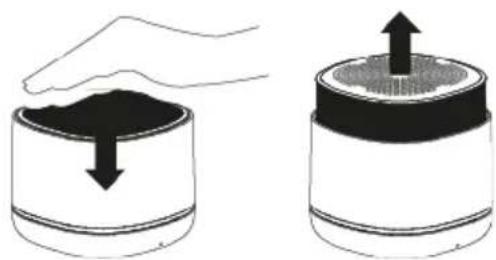
To switch your StreamR on, press down on the top of the speaker using your palm speaker rises up out of its base.
The first time you switch your StreamR on, it enters Bluetooth pairing mode. See "Bluetooth".
natural_image
Illustration of two containers with arrows indicating downward and upward movement, no text or symbols presentTo switch your StreamR off, press down on the top of the speaker using your palm
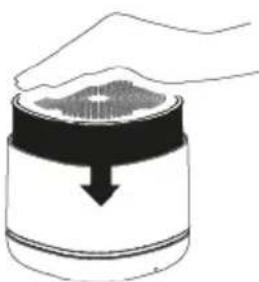
natural_image
Illustration of a hand pressing down on a cylindrical container with a downward arrow (no text or symbols)Changing the source
To change the source, press the Source button .
The colour of the light ring indicates the current source.
| Colour | Current source |
| Blue | Bluetooth connection |
| Green | Digital radio |
| Pink | FM radio |
| Amber | Auxiliary input |
Changing the volume
Press the left button or the right button to change the volume.
Setting up Amazon Alexa
With Amazon Alexa, you can control your StreamR with voice commands.
Alexa voice control requires a mobile device with a data or Wi-Fi connection, which connected to your StreamR using Bluetooth. See "Bluetooth". The Pure Home app must also be running on the mobile device.
Alexa isn't available in all languages and countries.
Linking your Alexa account
-
Download and install the Pure Home app. See "Downloading the Pure Home app".
-
Open the Pure Home app and select Add a product.
-
From the Add a product menu, select StreamR and follow the instructions.
Downloading the Pure Home app
The Pure Home app allows you to link your Amazon Alexa account, giving you access Alexa voice control. See "Controlling your speaker with voice commands".
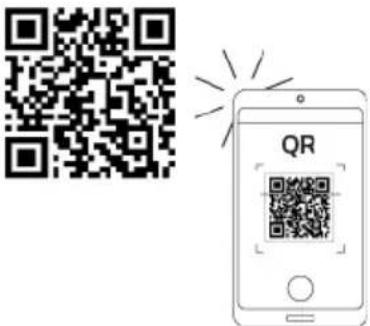
To download the Pure Home app, visit the app store for your iOS or Android mobile. To quickly open the app store on your mobile device, scan the QR code below.

Controlling your speaker with voice commands
After setting up your Amazon Alexa account in the Pure Home app, you can access See "Setting up Amazon Alexa".
Alexa voice control requires a mobile device with a data or Wi-Fi connection, which connected to your StreamR using Bluetooth. See "Bluetooth". The Pure Home app must also be running on the mobile device.
To access Alexa, press and hold the Pure button and then say your command.
| Actions Example of | voice command |
| Listen to a radio station | "Play BBC Radio 2." |
| Play some music | "Play some jazz music." |
| Set a timer | "Set a timer for 20 minutes." |
| Play a game | "Play a game" |
| Ask a question | "What's the weather?" |
To cancel an Alexa alarm or timer, press and hold the Pure button when the alarm timer sounds.
Alexa plays music using the Amazon Music service.
Bluetooth
Set up your mobile device to stream music using Bluetooth.
Alexa voice control requires a mobile device with a data or Wi-Fi connection, which connected to your StreamR using Bluetooth. See "Controlling your speaker with vo commands".
Connecting a Bluetooth device
If you set up your StreamR using the Pure Home app, the mobile device you used i paired with your speaker.
To connect to a previously paired Bluetooth device:
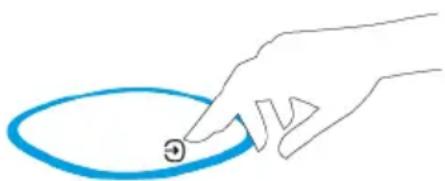
- Press the Source button until the light ring turns blue.
natural_image
Hand pointing at a blue circular mark on a white background (no text or symbols)-
Enable Bluetooth on your mobile device.
-
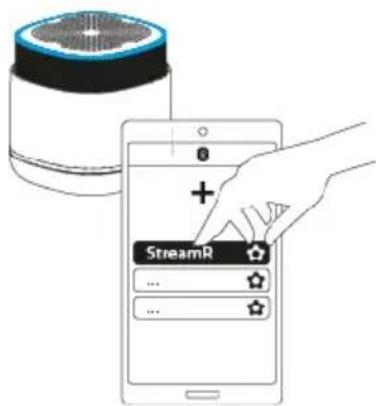
On your mobile device, select your StreamR from the list of available Bluetooth devices.
To connect a new Bluetooth device:
-
Enable Bluetooth on your mobile device.
-
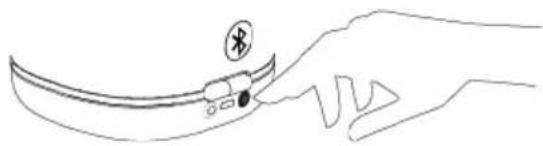
Press the Bluetooth pairing button at the back of the speaker.
The light ring flashes blue, to indicate that your StreamR is in Bluetooth pairing
natural_image
Line drawing of a hand holding a small electronic device with an antenna (no text or symbols)- On your mobile device, select your StreamR from the list of available Bluetooth devices.
Disconnecting a Bluetooth device
To disconnect a mobile device, do one of the following:
- On your mobile device, go to Bluetooth settings and then disconnect or unpair your StreamR.
- On your StreamR, press the Bluetooth pairing button at the back of the speaker. StreamR is now ready to be paired to another mobile device.
Controlling music
You can control music played on your StreamR with the buttons on the top of the
· To play or pause songs, press the Pure button .
- To skip to the next song, press the Menu button and then. To skip forwards through the playlist, repeatedly press.
- To go to the previous song, press the Menu button and then. To skip backwa through the playlist, repeatedly press.
Changing the information shown on the display
To change what information is shown on the display, press and hold the Menu button can change between the following options:
- Track name and artist
- Clock
Hands-free calls
When your StreamR is connected to your mobile phone using Bluetooth, you can answer calls hands-free. You can then use the microphone on your StreamR to speak to the
- To accept a call, press the green corner.
- To reject a call, press the red corner.
Digital radio
Listen to your favourite digital radio stations.
To get a better radio reception, you may need to extend the built-in auxiliary cable also acts as an aerial.
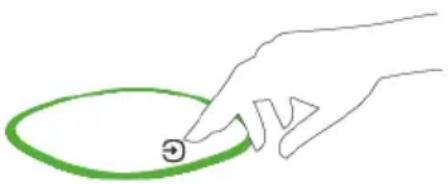
To change the source mode to digital radio, press the Source button until the light turns green.
natural_image
Hand drawing a green oval shape with a small circle on the right, pointing at it (no text or symbols)Changing the digital radio station
- Press the Menu button.
- Press the left button or the right button to browse stations. Press and hold the button to quickly browse through the station list.
- Press the Pure button to change to the selected station.
Performing an autotune
Your StreamR automatically scans for digital radio stations when you switch to digital for the first time.
If you move your StreamR to a new location, perform an autotune to update the list stations. You may need to extend the built-in auxiliary cable.
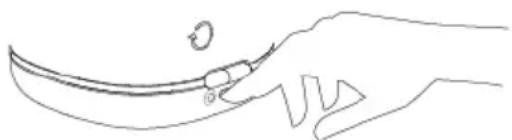
To update the list of available radio stations, press the Autotune button on the rear speaker.
natural_image
Line drawing of a hand holding a curved object with a circular mark and a small loop (no text or symbols)Changing the information shown on the display
To change what information is shown on the display, press and hold the Menu button can change between the following options:
- Station name
- Now playing information
- Clock
FM radio
Listen to your favourite FM radio stations.
To get a better radio reception, you may need to extend the built-in auxiliary cable also acts as an aerial.
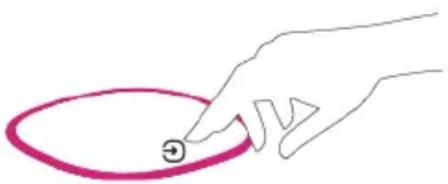
To change the source mode to FM radio, press the Source button until the light ring pink.
natural_image
Hand drawing a pink circular shape with a small symbol inside, no text or symbols presentChanging the FM radio station
- Press the Menu button.
- Use the left button or the right button.
- To automatically seek down or up for the next station, press and hold or
- To step down or up 0.05 MHz, press +or .
Changing the information shown on the display
To change what information is shown on the display, press and hold the Menu button can change between the following options:
- Station name or frequency
- Now playing information
- Clock
Presets
Store your favourite radio stations to the preset corners, so you can listen to them touch of a button.
You can store up to four radio stations as presets, and they can be FM or digital stations example, your four presets can be made up of two digital radio stations and two FI stations.
Storing presets
You can only store presets when in digital radio or FM radio mode.
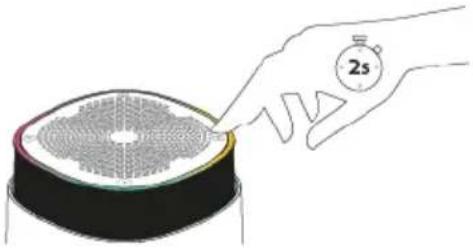
To store the radio station that is currently playing to a preset, press and hold the p corner.
If the preset corner already has a radio station stored to it, the new station overwri
natural_image
Illustration of a hand holding a stopwatch with '2s' label, next to a circular object with a mesh grille (no text or symbols on the object itself)Selecting presets
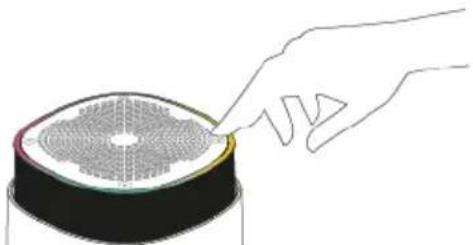
To listen to a stored radio station, press the preset corner. You can access your pre from any source mode.
natural_image
Illustration of a hand interacting with a circular device component (no text or symbols visible)Connecting an auxiliary device
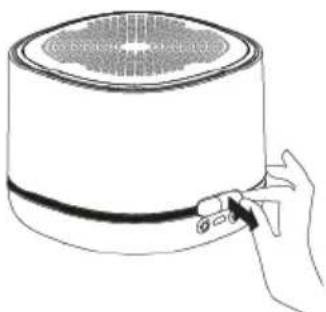
You can connect your StreamR to any auxiliary device, using the built-in 3.5 mm auxi cable.
- Pull the end of the auxiliary cable at the back of the speaker, to start extendi cable.
natural_image
Line drawing of a hand holding a cylindrical device with a speaker grille and control knob (no text or symbols)- Extend the auxiliary cable to the desired length and remove the cable's cap.
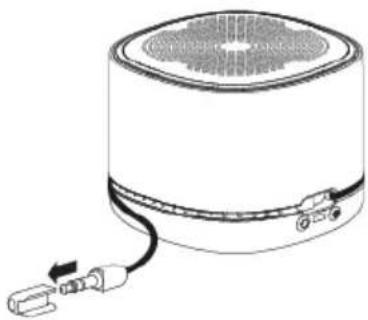
natural_image
Diagram of a cylindrical device with a speaker grille and connected plug (no text or symbols)- Connect the auxiliary cable to your mobile device.
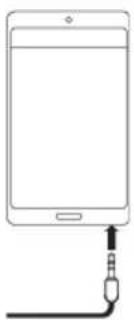
natural_image
Simple line drawing of a smartphone with an attached cable (no text or symbols)- Press the Source button to change to auxiliary input, indicated by the light ring turning amber.
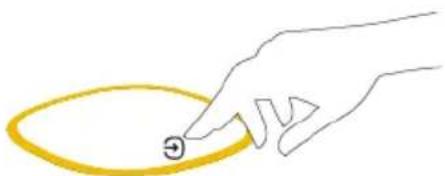
natural_image
Hand pointing at a yellow oval shape with a small symbol (no text or numbers present)If you change the volume on your StreamR and the audio isn't loud enough, try the volume on your mobile device.
Checking the battery level
To check the battery level, press and hold the right-button and the left button together. If your speaker is open, the battery level is shown on the display. If your speaker is the light ring shows green segments to indicate the battery level.
Rebooting your StreamR
If your StreamR is not responding, you can physically reboot the speaker.
To reboot your StreamR, insert a paperclip into the reset hole on the bottom of you speaker, until you make contact with the reset button. Then press the reset button.
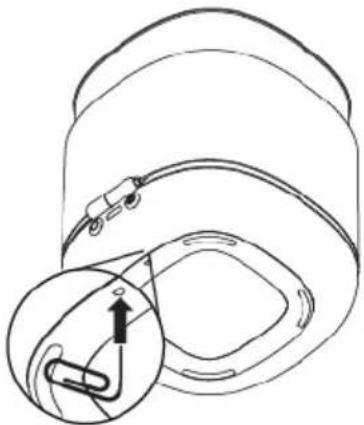
natural_image
Technical line drawing of a mechanical component with an inset showing a cable or cable assembly (no text or symbols)Restoring to factory conditions
You can restore your StreamR to factory conditions to clear all settings and saved pi
Your StreamR needs to be running on battery mode to restore it to factory cond
To restore your StreamR to factory conditions:
- Disconnect the USB charging cable and close the speaker.
- Press and hold the Autotune button.
- While holding down the Autotune button, press down on the top of the speak switch it on.
Do not switch off your StreamR while the restore is in progress. When the restore is complete, the language selection is shown on the display.
Updating the software
If you are prompted in the app to update the software on your StreamR, plug the s before starting the update.
While software updates are in progress, ensure your StreamR is plugged in and cl
During software updates, the light ring on your StreamR turns white. Your Stream playing audio until the update is complete.
Troubleshooting
| Problem Solution | |
| Speaker doesn't switch onSpeaker is not charging | ·Connect your speaker to another USB power outlet.·If there is no indication of power to the speaker, try testing another USB cable |
| Speaker is not connecting over Bluetooth | ·On your mobile/controlling device, turn the Bluetooth feature off and back on.·Make sure you're using a compatible Bluetooth device.·Remove/forget the speaker from the list of paired devices on your mobile/controlling device, then go through the setup process again.·Ensure your mobile/controlling device are within Bluetooth connection range.·Restart your mobile device. |
| Unable to listen to the radioPoor receptionStation showing as off-airAlexa doesn't respond · | ·Check the radio coverage in your area.·Fully extend the auxiliary cable.·Press the Autotune button on the rear of the speaker.Check if Alexa is available in your country.· Check if your StreamR is paired to the mobile device over Bluetooth and u· Check if your mobile/controlling device has a data connection or access to t Internet.· Make sure you have set up your Amazon Alexa account in the Pure Home that the app is open and running on your mobile device.· Ensure you have enabled location settings on your mobile device. |
| A preset corner did not save | · Make sure the radio station is playing on the speaker and the station name displayed.· Configure the preset corner again. See "Presets". |
| There's no sound · Check the volume on your StreamR.· Check if your StreamR is in the correct source mode.· Check the volume on your mobile/controlling device.· Make sure your StreamR has sufficient power, or is properly connected to a socket. | |
| Speaker controls are not responding | · Switch your StreamR off and back on.· Reboot your StreamR (insert a paperclip into the reset hole on the bottom speaker and press the reset button).· Restore your StreamR to factory conditions. |
| The time is not shown on the display | · Change to a digital or FM radio station. Your StreamR uses digital or FM ra to set the time. |
Specifications
| Bluetooth | Bluetooth® 4.2Bluetooth Low EnergyFrequency range: 2402-2480 MHzMaximum power: -0.3 dBm (EIRP) |
| Profiles | A2DPAVRCPHFP |
| Voice | Amazon Alexa (requires Pure Home app and speaker paired/connected to mobile device) |
| Radio | ·DAB+·FM |
| Frequencies | ·Digital: Band III 174-240 MHz·FM: 87.5-108 MHz |
| Presets | 4 x preset corners for DAB+/FM stations |
| Audio | ·30 W RMS·1 x 2" Woofer·1 x 3⁄4" Tweeter·Digital Signal Processor (DSP) |
| Battery | ·1 x 7.4 V, 2500 mAh Rechargeable Lithium-ion battery (Not user replaceable)·Bluetooth runtime: up to 15 hours·Charging time: up to 6 hours to charge with 5 V at 1 A |
| Display | 1.7" monocoloured LCD |
| Software version | 1.0 |
| Top-panel features | Capacitive touch sensitive control:·Volume up/down·Multi-function button·Station/Track list·Source switching·4 x preset corners for DAB+/FM stationsLED/Light ring illumination to indicate feedback status (including the above).Music Control:·Press to play or pause track.·Press the Menu button and then to skip to the next track.·Press the Menu button and then to go to the previous track.Alexa: press and how to access Alexa (requires a mobile device with a data connection is connected to your StreamR using Bluetooth).Proximity sensor illuminates controls when motion detected within range of top panel s |
| App support | The Pure Home app is available in the app stores:·App Store for your iOS mobile device·Google Play for your Android mobile device |
| Input connectors | · 3.5 mm auxiliary cable for audio playback · Micro USB port for charging/power |
| Aerial | The integrated auxiliary cable acts as an aerial. |
| Box contents | · StreamR speaker · Micro USB charging cable · Quick Start Guide |
| Dimensions | Open state: · 105 (H) x 105 (W) x 105 (D) mm · 4.1 (H) x 4.1 (W) x 4.1 (D) inches Closed state: · 80 (H) x 105 (W) x 105 (D) mm · 3.1 (H) x 4.1 (W) x 4.1 (D) inches Power cable length: · 1 m · 39.4 inches |
| Weight | 0.728 kg (1.60 lbs) |
| Service & Support | 2-year warranty |
Safety information
- Read all the safety information and instructions before using the product. When passing this product to someone, include all documents.
- If you do not follow the operating instructions provided, it may compromise the use of your product and this may invalidate the warranty.
- Do not expose the product to dripping or splashing. Do not place objects filled liquids, such as vases, on the product. If liquid spills onto the product, switch i immediately and contact your dealer. If you are using a mains-powered adapter not touch the product with wet hands.
- The internal battery in this product is not user replaceable. Do not expose the to excessive heat or naked flames. Ensure adequate ventilation and airflow around
the product, particularly when charging. Dispose of the product in accordance u local environmental rules.
-
Using the product in rooms or climates with high humidity and temperatures m cause condensation to form inside the product, which can damage the product. the product in moderate climates only.
-
Do not use your product in extremely hot or cold temperatures. Keep the device from heat sources, such as radiators or gas/electric fires. Do not expose your product to naked flames, such as lighted candles.
-
To charge your product, only connect it to a supply source that meets the safe isolation requirements of EN 60065 or EN 60950-1 for an accessible safety extr voltage circuit. For this connection, use either the supplied micro-USB cable or suitably CE approved power adapter with the correct USB output rating.
-
Power the product using an external 5V DC with a minimum 1A rated power source. The current drawn is 1A, protected by an internal circuit.
-
Before you charge your product, ensure that the available supply voltage corresponds with the required operational voltage of the product.
-
Disconnect your product from the charging power supply if you will not use y product for a long period of time (for example, if you are going on holiday).
-
Always unplug your product from the charging power supply before cleaning. We cleaning the product, do not use any type of abrasive pad or abrasive cleaning solutions as these may damage the product's surface.
-
To prevent possible hearing damage, do not listen at high volume levels for long periods of time. If you find that listening to your product is distracting while o any type of vehicle or performing an activity that requires your full attention, s listening to your product.
⚠️ User: The battery is not user serviceable. Do not attempt to replace the internal battery in the product. Service Personnel only: Danger of explosion if battery is incorrectly replaced. Replace only with the same or equivalent type.
Risk of injury when charging the product in direct sunlight. Only charge the product when it is not in direct sunlight.
⚠ Ensure adequate ventilation and airflow around the product, particularly when charging.
⚠️ Cease to use the device if there are any abnormalities during operation, such as high temperature, discoloration, bulging, leakage, and so on.
Symbols on the product and in the user manu

Potentially serious risk to your personal safety. To avoid possible injury or death, obey all safety with this symbol.

Caution. Read the user manual before use.

Caution. Avoid listening at high volume levels for long periods of time.
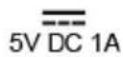
5V DC 1A power supply.
Compliance
CE
CE marked. Hereby Pure International Limited declares that this LPD radio, model Stre in compliance with the essential requirements of RED 2014/53/EU.
The full text of the EU Declaration of Conformity is available at the following internet address: pure.com/about/red
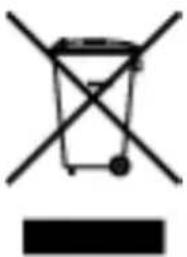
Disposal of Waste Electrical & Electronic Equipment
natural_image
Symbol of a trash bin crossed with a diagonal line and a solid black rectangle below (no text or labels)This marking indicates that this product should not be disposed with other household throughout the EU. To prevent possible harm to the environment or human health from uncontrolled waste disposal recycle it responsibly to promote the sustainable reuse of
material resources. To return your used device, please use the return and collection : or contact the retailer where the product was purchased. They can take this product environmental safe recycling.
Trademarks
StreamR, Pure, and the Pure Logo are trademarks or registered trademarks of Pure International Limited.
Amazon, Amazon Alexa and the Amazon Alexa logo are trademarks of Amazon.com, its affiliates.
The Bluetooth® word mark and logos are registered trademarks owned by Bluetooth Inc. and any use of such marks by Pure International Limited is under license.
Android and Google Play are trademarks of Google Inc.
Apple and the Apple logo are trademarks of Apple Inc., registered in the U.S. and otl countries. App Store is a service mark of Apple Inc.
All other product names are trademarks of their respective owners.
Support
Do you need help with your StreamR? Try the following:
• See "Troubleshooting"
• View the FAQs on support.pure.com
- Contact our customer support team at support.pure.com
- Find us on social media: @PureAudioHQ
Contact addresses
Pure International Limited, Concept House, Home Park Road, Kings Langley, Herts, WD48UD, UK
Pure Europe GmbH, Möslbichl 78, 6250 Kundl, Austria

- Overview
- What's in the box
- Controls
- Light ring
- Connections and buttons
- Getting started
- Charging your speaker
- Switching your speaker on or off
- Changing the source
- Changing the volume
- Setting up Amazon Alexa
- Linking your Alexa account
- Downloading the Pure Home app
- Controlling your speaker with voice commands
- Bluetooth
- Connecting a Bluetooth device
- Disconnecting a Bluetooth device
- Controlling music
- Changing the information shown on the display
- Hands-free calls
- Digital radio
- Changing the digital radio station
- Performing an autotune
- FM radio
- Changing the FM radio station
- Presets
- Storing presets
- Selecting presets
- Connecting an auxiliary device
- Checking the battery level
- Rebooting your StreamR
- Restoring to factory conditions
- Updating the software
- Safety information
- Symbols on the product and in the user manu
- Compliance
- CE
- Disposal of Waste Electrical & Electronic Equipment
- Trademarks
- Support
- Contact addresses
Brand : PURE
Model : StreamR
Category : Radio