
PS-A302B - Radio Fusion - Free user manual and instructions
Find the device manual for free PS-A302B Fusion in PDF.


| Product Type | Marine Stereo / Radio |
| Brand | Fusion |
| Model | PS-A302B |
| Dimensions (W × H × D) | 344 x 155 x 50 mm (13.54 x 6.1 x 1.97 in.) |
| Weight | 1.15 kg (2.54 lb) |
| Ingress Protection Rating | IP65 (IEC 60529) – front panel only |
| Input Voltage | 10.8 – 16.0 Vdc |
| Current (Max) | 10 A |
| Fuse | 10 A |
| Amplifier Output | Class D, 2 × 43 W RMS @ 14.4 Vdc, ≤ 1% THD+N |
| Speaker Configuration | Two 3 in. speakers with one passive radiator |
| Tuner | AM/FM (North America, Europe, Japan, Australasia) |
| Bluetooth Version | 4.1 |
| Bluetooth Profiles | A2DP, AVRCP, SPP |
| Bluetooth Range | Up to 10 m (33 ft) |
| ANT Wireless Range | Up to 3 m (10 ft) |
| USB Port | Type A for flash drive or media player; 1 A charging |
| USB Audio Format | MP3 (FAT32, max 250 files per folder) |
| Line Output Level (Max) | 5.5 V peak-to-peak |
| Aux Input Level (Typical RMS) | 1 V |
| Operating Temperature | 0° to 50°C (32° to 122°F) |
| Storage Temperature | -20° to 70°C (-4° to 158°F) |
| Compass-Safe Distance (Max) | 229 cm (7.6 ft) |
| Water Resistance (USB Cap closed) | IPX5 |
Frequently Asked Questions - PS-A302B Fusion
User questions about PS-A302B Fusion
0 question about this device. Answer the ones you know or ask your own.
Ask a new question about this device
Download the instructions for your Radio in PDF format for free! Find your manual PS-A302B - Fusion and take your electronic device back in hand. On this page are published all the documents necessary for the use of your device. PS-A302B by Fusion.
USER MANUAL PS-A302B Fusion
See the Important Safety and Product Information guide in the product box for product warnings and other important information.
FUSION ® Panel-Stereo Controls
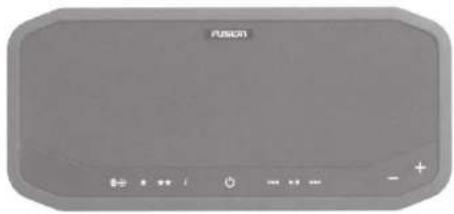
 | Source | Press to step through the available sources.Press and hold to put the stereo in Bluetooth® discoverable mode and pair with a Bluetooth wireless device. |
 | AM/FM Preset 1 | Press and hold to save the current station as preset 1.Press to select the saved preset station. |
 | AM/FM Preset 2 | Press and hold to save the current station as preset 2.Press to select the saved preset station. |
| Information | AM/FM: Press to hear the frequency and band of the current station.USB/Bluetooth/AUX: Press to hear the source name. | |
| Power | Press to turn on the stereo.Press to turn off the stereo.Press and hold for 10 seconds to reset the stereo. |
| ◀◀ | Back | • AM/FM: Press to tune to the previous station.• USB/Bluetooth: Press to skip to the previous track.• USB: Press and hold to rewind the current track (compatible Apple® devices only). |
| ▶II | Play/Pause | • AM/FM/AUX: Press to mute.• USB/Bluetooth: Press to pause. |
| ▶▶I | Forward | • AM/FM: Press to tune to the next station.• USB/Bluetooth: Press to skip to the next track.• USB: Press and hold to fast forward the current track (compatible Apple devices only). |
| — | Volume Decrease | • Press to decrease the volume.• Press and hold to quickly decrease the volume. |
| + | Volume Increase | • Press to increase the volume.• Press and hold to quickly increase the volume. |
| ★★and ★ | AM/FM: Press and hold both keys to change the AM/FM tuner region.NOTICEChanging the tuner region erases all radio station presets.NOTE: The tuner has been set to the North America tuner region. If you purchase or use the stereo in a different region, you must change the tuner region. | |
| ◀◀ and▶◀I | • Press both keys to hear the current version of software.• Press and hold both keys to update the stereo software from USB (For software upgrade instructions, go to www.fusionentertainment.com). | |
| i and ★ | Press and hold both keys to enable or disable AUX1 input. | |
| ★★and i | Press and hold both keys to enable or disable AUX2 input. | |
| i and ◀◀ | AUX: Press both keys to decrease the gain for the connected source. | |
| i and ➤ | AUX: Press both keys to increase the gain for the connected source. | |
| + and — | Press and hold both keys to switch the line out volume between fixed and adjustable. |
FUSION Panel-Stereo USB Port
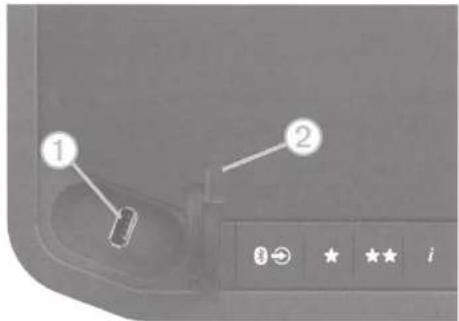
① USB port for your mobile device connection or a low-profile USB flash drive. Charges your mobile device.
② Weather cap. When properly closed, this cap provides a cover that is water resistant to IPX5.
Downloading the Owner's Manual
For more information about the features discussed in this manual, download the latest owner's manual from www.fusionentertainment.com.
Connecting Devices
Connecting a Compatible Bluetooth Device to the Stereo
You can play media from a compatible Bluetooth device using the Bluetooth wireless connection.
You can control the music playback with the media app on a Bluetooth device or using the FUSION-Link™ remote control app. For information about the FUSION-Link app for compatible Apple or Android™ devices, go to the Apple App Store™ or the Google Play™ store.
1 Enable Bluetooth on your compatible Bluetooth device.
2 Bring the compatible Bluetooth device within 10 m (33 ft.) of the stereo.
3 On the stereo, press and hold ➕ until you hear Discoverable and ⏻ flashes blue.
The stereo remains discoverable for two minutes.
4 On your compatible Bluetooth device, select Panel-Stereo from the list of discovered devices.
Turns solid blue when the device is connected to the stereo.
5 If your compatible Bluetooth device does not connect to the stereo, repeat the above steps.
6 If you want to stream Bluetooth audio, select the Bluetooth source on the stereo.
NOTE: The FUSION-Link app works for any audio source, but you must select the Bluetooth source on the stereo to stream audio.
7 Play music using your Bluetooth device.
NOTE: Ⓧ remains solid blue when a Bluetooth device is connected to the stereo, regardless of the selected source.
Connecting a Compatible USB Device to the Stereo
You can connect a compatible USB flash drive, compatible Apple device, or compatible Android AOA device to the USB port to play music and charge compatible Apple or Android devices.
The FUSION-Link remote control app is required to navigate folders on the USB flash drive. When using a USB flash drive without the FUSION-Link app, the stereo plays music files saved in the root directory by default. If the FUSION-Link app has been previously used to navigate to a different folder on the USB drive, the stereo plays music files from the last folder navigated to.
When using a USB flash drive, the file load time varies based on size of the flash drive and the number of files on the flash drive.
FUSION-Link Remote Control App
You can use the FUSION-Link remote control app on your compatible Apple or Android device to adjust the stereo volume, change the source, control playback, select and manage radio presets, and adjust some stereo settings.
The app communicates with the stereo using the Bluetooth connection for the mobile device. You must connect your compatible device to the stereo using Bluetooth to use the app.
For information about the FUSION-Link remote control app for compatible Apple or Android devices, go to the Apple App Store or the Google Play store.
Connecting a Garmin ® Watch to the Stereo
For more information about the watch, see the watch manual at www.garmin.com/manuals.
1 Following the instructions in the watch manual, install the FUSION-Link Lite™ app from the Connect IQ™ store onto the watch.
2 On the stereo, press and hold ➕ until you hear Discoverable and ⏻ flashes blue.
The stereo remains discoverable for two minutes.
3 Bring the watch within 3 m (10 ft.) of the stereo.
NOTE: Stay 10 m (33 ft.) away from other ANT ® devices while pairing.
4 Open the FUSION-Link Lite app on the watch.
The first time you open the app on the watch, the watch automatically pairs with and connects to the stereo. If you need to pair to another stereo, in the FUSION-Link Lite app, select Settings > Pair new.
5 Control the audio playback using the FUSION-Link Lite app on the watch.
After the devices are paired, they connect automatically when they are turned on, within range, and the app is open on the watch.
More Information
Installing a Different Language for the Voice Prompts
You can change the language of the voice prompts. Choose from English, Dutch, French, German, Italian, Spanish, Japanese, and Chinese.
1 Go to www.fusionentertainment.com.
2 Follow the on-screen instructions.
Specifications
| Ingress protection rating* | IEC 60529 IP65 |
| Dimensions with trim (W × H × D) | 344 x 155 x 50 mm (13.54 x 6.1 x 1.97 in.) |
| Weight | 1.15 kg (2.54 lb.) |
| Operating temperature range | From 0° to 50°C (from 32° to 122°F) |
| Long-term storage temperature range | From -20° to 70°C (from -4° to 158°F) |
| Bluetooth wireless range | Up to 10 m (33 ft.) |
| Bluetooth profiles | A2DP, AVRCP, SPP |
| Bluetooth version | 4.1 |
| ANT wireless range | Up to 3 m (10 ft.) |
| Input voltage | From 10.8 to 16.0 Vdc |
| Current (max.) | 10 A |
| Fuse | 10 A |
| USB | Type A port for USB flash drive or media player connection, also provides 1 A charging |
| USB compatibility | Compatible Android Open Accessory (AOA) and Apple devices |
| USB format | FAT32 |
| USB audio format | MP3, max. 250 files per root folder and each other folderNOTE: The file load time varies based on the number and size of the files on the flash drive. |
| Speakers | Two 3 in. speakers with one passive radiator |
| Amplifiers | Class D, 2 x 43 W RMS @ 14.4 Vdc input, ≤ 1% THD +N |
| Tuner | AM/FM (North America, Europe, Japan, Australasia) |
| Wireless frequency/protocol | Bluetooth: Class 2Bluetooth/ANT frequency: From 2,402 to 2,480 MHzBluetooth/ANT max. power: 9 dBm EIRP |
| Line output level (max.) (peak to peak) | 5.5 V |
| Aux. input level (typical) RMS | 1 V |
*IP rating does not include rear connectors.
Stereo Care
NOTICE
Avoid chemical cleaners, solvents, sunscreen, and insect repellents that can damage plastic components and finishes.
Thoroughly wipe the stereo with fresh water after exposure to chlorine, salt water, sunscreen, cosmetics, alcohol, or other harsh chemicals. Prolonged exposure to these substances can damage the case.
Registering Your FUSION Panel-Stereo
Help us better support you by completing our online registration today.
• Go to www.fusionentertainment.com.
- Keep the original sales receipt, or a photocopy, in a safe place.
Troubleshooting
My stereo does not respond to my key presses
- Press and hold ⏻ for 10 seconds to reset the stereo. If necessary, press ⏻ to turn the stereo back on.
I cannot hear the audio well or at all
- Check the volume setting on the connected device.
• Select a valid source for the stereo.
• Make sure the stereo is not muted or paused.
• Make sure the stereo is connected to power.
• Make sure the external AM/FM antenna is connected and positioned to receive broadcast signals.
物質宣言
Garmin, the Garmin logo, FUSION, and the Fusion logo are trademarks of Garmin Ltd. or its subsidiaries, registered in the USA and other countries. These trademarks may not be used without the express permission of Garmin.
Android "is a trademark of Google" Inc. Apple and the Apple logo are trademarks of Apple Inc., registered in the U.S. and other countries. App Store is a service mark of Apple Inc., registered in the U.S. and other countries. The trademark iPhone is used in Japan with a license from Aiphone K.K. Bluetooth word mark and logos are owned by the Bluetooth SIG, Inc. and any use of such marks by Garmin is under license. Other trademarks and trade names are those of their respective owners.
Garmin ® , the Garmin logo, FUSION ® , and the Fusion logo are trademarks of Garmin Ltd. or its subsidiaries, registered in the USA and other countries. These trademarks may not be used without the express permission of Garmin.
Failure to follow these warnings and cautions could result in personal injury, damage to the vehicle or vessel, or poor product performance.
This device must be installed according to these instructions.
Disconnect the vehicle's or vessel's power supply before beginning to install this product.
CAUTION
Continuous exposure to sound pressure levels over 100 dBA may cause permanent hearing loss. The volume is typically too loud if you cannot hear people speaking around you. Limit the amount of time you listen at high volume. If you experience ringing in your ears or muffled speech, stop listening and have your hearing checked.
Always wear safety goggles, ear protection, and a dust mask when drilling, cutting, or sanding.
NOTICE
When drilling or cutting, always check what is on the opposite side of the surface.
It is strongly recommended that you have your audio system installed by a professional installer to ensure optimum performance.
You must read all installation instructions before beginning the installation. If you experience difficulty during the installation, go to www.fusionentertainment.com for product support.
What's in the Box
• FUSION® Panel-Stereo
- Stereo trim
• Six 6-gauge, self-tapping stainless steel screws
• Power wiring harness
Tools Needed
Electric drill
• Drill bit (size varies based on surface material)
• Phillips screwdriver
- Wire strippers
- Crimping tool
- Electrical tape
• Appropriate saw or utility knife to cut surface material
• Marine sealant (optional)
NOTE: For customized installations, additional tools and materials may be needed.
Mounting Considerations
NOTICE
Selecting the correct mounting location is critical to optimize the performance of the stereo. FUSION stereos are designed to perform in the widest possible range of mounting locations, but the more you plan the installation, the better the stereo's sound will be.
NOTE: If you install the optional mounting spacer, you must use the six black screws supplied with the mounting spacer to mount the stereo to the mounting spacer.
• Using the included screws, this stereo can be flush mounted in a surface with a depth of at least 50 mm (2 in.)
• Using an optional spacer (sold separately), this stereo can be mounted directly on a flat surface.
• To ensure water does not enter between the stereo and mounting surface, you should use marine sealant when mounting the stereo.
- For the best performance, the stereo should not be mounted low in the vehicle or vessel. Sound travels in the direction in which the stereo is
facing. When the stereo is mounted low, the sound quality and volume are not ideal.
• For the best seal, you should select a flat mounting surface.
- The mounting location must avoid potential obstacles, such as fuel and hydraulic lines and wiring.
- The cable should have a drip loop to allow water to drip down off the cable and avoid damaging the stereo.
- The mounting location should not expose the stereo to direct sunlight for prolonged periods of time.
- To avoid interference with a magnetic compass, the stereo should not be installed closer to a compass than the compass-safe distance value listed in the product specifications.
- You should protect the stereo wires from sharp objects and always use rubber grommets when wiring through panels.
- You should protect all terminals and connections from grounding and from each other. Failure to do so could result in permanent damage to the audio system and void the product warranty.
Mounting the Stereo
Before mounting the stereo, you must choose a location where there is enough clearance behind the mounting surface. Refer to the side view drawings for clearance information.
If necessary, you can purchase a spacer (no: included) to install the stereo directly onto a flat surface.
Before mounting the stereo, you must choose a location following the guidelines above.
1 Trim the template and make sure it fits in the selected location.
2 Secure the template to the selected location.
3 Using a drill bit appropriate for the mounting surface, drill a hole inside the dashed line on the template to prepare the mounting surface for cutting.
4 Using a jigsaw or rotary tool, cut the mounting surface along the inside of the line on the template.
5 Place the stereo in the cutout to test the fit.
6 If necessary, use a file and sandpaper to refine the size of the cutout.
7 After the stereo fits correctly in the cutout, ensure the mounting holes on the stereo line up with the pilot holes on the template.
8 If the mounting holes on the stereo do not line up, mark the new hole locations.
9 Using an appropriately sized drill bit for the mounting surface and screw type, drill the holes.
10 Remove the template from the mounting surface.
11 Make the necessary wiring connections (Connector Identification, page 3).
12 Place the stereo ① in the cutout ②.
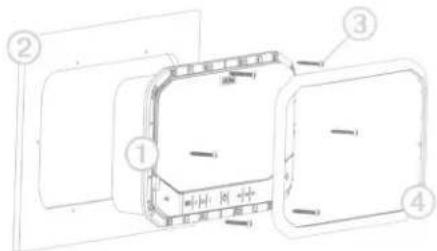
13 If there is a concern that water may enter the mounting surface around the edges of the stereo, apply marine sealant around each of the screw holes and between the stereo and the mounting surface (optional).
NOTICE
Do not apply grease or lubricant to the screws when fastening the stereo to the mounting surface. Grease or other lubricants can cause damage to the stereo housing.
14 Secure the stereo to the mounting surface using the included screws ⚙, or screws appropriate for the depth of the mounting surface.
NOTE: Do not over tighten the screws, especially if the mounting surface is not flat.
15 Press the trim ④ firmly onto the stereo until all of the pins snap into place.
Connector Identification
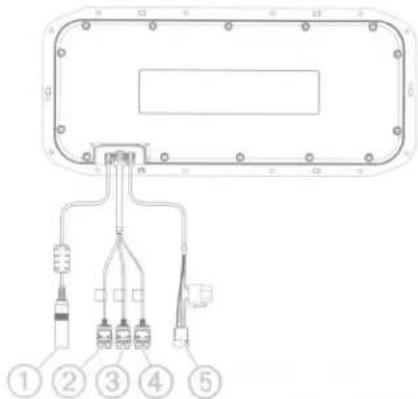
| Item | Connector | Connects to |
| 1 | External antenna | External AM/FM antenna |
| 2 | AUX IN 1 | Audio sources, such as a CD player, TV, or another FUSION stereo |
| 3 | AUX IN 2 | Audio sources, such as a CD player, TV, or another FUSION stereo |
| 4 | Line out | RCA line out, switchable between variable and fixed output |
| 5 | Power | 12 V +, -/ground, and external amplifier on |
Connecting to Power
When connecting the stereo to power, you should connect it through the ignition or another manual switch.
If it is necessary to extend the power and ground wires, use 14 AWG (2.08 mm 2 ) wire. For extensions longer than 1 m (3 ft.), use 12 AWG (3.31 mm 2 ) wire.
1 Route the red power wire ① to the ignition or another manual switch ②, and route the black ground wire ③ to the battery.
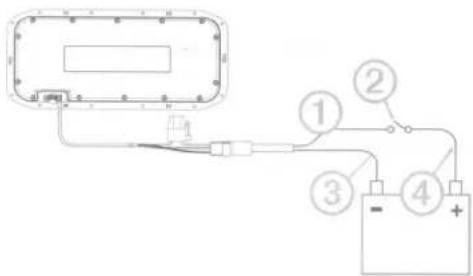
2 If necessary, route a wire ④ between the switch and the battery.
3 Route the wiring-harness plug to the stereo.
Do not connect the wiring harness to the stereo until after all of the bare wire connections have been made.
4 Connect the black wire to the negative (-) battery terminal.
5 Connect the red power wire to the ignition or another manual switch, and connect the switch to the positive (+) battery terminal if necessary.
6 Connect the wiring harness plug to the stereo.
Stereo Information
Registering Your FUSION Panel-Stereo
Help us better support you by completing our online registration today.
• Go to www.fusionentertainment.com.
- Keep the original sales receipt, or a photocopy, in a safe place.
Cleaning the Stereo
NOTE: This stereo is rated IP65 for protection in harsh environments. It is not designed to withstand high pressure water spray, which may occur when you wash down your vehicle or vessel. Failure to carefully spray-clean the vehicle or vessel may damage the product and void the warranty.
NOTICE
Do not use harsh or solvent-based cleaners on the stereo. Using such cleaners may damage the product and void the warranty.
1 Clean all salt water and salt residue from the stereo grille with a damp cloth soaked in fresh water.
2 Use a mild detergent to remove a heavy buildup of salt or stains.
Dimension Drawings
Rear View
Dimensions are shown without the trim attached.
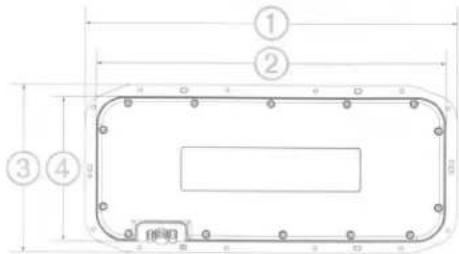
| Dimension | Measurement |
| 1 | 341 mm (13.43 in.) |
| 2 | 320 mm (12.61 in.) |
| 3 | 152 mm (6 in.) |
| 4 | 132 mm (5.19 in.) |
Side View
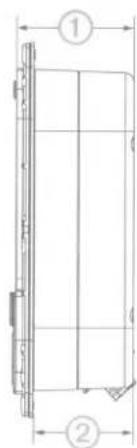
| Dimension | Measurement |
| 1 | 50 mm (1.97 in.) |
| 2 | 41 mm (1.6 in.) |
Specifications
| Ingress protection rating* | IEC 60529 IP65 |
| Dimensions with trim (W × H × D) | 344 x 155 x 50 mm (13.54 x 6.1 × 1.97 in.) |
| Weight | 1.15 kg (2.54 lbs.) |
| Operating temperature range | From 0° to 50°C (from 32° to 122°F) |
| Long-term storage temperature range | From -20° to 70°C (from -4° to 158°F) |
| Bluetooth® wireless range | Up to 10 m (33 ft.) |
| ANT® wireless range | Up to 3 m (10 ft.) |
| Input voltage | From 10.8 to 16.0 V |
| Current (max.) | 10 A |
| Fuse | 10 A |
| Line output level (max.) (peak to peak) | 5.5 V |
| Aux. input level (typical) RMS | 1 V |
*IP rating does not include rear connectors.
Compass-Safe Distances
All stereo speakers contain magnets which may cause interference with instruments on your vehicle or vessel. The size of the magnet used in the stereo speakers affects how much interference the stereo speakers may cause.
Interference can cause deviations and variations in the readings of sensitive navigational equipment, such as magnetic compasses. These deviations can cause inaccuracies or offsets in the readings, but will not harm the equipment. To alleviate the deviations, adjust the compass for the deviation following the manufacturer's instructions or move the stereo away from the navigational equipment. After moving a source of interference, you may need to recalibrate the compass.
If you are navigating solely by a magnetic compass, use extreme caution to place the stereo far enough away from the compass to avoid causing deviations in the readings.
To avoid deviations to navigational equipment, position the stereo so it is separated from the navigational equipment by at least the distances listed in the table below.
![graph TD A["Device"] --> B["Node 1"] A --> C["Node 2"] A --> D["Node 3"] A --> E["Node 4"] A --> F["Node 5"] A --> G["Node 6"]](/content/2026/05/806108/images/daf22a3c407b3a562ce9a17c1e21e86d96e5a1ec9629a9683ca4d2afea35cd67.jpg)
| Direction from Speaker | Compass-safe Distance |
| 1 | 122 cm (4 ft.) |
| 2 | 105 cm (3.5 ft.) |
| 3 | 229 cm (7.6 ft.) |
| 4 | 138 cm (4.5 ft.) |
| 5 | 112 cm (3.8 ft.) |
| 6 | 214 cm (7 ft.) |
Troubleshooting
Before you contact your FUSION dealer or service center, you should perform a few simple troubleshooting steps to help diagnose the problem.
If the FUSION stereo has been professionally installed, you should contact the installer so a technician can assess the problem and advise you about possible solutions.
The audio is distorted
- Verify that the panels surrounding the stereo on the vehicle or vessel are not rattling.
- Verify that the source volume is not too loud, and reduce the volume if necessary.
- Verify that all RCA connections are in good condition, and the connectors are insulated from each other.
• Verify that all cables are properly attached.
March 2018
© 2018 Garmin Ltd. or its subsidiaries
Printed in Taiwan
190-02398-04_0C


FUSUM®
Important Safety and Product Information 2
IMPORTANT SAFETY AND PRODUCT INFORMATION
WARNING
Failure to heed the following warnings could result in an accident resulting in death or serious injury.
Marine Operation Warnings
- You are responsible for the safe and prudent operation of your vessel. This device does not relieve you from the responsibility of safely operating your vessel. Avoid navigational hazards and never leave the helm unattended.
• Always be prepared to promptly regain control of the vessel. Use caution near hazards in the water, such as docks, pilings and other vessels.
Hearing Damage Warning
Listening to the stereo at high volume can cause damage to your hearing.
Product Environmental Programs
Information about the Garmin® product recycling program and WEEE, RoHS, REACH, and other compliance programs can be found at www.garmin.com/aboutGarmin/environment.
Declaration of Conformity
Hereby, Garmin declares that this product is in compliance with the Directive 2014/53/EU. The full text of the EU declaration of conformity is available at the following internet address: www.fusionentertainment.com.
Innovation, Science and Economic Development Canada Compliance
This device complies with Innovation, Science and Economic Development Canada license-exempt RSS standard(s). Operation is subject to the following two conditions: (1) this device may not cause interference, and (2) this device must accept any interference, including interference that may cause undesired operation of the device.
Radio Frequency Radiation Exposure
This device is a mobile transmitter and receiver that uses an internal antenna to send and receive low levels of radio frequency (RF) energy for data communications. The device emits RF energy below the published limits when operating in its maximum output power mode and when used with Garmin authorized accessories. To comply with RF exposure compliance requirements, the device should be installed and operated with a minimum of 20 cm (7.87 in.) between the device and your body. The device should not be used in other configurations. This device must not be co-located or operated in conjunction with any other transmitter or antenna.
FCC Compliance
This device complies with part 15 of the FCC Rules. Operation is subject to the following two conditions: (1) this device may not cause harmful interference, and (2) this device must accept any interference received, including interference that may cause undesired operation.
This equipment has been tested and found to comply with the limits for a Class B digital device, pursuant to part 15 of the FCC rules. These limits are designed to provide reasonable protection against harmful interference in a residential installation. This equipment generates, uses, and can radiate radio frequency energy and may cause harmful interference to radio communications if not installed and used in accordance with the instructions. However, there is no guarantee that interference will not occur in a particular installation. If this equipment does cause harmful interference to radio or television reception, which can be determined by turning the equipment off and on, the user is encouraged to try to correct the interference by one of the following measures:
• Reorient or relocate the receiving antenna.
- Increase the separation between the equipment and the receiver.
- Connect the equipment into an outlet that is on a different circuit from the GPS device.
- Consult the dealer or an experienced radio/TV technician for help.
This product does not contain any user-serviceable parts. Repairs should only be made by an authorized Garmin service center. Unauthorized repairs or modifications could result in permanent damage to the equipment, and void your warranty and your authority to operate this device under Part 15 regulations.
Software License Agreement
BY USING THE DEVICE, YOU AGREE TO BE BOUND BY THE TERMS AND CONDITIONS OF THE FOLLOWING SOFTWARE LICENSE AGREEMENT. PLEASE READ THIS AGREEMENT CAREFULLY.
Garmin Ltd. and its subsidiaries ("Garmin") grant you a limited license to use the software embedded in this device (the "Software") in binary executable form in the normal operation of the product. Title, ownership rights, and intellectual property rights in and to the Software remain in Garmin and/or its third-party providers.
You acknowledge that the Software is the property of Garmin and/or its third-party providers and is protected under the United States of America copyright laws and international copyright treaties. You further acknowledge that the structure, organization, and code of the Software, for which source code is not provided, are valuable trade secrets of Garmin and/or its third-party providers and that the Software in source code form remains a valuable trade secret of Garmin and/or its third-party providers. You agree not to decomple, disassemble, modify, reverse assemble, reverse engineer, or reduce to human readable form the Software or any part thereof or create any derivative works based on the Software. You agree not to export or re-export the Software to any country in violation of the export control laws of the United States of America or the export control laws of any other applicable country.
Limited 1-Year Marine Consumer Warranty
Garmin New Zealand Limited, trading as FUSION Entertainment ('FUSION'), warrants that this FUSION Manne product is free from defects in material and workmanship, according to the following terms and conditions:
- The initial limited warranty for the FUSION product purchased extends to the first 12 months beginning on the date of purchase of the product.
- The limited warranty extends only to the original consumer purchaser (consumer) of the product and is not assignable or transferable to any subsequent purchaser/end user.
- The limited warranty extends only to consumers who purchase the product in one of the countries (or areas) set forth on www.fusionentertainment.com. The limited warranty is only valid in FUSION's intended country (or area) of sale of the product.
- During the limited warranty period, FUSION or its authorised service network will repair or replace (at FUSION's discretion), any defective product or parts thereof with new and return the product to the consumer in working condition. No charge will be made to the consumer for either parts or labour in repairing or replacing the product. All replaced parts and cosmetic parts should be free of defects at the time of shipment and, therefore shall not be covered under these limited warranty terms.
- Repaired product will be warranted for the balance of the original warranty period or for ninety (90) days from the date of repair, whichever is longer.
• All warranty claims must be accompanied with a copy of this warranty card, and a copy of proof of purchase.
The consumer shall have no coverage or benefits under this limited warranty if any of the following conditions are applicable: - The product has been subject to: abnormal use, abnormal conditions, improper storage, unauthorised modifications, unauthorised connections, unauthorised repair including but not limited to use of unauthorised spare parts in repairs, misuse, neglect, abuse, accident, alteration, improper installation, acts of God, spill of foods or liquids, maladjustment of customer controls or other acts which are beyond the reasonable control of FUSION, including deficiencies in consumable parts such as fuses, and breakage or damage to antennae unless caused directly by defects in materials or workmanship, and normal wear and tear of the product.
- FUSION was not notified by the consumer of the alleged defect or malfunction of the product during the applicable limited warranty period.
• The product serial number or the accessory date code has been removed, defaced or altered.
- The product was used with or connected to an accessory not supplied by FUSION or fit for use with FUSION product, or used in a manner other than its intended use.
If a problem develops during the limited warranty period, the consumer should take the following step-by-step procedure:
1 The consumer shall return the product to any authorised FUSION dealer in authorised sales countries for repair or
replacement processing. FUSION assumes no freight or shipping responsibility for returning goods to an authorised FUSION dealer, or return freight from an authorised dealer to the consumer submitting the warranty claim.
2 The consumer shall be charged for any parts or labour charges not covered by this limited warranty. The consumer shall be responsible for expenses related to removal and reinstallation of the product.
3 If the product is returned to FUSION after the expiration of the warranty period, FUSION's normal service policies shall apply and the consumer will be charged accordingly.
THE BENEFITS CONFERRED BY THIS LIMITED WARRANTY APPLY TO THE EXTENT THAT THEY ARE NOT SUPERCEDED BY ANY OTHER RIGHTS AND REMEDIES UNDER ANY APPLICABLE LEGISLATION THAT CANNOT BE EXCLUDED. OTHERWISE, TO THE EXTENT PERMITTED BY LAW, ANY IMPLIED WARRANTY IS EXCLUDED AND THE FOREGOING WARRANTY IS THE PURCHASER'S SOLE AND EXCLUSIVE REMEDY AND IS IN LIEU OF ALL OTHER WARRANTIES, EXPRESS OR IMPLIED. TO THE EXTENT PERMITTED BY LAW, FUSION SHALL NOT BE LIABLE FOR INCIDENTAL OR CONSEQUENTIAL DAMAGES OR A LOSS OF ANTICIPATED BENEFITS OR PROFITS, OUT OF USE OR INABILITY TO USE THE PRODUCT.
• Applicable law may not allow the limitation or exclusion of liability in some situations therefore the above limitations or exclusions may not apply to you.
- FUSION neither assumes nor authorises any authorised service centre or any person or entity to assume for it any other obligation or liability beyond that which is expressly provided for in this warranty.
- All warranty information, product features and specifications are subject to change without notice.
Garmin Australasia, 30 Clay Place, Eastern Creek, NSW 2766, Australia
EMAIL: australia@fusionentertainment.com PHONE 1800 235 822
THE FUSION PROMISE OF QUALITY LIMITED 1-YEAR CONSUMER WARRANTY
This warranty is given in addition to other rights and remedies available to the consumer under Australian Consumer Law. In addition to the FUSION Warranty, our goods come with guarantees that cannot be excluded under the Australian Consumer Law. You are entitled to a replacement or refund for a major failure and for compensation for any others reasonably foreseeable loss or damage. You are also entitled to have the goods repaired or replaced if the goods fail to be of acceptable quality and the failure does not amount to a major failure.
Garmin New Zealand Limited, trading as FUSION Entertainment ('FUSION'), warrants this FUSION Product including, Speaker, Subwoofer, Amplifier, Head Unit, or genuine FUSION Accessory 'product' is free from defects in materials and workmanship, in accordance with the following terms and conditions:
• The limited warranty for the FUSION product purchased is only available for twelve (12) months after the date of purchase.
- The limited warranty extends only to the original consumer of the product and may not be assigned or transferred to any other person or consumer without FUSION's prior written consent being provided.
- During the limited warranty period, FUSION or its authorised service network will repair or replace any defective or faulty product or parts at its own cost.
- Repaired or replaced product will be warranted for the balance of the original warranty period or for ninety (90) days after the date of repair, whichever is longer.
- All warranty claims must be notified to FUSION or its authorised Dealer in writing during the warranty period accompanied with a copy of this warranty card, proof of purchase date and the product with an intact and unaltered serial number or accessory date code.
The consumer causes the Product to be of unacceptable quality or fails to take steps to prevent the product from becoming of unacceptable quality and/or it is damaged by abnormal use. Examples of goods becoming of unacceptable quality or of abnormal use by the consumer include:
• Storage of product under improper conditions.
- Exposure to excessive moisture or dampness.
- Exposure to excessive temperature extremes or other adverse environmental conditions.
- Unauthorised modifications of product, connections or otherwise unauthorised repairs including, but not limited, to the use of unauthorised parts in the repair of products.
- Improper use of or installation of, or interference with, product adjustments or controls and or including antenna breakage or damage due to misuse.
• Damage caused by consumables or by electricity supply
- Acts of god (force majeure), exposure of product to food spills, or any other type of fluid ingress.
- Using the product in a way for which was not intended to be used or connecting it to an accessory not supplied by, specified by, or authorised by FUSION.
• Any other abnormal use of or conduct causing product to become of unacceptable quality.
Other exclusions:
- This warranty extends to the repair or replacement of FUSION product only and the consumer is responsible for any expenses relating to the removal or installation of the product or related services including the cost of delivering the product to FUSION or its authorised dealer.
- Repair work conducted by FUSION after this warranty has expired or if this warranty for any other reason this FUSION warranty does not apply is subject to FUSION's normal service policies and FUSION charges for labour and material may apply.
- This is a manufacturer's warranty provided to consumers of FUSION products. Variations to this warranty may only be made by FUSION and will be notified to the customer in writing or issued on the FUSION website. FUSION Dealers, agents and authorised dealers are not authorised to make changes or vary this FUSION warranty.
- All warranty information, product features and specifications are subject to change without notice.
Limited 1-Year Marine Consumer Warranty for Australian Consumers
This warranty will not apply if:
- FUSION is not responsible for replacing or the cost of replacing any consumer data lost occurring either due to equipment failure or during the repair and replacement process.
INFORMATIONS IMPORTANTES SUR LE PRODUIT ET LA SÉCURITÉ
AVERTISSEMENT

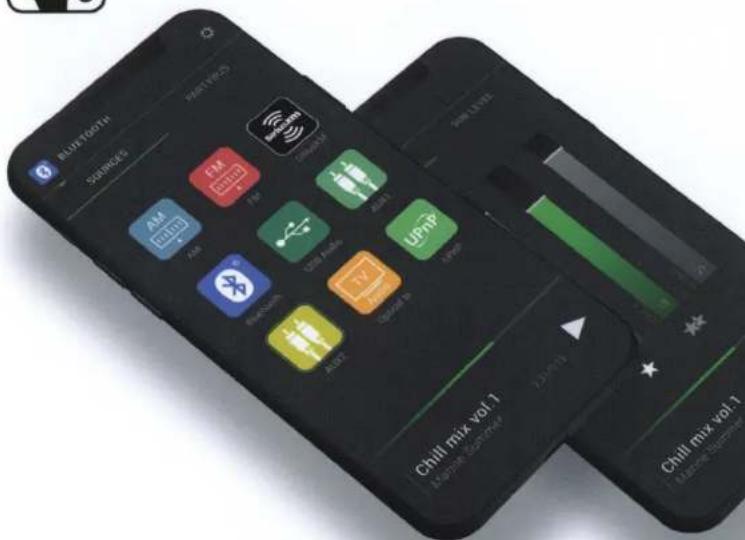
FUSION-LINK™ CONTROL
Download the free Fusion-Link remote control app for Bluetooth and Wi-Fi from the Apple® App Store or Google Play™ and enjoy the freedom of wireless control from your compatible device.
Control Includes:
• Volume control
- Play / pause / skip
- Source selection
- Zone naming
- Zone EQ settings
- Software updates
• Quick access to product support
• DSP profile settings

NEW USER INTERFACE

EASY-TO-INSTALL DSP PROFILES RIGHT FROM YOUR DEVICE
Setting up your Digital Signal Processing (DSP) profiles is made simple with the free Fusion-Link App. With just a few clicks, you can set up the preconfigured DSP profile once and get back to enjoying what you love on the water, while listening to high-quality audio customized for your ear and the environment.
Note: See product pages for DSP compatible products

① Select the audio zone you want to configure
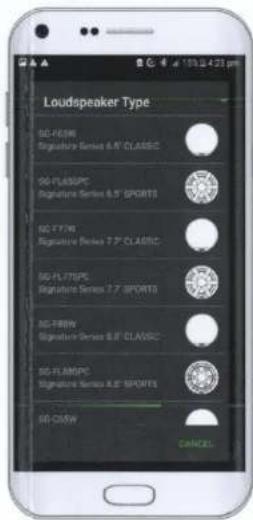
② Select the connected Fusion speakers and amplifiers.
Adding a new DSP profile is easier than ever before. Just follow the 3 step process to configure your entertainment system for a technically superior listening experience.
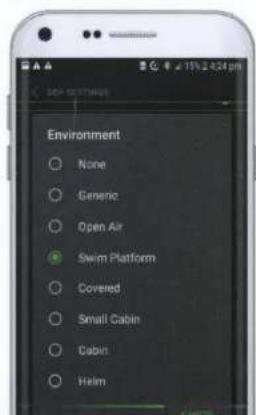
③ Select the listening environment and enjoy the power of Fusion's DSP.
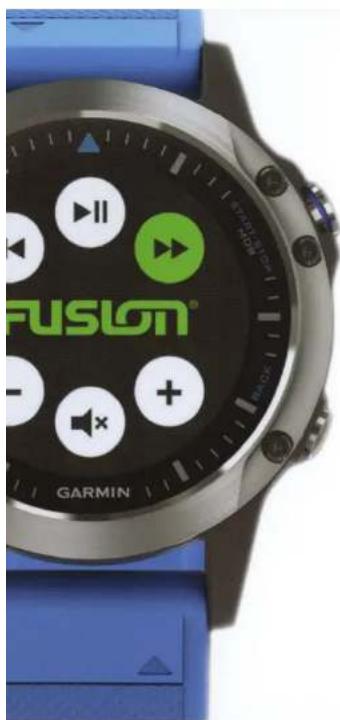

FUSION-LINK™ LITE
Control the entertainment right from your wrist with the Fusion-Link Lite app.
Download the Fusion-Link Lite app for free from the Connect IQ Store to enable wireless control via ANT™ technology from your compatible Garmin watch.
connect IQ powered by Garmin
ANT

THE MARINE ENTERTAINMENT STANDARD
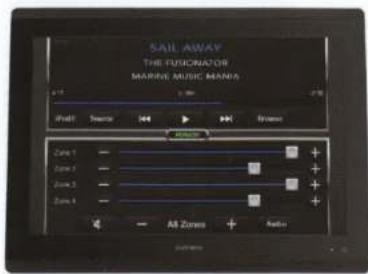
Fusion-Link is the industry standard protocol for on water audio integration and control. It enables partnered marine Multi-Function Displays, compatible devices and Garmin Smartwatches to control the entertainment right from your fingertips.
Fusion-Link Partners
GARMIN.
SIMRAD
Raymarine
FURUNO
LOWRANCE
B&G
HUMMINBIRD


Download on the
App Store

GET IT ON
Google Play
FUSION-LINK.COM
190-02137-10


- DOWNLOADING THE OWNER'S MANUAL
- CONNECTING DEVICES
- CONNECTING A COMPATIBLE BLUETOOTH DEVICE TO THE STEREO
- CONNECTING A COMPATIBLE USB DEVICE TO THE STEREO
- FUSION-LINK REMOTE CONTROL APP
- CONNECTING A GARMIN ® WATCH TO THE STEREO
- MORE INFORMATION
- INSTALLING A DIFFERENT LANGUAGE FOR THE VOICE PROMPTS
- STEREO CARE
- NOTICE
- REGISTERING YOUR FUSION PANEL-STEREO
- TROUBLESHOOTING
- MY STEREO DOES NOT RESPOND TO MY KEY PRESSES
- I CANNOT HEAR THE AUDIO WELL OR AT ALL
- CAUTION
- WHAT'S IN THE BOX
- TOOLS NEEDED
- MOUNTING CONSIDERATIONS
- MOUNTING THE STEREO
- CONNECTING TO POWER
- STEREO INFORMATION
- CLEANING THE STEREO
- DIMENSION DRAWINGS
- REAR VIEW
- COMPASS-SAFE DISTANCES
- THE AUDIO IS DISTORTED
- IMPORTANT SAFETY AND PRODUCT INFORMATION
- WARNING
- MARINE OPERATION WARNINGS
- HEARING DAMAGE WARNING
- PRODUCT ENVIRONMENTAL PROGRAMS
- DECLARATION OF CONFORMITY
- INNOVATION, SCIENCE AND ECONOMIC DEVELOPMENT CANADA COMPLIANCE
- RADIO FREQUENCY RADIATION EXPOSURE
- FCC COMPLIANCE
- SOFTWARE LICENSE AGREEMENT
- LIMITED 1-YEAR MARINE CONSUMER WARRANTY
- LIMITED 1-YEAR MARINE CONSUMER WARRANTY FOR AUSTRALIAN CONSUMERS
- THIS WARRANTY WILL NOT APPLY IF
- INFORMATIONS IMPORTANTES SUR LE PRODUIT ET LA SÉCURITÉ
- AVERTISSEMENT
- FUSION-LINK™ CONTROL
- CONTROL INCLUDES
- EASY-TO-INSTALL DSP PROFILES RIGHT FROM YOUR DEVICE
- FUSION-LINK™ LITE
- THE MARINE ENTERTAINMENT STANDARD
Brand : Fusion
Model : PS-A302B
Category : Radio