
Frameo PFF-711 - Digital photo frame DENVER - Free user manual and instructions
Find the device manual for free Frameo PFF-711 DENVER in PDF.


| Product Type | Digital Photo Frame |
| Brand | Denver |
| Model | Frameo PFF-711 |
| Display Size | 7 inches |
| Touchscreen | Yes |
| Connectivity | Wi-Fi |
| Memory Card Slot | Micro SD |
| USB Port | Yes (service use only) |
| Power Supply | DC adapter |
| Sleep Mode | Yes, customizable schedule |
| Language Support | Multiple languages (selectable) |
| Mobile App | frameo app (iOS/Android) |
| Backup | To SD card (manual or automatic) |
| Photo Import | From SD card |
| Photo Management | Show/hide, delete, caption display |
| Friend Management | Add/remove via unique code |
| Slideshow Timer | Adjustable duration |
| Brightness Adjustment | Yes |
| Reset Function | Yes (full reset) |
| Software Update | Check for updates via settings |
| Privacy Policy | See privacy.frameo.net |
| Warranty | Included, refer to package |
| Safety Compliance | EU Directive 2014/53/EU |
Frequently Asked Questions - Frameo PFF-711 DENVER
User questions about Frameo PFF-711 DENVER
0 question about this device. Answer the ones you know or ask your own.
Ask a new question about this device
Download the instructions for your Digital photo frame in PDF format for free! Find your manual Frameo PFF-711 - DENVER and take your electronic device back in hand. On this page are published all the documents necessary for the use of your device. Frameo PFF-711 by DENVER.
USER MANUAL Frameo PFF-711 DENVER
Before connecting, operating or adjusting this product, please read this user's manual carefully and completely.
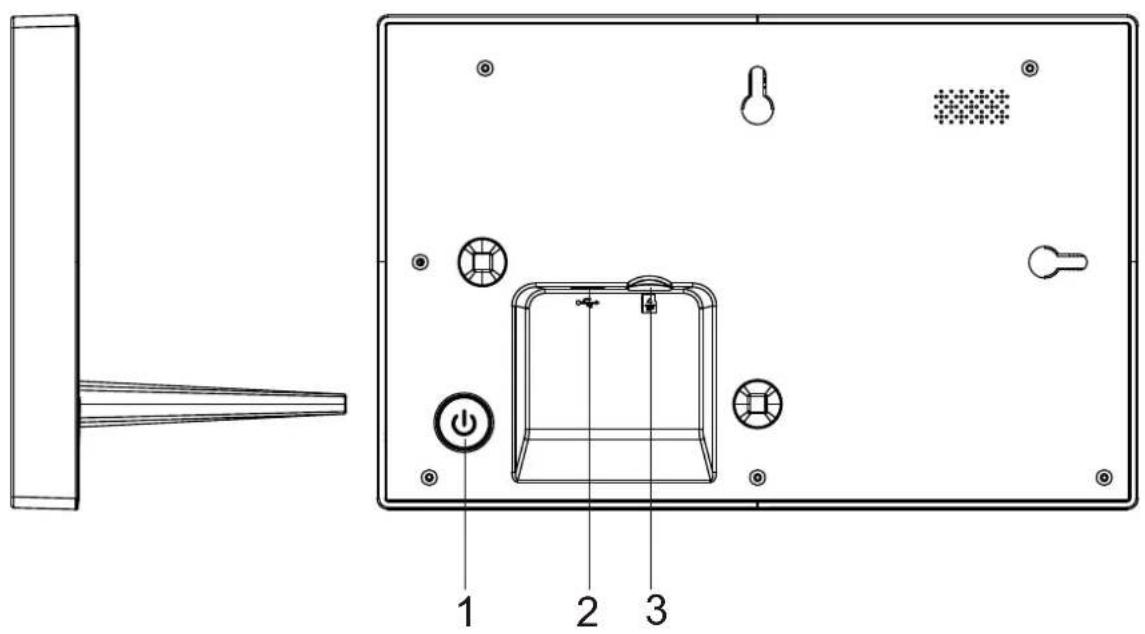
1. POWER
Press to turn the screen on or off, or long press about seconds to access the reset menu.
2. USB
USB is for service use only computer to transfer data.
Connect DC adapter to powethdevice.
3. Micro SD
Load external micro SD memory cards here.

natural_image
Abstract logo design with red and white circular elements forming a stylized hand gesture (no text or symbols)frameo
User Manual
Version: 1.0.0
Contents
Getting started....3
frameo app....3
frameo quick setup....3
Start using frameo....3
Navigating your frameo....4
Settings....4
My frame....4
Manage photos....5
My Friends....5
Display and slideshow....6
Wi-Fi....6
Backup and Restore....6
About....6
Privacy....7
Warranty, Compliance, Support and Safety information....7
Getting started
Thank you for purchasing your very own frameo.
First, to set up your frame follow the 'Quick start guide' included in the package.
If you are new to using frameo then start by following the frameo quick setup on page 3 or follow the on screen guide when powering it on for the first time.
Once you have set up your frameo, start connecting it to your friends and family.
frameo app
To send photos to your frame, use the frameo app for iOS or Android

natural_image
Abstract graphic of two white thumbs-up icons on a red background (no text or symbols)Find the frameo app on:
Google play by searching for "frameo"
App Store by searching for frameo
frameo quick setup
When starting your frame for the first time, you will need to setup the frame.
ALL SETTINGS CAN BE CHANGED THROUGH THE SETTINGS MENU AFTERWARDS.
- First you start by selecting a language. This will be the language used throughout frameo.
- Connect your frame to the internet by connecting it to a Wi-Fi.
IF A NEWER VERSION OF THE FRAMEO SOFTWARE IS AVAILABLE YOU WILL BE PROMPTED WITH AN UPDATE DIALOG. IT IS RECOMMENDED TO UPDATE YOUR FRAME IMMEDIATELY IF PROMPTED
- Enter your name, and the location where you have placed your frame e.g. "Living room", "Kitchen" or "Office".
Start using frameo
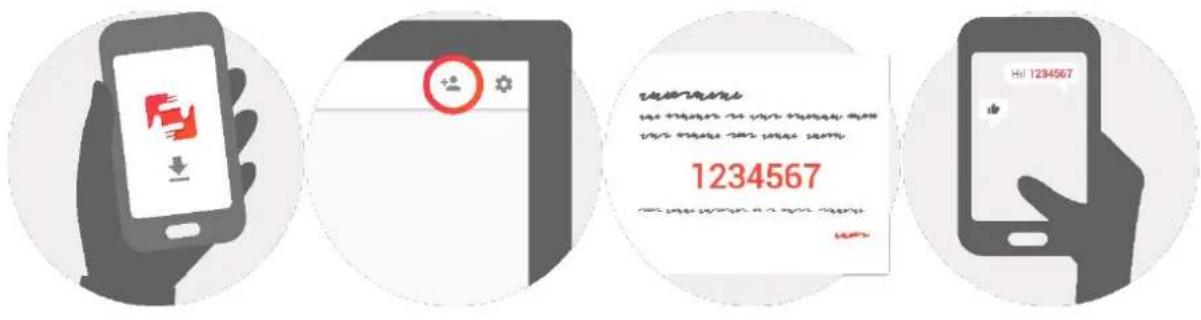
Start by connecting with your friends and family by providing them with a unique code from your frame.
If you want to be able to send photos to the frame yourself, start by downloading the app for iOS or Android on App Store or Google Play. Then use the code to connect your frame and app as described below.
Connecting a new friend:
• Make sure that your friend has downloaded and installed the frameo app
- Click the add friend icon on your frame. A dialog will appear showing a unique code which is valid for 24 hours.
- Now share this code in whatever fashion you prefer e.g. SMS, E-Mail, IM, phone call, to your friend.
ONCE YOUR FRIENDS HAVE ADDED THE CODE IN THEIR FRAMEO, ANY WILL AUTOMATICALLY APPEAR ON YOUR FRAME AND BE ABLE TO SEND YOU PHOTOS
Navigating your frameo
You interact with your frame through its touchscreen.
Swipe left or right to go through your photos.
To access the menu bar, simply tap once on the screen, this will show the menu.
In the menu bar you will find quick access to the add friends dialog and the settings menu
Settings
Through settings, you can personalize your frame to your needs.
My frame
Frame name:
Changes the name of your frame. This is also the name the connected friends and family will see in their list of connected frames.
Frame location:
Changes the location of your frame. This is the location displayed on your friends' and family's list of connected frames which can help to distinguish frames from each other.
Set language:
Sets the language throughout your frame.
Sleep mode:
frameo offers a sleep mode which turns off the screen to reduce power consumption while you e.g. are sleeping. Its default setting is to turn off the screen at 23:00 and turn on the screen again at 07:00.
To change this just set the sleep mode start/end time.
YOUR FRAME IS NOT POWERED DOWN OR IN STANDBY, SO YOU WILL STILL BE ABLE TO RECEIVE PHOTOS DURING SLEEP MODE.
Manage photos
Show/hide photos:
Select which photos to show/hide by tapping the particular photos you wish to show/hide. Hidden photos will NOT be deleted from your frame, you can always select them to be shown again.
Use to select or deselect all
Delete photos:
Select photos that you want to permanently delete from your frame by tapping the photo.
Use to select or deselect all and to delete the selected photos.
Import photos:
Allows you to import photos from an external SD card.
BEFORE YOU TRY TO IMPORT PHOTOS FROM A SD CARDKE SURE YOU HAVE A SD CARD WITH PHOTOS ON INSERTED INTO YOUR FRAME.
Start by selecting the photos that you want to import onto your frame.
Once selected tap the import button to start the import process.
IT IS CURRENTLY NOT POSSIBLE TO ADD A CAPTION OR DEFINE THE MOST IMPORTANT PART OF THE PHOTO WHEN USING THE IMPORT FUNCTIONALTERNATIVELY ADD YOURSELF TO YOUR FRIEND LIST AND SEND THEM USING THE APP.
My Friends
This list contains all the people that are allowed to send photos to your frame.
Remove person
To remove a person from this list, thereby removing their permission to send you photos, tap the delete icon. You will then be asked to confirm the removal and if you would like to remove all photos received from this person.
Add person
To allow a new person to send you photos, simply tap the add friend button and share the presented code in whatever way you prefer.
Display and slideshow
Timer
Define the duration a photo should be displayed.
Show caption
Sets whether or not to display the captions that your friends have sent with the photo. Check to display captions. Uncheck to hide captions.
Brightness level
Adjust the brightness level of the screen.
Wi-Fi
Set which Wi-Fi the frame should be connected to.
Backup and Restore
Backup frame to SD card
Tap to make a backup of your photos, friends and settings. The time of latest successful backup will be displayed.
ANY EXISTING BACKUP ON THSD CARD WILL BE OVERRIDDEN
Automatic backup
If checked, your frame will automatically take a backup within 30 hours of you receiving new photos or making changes on your frame.
REQUIRES THAT YOU HAVE INSERTED A WRITEABLE SD CARD INTO THE FRAME
Restore from backup
BEFORE YOU ATTEMPT TO RESTORE YOUR FRAMETART BY CONFIRMING THAT YOUR BACKUP IS-00-DATE.
To restore from a backup, you most first reset the frame. It is important to note that you cannot restore to a new Frameo frame
Reset frame
Removes all data from your frame. This will permanently remove all your photos, friends/connections and settings.
About
Check for update
Check if an update is available for your frame.
Share anonymous analytics data
Sharing anonymous analytics data helps us tremendously with improving the frameo software. We understand if you do not wish to share this data with us. Set checked if you wish to help us improve frameo. Set unchecked deny the sharing of anonymous analytics data
Guide
Opens the quick start guide, that was shown when you first started the frame
Privacy
For more information regarding privacy, please visit privacy.frameo.net
Warranty, Compliance, Support and Safety information
For more information regarding warranty, hardware compliances, support and safety please refer to the material included in the package.
ALL RIGHTS RESERVED, COPYRIGHT DENVER ELECTRONICS A/S
DENVER®
www.denver-electronics.com


Electric and electronic equipment contains materials, components and substances that can be hazardous to your health and the environment, if the waste material (discarded electric and electronic equipment) is not handled correctly.
Electric and electronic equipment is marked with the crossed out trash can symbol, seen below. This symbol signifies that electric and electronic equipment should not be disposed of with other household waste, but should be disposed of separately.
All cities have established collection points, where electric and electronic equipment can either be submitted free of charge at recycling stations and other collection sites, or be collected from the households. Additional information is available at the technical department of your city.
Hereby, Inter Sales A/S declares that the radio equipment type PFF-711 is in compliance with Directive 2014/53/EU. The full text of the EU declaration of conformity is available at the following internet address: http://www.denver-electronics.com/denver-pff-711black/
Imported by:
DENVER ELECTRONICS A/S
Omega 5A, Soeften
DK-8382 Hinnerup
Denmark
facebook.com/denverelectronics

- POWER
- USB
- Micro SD
- frameo
- User Manual
- Contents
- Getting started
- frameo app
- frameo quick setup
- Start using frameo
- Navigating your frameo
- Settings
- My frame
- Frame name:
- Frame location:
- Set language:
- Sleep mode:
- Manage photos
- Show/hide photos:
- Delete photos:
- Import photos:
- My Friends
- Remove person
- Add person
- Display and slideshow
- Timer
- Show caption
- Brightness level
- Wi-Fi
- Backup and Restore
- Backup frame to SD card
- Automatic backup
- Restore from backup
- Reset frame
- About
- Check for update
- Share anonymous analytics data
- Guide
- Privacy
- Warranty, Compliance, Support and Safety information
- DENVER®
Brand : DENVER
Model : Frameo PFF-711
Category : Digital photo frame