
DMR-EZ27 - DVD Recorder PANASONIC - Free user manual and instructions
Find the device manual for free DMR-EZ27 PANASONIC in PDF.


| Product Type | DVD Recorder with DVB-T Tuner |
| Brand | Panasonic |
| Model | DMR-EZ27 |
| Power Supply | AC 220-240 V, 50 Hz |
| Power Consumption | Approx. 25 W (operating); 2 W (Power Save standby); 15 W (Quick Start standby) |
| Recording Modes | XP (approx. 1 hour), SP (approx. 2 hours), LP (approx. 4 hours), EP (approx. 6 or 8 hours), FR (Flexible Recording up to 8 hours) |
| Recordable Discs | DVD-RAM, DVD-R, DVD-R DL, DVD-RW (Video mode), +R, +R DL, +RW |
| Playable Discs | DVD-RAM, DVD-R, DVD-R DL, DVD-RW, +R, +R DL, +RW, DVD-Video, Video CD, SVCD, CD-Audio, CD-R/CD-RW (MP3, JPEG) |
| Tuner | Integrated DVB-T (MPEG2), free-to-view channels only |
| Video Outputs | HDMI, Component (Y/Pb/Pr), S-Video, Composite (via SCART and RCA), RGB via SCART |
| Audio Outputs | Digital optical (PCM, Dolby Digital, DTS, MPEG), Analogue stereo (via SCART and RCA) |
| Inputs | DV (IEEE1394), AV3 (front: composite video and stereo audio), AV2 (rear SCART), AV1 (TV SCART) |
| Region Code | 2 (plays DVDs labelled with region 2 or ALL) |
| Linked Features | VIERA Link (HDAVI Control 2), Q Link, EXT LINK for external timer recording |
| Other Functions | TV Guide (EPG), Direct TV Recording, Child Lock, Owner ID, Power Save mode |
| Accessories Included | Remote control (N2QAYB000126), AC mains lead, 2 RF coaxial cables (black), 1 RF coaxial cable (grey), 1 audio/video cable, 2 AA batteries |
| Maintenance | Clean with soft dry cloth; use DVD lens cleaner (RP-CL720E) yearly; do not block ventilation |
Frequently Asked Questions - DMR-EZ27 PANASONIC
User questions about DMR-EZ27 PANASONIC
0 question about this device. Answer the ones you know or ask your own.
Ask a new question about this device
Download the instructions for your DVD Recorder in PDF format for free! Find your manual DMR-EZ27 - PANASONIC and take your electronic device back in hand. On this page are published all the documents necessary for the use of your device. DMR-EZ27 by PANASONIC.
USER MANUAL DMR-EZ27 PANASONIC
Operating Instructions
DVD Recorder
Model No. DMR-EZ27EB


The illustrations in these Operating Instructions show images of the silver model.
Dear customer
Thank you for purchasing this product.
For optimum performance and safety, please read these instructions carefully.
Before connecting, operating or adjusting this product, please read the instructions completely.
Please keep this manual for future reference.
Note: "EB" on the packaging indicates the United Kingdom.
VIDEO RAM
RW/R
DIGITAL VIDEO
COMPATIBLE RECORDER
HIGH-DEFINITION MULTIMEDIA INTERFACE
Link

Digital Video Trademark of the DVB Digital Video Broadcasting Project (1991 to 1996)
Declaration of Conformity No. 4527, 22 January 2007
Notice for DVB functions
This DVD Recorder is for viewing and recording free-to-view channels only, not Pay TV or encrypted channels.
This unit does not have an analogue broadcast tuner.
- Any functions related to DVB (Digital Video Broadcasting) will work in areas where DVB-T (MPEG2) digital terrestrial broadcasting is received. Consult your local Panasonic dealer with coverage areas.
- This unit has the capability for DVB specifications. But future DVB services cannot be guaranteed.
Region number supported by this unit
Region numbers are allocated to DVD recorders and DVD-Video according to where they are sold.
The region number of this unit is "2".
The unit will play DVDs marked with labels containing "2" or "ALL".
Example:


Web Site: http://www.panasonic-europe.com
EB
Enjoy Digital Broadcast!
Receive Freeview using an integrated (Digital Video Broadcasting) tuner
- Watching Television (→ 12) • TV Guide (→ 12, 15, 26)
- Register and instantly call up favourite programmes with Edit Profiles (→ 46) • Digital Channel Information (→ 32)
Enjoy High Quality Video!
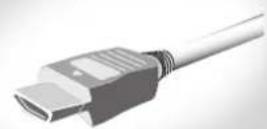
Just one cord and simple connection with HDMI terminal
When connected to an HDMI compatible unit, an uncompressed digital audio and video signal is transmitted, enabling you to enjoy high quality, digital video and audio with just one cord.
Easy to Find and Select!
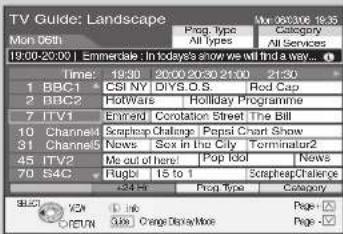
You can easily find programmes you want to watch and set them for timer recording.
TV Guide (→ 12, 15, 26)
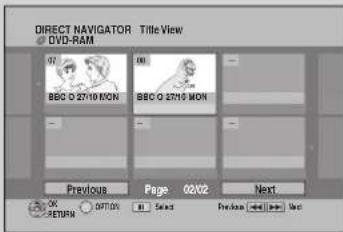
You can easily select and play recorded programmes.
DIRECT NAVIGATOR (→ 28)
Convenient Functions!
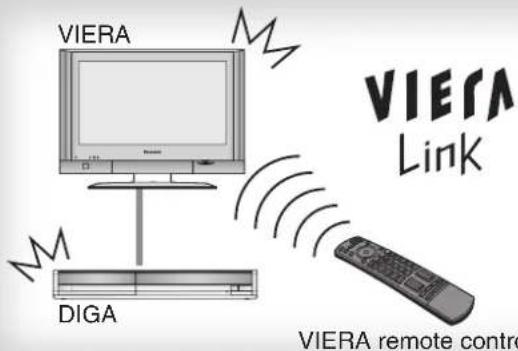
Linked operations with the TV
You can enjoy linked operations with the TV and receiver by using VIERA Link or Q Link. Linked operations with the TV (VIERA Link "HDAVI ControlTM"/Q Link)(→ 34)
Linked timer recordings with external equipment
You can set the Timer Recordings on Digital STB/Satellite Receiver when it is connected to this unit with SCART cable. EXT LINK (→ 21)
Accessories
Please check and identify the supplied accessories. Use numbers indicated in parentheses when asking for replacement parts. (Product numbers correct as of February 2007. These may be subject to change.)
□1 Remote control (N2QAYB000126) 1 AC mains lead (K2CT2YY00003)
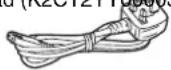
For use with this unit only. Do not use it with other equipment. Also, do not use cords for other equipment with this unit.
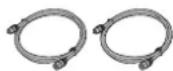

□2 RF coaxial cables (black) (K1TWACC00001)
☐ 1 RF coaxial cable (grey) (K1TWACA00001) 1 Audio/video cable (K2KA6BA00003)

☐ 2 Batteries for remote control (R6 Size)
Sales and Support Information
Customer Care Centre
• For customers within the UK: 08705 357357 - For customers within the Republic of Ireland: 01 289 8333 - Visit our website for product information • E-mail: customer.care@panasonic.co.uk
Direct Sales at Panasonic UK
- Order accessory and consumable items for your product with ease and confidence by phoning our Customer Care Centre Monday-Thursday 9:00am-5:30pm, Friday 9:30am-5:30pm (Excluding public holidays).
- Or go online through our Internet Accessory ordering application at www.panasonic.co.uk.
- Most major credit and debit cards accepted.
- All enquiries, transactions, and distribution facilities are provided directly by Panasonic UK Ltd.
- It couldn't be simpler!
- Also available through our Internet is direct shopping for a wide range of finished products; take a browse on our website for further details.
Interested in purchasing an extended guarantee? Please call 0870 240 6284 or visit our website www.panasonic.co.uk/guarantee.
Caution for AC Mains Lead
For your safety, please read the following text carefully.
This appliance is supplied with a moulded three-pin mains plug for your safety and convenience.
A 5-ampere fuse is fitted in this plug.
Should the fuse need to be replaced, please ensure that the replacement fuse has a rating of 5-ampere and that it is approved by ASTA or BSI to BS1362.
Check for the ASTA mark or the BSI mark on the body of the fuse.
If the plug contains a removable fuse cover, you must ensure that it is refitted when the fuse is replaced.
If you lose the fuse cover, the plug must not be used until a replacement cover is obtained.
A replacement fuse cover can be purchased from your local dealer.
CAUTION!
IF THE FITTED MOULDED PLUG IS UNSUITABLE FOR THE SOCKET OUTLET IN YOUR HOME THEN THE FUSE SHOULD BE REMOVED AND THE PLUG CUT OFF AND DISPOSED OF SAFELY. THERE IS A DANGER OF SEVERE ELECTRICAL SHOCK IF THE CUT OFF PLUG IS INSERTED INTO ANY 13-AMPERE SOCKET.
If a new plug is to be fitted please observe the wiring code as stated below.
If in any doubt please consult a qualified electrician.
IMPORTANT
The wires in this mains lead are coloured in accordance with the following code:
Blue: Neutral, Brown: Live.
As these colours may not correspond with the coloured markings identifying the terminals in your plug, proceed as follows:
The wire which is coloured Blue must be connected to the terminal which is marked with the letter N or coloured Black or Blue.
The wire which is coloured Brown must be connected to the terminal which is marked with the letter L or coloured Brown or Red.
WARNING: DO NOT CONNECT EITHER WIRE TO THE EARTH TERMINAL WHICH IS MARKED WITH THE LETTER E, BY THE EARTH SYMBOL OR COLOURED GREEN OR GREEN/YELLOW.
THIS PLUG IS NOT WATERPROOF—KEEP DRY.
Before use
Remove the connector cover.
How to replace the fuse
The location of the fuse differs according to the type of AC mains plug (figures A and B). Confirm the AC mains plug fitted and follow the instructions below.
Illustrations may differ from actual AC mains plug.
- Open the fuse cover with a screwdriver.
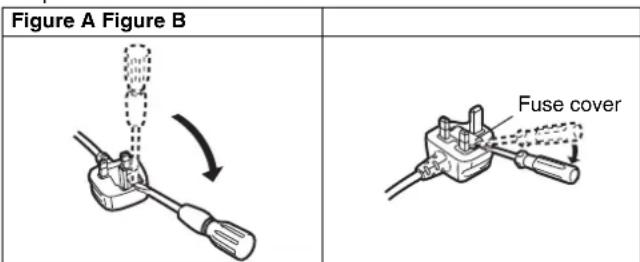
- Replace the fuse and close or attach the fuse cover.
Figure A Figure B Fuse (5 ampere)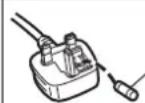
Fuse (5 ampere)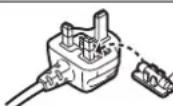
Getting Started
Features 2
Accessories 3
Sales and Support Information ....3
Caution for AC Mains Lead 3
Unit Care ....5
Remote Control Information ....5
Quick Start Guide
Location of Parts/Controls....6
Remote Control....6
Main Unit 6
The Unit's Display....7
Rear Panel....7
Basic Connection....8
Connecting to a Television only 8
Adding a Satellite Receiver-Connecting to a Television and a Satellite Receiver 9
Setting the Channels and Clock....10
Clock Setting....11
Basic Operations
Watching Television 12
Watching Satellite Programmes ....12
Playback....13
Playing Discs 13
Recording Television Programmes 14
Timer Recording 15
Deleting Titles 16
Delete Navigator 16
Delete Titles During Playback 16
Advanced Features
Important Notes for Recording 17
Advanced Recording 18
Recording Modes and Durations 18
When the format confirmation screen is displayed....19
When removing a Recorded Disc ....19
Specifying the Recording Time 19
Direct TV Recording 19
Flexible Recording 20
Playing while you are recording ....20
Recording from a Satellite Receiver 21
Manual Recording 21
Linked timer recordings with external equipment (SKY Digital STB/satellite receiver) - EXT LINK 21
Recording from an External Device 22
Recording from a VCR, etc. 22
Recording from a DV Camcorder 23
Advanced Timer Recording 24
Manual timer recordings 24
To cancel a timer recording in progress 24
Check, Change, or Delete Programmes 25
To deactivate timer programme (e.g. to interrupt a daily or weekly timer programming) 25
To deactivate timer programme (e.g. to interrupt a daily or
TV Guide 26
Making timer recordings on the television 25
TV Guide 26
Using the TV Guide 26
Selecting the programme from the desired programme type or category 27
Advanced Playback 28
Selecting Titles to Play 28
Search....28
Skip 28
Direct Play 28
Quick View (Play x1.3) 28
Slow-motion Play 29
Frame-by-Frame Viewing 29
Time Slip 29
Manual Skip 29
Create Chapters ......29
Playing Still Pictures (JPEG), MP3 30
Playing Still Pictures (JPEG), MP3 30
Playing Still Pictures (JPEG) 30
Playing MP3s 31
Information Messages ....32
Digital Channel Information 32
Status Messages 33
New Service Message ....33
FUNCTION MENU Window....33
Linked Operations with the TV (VIERA Link "HDAVI
Control™"/Q Link) 34
Easy control only with VIERA remote control ....35
Advanced Editing
Entering Text 36
Titles-Editing....36
Accessing the Title View 36
Title Operations 37
Chapters - Creating, Editing 39
Accessing the Chapter View ....39
Chapter Operations 39
Creating, Editing and Playing Playlists ....40
Accessing the Playlist View 40
Creating Playlists ....40
Editing Playlists/Chapters ....40
Setting Menus
Setting On-Screen Display 42
Accessing the On-Screen Display 42
DVD Management 44
Accessing the Management Menus 44
Setup Menu 46
Accessing the Setup Menu ....46
Channel Settings 46
Playback/Recording Settings 48
Picture Settings ....48
Sound Settings 49
Display and Connection Settings 50
System Settings 52
Other Settings
Other Settings ....53
Child Lock 53
Using the Unit's Remote Control to Operate the TV ....53
Reference
Additional Connections ....54
Adding a VCR-Connecting to a Television and a Video Cassette Recorder ....54
Using an Audio/Video Cable (included) 55
Using an S Video Cable (S Video Cable not included) .....55
Using Component Cables (Component Video Cables not included) 55
Using an Audio Cable for Better Sound ....56
Using an Optical Digital Audio Cable for Better Sound (Optical
Digital Audio Cable not included) 56
Connecting with an HDMI (High Definition Multimedia Interface)
Terminal....57
Disc Handling ....58
Usable Discs for Recording and Playback ....58
Disc Care ....58
Play-only Discs 59
Discs that Cannot be Played 59
Types of disc for the type of connected TV....59
Inserting Discs ....59
MP3s and Still Pictures (JPEG) 60
MP3 File Information 60
Still Picture (JPEG) Information ....60
Troubleshooting Guide 61
When Other Panasonic Products Respond to this Remote Control 61
To reset this unit 61
General Issues: Power 62
General Issues: Displays 62
General Issues: Operation 62
General Issues: TV Guide 63
General Issues: DVB-T 64
General Issues: VIERA Link 64
Playback Issues: Picture 65
Playback Issues: Sound 65
Playback Issues: Operation 66
Recording Issues: Recording / Timer recording / External input...66
Recording Issues: Recording / Timer recording / External input...66
Editing Issues: DVD 67
Frequently Asked Questions ....68
Setup....68
Discs 68
Recording....69
TV Guide 69
DVB-T 69
Messages....70
On the Unit's Display 70
On the TV 71
Glossary 72
Safety precautions 73
Specifications ....74
Index......Back cover
Unit Care
The precision parts in the unit are readily affected by the
environment, especially temperature, humidity, and dust.
Cigarette smoke also can cause malfunction or breakdown.
To clean the unit, wipe with a soft, dry cloth.
- Never use alcohol, thinner or benzine to clean the unit.
- Before using chemically treated cloth, carefully read the instructions that came with the cloth.
Observe the following points to ensure continued listening and viewing pleasure.
Dust and dirt may adhere to the unit's lens over time, possibly making it impossible to record or play discs.
Use the DVD lens cleaner about once every year, depending on
frequency of use and the operating environment.
Carefully read the lens cleaner's instructions before use.
Lens cleaner: RP-CL720E
Do not place the unit on
amplifiers or equipment
that may become hot.
The heat can damage the unit.
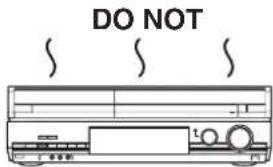
Select a position with good ventilation when installing the unit. Do not block the cooling fan on the rear of the unit.
Before moving the unit, ensure the disc tray is empty.
Failure to do so will risk severely damaging the disc and the unit.
Remote Control Information
About batteries
- Insert so the poles (+ and -) match those in the remote control.
- Do not use rechargeable type batteries.
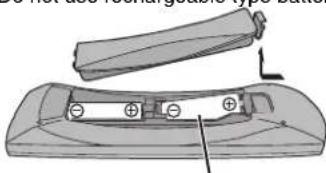
R6/LR6, AA
- Do not mix old and new batteries.
- Do not use different types at the same time.
- Do not heat or expose to flame.
- Do not take apart or short circuit.
- Do not attempt to recharge alkaline or manganese batteries.
- Do not use batteries if the covering has been peeled off.
Mishandling of batteries can cause electrolyte leakage which can damage items the fluid contacts and may cause a fire.
Remove if the remote control is not going to be used for a long period of time. Store in a cool, dark place.
Using the remote control
Aim at the sensor, avoiding obstacles, up to a maximum range of
7 m directly in front of the unit.
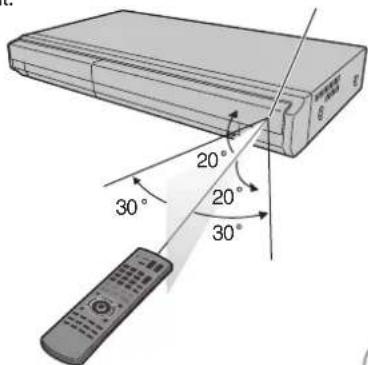
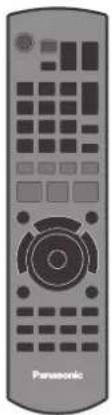
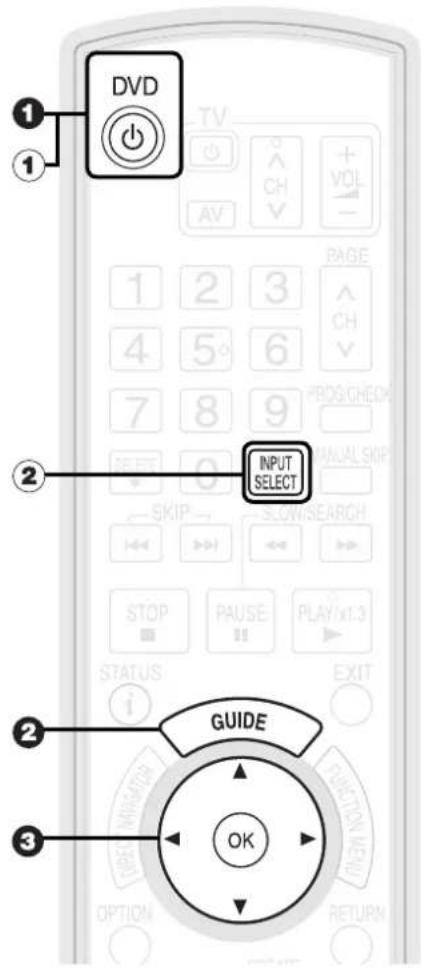
Remote Control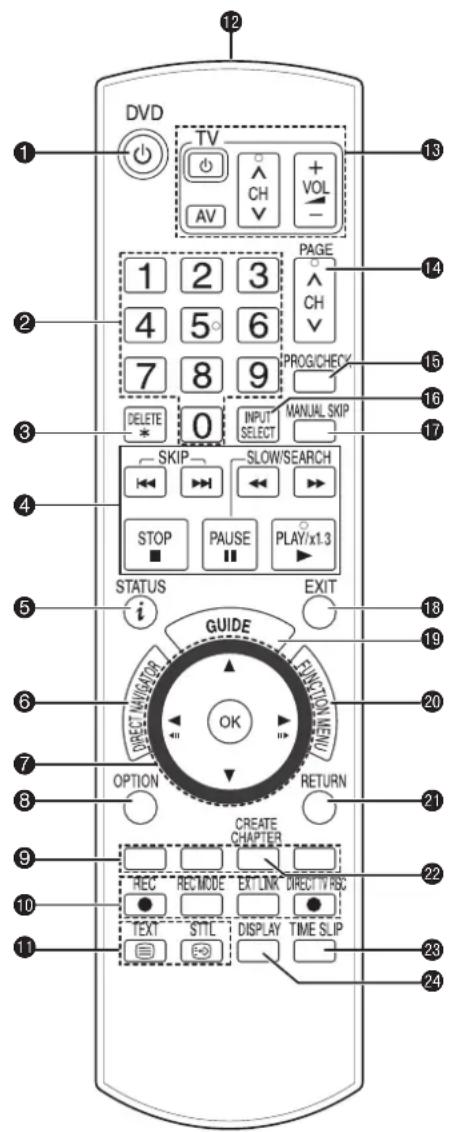
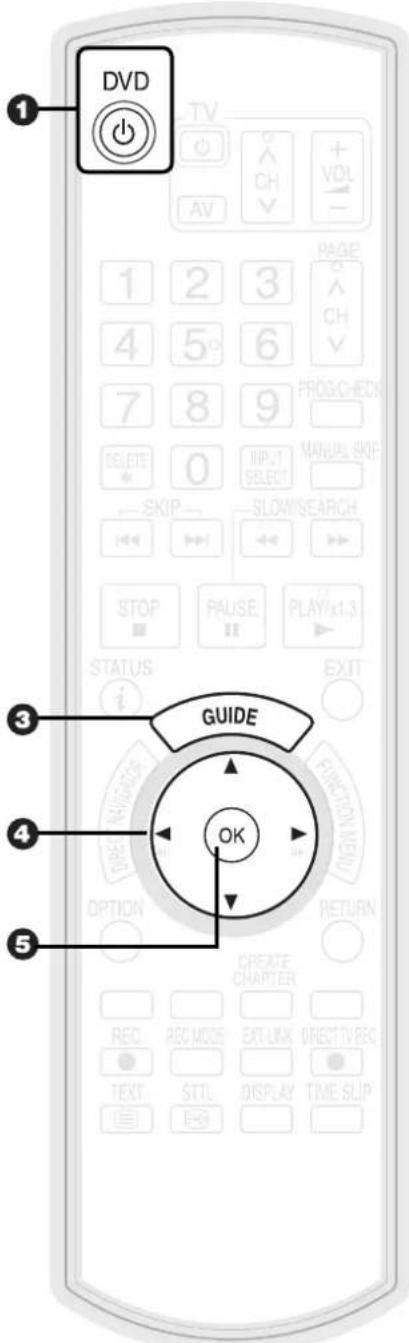
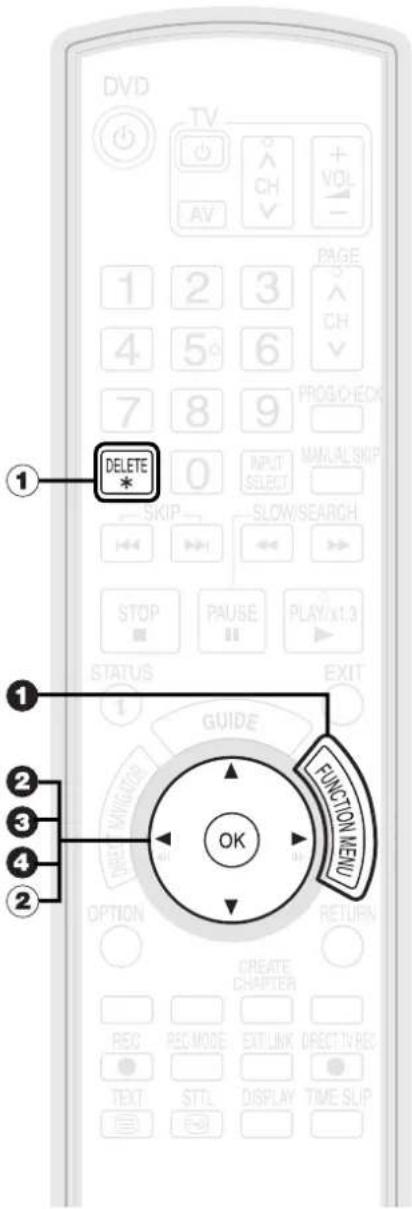
① Turn the unit on or off → 12
② Select channels and title numbers etc./Enter numbers .... (→ 12)
③ Delete items ..... (→ 16)
④ Basic operations for recording and play ⑤ Show the digital channel information/Programme information within TV Guide screen/Show status messages....(→ 26, 32, 33)
⑥ Show Top Menu/DIRECT NAVIGATOR ..... (→ 13, 28, 30)
⑦ Selection/Enter, Frame-by-frame ...... (→ 12, 29)
⑧ Show OPTION menu ...... (→ 30, 36, 40)
⑨ Use Colour buttons according to on-screen instructions. These buttons for TV Guide/Digital Text/Edit Profiles. In addition, "Red": Timer recording list "Blue": Digital channel information/Timer recording list
⑩ Recording function [● REC]: Start recording....(→ 14) [REC MODE]: Change recording mode....(→ 14)
[EXT LINK]: Linked timer recordings with external equipment ..... (→ 21) [● DIRECT TV REC]: Direct TV recording..... (→ 19)
11 DVB function [TEXT 📋 Show Digital TEXT (MHEG) service ...... (→ 32) [STTL 📋]: Show subtitles ...... (→ 32)
12 Transmission window 13 TV operations ..... (→ 53) 14 Channel select/Change pages in the TV Guide list ..... (→ 14, 26)
15 Show timer recording list .... (→ 24) 16 Input select (Tuner, AV1, AV2, AV3, DV) .... (→ 12, 21, 22) 17 Skip approx. 30 seconds forward .... (→ 29)
18 Exit the menu screen 19 Show the TV Guide screen ..... (→ 12, 15, 26) 20 Show FUNCTION MENU window ..... (→ 33)
21 Return to previous screen 22 Create chapters ..... (→ 29) 23 Skip the specified time ..... (→ 29) 24 Show on-screen display ..... (→ 42)
Menu for disc playback and switching DVB multi audio etc.
Main Unit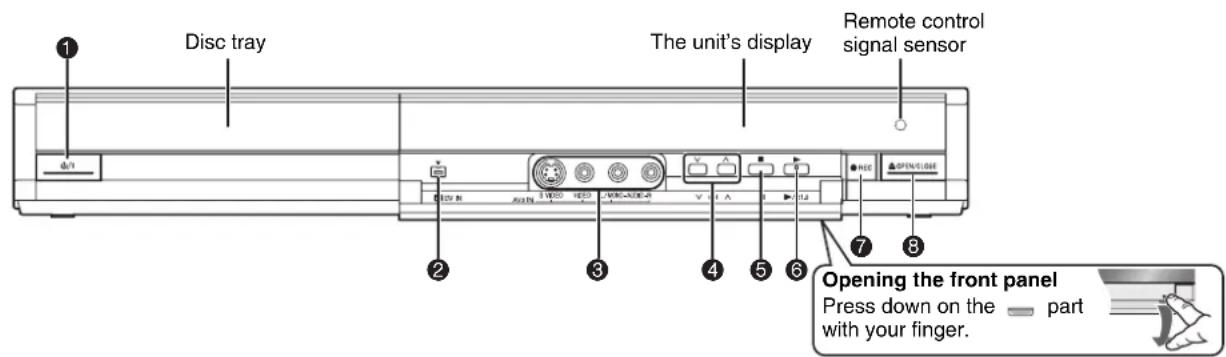
Standby/on switch (☐/I) ..... (→ 12) - Press to switch the unit from on to standby mode or vice versa. In standby mode, the unit is still consuming a small amount of power.
② DV IN terminal (for a digital video camcorder).... (→ 23)
③ AV3 input terminals.... (→ 22)
④ Channel Select button ...... (→ 14)
⑤ Stop button .... (→ 13, 14)
⑥ Play/×1.3 button.... (→ 13)
⑦ Start recording button.... (→ 14)
⑧ Disc tray open/close button .... (→ 13)
The Unit's Display
![graph TD A["1"] --> B["2"] B --> C["3"] C --> D["4"] D --> E["5"] E --> F["6"] F --> G["7"] B --> H["EXT -L"] H --> I["REC PLAY"]](/content/2026/05/796410/images/6c36d6640043dfc6bd0cb069609e6cb40e6a6bb5a6e275dc256151ba4013ddf7.jpg)
Digital broadcast indicator Lights while the unit is receiving digital broadcast or TV Guide data. ② Linked timer recordings with external equipment indicator ..... (→ 21) ③ Disc indicator This indicator lights up when a disc that is supported by this unit is inserted.
④ Timer recording indicator.... (→ 15) On:
When a Timer recording programme is registered and a recordable disc is inserted.
Flashes:
The Timer recording indicator flashes when the unit cannot go to Timer recording standby (e.g. there is no disc, etc.).
⑤ Main display section Current time/playback counter, various messages. ⑥ Playback indicator ⑦ Recording indicator
Rear Panel

① Aerial input terminal .... (→ 8, 9, 54) ② Aerial output terminal .... (→ 8, 9, 54) ③ Digital audio output terminal ..... (→ 56) ④ COMPONENT VIDEO OUT (PROGRESSIVE/INTERLACE) terminals ..... (→ 55)
Y = Luminance signal (brightness), PB = Chrominance signal (colour difference), PR = Chrominance signal (colour difference)
⑤ AV2 (EXT) 21-pin Scart terminal.... (→ 9, 54)
Connection of an external unit
⑥ AV1 (TV) 21-pin Scart terminal ..... (→ 8, 9, 54) TV set connection ⑦ AUDIO output terminals.... (→ 55, 56) ⑧ Video output terminal.... (→ 55) ⑨ S VIDEO output terminal ..... (→ 55) ⑩ HDMI AV OUT terminal (→ 57) Digital audio and video output terminal ⑪ Cooling fan ⑫ Serial number ⑬ AC IN~ = Power supply Connection for the AC mains lead
21-pin Scart terminal
The 21-pin Scart terminal transmits both input and output signals for picture and sound.
TVs equipped with the same type of terminal can be connected here.
This type of terminal is also called Peritel, Euro Connector and Euro AV.
- When the unit is connected to a Q Link-compatible TV with a fully wired 21-pin Scart cable, you can use convenient functions of Q Link.
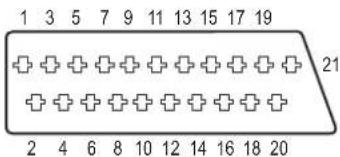
AV1 Scart terminal (TV) 1 Audio output CH2 (R) 2 Audio input CH2 (R) 3 Audio output CH1 (L) 4 Audio ground 5 Blue ground 6 Audio input CH1 (L) 7 Blue output 8 Switching voltage output 9 Green ground 10 Q Link control signal 11 Green output 12 Reserved 13 Red ground 14 Blanking ground 15 Red output / chrominance output 16 Blanking output 17 Video output ground 18 Video input ground 19 Video output / luminance output 20 Video input 21 Ground
AV2 Scart terminal (EXT) 1 Audio output CH2 (R) 2 Audio input CH2 (R) 3 Audio output CH1 (L) 4 Audio ground 5 Blue ground 6 Audio input CH1 (L) 7 Blue input 8 Switching voltage input 9 Green ground 10 Reserved 11 Green input 12 Reserved 13 Red ground 14 Blanking ground 15 Red input / chrominance input 16 Blanking input 17 Video output ground 18 Video input ground 19 Video output 20 Video input / luminance input 21 Ground
Use of the supplied RF coaxial cable
To prevent interference patterns from appearing on your TV, use only the supplied RF coaxial cables when you connect this unit to your TV and aerial outlet or aerial cable and Satellite receiver.
- Keep the RF coaxial cables as far away as possible from other cables.
- Do not roll up the RF coaxial cables.
- Before connection, turn off the mains for all connected equipment and read the appropriate operating instructions.
Be sure to read the Caution for AC Mains Lead on page 3.
Connecting to a Television only![graph TD A["RF IN"] --> B["Rear of TV"] C["AV IN"] --> B D["AC IN"] --> B E["To household mains socket"] --> F["step 4"] G["step 2"] --> H["Step 3"] I["step 4"] --> J["Step 4"] K["Step 4"] --> L["Step 4"] M["Step 4"] --> N["Step 4"] O["Step 4"] --> P["Step 4"] Q["Step 4"] --> R["Step 4"] S["Step 4"]…](/content/2026/05/796410/images/7eac0768468269769b89fef23930576357b46c6ec15e83295a5991b6ad659250.jpg)
Use one of the RF coaxial cable (black or grey) to connect this unit's RF IN terminal to your aerial socket or aerial cable.
![graph LR A["To the aerial"] --> B["RF coaxial cable (included, grey)"] B --> C["step 1"] C --> D["or"] D --> E["RF coaxial cable (included, black)"] E --> F["step 1"] F --> G["or"] G --> H["RF coaxial cable (included, grey)"] H --> I["step 1"] I --> J["or"] J --> K["RF coaxial cable (included, black…](/content/2026/05/796410/images/75860c3f494495c2c25d9e90c01c1c7c4027c1299b4cc30743ce32194cb89176.jpg)
Connections other than the 21-pin Scart cable
55-57
1. RF coaxial cable (included) from the aerial socket or aerial cable to the "RF IN" on the unit. 2. RF coaxial cable (included, black) from the "RF OUT" on the unit to the "RF IN" on the TV. 3. 21-pin Scart cable from the "AV1 (TV)" on the unit to the "AV IN" on the TV. 4. AC mains lead (included) from the "AC IN~" on the unit and the TV to a household mains socket.
After completing the above connections, proceed to the TV Tuning (→ 10).
Using a fully wired 21-pin Scart cable
- You can use a variety of Q Link functions by connecting the unit to a Q Link compatible television (→ 34).
- You can enjoy high-quality viewing by connecting the unit to an RGB compatible television. "AV1 Output" in the Setup menu is set to "RGB 1 (without component)" or "RGB 2 (without component)" (→ 51).
- "AV2 Input" settings in the Setup menu (→ 51)
- Before connection, turn off the mains for all connected equipment and read the appropriate operating instructions.
Be sure to read the Caution for AC Mains Lead on page 3.
Adding a Satellite Receiver - Connecting to a Television and a Satellite Receiver![graph TD A["The RF coaxial cable cannot be used for showing pictures from the unit. The unit must be connected by another means e.g. 21-pin Scart cable to show pictures from the unit on the television set."] --> B["step 3"] B --> C["Rear of TV"] C --> D["step 4"] D --> E["To household mains socket"]…](/content/2026/05/796410/images/1933619cc5af11732383c4b8ca714a6696f2336c78323b59e55cd0e39b0b6ebd.jpg)
1. RF coaxial cable from the aerial to the "RF IN" on the satellite receiver. 2. RF coaxial cable (included, black) from the "RF OUT" on the satellite receiver to the "RF IN" on the unit. 3. RF coaxial cable (included, black) from the "RF OUT" on the unit to the "RF IN" on the TV. 4. 21-pin Scart cable from the "AV1 (TV)" on the unit to the "AV IN" on the TV. 5. 21-pin Scart cable from the "AV OUT" on the satellite receiver to the "AV2 (EXT)" on the unit. 6. AC mains lead (included) from the "AC IN~" on the unit, the TV and the satellite receiver to a household mains socket.
After completing the above connections, proceed to the TV Tuning (→ 10).
To view satellite programmes
Refer to "Watching Satellite Programmes" (→ 12).
To record satellite programmes
Refer to "Recording from a Satellite Receiver" (→ 21).
Preparation:
- Turn on the mains for the television (and connected equipment) and select the appropriate AV input to suit the connections to this unit.
- These are the first settings you make upon buying the unit. You don't need to make these settings again.
TV's remote control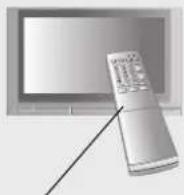
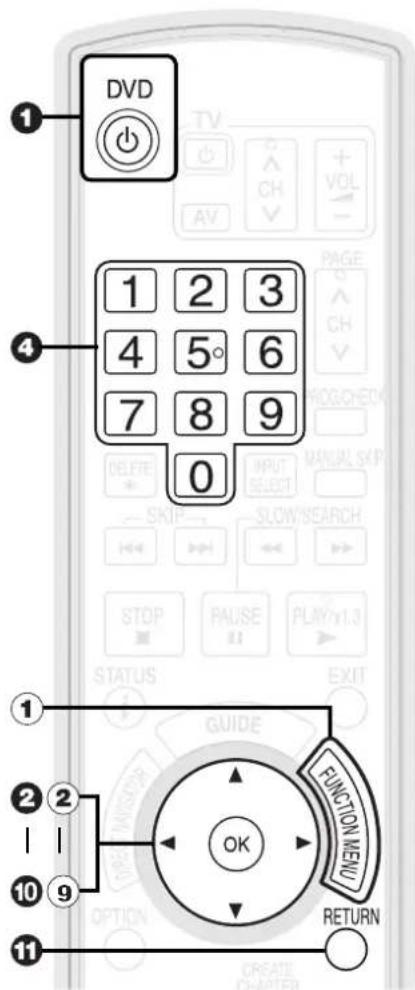
1 to turn the unit on.
DVB Auto-Setup starts. The unit will search for the terrestrial digital channels. This takes about 5 minutes.
– TV channels are sorted and stored in channel numbers order sent by the broadcasters and cannot be changed.
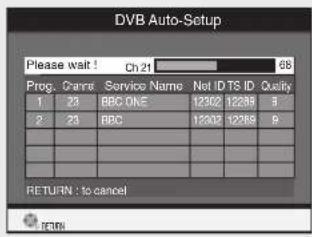
2 Power Save Function:
▲, ▼ to select "On" or "Off"
then

- Set to "On" to reduce power consumption in standby mode.
- Refer to the following chart for the Power Save function features when the unit is turned off.
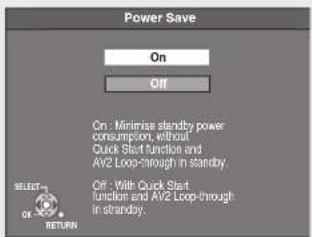
| Power Save | On | Off |
| Power consumption | Approx. 2 W | Approx. 15 W |
| Watching the picture from the satellite receiver connected to the AV2 input terminal | Can not do | Can do |
| Startup time | Not quick | Quick* |
*e.g., TV Guide is displayed within 1 second after [GUIDE] is pressed.
3 When setup has completed, the confirmation screen appears.

4 The Owner ID settings screen appears.
▶ and press the numbered buttons to enter your choice of a 4-digit PIN number.
Make a note of the PIN number (don't forget), as it is not possible to return to the factory preset.
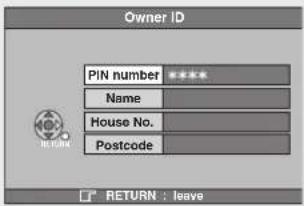
5 to store the PIN number.

Tips
To abort Auto-Setup
Press [RETURN].
- If the unit displays "No stations found!" Press [▶] to select "No" and press [OK]. Go to step 2. After you have performed steps 2-11, turn off the unit and confirm the cable or aerial input is connected to the RF IN terminal. Restart the Auto-Setup again (→ 47).
- If the clock setting menu appears or the clock is not correct, set the clock manually (→ 11).
Restarting the Auto-Setup (→ 47)
- When turning on the Power Save function, if the unit is turned off, unit's display is also turned off.
To correct the PIN number
- Press [◀, ▶] to select the digit.
- Press the numbered buttons to enter the digit.
6 ◀ to select "Yes" then

The cursor moves to "Name".
7▶ to enter the name.
8 ▲, ▼ to select a letter then ▶ to move to next character.
Repeat this to enter the name.
9 to store the name.
10 ▼ and ▶ and then repeat steps ⑧, ⑨ to enter and store “House No.” and “Postcode”.
The Owner ID settings screen disappears.
- Auto setup for your unit is complete. You can now make your favourite channels and store them in the required order in the profiles (→ 46).

Tips
To correct the character
- Press [◀, ▶] to select the character.
- Press [▲, ▼] to correct the character.
To display the Owner ID information on TV
Press and hold [■] on the main unit for more than 5 seconds.
The PIN number is not displayed.
After 30 seconds this menu automatically disappears.
Clock Setting
This unit usually obtains time and date information from digital broadcasts and automatically corrects the time several times a day.
However, if the clock is not set correctly, make clock adjust correctly.
- In the case of a power failure, the clock setting remains in memory for approximately 60 minutes.
With the unit stopped
② ▲, ▼ to select "To Others" then

③ ▲, ▼ to select "Setup" then

④ ▲, ▼ to select “Others” then ▶.
⑤ ▲, ▼ to select "Clock" then

⑥ ▲, ▼ to select "Off" of "Automatic"

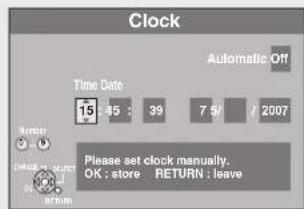
⑦ ◀, ▶ to select the item you want to change.
The items change as follows:
Hour ↔ Minute ↔ Second ↔ Day ↔ Month ↔ Year
Use ▲, ▼ to change the setting.
You can also use the numbered buttons for setting.
Press OK to confirm the new date and
time and to initiate the clock.

Tips
To return to the previous screen
Press [RETURN].
To exit the screen
Press [EXIT].

Notes
If a TV station transmits a time setting signal, and when "Automatic" in the Clock setting menu is set to "On", the automatic time correction function checks the time and, if necessary, adjusts it several times every day.
Refer to "TV Guide" (→ 26) for detailed information.
Preparation:
Turn on the television and select the appropriate video input to suit the connections to this unit.
This DVD recorder has a tuner which allows it to directly receive and record terrestrial digital channels.
Important:
This unit does not have an analogue broadcast tuner.



The TV Guide list appears.
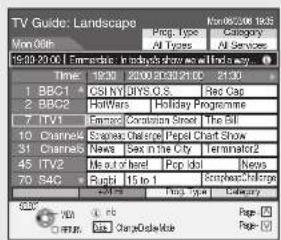

Use ▲, ▼ to select the current programme, then

Selecting a Channel without TV Guide
To select the desired channel
Press [∧, ∨ CH].
To directly enter Channels
You can also select channels with the numbered buttons.
e.g., “5”: [0] → [0] → [5]
e.g., “15”: [0] → [1] → [5]
Watching Satellite Programmes
Preparation:
- Connect a satellite receiver to this unit's input terminals (→ 9).
- Turn on the satellite receiver.
- Turn on the television and select the appropriate video input to suit the connections to this unit.


to select the "AV2".

Notes
- The TV Guide list is not displayed immediately after purchasing this unit.
- Some of the programmes allow this unit to show Digital TEXT (MHEG) and subtitles (→ 32).
- You can select audio from multiple channels when the unit receives multi-channel broadcast (→ 43, DVB Multi Audio).

Notes
- When turning off the Power Save function, you can watch the Satellite Programme without turning the unit on (→ 52).
- When the Power Save function is set to on, if the unit is turned off, you cannot watch the Satellite Programme. Turn the unit on.
Refer to "Advanced Playback" (→ 28) for detail information.
Preparation:
- Turn on the television and select the appropriate video input to suit the connections to this unit.
Playing Discs
RAM -R -R DL -RW(V) +R +R DL +RW DVD-V -RW(VR) VCD CD
1
DVD
2
to open the tray (Button located on front of the unit).
Insert a disc.
3
– The tray closes and play begins.
Stopping Play
Press [■ STOP].
- The stopped position is memorized (Resume play function).
- The stopped position is cleared when you press [■ STOP] several times.
Pausing Play
Press [II PAUSE].
- Press again to restart play.
Menu Screens on the TV
DVD-V VCD
Generally, menu screens that appear on the TV may be navigated as follows: e.g.,
DVD TOP MENU
Play
Chapter List
Audio Tracks
Subtitles
Trailer
DVD-V
① Use ▲, ▼, ◀, ▶ to select an item, then press ENTER.

You can sometimes use the numbered buttons to select an item.
VCD
Press the numbered buttons to select an item.
e.g., “5”: “155°→ 1 5°

Tips
- Icons such as "RAM" indicate usable discs. Refer to pages 58 and 59.
To return to the menu screen
DVD-V: Press [DIRECT NAVIGATOR].
VCD: Press [RETURN].

Notes
- RAM, -R, -R DL, -RW(V), +R, +R DL, +RW, -RW(VR): Playback starts from the most recent title. • DVD-V, VCD, CD: Playback starts from the beginning of the disc.
- Depending on the disc type, playback may start automatically without pressing [▶ PLAY].
- The unit takes some time to read the disc before playback starts.
- Discs continue to rotate while menus are displayed. Press [■ STOP] when you finish to preserve the unit's motor and your television screen.
- If "⊗" appears on the TV, the operation is prohibited by the unit or disc.
Recording Television Programmes
Refer to "Important Notes for Recording" (→ 17) and "Advanced Recording" (→ 18 to 20) for detailed information on recording.
RAM, -R, -R DL, -RW(V), +R, +R DL, +RW
Preparation:
- Turn on the television and select the appropriate video input to suit the connections to this unit. • RAM: If the disc is protected, release protection (→ 44).


to turn the unit on.

OPEN/CLOSE to open the tray (Button located on front of the unit).
- Insert a disc with enough remaining blank space and press [▲ OPEN/CLOSE] again to close the tray.
- When the format confirmation screen is displayed (→ 19)

- To select with the numbered buttons (→ 12)
- When no channel setting is performed on the unit and broadcast is recorded directly from the satellite receiver, select a channel on the connected equipment and press [INPUT SELECT] to select "AV2".

REC MODE to select the recording mode.
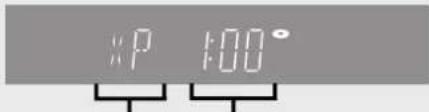
Recording mode (→ 18) Remaining time

REC to start recording.

Elapsed recording time
Pausing Recording
Press [II PAUSE].
- Press again to restart recording.
(The title is not divided.)
Stopping Recording
Press [■ STOP].
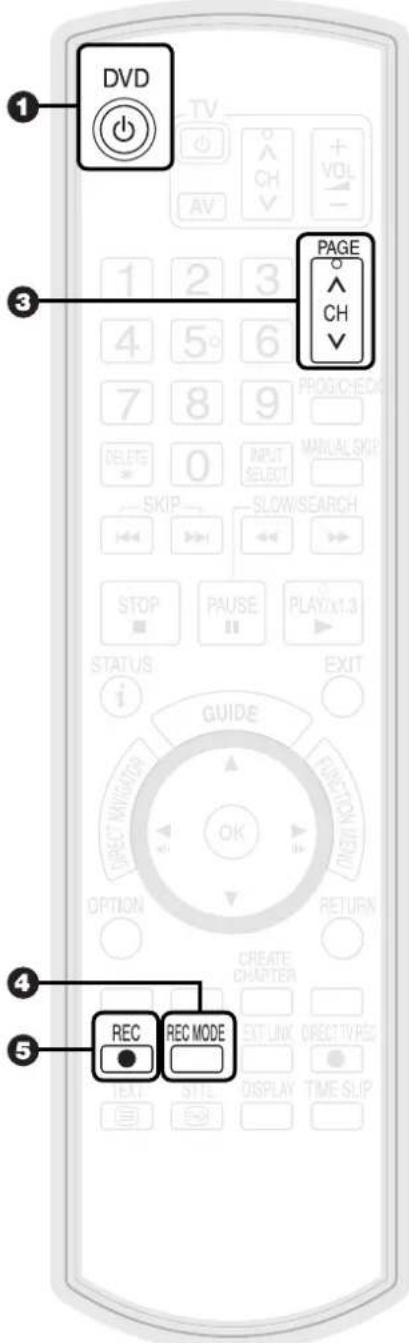

Tips
- Icons such as "RAM" indicate usable discs. Refer to pages 58 and 59.
- -RW(V) +R +R DL +RW To use a new disc, formatting is necessary.

Notes
- -R -R DL -RW(V) +R +R DL +RW It takes about 30 seconds for the unit to complete recording management information after recording finishes.
- You cannot change the channel or recording mode during recording.
- This unit cannot record onto discs on which you recorded with a different encoding system from the TV system set on this unit. Change "TV System" in the Setup menu.
Timer Recording
Refer to "TV Guide" (→ 26) and "Advanced Timer Recording" (→ 24) for detail information on TV Guide.
RAM -R -R DL -RW(V) +R +R DL +RW
Preparation:
- Turn on the television and select the appropriate video input to suit the connections to this unit. • RAM If the disc is protected, release protection (→ 44).
- Confirm that the clock on the unit's display is set to the correct time.

DVD

Turn the unit on.

OPEN/CLOSE to open the tray (Button located on front of the unit).
- Insert a disc with enough remaining blank space and press [▲ OPEN/CLOSE] again to close the tray.
- When the format confirmation screen is displayed (→ 19)


The TV Guide list appears.
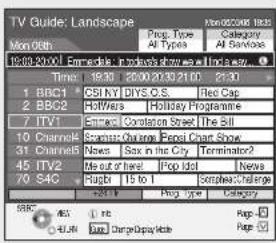

Use ▲, ▼, ◀, ▶ to select the future programme then

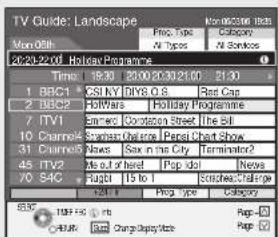

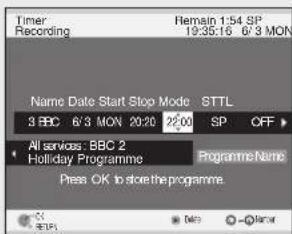
Confirm the programme (start and end time) by using a TV magazine, etc. and make corrections if necessary using [▲, ▼, ◀, ▶] (→ 24, step Ⓤ).


- The settings are stored and the timer programme is on.
- The timer icon is displayed.
- “ ① ” lights on the unit’s display to indicate timer recording standby has been activated.
- Repeat steps ④ -⑤ to programme other recordings.
- Press [∅/I] to turn the unit off.
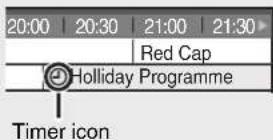
To cancel a timer recording programming
- Press [▲, ▼, ◀, ▶] to select the programme (the timer icon is displayed) and press [OK].
Confirmation screen appears.
- Press [◀] to select "Yes" and press [OK].
- The timer icon disappears.

Tips
- Icons such as "RAM" indicate usable discs. Refer to pages 58 and 59.
- -RW(V) +R +R DL +RW To use a new disc, formatting is necessary.
To check programmes (→ 25)

Notes
• The TV Guide list is not displayed immediately after purchasing this unit. - The TV Guide system will not work if the clock is not set correctly. - If "NTSC" has been selected for "TV System" (→ 51), the TV Guide system cannot be used.
- When programmes are recorded from the TV Guide, the name of the selected programme is transferred automatically for the recording.
Preparation:
- Turn on the television and select the appropriate video input to suit the connections to this unit. • RAM If the disc is protected, release protection (→ 44).
- Press [▲ OPEN/CLOSE] and insert a disc. Press [▲ OPEN/CLOSE] again to close the tray.
Important:
Once deleted, contents cannot be recovered.
Delete Navigator
RAM -R -R DL -RW(V) +R +R DL +RW
With the unit stopped
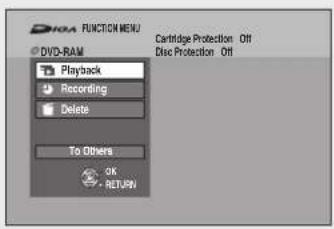
② Press ▲, ▼ to select "Delete", then
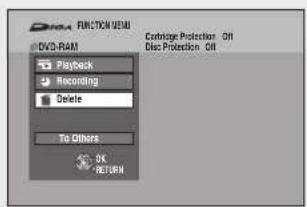

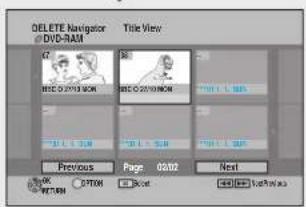
③ Press ▲, ▼, ◀, ▶ to select the title, then

④ Press ◀ to select "Delete", then


Tips
To return to the previous screen
Press [RETURN].
To view other pages
Press [▲, ▼, ◀, ▶] to select "Previous" or "Next" and press [OK].
- You can also press [◀◀, ▶▶] to view other pages.
Multiple deleting
Select with [▲, ▼, ◀, ▶] and press [■ PAUSE]. (Repeat.)
- A check mark appears. Press [II PAUSE] again to cancel.
Delete Titles During Playback
RAM -R -R DL -RW(V) +R +R DL +RW
During playback

② ◀ to select "Delete" then


Notes
- You cannot delete while recording.
- +R +R DL +RW Even if you have set protection on other equipment, such titles are deleted.

Tips
- Icons such as "RAM" indicate usable discs. Refer to pages 58 and 59.
- RAM Deleting an item increases the available disc space by the amount of space taken by the item deleted.
- -R -R DL +R +R DL Available disc space does not increase after deletion.
- -RW(V) +RW Available disc space increases when you delete the last title (the recording space may increase slightly when other titles are deleted).
Selecting Audio for Recording
Broadcast in multi-channel sound:
You can select audio language when received audio in multi-channel broadcast (“Multi Audio” appears at the bottom of digital channel information display).
However, audio cannot be switched after recording.
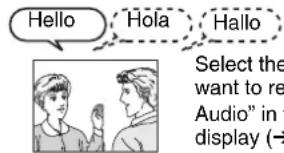
Select the audio that you want to record in "DVB Multi Audio" in the on-screen display (→ 43).
About the aspect when Recording a Programme
RAM -R -R DL -RW(V)
The original aspect used for the source programme will also be used with the recording.
However, in the following cases, Programme will be recorded in 4:3.
-R -R DL -RW(V)
Programme recorded using "EP" or "FR (recordings 5 hours or longer)" recording modes will be recorded in 4:3 aspect.
+R +R DL +RW
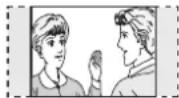
Recorded in 4:3 aspect
Copy-once Recording
- It is not possible to record digital broadcasts that allow "One time only recording" onto DVD-R, DVD-R DL, DVD-RW, +R, +R DL, +RW or 8 cm DVD-RAM discs. Use the CPRM (→ 72) compatible DVD-RAM.
RAM CPRM compatible discs only
12cm


-R -R DL -RW(V) +R +R DL +RW


(○Can do, -: Cannot do)
Playing the disc on other DVD players
-R -R DL -RW(V) +R +R DL
The disc must be finalized after recording (→ 45).
It is necessary to finalize DVD-R, etc. on this unit after recording. You can then play them as a commercially sold DVD-Video. However, the discs become play-only and you can no longer record.*
* You can record again if you format DVD-RW.
![graph LR A["Record onto DVD-R, etc. Finalise"] --> B["Play on other DVD equipments"]](/content/2026/05/796410/images/5ca01eaf85efad6dd2ccf4fb32ef5461e3e82a835441bec731ed15db602e3bbd.jpg)
+RW
We recommend you to create the menu before playing a +RW disc on other equipment (→ 45).
Recording to DVD-R DL and +R DL
DVD-R DL and +R DL discs have two layers of recording surface on one side.
- It is not possible to record continuously from the first layer to the second layer. Recording stops when space on the first layer becomes full. You must close the first layer to start recording on the second layer (→ 45). Closing makes the first layer unavailable for recording (editing is still available). You cannot cancel closing. Make certain before proceeding.
![graph TD A["DVD-R DL +R DL"] --> B["Disc inner side"] B --> C["The second layer"] C --> D["The available space"] D --> E["Title 1"] E --> F["Title 2"] F --> G["Recording/Playback direction"] G --> H["×"] H --> I["It is not possible to record continuously from the first layer to the second layer."] s…](/content/2026/05/796410/images/04f915c613edc38061c2ac8b9ee8a61b11ddd541a0d884202f0f61ab94d575b8.jpg)
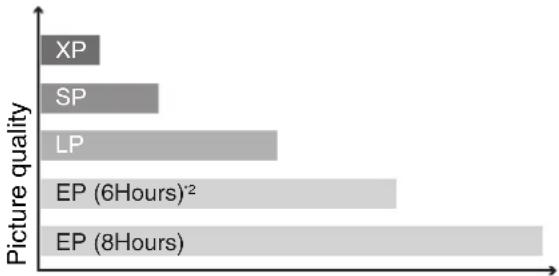
Recording Modes and Durations
| Recording Mode | DVD-RAM | DVD-R, DVD-RW, +R, +RW (4.7 GB) | DVD-R DL*3, +R DL*3(8.5 GB) | ||
| Single-sided (4.7 GB) | Double-sided*1 (9.4 GB) | First layer (L0) | Second layer (L1) | ||
| XP (High quality) 1 hour | 2 hours 1 hour 55 | minutes 50 minutes | |||
| SP (Standard play) 2 hours | 4 hours 2 hours | 1 hour 50 minutes | 1 hour 40 minutes | ||
| LP (Long play) 4 hours | 8 hours 4 hours | 3 hours 40 minutes | 3 hours 20 minutes | ||
| EP (Extra long play) 8 (6*2) hours 16 | (12*2) hours 8 | (6*2) hours | 7 hours 25 minutes (5 hours 30 minutes*2) | 6 hours 50 minutes (5 hours 15 minutes*2) | |
| FR (Flexible Recording) | 8 hours maximum | 8 hours maximum for one side | 8 hours maximum | 7 hours 25 minutes maximum | 6 hours 50 minutes maximum |
Recording time

Notes
- This unit uses variable bit rate (VBR) recording which varies the amount of data recorded to suit the picture quality, so actual recording times and remaining recording times shown by the unit will be different. (-R DL +R DL The difference will be especially noticeable.) Use a disc with enough remaining blank space.
- When recording to DVD-RAM using EP (8Hours) mode, play may not be possible on DVD players, even if they are compatible with DVD-RAM. In this case use EP (6Hours) mode.
*1 It is not possible to record or play continuously from one side of a double sided disc to the other. *2 When "Recording Time in EP Mode" has been set to "EP (6Hours)" in the Setup menu (→ 48).
The sound quality is better when using "EP (6Hours)" than when using "EP (8Hours)".
*3 Refer to "Recording to DVD-R DL and +R DL" (→ 17).

Tips
• Maximum number of titles to a disc RAM -R -R DL -RW(V) 99 titles on a disc +R +R DL +RW 49 titles on a disc • FR (Flexible recording mode)
Using "Flexible Recording" is convenient in these kinds of situations: - When the amount of free space on the disc makes selecting an appropriate recording mode difficult
- When you want to record a long programme with the best picture quality possible
e.g., Recording a 90 minutes programme to 4.7GB DVD-RAM disc: - If you select XP mode, the programme will not fit on one disc.
A second disc is necessary for 30 minutes of the programme.
If you select SP mode, the programme will fit on one disc.—
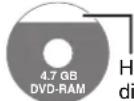
However there will be 30 minutes remaining disc space.
- If you select "Flexible Recording" the programme will fit on one disc perfectly.
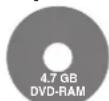
You can set FR mode when programming timer recordings (→ 24) and flexible recording (→ 20).
When the format confirmation screen is displayed
Formatting is the process of making media such as DVD-RAM recordable on recording equipment.
Important:
Formatting permanently deletes all disc contents (including the contents that have been recorded on a PC), regardless of protection status of disc.
RAM -RW(V) +R +R DL +RW
The following screen may appear when inserting a new disc or a disc that has been recorded on other equipment.
Only format the disc if you intend to use it for recording.
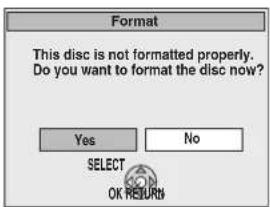
Do not format if you intend to view pre-recorded titles or contents from the disc.
◀ to select "Yes", then OK

Tips
- Refer to "Formatting Discs" (→ 44) for more detail of formatting.
When removing a Recorded Disc
-R -R DL -RW(V) +R +R DL
After recording, if you press [▲ OPEN/CLOSE] to eject the disc, the following screen may appear.
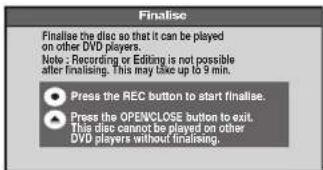
Finalising
DVD-R, etc. recorded on this unit cannot be played on other players immediately after recording. Using the Finalise feature allows you to play these discs on other players. (However, once the disc is finalised you will no longer be able to record onto the disc.)
to start finalising.
to eject the disc without
finalising.

Notes
- You cannot stop finalising once you have started it.

Tips
- If you want to provide the disc with a name or set play menu select, select "Disc Name" (→ 44) or "Auto-Play Select" (→ 45) in "DVD Management" before finalising. - Refer to "Finalising" (→ 45) for more detail of finalising.
Specifying the Recording Time
RAM -R -R DL -RW(V) +R +R DL +RW
This function allows specifying the length of recording time up to 4 hours.
During recording
On the main unit

repeatedly until the desired time
is reached.
- The recording time and the unit's display change as follows:
Counter (Cancel) OFF 0:30 OFF 1:00
- This function does not work during timer recording or Flexible Recording.
- Recording stops and the set time is cleared if you press [■ STOP].
- The unit turns off automatically after recording finished.
Direct TV Recording
RAM -R -R DL -RW(V) +R +R DL +RW
This function allows you to immediately start recording the programme that you are viewing on the TV without having to change the channels on this unit.
You can use the function when you connect the unit to a Q Link compatible TV using the 21-pin Scart cable.

Press and hold for about 1
second.

Tips
To stop recording
Press [■ STOP].

Notes
- When Digital TEXT (MHEG) (→ 32) is displayed, Direct TV recording is unavailable.
- When the unit is connected to a Panasonic TV, if you switch TV channels while using Direct TV recording, the Direct TV recording stops.
- When "EXT-L" lights on the unit's display (→ 21), Direct TV recording is unavailable.
- When the TV is in the HDMI input mode, this function is not available. Switch to another mode other than the HDMI input mode and use Direct TV Recording. However, this function does not work if you select the TV channels on this unit.
Flexible Recording
RAM -R -R DL -RW(V) +R +R DL +RW
The unit sets the best possible picture quality that fits the programme within the remaining disc space.
The recording mode becomes FR mode. Refer to “FR (Flexible recording mode)” (→ 18).
With the unit stopped


▲, ▼ to select "To Others" then


▲, ▼ to select "Flexible Rec"
then

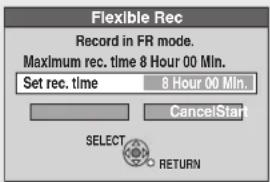

◀, ▶ to select “Hour” and “Min.” and ▲, ▼ to set the recording time.
- You can set "Hour" and "Min." using the numbered buttons.
When you want to start recording

◀, ▶, ▲, ▼ to select "Start" then

Recording starts.

Notes
- You cannot record more than 8 hours.

Tips
To exit the screen
Press [EXIT].
To stop recording partway
Press [■ STOP].
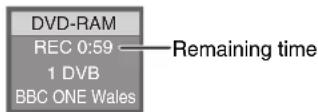
To show the remaining recording time
Press [STATUS] to show the remaining recording time.
Playing while you are recording
Chasing Playback
RAM
Allows playback from the beginning of the title you are recording.
During recording

Tips
To stop play
Press [■ STOP] once.
To stop recording
Press [■ STOP] at least 2 seconds after chasing playback stops.
Simultaneous Record and Playback
RAM
Allows playback of a previous title, while recording something else.
During recording


◀, ▶, ▲, ▼ to select the title to play then OK

Tips
To stop play
Press [■ STOP].
To exit the Direct Navigator screen
Press [DIRECT NAVIGATOR].
To stop recording
After play stops
- Press [DIRECT NAVIGATOR] to exit the screen.
- Press [■ STOP].

Notes
- During playing while you are recording, you cannot edit or delete titles.
RAM -R -R DL -RW(V) +R +R DL +RW
Manual Recording
Preparation:
- Insert a disc with enough remaining blank space.
- RAM If the disc is protected, release protection (→ 44).
- Connect a satellite receiver to this unit's input terminals (→ 9).
- When the output signal from the external equipment is NTSC, change the "TV System" to "NTSC" in the Setup menu (→ 51).
With the unit stopped.

to select "AV2" for the
satellite receiver you have connected.

REC MODE to select the recording
mode.

Select the channel on the satellite receiver.

Recording starts.

Tips
To skip unwanted parts
Press [III PAUSE] to pause recording. (Press again to restart recording.)
To stop recording
Press [■ STOP].
Linked timer recordings with external equipment (SKY Digital STB/satellite receiver)—EXT LINK
To record programmes from a SKY Digital STB/satellite receiver using timer programming
Preparation:
- Insert a disc with enough remaining blank space.
- RAM If the disc is protected, release protection (→ 44).
- Make sure you connect the AV2 input terminal of this unit to "VCR Scart Terminal" of a SKY Digital STB/satellite receiver with a 21-pin scart cable (→ 9).
- Set the "AV2 Input" and "Ext Link" to match the connected equipment in the Setup menu (→ 51).

Make timer programming on SKY Digital STB/satellite receiver.
- Refer to the equipment's operating instructions.

- The unit turns off and "EXT-L" lights on the unit's display to indicate timer recording standby has been activated.
- While the unit is in EXT LINK standby mode or recording, most operations on this unit are prohibited ([▲ OPEN/CLOSE], [∅/l] etc.). When you operate, press [EXT LINK] to cancel EXT LINK standby mode or recording (The unit turns on and "EXT-L" disappears.).

Tips
To cancel the external control
Press [EXT LINK] to stop recording or to cancel linked timer recording standby (The unit turns on and "EXT-L" disappears.).
Manual timer recordings (→ 24)

Notes
- In order to prevent accidental operation, press [EXT LINK] to cancel the setting after recording is finished.
- This function does not work with some equipment. Refer to the equipment's operating instructions.
- The beginnings of recordings may not be recorded correctly in some cases.
- When "Ext Link" is set to "Ext Link 2", this function does not work if the input signal is NTSC system.
- Programmes are recorded as one title on this unit when the end time of the earlier timer recording and the start time of the later timer recording are close to each other. RAM To divide the titles, go to "Divide Title" (→ 38).
- While the unit is in EXT LINK standby mode or recording, video picture is from the AV2 input terminal irrespective of "AV1 Output" setting.
Recording from a VCR, etc.
Connect cables while both the unit and the external device are turned off.
Front of the unit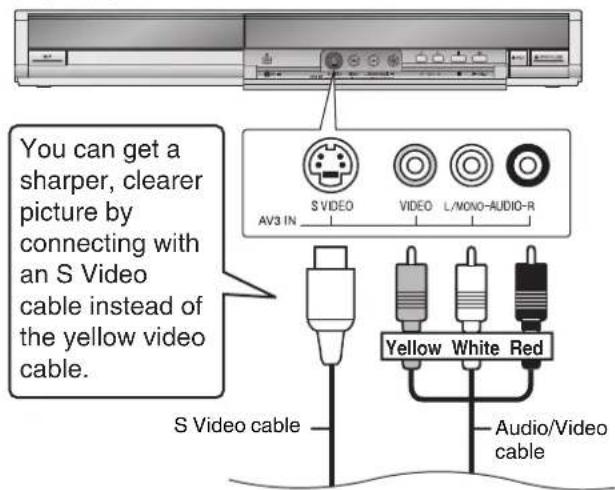
RAM -R -R DL -RW(V) +R +R DL +RW
Preparation:
- Turn on the unit.
- RAM If the disc is protected, release protection (→ 44).
- When the output signal from the external device is NTSC, change the "TV System" to "NTSC" in the Setup menu (→ 51).
- To reduce noise in input from a video cassette recorder, set "AV-in NR" to "On" in the on-screen display (→ 43).
1 Insert a disc.
② to select the recording mode (→ 18).
3 to select the input where your external device is connected. Front panel inputs are AV3.
4 Start play on the external device.
5 at the point you want to start recording to the disc.

Notes
- When timer recording starts while recording from an external device, timer recording takes priority and recording from the external device stops.

Tips
- You can also connect to the AV2 on the rear.
- If the audio output of the external device is monaural, connect to L/MONO on the AV3 input terminals at the front.
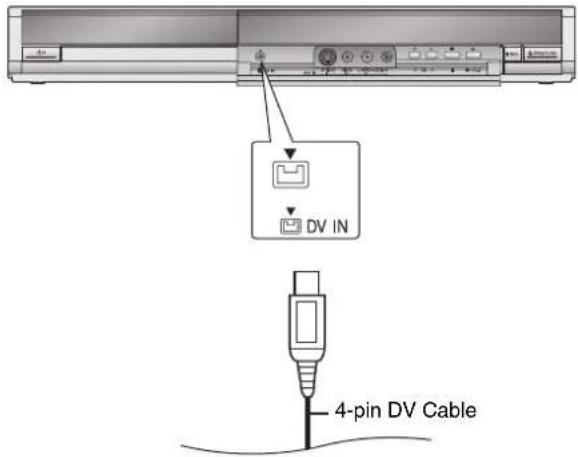
Recording from a DV Camcorder
Connect the cable while both the unit and the external device are turned off.
Front of the unit
RAM -R -R DL -RW(V) +R +R DL +RW
Preparation:
- Turn on the unit. • RAM If the disc is protected, release protection (→ 44).
- When the output signal from the external device is NTSC, change the "TV System" to "NTSC" in the Setup menu (→ 51).
- When recording bilingual programmes (→ 49).
1 Insert a disc.
② to select the recording mode (→ 18).
3 Turn on the DV equipment and pause play on the DV equipment at the point you want recording to start.
"DV Auto Rec" screen may appear.
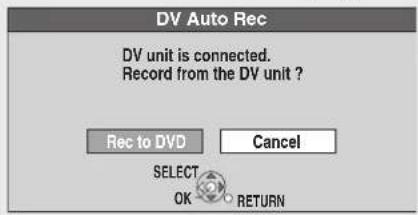
When "DV Auto Rec" screen does not appear
Perform steps 1–3 (→ above)
- With the unit stopped, press [FUNCTION MENU].
- Press [▲, ▼] to select "To Others" then press [OK].
- Press [▲, ▼] to select "DV Auto Rec" then press [OK]. You can proceed to step 5 (→ right).
4 ◀ to select "Rec to DVD" and press OK
5 ◀ to select "Rec" then


Notes
- When timer recording starts while recording from an external device, timer recording takes priority and recording from the external device stops.
- If the desired audio is not recorded, select the kind of audio for "Audio Mode for DV Input" in the Setup menu (→ 49). • RAM Programmes are recorded as a single item; breaks in the images create chapters and playlists are created automatically.
- If you use video camcorders from other manufacturers, these are not guaranteed to work.
- It is not possible to operate the unit from the connected DV equipment.
- The DV equipment name may not be shown correctly.
- Date and time information is not recorded, even if displayed on the camcorder.
- The DV IN terminal is not meant to be connected to a computer.
- This unit uses a 4-pin "DV IN" connector; Your DV camcorder may use a 4-pin or 6-pin external connector. Please consult your DV camcorder's manufacturer to confirm correct external connection.
- You cannot record and play simultaneously.

Tips
When recording finishes
The confirmation screen appears.
Press [OK] to finish DV camcorder recording.
To stop recording
Press [■ STOP].
The confirmation screen appears. Press [OK].
If the DV camcorder recording function does not work properly, check the connections and DV equipment settings, and turn the unit off and back on. If that does not work, follow the instructions on page 22.
Manual timer recordings
Preparation:
- Turn on the television and select the appropriate video input to suit the connections to this unit.
- RAM If the disc is protected, release protection (→ 44).
- Insert a disc with enough remaining blank space.
- Confirm that the clock on the unit's display is set to the correct time.
- If connected via a satellite receiver, set channel there before timer recording starts.

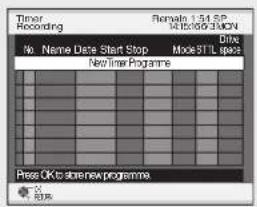

▲, ▼ to select "New Timer Programme" then OK

◀, ▶ to move through the items and ▲, ▼ to set the items.
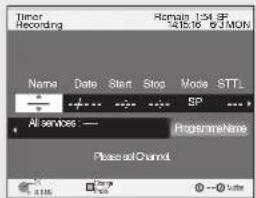
Name: TV Station Name/External Input
- When recording satellite programmes, select "AV2".
- You can press the "Blue" button to change the category. [e.g., Free TV, Radio, Registered Profiles (→ 46)]
Date: – You can set a daily or weekly programme (→ Tips).
Start (start time) / Stop (end time):
- Hold button to change in 30-minute increments or decrements.
Mode: - Recording mode (→ 18)
STTL [Subtitles (→ 32)]:
- ON/OFF
Programme Name:
Press [OK], see page 36.


- The timer icon is displayed in left column.
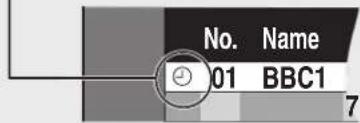
- “☐” lights on the unit’s display to indicate timer recording standby has been activated.
- Repeat steps ②–④ to programme other recordings.
- Press [∅/l] to turn the unit off.

Notes
- “ ” on the unit’s display flashes when the unit cannot go to timer recording standby. (e.g., a recordable disc is not in the disc tray).
- When timer recordings are set to start one immediately after another, the unit cannot record the beginning of the later programme.
- If two timer recording times overlap, the first recording always has priority. The second recording will start only after the first recording has finished.
- Recorded subtitles cannot be deleted later.
- Timer Recording does not start while a disc is being formatted, deleted or finalised. The recording begins afterwards.
- When "Name" is set in AV1, AV2 or AV3, STTL setting is unavailable.

Tips
To exit the timer recording list
Press [PROG/CHECK].
- "Date" Setting
Each press of [▲] changes items in the order below. (Each press of [▼] changes items in the reverse order.)
![graph TD A["Current date"] --> B["SAT"] B --> C["SUN"] C --> D["Weekly timer"] D --> E["SUN-SAT"] E --> F["MON-SAT"] F --> G["MON-FRI"] G --> H["Daily timer"] H --> I["One month later minus one day"]](/content/2026/05/796410/images/a03d94c791edaa6a128c87549ca7c854bee4070bd99c5b469eb5f73b61b7b59c.jpg)
- You can also use the numbered buttons to enter "Name", "Date", "Start", and "Stop".
- You can also press [REC MODE] to switch "Mode" and press [STTL] to switch "STTL".
To cancel a timer recording in progress

While the unit is on
- Confirmation screen appears.

◀ to select "Stop Recording" then


Notes
- Recording stops and the timer programme is deleted. (Daily and weekly timer programmes remain and timer recording will start as programmed.)
Check, Change, or Delete Programmes
The timer recording list can be viewed even when the unit is off.

See "Tips" for explanation of icons displayed.

Use ▲, ▼ to select the programme.


- You cannot delete programmes that are currently recording.

to modify the programme.
Use ▲, ▼, ◀, ▶ to make changes, then press OK.

Notes
- Recording may fail if there are changes to the station's programming.
- The “①” disappears from the unit’s display when no timer programme is set or when all timer programmes are deactivated.

Tips
- You can enter up to 16 programmes a month in advance.
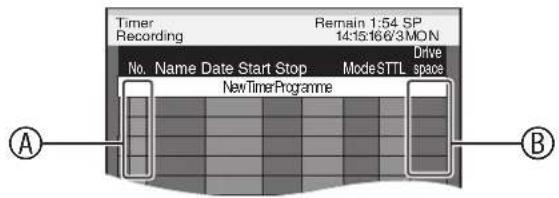
Ⓐ Timer Recording screen icons
☐: Timer programme is active.
●: Currently recording. W: Programmes are overlapped. Recording of the programme with the later start time starts when the earlier programme finishes recording.
-: You stopped a weekly or daily timer recording. The icon disappears when the next timer recording starts.
F: The disc was full. (not enough space)
The TV programme may not be recorded due to copy-protect.
X: Recording stopped (Dirty disc, etc.)
⑧ Drive space
OK: Recordable
→ (Date): For recordings made daily or weekly, the display will show until when recordings can be made (up to one month ahead from the present time) based on the time remaining on the disc.
!: It may not be possible to record because:
– the disc is write-protected.
– there is no more space left.
– the number of possible recordings has reached its maximum.
To deactivate timer programme (e.g. to interrupt a daily or weekly timer programming)
The timer recording list can be viewed even when the unit is off.

- See "Tips" (→ left) for explanation of icons displayed.

▲, ▼ to select the programme.


- “☐” (→ left) disappears from the timer recording list.
- Press the "Red" button again to activate timer programme.

Tips
You can also deactivate the timer programme using the following procedure.
Perform steps 1–2 (see above).
- Press [OPTION].
- Press [▲, ▼] to select "Timer Off", then press [OK].
Making timer recordings on the television
To make a timer recording with your television, connect to a television with a Q Link function (see page 34) that you can use for setting timer recordings using a fully wired 21-pin Scart cable (see pages 8, 9).

Make timer programming on the TV.


- The start and end of recording is controlled by the TV.

Tips
To stop recording
Press [■ STOP].

Notes
- When this unit is in EXT LINK standby ("EXT-L" on the unit's display lights), recording from TV does not start.
- Programmes are recorded as one title on this unit when the end time of the earlier timer recording and the start time of the later timer recording are close to each other.
RAM To divide the titles, go to "Divide Title" (→ 38).
What is TV Guide?
The TV Guide gives you an overview of the programme for your digital television and radio stations up to 7 days. For many of these programmes, you can select additional information provided by the stations. You can search the programme preview according to various topics such as sport, films etc., according to categories such as TV or radio. You can easily find the desired programmes and set Timer recording.
Landscape view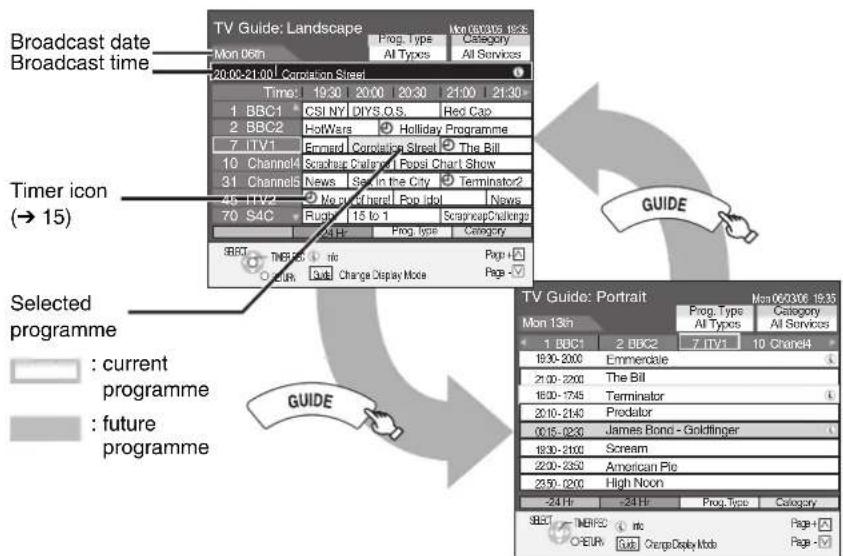
Portrait view
Landscape view:
TV Guide offers detailed information such as what programme is broadcast on what channel and what time as if you see a TV programme magazine, which is convenient to check the status of Timer recording.
Portrait view:
This is convenient to narrow down channels to search for the programme you want to watch.
To switch between Landscape view and Portrait view
Press [GUIDE].
Using the TV Guide
| To change Channels | Landscape viewPress [▲, ▼] to select a channel.Portrait viewPress [◀, ▶] to select a channel.The TV Guide list appears for this channel. |
| To view a programme list for another day | Jump ahead 24 hoursPress the “Green” button to jump ahead by one day.Jump back 24 hoursPress the “Red” button.You can only jump back to the current date. Past information cannot be viewed. |
| To browse through the TV Guide list | Press [^, ∨ CH]. |
| To see programme information(Programmes with the i symbol) | Press [STATUS1].Additional information (programme name, programme duration, broadcast time, description) is available for these programmes.TV Guide Mon-05/06/29 19:30For: 18thSpanding Other People's MoneyBBC ONE Values Lifestyle18:38:20:00, 80minA fashion car salesman loses his back when his stingy friend takes over his wallet. He's forced to sell his possessions as a cat back sole to play her food. [S].Press [▲] and [▼] to scroll up and down.To show other pagesPress [^ CH] (Previous) or [√ CH] (Next).To return to the TV Guide listPress [STATUS1]. |
| To return to the previous screen | Press [RETURN]. |
| To exit the screen Press | [EXIT]. |

Notes
- The receipt of the TV Guide system data is only possible via the aerial input of this unit. The receipt of the TV Guide data via externally connected satellite receivers is not possible.
- The TV Guide system setup will not work if the clock is not set correctly.

Tips
When the unit displays "No Data" or the empty TV Guide list:
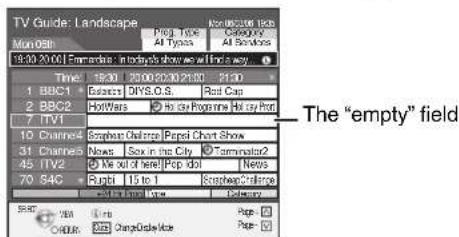
- Some digital broadcast may not send programme information. Set the timer recording manually (→ 24, Manual timer recordings).
Selecting the programme from the desired programme type or category
This function lets you display a TV Guide list sorted by programme type (e.g. Movies, Sport) or category (e.g. Free TV, Radio).


to display the list of programme type.


to display the list of categories.


to select the desired item.
| Prog. TypeAll Types |
| All TypesMovies |
| News and Factual |
| EntertainmentSport |
| Children's |
| Education |
| Lifestyle |
| Drama |
| Category |
| All Services |
| All Services |
| Free TV |
| Radio |
| Information |
| Profile 1 |
| Profile 2 |
| Profile 3 |
| Profile 4 |


– A list appears with all programmes of the selected item. - When you select the landscape view, the unit displays in grey programmes that do not belong to the selected programme type.
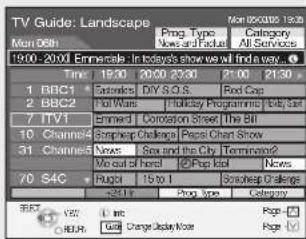
e.g., Programme type, "News and Factual" is selected in step 2 of Landscape view.


to select programme.

Notes
- The broadcasters allocate individual programmes to topic areas. This function does not work properly unless the information which distinguishes the programme type and categories sent from broadcast stations is correct.

Tips
To return to the previous TV Guide list before you have selected the programme type or categories
Select "All Types" of the programme type and "All Services" of the categories in step 2 above.
To return to the previous screen
Press [RETURN].
To exit the screen
Press [EXIT].

Notes
- If the unit is disconnected from the AC mains, all programme data are lost.
- The programme list is available immediately if this unit has found a digital station and loaded the information in the memory. This process can take a while depending on the particular station.
- The programme list data are continuously downloaded in the background when the unit is turned on. That means that the programme list can sometimes change while you are looking at it.
- If the unit is disconnected from the AC mains, all programme data are lost.
- The programme list is available immediately if this unit has found a digital station and loaded the information in the memory. This process can take a while depending on the particular station.
- The programme list data are continuously downloaded in the background when the unit is turned on. That means that the programme list can sometimes change while you are looking at it.
Selecting Titles to Play
You can easily select and play recorded programmes by using DIRECT NAVIGATOR.
RAM -R -R DL -RW(V) +R +R DL +RW -RW(VR)
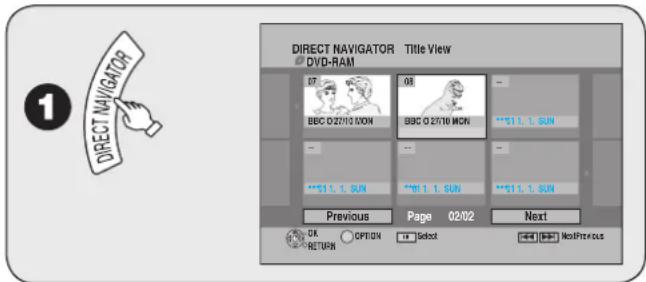


Tips
To select the title with the numbered buttons
e.g., "5": [0] → [5] "15": [1] → [5]
To view other pages
Press [▲, ▼, ◀, ▶] to select "Previous" or "Next" and press [OK].
- You can also press [◀◀, ▶▶▶] to view other pages.
To exit the DIRECT NAVIGATOR screen
Press [DIRECT NAVIGATOR].
DIRECT NAVIGATOR screen icons
Protected.
Not recorded due to recording protection (Digital broadcasts, etc.)
✗ It cannot be played because data is damaged.
● Currently recording.
"One time only recording" restriction (→ 72, CPRM)
N(NTSC) Title recorded using a different encoding system
P(PAL) from that of the TV system currently selected on the unit.
- Alter the "TV System" setting on this unit to suit (→ 51).
Search
During playback

- There are 5 search speeds. Each press increases the search speed. (+R +R DL +RW Up to 3 speeds)
- Press [▶ PLAY] to restart normal playback.

Tips
- Depending on the disc, search may not be possible.
Skip
You can skip to the beginning (or the end) of Title/Chapter. Skip is operated for each chapter.
During playback or while paused

Each press increases the number of skips.
Direct Play
During playback, you can access specific titles or scenes through direct entry of the numbered buttons.
e.g., "5": [0] → [5] "15": [1] → [5]
-R -R DL CD (MP3 and JPEG discs only)
e.g., "5": [0] → [0] → [0] → [5] or [0] → [0] → [1] → [5]

Quick View (Play x1.3)
RAM
Allows you to increase the play speed slightly without distorting the audio.
During playback

Press again to return to normal speed.
Slow-motion Play
RAM -R -R DL -RW(V) +R +R DL +RW DVD-V -RW(VR) VCD
While paused

There are 5 slow-motion speeds. Each press increases the speed. Press [▶ PLAY] to restart normal playback.

Notes
- If continued for approx. 5 minutes, slow-motion play pauses automatically (except DVD-V VCD). VCD allows slow-motion in the forward direction only.
Frame-by-Frame Viewing
RAM -R -R DL -RW(V) +R +R DL +RW DVD-V -RW(VR) VCD
While paused

– Each press shows the next or previous frame. - Press and hold to advance or reverse frame-by-frame in succession. - Press [▶ PLAY] to restart normal playback.

Notes
• VCD allows Frame-by-Frame in the forward direction only.
Time Slip
RAM -R -R DL -RW(V) +R +R DL +RW -RW(VR)
Use to skip in 1-minute or 10-minute increments.
During playback

② ▲, ▼ to select the time, then OK
- Each time you press [▲, ▼], the time increases [▲] or decreases [▼] by 1-minute intervals.
- Press and hold for 10-minute intervals.
Manual Skip
RAM -R -R DL -RW(V) +R +R DL +RW -RW(VR)
Skips approx. 30 seconds forward with each press.
During playback
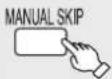
Create Chapters
RAM
When creating chapters in your favourite scenes, you can easily reach the head of scene using [◀◀, ▶▶] (SKIP) or play on Chapter View (→ 39).
During playback


Tips
Chapters cannot be created during EXT LINK standby (→ 21).
Playing Still Pictures (JPEG)
-R -R DL CD
You can playback still pictures recorded onto a DVD-R, DVD-R DL or CD-R/CD-RW on a PC (Close the session or finalise the disc after recording).
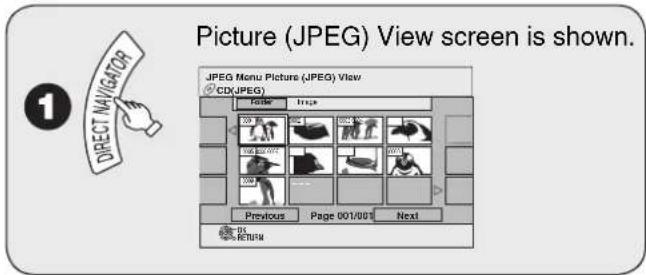
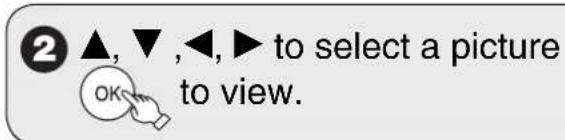

Tips
To stop viewing a picture
Press [■ STOP].
To exit the menu screens
Press [DIRECT NAVIGATOR].
To view other pages
Press [▲, ▼, ◀, ▶] to select "Previous" or "Next" and press [OK].
- You can also press [◀◀, ▶▶] to view other pages.
To select the still picture with the numbered buttons
| e.g., | “5”: | [0]→[0]→[0]→[5] |
| “15”: | [0]→[0]→[1]→[5] |
When you insert discs which contain both MP3 and still pictures (JPEG)
The screen shown below is displayed.
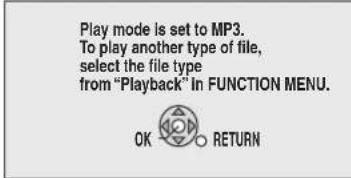
- If the playback mode on the screen is set to JPEG, press [OK].
- Otherwise:
- Press [RETURN] to exit the screen.
- Press [FUNCTION MENU].
- Press [▲, ▼] to select "Playback" then press [OK].
- Press [▲, ▼] to select "JPEG" then press [OK].
Selecting Still Pictures in Another Folder
From the Picture (JPEG) View screen
1. Use ▲, ▼, ◀, ▶ to select "Folder" then

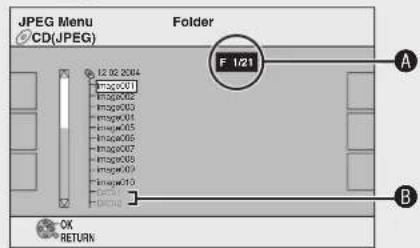
A: Selected Folder No./Total Folder No. If the folder has no compatible file, “- -” is displayed as the folder number. B: You cannot select folders that contain no compatible files.
② Use ▲, ▼ to select the desired folder.


Tips
To return to the previous screen
Press [RETURN].
Slideshow
You can display still pictures one by one with a constant interval.
From the Picture (JPEG) View screen
① Use ▲, ▼, ◀, ▶ to select "Folder",
then

② Use ▲, ▼ to select "Start
Slide Show" then

Start Slide Show Slide Interval

Tips
To stop the Slideshow
Press [■ STOP].
To change the rate at which pictures are displayed
- In step 2 above, press [▲, ▼] to select "Slide Interval", then press [OK].
- Press [◀, ▶] to select desired interval (0 to 30 seconds), then press [OK].
Rotate Pictures
While playing a picture



Press [▲, ▼] to select "Rotate RIGHT" or "Rotate LEFT", then
press [OK].

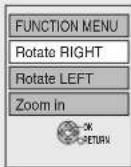

Notes
To return the picture to its original position
Press [▲, ▼] to select the opposite rotation in step 2 and press [OK].
- Rotation information is not stored.
Zoom
While playing a picture



To zoom in:

▼ to select "Zoom in" then OK
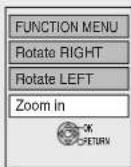

Notes
To return the picture to its original size
Press [▲, ▼] to select "Zoom out" in step 2 and press [OK]. - When zooming in, the still picture may be cut off. - "Zoom in" information is not stored. - "Zoom in" and "Zoom out" do not work with images that have a resolution larger than 640 x 480 pixels.
Picture Properties
Picture information is shown (e.g., shooting date).
While playing a picture
STATUS

twice to display picture properties.
Shooting Date
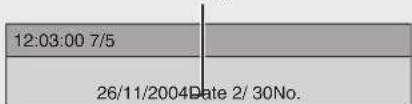
STATUS
again to exit.

Notes
- Depending on the camera or editing software, shooting dates may not be displayed [--/--/----].
Playing MP3s
You can play DVD-R, DVD-R DL or CD-R/CD-RW discs which contain MP3 files that have been recorded on a PC (Close the session or finalise the disc after recording).


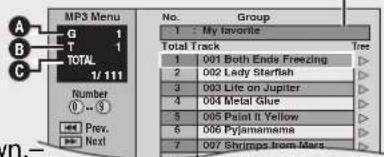
Track list is shown.
A: Group No. B: Track No. in the group C: Track No./Total tracks in all groups

Use ▲, ▼ to select a track, then press (OK) to play.

Tips
- “☐” indicates the track currently playing.
To stop playing
Press [■ STOP].
To exit the menu screens
Press [DIRECT NAVIGATOR].
To view other pages
Press [◀◀, ▶▶].
To select the track with the numbered buttons
e.g., “5”: [0] → [0] → [0] → [5] ; “15”: [0] → [0] → [1] → [5]
Using the Tree Screen to Find a Group
From the track list
1▶ while a track is highlighted to display the tree screen.
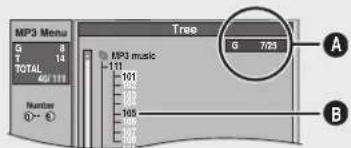
A: Selected Group No. /Total Group No. If the group has no compatible track, "--" is displayed as the group number. B: You cannot select a group that contains no compatible track.

▲, ▼ to select a group, then

– The track list for the selected group appears.

Tips
To return to the track list
Press [RETURN].
- When you insert discs which contain both MP3 and still pictures (JPEG), files selection screen appears (→ 30, Tips). Press [OK].
Digital Channel Information
You can display the information about programmes (programme name, broadcast time, etc.).
With the unit stopped
STATUS

to show the screen information.
When the digital channel information is being displayed,
- press [STATUS] again and detailed information will be displayed (only when “info” is displayed).
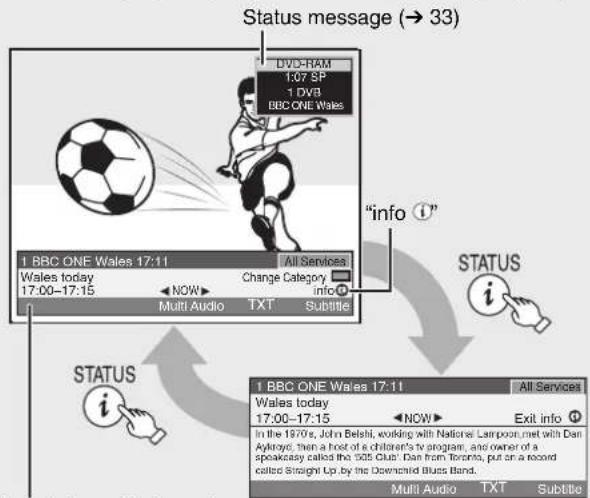
Digital channel information Detailed information
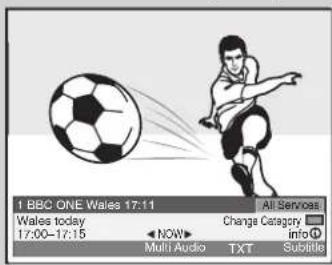
Programme name and Broadcast time
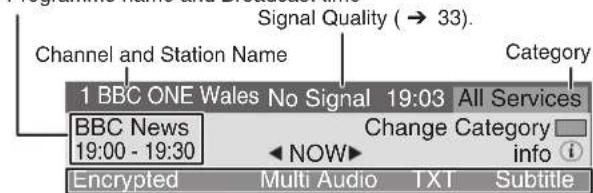
Encrypted
Multi Audio
TXT
Subtitle
During scrambled broadcasting
(You cannot watch the broadcast).
Programme is broadcast in multi-channel
sound (→ 43, DVB Multi Audio).
Digital TEXT is possible.
Subtitle can be displayed.

Tips
To switch information of the current programme and the next programme
Press [◀, ▶].
NOW: • current programme
NEXT: • next programme
To select the information of another channel
Press [▲, ▼].
- Press [OK] to watch the selected channel.
To change the length of time digital channel information is displayed for
(→ 50, On-Screen Messages)

Notes
- Every time you change the channel, digital channel information appears automatically. It disappears again after a short time.
- If you record a digital radio broadcast or a digital broadcast that is not being received correctly, digital channel information is also recorded and will remain visible during playback.
Showing the Digital TEXT (MHEG)
When "TXT" appears in digital channel information

to show the Digital TEXT.
Press again to hide.

Notes
- During recording the Digital TEXT function is not possible.
- The Digital TEXT function depends on respective stations.
- When subtitle is on or the digital channel information is displayed, the Digital TEXT function does not work.

Tips
To view another page of Digital TEXT (MHEG)
Press [▲, ▼] to select another page and press [OK]. - You can also use the numbered buttons to select another page.
Quickly access to certain topic areas and navigation
Use colour buttons according to on-screen instructions.
Showing Subtitles
When "Subtitle" appears in digital channel information

to show subtitles.
Press again to hide.

Notes
- Programmes are recorded with subtitles when you record them with the subtitles on.
- You cannot switch subtitles during timer recording.

Tips
To select subtitle language (→ 50, DVB Preferred Subtitles)
Changing the Category
You can select one of your favourite channels by changing the category (such as Free TV, Radio and Registered Profiles (→ 46)).

To change the category.
Press [▲, ▼] to select the channel.
FUNCTION MENU Window
Signal Quality
| No Signal: T | the digital broadcast signal is not being received. |
| Bad Signal: | Due to poor signal conditions, etc., the digital broadcast signal has been interrupted. |
| No Service: | No broadcasts are currently available. |
If "No Signal" or "Bad Signal" is displayed, check the following:
- Check that the aerial is correctly positioned.
- Check that the current digital broadcast channel is correctly broadcasting.
Status Messages
The following messages and displays appear to let you know what operations are being performed and the status of the unit.
During playback and/or recording
STATUS
Keep pressing to cycle through available displays.
![graph TD A["DVD-RAM"] --> B["Current media"] B --> C["Shows current recording or play status."] C --> D["Channel information"] D --> E["Remaining recording time and recording mode (e.g.: "1:45 SP" indicates 1 hour and 45 minutes in SP mode)"] E --> F["Disc remaining time may slightly diffe…](/content/2026/05/796410/images/592ffcdcfa0ec4adc6c4281f7ed7f88e5e65bc36357b59952dbc8f20fe1e96b7.jpg)
New Service Message
When a new DVB channel is added this unit will be informed automatically. Then the confirmation message appears. If you select "Yes" on the display, Auto-Setup starts (all channel settings and all created profiles are deleted. The timer recording programmes are also cancelled.).
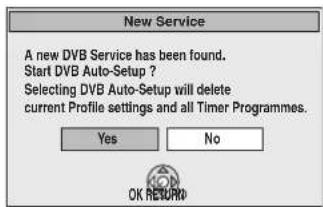

Tips
The display/hide setting can be changed ( → 50).
By using the FUNCTION MENU window you may access the main functions quickly and easily.
With the unit stopped
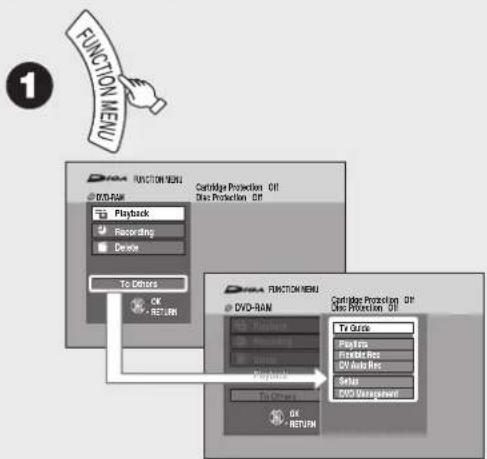
② ▲, ▼ to select a menu item, then OK
- If you select "To Others", press [▲, ▼] to select a menu item and press [OK].
Playback
28
You can select and play recorded programmes.
Recording
24
You can make timer recording settings.
Delete
16
You can delete recorded titles using Delete Navigator.
TV Guide
12,15
You can easily find programmes you want to watch and set them for timer recording.
Playlists
40
You can create playlists by grouping your favourite chapters.
Flexible Rec
20
The unit sets the best possible picture quality that fits the recording within the remaining disc space.
DV Auto Rec
DV automatic recording function
Setup
You can change the unit's settings using the Setup menu.
DVD Management
You can manage discs through formatting, finalising, and other operations.
You can enjoy linked operations with the TV and receiver by using VIERA Link or Q Link.
What is VIERA Link "HDAVI Control"?
VIERA Link
VIERA Link "HDAVI Control" is a convenient function that offers linked operations of this unit, and a Panasonic TV (VIERA) or receiver under "HDAVI Control". You can use this function by connecting the equipment with the HDMI cable. See the operating instructions for connected equipment for operational details.
- VIERA Link "HDAVI Control", based on the control functions provided by HDMI which is an industry standard known as HDMI CEC (Consumer Electronics Control), is a unique function that we have developed and added. As such, its operation with other manufacturers' equipment that supports HDMI CEC cannot be guaranteed.
- This unit supports "HDAVI Control 2" function. "HDAVI Control 2" is the newest standard (current as of February, 2007) for Panasonic's HDAVI Control compatible equipment. This standard is compatible with Panasonic's conventional HDAVI equipment.
Preparation:
- Connect this unit to your TV or receiver with an HDMI cable (→ 57).
- Set "VIERA Link" to "On" (→ 51). (The default setting is "On".)
- Set the "HDAVI Control" operations on the connected equipment (e.g., TV).
- When using HDMI2 terminal of VIERA as "HDAVI Control", set the input channel to HDMI2 on VIERA.
- Turn on all "HDAVI Control" compatible equipment and select this unit's input channel on the connected TV so that the "HDAVI Control" function works properly. Also when the connection or settings are changed, repeat this procedure.
What is Q Link?
Q Link
Q Link is a convenient function that offers linked operations of this unit and a Panasonic TV. You can use this function by connecting the equipment with a fully wired 21-pin Scart cable.
Preparation:
- Connect this unit to your TV with a fully wired 21-pin Scart cable (→ 8, 9).

Notes
The following systems from other manufacturers have similar function to Q Link from Panasonic. For details, refer to your television's operating instructions or consult your dealer.
• Q Link (registered trademark of Panasonic) • DATA LOGIC (registered trademark of Metz) - Easy Link (registered trademark of Philips) • Megalogic (registered trademark of Grundig) • SMARTLINK (registered trademark of Sony)
(When the TV is on) Easy playback
VIERA Link
Q Link
When the TV is on and the following operations are performed, the TV's input will automatically switch to HDMI input mode (VIERA Link) or AV input mode (Q Link) and the TV displays the corresponding action.
(Picture or sound may not be available for the first few seconds.) Press [FUNCTION MENU]*1, [▶ PLAY]*2, [DIRECT NAVIGATOR], [GUIDE], [PROG/CHECK] etc.
(When the TV is off) Power on link
VIERA Link
Q Link
When the TV is off and the following operations are performed, the TV will automatically turn on and displays the corresponding action.
(Picture or sound may not be available for the first few seconds.)
Press [FUNCTION MENU]*1, [▶ PLAY]*2, [DIRECT NAVIGATOR], [GUIDE], [PROG/CHECK] etc.
Power off link
VIERA Link
Q Link
When you turn the TV off, the unit is also automatically turned off. The unit is automatically turned off even if the FUNCTION MENU screen, the status message or the on-screen display is displayed, during playback or when the unit set to a timer recording.
Even if the TV is turned off, the unit will not be turned off at the same time in the following conditions:
- when you pressed [● REC] and the unit is recording,
- when finalising, etc.
- When this unit is connected to an "HDAVI Control" compatible Panasonic receiver with an HDMI cable, the receiver will also turn off.
Direct TV Recording
Q Link
This function allows you to immediately start recording the programme that you are viewing on the TV (→ 19).
- When the TV is in the HDMI input mode, this function is not available. Switch to other mode except for the HDMI input mode and use Direct TV Recording.
• However this function does not work if you select the TV channels on this unit.
Easy control only with VIERA remote control
If you connect this unit to the TV that has "HDAVI Control 2" function with an HDMI cable, you can enjoy using more convenient functions. You can operate this unit using the following buttons on the TV remote control.
[▲, ▼, ◀, ▶], [OK], [RETURN], [EXIT], [OPTION], and the coloured buttons.
Use the remote control for this unit to operate any other buttons (numbered buttons, etc.) that are not listed above.
Using the FUNCTION MENU window to operate this unit VIERA Link
Refer to TV operating instructions for operating the TV.
1 Display this unit's "FUNCTION MENU" window using the TV remote control.
- If this unit is turned off, this unit will be automatically turned on.
2 Select the item you want to operate with the TV remote control, then press OK.
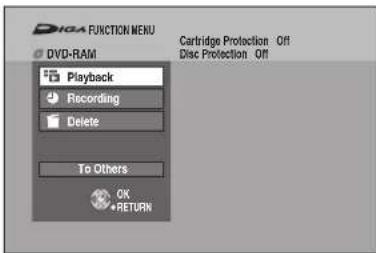
FUNCTION MENU window (→ 33)
Using the OPTION MENU window to operate this unit
VIERA Link
By using the TV remote control, you can play discs using the "Control Panel" (→ below) and display the Top Menu for DVD-Video.
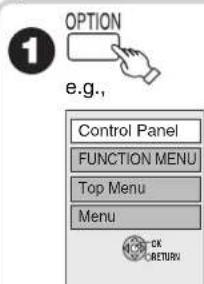

Notes
- You cannot use the OPTION menu while the Top Menu for DVD-Video is displayed.

Select an item, then press OK.
| Control Panel | “Control Panel” is displayed (→ below). |
| FUNCTION MENU | FUNCTION MENU window is displayed (→ above). |
| Top Menu DVD-V | Top Menu is displayed (→ 13). |
| Menu DVD-V | Menu is displayed (→ 13). |
| Rotate RIGHT (JPEG) | Rotate still pictures (→ 31). |
| Rotate LEFT (JPEG) | |
| Zoom in (JPEG) | Enlarge or shrink the still picture (→ 31). |
| Zoom out (JPEG) |
Using the Control Panel
Using the "Control Panel", you can operate search backward, search forward, stop, etc. with the TV remote control.
Perform steps ① and ② of "Using the OPTION MENU window to operate this unit" (→ above).
The Control Panel is displayed (→ right).
• While playing a title or DVD-Video, etc. - [▲]: Pause, [▼]: Stop, [◀]: Search backward, [▶]: Search forward, [OK]: Play, [EXIT]: Exit the screen. • While playing still pictures - [▼]: Stop, [◀]: View previous picture, [▶]: View next picture, [EXIT]: Exit the screen.
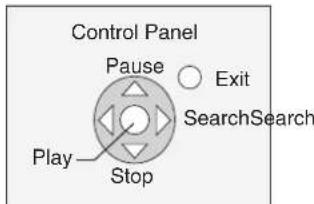

Notes
• These functions may not work normally depending on the equipment condition. - About "HDAVI Control" function, read the manual of the connected equipment (e.g., TV) too. When you want to leave the TV on and set only this unit to standby mode, press [∅ DVD] on this unit's remote control and set to standby mode. When not using "HDAVI Control", set "VIERA Link" in the Setup menu to "Off" (→ 51).
Entering Text
You can give names to recorded titles or discs in the different menus and while setting up the timer recording.
① When viewing the Enter Name screen.
![Enter Name. Delete. Set. 1 2 3 4 5 6 7 8 9 0. 2 A B C b b c + - *. 3 D E F d e f i p. 4 G H I g h i $ #. 5 J K L k l < > #. 6 M N O m n o [ ]. 7 P Q R S p q r s ( ). 8 T U V u v [ ]. 9 W X Y z x y z /. 0 . ? ! * : : *. Space. OK RETURN.](/content/2026/05/796410/images/fbe250b42498fcf46664097ab8ceb002d47e51df0055a8a05915a3a0b4cdae69.jpg)
2 Press [▲, ▼, ◀, ▶] to select characters press [OK]. - Repeat this step to enter other characters. 3 Press [■ STOP] when you've finished entering text.

Tips
Using the numbered buttons to enter characters
e.g.: entering the letter "R"
- Press [7] to move to the 7th row.
- Press [7] twice to highlight "R".
- Press [OK].
To enter a space
Press [* DELETE] then press [OK].
To delete a character
Press [II] PAUSE] on a character in the name field.
To cancel in the middle
Press [RETURN].
Characters will not be saved.

Notes
If you enter a long name, only part of it is shown in the Top Menu after finalisation (→ 45). When entering a title name, the name that will appear in the Top Menu can be previewed in the "Top Menu Preview" window.
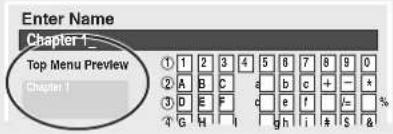
Titles-Editing
You can edit titles on the DIRECT NAVIGATOR screen: deleting unwanted parts of titles such as commercials, changing Thumbnail, dividing and deleting titles, etc.

Tips
• Maximum numbers of items on a disc
Titles
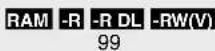
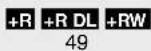
Accessing the Title View
Preparation:
• RAM Release protection (disc, cartridge → 44). - Insert a disc.
① Press [DIRECT NAVIGATOR].
② Press [▲, ▼, ◀, ▶] to select a title.
- Multiple editing (→ below, Tips)
3 Press [OPTION] to display the menu list.
• To view more options - Press [▲, ▼] to select "Edit" then press [OK]. - Items that cannot be selected are grey.
![graph TD A["Delete"] --> B["Properties"] B --> C["Edit"] D["Chapter View"] --> E["Enter Name"] E --> F["Set up Protection"] F --> G["Cancel Protection"] G --> H["Partial Delete"] H --> I["Change Thumbnail"] I --> J["Divide Title"] J --> K["Refer to "Title Operations" (→ right)."]](/content/2026/05/796410/images/7f2da9e906b3eb7119df3a3edffc1d63f22de8741fc839343943b842cf9405de.jpg)
If you select "Chapter View" (→ 39)

Notes
- You cannot edit during recording.
- +R +R DL Management information is recorded in unused sections when you edit discs. The available space on these discs decreases each time you edit their contents.

Tips
To exit the menu screens
Press [DIRECT NAVIGATOR].
To view other pages
Press [▲, ▼, ◀, ▶] to select "Previous" or "Next" and press [OK]. - You can also press [◀◀, ▶▶] to view other pages.
Multiple editing
(Only Delete, Set up Protection/Cancel Protection) Select with [▲, ▼, ◀, ▶] and press [■ PAUSE]. (Repeat.) –A check mark appears. Press [■ PAUSE] again to cancel.
Title Operations
Delete
RAM -R -R DL -RW(V) +R +R DL +RW
Use to delete unneeded titles.
Important: Once deleted, contents cannot be recovered.
Perform steps 1–3 of "Accessing the Title View" (→ left).
4 Press [▲, ▼] to select "Delete" then press [OK]. 5 Press [◀] to select "Delete" then press [OK] to confirm.

Note
- RAM: Deleting an item increases the available disc space by the amount of space taken by the item deleted.
- -R -R DL +R +R DL: Available disc space does not increase after deletion.
- -RW(V) +RW: Available disc space increases when you delete the last title (the recording space may increase slightly when other titles are deleted). • Available disc space may not increase after erasing a short title.
Properties
RAM -R -R DL -RW(V) +R +R DL +RW -RW(VR)
Title information is shown (e.g., date, time).
Perform steps 1–3 of "Accessing the Title View" (→ left).
4 Press [▲, ▼] to select "Properties" then press [OK].
![graph LR A["Delete"] --> B["Properties"] C["Edit"] --> D["Chapter View"] E["Properties"] --> F["Dinosaur"] F --> G["No. 01 Date 12/11/2006 SUN Name:5"] F --> H["Time 18:07 Rec time 2:15 (SP)"] F --> I["OK"] I --> J["OK"] style F fill:#f9f,stroke:#333 style G fill:#ccf,stroke:#333 style H fill:#ccf,s…](/content/2026/05/796410/images/8ffb3f7e3d6e3facffc21ce2fcf733fc212b1930b89e563e25a6b1aaa269acfd.jpg)
Enter Name
RAM -R -R DL -RW(V) +R +R DL +RW
You can give a name for the title.
Perform steps 1–3 of "Accessing the Title View" (→ left).
4 Press [▲, ▼] to select "Enter Name" then press [OK]. Entering Text (→ 36).
Setup Protection / Cancel Protection
RAM
Use to prevent accidental erasure of titles.
Perform steps 1–3 of "Accessing the Title View" (→ left).
4 Press [▲, ▼] to select "Set up Protection" or "Cancel Protection" then press [OK]. 5 Press [◀] to select "Yes" then press [OK].
The lock symbol appears when the title is protected.
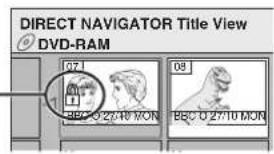
Partial Delete
RAM
Use to remove unwanted parts of titles, such as commercials. Important: Once deleted, the parts cannot be recovered. Perform steps 1–3 of "Accessing the Title View" (→ left).
4 Press [▲, ▼] to select "Partial Delete" then press [OK].
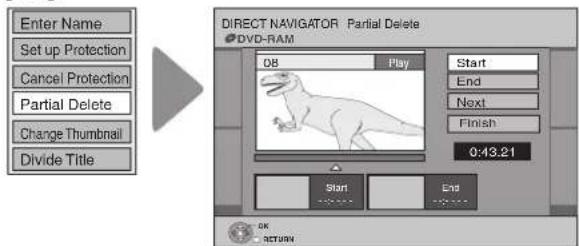
5 Press [OK] to set the "Start" point and then press [OK] again to set the "End" point of the section you want to erase. - To delete multiple sections: Press [▲, ▼] to select "Next", and repeat this step. 6 Press [▲, ▼] to select "Finish" then press [OK]. 7 Press [◀] to select "Delete" then press [OK] to confirm.

Notes
- You may not be able to specify start and end points within 3 seconds of each other. • Available disc space may not increase after erasing short parts of titles.
Change Thumbnail
RAM -R -R DL -RW(V) +R +R DL +RW
Changes the thumbnail picture shown in the Title View screen.
Perform steps 1–3 of "Accessing the Title View" (→ 36).
4 Press [▲, ▼] to select "Change Thumbnail" then press [OK].
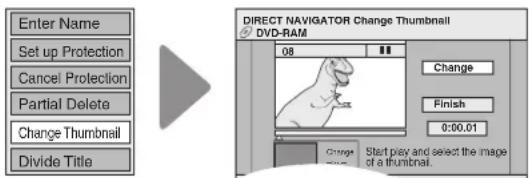
5 Press [▶ PLAY] to start play. 6 Press [OK] at the point you want to use as the thumbnail.
- To change the thumbnail: Restart play and press [▲, ▼] to select "Change" then press [OK] at the point you want to use as the thumbnail.
7 Press [▲, ▼] to select "Finish" then press [OK].

Tips
For quicker editing
- Use search (→ 28), slow-motion (→ 29) or Time Slip (→ 29) to find the desired point.
- To skip to the start or end of a title, press [◀◀] (start) or [▶▶] (end).
- For better precision, use slow-motion (→ 29) and frame-by-frame (→ 29).
Divide Title
RAM
You can divide a title into two.
Once divided, titles cannot be recombined.
Perform steps 1–3 of "Accessing the Title View" (→ 36).
4 Press [▲, ▼] to select "Divide Title" then press [OK].
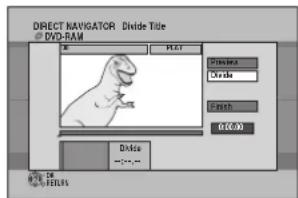
5 Press [OK] at the point you want to divide.
- For quicker editing (→ left, Tips)
- Selecting "Preview" then pressing [OK] plays the title from 10 seconds prior, to 10 seconds after the division point.
- To change the point to divide at: Press [▲, ▼] to select "Divide" then press [▶ PLAY] to bring to the point where you want to divide, then press [OK].
6 Press [▲, ▼] to select "Finish" then press [OK]. 7 Press [◀] to select "Divide" then press [OK]. – The title is divided at that point.

Notes
- Divided titles retain the name of the original.
- A short amount of video and audio just before and after the division point get cut out.
- You cannot divide a title when the resulting parts are too short or when the total number of titles exceeds 99.
RAM
When creating chapters in your favourite scenes, you can easily reach the head of scene using [◀◀, ▶▶▶] (SKIP) or play on Chapter View.

Tips
• Title/Chapter
Normally, programmes are recorded as a single item consisting of one chapter.
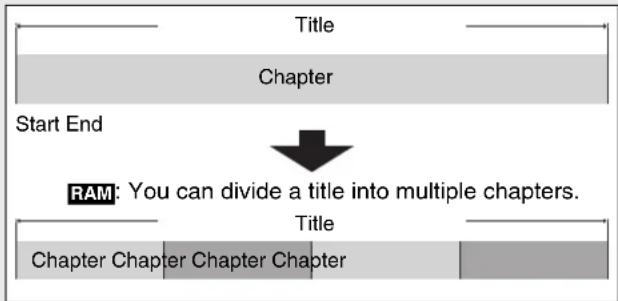
- RAM: You can change the order of chapters and create a playlist (→ 40). – After finalising, titles are divided into chapters of the following lengths.
-R -R DL -RW(V) : Chapters are approx. 5 minutes long.
+R +R DL : Chapters are approx. 8 minutes long.
• Maximum numbers of items on a disc
RAM -R -R DL -RW(V) +R +R DL +RW
Chapters Approx. 1000 Approx. 254
Accessing the Chapter View
Allows viewing and editing chapters individually.
1 Press [DIRECT NAVIGATOR]. ② Press [▲, ▼, ◀, ▶] to select a title. 3 Press [OPTION] to display the menu list.
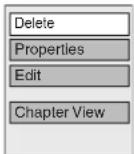
4 Press [▲, ▼] to select “Chapter View” then press [OK].
5 Press [▲, ▼, ◀, ▶] to select a chapter. - Multiple editing (→ Tips)
6a To play, press [OK].
To edit, press [OPTION] to display the menu list.
![graph TD A["Delete Chapter"] --> B["Create Chapter"] B --> C["Combine Chapters"] C --> D["Title View"] D --> E["Refer to "Chapter Operations" (→ right)."]](/content/2026/05/796410/images/41d8b19c50b2b75f53995de5c0f20ded4fb46ebb3ebfa1e0ed77023da3be39b1.jpg)
You can go back to the Title View.

Tips
To exit the menu screens, press [DIRECT NAVIGATOR].
To view other pages, press [▲, ▼, ◀, ▶] to select "Previous" or "Next" and press [OK].
- You can also press [◀◀, ▶▶] to view other pages.
Multiple editing (Only Delete Chapter): Select with [▲, ▼, ◀, ▶] and press [■ PAUSE]. (Repeat.)
- A check mark appears. Press [■■ PAUSE] again to cancel.
Chapter Operations
Select with [▲, ▼, ◀, ▶] and press [■ PAUSE]. (Repeat.)
-A check mark appears. Press [■■ PAUSE] again to cancel.
Chapter Operations
Create Chapter
You can divide a title into multiple chapters.
Perform steps 1–6b of "Accessing the Chapter View" (→ left).
7 Press [▲, ▼] to select "Create Chapter" then press [OK].
![graph LR A["Delete Chapter"] --> B["Create Chapter"] B --> C["Combine Chapters"] C --> D["Title View"] E["08"] --> F["PLAY"] G["Create"] --> H["Finish"] I["0:43.21"] --> J["Video Record"]](/content/2026/05/796410/images/df3203fa42473dbdbed35e8ea70e15812e29c556b9bf40aa70488d27541819ed.jpg)
8 Press [OK] at the point you want to divide. - Repeat this step to create additional chapters.
9 Press [▲, ▼] to select "Finish" then press [OK].

Notes
- A short portion of the title just after the creation point may be lost.

Tips
For quicker editing (→ 38, Tips)
Delete Chapter
You can delete the titles for each chapter.
Important: Once deleted, recorded contents cannot be recovered.
Perform steps 1–6b of "Accessing the Chapter View" (→ left).
7 Press [▲, ▼] to select "Delete Chapter" then press [OK].
8 Press [◀] to select "Delete" then press [OK].
Combine Chapters
You can combine the divided chapters.
Perform steps 1–6b of "Accessing the Chapter View" (→ left).
7 Press [▲, ▼] to select "Combine Chapters" then press [OK].
8 Press [◀] to select "Combine" then press [OK].
RAM
-RW(VR) (play only)
You can create playlists by grouping your favourite scenes (chapters) from the recorded titles and edit the created playlists.

Tips
RAM
A playlist is a compilation of your favourite chapters as shown in the chart below.
![graph TD A["Title"] --> B["Chapter"] B --> C["Title"] C --> D["Chapter"] D --> E["Title"] F["Playlist"] --> G["Chapter"] G --> H["Title"] H --> I["Chapter"]](/content/2026/05/796410/images/5eed34fc9d8d6468d260bf35c310ee050e98610b1bd521f00d473db00ad5a01c.jpg)
- Editing playlists doesn't modify titles.
- Playlists are not recorded separately so this doesn't use much capacity.
Accessing the Playlist View
Preparation:
• RAM Release protection (disc, cartridge → 44). - Insert a disc.
With the unit stopped
1 Press [FUNCTION MENU]. 2 Press [▲, ▼] to select "To Others" then press [OK].
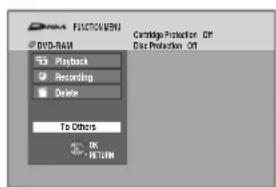

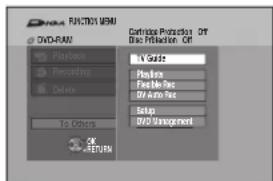
3 Press [▲, ▼] to select "Playlists" then press [OK]. 4a To play Press [▲, ▼, ◀, ▶] to select the playlist to play, then press [OK]. 4b To create Press [▲, ▼, ◀, ▶] to select "Create" then press [OK]. 4c To edit Press [▲, ▼, ◀, ▶] to select the playlist then press [OPTION].
- Multiple editing (→ 41, Tips)
![graph TD A["Delete"] --> B["Properties"] B --> C["Edit"] D["Chapter View"] --> E["Create"] E --> F["Copy"] F --> G["Enter Name"] G --> H["Change Thumbnail"] H --> I["Refer to "Editing Playlists/Chapters" (→ right)."]](/content/2026/05/796410/images/fd612af1f527b11f0a08651b34c0a089d7ff4ff4d5ae7b2792efd4be0dcc8b58.jpg)
If you select "Chapter View" (→ 41)
Creating Playlists
RAM
Perform steps 1–4b of "Accessing the Playlist View" (→ left).
5 Press [◀, ▶] to select the source title, then press [▼]. 6 Press [◀, ▶] to select the source chapter you want to add to the playlist, then press [OK].
- Press [▲] to cancel.
- Press [OPTION] to select "Create Chapter" then press [OK] if you want to create a new chapter in the source title (→ 39).
7 Press [◀, ▶] to select the position to insert the chapter, then press [OK].
- Press [▲] repeatedly to return to step 5, if you want to add additional source titles.
Chapters are registered to the playlist. Repeat steps 6 and 7 to add other chapters.
8 Press [RETURN] to finish and exit the screen.

Notes
- Playlists cannot be created while recording.
- You are allowed a maximum of 99 playlists, with approximately 1000 chapters per playlist.
Editing Playlists/Chapters
Properties
RAM -RW(VR)
Playlist information (e.g., length and date) is shown.
Perform steps 1–4c of "Accessing the Playlist View" (→ left).
5 Press [▲, ▼] to select “Properties” then press [OK].

Tips
To exit the screen
Press [OK].
Delete
RAM
Use to delete unneeded playlists.
Once deleted, playlist contents cannot be recovered (titles are not affected).
Perform steps 1–4c of "Accessing the Playlist View" (→ left).
5 Press [▲, ▼] to select "Delete" then press [OK]. 6 Press [◀] to select "Delete" then press [OK] to confirm.

Tips
To delete during play
- Press [*DELETE]. A confirmation message displays.
- Press [◀] to select "Delete" then press [OK] to confirm.
Edit
RAM
You can create and copy playlists, and change thumbnail.
Perform steps 1–4c of "Accessing the Playlist View" (→ 40).
5 Press [▲, ▼] to select "Edit" then press [OK].
6 Press [▲, ▼] to select desired operation from the menu displayed location then press [OK] (→ below).
| Create | 1 Press [▲,▼] to select “Create” then press [OK].(→40, Creating Playlists) |
| Copy | 1 Press [▲,▼] to select “Copy” then press [OK].2 Press [◀] to select “Copy” then press [OK]. |
| Enter Name | 1 Press [▲,▼] to select “Enter Name” then press [OK].2 Enter a name for the playlist.(→36, Entering Text) |
| Change Thumbnail | 1 Press [▲,▼] to select “Change Thumbnail” then press [OK].2 Press [▶ PLAY], Time Slip (→29), Slow-motion (→29), or Search (→28) to find the desired point.3 Press [OK] at the image you wish you use for your thumbnail.4 Press [▲,▼] to select “Finish” then press [OK].The thumbnail picture is now changed.- |

Tips
To exit the menu screens
Press [EXIT].
Multiple editing
(Only Delete, Copy)
Select with [▲, ▼, ◀, ▶] and press [■ PAUSE]. (Repeat.)
-A check mark appears. Press [II PAUSE] again to cancel.
Chapter View
RAM
You can add, move, divide, combine or delete chapters in the playlist.
Perform steps 1–4c of "Accessing the Playlist View"(→ 40).
5 Press [▲, ▼] to select "Chapter View" then press [OK]. 6 Press [▲, ▼, ◀, ▶] to select a chapter. - Multiple editing (→ Tips) 7a To play Press [OK]. 7b To edit Press [OPTION] to display the menu list.
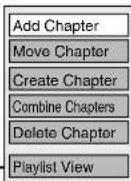

Refer to "Chapter Operations" (→ right).
You can go back to the Playlist View.
Chapter Operations
| Add Chapter | 1 Press [▲,▼] to select “Add Chapter” then press [OK].(→40, Creating Playlists) |
| Move Chapter | 1 Press [▲,▼] to select “Move Chapter” then press [OK].2 Press [▲,▼,◄,►] to select the position to insert the chapter and press [OK]. |
| Create Chapter | 1 Press [▲,▼] to select “Create Chapter” then press [OK].2 Press [► PLAY], Time Slip (→29), Slow-motion (→29), or Search (→28) to find the desired point.3 Press [OK] at the point you want to divide.4 Press [▲,▼] to select “Finish” then press [OK]. |
| Combine Chapters | 1 Press [▲,▼] to select “Combine Chapters” then press [OK].2 Press [◄] to select “Combine” then press [OK].-The selected chapter gets combined with the next chapter. |
| Delete Chapter | 1 Press [▲,▼] to select “Delete Chapter” then press [OK].2 Press [◄] to select “Delete” then press [OK]. |

Tips
To exit the menu screens
Press [EXIT].
To view other pages
Press [▲, ▼, ◀, ▶] to select "Previous" or "Next" and press [OK].
- You can also press [◀◀, ▶▶] to view other pages.
Multiple editing
(Only Delete Chapter)
Select with [▲, ▼, ◀, ▶] and press [■ PAUSE]. (Repeat.)
-A check mark appears. Press [II PAUSE] again to cancel.
For quicker editing
-To skip to the start or end of a title/chapter, press [◀◀] (start) or [▶▶] (end).
Accessing the On-Screen Display
When playing discs (except for JPEG discs), you can display and set the options including disc audio, subtitle, image quality, sound effect, Repeat Play, etc. In addition, when receiving the multi-channel broadcast, you can change the audio settings.
Menu options will differ based on disc type and contents.
Press [DISPLAY].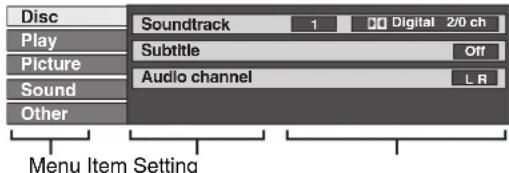
Press [▲, ▼] to select a menu, then press [▶]. Press [▲, ▼] to select an item, then press [▶]. Press [▲, ▼] to select a setting.
Follow the on-screen prompts to change individual settings.

Notes
- Some settings may not be changeable, based on the unit's current activity (playing, stopped, etc.) and disc contents.

Tips
To exit the on-screen display, press [DISPLAY].
Disc Menu
RAM -R -R DL -RW(V) +R +R DL +RW DVD-V -RW(VR) VCD
You can change the settings of disc audio, subtitle, etc.
Soundtrack
RAM -R -R DL -RW(V) +R +R DL +RW -RW(VR)
The disc's audio attributes appear.
(→ below, Audio attributes)
DVD-V
Select the audio and language.
(→ below, Audio attributes, Sound track/Subtitle language)
VCD (SVCD only)
Select the soundtrack number.
- Soundtrack numbers are displayed even when there is only one audio type.
Subtitle
RAM -R -R DL -RW(V) +R +R DL +RW -RW(VR)
(Only discs that contain subtitle on/off information)
Turn the subtitle on/off.
- Subtitle on/off information cannot be recorded using this unit.
DVD-V
Turn the subtitle on/off and select the language (→ below, Sound track/Subtitle language).
Audio channel RAM -RW(VR) VCD
Change audio during playback.
LR/L/R
Angle DVD-V
Change the number to select an angle.
PBC (Playback control → 72) VCD
Indicates whether menu play (playback control) is on or off.
Sound track/Subtitle language
ENG: English CHI: Chinese
FRA: French KOR: Korean
DEU: German MAL: Malay
ITA: Italian VIE: Vietnamese
ESP: Spanish THA: Thai
NLD: Dutch POL: Polish
SVE: Swedish CES: Czech
NOR: Norwegian SLK: Slovak
DAN: Danish HUN: Hungarian
POR: Portuguese FIN: Finnish
RUS: Russian: Others
JPN: Japanese
Audio attributes
LPCM/PPCM/D Digital/DTS/MPEG: Signal type
k (kHz): Sampling frequency
b (bit): Number of bits
ch (channel): Number of channels

Notes
- You cannot make a change when there is no recording.
- Some discs allow changes to soundtracks, subtitles, and angles only by using the disc's menus (→ 13).
Play Menu
RAM -R -R DL -RW(V) +R +R DL +RW DVD-V -RW(VR) CD VCD
Repeat Play
This function works only when the elapsed play time is displayed.
Select the item for repeat play. Depending on the disc, the items that can be selected will differ.
Select "Off" to cancel.
Picture Menu
RAM -R -R DL -RW(V) +R +R DL +RW DVD-V -RW(VR)
You can change the progressive output setting and the noise reduction setting when playing discs or of images from the connected device.
Playback NR
"On" reduces noise and picture degradation.
Progressive [Only when you have set "Progressive" to "On" in the Setup menu (→ 50)]
Select "On" to enable progressive output.
- Select "Off" if the picture is stretched horizontally.
Transfer [Only when you have selected "On" in "Progressive" (→ above)]
Select the method of conversion for progressive output to suit the type of material being played.
When the output signal is PAL
(When the tray is opened, the setting will return to "Auto".)
Auto: Automatically detects the film and video content, and appropriately converts it.
Video: Select when using "Auto", and the content is distorted.
Film: Select this if the edges of the
film content appear jagged or rough when "Auto" is selected.
However, if the video content is distorted as shown in the illustration above, then select "Auto".
When the output signal is NTSC
Auto1 (normal): Automatically detects the film and video content, and appropriately converts it.
Auto2: In addition to "Auto1", automatically detects film contents with different frame rates and appropriately converts it.
Video: Select when using "Auto1" and "Auto2", and the content is distorted.
AV-in NR
(Only when AV1, AV2, AV3 or DV is selected)
Reduces video tape noise during recording. Depending on the video signal, jittering may occur.
Automatic: Noise reduction only works on picture input from a video tape.
On: Noise reduction works for any video input.
Off: Noise reduction is off. Select when you want to record input as is.
Sound Menu
You can change the settings of audio when receiving the multi-channel broadcast, and also change the settings of sound effect when playing discs.
DVB Multi Audio
(MPEG Audio only)
If more than one audio channel is output, you can set the desired channel before recording.
• DVB Multi Audio cannot be selected during playback or recording.
- Depending on the broadcast, the items that can be selected will differ.
English 1/ English 2
RAM -R -R DL -RW(V) +R +R DL +RW DVD-V -RW(VR)
V.S.S. (Dolby Digital, MPEG Audio with 2.0 or over channels only)
• This function does not work for bilingual recordings.
- Enjoy a surround-sound effect if you are using 2 front speakers (L/R) only.
- Turn off if it causes distortion.
Natural / Emphasis / Off
Dialog Enhancer (Dolby Digital, 3-channel or over only, including a center channel)
When "On", the volume of the center channel is raised to make dialogue easier to hear.
Other Menu
Position
Change where this menu screen appears on your TV.
You can manage discs through formatting, finalising and other operations.
Accessing the Management Menus
Preparation:
- RAM Release protection (disc, cartridge → below).
- Insert a disc.
With the unit stopped
1 Press [FUNCTION MENU]. 2 Press [▲, ▼] to select "To Others" then press [OK].
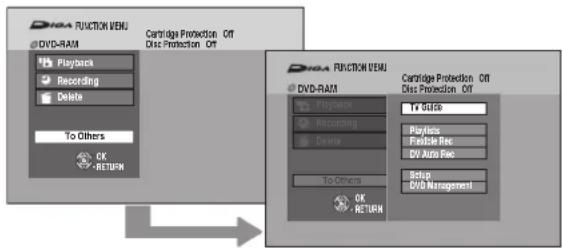
3 Press [▲, ▼] to select "DVD Management" then press [OK].

Tips
To return to the previous screen
Press [RETURN].
To exit the screen
Press [EXIT].
Setting Protection
RAM
Use to prevent accidental erasure of disc.
Perform preparation steps 1–3 of “Accessing the Management Menus” (→ above).
4 Press [▲, ▼] to select "Disc Protection" then press [OK]. 5 Press [◀] to select "Yes" then press [OK].
- Some options require different operations; follow the on-screen prompts.
Protection of cartridge disc
RAM (With a cartridge)
With the write-protect tab in the protect position, you cannot record to, edit, format or erase from the disc.
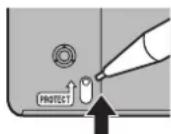
Naming Discs
RAM -R -R DL -RW(V) +R +R DL +RW
You can give a name for the disc.
Perform preparation steps 1–3 of “Accessing the Management Menus” (→ above).
4 Press [▲, ▼] to select "Disc Name" then press [OK]. – Entering Text (→ 36).

os
- The disc name is displayed in the DVD Management window.
- With a finalised disc and +RW created Top Menu, the name is displayed on the Top Menu.
Deleting All Titles
You can delete all titles on the single-sided DVD-RAM at once.
Important: Once deleted, contents cannot be recovered.
RAM
Perform preparation steps 1–3 of “Accessing the Management Menus” (→ left).
4 Press [▲, ▼] to select "Delete all titles" then press [OK]. 5 Press [◀] to select "Yes" then press [OK]. 6 Press [◀] to select "Start" then press [OK]. - A message appears when deleting is finished. 7 Press [OK] to complete.

Notes
- Deleting does not work if one or more titles are protected.
Formatting Discs
RAM -RW(V) +RW -RW(VR)
+R +R DL (New disc only)
Formatting is the process of making media such as DVD-RAM recordable on recording equipment.
You can record or edit after formatting the finalised DVD-RW. Important: Once formatted, contents cannot be recovered. Perform preparation steps 1–3 of “Accessing the Management Menus” (→ left).
4 Press [▲, ▼] to select "Format Disc" then press [OK]. 5 Press [◀] to select "Yes" then press [OK]. 6 Press [◀] to select "Start" then press [OK]. - Formatting starts (RAM may take up to a maximum of 70 minutes). - A message appears when formatting is finished.
7 Press [OK] to complete.

Notes
- Do not disconnect the AC mains lead while formatting. This can render the disc unusable.
- When a disc has been formatted using this unit, it may not be possible to use it on any other equipment.
- -R -R DL Formatting cannot be performed.
- -RW(V) -RW(VR) You can format only as DVD-Video format on this unit.
- RAM Pressing [RETURN] during format will cancel the process. The disc must be reformatted if you do this.
- RAM The disc cannot be formatted if the write-protect tab (→ left) is switched to "PROTECT". Release the protection to continue.
- The message "Unable to format" appears when trying to format discs the unit cannot use.
Selecting Whether to Show the Top Menu First
-R -R DL -RW(V) +R +R DL +RW
Before finalising a disc, select whether the top menu shows after finalising.
Perform preparation steps 1–3 of “Accessing the Management Menus” (→ 44).
4 Press [▲, ▼] to select "Auto-Play Select" then press [OK]. 5 Press [▲, ▼] to select desired item, then press [OK].
- Top Menu: The Top Menu appears first.
• Title 1: The disc content is played without displaying the Top Menu.
Finalising
-R -R DL -RW(V) +R +R DL
You can play these discs on compatible DVD players by finalising it on the unit, effectively making it into DVD-Video that complies with DVD-Video standards. The menu you create with the unit can also be used on most DVD players.
Perform preparation steps 1–3 of “Accessing the Management Menus” (→ 44).
4 Press [▲, ▼] to select "Finalise" then press [OK]. 5 Press [◀] to select "Yes" then press [OK]. 6 Press [◀] to select "Start" then press [OK]. - Finalising starts and cannot be cancelled. (may take up to 15 minutes) (-R DL +R DL up to 60 minutes) - A message appears when finalising is finished. 7 Press [OK] to complete.

Notes
- Do not disconnect the AC mains lead while finalising. This can render the disc unusable.
- When finalising a high-speed recording compatible disc, it may take longer than displayed on the confirmation screen (approximately 4 times longer).
- After finalising
- -R -R DL +R +R DL The disc becomes play-only and you can no longer record or edit it.
- -RW(V) You can record and edit the disc after formatting although it becomes play-only after finalising.
- The disc finalised on the unit may not be playable on other players depending on the condition of the recording.
- There is a pause of several seconds between titles and chapters during playback.
- Titles are divided into about 5-minute chapters* (+R +R DL 8 minutes). * This time varies greatly depending on the condition and mode of recording.

Tips
- After you have finished recording and try to eject the disc, a screen asking if you want to finalise the disc appears (→19).
Create Top Menu
+RW
+RW discs contain no Top Menu data. Top Menu is a convenient function. We recommend you create the menu before playing a +RW disc on other equipment.
Perform preparation steps 1–3 of “Accessing the Management Menus” (→ 44).
4 Press [▲, ▼] to select "Create Top Menu" then press [OK]. 5 Press [◀] to select "Yes" then press [OK]. 6 Press [◀] to select "Start" then press [OK]. - "Create Top Menu" cannot be cancelled once started. - "Create Top Menu" takes a few minutes. 7 Press [OK] to complete.

Notes
- Recording or editing on the disc may delete the top menu. In that case, create the top menu again.
- You cannot use the top menu for playing on this unit.
Enabling the Second Layer on DL (Dual- or Double-Layer on Single Side) Discs to be Recordable
-R DL +R DL
DVD-R DL and +R DL discs have two layers of recording surface on one side. As this unit does not offer seamless recording on two layers, recording stops when space on the first layer becomes full. You must close the first layer to start recording on the second layer. Closing makes the first layer unavailable for recording (editing is still possible).
Perform preparation steps 1–3 of “Accessing the Management Menus” (→ 44).
4 Press [▲, ▼] to select "Close First Layer" then press [OK]. 5 Press [◀] to select "Yes" then press [OK]. 6 Press [◀] to select "Start" then press [OK]. 7 Press [OK] to complete.

Notes
- The first layer cannot be closed when there is no recording on it.
- Closing cannot be cancelled once started.
- Do not disconnect the AC mains lead while closing the layer. This can render the disc unusable.
- Closing takes several minutes, up to a maximum of 30 minutes, depending on the remaining space on the first layer.

Tips
- You can confirm the remaining recording time on the layer in the DVD Management screen.
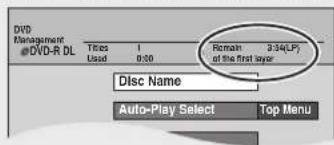
Setup Menu Channel Settings
You can change the unit's settings using Setup menu.
Accessing the Setup Menu
With the unit stopped
① Press [FUNCTION MENU]. 2 Press [▲, ▼] to select "To Others" then press [OK].
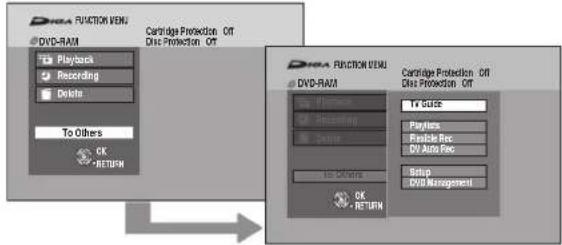
3 Press [▲, ▼] to select "Setup" then press [OK]. 4 Press [▲, ▼] to select a menu then press [▶] to go to the item list.
Menus Items Options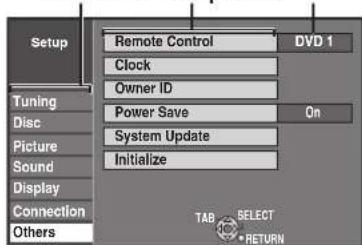
5 Press [▲, ▼] to select an item to change, then press [OK]. 6 Press [▲, ▼] to select an option, then press [OK].
For setting details, refer to pages 46-52.

Notes
- Changed settings remain intact even when switching the unit to standby mode.

Tips
To return to the previous screen
Press [RETURN]. Even if you have changed an option, the change is not activated until you press [OK].
To exit the screen
Press [EXIT].
To Others Setup
(→ left, Accessing the Setup Menu)
All factory default settings are indicated with "Underlined" text.
Tuning
▲, ▼ select "Tuning" → ▶ → ▲, ▼ select item
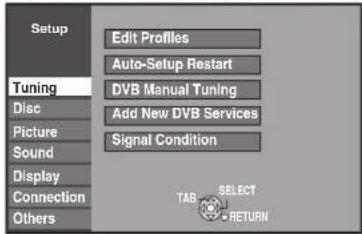
Edit Profiles
You can create four profiles of channels for making viewing and recording easier. Editing these profiles does not affect the channel setting itself.
- Timer recording may not work correctly if you edit the profiles during timer recording standby.
- Channel numbers cannot be changed, due to broadcast restrictions.
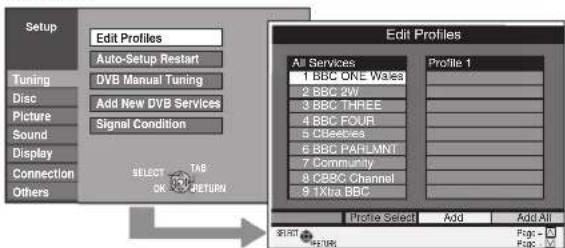
To select the profile
Press the "Green" button.
To add channels to a profile
1 Press [▲, ▼] to select the channel in the "All Services" column then press the "Yellow" button. - Repeat this step to add other channels. - Press the "Blue" button to add all the available channels to the profile. (Only when no channels have been added to the profile.)
2 Press [OK] to save the profile.
To change the order of channels of a profile
1 Press [▶]*. 2 Press [▲, ▼] to select the channel in the "Profile" column to move then press the "Green" button. 3 Press [▲, ▼] to select the new position of the channel then press the "Green" button. - Repeat the steps 2–3 to move other channels. 4 Press [OK] to save the profile.
To delete channels on a profile
1 Press [▶]* 2 Press [▲, ▼] to select the channel in the "Profile" column then press the "Yellow" button. - Repeat this step to delete other channels. - Press the "Blue" button to delete all the channels from the profile. 3 Press [OK] to save the profile. Deleting a channel from a profile does not affect the channel itself. You can still select the channel from the "All Services" profile.
To change the name of a profile in the "Profile" column
1 Press [▶]*.
2 Press the "Red" button.
→ 36, Entering Text
* When the station name of the "All Services" column is highlighted

Tips
To browse through the list
Press [∧ ∨ CH].
Auto-Setup Restart
You can restart auto channel setting for terrestrial digital channels if set up (→ 10) fails for some reason.
However, if you perform "Auto-Setup Restart", all channel settings and all created profiles are deleted.
Press [◀] to select "Yes" then press [OK].
![PANASONIC DMR-EZ27 - Press [◀] to select "Yes" then press [OK]. - 1](/content/2026/05/796410/images/8df7b1c1f6a7126b73051db1db65fec9931467e98b2c01545d5a616403b4ddf7.jpg)
Tips
- You can also use the following method to restart Auto-Setup. (All the settings except for the ratings level, ratings password, Owner ID and Clock return to the factory preset. The timer recording programmes are also cancelled.)
- When the unit is turned on and stopped, press and hold [CH ∧] and [CH ∨] on the main unit simultaneously for about 5 seconds. The Power Save (→ 52) confirmation screen appears.
- Press [▲, ▼] to select "On" or "Off" then press [OK].
DVB Manual Tuning
You can set channels manually that the DVB Auto Setup could not complete successfully.
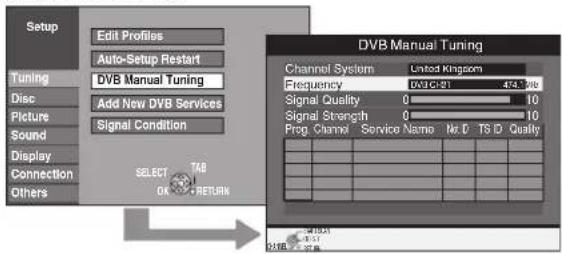
- Press [▲, ▼] to select the channel you want to set.
- Press [◀, ▶] to adjust the frequency.
- The frequency rises and falls in steps of 0.5 MHz. - Adjust the frequency by checking the signal strength and signal quality displays. [Refer to "Signal Condition" (→ right) for signal strength and signal quality.]
- Press [OK] to start scan.
The set channel is displayed in the table.
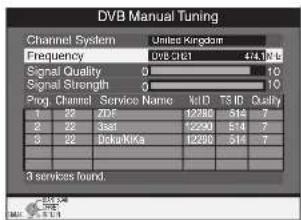
- Press [EXIT] and press [^∨CH], check that applicable channels have been selected.
Add New DVB Services
You can search for newly added terrestrial digital channels to receive.
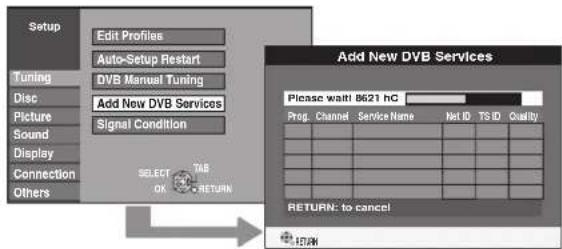
- The unit starts searching for newly available terrestrial digital channels. This takes about 5 minutes.
- The bar over the table shows you the search progress. At the end of the search, the number of found new digital stations appears.
- "No new services found.", is displayed when no new services can be found.
Press [OK] to save the newly found channels.

Tips
To cancel in middle
Press [RETURN].
The channels found before stopping are not saved.
Signal Condition
You can check the quality and strength of digital broadcast signals. Realign the aerial if you are receiving a poor signal.
When "Signal Condition" is displayed in grey and cannot be selected:
1 Press [EXIT] to exit the screen. 2 Press [∧ ∨ CH] to select a digital channel. "D" appears on the unit's display. 3 Display the Setup menu again.
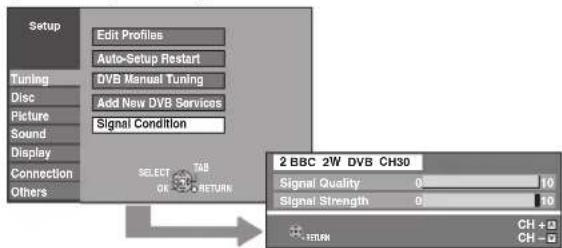
The quality and strength of the signal are shown. Press [∧ ∨ CH] to select the other channel.
Signal Quality
Below 2 (display red): The signal quality is so poor that there may be interference in the pictures and sound.
2–5 (display orange): The signal quality is basically adequate, but brief interference in the pictures and sound is possible in isolated case.
Over 5 (display green): Optimum picture and sound quality.
Signal Strength
The display for signal strength is grey. "0" means signal strength 0%, "10" means signal strength 100%.
If the signal is too strong, the display will change from grey to red. Reduce the signal amplification at your aerial.
- When the signal is weak:
– check that the aerial is correctly positioned - adjust the aerial reception with "DVB Manual Tuning" in the Setup menu (→ left). - check that the current digital broadcast channel is correctly broadcasting.
Playback/Recording Settings
To Others Setup
(→ 46, Accessing the Setup Menu)
All factory default settings are indicated with "Underlined" text.
Disc
▲, ▼ select "Disc" → ▶ → ▲, ▼ select item

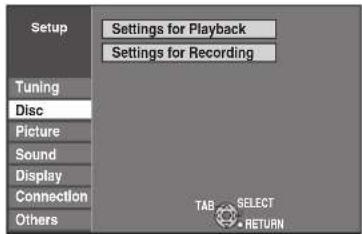
Settings for Playback
Press [OK] to show the following settings.
Ratings
Set a ratings level to limit DVD-Video play.
Follow the on-screen instructions. Enter a 4-digit password with
the numbered buttons when the password screen is shown.
Do not forget your password.
- Setting ratings (When level 8 is selected)
[8 No Limit]: All DVD-Video can be played.
[1] to [7]: Prohibits play of DVD-Video with corresponding
ratings recorded on them.
[0 Lock All]: Prohibits play of all DVD-Video.
- Changing ratings (When level 0 to 7 is selected)
[Unlock Recorder] [Change Password] [Change Level]
[Temporary Unlock]
Soundtrack
[English] [German] [French] [Italian] [Spanish] [Original]
[Other*****]
Subtitle
[Automatic] [English] [German] [French] [Italian] [Spanish]
Menus
[English] [German] [French] [Italian] [Spanish] [Other]

Notes
DVD-V: Choose the language for audio, subtitles, and disc menus.
If a language that is not recorded is selected, or if languages are already fixed on the disc, the language set as the default on the disc will be played instead.
[Original]: The original language of each disc will be selected.
[Other] ****: This is the language code setting. Input a code
number with the numbered buttons (→ 60, "Language code list").
[Automatic]: If the language selected for "Soundtrack" is not available, subtitles of that language will automatically appear if available on the disc.
Settings for Recording
Press [OK] to show the following settings.
Recording time in EP mode
Select the maximum number of hours for recording in EP mode.
[EP (6 Hours)]:
You can record for 6 hours on an unused 4.7 GB disc.
[EP (8Hours)]:
You can record for 8 hours on an unused 4.7 GB disc.
Picture Settings
To Others Setup
(→ 46, Accessing the Setup Menu)
All factory default settings are indicated with "Underlined" text.
Picture
▲, ▼ select "Picture" → ▶ → ▲, ▼ select item

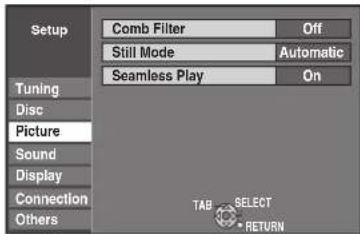
Comb Filter
Select the picture sharpness when recording.
The setting is fixed with "On" if you set "TV System" to "NTSC"
(→ 51).
[On] Select it to record clear picture.
[Off] Normally, use this setting.
Still Mode
Select the type of picture shown when you pause play. (→ 72, "Frame and Field")
[Automatic]
[Field] Select if jittering occurs when "Automatic" is selected.
[Frame] Select if you cannot see small text or fine patterns clearly when "Automatic" is selected.
[Frame] Select if you cannot see small text or fine patterns clearly when "Automatic" is selected.
Select the play mode between playlist chapter segments and partially deleted titles.
Select the play mode between playlist chapter segments and partially deleted titles.
[Note] The chapters in playlists are played seamlessly. This does not work when there are several audio types included in the playlist and when using Quick View (Play x1.3). Additionally, the positioning of chapter segments may change slightly.
[Off] The points where chapters in playlists change are played accurately, but the picture may freeze for a moment.
(→ 46, Accessing the Setup Menu)
All factory default settings are indicated with "Underlined" text.
All factory default settings are indicated with "Underlined" text.
▲, ▼ select "Sound" → ▶ → ▲, ▼ select item
▲, ▼ select "Sound" → ▶ → ▲, ▼ select item

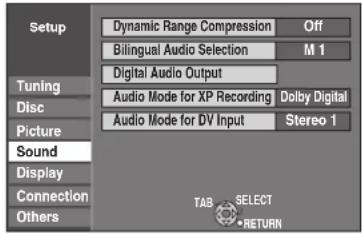
Dynamic Range Compression
DVD-V (Dolby Digital only)
Change the dynamic range (→ 72) for easier listening at low volume.
[On] [Off]
Bilingual Audio Selection
-R -R DL -RW(V) +R +R DL +RW
When recording bilingual programmes from equipment connected to the DV IN terminal of this unit, select whether to record the main or secondary audio type.
When recording bilingual programmes from equipment connected to the DV IN terminal of this unit, select whether to record the main or secondary audio type.
Digital Audio Output
Change the settings when you have connected equipment through the unit's DIGITAL AUDIO OUT terminal (→ 56).
Change the settings when you have connected equipment through the unit's DIGITAL AUDIO OUT terminal (→ 56).
PCM Down Conversion
Select how to output audio with a sampling frequency of 96 kHz or 88.2 kHz.
Select how to output audio with a sampling frequency of 96 kHz or 88.2 kHz.
Signals are converted to 48 kHz or 44.1 kHz despite the above settings if the signals have a sampling frequency of over 96 kHz or 88.2 kHz, or the disc has copy protection.
[On] Signals are converted to 48 kHz or 44.1 kHz. (Choose when the connected equipment cannot process signals with sampling frequency of 96 kHz or 88.2 kHz.)
[Off] Signals are output as 96 kHz or 88.2 kHz. (Choose when the connected equipment can process signals with sampling frequency of 96 kHz or 88.2 kHz.)
Dolby Digital *
Choose whether to output by "Bitstream"
which processes Dolby Digital signals on other connected equipment or to convert the signals to "PCM (2ch)" on the unit before output.
[Bitstream] When you have connected the unit to a piece of equipment having Dolby Digital logo.
[PCM] When you have connected the unit to a piece of equipment that doesn't have Dolby Digital logo.
DTS *
Choose whether to output by "Bitstream" which processes DTS signals on other connected equipment or to convert the signals to "PCM (2ch)" on the unit before output.



[Bitstream] When you have connected the unit to a piece of equipment having DTS logo.
[PCM] When you have connected the unit to a piece of equipment that doesn't have DTS logo.
MPEG *
Choose whether to output by "Bitstream" which processes MPEG audio signals on other connected equipment or to convert the signals to "PCM (2ch)" on the unit before output.
[Bitstream] When you have connected the unit to a piece of equipment with a built-in MPEG decoder.
[PCM] When you have connected the unit to a piece of equipment without a built-in MPEG decoder.
Audio Mode for XP Recording
Choose the audio type when recording with XP mode.
[Dolby Digital] (→ 72)
[LPCM] (→ 72)
- The picture quality of LPCM recordings may be lower than that of normal XP mode recordings.
- The audio recording becomes Dolby Digital even if you selected LPCM when using a recording mode other than XP.
Audio Mode for DV Input
You can select the kind of audio when recording from the unit's DV IN terminal (→ 23).
[Stereo 1] Records audio (L1, R1)
[Stereo 2] Records added audio such as narration (L2, R2)
subsequent to original recording.
[Mix] Records both Stereo 1 and Stereo 2.
- When recording bilingual broadcast, select the type of audio in advance from "Bilingual Audio Selection" (→ left).
* Incorrect settings can cause noise to be output which can be harmful to your ears and speakers, and audio will not be recorded properly on media such as mini discs.
![graph LR A["FUNCTION MENU"] --> B["To Others Setup"] B --> C["(→ 46, Accessing the Setup Menu)"] style A fill:#f9f,stroke:#333 style B fill:#ccf,stroke:#333 style C fill:#cff,stroke:#333](/content/2026/05/796410/images/6eff3423b803c3f8f8d757efed5b98a409d389180da6a010884b7d9fd8ec3533.jpg)
Display
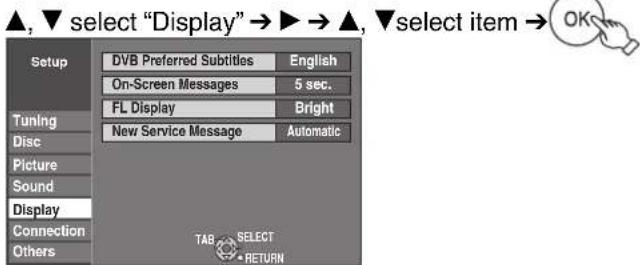
DVB Preferred Subtitles
Choose the subtitle language for digital broadcast.
If the selected subtitle is not available, then the available subtitle will be shown.
[English] [Welsh] [Gaelic]
[English for hearing impaired]
[Welsh for hearing impaired]
[Gaelic for hearing impaired]
On-Screen Messages
Choose the approximate time until the digital channel information screen (→ 32) disappears automatically.
The length of time the control panel (→ 35) is displayed can also be changed, but "Off" does not work.
[Off] The digital channel information is not displayed.
[3 sec.] [5 sec.] [7 sec.] [10 sec.]
FL Display
Changes the brightness of the unit's display.
Regardless of the setting, when "Power Save" (→ 52) is "On" and this unit is turned off, the unit's display is turned off.
[Bright]
[Dim]
New Service Message
When a new DVB channel is added, this unit will be informed automatically. Then the confirmation message appears. If you select "Yes" on the display, Auto Setup starts (all channel settings and all created profiles are deleted. The timer recording programmes are also cancelled.).
[Automatic]
[Off] The Service Messages are not shown.
Connection
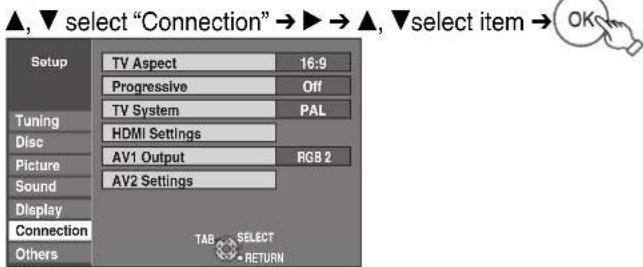
TV Aspect
This setting needs to be changed when connected to a 4:3 standard aspect TV.
Press [▲, ▼] to select the TV Aspect then press [OK]. [16:9] [4:3] [Letterbox]
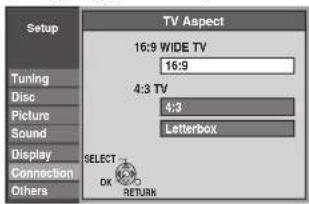

Notes
- Aspect 4:3/16:9
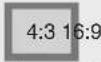
4:3 standard aspect television

16:9 widescreen television
- 16:9: When connected to a 16:9 widescreen television. However, the 4:3 aspect ratio picture expands left and right.
• 4:3: Side picture is trimmed for 16:9 picture (→72, Pan & Scan).
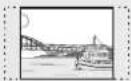
- Letterbox: When connected to a 4:3 aspect television, widescreen picture is shown in the letterbox style (→72).

Progressive
You can enjoy progressive video by connecting this unit's COMPONENT VIDEO OUT terminals to an LCD/plasma television or LCD projector compatible with progressive scan (→72).
Before this setting, set "AV1 Output" to "Video (with component)" or "S Video (with component)" (→51).
Press [▲, ▼] to select "On" then press [OK].
[On] Output becomes progressive. [Off]
This setting is fixed with "Off" and there is no output from the COMPONENT VIDEO OUT terminals if you set "AV1 Output" to "RGB 1 (without component)" or "RGB 2 (without component)" (→51).
![PANASONIC DMR-EZ27 - Press [▲, ▼] to select "On" then press [OK]. - 1](/content/2026/05/796410/images/b978364c78277f3294fc00d04e450d26536d18ed6bff72b5034ecf2a873d51bb.jpg)
Notes
- When connected to a regular television (CRT: Cathode ray tube) or a multi-system television using PAL mode, even if it is progressive compatible, progressive output can cause some flickering. Turn off "Progressive" if this occurs (→43).
- Picture will not be displayed correctly if connected to an incompatible television.
TV System
Change this setting if you connect an NTSC television or to record NTSC video from another source.
- Press [▲, ▼] to select the TV System then press [OK].
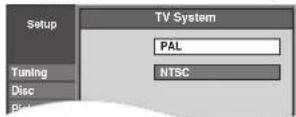
[PAL]
- Select when connecting to a PAL or Multi-system television. Programmes recorded using NTSC are played as PAL 60.
- Select to record television programmes and PAL input from other equipment.
[NTSC]
- Select when connecting to an NTSC television. Television programmes cannot be recorded properly.
- Select to record NTSC input from other equipment.
The confirmation screen appears.
- Press [◀] to select "Yes" then press [OK].
![PANASONIC DMR-EZ27 - [NTSC] - 1](/content/2026/05/796410/images/dbf5528645fc4df2e42095add5a9b9867c95ab146cb92ffb882ebe313681c7c1.jpg)
Tips
To change the setting all at once (PAL ↔ NTSC)
While stopped, press and hold [■] and [▲ OPEN/CLOSE] on the main unit simultaneously for about 5 seconds.
HDMI Settings*1
- Press [OK] to display the menu.
HDMI Video Format*2
You can only select items compatible with the connected equipment. If you are concerned about output picture quality, it may be improved by changing the setting. [576i/480i] [576p/480p] [720p] [1080i]
[1080p] When setting video output to "1080p", we recommend using a Panasonic HDMI cable 5 meters or less in length to prevent video distortion. To enjoy High Quality Video up-converted to 1080p, you need to connect the unit to 1080p compatible HDTV.
[Automatic] Automatically selects the output resolution best suited to the connected television (1080p, 1080i, 720p, 576p/480p or 576i/480i).
Aspect for 4:3 Video
To play a 4:3 title when connected with an HDMI cable, set how to show images on the TV screen. 4:3 picture from HDMI output will be slightly smaller than that from the other outputs, e.g. Scart and component, this is not a malfunction of the unit.
[4:3] Picture output expands left or right.

[16:9] Picture is output as original aspect with side panels.

Digital Audio Output
[HDMI and Optical]
[Optical Only] Select when this unit is connected to an amplifier with an optical digital audio cable (→ 56) and connected to a TV with an HDMI cable (→ 57) and you want to enjoy the highest quality of audio from discs.
VIERA Link
[On]
[Off] Select when you do not want to use "HDAVI Control".
AV1 Output
Selects the output from the AV1 terminal. Select "Video (with component)" or "S Video (with component)" for component output (progressive output). Set according to the signal and terminal of the connected TV.
[Video (with component)]
Select when a TV is connected that can receive a composite signal.
[S Video (with component)]
Select when a TV is connected that can receive an S Video signal.
[RGB 1 (without component)]
Select when a TV is connected that can receive an RGB signal. If you always would like to view the picture from the unit in RGB signal, select this mode. The TV screen will automatically switch to display the picture from the unit when the unit is turned on.
[RGB 2 (without component)]
Select when a TV is connected that can receive an RGB signal. If you would like to switch to display the picture from the unit only when playback or viewing menus, select this mode.
- If this unit is connected with an HDMI cable, you cannot select "RGB 1 (without component)" or "RGB 2 (without component)".
AV2 Settings
Set to match the connected equipment.
- Press [OK] to display the menu.
AV2 Input
Set to "RGB/Video" or "RGB" when receiving or recording RGB output from external equipment.
[RGB/Video] The unit automatically detects whether the input signal from the AV2 terminal is an RGB signal or other signals and makes settings.
[RGB]
[Video]
[S Video]
Ext Link
This setting cannot be made when the "TV System" is set to "NTSC" (see left).
[Ext Link 1] When a satellite receiver which transmits a special control signal recordings via the 21-pin Scart cable is connected. Start and stop timings of recording are controlled by the control signal.
[Ext Link 2] When external equipment with a timer function is connected. Recording is continued while the image signal is being sent to the unit from the external equipment. Recording is stopped when the image signal is halted by turning the external equipment off.
*1 Depending on the connected equipment, some items may be shaded in grey on the display and cannot be selected, or you may not be able to change the settings. *2 Choose the setting to suit your TV and preference.
![graph LR A["FUNCTION MENU"] --> B["To Others Setup"] B --> C["→ 46, Accessing the Setup Menu"] style A fill:#f9f,stroke:#333 style B fill:#ccf,stroke:#333 style C fill:#cfc,stroke:#333](/content/2026/05/796410/images/f3dcac46a5799a370f4ef886c9092d6c235d8688a323b83b981afdd25c405cd4.jpg)
Others
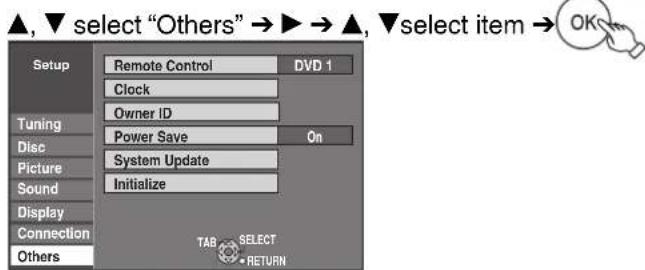
Remote Control (see 61) [DVD 1] [DVD 2] [DVD 3]
Clock (see 11)
Owner ID (see 10)
In order to prevent another person from using this unit if it is stolen, you can set a PIN number and input your personal information.
Once the PIN number has been set, you cannot return to the factory preset. Make sure not to forget this.
- PIN number
- Name
- House No.
- Postcode
Power Save
Refer to the following when "Power Save" is set to "On".
- Power consumption is minimized when the unit is turned off (→ 74).
- Startup of the unit becomes slower compared to when "Power Save" is "Off".
- When the unit is off, satellite programmes cannot be watched on the TV because the signal from the satellite receiver connected to AV2 input terminal of this unit is not looped through. To watch them, turn on the unit.
System Update
In order to update this unit, the EPG download, and support system changes made by broadcasts, this unit periodically performs software updates.
- Press [OK] to display the menu.
- Update data and EPG download information are sent by an unscheduled digital broadcast. In order to receive these updates, you must be able to receive digital broadcasts.
- An update and EPG download will take approximately 60 minutes. While the update is in progress, "SW-DL" appears on the unit's display.
You cannot operate the unit until the update is complete. Removing the AC mains lead while the update is in progress may damage the unit.
- To avoid hearing the startup sound of System Update for the unit, perform the following steps.
- Select the time for Software Update (→ right, EPG/Software search period).
- Set "EPG Download in Standby" and "Software Update in Standby" (→ right) to "Off", and update manually (→ right, Software Update Search Now).
- Set "Power Save" (see above) to "On".
EPG Download in Standby
[On] When the unit is turned off, EPG data is downloaded automatically.
[Off]
Software Update in Standby
[On] You can perform the unit updates automatically when the unit is turned off.
[Off]
EPG/Software search period
Selects the time to automatically perform EPG download and updates when the unit is turned off. This can only be set when "EPG Download in Standby" and "Software Update in Standby" are set to "On".
- If there is a programmed recording set for the time you have selected, the programmed recording will be given priority. [Automatic] The unit will give priority to searching for update data at midnight.
Start the search for new software manually.
A new software version is announced by a message. Do not switch your unit off during the update. This could result in the loss of data. A message shows that the update has finished. If a new software version is not going to be broadcast until the next few days, a corresponding message also appears.
- If applicable update data is found, press [◀, ▶] to select "Yes" and press [OK].
Initialize
Press [OK] to show the following settings.
Shipping Condition
This returns Setup menus to default settings, except for the ratings level, ratings password, Owner ID and Clock. [Yes] [No]
The timer recording programmes are also cancelled.
Default Settings
This returns Setup menus to default settings, except for the programmed channels, time settings, disc language settings, ratings level, ratings password, Owner ID and remote control code.
[Yes] [No]
Child Lock
The Child Lock deactivates all buttons on the unit and remote control. Use it to prevent other people from operating the unit.
Press and hold [OK] and [RETURN] simultaneously until "X HOLD" appears on the unit's display.
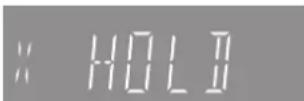
If you press a button while the Child Lock is on, "X HOLD" appears on the unit's display and operation is impossible.

Tips
To cancel the Child Lock
Press and hold [OK] and [RETURN] simultaneously until "X HOLD" disappears.
Using the Unit's Remote Control to Operate the TV
You can configure the remote control TV operation buttons to turn the television on/off, change the television input mode, select the television channel and change the television volume.
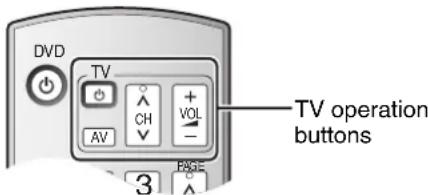
① Point the remote control at the TV. ② While pressing and holding [∅ TV], enter the code from the table below using the numbered buttons.
e.g., 0 1: press [0] → [1]
③ Test the TV functions of the remote control for operability.
- If the functions do not work, repeat steps 1 to 3 using different codes, if available. Some TVs may not be compatible with the unit's remote control.
Remote Control Codes for the TV
| Manufacturer Code No. | |
| Panasonic 01 / 02 / 03 / 04 | |
| AIWA 35 | |
| AKAI 27 / 30 | |
| BEJING 33 | |
| BEKO 05 / 71 / 72 / 73 / 74 | |
| BENQ 58 / 59 | |
| BP 09 | |
| BRANDT 10 / 15 | |
| BUSH 05 | |
| CENTREX 66 | |
| CHANGHONG | 69 |
| CURTIS | 05 |
| DAEWOO | 64 / 65 |
| DESMET | 05 |
| DUAL | 05 |
| ELEMIS | 05 |
| FERGUSON | 10 / 34 |
| FINLUX | 61 |
| Manufacturer Code No. | |
| FISHER | 21 |
| FUJITSU 53 | |
| FUNAI | 63 / 67 |
| GOLDSTAR | 05 / 50 / 51 |
| GOODMANS | 05 |
| GRADIENTE 36 | |
| GRUNDIG | 09 |
| HIKONA | 52 |
| HITACHI | 05 / 22 / 23 / 40 / 41 |
| INNO HIT | 05 |
| IRRADIO | 30 |
| ITT | 25 |
| JINGXING | 49 |
| JVC | 17 / 30 / 39 / 70 |
| KDS | 52 |
| KOLIN | 45 |
| KONKA | 62 |
| LG 05 / 50 / 51 | |
| LOEWE 07 / 46 | |
| MAG 52 | |
| METZ 05 / 28 | |
| MITSUBISHI | 05 / 19 / 20 / 47 |
| MIVAR | 24 |
| NEC | 36 |
| NOBLEX | 33 |
| NOKIA | 25 / 26 / 27 / 60 / 61 |
| NORDMENDE | 10 |
| OLEVIA 45 | |
| ONWA | 30 / 39 / 70 |
| ORION | 05 |
| PEONY | 49 / 69 |
| PHILCO | 41 / 48 / 64 |
| PHILIPS | 05 / 06 / 46 |
| PHONOLA | 05 |
| PIONEER | 37 / 38 |
| PROVIEW 52 | |
| PYE | 05 |
| RADIOLA | 05 |
| SABA | 10 |
| SALORA | 26 |
| SAMSUNG | 32 / 42 / 43 / 65 / 68 |
| SANSUI | 05 |
| SANYO | 21 / 54 / 55 / 56 |
| SCHNEIDER | 05 / 29 / 30 |
| SEG | 05 / 69 / 75 / 76 / 77 / 78 |
| SELECO | 05 / 25 |
| SHARP | 18 |
| SIEMENS | 09 |
| SINUDYNE | 05 |
| SONY 08 | |
| TCL | 31 / 33 / 66 / 67 / 69 |
| TELEFUNKEN | 10 / 11 / 12 / 13 / 14 |
| TEVION | 52 |
| TEX ONDA | 52 |
| THOMSON | 10 / 15 / 44 |
| TOSHIBA | 16 / 57 |
| WHITE WESTINGHOUSE | 05 |
| YAMAHA 18 / 41 | |
Using a fully wired 21-pin Scart cable
- You can use a variety of Q Link functions by connecting the unit to a Q Link compatible television (→ 34).
- You can enjoy high-quality viewing by connecting the unit to an RGB compatible television. "AV1 Output" in the Setup menu is set to "RGB 1 (without component)" or "RGB 2 (without component)" (→ 51).
- "AV2 Input" settings in the Setup menu (→ 51).
Use of the supplied RF coaxial cable
To prevent interference patterns from appearing on your TV, use only the supplied RF coaxial cables when you connect this unit to your TV and Video Cassette Recorder.
- Keep the RF coaxial cables as far away as possible from other cables.
- Do not roll up the RF coaxial cables.
- Before connection, turn off the mains for all connected equipment and read the appropriate operating instructions. Be sure to read the Caution for AC Mains Lead on page 3.
Adding a VCR - Connecting to a Television and a Video Cassette Recorder![graph TD A["RF inverter"] --> B["Rear of TV"] B --> C["To household mains socket"] B --> D["To household mains socket"] B --> E["To household mains socket"] F["RF outverter"] --> G["Rear of this unit"] G --> H["To household mains socket"] G --> I["To household mains socket"] J["RF inverter"] --> K["…](/content/2026/05/796410/images/ebf413bba4253f164d027d968cc37ea3e7e7911384f553b19a0978339ef94a15.jpg)
After completing the above connections, proceed to the TV Tuning (→ 10).
To record from a VCR
Refer to "Recording from an External Device" (→ 22).
- You can connect this unit to a TV using the audio/video (AV) cable (included), S-Video cable (not included), or component cables (not included) instead of the 21-pin Scart cable (→ 8, 9, 54).
Using an Audio/Video Cable (included)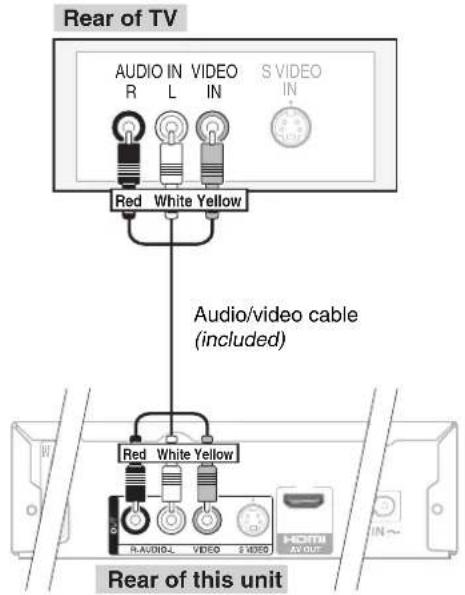
Using an S-Video Cable (S-Video Cable not included)
The S-VIDEO OUT terminal achieves a more vivid picture than the VIDEO OUT terminal. (Actual results depend on the television.)
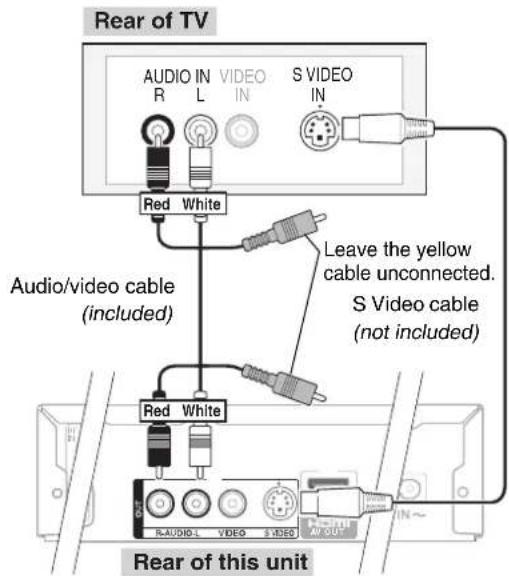
Using Component Cables (Component Video Cables not included)
The COMPONENT VIDEO OUT terminals on this unit can be used for either interlace or progressive output (→ 72) to provide a purer picture than the S-VIDEO OUT terminal.
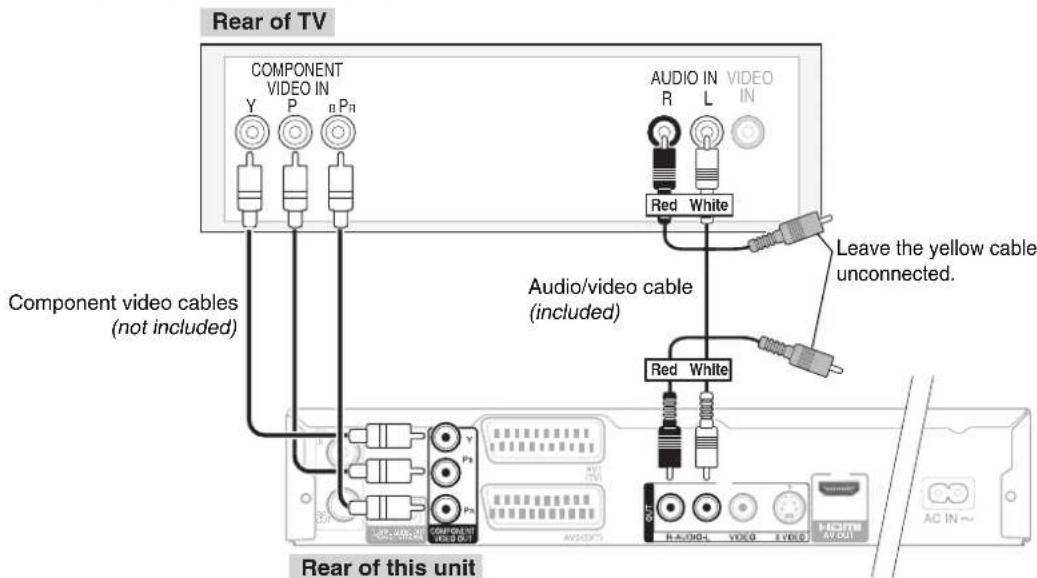
- For progressive output (→ 43)

Notes
- If you have a regular television (CRT: cathode ray tube), use component output with progressive "Off" (factory setting, → 50), even if it is progressive compatible, because progressive output can cause some flickering. This is the same for multi-system televisions using PAL mode.
![graph LR A["COMPONENT VIDEO OUT"] -->|DO NOT| B["CRT"] C["This unit"] -->|Progressive output| B](/content/2026/05/796410/images/9c5ae9c1a2e928eabc40c1acfb315fa61bf3068ea444d483587c9f45b406b320.jpg)
- You can improve sound quality by connecting this unit to an amplifier or system component using the audio cable or the optical digital audio cable.
Using an Audio Cable for Better Sound
Use this connection to play sound through speakers connected to an amplifier or system component.
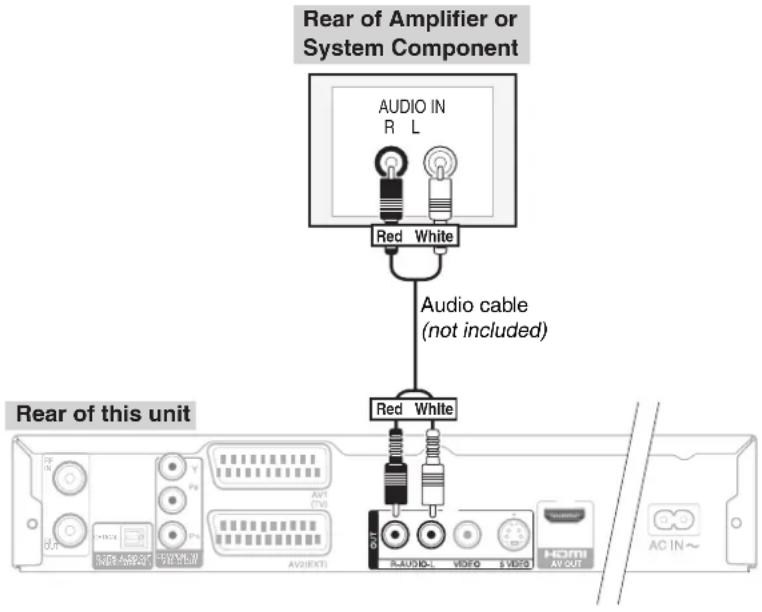
Using an Optical Digital Audio Cable for Better Sound (Optical Digital Audio Cable not included)
This method allows you to enjoy multi-channel surround sound on DVD-Video.
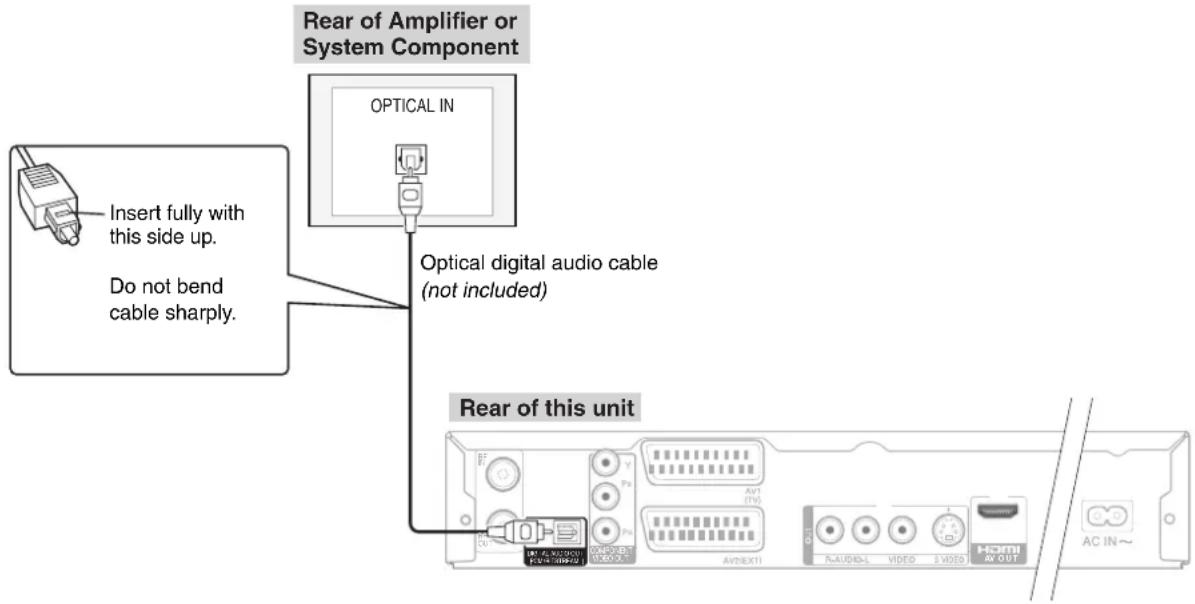
- Connect an amplifier or system component with a built-in decoder displaying these logo marks or MPEG decoder.



- Adjust settings in "Digital Audio Output" (→ 49).

Notes
- When this unit is connected to an amplifier with an optical digital audio cable and connected to a television with an HDMI cable, you can enjoy the highest quality of audio from the disc by setting "Digital Audio Output" to "Optical Only" in the Setup menu (→ 51). In this case audio is only output from the amplifier not the television.
- You cannot use DTS Digital Surround decoders not meant for DVD.
- Before purchasing an optical digital audio cable, check the terminal shape of the equipment to be connected.
- You can enjoy high-quality picture and audio by adding the HDMI cable connection to the 21-pin Scart cable connection between the unit and your TV (→ 8, 9, 54).
Connecting with an HDMI (High Definition Multimedia Interface) Terminal
HDMI is the next-generation interface for digital devices. When connected to an HDMI compatible unit, an uncompressed digital audio and video signal is transmitted, enabling you to enjoy high quality, digital video and audio with just one cord. When connecting to an HDMI-compatible HDTV (High Definition Television), the output can be switched to 1080p, 1080i or 720p HD video.
Regarding VIERA Link "HDAVI Control™" function
When connecting with a Panasonic TV (VIERA) or a receiver equipped with the "HDAVI Control" function, linked operations would be possible. [→ 34, Linked Operations with the TV (VIERA Link "HDAVI Control™"/Q Link)]
- It is recommended that you use Panasonic's HDMI cable. Recommended part number: RP-CDHG15 (1.5 m), RP-CDHG30 (3.0 m), RP-CDHG50 (5.0 m), etc. • Non-HDMI-compliant cables cannot be utilized.
Connecting to a TV
Connecting with a Panasonic TV (VIERA)
If the 21-pin Scart cable is connected, the following functions are available.
- Direct TV Recording (→ 19)
- Watching pictures from satellite receiver (→ 12) (In this case, make sure to switch the television input to "AV".)
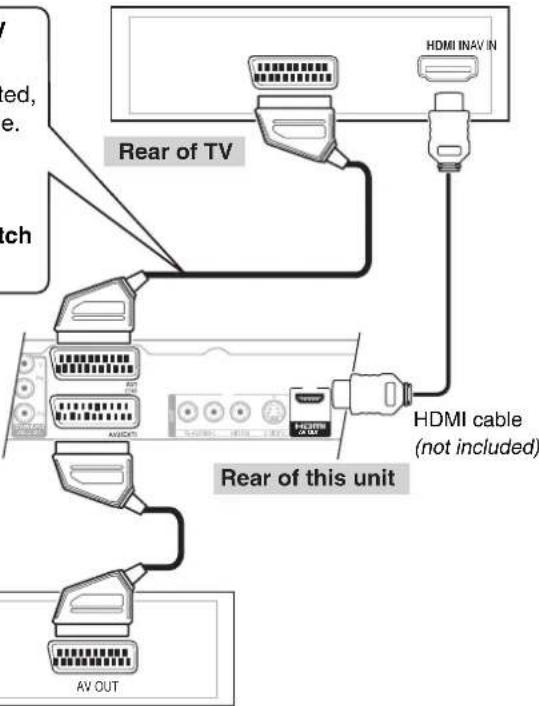
Connecting to a TV and a Receiver
![graph TD A["Connecting with a Panasonic TV (VIERA) → above"] --> B["Rear of TV"] A --> C["Rear of receiver"] A --> D["Rear of this unit"] B --> E["AV IN"] B --> F["HDMI IN"] C --> G["HDMI IN"] C --> H["HDMI OUT"] D --> I["HDMI cable (not included)"]](/content/2026/05/796410/images/7d2b325de053cc928dbc70e9f1daa017758b590930fb42840682f6e0164f21d7.jpg)
- Set "VIERA Link" to "On" (→ 51). (The default setting is "On".)
- Set "Digital Audio Output" to "HDMI and Optical" (→ 51). (The default setting is "HDMI and Optical".)
To enjoy High Quality Video up-converted to 1080p, you need to connect the unit to 1080p compatible HDTV and set "HDMI Video Format" in the Setup menu to "1080p" (→ 51)

Notes
- If connecting to equipment that is only compatible with 2 channel output, audio with 3 channels or more will be down-mixed (→72) and output as 2 channels (some discs cannot be down-mixed).
- For display units compatible with HDCP (High-Band width Digital Content Protection) that are equipped with a digital DVI input terminal (PC monitors, etc.): Depending on the unit, picture may not display properly or at all when connecting with a DVI/HDMI switching cable (audio cannot be output).
Usable Discs for Recording and Playback
| Disc type | ritable | Play on other players1 | Recording 16:9 aspect picture2 | Copy-once recording (CPRM) ( →17 ) | Standard symbol |
DVD-RAM | ○ | ○ | ○ | ○[ CPRM ( →72 ) compatible discs only.] | RAM |
DVD-R | — | ○ | ○ | — | -R before finalisation DVD-V after finalisation |
DVD-R DL RDL RDL | — | ○ | ○ | — | -R DL before finalisation DVD-V after finalisation |
DVD-RW | ○ | ○ | ○ | — | -RW(V) before finalisation DVD-V after finalisation |
| +R | — | ○ | — (4:3 aspect) — | +R before finalisation DVD-V after finalisation | |
| +R DL — | ○ | — (4:3 aspect) — | +R DL before finalisation DVD-V after finalisation | ||
| +RW | ○ | ○ | — (4:3 aspect) — | +RW |
○: Can do, -: Cannot do 1 -R -R DL -RW(V) +R +R DL Finalisation needed for playback on other equipment (→ 45). RAM can be played back on Panasonic DVD recorders and DVD-RAM compatible DVD players. -R DL and +R DL can be played back only on equipment compatible with these discs. 2 For further information (→ 17, Important Notes for Recording). - Use of Panasonic discs is recommended. For available recording times for different discs under different recording modes, see "Recording Modes and Durations" on page 18. Formatting and/or recording/initializing constraints may prevent you from playing or recording certain discs.
- Please see specifications (→ 74) for compatible disc versions and recording speeds.
- RAM will show an increase in available space whenever a title has been erased.
- -RW(V) and +RW discs will only show an increase in available space when their last title has been erased.
- -R, -R DL, +R, +R DL discs will show no increase in available space after deleting titles.
- You may not be able to record depending on the condition of the discs, and you may not be able to play them due to the condition of the recording.
Disc Care
RAM: Use cartridges to protect them from scratches and dirt.
Holding a disc
Handle discs by the edges to avoid inadvertently scratching or getting oil from your fingers on the disc. Do not touch the signal surface of discs (the shiny side).
Cleaning discs
Discs are not indestructible and occasionally dirt or condensation may appear. Clean by gently wiping with a soft, dry lint-free cloth in a straight line from the center of the disc to the edge of the disc.
Return discs to their cases when not in use; this helps to protect against scratches and dirt.
Storing discs
Do not place or store discs in the following locations:
- Direct sunlight • Very dusty or humid areas
- Near a heat source
- Places that undergo extreme shifts in temperature (condensation can occur)
- Where static electricity or electromagnetic waves occur
Discs to avoid
• Discs that are not perfectly circular in shape - Warped discs, which may not balance properly in your unit, causing improper operation or damage to the unit - Cracked discs - Discs with exposed adhesive (from removed stickers or labels, such as may occur with rental discs or improperly cared-for discs that were previously labeled or re-labeled)
Play-only Discs
| Disc type | standard symbol Uses | |
| DVD-Video[IMAGE] | DVD-V | High quality movie and music discs |
| DVD-RW(DVD Video Recording format)[IMAGE] | -RW(VR) | DVD-RW video recorded on another DVD recorder*• You can play programmes that allow “One time only recording” if they have been recorded onto a CPRM compatible disc.• By formatting (→ 44) the disc, you can record onto it in DVD-Video format.• It may be necessary to finalise the disc on the equipment used for recording. |
| DVD-R[IMAGE]R4.7 | -R | • DVD-R* and DVD-R DL* with music recorded in MP3 (→ 60)• Still pictures (JPEG) recorded on DVD-R* and DVD-R DL* (→ 60) |
| DVD-R DLDVD[IMAGE]R DL | -R DL | |
| Audio CD[IMAGE] | CD | • Recorded audio and music (including CD-R/RW*)• CD-R* and CD-RW* with music recorded in MP3 (→ 60)• Still pictures (JPEG) recorded on CD-R/RW* (→ 60) |
| Video CD[IMAGE] | VCD | Recorded music and video • |
| SVCD[IMAGE] | • Capable of playing discs that conform to IEC62107 only. | |
* Play may be impossible on some DVD-RW (DVD Video Recording format), DVD-R, CD-R or CD-RW discs due to the condition of the recording.
- You can play still pictures (JPEG) and MP3 format data recorded on DVD-R, DVD-R DL or CD-R/RW. You can also play CD-DA, Video CD and SVCD (conforming to IEC62107) format data recorded on CD-R/RW. Close the session or finalise the disc after recording.
- The producer of the disc can control how discs are played. So you may not always be able to control play as described in these operating instructions. Read the disc's instructions carefully.
Inserting Discs
① Press [▲ OPEN/CLOSE] to open the tray.
- Insert a disc.
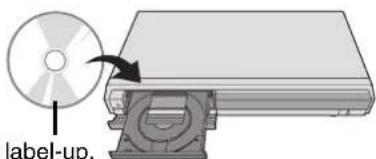
② Press [▲ OPEN/CLOSE] to close the tray.
Discs that Cannot be Played
• 2.6/5.2 GB DVD-RAM, 12 cm • 3.95/4.7 GB DVD-R for Authoring • DVD-R recorded in DVD Video Recording format - DVD-R (DVD-Video format), DVD-R DL, DVD-RW (DVD-Video format), +R, +R DL recorded on another unit and not finalised (→ 72) • Discs recorded with AVCHD format - DVD-Video with a region number other than "2" or "ALL" - Blu-ray, HD DVD - DVD-Audio - DVD-ROM, +R 8 cm, CD-ROM, CDV, CD-G, Photo CD, CVD, SACD, MV-Disc, PD, DivX Video Disc, "Chaoji VCD" available on the market including CVD, DVCD and SVCD that do not conform to IEC62107, etc.
Types of disc for the type of connected TV
When you use the discs recorded either PAL or NTSC, refer to this table.
(○ Possible to view, –: Impossible to view)
| TV type | es/No | |
| Multi-system TV | PAL | ○ |
| NTSC | ○ | |
| PAL TV | PAL | ○ |
| NTSC | O1 (PAL60) | |
| NTSC TV | PAL | - |
| NTSC | O2 |
1 If your television is not equipped to handle PAL 525/60 signals, the picture will not be shown correctly. 2 Select "NTSC" in "TV System" (→ 51).

Notes
- When using 8 cm DVD-RAM or 8 cm DVD-R, remove the disc from the cartridge.
- It is not possible to record or play continuously from one side of a double-sided disc to the other. You will need to eject the disc and turn it over.
MP3 File Information
| Playable discs | -R -R DL CD |
| File format MP3 | |
| Files must have the extension “.mp3” or “.MP3”. | |
| Number of folders (groups) | Maximum number of folders (groups) recognizable:300 folders (groups) (including the root folder) |
| Number of files (tracks) | Maximum number of files (tracks) recognizable:3000 files (tracks)* |
| Bit rates 32 kbps to 320 kbps | |
| Sampling frequency | 16 kHz/22.05 kHz/24 kHz/32 kHz/44.1 kHz/48 kHz |
| ID3 tags not compatible | |
- If there is a large amount of still picture data, etc., within an MP3 file, play may not be possible.
Still Picture (JPEG) Information
| Playable discs | -R -R DL CD |
| File format JPEG | |
| Files must have the extension “.jpg” or “.JPG”. | |
| Number of pixels | between 34×34 and 6144×4096(Sub sampling is 4:2:2 or 4:2:0) |
| Number of folders | Maximum number of foldersrecognizable:300 folders (including the root folder) |
| Number of files | Maximum number of filesrecognizable:3000 files* |
| MOTION JPEG not compatible | |
* Total number of recognizable files including MP3, JPEG, and other types of files is 4000.

Notes
- Compatible formats: ISO9660 level 1 or 2 (except for extended formats) and Joliet
- This unit is compatible with multi-session; however, reading or play of the disc may take time if there are a lot of sessions.
- Operation may take time to complete when there are many files (tracks) and/or folders (groups); some files (tracks) may not display or be playable.
- Images recorded at a very high resolution may take a long time to display.
- English alphabetical characters and Arabic numerals are displayed correctly. Other characters may not display correctly.
- The display order on this unit may differ from how the order is displayed on a computer.
- Depending on how you create the disc (writing software), files (tracks) and folders (groups) may not play in the order you number them.
- This unit is not compatible with packet-write format.
- Depending on the recording conditions, the disc may not play.

Tips
You can play MP3s and still pictures (JPEG) on this unit by making folders as shown below. Depending on how you create the disc (writing software), play may not be in the order you number the folders.
How to structure MP3 folders
Prefix with 3-digit numbers in the order you want to play them.
Order of play
![graph TD A["Tree"] --> B["001 Group"] A --> C["002 Group"] A --> D["003 Group"] B --> E["001track.mp3"] B --> F["002track.mp3"] B --> G["003track.mp3"] C --> H["001track.mp3"] C --> I["002track.mp3"] C --> J["003track.mp3"]](/content/2026/05/796410/images/e0b71359ba3dd41caa8820a5af4852a6aada1a77ef489f43d4ff8074d7880fb3.jpg)
Structure of still pictures (JPEG) Files inside a folder are displayed in the order they were updated or taken.
Order of play
![graph TD A["Tree"] --> B["P0000001.jpg"] A --> C["P0000002.jpg"] A --> D["002 Folder"] D --> E["P0000003.jpg"] D --> F["P0000004.jpg"] D --> G["P0000005.jpg"] A --> H["003 Folder"] H --> I["P0000006.jpg"] H --> J["P0000007.jpg"] H --> K["P0000008.jpg"] H --> L["P0000009.jpg"] A --> M["004 Folder"] M…](/content/2026/05/796410/images/da1166e572ac549aa06111e6433e6d1afaffb1f4351af7cd436bd5a9c9317920.jpg)
Language code list Enter the code with the numbered buttons.
| Abkhazian: 6566 | Chinese: 9072 | Hausa: 7265 | Lithuanian: 7684 | Rhaeto-Romance: | Tamil: 8465 | ||
| Afar: 6565 | Corsican: 6779 | Hebrew: 7387 | Macedonian: 7775 | 8277 | Tatar: 8484 | ||
| Afrikaans: 6570 | Croatian: 7282 | Hindi: 7273 | Malagasy: 7771 | Romanian: 8279 | Telugu: 8469 | ||
| Albanian: 8381 | Czech: 6783 | Hungarian: 7285 | Malay: 7783 | Russian: 8285 | Thai: 8472 | ||
| Amharic: 6577 | Danish: 6865 | Icelandic: 7383 | Malayalam: 7776 | Samoan: 8377 | Tibetan: 6679 | ||
| Arabic: 6582 | Dutch: 7876 | Indonesian: 7378 | Maltese: 7784 | Sanskrit: 8365 | Tigrinya: 8473 | ||
| Armenian: 7289 | English: 6978 | Interlingua: 7365 | Maori: 7773 | Scots Gaelic: 7168 | Tonga: 8479 | ||
| Assamese: 6583 | Esperanto: 6979 | Irish: 7165 | Marathi: 7782 | Serbian: 8382 | Turkish: 8482 | ||
| Aymara: 6589 | Estonian: 6984 | Italian: 7384 | Moldavian: 7779 | Serbo-Croatian: 8372 | Turkmen: 8475 | ||
| Azerbaijani: 6590 | Faroese: 7079 | Japanese: 7465 | Mongolian: 7778 | Shona: 8378 | Twi: 8487 | ||
| Bashkir: 6665 | Fiji: 7074 | Javanese: 7487 | Nauru: 7865 | Sindhi: 8368 | Ukrainian: 8575 | ||
| Basque: 6985 | Finnish: 7073 | Kannada: 7578 | Nepali: 7869 | Singhalese: 8373 | Urdu: 8582 | ||
| Bengali; Bangla: 6678 | French: 7082 | Kashmiri: 7583 | Norwegian: 7879 | Slovak: 8375 | Uzbek: 8590 | ||
| Bhutani: 6890 | Frisian: 7089 | Kazakh: 7575 | Oriya: 7982 | Slovenian: 8376 | Vietnamese: 8673 | ||
| Bihari: 6672 | Galician: 7176 | Kirghiz: 7589 | Pashto,Pushto: 8083 | Somali: 8379 | Volapük: 8679 | ||
| Breton: 6682 | Georgian: 7565 | Korean: 7579 | Persian: 7065 | Spanish: 6983 | Welsh: 6789 | ||
| Bulgarian: 6671 | German: 6869 | Kurdish: 7585 | Polish: 8076 | Sundanese: 8385 | Wolof: 8779 | ||
| Burmese: 7789 | Greek: 6976 | Laotian: 7679 | Portuguese: 8084 | Swahili: 8387 | Xhosa: 8872 | ||
| Byelorussian: 6669 | Greenlandic: 7576 | Latin: 7665 | Punjabi: 8065 | Swedish: 8386 | Yiddish: 7473 | ||
| Cambodian: 7577 | Guarani: 7178 | Latvian, Lettish: 7686 | Quechua: 8185 | Tagalog: 8476 | Yoruba: 8979 | ||
| Catalan: 6765 | Gujarati: 7185 | Lingala: 7678 | Tajik: 8471 | Zulu: 9085 | |||
When Other Panasonic Products Respond to this Remote Control
Use this function to synchronize the codes for the remote control and the main unit when there are other Panasonic products close to your unit.
With the unit stopped
1 Press [FUNCTION MENU]. 2 Press [▲, ▼] to select "To Others" then press [OK]. 3 Press [▲, ▼] to select "Setup" then press [OK]. 4 Press [▲, ▼] to select "Others" then press [▶]. 5 Press [▲, ▼] to select "Remote Control" then press [OK].
6 Press [▲, ▼] to select the code ("DVD 1", "DVD 2" or "DVD 3") then press [OK] to set.
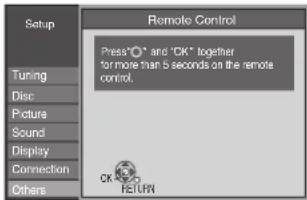
7 While pressing and holding [OK], press and hold the numbered button [1], [2] or [3] corresponding to the code set in step 6 for more than 5 seconds to set.
8 Press [OK] to complete.
When the following indicator appears on the unit's display

- Change the code on the remote control to match the code displayed for the main unit (→ step 7).

Tips
To return to the previous screen, press [RETURN].
To exit the screen, press [EXIT].
To reset this unit
To reset the unit's settings
All the settings except for the ratings level, ratings password, Owner ID and Clock return to the factory preset. The timer recording programmes are also cancelled.
On the main unit
Press and hold [∨ CH] and [CH ∧] for about 5 seconds.
- Refer to Tips of "Auto-Setup Restart" (→ 47) for detailed information.
To reset the ratings level settings
With the unit stopped
1 Press [▲ OPEN/CLOSE] to open the disc tray. On the main unit 2 Press and hold [● REC] and [▶/x1.3] for about 5 seconds.
To restore the unit if it freezes
On the main unit
Press and hold [∅/l] for more than 10 seconds. - The unit is turned off.
Before requesting service, make the following checks. If you are in doubt about some of the check points, or if the remedies indicated in the chart do not solve the problem, consult your dealer for instructions.
The following does not indicate a problem with the unit:
- Regular disc rotating sound.
- Poor reception due to atmospheric conditions. • Image disturbance during search.
- Periodic interruptions to the reception due to satellite broadcasting breaks.
- Operations not working due to a poor-quality disc. (Try again using a Panasonic disc.)
- The unit freezing due to the activation of one of its safety devices (→ 61, To restore the unit if it freezes).
| No power.The unit does not turn on pressing [∅ DVD]. | Insert the AC mains lead securely into a known active household mains socket.Linked timer recordings with external equipment is in recording standby (“EXT-L” on the unit’s display blinks when [∅ DVD] is pressed). Press [EXT LINK] to cancel the recording standby. | 8, 9, 5421 |
| The unit switches to standby mode. | One of the unit’s safety devices is activated. Press [∅/l] on the main unit to turn the unit on. | - |
| The unit is turned off automatically. | If you connected this unit to an “HDAVI Control” compatible TV with an HDMI cable, or connected this unit to a Q Link-compatible TV with a fully wired 21-pin Scart cable, this unit will be automatically set to standby mode when the TV is set to standby mode. | 34 |
| The display is dim. Change “FL Display” in the Setup menu.• 50 | ||
| “0:00” is flashing on the unit’s display. | Set the clock.• 11 | |
| The clock is not correct. Under adverse reception conditions, etc., the automatic time correction function may not work. In this case, “Automatic” is automatically turned to “Off”. If re-setting the Auto Clock Setting does not work, set the time manually. | 11 | |
| The displayed time of this unit is different from the actual recording time or MP3 recording time. | Times shown may disagree with actual times.•-R -R DL +R +R DL The remaining capacity does not increase even if titles are deleted.Available space on a DVD-RW (DVD-Video format) or +RW disc increases when you delete the last title (space may increase slightly when you delete other titles).If you record or edit about 200 times or more, the remaining capacity of DVD-R, DVD-R DL, +R, and +R DL is reduced and then recording or editing may be disabled (for the second layer on DVD-R DL and +R DL, this happens after about 60 times).The time during searching may not be displayed accurately.• – | –– |
| Compared to the actual recorded time, the elapsed time displayed is less.(Only when recording in NTSC) | • The displayed recording/play time is converted from the number of frames at 29.97 frames (equal to 0.999 seconds) to one second. There will be a slight difference between the time displayed and the actual elapsed time (e.g., actual one-hour elapsed time may display as approximately 59 minutes 56 seconds). This does not affect the recording. | – |
General Issues iteration
Page
| Cannot operate the TV with the unit's remote control. | Change the manufacturer code on the remote control.• 53• It may be necessary to set the code on the remote control again after changing the batteries. | 61 |
| The remote control doesn't work. | • The remote control code is wrong. Change to the correct code.• She batteries are depleted. Replace them with new ones.• Boint the remote control at the remote control sensor on the main unit.• Remove obstacles between the remote control and the main unit.• Remove dust from the transmission window and the unit's sensor. | 61 |
General Issues
ration (Continued)
Page
| The remote control doesn't work. | Coloured glass may obstruct the signal reception/transmission.Don't place the signal sensor in direct sunlight or in areas that may be subject to sun exposure.It may be necessary to set the manufacturer code again after changing the batteries.The Child Lock function is activated.• 53 | -53 |
| The unit is on but cannot be operated. | Some operations are prohibited by the disc.• -The unit is warm ("U59" appears on the unit's display). Wait until "U59" disappears.One of the unit's safety devices may have been activated.Reset the unit as follows:Press [∅/l] on the main unit to switch to standby mode.If the unit doesn't switch to standby mode, reset the unit (→61, "To restore the unit if it freezes").The unit cannot be operated while performing an update. "SW-DL" appears on the unit's display while it is updating. Please wait until the "SW-DL" disappears. | 7052 |
| “U88” is displayed and the disc cannot be ejected. | The unit is carrying out the recovery process. The disc may be defective. Do the following to eject the disc. Try another disc.(1) Press [∅/l] on the main unit to switch to standby mode.If the unit doesn't switch to standby mode, reset the unit (→61, "To restore the unit if it freezes").(2) While the unit is turned off, press and hold [■] and [CH^] on the main unit at the same time for about 5 seconds. (Ejection may take extra time depending on discs.) | |
| Cannot eject a disc. The unit is recording.• -The unit may have a problem. Eject the disc as in (2) above.Linked timer recordings with external equipment is in recording standby ("EXT-L" on the unit's display blinks when [∅ DVD] is pressed). Press [EXT LINK] to cancel the recording standby.If the Child Lock function is activated, above operation does not work. Cancel the Child Lock function. | 21,53 | |
| Startup is slow. | Startup takes time in the following situations:- A disc other than a DVD-RAM is inserted.- The clock is not set.Immediately after a power failure or the AC mains lead is connected.When the unit is connected with an HDMI cable.When "Power Save" is set to "Off", Startup becomes faster than when "Power Save" is "On". | -52 |
General Issues Guide
Page
| The TV Guide System does not receive any data. | Check whether the clock is properly set.If signal quality is bad (ghost images or limited reception), the TV Guide system may not be able to receive any data. | 11- |
| “No Data” is displayed for some or all stations. | Some stations are not supported by the TV Guide system.Programme the Timer recording manually. | -24 |
| The TV Guide information is not displayed properly. | There was a programme change or TV Guide information from a broadcast station was possibly not correctly transmitted.Check the current programme, e.g. on the Web site for the TV Guide system provider or station provider. | - |
| The TV Guide data is not updated. | The unit must be in standby mode in order to update the data. If the unit is in EXT LINK mode (“EXT-L” lights up in the unit’s display), then the data update may also not work.Make sure that the time is set correctly.Check whether “Off” is set under “EPG Download in Standby” and change the setting in System Update in the Setup menu. | -1152 |
General Issues
B-T
Page
| Digital broadcasts cannot be received. | Check the connections.• 8, 9, 54Digital broadcast may not have started in your region yet.• –The aerial may not be pointing in the direction of the TV station, or the direction of the aerial may have changed due to strong winds or vibration. If problem persists consult your local TV aerial installer. | |
| TV reception worsens after connecting the unit. | • This can occur because the signals are being divided between the unit and other equipment. It can be solved by using a signal booster, available from electronics retailers. | |
| After DVB Auto-Setup only some or no DVB channels are found. | Check to ensure your area is covered by DVB transmissions.• –Check that the aerial and antenna cable are designed for DVB. However, use the included RF coaxial cable shown in STEP 2, Basic Connection.If you live within 5-10 km of DVB transmission towers, a combined VHF/UHF aerial should be adequate. Outside this area, separate VHF and UHF aerials provide superior reception performance. | |
| Picture regularly breaks up on some channels, “No Signal” message is displayed. | • Check “Signal Condition”. If “Signal Quality” or “Signal Strength” are displayed in red or constantly changing, check aerial. If problem persists consult your local TV aerial installer.• Check that the aerial and antenna cable are designed for DVB. However, use the included RF coaxial cable shown in STEP 2, Basic Connection.• Interference (known as impulse noise) from household appliances such as light switches, fridges, etc. may cause picture break up and/or audio distortion. Use a high quality quad shielded coaxial cable fly lead between this unit and antenna wall socket to minimise impulse noise pickup. If problem persists consult your local TV aerial installer.When “No Signal” message is displayed, check aerial connection.• –Ajust the aerial reception with “DVB Manual Tuning”• 47 | 47 |
| Picture very infrequently breaks up on some or all channels. | • Electrical atmospheric interference caused by local or distant lighting storms or heavy rain with wind in “leafy” locations may cause pictures to break up and audio to mute or distort momentarily.• Impulse noise interference from an infrequently used electrical appliance, or a passing vehicle or lawn mower with a “noisy” ignition system. | |
| Unusual station sorting. The station | sorting of this unit is pre-defined. Use profiles to sort the stations as you want them. | 46 |
| The digital channel information does not appear. | • Select the length of time (3-10 sec.) in the “On-Screen Messages” in the Setup menu.• The digital channel information will not appear during playback or recording. | 50 |
| No Digital TEXT | • When subtitle is on or additional information in the digital channel information is displayed, Digital Text does not work. | |
| After the auto setup, there aren’t any stations in the station list although found stations were displayed during auto setup. | • “Shipping Condition” was performed or the unit was in the delivery status. The auto setup was then started and interrupted.Do an auto setup again and let it continue right through to the end. The data is only saved after this has been completed. | |
| The Signal Strength is over 100 % (>10) | • Reduce the signal amplification at your aerial. | |
| Poor picture in spite of good signal quality. | • Overmodulation makes the signal strength display go to red. Readjust the picture with your room aerial until the picture quality improves. | 47 |
General Issues
RA Link
Page
| VIERA Link doesn’t work. | Check the HDMI cable connection. Check that “HDMI” is displayed on the front display when the power for the main unit is set to On.Take sure that “VIERA Link” is set to “On”.Check the “HDAVI Control” settings on the connected device. | |
| If the connection for the equipment connected with an HDMI cable was changed, or if there was a power failure or the plug was removed from the household mains socket, “HDAVI Control” may not work. In this case, perform the following operations.When the HDMI cable is connected to all equipment with the power on, turn the TV (VIERA) on again.Change the TV (VIERA) settings for the “HDAVI Control” function to off, and then set to on again. (For more information, see the VIERA operating instructions.)Switch the VIERA input to HDMI connection with this unit, and after this unit’s screen is displayed check, that “HDAVI Control” is working. | ||
| The control panel does not appear. | The control panel is only displayed when connected to a TV with “HDAVI Control 2” function. | 35 |
Playback Issues cuture
Page
| The images from the unit do not appear on the TV.Picture is distorted. | Make sure recorder is connected to an appropriate AV input of the TV.•Make sure the TV's input setting (e.g., AV 1) is correct.• –• The TV isn't compatible with progressive signals. Press and hold [■] and [▶/x1.3] on the main unit for about 5 seconds. The setting will change to interlace.• The unit's “TV System” setting differs from the TV system used by the disc now playing. While stopped, keep pressing [■] and [▲ OPEN/CLOSE] on the main unit for 5 or more seconds.The system switches from PAL to NTSC or vice versa.• When this unit is connected with an HDMI cable, use a disc that matches with this unit's TV system.• Picture may not be seen when more than 4 devices are connected with HDMI cables. Reduce the number of connected devices. | 8, 9,54, 55, 5751– |
| Picture does not appear during timer recording. | • Timer recordings work regardless of whether the unit is on or off. To confirm the timer recording is going to work properly, turn the unit on. | |
| The 4:3 aspect ratio picture expands left and right.Screen size is wrong. | • Use the TV to change the aspect. If your TV does not have that function, set “Progressive” in the Picture menu to “Off”.• If you connect an HDMI cable, set “Aspect for 4:3 Video” in the Setup menu to “16:9”.• Check the settings for “TV Aspect” in the Setup menu.It may be possible to adjust the display mode on the TV. Refer to your television’s operating instructions. | 435150 |
| There is a lot of after-images when playing video. | Set “Playback NR” in the Picture menu to “Off”.• 43 | |
| When playing DVD-Video using progressive output, one part of the picture momentarily appears to be doubled up. | • Set “Progressive” in the Picture menu to “Off”. This problem is caused by the editing method or material used on DVD-Video, but should be corrected if you use interlaced output. | 43 |
| There is no apparent change in picture quality when making adjustments in the Picture menu using the on-screen display. | The effect cannot be seen with certain types of video. • – | |
| Cannot see the beginning of the title played. | • (If connecting to a TV that supports VIERA Link with an HDMI cable)When [▶ (PLAY)] is pressed on this unit's remote control, you may not be able to see the beginning of the title played until the picture is displayed on the TV. Using [◀◀], return to the beginning of the title. | – |
Playback Issues
Page
| No sound.Low volume.Distorted sound.Cannot hear the desired audio type. | Check if connections and the “Digital Audio Output” settings. Check the input mode on the amplifier if you have connected one.Check if TV is muted.• –Check if amplifier is muted.• –Sound is not output while fast-forwarding during chasing playback and simultaneous record and playback.Set “V.S.S.” in the Sound menu to “Off” in the following cases:–When using discs that do not have surround sound effects, such as Karaoke discs–When playing bilingual broadcast programmesThe sound effects will not work when the bitstream signal is output from the HDMI AV OUT terminal or the DIGITAL AUDIO OUT terminal.Audio may not be heard when more than 4 devices are connected with HDMI cables. Reduce the number of connected devices.To output audio from a device connected with an HDMI cable, set “Digital Audio Output” to “HDMI and Optical” in the Setup menu.Depending on the connected equipment, the sound may be distorted if this unit is connected with an HDMI cable. | 54 to 574351 |
Playback Issues (Continued)
Page
| Cannot switch audio. You cannot switch the audio in the following cases.•- When a DVD-R, DVD-R DL, DVD-RW (DVD-Video format), +R, +R DL or +RW disc is in the disc tray.- When the recording mode is XP and “Audio Mode for XP Recording” is set to “LPCM”.• When recording a digital broadcast with multiple audio channels, this will record only the audio channel selected in “DVB Multi Audio” in the on-screen display. The audio channel cannot be switched during playback.• You have used a digital connection. Set “Dolby Digital” to “PCM” or connect using audio cables (analogue connection).• There are discs whose audio cannot be changed due to how the disc was created. | 4943 |
Playback Issues Operation
Page
| Play fails to start even when [▶ PLAY] is pressed.Play starts but then stops immediately. | Insert the disc correctly with the label facing up.• 59• 58e disc is dirty.• 60u 60ed to play a blank disc or a disc that is unplayable on the unit.• When recording to DVD-RAM using EP (8Hours) mode, play may not be possible on DVD players that are compatible with DVD-RAM. In this case use EP (6Hours) mode.• You cannot play discs during DV automatic recording. | 48- |
| Audio and video momentarily pause. | • This occurs between playlist chapters.• This occurs as scenes change during Quick View (Play x1.3).• -R DL -R DL When playing a title recorded on both layers, the unit automatically switches between layers and plays the title in the same way as a normal programme. However, video and audio may momentarily cut out when the unit is switching layers. | --17 |
| DVD-Video is not played. | • Ensure disc is for the correct DVD-Video region number, and is not defective.• 48 have set a ratings level to limit DVD-Video play. Change this setting. | Cover, 59 |
| Alternative soundtrack and subtitles cannot be selected. | • The languages are not recorded on the disc.• You may have to use the disc's own menus to select languages and audio tracks. | -13 |
| No subtitles. | • Subtitles are not recorded on the disc.• 8at “Subtitle” in the Disc menu to “On”. | - |
| Angle cannot be changed. | • This function depends on software availability. Angles can only be changed during scenes where different angles are recorded. | - |
| You have forgotten your ratings password. | • With the tray open, press and hold [● REC] and [▶/x1.3] on the main unit simultaneously for about 5 or more seconds. | 61 |
| Quick View (Play x1.3) does not work. | • This does not work when audio is other than Dolby Digital.• This does not work while recording in XP or FR mode. | -- |
| The resume play function does not work. | • Memorized positions are cancelled when the tray is opened. | - |
| Time Slip does not work. | • Time Slip does not work when the unit's “TV System” settings are different from the title recorded on the disc. | 51 |
Recording Issues: Recording / Timer recording / External input
Page
| Cannot record. | You haven't inserted a disc or the disc you inserted cannot be recorded on. Insert a disc the unit can record onto.RAM -RW(V) +R +R DL +RW The disc is unformatted. Format the disc.The write-protect tab on the cartridge is set to “PROTECT” or the disc is protected with the “DVD Management” settings.Some programmes have limitations on the number of times they can be recorded (CPRM).The disc is full or nearly full. Delete unneeded titles (RAM -RW(V) +RW) or use another disc.You cannot record on finalised DVD-R, DVD-R DL, DVD-RW (DVD-Video format), +R, or +R DL discs. However, you can record again if you format DVD-RW. | 5844458, 7216, 37, 44– |
Recording Issues: Recording / Timer recording / External input (Continued)
Page
| Cannot record. If you repeatedly insert-discs or turn the unit on and off about 50 times or more, the recording or editing of DVD-R, DVD-R DL, DVD-RW (DVD-Video format), +R, +R DL, and +RW discs may be disabled.A DVD-R, DVD-R DL, DVD-RW (DVD-Video format), +R, +R DL, or +RW disc recorded on the unit may not be recordable on other Panasonic DVD recorders.The broadcast you are trying to record is copy-protected.This unit cannot record onto discs on which you recorded with a different encoding system from the TV system set on this unit. Change “TV System” in the Setup menu. (e.g. Change “TV System” to “NTSC” when recording onto a NTSC disc.) | -51 |
| Digital broadcasts cannot be recorded. | Some digital broadcasts are copyright protected with a “One time only recording” security feature. This type of programme can only be recorded onto a CPRM compatible DVD-RAM. |
| Timer recording does not work properly. | The timer programme is incorrect or different timer programme times overlap.Correct the programme.The programme is not in timer recording standby. (“” in the timer recording list is not on.)1 Press [PROG/CHECK].2 Press [▲,▼] to select the programme and press the “Red” button.The clock is not correct. Set the clock.11 |
| Timer recording does not stop even when [■ STOP] is pressed. | When using the linked timer recording with external equipment, press [EXT LINK]. (“EXT-L” on the unit’s display disappears.) |
| The timer programme remains even after recording finishes. | The timer programme remains if set to daily or weekly.24, 25 |
| Part or all of a recorded title has been lost. | If the power shuts down or the AC mains lead is disconnected from the household mains socket while recording or editing, the title may be lost or the disc may become unusable. We cannot offer any guarantee regarding lost titles or discs.You will have to format the disc RAM -RW(V) +RW or use a new disc. |
| Stripe-shaped black noise is recorded. | An external playback device is interfering with the TV because the device is too close to the TV. Move the device away from the TV. |
| Cannot record video or sound from the external device. | The external device is not correctly connected.9, 22.The proper external input channel (AV2, AV3 or DV) is not selected. Press [INPUT SELECT] to change. |
| The DV auto recording function does not work. | If images cannot be recorded or if the recording is aborted, check the connections and the DV equipment settings.You cannot start recording until the images from the DV equipment appear on the television.Recording may not be performed as desired if the time codes on the tape in the DV equipment are not successive.Depending on the equipment, the DV automatic recording may not operate properly.You can only record audio/video images on a DV tape. |
Editing Issues: DVD
Page
| Cannot format. | The disc is dirty. Wipe with a damp cloth and then wipe dry.Disc may be defective or of poor quality.You tried formatting a disc that is not compatible with the unit. | 58 |
| Cannot create chapters. | The unit writes the chapter division information to the disc when you turn it off or remove the disc.The information is not written if there is an interruption in the power.These operations are not possible with still pictures. | - |
| Cannot delete chapters. | When the chapter is too short to delete, use “Combine Chapters” to make the chapter longer RAM. | 39 |
| The available recording time doesn’t increase even after deleting titles on the disc. | Available space on DVD-R, DVD-R DL, +R, or +R DL does not increase even after deleting previous titles.Available space on DVD-RW (DVD-Video format) or +RW increases when you delete the last title. | |
| Cannot create a playlist. | You cannot select all the chapters in a title at once as the source of playlist editing if the title also includes still pictures. Select them individually. | |
| Setup | Page | |
| How can I enjoy High Quality Video up-converted to 1080p? | • Select the unit to 1080p compatible HDTV using an HDMI cable. Set “HDMI Video Format” in the Setup menu to “1080p”. | |
| What equipment is necessary to play multi-channel surround sound? | • cannot playback multi-channel sound on this unit without other equipment. You must connect this unit with an HDMI cable or an optical digital audio cable to an amplifier with a built-in (Dolby Digital, DTS or MPEG) decoder. | |
| Can the headphones and speakers be directly connected to the unit? | • You cannot directly connect to the unit. Connect through the amplifier, TV, etc. | |
| The television has a Scart terminal and component video input terminal. Which terminal should I connect with? | • You have a regular television (CRT: cathode ray tube), we recommend using the Scart terminal. You can enjoy high-quality RGB video from this unit by connecting to an RGB compatible television. If you have an LCD/plasma television or LCD projector compatible with progressive scan, connect through the component video terminals for high quality progressive video. If you have a CRT television or a multi-system television using PAL mode that is compatible with progressive scan, we cannot recommend progressive output as some flickering can occur. | 54, 55 |
| Is my TV progressive output compatible? | • All Panasonic televisions that have 625 (576)/50i · 50p, 525 (480)/60i · 60p input terminals are compatible. Consult the manufacturer if you have another brand of TV. | |
| When are the software updates broadcast ? | • The unit shows automatically when a software update has been broadcast, and also automatically updates the software if this function has not been switched off in the Setup menu. | 52 |
| Discs | Page | |
| Can I play DVD-Video bought in another country? | You cannot play DVD-Video if its region number does not include “2” or “ALL”. | Cover |
| Can a DVD-Video that does not have a region number be played? | Discs either without region encoding or region code 2 will not play on this unit. | |
| What are the constraints regarding DVD-R, DVD-R DL, DVD-RW, +R, +R DL, and +RW compatibility with the unit? | 58.p59 nit records and plays DVD-R, DVD-R DL, DVD-RW (DVD-Video format), +R, +R DL, and +RW, and plays DVD-RW (DVD Video Recording format).The unit also records and plays high speed recording compatible discs.•74After recording but before finalising these discs:– You may not be able to play and record discs on this unit after recording them on other Panasonic products or other manufacturer’s equipment.– You may not be able to play and record discs on other equipment after recording them on this unit.After finalising the disc, however, you will be able to play it on any DVD-Video compatible player. | – |
| What are the constraints regarding CD-R and CD-RW compatibility with the unit? | 59.is60 nit plays CD-R/CD-RW discs which have been recorded in one of the following standards:CD-DA, Video CD, SVCD (conforming to IEC62107), MP3, and still pictures (JPEG). Close the session or finalise the disc after recording. This unit can recognize up to 300 folders (groups) and 3000 files (tracks) on a disc with MP3 or still pictures (JPEG).You cannot write to a CD-R or CD-RW with the unit.• – | |
| Recording | Page | |
| Can I record from a commercially purchased video cassette or DVD? | Most commercially sold video cassettes and DVDs are copy protected; therefore, recording is usually not possible. | |
| Can DVD-R, DVD-R DL, DVD-RW (DVD-Video format), +R, +R DL, and +RW recorded on the unit be played on other equipment? | You can play these discs on compatible equipment such as DVD players after finalising the disc on this unit.It is not necessary to finalise +RW. To enable play on other DVD players, please use “Create Top Menu” in the DVD Management menu.In any case, ability to play a disc depends on the condition of the recording, the quality of the disc, and the capability and format constraints of the DVD player. | 45 |
| Can I record digital audio signals using the unit? | You cannot record digital signals. The digital audio terminals on the unit are for output only. (The audio recorded from a digital video camcorder using the DV automatic recording function, however, is recorded digitally.) | |
| Can a digital audio signal from the unit be recorded to other equipment? | You can record if using the PCM signal. When recording DVD, change the “Digital Audio Output” settings to the following via the Setup menu:PCM Down Conversion: “On”Dolby Digital: “PCM”DTS: “PCM”MPEG: “PCM”However, onlyAs long as digital recording from the disc is permitted.As long as the recording equipment is compatible with 48 kHz sampling frequency.You cannot record MP3 signals.• | 49 |
| TV Guide | Page | |
| Is it possible to programme a recording, with a start and end time that are different from the TV Guide system? | You can manually change the start and end time of programmes in the Timer Recording menu. | 25 |
| Can I receive TV Guide system data via a connected satellite receiver or a Set Top Box? | No, 24ly via the built-in tuner. To perform timer recordings with satellite receivers or Set Top Boxes, please use the External Link feature or your unit's manual timer programming. | |
| What happens when I unplug my unit from the household mains socket? | The TV Guide system data will not be updated. If the unit is disconnected from the AC mains for a longer period of time, then the TV Guide data is lost. Make sure that the time is set again appropriately. | - |
| DVB-T | Page | |
| Which aerial is suitable for receiving digital terrestrial broadcasts? | • Any (terrestrial) roof aerial can be used. However, depending on the area where you live, a new aerial may be necessary. Consult your local TV aerial installer. | |
| Can this unit receive or record High Definition (HD) broadcasts? | No, this unit cannot receive or record High Definition (HD) broadcasts.• – | |
On the Unit's Display Page
| H□□, □E(" stands for a service number.) | An error has occurred. The number following “H” or “F” depends on the status of the unit. Check the items below and in the Troubleshooting Guide. If the service number still does not disappear after the check, reset the unit (→61, “To restore the unit if it freezes”).If the service numbers fail to clear, note the service numbers and contact a qualified service person. | |
| DVD □(" stands for a number.) | The remote control and the main unit are using different codes. Change the code on the remote control. | 61 |
| HARD ERR* If there is no change after-turning the unit on and off, consult the dealer where the unit was purchased. | ||
| NoREAD* The disc is dirty or badly scratched. The unit cannot record, play, or edit.58The disc may be incompatible or of poor quality.59You have used a lens cleaner and it has finished operation. Press [▲OPEN/CLOSE] on the main unit to eject the disc. | 5 | |
| FINAL When the screen asking if you want to finalise the disc appears, the message is displayed. | 19 | |
| PLEASE WAIT* Displayed when the unit is started. This is not a malfunction.-The unit is carrying out its recovery process. You cannot operate the unit while the message is displayed. | ||
| PROG FULL* | There are already 16 timer recording programmes. Delete unnecessary timer-recording programmes. | 25 |
| SW-DL | $ Be unit is performing a software update. | |
| UNSUPPORT* | You have inserted a disc the unit cannot play or record onto.59 | |
| UNFORMAT* | You inserted an unformatted DVD-RAM, DVD-RW, +RW, an unused +R, +R DL or DVD-RW (DVD-Video format) that has been recorded on other equipment. Format the disc to use it.However all the recorded contents on the disc are deleted. | 19, 44 |
| F74 | The HDMI connection could not be authenticated due to a transfer malfunction. Consult the dealer where the unit was purchased. | |
| F75 | The HDMI connection could not be authenticated due to an internal data malfunction.Consult the dealer where the unit was purchased. | |
| U59 | The unit is hot.The unit switches to standby for safety reasons. Wait for about 30 minutes until the message disappears.Select a position with good ventilation when installing the unit. Do not block the cooling fan on the rear of the unit. | - |
| U61 | (When a disc is not inserted) Displays when a malfunction has occurred during recording, playback or copy. This is displayed when the unit is in the recovery process to return to normal operation; it is not broken. Once the display disappears you can use the unit again. | |
| U72U73 | The HDMI connection acts unusually.- The connected equipment is not HDMI compatible.- The HDMI cable is too long. Please use a cable 5.0 meters or less.- The HDMI cable is damaged. | - |
| U76 | HDMI cannot be output because you are connected to a model that does not support copyright protection. | |
| U88 | There was something unusual detected with the disc while recording, playing; there was a power failure or the AC mains lead was disconnected while the unit was on. The unit is carrying out its recovery process. This process restores the unit to normal operation. The unit is not broken. Wait until the message disappears. | 63 |
| U81U82U99 | The unit fails to operate properly. Press [∅/l] on the main unit to switchthe unit to standby mode. Press [∅/l] on the main unit again to turn the unit on. | - |
| X HOLD | The Child Lock function is activated.Press and hold [OK] and [RETURN] simultaneously until “X HOLD” disappears. | 53 |
* The messages are alternately displayed.
| On the TV | Page | |
| Cannot finish recording completely. | The programme was copy-protected.The disc may be full.There are already 99 titles (+R +R DL +RW 49 titles).• | -- |
| Cannot play. | You inserted an incompatible disc.• | 59 |
| Unable to format. The disc may be dirty or scratched. | 58 | |
| Please check the disc. | ||
| Cannot record. Disc is full. | RAM -RW(V) +RW Create space by erasing unwanted titles. Even if you erase recorded content from the DVD-R, DVD-R DL or +R, +R DL, there is no increase in disc space. Available recording space on a DVD-RW (DVD-Video format) or +RW disc increases when the last title is deleted (space may increase slightly when you delete other titles).Use a new disc. • – | 16, 37, 44 |
| Cannot record. Maximum number of titles exceeded. | ||
| No disc. You haven't inserted a disc. | Correctly insert a disc that the unit can play.•The disc is upside down. If it is a single-sided disc, insert it so the label is facing up. | 59 |
| Please set clock. | Set the clock. | 11 |
| This is a non-recordable disc. | The unit cannot record on the disc you inserted. Insert a DVD-RAM or unfinalised DVD-R, DVD-R DL, DVD-RW (DVD-Video format), +R, +R DL, or +RW disc.The disc may be incompatible or of poor quality. | 58 |
| This disc is not formatted properly. | You inserted an unformatted DVD-RAM, DVD-RW, +R, +R DL or +RW disc.Format the disc with the unit. | 5944 |
| ⊗ | The operation is prohibited by the unit or disc. | - |
The manufacturer accepts no responsibility and offers no compensation for loss of recorded or edited material due to a problem with the unit or recordable media, and accepts no responsibility and offers no compensation for any subsequent damage caused by such loss.
Examples of causes of such losses are
- A disc recorded and edited with this unit is played in a DVD Recorder or computer disc drive manufactured by another company.
- A disc used as described above and then played again in this unit.
- A disc recorded and edited with a DVD Recorder or computer disc drive manufactured by another company is played in this unit.
Bitstream
This is a signal compressed and converted into digital form. It is converted back to a multi-channel audio signal, e.g., 5.1-channel, by a decoder.
CPRM (Content Protection for Recordable Media)
CPRM is technology used to protect broadcasts that are allowed to be recorded only once. Such broadcasts can be recorded only with CPRM-compatible recorders and discs.
Decoder
A decoder restores the coded audio signals on DVDs to normal. This is called decoding.
Dolby Digital
This is a method of coding digital signals developed by Dolby Laboratories. Apart from stereo (2-channel) audio, these signals can also be multi-channel audio. A large amount of audio information can be recorded on one disc using this method.
When recording on this unit, Dolby Digital (2 channel) is the default audio.
Down-mixing
This is the process of remixing the multi-channel audio found on some discs into two channels. It is useful when you want to listen to the 5.1-channel audio recorded on DVDs through your TV's speakers. Some discs prohibit down-mixing. If this is the case, this unit can only output the front two channels.
Tracks that do not allow down-mixing will not play correctly on this unit except when connecting with an HDMI cable to an amplifier that meets HDMI Ver. 1.1 standards and is CPPM compatible.
DTS (Digital Theater Systems)
This surround system is used in many movie theaters. There is good separation between the channels, so realistic sound effects are possible.
Dynamic range
Dynamic range is the difference between the lowest level of sound that can be heard above the noise of the equipment and the highest level of sound before distortion occurs. Dynamic range compression means reducing the gap between the loudest and softest sounds. This means you can hear dialogue clearly at low volume.
Film and Video
DVD-Videos are recorded using either film or video. The unit can determine which type has been used, then uses the most suitable method of progressive output.
Film: Recorded at 25 frames per second (PAL discs) or 24 frames per second (NTSC discs). (NTSC discs recorded at 30 frames per second as well.)
Generally appropriate for motion picture films.
Video: Recorded at 25 frames/50 fields per second. (PAL discs) or 30 frames/60 fields per second (NTSC discs). Generally appropriate for TV drama programmes or animation.
Finalise
A process that makes play of a recorded CD-R, CD-RW, DVD-R, etc. possible on equipment that can play such media. You can finalise DVD-R, DVD-R DL, DVD-RW (DVD-Video format), +R, and +R DL on the unit. After finalising, the disc becomes play-only and you can no longer record or edit. However, finalised DVD-RW can be formatted to become recordable.
Formatting
Formatting is the process of making media such as DVD-RAM recordable on recording equipment.
You can format DVD-RAM, DVD-RW (only as DVD-Video format) and +RW on this unit.
Formatting irrevocably erases all contents
Frame and Field
Frame refers to the single images that constitute the video you see on your TV. Each frame consists of 2 fields.
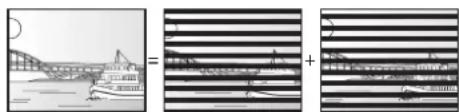
Frame Field Field
- A frame still shows 2 fields, so there may be some blurring between them, but picture quality is generally better.
- A field still shows less picture information so it may be rougher, but there is no blurring.
HDMI (High-Definition Multimedia Interface)
HDMI is a next-generation digital interface for consumer electronic products. Unlike conventional connections, it transmits uncompressed digital video and audio signals on a single cable. This unit supports high-definition video output [720p (750p), 1080i (1125i), and 1080p (1125p)] from HDMI AV OUT terminals. To enjoy high-definition video a high definition compatible television is required.
JPEG (Joint Photographic Experts Group)
This is a system used for compressing/decoding colour still pictures. If you select JPEG as the storage system on digital cameras, etc., the data will be compressed to 1/10-1/100 of its original size. The benefit of JPEG is less deterioration in picture quality considering the degree of compression.
LPCM (Linear PCM)
These are uncompressed digital signals, similar to those found on CDs. LPCM sound is available when recording in XP mode.
MPEG2 (Moving Picture Experts Group)
A standard for efficiently compressing and expanding colour video. MPEG2 is a compression standard used for DVD and digital broadcasting. This unit records programmes using MPEG2.
MP3 (MPEG Audio Layer 3)
An audio compression method that compresses audio to approximately one-tenth of its size without any significant loss of audio quality. You can play MP3s you have recorded onto DVD-R, DVD-R DL, CD-R and CD-RW.
Pan & Scan/Letterbox
In general, DVD-Video are produced with the intention that they will be viewed on a widescreen TV (16:9 aspect ratio), so images often don't fit regular TVs (4:3 aspect ratio). 2 styles of picture, "Pan & Scan" and "Letterbox", deal with this problem.
Pan & Scan: The sides are cut off so the picture fills the screen.
Letterbox: Black bands appear at the top and bottom of the picture so the picture itself appears in an aspect ratio of 16:9.
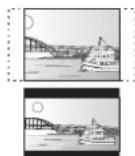
Playback control (PBC)
If a Video CD has playback control, you can select scenes and information with menus displayed on the screen. (The unit is compatible with version 2.0 and 1.1.)
Progressive/Interlace
The PAL video signal standard has 625 (or 576) interlaced (i) scan lines, whereas progressive scanning, called 625p (or 576p), uses twice the number of scan lines. For the NTSC standard, these are called 525i (or 480i) and 525p (or 480p) respectively. Using progressive output, you can enjoy the high-resolution video recorded on media such as DVD-Video.
Your television must be compatible to enjoy progressive video. Panasonic televisions with 625 (576)/50i · 50p, 525 (480)/60i · 60p input terminals are progressive compatible.
Safety precautions
Protection
You can prevent accidental erasure by setting writing protection or erasure protection.
RGB
This refers to the three primary colours of light, red (R), green (G), and blue (B) and also the method of producing video that uses them. By dividing the video signal into the three colours for transmission, noise is reduced for even higher quality images.
Sampling frequency
Sampling is the process of converting the heights of sound wave (analogue signal) samples taken at set periods into digits (digital encoding). Sampling frequency is the number of samples taken per second, so larger numbers mean more faithful reproduction of the original sound.
Signal Quality
This is the guide for checking the aerial direction. The numbered values displayed do not indicate the strength of the signal, but the quality of the signal (the signal to noise ratio, or "S/N"). The channels you can receive are affected by weather conditions, seasons, time (day/night), region, length of the cable that is connected to the aerial, etc.
Thumbnail
This refers to a miniature representation of a picture used to display multiple pictures in the form of a matrix.
1080i
In one high-definition image, 1080 (1125) alternating scan lines pass every 1/50th of a second to create an interlace image. Because 1080i (1125i) more than doubles current television broadcasts of 480i (525i), the detail is much clearer and creates a more realistic and rich image.
1080p
In one high-definition image, 1080 (1125) scan lines pass at the same time every 1/50th of a second to create a progressive image. Since progressive video does not alternate scan lines like interlace, there is a minimal amount of screen flicker.
720p
In one high-definition image, 720 (750) scan lines pass at the same time every 1/50th of a second to create a progressive image. Since progressive video does not alternate scan lines like interlace, there is a minimal amount of screen flicker.
Placement
Set the unit up on an even surface away from direct sunlight, high temperatures, high humidity, and excessive vibration. These conditions can damage the cabinet and other components, thereby shortening the unit's service life. Do not place heavy items on the unit.
Voltage
Do not use high voltage power sources. This can overload the unit and cause a fire. Do not use a DC power source. Check the source carefully when setting up the unit on a ship or other place where DC is used.
AC mains lead protection
Ensure the AC mains lead is connected correctly and not damaged. Poor connection and lead damage can cause fire or electric shock. Do not pull, bend, or place heavy items on the lead. Grasp the plug firmly when unplugging the lead. Pulling the AC mains lead can cause electric shock. Do not handle the plug with wet hands. This can cause electric shock.
Foreign matter
Do not let metal objects fall inside the unit. This can cause electric shock or malfunction. Do not let liquids get into the unit. This can cause electric shock or malfunction. If this occurs, immediately disconnect the unit from the AC mains supply and contact your dealer. Do not spray insecticides onto or into the unit. They contain flammable gases which can ignite if sprayed into the unit.
Service
Do not attempt to repair this unit by yourself. If sound is interrupted, indicators fail to light, smoke appears, or any other problem that is not covered in these instructions occurs, disconnect the AC mains lead and contact your dealer or an authorized service center. Electric shock or damage to the unit can occur if the unit is repaired, disassembled or reconstructed by unqualified persons.
Extend operating life by disconnecting the unit from the AC mains if it is not to be used for a long time.
Manufactured under license from Dolby Laboratories. Dolby and the double-D symbol are trademarks of Dolby Laboratories.
"DTS" is a registered trademark of DTS, Inc. and "DTS 2.0+Digital Out" is a trademark of DTS, Inc.
This product incorporates copyright protection technology that is protected by method claims of certain U.S. patents and other intellectual property rights owned by Macrovision Corporation and other rights owners. Use of this copyright protection technology must be authorized by Macrovision Corporation, and is intended for home and other limited viewing uses only unless otherwise authorized by Macrovision Corporation. Reverse engineering or disassembly is prohibited.
HDMI, the HDMI logo and High-Definition Multimedia Interface are trademarks or registered trademarks of HDMI Licensing LLC.
HDAVI Control™ is a trademark of Matsushita Electric Industrial Co., Ltd.
Power supply: AC 220 V to 240 V, 50 Hz
Power consumption: Approx. 25 W
Standby mode: (Power Save mode): Approx. 2 W
(Quick Start mode): Approx. 15 W
Recordable discs:
DVD-RAM: 2X SPEED (Ver. 2.0)
2-3X SPEED (Ver. 2.1)
2-5X SPEED (Ver. 2.2)
DVD-R: 1X SPEED (Ver. 2.0)
1-4X SPEED (Ver. 2.0)
1-8X SPEED (Ver. 2.0)
1-16X SPEED (Ver. 2.1)
DVD-R DL: 2-4X SPEED (Ver. 3.0)
2-8X SPEED (Ver. 3.0)
DVD-RW: 1X SPEED (Ver. 1.1)
1-2X SPEED (Ver. 1.1)
2-4X SPEED (Ver. 1.2)
2-6X SPEED (Ver. 1.2)
+R: 2.4X SPEED (Ver. 1.0)
2.4-4X SPEED (Ver. 1.1)
2.4-8X SPEED (Ver. 1.2)
2.4-16X SPEED (Ver. 1.3)
+R DL: 2.4X SPEED (Ver. 1.0)
2.4-8X SPEED (Ver. 1.1)
+RW: 2.4X SPEED (Ver. 1.1)
2.4-4X SPEED (Ver. 1.2)
Recording system:
DVD-RAM: DVD Video Recording format
DVD-R: DVD-Video format
DVD-R DL (Dual Layer):
DVD-Video format
DVD-RW: DVD-Video format
+R
+R DL (Double Layer)
+RW
Recording time:
Max. 8 hours (using 4.7 GB disc)
XP: Approx. 1 hour
SP: Approx. 2 hours
LP: Approx. 4 hours
EP: Approx. 6 hours or 8 hours
Playable discs:
DVD-RAM: DVD Video Recording format
DVD-R: DVD-Video format, MP3, JPEG
DVD-R DL (Dual Layer):
DVD-Video format, MP3, JPEG
DVD-RW: DVD-Video format, DVD Video Recording format
+R
+R DL (Double Layer)
+RW
DVD-Video, CD-Audio (CD-DA)
Video CD, SVCD
CD-R/CD-RW (CD-DA, Video CD, SVCD*, MP3, JPEG)
*Conforming to IEC62107.
Optical pick-up:
System with 1 lens, 2 integration units
(662 nm wavelength for DVDs, 780 nm wavelength for CDs)
LASER Specification:
Class 1 LASER Product
Wave Length:
780 nm (CDs)
662 nm (DVDs)
Laser Power:
No hazardous radiation is emitted
with the safety protection
Television system:
Tuner System: DVB-T
Channel Coverage:
UK
UHF:
CH 21 to 68 ch
RF converter output:
Not provided
Video:
Video system:
PAL colour signal, 625 lines, 50 fields
NTSC colour signal, 525 lines, 60 fields
Recording system:
MPEG2 (Hybrid VBR)
Video In (PAL/NTSC):
AV1/AV2 (21 pin), AV3 (pin jack) 1 Vp-p 75 Ω,
termination
S-Video In (PAL/NTSC):
AV2 (21 pin), AV3 (S terminal) 1 Vp-p 75 Ω,
termination
Video Out (PAL/NTSC):
AV1/AV2 (21 pin), Video Out (pin jack) 1 Vp-p 75
Ω, termination
S-Video Out (PAL/NTSC):
AV1 (21 pin), S-Video Out (S terminal) 1 Vp-p 75
Ω, termination
RGB Out (PAL/NTSC):
AV1 (21 pin) 0.7 Vp-p (PAL) 75 Ω, termination
Component video output (NTSC 480p/480i, PAL 576p/576i)
Y: 1.0 Vp-p 75 Ω, termination
PB: 0.7 Vp-p 75 Ω, termination
PR: 0.7 Vp-p 75 Ω, termination
RGB In (PAL): AV2 (21pin) 0.7 Vp-p (PAL) 75 Ω, termination
Audio:
Recording system:
Dolby Digital (2 ch)
Standard: 0.5 Vrms, Full scale: 2.0 Vrms at 1 kHz
Input Impedance:
More than 10 kΩ
Audio Out:
AV1/AV2 (21 pin), Audio Out (pin jack)
Output Level:
Standard: 0.5 Vrms, Full scale: 2.0 Vrms at 1 kHz
Output Impedance:
Less than 1 kΩ
Digital Audio Out:
Optical terminal (PCM, Dolby Digital, DTS, MPEG)
DV Input: IEEE 1394 Standard, 4 Pin x1
HDMI Output: 19 pin type A: 1 pc
This unit supports "HDAVI Control 2" function.
Quick Start for Recording & EPG Display (Power Save : OFF)
1 Sec. Quick Start for Recording & EPG Display*
(when connecting to TV using 21-pin Scart, Component Video,
Video or S-Video terminals)
*From the power on, recording on DVD-RAM starts in about 1
second after the REC button is pressed. If the GUIDE button is
pressed while the unit is off, the Electronic Program Guide (EPG)
displays in less than 1 second. (Quick Start Mode)
Others
Regional Code: # 2
Operating temperature range:
5 °C to 40 °C
Operating humidity range:
10% to 80% RH (no condensation)
Dimensions:
Specifications are subject to change without notice.
CAUTION!
THIS PRODUCT UTILIZES A LASER. USE OF CONTROLS OR ADJUSTMENTS OR PERFORMANCE OF PROCEDURES OTHER THAN THOSE SPECIFIED HEREIN MAY RESULT IN HAZARDOUS RADIATION EXPOSURE. DO NOT OPEN COVERS AND DO NOT REPAIR YOURSELF. REFER SERVICING TO QUALIFIED PERSONNEL.
CAUTION!
- DO NOT INSTALL OR PLACE THIS UNIT IN A BOOKCASE, BUILT-IN CABINET OR IN ANOTHER CONFINED SPACE. ENSURE THE UNIT IS WELL VENTILATED. TO PREVENT RISK OF ELECTRIC SHOCK OR FIRE HAZARD DUE TO OVERHEATING, ENSURE THAT CURTAINS AND ANY OTHER MATERIALS DO NOT OBSTRUCT THE VENTILATION VENTS.
- DO NOT OBSTRUCT THE UNIT'S VENTILATION OPENINGS WITH NEWSPAPERS, TABLECLOTHS, CURTAINS, AND SIMILAR ITEMS.
- DO NOT PLACE SOURCES OF NAKED FLAMES, SUCH AS LIGHTED CANDLES, ON THE UNIT.
- Dispose of batteries in an environmentally friendly manner.
WARNING:
To reduce the risk of fire, electric shock or product damage.
- Do not expose this apparatus to rain, moisture, dripping or splashing and that no objects filled with liquids, such as vases, shall be placed on the apparatus.
- Use only the recommended accessories.
- Do not remove the cover (or back); there are no user serviceable parts inside. Refer servicing to qualified service personnel.
CAUTION
Danger of explosion if battery is incorrectly replaced. Replace only with the same or equivalent type recommended by the manufacturer. Dispose of used batteries according to the manufacturer's instructions.
This unit is intended for use in moderate climates.
This product may receive radio interference caused by mobile telephones during use. If such interference is apparent, please increase separation between the product and the mobile telephone.
The socket outlet shall be installed near the equipment and easily accessible.
The mains plug of the power supply cord shall remain readily operable. To completely disconnect this apparatus from the AC Mains, disconnect the power supply cord plug from AC receptacle.
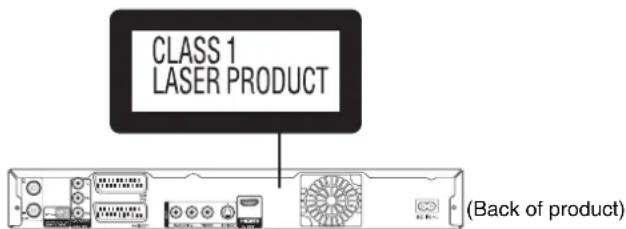
| DANGER -VISIBLE AND INVISIBLE LASER RADIATION WHEN OPEN. AVOID DIRECT EXPOSURE TO BEAM.FDA 21 CFR/Class IIIb | |
| CAUTION- CLASS 3B VISIBLE AND INVISIBLE LASER RADIATION WHEN OPEN. AVOID EXPOSURE TO THE BEAM.IEC60825-1+A2/Class 3B | |
| ATTENTION- RAYONNEMENT LASER VISIBLE ET INVISIBLE, CLASSE 3B, EN CAS D'OUVERTURE, EVITER UNE EXPOSITION AU FAISCEAU. | |
| FORSIGTIG- SYN LIG OUSYN LIG LASERSTRALING KLASSE 3B, NÄR LÄGET ER ABENT, UNDGÄ AT BLVE UDSAT FOR STRÄLEN. | |
| VARO- AVTAETSSA OLET ALTTIINA LUOKAN 3B NÄKYVÄÄ JA NÄKYMÄTÖNTÄ LASERSATELYÄ, VARO ALTISTUMISTA SÄTEELLE | |
| VARNING- KLASS 3B SYN LIG OCH OSYN LIG LASERSTRALING NÄR DENNA DEL AR OPPNAD UNDIVK EXPONERING FOR STRÄLEN. | |
| VORSICHT- SICHTBARE UND UNSICHTBARE LASERSTRALUNG KLASSE 3B, WENN ABDECKUNG GEÖFFNET, NICHT DEM STRAHL AUSETZEN. | |
| 注意- 打开时有可见及不可见激光辐射,避免光束照射。注意- ここを聞くと可視及び不可視レーザ光が出ます。ビームを見たり、触れたりしないでください。VQL1J70 |
(Inside of product)
- For your safety, be sure not to connect or handle the equipment with wet hands.
- Your attention is drawn to the fact that recording pre-recorded tapes or discs or other published or broadcast material may infringe copyright laws.
-If you see this symbol-
Information on Disposal for Users of Waste Electrical & Electronic Equipment (private households)

This symbol on the products and/or accompanying documents means that used electrical and electronic products should not be mixed with general household waste.
For proper treatment, recovery and recycling, please take these products to designated collection points, where they will be accepted on a free of charge basis. Alternatively, in some countries you may be able to return your products to your local retailer upon the purchase of an equivalent new product.
Disposing of this product correctly will help to save valuable resources and prevent any potential negative effects on human health and the environment which could otherwise arise from inappropriate waste handling. Please contact your local authority for further details of your nearest designated collection point.
Penalties may be applicable for incorrect disposal of this waste, in accordance with national legislation.
For business users in the European Union
If you wish to discard electrical and electronic equipment, please contact your dealer or supplier for further information.
Information on Disposal in other Countries outside the European Union
This symbol is only valid in the European Union.
If you wish to discard this product, please contact your local authorities or dealer and ask for the correct method of disposal.
A Add New DVB Services ....47
Audio
DVB Multi Audio. 43
language 42
recording....17,43
settings 42, 43, 49
© Change Thumbnail 38, 41
Channel
audio 42
set channels....46, 47
Chapter 29, 39, 41
Chasing playback 20
Child Lock 53
Cleaning
disc 58
lens 5
main unit 5
Clock setting 11
Close First Layer....45
Connection
aerial 8,9,54
amplifier, system component .....56
DV IN terminal 23
HDMI....57
satellite receiver 9
television 8,9,54,55,57
video cassette recorder .....22, 54
CPRM....72
Create Chapter 29, 39, 41
Create playlists ....40
Create Top Menu 45
Default Settings 52
Delete
all titles 44
chapter....39,41
playlist....40
title 16,37
DELETE NAVIGATOR....16
Dialog Enhancer 43
Digital Channel Information ....32
Digital TEXT (MHEG)......32
DIRECT NAVIGATOR 28, 30, 36
Direct TV Recording ....19
Divide title 38
DV automatic recording 23
DVB Multi Audio. 43
DVB Subtitle 32,50
DVD-RAM, DVD-R, DVD-R DL,
DVD-RW, +R, +R DL, +RW ....58
DVD-Video 13,59
Edit
chapter....39
playlist....40
profile 46
title 36
Enabling discs to be played on
other equipment - Finalise ......19, 45
Enabling the second layer
on DL discs to be
recordable - Close First Layer .....45
Encrypted....32
Enter name
disc 36,44
playlist....36,41
title 36,37
External Device 22
EXT LINK 21
F Finalize 19,45
Flexible Recording....20
Format disc ....19, 44
FR (Flexible Recording) Mode .....18
FUNCTION MENU window ....33
© Guide 12, 15, 26
H HDMI 34, 35, 57
① Initialize ....52
J JPEG....30,60
Language
audio 42
code list....60
soundtrack 42
subtitle 42
LPCM 49,72
M Manual Skip 29
Menu
MP3 31
on-screen....42
Pictures....30
Setup 46
Mode
recording....18
still mode....48
MP3 31,60
N Name
Disc 44
Entering text 36
Playlist 41
Title 24,37
New Service 33, 47, 50
Noise reduction (NR)......43
On-screen
Digital channel information 32
display 42
status messages 33
Optical digital audio cable ....56
Owner ID 10,52
P Partial Delete 37
PCM Down Conversion 49
Picture settings 43, 48
Playback discs 13
settings 42, 43, 48
Playback NR 43
Playlist....40
Power Save 10,52
Profile 46
Progressive....43, 50
Properties
playlist....40
still picture 31
title 37
Protection
cartridge....44
disc 44
title 37
① Q Link ......34
Quick View (Play x1.3) 28
R Ratings 48
Record
aspect....17
Direct TV Recording....19
External Link 21
Flexible Recording 20
from a Satellite Receiver 21
from a video cassette recorder .....22
Important notes 17
mode....18
timer....15,24
Repeat play 43
Resume play function ....13
RGB
input....51
output....51
Select channel 12
Satellite Receiver
connection 9
recording....21
watching 12
Select channel ....12
Serial number 7
Setup menu 46
Shipping Condition ....52
Signal Condition 47
Simultaneous rec and play 20
Slide show 30
Soundtrack....42
Status messages ....33
Subtitle
disc 42
DVB Subtitle 32,50
System Update ....52
① Thumbnail 38, 41, 73
Time Slip 29
Timer recording 15, 24
Top menu 13
Transfer 43
Tuning
Auto-Setup......47
DVB Manual 47
TV aspect 50
TV Guide 12, 15, 20
TV System (PAL/NTSC) 51
V.S.S. 43
VIERA Link 34, 35
Watching television 12
① 1080p ....51,73
② 21-pin Scart terminal ..... 7, 8, 9
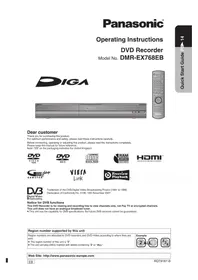
- OPERATING INSTRUCTIONS
- DVD RECORDER
- MODEL NO. DMR-EZ27EB
- DEAR CUSTOMER
- NOTICE FOR DVB FUNCTIONS
- REGION NUMBER SUPPORTED BY THIS UNIT
- ENJOY DIGITAL BROADCAST
- RECEIVE FREEVIEW USING AN INTEGRATED (DIGITAL VIDEO BROADCASTING) TUNER
- ENJOY HIGH QUALITY VIDEO
- JUST ONE CORD AND SIMPLE CONNECTION WITH HDMI TERMINAL
- EASY TO FIND AND SELECT
- YOU CAN EASILY FIND PROGRAMMES YOU WANT TO WATCH AND SET THEM FOR TIMER RECORDING
- YOU CAN EASILY SELECT AND PLAY RECORDED PROGRAMMES
- CONVENIENT FUNCTIONS
- LINKED OPERATIONS WITH THE TV
- LINKED TIMER RECORDINGS WITH EXTERNAL EQUIPMENT
- ACCESSORIES
- SALES AND SUPPORT INFORMATION
- CAUTION FOR AC MAINS LEAD
- CAUTION
- IMPORTANT
- WARNING: DO NOT CONNECT EITHER WIRE TO THE EARTH TERMINAL WHICH IS MARKED WITH THE LETTER E, BY THE EARTH SYMBOL OR COLOURED GREEN OR GREEN/YELLOW
- THIS PLUG IS NOT WATERPROOF—KEEP DRY
- HOW TO REPLACE THE FUSE
- GETTING STARTED
- QUICK START GUIDE
- BASIC OPERATIONS
- ADVANCED FEATURES
- ADVANCED EDITING
- SETTING MENUS
- OTHER SETTINGS
- REFERENCE
- UNIT CARE
- REMOTE CONTROL INFORMATION
- ABOUT BATTERIES
- USING THE REMOTE CONTROL
- THE UNIT'S DISPLAY
- REAR PANEL
- PIN SCART TERMINAL
- USE OF THE SUPPLIED RF COAXIAL CABLE
- USING A FULLY WIRED 21-PIN SCART CABLE
- TO VIEW SATELLITE PROGRAMMES
- TO RECORD SATELLITE PROGRAMMES
- PREPARATION
- TO TURN THE UNIT ON
- POWER SAVE FUNCTION
- WHEN SETUP HAS COMPLETED, THE CONFIRMATION SCREEN APPEARS
- THE OWNER ID SETTINGS SCREEN APPEARS
- TO STORE THE PIN NUMBER
- TIPS
- TO ABORT AUTO-SETUP
- RESTARTING THE AUTO-SETUP (→ 47)
- TO CORRECT THE PIN NUMBER
- CLOCK SETTING
- NOTES
- TO SELECT THE DESIRED CHANNEL
- TO DIRECTLY ENTER CHANNELS
- WATCHING SATELLITE PROGRAMMES
- PLAYING DISCS
- RAM -R -R DL -RW(V) +R +R DL +RW DVD-V -RW(VR) VCD CD
- STOPPING PLAY
- PAUSING PLAY
- MENU SCREENS ON THE TV
- DVD-V VCD
- DVD TOP MENU
- DVD-V
- VCD
- RECORDING TELEVISION PROGRAMMES
- RAM, -R, -R DL, -RW(V), +R, +R DL, +RW
- PAUSING RECORDING
- STOPPING RECORDING
- TIMER RECORDING
- RAM -R -R DL -RW(V) +R +R DL +RW
- TO CANCEL A TIMER RECORDING PROGRAMMING
- TO CHECK PROGRAMMES (→ 25)
- DELETE NAVIGATOR
- DELETE TITLES DURING PLAYBACK
- SELECTING AUDIO FOR RECORDING
- BROADCAST IN MULTI-CHANNEL SOUND
- ABOUT THE ASPECT WHEN RECORDING A PROGRAMME
- RAM -R -R DL -RW(V)
- R -R DL -RW(V)
- R +R DL +RW
- COPY-ONCE RECORDING
- RAM CPRM COMPATIBLE DISCS ONLY
- R -R DL -RW(V) +R +R DL +RW
- PLAYING THE DISC ON OTHER DVD PLAYERS
- R -R DL -RW(V) +R +R DL
- RW
- RECORDING TO DVD-R DL AND +R DL
- WHEN THE FORMAT CONFIRMATION SCREEN IS DISPLAYED
- RAM -RW(V) +R +R DL +RW
- WHEN REMOVING A RECORDED DISC
- FINALISING
- TO START FINALISING
- TO EJECT THE DISC WITHOUT
- SPECIFYING THE RECORDING TIME
- REPEATEDLY UNTIL THE DESIRED TIME
- IS REACHED
- DIRECT TV RECORDING
- PRESS AND HOLD FOR ABOUT
- SECOND
- TO STOP RECORDING
- FLEXIBLE RECORDING
- PLAYING WHILE YOU ARE RECORDING
- CHASING PLAYBACK
- RAM
- SIMULTANEOUS RECORD AND PLAYBACK
- MANUAL RECORDING
- TO SKIP UNWANTED PARTS
- LINKED TIMER RECORDINGS WITH EXTERNAL EQUIPMENT (SKY DIGITAL STB/SATELLITE RECEIVER)—EXT LINK
- TO CANCEL THE EXTERNAL CONTROL
- MANUAL TIMER RECORDINGS (→ 24)
- RECORDING FROM A VCR, ETC
- INSERT A DISC
- ② TO SELECT THE RECORDING MODE (→ 18)
- TO SELECT THE INPUT WHERE YOUR EXTERNAL DEVICE IS CONNECTED. FRONT PANEL INPUTS ARE AV
- START PLAY ON THE EXTERNAL DEVICE
- AT THE POINT YOU WANT TO START RECORDING TO THE DISC
- RECORDING FROM A DV CAMCORDER
- TURN ON THE DV EQUIPMENT AND PAUSE PLAY ON THE DV EQUIPMENT AT THE POINT YOU WANT RECORDING TO START
- WHEN "DV AUTO REC" SCREEN DOES NOT APPEAR
- ◀ TO SELECT "REC TO DVD" AND PRESS OK
- ◀ TO SELECT "REC" THEN
- WHEN RECORDING FINISHES
- MANUAL TIMER RECORDINGS
- TO EXIT THE TIMER RECORDING LIST
- TO CANCEL A TIMER RECORDING IN PROGRESS
- CHECK, CHANGE, OR DELETE PROGRAMMES
- TO DEACTIVATE TIMER PROGRAMME (E.G. TO INTERRUPT A DAILY OR WEEKLY TIMER PROGRAMMING)
- MAKING TIMER RECORDINGS ON THE TELEVISION
- WHAT IS TV GUIDE
- LANDSCAPE VIEW
- PORTRAIT VIEW
- TO SWITCH BETWEEN LANDSCAPE VIEW AND PORTRAIT VIEW
- SELECTING THE PROGRAMME FROM THE DESIRED PROGRAMME TYPE OR CATEGORY
- SELECTING TITLES TO PLAY
- SEARCH
- SKIP
- DIRECT PLAY
- QUICK VIEW (PLAY X1.3)
- SLOW-MOTION PLAY
- FRAME-BY-FRAME VIEWING
- TIME SLIP
- MANUAL SKIP
- CREATE CHAPTERS
- PLAYING STILL PICTURES (JPEG)
- R -R DL CD
- SELECTING STILL PICTURES IN ANOTHER FOLDER
- SLIDESHOW
- ROTATE PICTURES
- ZOOM
- PICTURE PROPERTIES
- PLAYING MP3S
- USING THE TREE SCREEN TO FIND A GROUP
- DIGITAL CHANNEL INFORMATION
- SHOWING THE DIGITAL TEXT (MHEG)
- SHOWING SUBTITLES
- CHANGING THE CATEGORY
- FUNCTION MENU WINDOW
- SIGNAL QUALITY
- STATUS MESSAGES
- NEW SERVICE MESSAGE
- WHAT IS VIERA LINK "HDAVI CONTROL
- VIERA LINK
- WHAT IS Q LINK
- Q LINK
- (WHEN THE TV IS ON) EASY PLAYBACK
- (WHEN THE TV IS OFF) POWER ON LINK
- POWER OFF LINK
- EASY CONTROL ONLY WITH VIERA REMOTE CONTROL
- ENTERING TEXT
- USING THE NUMBERED BUTTONS TO ENTER CHARACTERS
- TO ENTER A SPACE
- TO DELETE A CHARACTER
- TO CANCEL IN THE MIDDLE
- TITLES-EDITING
- ACCESSING THE TITLE VIEW
- TO EXIT THE MENU SCREENS
- TO VIEW OTHER PAGES
- MULTIPLE EDITING
- TITLE OPERATIONS
- DELETE
- NOTE
- PROPERTIES
- RAM -R -R DL -RW(V) +R +R DL +RW -RW(VR)
- ENTER NAME
- SETUP PROTECTION / CANCEL PROTECTION
- PARTIAL DELETE
- CHANGE THUMBNAIL
- FOR QUICKER EDITING
- DIVIDE TITLE
- TITLE/CHAPTER
- ACCESSING THE CHAPTER VIEW
- TO EXIT THE MENU SCREENS, PRESS [DIRECT NAVIGATOR]
- YOU CAN ALSO PRESS [◀◀, ▶▶] TO VIEW OTHER PAGES
- CHAPTER OPERATIONS
- CREATE CHAPTER
- DELETE CHAPTER
- COMBINE CHAPTERS
- RW(VR) (PLAY ONLY)
- ACCESSING THE PLAYLIST VIEW
- CREATING PLAYLISTS
- EDITING PLAYLISTS/CHAPTERS
- RAM -RW(VR)
- TO DELETE DURING PLAY
- EDIT
- CHAPTER VIEW
- ACCESSING THE ON-SCREEN DISPLAY
- DISC MENU
- RAM -R -R DL -RW(V) +R +R DL +RW DVD-V -RW(VR) VCD
- SOUNDTRACK
- VCD (SVCD ONLY)
- SUBTITLE
- AUDIO CHANNEL RAM -RW(VR) VCD
- ANGLE DVD-V
- PBC (PLAYBACK CONTROL → 72) VCD
- SOUND TRACK/SUBTITLE LANGUAGE
- AUDIO ATTRIBUTES
- PLAY MENU
- RAM -R -R DL -RW(V) +R +R DL +RW DVD-V -RW(VR) CD VCD
- REPEAT PLAY
- PICTURE MENU
- RAM -R -R DL -RW(V) +R +R DL +RW DVD-V -RW(VR)
- PLAYBACK NR
- AV-IN NR
- SOUND MENU
- DVB MULTI AUDIO
- OTHER MENU
- POSITION
- ACCESSING THE MANAGEMENT MENUS
- SETTING PROTECTION
- PROTECTION OF CARTRIDGE DISC
- RAM (WITH A CARTRIDGE)
- NAMING DISCS
- OS
- DELETING ALL TITLES
- FORMATTING DISCS
- RAM -RW(V) +RW -RW(VR)
- R +R DL (NEW DISC ONLY)
- SELECTING WHETHER TO SHOW THE TOP MENU FIRST
- CREATE TOP MENU
- ENABLING THE SECOND LAYER ON DL (DUAL- OR DOUBLE-LAYER ON SINGLE SIDE) DISCS TO BE RECORDABLE
- R DL +R DL
- SETUP MENU CHANNEL SETTINGS
- ACCESSING THE SETUP MENU
- TUNING
- EDIT PROFILES
- AUTO-SETUP RESTART
- PRESS [◀] TO SELECT "YES" THEN PRESS [OK]
- DVB MANUAL TUNING
- ADD NEW DVB SERVICES
- SIGNAL CONDITION
- SIGNAL STRENGTH
- PLAYBACK/RECORDING SETTINGS
- DISC
- SETTINGS FOR PLAYBACK
- RATINGS
- MENUS
- SETTINGS FOR RECORDING
- RECORDING TIME IN EP MODE
- PICTURE SETTINGS
- PICTURE
- COMB FILTER
- STILL MODE
- SELECT THE PLAY MODE BETWEEN PLAYLIST CHAPTER SEGMENTS AND PARTIALLY DELETED TITLES
- ▲, ▼ SELECT "SOUND" → ▶ → ▲, ▼ SELECT ITEM
- DYNAMIC RANGE COMPRESSION
- WHEN RECORDING BILINGUAL PROGRAMMES FROM EQUIPMENT CONNECTED TO THE DV IN TERMINAL OF THIS UNIT, SELECT WHETHER TO RECORD THE MAIN OR SECONDARY AUDIO TYPE
- CHANGE THE SETTINGS WHEN YOU HAVE CONNECTED EQUIPMENT THROUGH THE UNIT'S DIGITAL AUDIO OUT TERMINAL (→ 56)
- SELECT HOW TO OUTPUT AUDIO WITH A SAMPLING FREQUENCY OF 96 KHZ OR 88.2 KHZ
- DOLBY DIGITAL
- DTS
- MPEG
- AUDIO MODE FOR XP RECORDING
- AUDIO MODE FOR DV INPUT
- DISPLAY
- DVB PREFERRED SUBTITLES
- ON-SCREEN MESSAGES
- FL DISPLAY
- CONNECTION
- TV ASPECT
- PROGRESSIVE
- PRESS [▲, ▼] TO SELECT "ON" THEN PRESS [OK]
- TV SYSTEM
- [PAL]
- [NTSC]
- HDMI SETTINGS
- HDMI VIDEO FORMAT
- ASPECT FOR 4:3 VIDEO
- DIGITAL AUDIO OUTPUT
- AV1 OUTPUT
- AV2 SETTINGS
- AV2 INPUT
- EXT LINK
- OTHERS
- CLOCK (SEE 11)
- OWNER ID (SEE 10)
- POWER SAVE
- SYSTEM UPDATE
- EPG DOWNLOAD IN STANDBY
- SOFTWARE UPDATE IN STANDBY
- EPG/SOFTWARE SEARCH PERIOD
- INITIALIZE
- SHIPPING CONDITION
- DEFAULT SETTINGS
- CHILD LOCK
- USING THE UNIT'S REMOTE CONTROL TO OPERATE THE TV
- TO RECORD FROM A VCR
- USING AN S-VIDEO CABLE (S-VIDEO CABLE NOT INCLUDED)
- USING COMPONENT CABLES (COMPONENT VIDEO CABLES NOT INCLUDED)
- USING AN AUDIO CABLE FOR BETTER SOUND
- USING AN OPTICAL DIGITAL AUDIO CABLE FOR BETTER SOUND (OPTICAL DIGITAL AUDIO CABLE NOT INCLUDED)
- CONNECTING WITH AN HDMI (HIGH DEFINITION MULTIMEDIA INTERFACE) TERMINAL
- REGARDING VIERA LINK "HDAVI CONTROL™" FUNCTION
- CONNECTING TO A TV
- CONNECTING WITH A PANASONIC TV (VIERA)
- CONNECTING TO A TV AND A RECEIVER
- DISC CARE
- HOLDING A DISC
- CLEANING DISCS
- STORING DISCS
- DISCS TO AVOID
- PLAY-ONLY DISCS
- INSERTING DISCS
- DISCS THAT CANNOT BE PLAYED
- TYPES OF DISC FOR THE TYPE OF CONNECTED TV
- WHEN OTHER PANASONIC PRODUCTS RESPOND TO THIS REMOTE CONTROL
- TO RESET THIS UNIT
- TO RESET THE UNIT'S SETTINGS
- TO RESET THE RATINGS LEVEL SETTINGS
- TO RESTORE THE UNIT IF IT FREEZES
- THE FOLLOWING DOES NOT INDICATE A PROBLEM WITH THE UNIT
- GENERAL ISSUES
- RATION (CONTINUED)
- GENERAL ISSUES GUIDE
- B-T
- RA LINK
- PLAYBACK ISSUES CUTURE
- PLAYBACK ISSUES
- PLAYBACK ISSUES (CONTINUED)
- PLAYBACK ISSUES OPERATION
- RECORDING ISSUES: RECORDING / TIMER RECORDING / EXTERNAL INPUT
- RECORDING ISSUES: RECORDING / TIMER RECORDING / EXTERNAL INPUT (CONTINUED)
- EXAMPLES OF CAUSES OF SUCH LOSSES ARE
- BITSTREAM
- CPRM (CONTENT PROTECTION FOR RECORDABLE MEDIA)
- DECODER
- DOWN-MIXING
- DTS (DIGITAL THEATER SYSTEMS)
- DYNAMIC RANGE
- FILM AND VIDEO
- FINALISE
- FORMATTING
- FRAME AND FIELD
- HDMI (HIGH-DEFINITION MULTIMEDIA INTERFACE)
- JPEG (JOINT PHOTOGRAPHIC EXPERTS GROUP)
- LPCM (LINEAR PCM)
- MPEG2 (MOVING PICTURE EXPERTS GROUP)
- MP3 (MPEG AUDIO LAYER 3)
- PAN & SCAN/LETTERBOX
- PLAYBACK CONTROL (PBC)
- PROGRESSIVE/INTERLACE
- SAFETY PRECAUTIONS
- PROTECTION
- RGB
- SAMPLING FREQUENCY
- THUMBNAIL
- I
- P
- PLACEMENT
- VOLTAGE
- AC MAINS LEAD PROTECTION
- FOREIGN MATTER
- SERVICE
- WARNING
- THIS UNIT IS INTENDED FOR USE IN MODERATE CLIMATES
- IF YOU SEE THIS SYMBOL
- INFORMATION ON DISPOSAL FOR USERS OF WASTE ELECTRICAL & ELECTRONIC EQUIPMENT (PRIVATE HOUSEHOLDS)
- FOR BUSINESS USERS IN THE EUROPEAN UNION
- INFORMATION ON DISPOSAL IN OTHER COUNTRIES OUTSIDE THE EUROPEAN UNION
Brand : PANASONIC
Model : DMR-EZ27
Category : DVD Recorder