
BIG51S - Smartphone NORDMENDE - Free user manual and instructions
Find the device manual for free BIG51S NORDMENDE in PDF.


| Product Type | GSM Mobile Phone (Feature Phone) |
| Brand | Nordmende |
| Model | BIG51S |
| Dimensions | 108 x 54 x 13 mm |
| Weight | Approx. 70 g (with battery) |
| Display | 1.8-inch Color TFT |
| Battery | Lithium-Ion 700 mAh, 3.7 V |
| Charger Input | 100-240V ~ 0.1A, 50/60 Hz |
| Charger Output | 5V ~ 500 mA |
| SIM Card | Standard SIM (1 slot) |
| Memory Card | Micro SD (T-Flash) support |
| Camera | None |
| Connectivity | Bluetooth, FM Radio (no earphone needed), GSM 900/1800 |
| Key Features | Large keypad, SOS button, Speed dial, Alarm, Calculator, Calendar, SMS |
| SAR Value | 0.737 W/kg (head) |
| Safety Certifications | CE, R&TTE 1999/5/EC |
| Included Accessories | Charger, Battery, Earphones with mic, User Manual |
| Spare Parts Available | Battery and charger can be replaced; contact manufacturer or retailer |
| Repair Information | Service by authorized professionals only; do not disassemble |
| Maintenance | Clean with a dry, soft cloth; keep dry; avoid extreme temperatures |
| Disposal | WEEE directive – do not dispose with household waste; recycle batteries separately |
| Manufacturer | Aldinet S.p.A., Italy (Made in China) |
Frequently Asked Questions - BIG51S NORDMENDE
User questions about BIG51S NORDMENDE
0 question about this device. Answer the ones you know or ask your own.
Ask a new question about this device
Download the instructions for your Smartphone in PDF format for free! Find your manual BIG51S - NORDMENDE and take your electronic device back in hand. On this page are published all the documents necessary for the use of your device. BIG51S by NORDMENDE.
USER MANUAL BIG51S NORDMENDE
LARGE KEYPAD GSM MOBILE PHONE
USER MANUAL
BIG51S
Chapter 1 INSTALLING THE BATTERY AND SIM CARD ..... 4
Chapter 2 PHONEBOOK MANAGEMENT......6
Adding a new contact....7
Making a phone call....7
Making a phone call from the phonebook......8
Chapter 3 MESSAGGING....9
Writing and sending SMS....10
Inbox 10
Outbox....11
Drafts....11
Sent messages....11
SMS settings 11
Chapter 4 CALL CENTER ....12
View call history....13
Call settings....13
Chapter 5 ALARM....14
Chapter 6 FM RADIO ....15
Chapter 7 CALENDAR....16
Chapter 8 CALCULATOR....18
Chapter 9 BLUETOOTH ....19
Power....20
Visibility 20
My device & more ....20
Chapter 10 SETTINGS....21
Phone settings 22
Profiles....23
Bluetooth (if available) 24
SOS setting....25
Security settings 25
Network settings....26
Restore factory settings....26
File manager....26
Speed dial 26
Services....26
Chapter 11 SAFETY AND ATTENTION....27
Chapter 12 TECHNICAL SPECIFICATIONS....30
Chapter 13 WARNINGS ....32
Installing the battery and SIM card
- Remove the battery cover and the battery.
- Insert the T-Flash card by carefully sliding into the holder (not mandatory).
- Insert the SIM card by carefully sliding into the holder. Make sure the SIM card's contacts are facing inwards.
- Insert the battery, sliding it into the battery compartment.
- Install the battery cover again
The phone internal memory (flash memory) is totally dedicated to the device management.
For this reason, the free memory must not be used as it should be kept free for possible software updates, or the warranty will be lost.
To store and play multimedia files, it is therefore necessary to insert a Micro SD card in the device (Micro SD card not included).
NOTE: To power on and off the device, long press 1 Newton.
From standby mode, press the arrow button order to go through all the device menus.
Read carefully this manual before using the device for the first time, and keep this guide in a safe place for future necessity.
Phonebook management
Adding a new contact, making a phone call, making a phone call from the phonebook
1 ADDING A NEW CONTACT
- Press Menu enter into Phonebook and press OK.
- Select Add new contact and press Options.
- Press Select to choose To phone or To SIM.
- Input Name and number.
- Press Options to Save or Cancel the contact.
- Press return to standby.
Note: Long press to add the international prefix +. Always add + before the country code before making international call .
2 MAKING A PHONE CALL
-
In standby mode, input the phone number including the area code; in case, delete with Clear.
-
Press to dial and press Abort to cancel calling.
3 MAKING A PHONE CALL FROM THE PHONEBOOK
- In standby mode, press any arrow button and then choose Phonebook to open the phonebook menu.
- Use scroll to view the contacts or quick search by writing the contact name.
- Press to call the selected contacts.
Messaging
Writing and sending SMS, inbox, outbox, drafts, sent messages, SMS settings
1 WRITING AND SENDING SMS
- Press Menu, enter into Message and press OK.
- Select Write message and press OK.
- Input the message you want to send; press if you need
to select a symbol; press the range input method. - Press Options to send message.
2 INBOX
- Press Menu, enter into Message and press OK.
- Select Inbox and press OK.
- Select a message from the list and press Options > Display to view the message.
You can select others options as described below:
Reply
Input your message and send to the sender.
Call sender
Press Select to call sender.
Forward
Press Select to forward message to other contacts.
Delete
Press Select to delete the message.
Delete all
Delete all received messages.
Save to phonebook
Here you can save the sender's phone number.
3 OUTBOX
This menu relates to the management of outgoing messages, which the phone is trying to send, but not yet sent.
4 DRAFTS
Here you can see the messages which you saved as draft.
5 SENT MESSAGES
- Press Menu, enter into Message and press OK.
- Select Outbox and press OK.
- Select a message from the list and press Options to View/Resend/Edit/Delete/Delete all message.
6 SMS templates
Here you can find and also modify/add few SMS templates fro fast reply
7 SMS SETTINGS
Here you can check the memory status, setup the SMS preferred storage or decide to save sent message.
Call center
View call history, call settings
All received, missed, outgoing calls are saved in call center.
1 VIEW CALL HISTORY
- Press Menu, enter into Call center and press OK.
- Select Call history and press OK.
- Here you can check call logs as below:
Missed calls
Dialed calls
Received calls
All calls
Delete call logs
2 CALL SETTINGS
- Press Menu enter into Call center and press OK.
- Select Call settings and press OK.
- Here you can Activate or deactivate the functions below:
Called ID
Call waiting
Call divert
Call barring
- Under advanced settings you can setup the below functions:
Blacklist
List of contacts or numbers to which you do not want to answer or be called
Auto redial
Press OK to select the status On/Off.
Call time reminder
Press OK to select Off/Single/Periodic.
Answer mode
Press OK to select Any key answer or Auto answer in headset mode.
Alarm
- Press Menu enter into Alarm and press OK.
- Press Edit to select status on/off.
Press & to change the status on/Off. - Enter the time directly by keypad.
- Scroll to select repeat times and Alert type.
- Press Save to activate the alarm, cancel it by press Back in case the settings are not correct.
- To Edit the alarm, press Edit; to stop it, press Off.
FM Radio
- Press Menu, enter into FM Radio and press OK.
- Press Options to view Channel list.
- Select Manual input can input the channel you prefer.
- Select Auto search can auto search your local radio channel.
- Enter into settings to set up background play.
NOTE :
FM radio works also without earphone (not included)
Calendar
- Press Menu, enter into Calendar and press OK.
Today's day and date is shown on the display.
- Press Options to do following settings:
View
Show the event for the selected date.
View all
View all events.
Add event
A. Input subject for the event.
B. Enter a start date and time for the event.
C. Enter the end date and time for the event.
D. Enter subject for the event.
E. Activate Alarm and repeat times for the event.
F. Enter location for the event.
G. Save the event.
Delete event
Delete the selected event.
Jump to date
Enter the date and press OK.
Go to weekly view
Shown the events of the week according to selected date.
Calculator
- Press Menu, enter into Calculator, press OK.
- Enter the first number and use to enter into the decimal point.
- Use to select(+ - * ÷) and press OK.
Enter the next number and press OK.
The result is shown on the screen.
Bluetooth
With Bluetooth, you can connect wirelessly with other compatible devices, such as mobile phones, computers, headsets, and car kits. You can use Bluetooth to send photos, video clips, music and sound clips, and notes, and transfer files from your PC (if compatible).
- Press Menu and go to Settings, select Bluetooth and press OK.
- On or Off: Select on or off to enable or disable Bluetooth.
- Visibility: Select on or off in order to detect whether or not the phone from other devices.
- My device: Ability to add other Bluetooth devices.
- Search audio device: Search audio device if available.
- Change device name: Bluetooth Name used by the phone.
1 ACTIVATION
Enter this menu to activate the Bluetooth funzioen, use the left button to "On"
2 VISIBILITY
once again highlighted this menu, use the left button to “On”; in this way, your phone will be visible for any associations with other Bluetooth devices such as headsets coem, other phones or more.
3 DEVICES
Through this menu you can start a search for Bluetooth devices altrio
4 CHANGE NAME
Through this menu you can change the name of your device (the default name is now “BIG51S”)
5 ADVANCED
This menu can be accessed as additional functions, such as abilitazioen or less sound, choose the storage space, and more
Settings
Phone settings, profiles, SOS setting, security settings, network settings, restore factory settings, file manager, speed dial, services
In this menu you can manage all the main settings, in order to better use your phone.
1 PHONE SETTINGS
- Press menu scroll to Settings.
- Select Phone settings and press OK.
Then you can setup the functions as described below.
Time and date
- Select Set home city and choose your local city.
- Select Time and date and press OK.
- Select Set time/date and press OK.
Enter Time and date and press Save.
Scheduled power on/off
Here it is possible to preset the automatic turn on and off of the phone.
Language
-
Select Language and press OK.
-
Use scroll to select the Language from the list and press OK.
Pref. input method
- Select Pref.input method and press OK.
Use ⚙ scroll to select a input method form the list and press OK.
Display
- Select Display and enter into wallpaper.
- Here you can select wallpaper form the phone and memory card.
Flight Mode
Here you can active or deactivate the flight mode.
2 PROFILES
- Press Menu and scroll to Settings.
- Select User profiles and press OK. Then you will see four mode as below:
General
Silent
Meeting
Headset
Outdoor
Here you can choose your preferred Power on/off ringtones, incoming call ringtones etc.
- Press Menu and scroll to Settings.
- Select Profiles and press OK. Select General and press Option.
- Select Customize and press Select.
- Scroll to Alert type and press Options to select Ring only, Vibration Only, Vibration and ring or Vibration then ring. Press OK to save.
-
Scroll to Ringtone and press Options to select preferred ringtone.
-
Scroll to Ringtone volume and press Option, use adjust volume and press OK to save.
-
Scroll to Message and press Option to select a preferred ringtone for message.
-
Scroll to Message volume and press Option, use to adjust volume, press OK to save.
Use the same procedure to setup the other modes.
3 BLUETOOTH (IF AVAILABLE)
- Press Menu enter into Organizer, press OK to select bluetooth.
- Function on/off: Select on/off to enable/disable bluetooth.
- Visibility: Select on/off to make the phone visible /invisible to other devices.
- My device: Check the device name and allow you to add new devices.
- Search audio device: Search for the available audio device.
- My name: Name for current device.
4 SOS SETTING
- Press Menu and enter into Settings.
- Select SOS settings and press OK.
- Scroll to Status and setup SOS status on/off.
- Scroll to family Numbers to setup SOS number, here you can setup 5 numbers.
- Scroll to SOS Sms on/off to choose whether to send SOS SMS or not.
- Enter into SOS SMS to edit message.
- Enter into warning tone to control the tone status on or off.
5 SECURITY SETTING
Here you can set some security settings for SIM card, phone and keypad.
- Press Menu and go to Settings.
- Scroll to security settings and press OK. Then you can see sub-menus below:
A. SIM security
Here you can setup PIN lock status on or off and change the PIN code.
B. Phone security
Here you can setup Phone lock status on/off and change the password (default password is “0000”).
C. Screen auto lock
Press OK to on/off auto lock.
6 NETWORK SETTINGS
Enter here to set up automatic or manual network selection.
7 RESTORE FACTORY SETTINGS
Press OK and input password (0000) to reset your phone to the default factory settings.
8 FILE MANAGER
Enter here to manage the file in your phone or in your SD card.
9 SPEED DIAL
The numerical keys 2-9 can be used for speed dial some pre-set numbers, simply pressing for a long time the relevant button. First of all, check that the Status is ON; then, select Set numbers and assign from the phonebook a number for any button.
Numbers 10 and 11 refers to the buttons

10 SERVICES
Here some service can be activated for the SIM card; please contact your SIM card mobile operator for more information.
Safety and attention
In order to use your mobile phone safely and efficiently, please read the following part before using:
- Please be careful when you are near chemical plant, gas station and any explosive areas. Even if your mobile phone is in standby, it will send out some RF signals. Therefore, please power off your mobile phone if requested.
- When you are driving, do not use your mobile phone. If you have to use it, please park your car before having your phone call.
- Don't use your mobile phone in the hospital not to disturb the normal operations of medical equipment, such as heart pacemakers, hearing aids, etc. You should observe all the relevant rules of the local hospital before using.
- Please power off your mobile phone before the plane take off, not to disturb the aircraft's electronic equipment. It is generally dangerous and illegal to use mobile phone on board of the aircrafts.
- Please place your mobile phone and all accessories in places that cannot be reached by children.
-
Accessories and battery: please use the accessories and battery provided in the giftbox. If not, it might damage your phone and lead to danger. Please do not shortcut, tear down and adapt the battery. If the phone has excessive temperature, discolor, bulking, leak fluids or you can see other unusual phenomenon, please stop using and change the battery immediately in order not to affect your safety. Please place the old batteries in specific recycle spots.
WARNING: Lithium battery. Risk of explosion if the battery is replaced by an incorrect type. -
Do not charge without the battery. Please power off the mobile phone before removing the battery not to lose the data inside the phone.
- The phone is not waterproof. Please keep it dry.
- Avoid using the phone in too high or too low temperature.
- Not throw, fall and beat the phone so as not to damage the internal or external parts of your phone.
- Authorized Service: the repair and maintenance of the phone can be done only by professional people. Please not tear off the phone on your own.
Technical specifications
| Technical specs | ||
| Panel | Dimensions 1,8" | |
| Main characteristics Color TFT screen | ||
| Others | Dimensions 108 x 54 x 13 mm | |
| Back cover color Black | ||
| Camera No | ||
| Battery | Lithium-ion (Li-ion)700 mAh, 3,7 V | |
| Included accessories | Charger Input: 100-240V~ 0,1A 50-60 HzOutput: 5V ~ 500 mAUser manualBatteryEarphones with mic | |
Note: The phone use GSM band to connect to network. Please check with your carrier the phone compatibility with your SIM card.
Warnings
SAR Certification information (Specific Absorption Rate)
The device is compliant to European Union (EU) standards that limit human exposure to radio frequency (RF) energy emitted by radio and telecommunications equipment. These standards prohibit the sale of mobile devices that exceed a maximum exposure level (known as SAR) of 2.0 W/kg.
During testing, the maximum SAR recorded for this model was equal to 0.737 W / kg. During normal use, the actual SAR level can be much lower, as the device has been designed to emit only the RF energy necessary to transmit a signal to the nearest base station. By automatically emitting lower levels when possible, your device reduces your overall exposure to RF energy.
natural_image
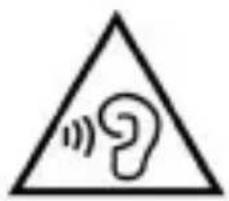
Warning symbol with a triangle containing a stylized 'e' and sound waves (no text or numbers)To avoid damage to your hearing, please do not listen at high volume for a long time.
INFORMATION ON DISPOSAL OF UNITS

natural_image
Symbol of a trash bin crossed with two diagonal lines, no text or numbers presentThis product bears the selective sorting symbol for waste electrical and electronic equipment (WEEE).
This means that this product must be handled to the local collecting points or given back to retailer when you buy a new product, in a ratio of one to one (or one to zero if the external dimension is less than 25 cm) pursuant to European Directive 2012/19/EC in order to be recycled or dismantled
to minimize its impact on the environment.
For further information, please contact your local or regional authorities. Electronic products not included in the selective sorting process are potentially dangerous for the environment and human health due to the presence of hazardous substances.
The unlawful disposal of the product carries a fine according to the legislation currently in force.

natural_image
Simple line drawing of a trash bin with two crossed lines indicating no waste or prohibition (no text or symbols)This product contains batteries covered by the European Directive 2013/56/EU, which must not be put in the household waste.
Please be informed about local regulations regarding the collection of batteries, as their correct disposal helps to prevent negative consequences for the environment and human health.
CE
Hereby, Aldinet S.p.A, declares that this type of BIG51S, Brand Nordmende is in compliance with the essential requirements and other relevant provisions of Directive R&TTE 1999/5/EC.
The Declaration of Conformity is available at:
Aldinet S.p.A.
Viale Colombo, 8 - 20090 Trezzano S/N (MI) Italy
and available at www.nordmende-phones.it
MADE IN CHINA BY
Aldinet S.p.A.
Viale Colombo, 8 - 20090 Trezzano S/N (MI) Italy
NORDMENDE is a trademark of Technicolor or its affiliates used under license to ALDINET S.p.A.
- USER MANUAL
- Chapter 1 INSTALLING THE BATTERY AND SIM CARD ..... 4
- Chapter 2 PHONEBOOK MANAGEMENT......6
- Chapter 3 MESSAGGING....9
- Chapter 4 CALL CENTER ....12
- Chapter 5 ALARM....14
- Chapter 6 FM RADIO ....15
- Chapter 7 CALENDAR....16
- Chapter 8 CALCULATOR....18
- Chapter 9 BLUETOOTH ....19
- Chapter 10 SETTINGS....21
- Chapter 11 SAFETY AND ATTENTION....27
- Chapter 12 TECHNICAL SPECIFICATIONS....30
- Chapter 13 WARNINGS ....32
- Installing the battery and SIM card
- Phonebook management
- ADDING A NEW CONTACT
- MAKING A PHONE CALL
- MAKING A PHONE CALL FROM THE PHONEBOOK
- Messaging
- WRITING AND SENDING SMS
- INBOX
- Reply
- Call sender
- Forward
- Delete
- Delete all
- Save to phonebook
- OUTBOX
- DRAFTS
- SENT MESSAGES
- SMS templates
- SMS SETTINGS
- Call center
- VIEW CALL HISTORY
- CALL SETTINGS
- Blacklist
- Auto redial
- Call time reminder
- Answer mode
- Alarm
- FM Radio
- Calendar
- View
- View all
- Add event
- Delete event
- Jump to date
- Go to weekly view
- Calculator
- Bluetooth
- ACTIVATION
- VISIBILITY
- DEVICES
- CHANGE NAME
- ADVANCED
- Settings
- PHONE SETTINGS
- Time and date
- Scheduled power on/off
- Language
- Pref. input method
- Display
- Flight Mode
- PROFILES
- BLUETOOTH (IF AVAILABLE)
- SOS SETTING
- SECURITY SETTING
- NETWORK SETTINGS
- RESTORE FACTORY SETTINGS
- FILE MANAGER
- SPEED DIAL
- SERVICES
- Safety and attention
- Technical specifications
- Warnings
- SAR Certification information (Specific Absorption Rate)
- INFORMATION ON DISPOSAL OF UNITS
- CE
Brand : NORDMENDE
Model : BIG51S
Category : Smartphone