
ER2000 - Uncategorized SEIKO - Free user manual and instructions
Find the device manual for free ER2000 SEIKO in PDF.


| Product Type | Electronic Thesaurus with Spellchecker |
| Brand | Seiko (Seiko Instruments Inc.) |
| Model | ER2000 |
| Display | 16 characters x 1 line |
| Dimensions (W x H x D) | 115 x 73 x 13 mm |
| Weight | Approx. 70 g (including battery) |
| Power Supply | 1 x CR2025 Lithium battery |
| Battery Life | Approx. 550 hours continuous use |
| Auto Power Off | After approx. 3 minutes of inactivity |
| Operating Temperature | 0°C to +40°C (32°F to 104°F) |
| Thesaurus | Over 4 million synonym links from Oxford University Press |
| Spellchecker | Instant phonetic correction, selectable levels: Beginner (60k), Intermediate (90k), Advanced (200k words) |
| Word Games | Hangman, User Hangman, Anagrams, User Anagrams, Beat the Clock, Jumble, Memory – 7 games with 3 difficulty levels |
| Solvers | Crossword Solver, Anagram Solver |
| Calculator | Full function calculator with memory |
| Converters | Currency (rate adjustable), Metric/Imperial (length, weight, volume, temperature), Clothing Size chart (Men, Women, Children) |
| Help Function | Context-sensitive on-screen explanations |
| Demo Function | Automatic demonstration of features |
| Reset Button | Front panel reset after battery change or malfunction |
| Contrast Adjustment | Levels 1-20, adjustable via ▲/▼ after reset or by holding C while power on |
| Wildcard Support | Use ? for unknown letters in spellcheck and crossword solver |
| Warranty | One year limited warranty (battery and LCD not covered) |
Frequently Asked Questions - ER2000 SEIKO
User questions about ER2000 SEIKO
0 question about this device. Answer the ones you know or ask your own.
Ask a new question about this device
Download the instructions for your Uncategorized in PDF format for free! Find your manual ER2000 - SEIKO and take your electronic device back in hand. On this page are published all the documents necessary for the use of your device. ER2000 by SEIKO.
USER MANUAL ER2000 SEIKO
ALWAYS press the "RESET" button on the front of the unit after battery replacement or if the unit fails to operate properly.
SII ● Seiko Instruments Inc.
Thank you for purchasing the ER2000. Please read this operation manual carefully before using the product.
This unit is an Electronic Thesaurus with English Spellchecker using data from Oxford University Press.
The Thesaurus, the Spellchecker, the Crossword/Anagram Solver and seven Word Games enable you to effortlessly enhance your knowledge of English vocabulary.
The Concise Oxford Thesaurus © Oxford University Press 1997; The British English Source Lexicon © Oxford University Press 1998
“SEIKO” is a trademark of Seiko Corporation.
“SII” is a trademark of Seiko Instruments Inc. © 2003 Seiko Instruments Inc.
CONTENTS
Functions and Features ...... 2
The Keys and their Functions ..... 4
Preparation for using the Unit ..... 6
-
Resetting 6
-
Contrast Adjustment ..... 7
-
Selecting the Spellchecker level ..... 8
-
Demo Function ...... 10
Changing the Battery 11
Spellchecker.... 13
Thesaurus 20
Word Games / Solver 29
Hangman 32
User Hangman 35
Anagrams 36
User Anagrams 39
Beat the Clock 40
Jumble 42
Memory 43
Crossword Solver 45
Anagram Solver 47
Calculator 49
Converters 51
Currency Conversion 52
Metric/Imperial Conversion..... 53
Clothing Size Chart 54
Help function 56
Proper Use / Specification ..... 57
ONE YEAR LIMITED WARRANTY .... 58
Functions and Features
1 Thesaurus
With a high speed search of over 4 million synonym links you will never be lost for words again.
2 Spellchecker
Instant phonetic spelling correction for over 200,000 words ensures you will always have the answer at your fingertips.
3 Word Games / Solver
You can take on the challenge of seven different word games set to any one of three levels of difficulty.
Crossword Solver / Look for the right word by entering letters you know along with question marks for any letters which you don't know.
Anagram Solver / Look for new words using the same letters as the word or letters you have entered.
4 Calculator
A full function calculator is included with a convenient and easy to use keyboard layout.
5 Converters
Conversion function enables you to convert foreign currencies and metric/imperial units of length, weight, liquid measure and temperature.
In foreign countries you can easily check the clothing sizes: shirts, shoes, hats etc. for men, women and children.
6 Help function
An explanation of how to operate the various functions is simply explained on the screen at each operational stage in each mode.
7 Demo function
A demonstration display explains the contents of the unit.
The Keys and their Functions
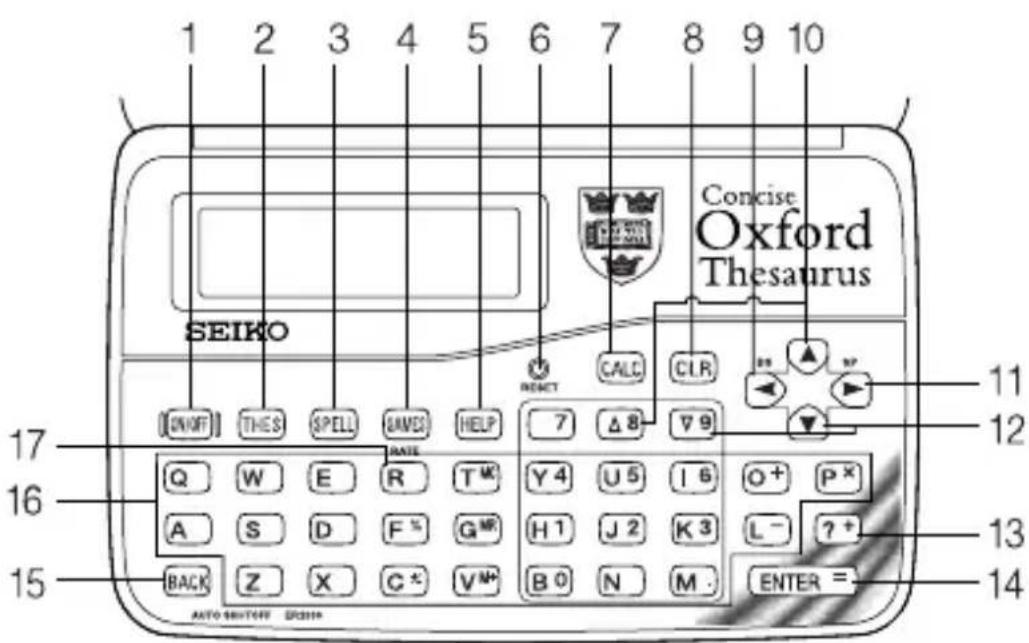
- Unit will automatically TURN OFF when not used for approximately 3 minutes.
1 Turns power ON and OFF.
2 Selects Thesaurus mode.
3 Selects Spellchecker mode.
4 Selects Word Game and Solver mode.
5 Activates Help function.
6 RESET button
7 Selects Calculator mode, Currency, Metric/Imperial and Clothing Size Converters.
8 Clears all the input characters.
9 For deleting the last input character. For shifting the display to the left. *
10 For scrolling back through the lists in memory. *
11 Enters a single blank space when pressed once. / A hyphen can be entered by pressing ▼ or ▲ after entering a space. For shifting the display to the right. *
12For scrolling down through the lists in memory. *
13 Used in place of letter(s) you are unsure of when correct spelling of a word is unknown.
14 Executes the functions.
15Returns the display to the previous state.
16 Letter and numeral input keys.
17 For entering the new rate in the conversion mode.
* For selecting the menu in the conversion mode.
Preparation for using the Unit
1. Resetting
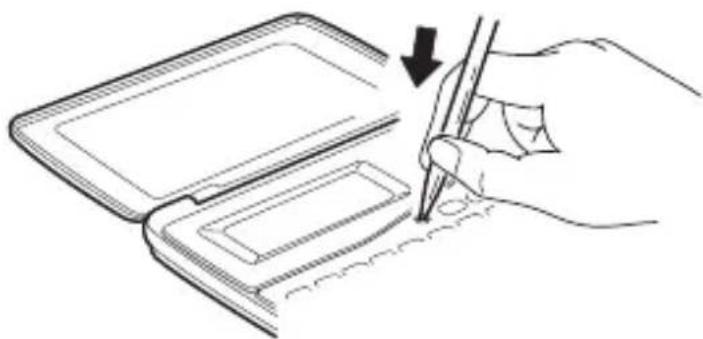
Before using the unit, press the “RESET” button on the front of the unit.
The contrast adjustment display will appear. ( See page 7.)
natural_image
Line drawing of a hand using a pen to write or mark on a notepad (no text or symbols present)ALWAYS press the "RESET" button on the front of the unit after battery replacement or if the unit fails to operate properly.
2. Contrast Adjustment
- After resetting, the contrast adjustment display will appear.
- You can use either ▼ or ▲ to adjust the contrast of the display Level 1 to Level 20.
(Initial setting =10)
3 Press ENTER to finish.
The screen from which you can select the Spellchecker level will appear. ( See page 8.)
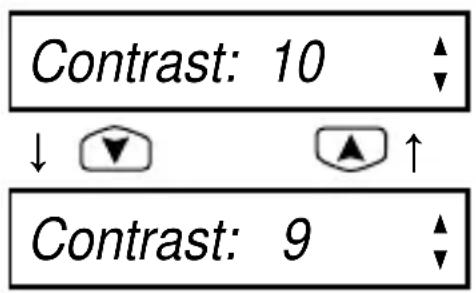
* If you want to adjust the contrast of the display again, turn off the power and then press and release ON/OFF while holding down C.
3. Selecting the Spellchecker level
Due to the extensive coverage of the Oxford English Source Lexicon, you can select a level for the Spellchecker to more closely match your needs.
There are three levels available for you to select from: Beginner, Intermediate, and Advanced.
Beginner: Approximately 60,000 words (student level)
Intermediate: Approximately 90,000 words (general and business use)
Advanced: Approximately 200,000 words (specialist use)
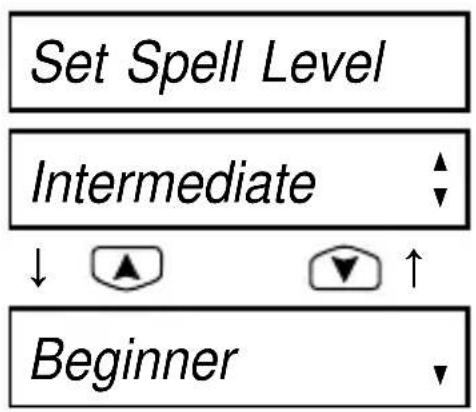
- After you've adjusted the contrast, the screen from which you can select the Spellchecker level will appear.
- Select the level you require by using ▲ or ▼ (△ 8 or ▽ 9). For example, press ▲ if you wish to select the “Beginner” level.
- Press ENTER to finish. A demonstration display will appear. ( See page 10. )
* If you want to reset the level, turn on the power by pressing ON/OFF while holding down L. The screen from which you can select the Spellchecker level will appear.
flowchart
graph TD
    A["Set Spell Level"] --> B["Intermediate"]
    B --> C["Beginner"]
    style A fill:#f9f,stroke:#333
    style B fill:#ccf,stroke:#333
    style C fill:#cfc,stroke:#333
4. Demo Function
After you've selected the Spellchecker level, a demonstration display will begin to explain the contents of the unit.
* Y ou can stop the demonstration by pressing any of the keys.
Welcome to the
OXFORD
Thesaurus
To end this demo
■ ■ ■
* The next time you turn on the power, the demonstration display will not appear if you press ON/OFF while holding down D.
* If you want to see the demonstration display again, turn on the power by pressing ON/OFF while holding down D.
● Changing the Battery
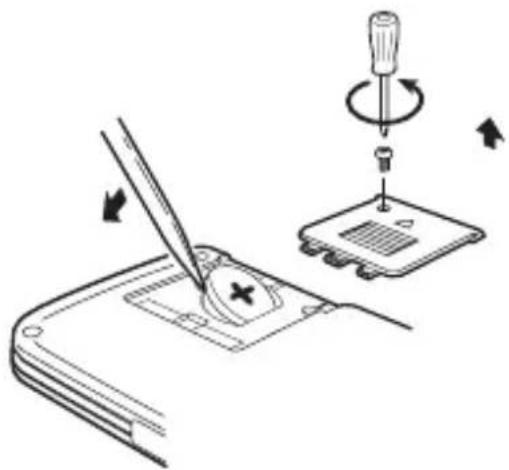
The battery needs to be changed as soon as the display becomes dim. Make sure that the power is switched off before replacing the battery.
- Turn the unit OFF.
- Remove the screw and the battery cover from the back of the unit.
- Remove the old battery.
- Insert the new (CR2025) battery with the “+” side facing up.
- Replace the battery cover and the screw.
- Press the “ RESET” button.
natural_image
Diagram showing a tool interacting with a device, including a screwdriver and a slide (no text or symbols present)
CAUTION
• The battery may pose a choking hazard to small children.
- Keep the battery and product away from small children.
- Do not expose the battery to open flame or intense heat.
- Never use batteries other than those specified.
Resetting:
If the unit does not operate properly after the battery has been replaced, or if at any time the unit fails to operate properly, gently press the “RESET” button.
Spellchecker
- Selecting the Spellchecker level (See page 8.)
- If you want to reset the level, turn on the power by pressing ON/OFF while holding down L. The screen from which you can select the Spellchecker level will appear. (See page 9.)
- Select the level you require by using ▲ or ▼ (△8 or ▽9).
- Press ENTER to finish.
* If the spelling of an input word tallies with that of a word in the full vocabulary list of 200,000 words, the message “Correct!” will appear regardless of the level you’ve selected.
* Examples at the “Intermediate” level are used in the explanation.
- If the spelling of a word you enter is correct :
1 Press SPELL.
Spellchecker
Enter a word
2 Type a word.
Example: colour
colour _
3 Press ENTER.
The message “Correct!” will appear.
Correct !
The display will then return to the entered word.
colour
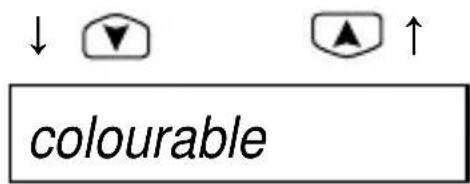
- To scroll alphabetically up or down through the unit's word list, starting from the displayed word, press ▼ or ▲.
4 Example: Press ▼.
• T o clear the display and spell check another word, simply enter your new word.
Pressing SPELL will also clear the display.
5 Example: apply
| apply _ |
- If the spelling of a word you enter is incorrect :
The Spellchecker will take “educated guesses” as to the word you may have intended.
1 Press SPELL.
2 Type a word. Example: colour
3 Press ENTER.
“Checking …” will be displayed while it finds words in the memory closely matching your entered word.
After the display “Correction list”, the first proposed word will be displayed.
Spellchecker
Enter a word
coloure _
Checking . . .
Correction list
colour
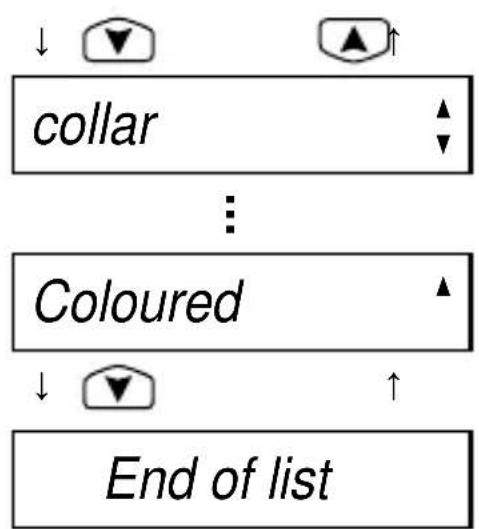
4 Press ▼ to see other proposed words.
* The message “End of list” will appear if you press ▼ when the final proposed word is displayed.
Similarly, the message "Start of list" will appear if you press ▲ when the first proposed word is displayed.
flowchart
graph TD
    A["collar"] --> B["Coloured"]
    B --> C["End of list"]
    style A fill:#f9f,stroke:#333
    style B fill:#bbf,stroke:#333
    style C fill:#dfd,stroke:#333
● Entering and Correcting Letters
* Up to 30 letters can be entered.
* Use ▶ to enter a space.
Press ▼ or ▲ after entering a space to enter a hyphen.
* Corrections can be made by using
* The entire display can be cleared by pressing CLR or SPELL.
● Using the Wildcard function
If you are unsure of part of the spelling of a word, enter the word using question mark(s) for the letter(s) of which you are unsure.
1 Press SPELL.
Spellchecker
Enter a word
2 Type a word.
Example: ??tio?
Use ☐ to enter question marks.
??tio?_
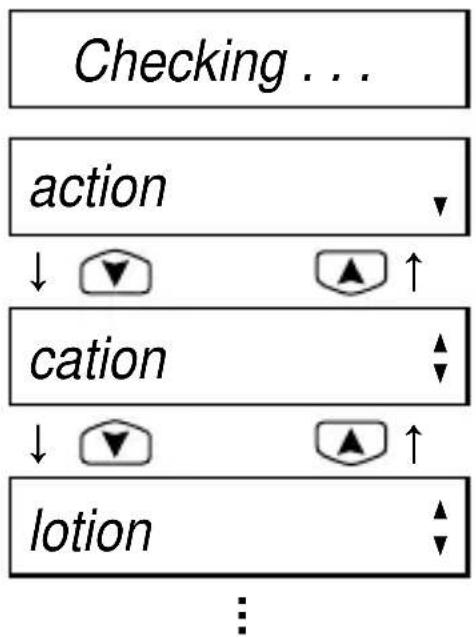
3 Press ENTER.
After the display “Checking …”, the first corresponding word will be displayed.
4 You may continue to scroll through the corresponding word list by using ▼ and ▲.
• T o clear the display and spell check another word, simply enter your new word.
flowchart
graph TD
    A["Checking ..."] --> B["action"]
    B --> C["cation"]
    C --> D["lotion"]
    D --> E["..."]
Thesaurus
You can investigate the synonyms (and antonyms) for a word you enter.
When a word you enter has more than one meaning, the unit will group the synonyms according to part of speech and meaning.
● Entering a word and Selecting the group
1 Press THES.
Thesaurus
Enter a word
2 Type a word.
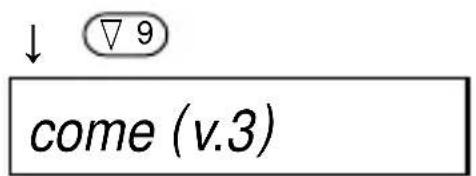
Example: come
come_
3 Press ENTER
First group of synonyms will be displayed.
4 If there are two or more groups of synonyms (or antonyms), press ▼ or ▽ 9 to see each successive group. Press ▲ or △ 8 to return.
S mark means group of Sub-entries.
A mark means group of Antonyms.
First group of synonyms for the next word will be displayed.
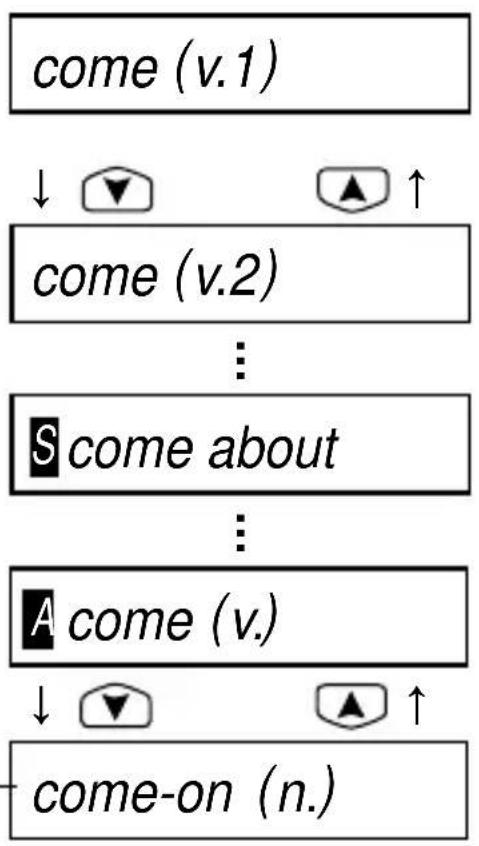
flowchart
graph TD
    A["come (v.1)"] --> B["come (v.2)"]
    B --> C["S come about"]
    C --> D["A come (v.)"]
    D --> E["come-on (n.)"]
    style A fill:#f9f,stroke:#333
    style B fill:#f9f,stroke:#333
    style C fill:#ccf,stroke:#333
    style D fill:#ccf,stroke:#333
    style E fill:#ccf,stroke:#333
● Finding the example phrase and the synonyms
When the group of synonyms is displayed, press ENTER to display the example phrase using the meaning of this group of synonyms.
Example: come (v.2)
1 Press ENTER.
The example phrase will be displayed.
* If the group of synonyms has no example phrase, the unit will display the synonym. (See next page.)
2 Press ▶ to see the remains of the example phrase.
Press ▶ to return.
E mark means Example phrase.
come (v.2)
E they came las ▶
↓ ▶ ▶ ↑
came last night
3 Press ENTER.
Number of the synonyms will appear and the first synonym will be displayed.
4 Press ▼ to see other synonyms.
Press ▲ to return.
5 When all synonyms have been displayed, press ▼ to see the synonyms in restricted usage. (informal, medicine, vulgar etc.)
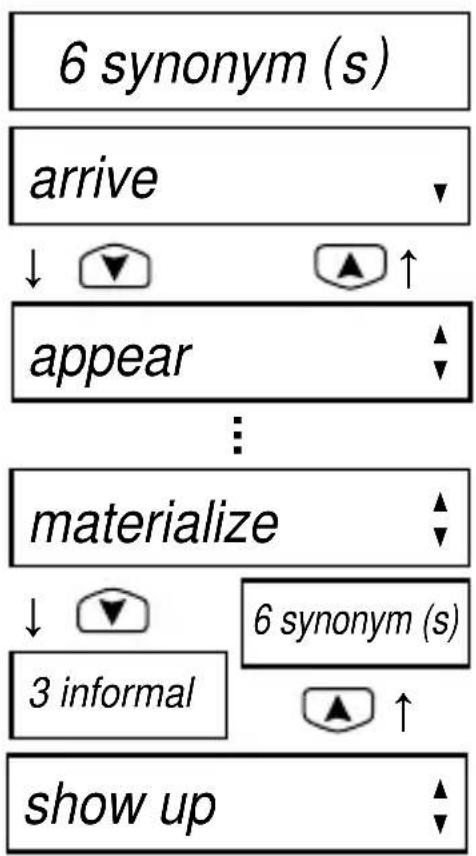
flowchart
graph TD
    A["6 synonym (s)"] --> B["arrive"]
    B --> C["appear"]
    C --> D["..."]
    D --> E["materialize"]
    E --> F["3 informal"]
    F --> G["show up"]
    style A fill:#f9f,stroke:#333
    style B fill:#ccf,stroke:#333
    style C fill:#cfc,stroke:#333
    style D fill:#fcc,stroke:#333
    style E fill:#cff,stroke:#333
    style F fill:#ffc,stroke:#333
    style G fill:#fcf,stroke:#333
* The message “End of list” will appear if you press ▼ when the final synonym is displayed.
* If you press BACK when the synonym is being displayed, the display will return to the example phrase.
* If you press ^9 or ^8 when the example phrase or the synonym is being displayed, the display will return to the group of synonyms.
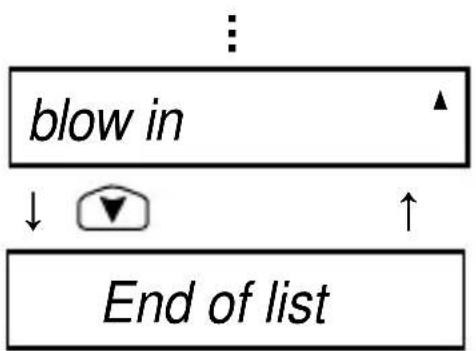
flowchart
graph TD
    A["blow in"] --> B["↓"]
    B --> C["▼"]
    C --> D["End of list"]
    D --> E["↑"]
    E --> F["▲"]
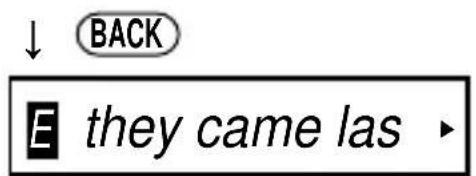
● Words not in headword
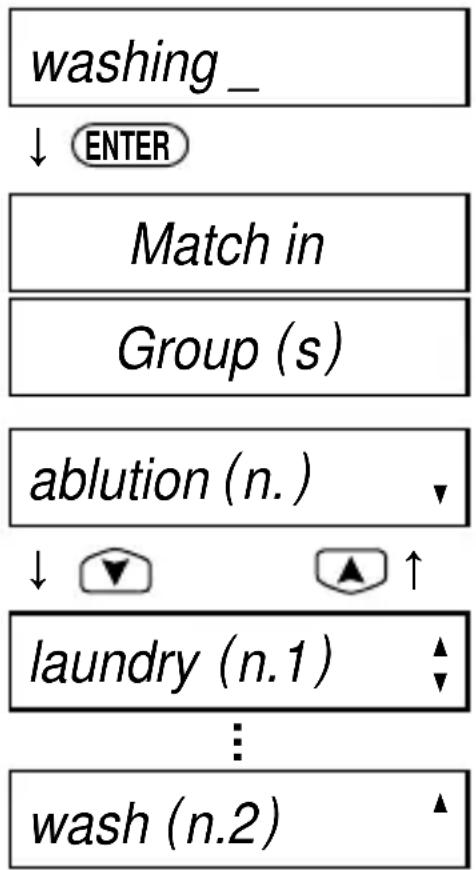
If the entered word is not contained in the headword of the thesaurus but contained in the synonyms or antonyms data, the unit will find and display the group(s) of the synonyms or antonyms.
Example: washing
flowchart
graph TD
    A["washing _"] --> B["ENTER"]
    B --> C["Match in"]
    C --> D["Group (s)"]
    D --> E["ablution (n.)"]
    E --> F["downward arrow"]
    F --> G["upward arrow"]
    G --> H["laundry (n.1)"]
    H --> I["downward arrow"]
    I --> J["wash (n.2)"]
Cross-reference
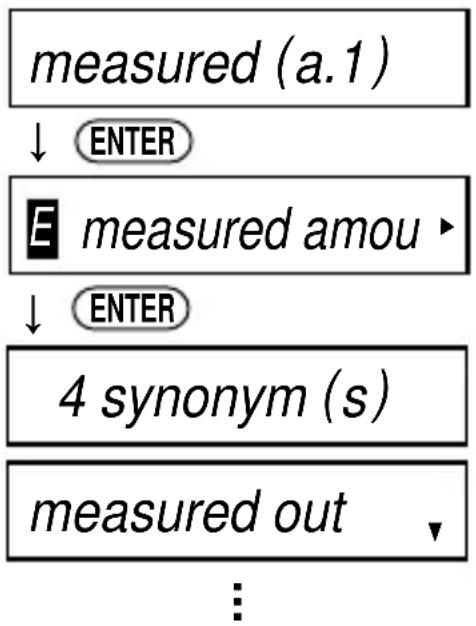
When a word you enter has the cross-reference(s), the unit will show the synonyms of the data.
Example: measured (a.1)
flowchart
graph TD
    A["measured (a.1)"] --> B["ENTER"]
    C["E measured amou ▶"] --> D["ENTER"]
    E["4 synonym (s)"] --> F["measured out ▼"]
    G["..."] --> H["..."]
* If you press ENTER, the unit will display the example phrase for "measure (v.1)".
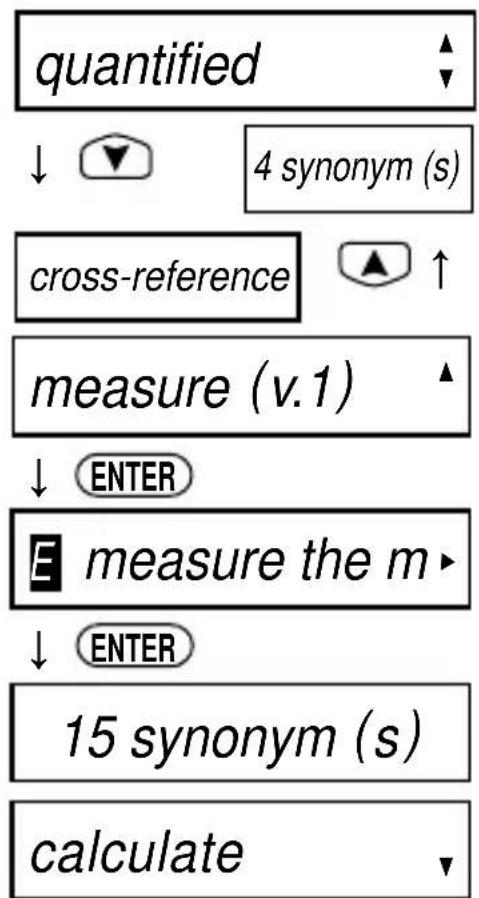
Press ENTER.
Number of the synonyms for “measure (v.1)” will appear and the first synonym will be displayed.
flowchart
graph TD
    A["quantified"] --> B["4 synonym (s)"]
    B --> C["cross-reference"]
    C --> D["measure (v.1)"]
    D --> E["ENTER"]
    E --> F["measure the m"]
    F --> G["ENTER"]
    G --> H["15 synonym (s)"]
    H --> I["calculate"]
● Words not in memory
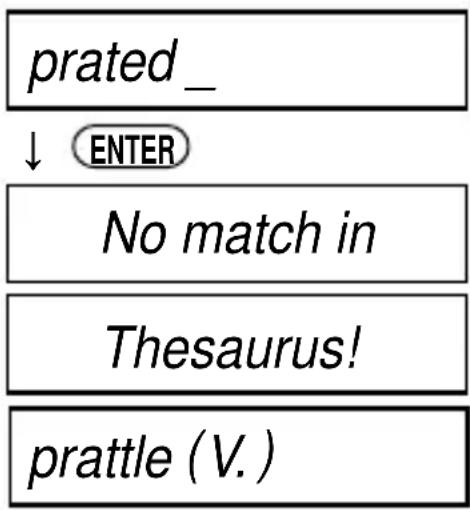
If you press ENTER when a word you have entered is not contained in the unit's list of entries, or if the word you entered is misspelled, the unit will find and display a word which is spelled most closely to your entered word.
This happens even if the found word has no linguistic relationship to your entered word.
Example: prated
flowchart
graph TD
    A["prated_"] --> B["ENTER"]
    B --> C["No match in"]
    C --> D["Thesaurus!"]
    D --> E["prattle (V.)"]
Word Games / Solver
The British English Source Lexicon is one of the highest capacity databases of modern English available and has been exclusively researched by Oxford University Press. It covers an extensive range of subject material including references to technical, scientific, historical and many other terms.
The word games have therefore been developed to provide a stimulating challenge to help you to discover new words and broaden your vocabulary.
The skill levels work as follows:
Beginner: Approximately 60,000 words (student level)
Intermediate: Approximately 90,000 words (general and business use)
Advanced: Approximately 200,000 words (specialist use)
You can take on the challenge of seven different word games set to any one of three levels of difficulty and two solvers.
- Selecting the game or solver
1 Press GAMES.
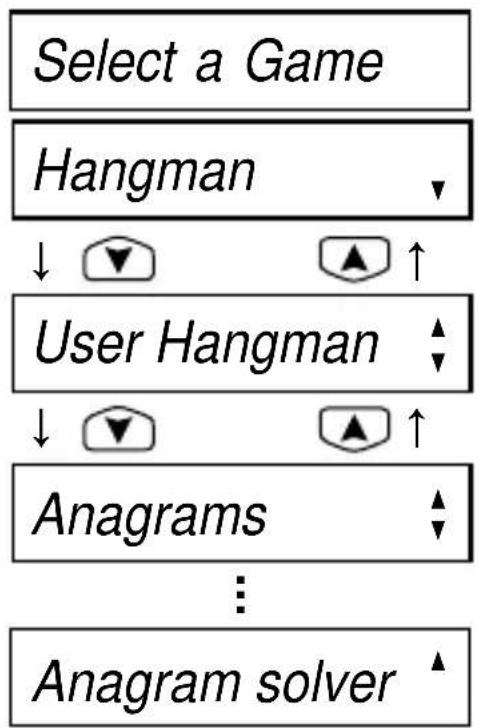
2 Select the game or solver you wish to play by pressing ▼ or ▲.
The game and solver is displayed in the following order.
Hangman, User Hangman, Anagrams, User Anagrams, Beat the Clock, Jumble, Memory,
Crossword Solver, Anagram Solver
flowchart
graph TD
    A["Select a Game"] --> B["Hangman"]
    B --> C["User Hangman"]
    C --> D["Anagrams"]
    D --> E["Anagram solver"]
- Setting the level of the game and solver
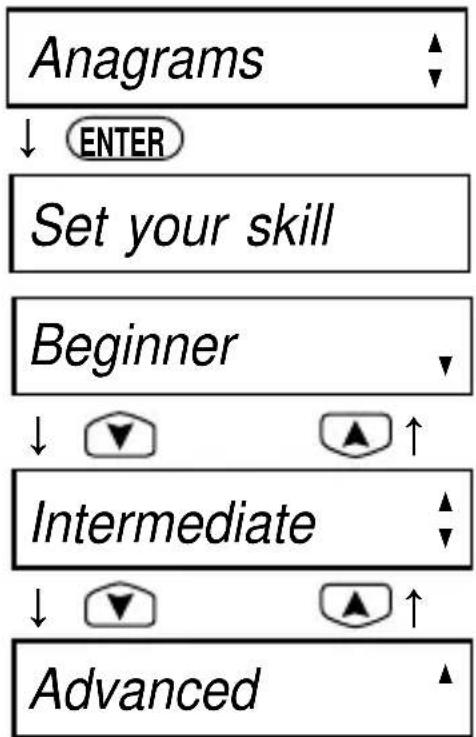
1 Choose the game by pressing ENTER. Example: Anagrams
2 Set the level for selected game by pressing ▼ or ▲.
You can choose from "Beginner", "Intermediate" and "Advanced".
3 Press ENTER to start the game.
flowchart
graph TD
    A["Anagrams"] --> B["ENTER"]
    B --> C["Set your skill"]
    C --> D["Beginner"]
    D --> E["Intermediate"]
    E --> F["Advanced"]
* Examples at the “Intermediate” level are used in the explanation.
Hangman
This is a game in which you have to find a mystery word whose spelling is unknown to you with a limited number of allowed tries.
1 Select “Hangman” and set the level and then press ENTER.
??????? 10
The number of letters in the mystery word is indicated by question marks.
The number of times you can try is shown at the right of the screen. (Beginner-10 / Intermediate-8 / Advanced-6)
2 When you enter one of the letters used in the mystery word, the question mark will be replaced by the letter.
????e 10
Example: Enter “e”.
* In case the same letter is used two or more times in the same word:
If you enter the letter, all the corresponding question marks will be replaced by the letter simultaneously.
Example: Enter "t".
* The number of tries you are allowed will decrease progressively every time you enter an incorrect letter.
3 If all the letters in the word are displayed before you have used up all the tries, "You win!" will be displayed and counted in the "Won" column.
Then the next mystery word will be displayed.
??tt?e 10
bott?e 5
↓ L
You win!
Won : 1 Lost : 0
↓
??????? 10
* One letter will be displayed in turn as a “Tip” every time you press ENTER.
* All the letters will be displayed if you press ?
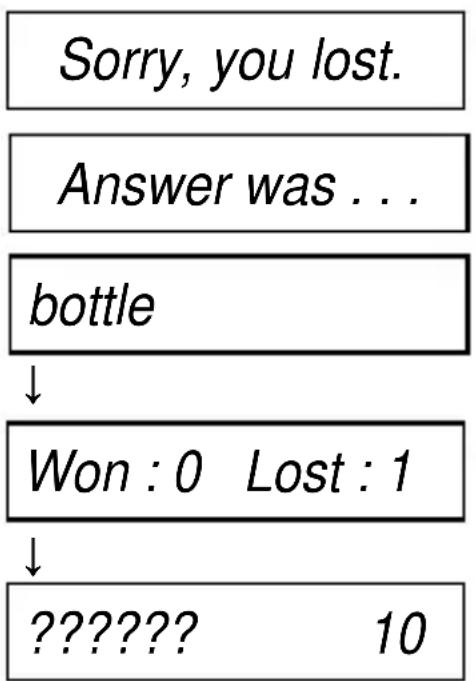
* If you fail to find the word before you have used up all the tries you are allowed, or if once you use ENTER for “Tips” or ? half way through a game, “Sorry, you lost.” will be displayed and counted in the “Lost” column.
Then the answer will be displayed.
Then the next question will be displayed.
flowchart
graph TD
    A["Sorry, you lost."] --> B["Answer was ..."]
    B --> C["bottle"]
    C --> D["Won : 0 Lost : 1"]
    D --> E["?????? 10"]
■ User Hangman
This is a Hangman Game using words that you can select.
1 Select "User Hangman" and set the level and then press ENTER.
2 Enter a word. You can use up to 13 letters.
Example: bottle
3 Press ENTER.
* The ensuing procedure is the same as that used in the Hangman Game.
Enter game word
bottle _
??????? 10
\*\*\* Tip for Parents \*\*\*
This game is a fun way for you to help your children to learn new words from a list or as part of their homework. Select a suitable level, secretly enter your chosen word and then work with them to correctly spell the mystery word.
■ Anagrams
Using all the letters of the displayed word, you attempt to find a specified number of other words.
1 Select “Anagrams” and set the level and then press ENTER.
ascot 4
The selected word and the number of other words will be displayed.
( Beginner- 3 to 6 letter word / Intermediate- 4 to 9 letter word / Advanced- over 5 letter word )
Example: ascot
2 Enter the word using all the letters of the selected word.
coast_
3 Press ENTER.
If your answer is correct, "OK!" will be displayed.
Then the selected word will be displayed again, and the number of other words will decrease.
* The entered answers can be seen again by using ▲ or ▼.
4 If you enter all the answers, "You win!" will be displayed and counted in the "Won" column.
Then the next selected word will be displayed.
OK!
ascot
3
■ ■ ■
You win!
Won : 1 Lost : 0
* If your answer is incorrect, the message “Try again” will appear and the selected word will be displayed again.
* If you press ☐, “Sorry, you lost.” will appear and the answers will be displayed sequentially.
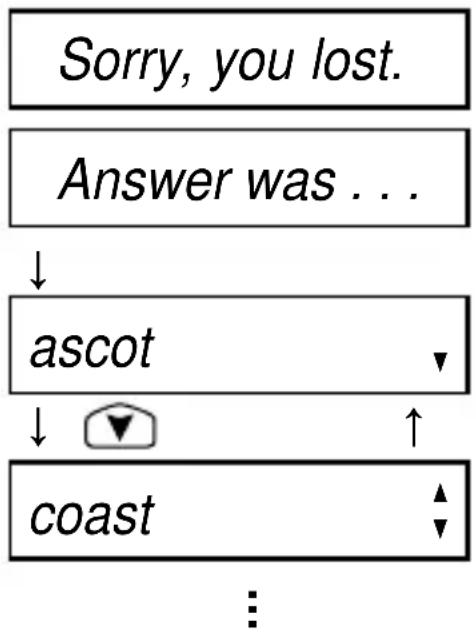
flowchart
graph TD
    A["Sorry, you lost."] --> B["Answer was ..."]
    B --> C["ascot"]
    C --> D["coast"]
    D --> E["..."]
* If you press ENTER, the “Lost” column will be displayed. Then the next selected word will be displayed.
■ User Anagrams
This is an anagram game using words that you can select.
1 Select "User Anagrams" and then press ENTER.
* There is no need for setting the level.
2 Enter a word. You can use up to 13 letters.
Example: ascot
3 Press ENTER.
The selected word and the number of other words will be displayed.
Enter game word
ascot_
ascot 6
* The ensuing procedure is the same as that used in the Anagrams Game.
\*\*\* Tip for Parents \*\*\*
This game is a fun way for you to help your children to learn new words. Simply enter your chosen word and then work with them to correctly find the anagrams.
Beat the Clock
The letters of a mystery word are displayed one at a time at regular intervals.
( Beginner-3 seconds / Intermediate-2 seconds / Advanced-1 second )
Enter the mystery word before they are all displayed.
1 Select “Beat the Clock” and set the level and then press ENTER.
The hidden letters will be displayed one by one.
| ??????? |
| b????? |
| b? tt?? |
| b? tt?e |
2 Press ENTER to stop the appearance of letters.
3 Enter the mystery word. Example: bottle
4 Press ENTER.
If your answer is correct, “You win!” will be displayed and counted in the “Won” column.
Then the next mystery word will be displayed.
Enter answer
bottle _
You win!
Won : 1 Lost : 0
* If your answer is incorrect, or if you press ☐, “Sorry, you lost.” will be displayed and counted in the “Lost” column.
Then the answer and the next mystery word will be displayed.
Jumble
Using letters displayed at random, you attempt to find a specified number of words.
1 Select “Jumble” and set the level and then press ENTER.
tcsoa 5
The selected letters and the number of answers will be displayed.
( Beginner- 3 to 6 letter word / Intermediate- 4 to 9 letter word / Advanced- over 5 letter word )
Example: tcsoa
2 Enter the word using all the selected letters.
coast_
(The ensuing procedure is the same as that used in the Anagrams Game.)
■ Memory
Correctly enter the spellings of words momentarily displayed.
1 Select “Memory” and set the level and then press ENTER.
The words will be displayed for about one second.
bottle
Enter a word
( Beginner- 3 to 6 letter word / Intermediate- 4 to 9 letter word / Advanced- over 5 letter word )
Example: bottle
2 Enter the spelling of the word which has just disappeared from the screen.
bottle _
3 Press ENTER.
If your answer is correct, “You win!” will be displayed and counted in the “Won” column.
Then the next word will be displayed.
You win!
Won : 1 Lost : 0
* If your answer is incorrect, or if you press ☐, “Sorry, you lost.” will be displayed and counted in the “Lost” column.
Then the answer and the next word will be displayed.
■ Crossword Solver
Look for the right word by entering letters you know along with question marks for any letters you don't know.
1 Select “Crossword Solver” and set the level and then press ENTER.
Enter letters
2 Type a word.
Example: ??tio?
Use ☐ to enter question marks.
??tio?_
3 Press ENTER.
After the display “Checking …”, the first corresponding word will be displayed.
4 You may continue to scroll through the corresponding word list by using ▼ and ▲.
5 To clear the display and enter another word, press ENTER.
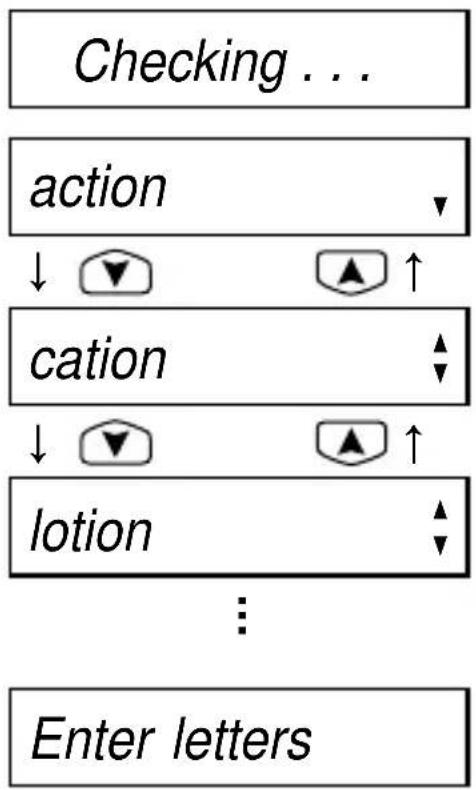
flowchart
graph TD
    A["Checking ..."] --> B["action"]
    B --> C["cation"]
    C --> D["lotion"]
    D --> E["Enter letters"]
    B --> F["↓ ▼ ↑"]
    C --> G["↓ ▼ ↑"]
    D --> H["↓ ▼ ↑"]
    F --> I["▲ ↑"]
    G --> J["▲ ↑"]
    H --> K["▲ ↑"]
■ Anagram Solver
Look for the right word using the same letters as the word you have entered.
1 Select "Anagram Solver" and set the level and then press ENTER.
Enter a word
2 Type a word.
Example: fine art
fine art _
* Y ou can enter words, multiple words or even jumbled letters up to a maximum of 16 characters.
* Use ▶ to enter a space. Press ▼ or ▲ after entering a space to enter a hyphen.
3 Press ENTER. After the display "Checking …", the first corresponding word will be displayed.
4 To clear the display and enter another word, press ENTER.
Checking . . . fainter
Enter a word
* If the word or letters entered do not have any anagrams, the message “No anagrams!” will be displayed.
Calculator
● Keys and their Functions
- CALC Selects Calculator mode, Currency, Metric/Imperial and Clothing Size Converters.
- BACK Clears last entry with one press, clears all with two presses.
- 1 \~ 0, Number input keys.
- +, -, x, | Mathematical function keys.
- MC Clears memory.
- MR Recalls number from memory.
- M+ Enters number into memory.
- +/- Changes sign of number.
- % Percentage key.
* T he number stored in the memory is held when the calculation is changed, the mode is switched or the power is turned off.
● Correcting and Clearing Entries
If you enter an incorrect number, press BACK to clear the entire displayed number, then re-enter the correct number.
If you press an incorrect mathematical function key, simply press the correct function key afterwards.
If “E” appears in display:
- The answer to a calculation is more than 12 digits.
- The memory is full.
- 0 has been used as a divisor. Press BACK to remove the “E” and continue.
- Selecting the conversion menu
1 Press CALC.
2 Press ▼ or ▲ ( ▶ or ◀ ) to select the conversion menu. The menu is displayed in the following order.
-> (or )->
(Temp: °F -> °C) Clothing Size → Local Curr. → Home Curr.
CM → Inch Inch → CM Metre → Feet Feet → Metre
Metre → Yard Yard → Metre KM → Mile Mile → KM
Gram → Ounce Ounce → Gram KG → Pound Pound → KG
ML → Ounce (BR) Ounce (BR) → ML Litre → QT (BR) QT (BR) → Litre
Litre → Gal (BR) Gal (BR) → Litre ML → Ounce (AM) Ounce (AM) → ML
Litre → QT (AM) QT (AM) → Litre Litre → Gal (AM) Gal (AM) → Litre
Temp: °C → °F Temp: °F → °C (Clothing Size)
<- (or )<-
● Entering or Changing a Conversion Rate
You must enter a currency exchange rate before you can do a currency conversion.
Example: If the exchange rate is £1 = U.S. \$1.45
1 Press CALC. Enter the new rate. (= 1.45)
2 Press R (RATE).
1.45
New rate
■ Currency Conversion
Example: U.S. Dollar to British Pound (£1 = U.S. \$1.45)
1 Press CALC, then enter the number you wish to convert.
29.
2 Select the conversion menu using or ▲.
3 Press ENTER.
(U.S. \$29 = £20)
■ Metric/Imperial Conversion
Example: Kilometres to Miles
1 Press CALC, then enter the number you wish to convert.
2 Select the conversion menu using or ▲.
3 Press ENTER. (5 kilometres = 3.10685596119 miles.)
→ Home Curr.
20.
5.
KM → Mile
3.10685596119
■ Clothing Size Chart
In foreign countries you can easily check the clothing sizes: shirts, shoes, hats etc. for men, women and children.
1 Press CALC and then select the conversion menu using ▼ or ▲.
2 Press ENTER and then select a category from Men, Women or Children using ▼ or ▲.
Example: Press ▼ once.
3 Press ENTER and then select a sub-category using ▼ or ▲.
Example: Press ▼ once.
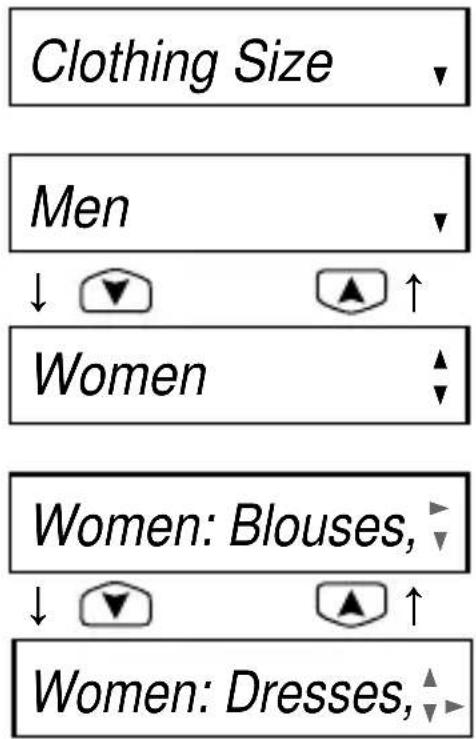
4 Press ENTER.
You can refer to the sizes.
BR:30 AM: 8 EU:3

5 Use ▼ to see more sizes.
BR:32 AM:10 EU:3

● Categories of the Clothing Size Chart
Men: (Suits, Trousers, Overcoats, Pullovers) (Socks) (Shoes) (Shirts) (Hats)
Women: (Blouses, Pullovers) (Dresses, Coats, Suits, Skirts, Trousers) (Shoes) (Stockings)
Children: (Dresses, Coats, Suits, Skirts, Trousers - Girls and Boys) (Shoes - Girls and Boys) (Most Clothing - Girls and Boys)
Help function
An explanation of how to operate the various functions is simply explained on the screen at each operational stage in each mode.
Example:
1 Press SPELL.
2 Press HELP.
The help explanation is displayed automatically from right to left.
Spellchecker
To spell check a . . .
... word, type it ...
* Y ou can stop display of the explanation by pressing any of the keys.
Proper Use
To ensure a long and useful life from this precision electronic instrument, do not expose the unit to extreme heat or cold, water or other liquids including spray cleaners or extreme pressure (such as carrying in a back pocket).
Doing any or all of these things may render the unit inoperable and invalidate the warranty.
Specification
Display: 16 characters x 1 line
Temperature range: 0^ C to +40^ C ( 32^ F to 104^ F)
Battery: Lithium CR2025 x 1 pc.
Battery life: approx. 550 hours (continuous use)
Automatic power off: approx. 3 minutes
Size: 115 (W) x 73 (H) x 13 (D) mm
Weight: approx. 70g (including battery)
* Specifications may change without notice due to our policy of continual product improvement. / The life of the battery will vary depending on how the unit is used.
ONE YEAR LIMITED WARRANTY
- This product is warranted to be free from defects in material or workmanship for one year from date of purchase.
- Repair (or at our option, replacement) will be made on any unit which proves to be defective during this period. Carefully pack the unit along with proof of purchase and a completed copy of the Warranty Record you will find in this manual. Postage, insurance and shipping costs incurred in returning the product for warranty service are your responsibility.
- This warranty does not extend to units which have been subjected to misuse, abuse, neglect, accidents or to units that have been used in violation of the operation instructions. If in our judgement, the unit shows evidence of having been altered, modified or serviced without our authorisation, it will be ineligible for service under this warranty.
-
In Europe, this warranty does not affect your statutory rights.
-
Battery replacement and broken Liquid Crystal Displays are not covered under this warranty.
Seiko Instruments Inc. shall not be liable for any direct, consequential or incidental damages arising out of use of this product. Seiko Instruments Inc. shall not be responsible for damages to this unit as a result of a natural or unnatural disaster, except to the extent prohibited by applicable law. Any implied warranty of merchantability or fitness for a particular purpose on this product is limited in duration to the duration of the warranty.
CE CN148
EC DECLARATION OF CONFORMITY
This is to certify that this equipment fully conforms to the protection requirements of the following EC Council Directives on the approximation of the laws of the member states relating to:-
Directives Title ____
89/336/EEC Electromagnetic Compatibility
Applicable Standards
EN50081-1 Electromagnetic Compatibility - Generic Emission
EN50082-2 Electromagnetic Compatibility - Generic Immunity
SEIKO UK Limited SC House, Vanwall Road, Maidenhead, Berks. SL6 4UW U.K.
This device complies with part 15 of the FCC Rules.
Operation is subject to the following two conditions:
(1) This device may not cause harmful interference, and
(2) This device must accept any interference received, including interference that may cause undesired operation.
- CONTENTS
- Functions and Features
- Thesaurus
- Spellchecker
- Word Games / Solver
- Calculator
- Converters
- Help function
- Demo function
- The Keys and their Functions
- Preparation for using the Unit
- Resetting
- Contrast Adjustment
- Selecting the Spellchecker level
- Demo Function
- ● Changing the Battery
- CAUTION
- Resetting:
- Spellchecker
- - Selecting the Spellchecker level (See page 8.)
- - If the spelling of a word you enter is correct :
- - If the spelling of a word you enter is incorrect :
- ● Entering and Correcting Letters
- ● Using the Wildcard function
- Press ENTER.
- You may continue to scroll through the corresponding word list by using ▼ and ▲.
- Thesaurus
- ● Entering a word and Selecting the group
- Press ENTER
- ● Finding the example phrase and the synonyms
- Press ▼ to see other synonyms.
- When all synonyms have been displayed, press ▼ to see the synonyms in restricted usage. (informal, medicine, vulgar etc.)
- ● Words not in headword
- Cross-reference
- ● Words not in memory
- Word Games / Solver
- - Selecting the game or solver
- - Setting the level of the game and solver
- Hangman
- ■ User Hangman
- \*\*\* Tip for Parents \*\*\*
- ■ Anagrams
- ■ User Anagrams
- Beat the Clock
- Jumble
- ■ Memory
- ■ Crossword Solver
- ■ Anagram Solver
- Calculator
- ● Keys and their Functions
- ● Correcting and Clearing Entries
- - Selecting the conversion menu
- Press CALC.
- ● Entering or Changing a Conversion Rate
- ■ Currency Conversion
- ■ Metric/Imperial Conversion
- ■ Clothing Size Chart
- ● Categories of the Clothing Size Chart
- Help function
- Example:
- Proper Use
- Specification
- ONE YEAR LIMITED WARRANTY
- CE CN148
- EC DECLARATION OF CONFORMITY
Brand : SEIKO
Model : ER2000
Category : Uncategorized