
I.Beat ice - Mp3 player TrekStor - Free user manual and instructions
Find the device manual for free I.Beat ice TrekStor in PDF.


| Product Type | MP3 player |
| Brand | TrekStor |
| Model | i.Beat ice |
| Dimensions | 63.8 x 27 x 15.7 mm |
| Weight | 35 g |
| Battery Type | Rechargeable Lithium-ion (built-in) |
| Charging Time | 90-120 minutes (via USB cable or adapter 5V, 500mA-2A) |
| Playback Time | Approximately 16 hours (volume 15, MP3 128kbps) |
| Display | 2-color OLED, 96 x 64 pixels |
| Supported Audio Formats | MP3 (5-320kbps), WMA (5-192kbps), ASF (music only), ADPCM |
| Storage Capacity | 128 MB, 256 MB, 512 MB, or 1 GB (depending on version) |
| USB Interface | USB 2.0 High Speed |
| FM Radio | Yes, 87.5-108.0 MHz (earphones required as antenna) |
| Voice Recording | Yes (supports MP3 and WAV formats) |
| Line-in Recording | Yes (supports MP3 and WAV formats) |
| Sound Enhancement | SRS WOW (3D effect, TruBass) and 5-band user equalizer |
| Playback Modes | Normal, Repeat One, Repeat All, Random, Random Repeat, A-B Repeat |
| Language Support | Multilingual (Unicode 2.0) |
| Firmware Upgradable | Yes (download from TrekStor website) |
| Included Accessories | Earphones, USB cable, neck strap, installation CD, user manual |
| Operating Systems Supported | Windows 98SE/ME/2000/XP, Mac (no installation program provided) |
| Safety Precautions | Protect from high humidity, dust, sunlight; do not dismantle; avoid high volume; do not use while driving |
Frequently Asked Questions - I.Beat ice TrekStor
User questions about I.Beat ice TrekStor
0 question about this device. Answer the ones you know or ask your own.
Ask a new question about this device
Download the instructions for your Mp3 player in PDF format for free! Find your manual I.Beat ice - TrekStor and take your electronic device back in hand. On this page are published all the documents necessary for the use of your device. I.Beat ice by TrekStor.
USER MANUAL I.Beat ice TrekStor
TREKSTOR DIGITAL AUDIO PLAYER
i.Beat ice User Manual
Greetings
Welcome to the digital world provided by TreKstor
Thank you for purchasing TreKstor i.Beat ice
This user manual is provided to improve customer convenience in using the product.
http://www.trekstore.de
Customer inquiries on TreKstor and the product are fully supported if
related information is available.
Continuous product improvements are available through firmware and software upgrades.
Register as a customer to receive online service, new product information,
firmware upgrades and other matters via email.
TREKSTOR DIGITAL AUDIO PLAYER
i.Beat ice User Manual
Table of Contents
Product Characteristics 7
Charging with a USB Cable 8
Charging with a USB Adaptor 8
Re-chargeable Battery Maintenance 8
Product Package 9
List of Items Included 9
Optional Items 9
Device Configuration 10
Connecting to a Computer (PC) 11
Installing the i.Beat ice Software 11\~15
Connecting to a PC 16
Using USB 16\~17
Removing the I.Beat IceSafely 17
Using Windows Media Player 19 - 21
Formatting the i.Beat ice 22
Using the i.Beat Ice 23
OLED Screen By Each Mode 23\~24
TREKSTOR DIGITAL AUDIO PLAYER
i.Beat ice User Manual
Button Description 25 - 28
Basic Function 29
Listening to Music 30\~31
Switching To VOICE Mode 32
Switching To FM Mode 39-36
Switching To LINE-IN Mode 36
Menu Setting 36\~44
Upgrading Firmware 45
Product Specification 46
Troubleshooting 47
Usage Cautions 48
TREKSTOR DIGITAL AUDIO PLAYER
i.Beat ice User Manual
Safety Precautions
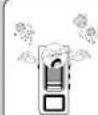
Protect the product
from high humidity diet and dust and
direct sunlight.
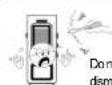
Do not try to
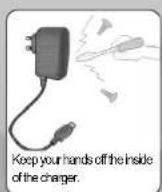
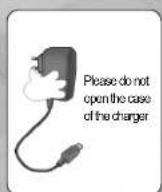
dismantie, repair, or modify the product.

Do not apply
excessive force to or
place any net object on the
product.

Do not let the product come
into contact with chemical
such as be thinner etc.
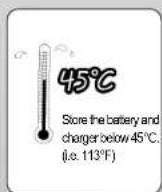
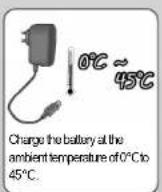
Avoid places with high or low
temperature and high humidity.


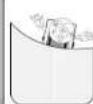
Be aware that if you
fall with the player in
your pocket it may cause injuries.
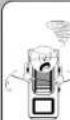
Be aware that the neck strap
may break if too much force is
apples to the strap, or what experiencing you up. I this
occurs the player may fall and
break or cause injuries.

When using the neck
strap take care that
the strap does not get
stock products,
TREKSTOR DIGITAL AUDIO PLAYER
i.Beat ice User Manual
TREKSTOR DIGITAL AUDIO PLAYER
i.Beat ice User Manual
Product CharacteristicsNote for Battery and Charger
- Multi-Codec Player Supports MP3, WMA, ASF (Music files only), ADPCM format digital audio files. It also supports all bandwidths of MP3 and WMA.
- Firmware Upgrade Supports continuous functional updates, modification, and upgrades for the player.
- Lyrics Support Provides a Lyrics download and edit function.
- Supports USB2.0 High Speed Supports USB 2.0 interface enabling high-speed file transfer.
- 3D Sound Effect Supports dynamic sound effects and 3D sound through SRS WOW
- Automatic folder search, Playback type function select Playback list function enables dynamic methods for playing
- Automatic FM frequency detection
- 2 color OLED
- Supports lyrics display and ID3 Tag
- Windows Media Player Plug-in support
- GUI (Graphic User Interface) support
Supports GUI and various functions (sleep, repeat)
- Supports user EQ
- Multilingual support
- Multiple language support (Unicode 2.0 Standard)
TREKSTOR DIGITAL AUDIO PLAYER
i.Beat ice User Manual
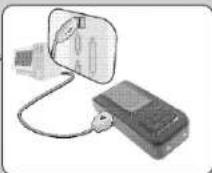
Charging with a USB Cable
Use a USB cable to connect the I.Bealt ice to a PC and leave it connected for 90\~120 minutes to completely
charge the device. The LED turns on during charging and turns off again when charging is complete.
Make sure to disconnect the device from the PC after charging.
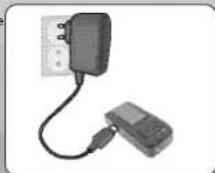
Charging with a USB Adaptor
Connect the Beat box to the adaptor and leave it for 90\~120 minutes to charge the device completely.
Please disconnect after charging.
Caution
The Adaptor output must be 5V, 500mA-2A.
Fire, explosion, or leakage may be caused if output differs from the
specified values.
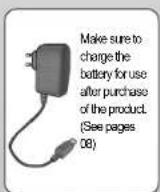
Re-chargeable Battery Maintenance (New Information)
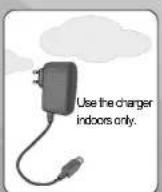
- The product has a built-in re-chargeable battery. Keep the product indoors.
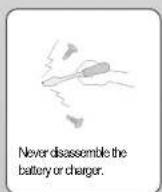
- Dismanting the product and damaging the re-chargeable battery, or placing it near a heater may cause an
explosion. Allowing any metal to make contact across the battery terminals may cause a short circuit and explosion. - Charge the device before putting the product away for a long time. Recharge the device fully before re-use.
-Re-chargeable batteries are consumable items, and their usable life shortens with time - Keep the product away from children and animals since there is a danger of explosion if mishanded.
TREKSTOR DIGITAL AUDIO PLAYER
i.Beat ice User Manual
Product Package
List of items included
i.Beat Ice Device

Earphones

Installation CD

User Manual

USB Cable

Neck Strap

TREKSTOR DIGITAL AUDIO PLAYER
i.Beat ice User Manual
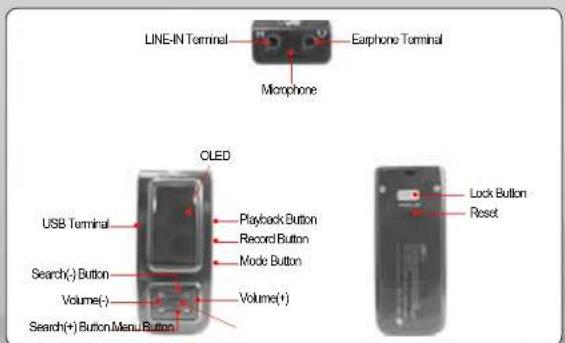
Device Configuration
1) i. Beat ice Device Configuration
TREKSTOR DIGITAL AUDIO PLAYER
i.Beat ice User Manual
Connecting to a Computer (PC)
Note
Installation of software is required for Windows 98 before using the product with
the USB drive. Update Windows when the USB drive does not operate in
Windows 98ME/2000XP systems.
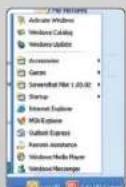
Windows Update
Click on the [Start]->[Windows Update] to update Windows to the latest version.
Installing i.Beat ice Software
Insert the installation CD. The TrekStor menu will open.
Select "DriverTools" and the following screen appears.
TREKSTOR DIGITAL AUDIO PLAYER i.Beat ice User Manual
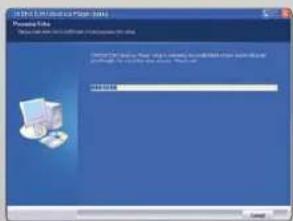
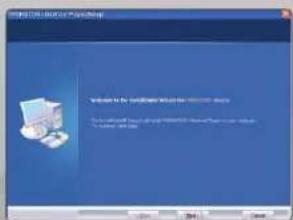
Clicking on the Next button brings up the user terms as shown below.
TrekStor DIGITAL AUDIO PLAYER i.Beat ice User Manual
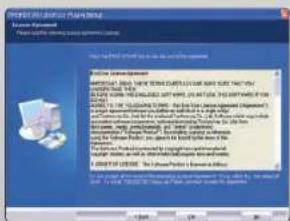
Click on the Yes button if the user items are acceptable.
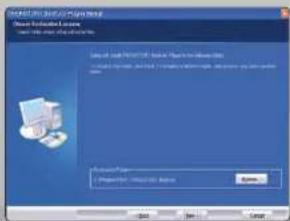
Designate the folder to install the program. Click on Next
TREKSTOR DIGITAL AUDIO PLAYER i.Beat ice User Manual
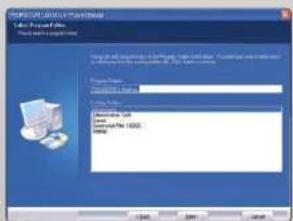
Input the desired program name in the program list. Click on Next.
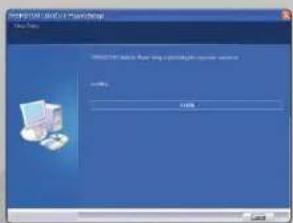
Please wait while the program installs.
TREkSTOR DIGITAL AUDIO PLAYER i.Beat ice User Manual
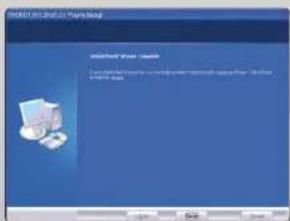
Click on Finish when installation is complete.
* Caution The computer has to be re-started after installation. (For Windows 98ME)
TREKSTOR DIGITAL AUDIO PLAYER
i.Beat ice User Manual
Connecting to a PC
Minimum PC Requirements
- Pentium 133MHz or above - Windows 98/ME/2000XP
-20MB HDD space or more -CD-ROM Drive -USB port
Using USB
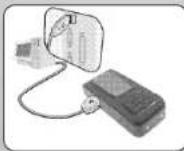
Open the iBeatice's protective USB cover and connected the cable.
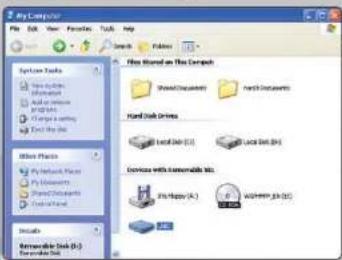
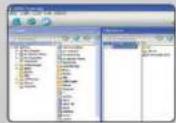
The iBeatice is identified by the PC as a removable disk when connected, and may be used like a floppy disk.
TrekStor DIGITAL AUDIO PLAYER
i.Beat ice User Manual

Use the removable disk like a floppy disk. Maximize the use of the iBeat ice folder function as shown above by creating a number of folders, and place music files in the desired folders. Note that creating "a Data" folder and putting data files in this folder may speed up booting time. FM, LINE-IN, and VOICE folders are automatically generated and store FM, Line-IN, and microphone input files respectively.
Removing the I.Beat Ice Safely
For Windows ME200XP Users Select and click on 'Remove USB Drive' in the System Tray. A message appears on the screen informing the user that it has been safely removed. Then remove the iBeatice.

TREKSTOR DIGITAL AUDIO PLAYER
i.Beat ice User Manual
For Windows 98 Users
Close all iBeat ice related windows.
Data is still in transfer if the blinks on the LCD screen. Remove the SSF-9621/965 when
data transfer is complete and the no longer blinks.
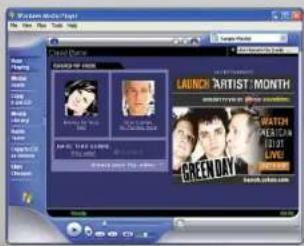
Using Windows Media Player
The i.Beatice supports Media Player Plug in enabling it to directly convert music or download
from Media Player (Applicable for Media Player version 9)
Setting Option
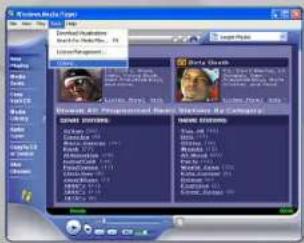
The setting needs to be changed in order to save MP3s etc. in WMA format
Select the Options menu in Tools.
Connect the i Beat ice to a PC and run Media Player.
TrekSTOR DIGITAL AUDIO PLAYER
i.Beat ice User Manual
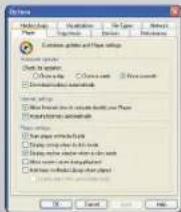
Select the Device tab.
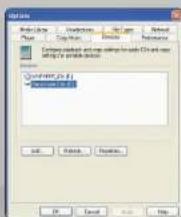
Select Removable Disk and then click on the Properties button.
TREKSTOR DIGITAL AUDIO PLAYER i.Beat ice User Manual
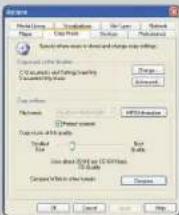
Change the setting for sound quality to the desired position and click on the OK button.
Convert And Save Music
Connect the LBeat line to a PC.
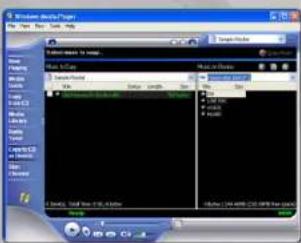
Select Copy To Device from the left hand menu
in Media Player and change [Items In Device] at
the top right to (Removable Disk)
TrekStor DIGITAL AUDIO PLAYER i.Beat ice User Manual
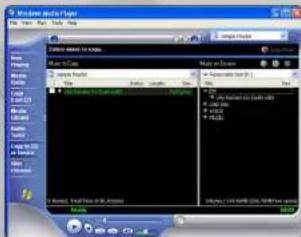
Add the desired files to the left side items To Copy and click on the Copy button at the top right.
Safely remove the i.Beat ice when copying is complete.

TREKSTOR DIGITAL AUDIO PLAYER
i.Beat ice User Manual
Formatting the i.Beat ice
Use the following method to delete all the contents of the i Beat ice.
* Caution
Back-up important data before formatting. Data cannot be recovered after formatting.
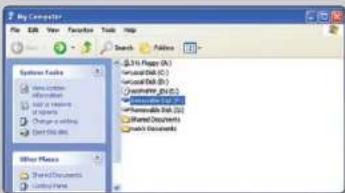
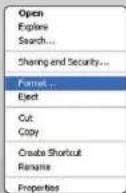
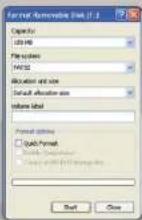
Press [Stan(S)] to run Format.
Note - Selecting NTFS for the file system will not operate format accurately. The type of setting is not required in Windows 98
TrekStor DIGITAL AUDIO PLAYER
i.Beat ice User Manual
Using the i.Beat ice
Please bear the following information in mind in order to use the iBeat ice efficiently.
- Place on music lies in the Data folder.
=> The i Excel ce searches through all files except for files in the Data folder during loading.
Therefore a large number of files would slow down the loading process.
- Numbering the songs (entering numbers in front of the song file) enables the user
To listen to the songs in order.
=>his convenient to playback and manage files if song files are numbered
-
- 03, etc. in front of the song title.
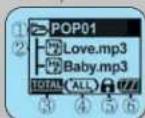
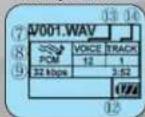
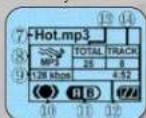
OLED Screen By Each Mode
MUSIC Stop Mode
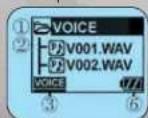
VOICE Playback Mode
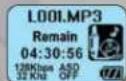
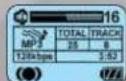
MUSIC Playback Mode
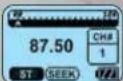
FMSEEK Mode
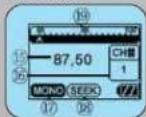
VOICE Stop Mode
EM PRESET Mode
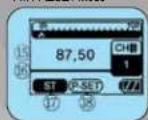
TREKSTOR DIGITAL AUDIO PLAYER
i.Beat ice User Manual
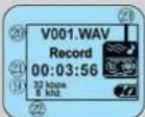
VOICE Record Screen
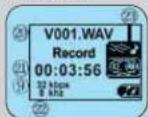
FM Record Screen
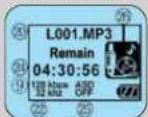
LINE-IN Record Standby Screen
LINE-IN Record Screen
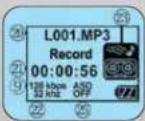
| No | Description No | Description | |
| 1 | Folder 2 | Mp3/WMA/WAV | |
| 3 | Mode/Playback method 4 | Repeat method | |
| 5 | Button lock 6 | Battery method | |
| 7 | Playing song 8 | Mp3/WMA/WAV | |
| 9 | Bpstat Rate 10 | EQ/SRSWGW | |
| 11 | Repeat section 12 | Playing time | |
| 13 | Mode/Playback method 14 | Current track | |
| 15 | Current frequency 16 | Store channel | |
| 17 | MONO/STEREO 18 | SEQUI/PRESET | |
| 19 | Frequency display 20 | Record file | |
| 21 | Recording time 22 | Sample rate | |
| 23 | Recording icon 24 | Remaining recording time | |
| 25 | ASD 26 | LINE-IN icon | |
TREKSTOR DIGITAL AUDIO PLAYER
i.Beat ice User Manual
Button Description
The i.Beat ice has Stop, Playback, Recording, and FM modes etc.
The button functions in each mode are described below.
Music Stop mode
| FunctionButton | Press once Press & hold | |
| Playback button | Playback | Power off |
| Menu button | Open / close folder | Menu screen |
| Search (>>) button | Next folder (when available); Next song (when not available) | |
| Search (<<) button | Previous folder (when available); Previous song (when not available) | |
| Volume (+) button | Previous song | |
| Volume (-) button | Next song | |
| Mode button | Mode screen | Mode screen |
| Record button Mark | Folderfile | |
Music Playback mode
| FunctionButton | Press once | Press & hood |
| Playback button | Stop | Power off |
| Menu button | Menu screen | |
| Search (>) button | Next song | Quick search |
| Search (<<) button | Previous song | Quick search |
| Volume (+) button | Increase volume | |
| Volume (-) button | Decrease volume | |
| Mode button | Set / Unset Section Repeat / Mode screen | Mode screen |
| Record button EQ/SRS function | ||
TREKSTOR DIGITAL AUDIO PLAYER
i.Beat ice User Manual
Voice Stop mode
| FunctionButton | Press once Press & hold | |
| Playback button | Playback Power off | |
| Menu button Open / close folder Menu screen | ||
| Search (>>) button | Next folder (when available), Next song (when not available) | |
| Search (<=) button | Previous folder (when available), Previous song (when not available) | |
| Volume (+) button | Previous song | |
| Volume (-) button | Next song | |
| Made button Mode screen Mode screen | ||
| Record button No function Start recording | ||
Voice Playback mode
| Function\nBullon | Press once Press & hold | |
| Playback button | Stop Power off | |
| Menu button Menu screen | ||
| Search (>>) button | Next song | Quick search |
| Search (<=) button | Previous song | Quick search |
| Volume (+) button | Increase volume | |
| Volume (-) button | Decrease volume | |
| Mode button Set / unset Section Repeat / Mode screen | Mode screen | |
| Record button Start recording Start recording | ||
TREkSTOR DIGITAL AUDIO PLAYER
i.Beat ice User Manual
FM Seek mode
(Displays SEEK below FM)
| FunctionButton | Press once Press & hold | |
| Playback button | Preset mode Power off | |
| Menu button increase stored channel | Menu screen | |
| Search (>>) button | Change frequency | Search next freq. |
| Search (<=) button | Change frequency | Search next freq. |
| Volume (+) button | Increase volume | |
| Volume (-) button | Decrease volume | |
| Mode button Mode screen | Mode screen | |
| Record button | Store channel | Start recording |
FM Preset mode
(Displays P-SET below FM)
| Function\nButton | Press once Press & hold | |
| Playback button | Seek mode Power off | |
| Menu button Menu screen | Menu screen | |
| Search (>>) button | Increase stored channel | |
| Search (<) button | Decrease stored channel | |
| Volume (+) button | Increase volume | |
| Volume (-) button | Decrease volume | |
| Mode button Mode screen | Mode screen | |
| Record button | Automatic channel set. | Start recording |
TREKSTOR DIGITAL AUDIO PLAYER
i.Beat ice User Manual
LINE-IN mode
| Function Button | Press once Press & hold | |
| Playback button | No function Power off | |
| Menu button Menu screen | ||
| Search (**) button | No function | |
| Search (<<) button | ||
| Volume (+) button | Increase volume | |
| Volume (-) button | Decrease volume | |
| Mode button Mode screen Mode screen | ||
| Record button No function Start recording | ||
During Recording
| FunctionButton | Press once Press & hold | |
| Playback button | No function Power off | |
| Menu buttonSearch (>) buttonSearch (<) buttonVolume (+) buttonVolume (-) buttonMode button | No function | |
| Record button No function Stop | ||
TrekStor DIGITAL AUDIO PLAYER
i.Beat ice User Manual
Basic Function
Power on
Press the i.Beatice's playback button.
Power off
Press the playback button for 3 seconds.
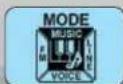
After mode (Music/Voice/FMLINE-IN)
Press and hold the i.Beatice's mode button.
Move the cursor to the desired mode in the
mode screen and press the Menu Mode
button to alter modes.

Music mode
Voice mode
FVmode
LINE-IN-mode
Control volume (Press the volume button.)
TREKSTOR DIGITAL AUDIO PLAYER
i.Beat ice User Manual
Listen to Music
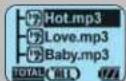
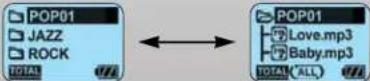
Search by folder
When searching for music files, press the search button to search by folder.
Note - Moves to the next/previous music file when the folder is not available.
Playback/Stop - Press the i.Beat ice's playback button.
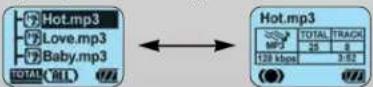
Open/dose folder - Press the center menu button with the cursor on the desired folder.
Search Current Music
Press and hold the search button to search within the current music.
Holding the button longer increases the searching speed.
Change the Playing Music
Pressing the search button operates as described in the following table.
| Pressing line Function | ||
| Search (<<) button | Before 5 seconds of playing | Plays previous song |
| After 5 seconds of playing | Plays current song | |
| Search (>>) button | Anytime Plays next song |
TrekStor DIGITAL AUDIO PLAYER
i.Beat ice User Manual
Section Repeat
Press the mode button. (marked ☐)
Press the mode button. (marked MB)
Press the mode button to stop Section (from A to B) Repeat,

*The Section Repeat function repeats for at least 2 seconds duration.
TREKSTOR DIGITAL AUDIO PLAYER
i.Beat ice User Manual
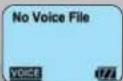
Switch To VOICE Mode
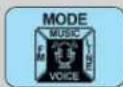
Press and hold the mode button to bring up the mode change screen. Select VOICE from the screen.

Press and hold the record button in VOICE mode. *Press the record button again to stop recording.
Playback Recorded Voice
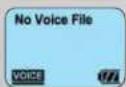
Open a folder by pressing the section menu from VOICE.
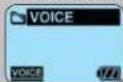
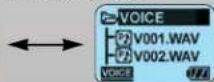
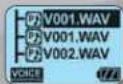
Select the desired file using the volume button and press the playback button.
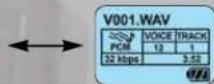
The Playback method select function and SRS functions are not available in VOICE mode.
TREKSTOR DIGITAL AUDIO PLAYER
i.Beat ice User Manual
Switch To FM Mode
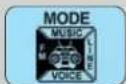
Press and hold the mode button to switch modes and listen to radio.
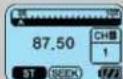
SEE is displayed at the bottom of the LCD panel in SEEK mode.
Search Frequency
Pressing the search button moves frequencies by intervals of 100Hz.
Pressing and holding the search button automatically searches for the next available frequency.
* MONOSTEREO displayed at the bottom of the screen is determined automatically according to the signal received
Storing a Frequency to a Channel
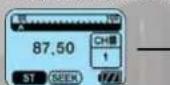

Pressing the menu button moves to the next channel.
TREKSTOR DIGITAL AUDIO PLAYER
i.Beat ice User Manual
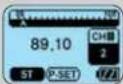
Select the channel to store the frequency and press the mode button to store.
* Automatically becomes P-SET mode after the storing procedure is completed.
Switch to P-SET mode
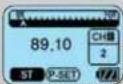

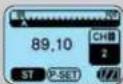
Pressing the playback button from SEEK mode switches modes to P-SET mode.
* The user can listen to the radio by searching through the stored channels in P-SET mode.
Search Stored Channel
Use the search button to search through the next previous channels.
Automatic Channel Setting
The Automatic Channel Setting function automatically searches for 16 available frequencies and stores them as channels.
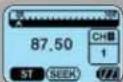

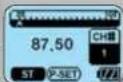
Switch to P-SET mode (Displays P-SET at the bottom).
TrekStor DIGITAL AUDIO PLAYER
i.Beat ice User Manual
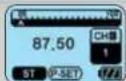

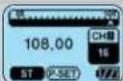
Pressing the mode button automatically searches and stores 16 channels.
※Use the earphones when searching through FM.
Recording FM
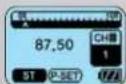

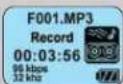
Press and hold the record button in FM mode. *Volume control is disabled during recording.
Playback an FM recorded file

Press and hold the mode button to switch modes to VOICE mode.
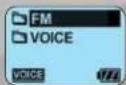

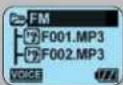
Select the desired file within the FM folder for playback.
TREKSTOR DIGITAL AUDIO PLAYER
i.Beat ice User Manual
Switch To LINE-IN Mode

Press and hold the mode button to switch to LINE-IN mode.
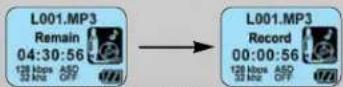
Recording Standby Screen
LINE-IN Recording Screen
Press and hold the record button in LINE-IN mode.
The recorded file is saved under the LINE-IN folder in MUSIC mode.
Menu Setting
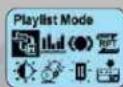
Press the menu button to bring up the menu screen
Pressing the menu button in the menu screen selects the desired menu.
To return from the menu screen, press and hold the menu button or
select the Return menu.
Note
It automatically returns to the previous mode when no action is taken for 10 seconds while in the menu screen.
A different menu list is displayed for different modes (MUSICVOICE/FMLINE-IN)
TrekStor DIGITAL AUDIO PLAYER
i.Beat ice User Manual
Menu Function Summary
| Menu Function | |
| Playback method select Select file list for playback | |
| Equalizer Equalizer setting | |
| SRS Labs WOW SRS WOW setting | |
| Repeat function Repeat function setting for music | |
| Sharpness OLED screen sharpness control | |
| Light setting OLED 'on' time setting | |
| Button light setting Button LED 'on' time setting | |
| Record setting Recording quality/sensitivity/ASD control | |
| Scroll speed Control the speed of text movement on screen | |
| Power save function Automatic turning off time when not playing | |
| Sleep function Automatic turning off after certain period | |
| Delete file Delete selected file (In stop mode) | |
| Lyric support Lyrics output setting for songs with lyrics. | |
| Music information ID3 tag and/or meta data display | |
| Language setting | Menu and instruction language |
| Registration info. | Displays current status for product |
| Return | Exit menu screen |
Playback Method Select
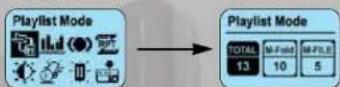
Function to select playback list.
TREKSTOR DIGITAL AUDIO PLAYER
i.Beat ice User Manual
* The number inside the box represents the number of files to playback
Caution
A' No Playback folderfile' message is displayed in M-Fold or M-File modes if the marked filefolder is not available. (Does not playback)
Deleting or adding a file/folder removes markings.
| Playback method | Description | Playback screen |
| [2005] | Playback all the music files in the i.Beat ice |  |
 | Playback selected folder only. |  |
| [32X2] | Playback selected files only. |  |
Marking a File/Folder
Move the cursor (highlight) to the desired file/folder and press the record button to mark the file or folder.
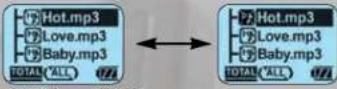
Unmarked Marked
TrekSTOR DIGITAL AUDIO PLAYER
i.Beat ice User Manual
Use EQ to control and customize sound.
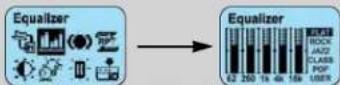
User EQ Setting
The user can control the output level for each frequency bandwidth to customize
sound according to taste. The i.Beat ice User EQ divides sound into 5 frequency
bandwidths and enables the user to control the level from +10dB = -10dB.
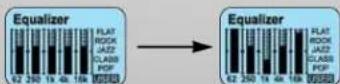
Use the menu and search/volume buttons to control setting
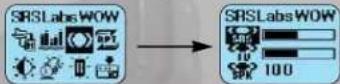
WOW Labs SRS Setting
The following menu is available in the menu screen if SRS, TruBs, and WOW is set
(displayed at the bottom of the LCD) Adjust the SRS, TruBs, and SPK values to customize the sound.
SRS - Creates a 3D sound effect
TruBs - Supports low frequency sounds to create deeper sounds.
WOW - Enables both the SRS and TrUBs functions to create greater sound quality
SPK - Adjusts the sound effect depending on the speaker type used
TREKSTOR DIGITAL AUDIO PLAYER
i.Beat ice User Manual
| Value By Speaker |
| 40 Small earphones |
| 60 Normal earphones |
| 100 Small speaker |
| Above 100 Speaker |
Note
SRS is registered to SRS Labs, Inc.
WOW is registered under license by SRS Labs, Inc.
EQ does not operate when SRS is active and EQ setting is not possible.
SRS setting is possible only in music mode when the SRS function is active.
Repeat Function
The Repeat function has the following types: Repeat single song repeat all random random repeat disable repeat.
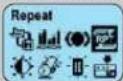

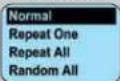
| Description | |
| Repeat single song | Continuously repeat the current song |
| Repeat all Continuously repeat all the songs in the current track in order. | |
| Random Randomly select and playback songs from the current track. (Shuffle) | |
| Random repeat Shuffle and repeat all songs in the current track. | |
| Disable repeat Playback all songs (in listed order) of the current track once only. | |
Sharpness
Set OLED screen sharpness.
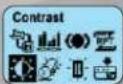

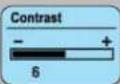
TrekStor DIGITAL AUDIO PLAYER
i.Beat ice User Manual
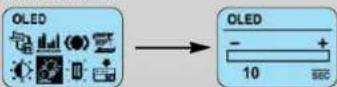
Light setting
Set LCD light On time.
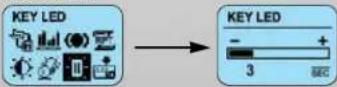
Button light setting
Set LED blink time.
Record setting
Set recording quality (bit-rate)
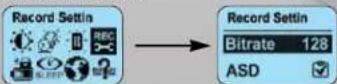
*Table of record files by bitrate in VOICE, FM, and LINE-IN modes
| WAV(Kbps) | MP3(Kbps) | |
| VOICE | 32, 44, 64, 88 | 96 |
| FM 32, 44, 64, 88 | 96, 1 | 12, 128 |
| LINE-IN 96, 112, 128, 160 | ||
TREKSTOR DIGITAL AUDIO PLAYER i.Beat ice User Manual
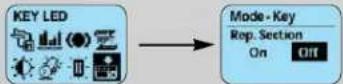
Mode Key
This determines whether Repeat sequence is on or off. When Repeat sequence is active, the mode button is used to set the start and end points on an audio track. The player repeats the selected section of audio track until you press the mode button again.
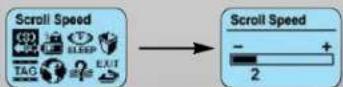
Scroll speed
Scroll speed control adjusts the speed of text movement on screen.
Power save function
The Power save function turns off the power when the i.Beat ce is not performing any actions.
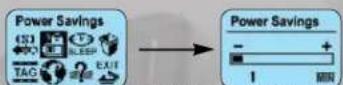
* The device automatically turns itself off if no music is played for the set time duration.
TREkSTOR DIGITAL AUDIO PLAYER i.Beat ice User Manual
Sleep function
The Sleep function allows the user to listen to music or the radio for a certain time period.
and then turns of the power automatically after the set time.
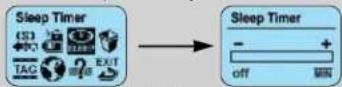
* Automatic power off after set time (minutes).
Delete file
Deletes the selected file.
Press the menu button on the desired filename to delete the file.
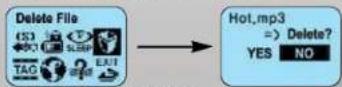
*Flies cannot be deleted during playback.
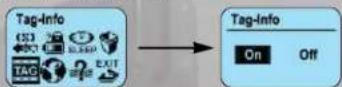
Music Information
Set whether to show or hide music file information (singer, song file) on screen for the selected MP3WMA file.
TREKSTOR DIGITAL AUDIO PLAYER i.Beat ice User Manual
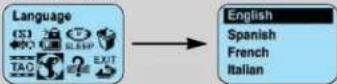
Language setting
Change menu language.
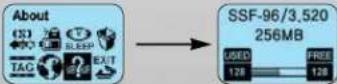
Registration Info.
Registration information displays the i.Beat ice's product name, firmware version, and memory status.
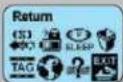
Return
To exit from the menu screen select the return menu option or press and hold the menu button.
TREkSTOR DIGITAL AUDIO PLAYER i.Beat ice User Manual
Upgrading Firmware
Perform firmware upgrade when more recent firmware has been released or when the device does not operate normally.
Caution
Disconnecting the i.Bealice from a PC during firmware upgrade may damage the device.
Check for new firmware in http://www.brekstor.de
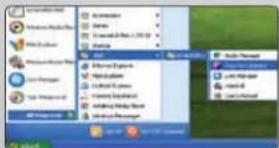
Connect the i.Best ice to a PC using a USB extension cable.
Run [Starf] -> [Program] -> [TrekStor] ->
[Beatice]> [Firmware Update]
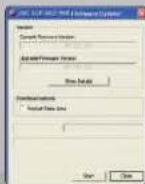
Click on [Start(S)]. Follow the Safely Remove the iBeatio's section in the
manual to disconnect the device after completing firmware update.
Caution
Do not disconnect the i. Beat ice from the PC during the firmware update process
Save important data in the PC before updating the device. Check the current
firmware in the start screen of the i Beat ice or in the registration information.
TREKSTOR DIGITAL AUDIO PLAYER
i.Beat ice User Manual
Product Specification
| Model: Beat Ice Series (128/256/512/1024MB) | |
| Internal Memory 128MB/256MB/512MB/1GB | |
| Supporting Type MPEG 1/2 | 2.5 Layer 3(5~320kbps, VBR), |
| WMA (5~192kbps) | |
| ASF (Music files only) | |
| ADPCM | |
| Battery Re-chargeable | |
| USB USB2.0 | |
| Continuous playing time Approx. 16 hours (Volume 15, MP3 128Kbps) | |
| OLED 96 X 64 (4 Line) / OLED | |
| Size 63.8 x 27 x 15.7 mm | |
| Weight 35g | |
| Signal Noise ratio 90dB | |
| Earphone output | 10mW + 10mW (16W) |
| FM freq. bandwidth | 87.5~106.0MHz (Korea) |
| Recording | VOICE / FM /LINE-IN recording support |
| Language | Multilingual support (Unicode 2.0 record) |
| Supporting OS | Windows 98SE / ME / 2000 / XP / MAC* |
* Installation program for MAC is not provided.
TREKSTOR DIGITAL AUDIO PLAYER
i.Beat ice User Manual
Troubleshooting
- Power does not turn on
Reset the player
- Cannot hear any sound
Check current volume.
Check if the earphones are operating normally.
- Does not operate when buttons are pressed
Check the hold switch.
- Displays No designated file or No designated folder messages when the playback button
pressed and does not perform playback
Set the menu [Playback Method Select function] to Total mode.
For details, refer to the playback method select function in the manual
- Cannot detect FM signals.
It is possible that only weak FM signals exist in the current area.
FM operates normally only when using the earphones.
-Booting speed is too slow.
Booting speed becomes slower as the number of files stored in the i Beat ice increase.
Refer to the Prior To Use section in page 27.
- Cannot search for songs (music) even though stored songs exist.
Check if there are too many folders.
The maximum number of folders is 50 and maximum number of files is 300.
Refer to the Prior To Use section in page 27.
TREKSTOR DIGITAL AUDIO PLAYER
i.Beat ice User Manual
Usage Cautions
-
Try to avoid using headphones or earphones while driving or when riding a motorcycle. It may lead to accidents.
-
Avoid using headphones/serphones at high volume. It may cause damage to your hearing.
-
Avoid using headphones/earphones while walking. It may lead to accidents.
-
Subjecting the product to shocks, such as dropping it on the floor, may damage the device.
-
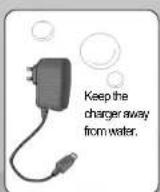
The product may be damaged if it comes into contact with water. Do not turn the device on if it has been
exposed to water, but apply to us for a service.
- The product may suffer damage if exposed to direct sunlight or heating devices for a long time.
TrekSTOR DIGITAL AUDIO PLAYER
i.Beat ice User Manual
- TREKSTOR DIGITAL AUDIO PLAYER
- I.BEAT ICE USER MANUAL
- GREETINGS
- TABLE OF CONTENTS
- SAFETY PRECAUTIONS
- PRODUCT CHARACTERISTICSNOTE FOR BATTERY AND CHARGER
- CHARGING WITH A USB CABLE
- CHARGING WITH A USB ADAPTOR
- RE-CHARGEABLE BATTERY MAINTENANCE (NEW INFORMATION)
- PRODUCT PACKAGE
- LIST OF ITEMS INCLUDED
- TREKSTOR DIGITAL AUDIO PLAYER I.BEAT ICE USER MANUAL
- CONNECTING TO A PC
- FORMATTING THE I.BEAT ICE
- USING THE I.BEAT ICE
- OLED SCREEN BY EACH MODE
- BUTTON DESCRIPTION
- LISTEN TO MUSIC
- REPEAT FUNCTION
- SHARPNESS
- LIGHT SETTING
- BUTTON LIGHT SETTING
- RECORD SETTING
- MODE KEY
- SCROLL SPEED
- POWER SAVE FUNCTION
- SLEEP FUNCTION
- DELETE FILE
- MUSIC INFORMATION
- TROUBLESHOOTING
- USAGE CAUTIONS
Brand : TrekStor
Model : I.Beat ice
Category : Mp3 player