
I.Beat joy - Mp3 player TrekStor - Free user manual and instructions
Find the device manual for free I.Beat joy TrekStor in PDF.


| Product type | MP3 player |
| Brand | TrekStor |
| Model | i.Beat joy |
| Capacity | 64 MB / 128 MB / 256 MB / 512 MB |
| Display | LCD, 64x48 pixels, EL backlight |
| Dimensions | Approx. 70 x 30 x 15 mm |
| Weight | Approx. 30 g (with battery) |
| Power supply | 1x AAA alkaline battery |
| Battery life | 6-10 hours |
| Audio formats | MP3 (MPEG1/2/2.5 Layer 3), WMA |
| Recording format | WAV, 8 kbps bitrate |
| Equalizer modes | Normal, Classic, Jazz, Pop, Rock, Bass |
| Playback modes | Normal, Repeat One, Repeat All, Shuffle, Repeat Shuffle |
| Other functions | Voice recording, A-B repeat, preview, contrast adjustment, backlight, auto shutdown, play timer, language selection |
| Connectivity | USB 2.0 |
| System requirements | Windows 98/ME/2000/XP, USB port, CD-ROM drive |
| Operating temperature | -10°C to +55°C |
| Humidity | 20% - 90% relative humidity |
| Earphone output | 5 mW + 5 mW, 20 Hz - 20 kHz |
| Signal-to-noise ratio | > 90 dB |
| Safety precautions | Avoid impact, extreme temperatures, moisture, strong magnetic fields. Do not disassemble. Use dry cloth for cleaning. |
| Spare parts / reparability | Battery (AAA), earphones. No user-serviceable parts inside. For updates, use provided driver. |
| General notes | Plug & play for Windows 2000/XP; driver needed for Windows 98. Data transfer via USB mass storage. |
Frequently Asked Questions - I.Beat joy TrekStor
User questions about I.Beat joy TrekStor
0 question about this device. Answer the ones you know or ask your own.
Ask a new question about this device
Download the instructions for your Mp3 player in PDF format for free! Find your manual I.Beat joy - TrekStor and take your electronic device back in hand. On this page are published all the documents necessary for the use of your device. I.Beat joy by TrekStor.
USER MANUAL I.Beat joy TrekStor
2.2.1VolumeControl....5
2.2.2Play/Pause/Stop......6
2.2.3 FastForward/Next......6
2.2.4Rewind/Previous.... 6
2.2.5 A-B Repeat 7
2.2.6LockKeys......7
2.3MenuMode 8
2.3.1 VoiceRecording 8
2.3.2ChangeEQmode.... 9
2.3.3Switchplaybackmode......9
Contents
2.3.4 Deleteonetrack.....10
2.3.5 Deletealltracks.....11
2.3.6PreviewSongs....11
2.3.7 Contrast....11
2.3.8Memory....12
2.3.9Backlight.....12
2.3.10 Autoshutdown....13
2.3.11 Play Time Setting.....13
2.3.12SetDisplayLanguage.....13
3ConnectingtheplayertothePC15
3.1 System Requirements.....15
3.2 Installationguidelines.....16
3.3RemovetheplayerfromthePC....16
3.4DownloadingAudioFiles......17
4 Additional information about the TrekStor i.Beat joy
4.1 Firmwareupdateandformat ....19
4.2 Technical Specifications.....21
5 Troubleshooting
19
23
II
TrekStor
Caution
- Donotsubjectthedevicetosevereimpactordropitfromhigh position.
- Donotusetheplayerinextremehotorcold, dustyordampfield. Donotexposeittodirectsunshine.
- Backupthedatafrequentlyincaseofaccidentdataloss.
- Avoid using the player in strong magnetic field.
- Keep the device away from water or other liquids. In the event that water or other liquids enter the device, power off the product immediately and clean it.
- Donotusechemicalsolutiontocleanthedeviceinordertoavoid corrosion. Cleanitwithadrycloth.
- We are not responsible for the damages or lost data caused by malfunction, misusing, repairing the device or battery replacement.
- Donotattempttodisassemble, repairormodifytheproduct, orit will beoutofguarantee.
1GettingStarted
1.1DeviceDiagram
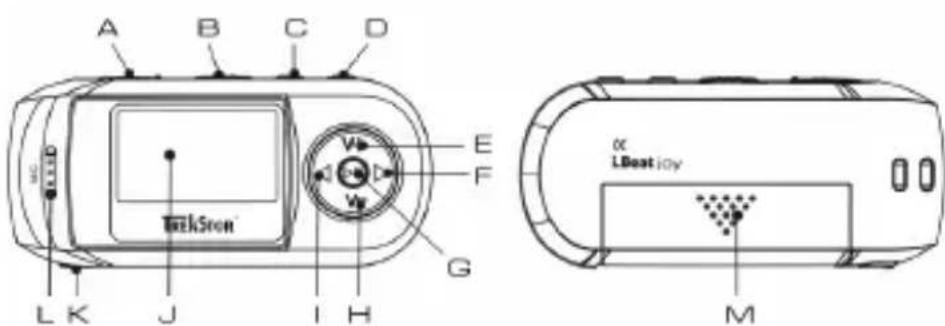
AUSBconnector
B 'Hold'-Switch(locked)
C'M'key(Menu)
D'A-B'/Recordkey
EVolumeincrease 'V+'Key
1GettingStarted
F' ▶▶| 'Next
G' ▶|| 'button(Play/Pause/OK/On/Off)
HVolumedecrease 'V-'Key
I' | ◀◀ Previous
JLCD
KEarphonejack
LBuilt-inmicrophone
MBatterycover
2HowtousetheTrekStori.Beatjoy
2.1PowerOn/Off
Toturnonthedevice, pressandholdthe' ▶ || 'keyfor2seconds. To shutdown, holdthe' ▶ || 'keyforawhile, thedisplayshows 'Shutdown' andthenshutdownimmediately.
2.2 Basicfunctions
2.2.1 VolumeControl
Press the 'V+' key to increase the volume or press the 'V-' key to decrease the volume.
2.2.2Play/Pause/Stop
Whenpoweredon, theplayerenterstheMUSICmode, which is defaulted by the device. Toplaymusic, pressthe' ▶ || 'key shortly. Pressthe' ▶ || 'key during playback, themusic pauses. To resume, pressit again. Press and hold the' ▶ || 'key for about 0.5 second, themusic stops.
2.2.3 FastForward/Next
During playback, pressthe' ▶▶ | 'key and hold it. The playback begins to fast forward. Releasethe key, themusic plays normally. Pressthe' ▶▶ | 'key on cetoplay then next song.
2.2.4Rewind/Previous
During playback, pressthe' | ◀◀'keyandholdit. The playback begins to rewind. Releasethekey, themusicplaysnormally. Pressthe' | ◀◀' keyoncetoplaytheprevious song.
2.2.5A-BRepeat
During playback, pressthe 'A-B'-button to select the start point of the loop. Pressthe 'A-B'-button again to select the endpoint. LCD displays 'A-B', and these section between the start point and the endpoint begins to be played repeatedly. Tocancel A-B repeat, pressthe 'A-B'-button.
Note: The interval between 'A' and 'B' should be more than 2 seconds.
2.2.6LockKeys
Tolockkeysagainstaccidentallybeingpressed, pushthe 'HOLD'-switch tothelockedposition. Allkeysremainunavailablethen. Tounlockthe keys, pushthe 'HOLD'-switchtotheunlockedposition.
Tip: Whenthekeysarelocked, you are unable to turn on the device. So ensure tounlockthekeysbefore turning on the player.
2.3MenuMode
Thisdeviceprovidesmenumodestocontrolsomeadvancedfeatures. To enterthemainmenu, pressthe 'M'key. Pressthe ' | ◀◀◀"or'r ▶▶ |'key y toswitchbetweenthemenuitems, and confirmselecteditembypassing the '▶ || 'key. To returntothepreviousmenulevelyoucanpressthe 'M' key. Orletitreturnautomaticallybydoingnothingtothemenuwithin 5seconds.
2.3.1 VoiceRecording
Toenterthemainmenu, pressthe 'M'key. Pressthe ' |◀◀'or ' ▶▶|' keytoswitchtothe Voice 'item. Confirmselecteditembypassing the '▶||'key. Nowyouareinthe VOICEmode. Tostartvoicerecording, pressthe 'A-B'keyuntil 'Rec 'flashesontheLCD. Theactualrecord timeisdisplayed. Theavailablerecordtimedependsonthememory capacityoftheMP3player.
Toendrecording, pressthe 'A-B' keyslightly. Therecordedfileissaved infolderVOICE.Nowyoucanpressthe' ▶ ||'keytoplaythevoicefile file thatyoujustrecorded.
Toplaythevoicesfilethatalreadystoredintheplayer,enterthemain menubypressingthe 'M'key.Pressthe' | ◀◀◀"or' ▶▶ |'keytoswitch tothe 'Voice'item.Pressthe' | ◀◀◀'or' ▶▶ |'keytochoosethevoice filethatyouwanttoplay,andpressthe' ▶ || 'keytoplaytheselected file.Topauseduringplayback,press' ▶ ||';Toresume,pressitagain. Holdthe' ▶ ||'keyforabout0.5secondsandtheplaybackstops.
Tip: If there is no voice file stored in the player, it displays "NoAudio file".
2.3.2 ChangeEQmode
Toenterthemainmenu, press the 'M' key. Pressthe ' |◀◀' or ' ▶▶|' key to switch to the 'Equalizer' item, and then press the '▶ ||' key againtorevealtheEQmodes. Choose one of the 6EQ modes and then pressthe ' ▶ ||' keytoconfirm theselected mode.
2.3.3 Switch playback mode
Toenterthemainmenu, pressthe 'M'key. Pressthe ' |◀◀'or' ▶▶|' keytoswitchtothe 'Repeat'. Pressthe ' ss t ▶ ||'keytorevealtheop-
tionalmodes.Chooseandthenpressthe 'M'keytoconfirmtheselected mode.
• 'Normal: 'Playalltracksinorderandstopafterplayingall.
• 'One: 'Keeprepeatingthecurrenttrack.
• 'All: 'Playalltracksinorderandrepeat.
- 'Shuffle: 'Playalltracksrandomlyandstopafterplaying.
• 'Repshuffle: 'Keeprepeatingalltracksrandomly.
2.3.4 Deleteonetrack
Toenterthemainmenu, pressthe 'M'key. Pressthe 'keytoswitchtothe 'Delete' itemandpressthe' |◀◀'or' ▶▶|' ▶ ||'keytoselect t
it. Whenthedisplayshows 'DeleteFile?' choosethetrackthatyou wanttodelete.Pressthe' ▶ || 'toconfirmdeletionidDeleteOK' will displayontheLCD, whichindicatesthetrackhasbeendleted.Or, press the 'M'keytocanceldeleteoperation.
2.3.5 Deletealltracks
Toenterthemainmenu, pressthe 'M'key. Pressthe 'keytbswitchtothe 'DeleteAll 'itemandpressthe' it. Whenthedisplayshows 'DelAllFiles?' pressthe' confirmdeletion. 'Deleteok'willdisplayontheLCD, which indicates alltrackshavebeendleted. Or, pressthe 'M'keytocanceldelete operation.
2.3.6PreviewSongs
Toenterthemainmenu, pressthe 'M'key.Pressthe' |◀◀'or' ▶▶|'key toswitchtothePreview'item.Pressthe' ▶||'keytostartpreview.In. In thepreviewmode,theplayerwillplaythefirst10secondsofeverytrack inorderandstopsafterthelasttrackhasbeenplayed.Toexitpreview, pressthe 'M'key.Itwillreturntothemainmenu.
2.3.7 Contrast
Tosetthebackgroundagainsttheforegroundcontrastpressthe 'M' keytoenterthemainmenu.Pressthe' | ◀◀'or' ▶▶ | 'keytoselect 'Contrast 'andpressthe' ▶ || 'keytoconfirm.Adjustthecontrast ast
2Howtousethe TrekStori. Beatjoy
usingthe' | ◀◀◀'on'r ▶▶ | 'keyyPress' ▶▶ | 'todecreaseathecontrastor press' | ◀◀◀'toincreasethecontrast.Pressthe' ▶ || 'keytoconfirmthe the setting.
If you want to reserv the previous setting, just press the Control Wheel.
2.3.8Memory
Toenterthemainmenu, pressthe 'M'key. Pressthe ' |◀◀'or' ▶▶|' keytoswitch tothe 'Memony' item. Pressthe ' ▶ || 'buttontoenterthe menu. Totalmemoryandtheremainingspacewillbeshown.
2.3.9Backlight
Tosetthebacklighttimepressthe 'M'keytoenterthemainmenu.Press the' | ◀◀◀'or' ▶▶|'keytoselect 'Backlight' and pressthe' ▶||'keyto display its options. Select among the four options '5 Secs', '10 Secs', 'Alwayson' and 'Disable' by turning the Control Wheel. Pressthe ►||'keyto confirm your selection.
According to this setting, the backlight will last for the preset tim when any key is pressed.
12TrekStor
2.3.10 Autoshutdown
Tosethetimebeforetheplayerisshutdownautomaticallywhenitis idlepressthe 'M'keytoenterthemainmenu.Pressthe' |◀◀'or' ▶▶|' keytoselect 'Shutdown' byturningtheControlWheelandpressthe '▶ || 'keytorevealitsoption.Selectthedesiredoptionandpressthe '▶ || 'keyagainto confirmyourselection.
According to this setting, the player will be turned off automatically when its idle for selected time.
2.3.11 Play Time Setting
Topoweroffautomaticallyafterapresetplayingtimeiselapsedpress the 'M'keytoenterthemainmenu.Pressthe' | ◀◀◀'or' ▶▶ | 'keyto select 'PlayTime 'andpressthe' ▶ || 'keytorevealitsoption.Select thedesiredtimepressthe' ▶ || 'keytoconfirmyourselection.tio
2.3.12SetDisplayLanguage
TrekStori.Beatjoysupportsseveraldifferentlanguages. Toselectthe displaylanguage, pressthe 'M'keytoenterthemainmenu.Selectthe
2HowtousetheTrekStori.Beatjoy
'Language'menuandpressthe' ▶ ||'keyagaintorevealtheprovided languages.Selectthedesiredlanguageandpressthe' ▶ ||'keytoconfirm.
3ConnectingtheplayertothePC
3.1 System Requirements
- Microsoft® Windows™ 98/ME/2000/XP
- CD-ROMDrive
- Pentium200MHz
• RAM32MB(WindowsME,2000)-64MB(WindowsXP) - USB-Port
TheTrekStori.Beatjoyisaplug&playdevice.Itisdriverlessfor WIN2000/XP.ButforWIN98,youarerequiredtoinstallthedriverfirst beforeconnectingittothecomputer.ForWindows2000orWindows XP,itisrecommendedtoinstallthedriveralsosothatyoucanupgrade, initializeorrecoverthesystem.
3.2 Installationguidelines
Warning: Windows98usersarerequiredtoinstallthe driverfirstbeforeconnectingtheTrekStori.Beatjoytothe computer.
- InsertthedriverCDintotheCD-ROMdrive. The TrekStormenu appears.
- Clickon 'Driver/Tools'.
- Followtheinstructionsoftheinstallationprogram.
3.3RemovetheplayerfromthePC
To avoid possible dataloss, pleaseremovethe player from the PCs safely. For WIN2000/XP, doubleclick the aththerighthand corner of the taskbar. Click 'Stop' to stop the device and then click 'OK'. When the following message prompts, pull out the MP3 player.
ForWin98, pleasemakesuretheplayerhasstoppedtransferringdata beforeunpluggingtheMP3player.When 'Writing'showsontheLCD
display, it indicates that data transfer is in progress. When 'Ready' displays, it means transfer is over, you can unplug the playernow.
3.4 DownloadingAudioFiles
TheTrekStori.BeatjoycanbeusedasaUSBFlashDiskwhenitis connectedtothePC.YoucancopyaudiofilesinMP3orWMAformat fromthePCtotheremovabledisk,ordothereverse.Todownloadfiles fromthePC,connecttheplayertothePC,andcopyaudiofilesstored onthePCtotheremovablediskwhichrepresentstheplayer.
Notice: OnlymusicfileinMP3andWMAformatcanbeshownonthe LCD.
4AdditionalinformationabouttheTrekStor i.Beatjoy
4.1 Firmwareupdateandformat
If you want to update the system, pleased as follows:
- Takeoutthebatterybeforeconnectingtheplayerwiththecomputer.
- PressandholdthePlaybuttonwhileconnectingtheplayerwith thecomputerbytheUSBport.
- Click 'Start' 'Program' 'TrekStori.Beatjoy' and then 'update'. The TrekStori.BeatjoyUpdatedialoguepopsup.
4AdditionalinformationabouttheTrekStori.Beatjoy
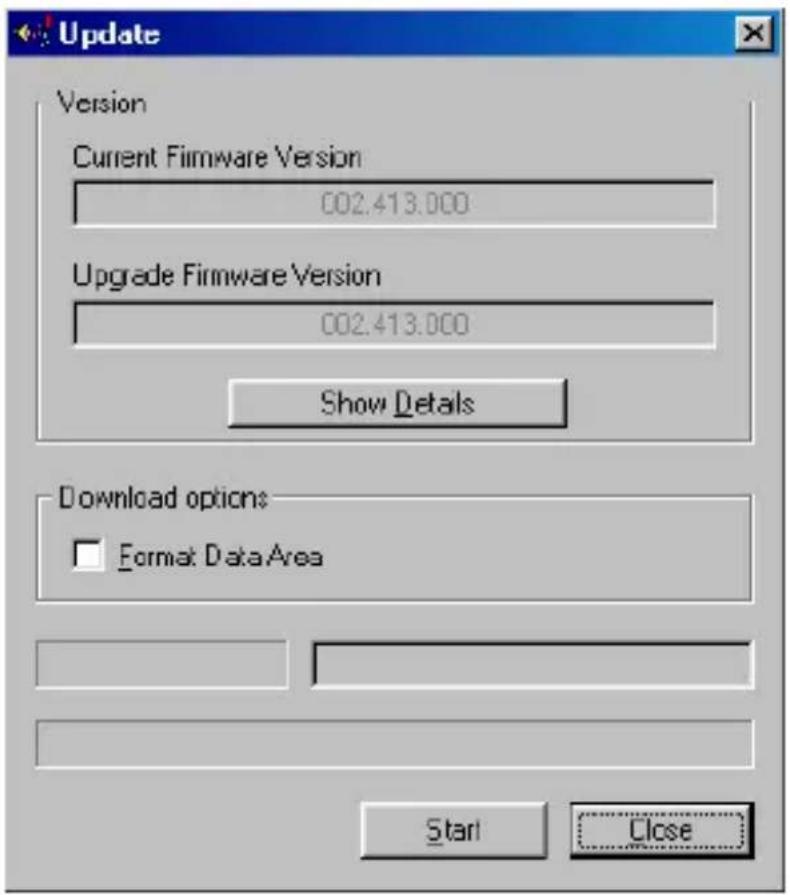
Selectthe 'Formatdataarea'optionandstartformattingprocess. Thusthesystemwillbeformattedandupdated.
4.2 Technical Specifications
Capacity64MB/128MB/256MB/512MB
LCD64x48Pixel, ELBacklight
Temperature-10 ° C-+55 ° C
Relative Humidity 20%–90%
BatteryTypeAAA-sizealkaline
BatteryLife6-10h
AudioFileFormatMPEG1/2/2.5AudioLayer3(.MP3);
WindowMediaAudio(.WMA);
EarphonePower 5mW+5mW
OutputFrequency20Hz-20kHz
Signal-To-NoiseRatio >90dB
EQModes Normal,Classic,Jazz,Pop,Rock,Bass
RecordFormat WAV
RecordBitRate 8kbps
USBUSBVersion2.0
5Troubleshooting
TheLCDdisplaysnothingwhenthe'
PossibleCause:
- Nobatteryorbatteryis toolow.
• Thekeysarelocked.
▶ ||"keyispressed:
Solution:
• Installorreplacethebattery.
- UnlocktheHoldswitch.
WhentheplayerisconnectedtothePC,theremovablediskcannot beopened:
PossibleCause:
- TheFATtableoftheflash diskisdamagedduetoin-correctoperations.
Solution:
- Usetheencloseddriverto formattheplayer.
Theplayercannotbepoweredoneventhebatteryisreplaced:
PossibleCause:
- FATtableintheflash memorymayhaveerrorsin thecaseofstrongmagnet, static, and incorrectdisconnection.
Solution:
• Takeoutthebattery.
- ConnecttheplayertothePCandholddownthePlaykeyforabout3seconds.
- Whenaremovablediskis foundin'MyComputer', usethedrivertoformat andupdatetheplayer.
- Unplugtheplayer when youfinishformattingand updatingandretry.
TheplayercannotbeconnectedtothePC:
PossibleCause:
• Thekeysarelockedby Holdswitch
Solution:
- SlidetheHoldswitchto the unlocked position.
Pressthe' ▶ ||'keyafterturningon,whiletheplayerhasno response:
PossibleCause:
• Thevolumeistoolow.
- Thereareproblemswith theaudiofile.
Solution:
- Adjustthevolume.
- Deletethefileorplayother files.
Nosoundwhenplayingmusicorvoicefile:
PossibleCause:
- Thedriverisnotinstalled ordestroyed.
- TheUSBinterfaceisnot supportedbyPC'smother-board.
Solution:
• Installorreinstallthe drivershippedwiththe player.
- UpdateorreplacePCs motherboard.
Thedisplayedtimeischangingconstantly:
PossibleCause:
- ThebitrateoftheMP3 fileischangingduring playback.
Solution:
- Trytousefixedbitrateto compresstheMP3file.
ThePChaserrorwhenyouplugandunplugtheplayer:
PossibleCause:
- Theplayerisdisconnected fromthePCabruptlywhile transferringfiles.
Solution:
- Donotdisconnectthe playerfromthePCwhen transferringfiles.
Totalmemorydisplayedontheplayerisnotinaccordancewiththe markedamount:
PossibleCause:
- Partofmemoryisusedto storeprogramsanddisplay characters.
SomeofMP3filescannotbeplayedproperly:
PossibleCause:
- TheMPBfileiscompressedbyastandard,such asMPEGILayer1orLayer 2thattheplayerdoesnot support.
Solution:
- Deletetheunsupported MP3files.
- UseMPEGILayer3standardtocompresstheun-supportedMP3files.
TrekStorGmbH&Co.KG
TrekStori.Beatjoy-usermanual
ibjoy-JR-V1.0-EN-050512a
TREkStor™
MP3-PLAYER
i.Beat
joy

- CONTENTS
- 3CONNECTINGTHEPLAYERTOTHEPC15
- 4 ADDITIONAL INFORMATION ABOUT THE TREKSTOR I.BEAT JOY
- 5 TROUBLESHOOTING
- CAUTION
- 1GETTINGSTARTED
- 1.1DEVICEDIAGRAM
- 2HOWTOUSETHETREKSTORI.BEATJOY
- 2.1POWERON/OFF
- 2.2 BASICFUNCTIONS
- 2.2.1 VOLUMECONTROL
- 2.2.2PLAY/PAUSE/STOP
- 2.2.3 FASTFORWARD/NEXT
- 2.2.4REWIND/PREVIOUS
- 2.2.5A-BREPEAT
- 2.2.6LOCKKEYS
- 2.3MENUMODE
- 2.3.1 VOICERECORDING
- 2.3.2 CHANGEEQMODE
- 2.3.3 SWITCH PLAYBACK MODE
- 2.3.4 DELETEONETRACK
- 2.3.5 DELETEALLTRACKS
- 2.3.6PREVIEWSONGS
- 2.3.7 CONTRAST
- 2HOWTOUSETHE TREKSTORI. BEATJOY
- 2.3.8MEMORY
- 2.3.9BACKLIGHT
- 12TREKSTOR
- 2.3.10 AUTOSHUTDOWN
- 2.3.11 PLAY TIME SETTING
- 2.3.12SETDISPLAYLANGUAGE
- 3CONNECTINGTHEPLAYERTOTHEPC
- 3.1 SYSTEM REQUIREMENTS
- 3.2 INSTALLATIONGUIDELINES
- 3.3REMOVETHEPLAYERFROMTHEPC
- 3.4 DOWNLOADINGAUDIOFILES
- 4ADDITIONALINFORMATIONABOUTTHETREKSTOR I.BEATJOY
- 4.1 FIRMWAREUPDATEANDFORMAT
- 4ADDITIONALINFORMATIONABOUTTHETREKSTORI.BEATJOY
- 4.2 TECHNICAL SPECIFICATIONS
- 5TROUBLESHOOTING
- THELCDDISPLAYSNOTHINGWHENTHE
- POSSIBLECAUSE
- KEYISPRESSED
- SOLUTION
- WHENTHEPLAYERISCONNECTEDTOTHEPC,THEREMOVABLEDISKCANNOT BEOPENED
- THEPLAYERCANNOTBEPOWEREDONEVENTHEBATTERYISREPLACED
- THEPLAYERCANNOTBECONNECTEDTOTHEPC
- PRESSTHE' ▶ ||'KEYAFTERTURNINGON,WHILETHEPLAYERHASNO RESPONSE
- NOSOUNDWHENPLAYINGMUSICORVOICEFILE
- THEDISPLAYEDTIMEISCHANGINGCONSTANTLY
- THEPCHASERRORWHENYOUPLUGANDUNPLUGTHEPLAYER
- TOTALMEMORYDISPLAYEDONTHEPLAYERISNOTINACCORDANCEWITHTHE MARKEDAMOUNT
- SOMEOFMP3FILESCANNOTBEPLAYEDPROPERLY
- TREKSTOR™
Brand : TrekStor
Model : I.Beat joy
Category : Mp3 player